How to Automatically Sync Excel Data with Tally Prime Without Manual Entry
Still spending hours transferring Excel invoices into Tally Prime? Discover a simpler way to upload, map, and sync your accounting data without repetitive manual entry. Follow this step-by-step guide to streamline your workflow and keep your records accurate.
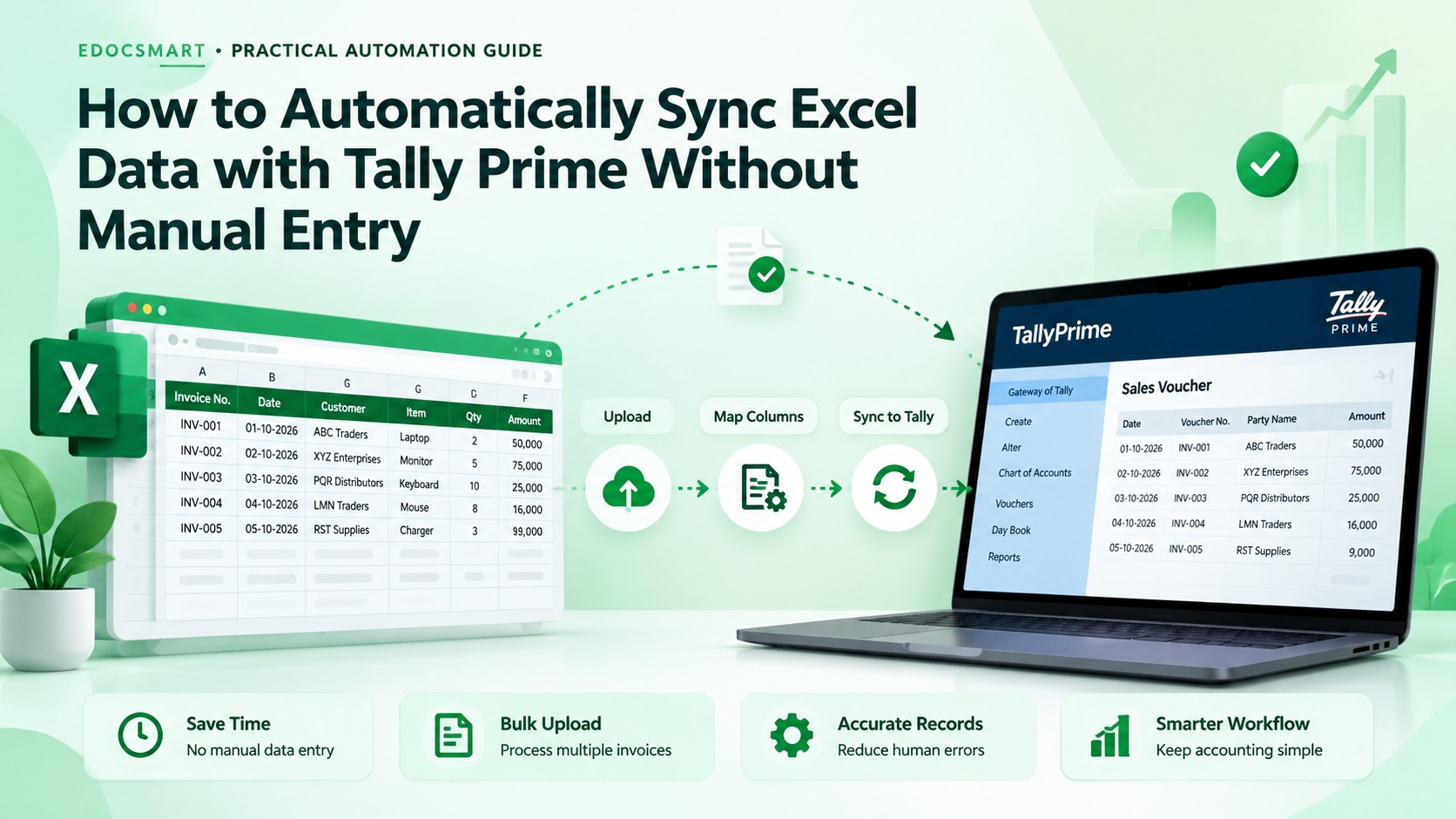
Why Manual Excel-to-Tally Entry Slows Down Accounting
Imagine a wholesale business that generates 350 sales invoices every week. Each invoice contains customer information, product details, quantities, GST calculations, and final amounts.
The business maintains its accounting records in Tally Prime, but its sales transactions are initially recorded in Excel.
Entering every invoice manually into Tally Prime can take considerable time. Accountants must repeatedly select customer ledgers, enter invoice numbers, add stock items, calculate taxes, and verify transaction totals.
When hundreds of invoices are involved, this repetitive process can slow down accounting operations and increase the risk of data-entry mistakes.
This is where Excel-to-Tally automation becomes useful.
Instead of manually recreating each transaction, businesses can use a structured workflow to transfer Excel accounting data into Tally Prime.
Edocsmart provides supported Excel processing workflows that allow users to upload spreadsheets, configure column mappings, review prepared transactions, and synchronize approved records through the Edocsmart Tally Connector.
However, successful synchronization requires more than uploading a spreadsheet and clicking a button.
This guide explains how to automatically sync Excel data with Tally Prime without manual entry, including Excel file preparation, column mapping, transaction review, synchronization, troubleshooting, and final voucher verification.
1. What Is Excel-to-Tally Prime Synchronization?
Excel-to-Tally synchronization is the process of transferring structured accounting information from Excel into Tally Prime without manually entering each transaction.
For example, an Excel sales workbook may contain the following information:
Invoice No. | Date | Customer | Taxable Amount | GST | Total |
|---|---|---|---|---|---|
INV-101 | 01-10-2026 | ABC Traders | ₹10,000 | ₹1,800 | ₹11,800 |
INV-102 | 02-10-2026 | XYZ Enterprises | ₹15,000 | ₹2,700 | ₹17,700 |
INV-103 | 03-10-2026 | PQR Distributors | ₹8,000 | ₹1,440 | ₹9,440 |
Note: These transactions are fictional and are provided for illustration.
Instead of manually entering these invoices into Tally Prime, an accountant can prepare the Excel workbook and transfer the records using a supported synchronization workflow.
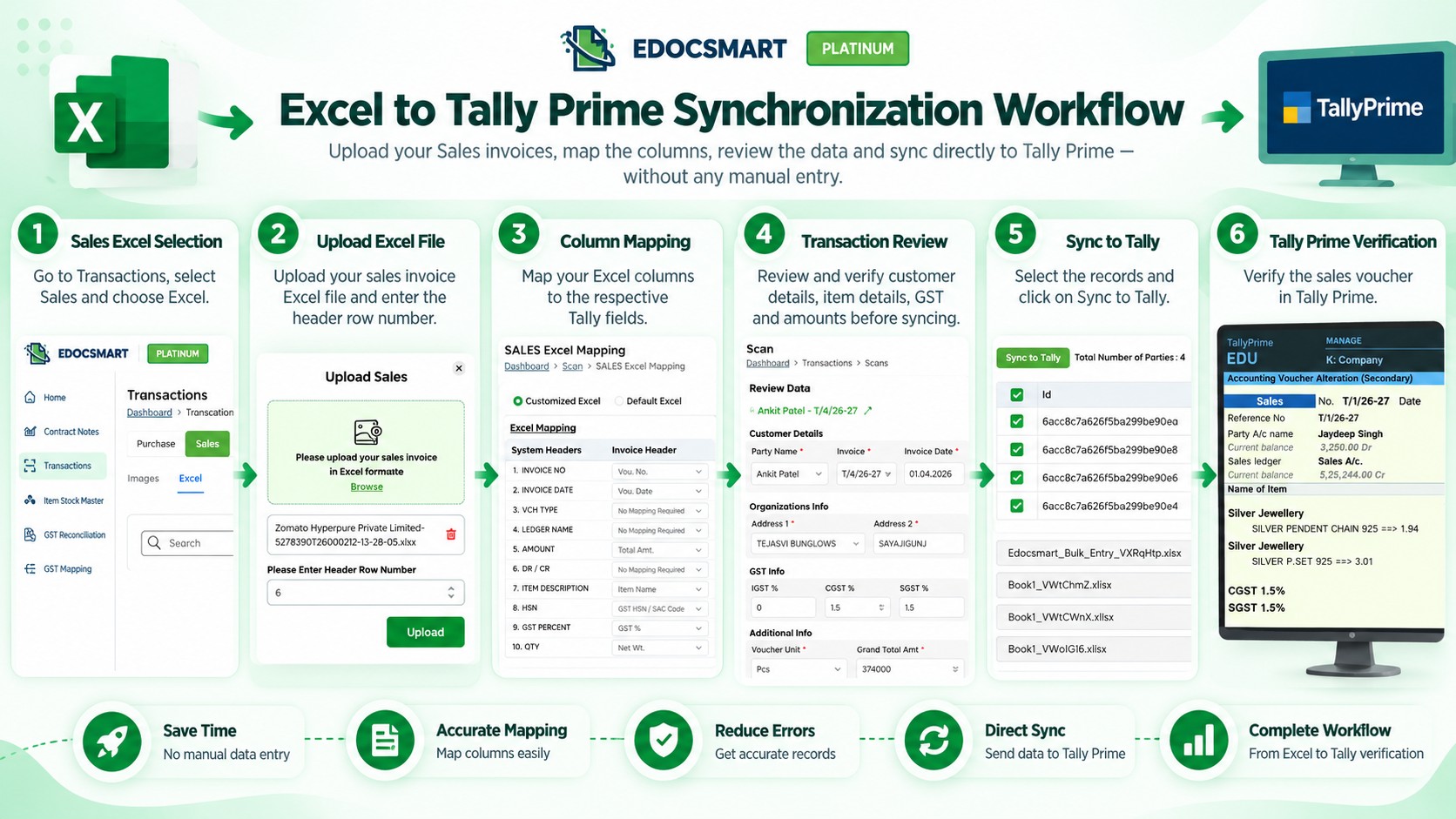
A typical process includes six stages:
Prepare the Excel workbook.
Upload the Excel file.
Map Excel columns to accounting fields.
Process and review the transactions.
Synchronize approved records with Tally Prime.
Verify the resulting accounting vouchers.
2. Requirements Before Syncing Excel Data with Tally Prime
Before starting the synchronization process, ensure that the necessary software, files, and accounting information are available.
Requirement | Purpose |
|---|---|
Excel workbook | Contains structured sales or purchase transactions |
Edocsmart account | Provides access to the supported Excel processing workflow |
Tally Prime | Receives the resulting accounting transactions |
Edocsmart Tally Connector | Connects the supported Edocsmart workflow with Tally |
Correct Tally company | Ensures transactions are recorded in the intended company |
Relevant ledgers and stock items | Supports correct accounting classification where required |
Prepare Your Excel Workbook
Before uploading your Excel file, check that it contains the required transaction details.
These may include invoice number, invoice date, customer or supplier name, ledger details, stock items, quantities, taxable amounts, applicable GST information, and invoice totals.
Ensure that invoice numbers are consistent, mandatory fields are not blank, and financial calculations are correct.
For example, if an invoice has a taxable value of ₹10,000 and applicable GST of 18%, the total would be ₹11,800, assuming no other charges or adjustments.
If the workbook contains multiple rows for one invoice, those rows must be interpreted correctly during processing.
A properly structured Excel file reduces the likelihood of mapping problems and incorrect accounting entries.
3. How to Automatically Sync Excel Data with Tally Prime Using Edocsmart
Follow the steps below to prepare, review, and synchronize supported Excel transactions.
Step 1: Open Edocsmart and Select the Excel Workflow
What to do:
Access the Edocsmart application and select the appropriate Excel processing workflow for your accounting data.
How to do it:
Open the Edocsmart platform.
Sign in using your authorized account.
Locate the relevant Excel processing utility.
Select the appropriate workflow, such as Purchase Excel or Sales Excel, depending on the transactions you want to process.
For example, if your Excel workbook contains sales invoices, choose the supported sales Excel workflow.
What happens next?
The selected workflow provides the relevant upload and configuration options for processing the transaction data.
The exact menu location should be confirmed using the current Edocsmart interface.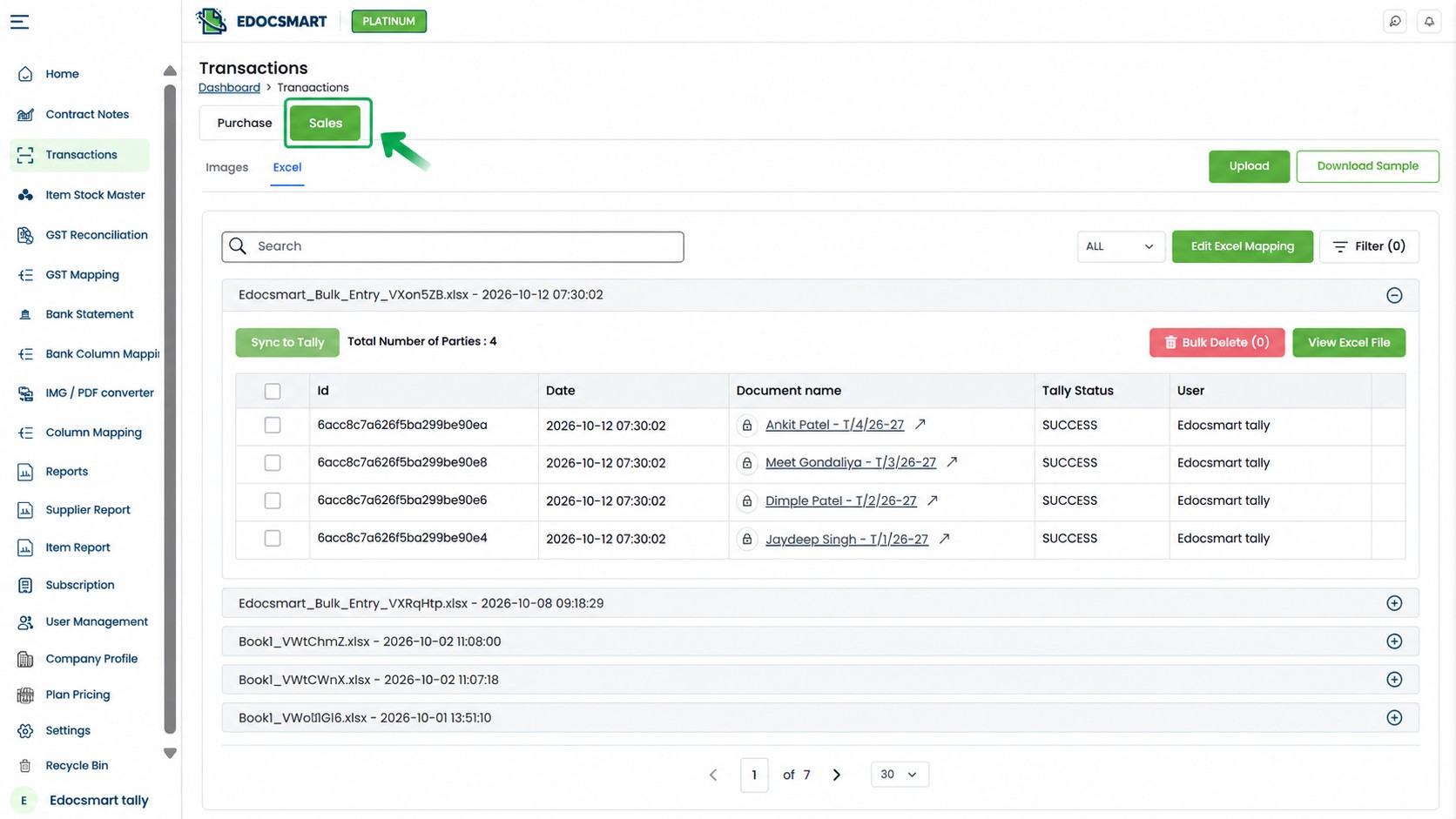
Step 2: Upload Your Excel File
What to do:
Upload the Excel workbook containing the transactions you want to synchronize with Tally Prime.
How to do it:
Open the Excel workbook on your computer.
Check the invoice numbers, dates, customer details, and amounts.
Ensure that the workbook follows the selected workflow's requirements.
Return to the relevant Edocsmart Excel processing screen.
Locate the available file upload control.
Select the Excel workbook from your computer.
Complete the upload using the instructions displayed in the application.
Practical example:
Suppose your Excel workbook contains 150 sales invoices.
Instead of manually entering all 150 invoices into Tally Prime, you can upload the structured workbook into the relevant Edocsmart workflow.
What happens next?
The uploaded Excel data becomes available for mapping and processing.
Remember that uploading a workbook does not mean the invoices have already been created in Tally Prime.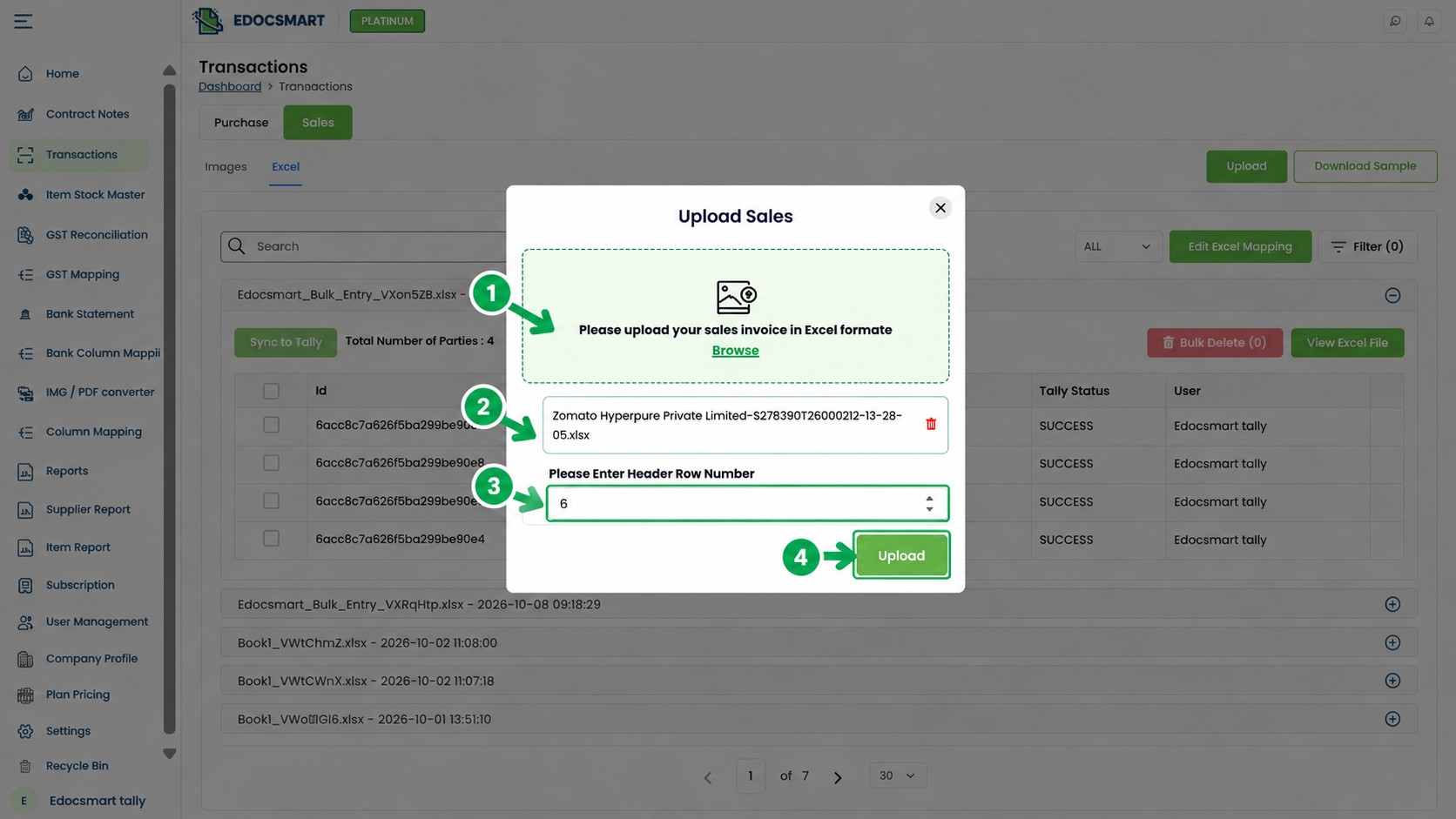
Step 3: Map Excel Columns to Accounting Fields
What to do:
Configure how Edocsmart should interpret the columns in your Excel workbook.
Different businesses may use different column names for the same accounting information.
For example, one business may use "Bill No." while another uses "Invoice Number." Both may represent the same accounting field.
How to do it:
Open the available column-mapping interface.
Identify the source columns from your uploaded Excel workbook.
Match each source column with its corresponding accounting field.
Review the mappings for invoice number, date, customer, ledger, item, tax, and amount.
Confirm the intended mappings before continuing.
Example column mapping:
Excel Column | Intended Accounting Field |
|---|---|
Bill No. | Invoice or voucher number |
Bill Date | Voucher date |
Customer Name | Party ledger |
Product Name | Stock item |
Quantity | Item quantity |
Taxable Amount | Taxable value |
GST Amount | Applicable tax details |
Grand Total | Invoice total |
These mappings are illustrative. The actual fields depend on the selected Edocsmart workflow.
What happens next?
The configured mappings help the application interpret the uploaded Excel data and prepare the transaction records.
Incorrect mapping can cause wrong ledger assignments, missing information, or incorrect accounting amounts.
Therefore, this step should be reviewed carefully before processing the transactions.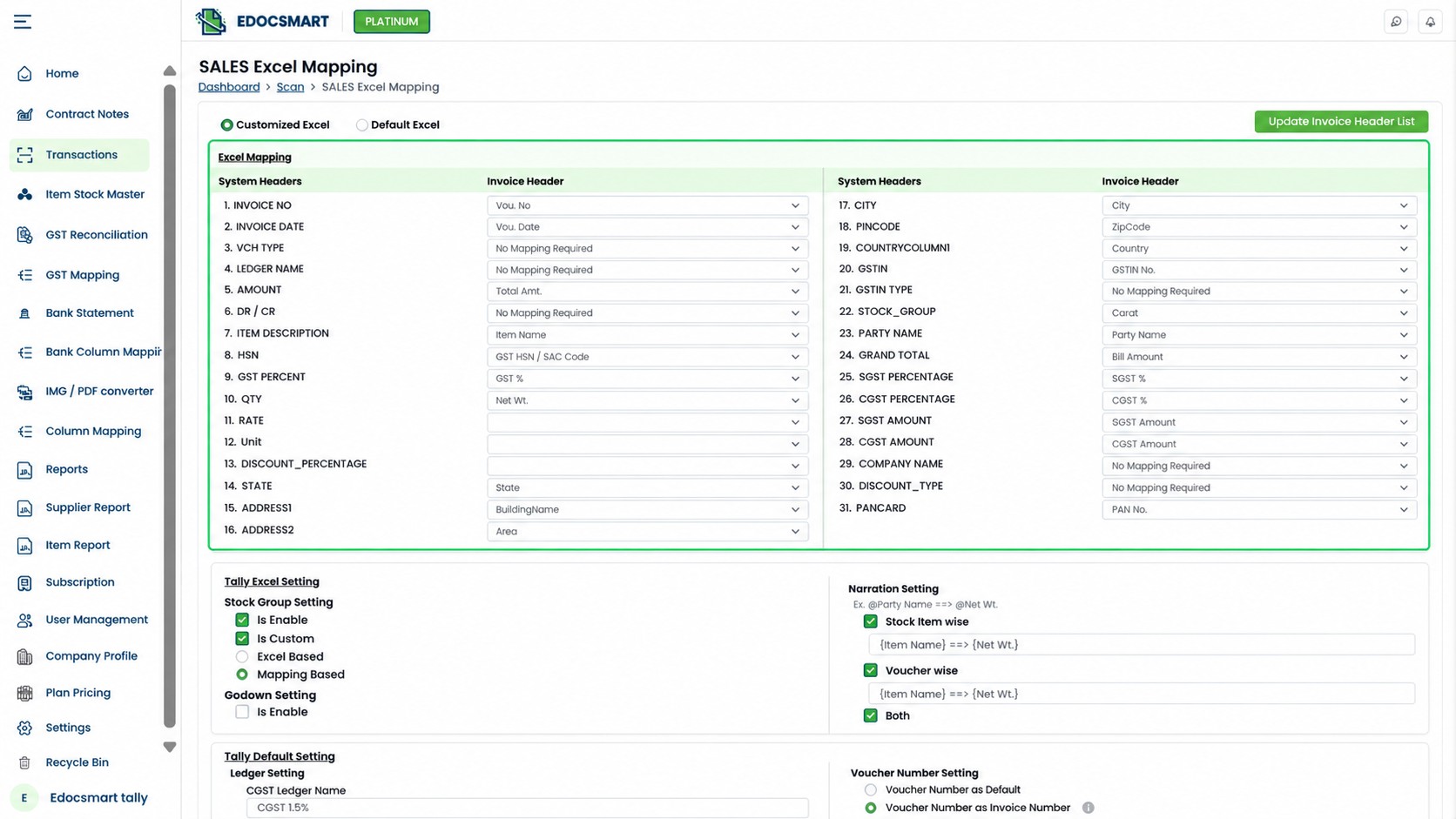
Step 4: Process and Review the Transactions
What to do:
Process the mapped Excel data and inspect the prepared transaction records before synchronization.
How to do it:
Complete the required column mappings.
Continue using the actual processing control available in Edocsmart.
Open the prepared transaction records.
Review invoice numbers, dates, customer or supplier details, ledger information, and amounts.
Check whether multiple rows belonging to the same invoice have been interpreted correctly.
Identify any incomplete or incorrect transaction information.
Select or approve the intended records where the workflow provides that option.
Practical example:
Imagine an Excel workbook containing 300 rows representing 100 invoices.
Each invoice contains three product rows.
The accounting workflow must correctly interpret these rows so that the resulting records represent the intended 100 invoices rather than 300 unrelated transactions.
The exact grouping behavior depends on the Excel structure and the configured processing workflow.
What happens next?
The reviewed transactions become ready for synchronization.
This stage gives accountants an opportunity to identify incorrect information before it reaches Tally Prime.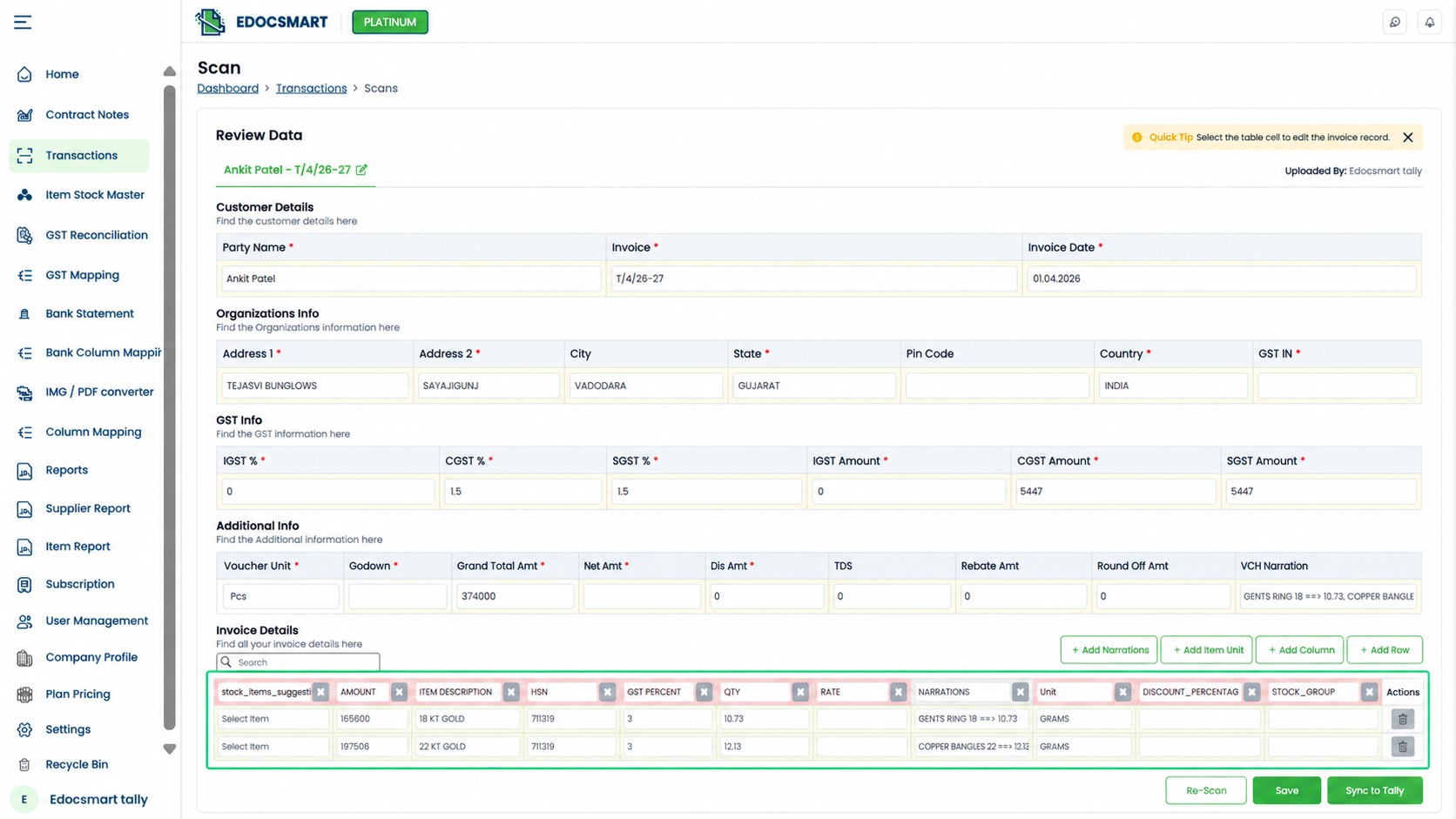
Step 5: Sync the Approved Transactions to Tally Prime
What to do:
Transfer the reviewed transaction records through the configured Edocsmart Tally Connector.
How to do it:
Open the intended accounting company in Tally Prime.
Confirm that the Edocsmart Tally Connector is configured and available.
Return to the prepared transaction records in Edocsmart.
Select the transactions intended for synchronization, where supported.
Click the available Sync to Tally control.
Review the synchronization information displayed by the application.
What happens next?
The selected transactions are submitted through the configured connector for transfer to the intended Tally environment.
However, a successful synchronization action should not automatically be treated as proof that every voucher has been created correctly.
Final verification is still necessary.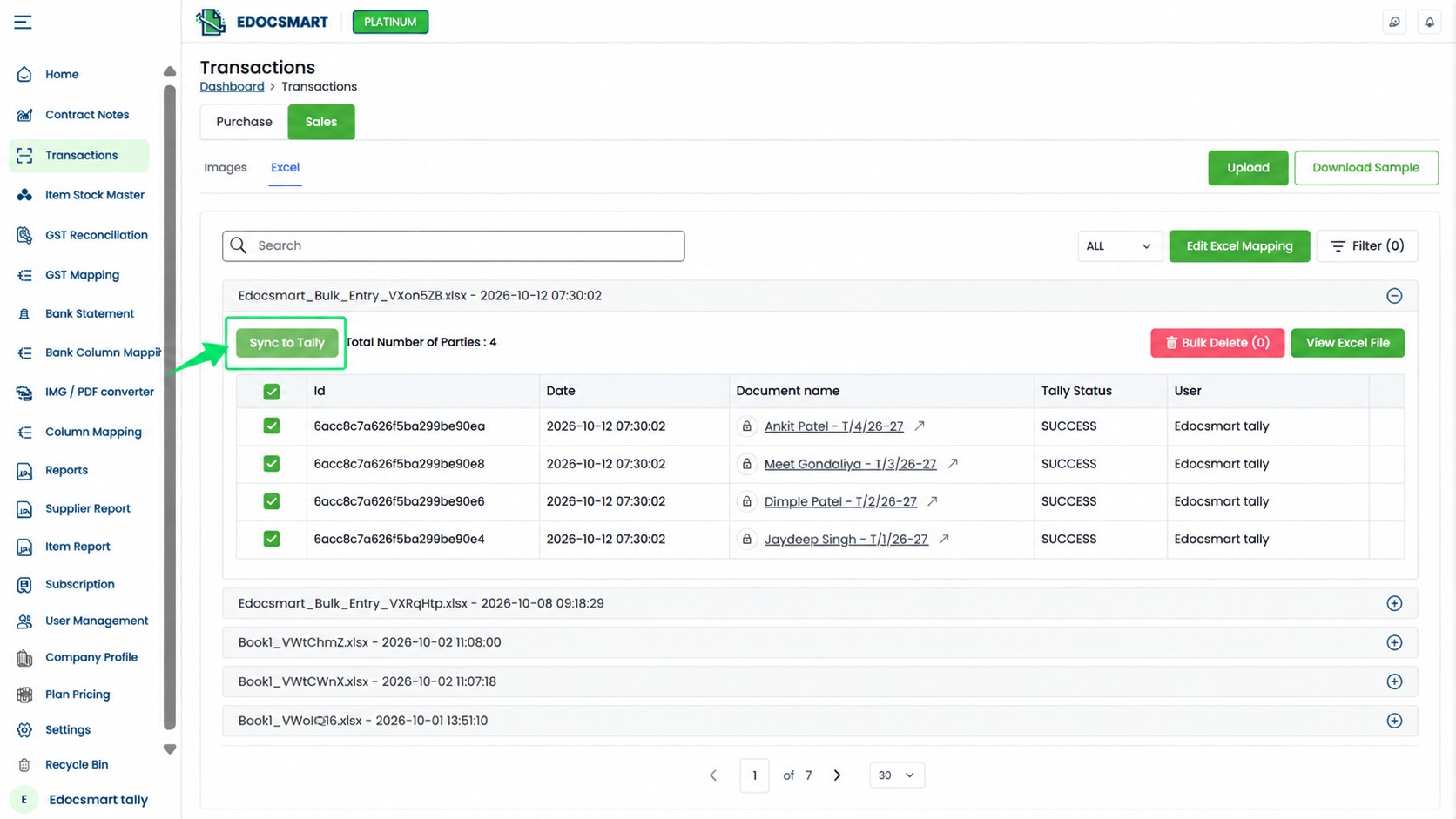 Step 6: Verify the Synchronized Vouchers in Tally Prime
What to do:
Confirm that the expected transactions have been recorded correctly in Tally Prime.
How to do it:
Open the correct company in Tally Prime.
Navigate to the relevant voucher or accounting report.
Select the appropriate transaction date range.
Locate the invoices included in the synchronization.
Compare the voucher numbers and dates with the original Excel workbook.
Verify the customer or supplier ledgers.
Compare taxable amounts, GST values, and final invoice totals.
Investigate any missing, duplicate, or mismatched transactions.
What happens next?
Once the expected vouchers have been verified and any differences resolved, the accounting team can consider the synchronization batch reconciled.
This final step is important because transferring data successfully does not necessarily guarantee correct accounting results.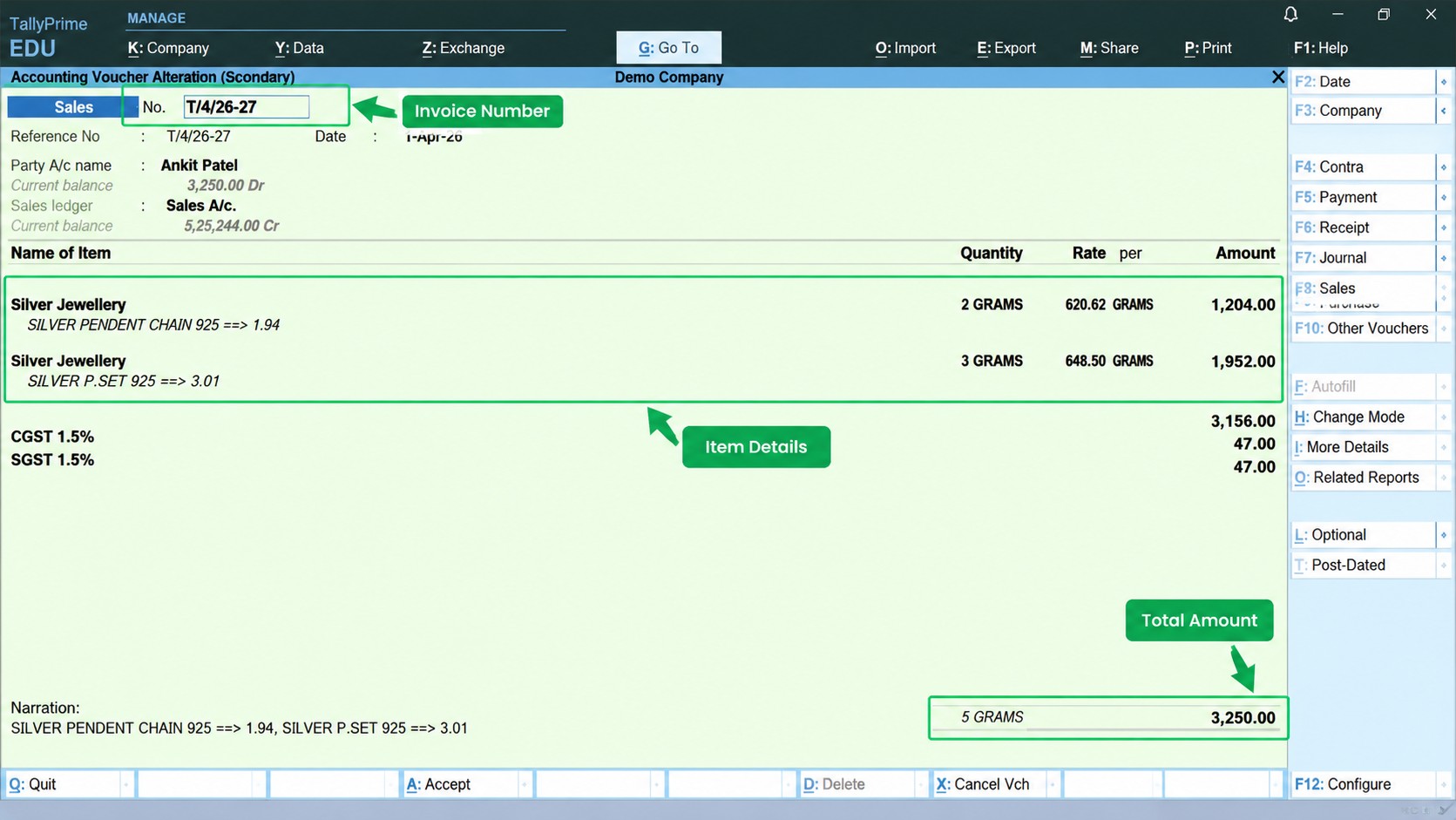
4. Practical Example: Syncing 350 Sales Invoices Without Manual Entry
Consider a fictional electronics distributor that generates 350 sales invoices every week.
The business exports these invoices into Excel and maintains its accounting records in Tally Prime.
Previously, the accountant had to recreate each invoice manually.
Using a structured Excel-to-Tally workflow, the accounting team can upload the workbook, configure field mappings, review the transactions, and synchronize the approved records.
After processing the workbook, the team compares the original Excel invoices with the vouchers in Tally Prime.
Reconciliation Detail | Illustrative Result |
|---|---|
Total Excel invoices | 350 |
Verified Tally vouchers | 346 |
Invoices requiring investigation | 4 |
Count-based completion rate | 98.86% |
The completion rate is calculated using the following formula:
Completion Rate = (Verified Vouchers ÷ Expected Invoices) × 100
(346 ÷ 350) × 100 = 98.86%
This means that 98.86% of the expected invoices have been verified by count.
However, it does not mean the accounting data is 98.86% accurate.
The accounting team must also compare financial totals, tax calculations, ledger assignments, and invoice details.
The remaining four invoices must be investigated before the batch can be considered fully reconciled.
[IMAGE 8: Excel-to-Tally Reconciliation Example]
Image instructions: Create a professional 16:9 green-and-white infographic showing 350 expected invoices, 346 verified vouchers, and four invoices requiring investigation. Clearly label the figures as illustrative.
Alt text: Example of reconciling Excel invoices with Tally Prime vouchers.
5. Common Excel-to-Tally Synchronization Problems and Solutions
Even with automation, synchronization problems may occur because of incorrect Excel data, mapping errors, or connector configuration issues.
Problem | Possible Cause | Recommended Solution |
|---|---|---|
Excel file cannot be processed | Missing fields or unsupported structure | Review the selected workflow's file requirements |
Incorrect customer ledger | Wrong mapping or inconsistent ledger name | Verify the Excel source and intended ledger |
Invoice amount mismatch | Incorrect tax values or mapping | Recalculate totals and check field mappings |
Missing voucher | Transaction was not successfully recorded | Review the available sync result and check Tally |
Duplicate invoice | Previously processed records were submitted again | Check existing vouchers before retrying |
Connector issue | Connection or configuration problem | Verify the Edocsmart Tally Connector setup |
How to Prevent Duplicate Invoices
Duplicate transactions can create accounting differences.
For example, if the same sales invoice is recorded twice, the reported sales balance may be overstated.
Before synchronizing an Excel workbook again, check whether its invoices already exist in Tally Prime.
Maintain a record of processed invoice numbers, transaction periods, and synchronization batches.
If a previous synchronization was incomplete, investigate which records are missing before submitting the workbook again.
Do not assume that every duplicate transaction will automatically be detected or prevented by the integration.
6. Edocsmart vs Native Excel Import in Tally Prime
TallyPrime also provides native Excel import functionality.
Users can import supported accounting information using predefined Excel templates or custom mapping templates.
Edocsmart provides a separate workflow for supported Excel processing and connector-based synchronization.
Feature | Edocsmart | Native TallyPrime Import |
|---|---|---|
Excel preparation | Supported Excel processing workflow | Excel template or mapping setup |
Column mapping | Configured through Edocsmart | TallyPrime mapping templates |
Transaction transfer | Edocsmart Tally Connector | Built-in import functionality |
Transaction review | Prepared records reviewed before synchronization | Import configuration and preview options |
Voucher verification | Required | Required |
The most suitable approach depends on the business's existing workflow, spreadsheet structure, and integration requirements.
For businesses that want to prepare and review Excel transactions outside Tally Prime before transferring approved records, Edocsmart provides a relevant workflow to explore.
7. Best Practices for Reliable Excel-to-Tally Automation
Use a Consistent Excel Format
Maintain standard column names and data structures for recurring exports.
Frequent changes to the workbook format may require adjustments to the configured mappings.
Verify Ledgers and Stock Items
Check that the necessary accounting masters are available for the selected workflow.
Do not assume that missing ledgers or stock items will be created automatically.
Test a Small Batch First
Before processing hundreds of invoices, test a small representative batch.
Include transactions with different tax details, multiple items, and relevant ledger combinations.
Review Transactions Before Synchronization
Check invoice identifiers, customer or supplier information, ledger assignments, amounts, and tax details before approving transactions.
Reconcile After Synchronization
Compare the original Excel records with the resulting Tally vouchers.
Both transaction counts and financial totals should be reviewed.
Maintain Processing Records
Keep a record of completed batches, invoice ranges, and relevant synchronization information.
This helps with troubleshooting, reconciliation, and duplicate prevention.
Frequently Asked Questions
1. Can I automatically sync Excel data with Tally Prime without manual entry?
Yes. Supported Edocsmart workflows allow users to prepare and transfer Excel transaction data without manually recreating each voucher. Configuration, review, and verification are still necessary.
2. How do I upload an Excel file to Edocsmart?
Open the appropriate supported Excel processing workflow, locate the available upload control, select the workbook, and complete the upload using the displayed instructions.
3. Can I sync multiple invoices from one Excel file?
Yes. Supported bulk Excel processing workflows can handle multiple invoices, provided the workbook follows the relevant structure and mapping requirements.
4. Is the Edocsmart Tally Connector required?
The Edocsmart Tally Connector is part of the documented connector-based synchronization workflow. Native TallyPrime Excel imports use a separate built-in process.
5. What happens if an Excel column is mapped incorrectly?
Incorrect mapping can result in wrong transaction information or processing problems. Review the field configuration and prepared records before synchronization.
6. Does Edocsmart automatically sync Excel changes in real time?
The described workflow uses an available Sync to Tally control for transferring approved records. Continuous real-time synchronization should not be assumed without confirmation of that capability.
7. How can I verify that Excel invoices were successfully synced?
Open the relevant vouchers in Tally Prime and compare them with the original Excel records. Check invoice numbers, dates, ledgers, taxes, and totals.
8. Can I sync both purchase and sales transactions?
Edocsmart provides relevant Excel processing workflows for supported purchase and sales transactions. Requirements and available fields depend on the selected workflow.
9. Can Tally Prime import Excel data without Edocsmart?
Yes. TallyPrime provides native Excel import functionality using supported templates and mapping configurations.
10. What should I do if some invoices are missing after synchronization?
Compare the Excel invoice list with the vouchers in Tally Prime, review the available processing information, identify the missing records, and correct the underlying problem before retrying.
Conclusion
Automatically syncing Excel data with Tally Prime can help businesses reduce repetitive accounting work and manage bulk transactions more efficiently.
However, reliable automation requires more than uploading an Excel workbook.
A complete workflow includes preparing the source data, mapping accounting fields, reviewing transaction information, synchronizing approved records, and verifying the resulting vouchers in Tally Prime.
Edocsmart supports this process through structured Excel uploads, configurable field mapping, transaction review, and connector-based synchronization for supported workflows.
By combining automation with proper accounting verification, businesses can reduce manual re-entry while maintaining control over their financial records.
Want to simplify your Excel-to-Tally workflow?
Explore Edocsmart Excel to Tally to learn more about its supported Excel processing and synchronization capabilities.