Bulk Excel to Tally with Custom Rules.
See how Edocsmart handles bulk Excel-to-Tally imports with custom stock rules and reference-based HSN mapping, followed by review and sample verification.
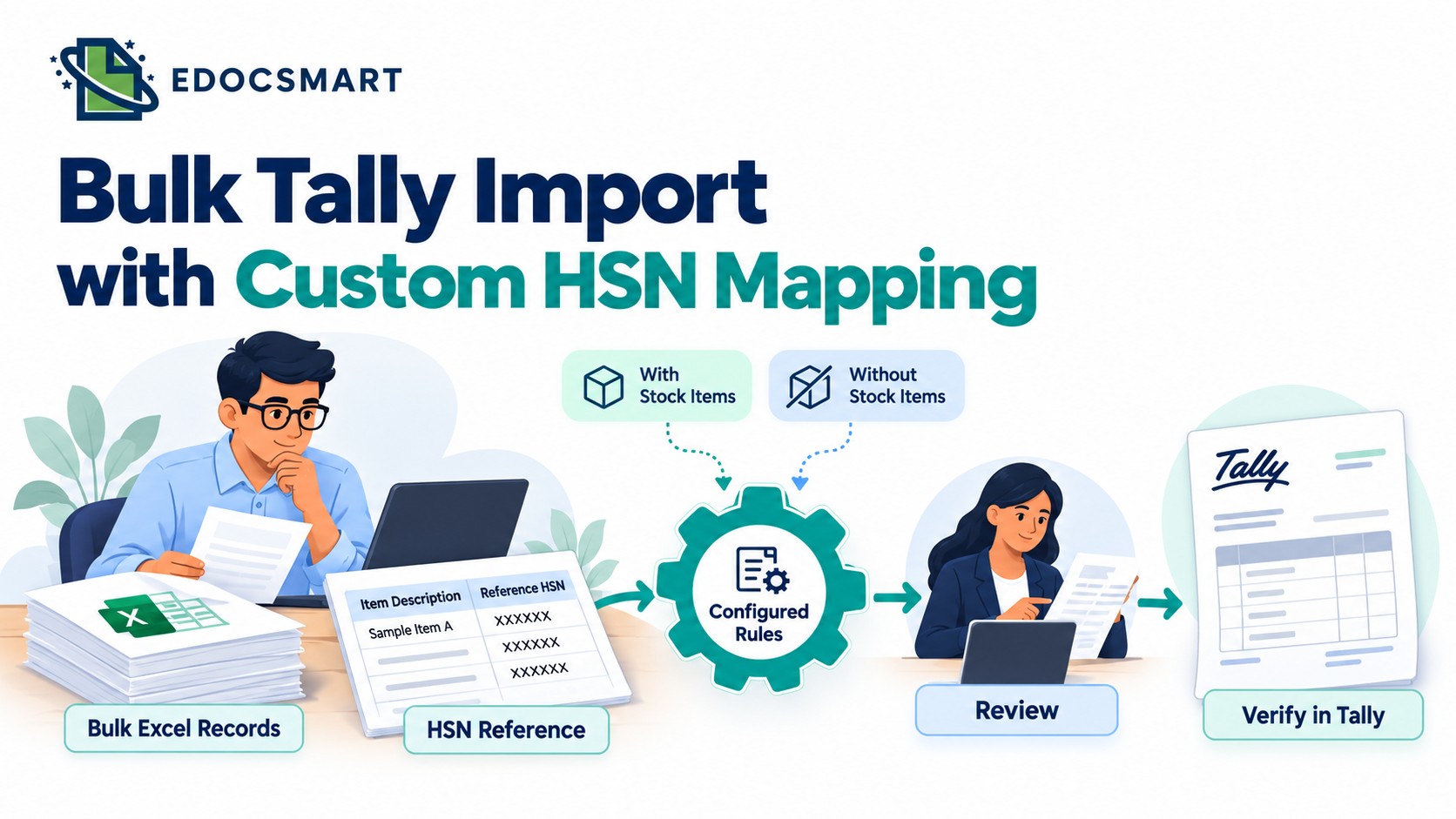
The Excel file was ready. The accounting decisions were still waiting.
For an accountant, that can be the most tiring part of the work. Invoice numbers, item descriptions, quantities, and amounts are already available. Yet the records cannot simply be sent to Tally. Some need a different accounting treatment. Others need information from a separate reference workbook.
Two customer cases show why uploading a file is sometimes only a small part of the requirement.
One accountant needed to process thousands of Excel entries according to specific stock-item rules. Another CA needed the HSN in his prepared records to come from his reference Excel file.
Their requirements were different, but the question was similar: could automation follow their existing accounting process?
Thousands of Entries, but Two Different Treatments
A freelance accountant handling a hospital network received approximately 20–25 Excel files each month. Every file contained around 3,000–4,000 entries.
The volume created pressure, but there was another complication inside the workbook.
An Income column determined how an entry needed to be prepared:
| Income column | Required treatment |
|---|---|
| Contains a value | Prepare the entry without stock items |
| Is empty | Prepare the entry with stock items |
This was a requirement of that particular accounting process.
Treating every record in the same way would not meet the accountant’s needs. Separating the records manually each month would also leave him doing another repetitive task before the import could begin.
He wanted the agreed condition applied during processing, with the resulting entries available for review.
The Invoice Had an HSN—Just Not the Required Source
In the second case, a CA faced a smaller task that kept returning throughout the day: opening a reference workbook to find the maintained HSN for an item.
The supplier invoice already contained an HSN. However, the CA needed the corresponding code from his own Excel reference.
An invoice might show a four-digit code, while his workbook contained a six-digit code against the relevant item description.
Simply reading the printed invoice HSN would leave the lookup unfinished.
The requirement was to select the code from the appropriate reference record. It was not about adding digits, guessing a classification, or changing the original invoice.
| Information | Required source |
|---|---|
| Invoice details and transaction values | Original transaction source |
| Description used to identify the item | Invoice or transaction record |
| Maintained HSN | Reference Excel workbook |
For the CA, useful invoice automation needed to include this reference-based preparation.
The Demo Started with Their Files
Both cases needed a discussion about the expected accounting output.
The hospital accountant explained the condition behind entries with and without stock items. The CA explained why the HSN printed on the invoice was different from the source he wanted to use.
Sample files made those discussions practical. Instead of looking only at a general upload demonstration, the team could examine the records, understand the expected treatment, and work on the required customisation.
That is where Edocsmart entered these workflows.
If your team has a similar requirement, you can discuss your custom accounting workflow with Edocsmart. Share a sample source file, any reference workbook, and an example of the output you expect.
From Custom Requirements to Reviewed Tally Entries
These customer cases involved separate configurations. A workflow combining similar requirements should be confirmed and tested for the intended setup.
Step 1: Provide Representative Files
Share transaction samples and the intended reference workbook.
Include examples from each accounting condition, along with records containing unclear descriptions or missing information. Confirm which reference-file version should be used.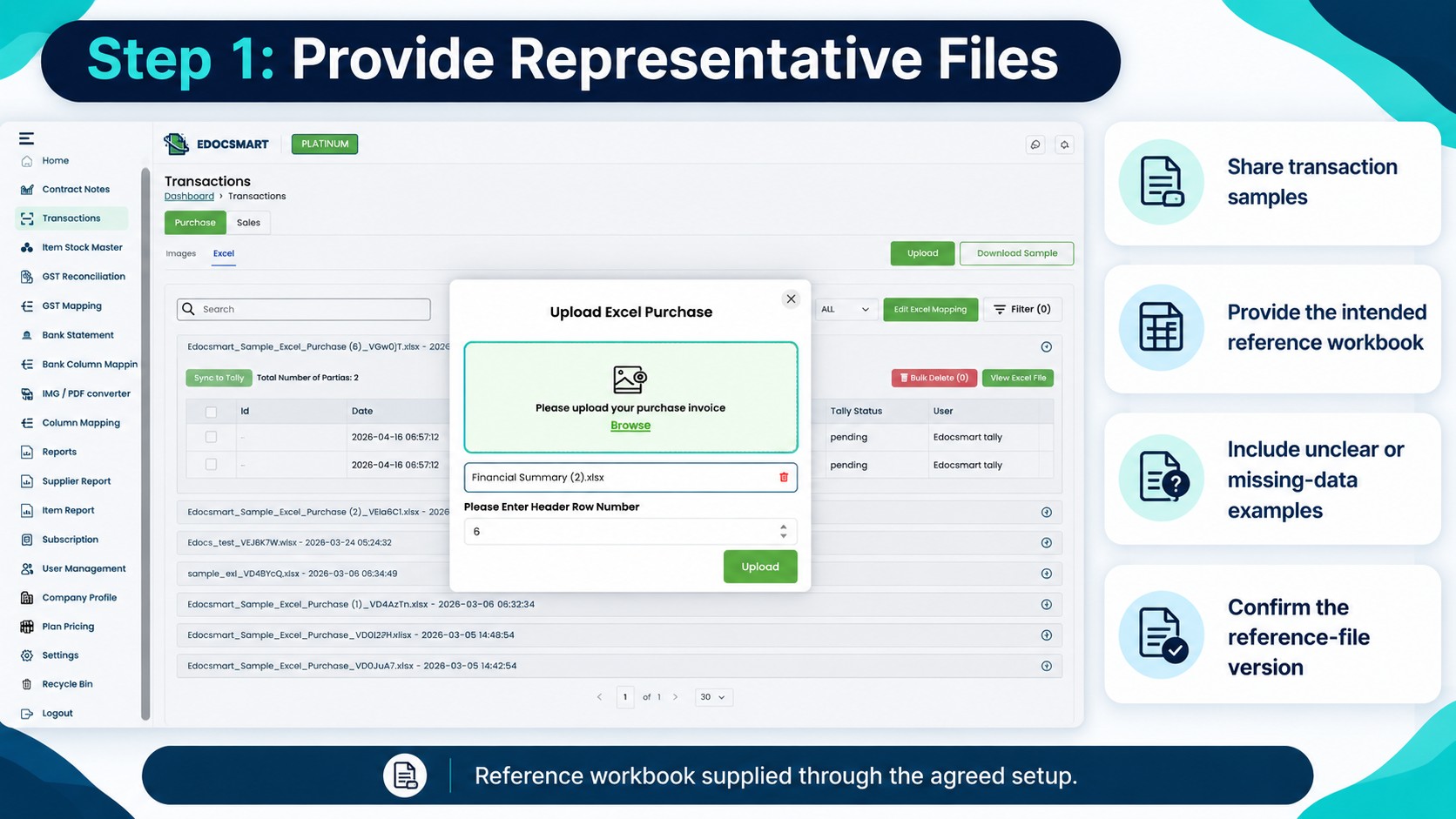
Step 2: Agree on the Rules
Define what each condition means before processing.
For example, clarify whether zero counts as a present Income value. For HSN matching, agree on how unclear or missing references should be handled.
Column mapping identifies where a value is stored. Processing rules determine how it should be used.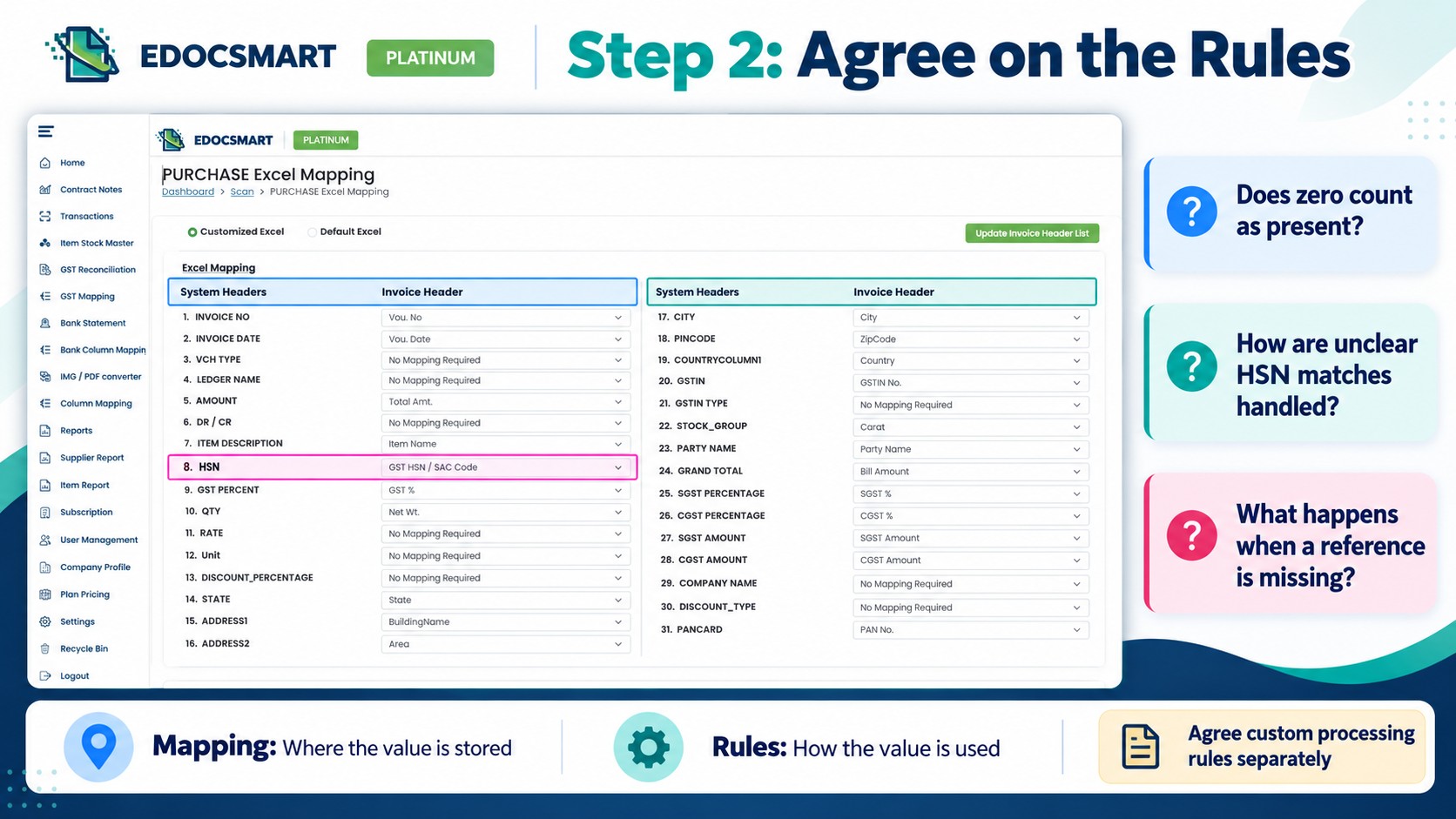
Step 3: Upload Through the Enabled Workflow
Use the Edocsmart workspace agreed for the configuration.
For Excel transactions, choose the relevant Sales or Purchase workspace and enter the actual header row number when requested.
A standard upload should not be assumed to activate a custom reference-based process.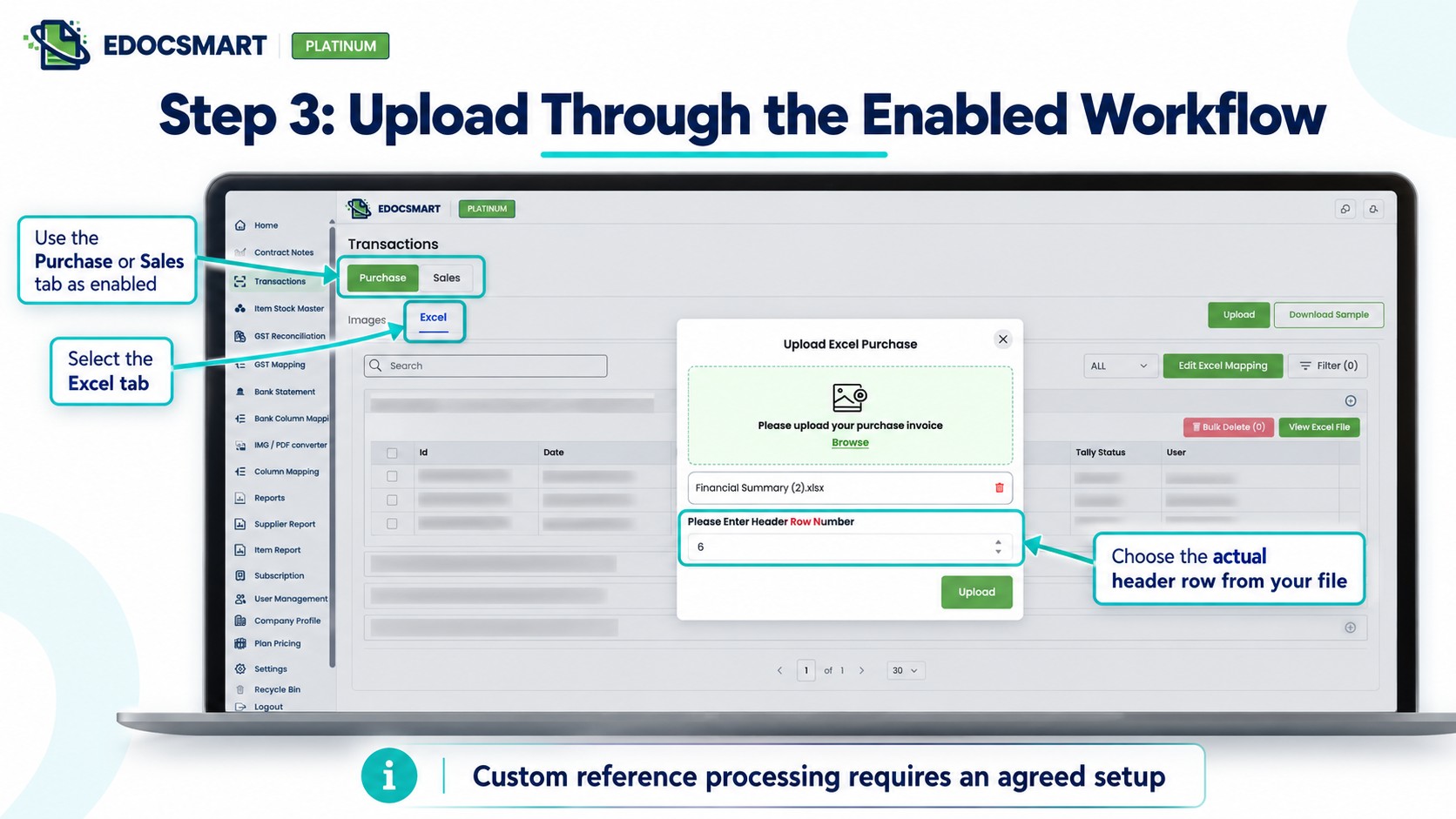
Step 4: Check Mapping and Settings
Review source columns for invoice references, parties, dates, items, quantities, and amounts.
Confirm the HSN reference source and conditional treatment separately. Check relevant ledger, voucher, unit, and stock settings before approval.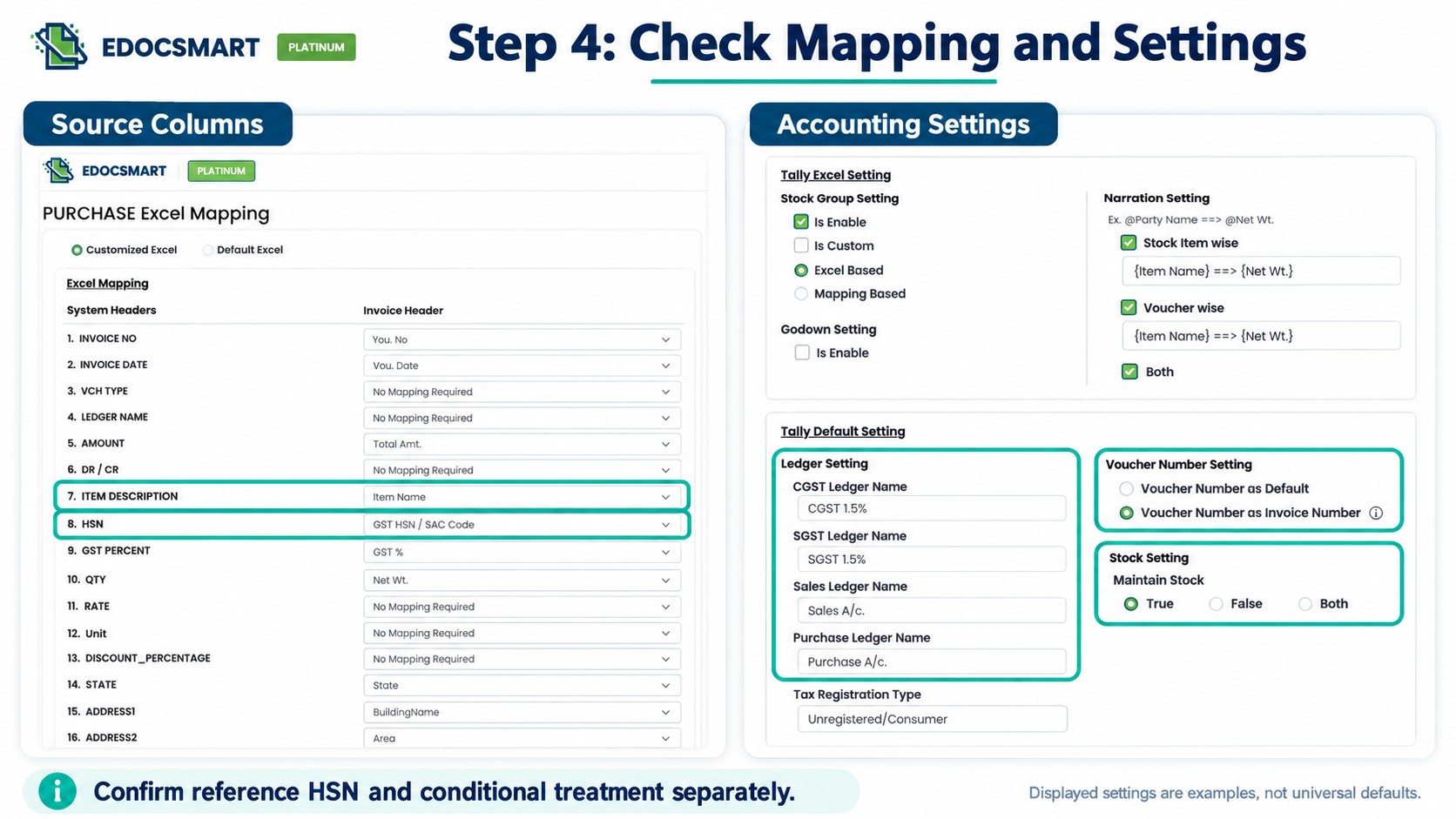
Step 5: Review Both Ordinary and Difficult Records
Check samples from every processing path.
Verify stock-item treatment against the agreed requirement. Compare selected HSN values with the reference workbook, including shorter-code examples and difficult item descriptions.
Also check transaction references, dates, quantities, and totals.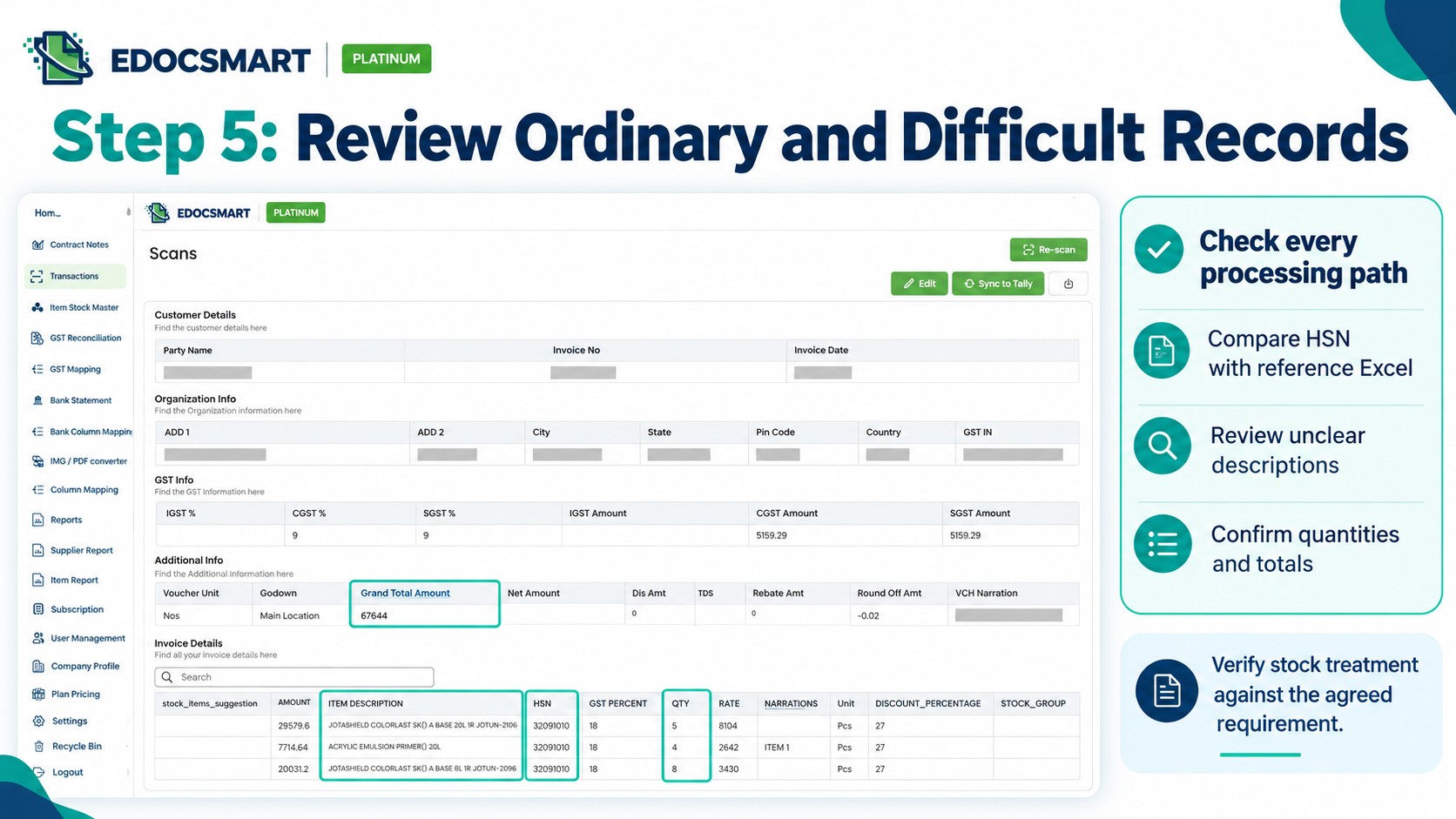
Step 6: Correct Differences and Save
If several records show the same problem, inspect the shared source, reference data, mapping, or processing rule first.
Review the affected records again and save the approved data.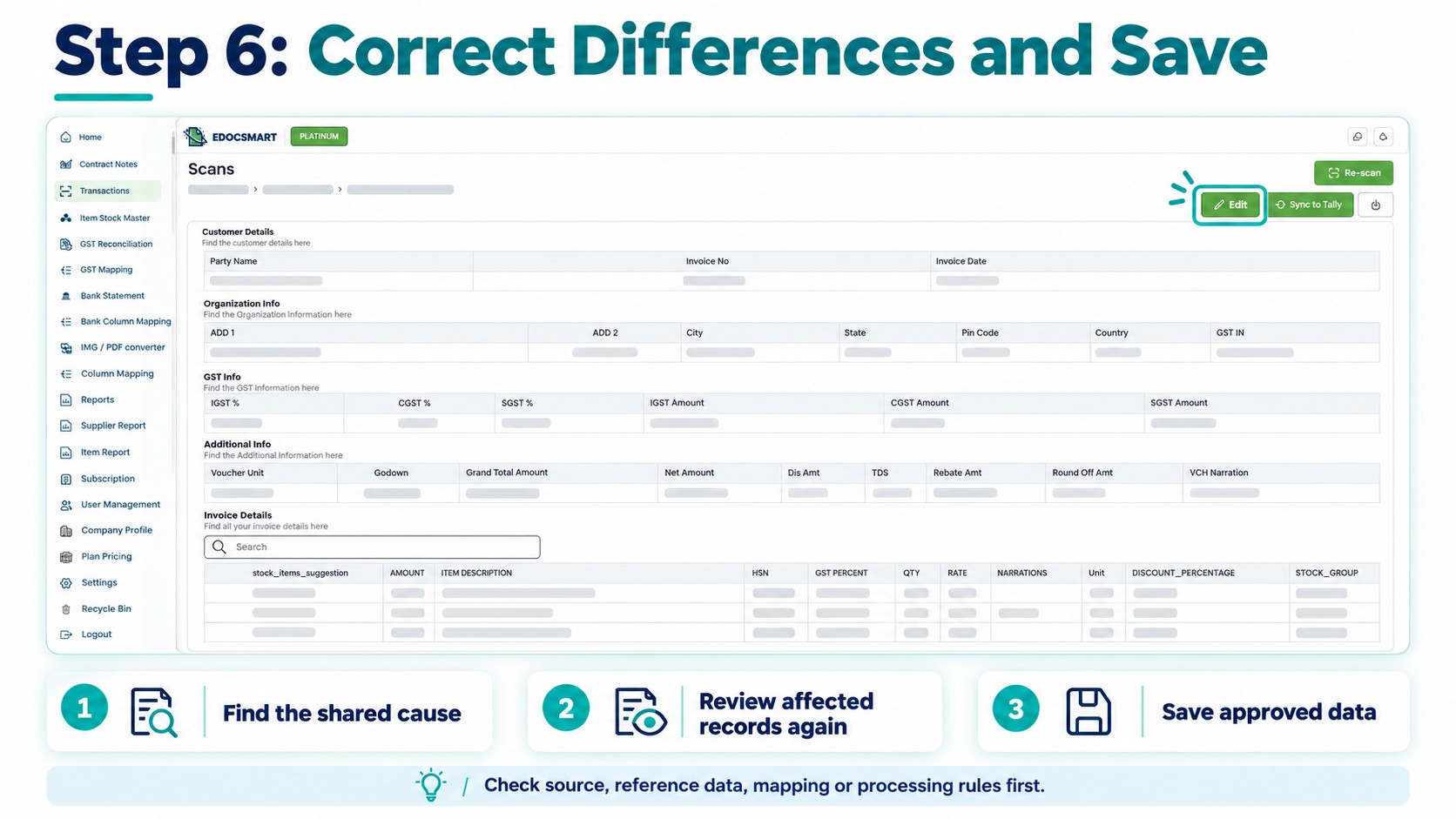
Step 7: Sync a Sample and Verify
Start the Edocsmart Tally Connector and open the intended company. Keep a current company backup.
Sync approved samples and inspect the accounting output in Tally. Confirm the relevant item details, stock treatment, HSN information, and totals before continuing with the remaining records.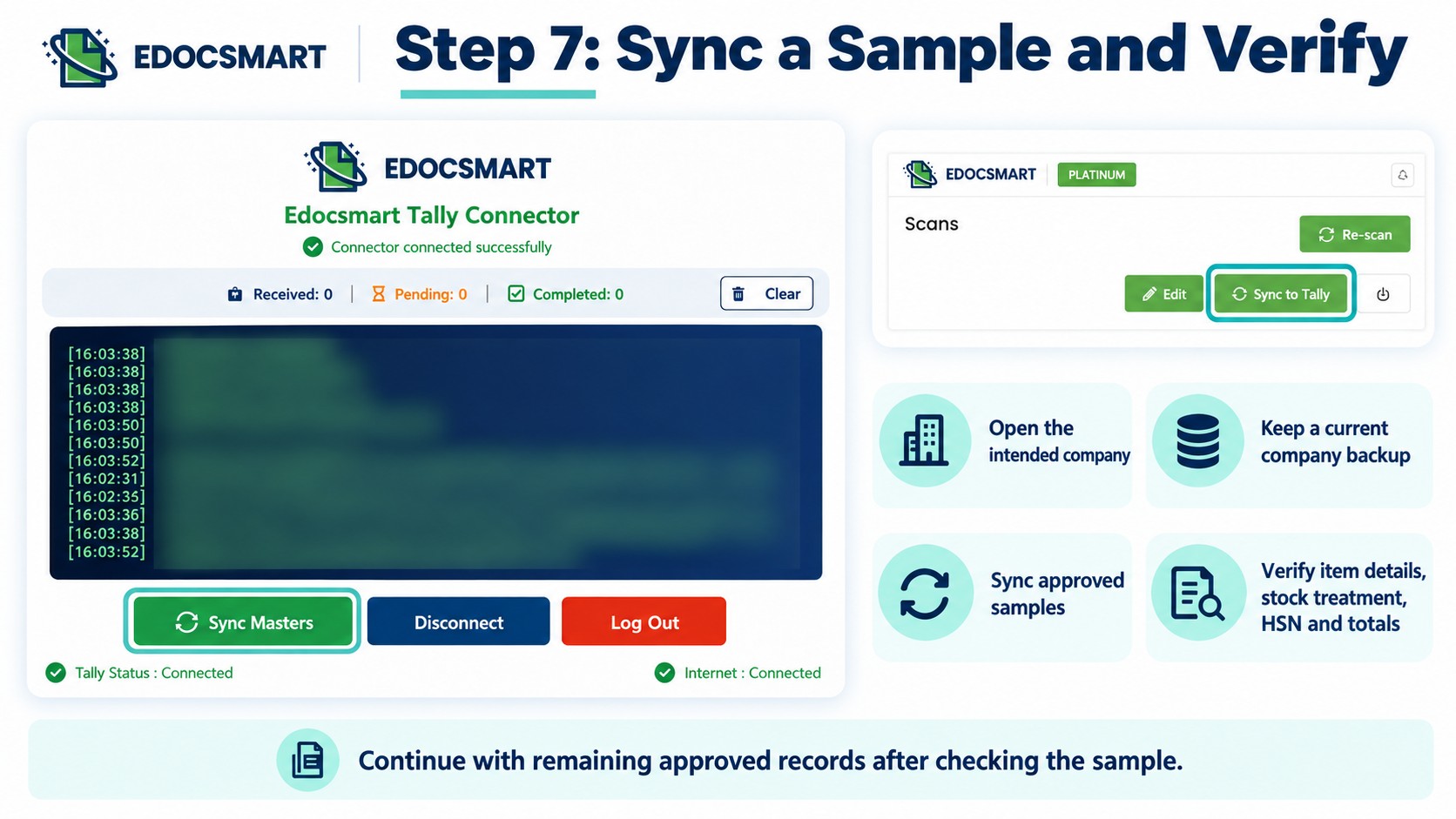
Frequently Asked Questions
1. Can I import Excel entries into Tally?
Yes, using a suitable import workflow with the required mapping and settings.
2. Can different records need different treatment?
Yes. Define the conditions and confirm that the workflow supports them.
3. Can I use HSN codes from my Excel file?
Yes, where reference-based processing has been configured.
4. Will the original invoice change?
No. The selected reference value is used in the prepared accounting record.
5. What if an item cannot be matched?
Review it and confirm the correct reference before approval.
6. Can I reuse the setup next month?
Yes, when the structure, field meanings, and accounting requirements remain consistent.
7. Do I still need to check the output?
Yes. Review prepared records and verify a sample in Tally.
Conclusion
These cases show how specific accounting requirements can shape bulk import. Large volumes need consistent treatment, while reference-based HSN preparation needs the correct source and a clear review process.
Explore the Excel to Tally workflow to understand the upload, mapping, review, and synchronisation process before discussing the customisation your team needs.