Bulk Tally Import with Custom HSN Mapping
Learn how to use HSN codes from your reference Excel file in a customised Tally workflow with Edocsmart, including item matching, review, and verification.
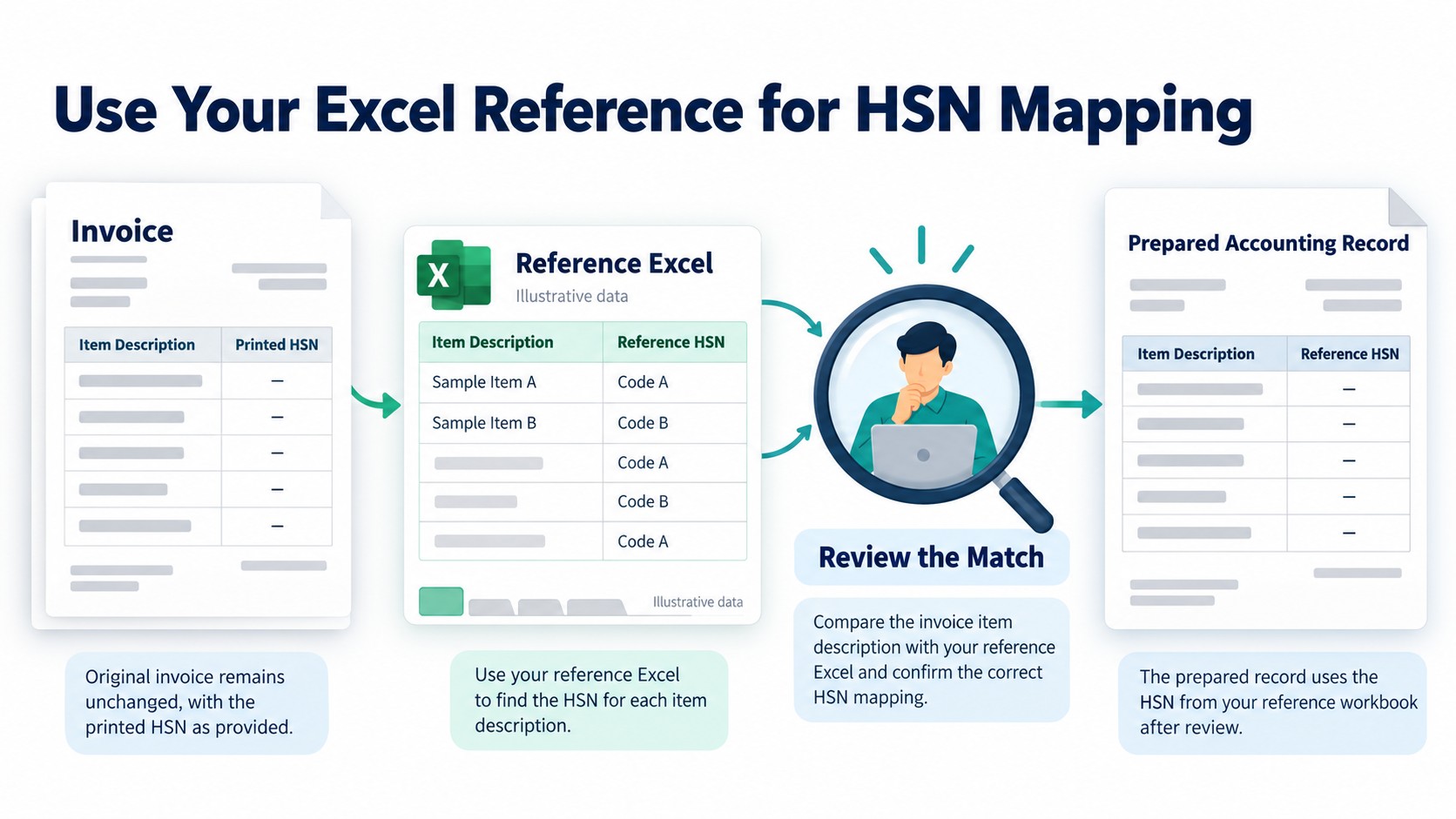
An invoice is received, the information is present, and the accounting entry should be ready to be prepared. However, one more task is still left, open up the reference Excel file and see which HSN to use is to be used.
This can be a small task that can happen multiple times during the day for a CA with many clients. Invoices continue to come in, client needs are variable, and there are records to review before the job is done.
An HSN was listed in the invoice. He required the corresponding HSN from his own excel work file.
The Work Was Ready, but the HSN Check Was Waiting.
The CA maintained a reference workbook of item descriptions and their HSN codes. This file was a key element in the process he used to prepare accounting records.
He could now read the details and amounts on the items on an invoice. But not all the time the HSN printed by the supplier was the number he needed for his flow.
For instance, an invoice might have a 4 digit HSN code, but his reference Excel might have a 6 digit code. To make the final record, he must compare the item with that workbook.
This added a step between receipt of the invoice and the completion of the accounting tasks.
It took only one record to check. He wanted to do the same look up over incoming invoices and make it easier to do.
He Needed More Than Data Extraction
An normal extraction process can read the HSN that is printed on the invoice and return the value. Even if he was able to correctly extract a value, it would not be enough to solve this CA's problem.
He wished to get a different source to supply the field.
| Information | Required source |
|---|---|
| Information on the invoice such as the invoice number, date, and transaction information. | The invoice |
| Information used for source matching (item description) | The relevant source details |
| The record readied by HSN. | The record provided by HSN in his Excel file. |
The condition was to not alter the supplier's original invoice. It was to use the agreed Excel reference when preparing the accounting data.
It was not a request to convert all 4-digit codes to 6-digit codes, either. The value of the longer had to be retrieved from the suitable reference record, not by addition or estimation of digits.
It was not a mere copying but a source selection and matching requirement.
The CA began his search for a solution that could be implemented.
The CA wanted to save some time repeating the same comparison. He started searching the web for a solution that would fit his reference file and accounting needs.
In his Google search, he discovered an Edocsmart and requested a demo.
That provided him with a chance to describe the real issue. He didn't just say “Is it possible to get the HSN codes?” He said his invoice was one thing and his Excel file was another and that the record he had prepared required the HSN that had to be maintained in the workbook.
This proved helpful for the discussion. The team could examine his sample documents, grasp the required outcome and proceed to concentrate on the particular requirement.
Customisation Begins with His Files
The Edocsmart team worked on the case and completed the customisation as provided in this customer experience.
The key was to realize how an invoice item should be related to the related excel record. To implement a suitable workflow more than just a description column and an HSN column is required.
For instance, the configuration should consider scenarios like:
- A description of an invoice that differs from the reference description.
- There are two or more alternative reference records.
- An item missing from the workbook.
- Changes in the description or HSN in a newer reference file.
The exact matching method needs to be verified in the set-up stage. If the match is unclear, it should not be tacitly accepted as an accounting value.
This is where a tailored talk can be helpful. The expected result is first, the configuration follows that requirement.
The process of configuring a workflow.
After the customisation was available, the CA was able to leverage his Excel reference in the agreed process.
The task might be broken down into the following steps:
Step 1: Give Client the Reference Workbook.
Utilize the intended excel file, including item description and maintained HSN codes. State that it is an appropriate version to the records being created.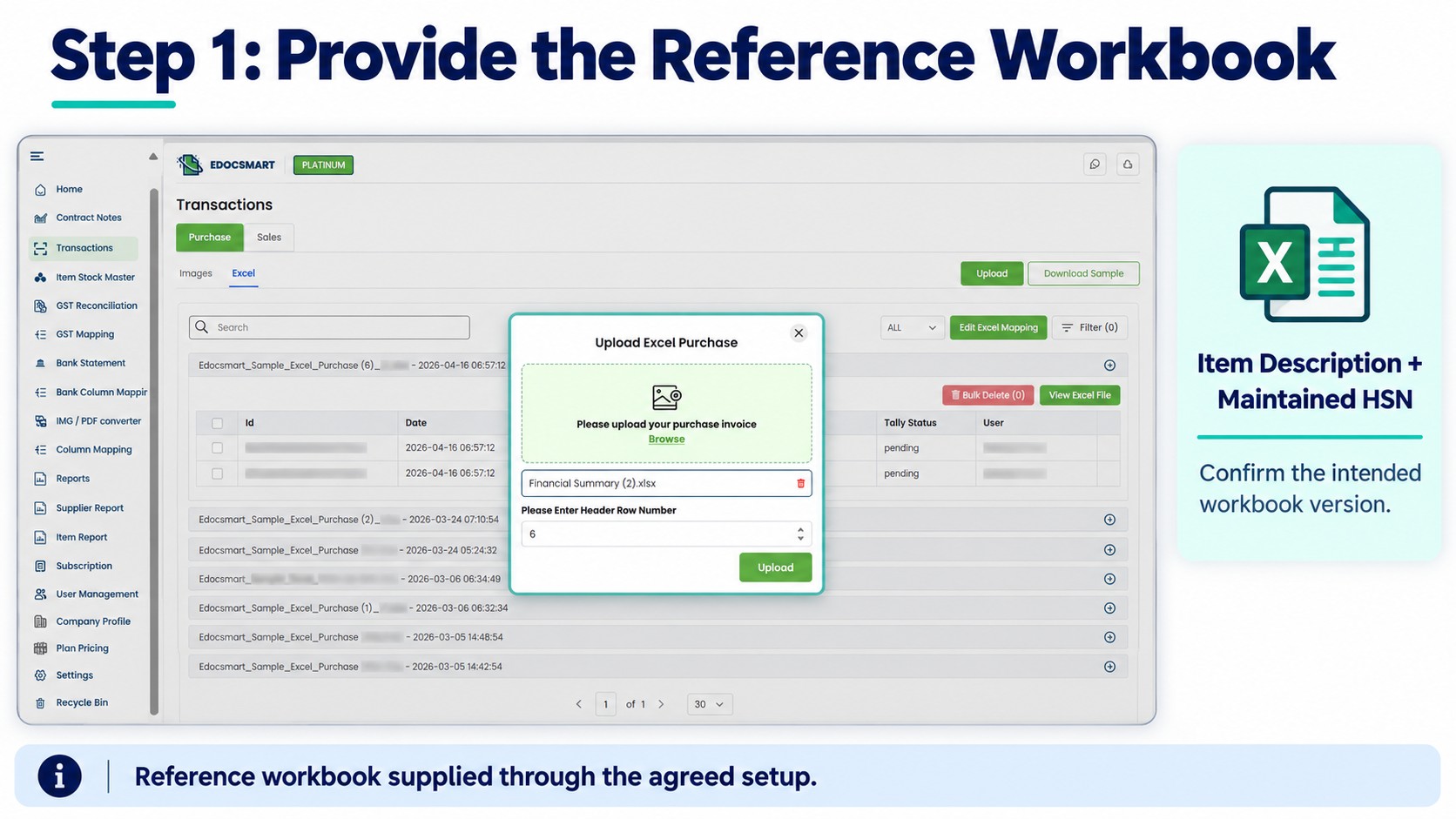
Step 2: Upload via the Agreed Process
Upload the appropriate files via the enabled workflow. A custom reference-based setup should not be expected to operate in the same manner as all other standard uploads.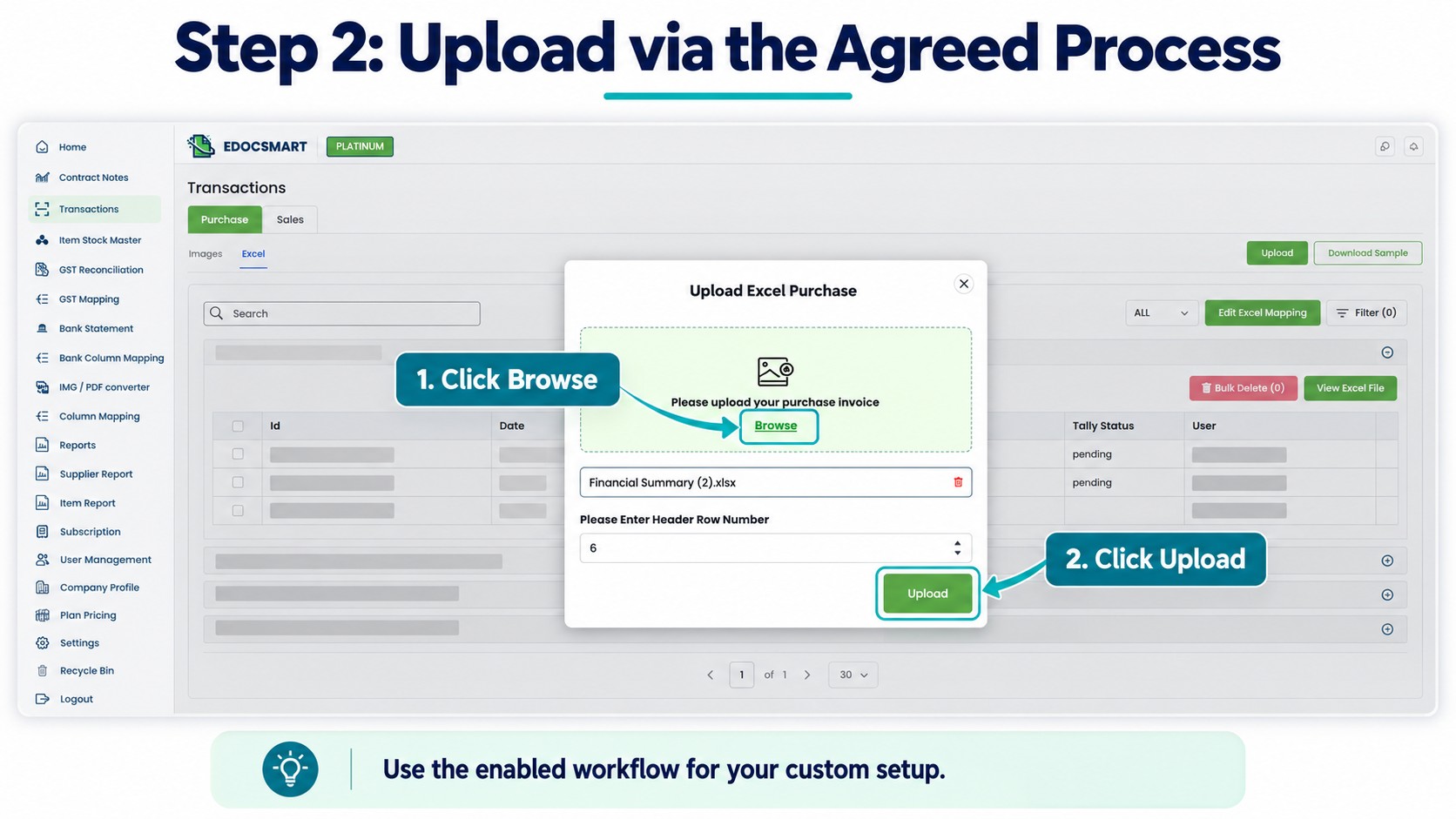
Step 3: Review the Prepared HSN Values.
Check the representative records and compare the item descriptions and selected HSN values to the reference workbook.
Use cases where the invoice contains a shorter code, and difficult-to-match records.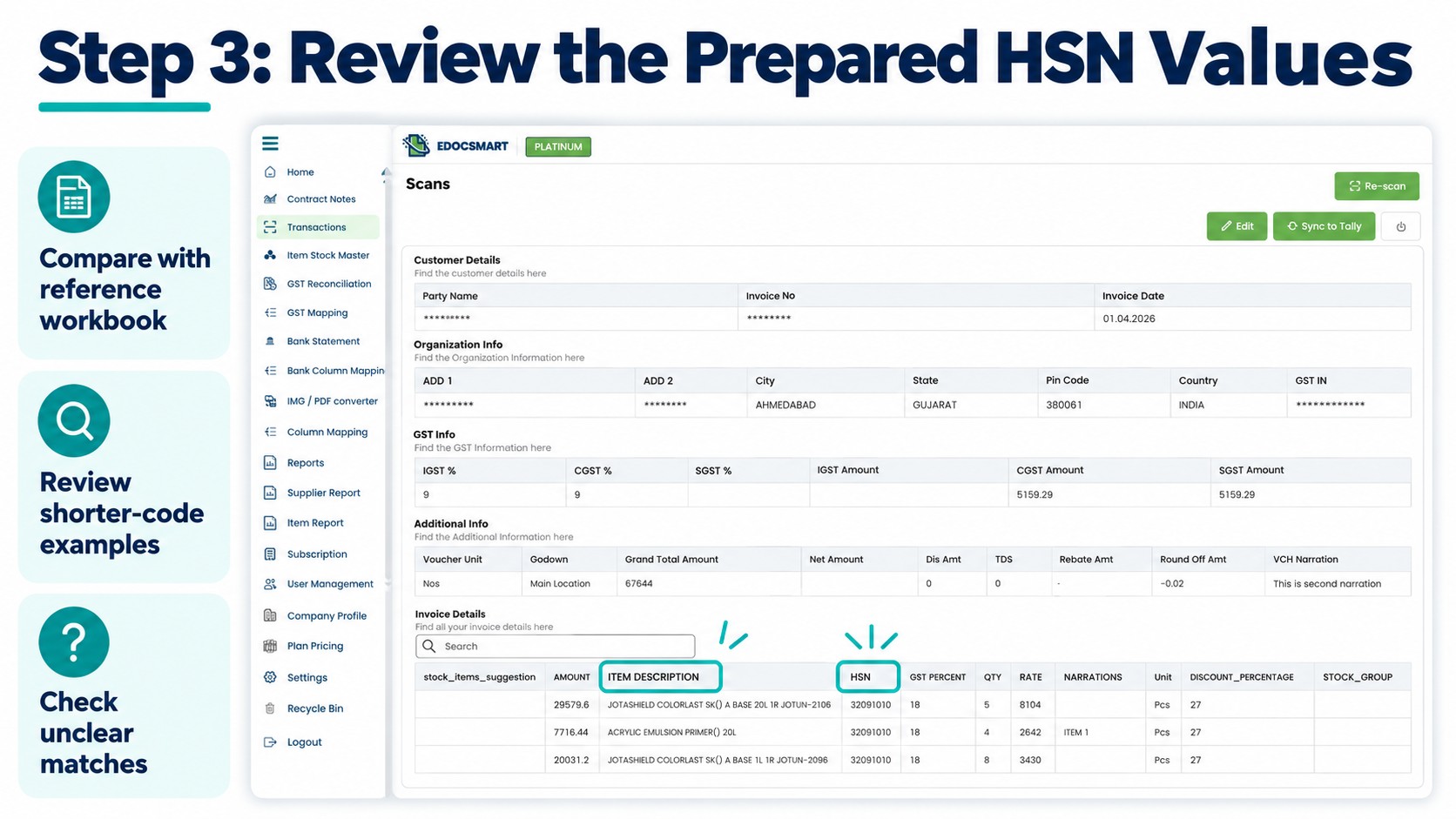
Step 4: Address differences and move on to a resolution.
Review ambiguous or incorrect results prior to approval. When multiple records are affected, check the reference data or matching configuration.
Save the entries that were reviewed.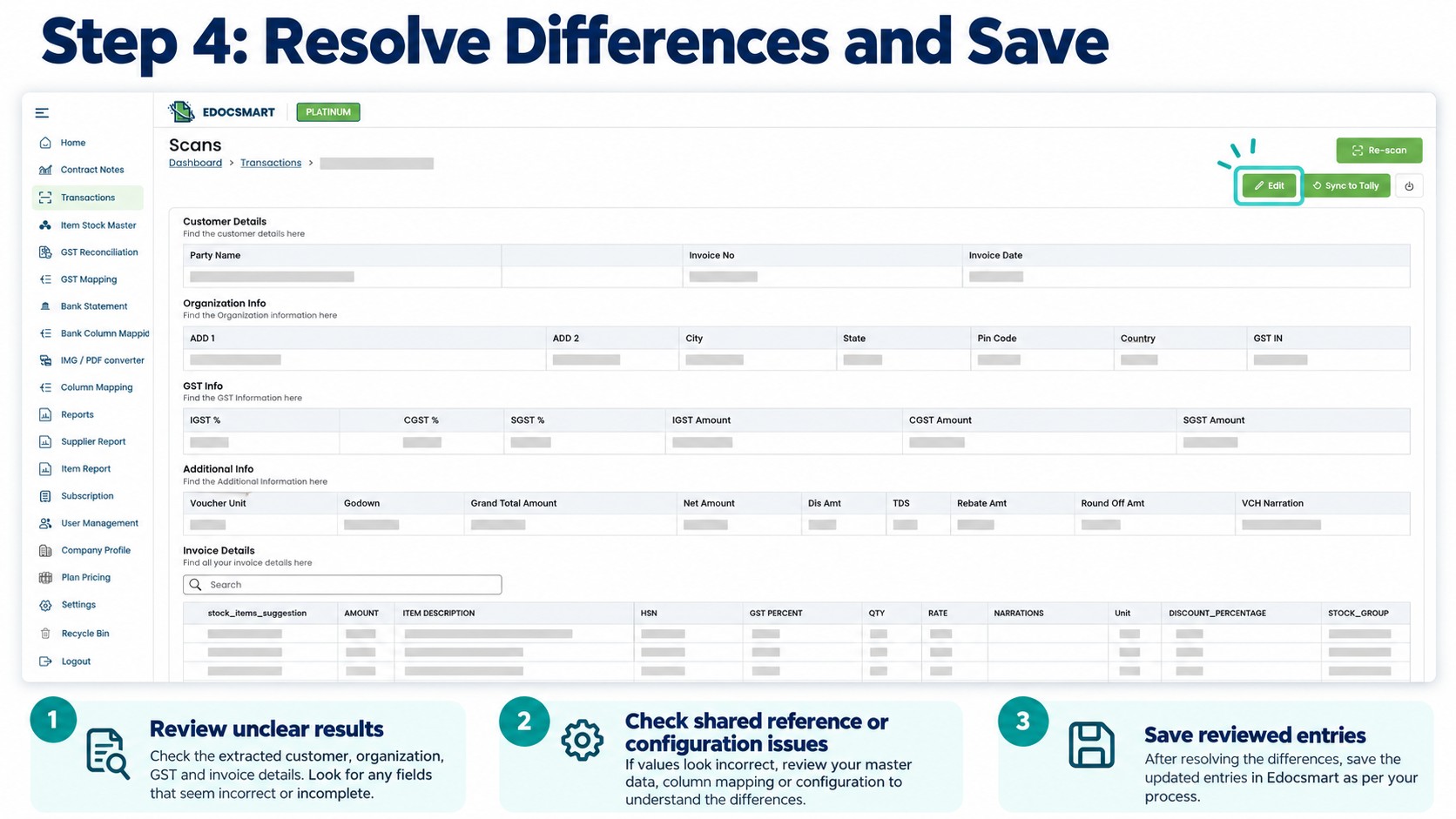
Step 5: Check the Accounting Output
If synchronization with Tally is available, please start the Edocsmart Tally Connector and open the required company.
Move an approved sample and check the information about the item or voucher before proceeding with the remaining records.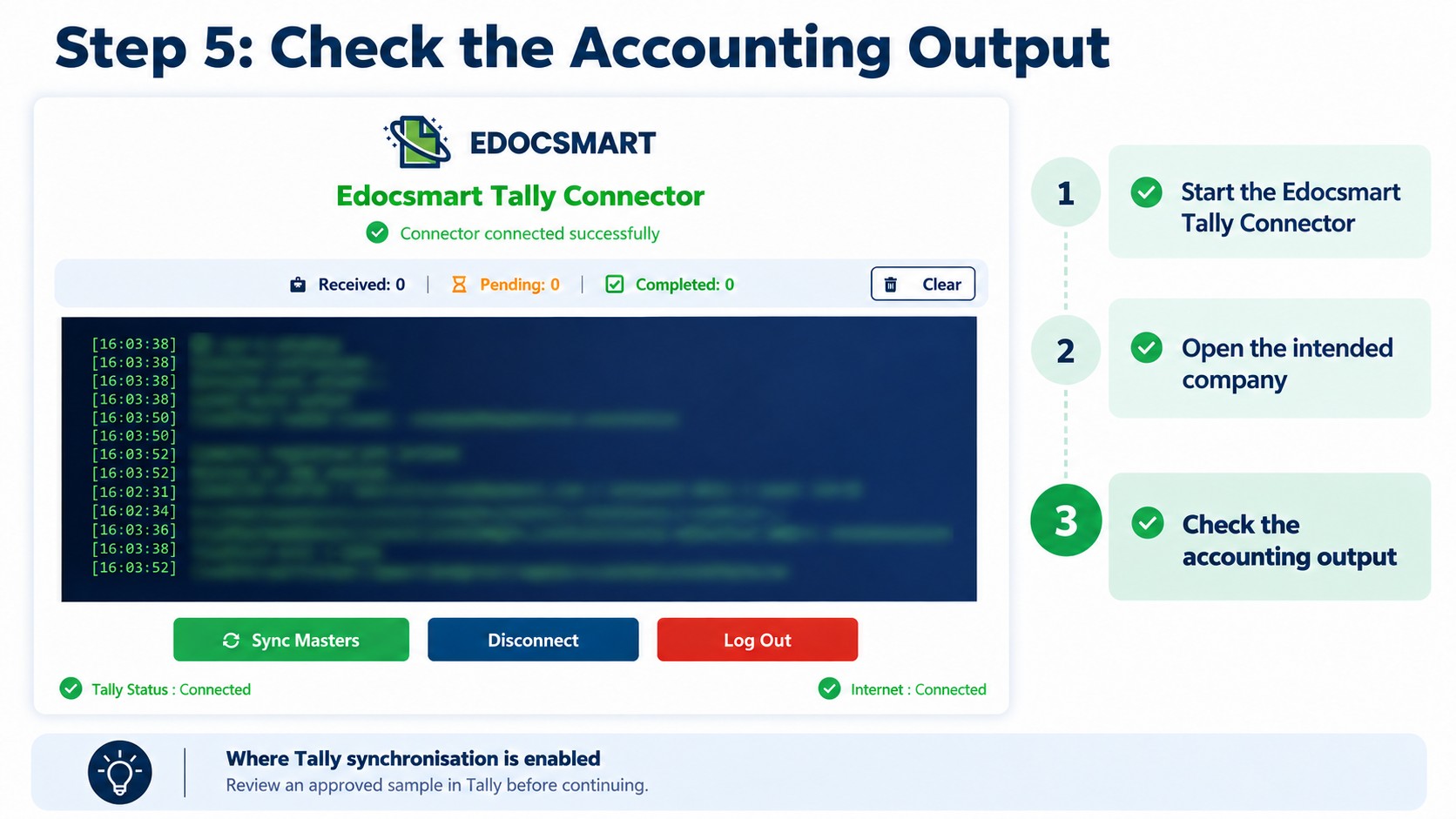
Why was the result useful?
The CA was pleased with the provided customisation and easy to manage.
The benefit was specific as his Excel reference could be applied to the process he had configured, rather than have to go to the same HSN look up for every applicable record.
Review had still found a space. The reference workbook also had to be up-to-date. Automation relies on the data provided and agreed rules and does not make the determination that an HSN classification is right.
This case did not have any confirmed data on the time-saving aspect. The result was a process that met the real need of the CA.
Is a similar requirement a possibility for Your Team?
Your repetitive task may be a bit different. The data on a document might need to be verified against an item list stored internally, or a field should be added from a reference file that is maintained.
In such instances, seeking “invoice automation” might be too general. Demonstrate the specific task(s) you wish to decrease.
If it's helpful to do a demo, you'll need an example invoice, the reference excel and an example of the output you want. Add a challenging and easy record.
This allows you to evaluate the suggested workflow with your work and not just a generic demo!
Frequently Asked Questions
1. Can I use HSN codes from an Excel file?
Yes. A configured workflow can use your reference Excel file to select HSN codes for accounting records.
2. What should the reference Excel file contain?
It should contain item descriptions and their corresponding HSN codes.
3. Will this change the original invoice?
No. The selected HSN is used in the prepared accounting record. The original invoice stays unchanged.
4. Can a four-digit HSN be changed to six digits?
A six-digit code should come from the correct reference record. It should not be created by simply adding digits.
5. What happens if an item is not found in Excel?
Review the item and confirm the correct reference before approving the record.
6. Can I update my reference Excel file?
Yes. Check the changes and confirm that the workflow uses the intended version.
7. Should I check the records before sending them to Tally?
Yes. Compare item descriptions and selected HSN codes with your reference file before transferring approved records.
Conclusion
The CA never lost any information on the invoice. It was the multiple operations required to process that data to his reference file.
The challenge for Edocsmart was to provide a customisation around that requirement. If your group has a similar challenge, check out Excel to Tally workflow and share your Excel samples.
Request a sample of the outcome you are seeking. Examine the output, check for exceptions, and select the solution to apply to your real-world problems.