BUSY ItemWise vs Local/Central: Which Excel Import Format Should You Choose?
Understand BUSY ItemWise and Local/Central purchase types with Edocsmart. This illustration highlights purchase type settings, stock item master mapping, GST rates, and Excel-based invoice preparation for a more organised accounting workflow.
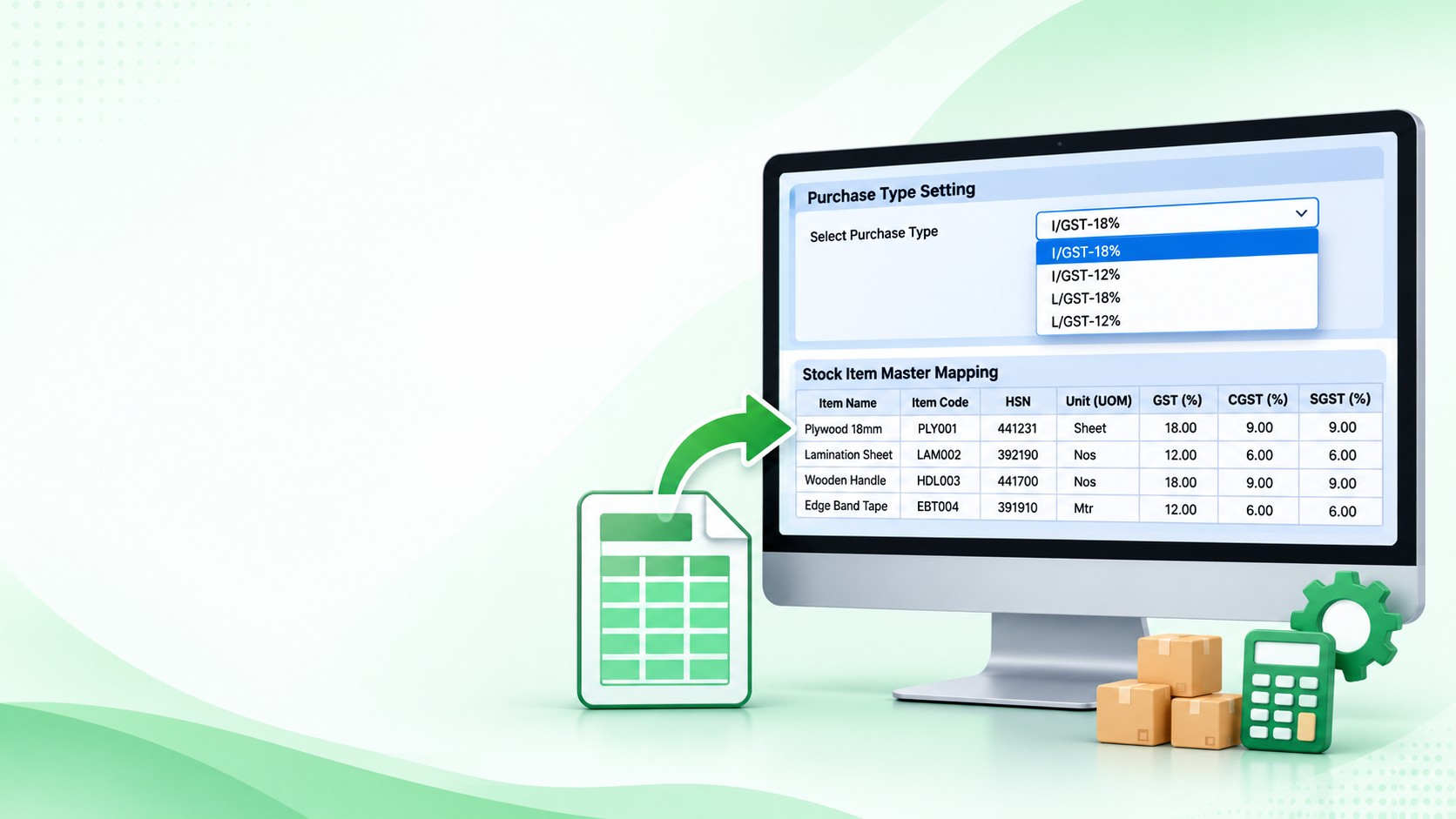
A purchase invoice may look simple when you first open it. But when itscontains multiple items, different GST rates, and supplier details, preparing that information for accounting software requires more attention.
For example, one supplier invoice may include products taxed at 5%, 12%, and 18%. Another purchase may involve a supplier located in a different state. If the Excel export format does not match the purchase type and import configuration in BUSY, the transaction may not be imported as expected.
Edocsmart provides two BUSY export options: BUSY ItemWise and BUSY Local/Central. Understanding how these options relate to your BUSY configuration helps you select the appropriate format before importing purchase invoice data.
What Is the Difference Between BUSY ItemWise and Local/Central?
Both options are related to preparing invoice information for BUSY, but they refer to different aspects of purchase accounting.
1. BUSY ItemWise Format
ItemWise refers to applying GST at the individual item level in a voucher.
For example, consider a purchase invoice containing three products:
| Item | Taxable Amount | GST Rate |
|---|---|---|
| Product A | ₹1,000 | 5% |
| Product B | ₹2,000 | 12% |
| Product C | ₹1,500 | 18% |
In an ItemWise purchase entry, the applicable tax rate is considered for each item separately. BUSY can use the tax category assigned to an item to determine its applicable GST details.
This approach is useful when different products in the same purchase voucher have different GST rates.
When to use it: Choose the BUSY ItemWise export option when your intended BUSY import configuration is set up for item-wise tax details.
2. BUSY Local/Central Format
Local and Central refer to the classification of a transaction based on whether it is within the same state or between different states.
In general:
Local transaction: A transaction within the same state, where applicable GST components are generally CGST and SGST.
Central transaction: An interstate transaction, where applicable GST is generally IGST.
For example, a purchase made from a supplier in the same state may be treated as a Local transaction, while a purchase from a supplier in another state may require the Central purchase type.
The applicable treatment should always be checked against the invoice and the business's GST configuration.
When to use it: Choose the BUSY Local/Central export option when your required BUSY import format is configured for the corresponding Local or Central purchase type.
Important: ItemWise and Local/Central are not necessarily opposite tax methods. BUSY can also have Local-ItemWise and Central-ItemWise purchase types. Therefore, select the Edocsmart export format that matches your actual BUSY import template and tax setup.
BUSY ItemWise vs Local/Central: Key Differences
| Comparison | ItemWise | Local/Central |
|---|---|---|
| Main purpose | Item-level GST treatment | Transaction classification |
| GST handling | Tax considered for individual items | Local or interstate tax treatment |
| Main consideration | Item tax categories and rates | Transaction's Local or Central type |
| Selection depends on | ItemWise import configuration | Local/Central import configuration |
There is no single format that is suitable for every business. The correct choice depends on your purchase transactions and existing BUSY configuration.
How to Select the Right BUSY Export Format in Edocsmart
Preparing invoice data manually can take time, especially when a business receives purchase invoices from multiple suppliers.
Edocsmart helps organize invoice information before it is imported into BUSY. The workflow is as follows:
Step 1: Upload Purchase Invoices
Upload supplier purchase invoices to Edocsmart using the invoice-processing workflow. You can process supported invoice documents such as PDFs and scanned images.
Step 2: Extract Invoice Information
Edocsmart extracts available details such as supplier name, invoice number, invoice date, item descriptions, quantities, rates and GST information.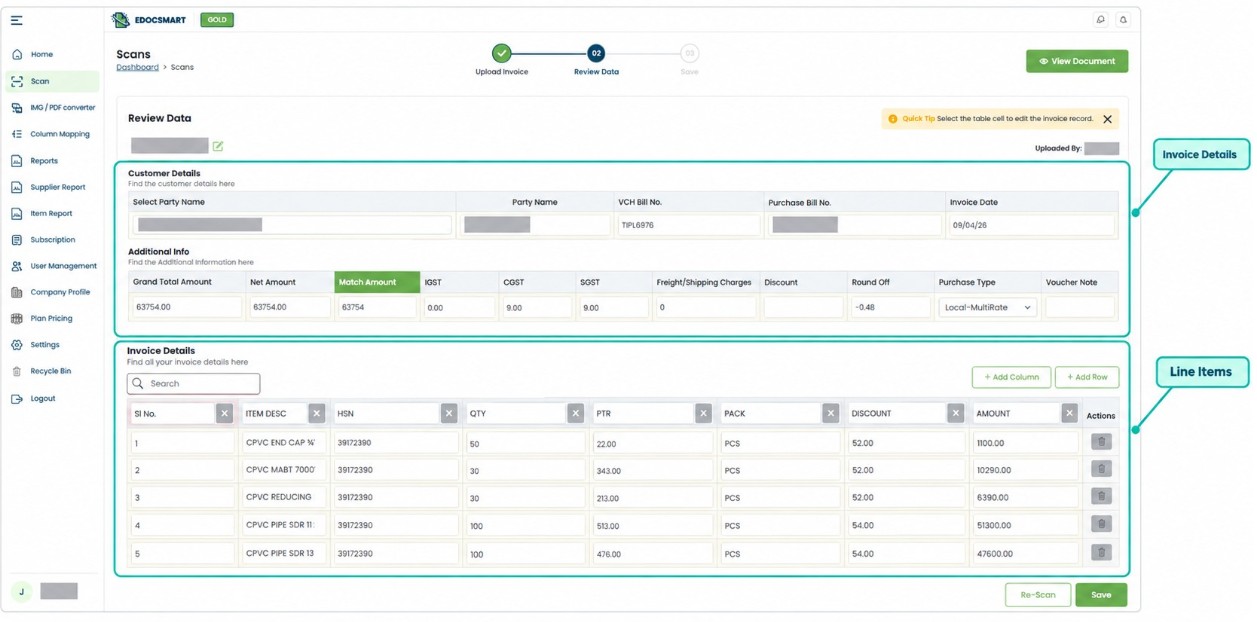
Step 3: Review and Save the Records
Check the extracted information against the original invoice. Correct any differences in supplier details, item information, quantities, rates, GST values or totals before saving.
Step 4: Select the BUSY Export Format
After saving the processed invoice, open the download option. Edocsmart provides two BUSY export choices:
BUSY ItemWise
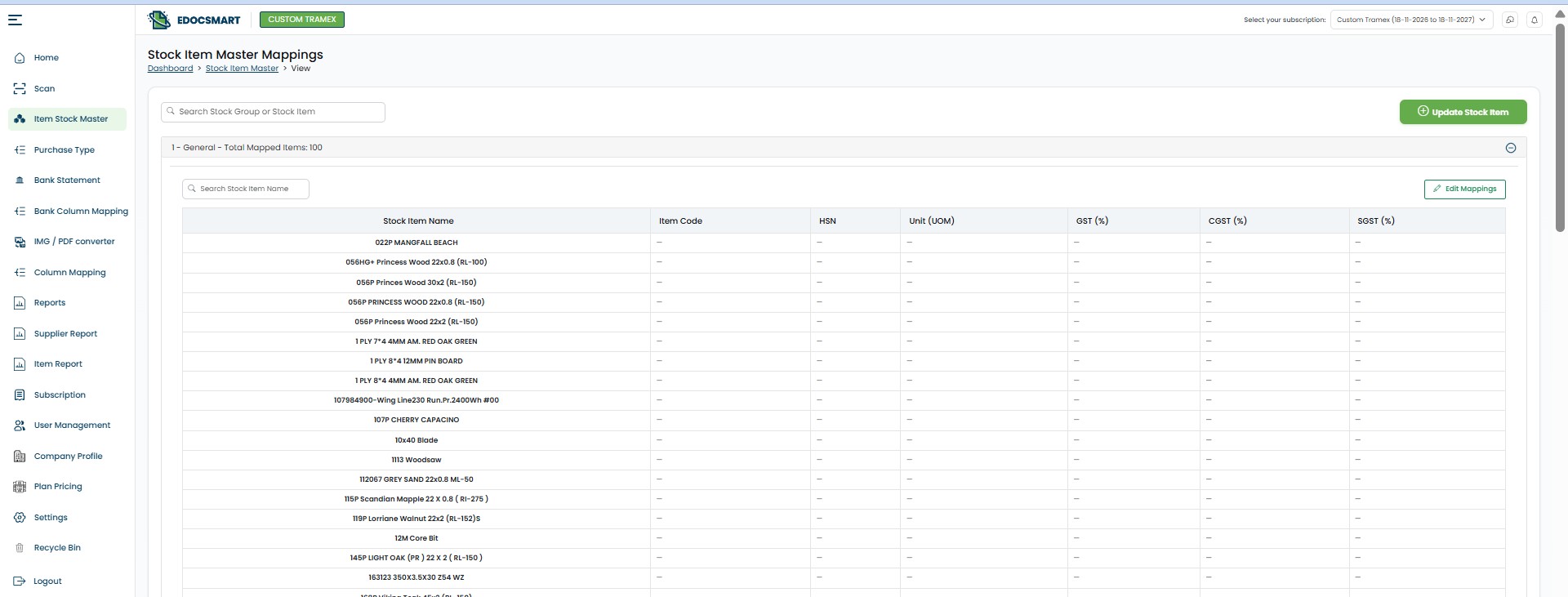
BUSY Local/Central
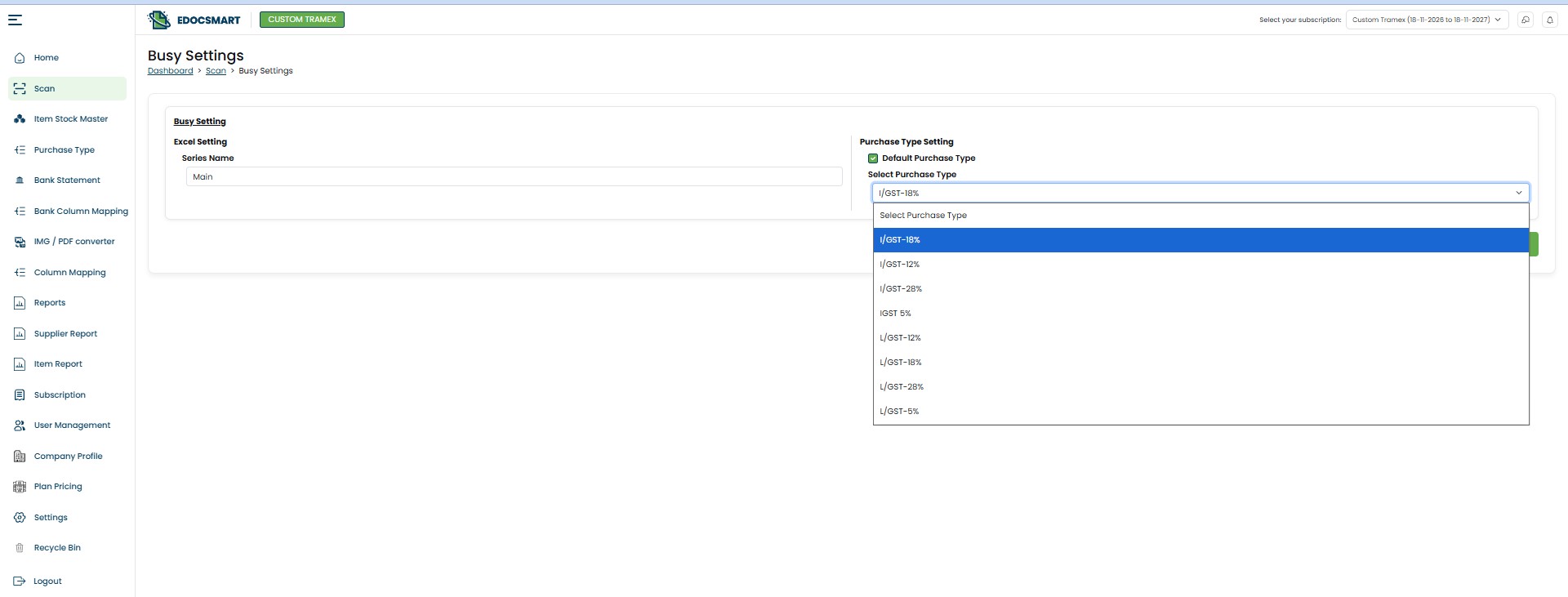
Select the option that matches your intended BUSY import configuration.
Step 5: Download the Excel File
Download the processed invoice data in the selected Excel format. Review the file structure before importing it into BUSY.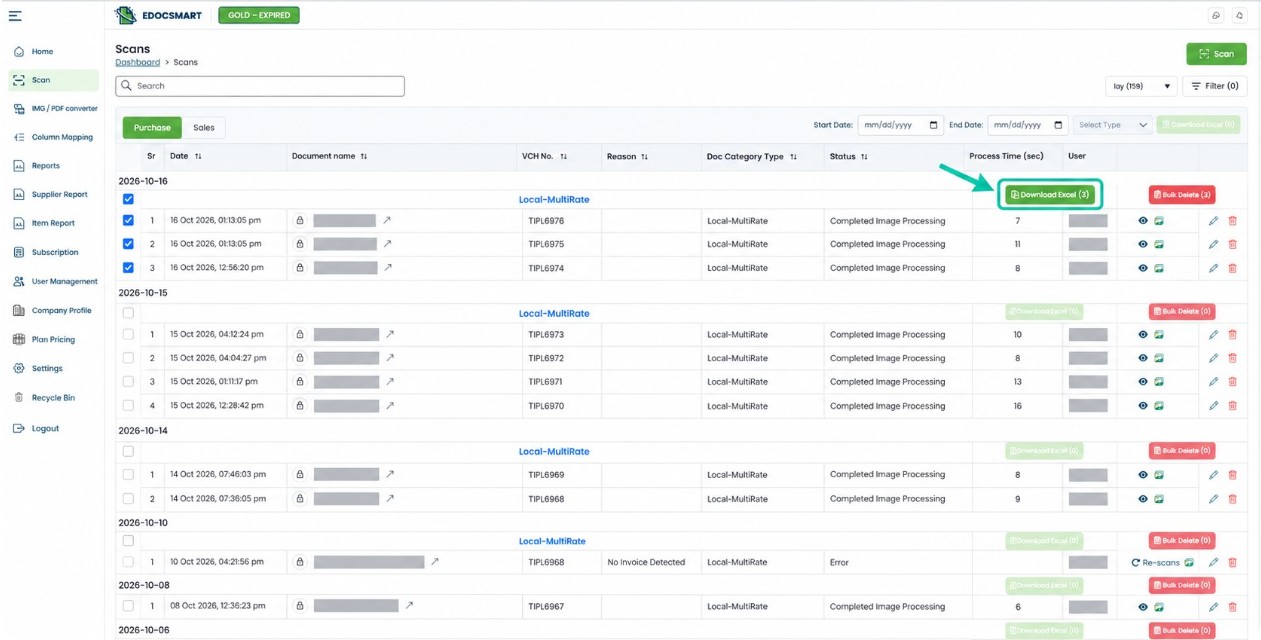
Step 6: Configure the Import Format in BUSY
Open BUSY and select the relevant company. Go to Administration → Data Export/Import → Import Vouchers from Excel, where available in your BUSY version.
Select the Purchase voucher type and configure the required import format. Map the Excel columns to their corresponding BUSY fields, including invoice reference, item details, quantities, rates and applicable tax information.
Step 7: Import and Verify the Transactions
Select the downloaded Excel file and complete the import using the configured format.
After importing, compare the purchase vouchers with the original supplier invoices. Check the party account, invoice number, item details, quantities, GST components and final amounts.
Common Mistakes to Avoid When Selecting an Export Format
Even when invoice data is prepared correctly, selecting an incompatible export format or import configuration can create problems.
Watch out for these common issues:
Selecting ItemWise without checking the corresponding BUSY import configuration.
Using a Local/Central format without verifying the transaction type.
Incorrect GST rates or tax categories assigned to stock items.
Mismatched Excel columns and BUSY fields.
Missing supplier or stock item masters.
Importing without checking invoice totals and tax values.
Always test a small set of records before importing a large batch of purchase invoices.
Frequently Asked Questions
1. What is the difference between BUSY ItemWise and Local/Central?
ItemWise refers to GST treatment at the individual item level, whereas Local/Central classifies transactions according to their tax treatment for within-state or interstate transactions.
2. When should I choose BUSY ItemWise?
Choose ItemWise when your BUSY purchase voucher and import configuration require item-level tax details, particularly when different items have different GST rates.
3. When should I choose BUSY Local/Central?
Choose the Local/Central export option when your intended BUSY import configuration uses the corresponding Local or Central purchase type. Verify the transaction's GST treatment before importing.
4. Can a BUSY purchase voucher contain multiple GST rates?
Yes. BUSY supports item-wise multi-tax-rate purchase transactions, where different items in the same voucher can have different GST rates.
5. Does Edocsmart directly sync invoice data with BUSY in this workflow?
The workflow covered in this guide uses invoice extraction, review, Excel export and import into BUSY through a configured template. It should not be confused with a direct synchronization workflow.
6. Do I need to configure the BUSY import format every time?
Not necessarily. A configured template can generally be reused when the Excel structure and BUSY field mapping remain consistent. Review the configuration if the file layout or accounting requirements change.
Conclusion
Choosing between BUSY ItemWise and Local/Central is not simply a matter of selecting one export option over another. It requires understanding how item-level GST treatment and Local or Central transaction classification apply to your purchase invoices.
With Edocsmart, businesses can upload purchase invoices, extract and review accounting information, and download the processed data in the required BUSY export format.
By matching the selected Excel format with the correct BUSY import configuration, businesses can make their purchase invoice import workflow more organized and easier to verify.
Prepare and review your purchase invoice data with Edocsmart before importing it into BUSY.