How to Convert Excel Purchase Bills into Tally Entries
A step-to-step visual guide showing how Excel purchase bill data is converted into Tally purchase entries using Edocsmart

Managing purchase bills manually in Tally can become time-consuming when a business receives multiple invoices from different suppliers every day. Accountants often maintain purchase records in Excel, but entering each bill separately into Tally requires additional time and effort.
Whether you manage a small business or handle accounting for multiple companies, converting Excel purchase bills into Tally entries can make your accounting workflow more organised and efficient.
Instead of entering every purchase transaction manually, businesses can use an Excel to Tally solution like Edocsmart to process purchase data, map the required fields, review invoice details and synchronise approved records with Tally.
In this guide, we will explain how to convert Excel purchase bills into Tally entries, what information your Excel file should contain, common mistakes to avoid and how Edocsmart can simplify the process.
What Does Converting Excel Purchase Bills into Tally Entries Mean?
Converting Excel purchase bills into Tally entries means transforming purchase information maintained in an Excel spreadsheet into structured Purchase Vouchers in TallyPrime.
Businesses generally maintain purchase information in Excel files containing details such as:
Supplier or vendor name
Purchase invoice number
Invoice date
Item or product name
Quantity and unit
Purchase rate
Taxable amount
GST details (CGST, SGST or IGST)
Total invoice amount
Instead of manually creating each Purchase Voucher in Tally, businesses can prepare their purchase information in Excel and use a suitable import or automation process to transfer the records.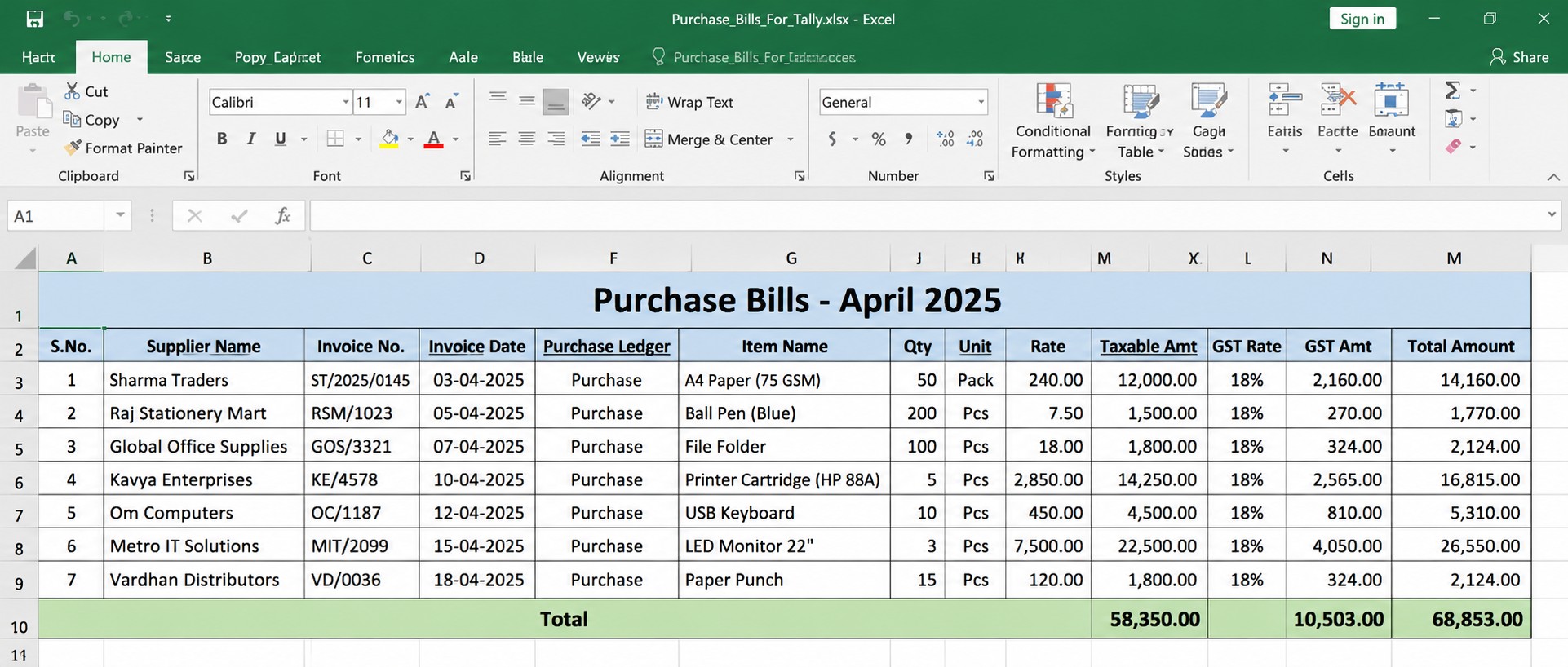
Why Convert Excel Purchase Bills into Tally?
Manually entering purchase bills may work when a business handles only a few invoices. However, when the number of transactions increases, the process can become repetitive.
Here are some reasons businesses consider converting Excel purchase bills into Tally:
1. Reduce Manual Data Entry
Entering supplier details, invoice numbers, item names and amounts for every purchase bill takes time. Processing structured Excel data can reduce repetitive data entry.
2. Handle Multiple Purchase Bills
Businesses that receive purchase invoices from several suppliers can maintain their records in a consolidated Excel workbook and process multiple transactions through a suitable import workflow.
3. Minimise Data Entry Mistakes
Manual entry can lead to incorrect invoice numbers, amounts, dates or ledger selections. Reviewing mapped purchase information before synchronisation helps identify potential issues.
4. Improve Accounting Workflow
Converting purchase data into structured Tally entries helps businesses maintain their purchase records in one accounting system and makes transaction verification easier.
What Information Should Your Excel Purchase Bill Contain?
Before converting purchase bills into Tally entries, it is important to understand which information needs to be available in your spreadsheet.
A properly organised Excel file makes field mapping and transaction processing easier.
| Excel column | Purpose |
|---|---|
| Supplier Name | Identifies the vendor |
| Invoice Number | Records the purchase bill number |
| Invoice Date | Records the supplier invoice date |
| Purchase Ledger | Identifies the purchase account |
| Item Name | Identifies the purchased product |
| Quantity | Records purchased units |
| Rate | Specifies the price per unit |
| Taxable Amount | Records the value before applicable taxes |
| GST | Identifies applicable tax details |
| Total Amount | Records the final invoice value |
The exact fields depend on your accounting requirements, voucher configuration and the type of purchase transaction.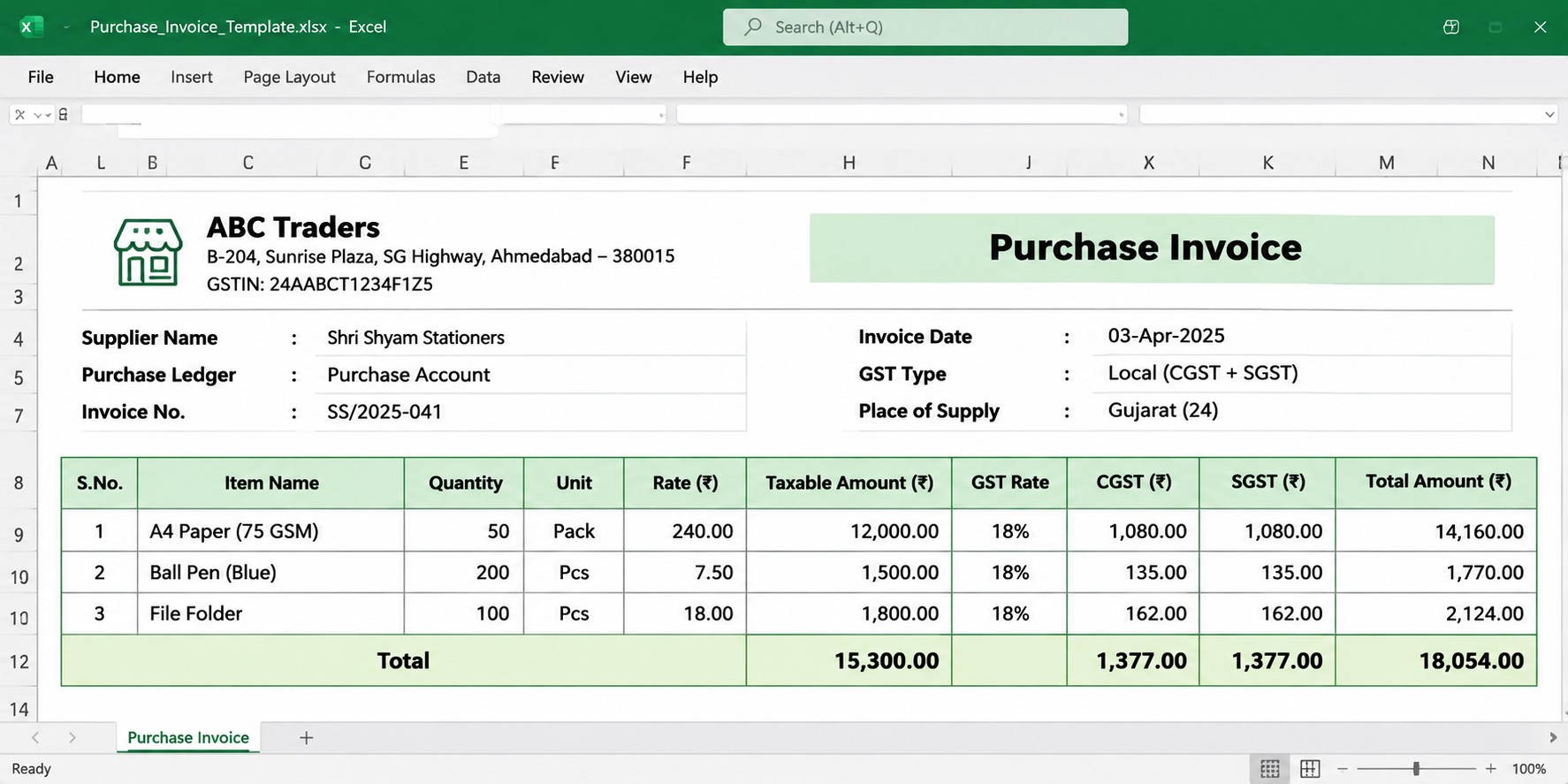
How to Convert Excel Purchase Bills into Tally Entries
There are different ways to convert Excel purchase information into TallyPrime. TallyPrime provides a built-in Excel import facility, while tools like Edocsmart offer an additional workflow for processing and synchronising purchase data.
Let's understand the process.
Step 1: Prepare Your Purchase Data in Excel
Start by collecting the purchase information from your supplier invoices and arranging it in an Excel workbook.
Make sure that the invoice number, supplier name, date, item details, quantity, rate and tax information are correctly entered.
Remove unnecessary blank rows and check that the values are in the appropriate columns.
Step 2: Check Supplier and Purchase Ledger Details
Before processing the Excel file, verify that the required supplier and purchase ledgers are available in your Tally company.
For example:
Supplier Ledger: ABC Traders
Purchase Ledger: Purchase Account
GST Ledgers: Input CGST, Input SGST or Input IGST
The required ledger configuration depends on your transaction and GST setup.
If the required masters are missing, they may need to be created or configured before importing the purchase transactions.
Managing purchase bills manually in Tally can become time-consuming when a business receives multiple invoices from different suppliers every day. Accountants often maintain purchase records in Excel, but entering each bill separately into Tally requires additional time and effort.
Step 3: Map Excel Columns with Tally Fields
Excel files may use different column headings depending on how a business maintains its purchase records.
For example:
| Excel column | Corresponding accounting field |
|---|---|
| Vendor | Supplier Ledger |
| Bill No. | Reference / Invoice Number |
| Bill Date | Voucher Date |
| Product | Stock Item |
| Qty | Billed Quantity |
| Unit Price | Rate |
| GST Amount | Applicable Tax Ledger |
| Net Total | Invoice Total |
Field mapping connects the information in your spreadsheet with the appropriate accounting fields.
Correct mapping is important because incorrect field selection can affect how purchase transactions are recorded.
Step 4: Process and Review Purchase Bill Information
After mapping the Excel columns, process the purchase records and check the resulting invoice details.
Review important information such as:
Supplier name and invoice number
Purchase date
Item description
Quantity and rate
GST calculations
Total invoice amount
This step helps identify missing information or incorrect values before the records are transferred to Tally.
Step 5: Sync Approved Purchase Entries with Tally Using Edocsmart
This is where Edocsmart can simplify the purchase accounting workflow.
Edocsmart provides an Excel to Tally solution that helps businesses process structured Excel transaction data through field mapping, invoice-wise processing and review before synchronisation.
Using Edocsmart, the workflow includes:
Upload your Excel purchase data.
Configure the required purchase field mapping.
Process the purchase information into individual invoice records.
Review the prepared purchase documents.
Select the approved records.
Use the Sync to Tally option to transfer the approved transactions through the configured integration.
This reduces the need to recreate every purchase voucher through repetitive manual entry.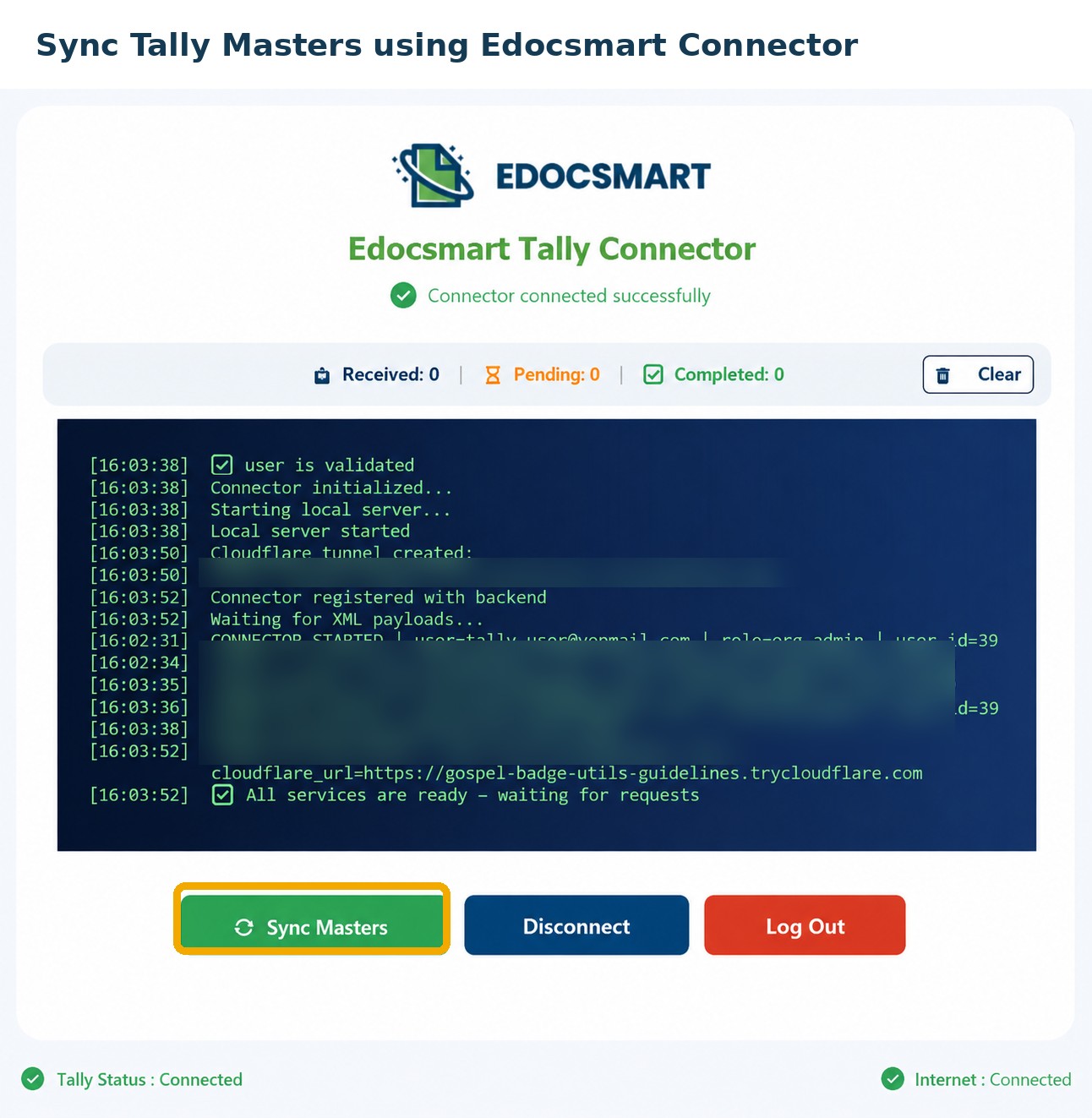
Step 6: Verify Purchase Vouchers in TallyPrime
Once the synchronisation process is complete, open TallyPrime and verify the imported purchase transactions.
Check the following details:
Supplier ledger
Purchase voucher number
Invoice date
Stock item details
Quantity and rate
GST amounts
Total purchase value
You can also review the Purchase Register and relevant transaction reports to confirm that the records are available correctly.
Common Mistakes to Avoid When Converting Excel Purchase Bills into Tally
Even when using an import or automation tool, incorrect source data or accounting configurations can cause problems.
Here are some common mistakes businesses should avoid.
1. Incorrect Invoice Dates
Make sure the invoice date is recorded in the correct format and mapped to the appropriate date field.
2. Missing Supplier Ledgers
The supplier ledger should exist in Tally or be handled through the configured master-creation process.
3. Incorrect Purchase Ledger Mapping
Mapping a purchase transaction to the wrong ledger can affect accounting reports and transaction classification.
4. Incorrect GST Calculations
Check the taxable value, applicable GST rate and tax amounts before transferring the purchase data.
5. Duplicate Purchase Bills
Check invoice numbers and supplier details to avoid importing the same purchase bill more than once.
6. Incorrect Item Quantity or Rate
Verify stock item names, units, quantities and rates to ensure that the purchase voucher reflects the original invoice.
Why Is Edocsmart a Useful Solution for Excel to Tally Purchase Import?
When businesses handle purchase bills in Excel, the main challenge is not just transferring the numbers. It is processing different spreadsheet formats, connecting the correct accounting fields and checking the records before they reach Tally.
Edocsmart is designed to simplify this workflow.
Here is how it helps:
Flexible Excel Field Mapping
Businesses can maintain their purchase information in different Excel formats. Edocsmart helps map spreadsheet columns with the relevant transaction fields.
Invoice-Wise Processing
Purchase information can be organised into individual invoice documents, making it easier to review each purchase transaction.
Review Before Synchronisation
Users can check the processed purchase records and select the documents that are ready to be synchronised.
Bulk Purchase Data Processing
Instead of recreating every purchase voucher manually, businesses can process multiple purchase records through a structured workflow.
Direct Tally Synchronisation
After reviewing and approving the purchase documents, users can use the configured Sync to Tally workflow to transfer the records into Tally.
For businesses looking to reduce repetitive accounting work, Edocsmart is a practical Excel to Tally solution for processing purchase bills with better control and visibility.
Explore the Edocsmart Excel to Tally solution to understand how it can support your purchase accounting workflow.
Frequently Asked Questions
1. Can I convert Excel purchase bills into Tally entries?
Yes. You can import structured Excel purchase data into TallyPrime using its built-in Excel import facility or use a suitable Excel to Tally solution to process and synchronise the transactions.
2. Can I import multiple purchase bills from Excel into Tally?
Yes. Multiple purchase transactions can be processed from Excel, provided the required data structure, mappings and Tally configurations are correctly set up.
3. Do I need to create supplier ledgers before importing purchase bills?
The required supplier ledgers should be available in Tally before importing, unless your configured import or integration workflow supports creating missing supplier ledgers.
4. Can Excel purchase bills include GST details?
Yes. Excel purchase records can include taxable values and applicable GST information, such as CGST, SGST and IGST. These details must be correctly mapped and configured according to the transaction.
5. Can Edocsmart help convert Excel purchase data into Tally vouchers?
Yes. Edocsmart supports purchase data processing through Excel upload, field mapping, invoice-wise processing, review and synchronisation of approved records with Tally.
6. Is Edocsmart suitable for businesses handling bulk purchase entries?
Edocsmart supports bulk purchase data processing, helping businesses manage multiple purchase records through a structured workflow instead of recreating every voucher manually.
Conclusion
Converting Excel purchase bills into Tally entries can help businesses reduce repetitive data entry and organise their purchase accounting process.
However, accurate results depend on properly prepared Excel data, correct field mapping, valid supplier and ledger details and a final verification of the imported transactions.
Whether you use TallyPrime's built-in import facility or an additional automation solution, choosing the right workflow can make purchase accounting more manageable.
If your business regularly handles purchase bills in Excel, Edocsmart can help simplify the process through flexible field mapping, invoice-wise processing, review and Tally synchronisation.
Explore Excel to Tally by Edocsmart to learn more.