How to Convert Excel Spreadsheet Data into Tally XML Without Coding
Learn how to convert Excel spreadsheet data into Tally XML without coding. Map Excel columns, verify vouchers, and transfer accounting data to TallyPrime using Edocsmart.
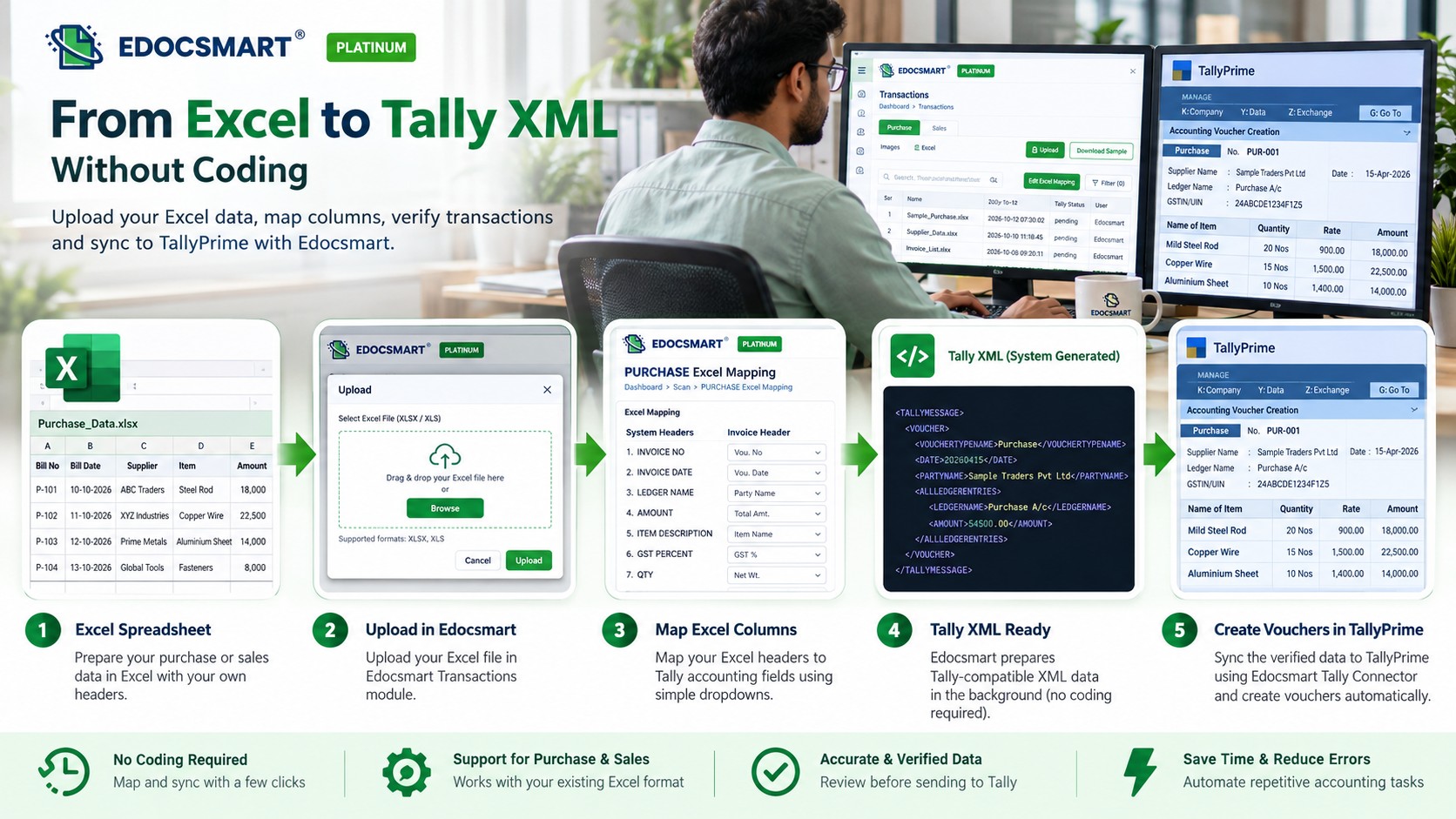
Why Does Tally Understand XML but Not Every Excel Spreadsheet?
An Excel spreadsheet and an XML file can contain exactly the same accounting information. Yet, when you try to import them into Tally, they may behave very differently.
Imagine an Excel sheet with five columns: Invoice Number, Date, Party Name, Amount, and GST. Every row is properly arranged, and all the transaction details are correct.
You can read the spreadsheet easily. You know which column represents the invoice date and which contains the customer name.
But how does Tally know?
An Excel file organizes information into rows and columns. XML, on the other hand, represents information using structured elements that software can interpret according to a defined format.
For example, Excel may contain a column named "Bill Date," while a Tally-compatible XML transaction needs that value represented in the appropriate voucher structure.
This difference explains why converting an Excel spreadsheet into Tally-compatible data involves more than simply changing the file extension from .xlsx to .xml.
Traditionally, businesses could use custom scripts, XML templates, or developer-built integrations to prepare data for Tally.
But what if you don't know Python, XML, or any programming language?
With Edocsmart, businesses can upload Excel spreadsheets, configure column mappings, review transactions, and synchronize accounting data with TallyPrime through a connector-based workflow.
In this guide, we'll explain how to convert Excel spreadsheet data into Tally XML without coding, what a Tally XML structure contains, and how to prepare accounting transactions for import without manually writing XML code.
What Is Excel to Tally XML Conversion?
Excel to Tally XML conversion is the process of transforming accounting information stored in an Excel spreadsheet into an XML structure that Tally can interpret.
Excel files commonly contain transaction information such as:
Invoice numbers and dates
Customer and supplier names
Sales and purchase amounts
Ledger references
Stock item details
Quantities and rates
GST information
Voucher narration
However, Tally's XML-based integration interface expects information in a defined structure.
For example, a sales voucher may require the voucher type, date, party ledger, accounting entries, and other transaction information.
An Excel-to-Tally XML conversion process must associate the spreadsheet data with the appropriate Tally fields and voucher structure.
Important: TallyPrime also supports native Excel import functionality in supported releases and configurations. XML is one integration method, not the only way to import Excel data.
Why Can't You Simply Rename an Excel File to XML?
Changing an Excel file extension does not convert its internal data structure.
An .xlsx file is a spreadsheet format containing workbook information, worksheets, cells, and other structured components.
A Tally XML message uses a different format with elements describing the request and accounting information.
For example, an Excel row might look like this:
| Invoice No | Date | Party Name | Amount |
|---|---|---|---|
| INV-101 | 10-10-2026 | ABC Traders | ₹15,000 |
A simplified XML representation of the same information could look like this:
<INVOICE>
  <NUMBER>INV-101</NUMBER>
  <DATE>20261010</DATE>
  <PARTY>ABC Traders</PARTY>
  <AMOUNT>15000</AMOUNT>
</INVOICE>
This XML example is only for understanding the concept. It is not a complete, import-ready Tally XML voucher.
A valid Tally XML import normally requires the appropriate message envelope, voucher structure, ledger entries, and other fields relevant to the transaction.
This is why a proper conversion tool must understand the accounting data rather than merely changing its file format.
How Does Excel to Tally XML Conversion Work Without Coding?
A no-code Excel-to-Tally workflow helps users prepare accounting transactions without manually creating XML tags or writing scripts.
The general process includes five activities:
Reading the Excel spreadsheet.
Mapping spreadsheet columns to accounting fields.
Validating the transaction information.
Preparing data for the supported Tally integration method.
Importing or synchronizing the transactions into Tally.
The exact output depends on the software.
Some tools generate downloadable XML files that users import manually.
Others use a connector to transmit Tally-compatible transaction data directly to the accounting application.
Edocsmart follows a connector-based synchronization workflow for the Excel-to-Tally process described here.
How to Convert Excel Spreadsheet Data into Tally XML Without Coding Using Edocsmart
Edocsmart provides a structured process for preparing Excel transactions and transferring them to TallyPrime.
Instead of manually writing XML code, users configure spreadsheet mappings and verify the generated accounting records.
Step 1: Log In to Edocsmart and Open Excel Transactions
Start by logging in to your Edocsmart account.
Open Transactions from the navigation menu.
Select Purchase or Sales, depending on the transactions you want to import.
Next, open the Excel tab.
The dashboard displays uploaded Excel transaction files and relevant options, including Upload and Edit Excel Mapping.
This is where the Excel-to-Tally workflow begins.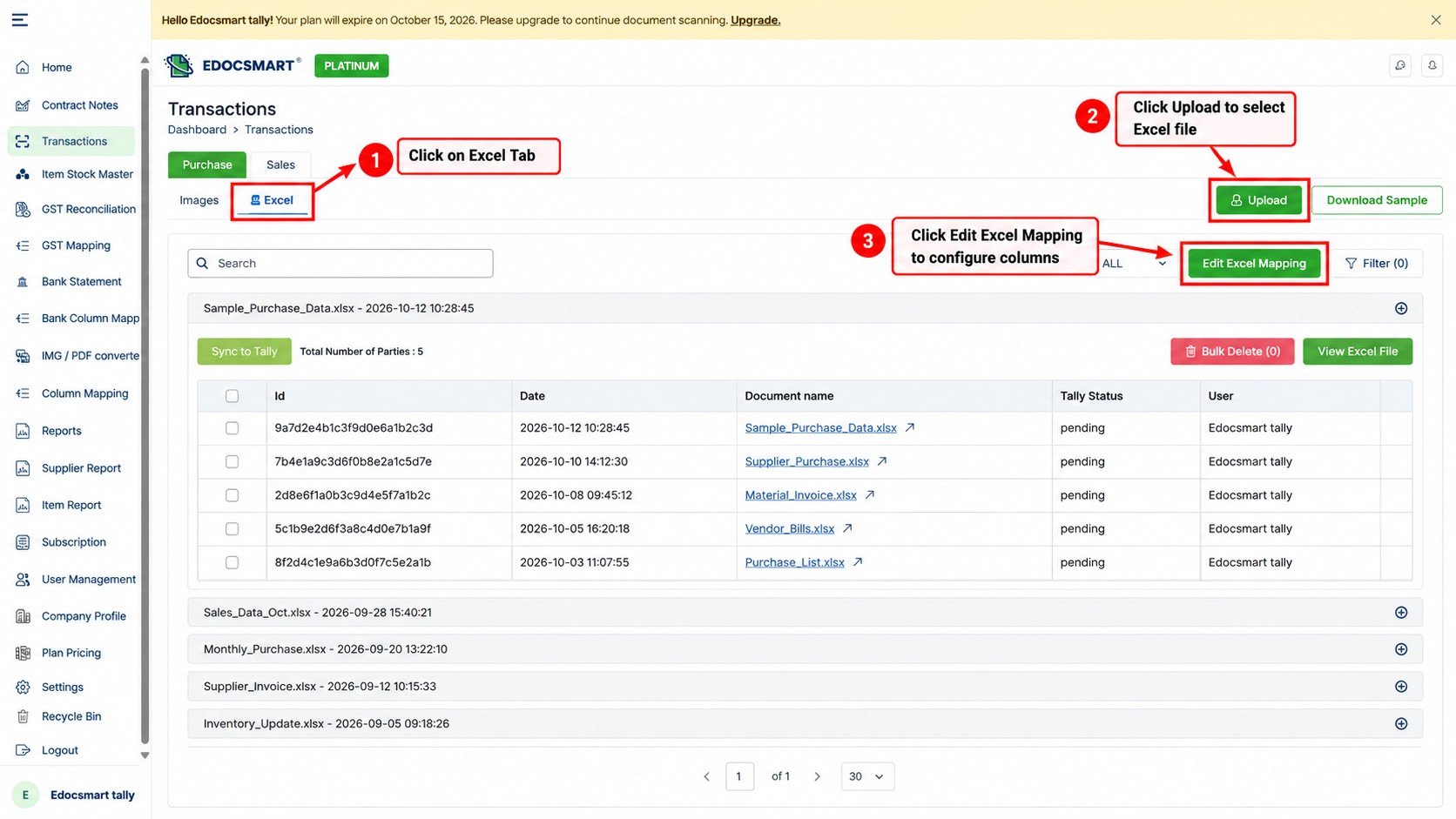
Step 2: Upload Your Excel Spreadsheet
Click Upload and select the Excel file containing your accounting transactions.
The spreadsheet should contain clearly defined headers and organized transaction rows.
For example, a purchase spreadsheet may contain:
| Bill No | Bill Date | Supplier | Item | Qty | Rate |
|---|---|---|---|---|---|
| P-101 | 10-10-2026 | ABC Traders | Steel Rod | 20 | 450 |
| P-102 | 11-10-2026 | XYZ Industries | Copper Wire | 15 | 800 |
| P-103 | 12-10-2026 | Prime Metals | Aluminium Sheet | 10 | 1,200 |
The data above is fictional and provided for illustration.
Your spreadsheet does not necessarily need to use identical headers to this example.
However, its structure must be compatible with the selected mapping configuration.
If the upload interface asks for the header row number, select the row containing the actual column headings.
Then complete the upload using the available Upload control.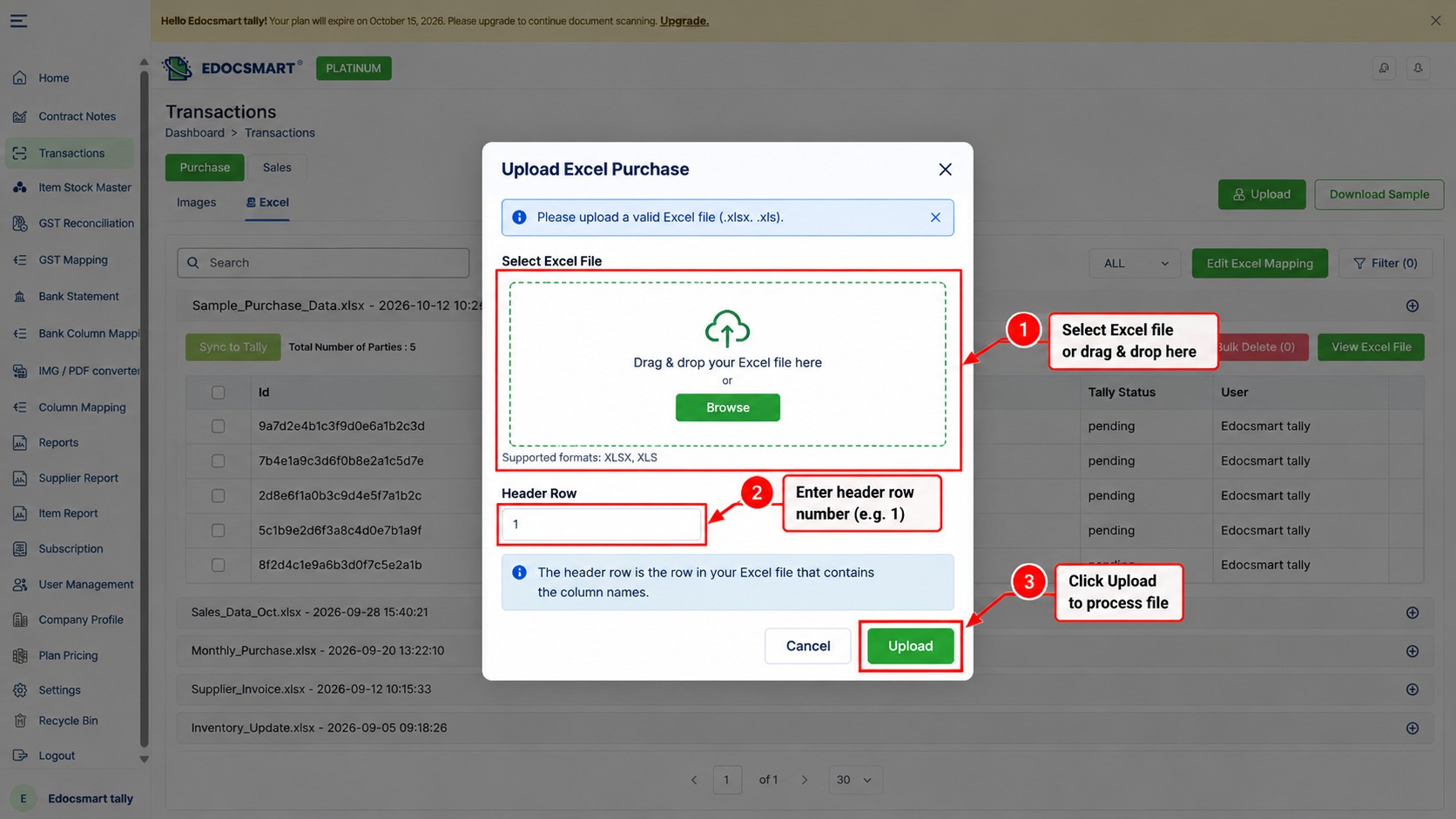
Step 3: Map Excel Columns to Tally Accounting Fields
After uploading your Excel data, open Edit Excel Mapping.
The Edocsmart mapping interface contains system fields and corresponding Excel header selections.
For example:
| Excel Column | Example Accounting Field |
|---|---|
| Bill Number | Invoice Number |
| Bill Date | Invoice Date |
| Supplier | Party Name |
| Material Description | Item Description |
| Quantity | Quantity |
| Unit Price | Rate |
| GST Percentage | GST % |
| Invoice Value | Grand Total |
The field names above are explanatory examples. Select the actual labels available in the mapping interface.
Mapping tells the software which spreadsheet columns represent the required accounting information.
For example, the Excel header "Bill Date" can be associated with the relevant invoice date field.
This avoids the need to manually rearrange every spreadsheet into one fixed column order.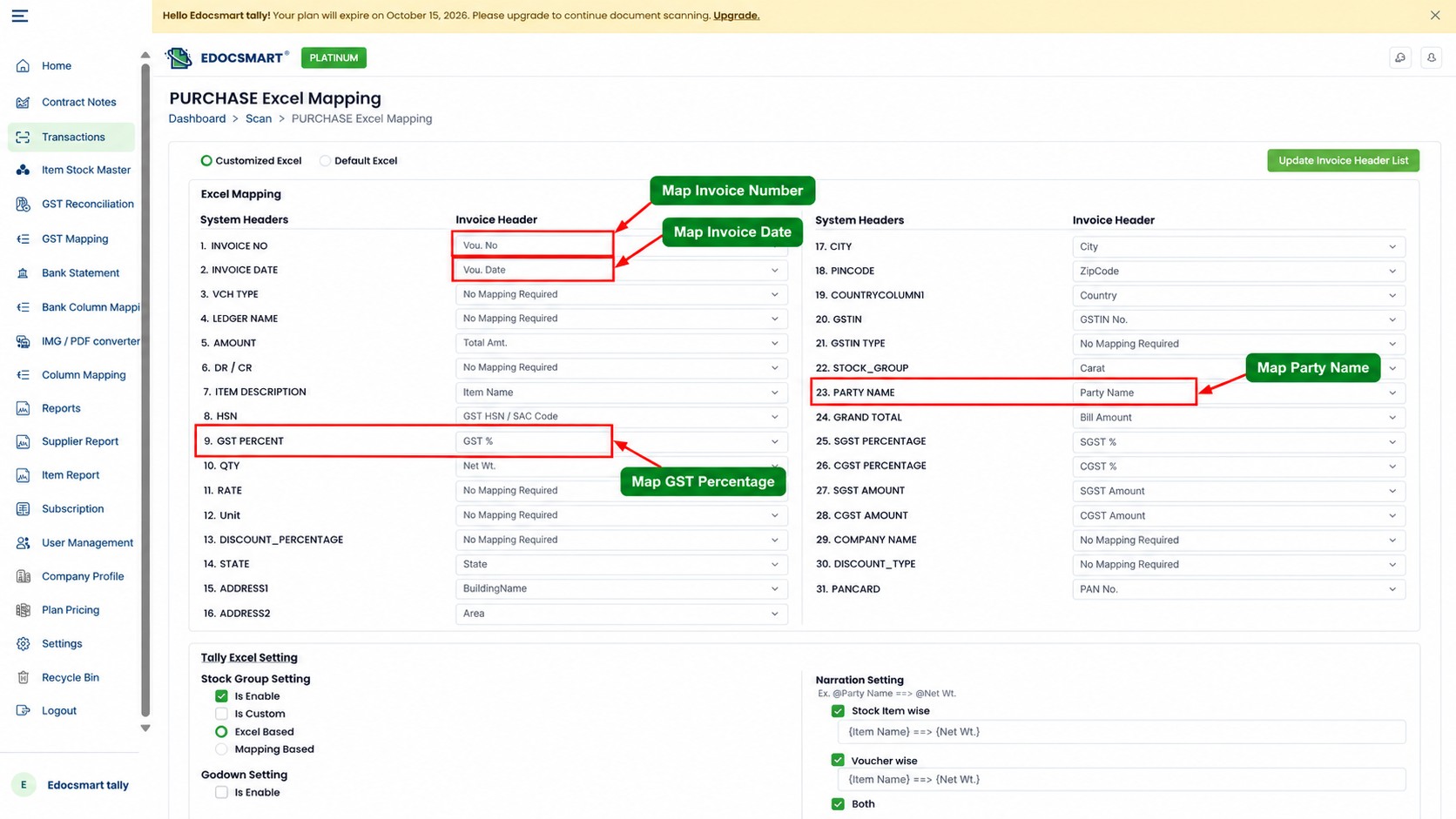
Step 4: Configure Ledger, Stock Item, and Voucher Settings
A Tally voucher requires more than an invoice number and amount.
Depending on the transaction type, it may also need the correct party ledger, purchase or sales ledger, stock items, units, and GST details.
Edocsmart's Excel mapping configuration includes settings for stock groups, narration, ledger defaults, voucher numbering, and stock behavior.
For example, the configuration may contain fields for:
Sales Ledger Name
Purchase Ledger Name
CGST and SGST Ledger Names
Stock Group Setting
Narration Setting
Voucher Number Setting
Maintain Stock
These settings help prepare accounting data according to the intended Tally workflow.
However, existing ledgers and stock items should be verified before synchronization.
A saved column mapping does not guarantee that every party name or stock item will automatically match the correct Tally master.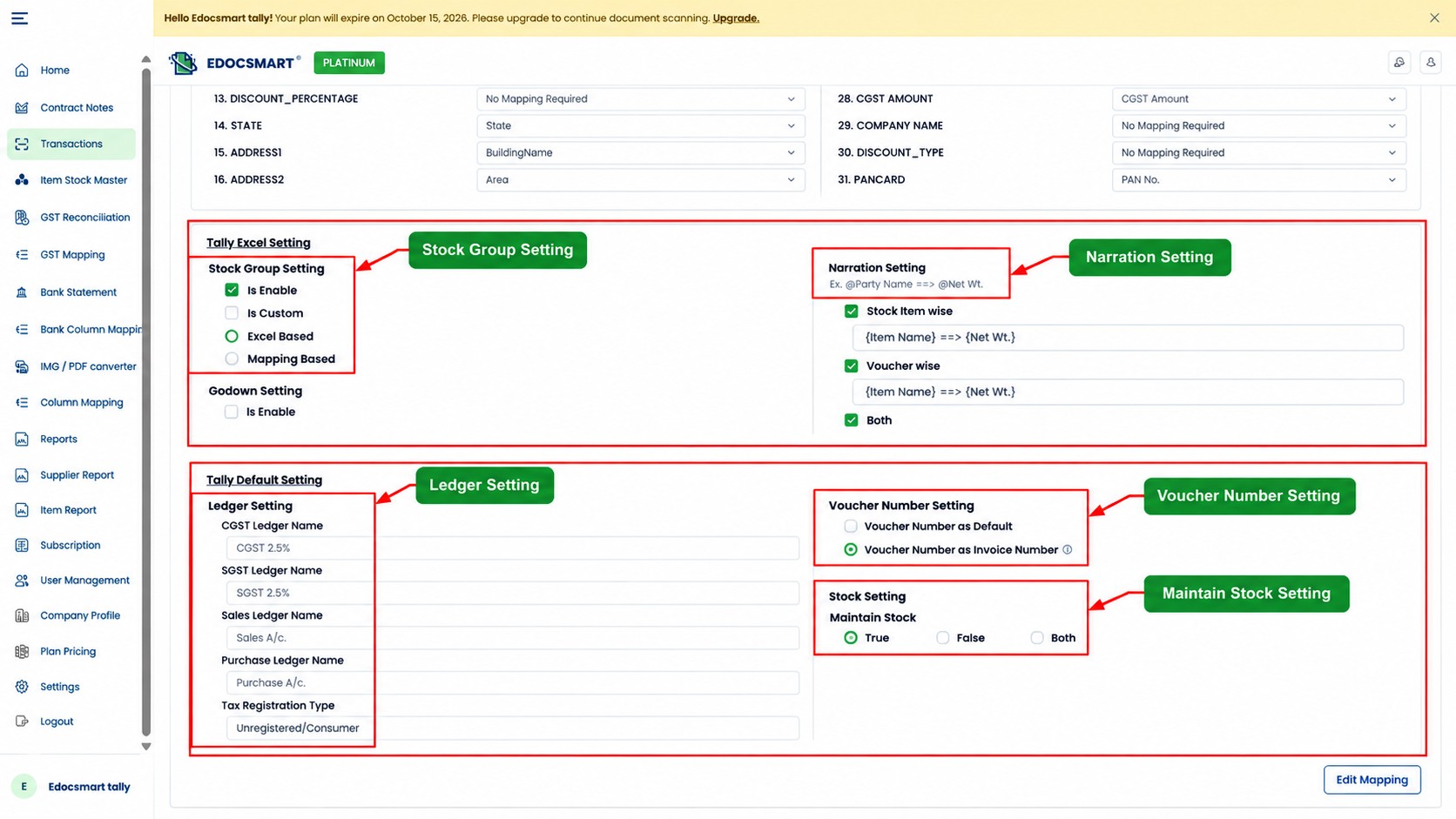
Step 5: Review the Generated Accounting Transactions
Once the Excel data has been processed, review the generated transaction records.
Verify the invoice number, date, party name, GST details, item descriptions, quantities, rates, and final amounts.
For example, if the Excel spreadsheet contains 25 units of an item but the generated transaction shows 20, correct the information before synchronization.
Similarly, verify that the transaction references the correct supplier or customer ledger.
Reviewing the accounting data before transfer helps prevent incorrect vouchers from entering Tally.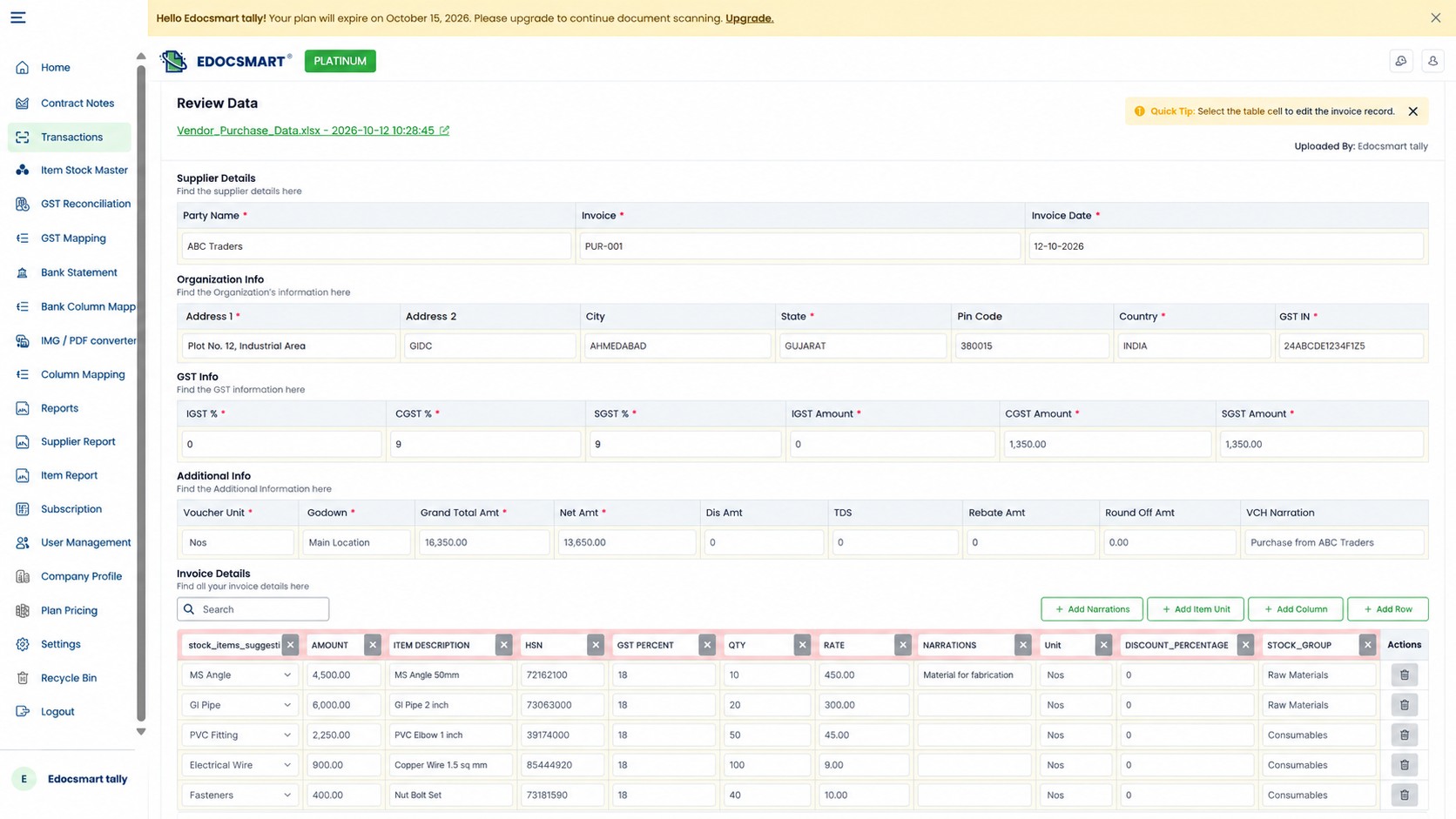
Step 6: Connect Edocsmart with TallyPrime
Before synchronizing transactions, make sure TallyPrime is running with the intended company open.
Start the Edocsmart Tally Connector and confirm that it is connected successfully.
The connector interface can display connection status and controls such as Sync Masters, Disconnect, and Log Out.
Depending on the workflow, master synchronization helps keep relevant accounting references available to the integration.
The connector-based approach allows users to transfer supported accounting data without manually constructing an XML request.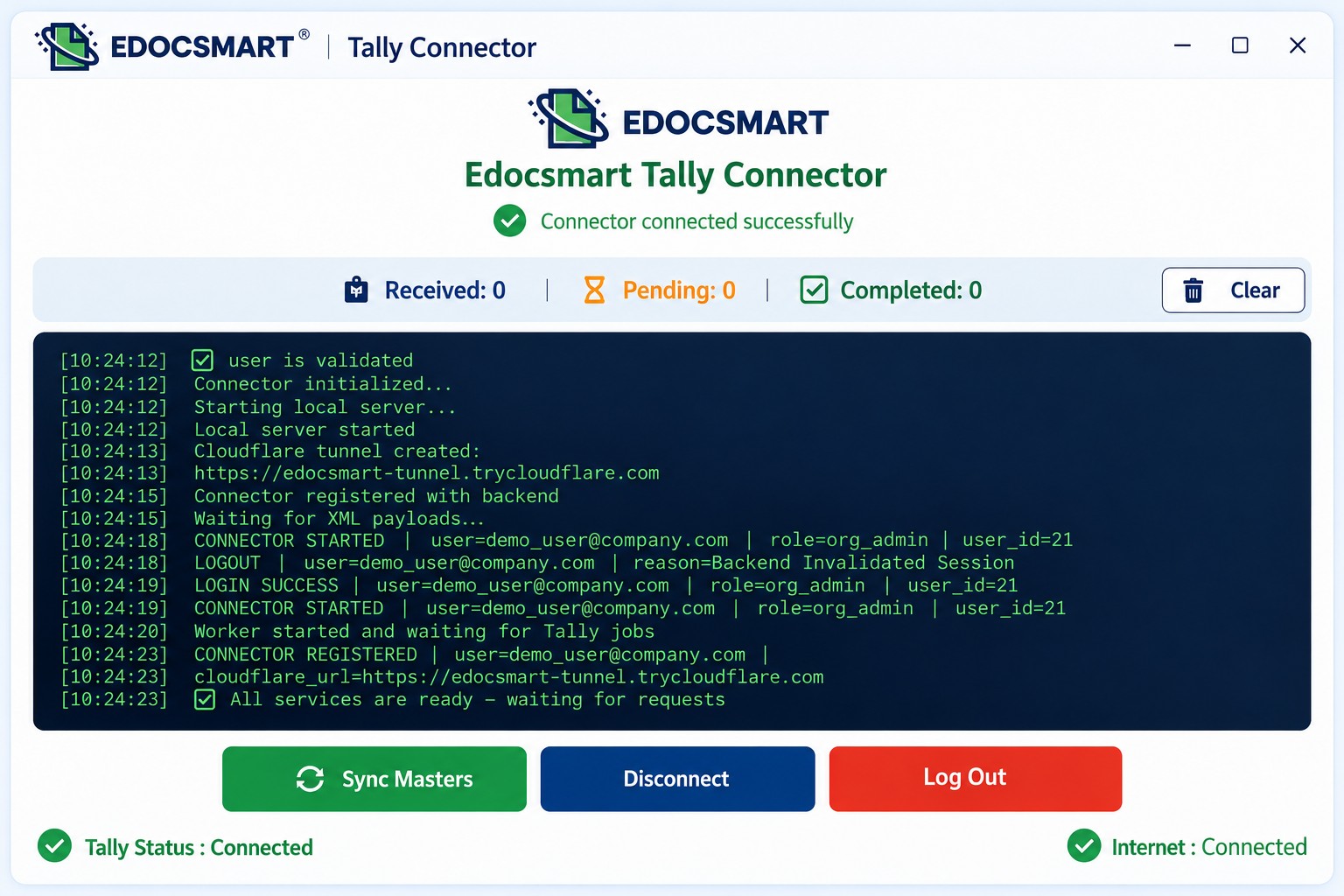
Step 7: Sync Excel Transactions to TallyPrime
After verifying the accounting information and confirming the connector connection, use the available Sync to Tally action.
Edocsmart transfers the supported transaction data through the configured integration workflow.
The connector communicates with Tally using the relevant supported data exchange mechanism, allowing the transactions to be created without manually writing XML code.
Once synchronization is complete, open TallyPrime and verify the imported vouchers.
Check the voucher type, invoice date, party ledger, GST details, stock items, and totals.
If a transaction fails, review the reported issue and correct the source data, mapping, or accounting master configuration before retrying.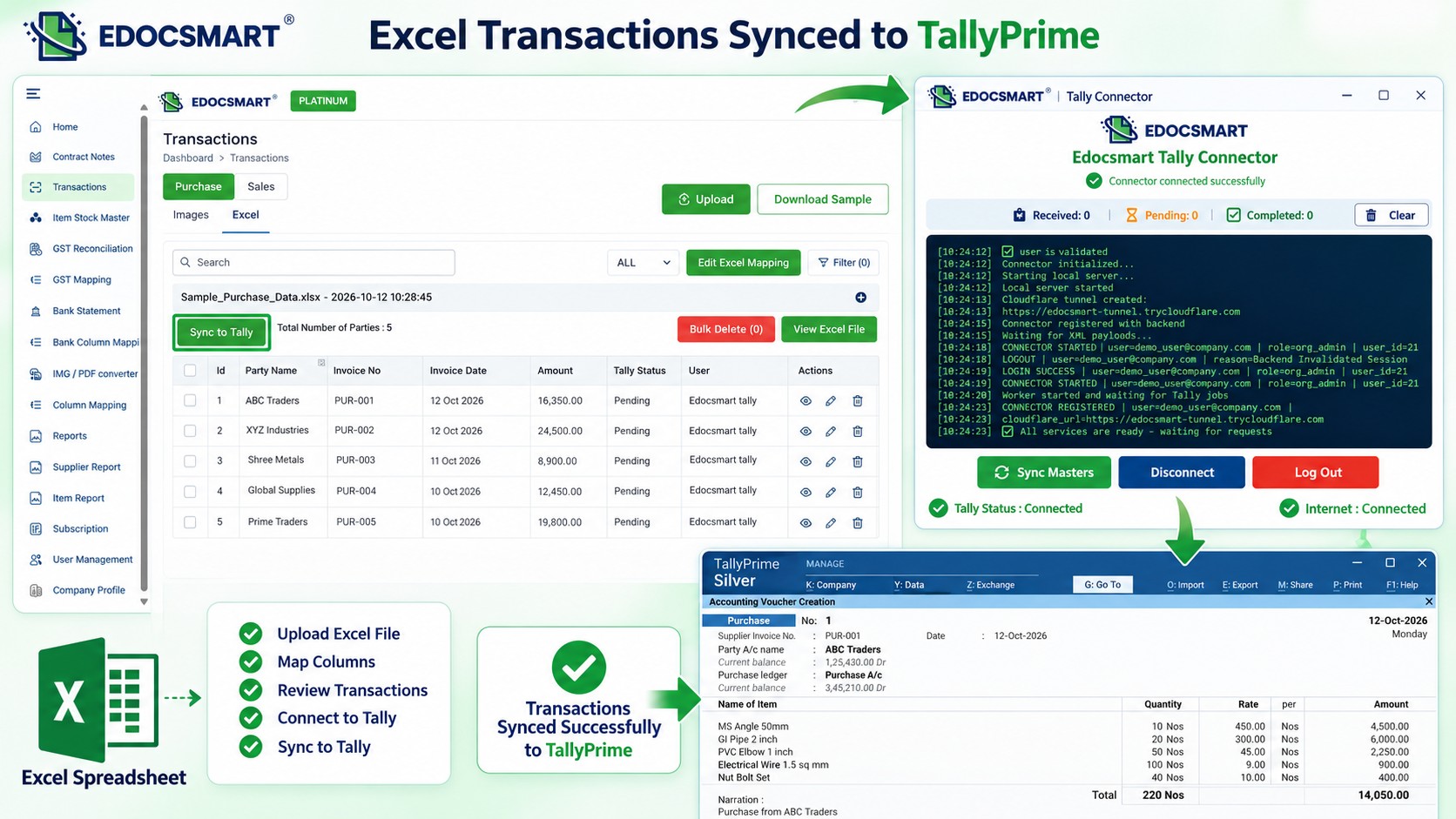
What Does a Tally XML File Contain?
A Tally XML import message is more structured than a basic spreadsheet row.
Depending on the type of request and transaction, it may contain an envelope, request information, voucher data, ledger entries, and inventory details.
XML Envelope
The envelope provides the outer structure for communication with Tally.
Request and Import Information
The message identifies the intended operation and relevant import context.
Voucher Details
Voucher information may include the date, voucher type, reference number, party ledger, and narration.
Ledger Entries
Accounting entries identify the ledgers and amounts associated with the transaction.
Inventory Details
Inventory vouchers may require stock item names, quantities, units, rates, and related information.
The exact XML structure varies by voucher type and integration method.
This is why preparing Tally-compatible XML manually can be difficult for users without programming or Tally integration experience.
Can You Import Excel into TallyPrime Without Creating an XML File?
Yes. TallyPrime supports native Excel import functionality in supported versions and configurations.
This means users may be able to import data directly from Excel using TallyPrime's mapping and import features.
XML-based import remains another supported approach for integrations and compatible workflows.
The available options depend on the TallyPrime release, transaction type, and required import functionality.
Therefore, businesses should choose the method that best matches their accounting requirements.
For users who prefer a guided Excel upload, mapping, review, and connector synchronization process, Edocsmart provides an alternative to manually preparing XML files.
Manual Excel-to-XML Conversion vs No-Code Excel-to-Tally Workflow
| Feature | Manual XML Preparation | Edocsmart No-Code Workflow |
|---|---|---|
| XML knowledge | Usually required | Not required for normal use |
| Excel data reading | Custom processing | Excel upload workflow |
| Field mapping | Manually programmed or configured | Mapping interface |
| Ledger configuration | Custom logic or preparation | Configurable accounting settings |
| Voucher validation | Custom checks | Transaction review workflow |
| Tally integration | XML import or API communication | Tally Connector synchronization |
| Recurring Excel formats | Script or template maintenance | Saved mapping configuration |
| Final voucher verification | Required | Still required |
The main advantage of a no-code workflow is that users can prepare and transfer supported accounting data without writing custom XML generation scripts.
Common Excel to Tally XML Conversion Errors
Incorrect Excel Column Mapping
If an invoice date column is mapped to the wrong field, the resulting voucher information may be incorrect.
Solution: Review the header mapping before processing the spreadsheet.
Missing Ledger Names
A voucher may fail when its referenced ledger does not exist or cannot be identified correctly.
Solution: Verify the required party and accounting ledgers in TallyPrime.
Invalid Date Format
An incorrectly formatted date may not be interpreted as intended.
Solution: Use consistent Excel date values and verify the mapped dates.
Stock Item Mismatch
Inventory vouchers may fail if stock item names or units do not match the available masters.
Solution: Check stock items, units, and inventory settings.
Incorrect GST Values
Wrong GST percentages or tax amounts can affect voucher accuracy.
Solution: Review taxable values, tax fields, and ledger configuration.
Connector Connection Problems
A disconnected connector or unavailable Tally company may prevent successful synchronization.
Solution: Check the connector status, Tally availability, and relevant connection settings.
Who Should Use a No-Code Excel to Tally XML Workflow?
Trading Businesses
Businesses receiving recurring sales and purchase reports in Excel can prepare the data for Tally without manually developing XML scripts.
Manufacturing Companies
Manufacturers can work with purchase, sales, and supported inventory-related spreadsheet information.
Wholesalers and Distributors
Organizations processing large transaction spreadsheets can benefit from reusable mapping configurations.
Accounting Firms
Accounting teams managing data from different client systems can reduce repeated spreadsheet preparation.
Businesses Using Custom Billing Software
Companies whose billing systems export Excel reports can configure mappings to help prepare the data for TallyPrime.
Best Practices for Converting Excel Data to Tally XML
Use clearly labeled Excel columns and maintain consistent date, quantity, and amount formats.
Verify that the required party ledgers, stock items, and accounting masters exist in TallyPrime.
Configure mappings carefully, particularly for voucher numbers, dates, GST details, and amounts.
Test a small set of transactions before importing a large batch.
Review the imported vouchers after synchronization and resolve any reported errors before repeating the process.
Finally, maintain a backup of important accounting data before making bulk changes.
Frequently Asked Questions (FAQs)
1. How do I convert Excel to Tally XML without coding?
You can use a no-code Excel-to-Tally workflow to upload spreadsheets, configure field mappings, and transfer accounting data. Edocsmart supports Excel upload, transaction review, and connector-based Tally synchronization without requiring users to write XML scripts.
2. Can Edocsmart convert Excel data into Tally-compatible transactions?
Yes. Edocsmart helps users map Excel columns, configure accounting settings, review generated transactions, and synchronize supported data with TallyPrime through its connector workflow.
3. Does Edocsmart provide a downloadable Tally XML file?
The workflow described here uses connector-based synchronization. A separate downloadable XML export should not be assumed unless that feature is available in the specific Edocsmart product configuration.
4. Can I import Excel data into TallyPrime without XML?
Yes. Supported TallyPrime releases include native Excel import functionality. Users can also use compatible third-party tools and connector-based workflows to transfer accounting data.
5. Do I need programming knowledge for Excel-to-Tally conversion?
No programming knowledge is required to use a supported no-code mapping and import workflow. However, users should understand their accounting fields, voucher types, ledgers, and GST information.
6. Can I convert purchase and sales Excel files for TallyPrime?
Yes, supported Excel-to-Tally workflows can process sales and purchase transaction data. The correct voucher type, field mappings, accounting masters, and tax settings must be configured.
7. What is the difference between Excel and Tally XML?
Excel stores information in worksheets, rows, and columns. Tally XML represents accounting information in structured messages that follow the requirements of Tally's XML integration interface.
8. Why does my Excel-to-Tally XML import fail?
Common causes include incorrect mappings, missing ledgers, invalid dates, stock item mismatches, incomplete voucher information, and connection problems. Check the reported error and verify the accounting data.
9. Can I reuse Excel column mappings for future Tally imports?
Yes, saved mappings can be reused for compatible Excel formats. If the spreadsheet structure or required accounting fields change, review and update the mapping before importing.
10. Is an Excel-to-Tally XML converter better than manual voucher entry?
A conversion or import workflow can reduce repetitive data preparation for supported transactions. However, accountants must still verify ledger references, GST values, voucher details, and successful imports.
Conclusion: Convert Excel Data to Tally Without Writing XML Code
Converting Excel spreadsheet data into Tally-compatible accounting transactions does not always require programming knowledge.
The important part is ensuring that the spreadsheet information is correctly interpreted, mapped to the appropriate accounting fields, and associated with valid ledgers and inventory masters.
With Edocsmart, users can upload Excel files, configure reusable mappings, review accounting transactions, and synchronize supported data with TallyPrime through a connector-based workflow.
This approach helps businesses work with their existing Excel formats without manually developing XML scripts.
Whether you manage sales invoices, purchase transactions, or recurring accounting reports, a structured Excel-to-Tally workflow can simplify the preparation and transfer of accounting data.
Explore Edocsmart Excel to Tally Software to learn more about importing Excel accounting data into TallyPrime without coding.