Convert pdf Invoice in to Tally Entries
Learn how to convert PDF invoices into Tally entries and verify supplier details, GST, item values, and invoice totals before posting with Edocsmart.
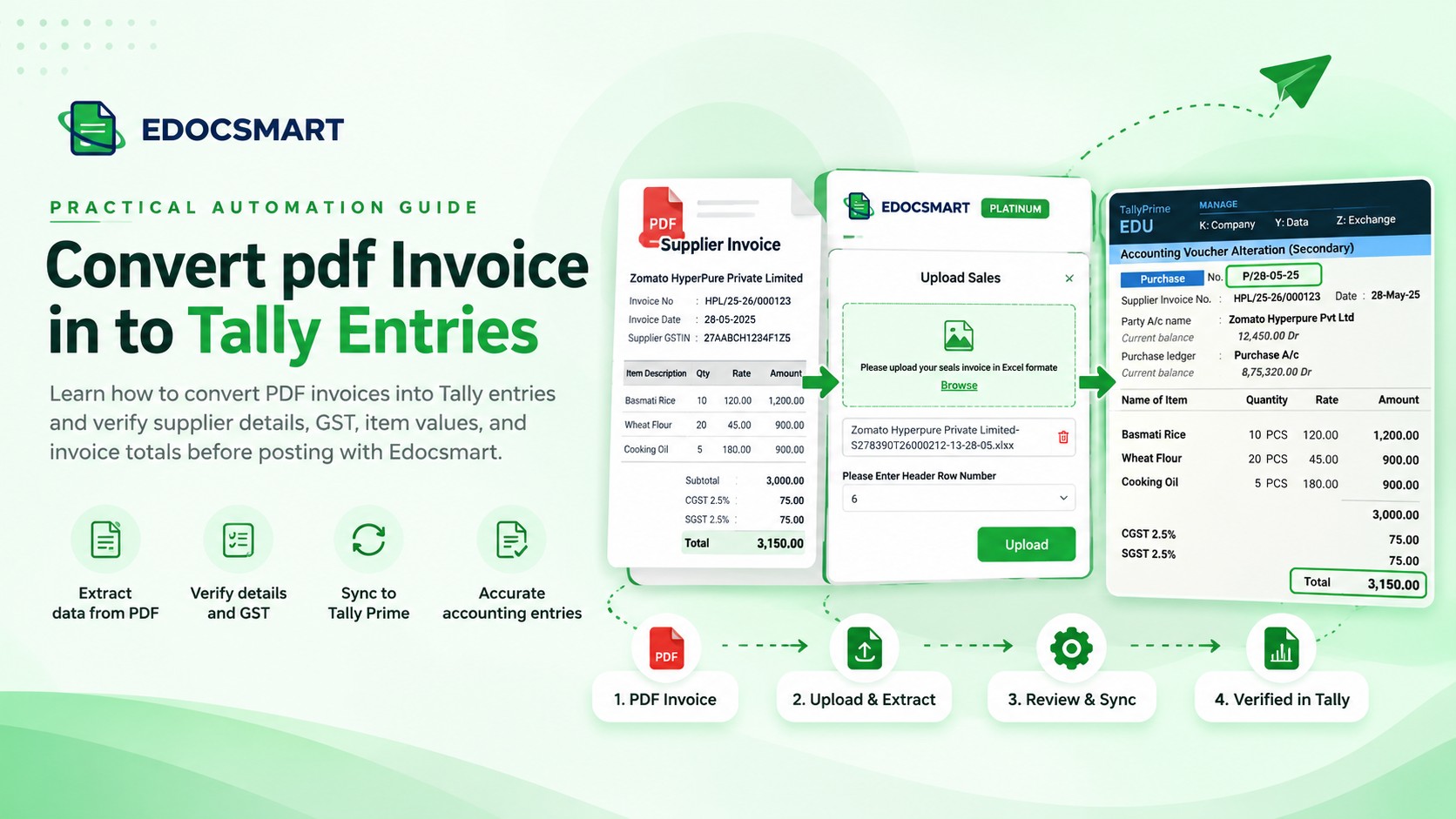
When the Invoice Total Looks Right, but the Entry Is Wrong
Imagine receiving a supplier invoice for ₹11,800. The invoice contains taxable goods worth ₹10,000 and GST of ₹1,800.
The total is straightforward. Yet the accounting entry can still be incorrect.
The supplier might be associated with the wrong ledger. A stock item could be assigned to a different product. The tax amount might be extracted correctly but mapped to an inappropriate ledger. Even a small difference between the invoice total and the entered voucher can create extra reconciliation work.
This is why converting a PDF invoice into a Tally entry involves more than extracting text from a document.
The extracted information must also be checked against the original invoice and interpreted correctly for accounting purposes.
Businesses can use Edocsmart to extract invoice information from supported documents, review the resulting data, and move approved records into their configured accounting workflow. The aim is to reduce repetitive typing while retaining control over the final accounting entry.
In this guide, we'll examine the verification process that takes place between reading a PDF invoice and confirming the resulting voucher in Tally Prime. We'll use practical examples to explain what to check, why discrepancies occur, and how to handle uncertain information before posting.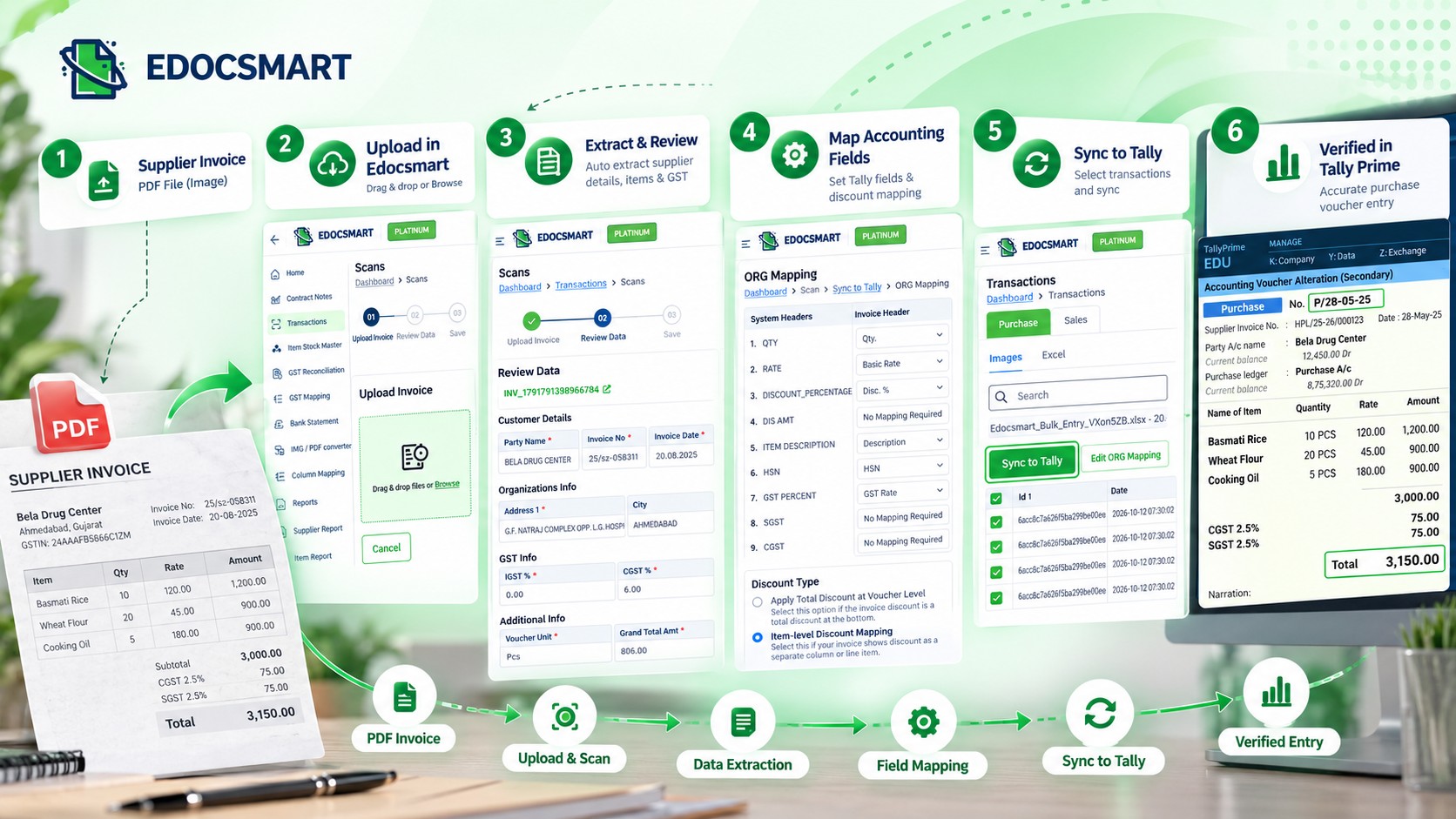
1. Start with the Original Invoice, Not Just the Extracted Data
A PDF invoice is the source document. The extracted fields are a structured representation of the information contained in that document.
These two should be compared before the transaction is treated as verified.
For example, a supplier invoice may contain the following details:
| Invoice Field | Fictional Example |
|---|---|
| Supplier | Sunrise Industrial Supplies |
| Invoice number | SIS-1048 |
| Invoice date | 18 October 2026 |
| Item | Copper Wire |
| Quantity | 10 units |
| Rate | ₹1,000 |
| Taxable value | ₹10,000 |
| GST | ₹1,800 |
| Invoice total | ₹11,800 |
The values are illustrative and do not represent an actual customer transaction.
An extraction workflow may identify the supplier, invoice number, date, item details, and amounts. The accounting team should still compare those values with the source document.
This is particularly important when an invoice contains multiple line items, small print, handwritten annotations, unusual layouts, or several tax rates.
The first verification question is simple:
Does the extracted information accurately represent what the supplier actually issued?
If the answer is uncertain, the field should be investigated before the entry is approved.
2. Verify the Supplier and Invoice Identity
Correct amounts do not guarantee that an invoice has been assigned to the correct supplier.
A business may deal with suppliers whose names are similar. One supplier might also operate under a shortened trading name while its Tally ledger uses a longer legal name.
Consider this example:
| Source Invoice | Existing Tally Ledger |
|---|---|
| Sunrise Industrial Supplies | Sunrise Industrial Supplies Pvt Ltd |
The names are similar, but the accounting team should verify that both refer to the same supplier before selecting the ledger.
Do not create a new ledger merely because the wording differs. Equally, do not assume that similar names always identify the same business.
Check These Details
Supplier name and available identifying details.
Supplier invoice number.
Invoice date.
Relevant supplier GSTIN, where applicable.
Whether the invoice has already been entered.
Whether the invoice belongs to the correct Tally company.
Why Duplicate Checks Matter
Suppose invoice SIS-1048 was already recorded in Tally, but the PDF is uploaded again during a later processing session.
If the existing voucher is not checked before retrying, the same invoice could be recorded twice, depending on the workflow and duplicate controls.
A reliable process therefore includes checking the destination records before reposting a previously processed invoice.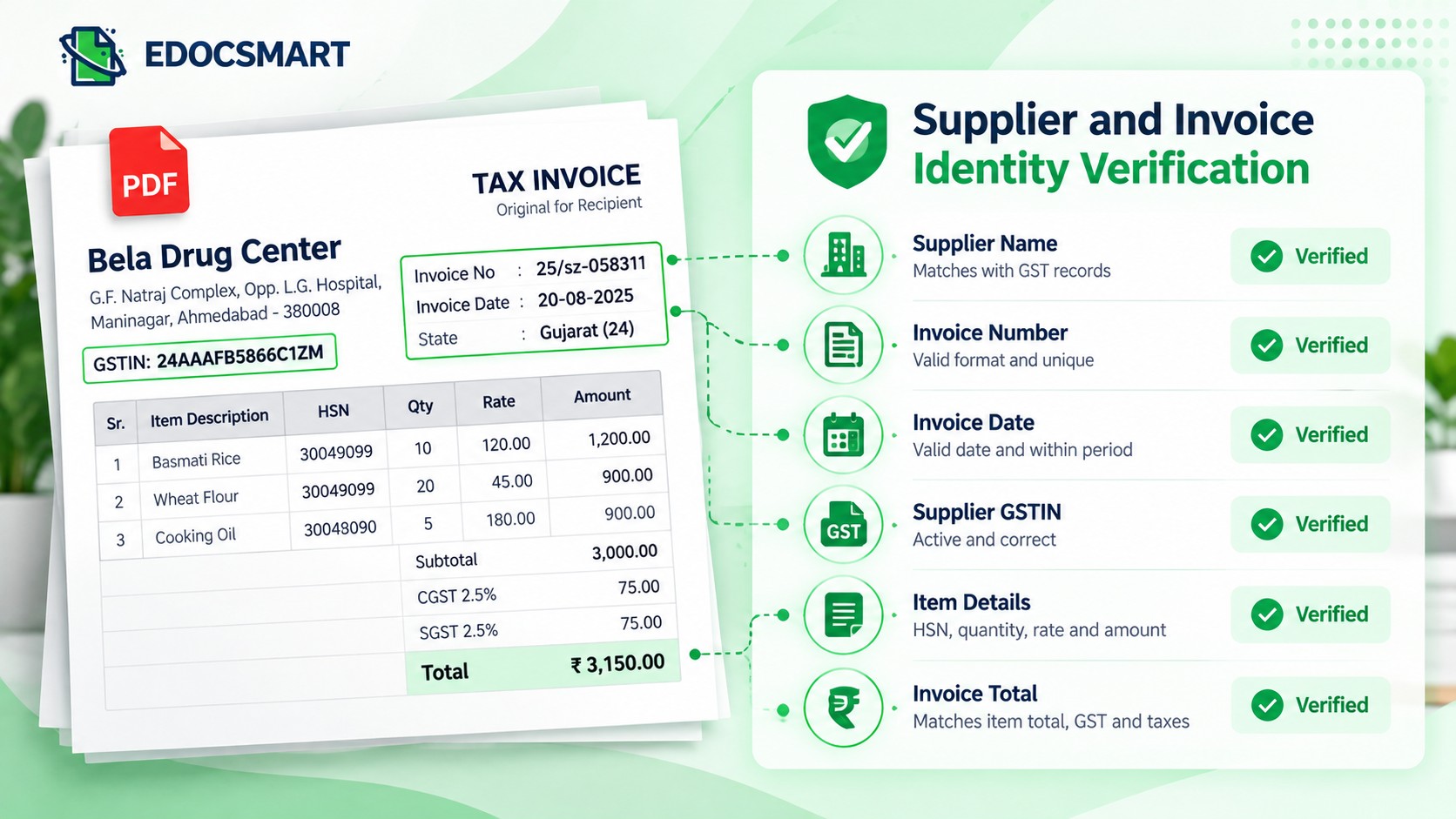
3. Check Item Descriptions, Quantities, and Rates
Line-item verification is important because an invoice may contain several products with different quantities, rates, discounts, and tax treatments.
Suppose a supplier invoice contains two products:
| Item | Quantity | Rate | Amount |
|---|---|---|---|
| Copper Wire | 10 | ₹1,000 | ₹10,000 |
| Electrical Connectors | 20 | ₹100 | ₹2,000 |
| Total taxable value | ₹12,000 |
The accounting team should verify that both items have been extracted correctly.
A frequent source of confusion is the difference between an invoice description and the corresponding stock item in Tally.
For example, the invoice may say "Copper Wire 2.5 mm," while the Tally stock master uses "Copper Wire 2.5mm Roll."
The correct item should be identified based on the company's established inventory records, not selected simply because its name looks similar.
Verify Units of Measurement
Quantity and unit must be interpreted together.
An invoice showing 10 boxes should not automatically become a transaction for 10 individual pieces if the accounting unit is different.
The team should confirm:
The item represents the intended product.
The quantity matches the source invoice.
The unit of measurement is appropriate.
The rate corresponds to the correct unit.
Discounts and additional charges have been considered where applicable.
A wrong item or unit can affect both inventory records and the accounting value of the purchase.
4. Reconcile Taxable Value, GST, and the Invoice Total
Tax verification is not just a matter of checking whether a GST percentage appears in the extracted data.
The accounting team should compare the taxable amount, applicable tax values, additional charges, discounts, and final invoice total with the original invoice.
Consider a simplified example:
| Component | Amount |
|---|---|
| Taxable value | ₹10,000 |
| Illustrative GST at 18% | ₹1,800 |
| Expected invoice total | ₹11,800 |
For this simple example, the total is:
₹10,000 + ₹1,800 = ₹11,800.
Now suppose the extracted invoice total is ₹12,800. The difference is ₹1,000.
The correct response is not to change the invoice total automatically to make the numbers match. The accounting team should investigate whether a value was extracted incorrectly or whether the invoice contains additional charges, another item, or other relevant information.
What Should Be Checked?
Taxable value against the source invoice.
GST rate and tax amount.
Whether the invoice contains multiple tax rates.
Discounts, freight, and other charges.
Round-off values.
Final invoice total.
The intended accounting treatment and tax configuration.
The example uses a simplified tax calculation. Actual invoices may require different treatment depending on the transaction, applicable rules, and the company's accounting configuration.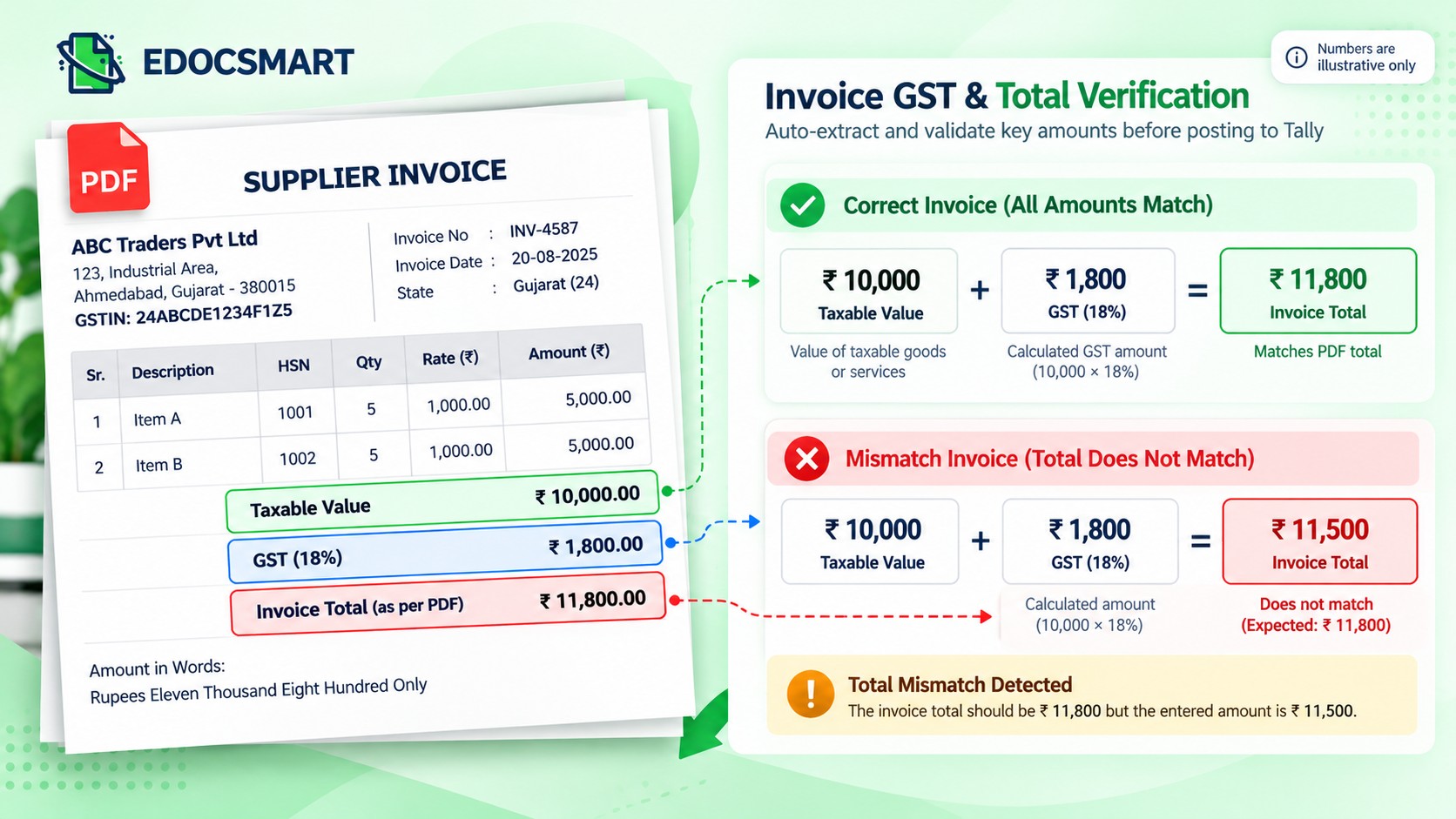
5. Confirm the Correct Ledger and Voucher Treatment in Tally Prime
Extracting the right supplier and amount does not automatically determine the correct accounting entry.
The business must also confirm how the transaction should be recorded.
For example, a supplier purchase may require a purchase ledger, the appropriate supplier account, stock item details, and applicable tax ledgers.
A service invoice may require different treatment from an inventory purchase.
The correct entry depends on the nature of the transaction and the company's existing Tally configuration.
Purchase of Goods
For an inventory purchase, the accounting team should verify the supplier ledger, purchase ledger, stock items, quantities, rates, and relevant tax details.
Purchase of Services
For a service invoice, the appropriate expense or service ledger may be required instead of stock item allocation.
Existing Accounting Masters
Before creating or selecting a ledger or stock item, verify that the intended master exists and represents the correct entity or item.
TallyPrime's official purchase guidance explains how purchase vouchers use supplier ledgers, purchase accounts, stock items or service ledgers, and additional charges as applicable. See TallyHelp — Record Purchase of Goods and Services.
This is why a PDF extraction process should not be treated as a replacement for accounting judgment.
6. Use Edocsmart to Reduce Repetitive Invoice Entry
Edocsmart supports invoice-processing workflows that help turn supported PDFs and invoice images into structured data for review and accounting use.
A general PDF-to-Tally workflow can involve the following stages:
Step 1: Upload the Invoice
Provide the supported invoice document through the relevant Edocsmart workflow.
Step 2: Extract the Invoice Information
The system processes the document and extracts available invoice fields, such as supplier details, invoice identifiers, item information, tax values, and totals, depending on the document and workflow.
Step 3: Review the Extracted Data
Compare important fields with the original invoice. Pay particular attention to supplier identity, item descriptions, quantities, rates, GST values, and the invoice total.
Step 4: Confirm the Accounting Mapping
Check that the extracted information corresponds to the intended accounting fields and relevant Tally masters.
Step 5: Synchronize Approved Records
Use the available synchronization workflow and Edocsmart Tally Connector to transfer supported, approved records to the connected Tally environment.
Step 6: Verify the Resulting Voucher
Confirm that the voucher exists in the intended Tally company and that its important values match the source invoice.
The exact controls and steps may depend on the product configuration. The important principle is to separate data extraction from final accounting verification.
To learn more, visit Edocsmart's Excel-to-Tally solution and invoice automation information.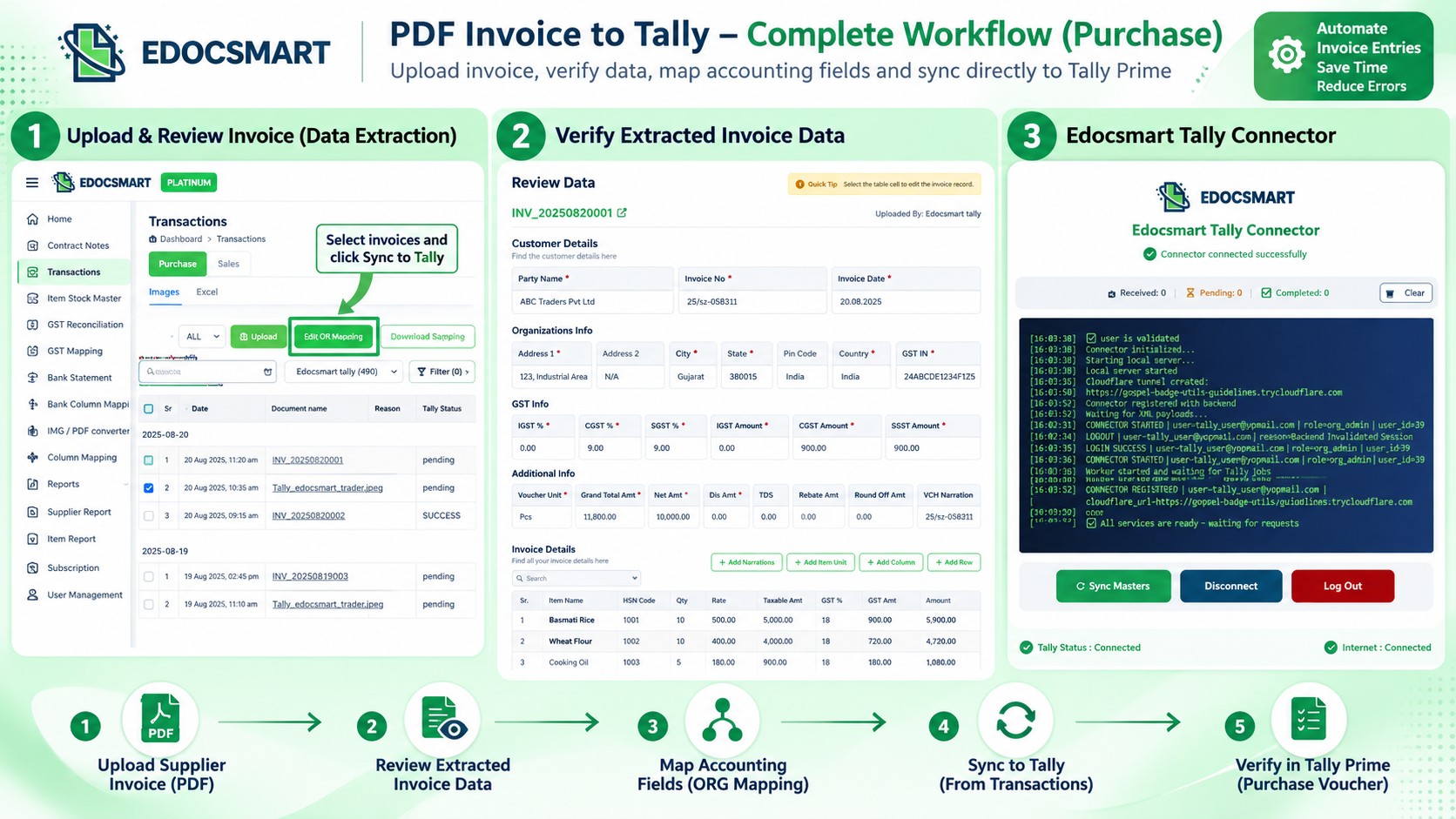
7. Handle Uncertain Fields Before Posting the Voucher
Not every invoice will be straightforward to process.
Some PDFs may be scanned at low resolution. Others may contain multiple tables, unclear abbreviations, or handwritten notes.
The correct approach is to identify the uncertain field and investigate it rather than assuming that the extracted value is correct.
| Issue | What to Check | Appropriate Action |
|---|---|---|
| Unclear invoice number | Original PDF | Inspect the source document |
| Supplier name mismatch | Supplier identity and ledger | Confirm the correct ledger |
| Missing stock item | Item description and stock master | Verify the intended item |
| GST difference | Taxable value and tax calculation | Investigate the discrepancy |
| Total mismatch | Line items, tax, charges, discounts | Reconcile with the invoice |
| Possible duplicate | Existing Tally vouchers | Verify before retrying |
| Incomplete invoice | Missing source details | Obtain clarification or a corrected document |
These are common scenarios, not a claim that every issue will automatically be detected or categorized by Edocsmart.
The accounting team should maintain a clear distinction between a field that has been extracted, a field that has been reviewed, and a transaction that has been approved.
8. Verify the Voucher After Synchronization
The verification process should not end when the synchronization action completes.
A successful transfer confirms that the workflow processed the record, but the accounting team should still verify the resulting voucher.
For each relevant entry, compare:
Supplier or party ledger.
Voucher type.
Voucher date and supplier invoice number.
Stock items or expense ledgers.
Quantity, rate, and taxable value.
GST details.
Final invoice total.
Any relevant additional charges or round-off amounts.
Also check the transaction count and investigate any invoice that does not appear in Tally as expected.
If a voucher is missing, determine whether the transaction was rejected, left pending, or otherwise not completed. If a voucher already exists, verify its status before attempting another synchronization.
This approach reduces the risk of duplicate entries and helps maintain confidence in the final accounting records.
9. A Practical Verification Checklist for Every PDF Invoice
A short checklist can help standardize invoice processing across the accounting team.
Before Synchronization
Confirm that the PDF is readable and belongs to the intended business.
Verify the invoice number, date, and supplier.
Compare the extracted item details with the original invoice.
Check quantities, rates, taxable values, and GST.
Investigate any unexplained difference in the invoice total.
Confirm the intended ledgers and accounting treatment.
Check for potential duplicates.
After Synchronization
Confirm that the voucher exists in the correct Tally company.
Compare the recorded values with the original invoice.
Verify that the transaction has not been duplicated.
Investigate any failed or incomplete records.
Retain the source document according to the company's recordkeeping process.
The checklist can be adapted to the business's invoice types and accounting requirements.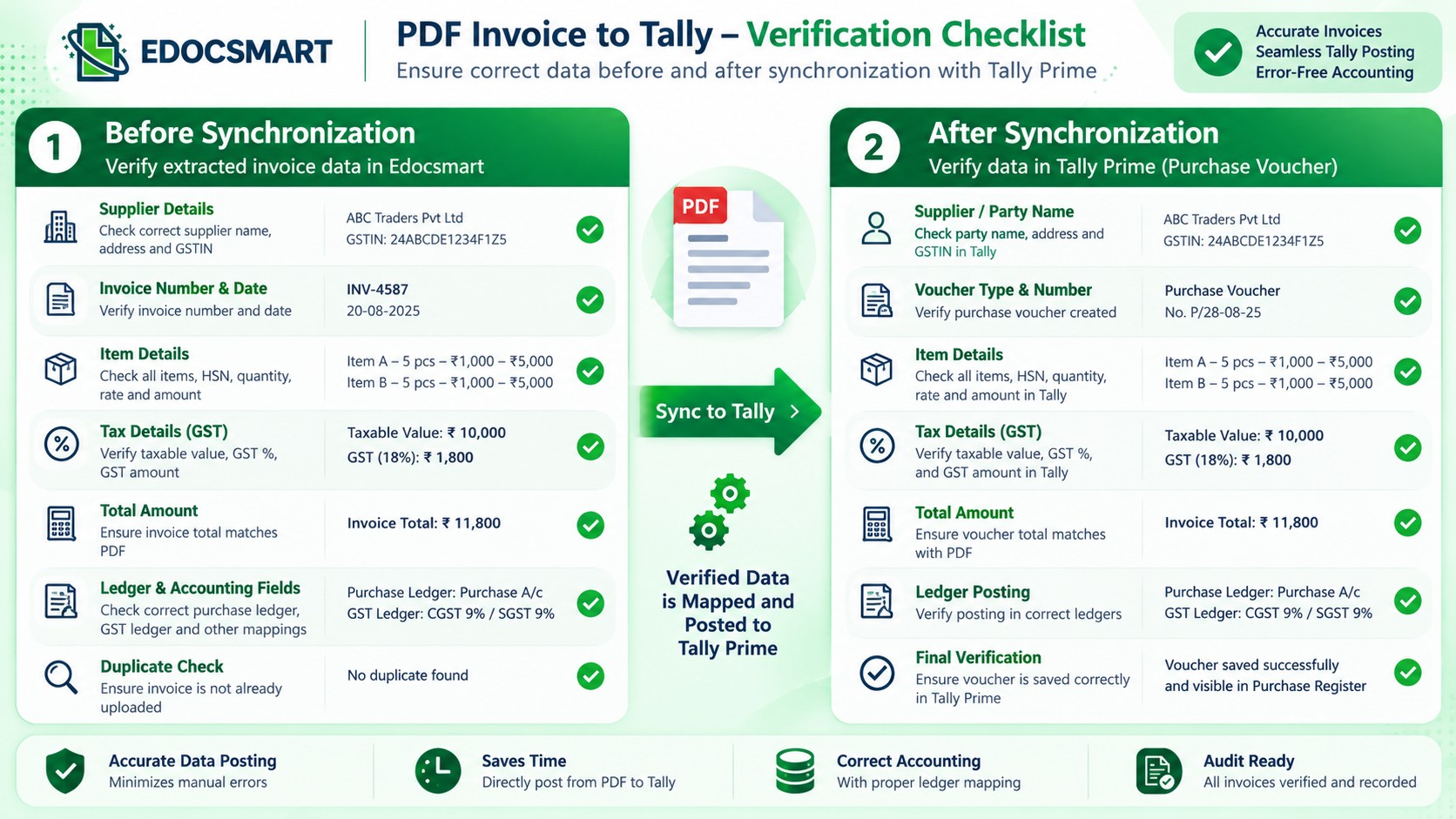
Frequently Asked Questions (FAQs)
1. How can I convert PDF invoices into Tally entries?
Use an invoice-processing workflow that extracts supported PDF invoice information, allows the data to be reviewed and mapped, and synchronizes approved records with Tally Prime through a supported integration.
2. Can I convert a scanned PDF invoice into Tally data?
Scanned invoices may be processed using OCR-based workflows, depending on document quality and the supported input format. Unclear text or fields should be checked against the original scan before the resulting entry is approved.
3. Which fields should I verify before creating a Tally voucher?
Important fields include supplier name, invoice number, date, item descriptions, quantities, rates, taxable value, GST, additional charges, and the final invoice total. The correct ledger and voucher treatment should also be confirmed.
4. Why can a PDF invoice produce an incorrect Tally entry even when the total looks correct?
The invoice total may be correct while the supplier ledger, stock item, quantity, rate, or tax allocation is wrong. Verification should cover both the final amount and the underlying transaction details.
5. Can Edocsmart reduce manual PDF invoice entry in Tally Prime?
Edocsmart supports invoice data extraction, review, and configured accounting workflows that can reduce repetitive entry. The resulting records should still be verified, and capabilities depend on the supported workflow and configuration.
6. What should I do if the supplier name differs from the Tally ledger name?
Confirm that both names refer to the same supplier using the available business and accounting records. Do not select or create a ledger based only on a similar name.
7. How should I handle a GST mismatch in an extracted invoice?
Compare the extracted taxable value, GST rate, tax amount, charges, discounts, and final total with the original invoice. Investigate the reason for the difference before approving the voucher.
8. How can I prevent duplicate PDF invoice entries in Tally?
Check whether the invoice has already been recorded before retrying a synchronization. Maintain invoice identifiers and batch records, and follow the supported duplicate-handling process.
9. Does successful synchronization guarantee that the accounting entry is correct?
No. Successful synchronization and accounting correctness are separate checks. Verify the resulting voucher against the original invoice and confirm the correct ledger, item, tax treatment, and amount.
10. Can I use the same verification checklist for every supplier invoice?
A common checklist is useful for standard fields, but different invoice types may require additional checks. Service invoices, inventory purchases, invoices with multiple GST rates, and invoices with additional charges may need different accounting considerations.
Conclusion: Convert the Invoice, Then Verify the Accounting
Converting a PDF invoice into a Tally entry can reduce repetitive data entry, but the quality of the final accounting record depends on more than document extraction.
Supplier identity, invoice details, stock items, quantities, rates, tax values, and the final amount must all be interpreted correctly.
A structured process helps businesses identify discrepancies before posting, investigate uncertain fields, and verify the resulting vouchers after synchronization.
Edocsmart can support this process by extracting invoice information and connecting the review workflow to supported accounting synchronization. By combining automation with appropriate verification, businesses can reduce manual work without treating extracted data as automatically error-free.
Explore Edocsmart to learn more about invoice automation and structured accounting workflows.