How to Customize Excel to Tally Sales Import Settings
Learn how to customize Excel to Tally sales import settings in Edocsmart, including stock groups, godowns, HSN codes, ledger names, voucher types and narration.
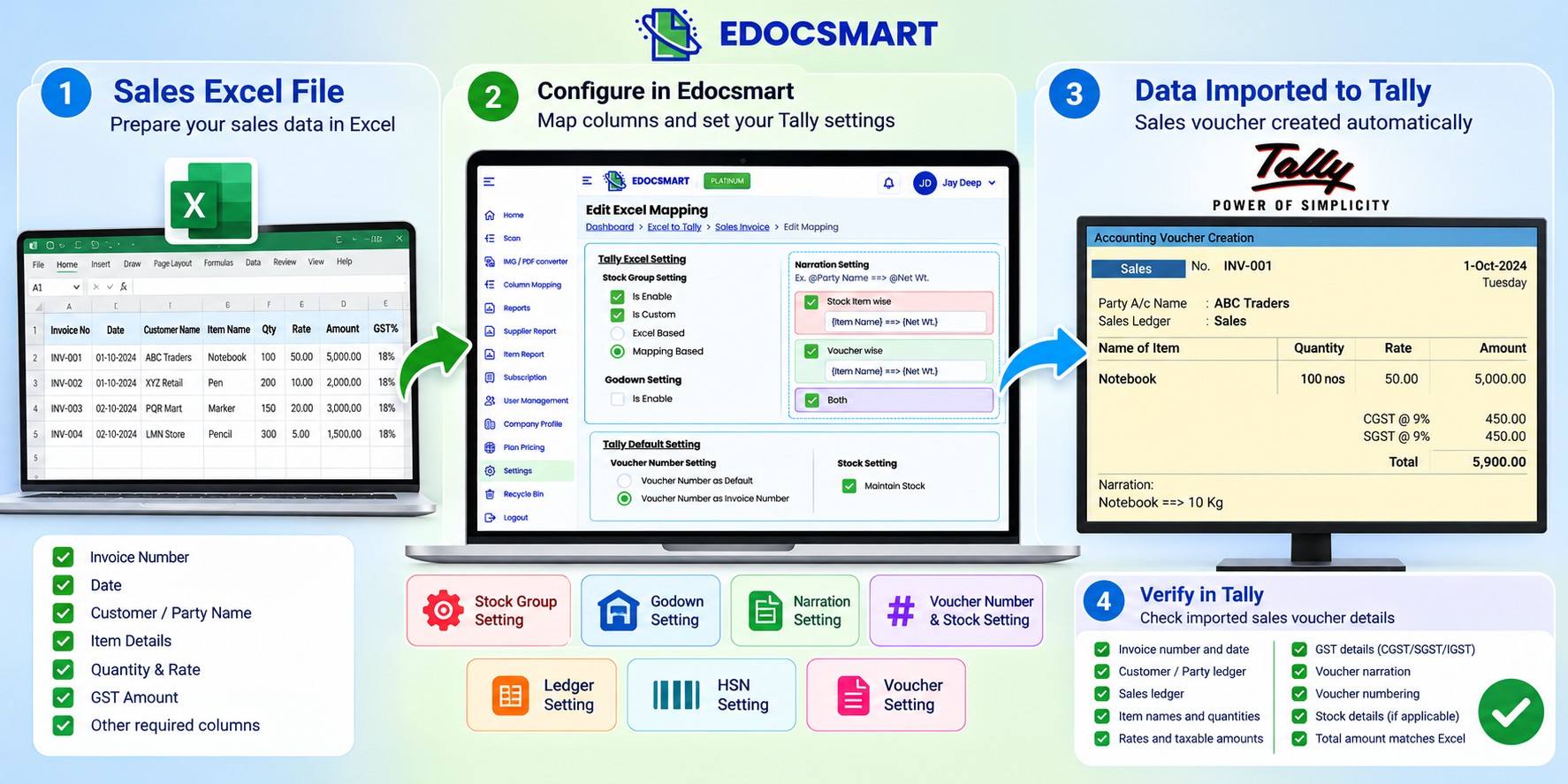
Your Excel Sales Data Should Match Your Accounting Requirements
Imagine two businesses using TallyPrime to manage their sales transactions.
The first business is a wholesale distributor. It maintains stock items, stock groups, godowns and detailed item-wise sales records.
The second is a small trading company. Its Excel sales file contains customer names, invoice numbers, dates, item details, quantities, rates and GST amounts. It doesn't need separate godown information, and its stock group requirements are different.
Both companies want to import sales data from Excel into Tally.
However, their accounting configurations are not identical.
If both businesses are forced to use the same import settings, they may need to add unnecessary fields, adjust their existing spreadsheets or manually correct the imported information.
This is why configuration matters.
With Edocsmart, businesses can configure supported Excel mapping and Tally-related settings according to their accounting requirements.
Instead of treating every Excel file the same way, the workflow can account for differences in stock group mapping, godown usage, narration, ledger names, HSN codes and voucher settings.
In this guide, we'll explain the settings shown in Edocsmart and how they relate to preparing Excel sales data for Tally.
Quick Answer: To customize Excel to Tally sales import settings in Edocsmart, review your Excel mapping configuration and adjust the relevant Stock Group, Godown, Narration, Voucher Number and Stock settings. Then open Settings → Tally Setting to configure HSN, Ledger and Voucher options. Save the applicable settings and test the import with sample sales data.
Why Customize Excel to Tally Sales Import Settings?
Every business maintains accounting information differently.
Some companies use item-wise sales invoices with detailed inventory classifications. Others use simpler sales structures.
A standard import format may not always reflect those differences.
Customizing the available settings helps businesses prepare data according to their intended accounting structure.
For example:
A wholesaler may need Stock Group mapping.
A business without multiple godowns may not need Godown Setting enabled.
A company may want its sales voucher number to follow the invoice number.
Another business may prefer the voucher number to follow Tally's default numbering.
Some businesses may use HSN codes from invoices, while others maintain HSN information in their item masters.
The appropriate configuration depends on the customer's accounting requirements and the masters and features available in Tally.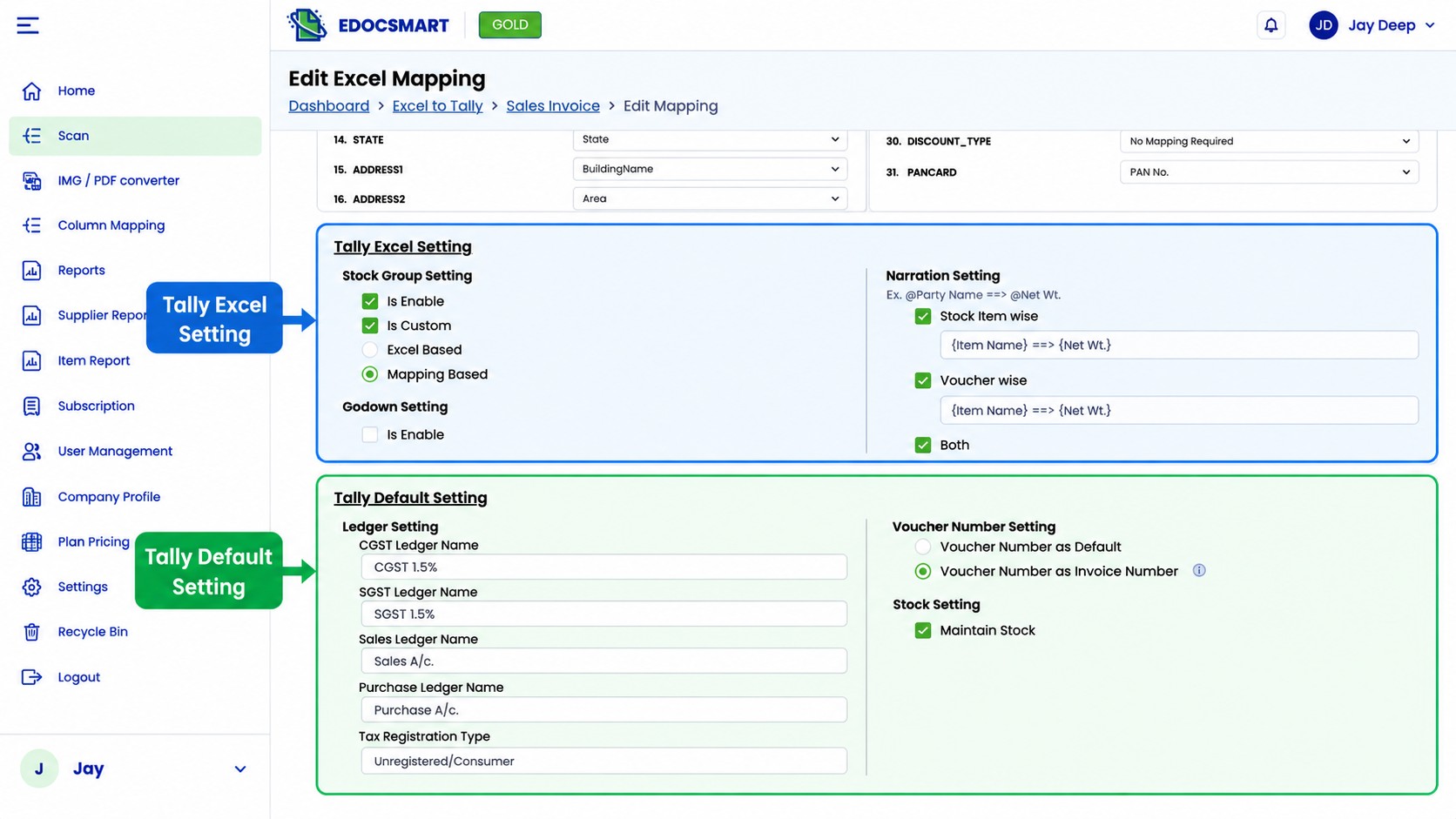
Understanding the Excel to Tally Customization Options in Edocsmart
Edocsmart provides configuration options within its Excel Mapping and Settings & Configurations screens.
The supplied screenshots show the following sections:
| Configuration Area | Available Settings |
|---|---|
| Stock Group Setting | Is Enable, Is Custom, Excel Based, Mapping Based |
| Godown Setting | Is Enable |
| Narration Setting | Stock Item wise, Voucher wise, Both |
| Voucher Number Setting | Voucher Number as Default, Voucher Number as Invoice Number |
| Stock Setting | Maintain Stock |
| Ledger Setting | Sales, Purchase, CGST and SGST Ledger Names |
| HSN Setting | Invoice Based HSN, Mapping Based HSN |
| Voucher Setting | Voucher Type Name |
These settings allow different aspects of the Excel to Tally workflow to be configured.
Let's understand them individually.
Step 1: Open Your Excel Mapping Configuration
Start by opening your Edocsmart account and navigating to the relevant Excel mapping configuration.
The reference screen shows the Tally Excel Setting and Tally Default Setting sections on the mapping edit page.
This is where several import-related options are available.
Before changing the settings, review the Excel file you intend to import.
Check whether it contains the necessary sales information, such as invoice date, party name, item details, quantity, rate, tax values and invoice number.
Also identify whether your business needs stock groups, godowns and custom narration.
This helps you choose the appropriate settings instead of enabling every option without a specific requirement.
Step 2: Configure Stock Group Settings
Stock groups are used in Tally to organize stock items into categories.
For example, a trading business might organize products into Electronics, Accessories and Home Appliances.
A manufacturer might use Raw Materials, Semi-Finished Goods and Finished Goods.
However, not every Excel import workflow needs to include Stock Group mapping.
Available Stock Group Options
The Edocsmart mapping screenshot displays:
Is Enable: A checkbox associated with enabling the Stock Group Setting.
Is Custom: A checkbox for the custom stock group configuration.
Excel Based: A selectable stock group option.
Mapping Based: Another selectable stock group option.
These controls provide choices for how stock group information is handled in the configured workflow.
Example: Business That Doesn't Need Stock Group Mapping
Suppose a customer wants to import sales invoices containing:
| Excel Field | Required |
|---|---|
| Invoice Date | Yes |
| Customer Name | Yes |
| Item Name | Yes |
| Quantity | Yes |
| Rate | Yes |
| GST | Yes |
| Stock Group Mapping | No |
In this situation, the customer may not need to include Stock Group mapping in the intended import configuration.
Where supported, the Stock Group Setting can be adjusted so the workflow does not require that additional mapping.
This can reduce unnecessary data preparation.
However, Tally's existing stock item and inventory master requirements must still be satisfied.
Example: Business That Needs Stock Group Mapping
Now consider a company that maintains separate stock groups for different product categories.
For this business, Stock Group configuration may be important when preparing inventory-related data.
The appropriate option should be selected based on how stock groups are maintained and how the source Excel data is structured.
Key takeaway: Stock Group mapping should reflect the actual inventory workflow rather than being treated as a compulsory field for every customer.
Step 3: Configure Godown Settings
Some businesses maintain inventory across multiple warehouses or storage locations.
For example, a distributor may store products in:
Main Warehouse
Retail Store
Secondary Warehouse
In Tally, godowns can help maintain location-wise inventory records when the relevant inventory features are configured.
The Edocsmart Excel mapping screen includes a Godown Setting section with an Is Enable checkbox.
When Should You Enable Godown Setting?
A business that needs location-wise inventory information in its import workflow may require this setting.
For example, if an Excel sales file identifies the warehouse from which products were sold, godown-related information may be relevant to the accounting process.
When Is Godown Setting Unnecessary?
A business that does not maintain multiple inventory locations may not need godown information in its Excel import workflow.
In that case, leaving the setting disabled may be appropriate.
The decision should be based on the customer's inventory setup and the required Tally voucher structure.
Step 4: Customize Sales Voucher Narration
Narration provides additional information about an accounting transaction.
Businesses may use narration to identify products, describe a transaction or provide context for accounting records.
The Edocsmart mapping screen includes a Narration Setting section.
It displays three options:
Stock Item wise: A setting for item-level narration configuration.
Voucher wise: A setting for voucher-level narration configuration.
Both: An option shown for using both narration settings.
The screenshot also shows configurable text fields containing the example:
{Item Name} ==> {Net Wt.}
This demonstrates how item-related information can be included in a narration pattern.
Example: Custom Narration for Sales Entries
A jewellery business may want item names and net weights represented in its narration.
Another business may prefer a shorter voucher-level description.
The narration configuration can be reviewed according to the information the customer wants to retain.
Use only the placeholders and narration structures supported by the configured Edocsmart workflow.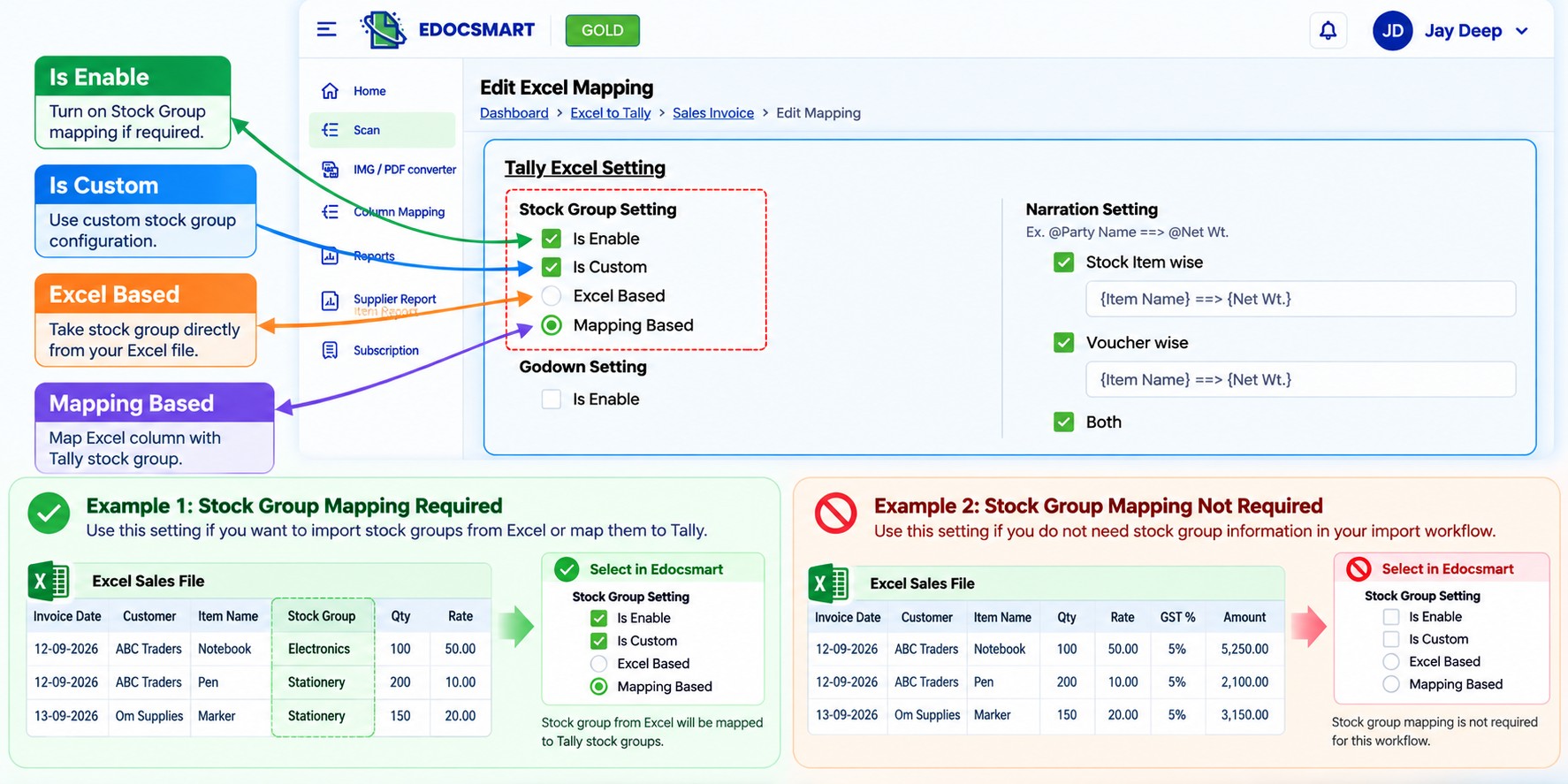
Step 5: Configure Voucher Number Settings
Voucher numbering is important for maintaining organized accounting records.
Different businesses may follow different numbering practices.
Some prefer Tally's default voucher numbering system, while others want to use the invoice number from their Excel file.
The Edocsmart screenshot provides two options under Voucher Number Setting:
Option 1: Voucher Number as Default
This option is intended for a workflow that uses the default voucher numbering approach.
It may be appropriate when the business wants voucher numbering to follow its established Tally configuration.
Option 2: Voucher Number as Invoice Number
This option is intended for using the invoice number as the voucher number in the configured workflow.
For example, if the sales invoice number is SALE-1025, the business may want the imported voucher to use that number.
The actual result depends on Tally's voucher numbering configuration, accepted voucher numbers and any existing transactions.
Before importing a large batch, test the selected numbering option to avoid conflicts or duplicates.
Step 6: Configure Maintain Stock
The Edocsmart mapping screen also includes a Stock Setting section with the checkbox:
Maintain Stock
This setting is relevant when the import workflow needs to account for stock-related information.
A business importing item-wise sales transactions may require stock maintenance, depending on its inventory configuration.
For a workflow that does not require stock-related processing, the appropriate setting should be reviewed before import.
Do not disable inventory-related settings solely to simplify the process if the business needs accurate stock records in Tally.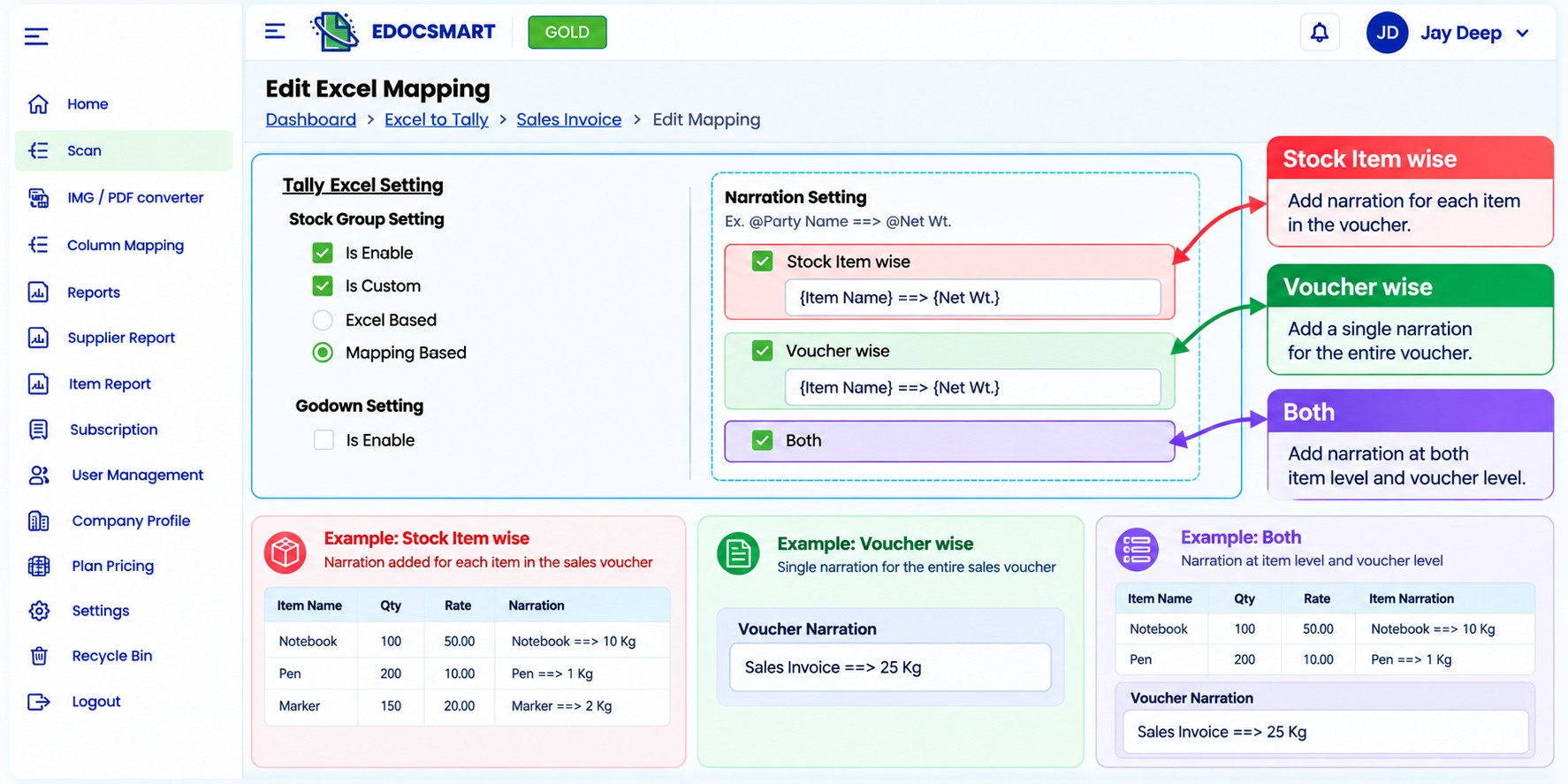
Step 7: Configure Default Ledger Names
Sales transactions often involve sales ledgers and GST-related ledgers.
The ledger names used by the import configuration need to match the relevant accounting setup.
Edocsmart provides a separate Ledger Setting section.
How to Open Ledger Setting
Open Edocsmart.
Navigate to Settings.
Select Tally Setting.
Click Ledger Setting.
The screenshot shows four configurable fields:
| Ledger Setting Field | Example Displayed |
|---|---|
| Sales Ledger Name | Sales |
| Purchase Ledger Name | Purchase |
| CGST Ledger Name | CGST-90 percent |
| SGST Ledger Name | SGST-90 percent |
These are values visible in the supplied screenshot, not recommended GST rates or universal ledger names.
Why Ledger Configuration Matters
Consider a company whose Tally sales ledger is named Sales A/c, while the import configuration refers to Sales.
A naming mismatch may cause problems if the configured workflow expects an existing ledger with a particular name.
Similarly, GST-related ledger names must correspond to the company's accounting setup.
The correct approach is to review the ledger names already maintained in Tally and configure the applicable fields accordingly.
After making the changes, click Save Settings.
Important: Ledger names do not determine the legally applicable GST rate by themselves. The tax treatment must be configured correctly for the transaction.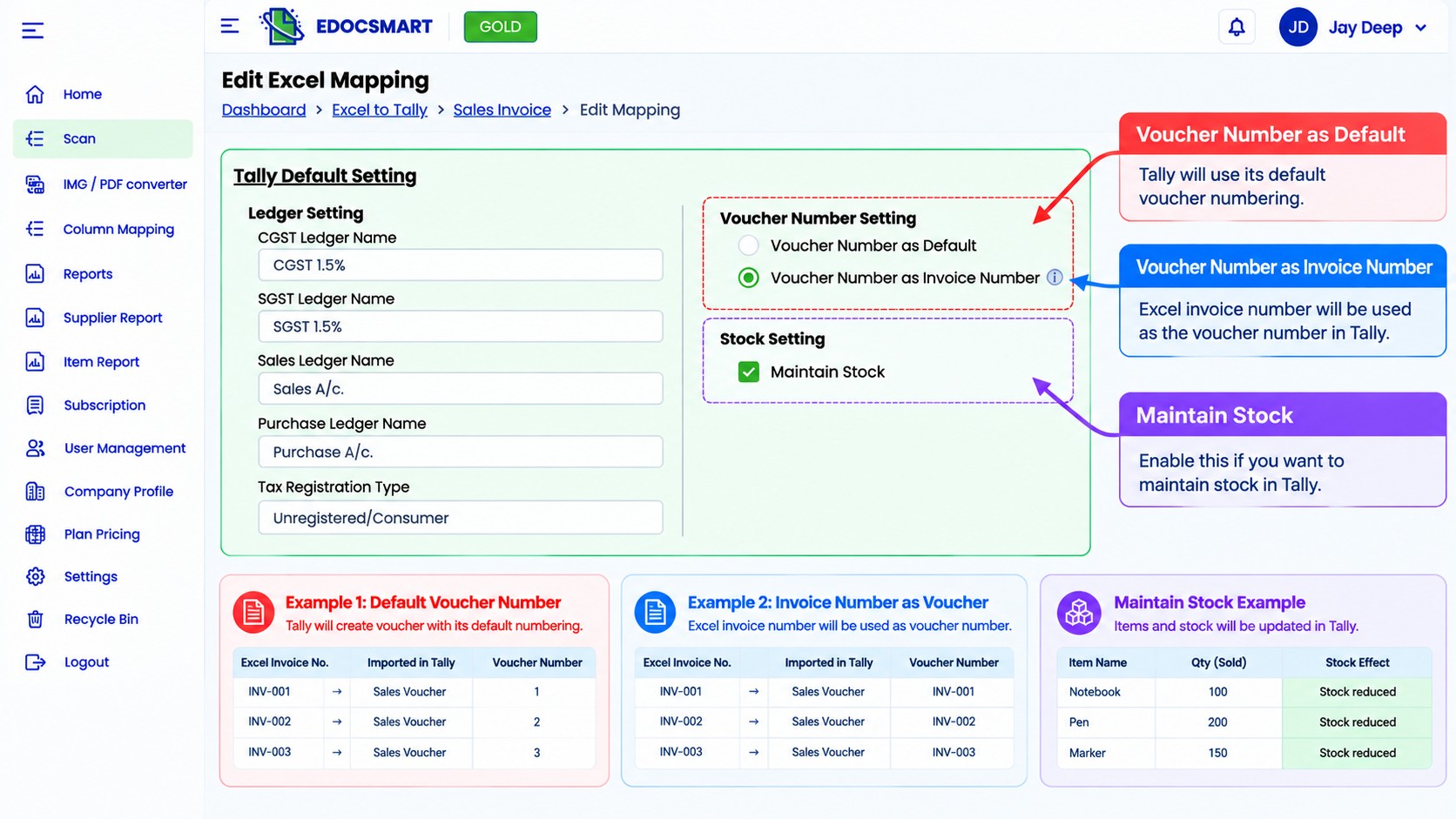
Step 8: Configure HSN Settings
HSN codes are used for classifying goods under the GST system.
Businesses may maintain HSN information in different places.
Some invoices contain the relevant HSN codes, while other businesses maintain them through their item master data.
Edocsmart's HSN Setting provides two visible options.
How to Open HSN Setting
Navigate to:
Settings → Tally Setting → HSN Setting
The screen shows:
Invoice Based HSN
The interface describes this option as:
Fetch and use HSN codes directly from the uploaded invoices.
This option is relevant when HSN information is available in the source invoice and the workflow is intended to use that information.
Mapping Based HSN
The interface describes this option as:
Retrieve HSN codes based on Item Master.
This option is relevant when the workflow is intended to use HSN information associated with item master data.
Which HSN Option Should You Choose?
| Business Requirement | Relevant Option |
|---|---|
| HSN information should come from uploaded invoices | Invoice Based HSN |
| HSN information should be retrieved through item master mapping | Mapping Based HSN |
The correct option depends on the business's source documents, item master information and accounting requirements.
After choosing the appropriate setting, click Save Settings.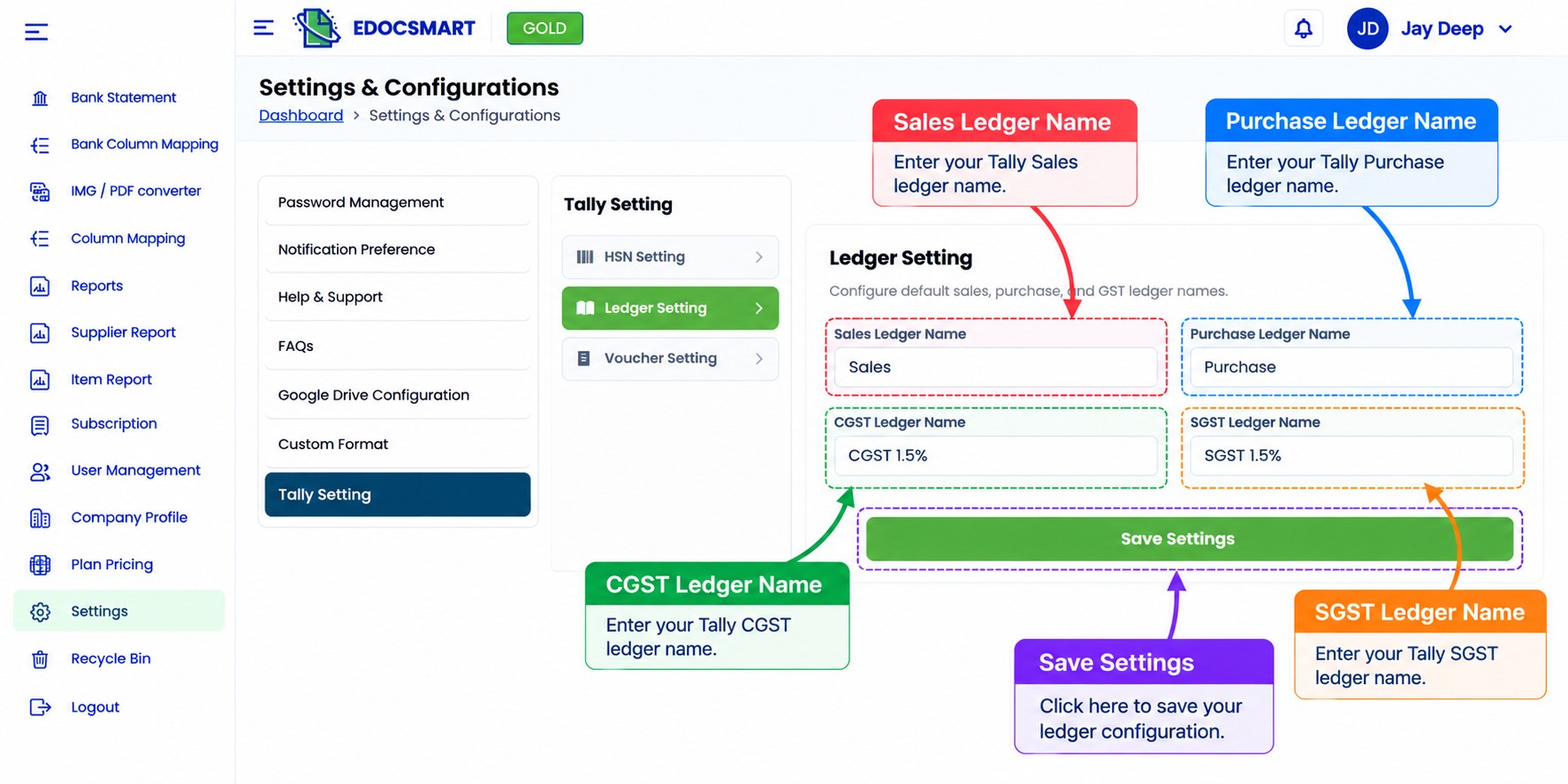
Step 9: Configure Voucher Type Name
Businesses may use different voucher types for their accounting transactions.
For example, a company may maintain a standard Sales voucher type or a separately named sales voucher type for a particular process.
Edocsmart includes a Voucher Setting section.
How to Open Voucher Setting
Navigate to:
Settings → Tally Setting → Voucher Setting
The screenshot shows a field labeled:
Voucher Type Name
The field contains the placeholder:
Add your voucher type name
This allows the user to enter a voucher type name for the configured workflow.
Example
Suppose a company uses a specific sales voucher type in Tally for a particular accounting process.
The corresponding voucher type name can be entered in the Edocsmart setting, subject to the supported configuration.
The voucher type must be appropriate for the intended transaction and available in the relevant Tally company.
After entering the value, click Save Settings.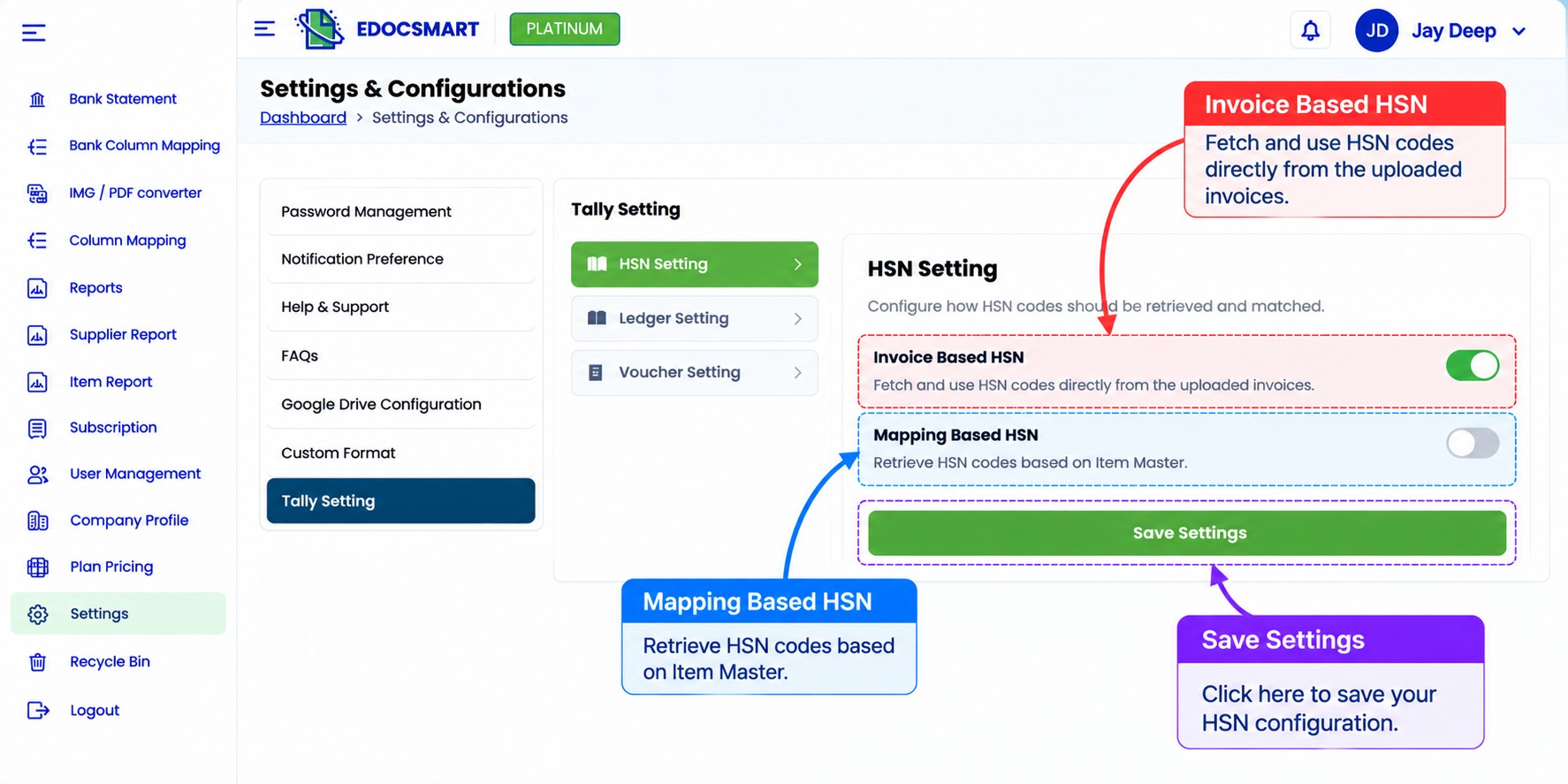
Step 10: Review the Configuration Before Importing Sales Data
Once the required settings are configured, review them together.
For example, a trading business might use the following configuration:
| Setting | Example Configuration |
|---|---|
| Stock Group | Not required for this import workflow |
| Godown | Disabled |
| Narration | Voucher-wise |
| Voucher Number | Invoice Number |
| Maintain Stock | According to inventory requirement |
| Sales Ledger | Existing Tally sales ledger |
| HSN | Invoice Based |
| Voucher Type | Existing Sales voucher type |
A manufacturing company may use a different combination of settings.
The objective is not to apply the example above to every business. It is to choose settings that match the company's actual accounting workflow.
Before proceeding, confirm that the Excel data contains the required fields and that the relevant Tally masters are available.
Step 11: Test Your Excel Sales Import into Tally
After completing the configuration, use a small sample Excel file to test the intended sales import workflow.
Review the mapped fields and generated voucher data before transferring the transactions to Tally.
Where the configured Edocsmart workflow supports the applicable import or synchronization process, complete it using the correct Tally company and connection settings.
Then open Tally and verify the resulting sales vouchers.
Check the following details:
Sales invoice number and date
Customer ledger
Sales ledger
Item names and quantities
Rates and taxable amounts
Applicable GST details
Voucher narration
Voucher numbering
Inventory-related information, where required
If the results do not match the original Excel file, review the source data, mapping and relevant settings before repeating the process.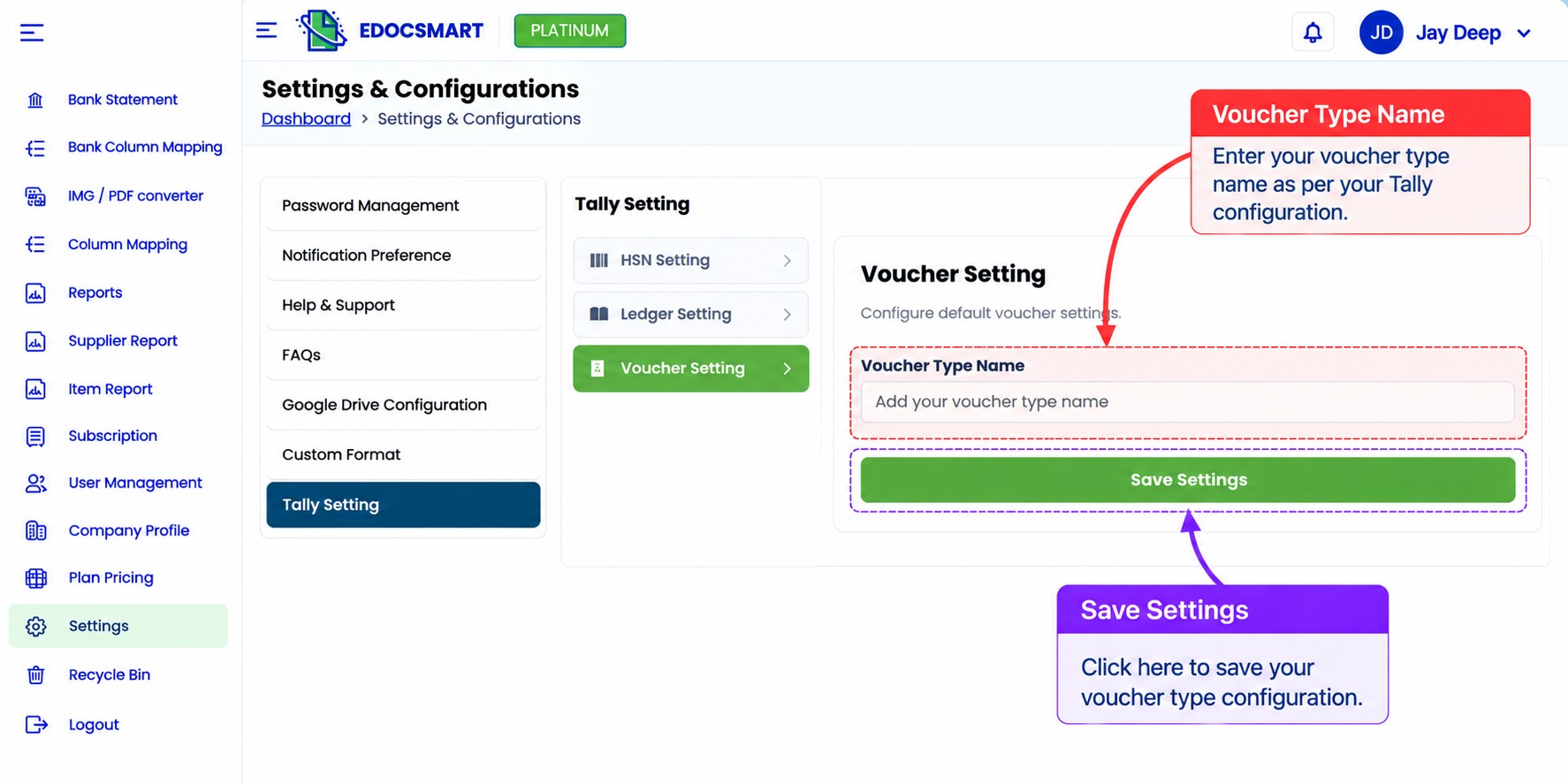
Standard Excel to Tally Import vs Customized Sales Import
| Feature | Standard Configuration | Customized Configuration |
|---|---|---|
| Stock Group | Standard mapping requirement | Configured according to business needs |
| Godown | General setting | Enabled when required |
| Narration | Standard structure | Item-wise or voucher-wise configuration |
| Voucher Number | Default approach | Configurable numbering option |
| Stock Maintenance | General workflow | Selected according to inventory needs |
| Ledger Names | Standard names | Configured to match accounting setup |
| HSN Source | Standard approach | Invoice Based or Mapping Based |
| Voucher Type | Standard voucher type | Configurable voucher type name |
A customized workflow can reduce unnecessary preparation steps, but it still needs to follow Tally's accounting rules and the requirements of the imported transactions.
Benefits of Customized Excel to Tally Sales Import Settings
Less Unnecessary Data Preparation
When a business does not need certain fields in its import workflow, appropriate configuration can reduce the need to prepare them manually.
Better Alignment With Existing Accounting Practices
Ledger names, voucher types and numbering preferences can be configured to reflect the company's intended accounting structure.
More Flexible Inventory Handling
Businesses with different stock group and godown requirements can review the available settings according to their inventory processes.
Consistent Narration and Voucher Information
Narration and voucher numbering settings help businesses maintain their preferred transaction information when supported by the import configuration.
Easier Repeated Imports
Once a compatible mapping and configuration have been tested, businesses can use the established process for subsequent files with the same structure.
Frequently Asked Questions
1. Can I customize Excel to Tally sales import settings in Edocsmart?
Yes. Edocsmart provides configurable options for Stock Group, Godown, Narration, Voucher Number, Maintain Stock, HSN, Ledger and Voucher Type settings. The appropriate configuration depends on the customer's Excel structure, accounting requirements and Tally setup.
2. Can I import Excel sales data into Tally without Stock Group mapping?
A workflow may omit Stock Group mapping when that information is not required for the intended import. However, the necessary stock item and inventory master requirements must still be satisfied in Tally.
3. What is the difference between Excel Based and Mapping Based Stock Group options?
The Edocsmart interface provides both options under Stock Group Setting. They represent alternative configuration choices. The precise processing behavior should be confirmed using the customer's source file and the configured mapping before a production import.
4. Can I disable Godown Setting in Edocsmart?
The Excel mapping screen provides an Is Enable checkbox for Godown Setting. Whether it should be enabled depends on whether the intended import needs location-wise inventory information.
5. Can I customize narration when importing Excel data into Tally?
Edocsmart displays Stock Item wise, Voucher wise and Both options under Narration Setting. It also shows configurable narration text fields. The narration structure should be selected according to the supported configuration and business requirements.
6. Can I use my Excel invoice number as the Tally voucher number?
Edocsmart provides a Voucher Number as Invoice Number option. Its use should be tested against the company's Tally voucher numbering configuration and existing transactions to avoid conflicts.
7. What does Maintain Stock mean in the Edocsmart mapping settings?
Maintain Stock is an available option under Stock Setting. It is relevant to inventory-related processing in the configured workflow. Businesses should review whether stock maintenance is required for their intended transactions.
8. Can I change Sales Ledger and Purchase Ledger names in Edocsmart?
Yes. The Ledger Setting screen contains editable Sales Ledger Name and Purchase Ledger Name fields. The configured names should match the relevant ledger setup in the Tally company.
9. Can I configure CGST and SGST ledger names?
Yes. Edocsmart provides separate CGST Ledger Name and SGST Ledger Name fields. Use the correct ledger names from your accounting setup and verify the applicable tax treatment.
10. What is Invoice Based HSN in Edocsmart?
Invoice Based HSN is an option described in the interface as fetching and using HSN codes from uploaded invoices. It is relevant when invoice documents contain the HSN information needed for the workflow.
11. What is Mapping Based HSN in Edocsmart?
Mapping Based HSN is described as retrieving HSN codes based on the Item Master. It is relevant when the configured workflow uses item master information as the source for HSN codes.
12. Can I configure a custom voucher type name?
The Voucher Setting screen provides a Voucher Type Name field. You can enter the intended name for the configured workflow. The voucher type should be compatible with the transaction and the relevant Tally company.
13. Do I need to change all settings before every Excel import?
Not necessarily. An established configuration may be reused when the source file structure and accounting requirements remain compatible. Changes to the Excel format, masters or workflow may require a configuration review.
14. Can customized settings prevent every Excel to Tally import error?
No. Configuration can help align the source data with the intended accounting workflow, but errors may still occur because of missing ledgers, invalid dates, incorrect item names, tax mismatches or incomplete transactions.
15. How do I verify that my customized sales import is correct?
Import a small test file and compare the resulting Tally sales vouchers with the original Excel records. Check invoice numbers, dates, ledgers, quantities, rates, GST values, narration and stock information where applicable.
Conclusion
Importing sales data from Excel into Tally is not only about transferring rows from one application to another.
Businesses also need to consider how their accounting information should be organized.
A trading business may not require Stock Group mapping. A distributor may need godown information. A manufacturer may maintain detailed inventory settings, while another company may prioritize custom voucher numbering or narration.
Edocsmart provides configuration options that help businesses prepare Excel to Tally workflows according to these different requirements.
By reviewing Stock Group, Godown, Narration, Voucher Number, Maintain Stock, HSN, Ledger and Voucher Type settings, businesses can create a more suitable import configuration without adding unnecessary steps.
The best approach is to start with the actual Excel file, configure only the settings needed, test the workflow and verify the resulting vouchers in Tally.
Want to customize your Excel to Tally import process?
Explore Edocsmart's Excel to Tally solution or book a demo to discuss your Excel format, accounting requirements and available configuration options.
Your Excel format. Your accounting requirements. A workflow configured around your business.