How Customizes Accounting Automation for Your Business
Discover how Edocsmart customizes Excel to Tally, invoice automation and accounting data mapping based on your business requirements, existing formats and workflows.
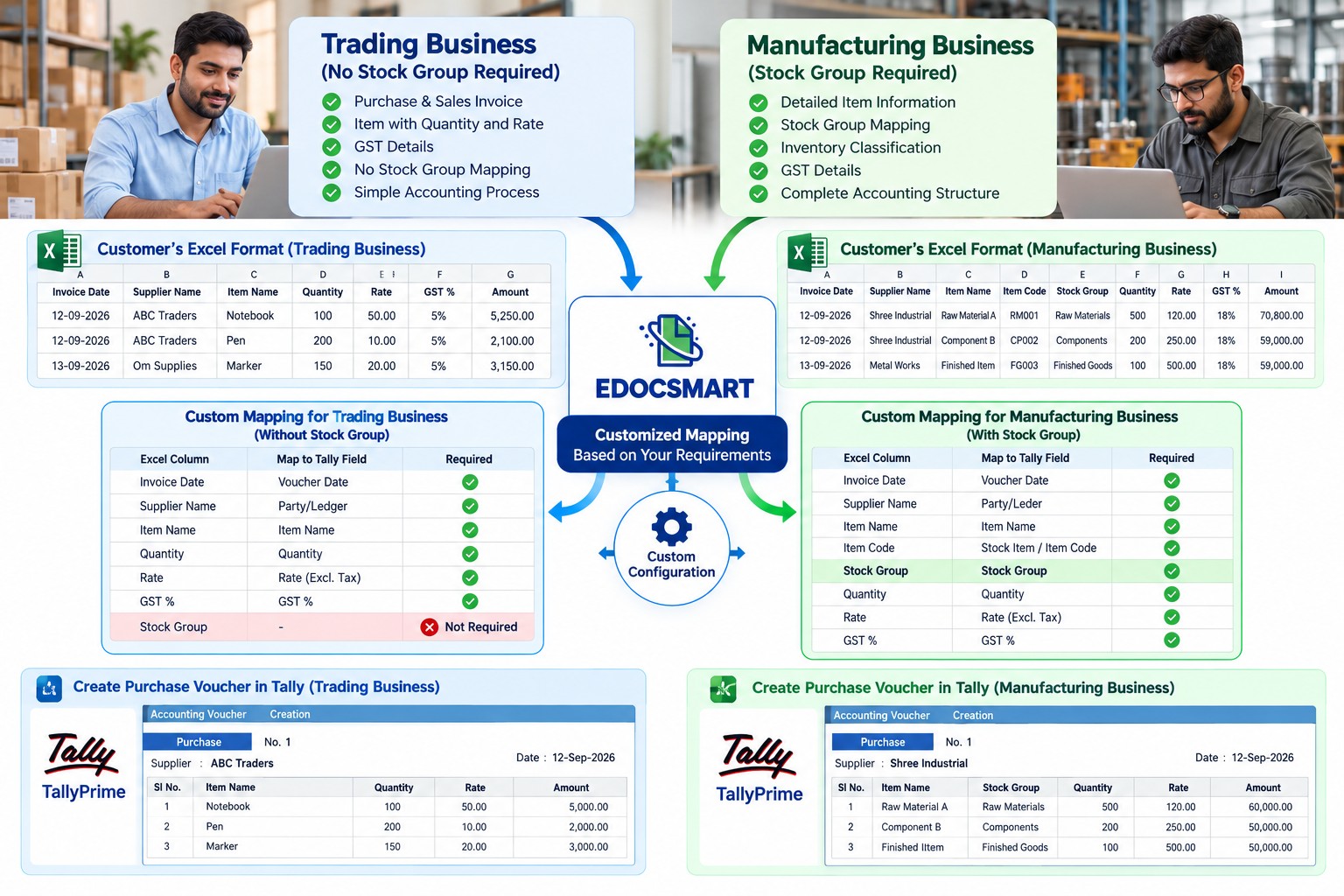
Every Business Works Differently. Why Should Accounting Automation Be the Same?
Imagine two businesses using TallyPrime for their daily accounting.
The first is a manufacturing company that maintains detailed inventory records. Its Excel files contain item names, stock groups, quantities, rates, GST details and several additional columns.
The second is a trading business. It also imports Excel data into Tally, but its accounting requirements are much simpler. It doesn't need Stock Group information in its import process. It only wants the necessary transaction and item details transferred correctly.
Both businesses need Excel to Tally automation.
But should both be forced to follow exactly the same process?
Not really.
If the trading business doesn't need Stock Group mapping, adding it to the workflow creates an unnecessary step. Similarly, removing Stock Group mapping from the manufacturer's workflow might prevent it from maintaining the inventory structure it needs.
This is where customized accounting automation becomes useful.
Instead of expecting every business to change its existing accounting process, Edocsmart offers requirement-based customization so businesses can automate the information and workflows that matter to them.
The idea is simple: Your business requirements should define your automation workflow, not the other way around.
What Is Customized Accounting Automation Software?
Customized accounting automation software is a solution configured around a business's specific data formats, required fields, accounting rules and operational workflow.
Unlike a fixed process that expects every user to provide identical information, a customized approach considers how the business already manages its accounting data.
For example, one company may need item-wise inventory information when importing purchase vouchers into Tally. Another may only require ledger-wise transaction information.
A customized workflow can be designed to handle these differences without forcing unnecessary fields into every transaction.
Depending on the requirement and technical feasibility, customization may involve:
Selecting which fields need to be mapped.
Excluding unnecessary information from an import workflow.
Configuring column mapping for existing Excel formats.
Adjusting how invoice information is prepared for accounting.
Organizing data according to the intended accounting output.
Testing the configured workflow against sample business transactions.
The goal is not to add more features to every process. It is to make the process suitable for the business using it.
Why Fixed Accounting Automation Doesn't Work for Every Business
Most businesses don't start with perfectly standardized Excel files.
Their accounting processes develop over time.
A wholesaler may use a spreadsheet prepared by its sales team. A manufacturer may export inventory data from an ERP system. A retailer may receive supplier invoices in several different formats.
Even businesses operating in the same industry can maintain different columns, naming conventions and transaction structures.
When automation software requires one rigid format, businesses can face several problems.
Unnecessary Fields Complicate Data Entry
Suppose your Excel file contains Item Name, Quantity, Rate, GST and Amount.
If the import process requires additional fields that your business doesn't use, someone may have to prepare or maintain those columns only to satisfy the software.
That defeats part of the purpose of automation.
Existing Excel Files Need Repeated Changes
Some businesses already have a reliable spreadsheet structure used by multiple departments.
Changing that structure for accounting software may affect employees, reports and other connected processes.
A more flexible mapping approach can reduce the need to rebuild familiar spreadsheets.
Different Businesses Have Different Accounting Priorities
A jewellery business may care about item-specific attributes. A manufacturer may focus on inventory classifications. A service business may prioritize ledger entries rather than stock-related information.
One standard workflow cannot always reflect these differences effectively.
Employees Spend Time on Unnecessary Adjustments
Automation should reduce repetitive preparation work.
If employees still need to rearrange columns, remove unused fields or manually restructure every file, the workflow may need better configuration.
The real value of customization is removing avoidable work while retaining the accounting information the business actually needs.
How Edocsmart Customizes Excel to Tally Based on Business Requirements
One of the clearest examples of requirement-based automation is Excel to Tally import.
Businesses often maintain their sales, purchase, ledger and inventory information in Excel. But the structure of that information varies.
With Edocsmart's Excel to Tally solution, the mapping workflow can be configured according to the customer's required fields and existing data structure.
Let's understand this through a practical example.
Example: A Business That Doesn't Need Stock Group Mapping
Consider a trading company that maintains purchase data in Excel.
Its spreadsheet contains:
| Excel Column | Business Requirement |
|---|---|
| Purchase Date | Required |
| Supplier Name | Required |
| Item Name | Required |
| Quantity | Required |
| Rate | Required |
| GST | Required |
| Stock Group | Not required in this import workflow |
The business wants to import its purchase transactions into Tally without including Stock Group mapping.
In a fixed workflow, the customer might be asked to provide Stock Group information even though it isn't needed for the intended import.
With a customized Edocsmart configuration, Stock Group mapping can be excluded from that customer's workflow where it is not required.
The remaining necessary fields can be mapped according to the customer's Excel structure and accounting requirements.
This allows the business to focus on the data it actually uses.
Importantly, excluding Stock Group from an import mapping does not remove or change Tally's own inventory master requirements. Any necessary stock items, ledgers and accounting configurations must still be valid in Tally.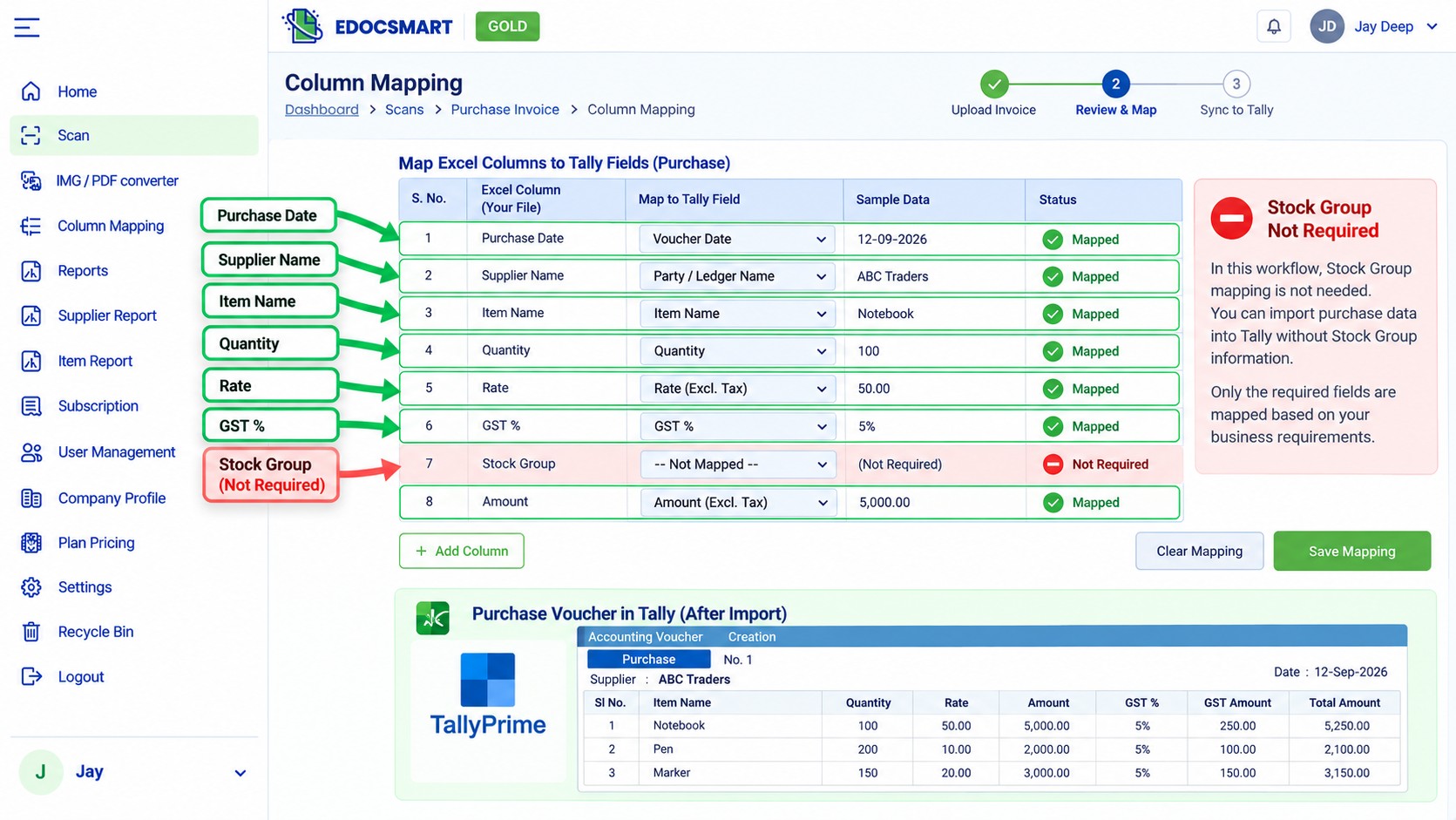
Example: A Manufacturing Business That Needs Stock Group Mapping
Now consider a manufacturing business.
Its inventory is organized into multiple categories, such as raw materials, semi-finished goods and finished products.
For this company, Stock Group information may be important to its inventory organization.
Instead of excluding the field, its configured import process can retain the required Stock Group-related mapping or master-data preparation.
The two businesses use the same general Excel to Tally automation concept, but their configurations differ because their requirements differ.
That is the purpose of customization: not every customer needs the same fields, even when they use the same accounting software.
Custom Excel Column Mapping Without Changing Your Entire Spreadsheet
Many companies have used the same Excel format for years.
For example, one business may label its columns:
Bill Date
Party
Product
Qty
Unit Rate
Tax Amount
Another may use:
Invoice Date
Supplier Name
Item Description
Quantity
Price
GST Value
Although the column names are different, much of the underlying information serves a similar accounting purpose.
Edocsmart's column-mapping approach helps connect the customer's Excel columns to the appropriate accounting fields.
For example:
| Customer's Excel Column | Intended Accounting Field |
|---|---|
| Bill Date | Voucher Date |
| Party | Party / Ledger |
| Product | Item Name |
| Qty | Quantity |
| Unit Rate | Rate |
| Tax Amount | Relevant Tax Field |
This reduces the need to manually rename every column before importing data.
For recurring formats, an established mapping can also simplify subsequent imports, provided the file structure and configuration remain compatible.
However, column mapping still depends on the quality of the source data. Incorrect values, missing masters or invalid accounting details must be corrected before successful import.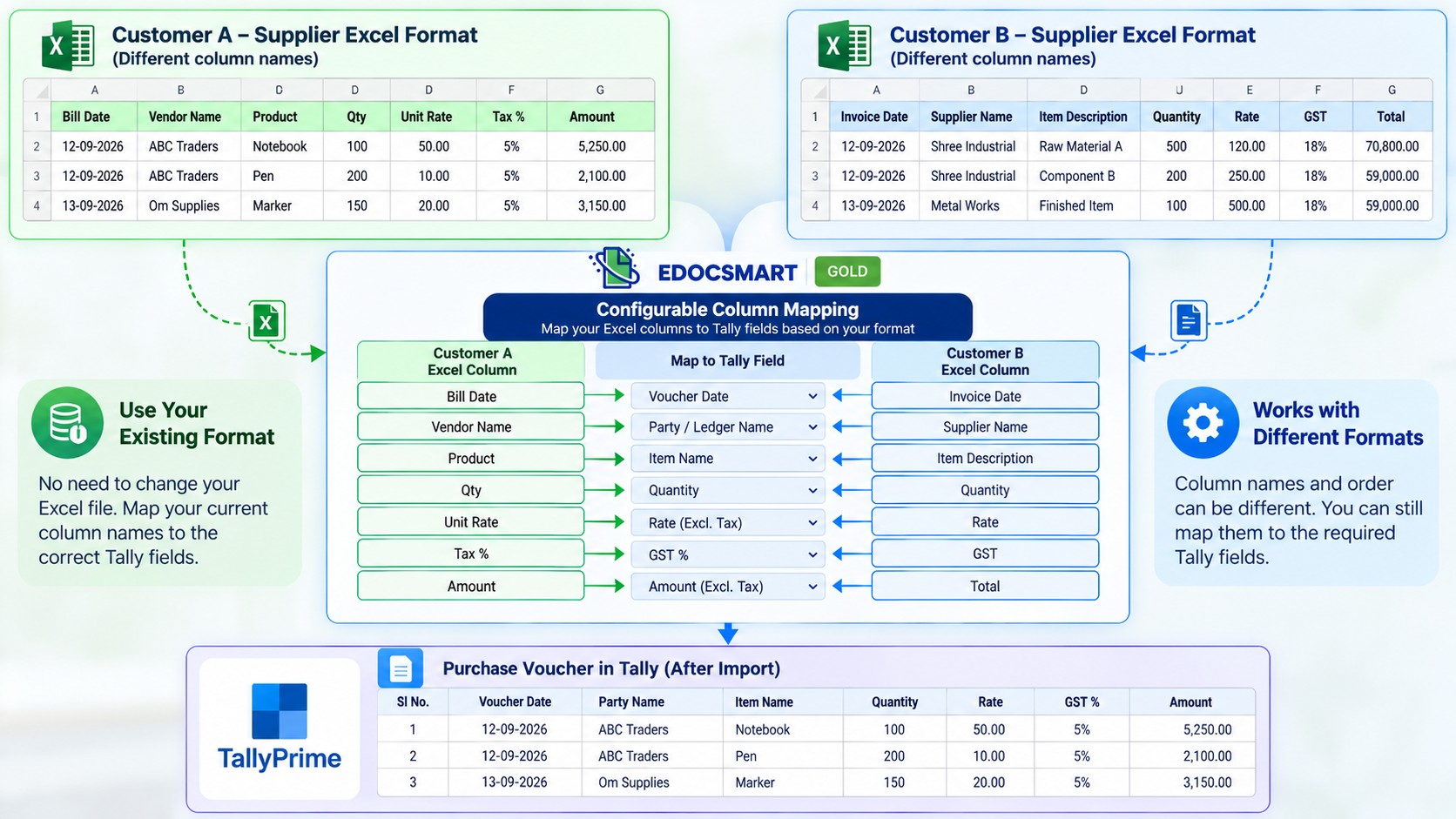
Customized Invoice Automation for Different Business Needs
Customization is not limited to Excel spreadsheets.
Businesses also receive invoices in different formats.
Some suppliers send detailed item-wise GST invoices. Others provide simpler bills. Manufacturers may receive invoices with numerous product rows, while service providers may receive documents containing fewer line items.
A business may need to extract certain fields for its accounting process without using every detail printed on the document.
For example, one company may prioritize purchase bill numbers, party details, quantities, rates and GST.
Another may need additional item-level information for its internal records.
Edocsmart's invoice extraction and review workflows provide a starting point for preparing invoice data. Where a customer requires a different supported field arrangement or output configuration, that requirement can be assessed as part of the customization process.
The important principle is that the required accounting information should determine the configured workflow.
This approach can be relevant to invoice automation for Tally and Excel preparation for BUSY Accounting Software.
For BUSY, the documented workflow involves preparing a compatible Excel output and importing it through BUSY's own Excel import functionality. Customization should not be confused with automatic direct synchronization.
How Edocsmart's Customization Process Works
A useful customization project starts by understanding the customer's actual accounting process rather than immediately changing the software.
Here is a practical workflow.
Step 1: Understand the Business Requirement
The first step is to identify what the customer wants to automate.
For example:
A business might say, “We import purchase data into Tally, but we don't want Stock Group mapping.”
Another might explain, “Our supplier Excel files have different column names, and we want to use our existing format.”
These details help define the expected output.
Step 2: Review the Existing Excel or Invoice Format
The next step is to examine the customer's sample files.
This helps identify available columns, required fields, missing information and the intended accounting structure.
For an Excel to Tally requirement, the review may include voucher type, ledger names, stock items, quantities, dates and tax details.
Step 3: Identify Required and Unnecessary Fields
Not every field needs to be included in every workflow.
The required information is separated from fields that are unnecessary for the customer's specific process.
For example, if Stock Group mapping is not relevant to the intended import, it can be excluded from the configured mapping where supported.
Step 4: Configure the Automation Workflow
Once the requirements are clear, the applicable mapping and output settings can be configured.
The configuration should reflect the customer's source file and the accounting system's actual requirements.
Step 5: Test With Sample Data
Before relying on a customized workflow for daily accounting, test it with representative sample files.
The test should confirm that the expected information is transferred correctly and that important values such as voucher dates, party names, quantities, rates and GST amounts are handled appropriately.
Step 6: Review and Use the Final Configuration
After testing, the business can use the agreed workflow for its accounting tasks.
If the source file format or business requirement changes later, the configuration may need to be reviewed again.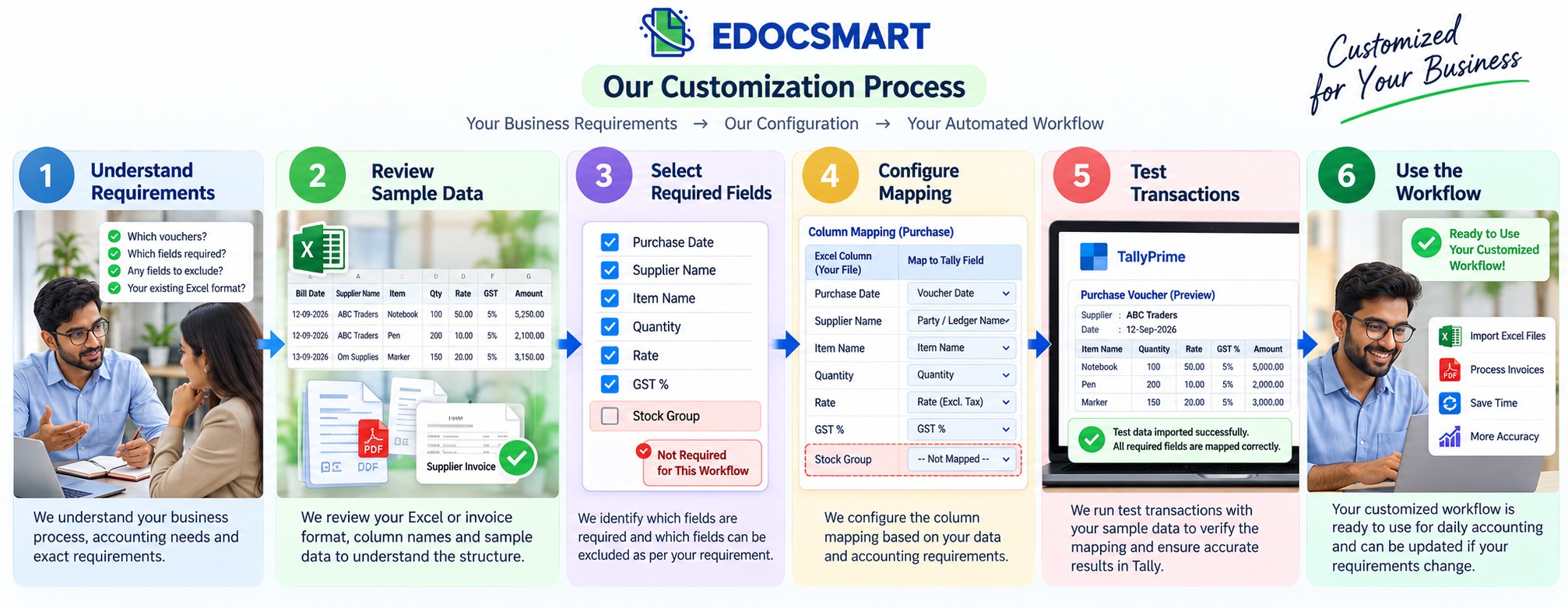 Standard Accounting Automation vs Customized Accounting Automation
| Feature | Standard Automation | Customized Automation |
|---|---|---|
| Input format | Usually follows predefined requirements | Can be configured for supported customer formats |
| Field mapping | Standard field structure | Requirement-based field selection and mapping |
| Unnecessary fields | May remain in the process | Can be excluded where appropriate |
| Existing spreadsheets | May require restructuring | Can reduce format changes |
| Business requirements | General workflow | Configuration based on specific needs |
| Testing | Standard use cases | Tests against customer-specific examples |
| Flexibility | Depends on predefined options | Depends on supported configuration and scope |
Customized automation doesn't mean that accounting rules can be ignored.
A configured import still needs valid transaction information, compatible masters, correct taxes and a structure supported by the destination accounting system.
The benefit comes from adapting the preparation and mapping process without compromising those requirements.
Which Businesses Can Benefit From Customized Accounting Automation?
Trading and Wholesale Businesses
Wholesalers often manage large volumes of purchase and sales transactions.
They may want to import only the fields relevant to their transaction structure without maintaining unnecessary columns.
Manufacturing Companies
Manufacturers may require more detailed inventory-related information, including stock classifications, item details and quantities.
Their automation needs may be different from those of a trading company.
Retail Businesses
Retailers often receive invoices from multiple suppliers using different layouts.
A configurable extraction and mapping workflow can help prepare accounting data more consistently.
Jewellery Businesses
Jewellery businesses may maintain specialized item descriptions and inventory information.
Any customized import should account for the specific item fields and master structure required by the business.
Accounting Firms and Bookkeepers
Accounting professionals may handle multiple clients whose Excel files and accounting practices differ.
Client-specific mapping configurations can reduce repeated manual adjustments when processing familiar file structures.
Does Customization Mean You Need to Change Your Accounting Software?
Not necessarily.
The purpose of customized accounting automation is often to work with the accounting software and business data you already use.
For example, a company using TallyPrime may only need a better way to prepare and import Excel transactions.
It may not need to replace Tally or redesign its entire accounting process.
Similarly, a business using BUSY may benefit from preparing compatible Excel data rather than manually entering every supplier invoice.
The exact integration or import method depends on the accounting platform and the configured solution.
What Should You Check Before Choosing Customized Accounting Automation Software?
Before selecting a solution, businesses should understand what is configurable and what requires additional development.
Ask whether the solution can work with your current Excel format, which fields are mandatory, whether unnecessary mapping fields can be excluded, and how existing ledger or inventory masters are handled.
You should also confirm how the workflow is tested, what happens when a file contains errors and whether configuration changes are possible when business requirements evolve.
Most importantly, ask for a demonstration using your own sample file.
A real sample provides more useful evidence than a generic product demonstration because it shows how the software handles your actual accounting requirements.
Frequently Asked Questions About Customized Accounting Automation
1. Can Edocsmart customize Excel to Tally based on my business requirements?
Yes. Edocsmart offers requirement-based customization for supported Excel to Tally workflows. For example, if a business does not need Stock Group mapping in its intended import process, that field can be excluded where appropriate. The final configuration depends on the source data and Tally's accounting requirements.
2. Is Stock Group mapping compulsory when importing Excel into Tally?
Not for every type of import workflow. Whether Stock Group information is needed depends on the transaction, inventory structure and master-data requirements. If your process does not require Stock Group mapping, the import configuration may omit it while retaining the information Tally actually needs.
3. Can I use my existing Excel format with Edocsmart?
Edocsmart supports column mapping for structured Excel data, helping businesses connect their existing columns to accounting fields. Your file should contain the required transaction information. The feasibility of a particular format depends on its structure and the intended accounting output.
4. Can I exclude unnecessary Excel columns from the Tally import process?
Yes, supported mapping configurations can focus on the fields required for the intended import. Unnecessary columns may be left unmapped, provided that all mandatory accounting information remains available and valid.
5. Can different customers have different Excel to Tally mapping configurations?
Yes. Different businesses can have different data structures and accounting requirements. A configuration suitable for a trading company may not be appropriate for a manufacturer. The mapping should be based on each customer's source file and intended accounting workflow.
6. Can Edocsmart customize invoice automation workflows?
Edocsmart provides invoice extraction and review workflows. Customer-specific field and output requirements can be evaluated for supported customization. The exact scope should be confirmed using sample invoices and the desired accounting output.
7. Do I need programming knowledge to use customized Excel to Tally automation?
Routine use of a configured import workflow generally does not require users to write code. However, initial mapping, special requirements or changes to the workflow may require configuration or technical assistance.
8. Can customized accounting automation reduce manual data entry?
Yes. When the configured workflow matches the source data and accounting requirements, it can reduce repeated column adjustments and manual preparation. The actual time saved depends on transaction volume, data quality and the complexity of the import.
9. Can customized mapping prevent every Tally import error?
No. Custom mapping can address format and field-alignment issues, but errors can still occur because of missing ledgers, incorrect dates, invalid item names, GST mismatches or incomplete transaction data. Testing and verification remain important.
10. Can the mapping be changed when my Excel format changes?
A mapping configuration may need to be updated when column names, field positions or transaction structures change. The required changes depend on the original configuration and the new file format.
11. Is customized accounting automation suitable for small businesses?
Yes. Small businesses can benefit when they regularly prepare accounting data in a consistent format but need a workflow suited to their own requirements. Customization should be proportionate to the volume and complexity of their accounting work.
12. Can Edocsmart support customized accounting workflows for different industries?
Businesses across trading, manufacturing, retail and other sectors may have different mapping requirements. Edocsmart can assess supported configurations based on the customer's actual data and intended accounting output rather than assuming that one format works for every industry.
13. Does customized Excel to Tally automation require replacing TallyPrime?
No. Excel to Tally automation is intended to help prepare and import data into Tally. It does not inherently require replacing the accounting software. The configuration must still comply with the capabilities and requirements of the Tally version being used.
14. What information should I share when requesting a customized solution?
Start with a sample Excel file or invoice, the accounting software you use, the type of transaction you want to process and the fields you need. Also explain which fields are unnecessary and what final output you expect. Avoid sharing confidential business data unnecessarily.
15. How can I check whether Edocsmart can customize my accounting workflow?
Share your business requirement and a representative sample file with the Edocsmart team. Explain the fields you want to include or exclude, your accounting software and the expected result. A requirement review and sample-based demonstration can help establish what is supported.
Conclusion: Your Accounting Automation Should Fit Your Business
Every business has its own way of managing accounting data.
A manufacturing company may need detailed inventory mapping. A trading business may prefer a simpler import structure. Another company may want to continue using the Excel format its employees already understand.
There is no reason to force every business into an identical workflow when its requirements are different.
With requirement-based customization, Edocsmart helps businesses focus on the accounting information they actually need, reduce unnecessary preparation steps and build more practical automation workflows.
Whether you want to exclude Stock Group mapping from an Excel to Tally process, configure your existing spreadsheet columns or discuss a specific invoice automation requirement, the starting point is the same: understand your business process first.
Your business is unique. Your accounting automation should reflect that.
Need a Customized Accounting Automation Solution?
Have a specific Excel format or accounting workflow that doesn't fit a standard process?
Explore Edocsmart or book a demo to discuss your requirements and see what can be configured for your business.
Bring your existing Excel file. Explain what you need. Build a workflow around what matters.