Excel-to-Tally Import: Common Mistakes and How to Avoid Them
Avoid common Excel-to-Tally import mistakes. Learn what to check in column mapping, invoice numbers, processed records, and voucher settings before syncing.

The Excel file was ready, but the accountant's work was far from finished.
He had several reports to complete, clients waiting for updates, and very little time to enter everything into Tally. He started transferring the records, hoping to finish before another file arrived.
Later, while checking the accounts, he noticed that the amounts did not match as expected. He returned to Excel, compared the entries, and checked the vouchers again. The time he had planned to spend finishing the accounts was now going into finding the problem.
As the checking continued, the work became tiring. A task that already needed concentration now came with the pressure of unfinished reports.
This situation shows why preparing an Excel-to-Tally import matters. Understanding the mapping, checking invoice references, and reviewing records before syncing can help reduce avoidable corrections.
Why an Excel File Still Needs Preparation
Having the information in Excel does not mean it is ready for accounting entry.
A workbook may contain several item rows for one invoice, different column headings, or records already entered in Tally. The import workflow needs the correct source fields and accounting settings to prepare those records as intended.
Excel to Tally mapping connects your source columns with the fields used to prepare the accounting entries. Reviewing those connections before processing is an important part of using Excel to Tally software.
Here are five mistakes accountants should avoid.
1. Uploading Before Understanding the Mapping
When the workload is heavy, uploading the file immediately can feel like the quickest way forward. However, selecting columns without understanding their contents can create problems throughout the batch.
Before uploading, open the workbook and identify what the relevant columns contain. Check the invoice number, date, party name, item description, quantity, rate, and amounts.
An item amount and an invoice total serve different purposes. A column called “Description” may contain an item name or an internal note. Read several values beneath each heading before deciding how to use it.
In Edocsmart, choose the Excel option that fits the workbook:
| Excel format | What to do |
|---|---|
| Edocsmart sample in its expected structure | Use Default Excel; manual column mapping is not required |
| Your own supported Excel format | Use Customized Excel and configure the relevant source columns |
Understand the required mapping first, then follow the appropriate upload process.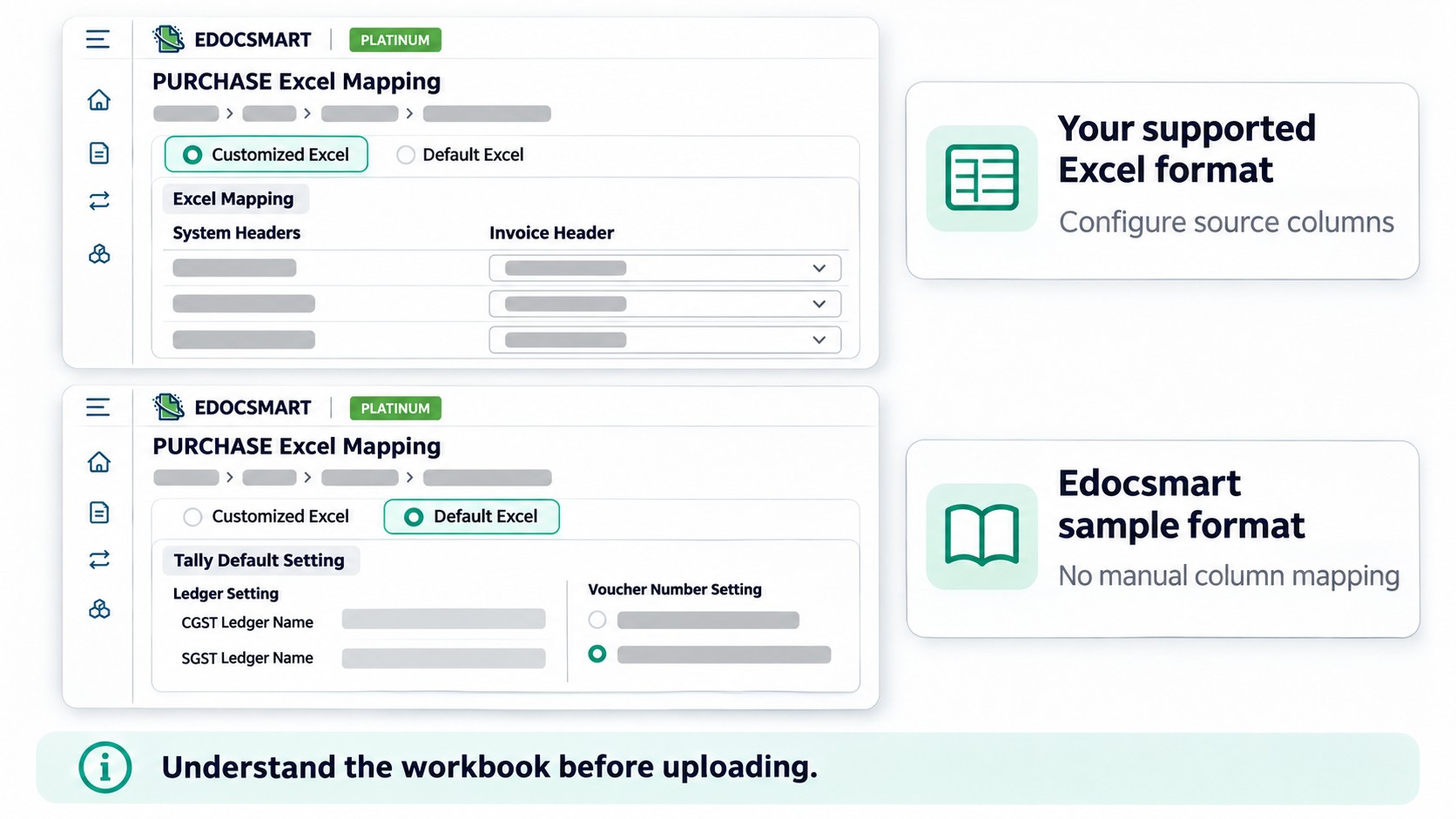
2. Overlooking the Invoice-Number Mapping
The invoice reference is an important part of identifying and checking a transaction.
If the wrong source column is selected, the prepared record may carry an internal reference instead of the intended invoice number. This makes comparison with the original document more difficult.
Before processing, confirm what the selected number represents:
| Number in Excel | What it identifies |
|---|---|
| Supplier invoice number | The supplier’s bill |
| Internal voucher number | The accounting voucher |
| Transaction ID | A source-system record |
For an invoice containing several items, check how its related rows are grouped. A repeated invoice reference across item rows may belong to one transaction.
An invoice number alone does not prove that two records are the same transaction. Compare the party, date, amounts, and supporting document when checking repeated references.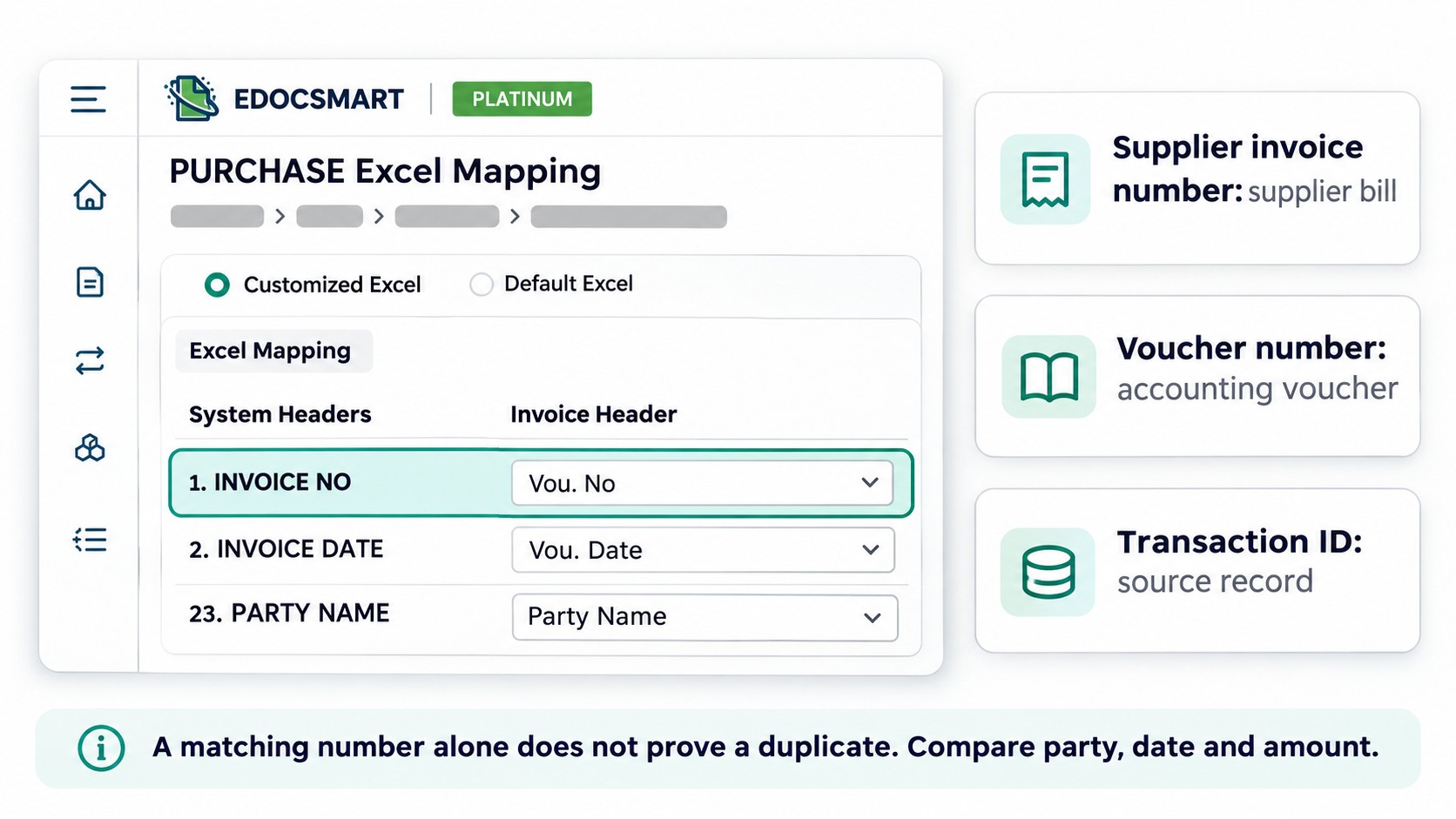
3. Assuming Mapping Will Prevent Duplicate Entries
Once the source columns are understood, configure them carefully in Edit Excel Mapping.
Check the selected fields against the workbook, including invoice references, parties, dates, items, and amounts. Then review representative prepared records to confirm that the mapping produces the intended result.
Correct mapping supports the import, but it does not by itself guarantee that duplicate entries will be prevented.
Before preparing a new-entry batch, identify records already entered in Tally. Keep unclear records aside for review. If an earlier upload was only partly completed, check which transactions reached Tally before retrying.
Uploading the complete file again without checking can recreate transactions that were already recorded.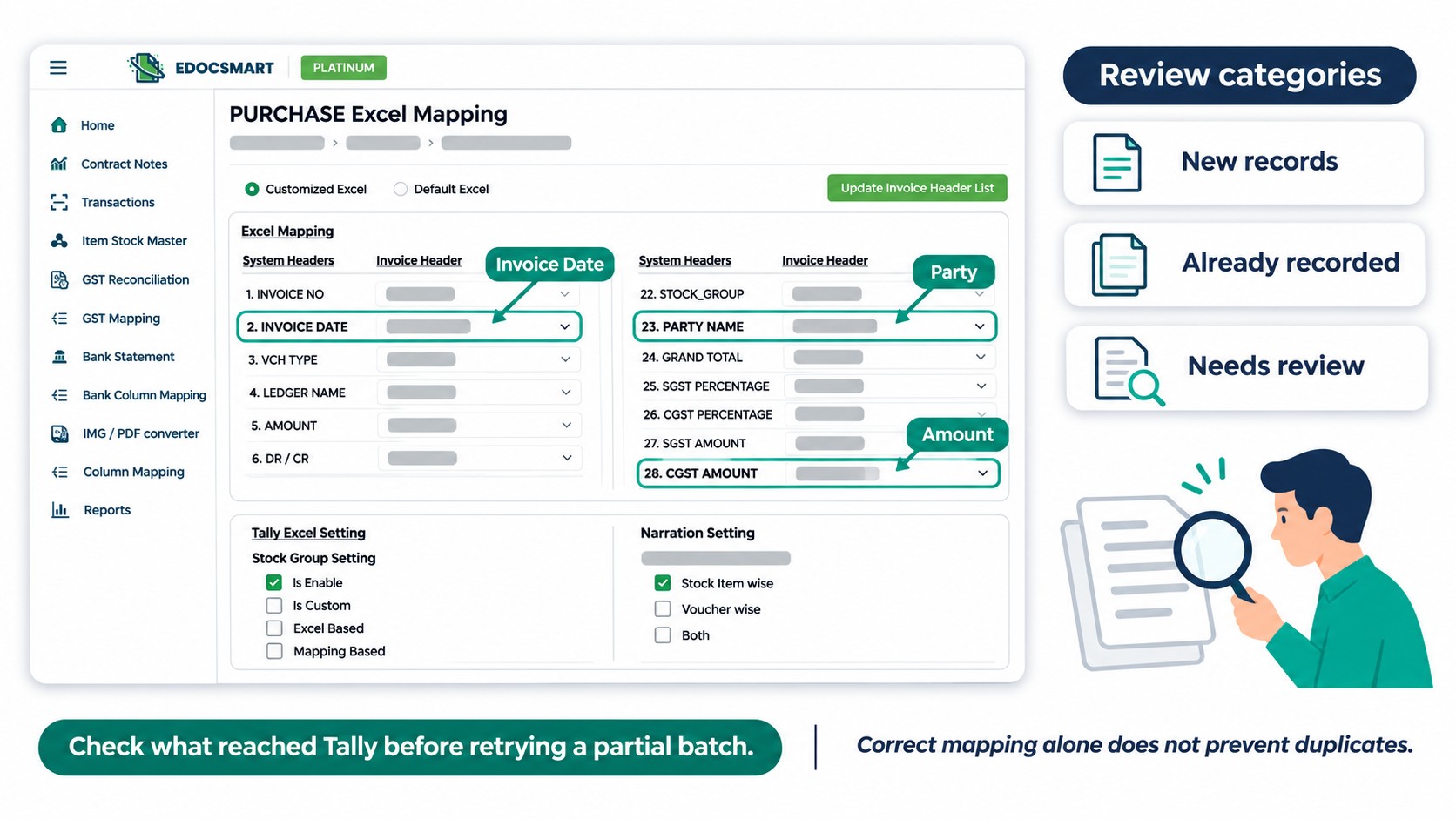
4. Skipping the Review of Processed Data
A completed upload is a useful checkpoint, but the prepared information still needs checking.
Compare sample records with the original workbook before approving them. Include a multi-item invoice and any records requiring different treatment.
Review:
- Invoice references, parties, and dates.
- Item descriptions, quantities, units, and rates.
- Item amounts, applicable tax values, and final totals.
- Relevant ledger allocations and stock treatment.
Check that an invoice total repeated across several source rows has not been counted repeatedly.
If several records show the same difference, inspect the shared mapping or source format first. Correcting the cause can be more useful than editing each affected record separately.
Review the corrected records again and save the approved data through the available workflow.
5. Syncing Before Checking Voucher Settings
Before syncing, confirm which voucher type and numbering settings the records should use.
The voucher type determines the intended accounting category. The voucher number identifies the voucher. These settings should be reviewed separately from the invoice reference.
In Edocsmart, check the relevant voucher configuration and accounting defaults for your workflow. Confirm that the settings are appropriate for the intended Tally company.
Do not assume that using an existing voucher number will update an earlier entry. Also, voucher settings alone do not establish that a record is new or prevent every duplicate.
Keep a current company backup, open the intended company, and start the Edocsmart Tally Connector. Sync a small approved sample and inspect the resulting vouchers before continuing with the remaining records.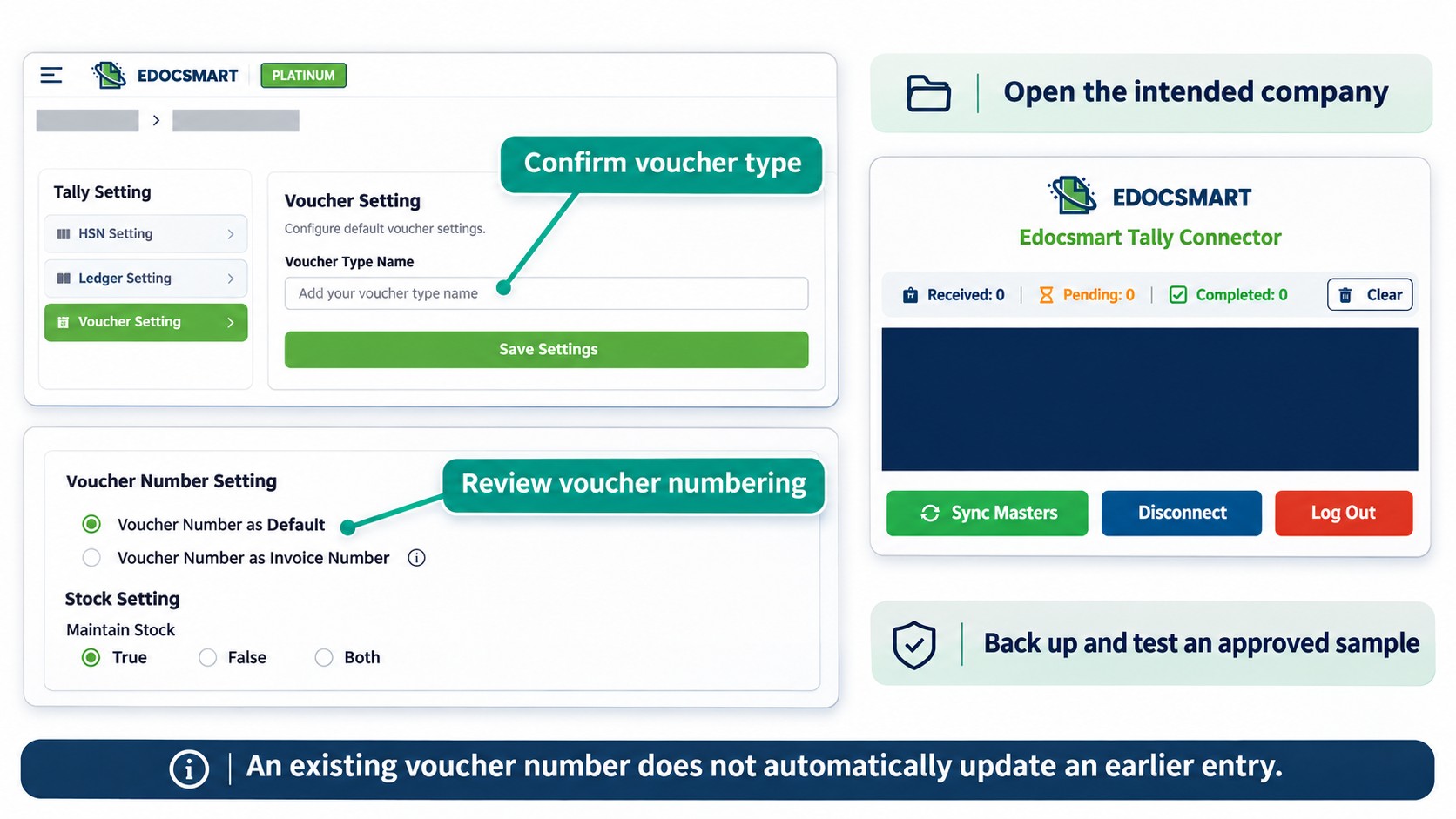
A More Manageable Import Routine
A consistent routine gives the accountant clear checkpoints:
Understand the workbook → Configure mapping → Review prepared records → Check voucher settings → Sync and verify a sample.
This creates an opportunity to resolve differences while the source information is still easy to compare.
If your workbook needs a particular mapping or accounting treatment, discuss your import requirements with Edocsmart using a sample file and the expected result.
Frequently Asked Questions
1. What should I check before importing Excel into Tally?
Check the file structure, source columns, invoice references, accounting settings, and whether the records already exist.
2. Why is invoice-number mapping important?
It helps you identify and compare transactions with their source documents. It must be checked alongside other transaction details.
3. Does correct mapping prevent all duplicate entries?
No. You also need to check existing transactions, repeated uploads, and the configured import behaviour.
4. Should I review data after uploading?
Yes. Compare the prepared records with Excel before approving and syncing them.
5. Why should I test a small sample first?
It lets you inspect the resulting vouchers and correct configuration differences before continuing with the full batch.
Conclusion
A busy accountant has limited time for repeated checking and corrections. Preparing the import carefully can make that workload more manageable.
Understand the mapping, confirm invoice references, review the processed information, and check voucher settings before syncing. These checks help you identify problems earlier and keep the accounting process easier to review.
Explore Edocsmart Excel to Tally Software to understand the workflow for preparing, reviewing, and transferring your Excel records.