Excel to Tally Import: Managing Multiple Discount Columns
Learn how to map multiple discount columns in Edocsmart, review discount treatment, and check invoice totals before importing Excel records into Tally.
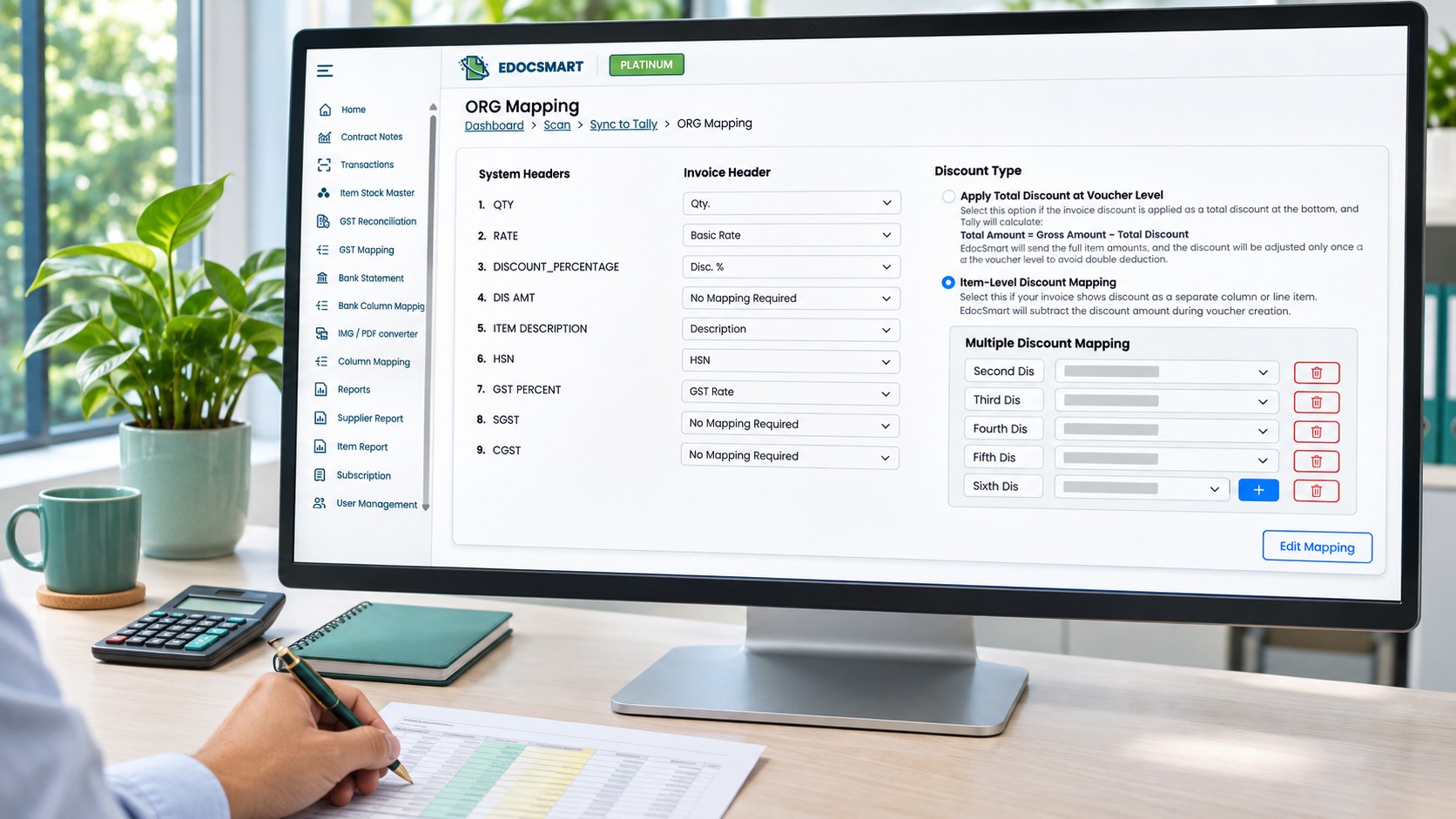
An Excel invoice report may contain more than one discount. Along with the regular discount, a supplier might provide an additional discount in a separate column.
During Excel to Tally import, each relevant discount needs to be identified correctly. Mapping only the regular discount can leave additional discounts unaccounted for and create a difference in the prepared amount.
Edocsmart provides Multiple Discount Mapping, where users can add mapping rows for additional discount columns and connect them with the appropriate source fields.
Understand the Discount Columns First
Before configuring the mapping, open the workbook and check what each discount column represents.
For example, a report might contain:
| Excel Column | Information It Contains |
|---|---|
| Discount % | The regular discount percentage |
| Additional Discount % | A separate additional discount |
| Special Discount % | Another discount provided for the item |
These are example headings. Your file may use different names.
Check whether each value is a percentage or an amount. Also confirm whether the item amount already includes the discount. Applying an adjustment that is already included can deduct it twice.
Do not assume that multiple discount percentages should simply be added together. Check how the source invoice calculates them.
Map the Regular Discount
In the relevant Edocsmart mapping screen, review the regular discount field.
Match DISCOUNT_PERCENTAGE with the source column containing the regular discount percentage. If the workflow uses a discount amount, review the DIS AMT mapping separately.
Choose the source column according to its contents rather than its name alone.
Add Mapping Rows for Additional Discounts
When the source file contains another discount column, use Multiple Discount Mapping to configure it.
The + control allows you to add an additional discount-mapping row. Give it a clear label and select the corresponding source column from the dropdown.
For example:
| Mapping Label | Source Column |
|---|---|
| Second Discount | Additional Discount % |
| Third Discount | Special Discount % |
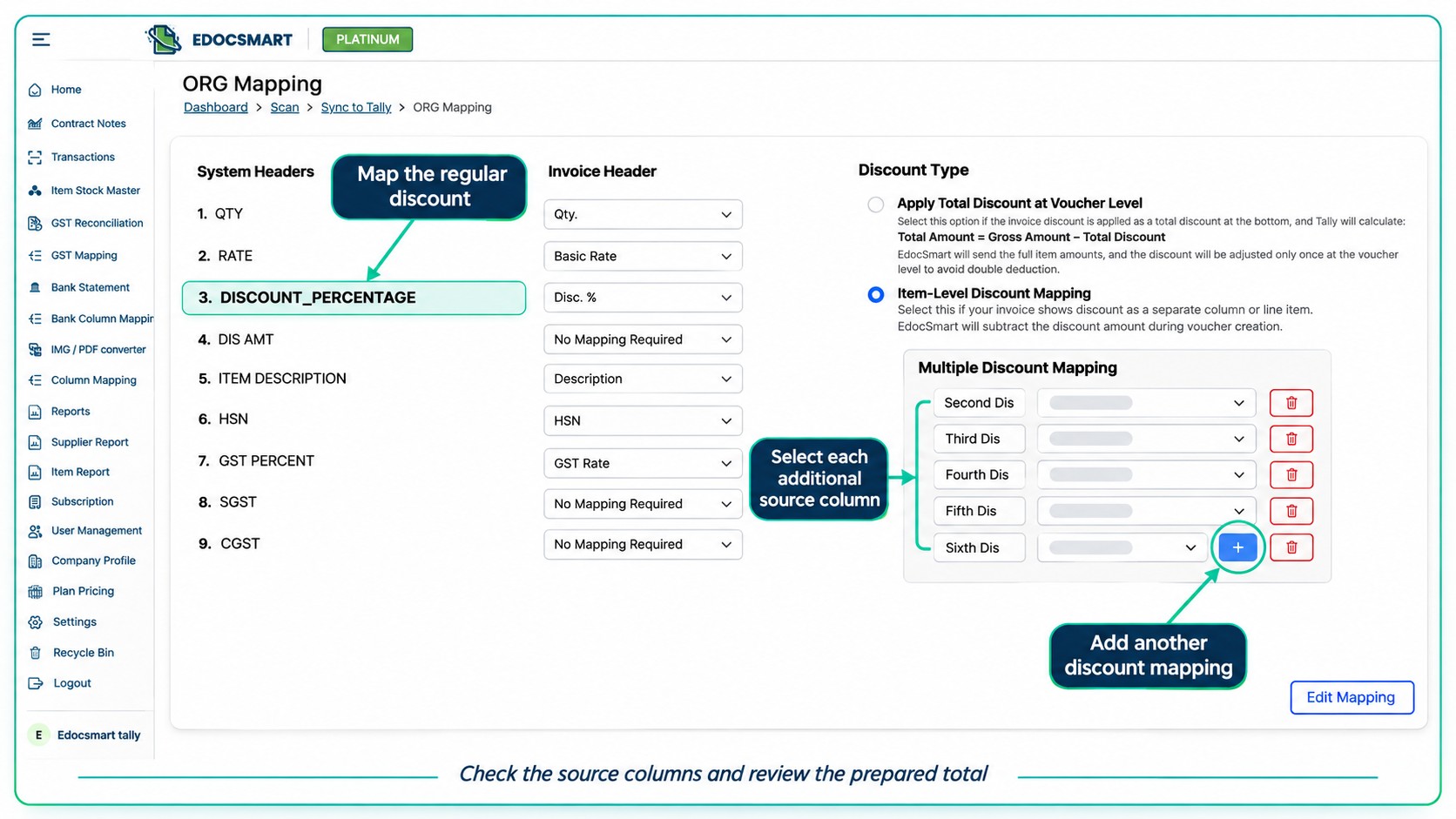
Repeat this for the additional discounts required by the file. Adding a mapping row identifies an existing source column; it does not create a new discount in the original workbook.
Check each selection carefully. Mapping the regular discount column again as an additional discount could cause the same information to be used more than once.
Select the Appropriate Discount Treatment
The supplied Edocsmart mapping screen includes two discount-treatment options:
- Item-Level Discount Mapping — for discounts shown against individual items.
- Apply Total Discount at Voucher Level — for a total discount shown at the invoice level.
Select the treatment that matches the source document.
For voucher-level treatment, the interface explains that full item amounts are sent and the total discount is adjusted once at the voucher level. Review the source amounts to ensure the same discount has not already been deducted.
An additional item discount and a total invoice discount should not be treated as interchangeable.
Review the Prepared Amounts
After configuring the discount mappings, apply the changes using Edit Mapping and review representative records.
Include an invoice containing more than one discount. Compare its item values, discounts, applicable tax information, and final total with the source document.
If the amount does not match, check:
- Whether every required discount column has been mapped.
- Whether the same source column was selected twice.
- Whether a percentage was confused with a discount amount.
- Whether the source amount already includes the discount.
- Whether the selected discount treatment matches the invoice.
Resolve the difference before transferring the record to Tally. Verify a small approved sample in Tally before continuing with the remaining entries.
Frequently Asked Questions
Can I map more than one discount column in Edocsmart?
Yes. Multiple Discount Mapping allows you to add mapping rows and select the source columns containing additional discounts.
Do I need to combine all discounts into one Excel column?
You can map the separate additional discount columns through the available configuration. Check their meaning and calculation before processing.
Can I select the same column for every discount row?
Select each column according to the discount it represents. Reusing one source column for different discounts can produce an unintended result.
Are multiple discounts always added together?
No. Their calculation depends on the source invoice. Confirm the calculation method and compare the prepared result with the document.
What if the final amount does not match?
Review the source-column selections, discount values, item amounts, and discount treatment. Correct the cause and check the record again before syncing.
Conclusion
Multiple discounts need clear mapping so that each adjustment is handled as intended. Map the regular discount, add rows for the additional discount columns, and compare the prepared amounts with the source invoice.
Edocsmart Excel to Tally Software provides a workflow for configuring these mappings, reviewing the records, and transferring approved entries to Tally.