How to Import Multiple Purchase Invoices into BUSY Using Excel
Import multiple purchase invoices into BUSY using Excel with a step-by-step guide covering Excel file preparation, field mapping, voucher configuration and common import errors.
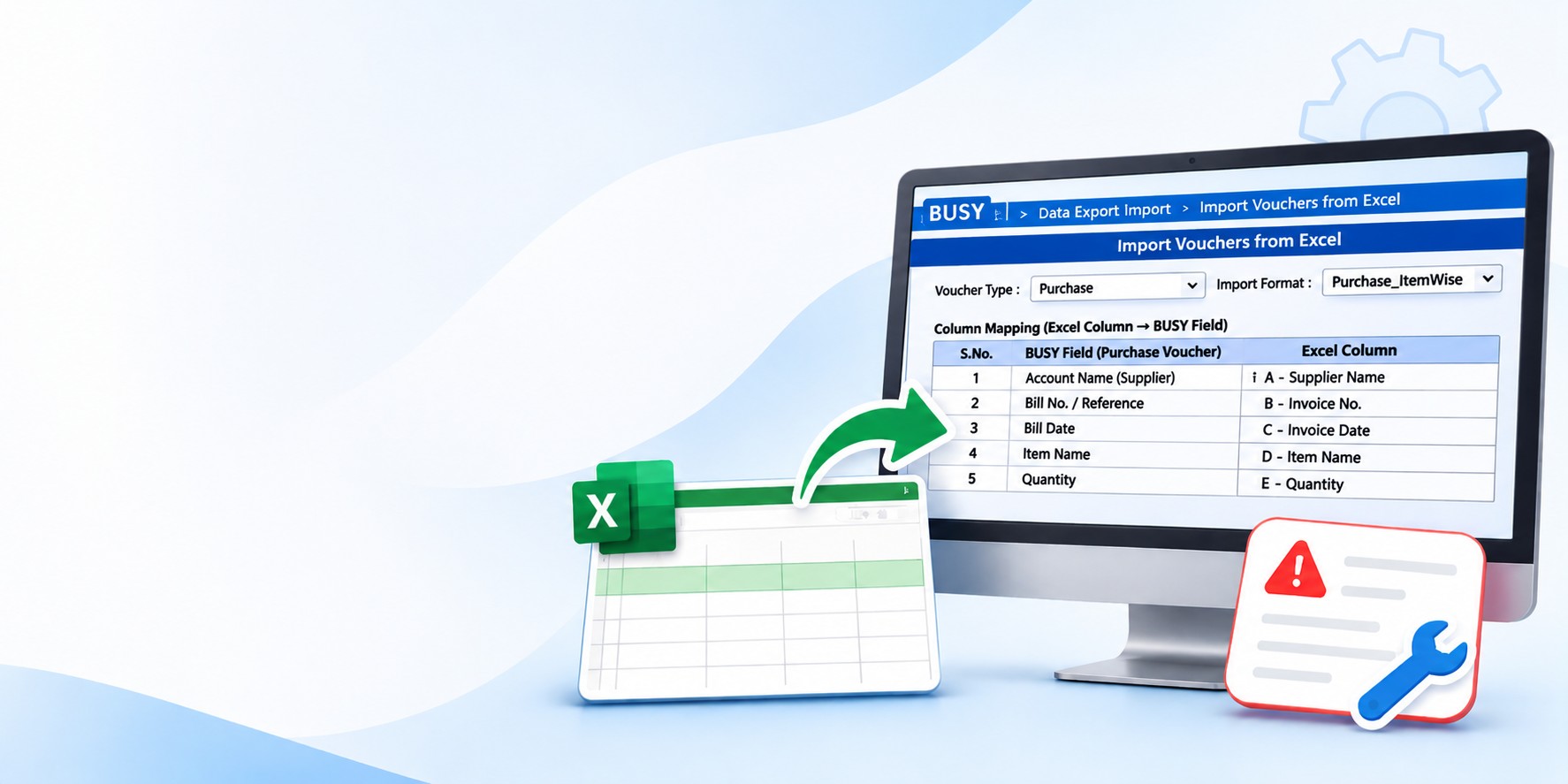
Importing accounting data from Excel into BUSY should make daily accounting work easier. However, sometimes a file that looks perfectly organised in Excel does not import as expected. Some transactions may fail, item details may appear incorrectly, or BUSY may display errors during the import process.
These issues can occur because of incorrect Excel formatting, mismatched column mapping, missing account or item masters, or an incorrectly configured voucher format.
For accountants handling multiple purchase and sales transactions, identifying these problems is important to avoid repeated data entry and unnecessary delays.
In this guide, we will explain the common reasons behind Excel import errors in BUSY, how to fix them and how businesses can prepare their invoice data more efficiently using Edocsmart.
Why Does Excel Data Fail to Import into BUSY?
BUSY uses a configured import format to understand information stored in an Excel spreadsheet. Each Excel column must correspond to the appropriate field in the selected BUSY voucher.
For example, when importing a purchase voucher, BUSY needs the correct supplier account, purchase information, item details, quantity, rate and other applicable transaction fields.
If the Excel file and the configured BUSY format do not match, the software may not process the records correctly.
Some common reasons include:
Excel columns are mapped to incorrect BUSY fields.
Supplier or item masters are missing.
Excel contains formulas or unnecessary formatting.
Transaction dates do not match the required format.
Incorrect financial year or voucher configuration is selected.
Excel file path, worksheet or row numbers are incorrect.
Understanding these issues before importing can help prevent repeated errors.
6 Common Excel Import Errors in BUSY and Their Solutions
1. Incorrect Excel Column Mapping
Column mapping tells BUSY which information to read from each Excel column.
For example, the supplier name should map to Account Name, invoice date to Voucher Date, and quantity to Quantity. Incorrect mapping can lead to missing or misplaced transaction details.
How to fix it:
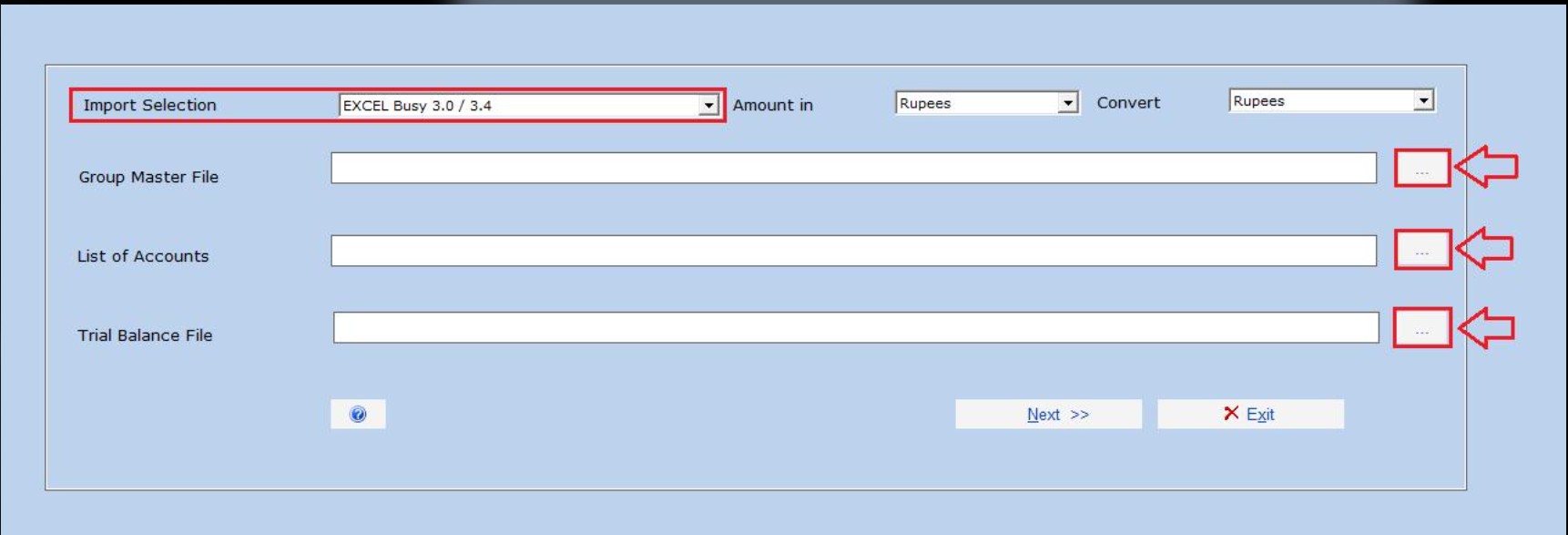
Open Administration → Data Export/Import → Import Vouchers from Excel.
Select the required voucher type and import format.
Match each BUSY field with the correct Excel column.
Save the configuration and test with a sample transaction.
2. Missing Supplier or Item Masters
If a supplier account or stock item mentioned in Excel does not exist in BUSY, the transaction may fail to import.
For example, the supplier name in Excel may not match any account ledger in BUSY.
How to fix it:
Check supplier accounts and stock items in BUSY.
Match their names and units with the Excel file.
Create any missing masters before importing.
3. Incorrect Excel Date Format
BUSY may not recognise dates correctly if they are stored as text or use an unsupported date format.
For example, a date such as 15/04/2026 may be interpreted differently depending on the date settings.
How to fix it:
Check the invoice date column in Excel.
Apply a consistent date format supported by your BUSY configuration.
Verify the financial year before importing.
4. Excel File Contains Formulas or Unnecessary Formatting
Merged cells, blank rows, formulas and unnecessary formatting can affect how BUSY reads spreadsheet data.
How to fix it:
Remove blank rows, merged cells and unnecessary columns.
Check that all required headings are available.
Convert formula-based values into static values where necessary.
Save the file in a supported Excel format.
5. Incorrect Excel File Path, Sheet Number or Row Selection
BUSY may read the wrong data if the selected worksheet or starting and ending rows are incorrect.
For example, the purchase records may be in Sheet 2, while the import configuration points to Sheet 1.
How to fix it:
Select the correct Excel file and worksheet.
Verify the starting and ending row numbers.
Make sure the selected range includes all transaction records.
6. Incorrect Voucher Type or Financial Year
Selecting the wrong voucher type or financial year can prevent transactions from importing correctly.
For example, purchase transactions should use the appropriate Purchase voucher configuration.
How to fix it:
Open the correct BUSY company and financial year.
Select the appropriate voucher type.
Verify the import configuration and test a sample transaction.
How Edocsmart Helps Reduce Excel Data Preparation Problems
Many Excel import problems begin before the file reaches BUSY. When accountants manually enter information from supplier invoices, they may encounter missing details, inconsistent item names or incorrect invoice values.
Edocsmart helps simplify this initial preparation process through invoice scanning and data extraction.
Instead of manually entering every invoice detail into a spreadsheet, businesses can upload their purchase invoices to Edocsmart, review the extracted information and download the processed records in the required BUSY export format.
The process works as follows:
1. Upload Purchase Invoices
Upload supplier invoices to Edocsmart for scanning and processing.
2. Extract Invoice Information
Edocsmart extracts available information such as supplier names, invoice numbers, dates, item descriptions, quantities, rates and GST details.
3. Review and Save Records
Check the extracted information, make necessary corrections and save the processed invoice records.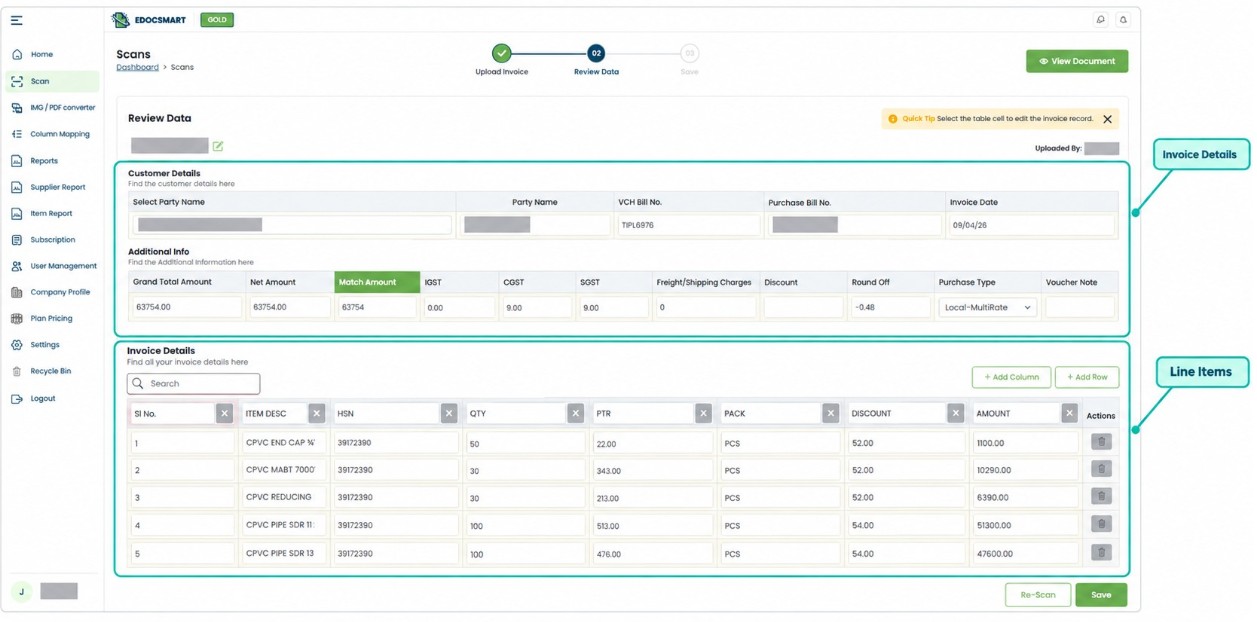
4. Select the BUSY Export Format
Choose the appropriate BUSY export option, such as ItemWise or Local/Central, according to the transaction requirements.
5. Download the Excel File
Download the processed purchase data in Excel format.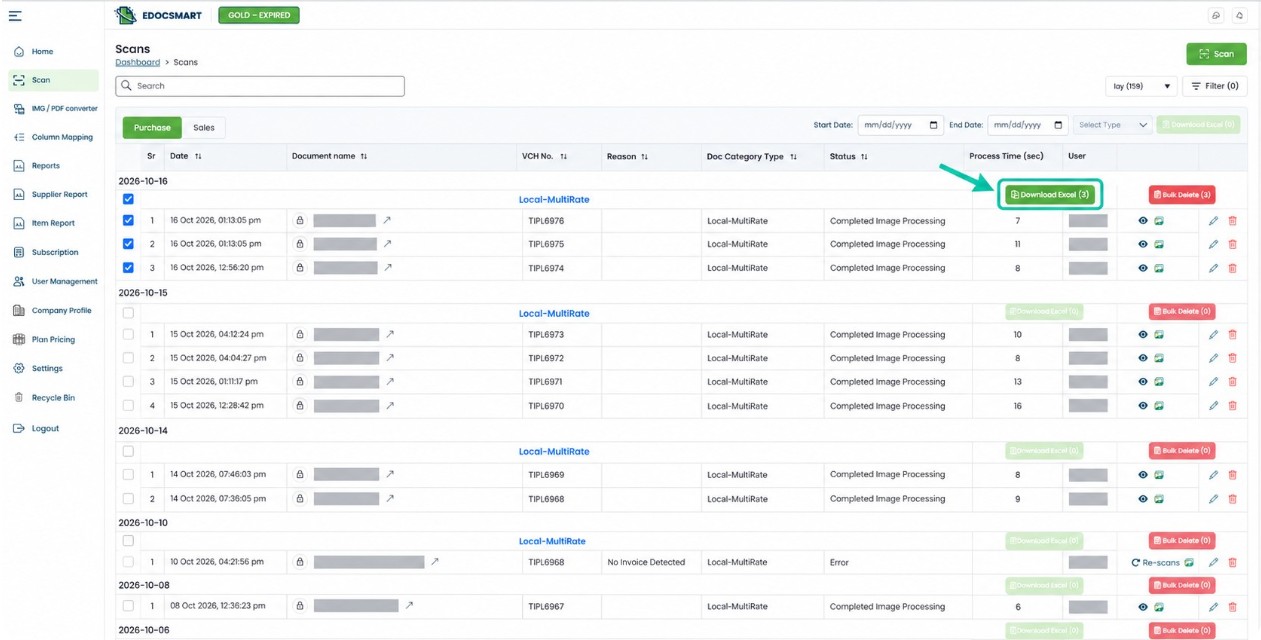
6. Configure and Import into BUSY
Create an initial purchase voucher in BUSY to establish the required structure. Configure the Excel import format and map the relevant fields. Then import the downloaded Excel file.
7. Verify Imported Transactions
Check the imported purchase vouchers to confirm that supplier information, item details, quantities, GST and invoice totals are correct.
By preparing and reviewing invoice data before importing, businesses can reduce common spreadsheet preparation problems.
Checklist Before Importing Excel Data into BUSY
Before importing a large Excel file, use this checklist:
Correct voucher type selected.
Correct financial year selected.
Excel columns mapped to the correct BUSY fields.
Supplier and item masters available.
Invoice dates formatted correctly.
No unnecessary formulas or blank rows.
Correct Excel file and worksheet selected.
Starting and ending row numbers verified.
Purchase amounts and GST details checked.
Latest BUSY company backup taken.
It is also useful to test a small batch of transactions before importing the complete file.
Frequently Asked Questions
1. Why am I getting errors while importing Excel data into BUSY?
Import errors commonly occur because of incorrect field mapping, missing masters, unsupported spreadsheet formatting, incorrect date formats or wrong file and worksheet selections.
2. How can I import purchase vouchers from Excel into BUSY?
Open Administration, select Data Export Import and choose Import Vouchers from Excel. Select the Purchase voucher type, configure the required format, map the Excel columns and select the file path, worksheet and row range before importing.
3. Can I import multiple purchase invoices into BUSY?
Yes. Multiple purchase invoices can be imported through the Excel voucher import facility when the spreadsheet and voucher configuration are correctly prepared.
4. Can Edocsmart help with Excel import errors in BUSY?
Edocsmart helps prepare invoice information through scanning, data extraction, review and Excel export. It can help reduce errors caused by manual data preparation, but BUSY configuration and import errors should still be checked separately.
5. What should I do if only some Excel records are imported?
Check the import error information and identify the affected rows. Verify their account names, item details, dates, mapping and other required fields. Correct the records and import them again after checking for duplicates.
Conclusion
Excel import errors in BUSY can occur because of several issues, including incorrect column mapping, missing masters, date formatting and spreadsheet configuration.
Identifying the actual cause before importing can save time and help businesses maintain accurate accounting records.
For businesses processing multiple supplier invoices, Edocsmart simplifies invoice data preparation through scanning, extraction, review and BUSY-compatible Excel exports.
Prepare your invoice data with Edocsmart and make your BUSY import workflow more organised.