How to Add Item and Voucher Narration from Excel to Tally?
Learn how to add stock item-wise and voucher-wise narration from Excel to Tally using Edocsmart, configure source fields, and verify notes before bulk sync.

A purchase invoice contains several items. The quantities and amounts are correct, but the accountant needs a little more information beside each item—perhaps its specification, weight, or another detail already available in Excel.
The complete voucher also needs a note explaining the transaction.
Typing these details again after every import creates extra work. Leaving them out makes the entries harder to understand when someone reviews them later.
This is where narration settings become useful. Edocsmart provides Stock Item wise and Voucher wise narration settings, allowing teams to configure the information required at each level before transferring approved records to Tally.
Which Details Belong Beside the Item?
Stock item-wise narration provides additional context for an individual item line.
Imagine an Excel purchase report containing the following fictional records:
| Invoice reference | Item | Additional detail |
|---|---|---|
| PUR-210 | Steel Container | Capacity: 20 litres |
| PUR-210 | Storage Rack | Size: Medium |
Both items belong to one invoice, but their additional details are different.
The container’s capacity should stay associated with the container. The rack’s size should remain beside the rack.
This is the purpose of configuring stock item-wise narration: keeping the relevant explanation connected to the intended item.
These examples illustrate the requirement. The actual narration content depends on the available Excel columns and configured settings.
What Belongs in the Voucher Narration?
Voucher-wise narration describes the overall transaction.
For the same purchase, an appropriate note might be:
“Office storage materials purchased against reference PUR-210.”
That sentence applies to the complete voucher rather than one product.
| Narration level | What it explains |
|---|---|
| Stock item-wise | Details associated with an individual item |
| Voucher-wise | Information about the complete transaction |
| Both levels | Separate information required at each level |
Item narration and voucher narration do not need to repeat the same text. Choose the details that will help someone understand the entry during review.
Tally supports voucher narration and also provides separate ledger-narration functionality. Ledger narration should not be confused with the stock item-wise setting discussed here.
How Edocsmart Helps Prepare Narration
Your Excel report may already contain useful descriptions, references, and item details.
In Edocsmart, the supplied configuration screen includes a Narration Setting section with controls labelled Stock Item wise, Voucher wise, and Both.
The screen also shows narration configuration fields using source placeholders. These settings provide a place to define the required narration structure for the supported workflow.
The important preparation is deciding which information belongs at each level and confirming that the configuration reads the correct source values.
Step 1: Open the Appropriate Excel Workspace
Log in to Edocsmart and open Transactions.
Select Sales or Purchase according to the records, then open the Excel tab.
Confirm the transaction type before configuring narration. The explanation required for a sales transaction may differ from a purchase entry.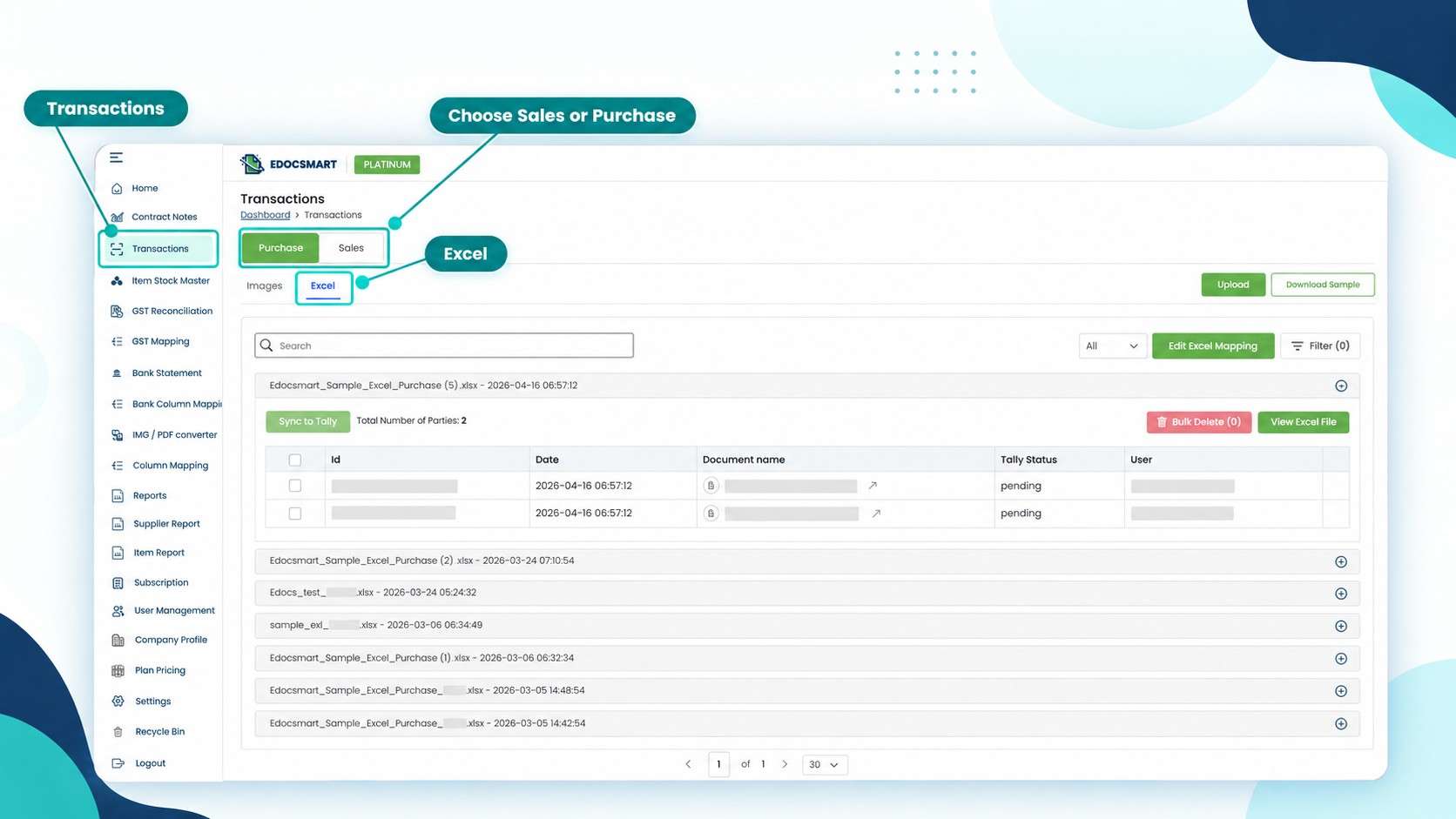
Step 2: Upload the Workbook
Choose the intended Excel file and enter its actual Header Row Number when requested.
Check that the workbook contains the information needed for narration. This might include an existing remarks column or other relevant source fields.
Keep the original workbook available for comparison.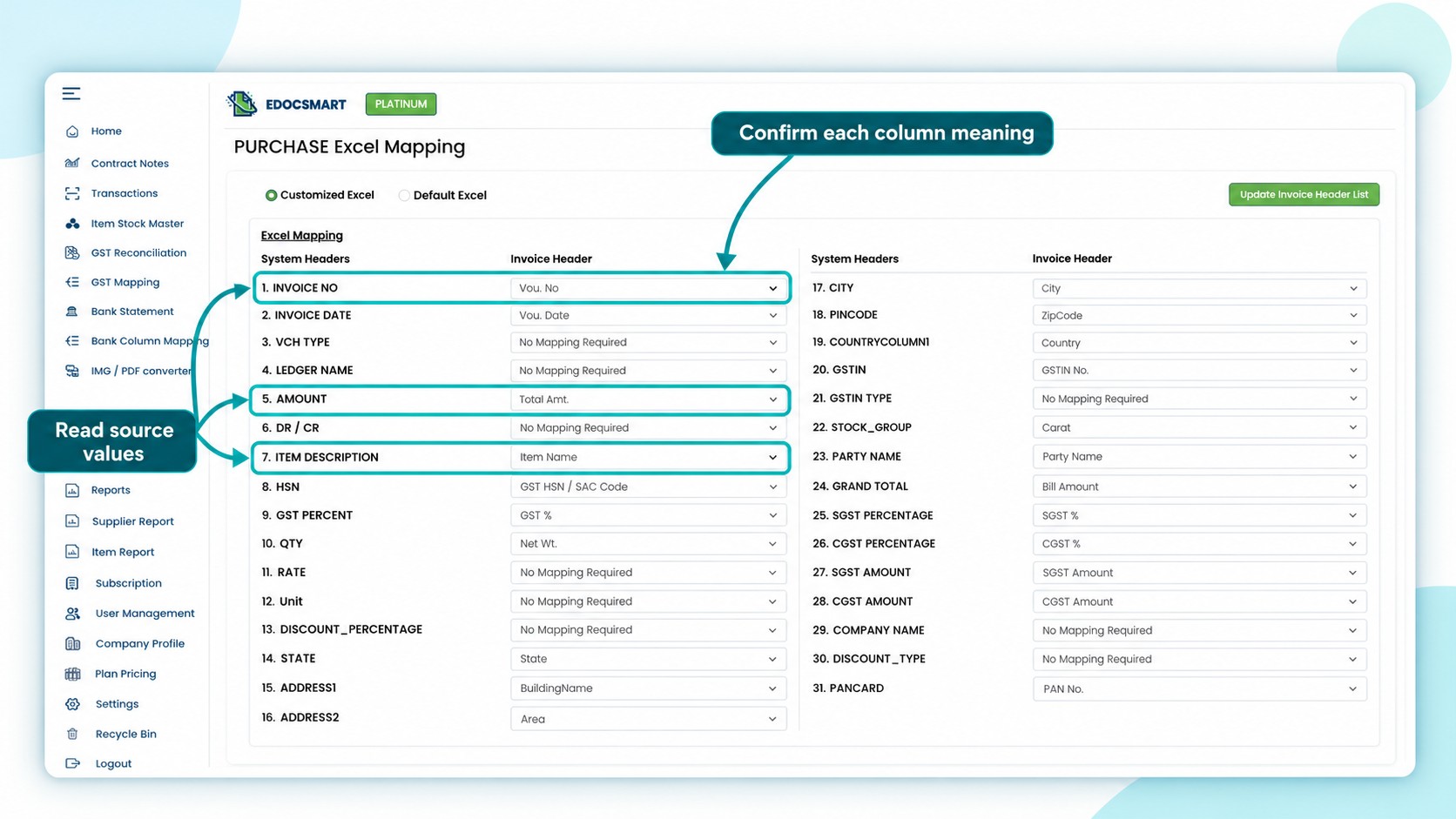
Step 3: Check the Source Columns
Open Edit Excel Mapping and review the relevant source selections.
Read several values beneath each heading. A column called Description might contain the product name, a transaction note, or an internal comment.
Confirm its meaning before using it.
Narration should support the accounting record. It should not replace properly mapped invoice references, quantities, amounts, or other required fields.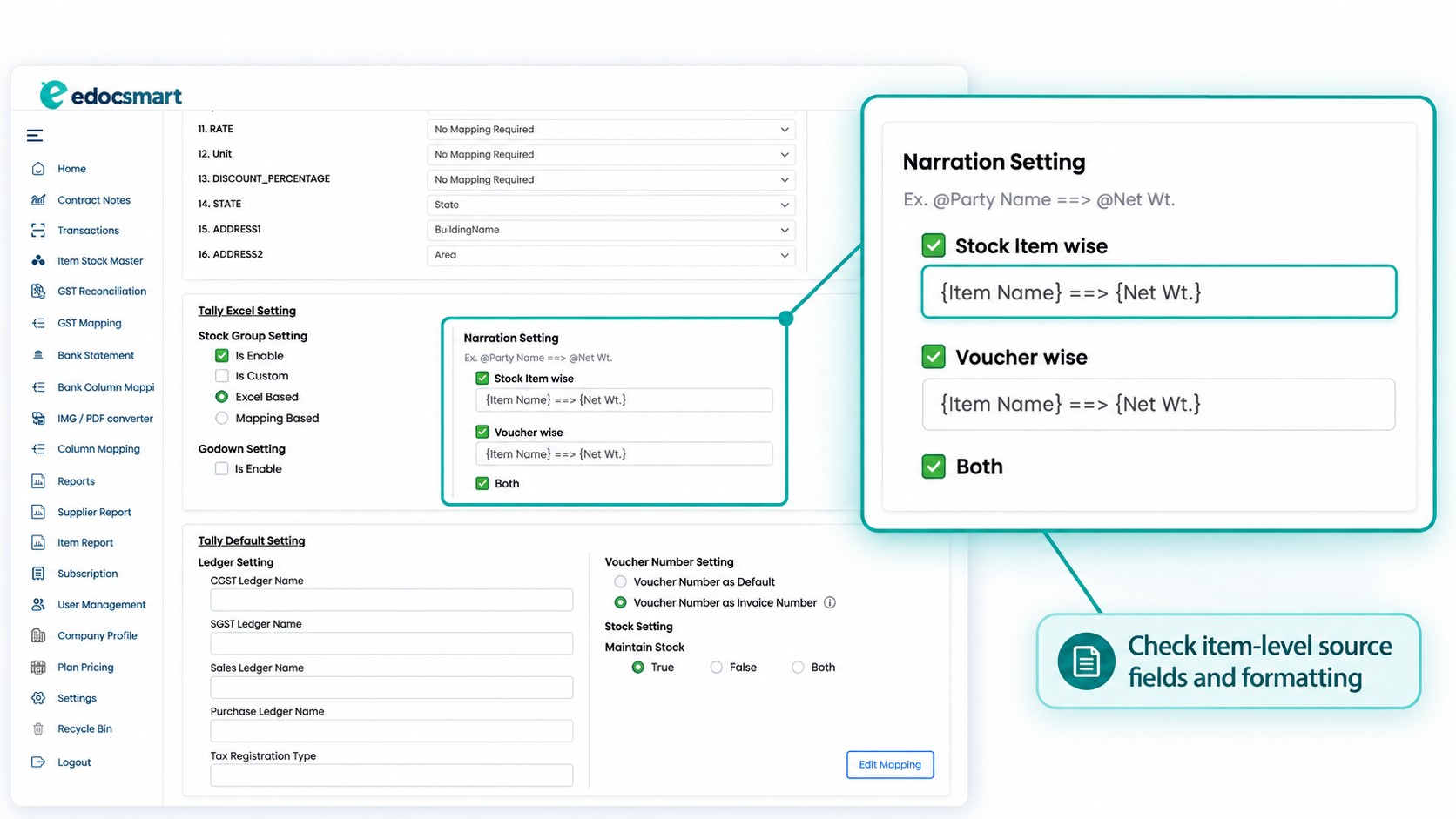
Step 4: Configure Stock Item-Wise Narration
Locate Narration Setting and review the Stock Item wise option.
Configure the required item-level narration using the source fields supported by your setup.
For example, the intended result might combine an item name with a maintained specification. Confirm the accepted placeholders and formatting before processing.
Test more than one item to ensure each line receives its own relevant details.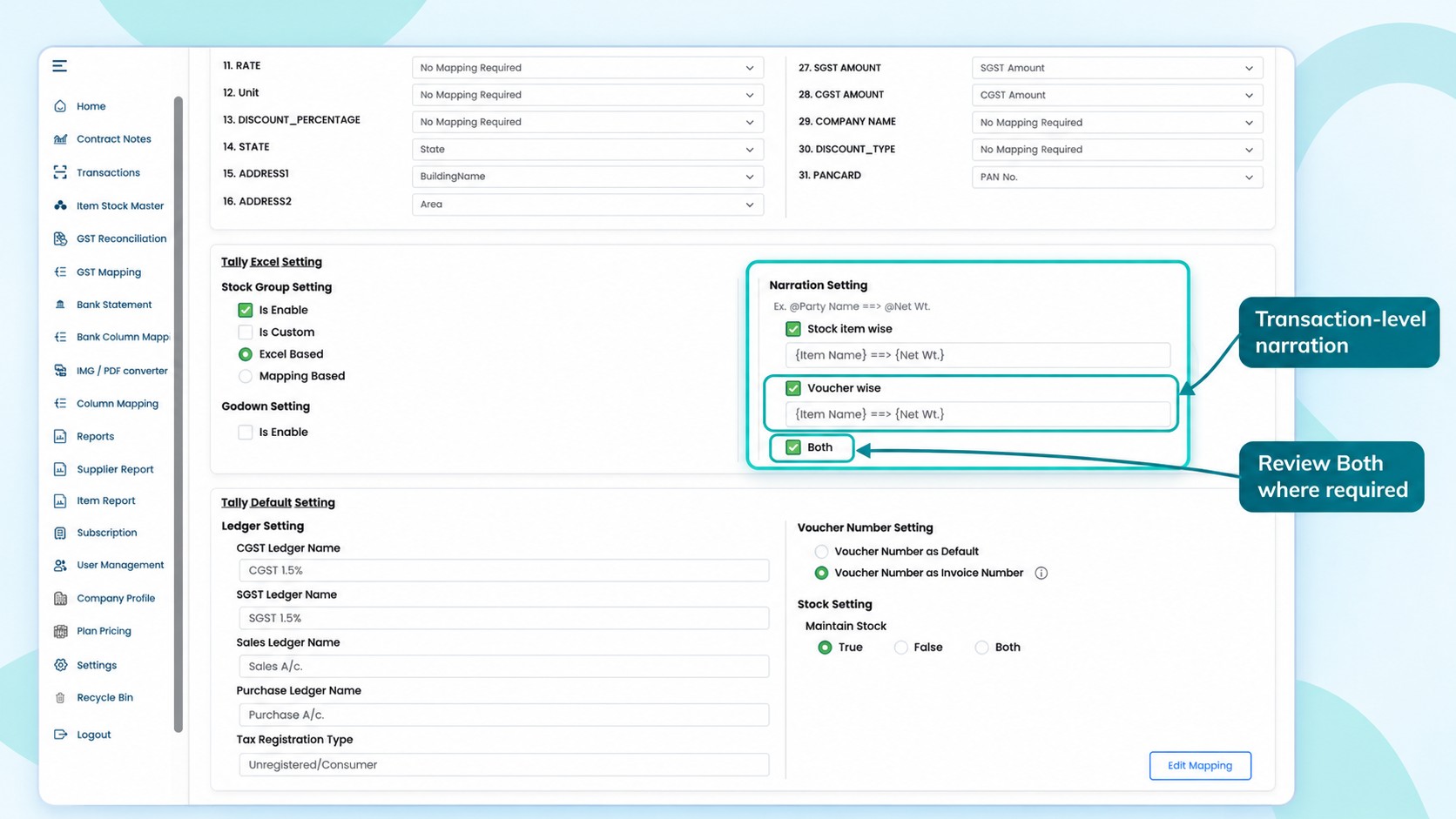
Step 5: Configure Voucher-Wise Narration
Review the Voucher wise option and define the information required for the complete transaction.
Choose a transaction-level note or an agreed combination of source values.
If the invoice contains several item rows, confirm how the workflow produces one voucher narration. A note should not become unnecessarily repeated simply because the invoice contains multiple products.
Where both levels are needed, review the Both control according to the configured workflow.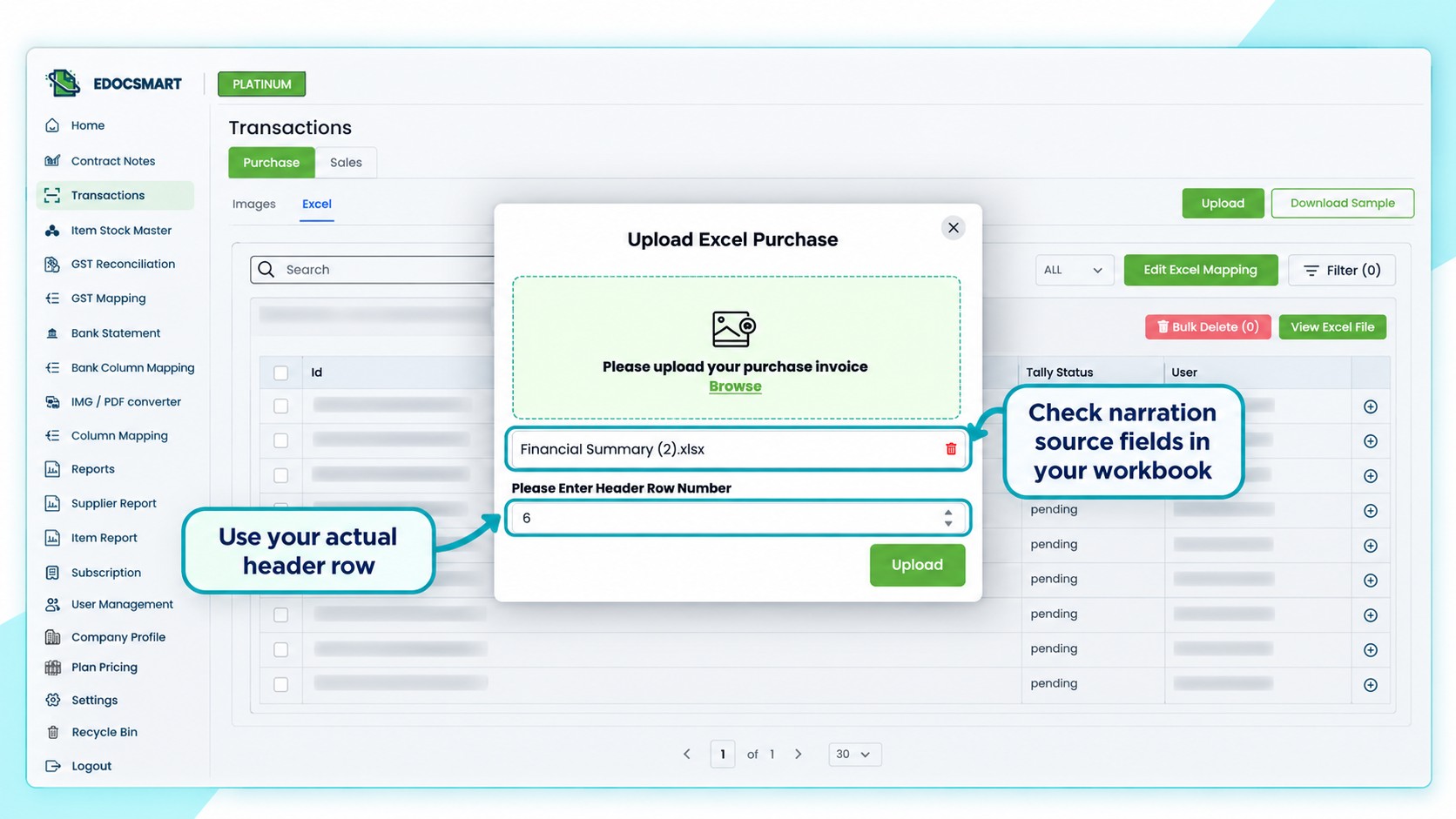
Step 6: Review the Prepared Narration
After processing, compare sample records with Excel.
Check that item details remain attached to the correct lines and that the voucher note explains the intended transaction.
Include a multi-item invoice and a record containing a blank narration source.
If several records show the same problem, inspect the shared source selection or narration configuration first. Correct the issue, review the affected records again, and save the approved data.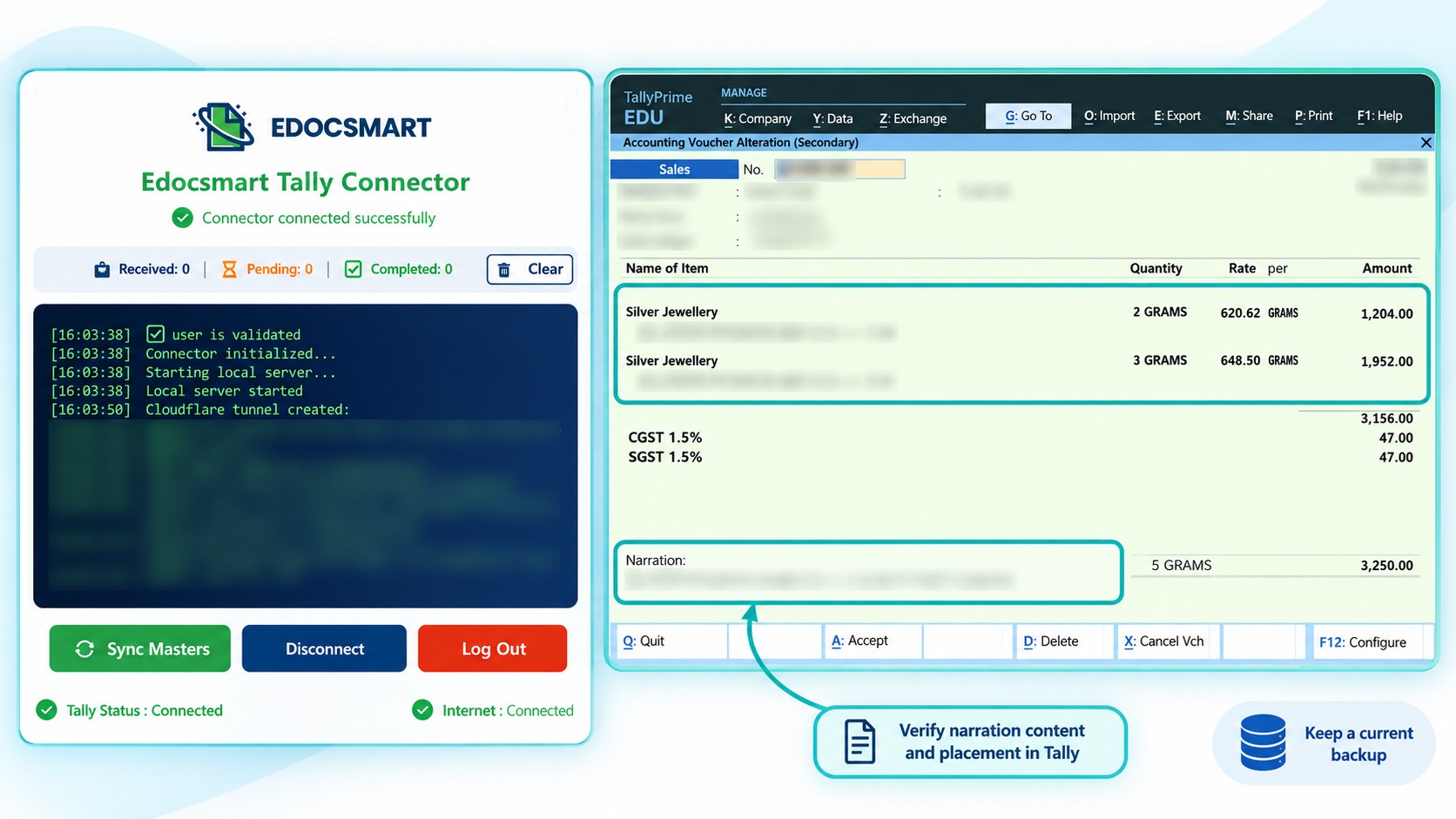
Step 7: Sync a Sample and Verify in Tally
Keep a current company backup. Open the intended company and start the Edocsmart Tally Connector.
Sync a small approved sample.
Inspect where the item-level information and voucher narration appear in Tally. Confirm that the text is complete, relevant, and associated with the correct entry before continuing.
For a specific narration format, discuss your narration requirements with Edocsmart using a sample workbook and the expected output.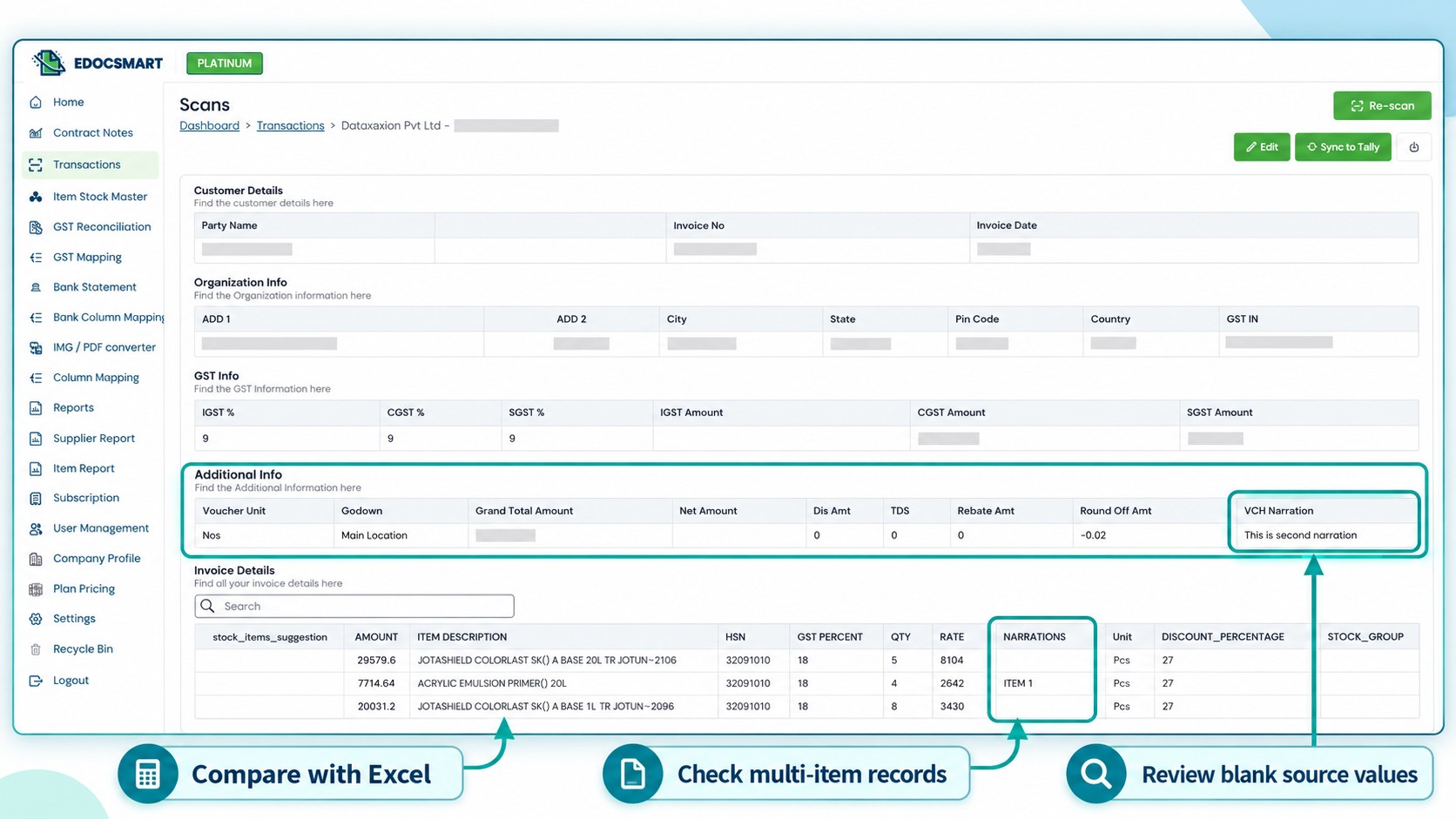
Frequently Asked Questions
1. What is voucher narration?
It is an explanatory note for the complete transaction.
2. What is stock item-wise narration?
It provides additional information associated with an individual item line.
3. Can both types be used?
Yes, where the configured workflow supports both levels.
4. Can narration use Excel information?
Yes, using the source fields supported by the configuration.
5. Must every item have the same narration?
No. Each item may require different details.
6. What happens when the source value is blank?
Check the configured handling and review the prepared result.
7. Should narration be checked after syncing?
Yes. Verify its content and placement in Tally.
Conclusion
Stock item-wise narration explains individual items, while voucher-wise narration describes the complete transaction. Configuring both carefully can reduce repeated typing and make imported entries easier to review.
Explore the Excel-to-tally to connect narration preparation with mapping, review, and sample verification.