How to Automate Invoice Entry in BUSY Accounting Software
Entering purchase invoices manually in BUSY Accounting Software can become a time-consuming task, especially when a business receives dozens or hundreds of supplier bills every week.
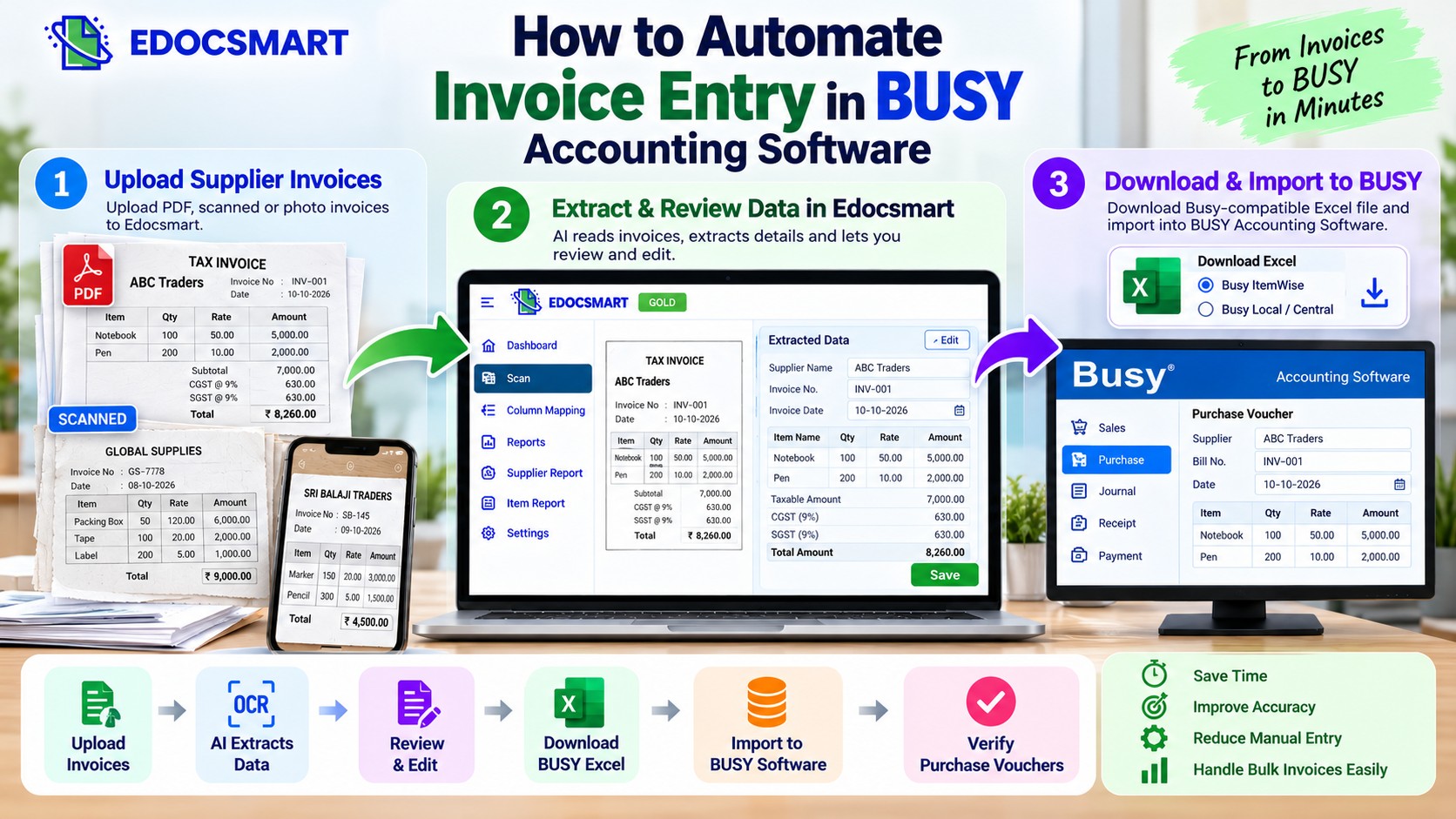
An accountant must open each invoice, identify the supplier, check the invoice number and date, enter item details, calculate GST, and verify the final amount. When invoices arrive as PDFs, scanned documents, or mobile photographs, the process becomes even more repetitive.
But what if most of this information could be extracted automatically?
With Edocsmart, businesses can scan supplier invoices, review the extracted data, and download a BUSY-compatible Excel file. The prepared data can then be imported into BUSY using the appropriate Excel import configuration.
In this guide, we explain how to automate invoice entry in BUSY, from uploading supplier invoices to verifying purchase vouchers in your accounting software.
What Is Automated Invoice Entry in BUSY?
Automated invoice entry in BUSY is the process of reducing manual data entry by extracting invoice information from digital documents and preparing it for import into BUSY Accounting Software.
Instead of typing every supplier name, invoice number, item, quantity, rate, and GST value, businesses can use invoice processing software to capture these details and organize them into a structured format.
A typical workflow looks like this:
Supplier Invoice → Edocsmart Invoice Scanning → Data Review → BUSY-Compatible Excel → BUSY Import → Voucher Verification
Edocsmart handles invoice data extraction and Excel preparation. The final import is performed in BUSY using its supported import options and the configuration appropriate to your BUSY version.
Why Is Manual Invoice Entry in BUSY Time-Consuming?
Consider a wholesale business receiving 150 purchase invoices in a week.
Some suppliers send PDF invoices by email. Others send photographs through WhatsApp, while a few provide printed invoices.
The accountant must read every document and enter its details into BUSY.
Common challenges include:
Repeated typing of supplier and invoice details
Incorrect item codes or quantities
GST calculation and classification mistakes
Missing invoice numbers or dates
Differences between invoice totals and voucher totals
Extra time spent reviewing and correcting entries
When invoice volumes increase, these small tasks can consume several hours.
Automating the preparation of invoice data helps accountants spend more time checking transactions and less time typing them.
How to Automate Invoice Entry in BUSY Using Edocsmart
Step 1: Collect Your Supplier Invoices
Start by gathering the purchase invoices that need to be entered into BUSY.
These may include PDF invoices, scanned bills, or photographs captured using a smartphone.
For best results, make sure the invoice details are readable. Important information such as the invoice number, supplier name, item description, quantity, rate, and GST should be visible.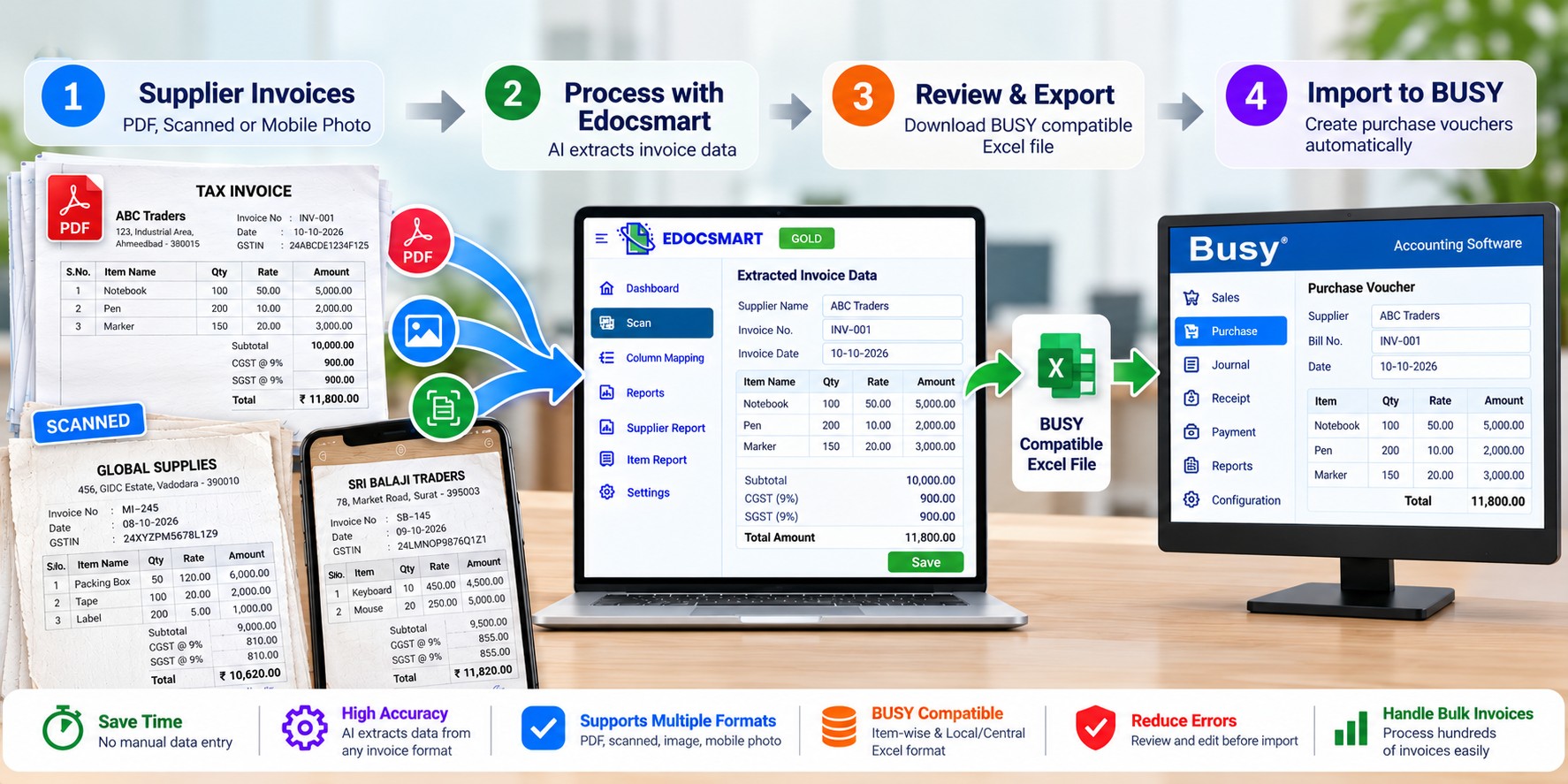
Step 2: Open Edocsmart and Select Scan
Log in to your Edocsmart GOLD account.
From the dashboard, select Scan in the left navigation menu.
This opens the Scans section, where you can view previously processed documents and start scanning a new invoice.
On the Scans page, choose the relevant transaction category, such as Purchase, and click the green Scan button at the top-right.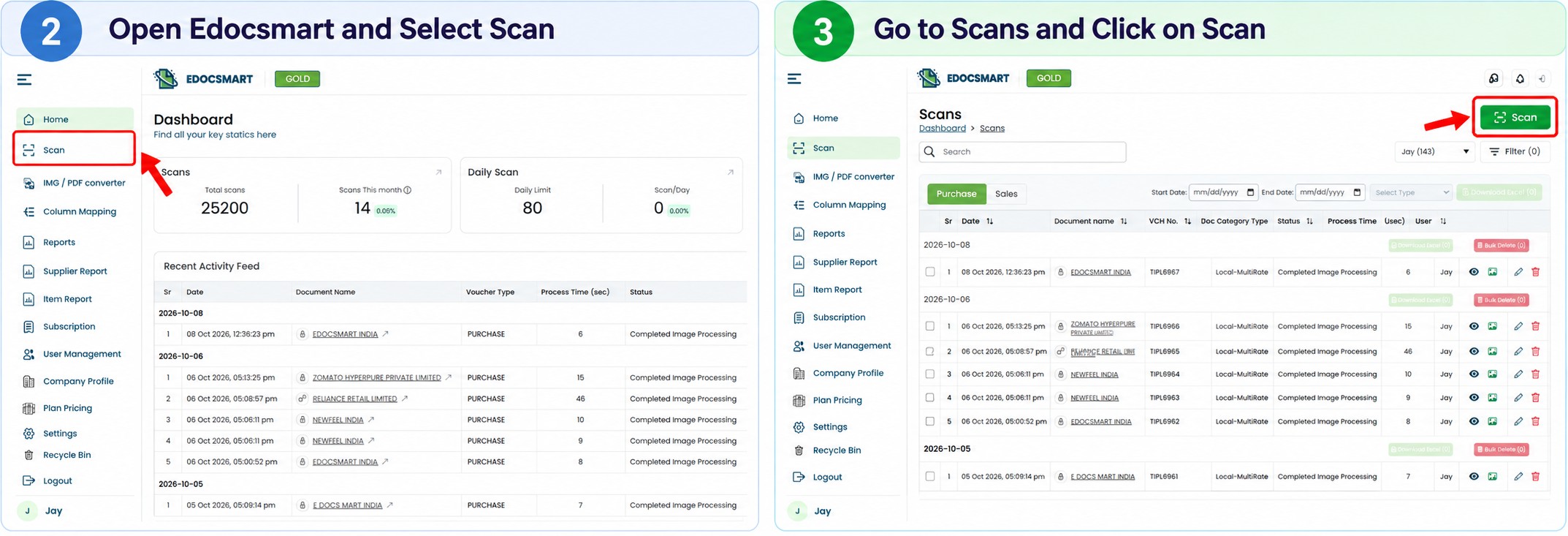
Step 3: Upload the Supplier Invoice
After clicking Scan, the Upload Invoice screen appears.
You can drag and drop a supported invoice document into the upload area or select Browse to choose a file from your computer.
Once the document is selected, Edocsmart processes the invoice and prepares its extracted information for review.
Step 4: Extract Invoice Details Automatically
Edocsmart reads the uploaded invoice and extracts available accounting information.
Depending on the invoice, this may include:
| Invoice Field | Example |
|---|---|
| Supplier Name | Shree Trading Co. |
| Purchase Bill No. | PUR-1045 |
| Invoice Date | 10 October 2026 |
| Item Code | ITEM-101 |
| Item Description | Packaging Material |
| Quantity | 20 |
| Rate | ₹250 |
| Taxable Value | ₹5,000 |
| CGST | ₹450 |
| SGST | ₹450 |
| Invoice Total | ₹5,900 |
The values above are fictional examples.
Extraction results depend on document quality, layout, and available invoice details. The data should be reviewed before export.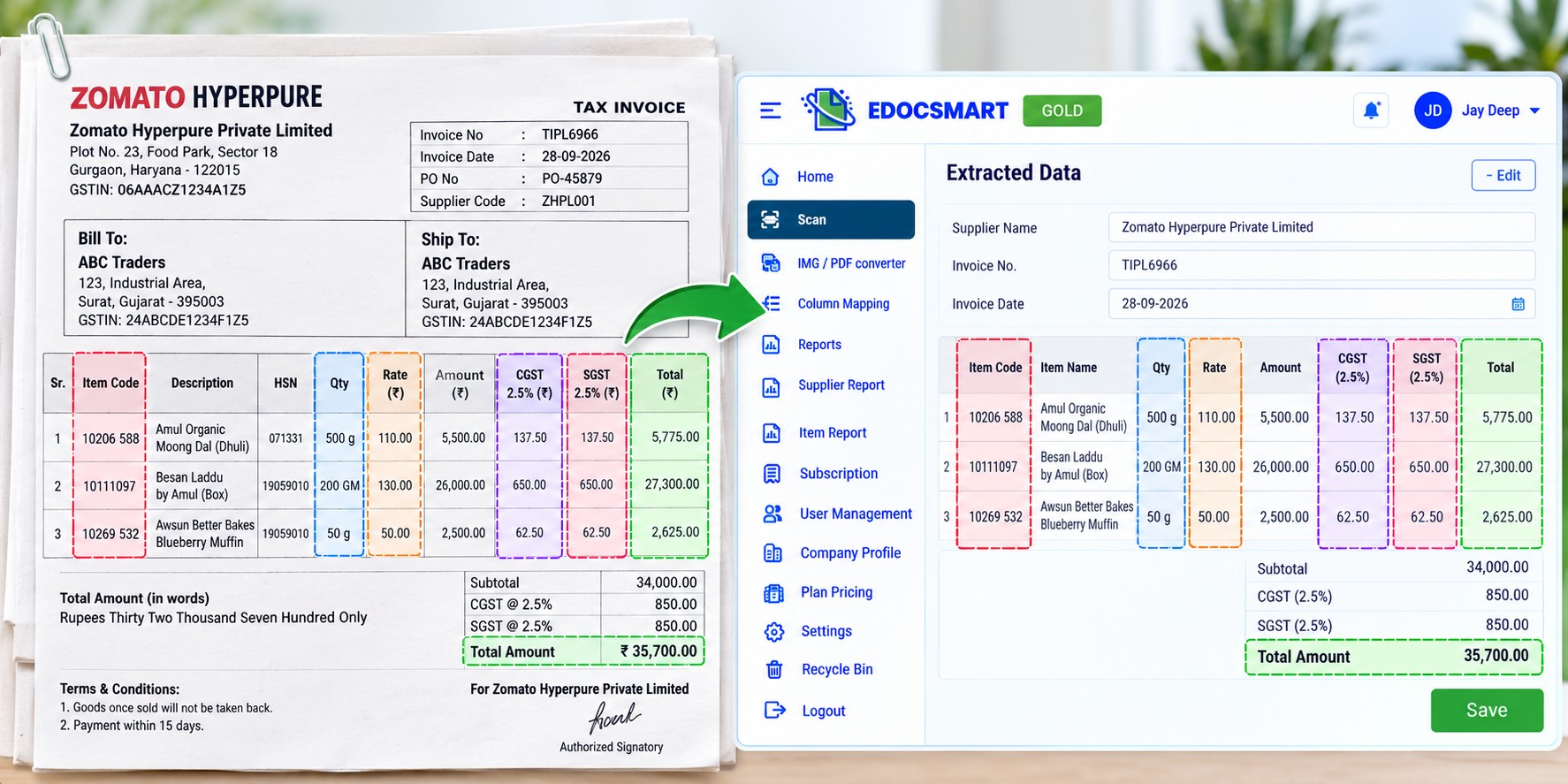
Step 5: Review and Correct the Extracted Data
After processing, open the invoice review screen.
Edocsmart displays the extracted fields in an editable format, allowing the accountant to check information against the original invoice.
Review important fields such as:
Purchase Bill No. and Invoice Date
Party Name
Item Code and Item Description
Quantity and Unit Price
GST, CGST, SGST, or IGST
Grand Total Amount
If a value needs correction, edit it before saving.
The review screen also provides Add Column and Add Row options for adjusting the invoice data where required.
This review stage is important because automated extraction reduces typing but does not eliminate the need for accounting validation.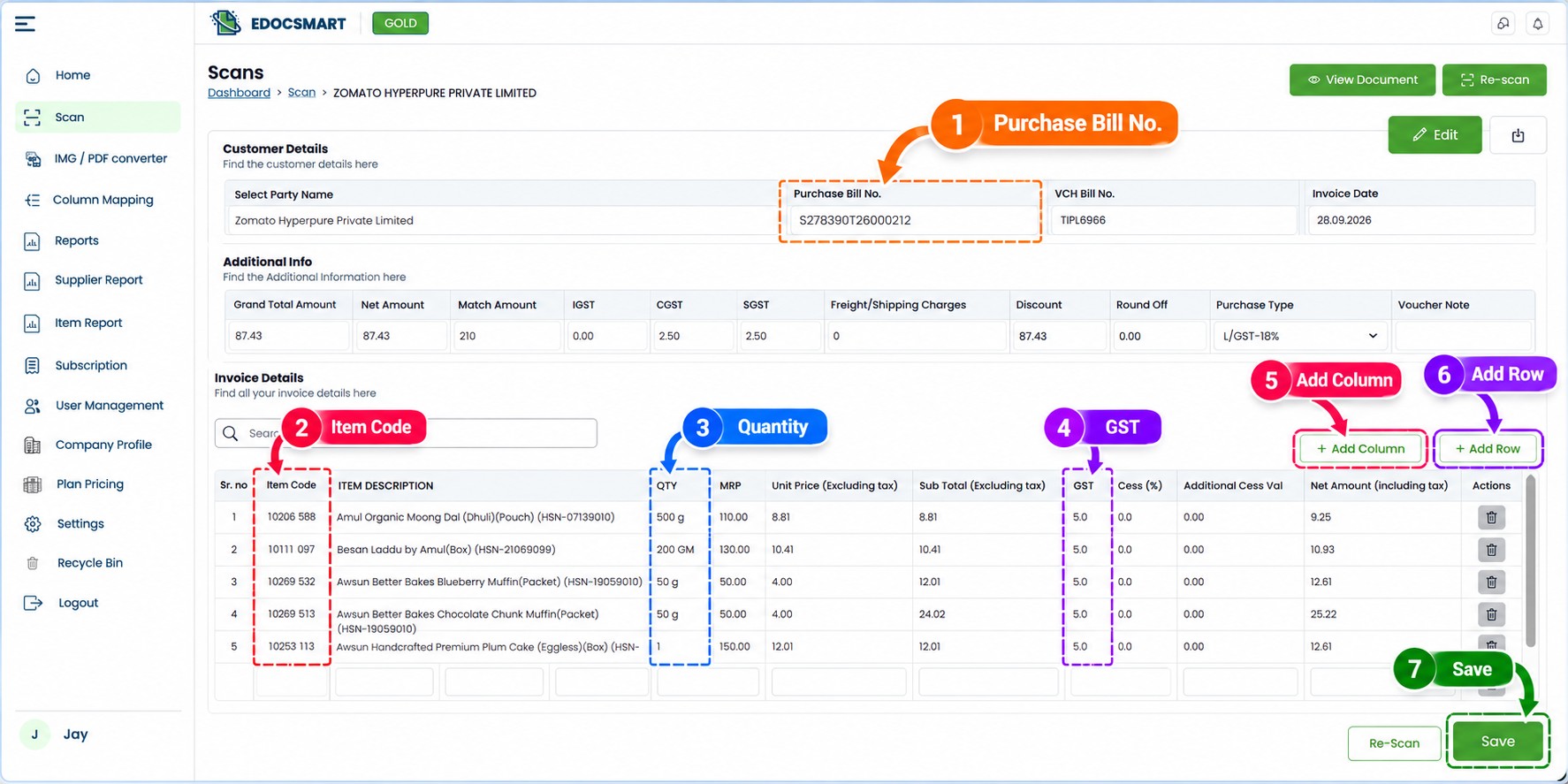
Step 6: Save the Processed Invoice
Once the extracted details have been checked, click Save.
Edocsmart displays a confirmation screen with the invoice-processing stages:
Upload Invoice → Review Data → Save
The saved document appears with a download icon.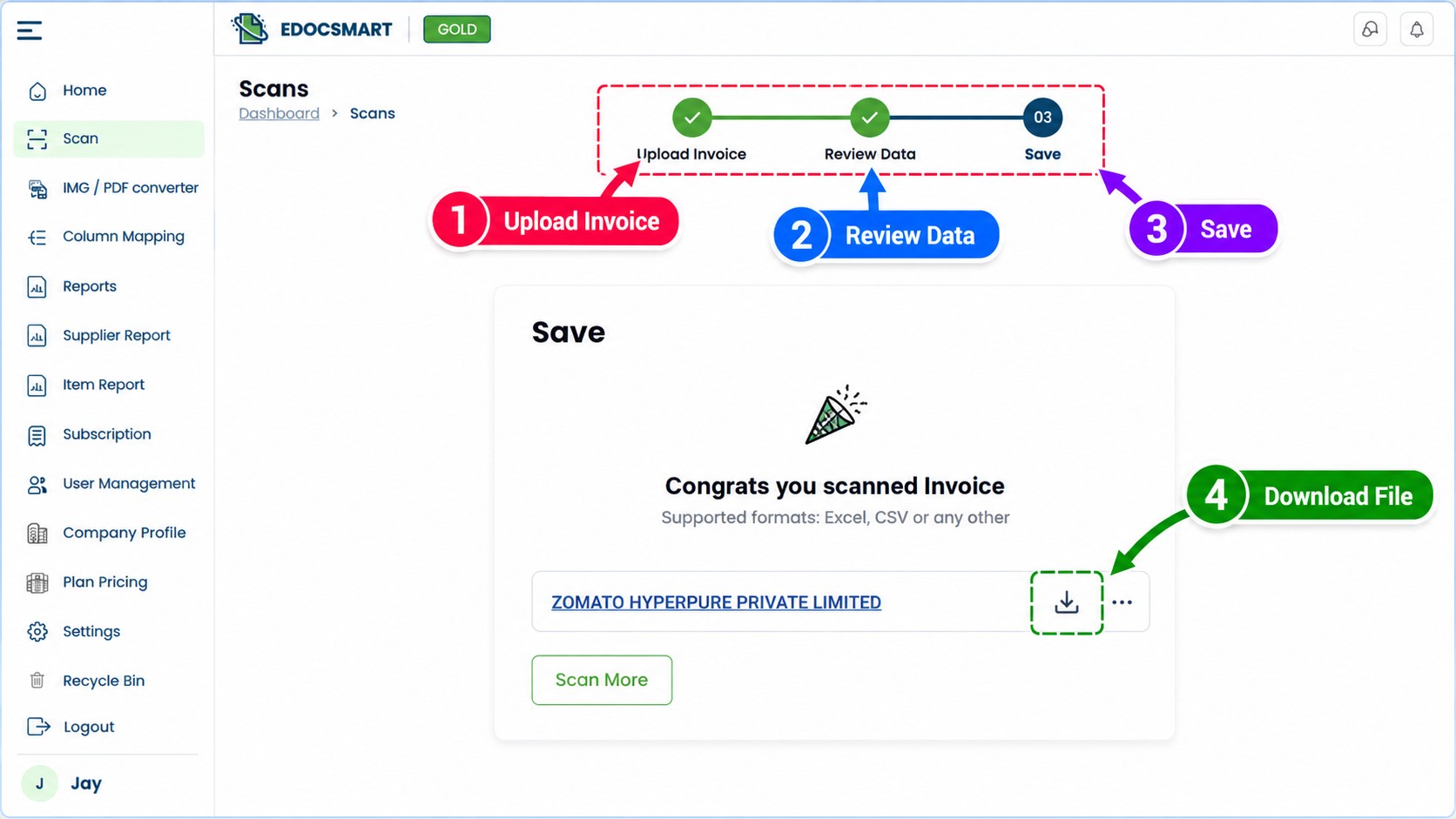
Step 7: Download the BUSY-Compatible Excel File
Click the download icon on the saved invoice.
Edocsmart displays a popup asking how you would like to download the Excel file.
The available options shown in the interface are:
Busy ItemWise: Select this option when the corresponding item-wise Excel output is appropriate for your BUSY import workflow.
Busy Local / Central: Select this option when the corresponding local or central format matches your accounting requirements.
Choose the appropriate format and download the Excel file.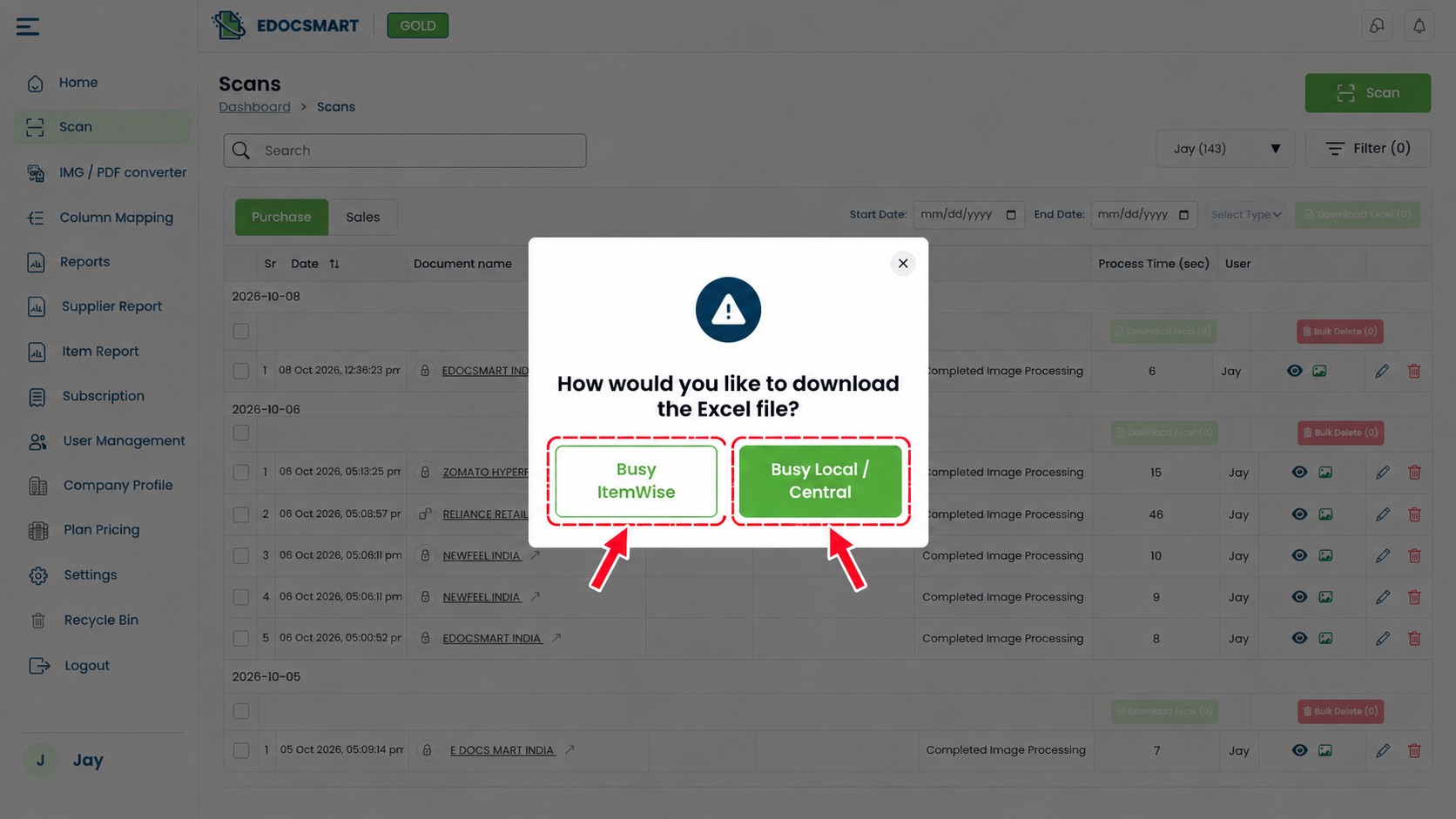
Step 8: Import the Prepared Excel File into BUSY
Now open BUSY Accounting Software and select the company where the purchase invoices need to be recorded.
Use the Excel voucher import facility available in your BUSY version.
Select the appropriate purchase voucher configuration and locate the Excel file downloaded from Edocsmart.
Check that the Excel columns correspond to the fields required by your BUSY import configuration.
Depending on the version and configuration, you may need to verify or configure the mapping for:
Voucher date and invoice number
Supplier or party ledger
Item name or item code
Quantity and rate
Taxable amount
GST details
Voucher totals
Complete the import using BUSY's supported procedure.
Important: Edocsmart prepares the BUSY-compatible Excel output; this workflow does not imply that invoices are directly synced into BUSY without an import step. Exact menu names and mapping options can vary by BUSY version.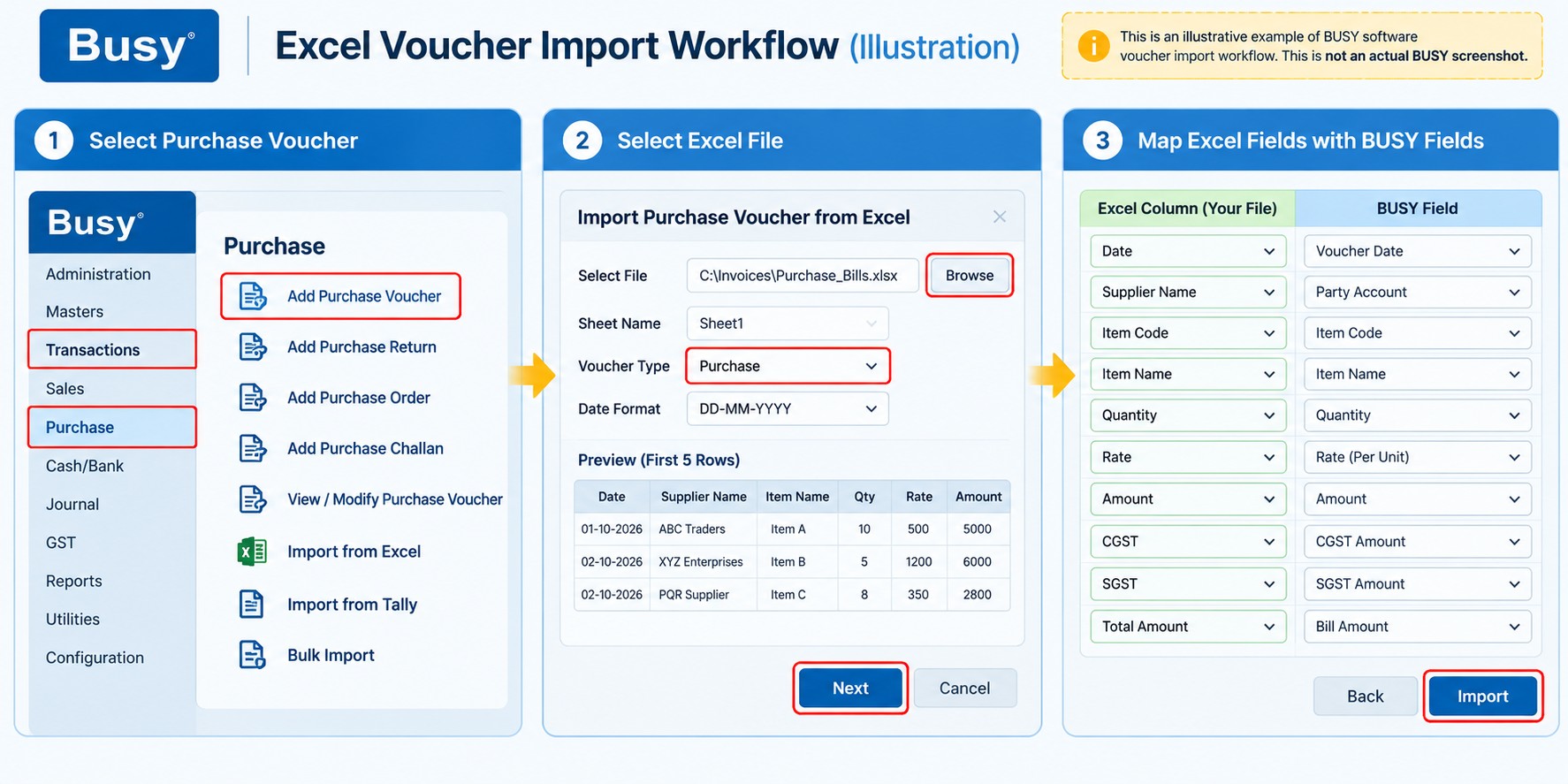
Step 9: Verify the Imported Purchase Vouchers
After importing the Excel data, open the relevant purchase vouchers in BUSY.
Compare the imported entries with the original supplier invoices.
Check the supplier ledger, invoice number, date, item details, quantities, GST values, and final voucher amount.
If any field is incorrect, review the import mapping or source data and correct the transaction as needed.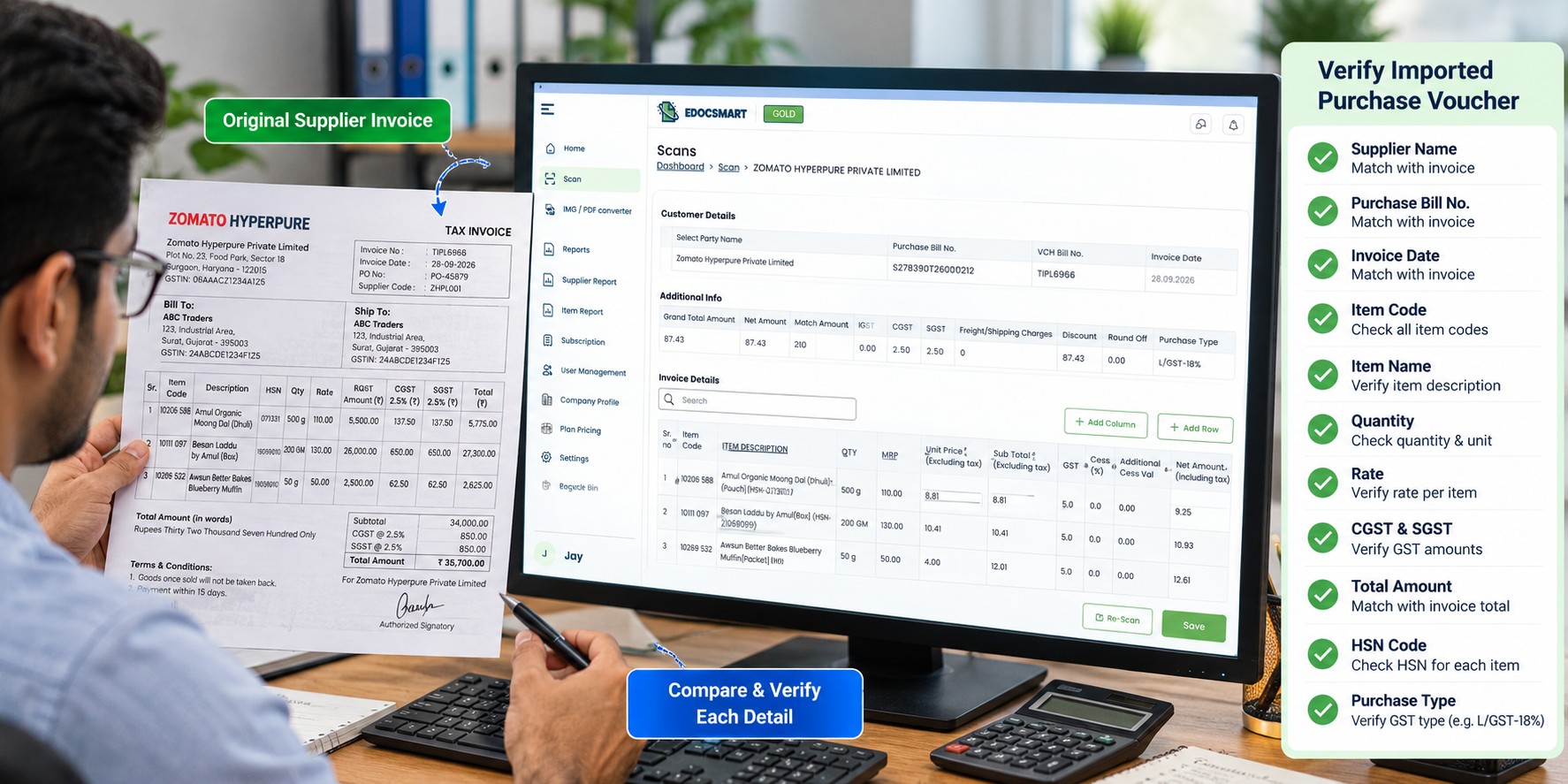
Which Invoice Details Can Be Prepared for BUSY Import?
The information available for extraction and export depends on the invoice and selected output format.
| Accounting Information | Purpose |
|---|---|
| Supplier or Party Name | Identifies the purchase ledger |
| Invoice Number | References the supplier bill |
| Invoice Date | Records the transaction date |
| Item Code | Helps identify the purchased item |
| Item Description | Describes the goods or services |
| Quantity | Records purchased units |
| Rate | Identifies the price per unit |
| Taxable Amount | Provides the value before GST |
| CGST / SGST / IGST | Records applicable GST amounts |
| Invoice Total | Supports final voucher verification |
The corresponding BUSY ledgers, items, tax configuration, and import mapping should be set up correctly before importing.
Benefits of Automating Invoice Entry in BUSY
1. Reduce Repetitive Data Entry
Accountants do not need to type every invoice field manually. They can focus on reviewing extracted information and preparing it for import.
2. Process Different Invoice Documents
Businesses often receive invoices in different digital formats. A scanning-based workflow makes it easier to prepare these documents for accounting.
3. Improve Data Consistency
Structured extraction helps organize invoice numbers, item details, quantities, rates, and tax values into consistent fields.
4. Simplify Bulk Accounting Preparation
When many invoices need to be processed, preparing structured Excel data can reduce the effort involved in repetitive manual voucher creation.
5. Keep a Review Step Before Import
The accountant can inspect and correct extracted values before using them in BUSY, helping identify errors earlier in the workflow.
6. Support Existing Accounting Processes
Businesses can continue using BUSY for accounting while using Edocsmart to prepare invoice data before import.
Manual Invoice Entry vs Automated Invoice Preparation
| Activity | Manual Entry | Edocsmart-Assisted Workflow |
|---|---|---|
| Reading invoice details | Accountant reads each field | Software extracts available fields |
| Typing item details | Entered manually | Extracted data can be reviewed |
| GST information | Entered and checked manually | Extracted tax fields can be reviewed |
| Preparing Excel data | May require manual preparation | BUSY-compatible Excel can be downloaded |
| Creating BUSY vouchers | Manual entry | Import through BUSY's Excel import facility |
| Final verification | Required | Still required |
Automation helps reduce repetitive work, but it does not replace correct ledger setup, GST validation, or final voucher checks.
Common Problems When Importing Invoice Data into BUSY
Even with an automated invoice-processing workflow, import errors may occur if the accounting data is not configured correctly.
Supplier ledger not found: Check whether the supplier ledger exists in BUSY and whether its name matches the import configuration.
Item code mismatch: Confirm that the item code or item name in the Excel file corresponds to the appropriate item master.
Incorrect GST values: Verify tax rates, GST classification, and the relevant local or interstate transaction settings.
Wrong Excel format: Make sure the selected Edocsmart download format matches the BUSY import configuration.
Voucher total mismatch: Compare the taxable amount, GST, discounts, additional charges, and invoice total before completing the import.
Who Can Benefit from Automated Invoice Entry in BUSY?
This workflow can be useful for wholesalers, distributors, retailers, manufacturers, accounting firms, and other businesses that regularly receive supplier invoices.
It is particularly relevant when a business has a large volume of purchase bills, multiple suppliers, or invoices arriving in different document formats.
Instead of repeatedly entering the same types of information, the accounting team can use a more structured process for invoice preparation and verification.
Frequently Asked Questions
1. Can I automate invoice entry in BUSY Accounting Software?
Yes. You can use invoice data extraction software such as Edocsmart to capture details from supplier invoices, review the data, download a BUSY-compatible Excel file, and import it into BUSY using the appropriate import configuration.
2. Can I import PDF invoices directly into BUSY?
In the Edocsmart-assisted workflow, the PDF is first processed to extract invoice details. The extracted data is then downloaded as an Excel file for import into BUSY. This is different from directly importing the original PDF into BUSY.
3. Can Edocsmart extract GST details from purchase invoices?
Edocsmart can extract available invoice tax information, including GST-related fields. The accountant should verify the extracted values and ensure the BUSY tax configuration is correct before importing.
4. Do I need to enter every item manually in BUSY?
You can reduce manual item entry by preparing item-wise invoice data in Excel. However, the item names or codes must match the relevant BUSY item masters and import requirements.
5. What is the difference between Busy ItemWise and Busy Local / Central?
These are two Excel download options displayed in Edocsmart. The appropriate choice depends on the structure expected by your BUSY import workflow and the type of accounting data being prepared.
6. Can I edit invoice details before downloading Excel?
Yes. Edocsmart provides an editable review screen where you can check and correct extracted information before saving and downloading the file.
7. Does Edocsmart directly sync invoices into BUSY?
The workflow described here uses a BUSY-compatible Excel file. After downloading it from Edocsmart, you import the data into BUSY through the applicable Excel import procedure.
8. Why might my Excel invoice import fail in BUSY?
Common reasons include missing ledgers, mismatched item names, incorrect field mapping, unsupported Excel layouts, and inconsistencies in tax or voucher totals.
9. Is automated invoice entry useful for small businesses?
Yes. Even small businesses can benefit when they regularly receive purchase invoices and want to reduce repetitive typing while maintaining an accounting review process.
10. Do I still need to verify invoices after automation?
Yes. Always verify supplier details, item information, tax amounts, and voucher totals. Automated extraction improves the preparation process, but final accounting accuracy still requires validation.
Conclusion
Manual invoice entry in BUSY can take significant time when a business handles large numbers of supplier bills.
By using Edocsmart, businesses can extract invoice information from PDFs, scans, and photographs, review the details, and prepare BUSY-compatible Excel data.
The file can then be imported into BUSY using the appropriate voucher import configuration.
The result is a more organized accounting workflow with less repetitive typing and more time available for checking the accuracy of purchase transactions.
Want to simplify your invoice preparation process? Explore Edocsmart and see how automated invoice extraction can support your BUSY accounting workflow.