How to Automate Purchase Bill Entry in Tally
Manual purchase entry may work when a business receives only a small number of invoices. The problem becomes more visible as invoice volume increases.
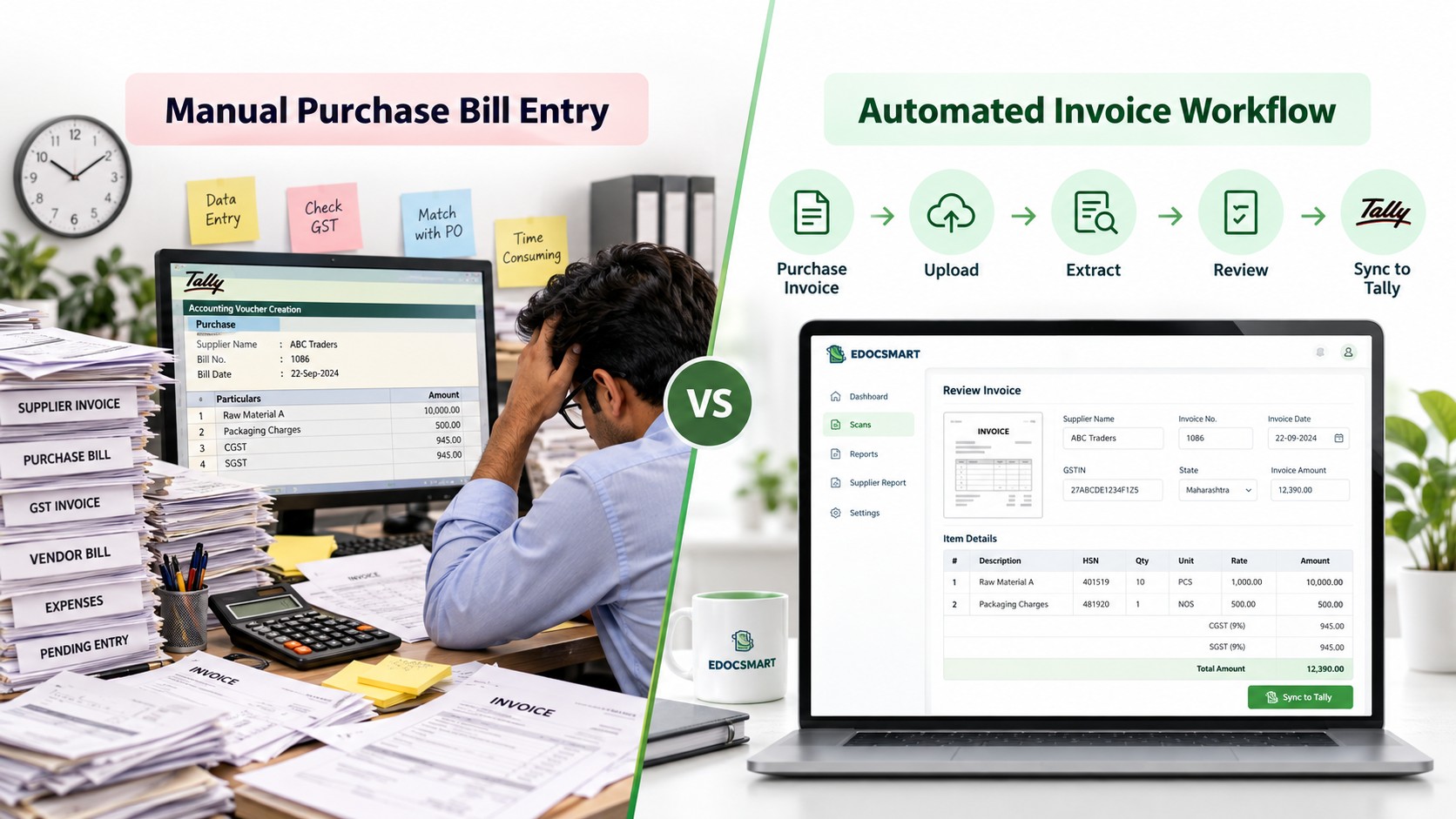
It is 5:30 in the evening, and the accounts team is almost ready to wrap up for the day. Then another batch of supplier invoices arrives.
One invoice has five items, another has twenty. Some are PDFs, a few are scanned copies, and others are simple photographs shared by the supplier. The accountant now has to open every invoice, check the supplier name, invoice number, date, GST details, item quantity, rate and total amount, and then enter the same information again inside Tally.
Doing this for one or two invoices may not seem difficult. But when the same process is repeated across dozens or hundreds of purchase bills, manual entry starts consuming a significant amount of time.
This is where businesses start looking for a better answer to a common question: How to automate purchase bill entry in Tally?
Instead of manually typing every invoice field, a purchase bill can first be uploaded into an invoice processing system such as Edocsmart. The invoice data is extracted, displayed for review and, once verified, can be synced with Tally using the configured connector.
In simple terms, the workflow changes from manual invoice typing to:
Purchase Invoice → Upload → Extract → Review → Sync to Tally
That small change can make everyday purchase invoice processing much more organized.For businesses looking for invoice automation for tally, this approach can reduce repetitive invoice entry in tally while keeping verification in the accountant's hands.
Why Manual Purchase Entry Becomes Difficult at Scale
Manual purchase entry may work when a business receives only a small number of invoices. The problem becomes more visible as invoice volume increases.
Imagine a distributor receiving 200 supplier invoices every month. If every invoice contains several line items, the accounts team is not simply entering 200 records. They may actually be entering thousands of individual values across supplier information, stock items, taxes, quantities and amounts.
There is also a possibility of mistakes during repetitive typing. An incorrect invoice number, wrong GST percentage, misplaced decimal or incorrect quantity can affect accounting records and may require additional time for correction.
This is why businesses processing large volumes of supplier invoices often look for ways to automate purchase entry in Tally rather than increasing manual data-entry work.
A structured tally invoice automation workflow can make high-volume purchase processing more repeatable.
How to Automate Purchase Bill Entry in Tally Using Edocsmart
The Edocsmart workflow can be understood as a simple process where the invoice is first captured, then reviewed and finally transferred to Tally.
Step 1: Login to Edocsmart and Open the Purchase Section
The process begins by opening Edocsmart and logging in with the user's credentials.
After login, the user reaches the dashboard. From the sidebar, navigate to:
Transactions → Purchase
The Purchase section is used for processing supplier purchase invoices.
Instead of directly opening Tally and manually creating a purchase voucher, the user first processes the invoice here.
This makes the original supplier document the source of
the transaction.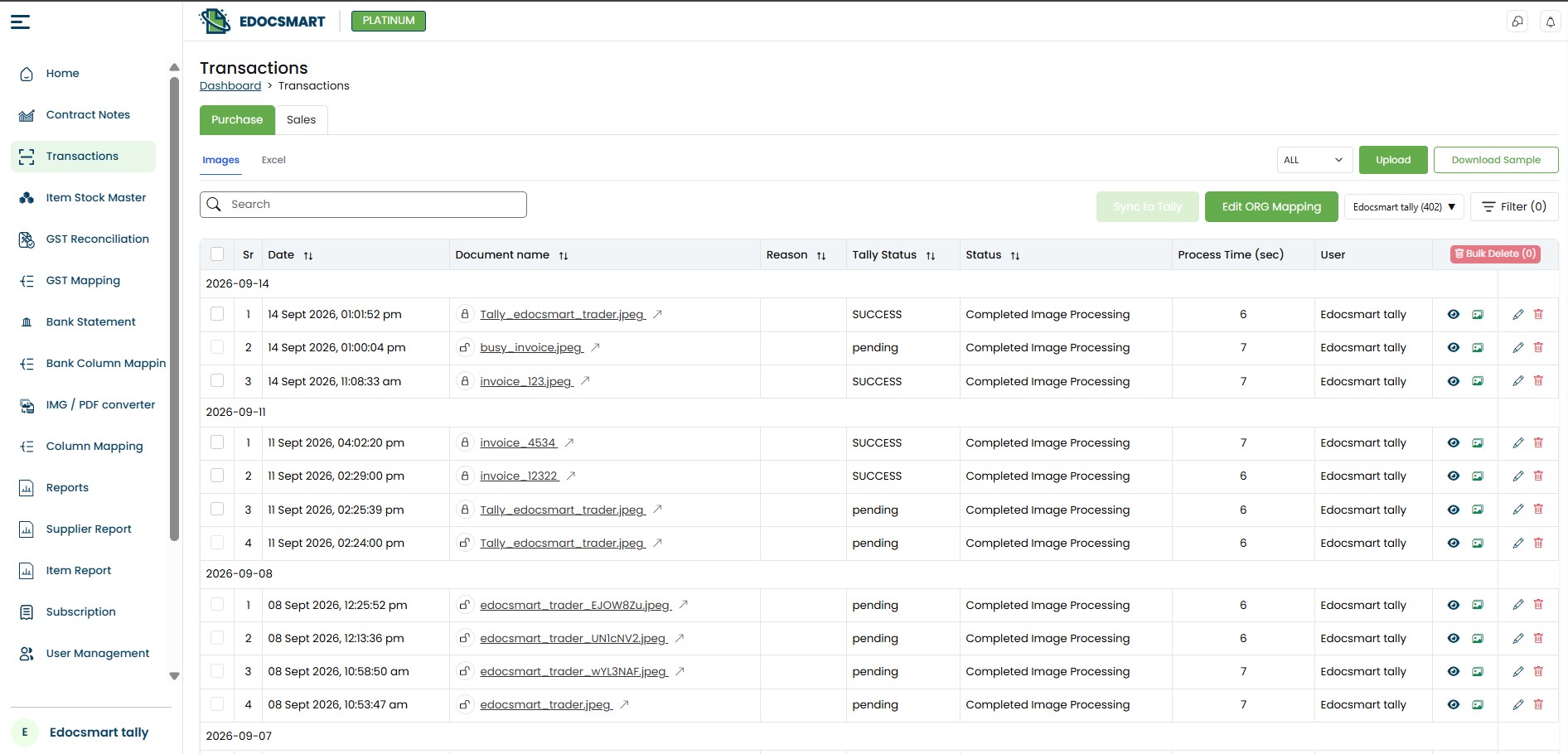 Login to Edocsmart This is the starting point for automatic purchase entry in Tally, where the invoice becomes the
source for the accounting workflow.
Login to Edocsmart This is the starting point for automatic purchase entry in Tally, where the invoice becomes the
source for the accounting workflow.
Step 2: Upload the Purchase Invoice
Once the Purchase section is open, the next step is uploading the supplier invoice.
The invoice may be received in different forms. For example, a supplier may send a PDF invoice over email, while another supplier may share a scanned invoice or invoice photograph.
According to the supported workflow, documents such as PDF invoices, JPEG images, scanned documents or invoice photographs can be uploaded for processing.
This is especially useful because purchase invoices do not always arrive in the same layout or format.
After selecting the required document, the user uploads
it into Edocsmart and continues with the invoice processing workflow.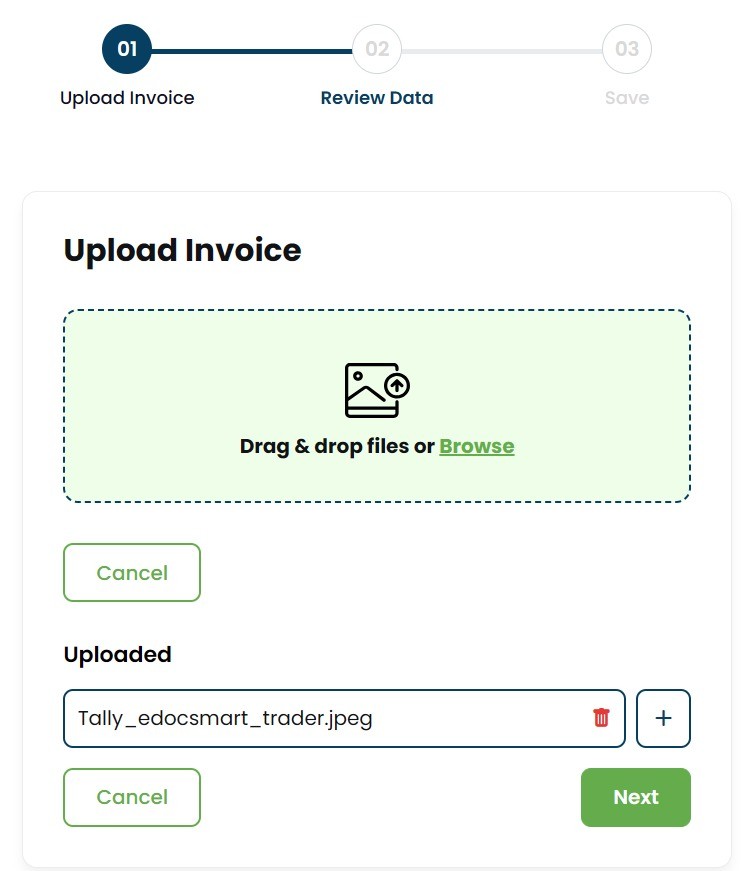 Upload
The same document-first process can support GST Invoice to Tallyworkflows when the invoice contains the required tax information.
Step 3: Configure Mapping During the Initial Setup
Before purchase invoice data can flow correctly into Tally, the required fields need to be mapped with the accounting structure.
This mapping is generally an initial configuration step.
For example, information captured from the invoice may need to correspond with fields such as supplier ledger, invoice number, stock item, purchase ledger or tax information inside Tally.
The important advantage here is that the same mapping does not have to be created again and again when the configured structure remains applicable.
Once the setup has been completed correctly, future invoices using that workflow can continue through the existing configuration.
So instead of spending time mapping every purchase bill separately, the user can focus primarily on uploading, reviewing and syncing the invoice.
Step 4: Invoice Data Is Extracted into Structured Fields
After the purchase invoice is uploaded, Edocsmart processes the document and displays the extracted information in a structured review screen.
This is one of the most important stages of purchase bill automation in Tally.
Rather than manually reading values from the invoice and retyping them somewhere else, the accountant can see the captured information directly on the screen.
Depending on the invoice, the extracted data may include supplier information, invoice number, invoice date, address, city, state, GSTIN, tax values, invoice totals and other relevant accounting fields.
The system can also display item-level information from the purchase invoice.
For example, an invoice may contain details such as product description, HSN code, quantity, unit, MRP, basic rate, discount, GST rate and amount.
This structured view makes it easier to review a complete
purchase invoice before anything is sent to Tally.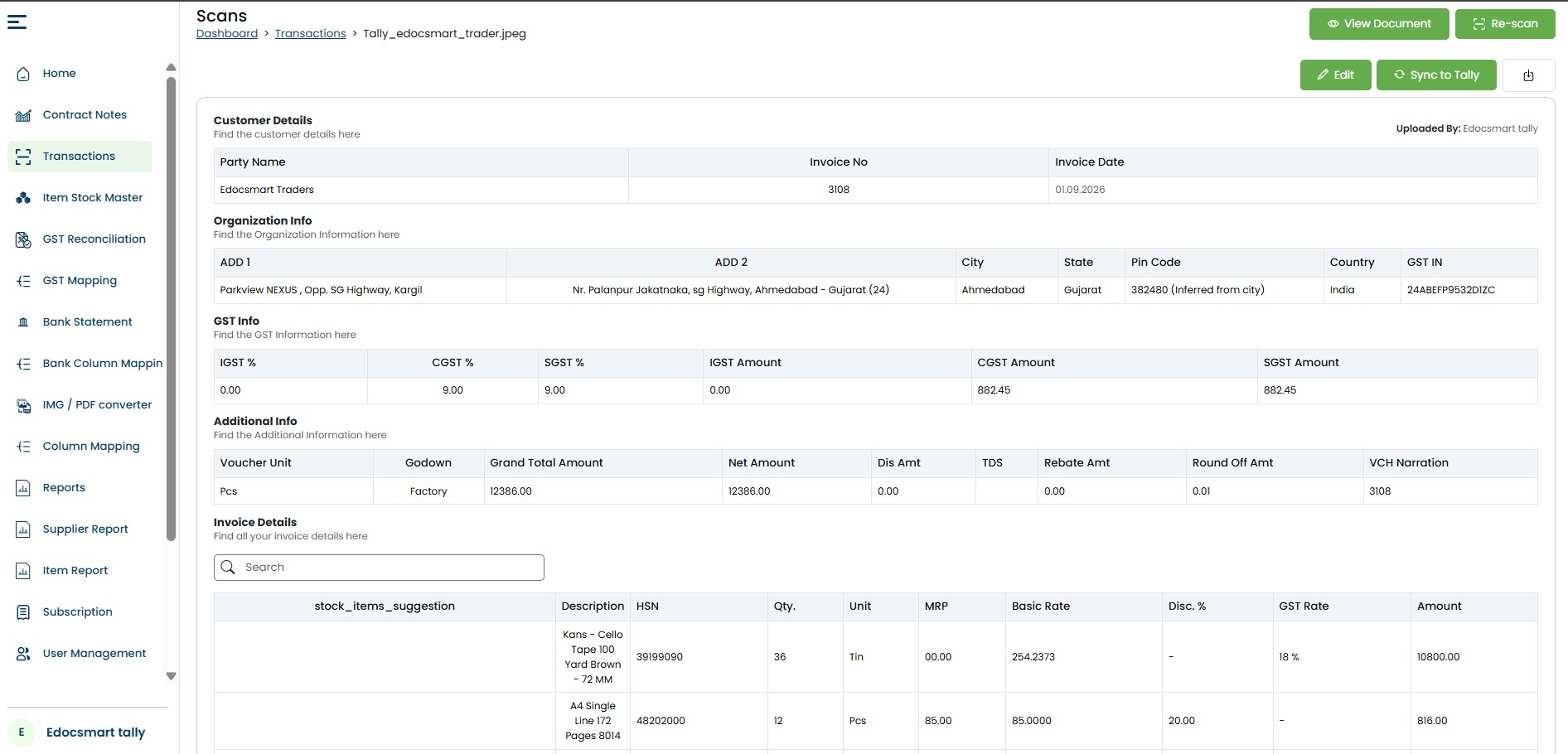 Extracted into Structured Fields
This AI invoice data extraction stage converts document information into structured fields, while GST invoice automation helps keep tax values available for review.
Step 5: Review the Purchase Invoice Before Syncing
Automation becomes more useful when it also allows users to verify the extracted information.
After invoice processing is complete, the accountant can review the data on the Edocsmart screen.
For example, the user can confirm whether the supplier name matches the invoice, whether the invoice number and date are correct, whether GST details have been captured properly and whether the quantities and item values look correct.
This review step is important because every supplier invoice may be different.
If any information needs correction, it can be checked before the transaction is finally pushed to Tally.
Instead of spending time typing every value, the accountant's job becomes more focused on validation.
This review layer is an important part of AI invoice processing for tally because the extracted information is checked before synchronization.
Step 6: Save the Invoice or Process It Immediately
Not every invoice necessarily needs to be synced to Tally as soon as it is uploaded.
Sometimes an accountant may want to review a document first and process the actual accounting entry later.
For such cases, the invoice information can be saved after review.
The user can then return to the processed invoice whenever required.
If everything has already been checked and the invoice is ready for accounting, the user can continue directly to the next stage.
This provides flexibility for businesses that follow internal checking or approval processes before final purchase entries are created.
Step 7: Click “Sync to Tally”
Once the extracted purchase invoice data has been reviewed, the next action is Sync to Tally.
This is the point where the processed document moves from invoice extraction to actual accounting integration.
Instead of entering the same data again inside Tally, the structured information is sent through the configured connection.
However, for this process to work properly, the Tally-side integration must first be configured.
At this stage, automatic invoice entry in tally moves from document review to accounting integration.
Step 8: Configure the Tally Connector and Templates
Edocsmart needs a connection with Tally before purchase invoices can be synced.
Businesses may use the Edocsmart Tally Connector or another compatible connector based on their setup.
During the initial integration process, the required templates and configurations need to be prepared.
For example, the Edocsmart team may configure how purchase vouchers, stock items and ledger-related information should be passed to Tally.
This setup defines how the extracted invoice information should be transformed into the required Tally structure.
The advantage is that this is largely a configuration process rather than something the accountant has to recreate for every invoice.
Once the required purchase, stock and voucher structure
has been properly configured, users can continue processing invoices through
the same workflow.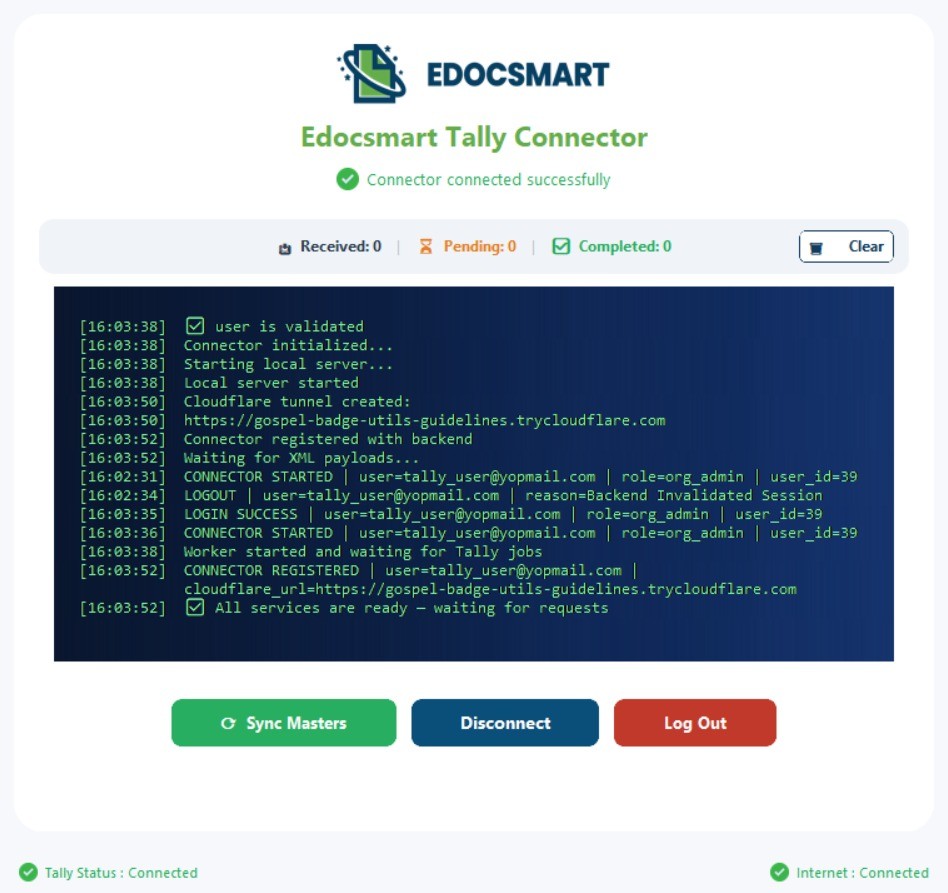 Tally Connector Once configured, the same setup can support a repeatable TallyPrime invoice automation process
for applicable purchase invoices.
Tally Connector Once configured, the same setup can support a repeatable TallyPrime invoice automation process
for applicable purchase invoices.
Step 9: Purchase Invoice Data Moves into Tally
After the user clicks Sync to Tally, the verified invoice information is transferred through the configured connector.
Based on the setup, the required purchase transaction can then be created inside Tally.
For example, purchase invoice information can be used for the relevant purchase voucher, supplier ledger and stock-related entries.
Where applicable, stock items and ledger information can also be handled according to the configured template and mapping.
So the user does not have to manually open the supplier invoice again and enter all the information from the beginning.
The complete process becomes much simpler:
This is also where tally purchase voucher automation helps turn verified invoice information into the configured purchase-voucher workflow.
Login → Transactions → Purchase → Upload Invoice → Extract
Data → Review → Save or Sync → Tally Connector → Purchase Entry in Tally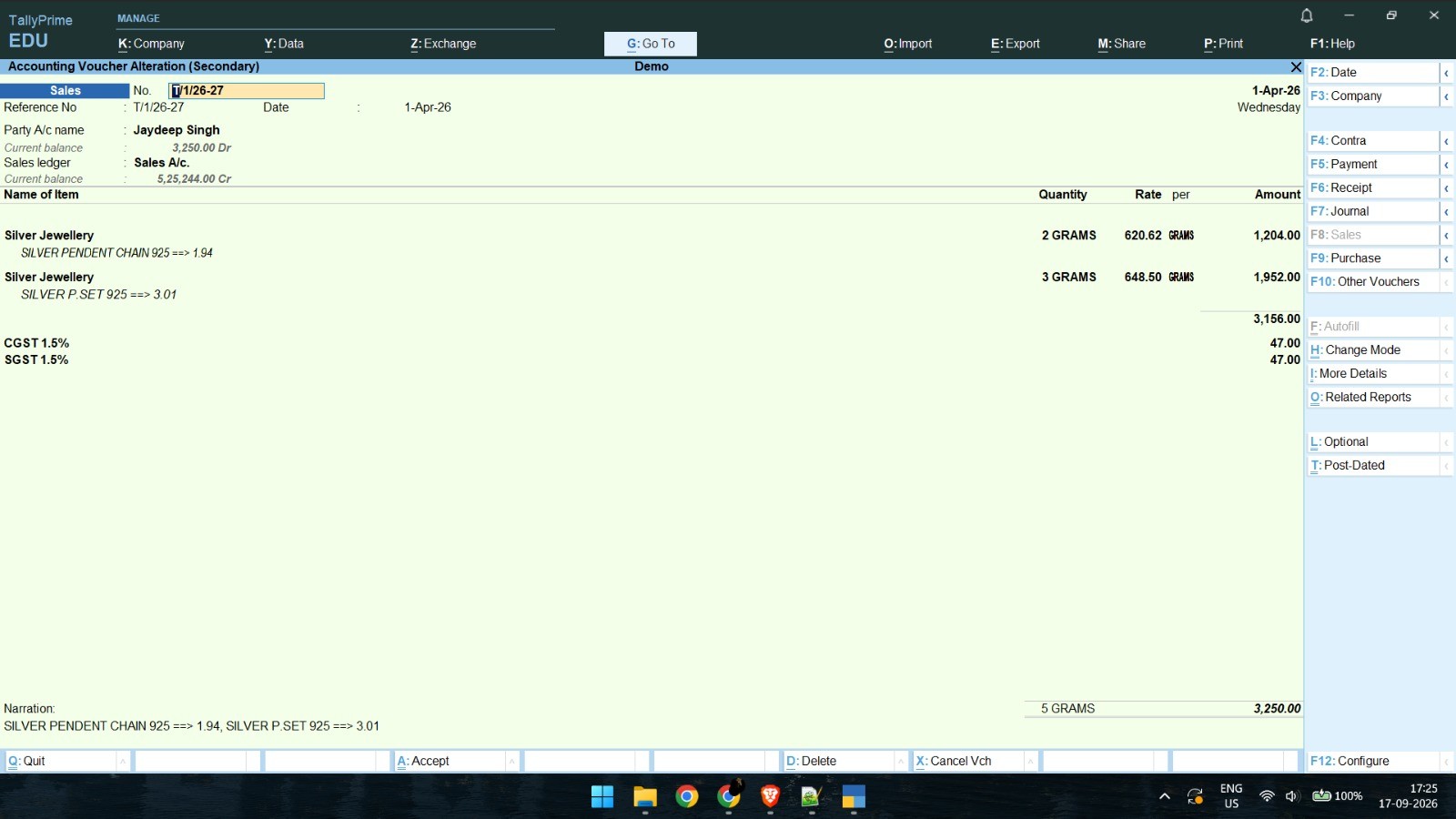 Purchase Entry in Tally
A Simple Example of Automated Purchase Bill Entry
Consider a supplier invoice containing 12 different stock items.
In a manual process, the accountant first opens the invoice and then creates the purchase voucher in Tally. The supplier has to be selected, the invoice number and date entered, and all 12 stock items need to be added one by one with their quantity, rate, GST and amount.
Once that invoice is completed, the accountant starts the same process again for the next bill.
With Edocsmart, the invoice can first be uploaded.
The invoice information is extracted and displayed on the review screen. The accountant checks the supplier information, GST details and individual stock items.
If the information looks correct, the user can proceed with Sync to Tally.
The configured connector then transfers the required data into Tally according to the predefined purchase workflow.
The accountant is therefore spending more time checking the transaction and less time repeatedly typing information that already exists on the invoice.
For teams evaluating an invoice to tally software workflow, this shift from typing to verification is one of the main practical benefits.
Manual Purchase Entry vs Automated Purchase Bill Entry
The major difference lies in where the accountant spends their time.
With manual purchase entry, most effort goes into reading and typing information.
For example, the accountant reads the invoice number and types it into Tally, reads the item name and selects it, checks the quantity and types it, checks the rate and enters it, and then repeats the process for every line item.
With invoice automation, much of this process changes.
The original document is uploaded, data is extracted automatically, and the accountant reviews what has been captured.
Therefore, the workflow changes from:
Read → Type → Check → Repeat
to:
Upload → Review → Sync
For businesses processing large numbers of supplier bills, this difference can become significant.
Who Can Benefit from Purchase Bill Automation?
Purchase invoice automation can be useful for businesses where supplier invoices are processed regularly and purchase entry takes up a considerable amount of accounting time.
Manufacturers may receive bills for raw materials and components. Distributors and wholesalers often work with large numbers of stock items. Jewellery businesses may have purchase invoices containing detailed product and stock information. Retail businesses may deal with multiple suppliers every day.
Accounting firms can also benefit when they process purchase documents for multiple clients.
In all these cases, automating repetitive invoice capture can help the accounts team focus more on checking and managing transactions.
FAQS
How can I automate purchase
bill entry in Tally?
Purchase bill entry can be automated by using an invoice processing system that extracts information from supplier invoices and sends the verified data to Tally. With Edocsmart, the user can upload a purchase bill, review the extracted supplier, GST and item-level information, and then use Sync to Tally after the required mapping and connector configuration has been completed.
Can I upload PDF purchase
invoices for Tally entry?
Yes, purchase invoice processing can support documents such as PDFs based on the configured workflow. The PDF is uploaded into the invoice processing system, where the relevant information is extracted and displayed for verification. Once the accountant has reviewed the details, the processed information can be transferred into Tally through the configured integration.
Can scanned purchase bills or
invoice photos also be processed?
Supported scanned invoices and invoice images can be used in the workflow. This is helpful for businesses that receive supplier bills in multiple formats instead of receiving every invoice as structured digital data. The document is first uploaded, processed and reviewed before the relevant accounting information is synchronized with Tally.
Do I have to perform mapping
every time?
Normally, the required mapping is configured during the initial setup. If the same configured structure continues to apply, users do not need to recreate the complete mapping for every invoice. The existing configuration can be reused, allowing the regular workflow to focus on invoice upload, data review and synchronization with Tally.
Can I review invoice data
before creating the purchase entry?
Yes. Reviewing the extracted invoice information is an important part of the workflow. Users can check information such as supplier details, invoice number, date, GST values, stock items, quantities and amounts before syncing the transaction. This helps ensure that the required information has been captured correctly before it reaches Tally.
Can I save a processed invoice
and sync it later?
Yes. If the invoice should not be sent to Tally immediately, it can first be reviewed and saved. The user can return to the processed document later and continue with synchronization when required. This can be useful when the business follows an approval or verification process before purchase transactions are finally entered into Tally.
Can stock items and ledgers
also be handled during purchase automation?
Stock items, purchase-related information and ledgers can be handled according to the mapping, templates and Tally connector configuration used by the business. During the initial setup, the required structure needs to be defined so that invoice data can be transferred into the correct Tally format when the user performs the synchronization.
Conclusion
When supplier invoice volume starts increasing, manually entering every purchase bill into Tally becomes a repetitive accounting task.
The information already exists on the invoice. The real challenge is converting that information into the structure required by Tally without typing everything again.
That is what purchase bill automation is designed to simplify.
With Edocsmart, a purchase invoice can be uploaded, its information can be extracted into structured fields, the accountant can review the captured data and then either save it for later or use Sync to Tally.
After the required mapping, purchase templates and Tally connector have been configured, the workflow becomes much simpler for everyday invoice processing.
Instead of repeatedly moving between an invoice and Tally to enter each field manually, the accounting team can follow a more streamlined process:
Upload the purchase bill, verify the data and sync it to Tally.
For businesses processing purchase invoices every day, this approach can reduce repetitive data-entry work while keeping the accountant in control of the final verification process.