How to Automate Purchase Entry in BUSY Accounting Software
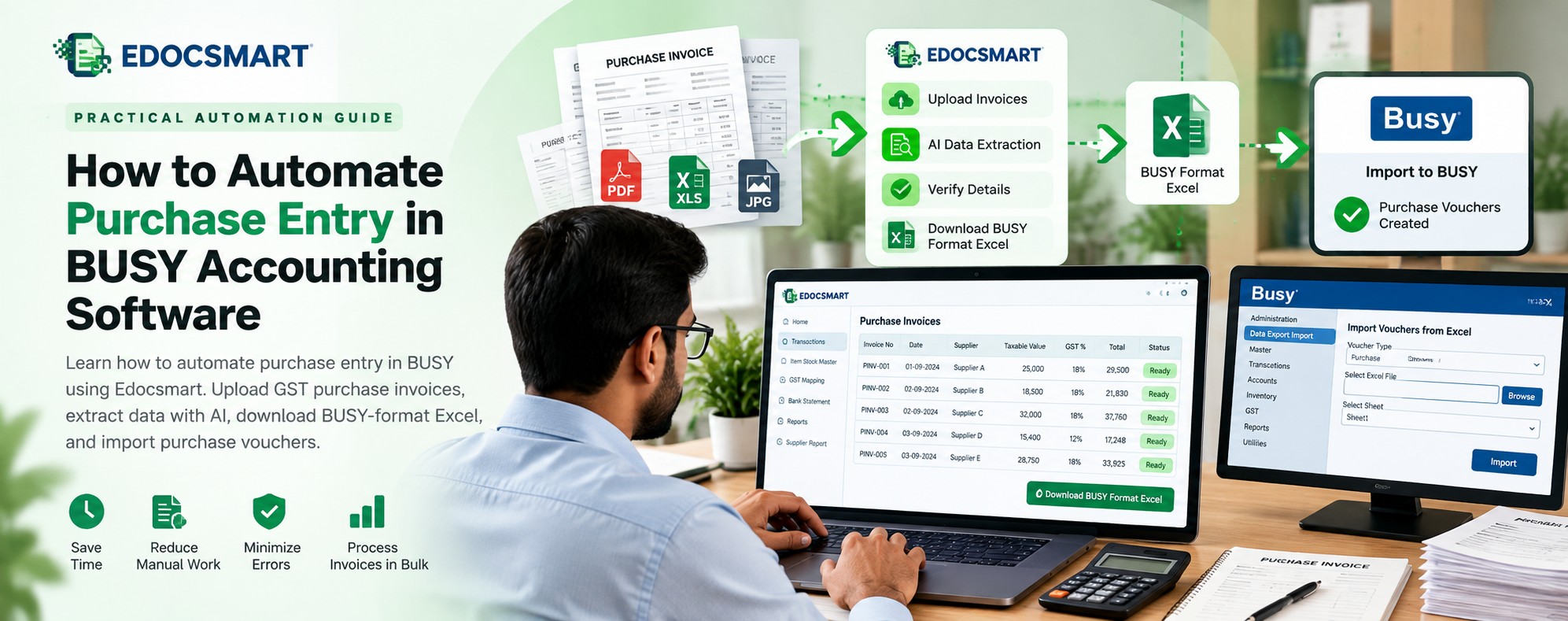
Learn how to automate purchase entry in BUSY using Edocsmart. Upload GST purchase invoices, extract data with AI, download BUSY-format Excel, and import purchase vouchers.
Introduction: When Purchase Invoice Entry Becomes a Daily Challenge
Imagine a purchase accountant working in a busy trading company. Every morning, suppliers send invoices through email, WhatsApp, and printed documents. Some invoices contain only a few products, while others include multiple items, GST rates, discounts, and additional charges.
The accountant must open each invoice, identify the supplier, enter the invoice number, select the purchase ledger, add stock items, verify GST, and save the purchase voucher in BUSY Accounting Software.
Now imagine repeating the same process for 200 or 300 invoices.
Even when all the information is already printed on the invoices, the accountant spends hours entering it again. A small mistake in the GSTIN, item quantity, taxable amount, or invoice number can create accounting problems later.
What if businesses could extract purchase invoice details automatically and prepare them for BUSY without manually typing every field?
This is where Edocsmart helps. Its AI-powered invoice processing workflow converts purchase invoices into structured accounting data that can be downloaded in a BUSY-compatible Excel format.
In this guide, you will learn how to automate purchase entry in BUSY, process GST purchase bills, and import purchase vouchers using Edocsmart.
Why Manual Purchase Entry in BUSY Takes So Much Time
BUSY is widely used for accounting, inventory management, and GST-related business transactions. However, manually entering purchase invoices becomes repetitive when businesses handle large invoice volumes.
An accountant typically needs to check:
Supplier name, GSTIN, and invoice number
Invoice date and purchase ledger
Item descriptions, quantities, and rates
HSN codes and applicable GST percentages
CGST, SGST, or IGST amounts
Discounts, additional charges, and invoice totals
These details must be entered correctly to maintain reliable accounting records.
Common Problems with Manual Purchase Bill Entry
Repeated data entry: Accountants spend considerable time copying information from invoices into BUSY.
Typing mistakes: Incorrect invoice numbers, amounts, or tax values may require corrections.
Different supplier formats: Each supplier uses a different invoice layout, making manual processing slower.
High monthly invoice volume: Processing hundreds of purchase bills can delay accounting work.
GST verification: Accountants must check tax calculations and invoice information before recording vouchers.
Automating invoice data extraction can reduce repetitive typing while keeping the necessary accounting review in place.
What Is Automated Purchase Entry in BUSY?
Automated purchase entry in BUSY is a workflow that converts purchase invoice information into structured data suitable for creating purchase vouchers.
Instead of manually entering every invoice field, businesses can use invoice automation software to extract details from PDF invoices, scanned documents, or invoice images.
The extracted data is reviewed and exported into a compatible format for import into BUSY Accounting Software.
With Edocsmart, the workflow is:
Purchase Invoice → Upload to Edocsmart → AI Data Extraction → Invoice Verification → Download BUSY-Format Excel → Import into BUSY
This process reduces manual data preparation. The final Excel import is performed inside BUSY, where the appropriate voucher configuration and field mapping must be selected.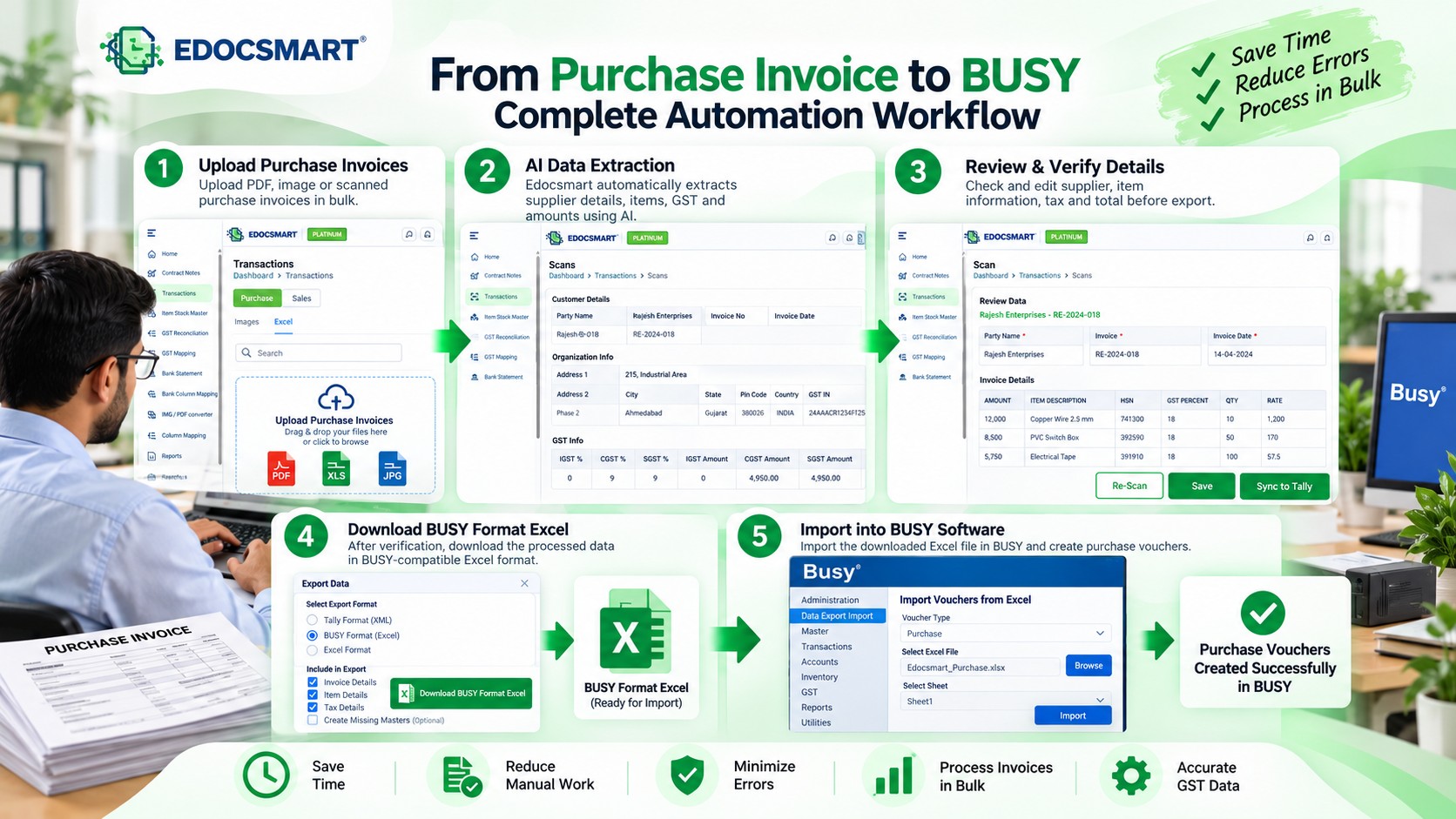
How to Automate Purchase Entry in BUSY Using Edocsmart
The following steps explain how to automate purchase invoice data preparation and import the resulting transactions into BUSY.
Step 1: Log In to Edocsmart and Open Purchase Transactions
Start by opening your Edocsmart account.
Navigate to the Transactions section and select Purchase to access the purchase invoice processing workflow.
From here, you can begin uploading the purchase bills that need to be processed.
Before uploading, make sure the invoices are readable and contain the necessary supplier and transaction information.
For businesses handling purchase invoices from multiple suppliers, organizing documents before uploading can make the review process easier.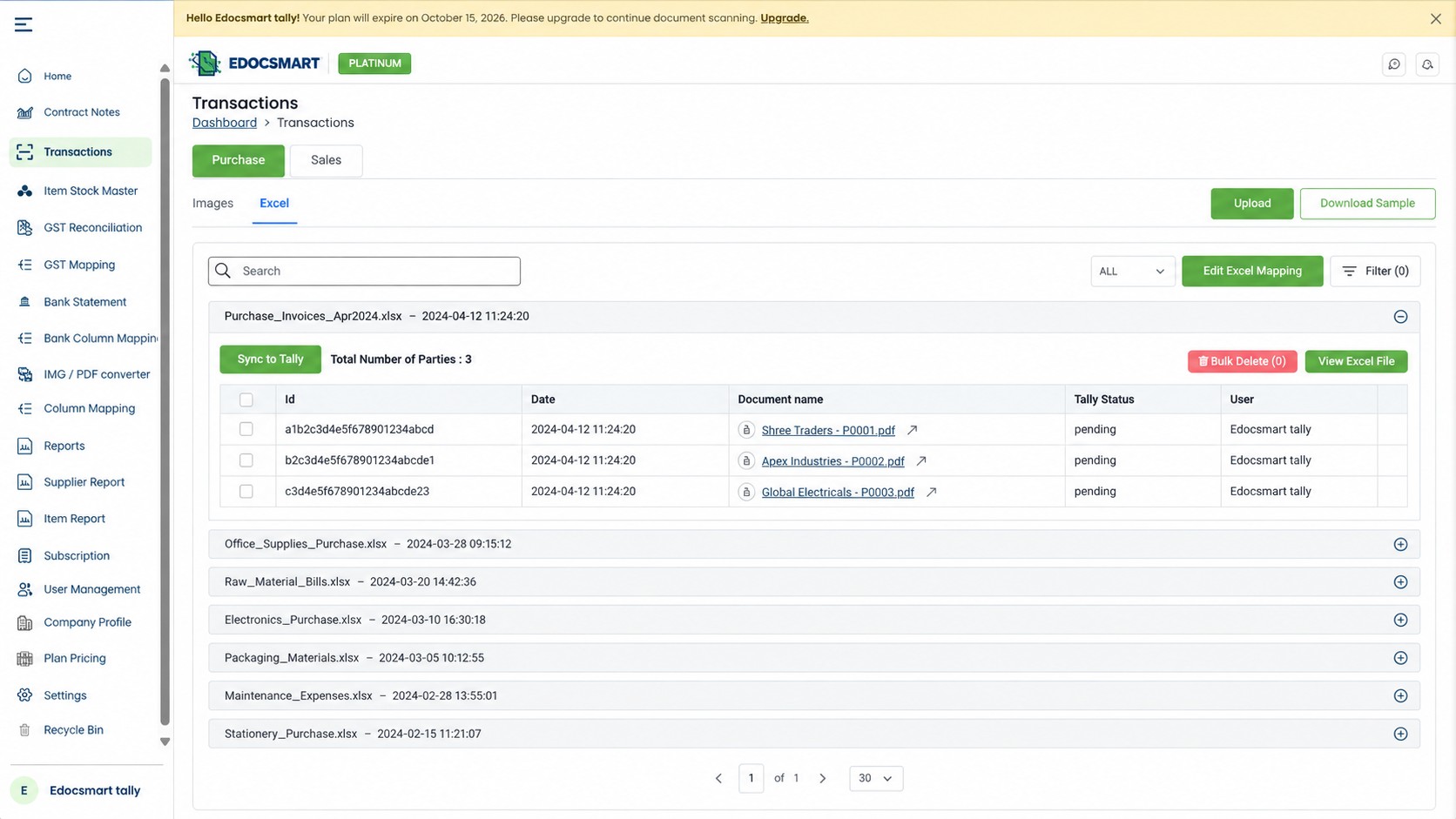
Step 2: Upload Purchase Invoices in Bulk
Edocsmart allows businesses to process multiple purchase invoices through its invoice upload workflow.
Depending on the supported upload options, documents may include PDF invoices, scanned purchase bills, and invoice images.
For example, a distributor receiving invoices from 15 suppliers can collect the documents and upload them for processing rather than typing each invoice into BUSY separately.
Bulk purchase invoice processing is particularly useful for trading companies, manufacturers, wholesalers, and accounting firms.
However, document quality matters. Blurred scans, missing pages, or unreadable tax information may require correction before the data can be used reliably.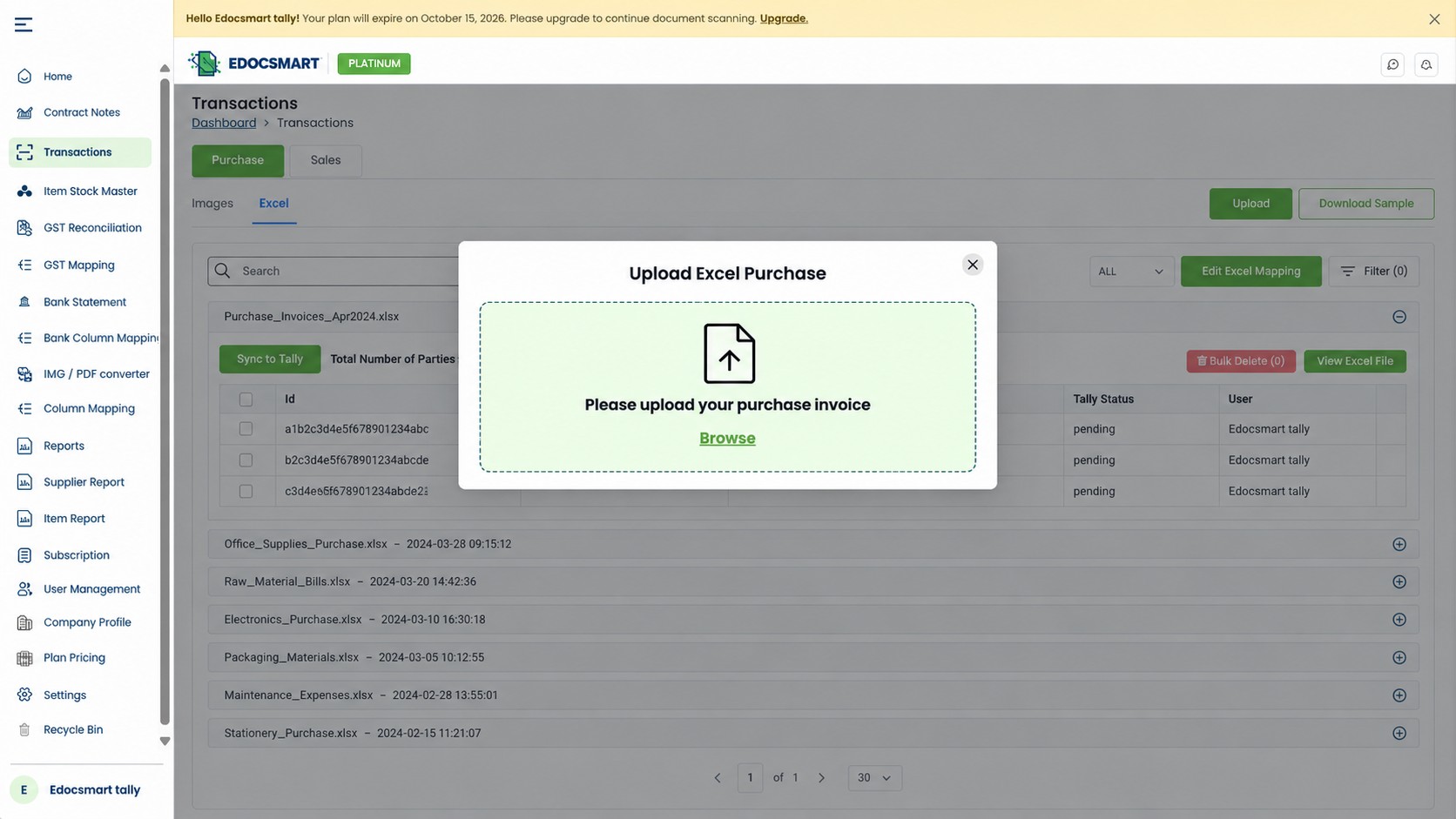
Step 3: Extract Purchase Invoice Data Automatically with AI
Once the invoices are uploaded, Edocsmart uses AI-powered OCR and invoice data extraction to identify important accounting fields.
The extracted information can include:
Supplier name and GSTIN
Purchase invoice number and date
Item descriptions and HSN codes
Quantities, rates, and taxable amounts
GST percentages and tax amounts
Invoice totals and other supported fields
For example, an invoice containing ten different products can be processed into structured invoice data with separate item details.
This eliminates much of the repetitive work involved in reading invoices and manually preparing accounting data.
The extracted values should still be reviewed because OCR accuracy can vary with document quality and invoice layout.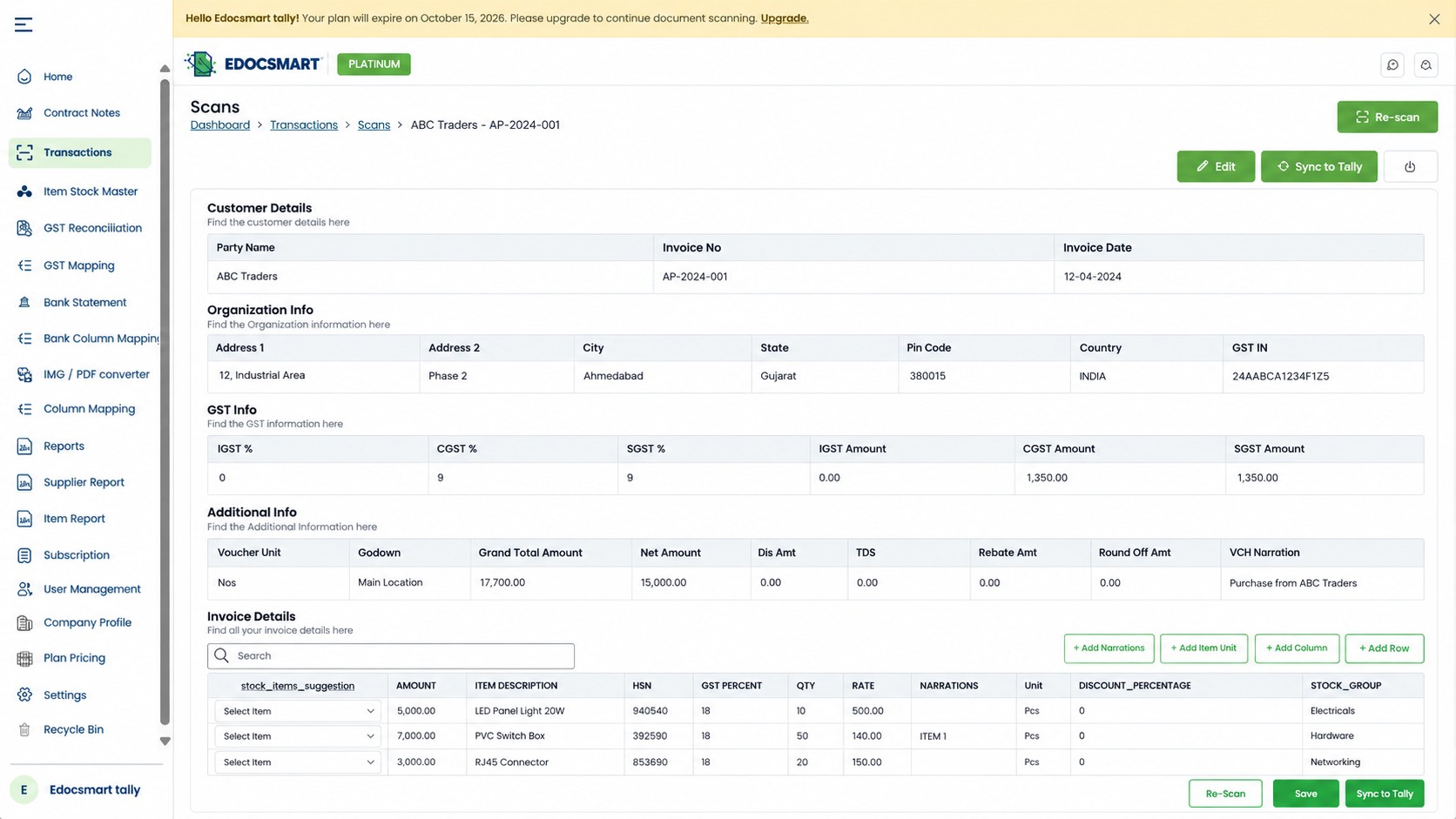
Step 4: Review and Verify GST Purchase Invoice Details
After extraction, review the generated purchase invoice information before exporting it.
This step is essential because automation should support accounting accuracy rather than bypass verification.
Check the supplier details, invoice number, invoice date, taxable amount, GST breakup, and final total.
For intra-state purchases, confirm that the applicable CGST and SGST values are correct. For inter-state purchases, verify the relevant IGST treatment.
Also check whether item descriptions, quantities, units, and rates match the original supplier invoice.
If any information is incorrect, make the necessary corrections through the available review or editing workflow before proceeding.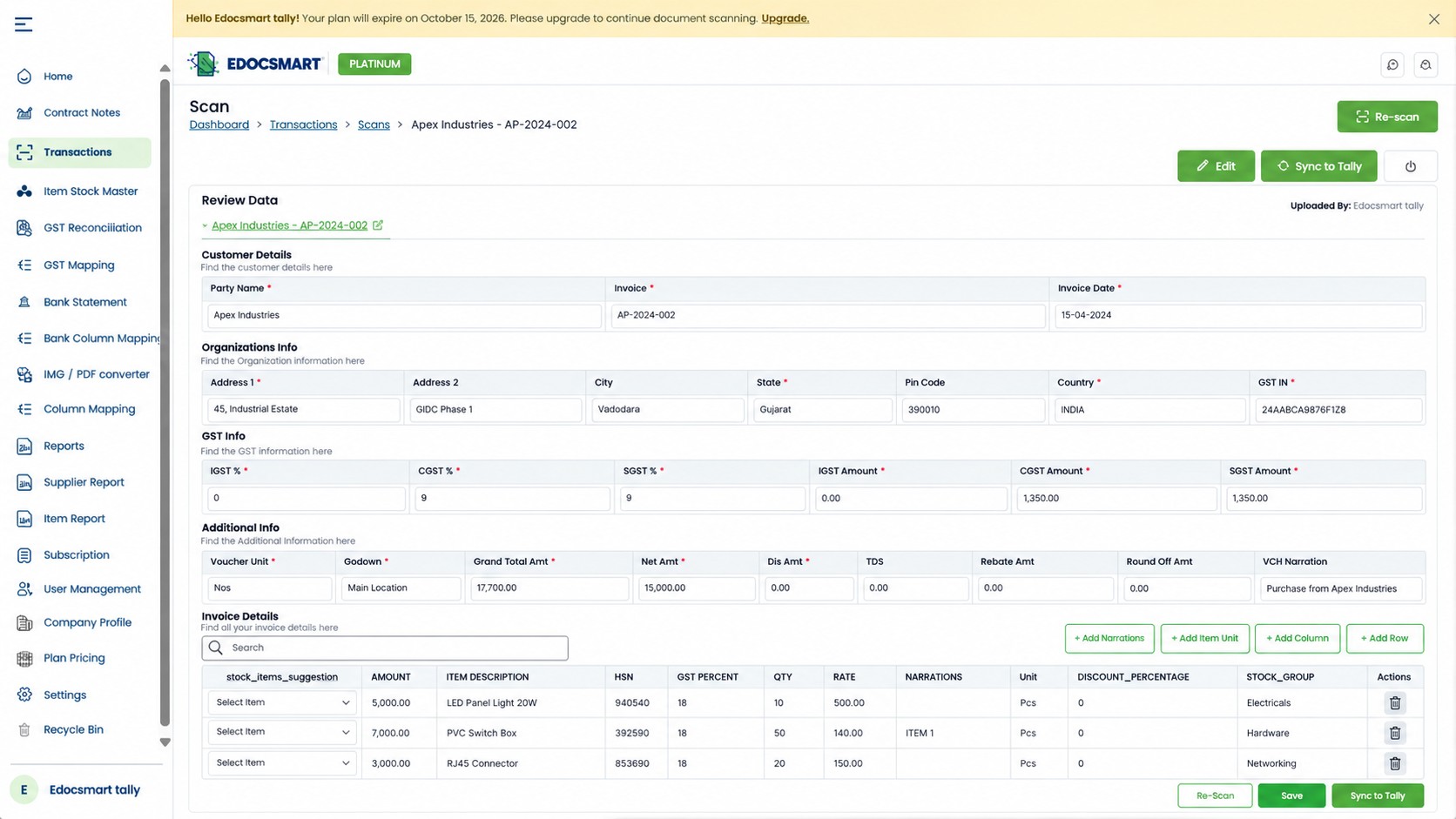
Step 5: Download Purchase Invoice Data in BUSY Excel Format
After verifying the invoices, prepare the accounting data for BUSY.
Edocsmart provides an option to export processed invoice information into an Excel format intended for BUSY accounting workflows.
This is an important part of BUSY purchase entry automation because it reduces the need to manually prepare spreadsheets from individual invoices.
Instead of typing supplier information, item details, GST amounts, and invoice totals into Excel, the extracted data is organized for export.
The downloaded file should be checked against the BUSY import configuration before proceeding.
Depending on your accounting setup, the exported fields may need to match the configured voucher format and existing accounting masters.
Step 6: Import the Excel File into BUSY Accounting Software
Once the BUSY-format Excel file has been downloaded, open BUSY Accounting Software.
Select the correct company and make sure you have a recent data backup.
To import the purchase vouchers:
Open Administration.
Select Data Export Import.
Choose Import Vouchers from Excel.
Select Purchase as the voucher type.
Create or select the appropriate import format.
Configure the BUSY fields to match the Excel columns.
Select the downloaded Excel file and specify the sheet number and relevant row range.
Click Import to begin processing the purchase vouchers.
BUSY supports Excel voucher imports through its built-in import functionality. The exact configuration depends on the voucher type, accounting setup, and file structure.
Once the import finishes, review the results before assuming that every purchase entry was created successfully.
Step 7: Verify the Imported Purchase Vouchers in BUSY
The final step is to confirm that the purchase vouchers have been created correctly.
Open the relevant purchase voucher records or purchase register in BUSY and compare them with the original supplier invoices.
Check invoice numbers, supplier ledgers, item quantities, GST values, and voucher totals.
Also confirm that the entries were imported into the correct company and accounting period.
If an import fails, review the error information and check the Excel format, field mapping, ledger names, item masters, and required voucher details.
This final verification helps ensure that the automation process produces usable accounting records.
How to Handle GST Purchase Invoices in BUSY
GST purchase invoice processing requires careful attention to supplier information and tax classification.
An invoice may contain multiple GST rates, different HSN codes, or additional charges that affect its total.
When preparing purchase entries, accountants should verify that the extracted GST information corresponds to the source invoice.
For example, an invoice with a taxable value of ₹10,000 and an applicable GST rate of 18% may show ₹900 CGST and ₹900 SGST for a qualifying intra-state transaction.
The same taxable value may involve ₹1,800 IGST for an applicable inter-state transaction.
These examples illustrate tax calculations, not a determination of the correct tax treatment for every purchase.
Edocsmart helps extract GST invoice data, but the accountant remains responsible for verifying the tax treatment and accounting configuration before importing the vouchers into BUSY.
Benefits of Automating Purchase Entries in BUSY
Reduce Repetitive Manual Data Entry
AI invoice extraction reduces the need to type invoice details individually. Accountants can focus more on checking transactions and resolving exceptions.
Process Multiple Purchase Bills More Efficiently
Bulk invoice processing helps businesses organize purchase documents from different suppliers and prepare them for accounting import.
Improve GST Data Preparation
Extracting GSTINs, taxable values, HSN codes, and tax amounts into structured fields makes invoice verification more manageable.
Simplify BUSY Excel Import Preparation
A BUSY-compatible Excel export reduces the effort involved in manually creating import spreadsheets.
Support Growing Accounting Workloads
As transaction volumes increase, a repeatable invoice processing workflow can help businesses manage purchase entry without proportionally increasing repetitive typing.
Manual Purchase Entry vs Automated Purchase Entry in BUSY
| Comparison | Manual Purchase Entry | Edocsmart-Assisted Workflow |
|---|---|---|
| Invoice reading | Accountant reads every field | AI extracts supported invoice fields |
| Data preparation | Details typed manually | Structured data generated |
| Multiple invoices | Repeated individual entry | Bulk invoice processing |
| GST details | Manually entered and checked | Extracted for verification |
| Excel preparation | Spreadsheet created manually | BUSY-format Excel export |
| BUSY voucher creation | Manual voucher entry | Excel voucher import |
| Verification | Manual review required | Manual review still required |
| Main advantage | Direct control over each entry | Less repetitive data preparation |
The automated approach does not eliminate every accounting task. Users still need to verify invoice information, configure the import correctly, and confirm the resulting vouchers.
Who Should Use Purchase Entry Automation in BUSY?
Trading and wholesale businesses: Companies receiving frequent purchase invoices from different suppliers can reduce repetitive entry work.
Manufacturing businesses: Purchase invoice automation can help organize raw material and inventory-related invoice information.
Distributors: Businesses processing recurring supplier bills can prepare accounting data more consistently.
CA firms and accountants: Professionals managing multiple BUSY companies can use structured invoice processing to reduce routine data preparation.
Small and medium businesses: Growing businesses can introduce automation without completely replacing their existing accounting software.
For organizations already using BUSY, Edocsmart works as an invoice processing layer that prepares data for the existing accounting workflow.
Common Purchase Invoice Import Errors and How to Avoid Them
Even when invoice data is extracted automatically, import problems can occur if the Excel structure does not match BUSY requirements.
Incorrect ledger names: Verify that supplier and purchase ledger names match the intended BUSY masters.
Missing stock items: Confirm that the required inventory items exist and are correctly configured.
Wrong GST information: Check tax rates, taxable amounts, and applicable tax fields before importing.
Incorrect Excel mapping: Make sure BUSY voucher fields are connected to the correct spreadsheet columns.
Duplicate invoice numbers: Review previously imported vouchers to avoid unintentionally recording the same purchase twice.
Wrong company selection: Confirm that the intended BUSY company is open before starting the import.
For a new workflow, test a small batch first and verify the resulting purchase vouchers before processing larger invoice volumes.
Frequently Asked Questions (FAQs)
1. How to automate purchase entry in BUSY Accounting Software?
Upload your purchase invoices to Edocsmart, extract and verify the invoice details, and download the BUSY-format Excel file. Import the file into BUSY using its Excel voucher import option.
2. Can I import multiple purchase invoices into BUSY at once?
Yes, BUSY supports importing purchase vouchers from a configured Excel file. Edocsmart helps prepare invoice data from multiple purchase bills for this workflow.
3. How does Edocsmart automate purchase invoice data entry?
Edocsmart uses AI-powered invoice extraction to capture supplier details, invoice numbers, item information, GST amounts, and totals. The reviewed data can be exported in BUSY-compatible Excel format.
4. Can I upload GST purchase invoices to Edocsmart?
Yes, Edocsmart supports processing GST purchase invoices and extracting relevant tax information. Review the GSTIN, taxable values, CGST, SGST, IGST, and invoice totals before exporting.
5. How to import purchase vouchers from Excel into BUSY?
Open Administration → Data Export Import → Import Vouchers from Excel in BUSY. Select Purchase, configure the import format, choose your Excel file, and start the import.
6. Does Edocsmart directly sync purchase entries to BUSY?
The workflow described here uses a BUSY-format Excel download followed by import inside BUSY. It does not require claiming that every invoice is directly synchronized.
7. Can Edocsmart extract multiple items from one purchase invoice?
Yes, Edocsmart supports extracting item-level information from purchase invoices, including descriptions, quantities, rates, and tax details. Verify the extracted items before exporting.
8. What should I check before importing purchase invoices into BUSY?
Check supplier ledgers, stock items, invoice numbers, GST amounts, and the configured Excel column mapping. Also confirm the correct company and voucher type in BUSY.
9. Why is my purchase Excel file not importing into BUSY?
Common causes include incorrect field mapping, missing masters, unsupported Excel structures, duplicate voucher numbers, or incomplete data. Review the import configuration and correct the affected records.
Conclusion: Simplify Purchase Entry in BUSY with Edocsmart
Automating purchase entry in BUSY can make a significant difference for businesses that process large numbers of supplier invoices.
Instead of manually reading and typing every invoice, accountants can use Edocsmart to extract purchase invoice information, verify GST details, and prepare structured Excel data for BUSY.
The workflow combines AI-powered invoice processing with BUSY's existing Excel voucher import functionality, allowing businesses to reduce repetitive work while maintaining control over accounting accuracy.
For the accountant managing hundreds of purchase bills each month, the goal is simple: spend less time preparing entries and more time verifying transactions, maintaining accurate records, and supporting business operations.
Explore Invoice to BUSY Software to learn how AI-powered invoice extraction can simplify your purchase accounting workflow.