How to Automate Tally Data Entry
Upload sales or purchase Excel files, review records, check mapping, and sync approved entries to Tally.
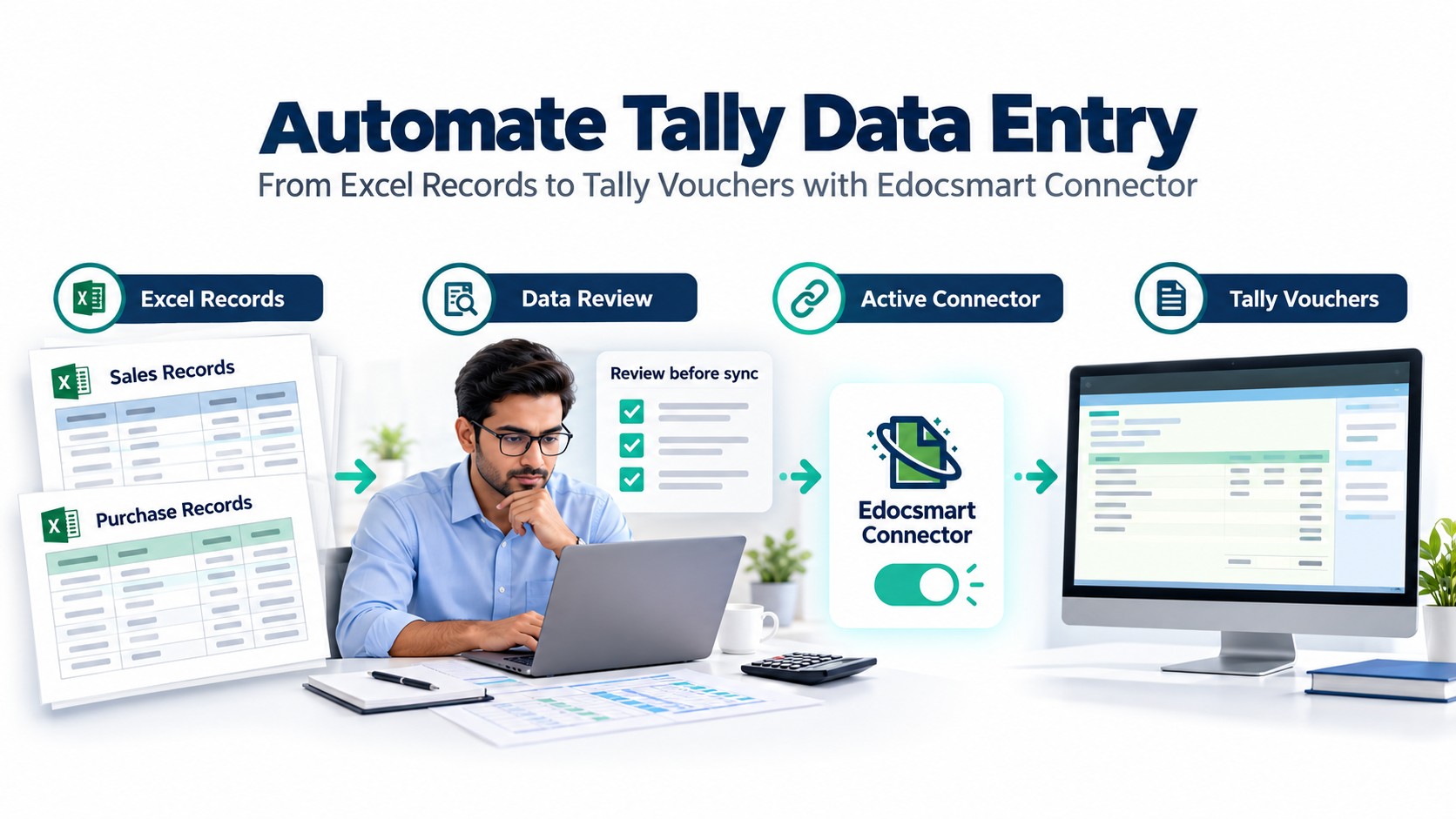
How to Automate Tally Data Entry Using Edocsmart
It is the end of the working day, and your accounts team has already prepared the sales and purchase records in Excel. The invoice numbers, party names, item details, and amounts are all there. But another task is still waiting: entering those same transactions into Tally.
Someone has to open the spreadsheet, read each record, select the correct ledger, and create the corresponding voucher. As the number of transactions grows, this repeated work can delay other accounting tasks.
Edocsmart helps simplify this process by preparing existing Excel data for review and synchronization with Tally. Your team can upload the file, check the processed records, and send approved entries through the configured Tally Connector.
This guide explains how to automate Tally data entry using an Excel-based workflow, from selecting sales or purchase transactions to reviewing the vouchers after synchronization.
What Does Automating Tally Data Entry Mean?
Automating Tally data entry means using software to prepare and transfer accounting records instead of manually recreating every transaction.
When your sales or purchase information already exists in Excel, an automation workflow can read the spreadsheet, organise the records, and connect the information with the fields required for Tally vouchers.
Your team still checks the accounting details. Automation helps reduce the repeated movement of information between the spreadsheet and Tally.
The workflow covered in this guide is:
Log in → Select sales or purchase transactions → Upload Excel → Process and review data → Save → Activate the connector → Check mapping → Sync to Tally
For recurring files, a saved mapping can make later uploads easier when the spreadsheet structure and accounting requirements remain consistent.
Why Manual Tally Entry Becomes Difficult as Transactions Grow
Manually entering a small number of transactions may be manageable. The workload becomes harder to maintain when your business receives larger Excel files or prepares several batches every week.
Common challenges include:
- Repeated typing: Information already available in Excel must be entered again.
- Incorrect field selection: A value may be entered against the wrong ledger or voucher field.
- Missed transactions: Rows can be overlooked when working through a long spreadsheet.
- Duplicate entries: The same transaction may be entered again during a repeated upload or manual follow-up.
- Delayed accounting work: Time spent entering records can push reconciliation and reporting further back.
A defined automation process gives your team a consistent way to prepare, review, and transfer records.
Which Tally Entries Does This Workflow Cover?
This guide focuses on sales and purchase entries from Excel, following the transaction flow described below.
| Transaction type | Information to review |
|---|---|
| Sales | Customer, invoice number, date, sales ledger, items, quantities, rates, and amounts |
| Purchase | Supplier, invoice number, date, purchase ledger, items, quantities, rates, and amounts |
The exact fields depend on whether your transactions include inventory, taxes, discounts, additional charges, or other accounting requirements.
Choose the correct transaction type before processing the file. A sales workbook and a purchase workbook may need different mapping configurations.
What Should You Prepare Before Starting?
Keep your Excel data organised before uploading it.
Use clear column headings and consistent values for invoice references, dates, party names, quantities, and amounts. Check that a transaction containing several item rows can be identified correctly throughout the file.
Before your first synchronization, also prepare:
- Access to your Edocsmart account.
- The intended sales or purchase Excel workbook.
- The correct company open in Tally.
- The Edocsmart Tally Connector.
- The required ledger, item, and voucher mapping.
Avoid uploading the same batch again without first checking whether its entries are already present in Tally.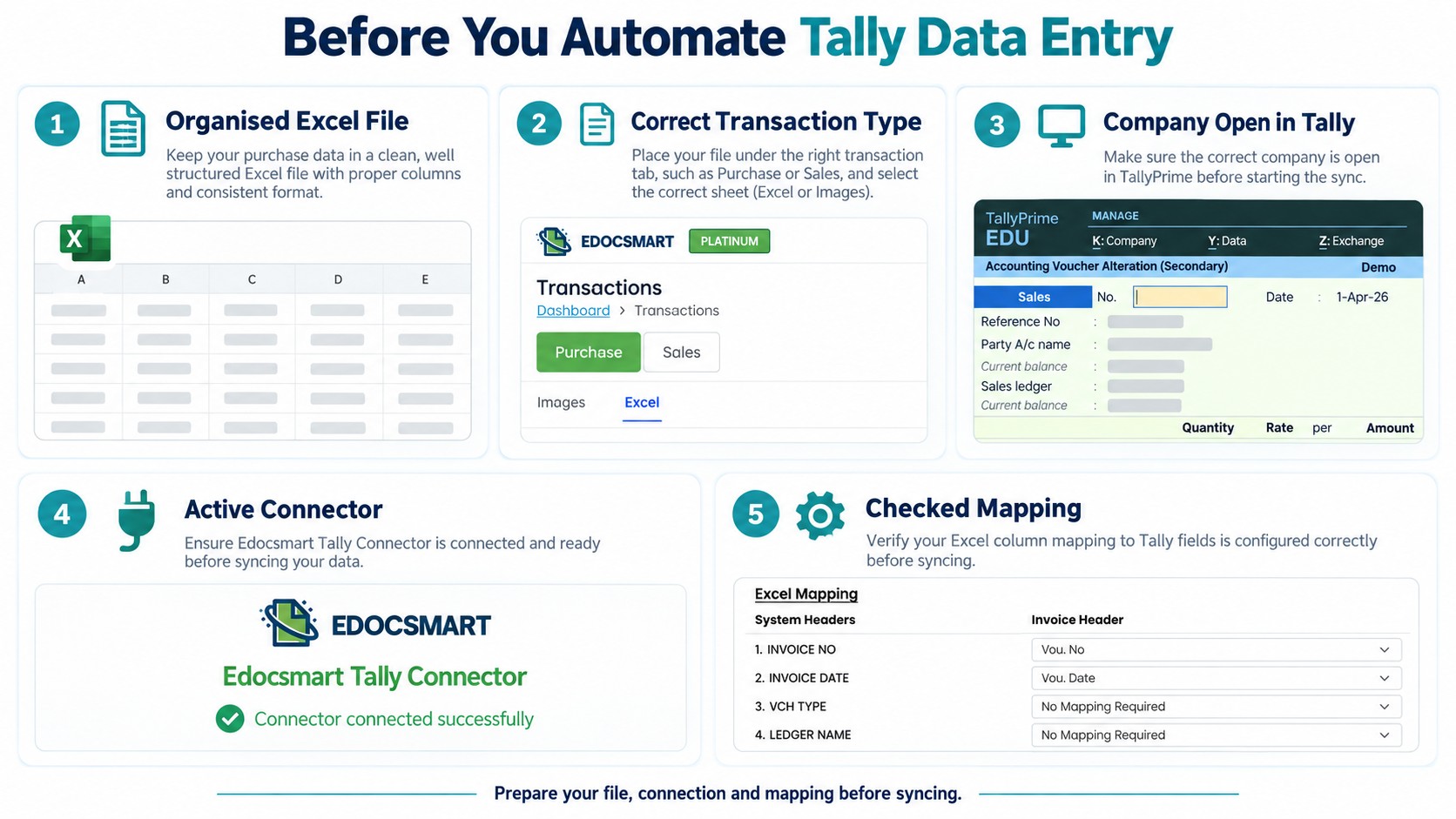
How to Automate Tally Data Entry with Edocsmart
Step 1: Log In and Open the Dashboard
Log in to your Edocsmart account and open the dashboard.
The sidebar provides access to the available services. Locate the transaction-related section used for your Excel workflow.
Starting from the correct service helps you keep spreadsheet transactions organised separately from other document-processing tasks.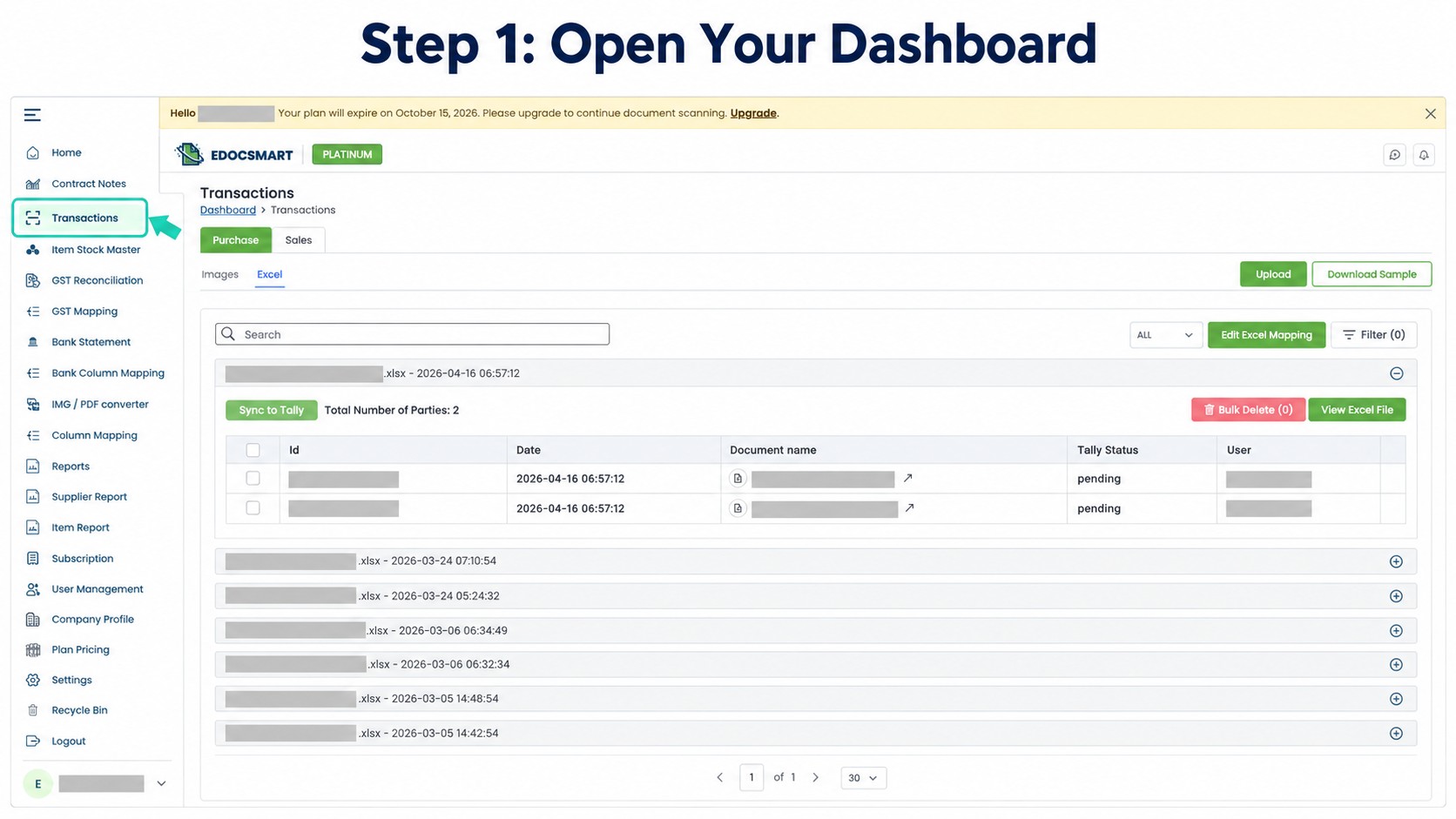
Step 2: Select Transactions and Choose Sales or Purchase
Open Transaction and choose the appropriate sales or purchase option for your Excel file.
If the workbook contains customer sales records, use the sales workflow. For supplier purchase records, use the purchase workflow.
You can prepare bulk entries through the configured process instead of recreating every transaction individually. Check the intended transaction type before continuing.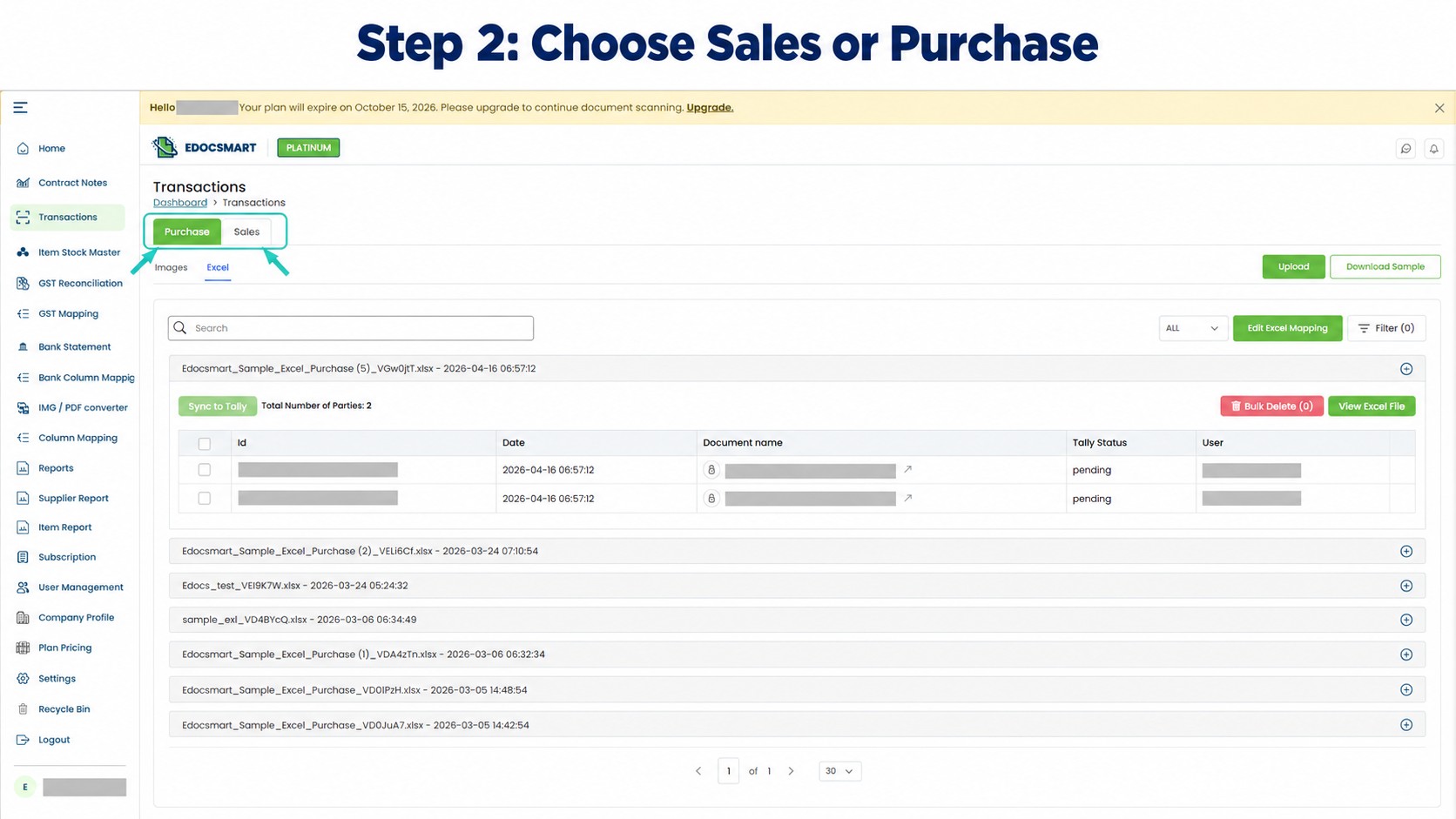
Step 3: Upload Your Excel File
Upload the workbook containing the transactions you want to process.
Before starting, confirm that you have selected the intended file and that it contains the correct records for the chosen workflow.
For a bulk upload, pay attention to how the spreadsheet identifies individual invoices. Several item rows may belong to one invoice, so the number of rows does not necessarily equal the number of vouchers.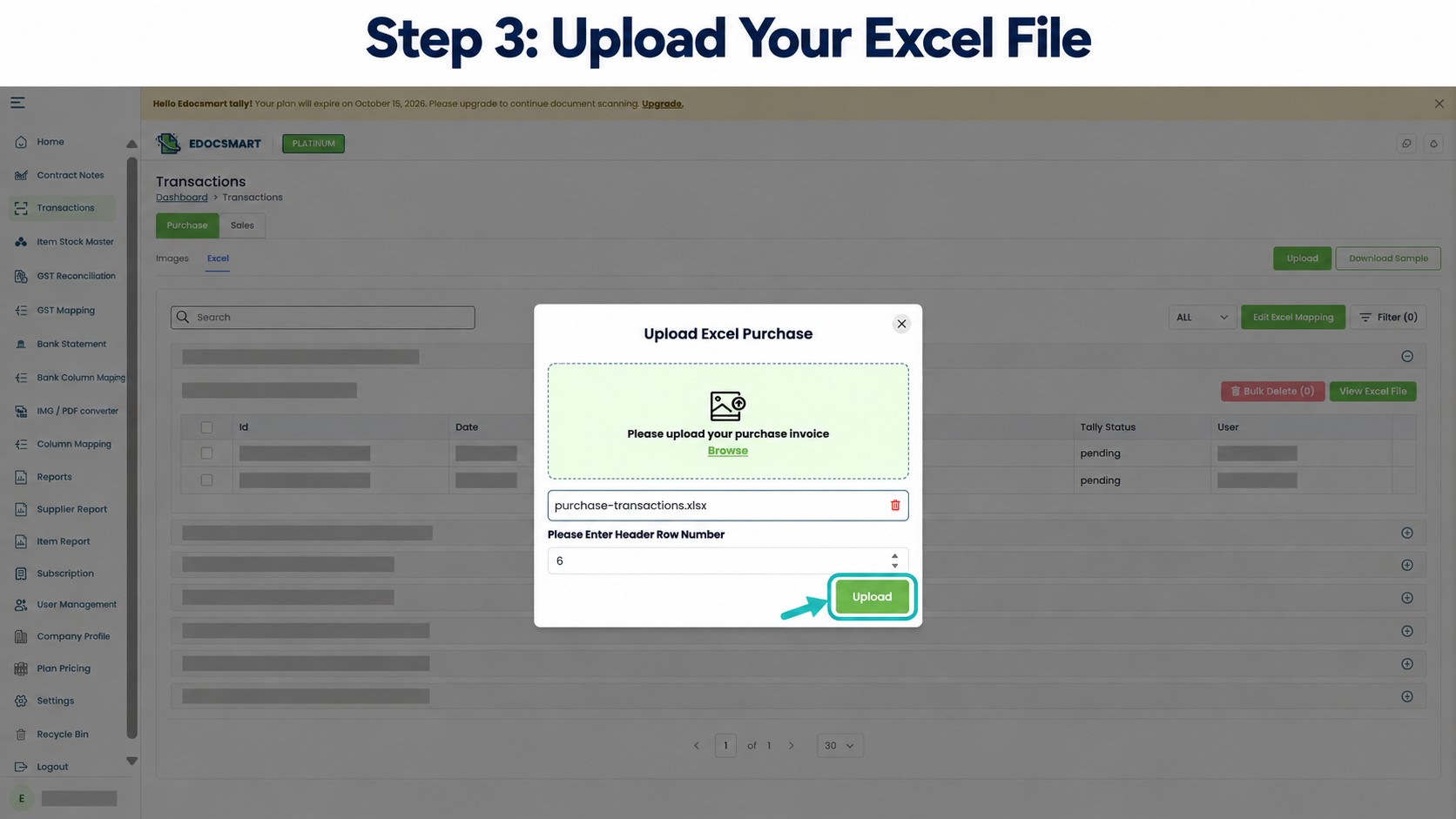
Step 4: Let Edocsmart Process and Organise the Data
After upload, Edocsmart reads the workbook and prepares the transaction information in a structured form.
The details can then be checked in the relevant fields and item rows. Depending on the configured workflow, spreadsheet columns need to be matched with the appropriate accounting fields.
For Excel data, this stage involves reading and organising existing rows and columns. Check that the processed records reflect the source workbook correctly.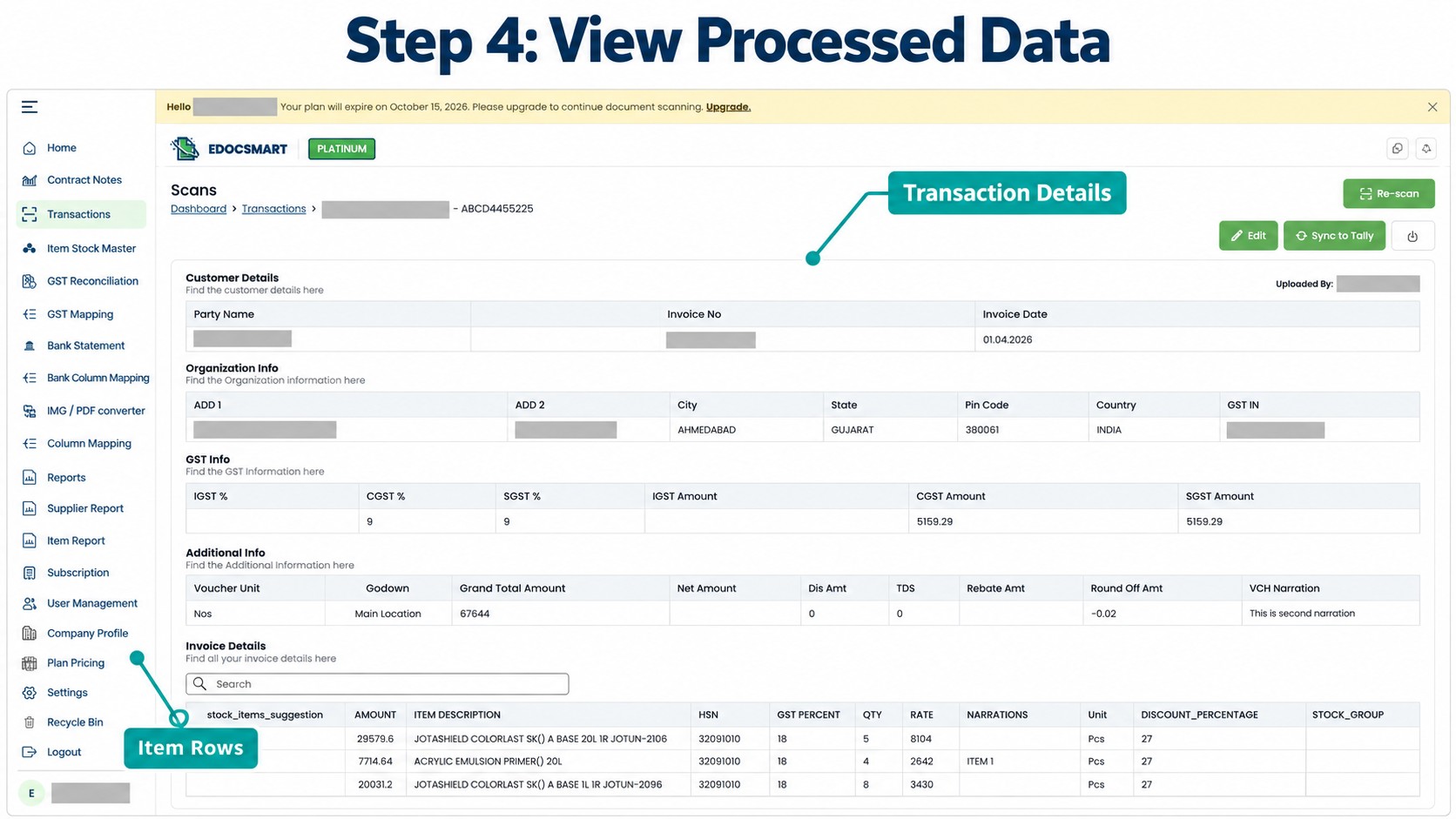
Step 5: Review the Processed Records
Compare the prepared data with your original Excel file.
Check:
- Invoice numbers and dates.
- Customer or supplier names.
- Ledger selection.
- Item descriptions and row alignment.
- Quantities, rates, and amounts.
- Tax values, discounts, and additional charges.
- Final transaction totals.
Edocsmart states a processing accuracy figure of 95%. Actual results can vary with the source file and configuration, so review remains an important step before synchronization.
Correct any misplaced or missing information before saving. In particular, check that values from one item row have not shifted into another row or column.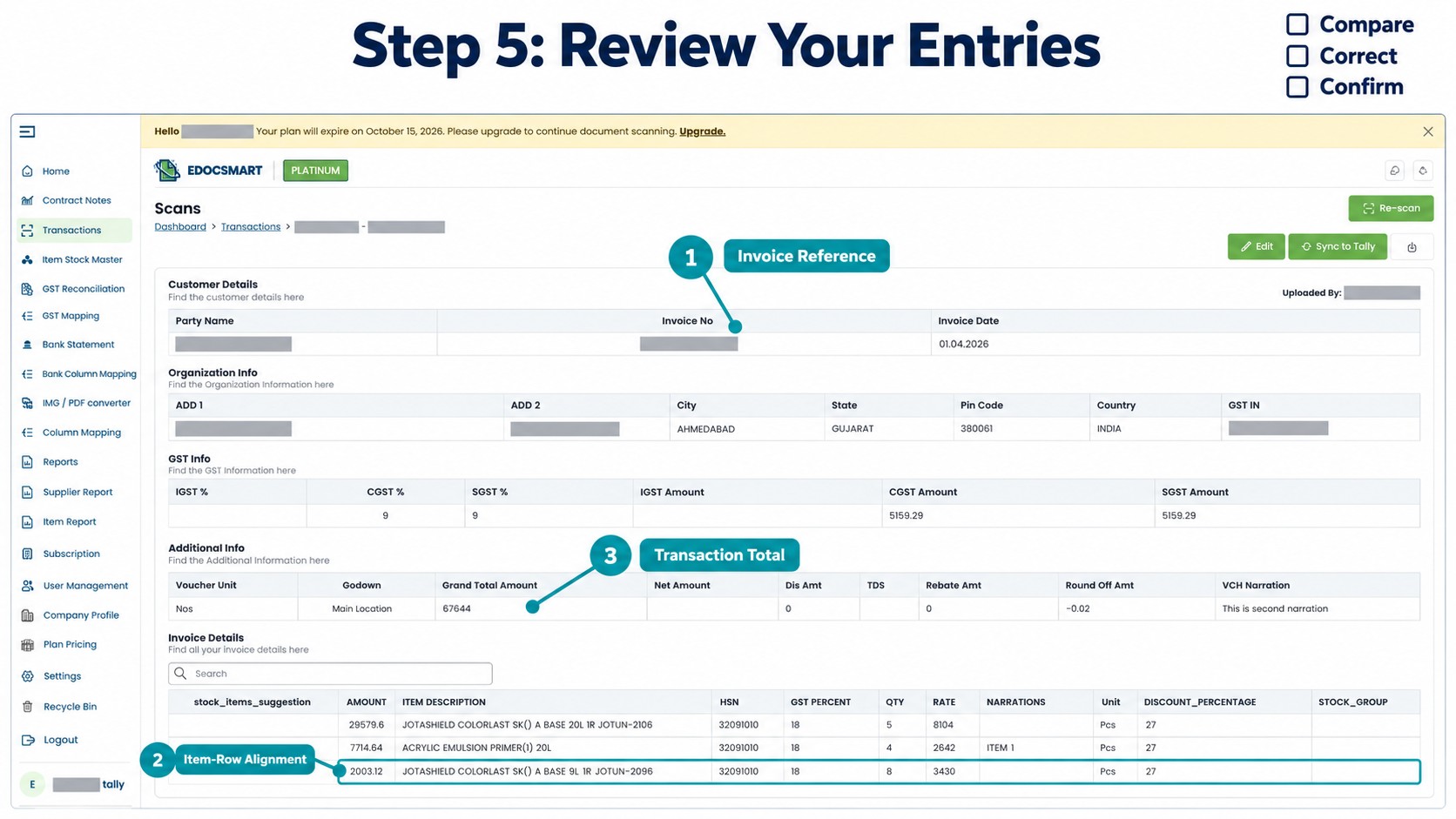
Step 6: Save the Reviewed Data
Once the records have been checked and corrected, save them.
Make sure your latest changes are saved before preparing the batch for synchronization. If you are handling several transactions, confirm which records are ready to send.
Saving completes the review stage; synchronization is a separate action.
Step 7: Turn On the Edocsmart Tally Connector
Before sending the entries, open Tally and select the company where the transactions should be recorded.
Start the Edocsmart Tally Connector and make sure it is ready for the intended connection. The connector provides the connection used by this workflow to transfer approved records to Tally. edocsmart.com
Confirm the target company before continuing, especially if your team manages accounts for more than one business.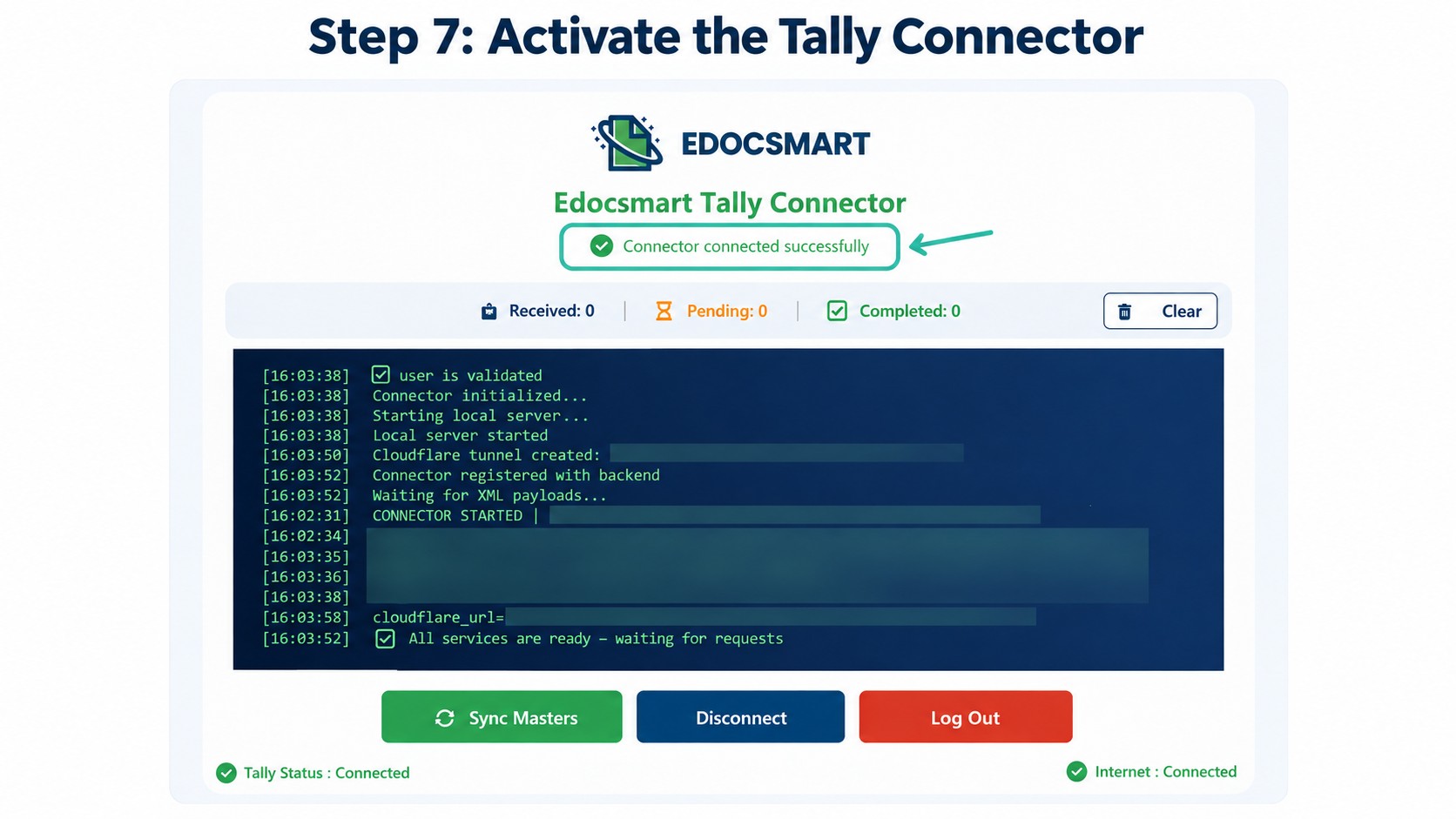
Step 8: Check the Initial Mapping
For the first setup, map or confirm how the source information should be represented in Tally.
Depending on the transaction, this can include:
| Source information | Intended accounting field |
|---|---|
| Customer or supplier | Corresponding party ledger |
| Sales or purchase category | Appropriate ledger and voucher type |
| Item description | Relevant stock item, where applicable |
| Invoice reference | Configured invoice or voucher reference field |
| Quantity and rate | Corresponding item values |
| Tax and additional charges | Appropriate configured accounting fields |
Column mapping and accounting mapping serve different purposes. Column mapping identifies where information comes from in Excel; accounting mapping determines how that information is used in Tally.
Once the setup has been checked, reuse it for recurring files with the same structure. Review it when columns, ledgers, items, or transaction requirements change.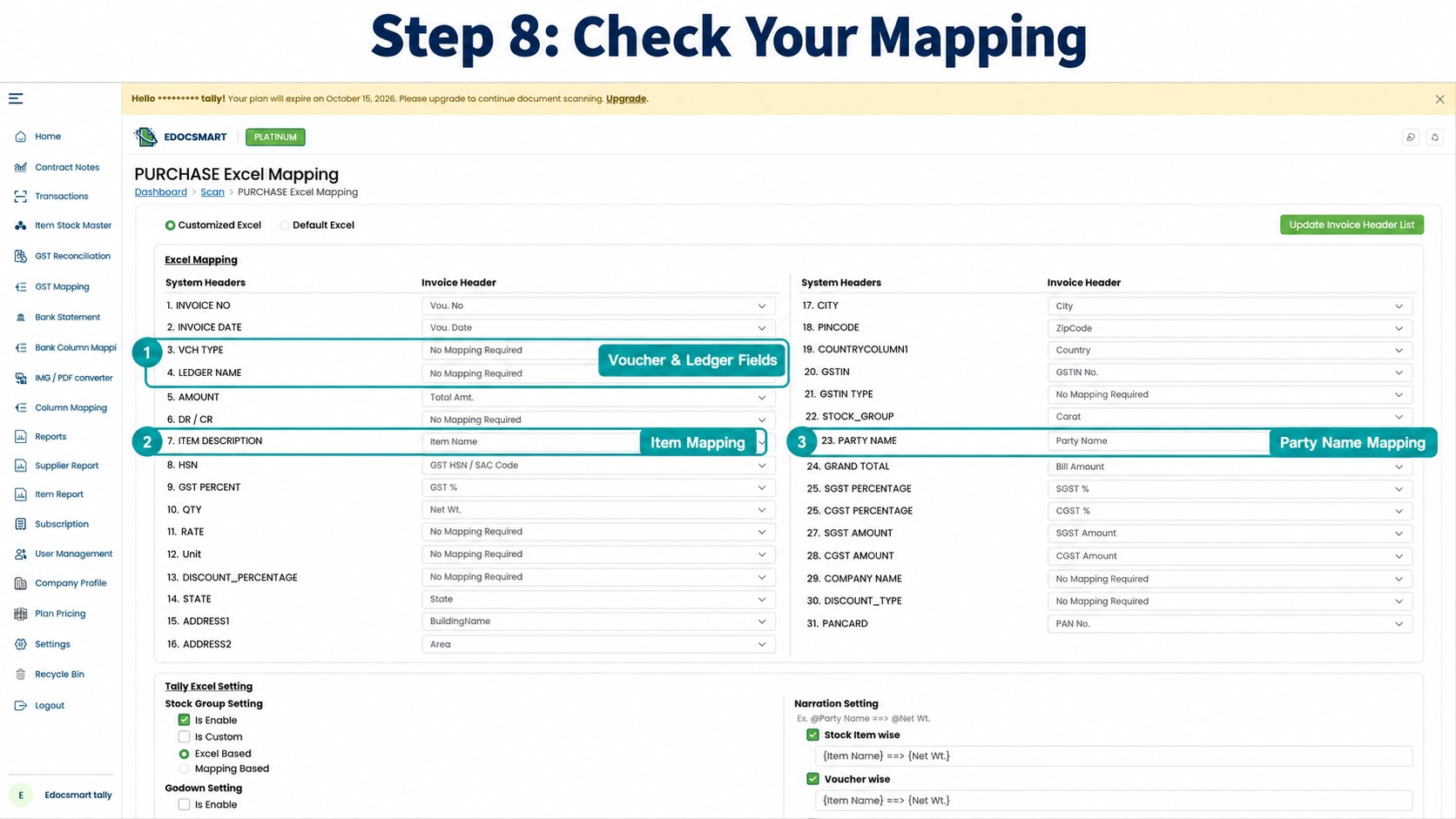
Step 9: Click Sync to Tally and Verify the Entries
With the data saved, connector active, and mapping checked, select the approved records and click Sync to Tally.
The configured workflow transfers the selected records to Tally. After synchronization, open Tally and inspect the resulting sales or purchase vouchers.
Compare the voucher references, parties, dates, and totals with your reviewed batch. For the first upload, use a small batch so you can confirm the setup before processing more transactions.
If any entries fail or remain pending, check what was successfully created before retrying.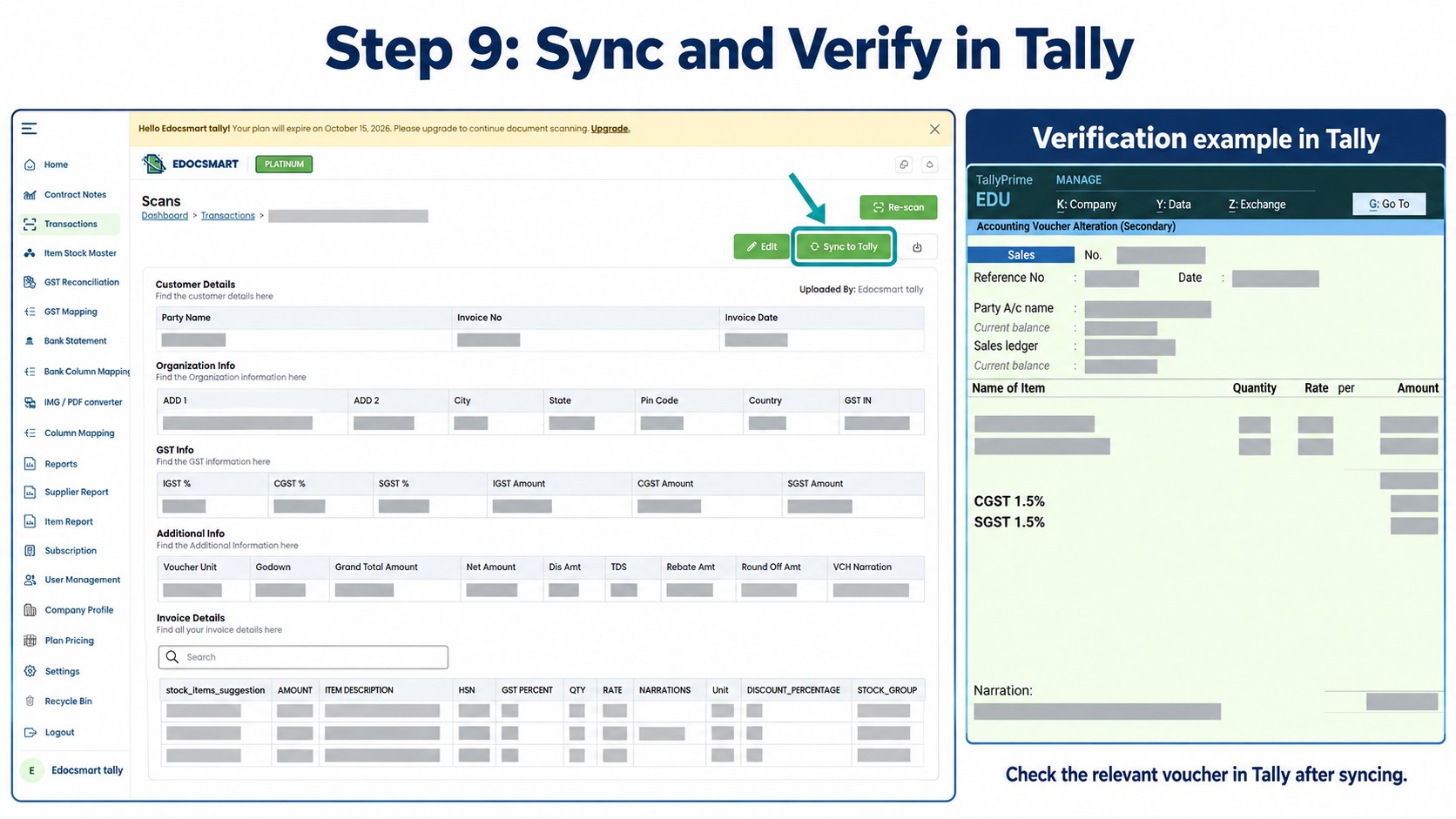
Benefits of Automating Tally Data Entry
The main benefit is reducing the need to recreate information that already exists in Excel.
| Benefit | Practical value |
|---|---|
| Less repeated typing | Staff can work from prepared records instead of entering every value again. |
| A consistent review process | Transactions are checked before synchronization. |
| Easier recurring uploads | A tested mapping can be reused for consistent file structures. |
| More manageable bulk work | Sales and purchase batches follow a defined process. |
| More time for accounting checks | The team can focus on exceptions, reconciliation, and record quality. |
The amount of manual work reduced will depend on your file quality, transaction complexity, and initial setup.
Related Topic: Sales and Purchase Mapping
Sales and purchase records should be checked against their respective accounting requirements.
For example, the party on a sales transaction is a customer, while the party on a purchase transaction is a supplier. The associated ledgers, voucher types, and item treatment must reflect the transaction being recorded.
Keep separate, tested configurations where your sales and purchase files require different handling.
Related Topic: Preventing Duplicate Tally Entries
A repeated upload can create a problem if the same transactions have already been recorded.
Before sending a batch:
- Check whether it was uploaded or synced earlier.
- Compare invoice references, party names, and dates.
- Confirm which records are approved for transfer.
- Check the result of a partially completed sync before retrying.
Keep a clear record of completed batches so another team member does not process the same file again.
Related Topic: Excel Data and Invoice Documents
An Excel workflow starts with information already organised into spreadsheet rows and columns.
A PDF or invoice-image workflow starts with a document whose information must first be extracted. The preparation stages differ, even though both workflows need review and appropriate accounting configuration.
For document-based entry, explore the invoice-to-Tally workflow.
Frequently Asked Questions
1. How to automate Tally data entry from Excel?
Upload the workbook through a configured transaction workflow, review the prepared records, save them, and synchronize the approved entries after checking the connector and mapping.
2. How to automate sales entries in Tally?
Choose the sales workflow, upload the sales workbook, and check customer details, invoice references, ledgers, items, and amounts before syncing the approved records.
3. How to automate purchase entries in Tally?
Choose the purchase workflow and process the supplier transaction file. Review the purchase details and accounting mapping before transferring the approved entries.
4. How to check mapping before importing data into Tally?
Compare the source columns and prepared records with the intended voucher fields, party ledgers, items, and accounting categories. Test the setup with a small batch.
5. How to avoid duplicate entries during synchronization?
Check existing transactions and earlier batch results before sending records again. For a partial sync, identify the entries already created before retrying the remainder.
6. Is manual review still necessary?
Yes. Review helps identify incorrect references, misplaced values, wrong ledger selections, and other issues before the records reach Tally.
7. Does mapping need to be repeated for every file?
A saved mapping can be reused when the file structure and accounting requirements remain consistent. Check it again when either changes.
8. Why is the Tally Connector required in this workflow?
It provides the connection used to transfer the approved records from the processing platform to the intended Tally installation.
9. Can one invoice contain multiple Excel rows?
Yes. An invoice with several items can occupy multiple rows. Check that those rows are grouped into the intended transaction rather than treated as unrelated entries.
10. What should be checked after synchronization?
Review voucher references, dates, parties, ledger selection, item details, and totals. Compare the resulting records with the approved source batch.
Conclusion
Automating Tally data entry helps your team use existing Excel records without manually recreating every sales or purchase transaction.
The process is straightforward: upload the file, review and save the prepared data, activate the connector, check the mapping, and sync the approved entries. A final check in Tally confirms that the batch has been recorded as intended.
Explore Edocsmart’s Excel-to-Tally solution to build a repeatable workflow for your sales and purchase entries.