How to Avoid Manual Data Entry in Tally
Reduce repetitive Tally data entry by using existing invoices, Excel files, and ERP data to create verified accounting entries through Edocsmart.
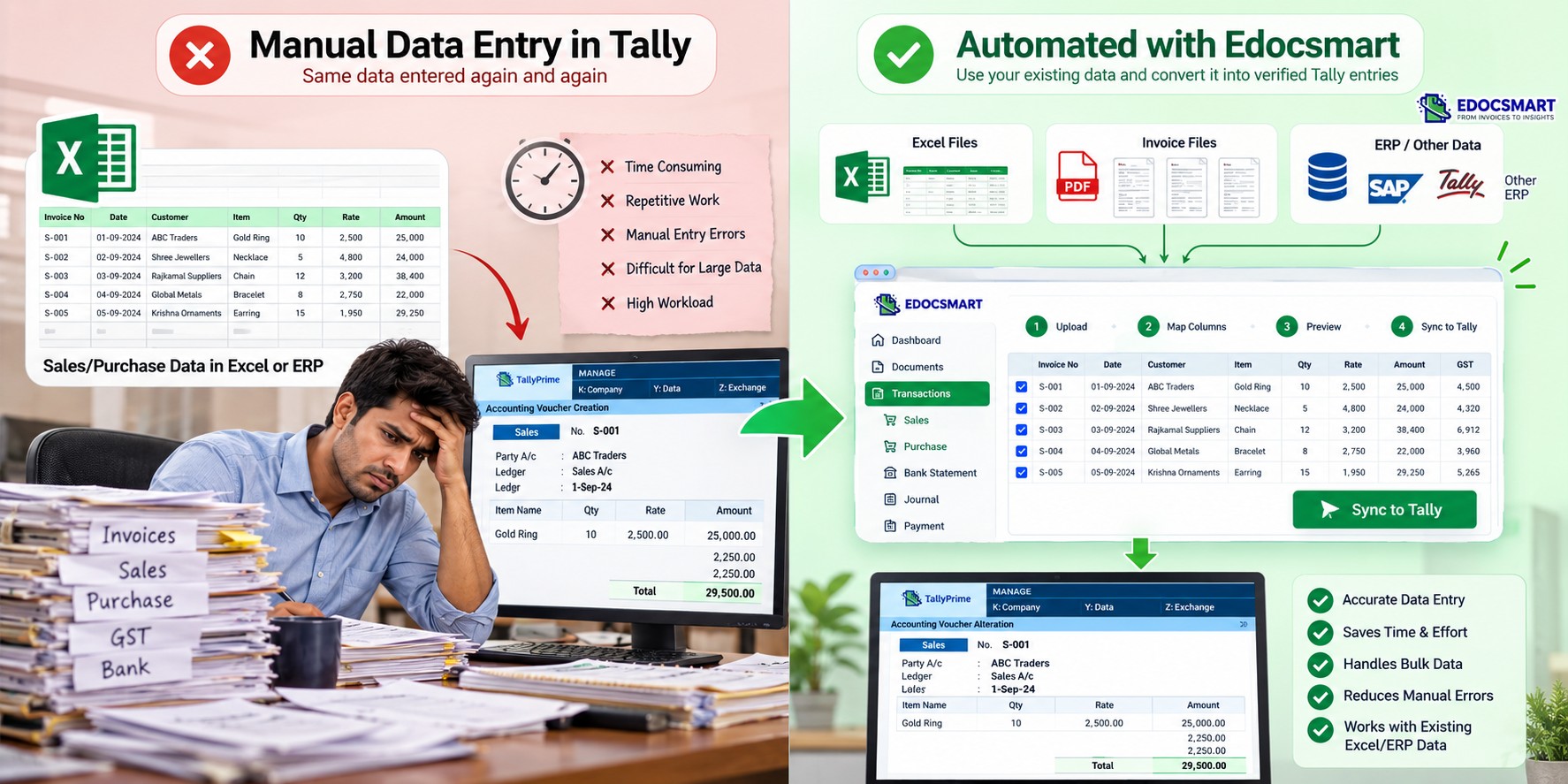
For many businesses, Tally is an important part of their accounting workflow. However, maintaining accounting records in Tally can become time-consuming when the same data has to be entered manually again and again.
This is especially common when businesses already maintain their invoices, sales records, purchase records, or other accounting data in Excel or another ERP system. In such cases, accountants often have to copy the same information into Tally manually.
For a small number of transactions, this may not be a major issue. But when an accounting team has to process hundreds or thousands of entries, manual data entry can consume several hours every day.
The good news is that businesses do not always need to enter this information manually.
For businesses that already maintain accounting records in spreadsheets, the Excel to Tally workflow provides a structured way to move prepared data into Tally without recreating every transaction.
With an automation platform such as Edocsmart, businesses can use their existing invoices and Excel-based workflows and convert them into Tally-ready entries with significantly less manual work.
Why Manual Data Entry in Tally Becomes a Problem
Manual data entry becomes particularly challenging when accounting teams are handling large volumes of transactions.
For example, an accountant may receive an Excel file containing hundreds of purchase or sales transactions. Instead of importing that information directly, the accountant may have to open the Excel file, read each row, create the corresponding voucher in Tally, and enter the required values.
This process can lead to:
- Significant time spent on repetitive work
- Repeated data entry for the same transaction
- Higher chances of typing or calculation errors
- Difficulty processing large Excel files
- Increased workload for accounting teams
- Delays in completing accounting operations
The problem becomes even bigger for accounting firms that manage the books of multiple businesses.
Instead of increasing the amount of manual work as the transaction volume grows, businesses can automate the process of moving accounting data into Tally.
This is where excel data entry automation tally and tally automation for accountants become useful for reducing repeated voucher creation while keeping a review step before synchronization.
Different Ways to Avoid Manual Data Entry in Tally
Depending on how a business maintains its accounting data, there can be multiple ways to reduce manual Tally entry.
With Edocsmart, businesses can work with different types of source data instead of being restricted to a single workflow.
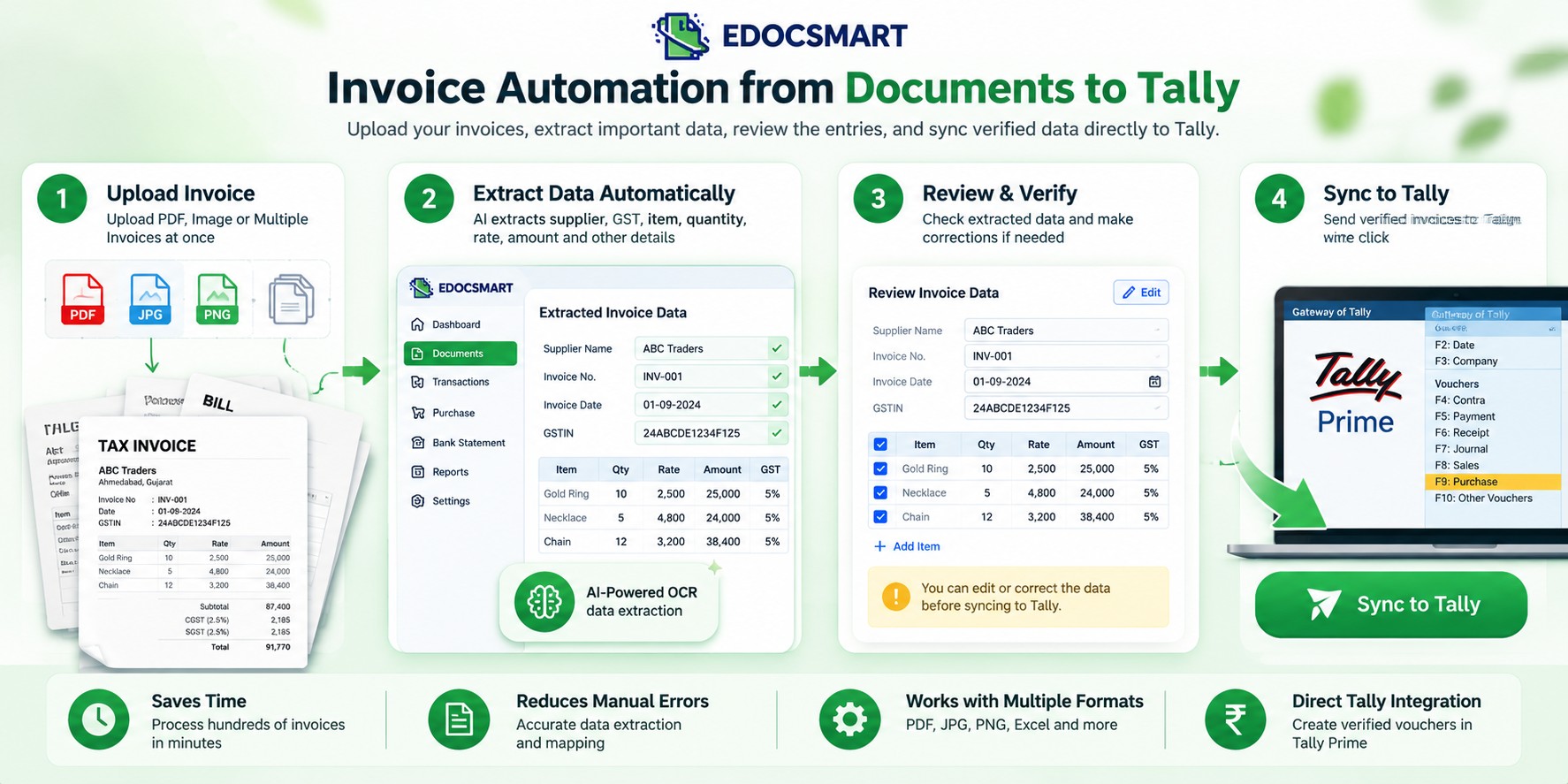
1. Upload Invoices Directly
If the accounting data is available in the form of invoices, there is no need to manually enter all the invoice information into Tally.
Businesses can upload their invoices to Edocsmart.
The platform extracts the relevant information from the invoice and prepares the data for further processing.
The workflow is straightforward:
Upload Invoice → Extract Data → Verify Data → Sync to Tally
 After the
data is extracted, the user can review and verify the information before
sending it to Tally.
After the
data is extracted, the user can review and verify the information before
sending it to Tally.This is useful for businesses that receive a large number of purchase or sales invoices and want to reduce the amount of information that needs to be entered manually.
Instead of manually reading an invoice and entering every field into Tally, the accounting team can review the extracted information and then synchronize the verified data.
2. Import Accounting Data Directly from Excel
Not every business works with invoices as their primary source of accounting data.
Many businesses and accounting firms already maintain their transaction data in Excel.
In some cases, the business may have a predefined Excel format containing hundreds of rows and multiple sheets. In other cases, the data may be exported from another ERP or accounting system.
Recreating all of this information manually in Tally defeats the purpose of maintaining the data digitally in the first place.
This is where Excel-based automation can help.
A reusable excel to tally automation software workflow can support automated excel import tally processing, bulk excel data import tally and controlled verification before entries reach Tally.
With Edocsmart, a business can configure its Excel format through a one-time mapping process.
The mapping tells the system which column in the Excel file corresponds to which accounting field.
Once the mapping has been configured for a particular Excel format, the accounting team does not need to repeat the mapping every time.
The workflow becomes:
One-Time Excel Mapping → Upload Excel → Process Entries → Verify → Sync to Tally
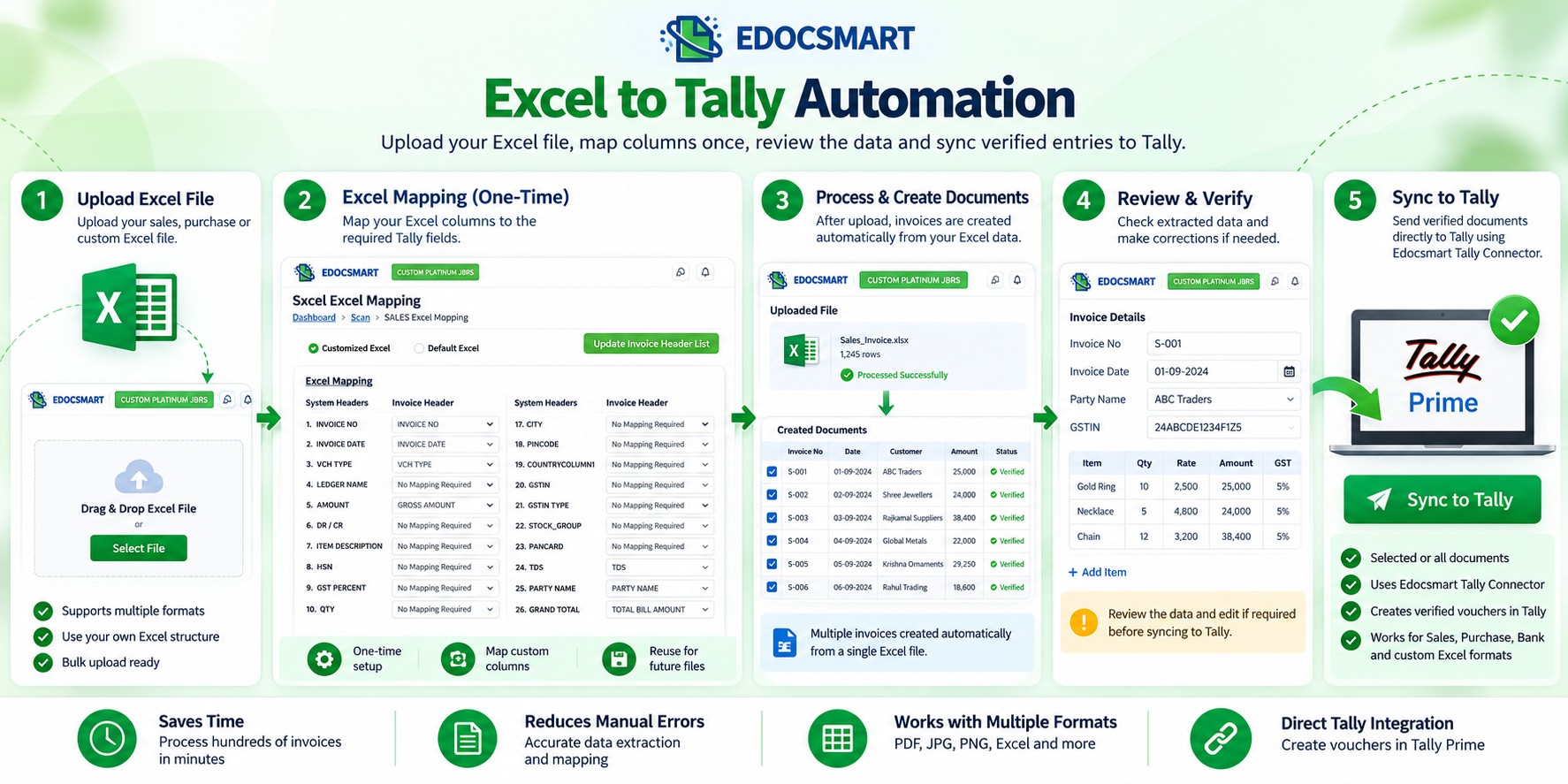
This makes it possible to continue using the existing Excel workflow while reducing the manual work required to create Tally entries.
For recurring files, businesses can use excel data import to tally prime, excel integration with tally and tally data import software workflows without rebuilding the same accounting data manually.
3. Work with Different Types of Excel Data
Excel is not limited to a single accounting workflow.
Depending on the business, accounting teams may maintain different types of data in Excel.
For example, Edocsmart can be configured for workflows involving:
- Purchase Excel
- Sales Excel
- Bank statement Excel
- Other customized accounting Excel formats
This is particularly useful for businesses that already have established Excel-based processes.
Rather than asking the accounting team to completely change the way they work, the existing Excel workflow can be connected to the Tally automation process.
The important part is that the Excel format needs to be mapped appropriately once. After that, subsequent files following the same format can be processed using the configured workflow.
Real-World Example: Automating Purchase Excel to Tally
One of the common situations where manual Tally entry becomes a major problem is when an accounting firm manages the books of multiple companies.
For example, one of our clients is a large accounting firm based in Ahmedabad, Gujarat, handling accounting operations for multiple businesses.
Their workflow involved receiving accounting data from their clients in Excel.
The requirement was relatively straightforward.
They primarily needed to create accounting entries containing information such as:
- Taxable value
- CGST
- SGST
- Invoice-related information
The problem was not the complexity of the accounting entry itself.
The problem was the volume of data.
Their clients were already providing the required information in Excel. Some of these Excel files contained around 400–500 rows across multiple sheets.
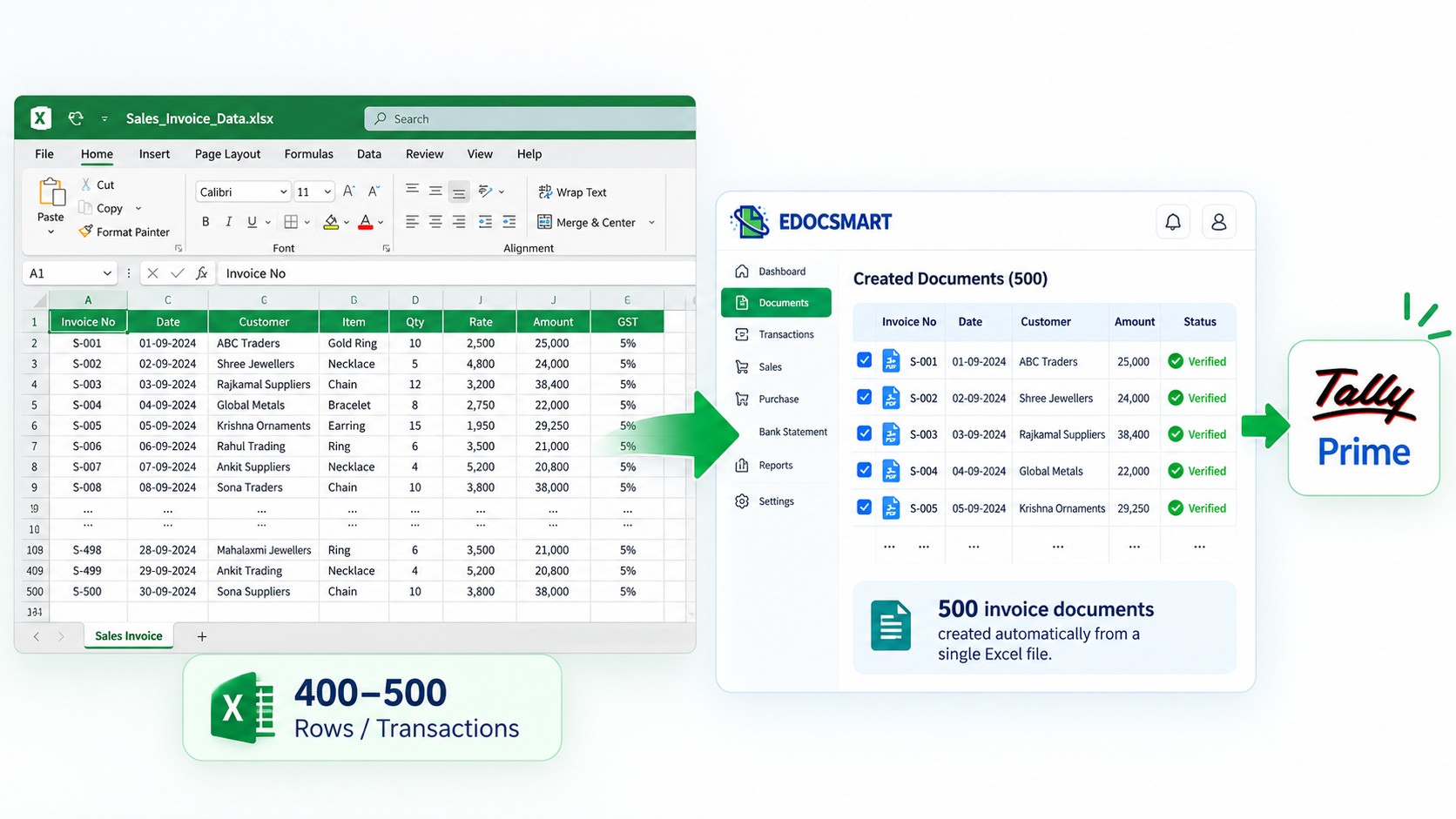 The
accounting team then had to manually take that information and create the
corresponding entries in Tally.
The
accounting team then had to manually take that information and create the
corresponding entries in Tally.
For a large Excel file, this could take almost an entire working day.
The same process had to be repeated for multiple files and multiple clients.
How Edocsmart Changed the Workflow
Instead of manually entering every row into Tally, the accounting firm configured their Excel format in Edocsmart.
The first step was a one-time mapping for the specific Excel structure.
Once the mapping was completed, the accounting team could simply upload subsequent Excel files following the same format.
Edocsmart processed the uploaded Excel file and created individual documents based on the invoice information.
For example, if a single Excel file contained multiple invoice records, the system could identify the invoice numbers and separate the records into individual documents.
The accounting team could then review the generated documents inside Edocsmart.
They had the flexibility to:
- Select individual documents
- Review the entries
- Sync selected documents to Tally
- Select multiple documents and sync them together
This completely changed the day-to-day workflow.
Instead of spending an entire day manually entering hundreds of rows into Tally, the same process could be completed in approximately 10 minutes, depending on the file and workflow.
The key advantage was not simply faster data entry.
The accounting team could continue receiving and maintaining data in the Excel format they were already familiar with, while the repetitive Tally-entry process was automated.
Automating Sales Excel to Tally
The same concept can also be applied to sales data.
Another real-world use case comes from the jewellery industry.
One of our customers operates large jewellery business branches in Ahmedabad and Vadodara.
Their sales transactions were already being maintained in another ERP system.
The problem was that the same sales information had to be entered into Tally as well.
This meant that the accounting team was effectively performing the same data-entry work twice:
ERP → Manual Entry → Tally
For a business handling a large number of sales transactions, this can become extremely repetitive.
Using Edocsmart for Sales Excel
Instead of manually recreating every transaction in Tally, the customer could export their sales data from their existing ERP in Excel format.
The Excel file could then be uploaded to Edocsmart.
After the file was uploaded, Edocsmart processed the data and created separate documents based on the invoice numbers.
The accounting team could then review the generated documents and select the required entries.
Multiple documents could be selected and synchronized to Tally together.
The workflow therefore became:
Existing ERP → Export Sales Excel → Upload to Edocsmart → Documents Created → Select Entries → Sync to Tally
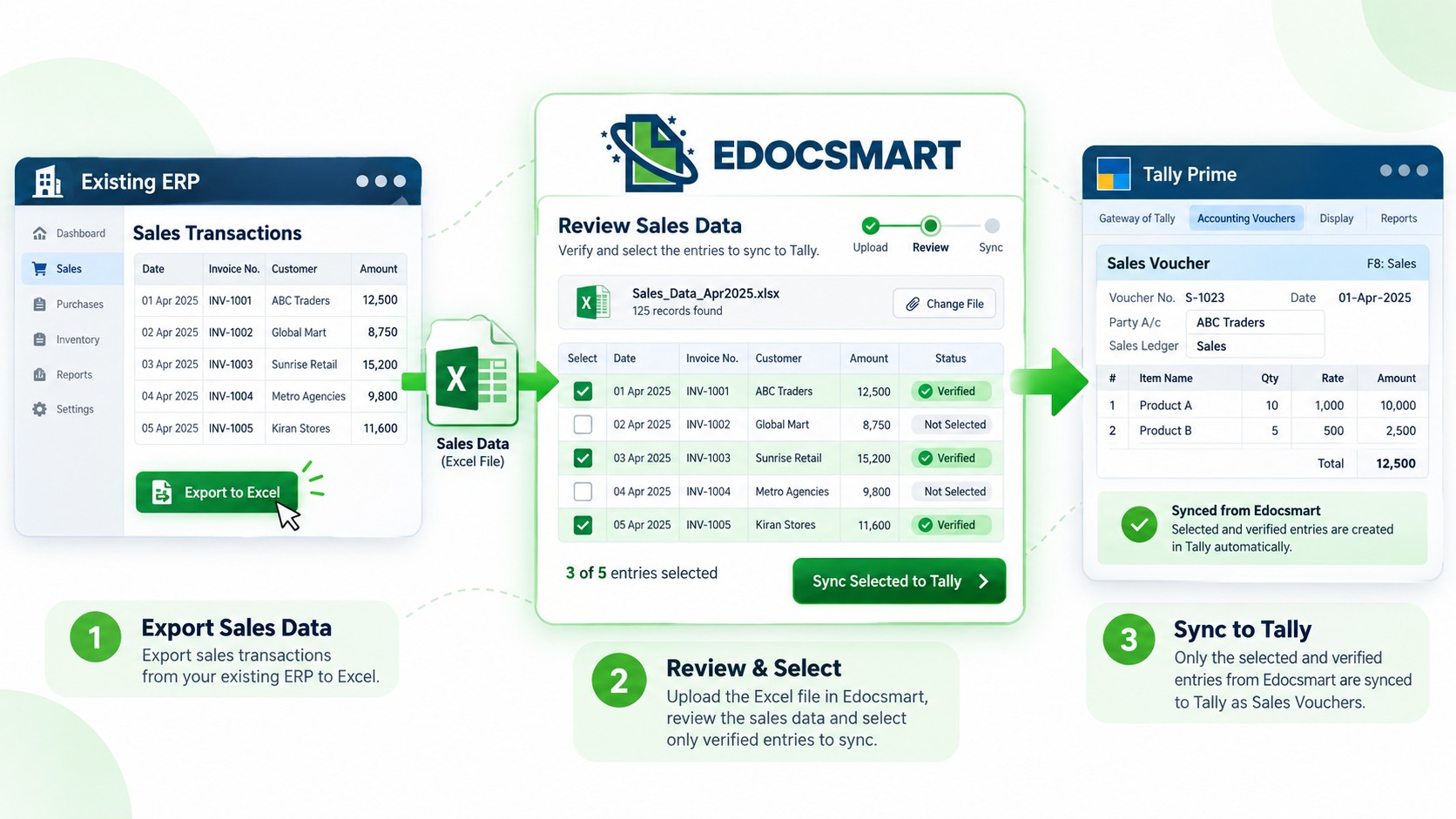
This eliminated the need to manually enter the same sales transaction into Tally again.
Handling Stock Groups in Industry-Specific Workflows
Some businesses have additional requirements that go beyond simply importing taxable values and GST information.
The jewellery industry is one such example.
Consider a jewellery business selling:
- An 18-carat gold ring
- An 18-carat gold earring
The business may want to maintain 18 Carat as the stock group or stock item structure in Tally, while the actual product names are maintained in the stock narration.
In such cases, simply importing the transaction values is not enough.
The accounting system also needs to understand how the business wants to organize its stock information.
Stock Group Mapping
Edocsmart provides a stock-group mapping workflow for such requirements.
The business can provide the relevant stock names along with their corresponding stock groups.
For example:
Stock Name → Stock Group
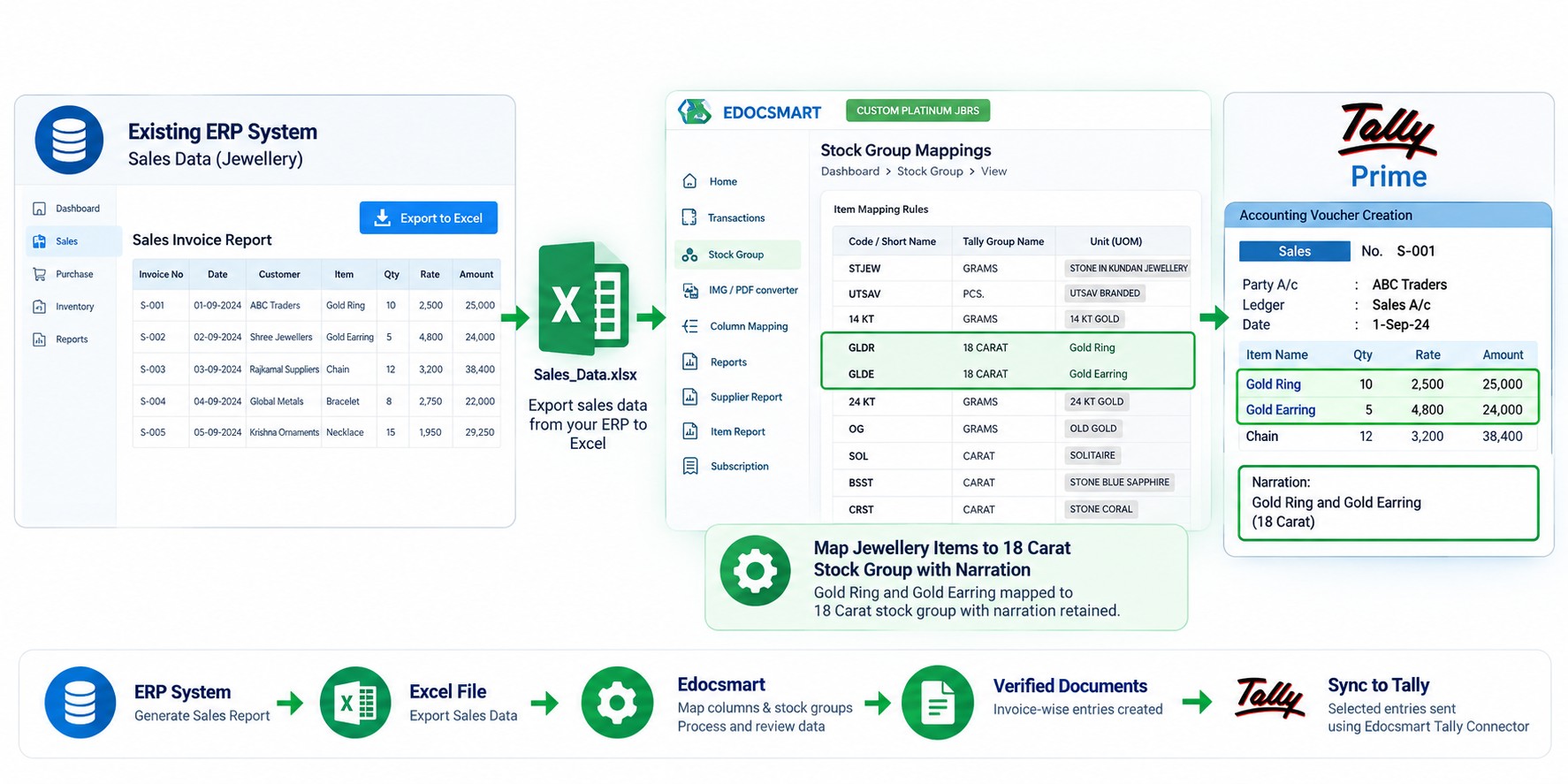 The
mapping can be configured according to the organization's accounting structure.
The
mapping can be configured according to the organization's accounting structure.
Once the stock-group mapping has been configured, the business can continue uploading its sales Excel files.
When the Excel file is processed, Edocsmart can use the configured mapping to prepare the entries according to the required stock structure.
This is particularly useful for businesses where stock classification follows industry-specific rules.
From Another ERP to Tally Without Re-Entering Data
The jewellery business workflow is also an example of a broader problem faced by many businesses.
A company may already have one ERP or business application for managing its day-to-day operations, but still use Tally for accounting.
In that situation, employees may end up entering the same transaction twice:
First entry: Existing ERP
Second entry: Tally
This duplicate data-entry process consumes time without creating additional business value.
Instead, businesses can use the data they are already generating in their existing ERP.
The ERP exports the transaction data into Excel.
The Excel file is uploaded to Edocsmart.
Edocsmart processes the data and creates the corresponding documents.
The accounting team verifies the information and synchronizes the required documents to Tally.
This creates a bridge between the existing business workflow and Tally without requiring accountants to manually recreate every transaction.
For larger operations, software to import excel data into tally, bulk voucher import tally, and excel to tally software for accountants can help standardize the movement of verified transaction data.
A More Efficient Tally Data Entry Workflow
The examples above show that avoiding manual data entry does not necessarily mean completely changing the existing accounting process.
In many cases, the business can keep using the same source of data.
The difference is what happens between the source data and Tally.
Instead of:
Excel → Accountant → Manual Tally Entry
the workflow can become:
Excel → Edocsmart → Verification → Tally
Similarly, for invoice-based workflows:
Invoice → Edocsmart → Data Extraction → Verification → Tally
And for businesses using another ERP:
ERP → Excel Export → Edocsmart → Verification → Tally
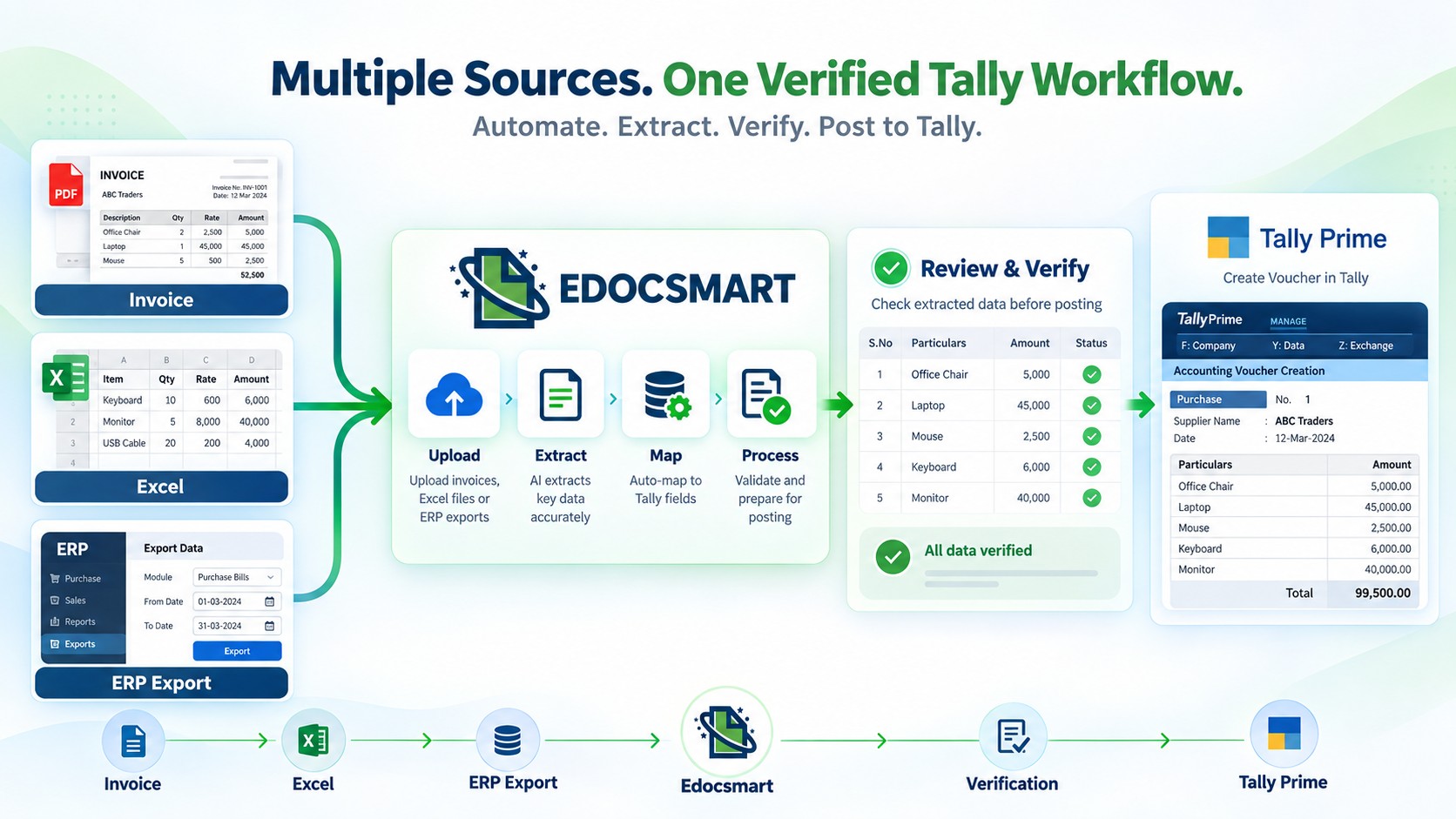
This approach allows accounting teams to automate the repetitive part of the process while still keeping a verification step before the data reaches Tally.
The same model can also support tally prime import software and bulk data import tally use cases when transaction volumes increase.
Why Excel-Based Tally Automation Can Be Useful
- For businesses that already depend heavily on Excel, automation can provide several practical benefits.
Reduce Repetitive Data Entry
- Accountants no longer need to manually recreate every transaction from an Excel sheet inside Tally.
Process Large Files Faster
- Large Excel files containing hundreds of rows can be processed through the configured workflow instead of being entered row by row.
Maintain Existing Excel Workflows
- Businesses do not necessarily need to abandon their existing Excel-based processes.
- Once the format is mapped, the same workflow can be reused for future files.
Reduce Duplicate Entry
- Businesses using another ERP can export their data and use it to create Tally entries instead of entering the same transaction again.
Add Verification Before Tally Sync
- The accounting team can review the generated documents before synchronizing them to Tally.
Support Different Accounting Workflows
- Purchase, sales, bank statement, and customized Excel workflows can be configured according to the business requirement.
How Edocsmart Helps Avoid Manual Data Entry in Tally
The main idea behind Tally automation is simple:
If the data already exists digitally, there is no reason to type the same information into Tally again.
- Edocsmart helps businesses connect their existing data sources with their Tally workflow.
- Whether the source is an invoice, purchase Excel, sales Excel, bank statement, or data exported from another ERP, the information can be processed through a configured workflow.
- For Excel-based workflows, the process starts with a one-time mapping.
- After that, the accounting team can upload their files, review the generated documents, and synchronize the required entries to Tally.
- For businesses processing hundreds or thousands of transactions, this can turn a highly repetitive accounting task into a much more streamlined workflow.
FAQS
How
can businesses avoid manual data entry in Tally?
Businesses can use existing digital data such as invoices, purchase Excel, sales Excel, bank statements, or ERP exports as the starting point. The data can be mapped, processed, reviewed, and then synchronized to Tally instead of being typed again.
Can
Edocsmart import Excel data into Tally without retyping every row?
Yes. Edocsmart can use a configured Excel workflow to process the existing spreadsheet data, create the required documents or vouchers, allow the user to review them, and then sync selected entries to Tally.
Does
Edocsmart require Excel mapping every time?
No. Mapping is mainly required when a particular Excel structure is configured for the first time. If later files follow the same format, the saved mapping can be reused, while changed formats should be reviewed again.
Can
Edocsmart work with data exported from another ERP?
Yes. If another ERP can export the required purchase or sales data to Excel, that file can become the input for the configured Edocsmart workflow so the same transactions do not need to be manually re-entered in Tally.
Can
large Excel files be processed in bulk?
Yes. Large files containing hundreds of rows can be processed through a configured bulk workflow. Individual documents can be generated from the records and selected entries can be synchronized to Tally after review.
Should
entries be reviewed before syncing to Tally?
Yes. Review is an important part of the workflow because it lets the accounting team verify invoice, ledger, GST, stock, amount, and other mapped information before the final synchronization.
Conclusion
Manual data entry in Tally can become a significant operational burden when businesses process large volumes of transactions.
The problem becomes even more noticeable when the same information is already available in Excel or another ERP system and accountants are required to enter it into Tally again manually.
Automation provides a way to eliminate this duplicate work.
With Edocsmart, businesses can upload invoices directly, import purchase and sales Excel files, process bank statement data, configure customized Excel mappings, and manage stock-group requirements according to their workflow.
The goal is not to replace the accountant's role.
Instead, it is to remove repetitive data-entry work so accounting teams can spend more time reviewing, reconciling, and managing financial information rather than repeatedly typing the same transactions into Tally.
From Excel to Tally, the process can be automated, verified, and synchronized—without entering every transaction manually.