How to Check Excel-to-Tally Sync Status and Fix Failed Entries
Understand Pending, In Progress, Success, and Failed statuses in Edocsmart Excel-to-Tally sync, and learn why the Tally Connector must stay running.
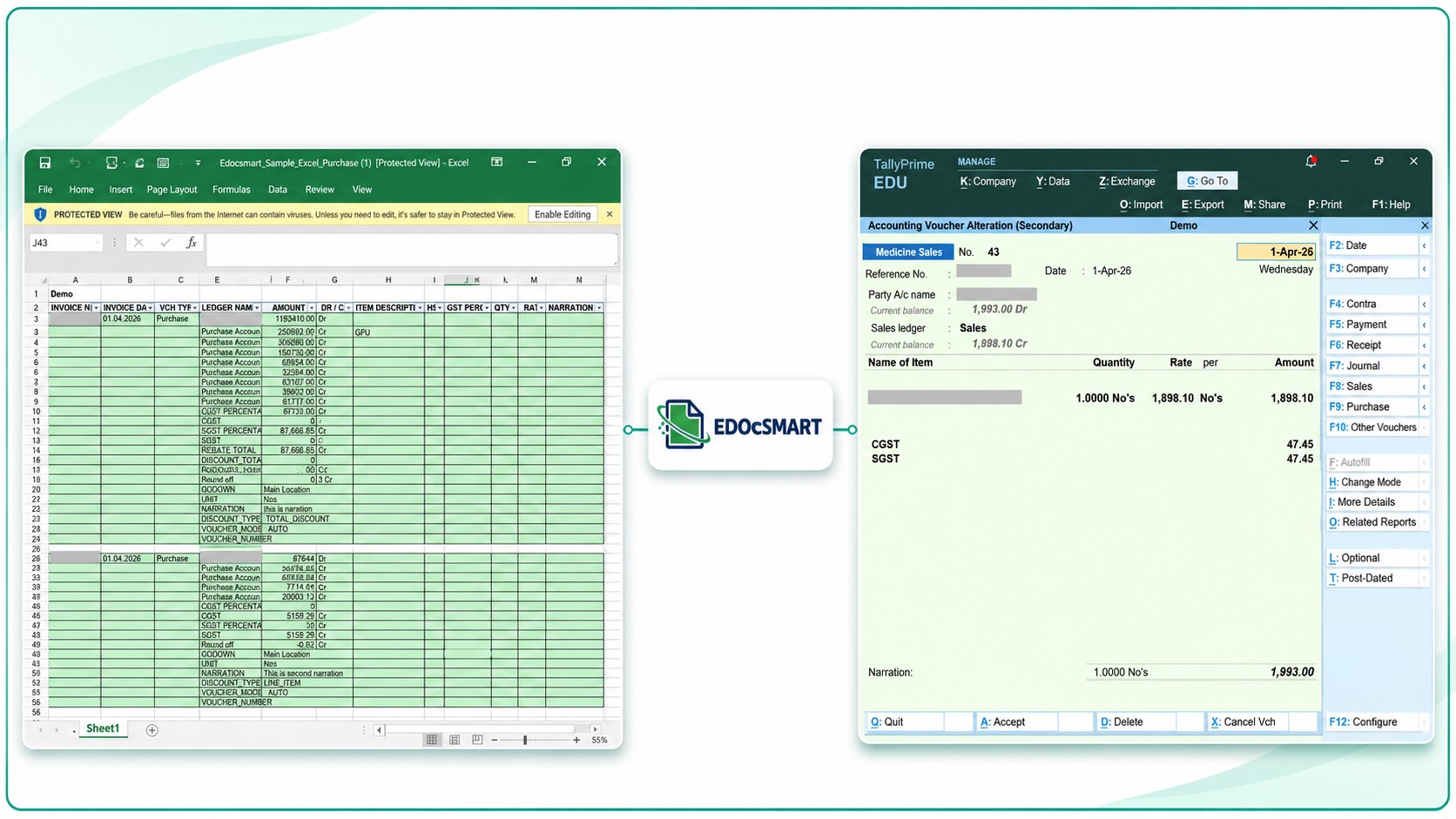
Uploading an Excel file and transferring its records to Tally are separate parts of the process. The file may be processed in Edocsmart, but the Edocsmart Tally Connector must remain running for the transfer to continue.
If records have been submitted for syncing while the connector is not running, they can remain In Progress. Once the connector starts and the connection is available, the queued records can continue transferring to Tally.
Understanding these statuses helps you decide when to wait, check the connection, or investigate a failed record.
Why the Tally Connector Needs to Stay On
The Edocsmart Tally Connector connects the prepared records with Tally during synchronization.
Before starting a transfer, open the intended Tally company and start the connector. Keep it running while the selected records are being transferred.
Closing the connector before the batch finishes can interrupt the process and leave records waiting for completion.
An uploaded or processed file should not be treated as confirmation that its entries have reached Tally. Check the Tally status and verify the resulting vouchers.
What Do the Sync Statuses Mean?
Edocsmart provides status options to help users follow their records through the transfer process.
| Status | What it means for the user |
|---|---|
| Pending | The record is awaiting synchronization. Check that it has been reviewed and selected for the intended transfer. |
| In Progress | The sync request has not yet finished. The record may be processing or waiting for the connector to become available. |
| Success | Edocsmart reports that the transfer completed. Verify the resulting entry in Tally. |
| Failed | The transfer did not complete successfully. Review the available reason before taking further action. |
In Progress does not automatically mean that a record has failed. It needs to be understood alongside the connector’s availability and the current batch activity.
What Happens If the Connector Is Not Running?
If you submit records for syncing without starting the connector, those records can move to In Progress while waiting for the transfer to continue.
Start the Edocsmart Tally Connector and confirm that the intended company is open in Tally. Once the required connection is available, the queued transfer can resume without submitting the same records again.
Check the existing batch before clicking Sync repeatedly. Sending another request is not a substitute for checking whether the first request is still waiting or processing.
Edocsmart processes records in batches of up to 100. Upload no more than 100 records at a time. When you select Sync to Tally for the batch, the submitted records show In Progress, indicating that their transfer is underway.
Do not submit those records for sync again while they remain In Progress. Wait for their status to update, then review the results before taking further action. This helps reduce the risk of sending the same records repeatedly.
Upload and Sync Up to 100 Records at a Time
In Edocsmart, upload records in batches of up to 100. Once the records are reviewed and ready, select Sync to Tally.
The submitted records show In Progress, indicating that the transfer is underway. Do not select Sync to Tally again for those records while they remain In Progress.
Wait for the statuses to update and review the results before submitting the next batch. If any records require retrying, check their current status first to avoid sending completed records again.
Step 1: Prepare and Upload the Excel File
Open Transactions, select the relevant Sales or Purchase workspace, and open the Excel tab.
Upload the intended workbook and provide the actual header row number when requested.
Use the appropriate Default or Customized Excel configuration. Review the relevant source mapping and accounting settings before preparing the transfer.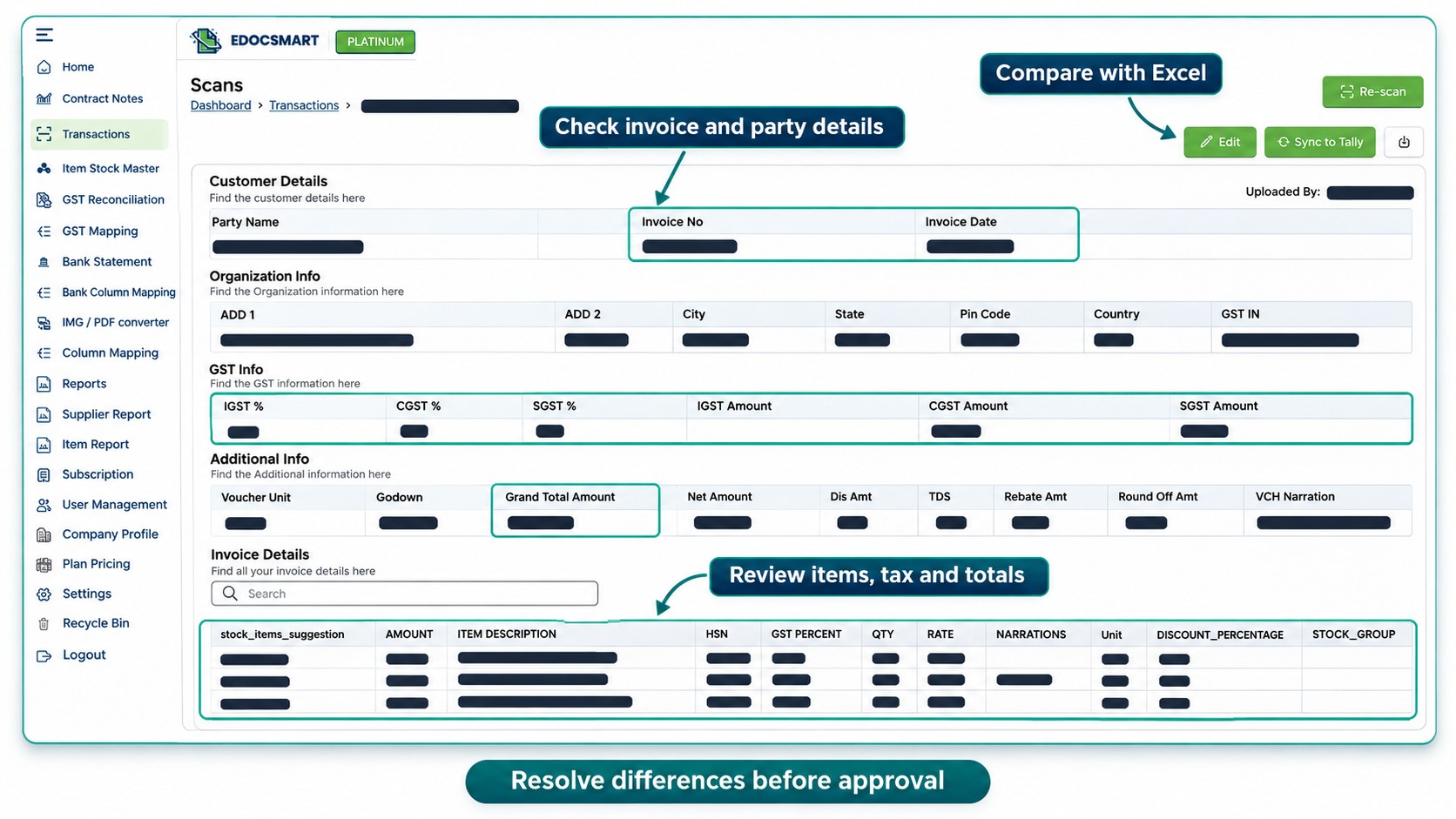
Step 2: Review the Prepared Records
Compare the processed information with Excel.
Check invoice references, dates, parties, ledger allocations, item details, applicable tax information, and totals. Resolve differences and save the approved data through the available workflow.
A record being ready for synchronization does not remove the need for accounting review.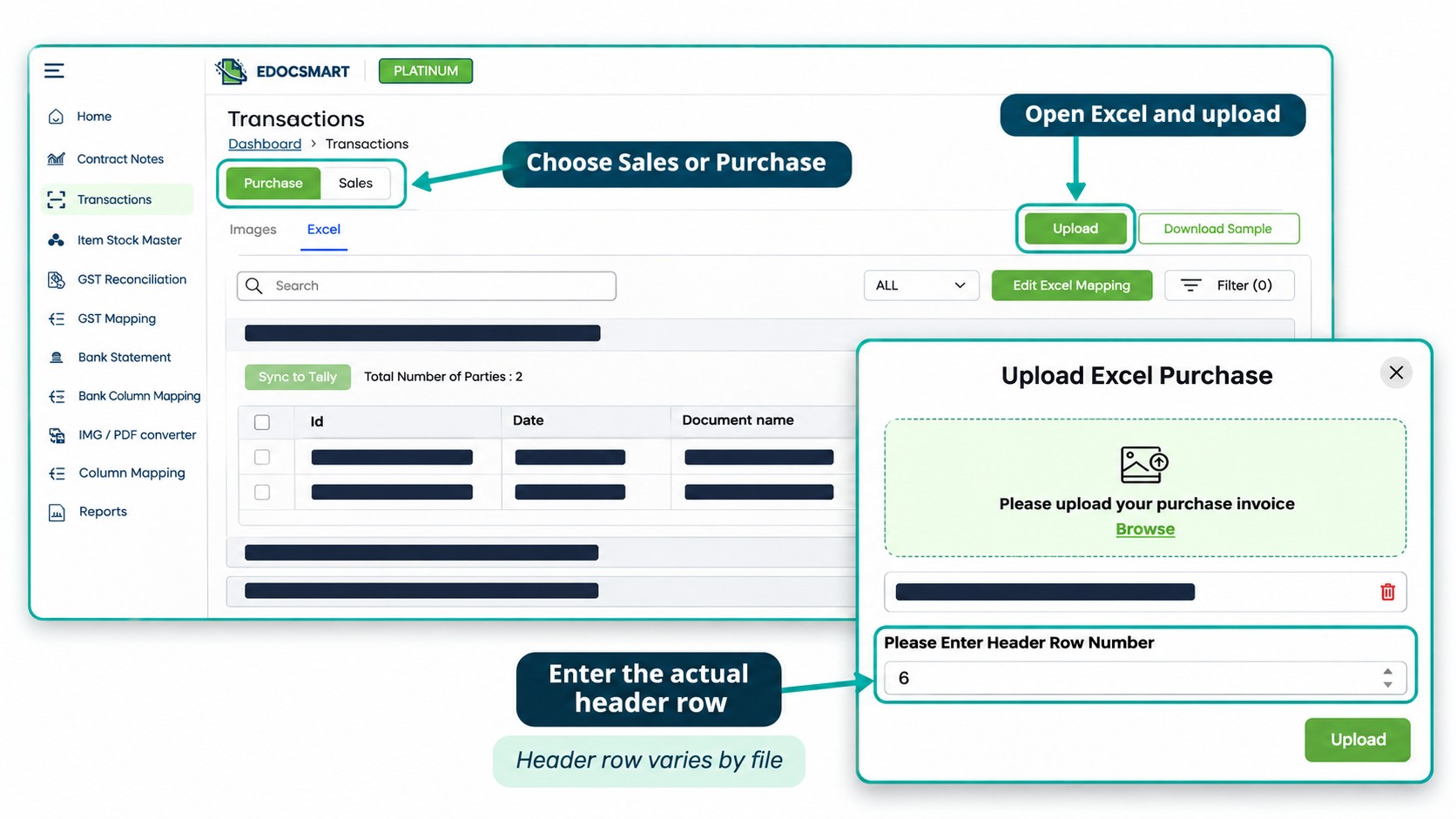
Step 3: Open Tally and Start the Connector
Keep a current company backup and open the intended company in Tally.
Start the Edocsmart Tally Connector and check its connection indicators. Confirm that Tally and the required internet connection are available.
Keep the connector running until the selected batch has finished processing.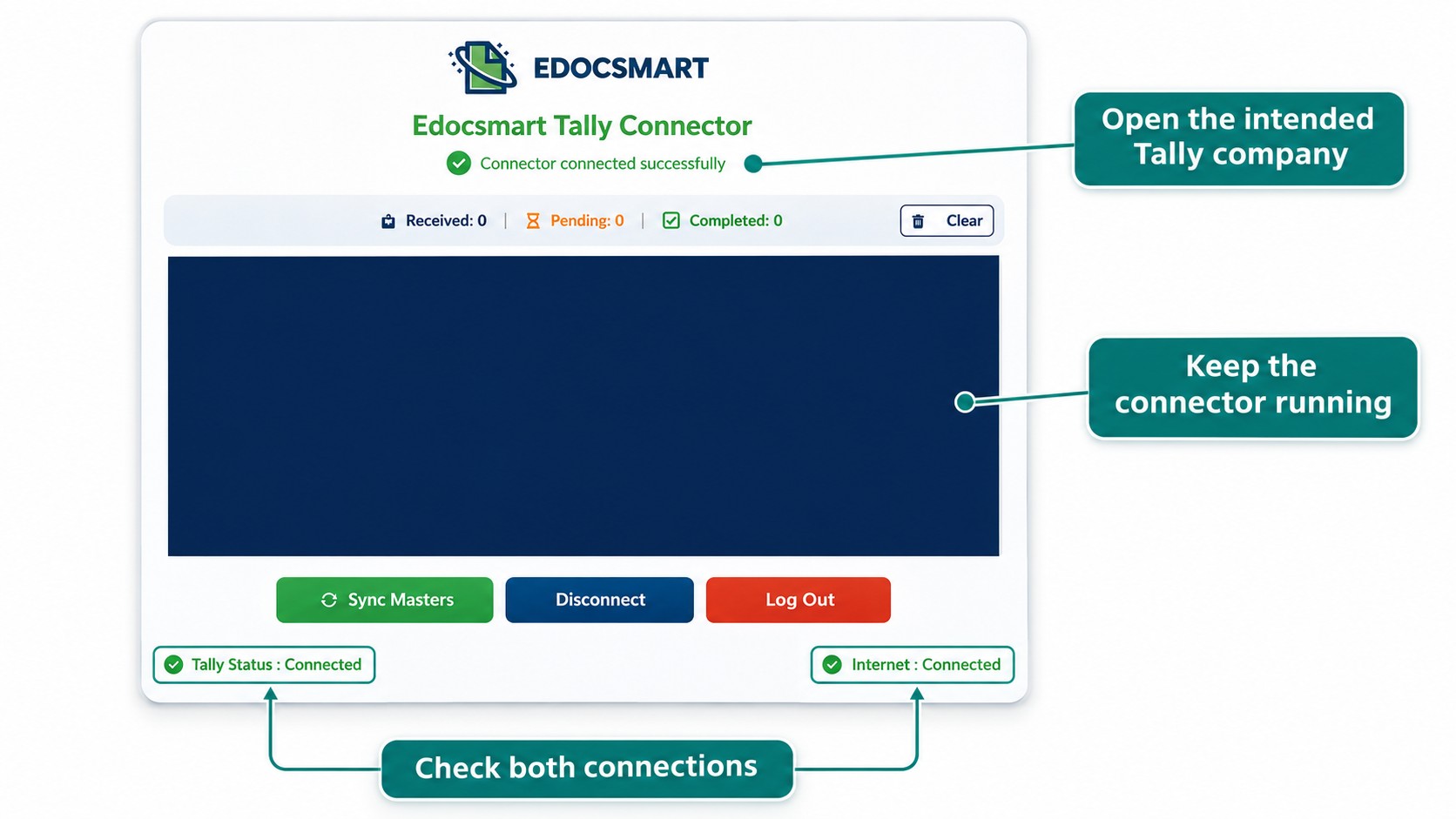
Step 4: Sync a Small Sample, Then Continue in Batches
Begin with a small approved sample and inspect the resulting vouchers in Tally.
After confirming the sample, continue with batches of around 100 records. Monitor the existing batch before submitting the next one.
This keeps the transfer easier to follow and helps separate completed records from those still waiting or requiring review.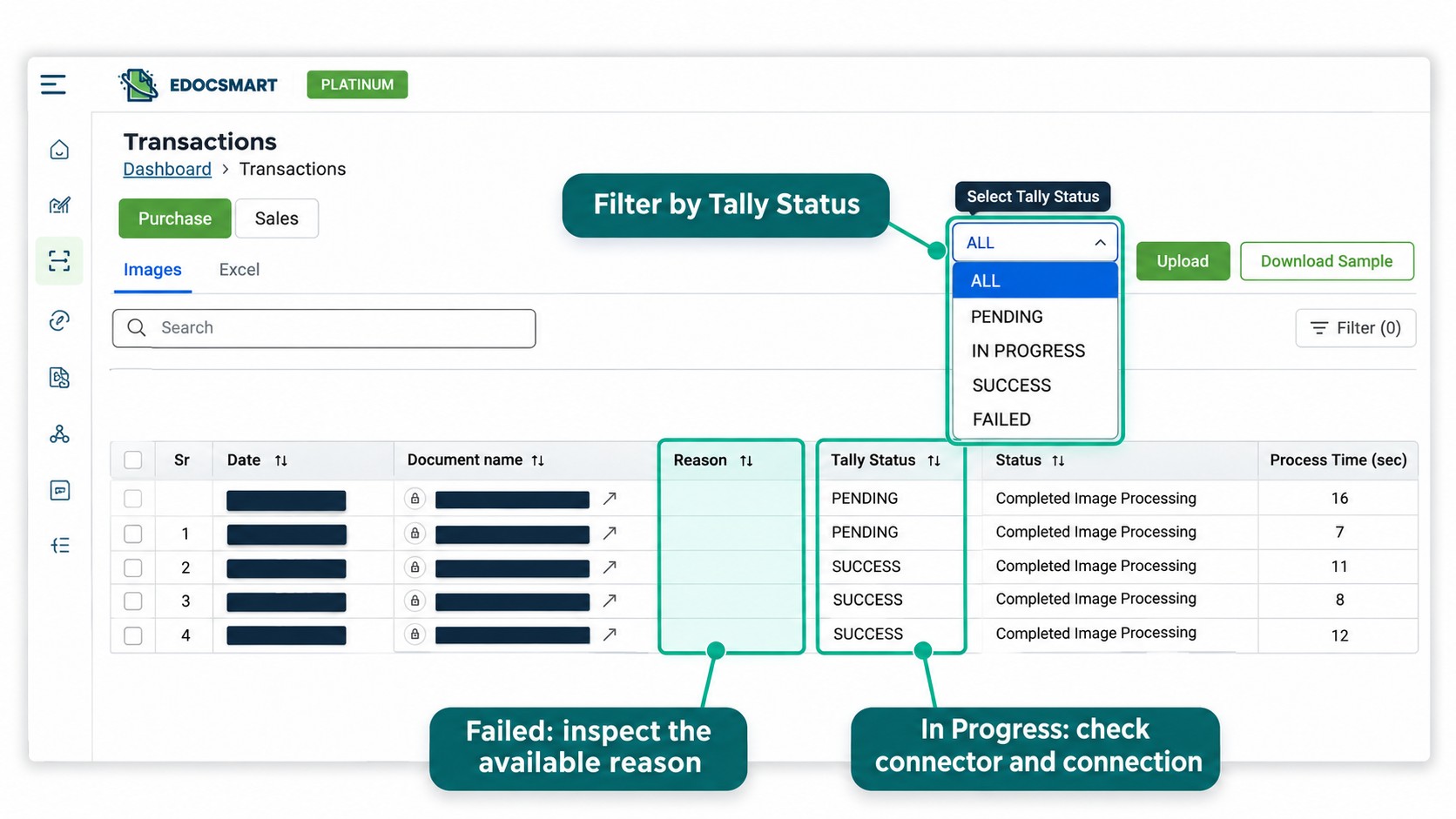
Step 5: Monitor the Tally Status
Use the available status filter to review Pending, In Progress, Success, and Failed records.
If records remain In Progress, check whether the connector is running, the intended Tally company is open, and the connection is available.
If a record shows Failed, inspect the available reason. Resolve the identified issue before retrying it.
Avoid treating every unfinished record as the same problem. Pending, In Progress, and Failed require different checks.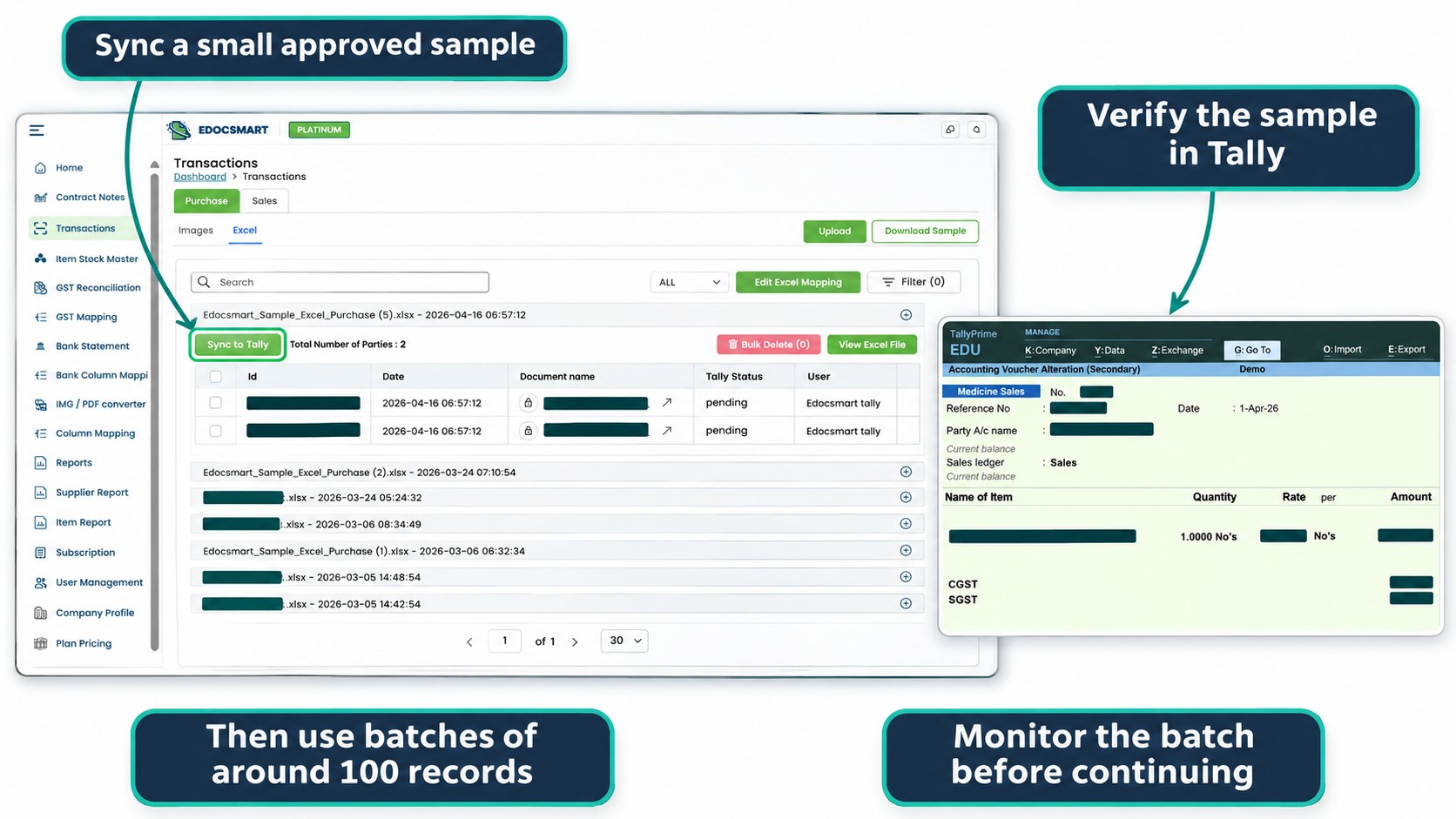
Step 6: Verify Completion Before Retrying
Review successful entries in Tally and keep a record of completed transfers.
If a batch finishes only partly, identify which records reached Tally before taking further action. Retry only the records that require it, after confirming their current status.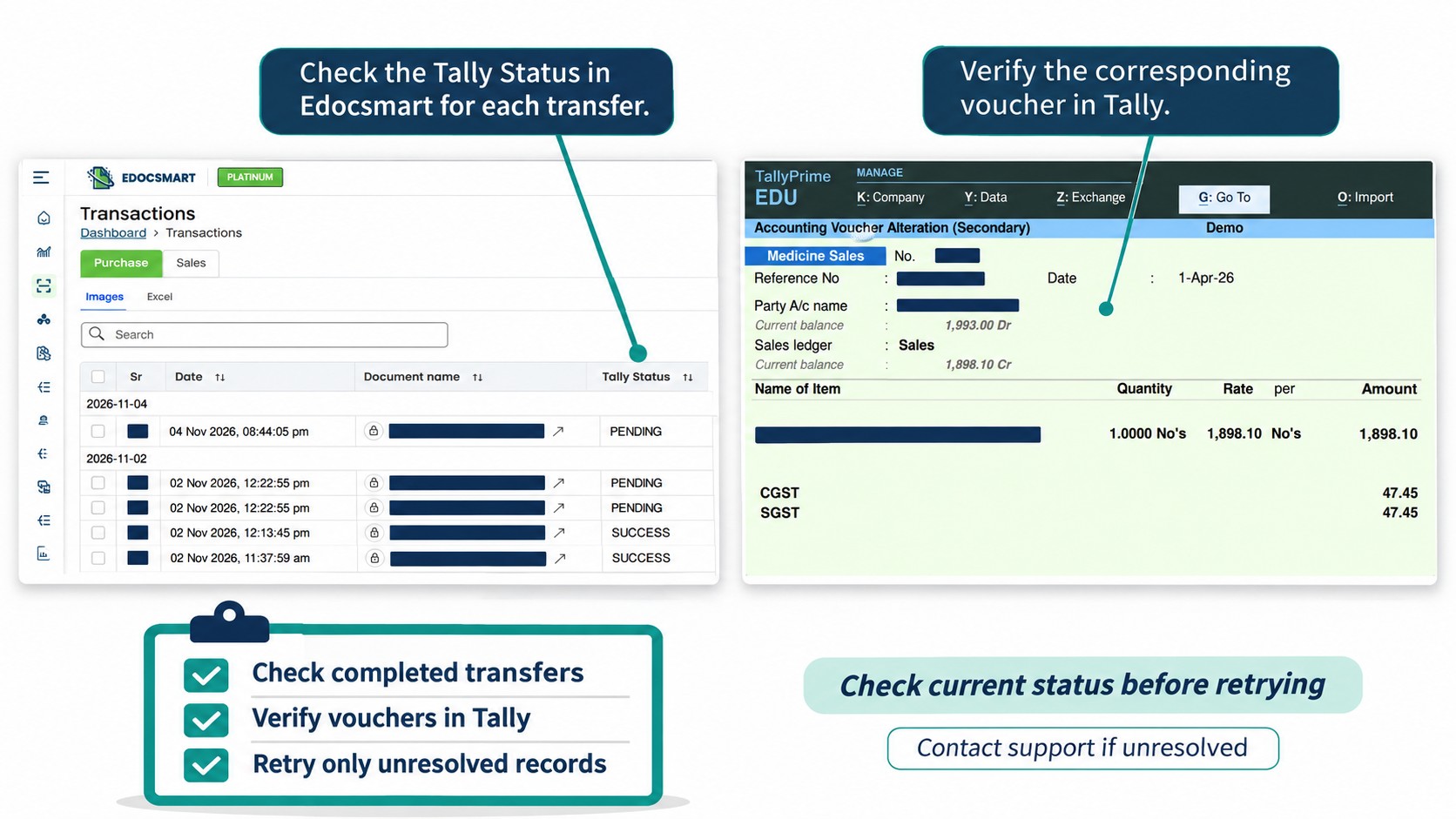
This helps reduce the risk of recreating transactions that were already entered.
If records remain unresolved after checking the connector and available reasons, contact the Edocsmart team with the affected record details and status.
Frequently Asked Questions
1. Does uploading Excel automatically mean the data is in Tally?
No. Uploading, processing, and synchronization are separate stages. Check the transfer status and resulting vouchers.
2. Should the connector stay open during synchronization?
Yes. Keep the Edocsmart Tally Connector running while the batch is transferring.
3. Why are my records showing In Progress?
They may still be processing or waiting for the connector. Check the connection before submitting another request.
4. What happens when I start the connector later?
Queued records can continue transferring once the connector and required Tally connection are available.
5. How many records should I process together?
For this workflow, use batches of around 100 records and monitor the current batch before continuing.
6. What should I do with a Failed record?
Review the available reason, correct the issue, and check whether any related entry reached Tally before retrying.
7. Should I sync the whole batch again if some records are unfinished?
First check each record’s status and which entries already exist in Tally. Avoid resending completed records.
Conclusion
Keep the connector running, process manageable batches, and use the status messages to follow each transfer. When records remain In Progress, check the existing connection and queue before submitting them again.
Explore Edocsmart Excel to Tally Software for the upload, review, and synchronization workflow.