How to Convert Excel Purchase Data into Tally Purchase Vouchers Automatically
Learn how to convert Excel purchase data into Tally Prime purchase vouchers using EdocSmart. Discover Excel mapping, stock item matching, and bulk synchronization.
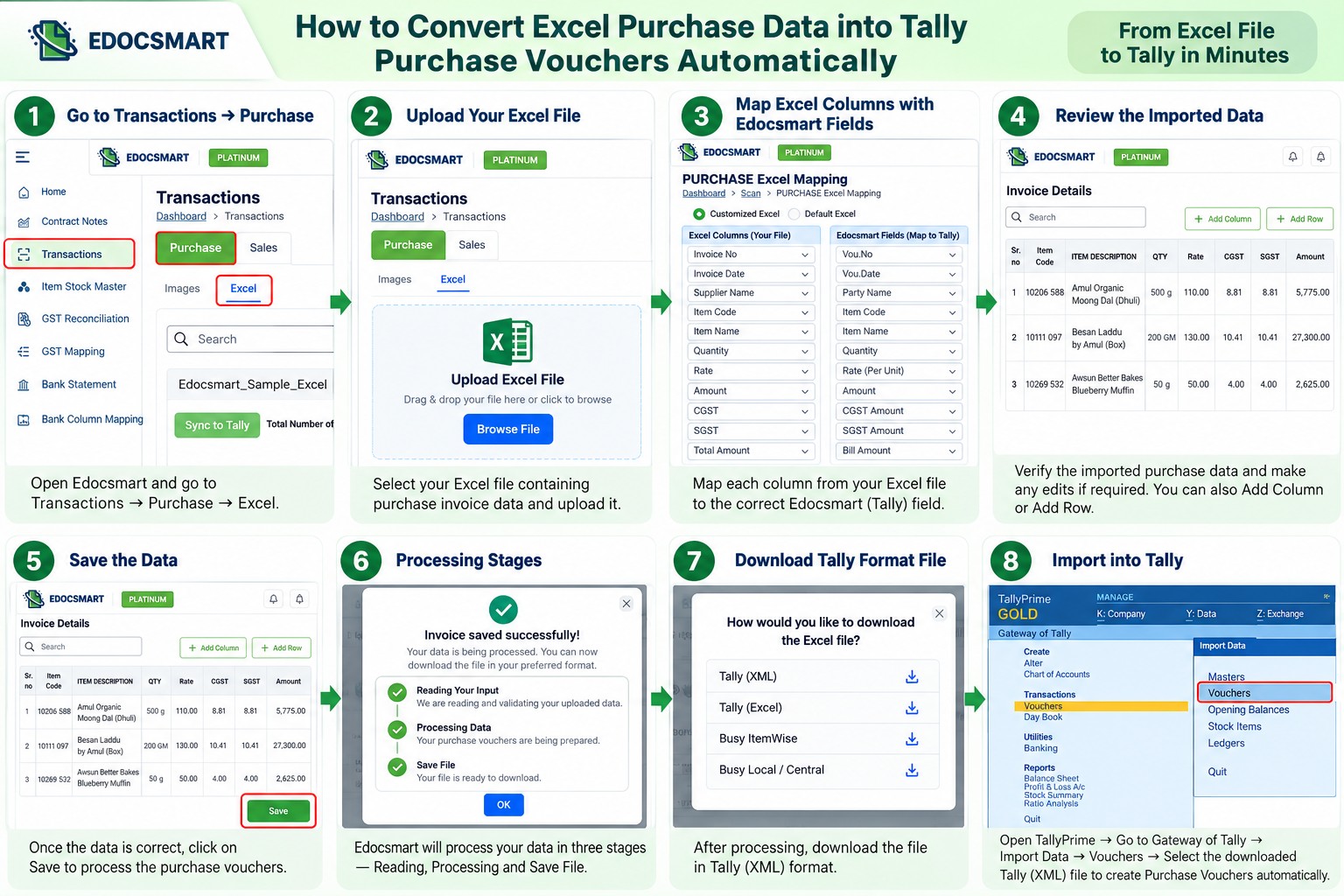
Automate Purchase Voucher Entry from Excel to Tally
Imagine an accounting team handling 100 purchase invoices every day. Suppliers send invoices in different formats, purchase details are maintained in Excel, and the team must manually enter each transaction into Tally Prime.
Every invoice requires attention to supplier details, invoice numbers, stock items, quantities, GST, and purchase amounts. Even when the information is already available in Excel, accountants must repeat the same data entry process in Tally.
This approach consumes valuable time and increases the chances of data entry errors, incorrect stock item selection, and accounting mismatches.
What if you could convert your Excel purchase data into Tally purchase vouchers without manually entering every transaction?
With EdocSmart, businesses can upload purchase data from Excel, map spreadsheet headers to accounting fields, generate invoice-wise documents, verify the imported information, and synchronize up to 100 entries in a single batch through the EdocSmart Tally Connector.
Whether you are a business owner, accountant, or accounting professional managing purchase transactions, automating this workflow can make everyday accounting more efficient.
Explore EdocSmart Excel to Tally to learn more about streamlining your Excel-based accounting workflow.
Why Should You Automate Excel Purchase Data Entry in Tally?
Excel is widely used to maintain purchase records because it is flexible and easy to organize. However, transferring the same information manually into Tally becomes increasingly difficult as transaction volumes grow.
Some common challenges include:
- Repetitive data entry: Entering invoice numbers, supplier names, item descriptions, and amounts individually.
- Different Excel formats: Supplier spreadsheets may use different column names and data structures.
- Stock item mismatches: The item name in an invoice may differ from the name maintained in Tally.
- Accounting configuration: Businesses may have specific requirements for purchase ledgers, taxes, discounts, and inventory.
- Time-consuming verification: Every purchase voucher must be checked to ensure the data is correct.
EdocSmart provides a structured process for importing Excel purchase data, configuring the field mapping, reviewing generated documents, and transferring the transactions to Tally.
Instead of treating your spreadsheet and accounting software as separate workflows, you can connect them through EdocSmart's Excel to Tally solution.
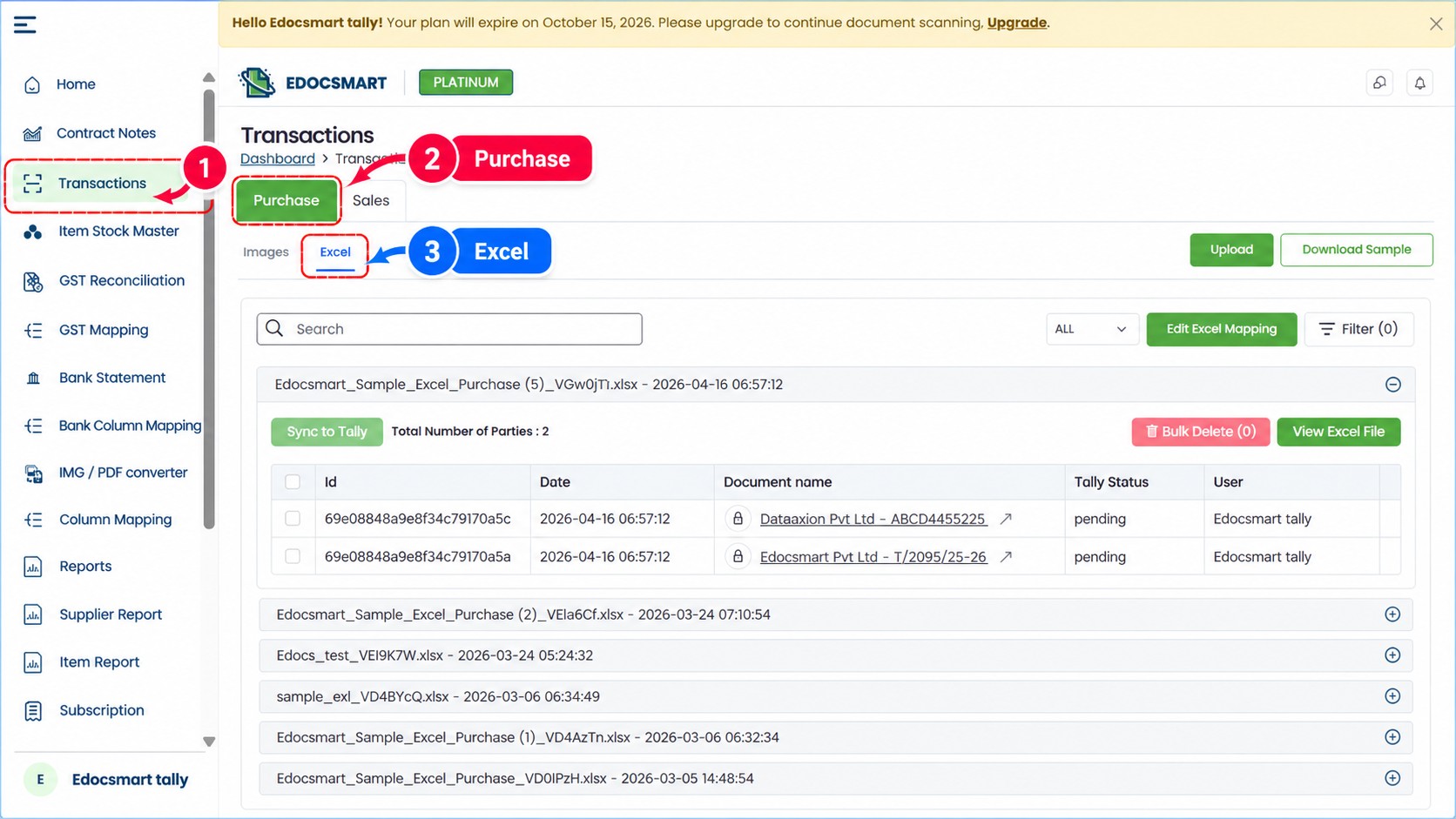
Step 1: Open the Purchase Section and Select Excel
To begin, log in to your EdocSmart account and navigate to the Transactions section.
Select Purchase, then click the Excel option to start importing your purchase data.
Prepare your spreadsheet with the relevant purchase information, such as:
- Purchase invoice number
- Invoice date
- Supplier or party name
- Stock item name
- Quantity and rate
- Taxable value and GST details
- Discount, additional charges, and invoice total, where applicable
The required columns depend on your spreadsheet structure and accounting configuration.
Once your Excel file is ready, upload it to EdocSmart and click Next.
For first-time users, the system redirects them to the mapping window, where the Excel headers can be mapped to the appropriate EdocSmart fields.
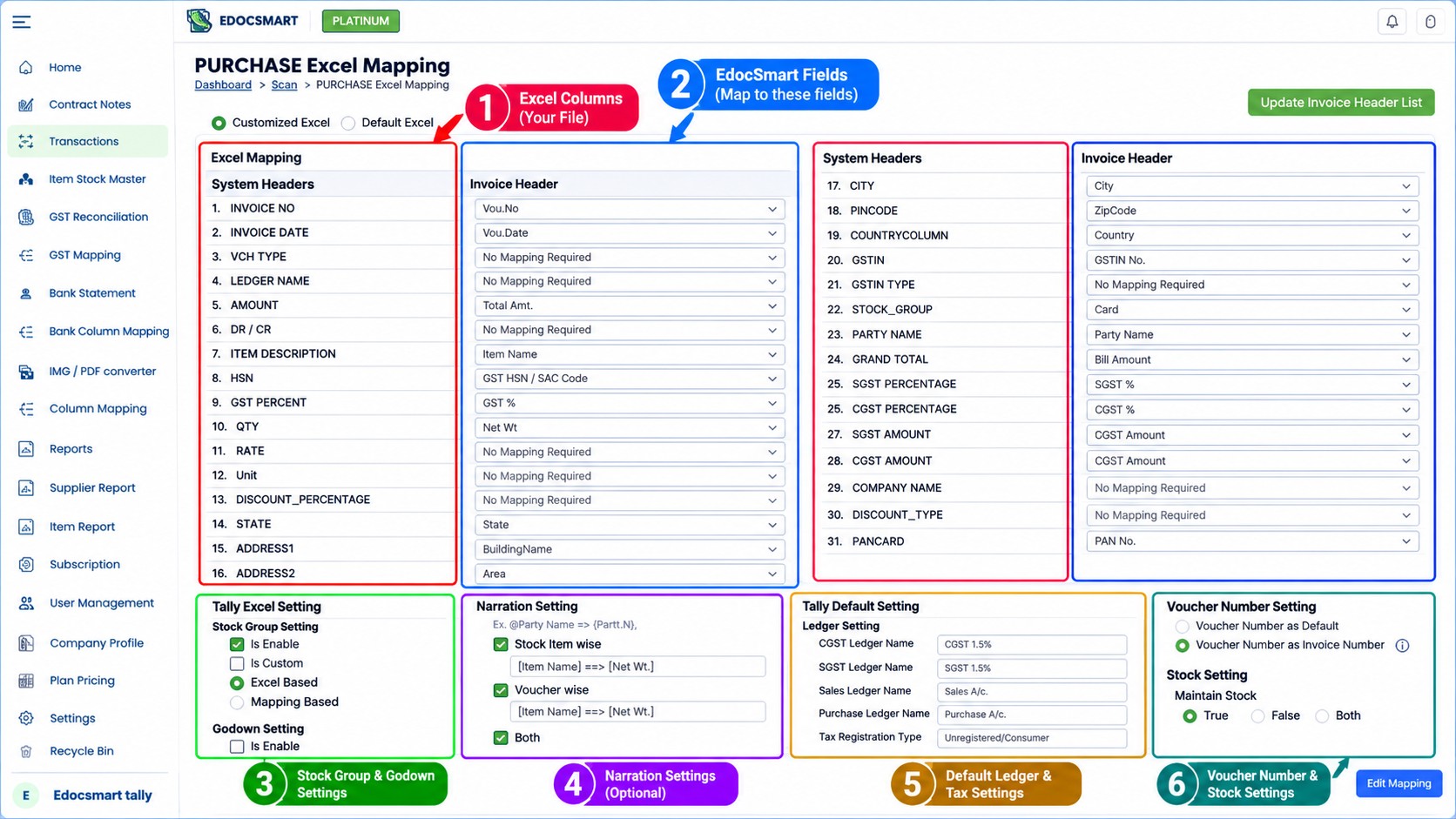
Step 2: Map Excel Headers to EdocSmart Accounting Fields
Different businesses maintain purchase information using different spreadsheet formats.
For example, one company may use Vendor Name, another may use Party Ledger, and another may use Supplier. Similarly, product descriptions may appear under Product, Item Name, or Stock Item.
These differences do not necessarily mean that your Excel file must be redesigned.
EdocSmart's mapping window allows you to associate your Excel headers with the corresponding accounting fields.
Consider the following example:
|
Excel header |
Corresponding field |
|
Bill Number |
Purchase invoice number |
|
Vendor Name |
Supplier or party ledger |
|
Product |
Stock item |
|
Qty |
Quantity |
|
Unit Price |
Rate |
|
GST Amount |
Applicable tax amount |
|
Net Amount |
Relevant invoice amount field |
These are illustrative mappings. Select the appropriate fields available in your actual EdocSmart configuration.
Configure the mapping according to your accounting requirements
Beyond basic column mapping, businesses may need different accounting configurations depending on their inventory management, ledger structure, taxes, discounts, and other purchase requirements.
Configure the available options according to your accounting process before proceeding.
If your business requires additional fields or a customized purchase accounting workflow, you can contact the EdocSmart team to discuss the required configuration.
This flexibility helps businesses work with their existing Excel formats instead of forcing every team to follow the same spreadsheet structure.
Learn more about the complete Excel to Tally automation workflow.
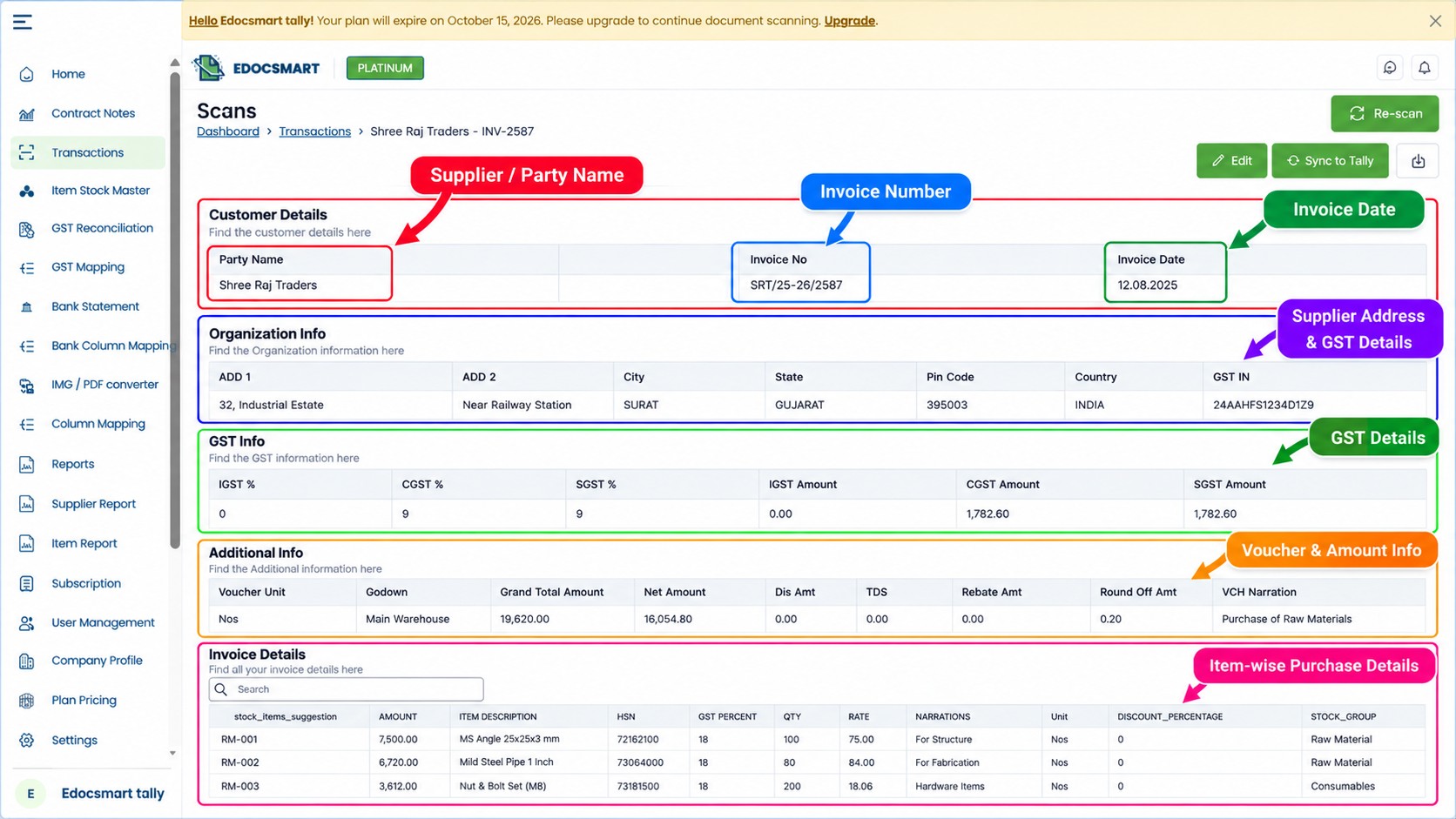
Step 3: Automatically Generate Invoice-Wise Documents
After uploading the spreadsheet and configuring the mapping, EdocSmart processes the purchase data and creates separate documents based on invoice numbers.
For example, suppose your Excel file contains 100 purchase invoices. EdocSmart can organize the transactions into invoice-wise documents, making it easier to review each purchase before transferring it to Tally.
This is particularly helpful when your accounting team receives a consolidated spreadsheet containing transactions from multiple suppliers.
Instead of reviewing the entire spreadsheet as one large record, you can inspect the generated documents individually.
You can check the invoice number, supplier information, stock items, quantities, amounts, and other mapped fields.
For
spreadsheets containing multiple rows per invoice, ensure that the data and
configured grouping behavior correctly reflect the intended invoice structure.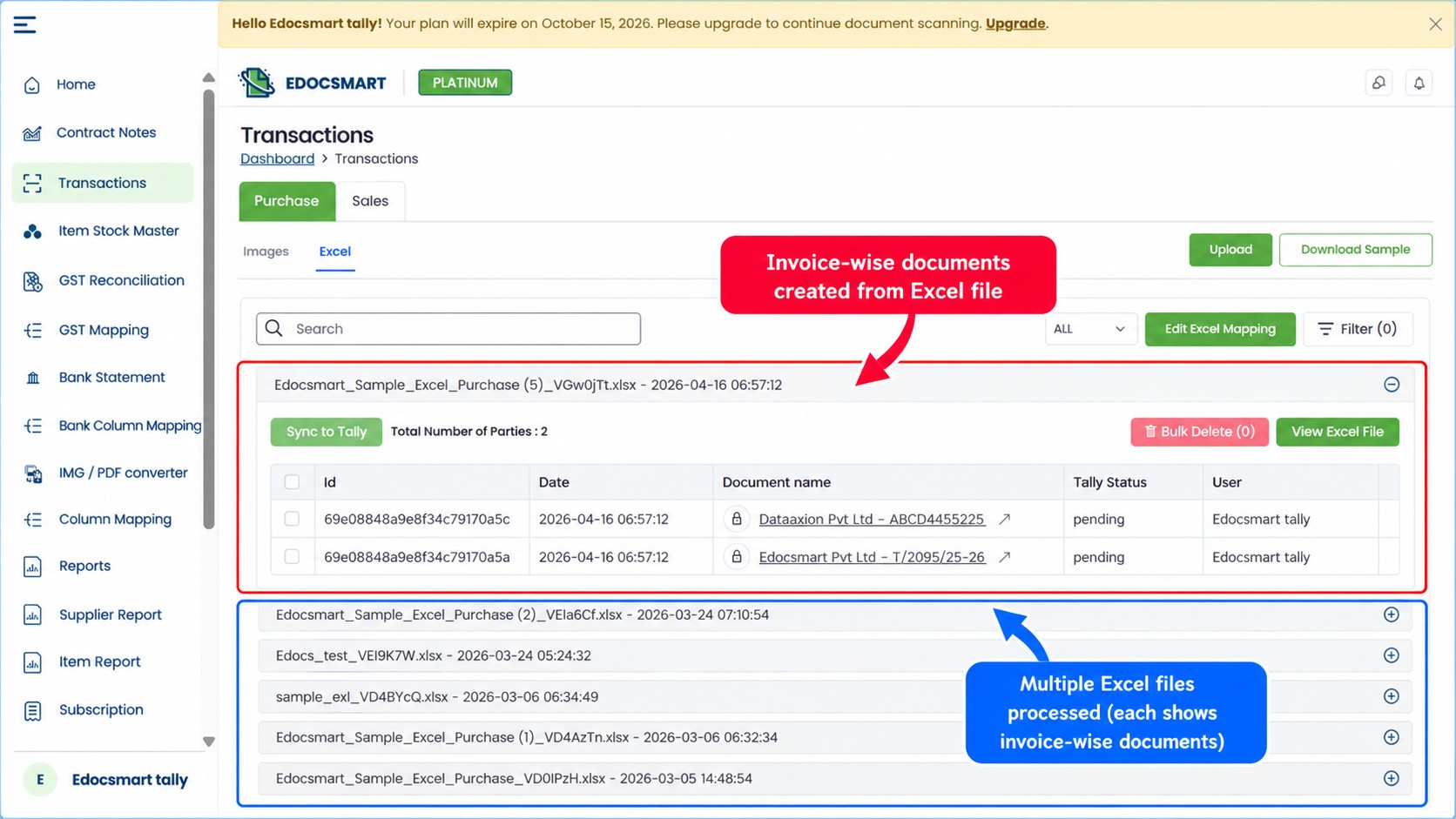
Step 4: Verify Purchase Documents Before Synchronization
Before creating purchase vouchers in Tally, review the generated documents to confirm that the imported information matches your accounting requirements.
This step is especially important when processing a new Excel template or handling a large batch of purchase transactions.
Check the following details:
- Invoice number: Confirm that each document contains the correct invoice reference.
- Supplier ledger: Verify the supplier or party information.
- Stock items: Ensure that the intended inventory items have been selected.
- Quantity and rate: Compare the imported values with the original Excel data.
- GST and totals: Review the tax amounts, discounts, additional charges, and invoice totals.
- Accounting settings: Confirm that the document follows your configured purchase workflow.
For example, if an invoice contains taxable goods worth ₹10,000 and applicable GST of ₹1,800, the expected total before additional adjustments is ₹11,800.
The generated document should reflect the intended accounting treatment and the figures in the source invoice.
Once the documents have been reviewed and appear correct, you can prepare them for synchronization.
Step 5: Download and Log In to the EdocSmart Tally Connector
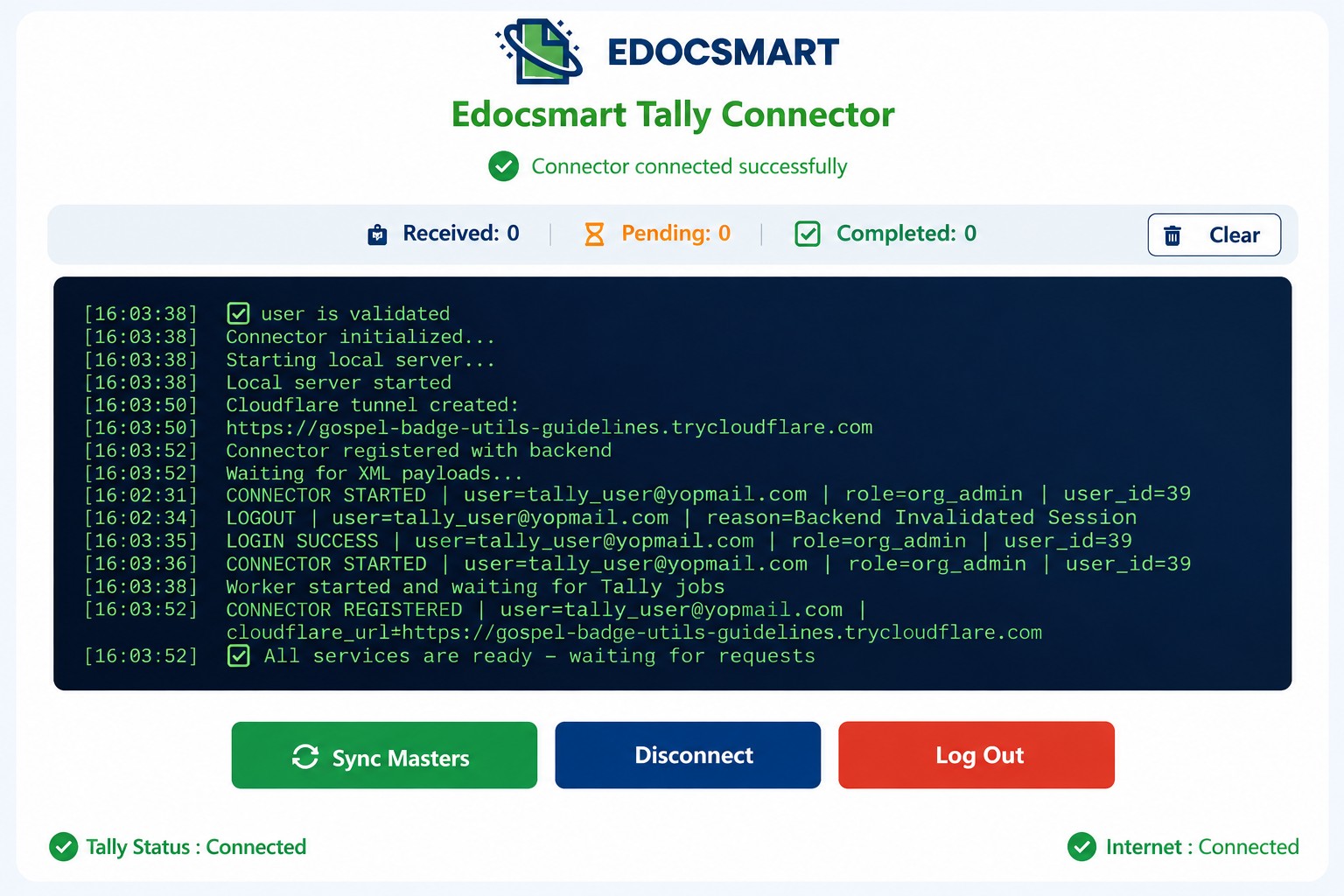
To synchronize the prepared purchase documents with Tally, you need the EdocSmart Tally Connector.
The connector links your EdocSmart workflow with your local Tally environment and facilitates the transfer of accounting data.
If this is your first time using the integration, download the EdocSmart Tally Connector and log in using the same credentials associated with your EdocSmart account.
Follow these steps:
- Download the EdocSmart Tally Connector.
- Install and launch the connector.
- Log in using your EdocSmart credentials.
- Ensure that Tally is running and accessible to the connector.
- Return to EdocSmart and prepare your verified purchase documents for synchronization.
Before starting, confirm that the correct Tally company is open and that the connector can communicate with the accounting environment.
Step 6: Synchronize Tally Masters Using Sync Master
Before importing purchase vouchers, it is useful to ensure that the relevant accounting masters are available and correctly mapped.
Tally maintains masters such as supplier ledgers, purchase ledgers, and stock items. Purchase vouchers need to reference the appropriate masters in the destination company.
EdocSmart provides a Sync Master option in the Tally Connector to synchronize supported master information from Tally with EdocSmart.
To use this feature:
- Open the EdocSmart Tally Connector.
- Click Sync Master.
- Allow the supported master data to synchronize.
- Use the available master information when reviewing and mapping purchase documents.
For example, if your Tally company already contains a supplier ledger named ABC Traders, synchronized master information helps you work with the corresponding accounting records instead of relying only on the names supplied in the Excel spreadsheet.
Correct master synchronization can help reduce inconsistencies and improve the accuracy of your purchase voucher workflow.
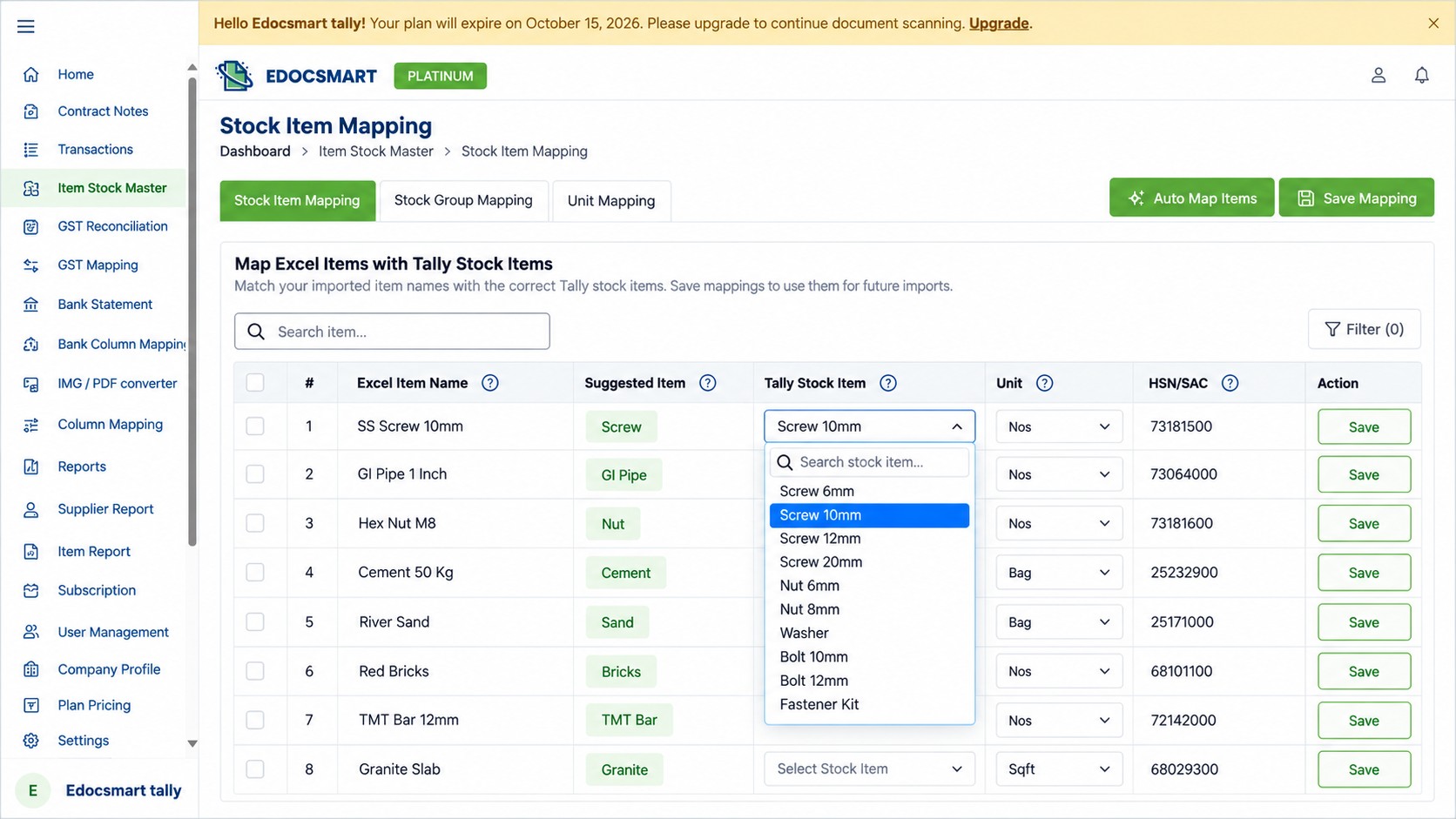
Step 7: Map Excel Stock Items to the Correct Tally Inventory Items
One common challenge in purchase accounting occurs when a supplier uses a different product name from the one maintained in your Tally inventory.
For example, the supplier's Excel file may contain Premium Copier Paper A4, while your Tally stock item is named A4 Copier Paper.
Both names may represent the same product, but the descriptions do not match exactly.
EdocSmart provides a stock item selection dropdown in the supported mapping workflow, allowing you to select the appropriate item from the available Tally stock item list.
For example:
|
Supplier's Excel item |
Tally stock item |
|
Premium Copier Paper A4 |
A4 Copier Paper |
|
Blue Ball Pen 0.7 mm |
Ball Pen Blue |
|
Office File Large |
Office File |
These examples illustrate how supplier descriptions may differ from your internal inventory names.
Once the correct stock item has been mapped, EdocSmart can reuse the applicable mapping in subsequent transactions. This reduces repeated manual selection when the same supplier item appears in future purchase invoices.
The result is a more consistent process for matching supplier descriptions with your established Tally inventory.
Step 8: Click Sync to Tally and Process Up to 100 Entries in One Batch
After reviewing your documents, configuring the connector, and completing the required mappings, you are ready to synchronize your purchase transactions.
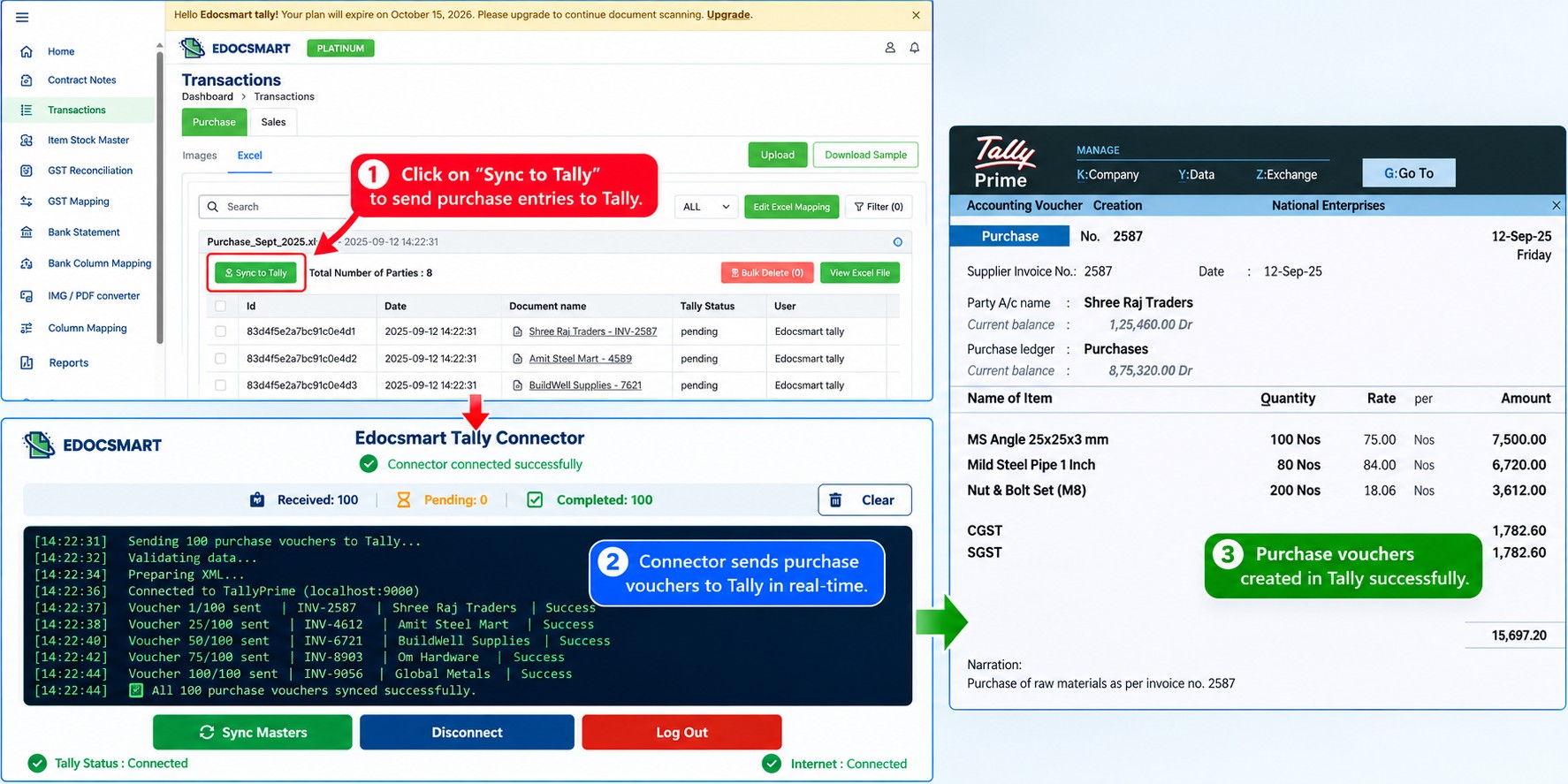
EdocSmart provides a Sync to Tally button to initiate the transfer of prepared purchase documents.
You can synchronize up to 100 entries in a single batch, subject to your workflow and configuration, instead of creating each purchase voucher manually.
Follow these steps:
- Confirm that the purchase documents have been verified.
- Ensure that the EdocSmart Tally Connector is logged in.
- Check that the correct Tally company is open and accessible.
- Click Sync to Tally to start the synchronization.
- Monitor the connector logs as transactions are processed.
- Open Tally and verify the resulting purchase vouchers.
As synchronization begins, activity starts appearing in the connector logs. Purchase vouchers begin getting created in Tally as the connector processes the transactions successfully.
Once the process finishes, review the logs and verify the vouchers in Tally. If a transaction reports an error, investigate the cause and reprocess it using the supported workflow.
What If You Need a Customized Purchase Accounting Workflow?
Every business has its own accounting practices. Some require additional fields, specific ledger structures, customized item handling, or particular tax and discount configurations.
If the available settings do not fully accommodate your requirements, contact the EdocSmart team to discuss a customized purchase accounting workflow.
To help define the requirement, share a sample Excel file, the expected purchase voucher structure, and the accounting rules your business follows.
You can also explore EdocSmart Invoice OCR Software if you want to learn more about automating invoice-related workflows.
Frequently Asked Questions
1. Can I convert Excel purchase data into Tally
purchase vouchers automatically?
Yes. EdocSmart allows you to upload Excel purchase data, map the relevant headers, review the generated documents, and synchronize them with Tally using the EdocSmart Tally Connector.
2. Do my Excel headers need to match EdocSmart
fields?
No. You can map your spreadsheet headers to the appropriate EdocSmart fields through the mapping window.
3. Can I process multiple purchase invoices from
one Excel file?
Yes. EdocSmart can create invoice-wise documents based on invoice numbers. The result depends on how the source data is structured and how grouping is configured.
4. Can I sync 100 purchase entries to Tally at
once?
EdocSmart supports synchronization of up to 100 entries in one batch. Review the documents before syncing and verify the results afterward.
5. What if my stock item names are different in
Excel and Tally?
Use the available stock item dropdown to select the corresponding Tally item. Applicable mappings can be reused in subsequent transactions.
6. Do I need the EdocSmart Tally Connector?
Yes. The connector is required for this synchronization workflow. Log in with your EdocSmart credentials and ensure that Tally is accessible before starting the transfer.
7. Can I customize the purchase accounting
workflow?
If your business needs additional fields or a specialized accounting process, contact the EdocSmart team to discuss customization requirements.
Conclusion: Simplify Excel to Tally Purchase Voucher Creation
Manually transferring purchase transactions from Excel into Tally can become inefficient as your business grows.
With EdocSmart, you can upload your Excel file, map spreadsheet headers, generate invoice-wise documents, verify accounting details, synchronize supported Tally masters, and map supplier item names to your inventory.
Once everything is configured, the Sync to Tally workflow lets you process up to 100 entries in one batch while monitoring synchronization through connector logs.
For businesses that regularly maintain purchase data in Excel, this approach can reduce repetitive data entry and create a more structured accounting workflow.
Ready to automate your purchase entries?
Explore EdocSmart Excel to Tally to simplify purchase voucher creation and streamline your accounting process. If you need a specialized purchase workflow, contact the EdocSmart team to discuss your requirements.