How to convert excel to tally
Convert Excel data into Tally-ready entries with easy upload, column mapping, review, and direct sync through Edocsmart.
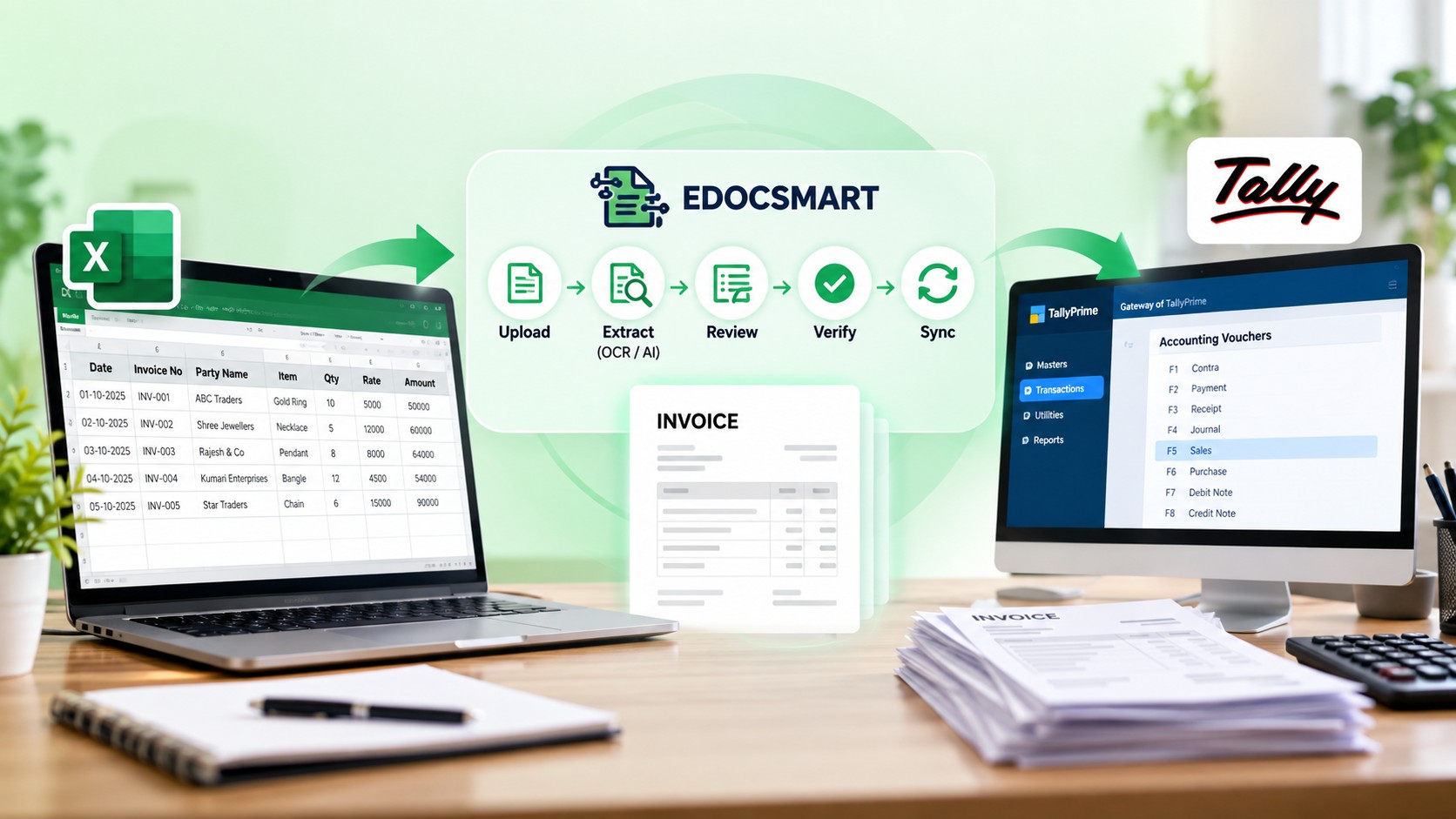
How to convert Excel to Tally with Edocsmart is a quick and easy procedure to transfer the data from excel to tally.
But if you want to migrate your Excel to Tally without entering each transaction manually, then Edocsmart, offers a structured way to automate it.
Existing excel files can be uploaded, the columns can be mapped, individual voucher files can be created, the information can be validated, and finally data can be synced directly to Tally.
The Excel to Tally Software Process is helpful to any Accountant or Enterprise dealing with huge volume of Excel Sales/Purchase/Invoice Ledger/Stock related Data.
What Is Excel to Tally Import?
Excel to Tally import is the process of transferring accounting data stored in an Excel spreadsheet into TallyPrime.
Businesses frequently maintain the following data in Excel:
● Sales transactions
● Purchase transactions
● Payment entries
● Receipt entries
● Party and ledger information
● Item details
● Quantity and rate
● GST and HSN details
● Voucher numbers and dates
Entering this information manually into Tally can be time-consuming, especially when an Excel file contains hundreds of transactions.
To upload data from an excel to tally step by step :
With Edocsmart, businesses can convert their Excel rows into individual Tally vouchers through a simple upload, mapping, validation, and synchronization process.
Step 1: Sign In to Edocsmart
The Excel to Tally process starts by signing in to the Edocsmart platform.
Once the user logs in, they can
access the Excel-to-Tally workflow from the dashboard.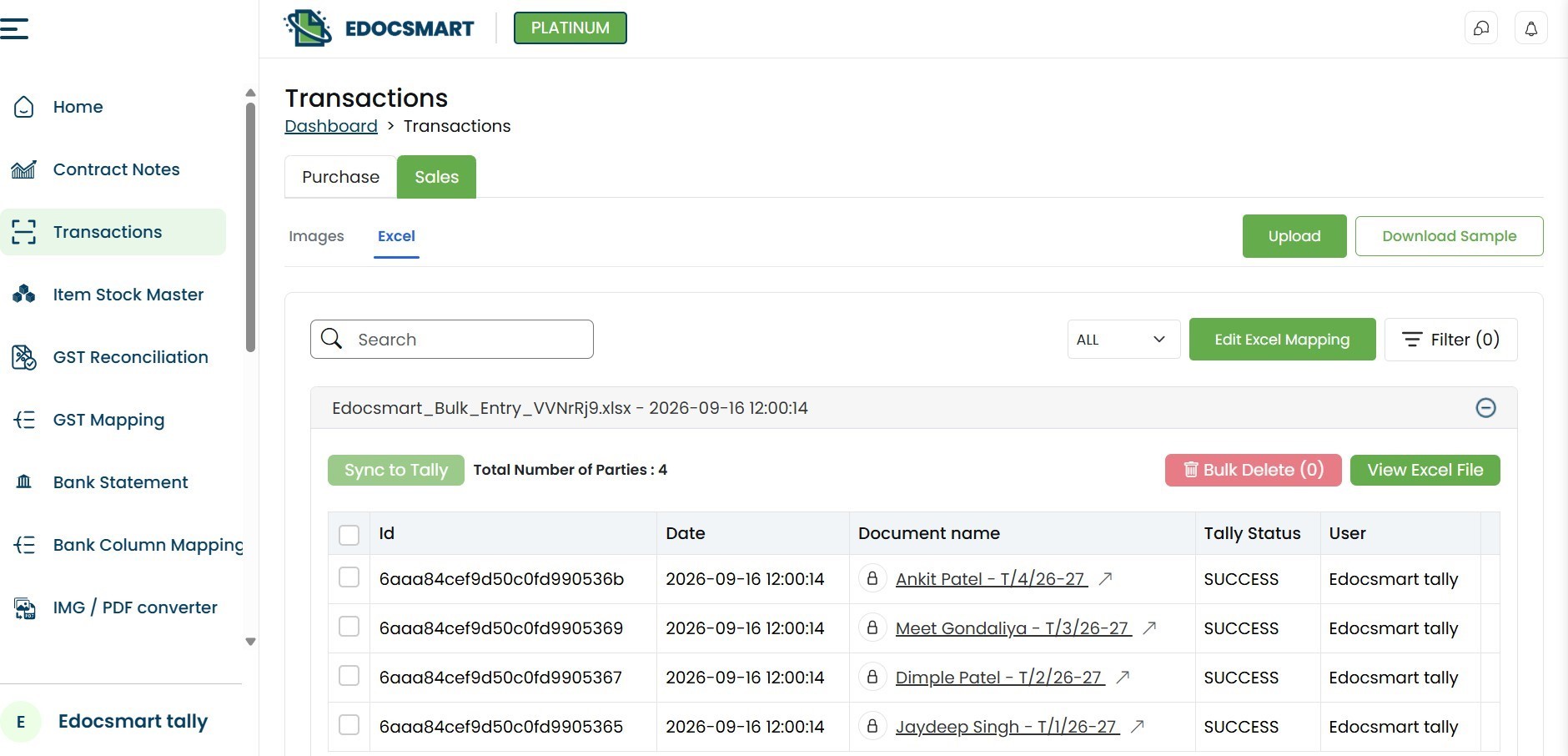
Step 2: Upload the Excel File
The next step is uploading the Excel file to Edocsmart.
One of the major advantages of the workflow is that the client does not have to maintain one rigid Excel structure.
Different businesses may use Excel sheets with headers
such as: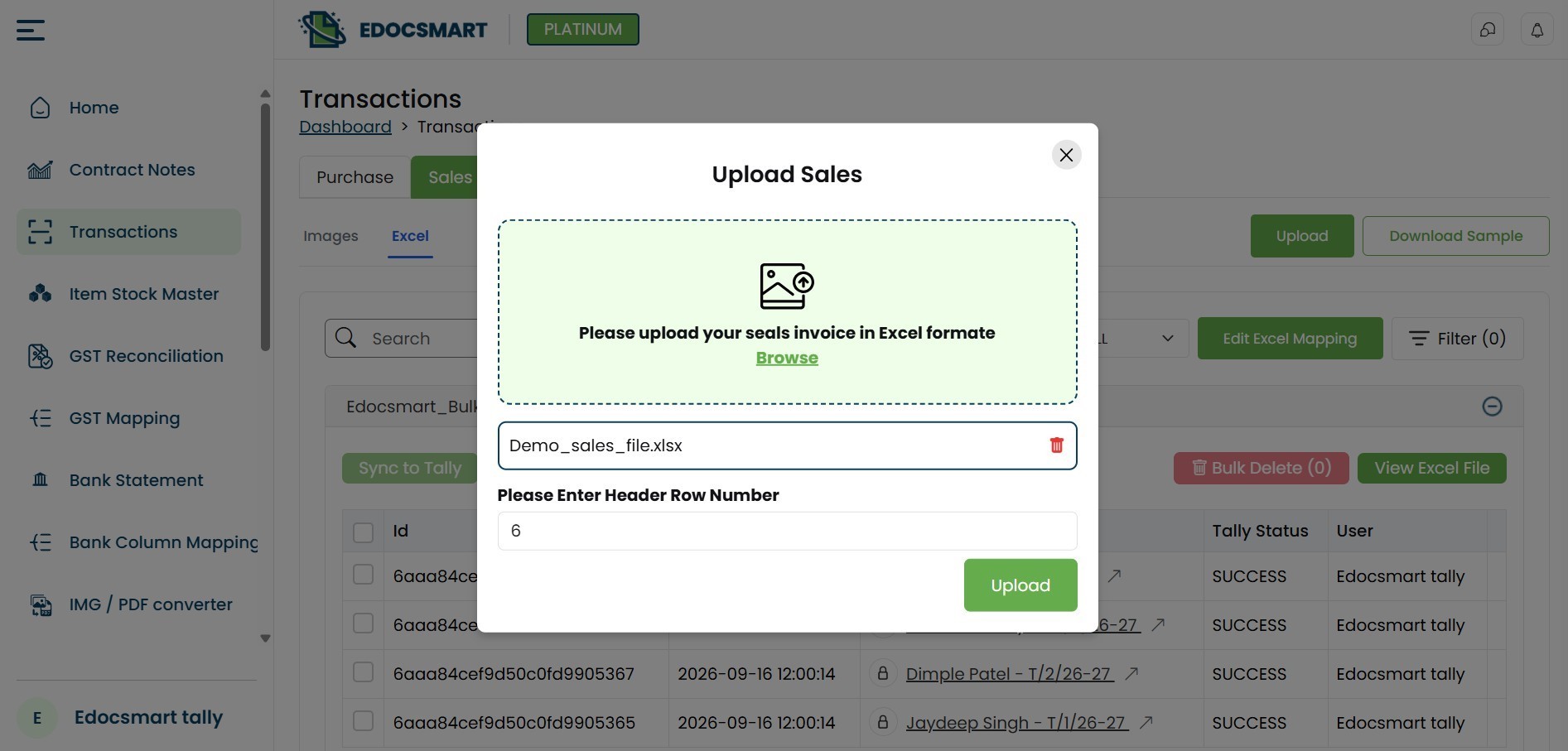 Another business may use completely
different names for the same information.
Another business may use completely
different names for the same information.
Therefore, Edocsmart uses a mapping
process instead of forcing every client to redesign their existing Excel files.
Step 3: Map Excel Headers with Edocsmart Headers
After the Excel file is uploaded, the user moves to the mapping stage.
Edocsmart maintains a predefined set of standard or default fields required for accounting and Tally voucher creation.
The headers available inside the uploaded Excel file are mapped with the corresponding Edocsmart fields.
The user only needs to tell the system which Excel column represents which Edocsmart field.
This mapping layer is important because different clients can maintain completely different Excel formats while Edocsmart converts the information into one standardized internal structure.
Once all required columns are mapped
correctly, the mapping process is completed.
Step 4: Edocsmart Creates Individual Voucher Documents
After mapping is completed, Edocsmart starts processing the Excel data.
Suppose an uploaded Excel file contains 500 voucher records.
Excel Voucher Import Tally: Instead of treating
the entire Excel sheet as one document, Edocsmart creates separate documents
for the individual vouchers available in the file.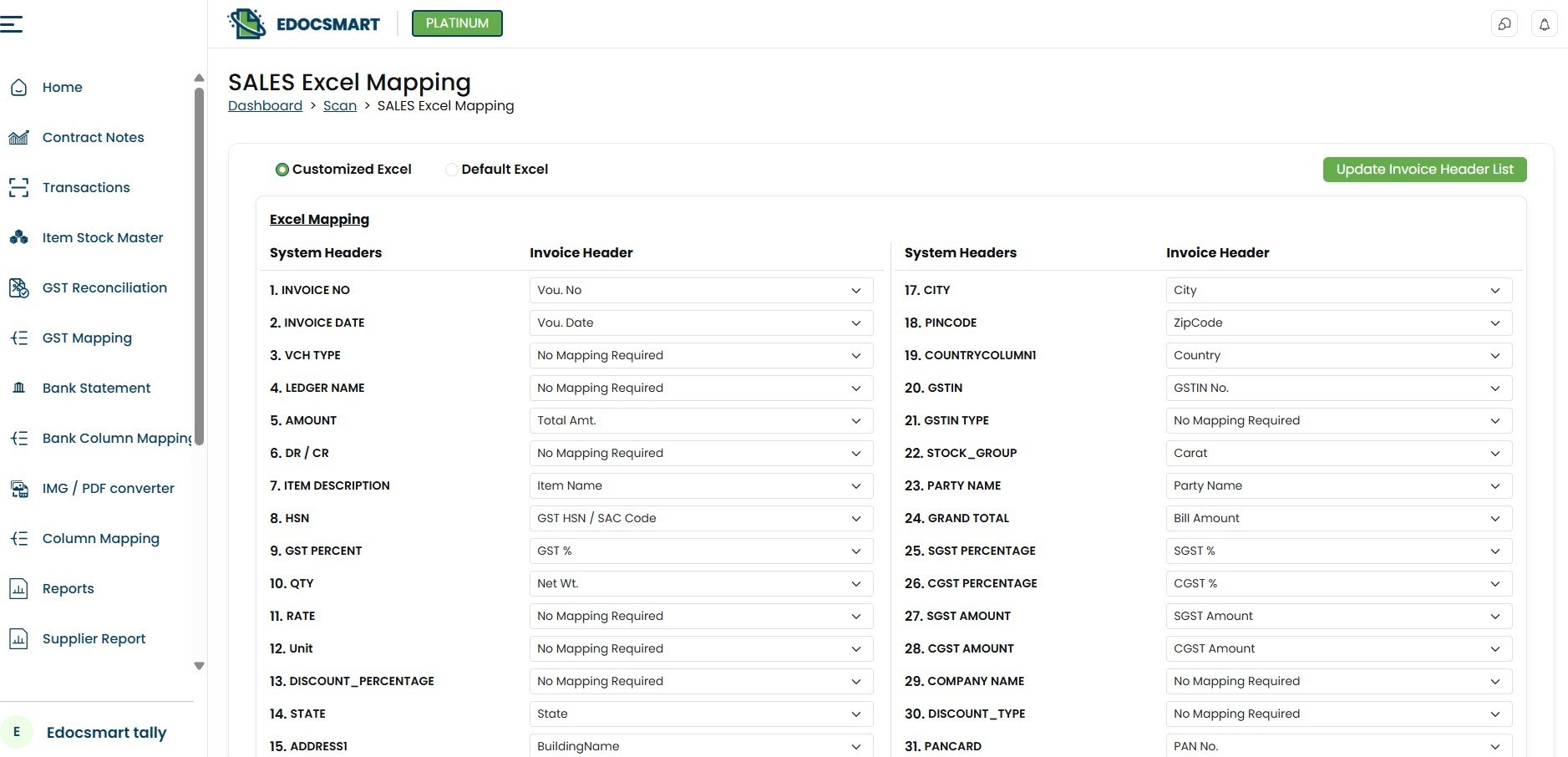 Depending on the uploaded data, these documents may represent different transaction types such as
●Purchase vouchers
●Sales vouchers
●Accounting vouchers
●Inventory-related transactions
●Ledger-related transactions
Creating separate documents makes
the information easier to review, manage, verify, and eventually sync with
Tally.
Step 5: Verify the Generated Documents
Once all voucher documents are generated, the user can review the information before sending it to Tally.
Because the information is being taken directly from the mapped Excel columns, there is no need to manually retype every transaction.
This significantly reduces the possibility of manual data-entry errors.
However, verification remains an important step.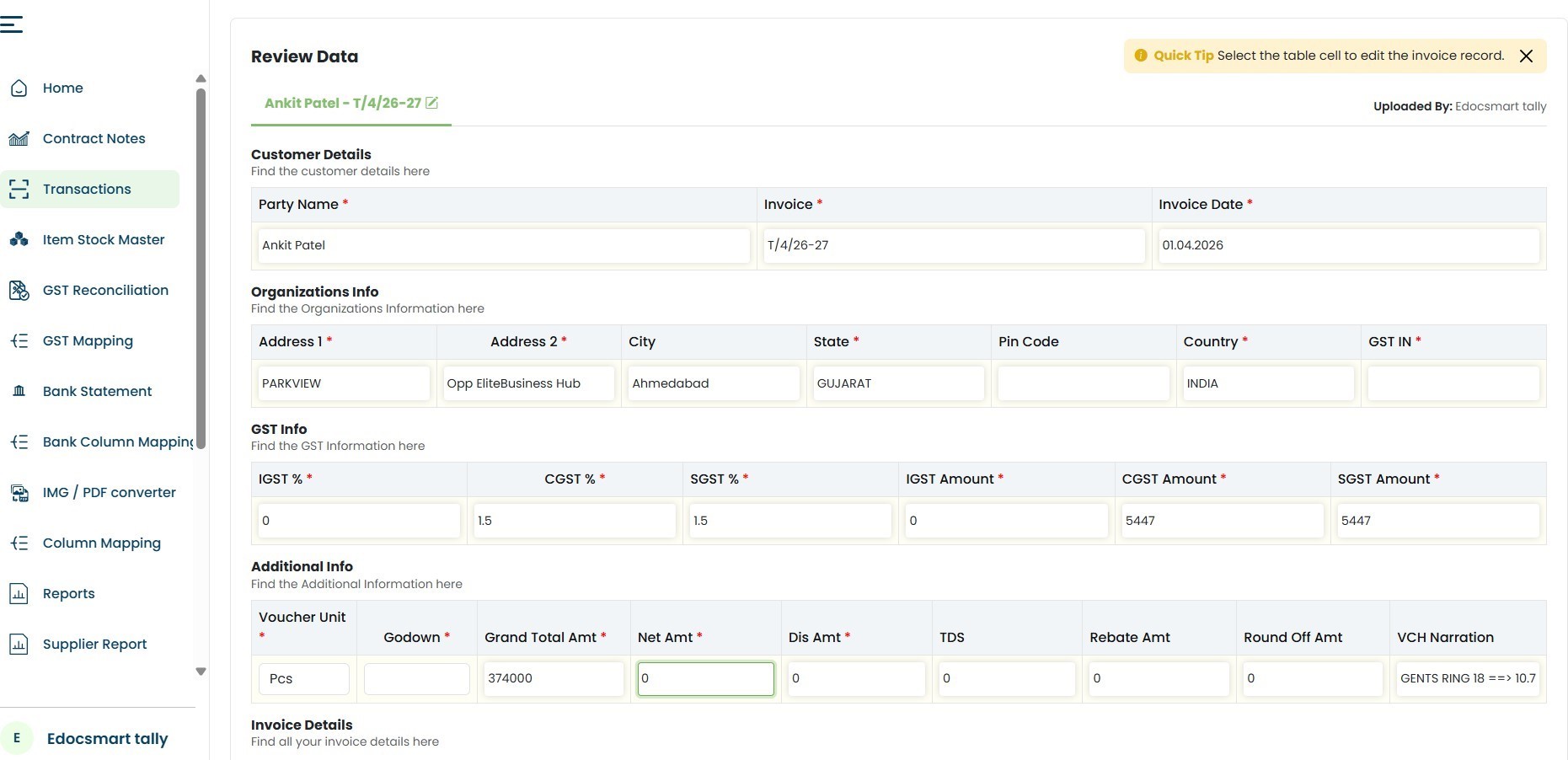
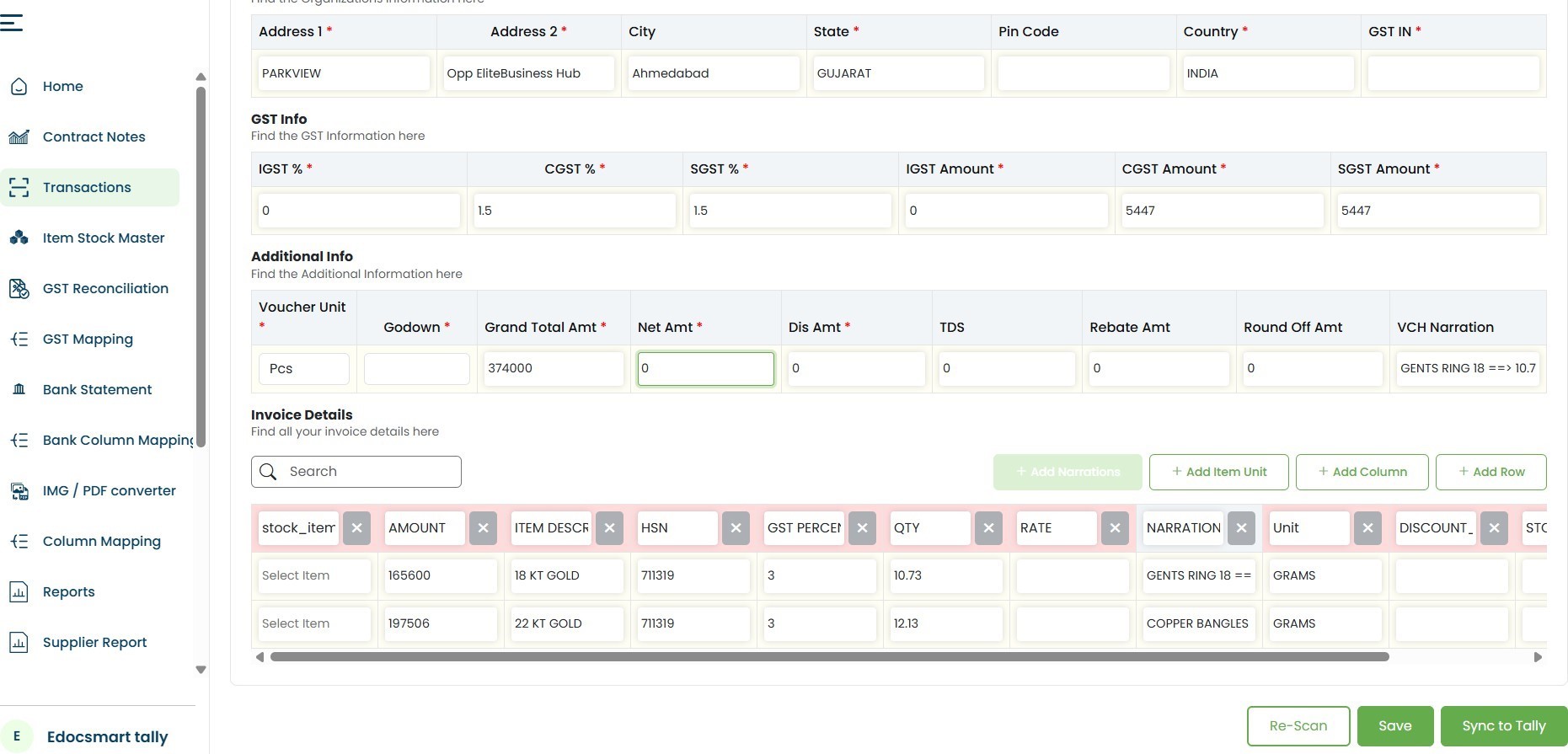 Once the user confirms that the
generated documents contain the expected information, the data is ready to be
transferred into Tally.
Once the user confirms that the
generated documents contain the expected information, the data is ready to be
transferred into Tally.
Step 6: Click “Sync to Tally”
After verification, Edocsmart provides a Sync to Tally option.
This is where the actual transfer from the cloud-based Edocsmart, platform to the user's locally running Tally system begins.
The user simply clicks: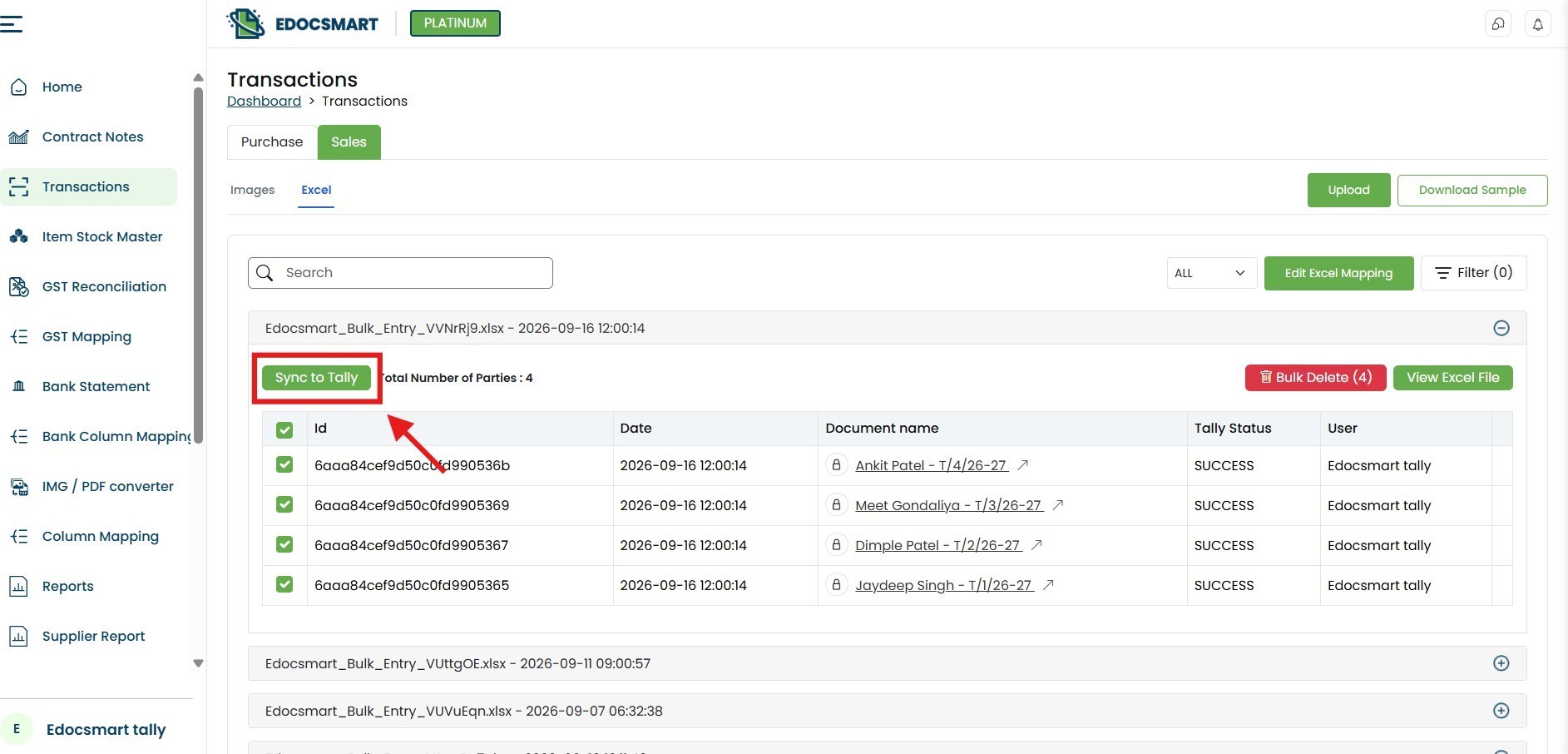 Instead of manually creating every
voucher inside Tally, Edocsmart prepares the required accounting information
and sends it through its connector.
Instead of manually creating every
voucher inside Tally, Edocsmart prepares the required accounting information
and sends it through its connector.
But there is an important component working between Edocsmart and Tally.
That component is the Edocsmart Connector.
Step 7: Edocsmart Connector Connects the Website with Local Tally
Tally generally runs locally on the user's computer or within the organization's environment.
Edocsmart, on the other hand, is accessed through the web.
Therefore, a secure communication layer is required between the Edocsmart platform and the locally running Tally application.
The Edocsmart Connector performs this role.
The workflow becomes: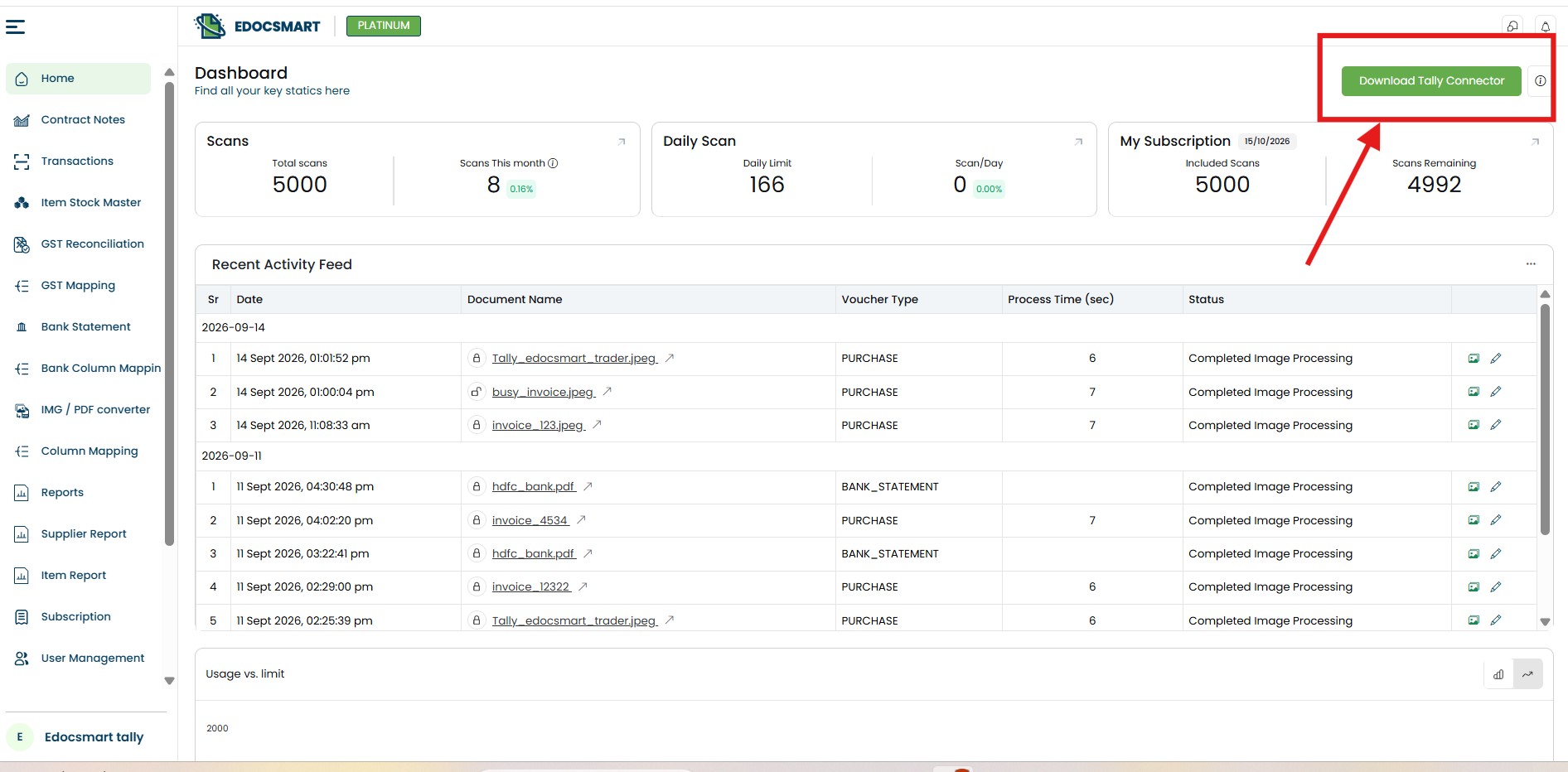 When the user clicks the Sync to
Tally button, the required requests are passed to the connector.
When the user clicks the Sync to
Tally button, the required requests are passed to the connector.
The connector then communicates with the locally available Tally system and transfers the required accounting data.
In simple terms, the connector acts as a bridge between Edocsmart and Tally.
Without requiring the user to manually export, copy, and recreate every transaction, the connector handles the communication between both systems.
Step 8: Vouchers Are Automatically Created in Tally
Once the connector receives the information from Edocsmart, it sends the data to Tally.
Tally then receives the relevant transaction information and creates the required accounting records.
Depending on the Excel data, the process can include the creation or processing of:
bro merko isko normal text me kr ke doo chomu
Sales Vouchers
Excel Sales Entry to Tally: Sales transactions available in Excel can be converted into sales voucher entries in Tally.
Purchase Vouchers
Excel Purchase Entry to Tally: Purchase-related records can be transferred and created as purchase vouchers.
Ledgers
Required ledger information can be handled during the transfer based on the workflow and configuration.
Stock Items
Product or inventory information in Excel can be mapped with the corresponding Tally stock items.
Automated Excel Import Tally: Instead of
entering these records one by one, multiple voucher records can be processed
through a single automated workflow.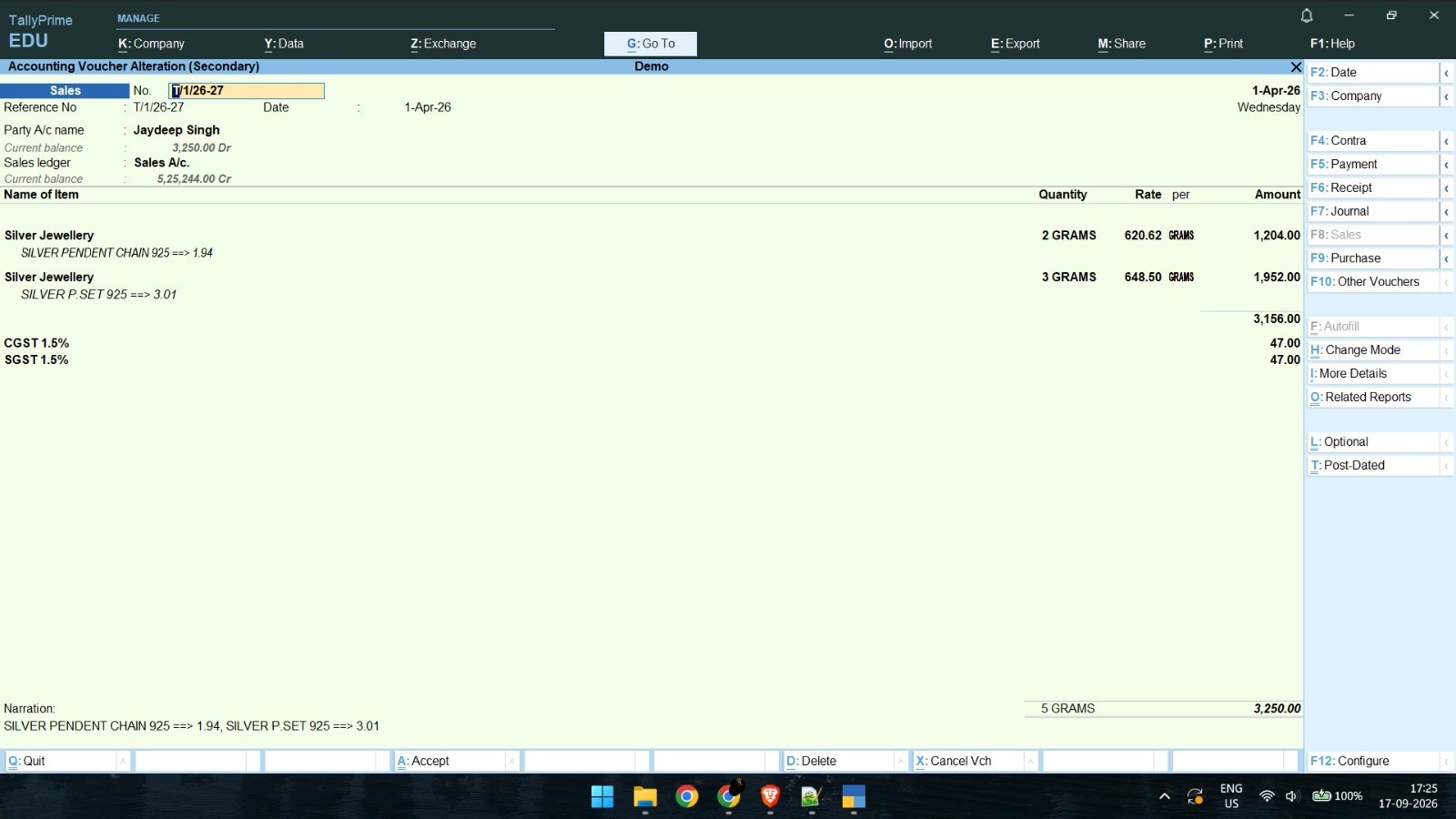
Why Edocsmart Works with Different Excel Format
- How Header Mapping Makes Excel-to-Tally Import Flexible
- Why the Edocsmart Tally Connector Is Important
- What Happens After You Click “Sync to Tally”?
- How Bulk Excel Data Is Converted into Individual Tally Vouchers
- Excel-to-Tally Automation vs Manual Data Entry
- Which Tally Entries Can Be Created from Excel?
Few advantages of Automation of Excel to Count with Edocsmart are listed below:
The workflow can offer some practical benefits to accounting teams.
●It minimizes repetitive manual data entry as transactions that exist in Excel don't have to be re-entered in Tally.
●It provides configurable header mapping that enables it to support various Excel structures.
●Records of all the vouchers can be processed simultaneously rather than transaction by transaction.
●Separate Voucher documents also enable users to check the data before sync.
●Most of all, the Edocsmart Connector establishes a communication channel between the web platform and the locally running Tally and enables to move the accounting details from Excel to Tally without breaking the chain of communication.
Frequently Asked Questions
1. How to convert
Excel to Tally?
Upload your Excel file to Edocsmart, map the headers, verify the vouchers, and click Sync to Tally.
2. How to import
Excel data into Tally?
Use Edocsmart to upload and map your Excel data, then sync it directly to your local Tally.
3. How to upload bulk
Excel data to Tally?
Bulk Excel Upload to Tally: Upload the bulk Excel file in Edocsmart. It creates separate voucher documents that can be verified and synced to Tally.
4. How to import
sales entries from Excel to Tally?
Upload your sales Excel file, map the required fields, verify the sales vouchers, and sync them through Edocsmart.
5. How to import
purchase entries from Excel to Tally?
Edocsmart converts mapped purchase data into voucher documents and sends them to Tally after verification.
6. How to create
multiple Tally vouchers from Excel?
Edocsmart processes multiple Excel records and creates separate vouchers automatically for each transaction.
7. How to handle
different Excel formats for Tally?
Edocsmart uses header mapping, so different Excel column names can be matched with the required Tally fields.
Conclusion
When you automate the conversion of an excel to tally, this is much easier to understand.
Now with Edocsmart, users can upload their existing Excel file, map it with standard fields, generate individual voucher documents, verify the data and sync all with the Edocsmart Connector to Tally.
The sales vouchers, purchase vouchers, ledger and stock information can be created from one structured EXCEL to tally the amount of repetitive data entry and handle bulk accounting records with Tally more efficiently.