How to Convert PDF Bill to Tally
Convert multiple PDF bills into verified Tally-ready purchase vouchers with automated data extraction, review, mapping, and bulk sync through Edocsmart.
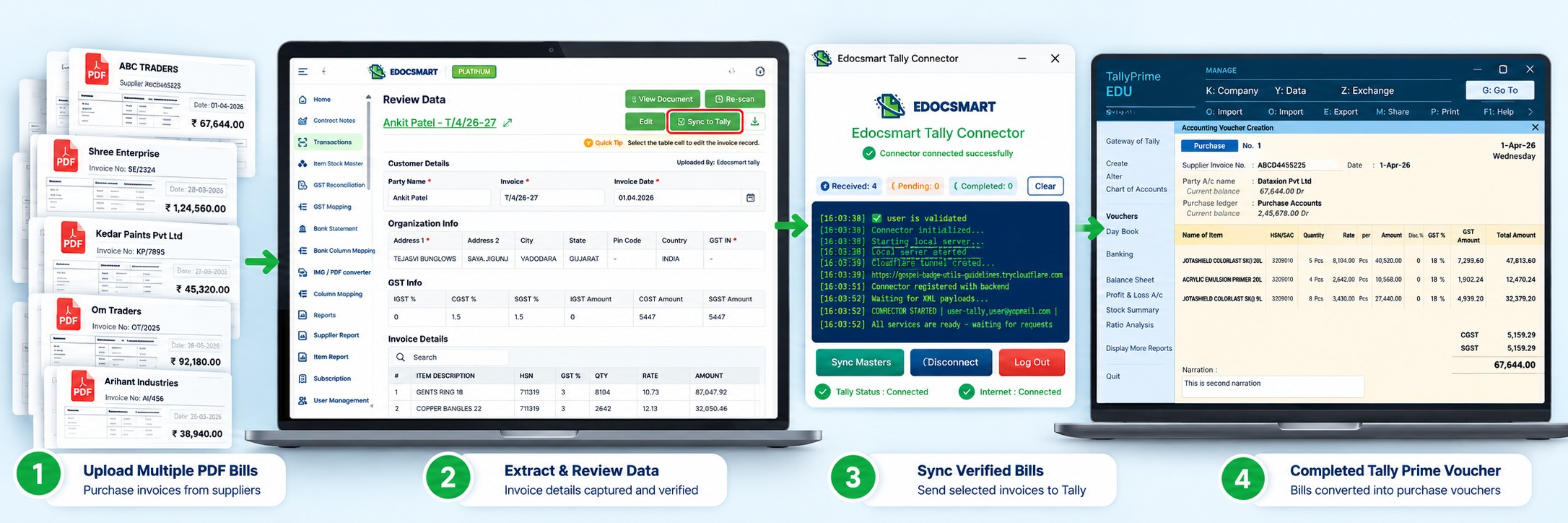
Businesses receive purchase bills every day through email, WhatsApp, supplier portals, and other digital channels. Most of these bills are already available as PDF files and contain almost everything required for accounting—supplier name, invoice number, invoice date, GSTIN, HSN/SAC, item details, quantity, rate, tax, and final amount.
The problem begins when the same information has to be entered into Tally again.
If there are only one or two bills, manual entry may seem manageable. But when an accountant receives 20, 50, or even hundreds of PDF bills, opening every document and recreating each purchase voucher manually becomes repetitive.
A better approach is to convert the information already available inside the PDF into structured accounting data, review it, map it with the required Tally fields, and then transfer the verified transactions into Tally.
With Edocsmart, this process can also be used for multiple invoices. Instead of handling every bill as a separate manual task, multiple documents can be processed and managed from the same transaction workflow.
What Does It Mean to Convert a PDF Bill to Tally?
Converting a PDF bill to Tally does not simply mean changing a .pdf file into another file format.
A PDF is primarily a document. Tally requires structured accounting information.
For example, a purchase bill may show the supplier name, invoice number, invoice date, GSTIN, product description, HSN/SAC, quantity, rate, GST percentage, tax amount, and grand total. Those details first need to be identified and organized into individual accounting fields.
The information then needs to be reviewed because the supplier printed on the PDF may need to correspond with a specific Party Ledger in Tally. Similarly, an item description on the invoice may need to correspond with an existing Stock Item.
So a practical PDF to Tally process is:
PDF Bills → Extract Data → Review → Map Accounting Fields → Select Verified Bills → Sync to Tally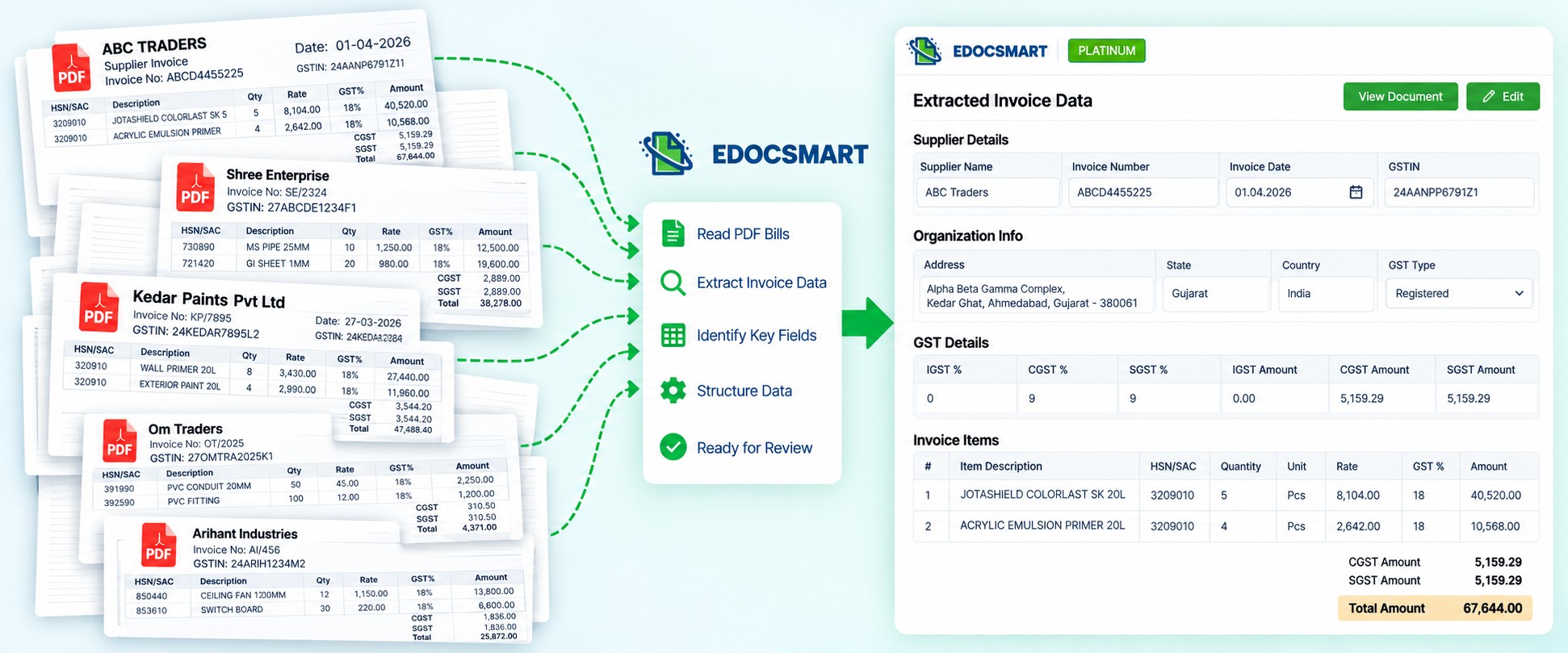
Why Manual PDF Bill Entry Becomes Difficult at Scale
Consider an accountant who receives 40 supplier bills at the end of a week.
For the first invoice, the accountant opens the PDF, reads the supplier information, enters the invoice number and date, selects the party ledger, adds item details, enters quantity and rate, checks GST, verifies the total, and saves the voucher.
Then exactly the same process starts for invoice number two.
The issue is not that accounting itself is unnecessary. The issue is repeatedly typing information that already exists inside the original document.
This is where PDF bill to Tally, PDF invoice to Tally, and invoice data entry automation can change the workflow. Instead of spending most of the time entering data, the accountant can spend more time reviewing and verifying it.
How to Convert PDF Bill to Tally with Edocsmart
The complete workflow can be handled from the original PDF bill through to the final Tally transaction. The important difference in this process is that it can also support multiple invoice records, allowing the user to review bills and choose which ones should be synced.
Step 1: Open the Purchase Transaction Workflow
After logging in to Edocsmart, open Transactions from the sidebar.
The Transactions section provides Purchase and Sales options. For supplier purchase bills, select Purchase and use the document/image workflow for invoice processing.
This gives the accountant a central location for managing the uploaded purchase documents instead of manually opening each PDF and recreating its accounting entry directly in Tally.
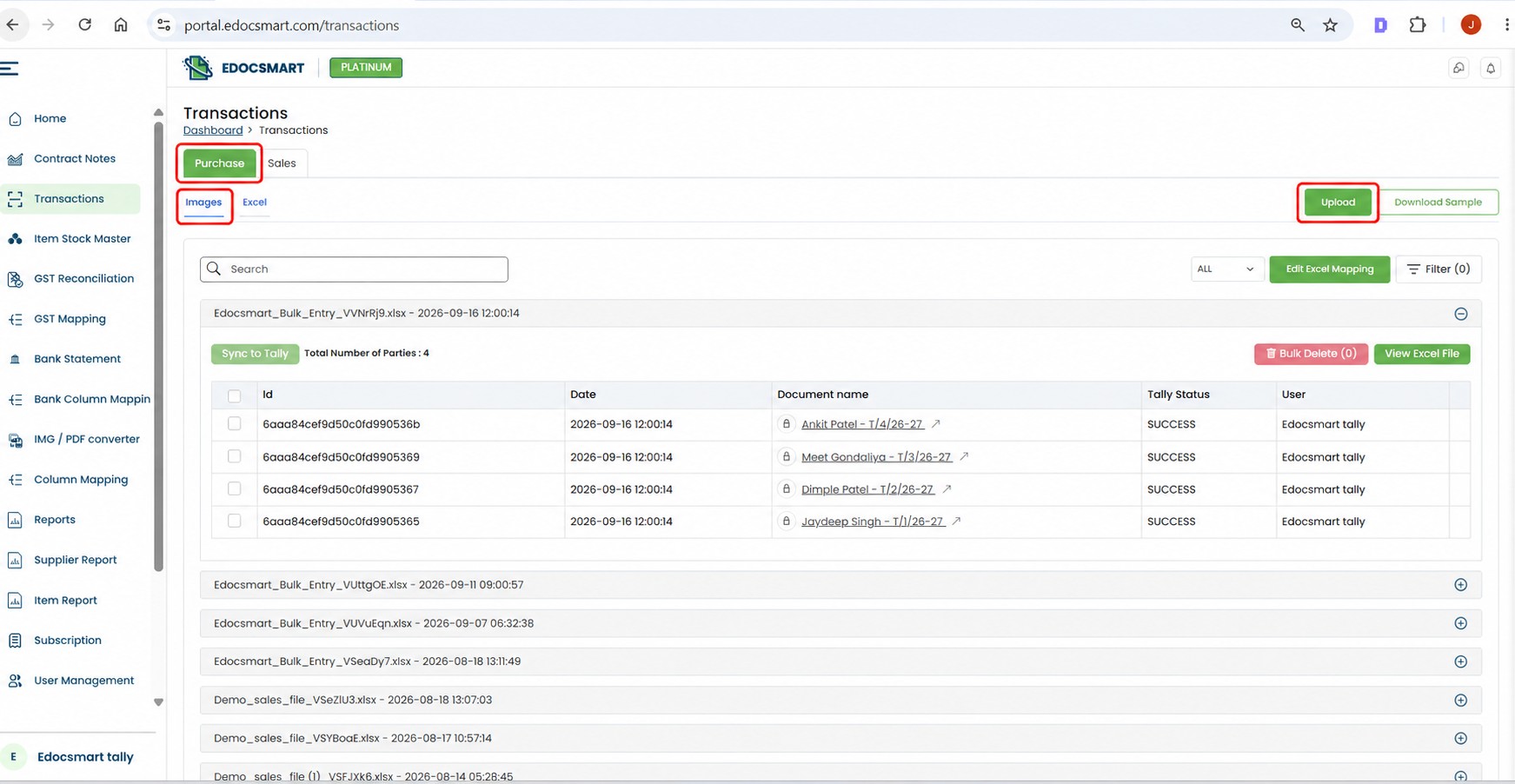
Step 2: Upload the PDF Bills
Click the Upload button to open the invoice upload screen.
The document can then be selected from the computer and submitted for processing.
The useful part of this workflow becomes more visible when the business has multiple bills. Instead of treating each PDF as a completely separate accounting job, multiple invoice documents can be processed so their individual records are available within the transaction workflow.
For example, if 15 supplier bills need to be processed, the accountant can work with those documents inside Edocsmart rather than manually creating 15 purchase vouchers from scratch.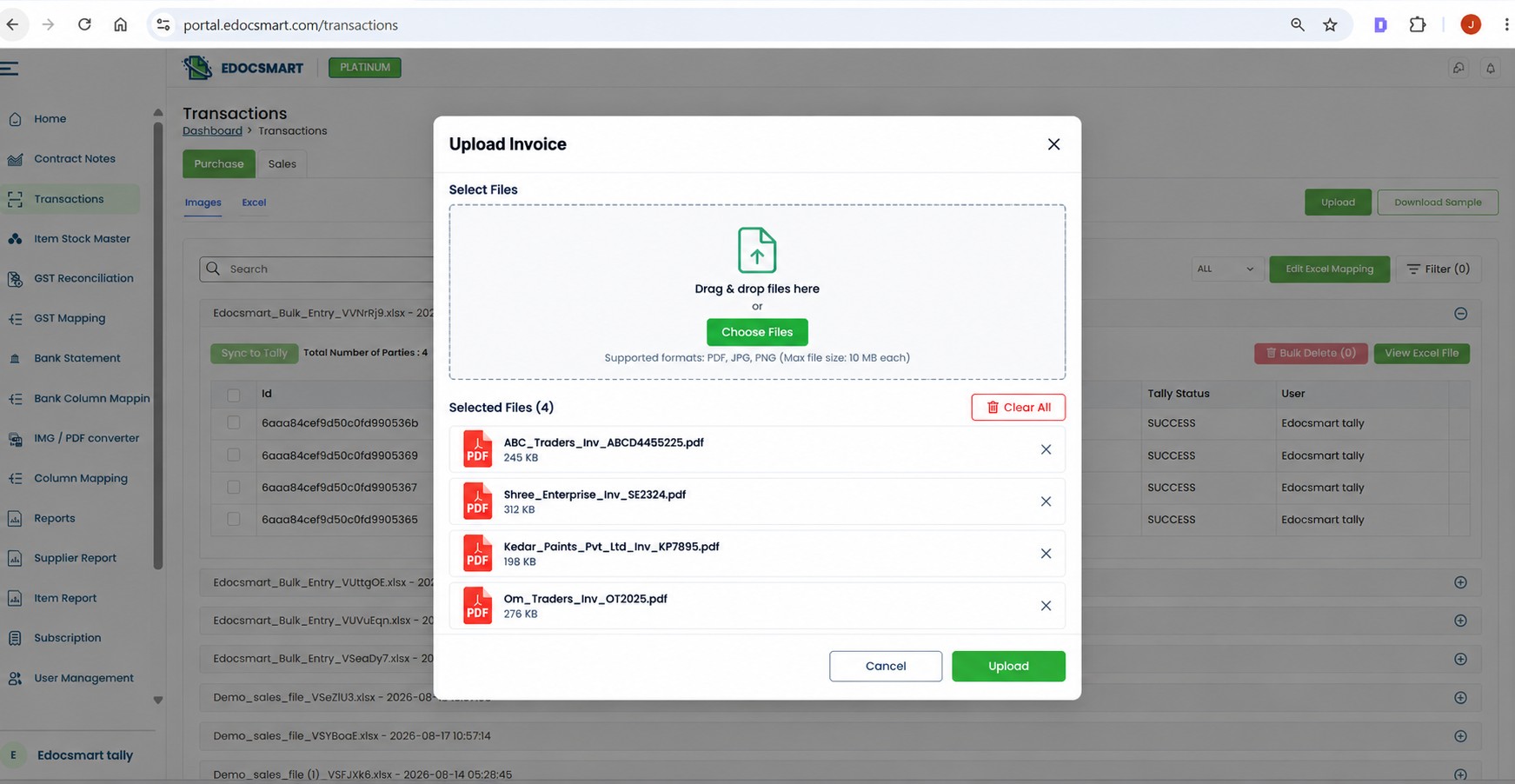
Step 3: Extract Accounting Data from Each PDF Bill
After a bill is uploaded, its information is processed into structured invoice fields.
Depending on the information present in the document, this may include the party name, invoice number, invoice date, address, GSTIN, CGST, SGST, IGST, HSN/SAC, item description, quantity, unit, rate, discount, taxable value, tax amount, and grand total.
This is where AI invoice data extraction is useful.
The accountant no longer needs to locate every individual field manually and type it again. Instead, the document becomes the source from which structured invoice information is prepared for review.
The PDF itself does not directly become a Tally voucher. The extracted, reviewed, and mapped information is what can later be used for the accounting transaction.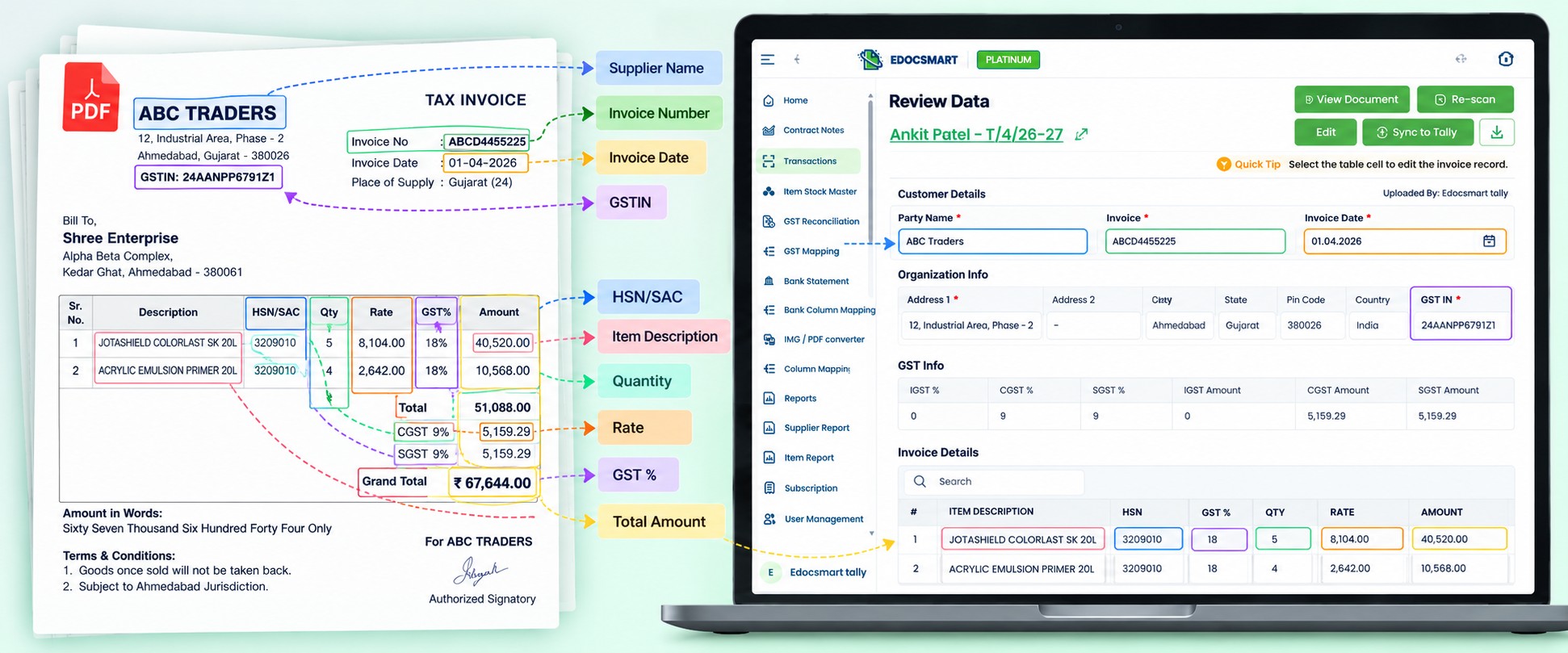
Step 4: Review the Extracted Invoice Information
Automation should reduce typing, but it should not remove verification.
Open a processed invoice and review the information extracted from the PDF.
The original Edocsmart Review Data screen organizes information into sections such as Customer Details, Organization Info, GST Info, Additional Info, and Invoice Details.
Suppose the original invoice contains a quantity of 36 but the extracted record shows 38. That value can be identified during review and corrected before the invoice is sent to Tally.
The same check should be performed for invoice number, date, GST values, item description, HSN/SAC, quantity, rate, and final amount.
This creates a safer workflow:
Extraction handles repetitive reading and typing. Review keeps control with the accountant.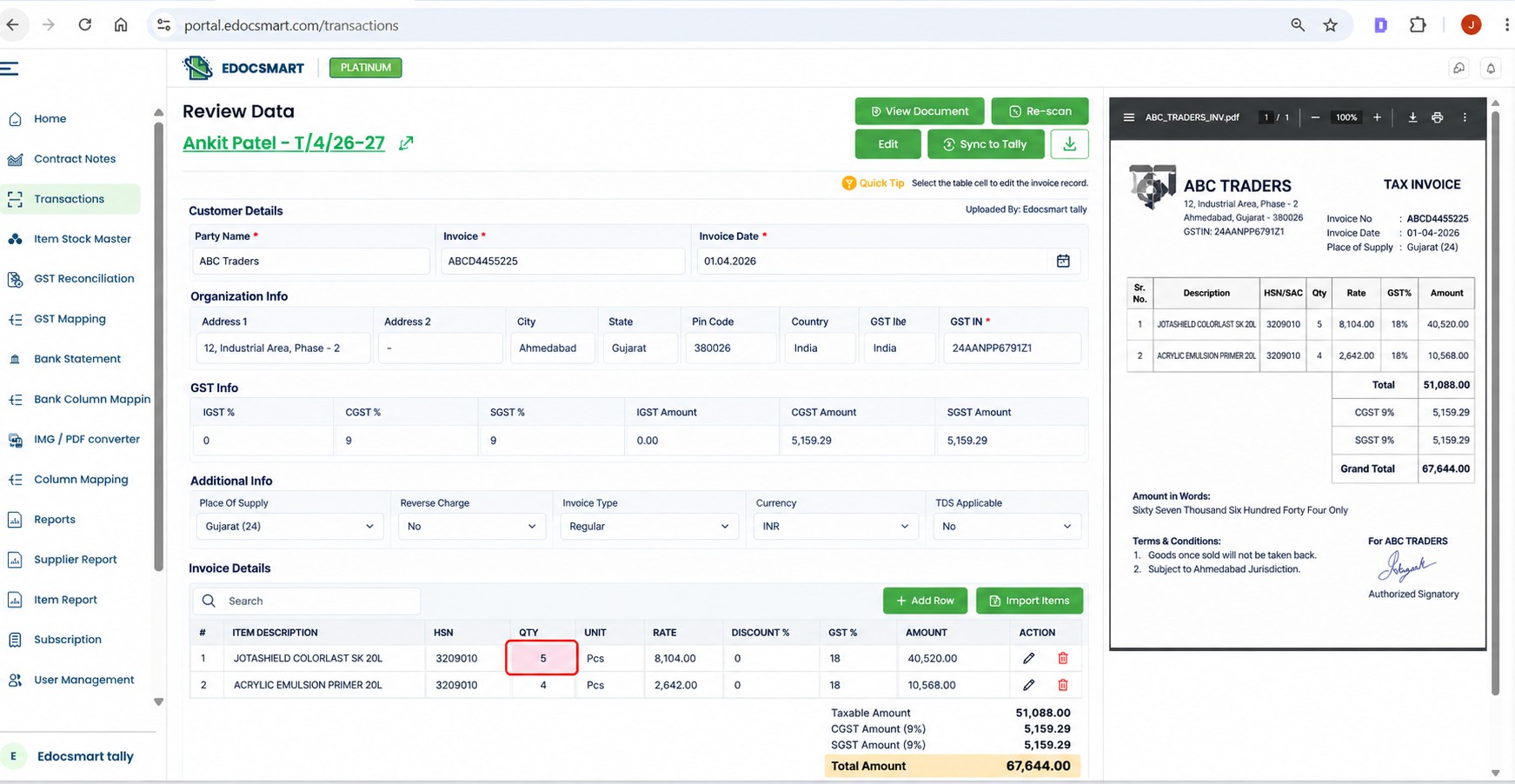
Step 5: Map PDF Information with Tally Fields
Extracting an invoice value and understanding its accounting destination are two different things.
Suppose the PDF contains the supplier name ABC Traders. Edocsmart may correctly identify “ABC Traders,” but Tally still needs to know which Party Ledger should be used.
The same applies to items.
An invoice description may say “Industrial Paint 20L,” while the organization may maintain that product under a particular Stock Item in Tally.
The mapping process connects the document information with the appropriate accounting master. Supplier information can be associated with a Party Ledger, invoice items with Stock Items, and tax information with the relevant accounting configuration.
Initial mapping or configuration may be required depending on the organization's setup. Where the same configuration continues to apply, recurring mappings can generally be reused rather than being recreated for every invoice.
This is an important difference between simple OCR to Tally software and an accounting-focused PDF to Tally converter. Reading text from a PDF is only one part of the process; that information also has to reach the correct accounting field.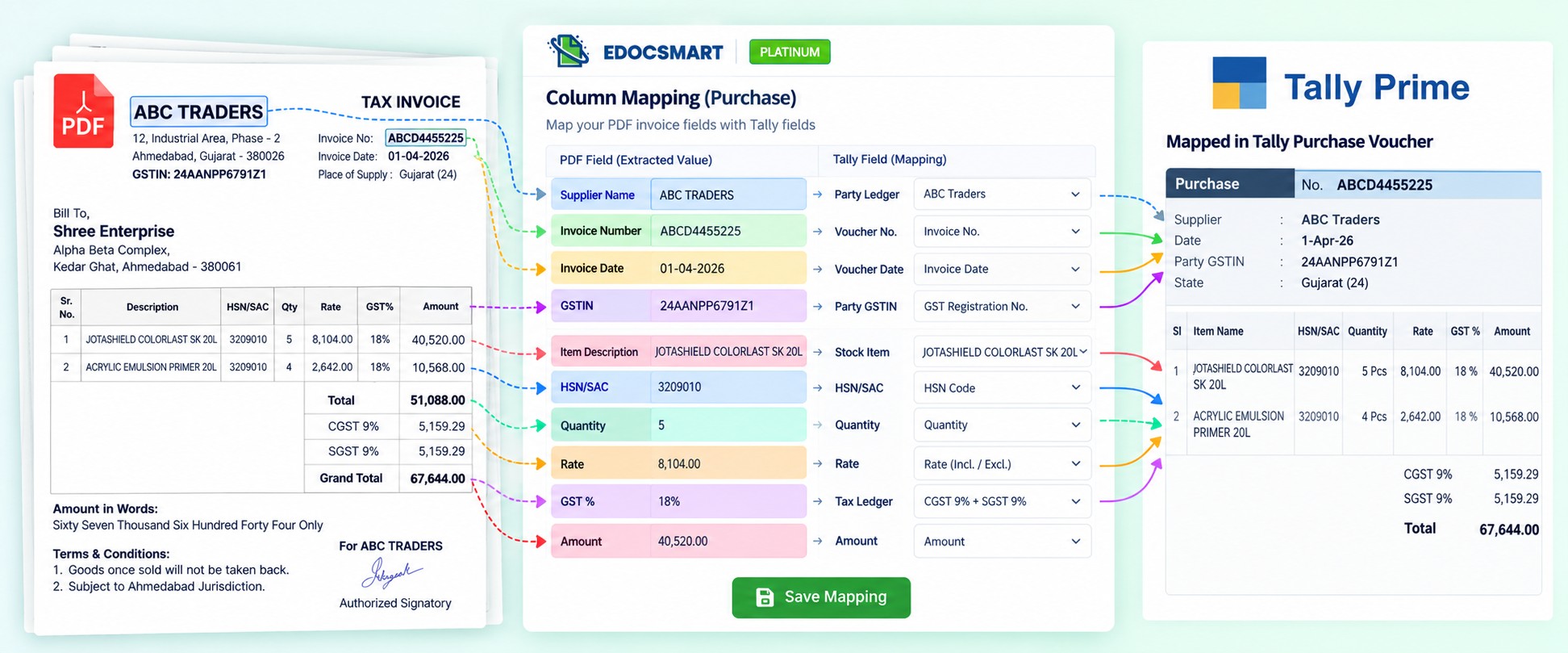
Step 6: Manage Multiple PDF Bills from One Transaction Screen
This is where the process becomes particularly useful for bulk invoice work.
Once multiple bills have been processed, they can appear as separate records inside the Transactions screen. Instead of losing track of which invoice has been completed and which still needs attention, the user can see the individual document records and their Tally status from one place.
Each bill can still be reviewed separately. That means bulk processing does not require every uploaded invoice to be treated identically.
Suppose 20 bills have been processed. After review, 17 are ready to move into Tally, while three still need corrections.
You do not need to wait for all 20.
The ready invoices can be selected while the remaining records stay available for further review.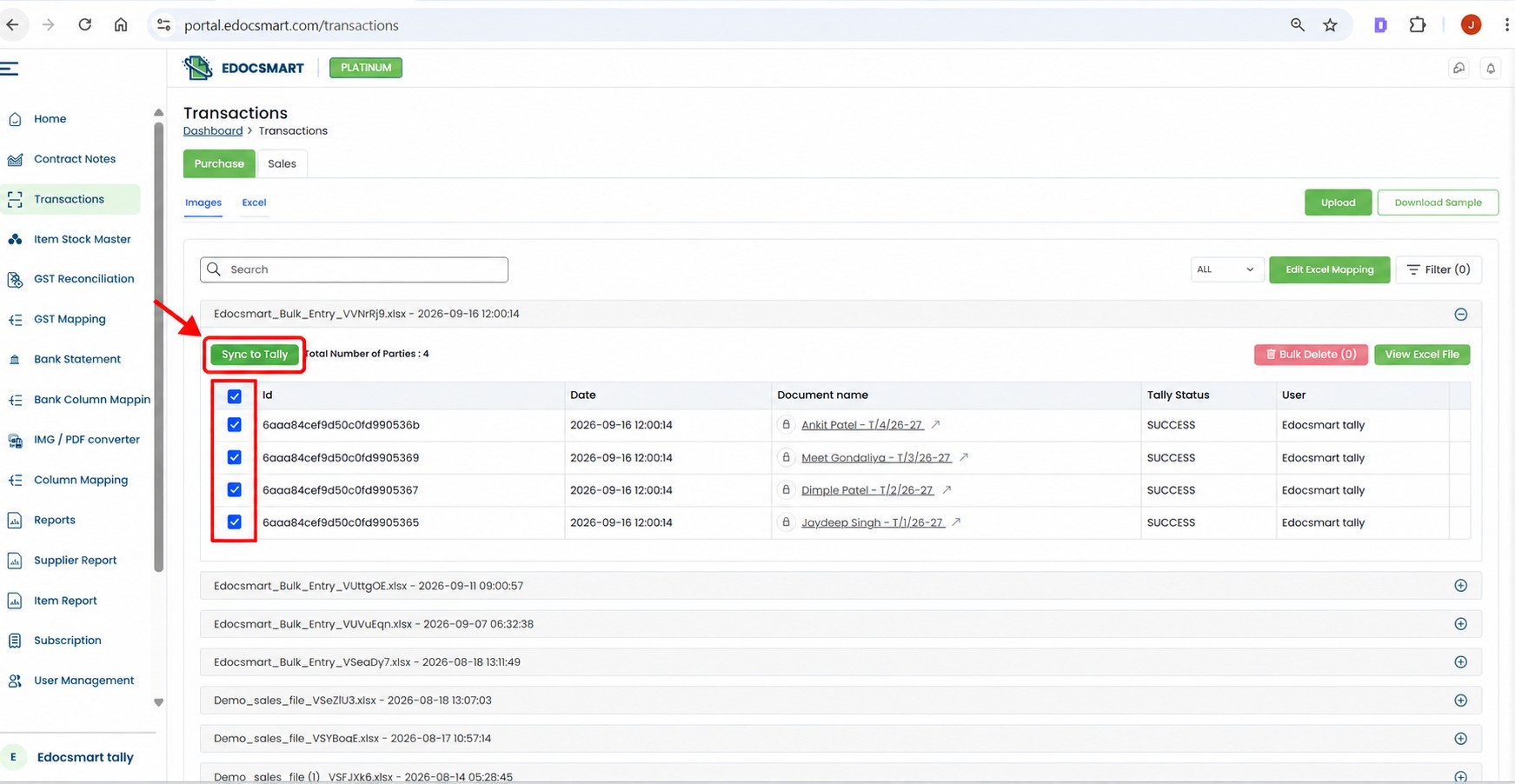
Step 7: Select the Required Bills Using the Checkboxes
This is an important part of the bulk invoice upload to Tally workflow.
On the transaction listing, there is a checkbox beside each invoice record.
If multiple invoices are ready, simply select the checkbox beside the bills you want to send to Tally.
For example, if four invoice records are displayed and all four have already been checked, you can select all four. If only two are ready, select only those two.
This provides much better control than automatically sending every processed document into Tally.
The process becomes:
Multiple Bills Uploaded → Bills Processed → Review Individually → Select Required Bills ☑ → Sync to Tally
This means bulk processing and accounting control can work together.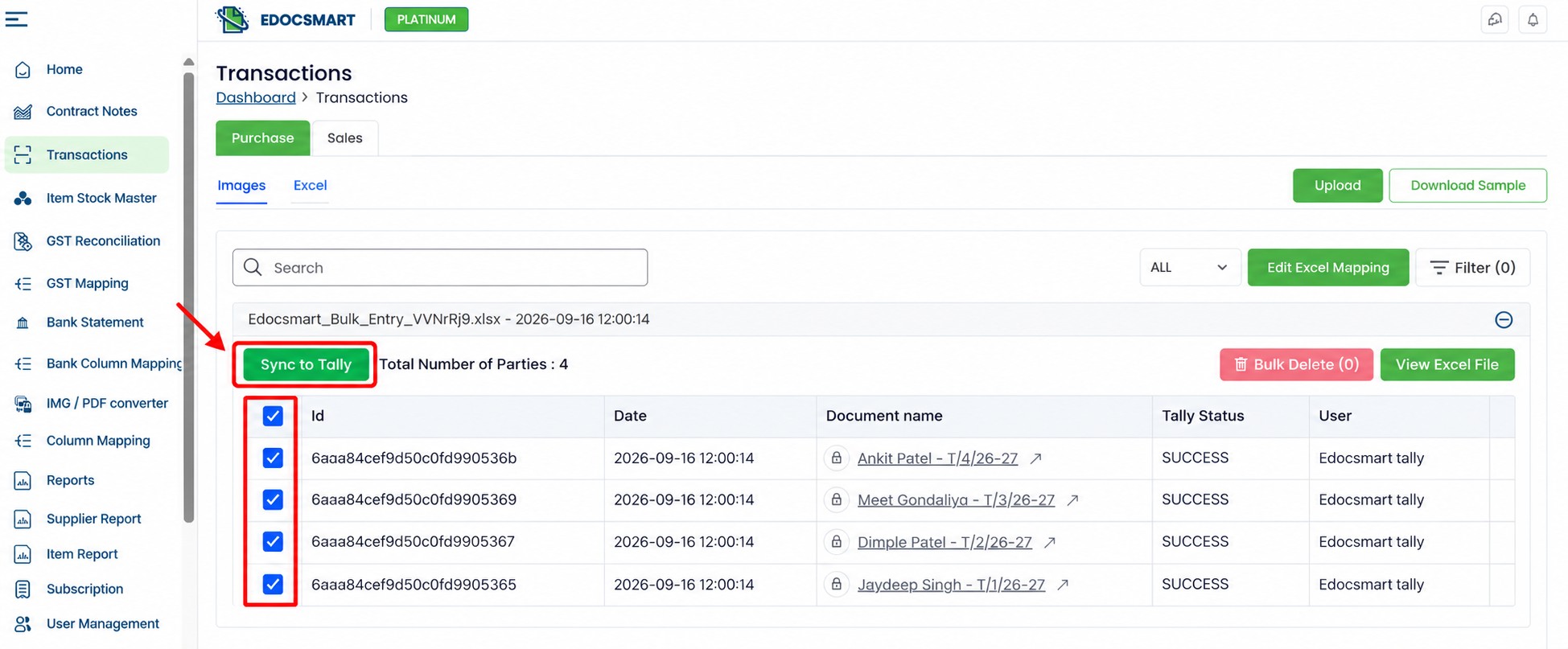
Step 8: Make Sure the Tally Connector Is Connected
Before synchronization, the connection between Edocsmart and the local Tally environment needs to be ready.
The Edocsmart Tally Connector can be used for this connection depending on the organization's configuration.
Before sending the invoices, check that the connector shows “Connector connected successfully”, along with the connected Tally and internet status.
At this stage, the important invoice information should already have been reviewed. Party details, invoice number, GST, items, quantity, rate, total, mapping, and connector status should all be checked before the final sync.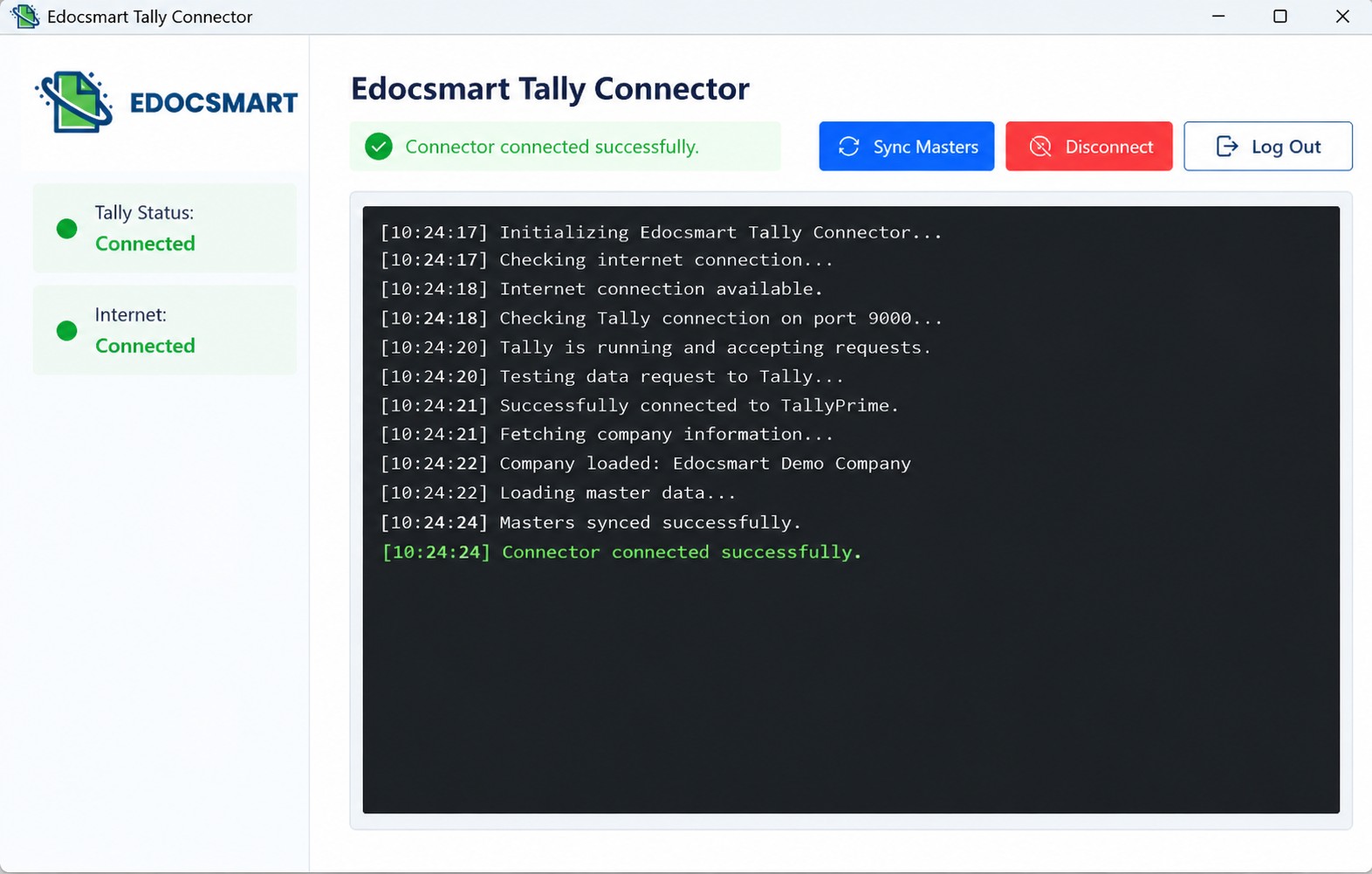
Step 9: Sync Multiple Verified Bills to Tally
Once the required invoices are selected using their checkboxes and the Tally connection is ready, click Sync to Tally.
The verified invoice information can then move through the configured Tally connection into the local Tally environment.
This is where automatic purchase entry in Tally becomes more useful than simply extracting invoice text.
Instead of opening the first PDF, manually creating its voucher, saving it, opening the second PDF, and repeating the same process, the accountant can prepare several verified invoices and send the selected records through the same workflow.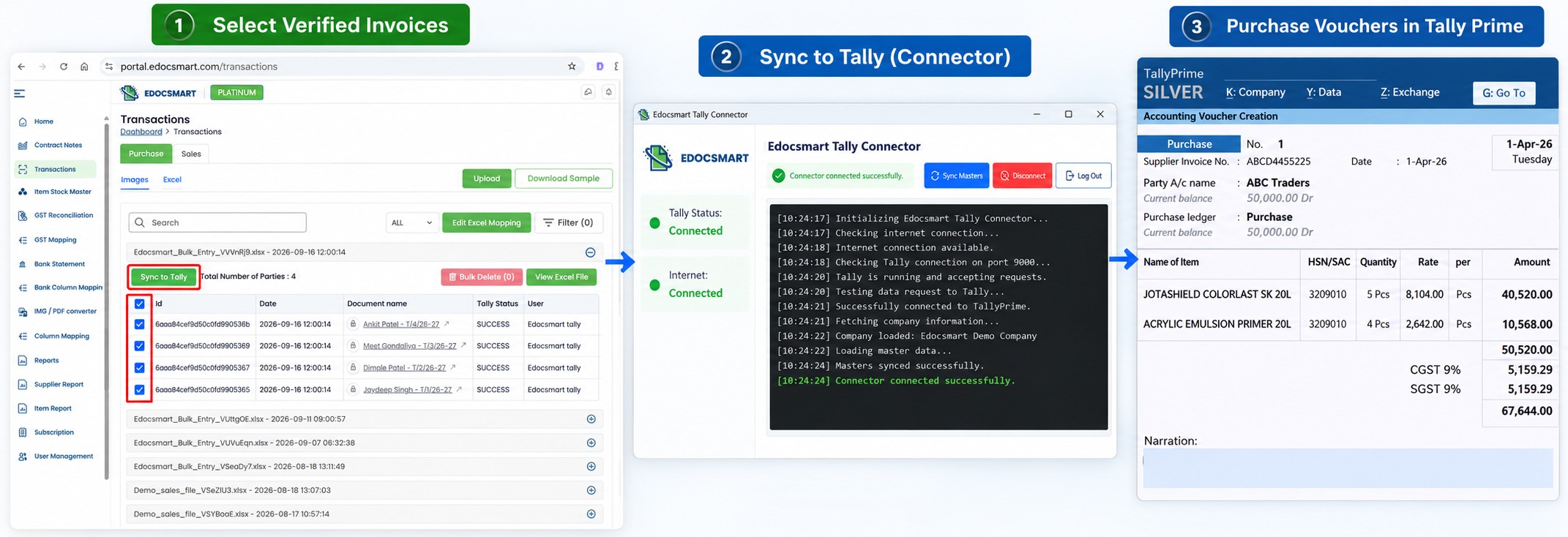
Step 10: Verify the Final Purchase Voucher in Tally Prime
Synchronization is not the final reason for automation. Correct accounting is.
After the invoices have been transferred, open Tally Prime and verify the resulting purchase voucher.
Depending on the organization's mapping and configuration, the voucher can contain the supplier or Party Ledger, invoice number, invoice date, stock items, HSN/SAC, quantity, rate, GST information, and final amount.
This final verification confirms that the document information has reached the expected accounting fields.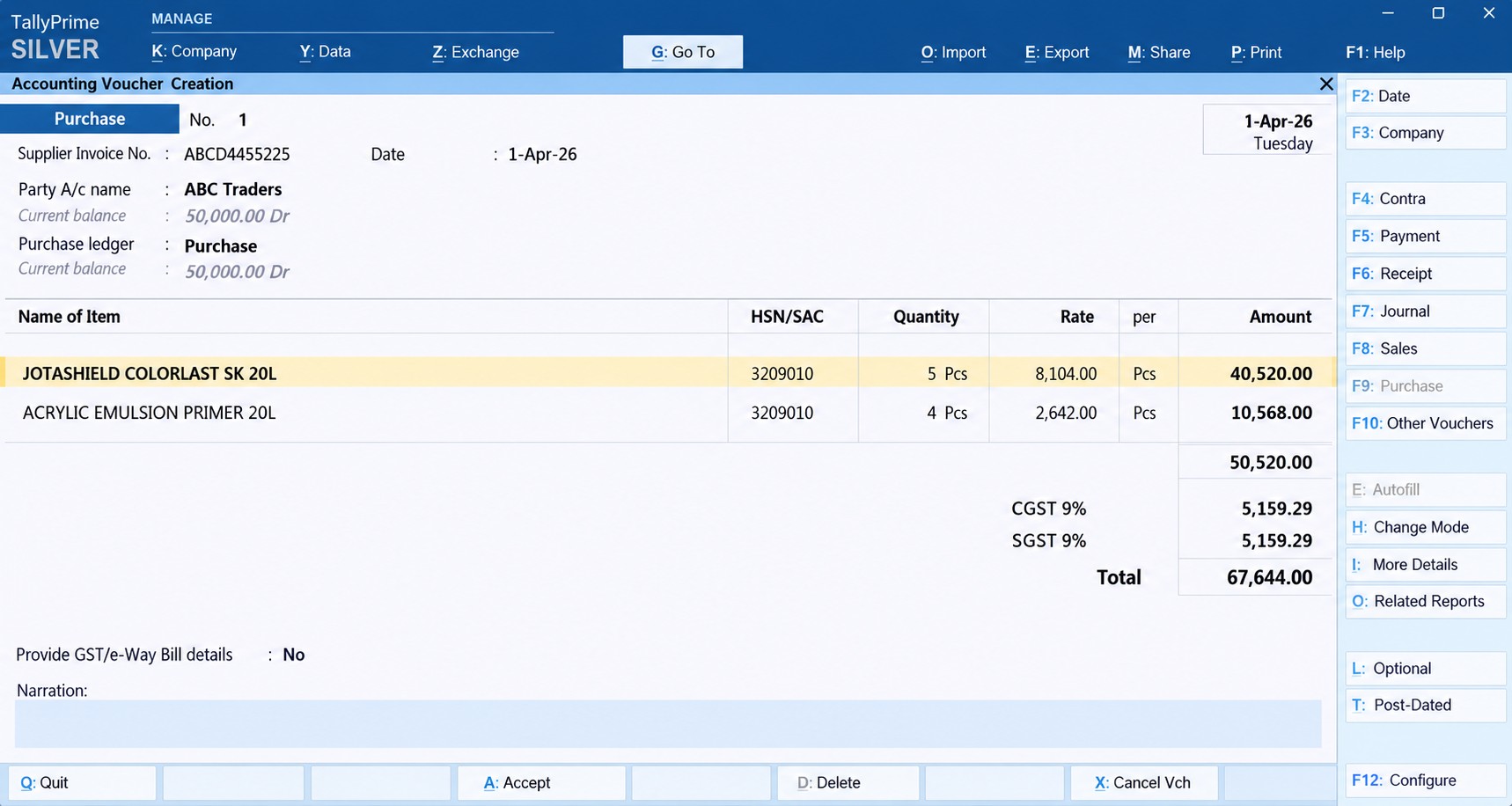
Why Selecting Multiple Bills Is Better Than Blind Bulk Sync
There is an important difference between bulk processing and blindly sending everything into Tally.
Suppose 50 PDF purchase bills are uploaded.
Forty-six invoices may be correct after review, but four may contain an unclear item name, incorrect quantity, missing GST information, or a ledger that still needs mapping.
A good workflow should not force the accountant to either sync all 50 or process every invoice manually.
Instead, the 46 verified records can be selected using their checkboxes and moved forward, while the four exceptions remain available for correction.
That makes the workflow practical for real accounting operations because invoice automation for Tally is being used to reduce repetitive work without removing control.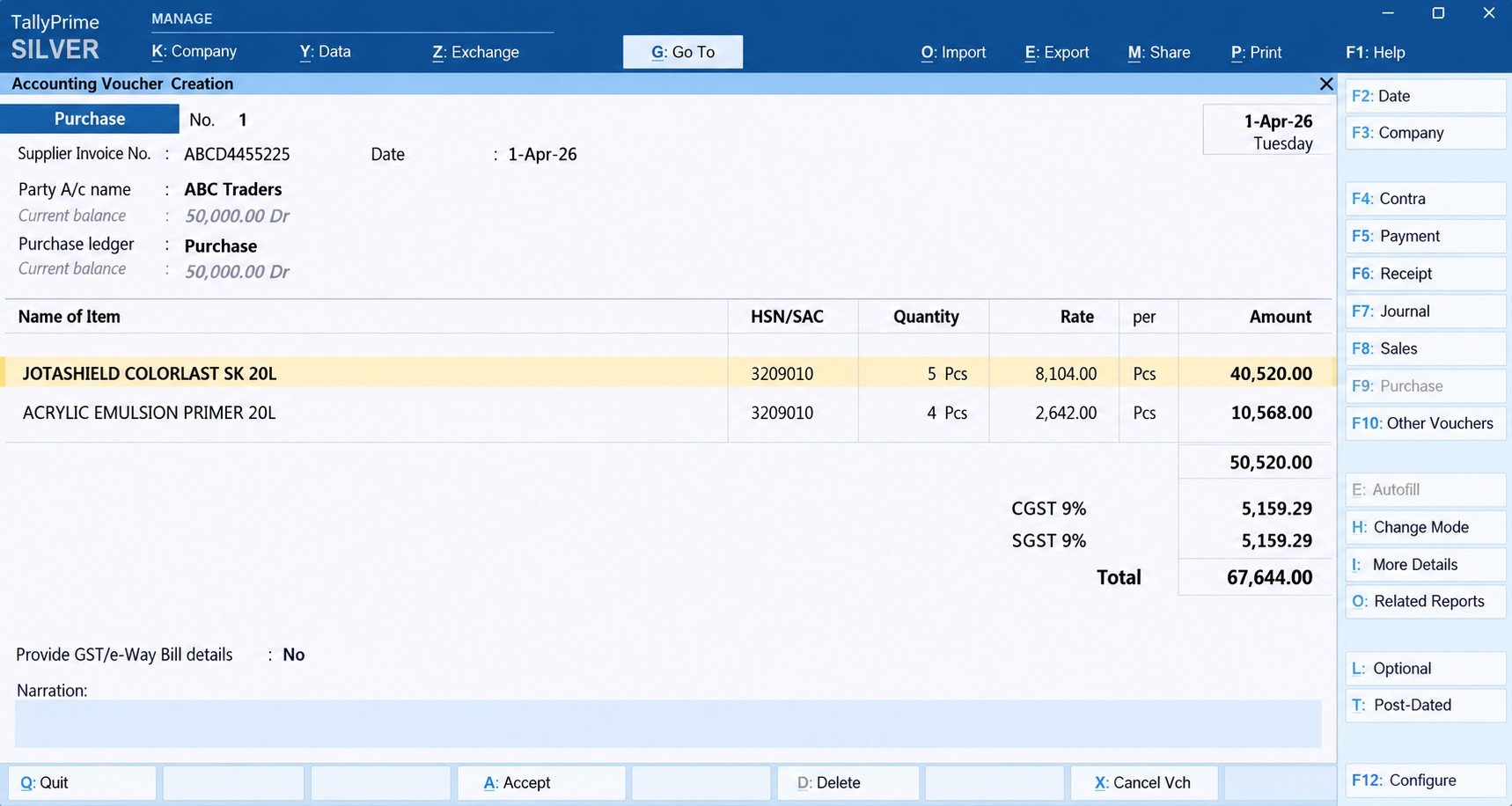
Manual PDF Entry vs Bulk PDF-to-Tally Processing
In a manual workflow, every new PDF creates another data-entry task. The accountant repeatedly opens a document, reads its information, enters the party, creates or selects items, types quantity and rate, verifies GST, checks totals, and saves the voucher.
With Edocsmart, the role shifts toward uploading, reviewing, correcting, mapping, selecting, and verifying.
This becomes particularly valuable when dealing with PDF purchase bill to Tally, GST invoice to Tally, invoice scanner to Tally, and other high-volume invoice workflows.
The purpose is not to remove the accountant from the process. It is to remove unnecessary retyping from the accountant's work.
PDF-to-Tally Automation Is More Than File Conversion
A basic PDF to Tally converter may sound like a tool that simply changes one file format into another.
Accounting requires more context.
If a PDF contains “ABC Traders,” the system still needs the correct Tally ledger relationship. If it contains “18% GST,” that information needs the correct accounting treatment. If an invoice contains ten products, those product descriptions may need to correspond with the organization's stock masters.
That is why a useful PDF to Tally solution combines extraction with review, mapping, selection, and synchronization.
The result is not simply a converted document. The objective is verified accounting data ready for the configured Tally workflow.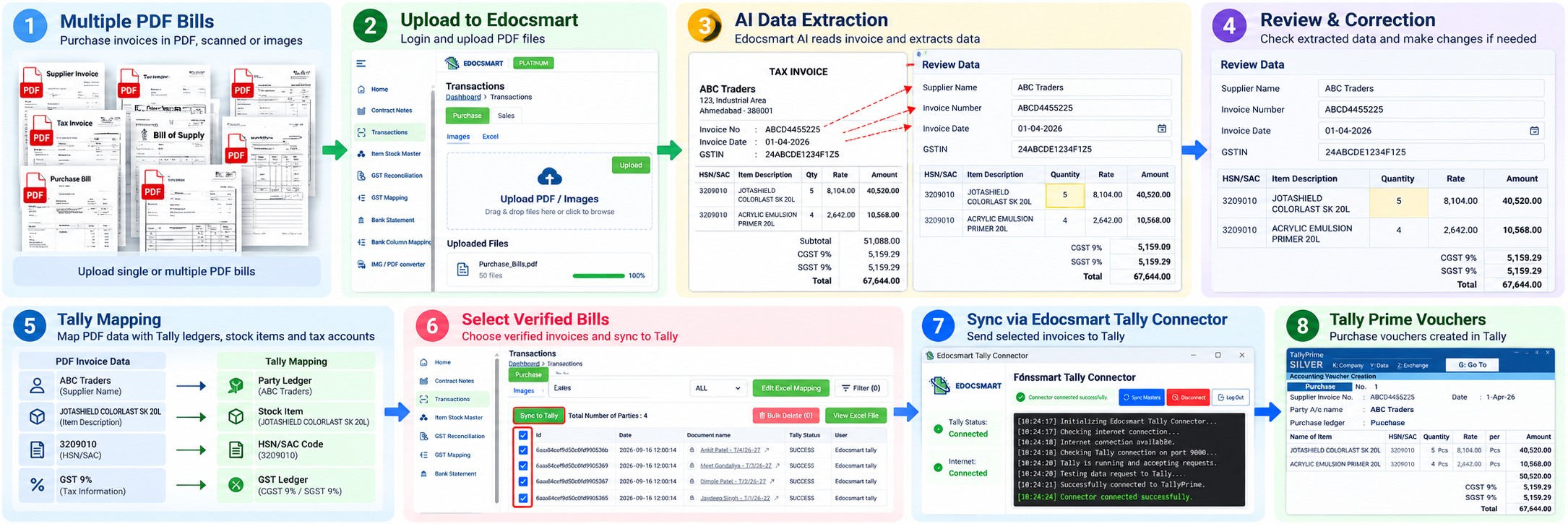
FAQs
How do I convert a PDF bill to Tally?
Upload the PDF bill into Edocsmart, allow its invoice information to be processed, review the extracted fields, verify the required Tally mappings, and sync the verified record through the configured Tally Connector.
How can I convert multiple PDF bills to Tally at once?
Multiple PDF bills can be processed so their individual invoice records are available in the Transactions screen. After reviewing them, select the required invoice records using their checkboxes and use Sync to Tally for the verified bills.
How do I select multiple invoices before syncing to Tally?
On the Edocsmart Transactions screen, use the checkbox beside each invoice record you want to process. Once the required verified invoices are selected, click Sync to Tally.
How can I process only selected bills from a bulk upload?
You do not have to move every processed bill forward together. Review the invoices individually and select only the records that are ready. Bills that still require corrections can remain unselected until they have been verified.
How do I check PDF invoice data before sending it to Tally?
Open the invoice's Review Data screen and verify the party name, invoice number, date, GST information, item description, HSN/SAC, quantity, rate, tax amounts, and final total against the original bill.
How does PDF bill mapping work with Tally?
Mapping connects the information extracted from the PDF with the corresponding Tally accounting fields. For example, a supplier can be associated with its Party Ledger and an invoice product with the appropriate Stock Item.
How can I avoid mapping the same invoice information repeatedly?
If the same mapping and configuration continue to apply to recurring transactions, the configured setup can generally be reused depending on the organization's workflow.
How do I know whether an invoice is ready for Sync to Tally?
Check the party, invoice number and date, GST values, item information, quantity, rate, total amount, required mappings, and Tally Connector status. Once these details are verified, the invoice can be selected for synchronization.
How does Edocsmart connect PDF bills with Tally Prime?
After the invoice data has been processed and reviewed, the verified transaction can be sent through the configured Tally Connector to the local Tally environment. The resulting voucher depends on the organization's Tally masters and accounting configuration.
How can bulk PDF-to-Tally processing reduce manual data entry?
Instead of recreating every PDF bill manually in Tally, multiple documents can be processed and reviewed in a structured workflow. The accountant can focus on verification and exceptions, select the completed records, and then sync them to Tally.
Conclusion
When businesses receive large numbers of PDF bills, the biggest problem is often not collecting the documents—it is repeatedly entering the information already present inside them.
A structured convert PDF bills to TallyPrime workflow changes that process.
Multiple PDF Bills → Upload → Extract → Review → Map → Select Verified Bills ☑ → Tally Connector → Sync to Tally → Verify Voucher
The checkbox-based selection is particularly useful because bulk processing does not mean every invoice must be sent to Tally immediately. Verified bills can move forward while records requiring correction can remain pending.
That makes PDF invoice to Tally automation more practical for real accounting teams: less repetitive typing, more controlled verification, and a clearer route from the original PDF bill to the final Tally entry.