How to Convert PDF Invoice to Tally
Convert PDF invoices into structured, verified Tally-ready entries by extracting invoice data, reviewing important fields, mapping them with Tally masters, and syncing through Edocsmart.
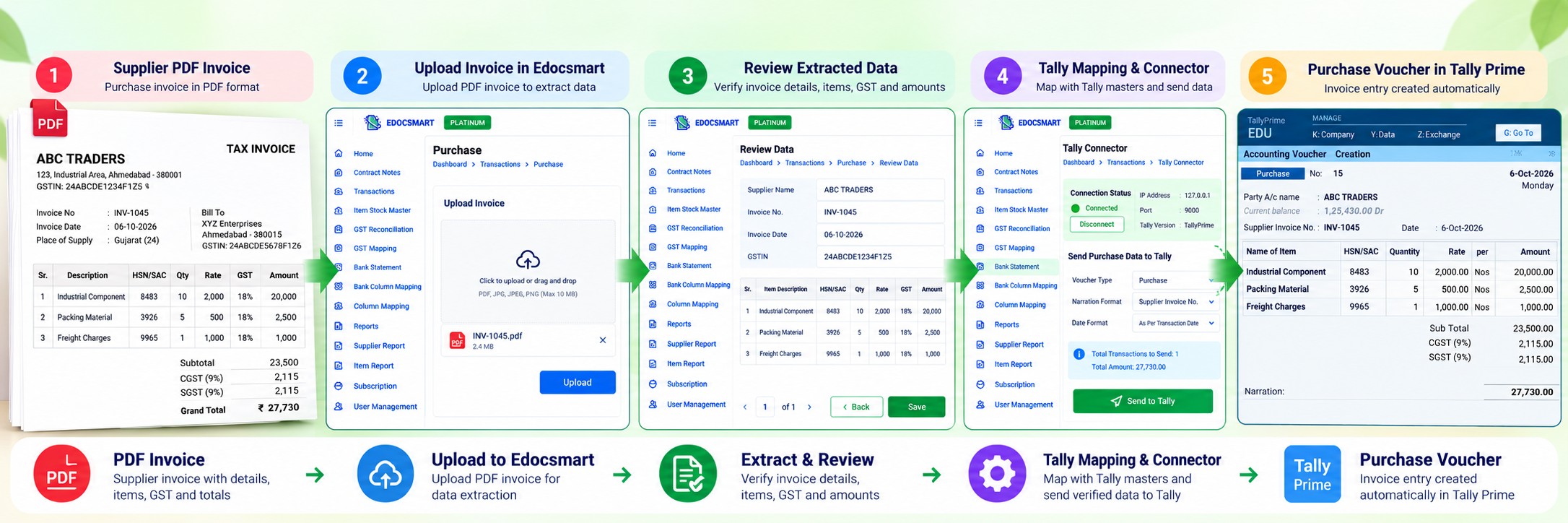
A supplier sends you a PDF invoice. Everything required for accounting is already there: supplier name, invoice number, date, GSTIN, product details, HSN/SAC, quantity, rate, GST and final amount.
But the PDF itself is not an accounting entry.
Someone still has to understand which value belongs to which accounting field, verify the information, connect the supplier with the correct Tally ledger, match invoice items with stock items and finally create the purchase voucher.
When this happens once, it may take only a few minutes. When a business receives dozens or hundreds of invoices, the same process becomes repetitive.
This is where PDF invoice to Tally conversion becomes useful.
With Edocsmart, the information already available inside a PDF invoice can be extracted into structured fields, reviewed by the user, mapped with the required Tally information and then synchronized with Tally.
The important point is that the PDF is not blindly converted into a voucher. The invoice information goes through extraction, review, mapping and verification before it reaches Tally.
What Does Converting a PDF Invoice to Tally Actually Mean?
A common misunderstanding is that PDF-to-Tally conversion simply changes a .pdf file into another file format.
Accounting requires more than that.
Consider a PDF invoice containing:
Supplier Name: ABC Traders
Invoice Number: INV-1045
Invoice Date: 06-10-2026
GSTIN: 24ABCDE1234F1Z5
Item: Industrial Component
HSN/SAC: 8483
Quantity: 10
Rate: ₹2,000
GST: 18%
Invoice Total: ₹23,600
A human can look at the document and understand these values immediately.
Tally, however, needs these values in the appropriate accounting structure. The supplier needs to correspond with a Party Ledger, the product may need to correspond with a Stock Item, and GST information needs to follow the configured accounting setup.
So the real conversion process is:
PDF Invoice → Extract Data → Structure Fields → Review → Tally Mapping → Verify → Sync to Tally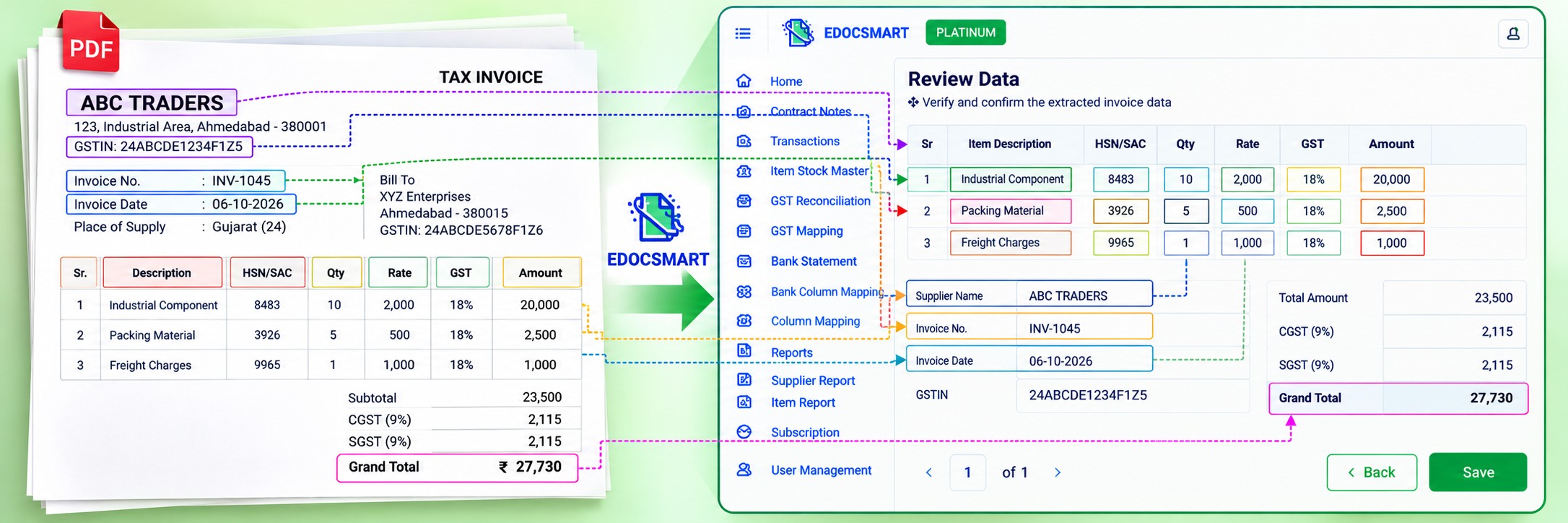
Why Can't a PDF Invoice Be Sent Directly to Tally?
A PDF is designed to display information in a readable document format.
Tally works with accounting data.
There is another challenge: every supplier can use a different invoice design.
One supplier may place the GSTIN at the top of the invoice. Another may display it near the billing address. One invoice may have Quantity, Rate and GST in separate columns, while another supplier may use a completely different item table.
Even the same type of information can appear differently:
Invoice No.
Bill No.
Tax Invoice No.
Document No.
All of them may represent a similar accounting value, but their location and labels inside the PDF can differ.
Therefore, a useful PDF to Tally converter needs to do more than copy visible text. The information has to be identified and organized into fields that can be reviewed before accounting processing continues.
Step 1: Open Purchase Transactions in Edocsmart
Start by logging in to Edocsmart.
From the sidebar, open Transactions and select Purchase when you are processing supplier purchase invoices.
This provides a dedicated workflow for working with incoming invoice documents.
Instead of opening the PDF in one window and manually recreating its information inside Tally in another, the invoice can be processed from the Edocsmart transaction workflow.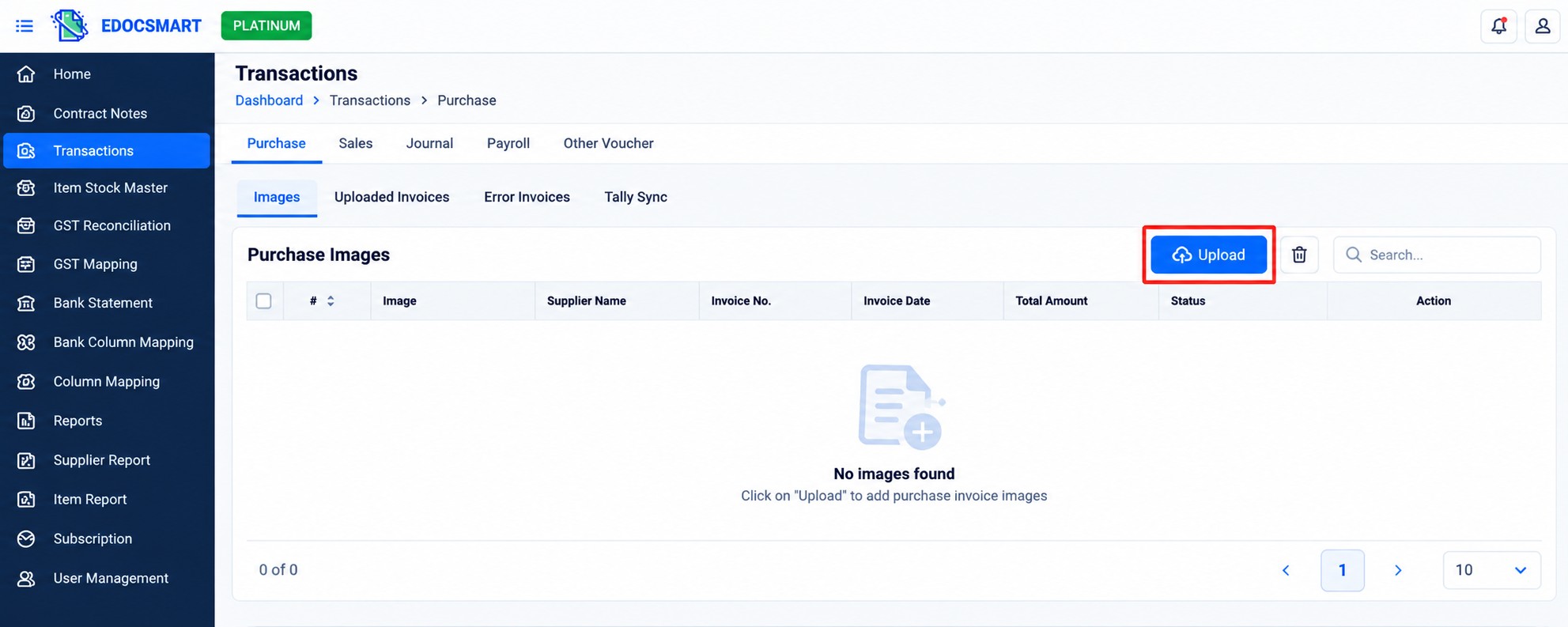
Step 2: Upload the PDF Invoice
Click Upload and select the PDF invoice that needs to be processed.
Once the document has been uploaded, it becomes the source for invoice data extraction.
This is particularly useful because businesses do not always receive invoices in a fixed format. Supplier invoices may have different designs and different arrangements of invoice information.
Instead of manually converting each supplier's format into your own accounting format first, the document can be processed and its information prepared for review.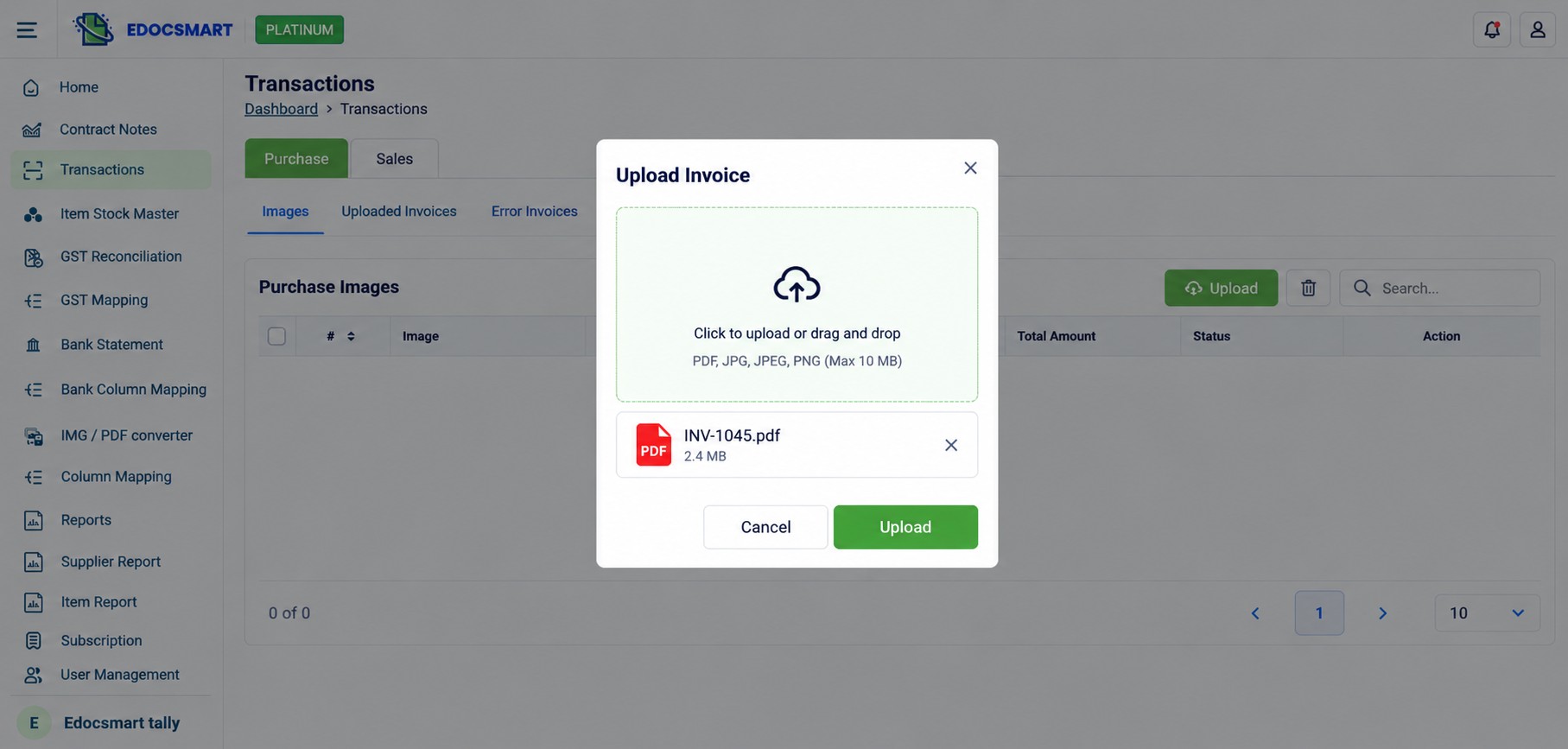
Step 3: Extract Invoice-Level Information
After the PDF is processed, important invoice-level information can be prepared as structured fields.
This can include information such as:
Supplier or party name
Invoice number
Invoice date
Supplier GSTIN
Supplier address
CGST
SGST
IGST
Taxable amount
Grand total
This is where AI invoice data extraction reduces repetitive work.
Instead of locating the invoice number manually, typing it into Tally, returning to the PDF for the date, copying the GSTIN and repeating the same process for every other field, the information is organized together for review.
But invoice-level extraction is only one part of the conversion.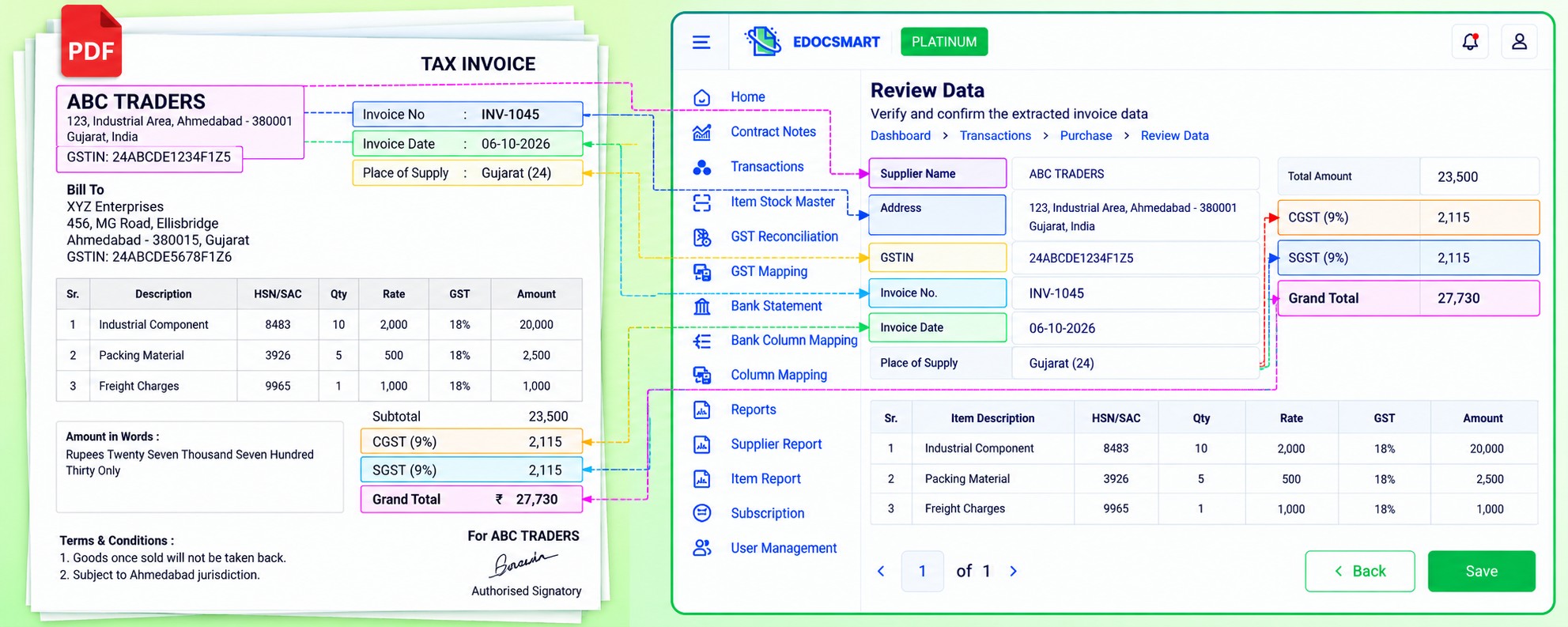
Step 4: Extract Item-Level Invoice Data
For inventory-based purchase invoices, the item table is equally important.
A PDF invoice may contain several products, each with its own HSN/SAC, quantity, unit, rate, discount, GST rate and amount.
For example:
| Item | HSN/SAC | Qty | Rate | GST |
|---|---|---|---|---|
| Product A | 8483 | 10 | ₹2,000 | 18% |
| Product B | 7326 | 5 | ₹1,500 | 18% |
| Product C | 3926 | 20 | ₹450 | 18% |
Manually recreating a long item table is often more time-consuming than entering the basic invoice details.
A useful invoice scanner to Tally workflow therefore needs to handle both invoice-level and item-level information.
The extracted item details can then be reviewed before they are used for the final accounting entry.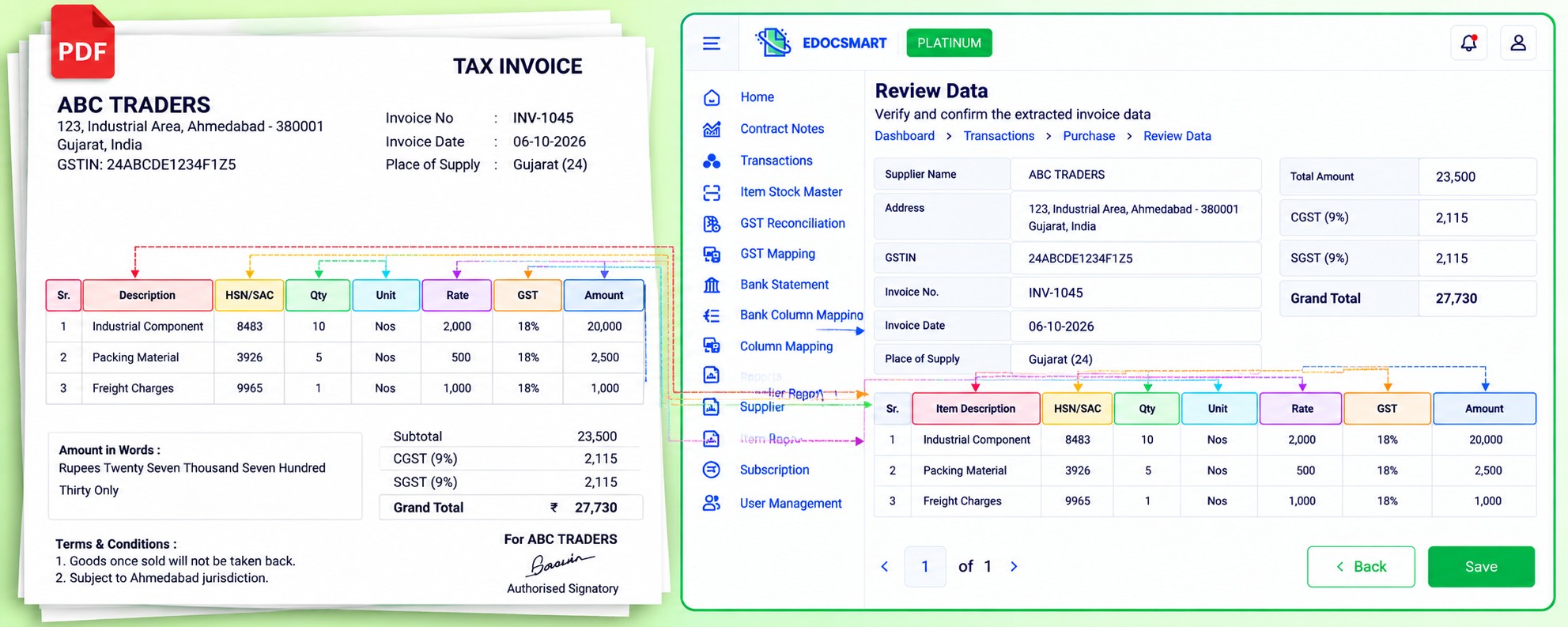
Step 5: Review the Extracted Invoice Data
Extraction should reduce typing, but review should remain part of the process.
After processing, open the invoice in the Review Data screen.
Compare the structured information with the original PDF.
Check important fields such as the supplier name, invoice number, invoice date, GSTIN, GST rate, item name, HSN/SAC, quantity, rate and invoice total.
For example, suppose the PDF shows:
Quantity: 50
but the extracted field shows:
Quantity: 5
The value should be corrected before the transaction is synchronized.
This is an important difference between controlled invoice automation for Tally and blindly pushing extracted information into accounting software.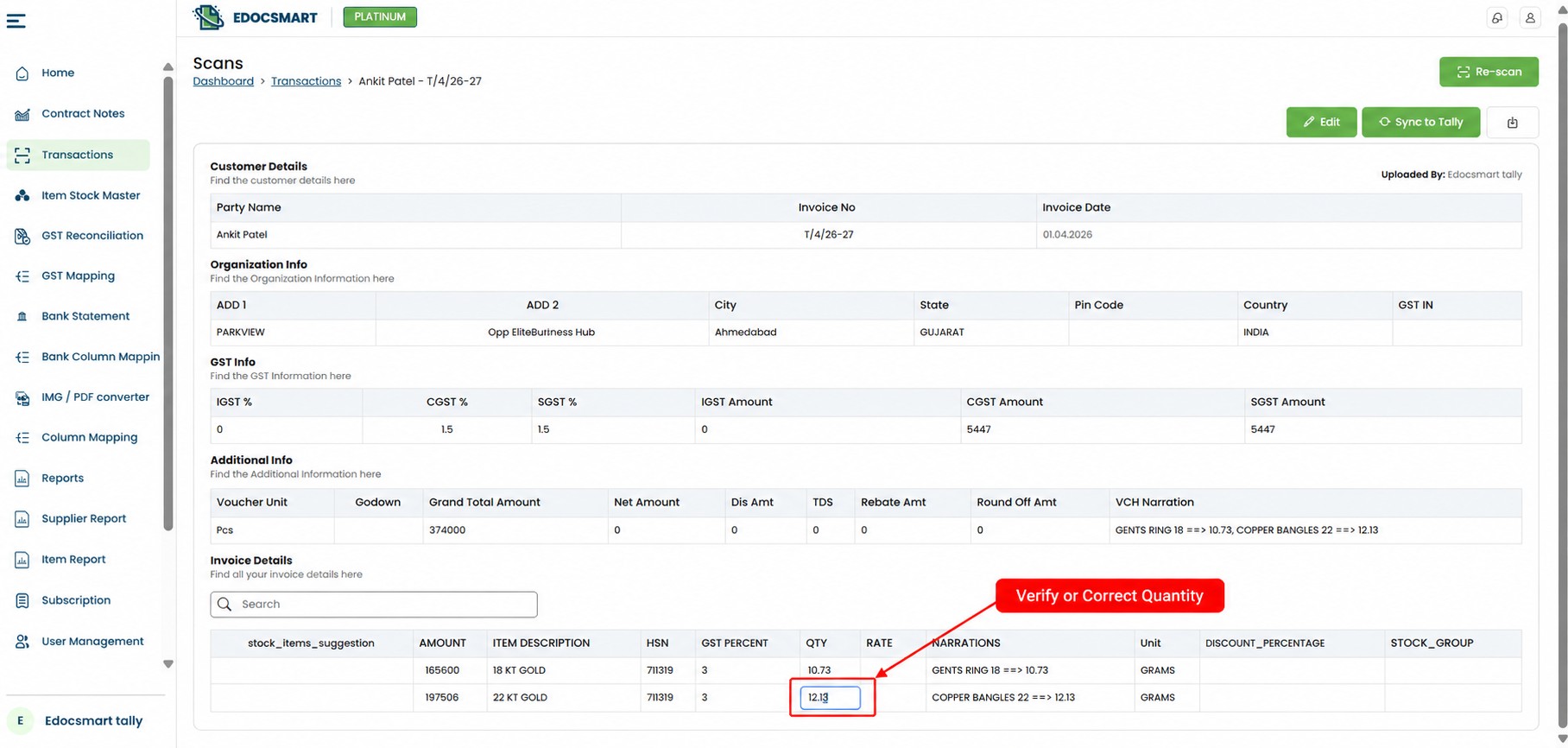 Automation should reduce manual entry without removing verification.
Step 6: Understand the Difference Between PDF Values and Tally Values
This is one of the most important parts of converting a PDF invoice to Tally.
The value written on the invoice is not always the exact accounting master name used inside Tally.
Suppose a PDF contains:
Supplier: ABC INDUSTRIES PVT LTD
But the company maintains the supplier ledger in Tally as:
ABC Industries Pvt. Ltd. – Ahmedabad
Similarly, a supplier invoice may describe an item as:
18 KT GOLD RING
while the organization's Tally Stock Item may use another configured name.
The document value and the accounting master therefore need to be connected correctly.
A simple way to understand this is:
- PDF Supplier → Tally Party Ledger
- PDF Item Description → Tally Stock Item
- PDF GST Information → Configured GST/Tax Accounting
- PDF Invoice Details → Purchase Voucher
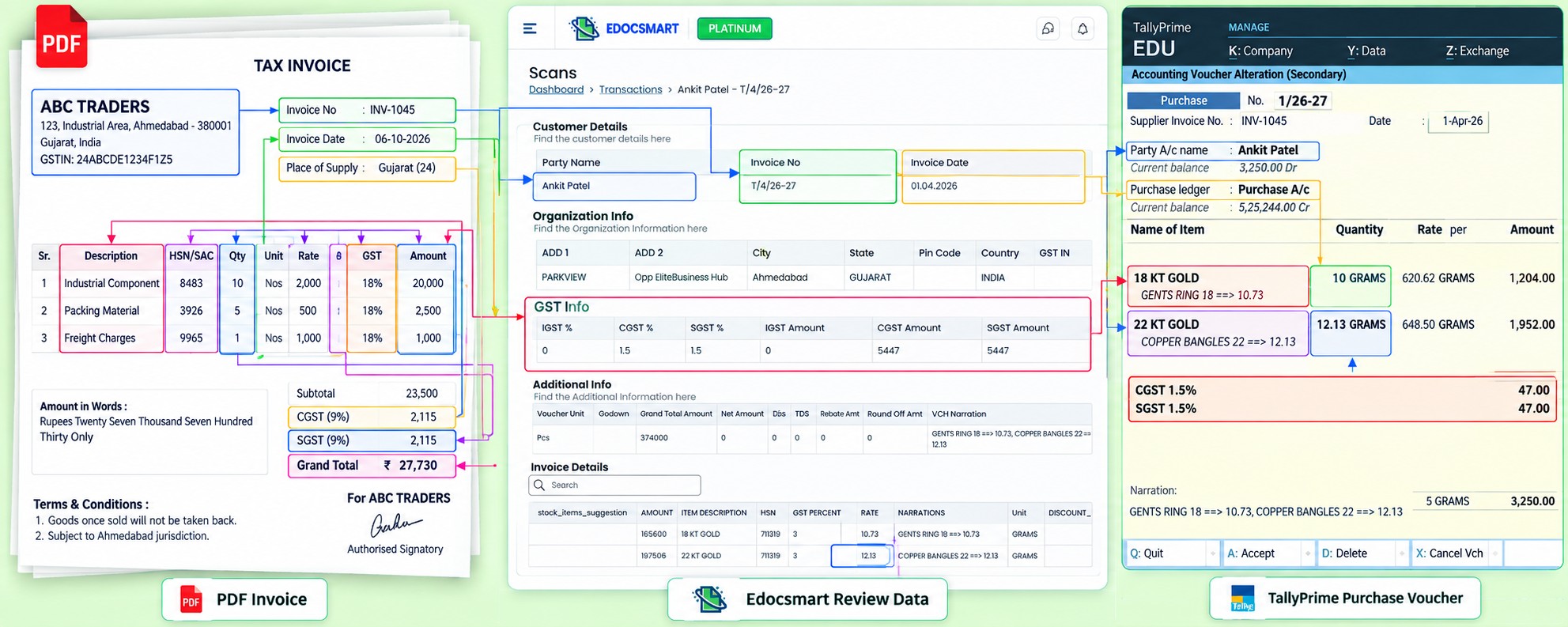 This mapping stage helps ensure that extracted document information reaches the intended accounting destination.
Step 7: Configure the Required Tally Mapping
Before synchronization, the required mapping or configuration needs to be available.
Depending on the organization's setup, this can include purchase voucher configuration, party ledger mapping, stock item mapping and other accounting-related settings.
Initial configuration may be required when a new invoice format or accounting workflow is introduced.
Where the same setup continues to apply, the existing mapping can generally be reused instead of manually configuring the same relationship for every invoice.
This is particularly useful for recurring suppliers.
For example, if a business regularly receives invoices from the same supplier with similar item descriptions, previously configured relationships can reduce repeated mapping work, depending on the organization's setup.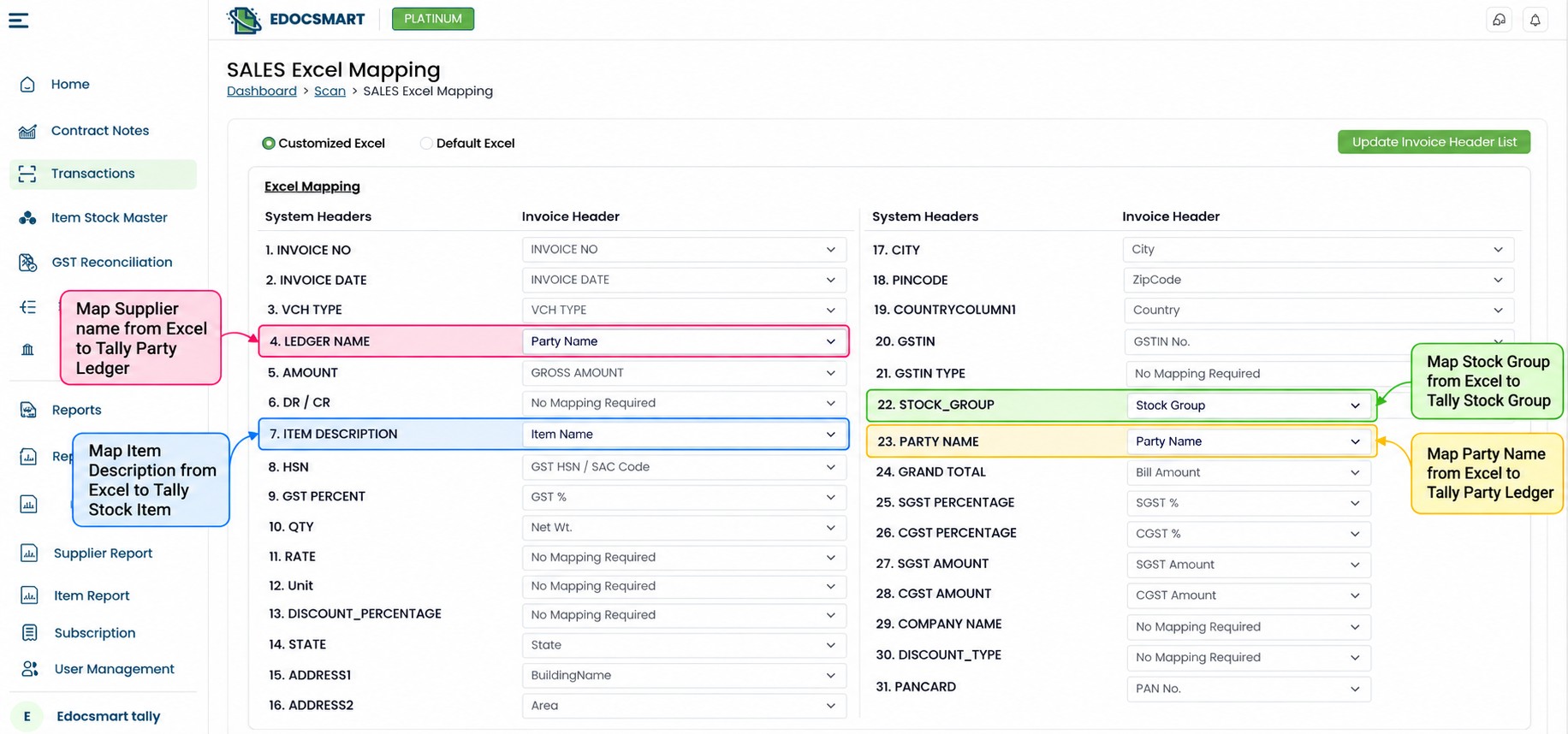
Step 8: Save or Continue After Review
Once the extracted information has been checked, the invoice can be saved for later or moved forward in the workflow.
This is useful when an accountant wants to process documents first and synchronize them after completing verification.
For example, if ten invoices are being reviewed and one has an unclear item mapping, the accountant does not need to force that invoice into Tally.
The unclear record can remain for further review while verified invoices continue through the workflow.
This keeps the user in control of the final accounting data.
Step 9: Make Sure the Tally Connector Is Running
Before clicking Sync to Tally, check the connection with the local Tally environment.
The Edocsmart Tally Connector acts as the bridge between the reviewed transaction in Edocsmart and Tally.
The connector should show that it is connected successfully.
Also check:
Tally Status: Connected
Internet: Connected
If the connector is not connected, the synchronization should not be attempted until the connection is ready.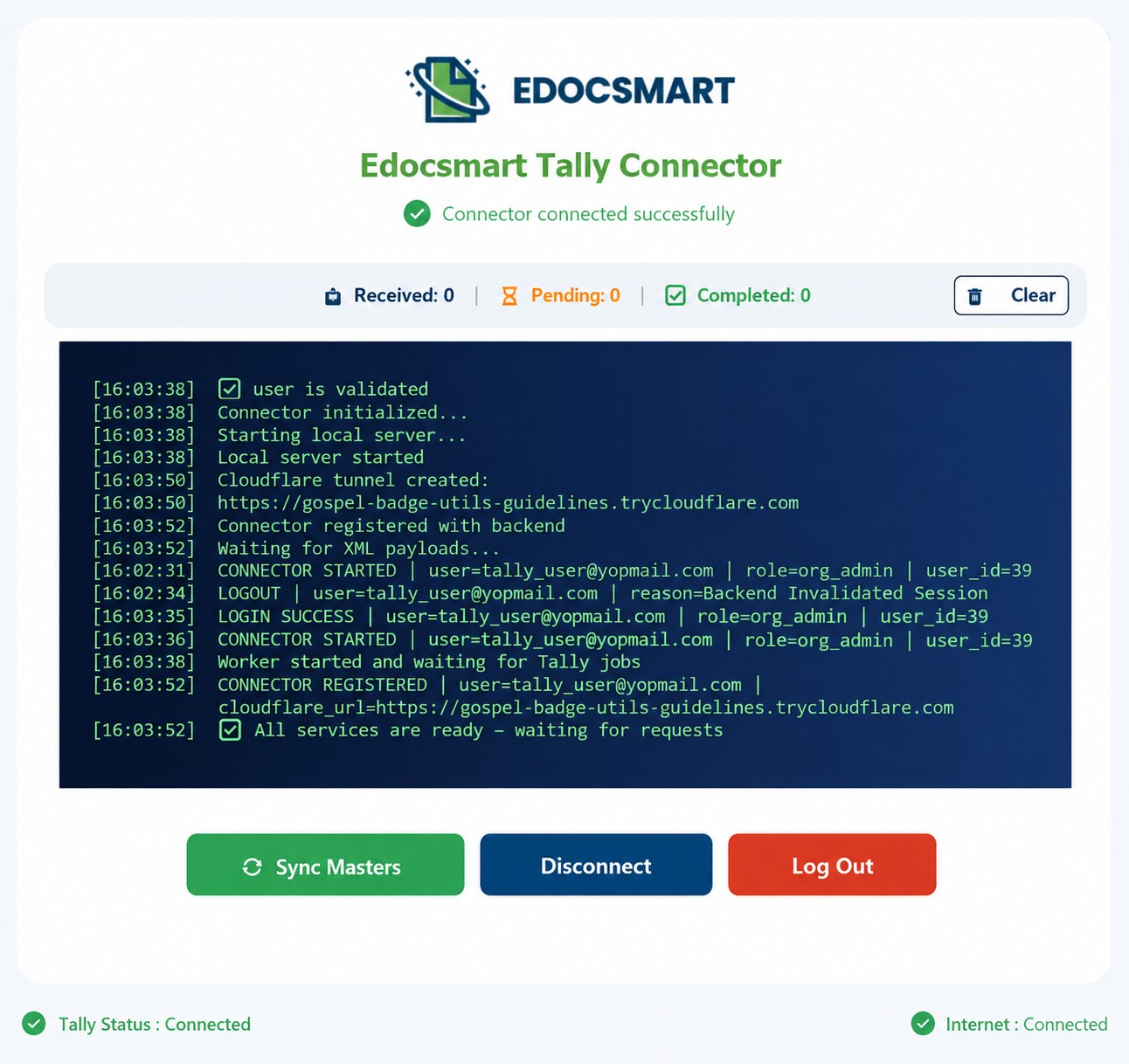
Step 10: Sync the Verified PDF Invoice to Tally
After the invoice has been extracted, reviewed and mapped, it is ready for synchronization.
Click Sync to Tally.
The verified information is then transferred through the configured Tally connection.
Depending on the organization's configuration, the resulting transaction can include relevant information such as the Party Ledger, supplier invoice number, invoice date, stock items, quantity, rate, HSN/SAC, GST information and invoice amount.
This is the stage where the original PDF information finally becomes usable accounting data inside Tally.
The important distinction is:
You are not sending the PDF file itself into Tally. You are sending the verified and mapped accounting data extracted from that PDF.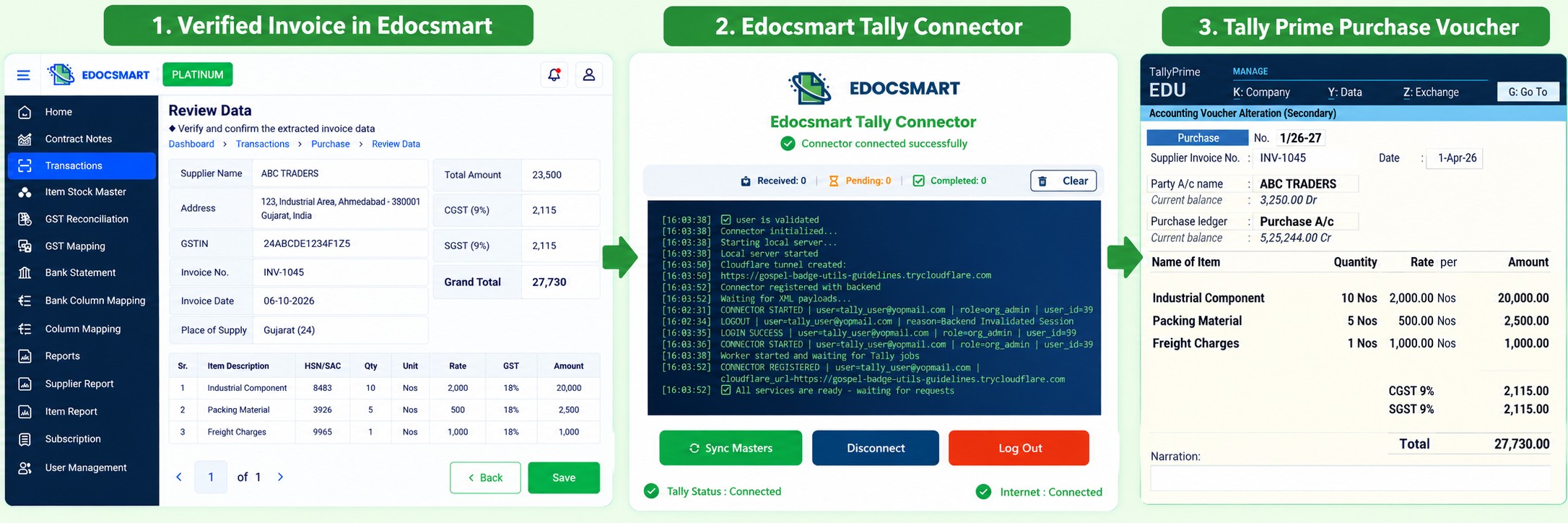
Step 11: Verify the Purchase Voucher in Tally
After synchronization, open the resulting transaction in Tally.
Check whether the invoice has reached the expected purchase voucher and verify the important accounting information.
Review the Party Ledger, supplier invoice number, invoice date, stock items, HSN/SAC, quantity, rate, GST and final amount.
The exact result depends on the organization's masters, mapping and accounting configuration.
Final verification is important because the goal of automatic invoice entry in Tally is not simply to make entry faster. The goal is to reduce repetitive data entry while keeping the accounting information accurate.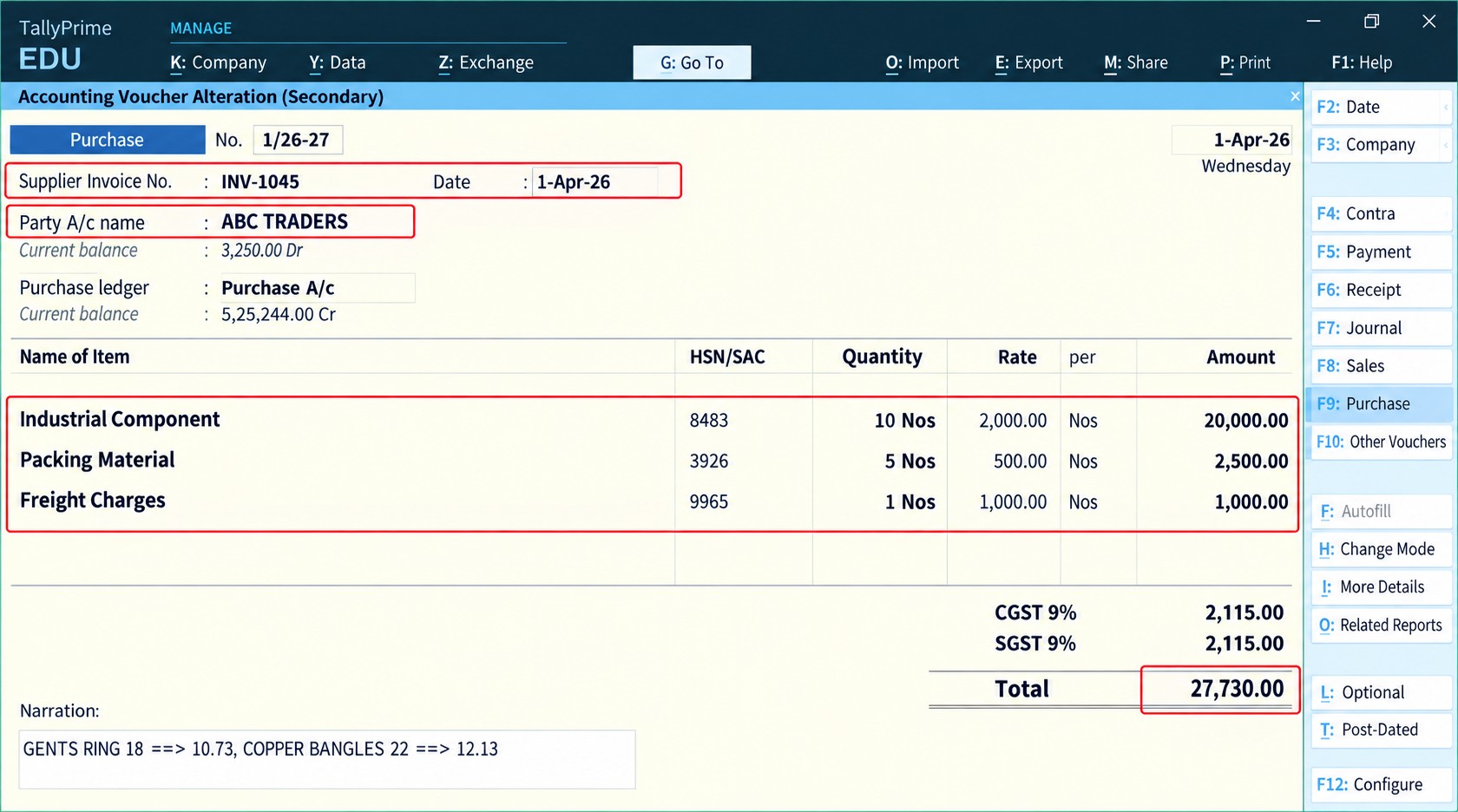
PDF to Tally Conversion Is Not the Same as PDF to Excel Conversion
This distinction is important.
A PDF to Excel converter primarily changes document information into spreadsheet rows and columns.
A PDF invoice to Tally workflow needs additional accounting context.
For example, extracting:
ABC Traders | Product A | ₹25,000
is not enough by itself.
The accounting workflow still needs to determine which Party Ledger represents ABC Traders, which Stock Item corresponds with Product A, how GST should be handled and which voucher configuration should receive the transaction.
Therefore:
PDF to Excel focuses mainly on data format conversion.
PDF to Tally focuses on extraction + verification + accounting mapping + synchronization.
This is why businesses looking for an OCR to Tally software solution should consider what happens after the text has been extracted.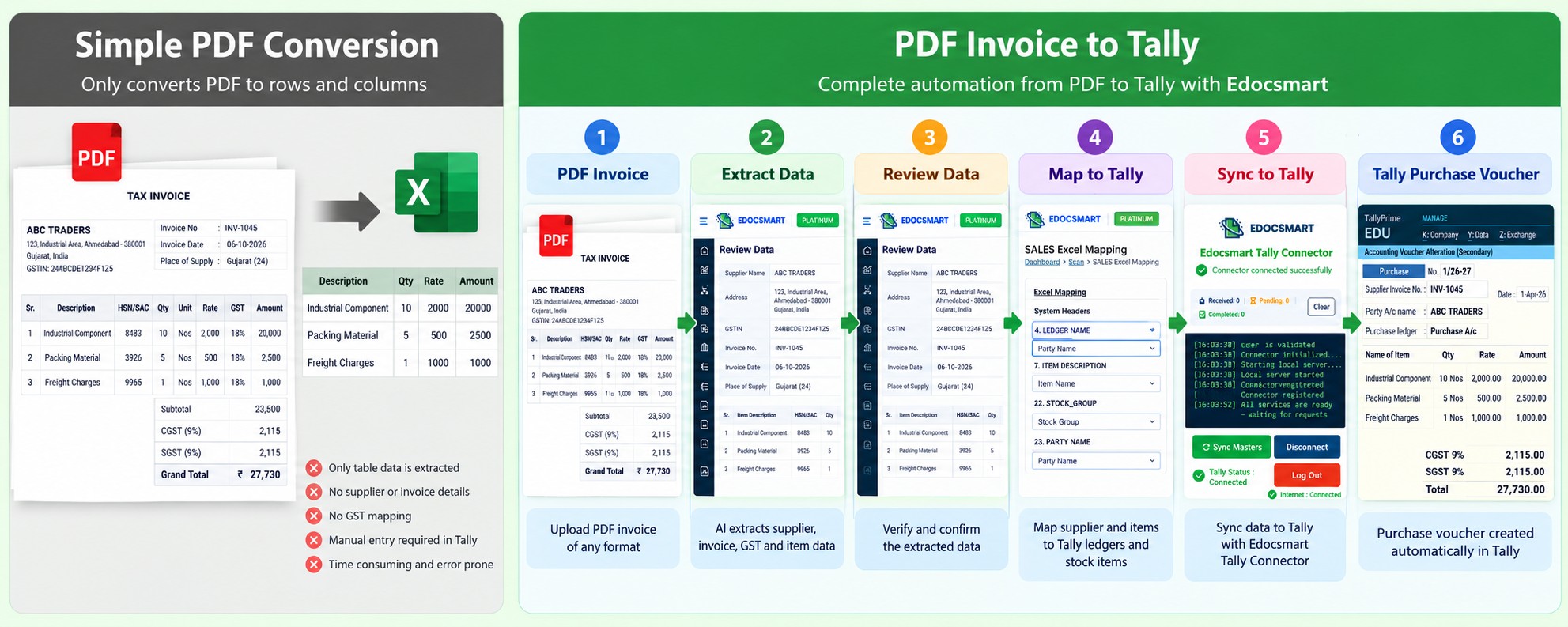
What If You Have Multiple PDF Invoices?
The same basic workflow becomes even more useful when invoice volume increases.
Instead of opening each PDF and recreating every voucher manually, invoices can be processed so that their individual records are available for review.
Verified invoices can then move forward while documents requiring corrections can remain pending.
This approach is useful for businesses dealing with daily supplier invoices, accounting firms managing multiple clients, and organizations with high purchase volumes.
The objective of bulk invoice upload to Tally is not to remove review. It is to make repetitive document processing easier while allowing exceptions to receive additional attention.
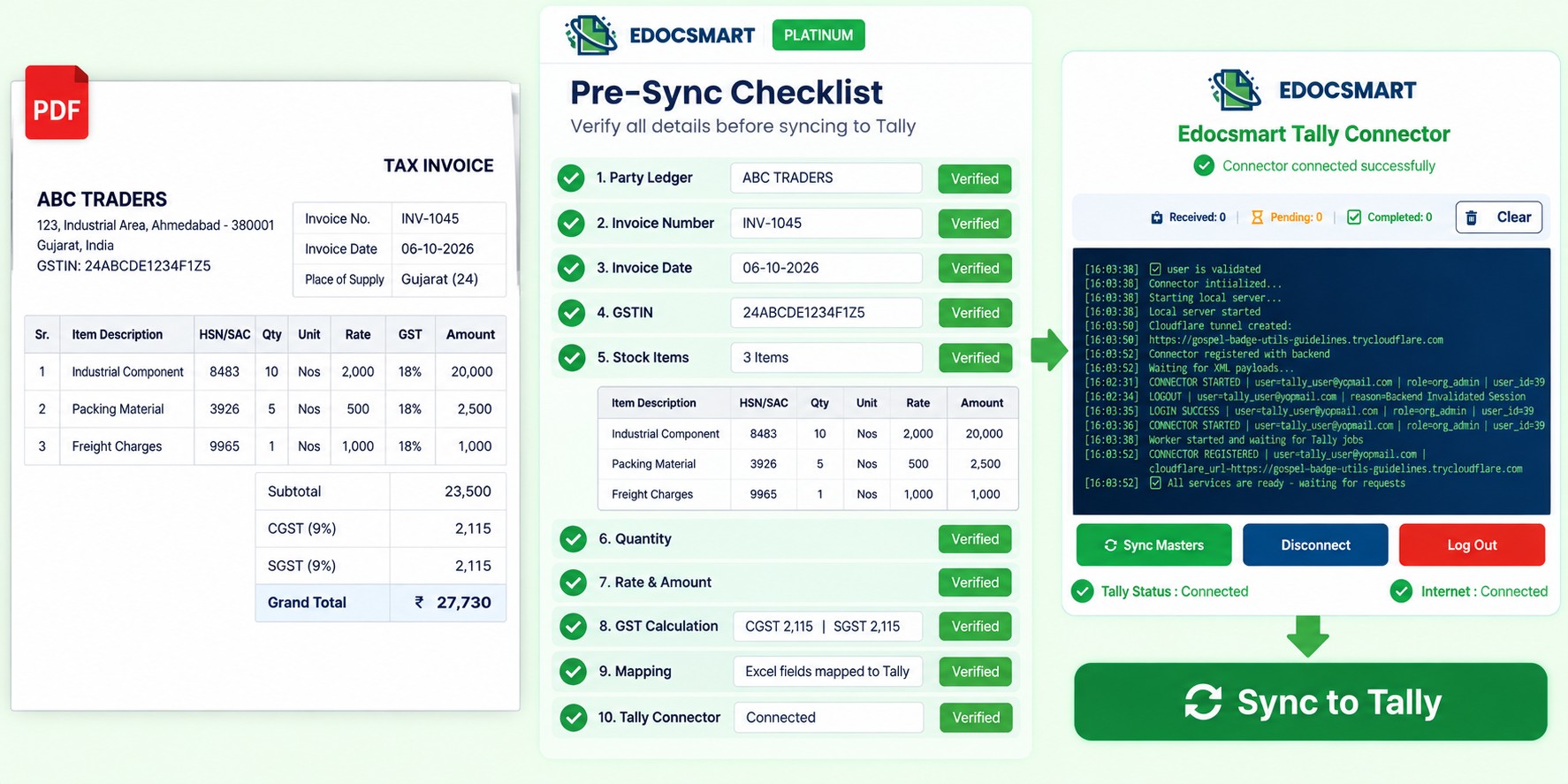
What Should You Check Before Syncing a PDF Invoice?
Before sending an invoice to Tally, check the important information one final time.
Confirm that the supplier is mapped to the correct Party Ledger. Verify the invoice number and invoice date against the original PDF.
Check GSTIN and applicable GST information.
For item-based invoices, review the Stock Item, HSN/SAC, quantity, unit, rate and tax values.
Finally, compare the grand total with the original invoice and make sure the Tally Connector is connected.
A simple pre-sync check can be:
- Party Ledger ✓
- Invoice Number ✓
- Invoice Date ✓
- GST ✓
- Stock Items ✓
- Quantity & Rate ✓
- Invoice Total ✓
- Mapping ✓
- Tally Connector ✓
Manual PDF Invoice Entry vs PDF Invoice Automation
| Manual PDF Invoice Entry | PDF Invoice Automation |
|---|---|
| Open every PDF manually | Upload invoice for processing |
| Read supplier details | Extract supplier information |
| Type invoice number and date | Review extracted invoice details |
| Enter GST information | Verify structured GST fields |
| Type every item manually | Review extracted item rows |
| Search Party Ledger during entry | Map supplier with Tally ledger |
| Search Stock Items manually | Map invoice items with Tally items |
| Create voucher manually | Sync verified information |
| More repetitive typing | More focus on verification |
The biggest change is not that the accountant disappears from the process.
The accountant's role moves from repetitive data entry to review and verification.
Where Can PDF Invoice to Tally Automation Be Useful?
This workflow can be useful wherever businesses receive regular invoices in PDF format.
A trading company may receive purchase invoices from dozens of suppliers every day.
A manufacturer may receive invoices containing raw materials, quantities, HSN codes and different GST rates.
An accounting firm may process invoices for several clients.
A retailer or distributor may have invoices containing large item tables.
In all these situations, repeatedly entering information that already exists inside a PDF adds unnecessary work.
Using Edocsmart for PDF invoice data to Tally can help organize that information into a review-and-sync workflow instead.
For a dedicated workflow, businesses can also explore PDF to Tally for converting invoice information into Tally-ready accounting data.
Frequently Asked Questions
How do I convert a PDF invoice to Tally?
Upload the PDF invoice into Edocsmart, process the invoice data, review the extracted fields, map the required information with Tally masters and synchronize the verified transaction through the configured Tally Connector.
Can a PDF invoice be directly imported into Tally?
The raw PDF itself is not treated as the final accounting voucher. The invoice information first needs to be extracted, structured, reviewed and mapped before the verified data is synchronized with Tally.
What information can be extracted from a PDF invoice?
Depending on the invoice and processing setup, information can include supplier details, invoice number, date, GSTIN, GST values, item descriptions, HSN/SAC, quantity, unit, rate and total amount.
Can Edocsmart extract item-level data from PDF invoices?
Edocsmart's invoice workflow can process invoice details including item-level information for review. The extracted values should be verified against the original invoice before synchronization.
Do I need to map every PDF invoice manually?
Initial mapping or configuration may be required. Where the same configured relationship continues to apply, recurring mappings can generally be reused depending on the organization's setup.
Can I correct invoice information before sending it to Tally?
Yes. The Review Data stage allows extracted invoice information to be checked and corrected before synchronization.
How does Edocsmart connect with Tally?
After the invoice has been reviewed and mapped, the configured Edocsmart Tally Connector provides the connection between Edocsmart and the local Tally environment. The connector should be running and connected before synchronization.
Can multiple PDF invoices be processed?
Yes, multiple invoice records can be processed and managed within the transaction workflow. Verified records can move forward while invoices requiring corrections can remain for additional review.
Conclusion
A PDF invoice already contains most of the information needed for accounting. The real problem is converting that document information into properly structured and verified Tally data.
That requires more than changing a PDF into another file format.
The invoice information needs to be extracted, organized into individual fields, checked against the original document, connected with the correct Tally masters and then synchronized through the configured connection.
With Edocsmart, the process becomes:
PDF Invoice → Data Extraction → Review & Correction → Tally Mapping → Verification → Tally Connector → Sync to Tally → Verify Voucher
This approach reduces the need to repeatedly type supplier details, invoice numbers, GST information and item data while keeping the accountant involved in the important verification steps.
For businesses processing regular supplier invoices, converting PDF invoices to Tally can turn repetitive invoice entry into a more structured, review-focused accounting workflow.