How to Convert PDF to Tally
Convert PDF invoices into structured, verified Tally-ready accounting data with extraction, review, mapping, and synchronization through Edocsmart.
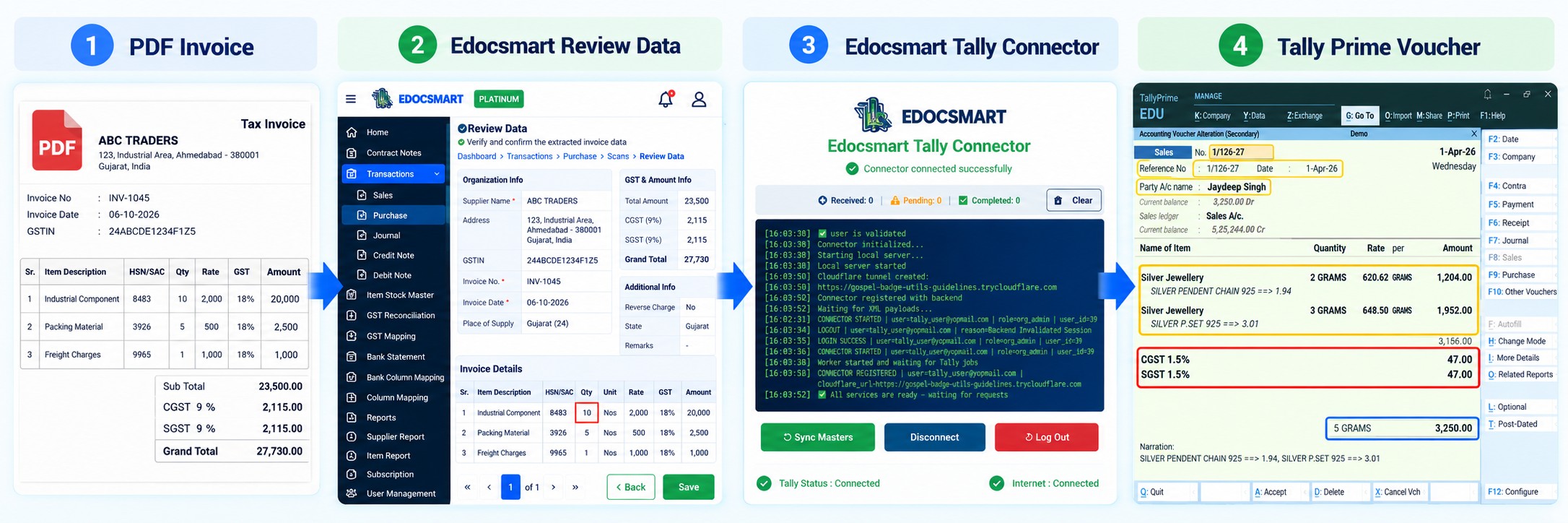
Supplier invoices often arrive as PDFs containing all the information required for accounting—supplier name, invoice number, GSTIN, item details, quantity, rate, tax and final amount.
The problem is that this information usually needs to be entered into Tally in a structured accounting format.
Instead of reading every PDF and manually entering the same details, a PDF to Tally workflow can extract the invoice information, organize it into accounting fields, allow the user to review it, and then sync the verified data with Tally.
With Edocsmart, the process can be organized as:
PDF Invoice → Extract → Review → Map → Verify → Tally Connector → Tally
What Does PDF to Tally Conversion Mean?
Converting a PDF to Tally is not the same as converting a PDF into Excel or extracting text from a document.
A normal PDF converter may produce rows, columns or plain text. Tally requires accounting context.
For example:
- PDF Supplier Name → Tally Party Ledger
- PDF Item Description → Tally Stock Item
- PDF GST Details → GST Accounting Fields
- PDF Invoice Information → Purchase Voucher
This means the useful output of a PDF to Tally converter is not simply extracted text. The invoice information needs to become structured and verified accounting data.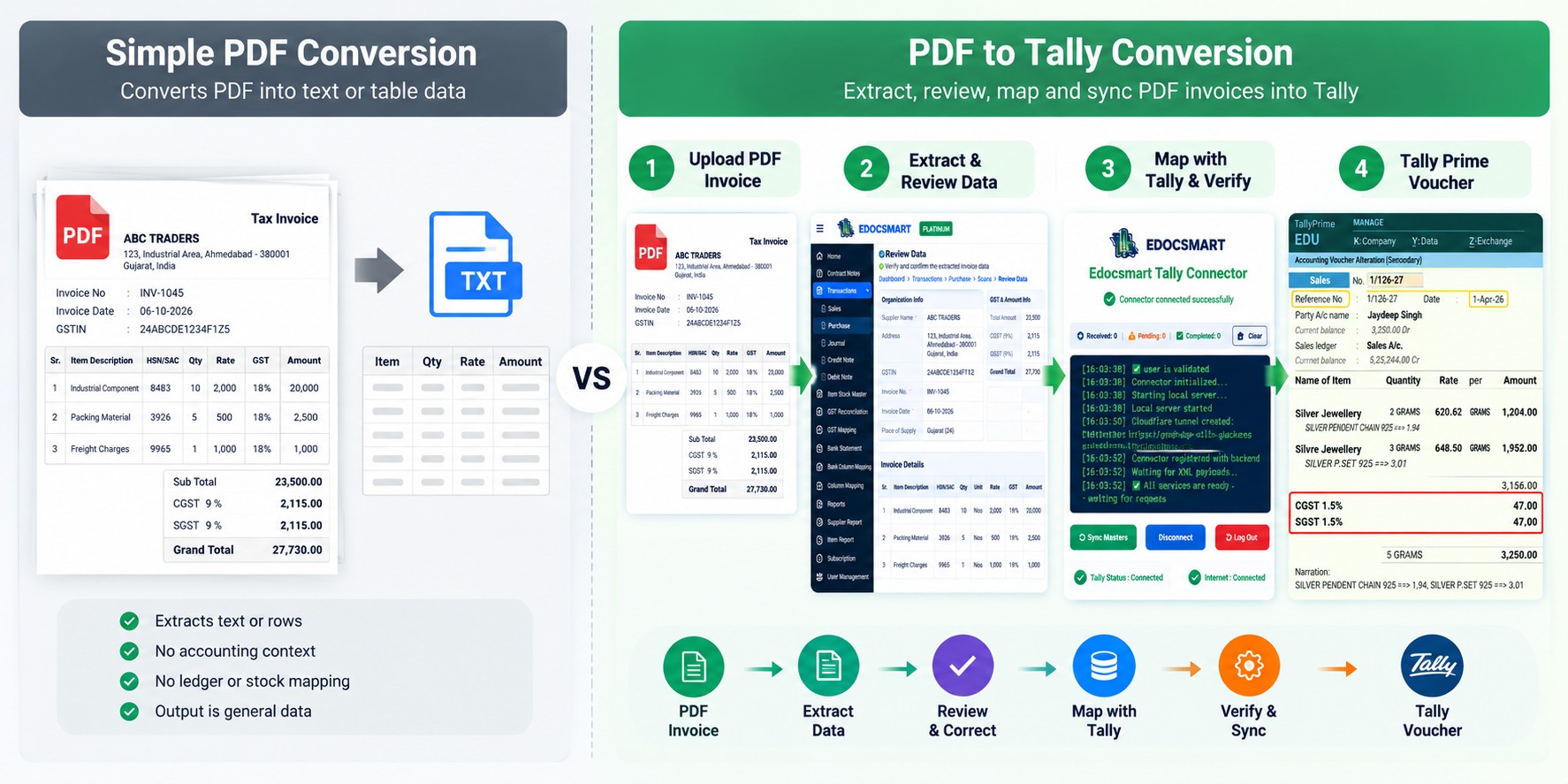
How to Convert PDF to Tally Using Edocsmart
Step 1: Upload the PDF Invoice
Log in to Edocsmart and open Transactions → Purchase → Images.
Click Upload and select the supplier PDF invoice that you want to process.
The PDF remains the source document. Instead of manually copying information from the invoice into Tally, the document is processed so that its accounting information can be extracted.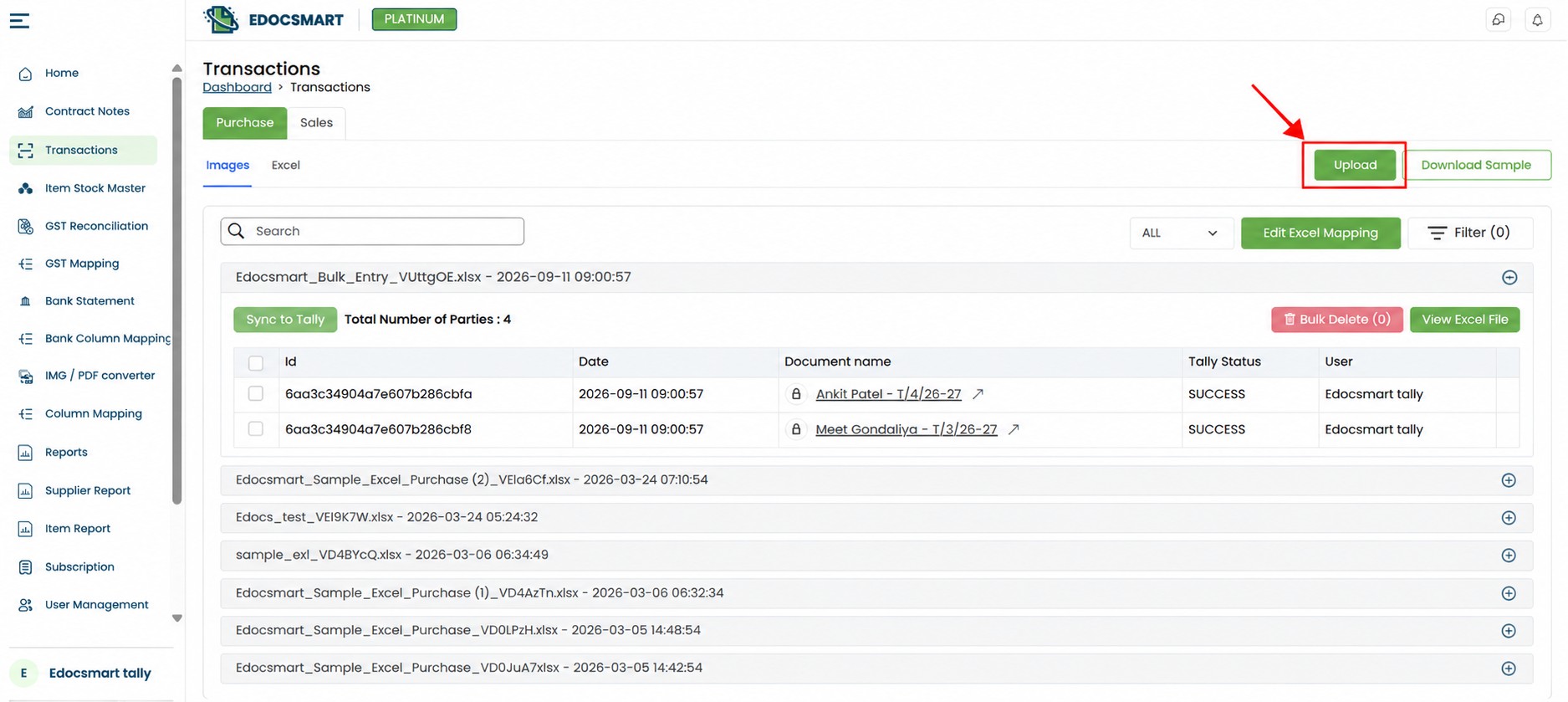
Step 2: Extract Invoice and Item Information
After the document is uploaded, Edocsmart can extract information from the PDF into structured fields.
Invoice-level information may include:
Supplier Name, Invoice Number, Invoice Date, Address, GSTIN, CGST, SGST/IGST and Grand Total.
Item-level information may include:
Item Description, HSN/SAC, Quantity, Unit, Rate, GST and Amount.
This AI invoice data extraction process reduces the need to manually type the same information that already exists in the supplier document.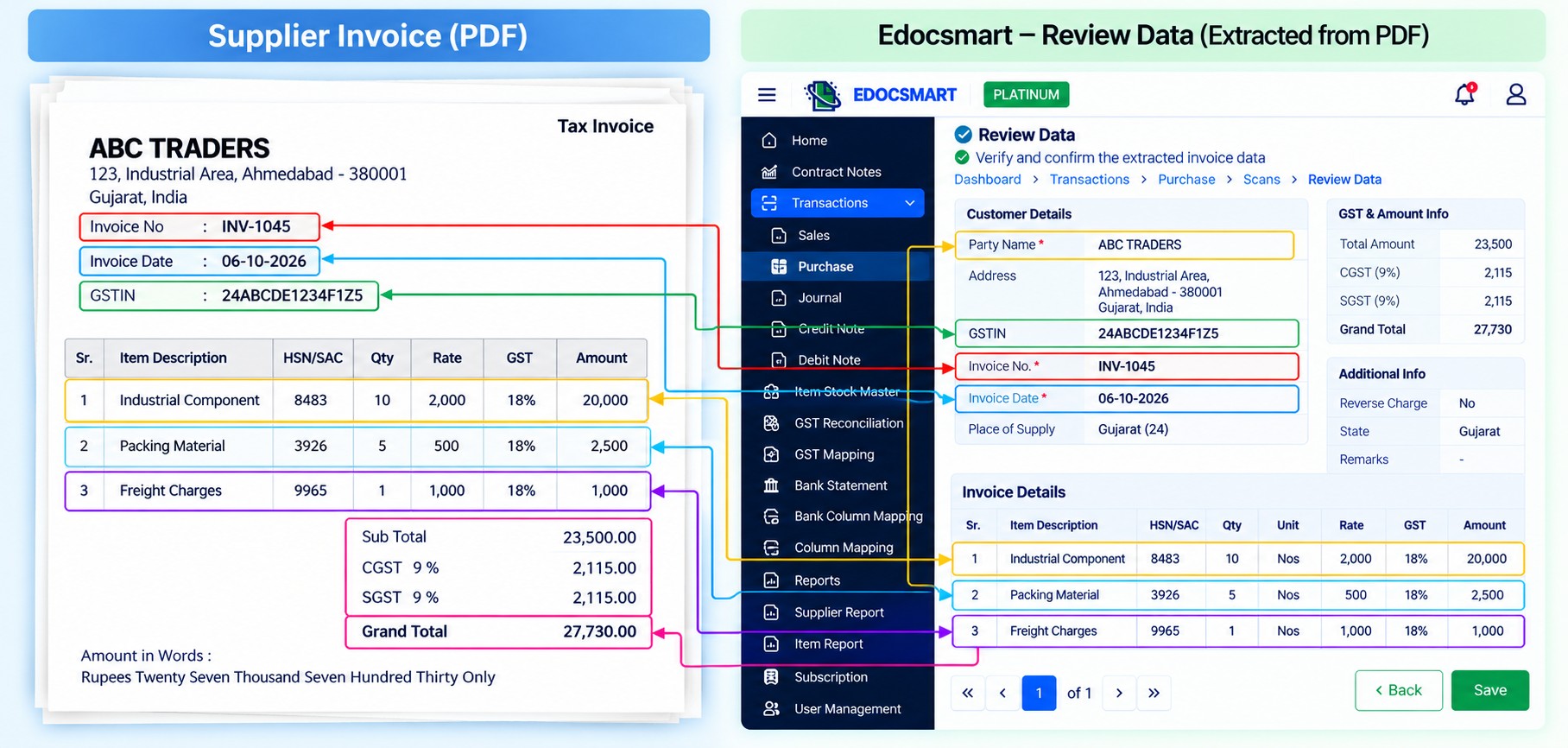
Step 3: Review the Extracted Data
Automation should reduce data entry, but accounting information should still be verified.
Compare the extracted values with the original PDF before proceeding. Pay particular attention to invoice number, GSTIN, quantity, rate, tax and final amount.
For example, if the PDF contains:
- Quantity: 10.73
but the extracted value shows:
- Quantity: 10.78
the quantity should be corrected before synchronization.
The purpose of automation is therefore not to remove accounting control. It is to shift the work from repetitive typing toward review and verification.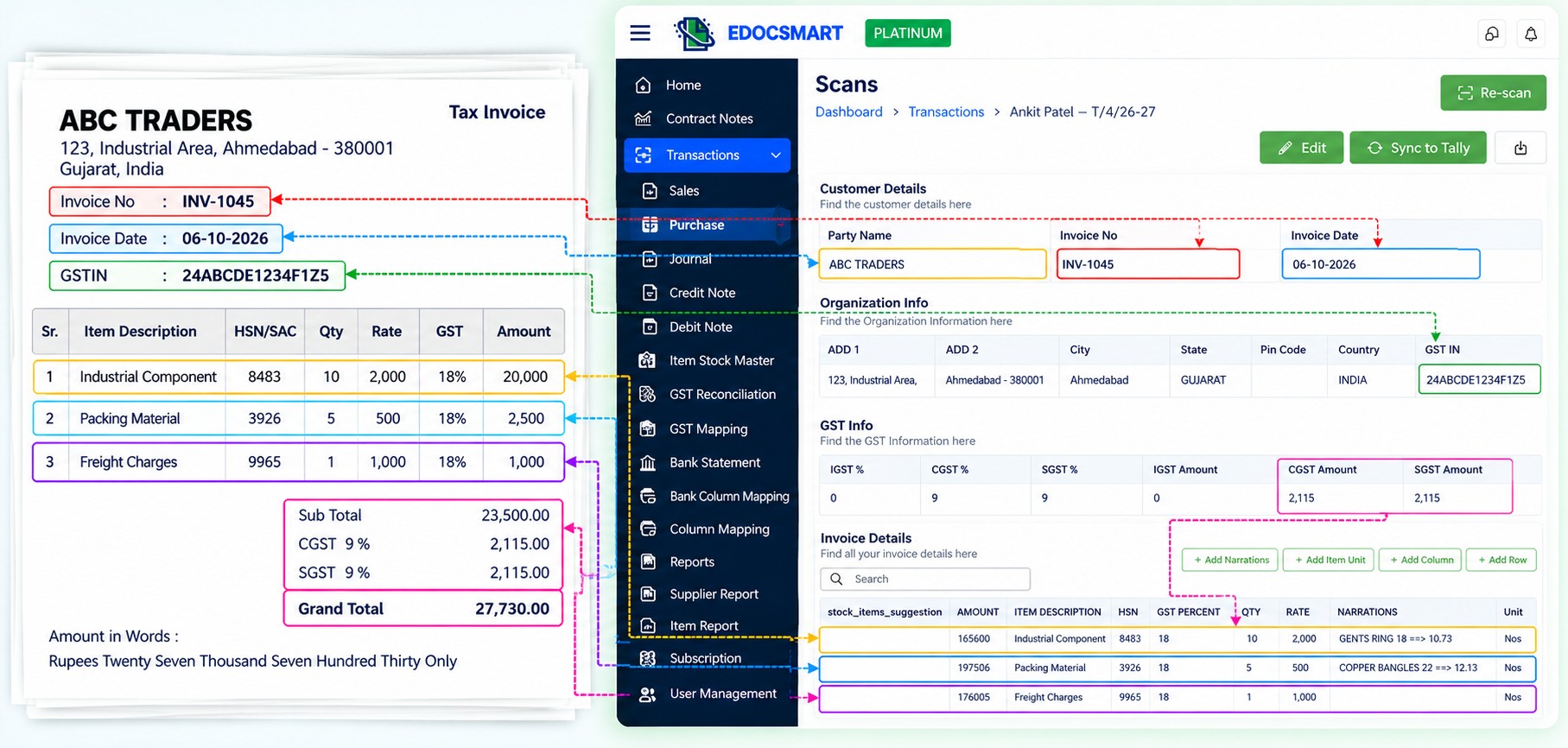
Step 4: Map the Data with Tally
After the invoice information has been reviewed, it needs the correct accounting context.
For example, the supplier name printed on a PDF may need to correspond with a specific Party Ledger in Tally. An invoice item may need to correspond with the appropriate Stock Item.
The same applies to GST and voucher information.
Initial mapping or configuration may be required depending on the organization's Tally setup. Where the same configured relationship continues to apply, it may be reused for future transactions.
This is an important difference between simple OCR and actual PDF to Tally conversion.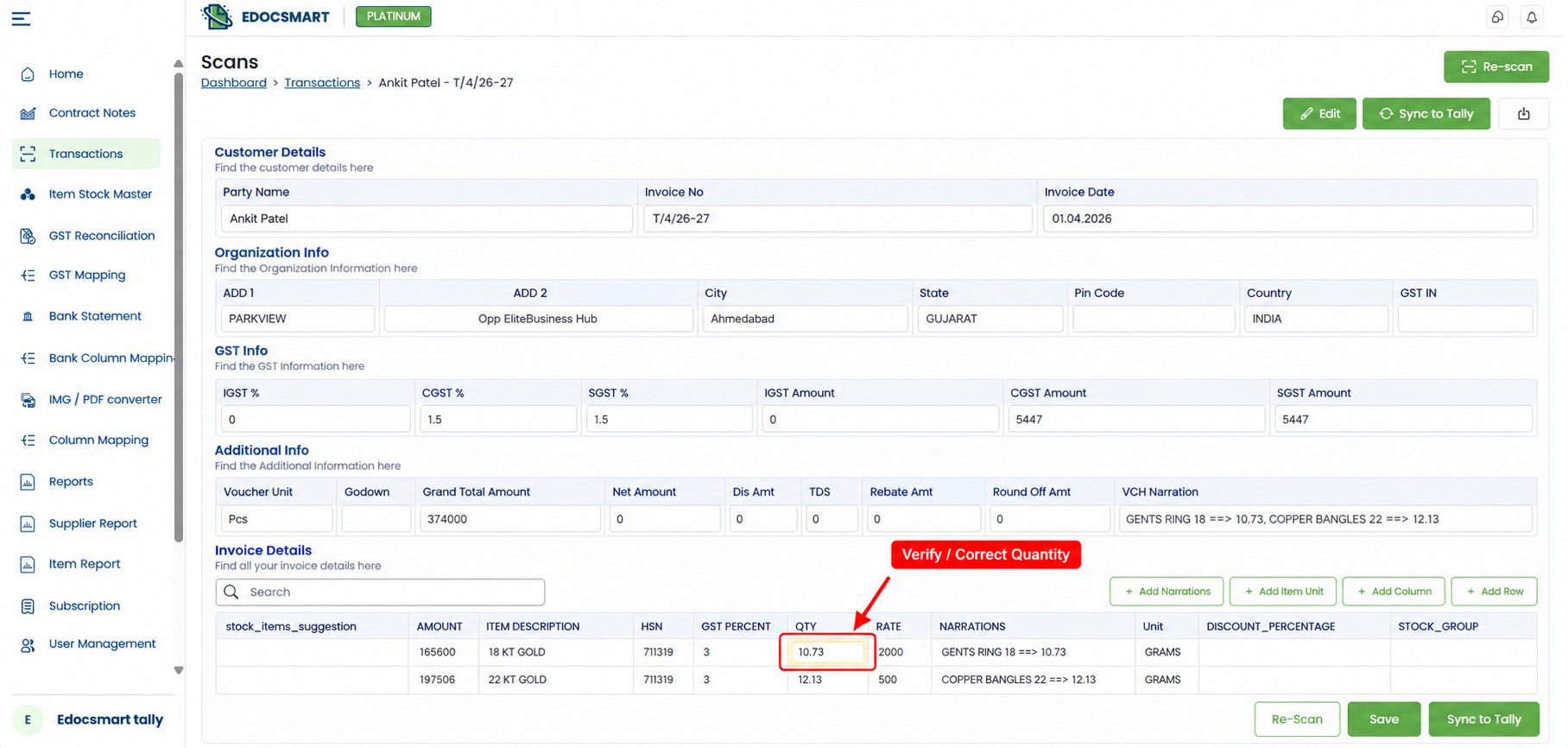
Step 5: Check the Tally Connector and Sync
Before synchronization, make sure the Edocsmart Tally Connector is running correctly.
Check for:
- Connector connected successfully
- Tally Status: Connected
- Internet: Connected
Once the invoice has been reviewed and the required mapping is ready, click Sync to Tally.
The verified structured information can then move through the connector into the configured Tally environment.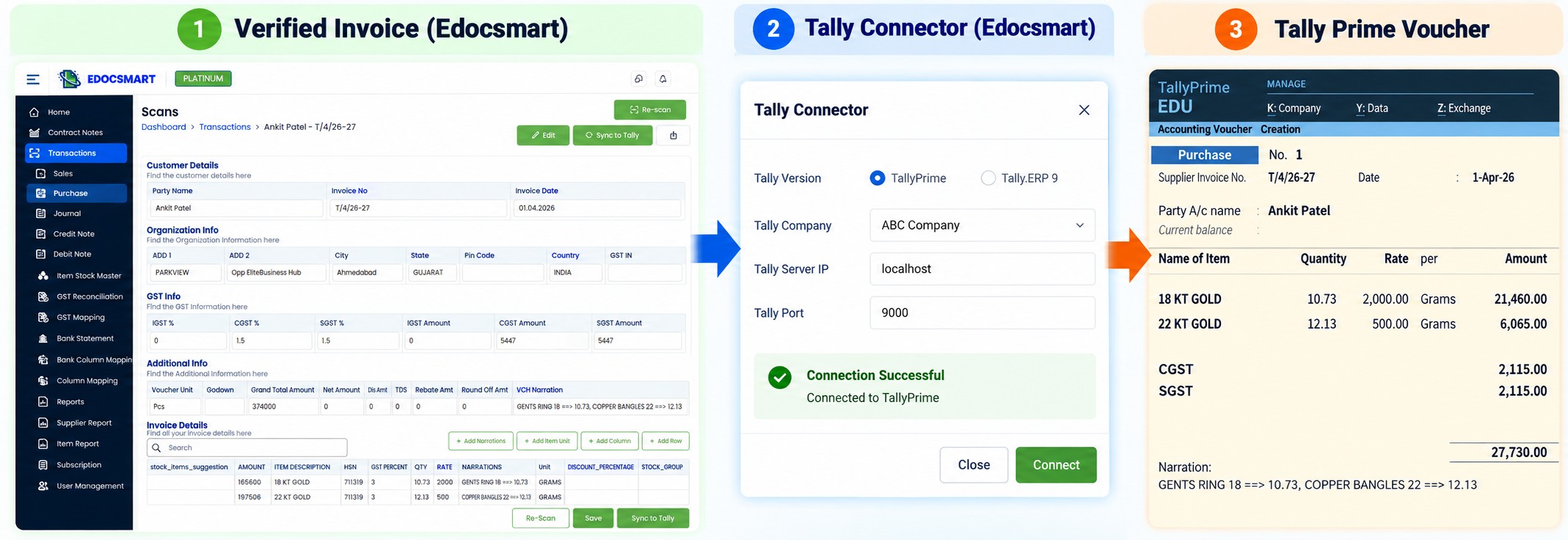
Step 6: Verify the Voucher in Tally Prime
After synchronization, open Tally Prime and check the resulting voucher.
Verify important information such as:
Party A/c Name · Invoice Number · Date · Stock Items · Quantity · Rate · GST · Final Amount
This final check confirms that the information extracted from the PDF has reached the intended accounting entry correctly.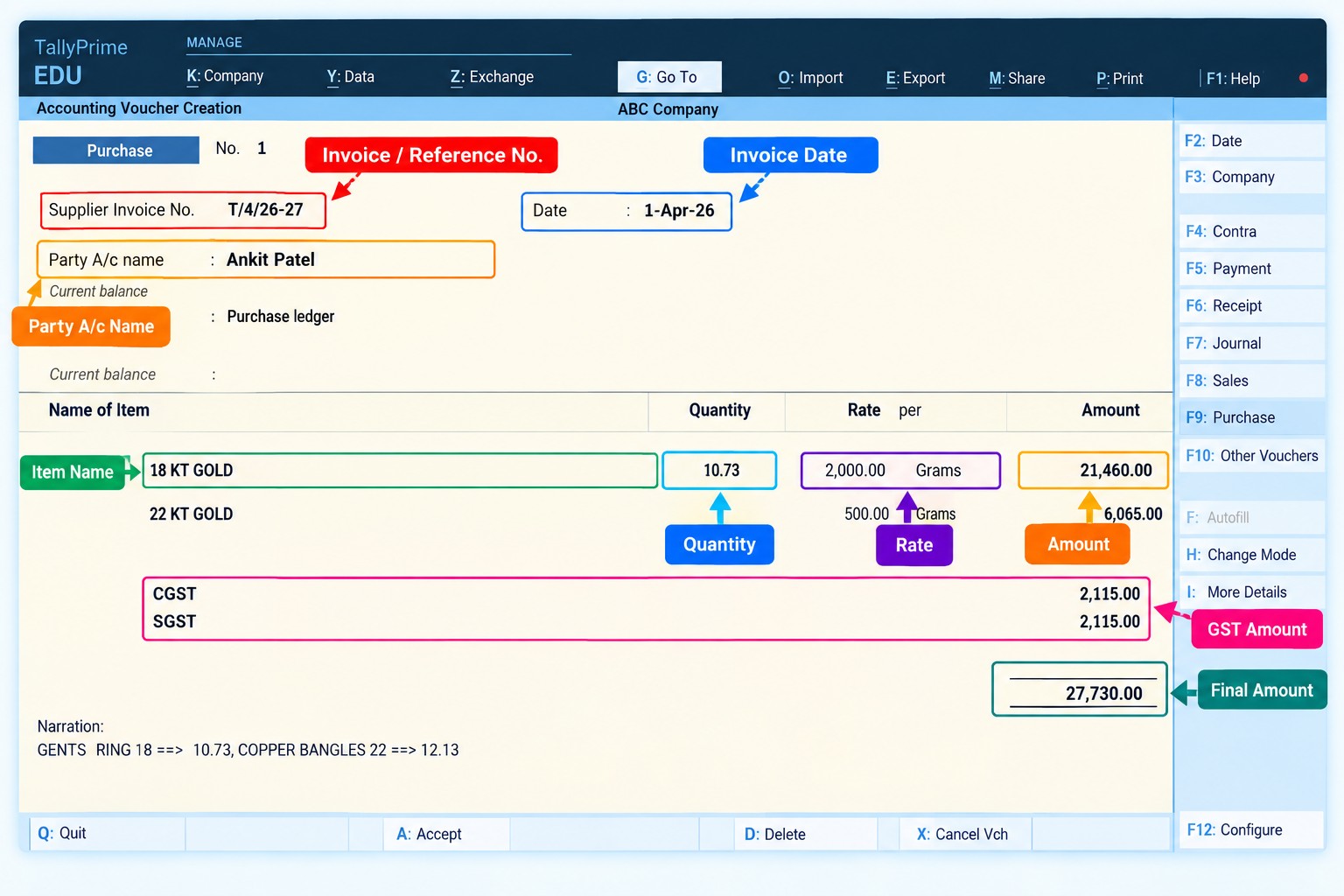
PDF Conversion vs PDF to Tally Conversion
| Simple PDF Conversion | PDF to Tally Conversion |
|---|---|
| Extracts text or tables | Extracts accounting information |
| Produces rows/columns | Produces structured invoice fields |
| No ledger relationship | Supplier can map to Party Ledger |
| No stock context | Item can map to Stock Item |
| No accounting workflow | Review and verification included |
| Output remains general data | Verified data can move to Tally |
This is why convert PDF to Tally automatically should not be understood as simply changing a .pdf file into another file format.
The accounting context is what matters.
What About Scanned PDF Invoices?
Some PDFs are generated digitally, while others are scanned copies of physical invoices.
For scanned documents, an OCR to Tally software workflow can be used to identify invoice information before structuring it for accounting.
However, scan quality matters. Blurred text, cropped pages or unclear numbers may require additional review.
Fields such as invoice number, GSTIN, quantity, rate and total should always be checked against the original document before synchronization.
Before You Sync: Quick Checklist
Before sending the invoice to Tally, check:
Party Ledger ✓ · Invoice Number ✓ · Date ✓ · GST ✓ · Stock Items ✓ · Quantity ✓ · Rate ✓ · Total ✓ · Mapping ✓ · Tally Connector ✓
This simple verification can prevent incorrect information from moving further into the accounting workflow.
Frequently Asked Questions
Can I convert PDF directly to Tally?
The PDF itself is not a completed Tally voucher. Its information needs to be extracted, reviewed, mapped and converted into structured accounting data before synchronization.
Can scanned PDF invoices be converted to Tally?
Yes, scanned documents can be processed through OCR/data extraction, but the extracted information should be reviewed carefully because scan quality can affect accuracy.
Does PDF to Tally conversion include GST and item details?
Depending on the source document and configured workflow, information such as GST, HSN/SAC, items, quantity, rate and amounts can be extracted and reviewed.
Is PDF to Tally the same as PDF to Excel?
No. PDF-to-Excel mainly converts document data into spreadsheet rows and columns. PDF to Tally additionally involves accounting structure, mapping, review and synchronization.
Do I need to map every invoice manually?
Initial mapping or configuration may be required. If an existing configuration continues to apply, it may be reused. The exact behavior depends on the organization's setup.
Should I verify the invoice after syncing it to Tally?
Yes. The resulting voucher should be checked in Tally Prime to confirm important fields such as party, invoice number, items, quantity, rate, GST and final amount.
Conclusion
Converting PDF to Tally is more than extracting text from an invoice. The information inside the document needs to become structured, reviewed and correctly mapped accounting data.
The complete process is:
PDF Invoice → Extract → Review → Map → Verify → Tally Connector → Tally Voucher
Using Edocsmart, businesses can reduce repetitive invoice entry while keeping verification as an important part of the accounting process.
For businesses regularly handling supplier PDF invoices, the PDF to Tally solution provides a structured way to move invoice information from documents into the Tally workflow.