How to Create Tally Vouchers from Excel
Creating vouchers manually in Tally can become repetitive when the same transaction data is already available in Excel.
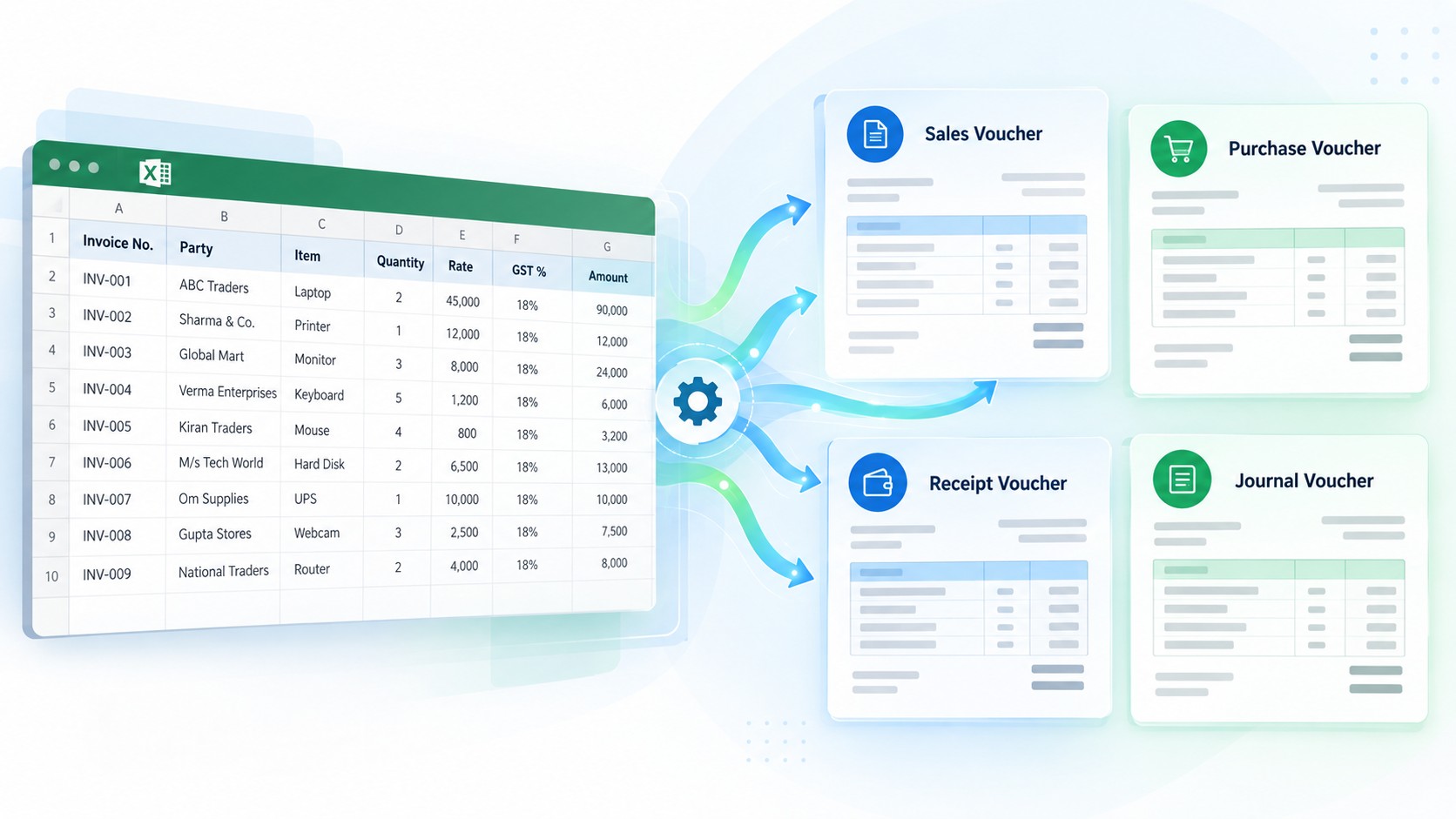
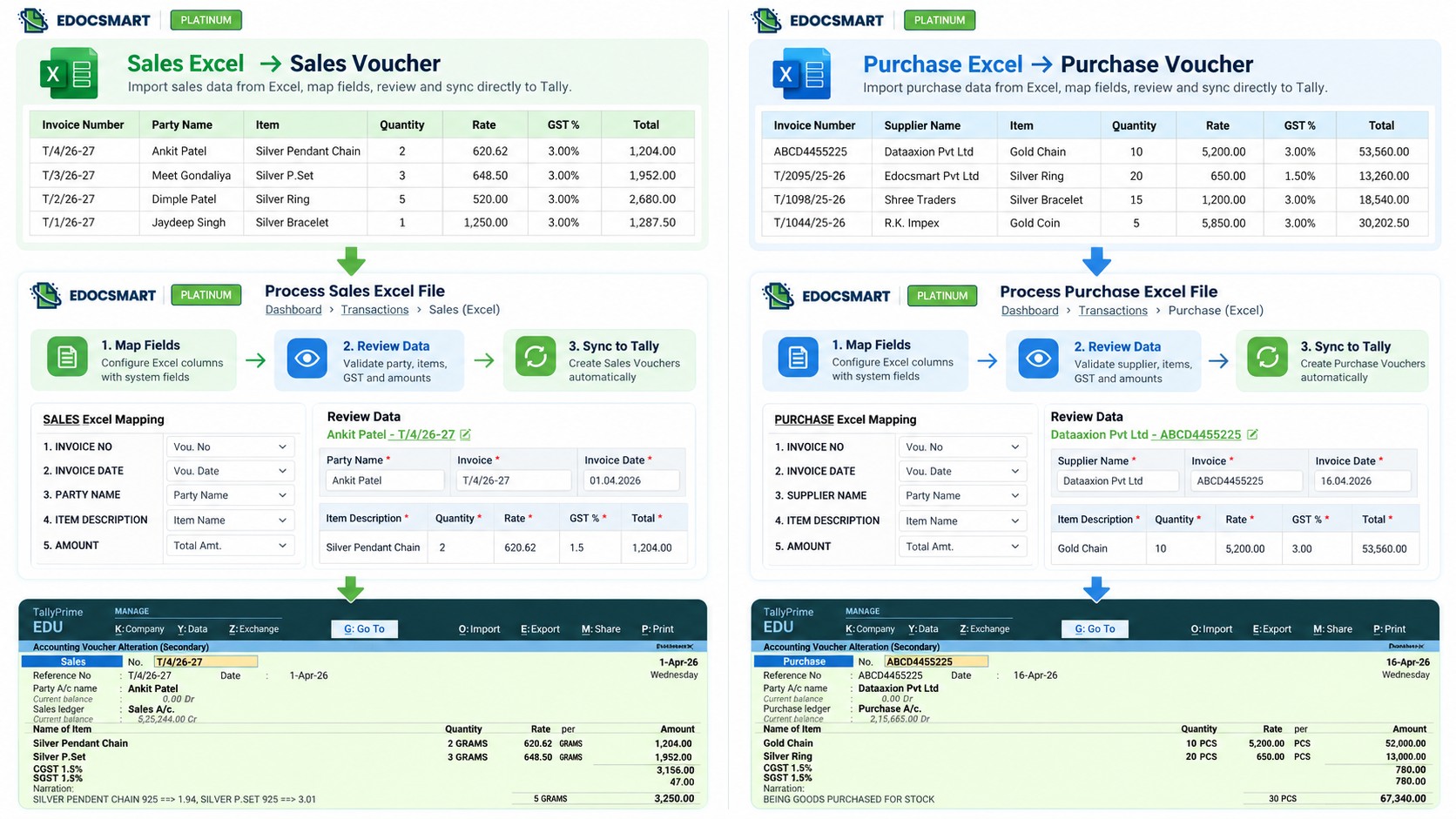
A business may already have sales records, purchase bills, invoice numbers, party names, item details, GST values, quantities, rates, and totals stored in Excel. The real task is not entering the same information again. The task is converting that Excel to tally data into the correct Tally voucher structure.
That is where Excel to Tally voucher creation becomes useful.
The basic idea is simple:
Excel Record → Identify Transaction → Build Voucher Structure → Verify → Tally
Start with the Voucher Type
Before creating a voucher from Excel, the first thing to decide is the type of accounting transaction.
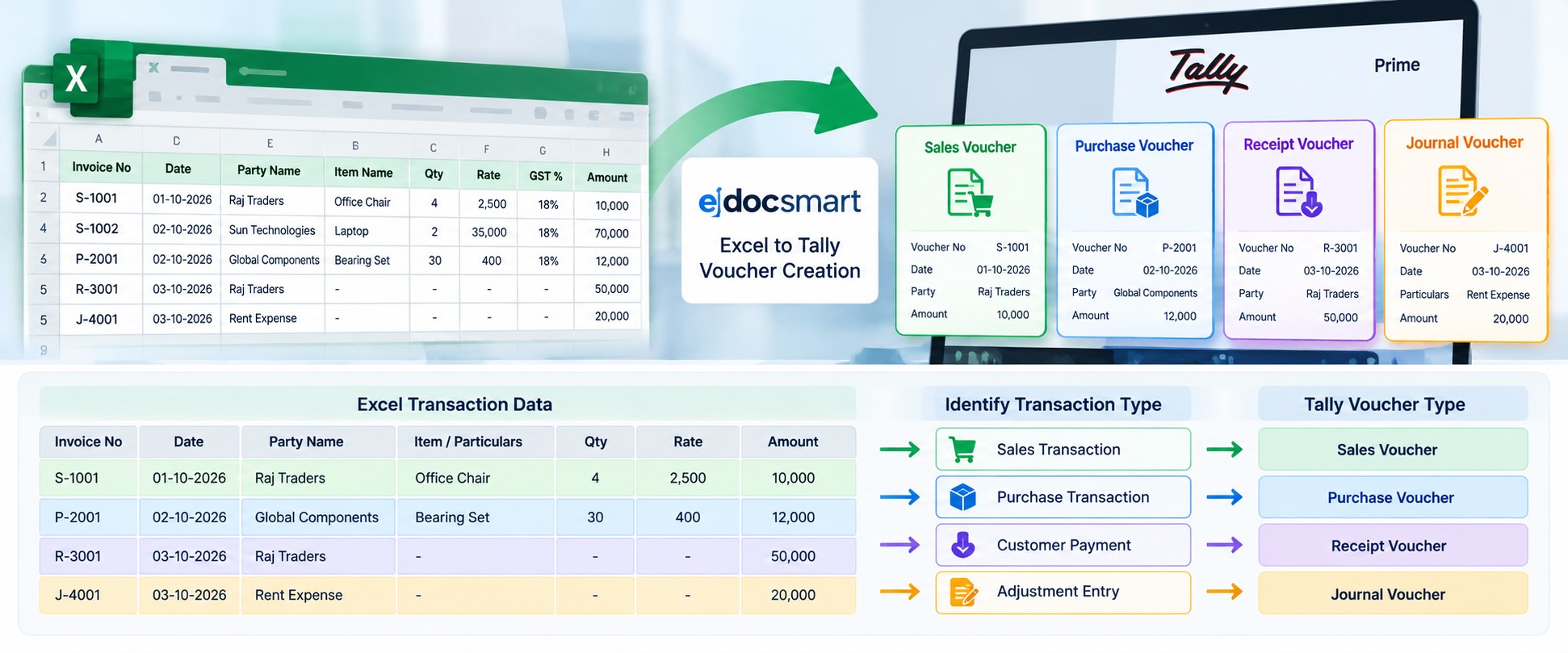
Different Excel records may need to become different vouchers in Tally.
- Sales transaction → Sales Voucher
- Purchase transaction → Purchase Voucher
- Customer payment → Receipt Voucher
- Supplier payment → Payment Voucher
- Adjustment entry → Journal Voucher
- Bank or cash transfer → Contra Voucher
This is important because Excel only stores the values. Tally needs to know the accounting purpose of those values.
For example, a party name in a sales transaction represents a customer ledger, while the same type of field in a purchase transaction may represent a supplier ledger.
What Information Is Needed to Create a Voucher?
The required fields depend on the voucher type, but some information is commonly used.
For a sales or purchase transaction, the Excel file may contain:
- Invoice Number
- Invoice Date
- Party Name
- Ledger Name
- Item Name
- Quantity
- Rate
- Discount
- Taxable Amount
- GST Rate
- CGST
- SGST
- IGST
- HSN/SAC
- Invoice Total
- Narration
Each field has a specific role in the final voucher.
For example:
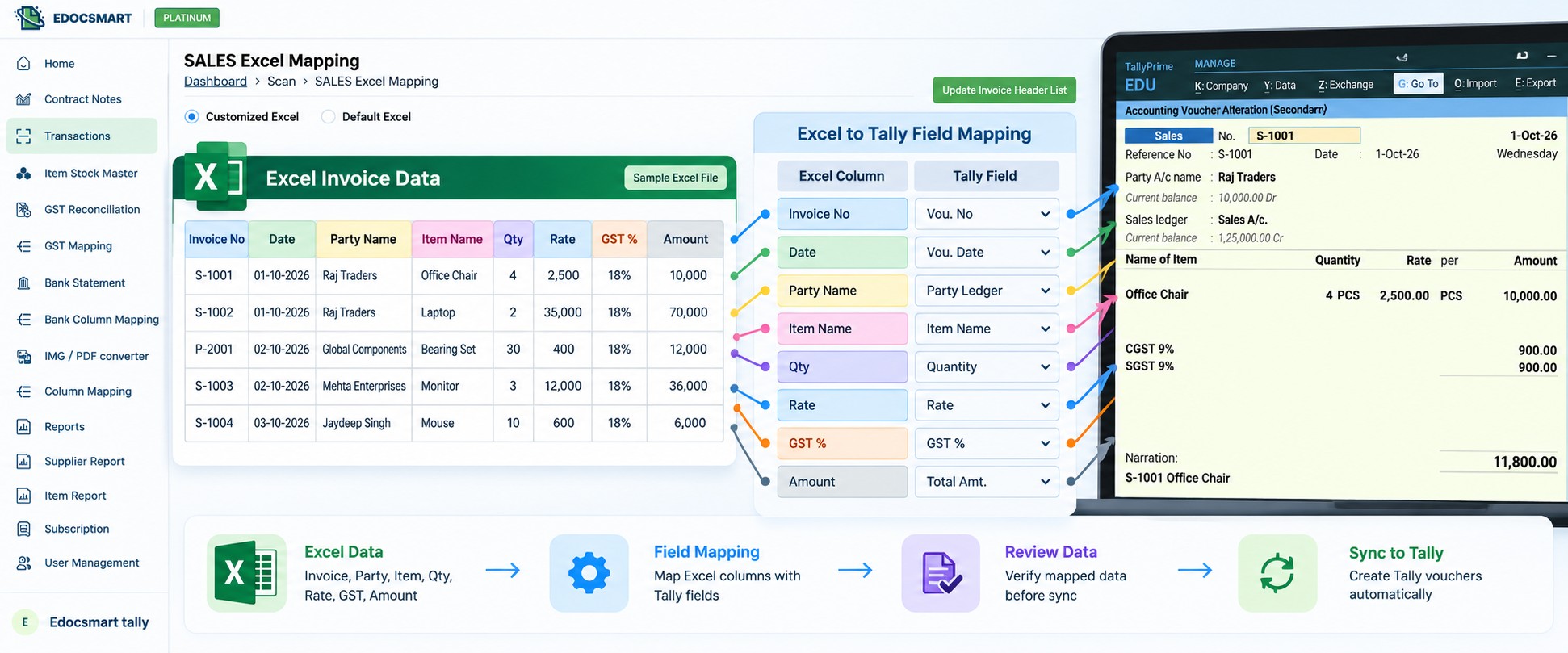
Invoice Number → Voucher Number
Party Name → Party Ledger
Product Name → Stock Item
Quantity → Quantity
Rate → Rate
GST Rate → Tax Structure
Final Amount → Voucher Total
Creating a Sales Voucher from Excel
Suppose the Excel file contains this transaction:
Invoice No: S-1205
Customer: Raj Traders
Item: Office Chair
Quantity: 4
Rate: ₹3,000
GST Rate: 18%
This data can be interpreted for Tally as:
- Voucher Type → Sales
- Voucher Number → S-1205
- Party Ledger → Raj Traders
- Stock Item → Office Chair
- Quantity → 4
- Rate → ₹3,000
- GST → Configured Sales Tax Structure
The spreadsheet record is now being treated as a complete accounting transaction instead of just a row of data.
Creating a Purchase Voucher from Excel
Purchase vouchers use a similar structure, but the accounting meaning changes.
Consider this Excel record:
Bill No: P-452
Supplier: Global Components
Item: Bearing Set
Quantity: 30
Rate: ₹400
GST Rate: 18%
The transaction may become:
Voucher Type → Purchase
Voucher Number → P-452
Supplier Ledger → Global Components
Purchase Ledger → Configured Purchase Ledger
Stock Item → Bearing Set
Quantity → 30
Rate → ₹400
GST → Configured Purchase Tax Structure
The Excel format may look similar to a sales sheet, but the final voucher is different because the transaction itself is different.
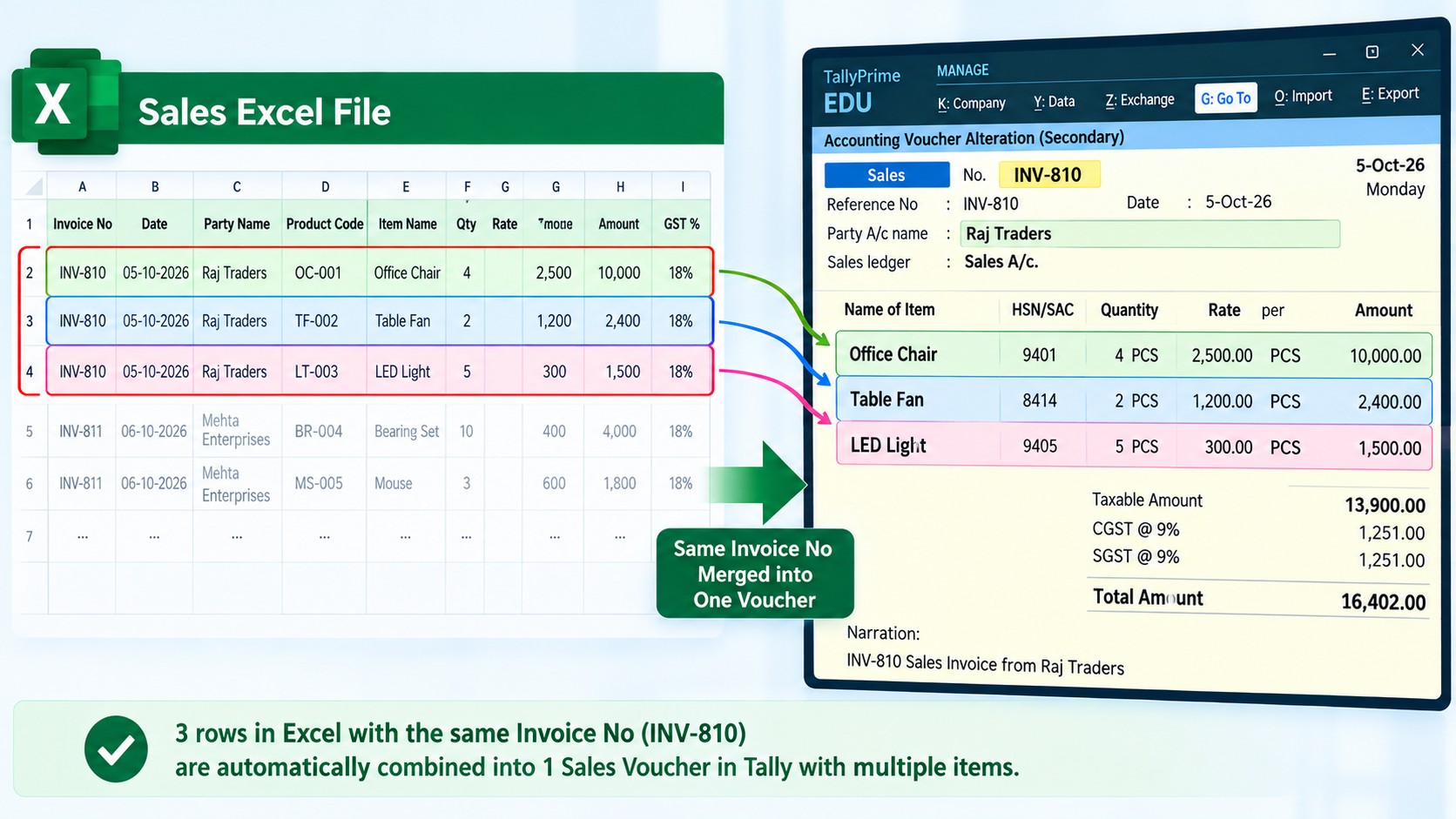
One Invoice Can Have Multiple Excel Rows
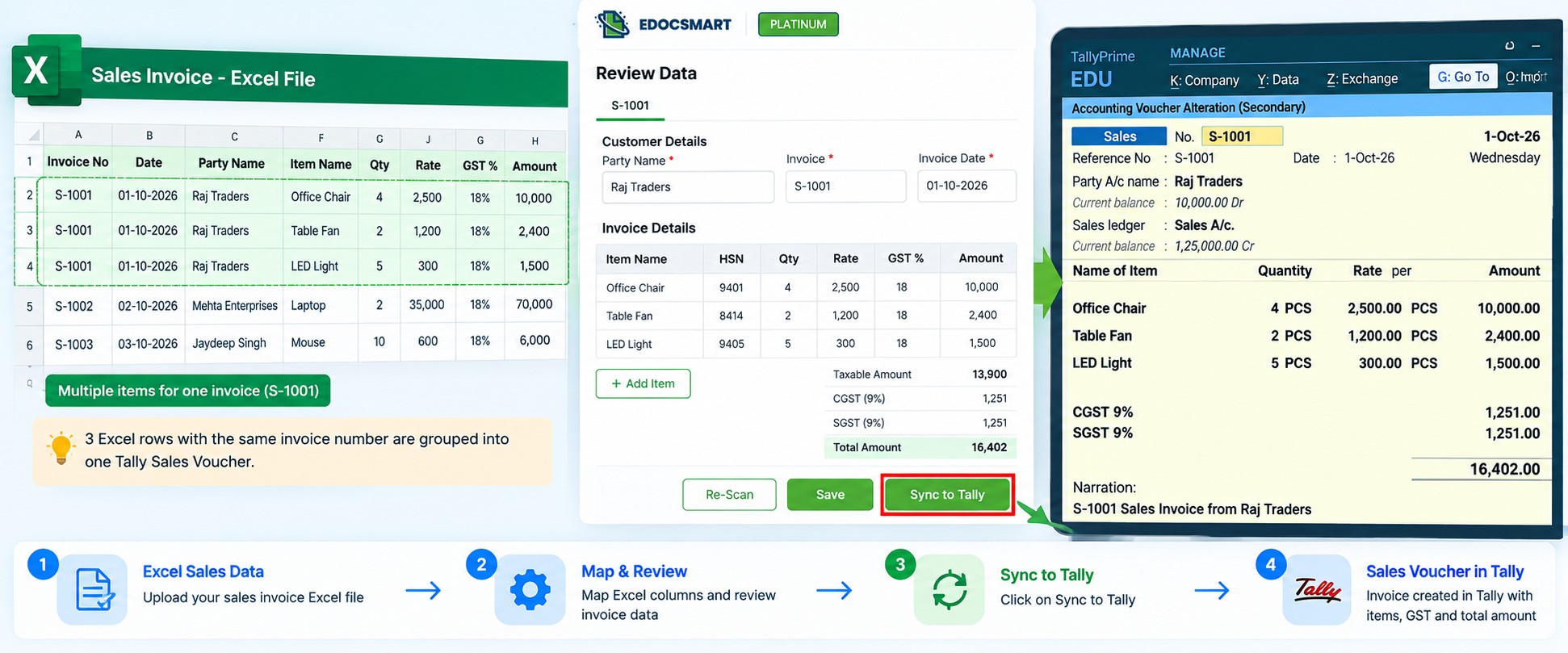
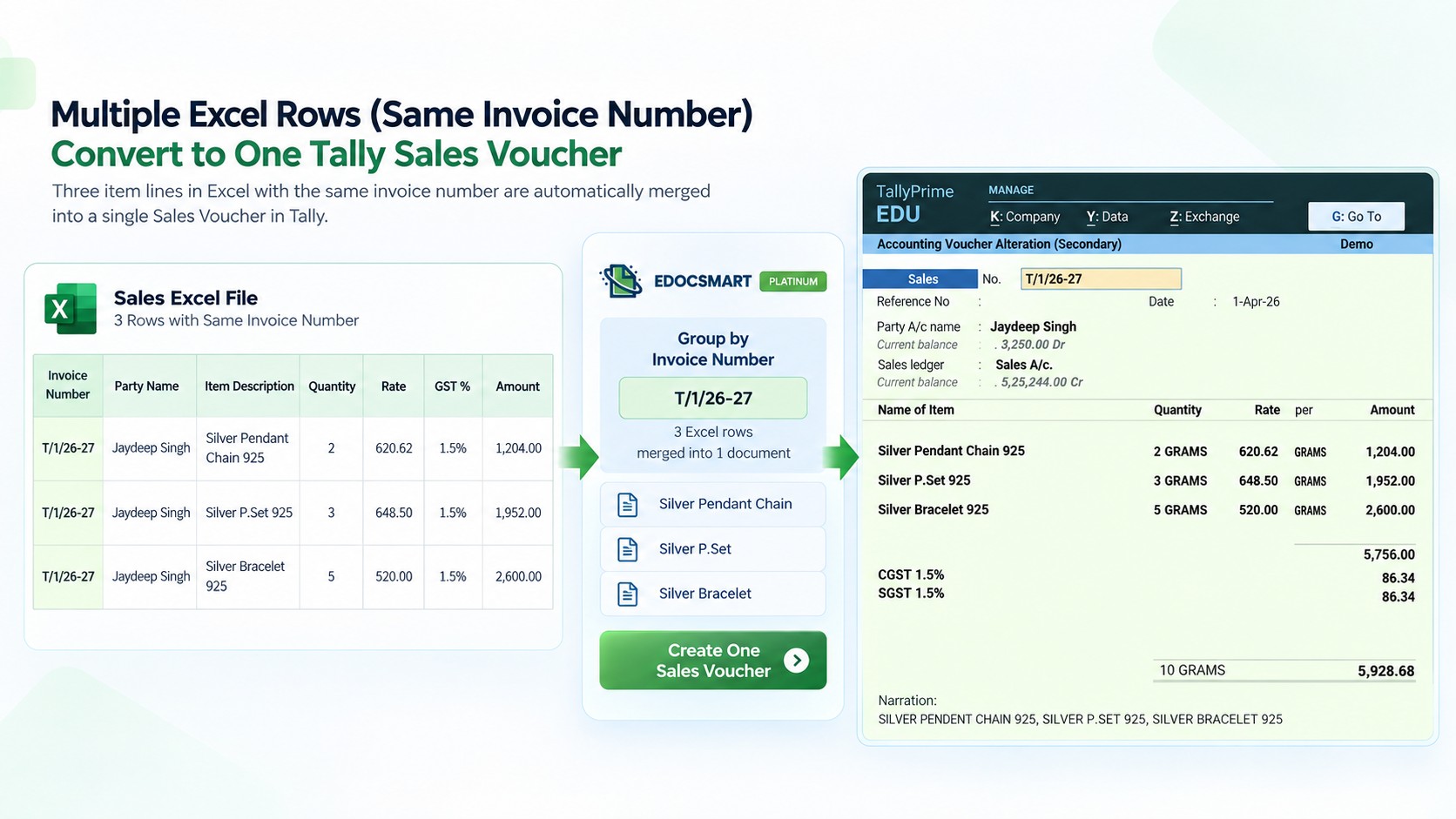
One of the most important things to understand is that one Excel row does not always equal one Tally voucher.
For example:
INV-701 | ABC Traders | Keyboard | 5
INV-701 | ABC Traders | Mouse | 10
INV-701 | ABC Traders | Monitor | 2
There are three Excel rows, but all of them belong to the same invoice.
Instead of creating three separate vouchers, these rows may need to be grouped into one Sales Voucher.
Voucher Number → INV-701
Party → ABC Traders
Keyboard → Qty 5
Mouse → Qty 10
Monitor → Qty 2
So the correct result is one voucher containing multiple stock items.
Multiple Invoices Can Be Present in One Excel File
An Excel file can also contain many different invoices.
For example, a file may contain 900 item rows but only 300 invoices.
This can happen when each invoice contains multiple products.
So:
900 Excel Rows
→ Group Related Invoice Lines
→ 300 Transactions
→ 300 Tally Vouchers
The actual number of vouchers depends on how the Excel records are grouped.
This is especially important when data comes from:
ERP exports
Billing software
Marketplace reports
Distributor systems
Branch-wise sales data
Purchase registers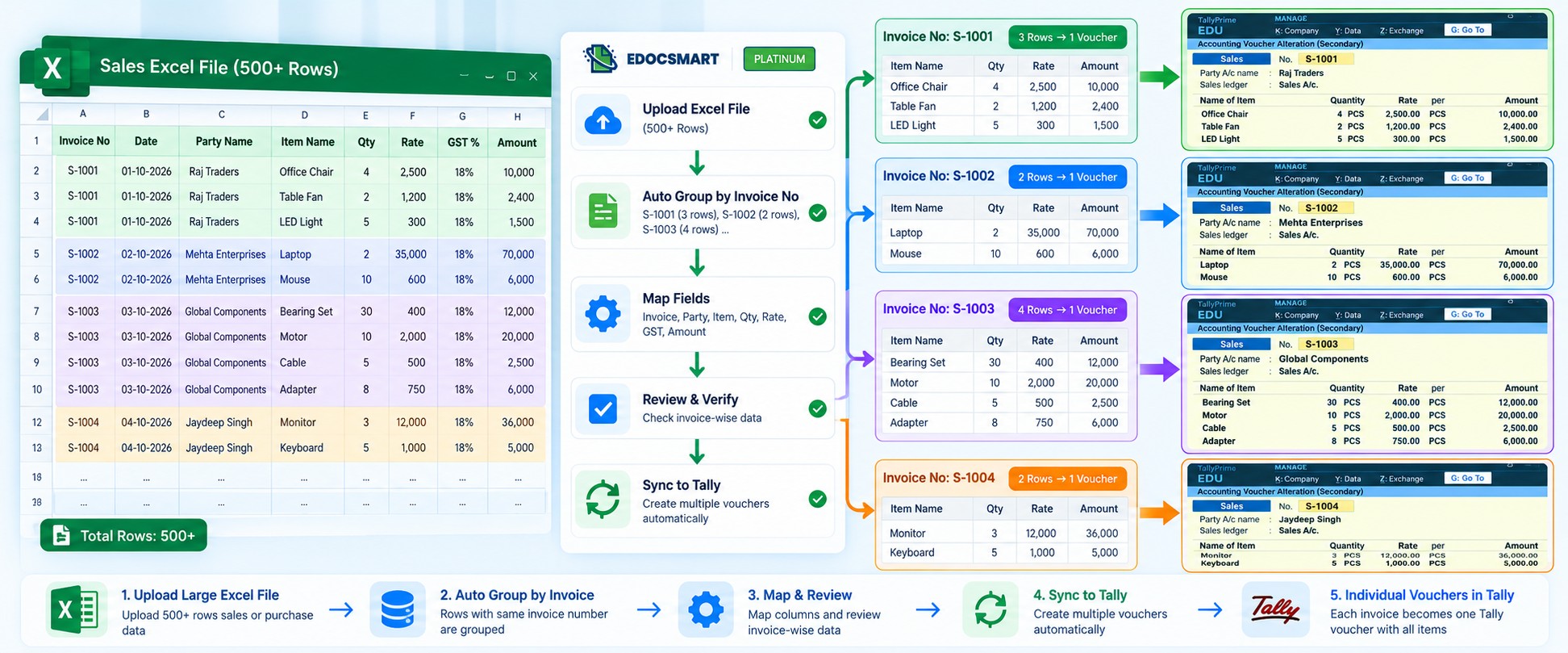 Excel Headers Can Be Different
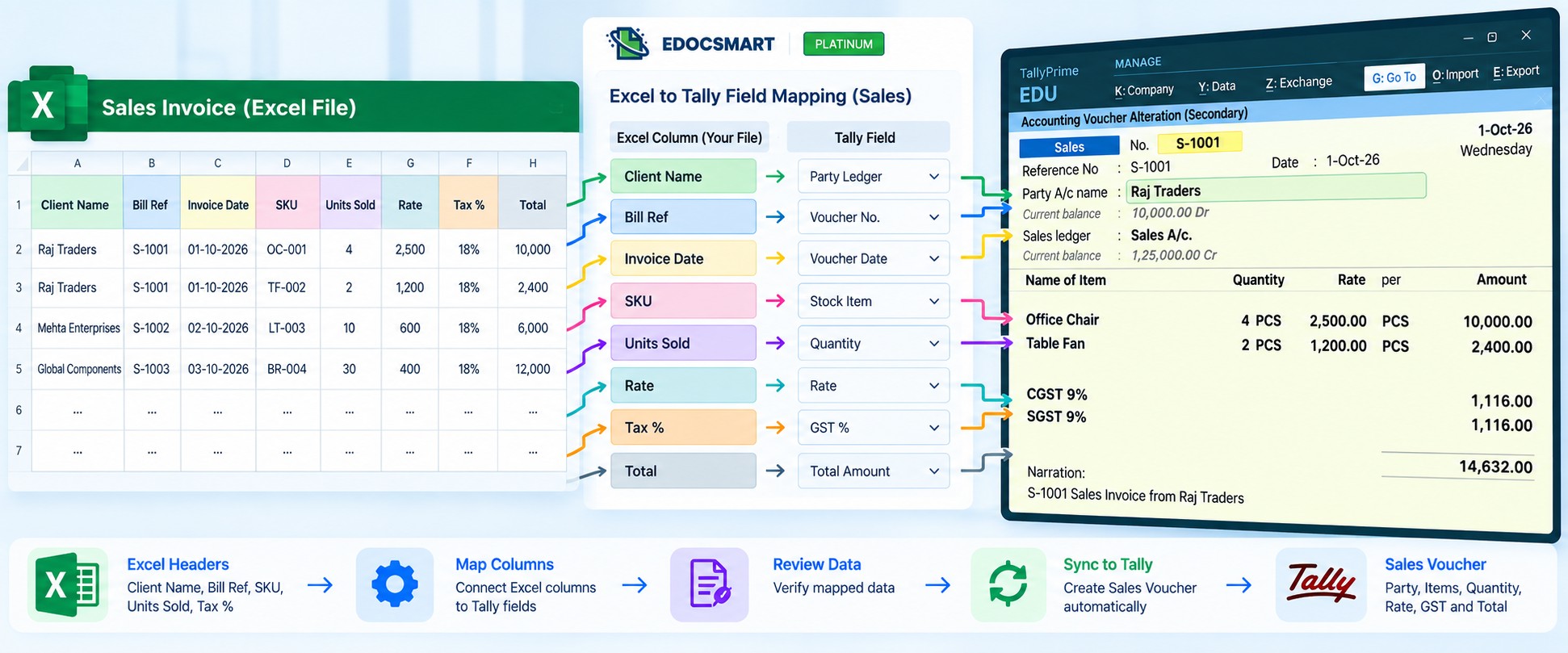
A business does not always use the same column names as Tally.
One Excel file may use:
Customer Name
Another may use:
Party
Another may use:
Client Name
All three may represent the same Tally field:
Party Ledger
The same applies to other fields.
Bill No → Voucher Number
SKU → Stock Item
Units Sold → Quantity
Unit Price → Rate
Tax % → GST Rate
Net Payable → Voucher Amount
This is where header mapping becomes useful.
Header mapping tells the system what each Excel column represents inside Tally.
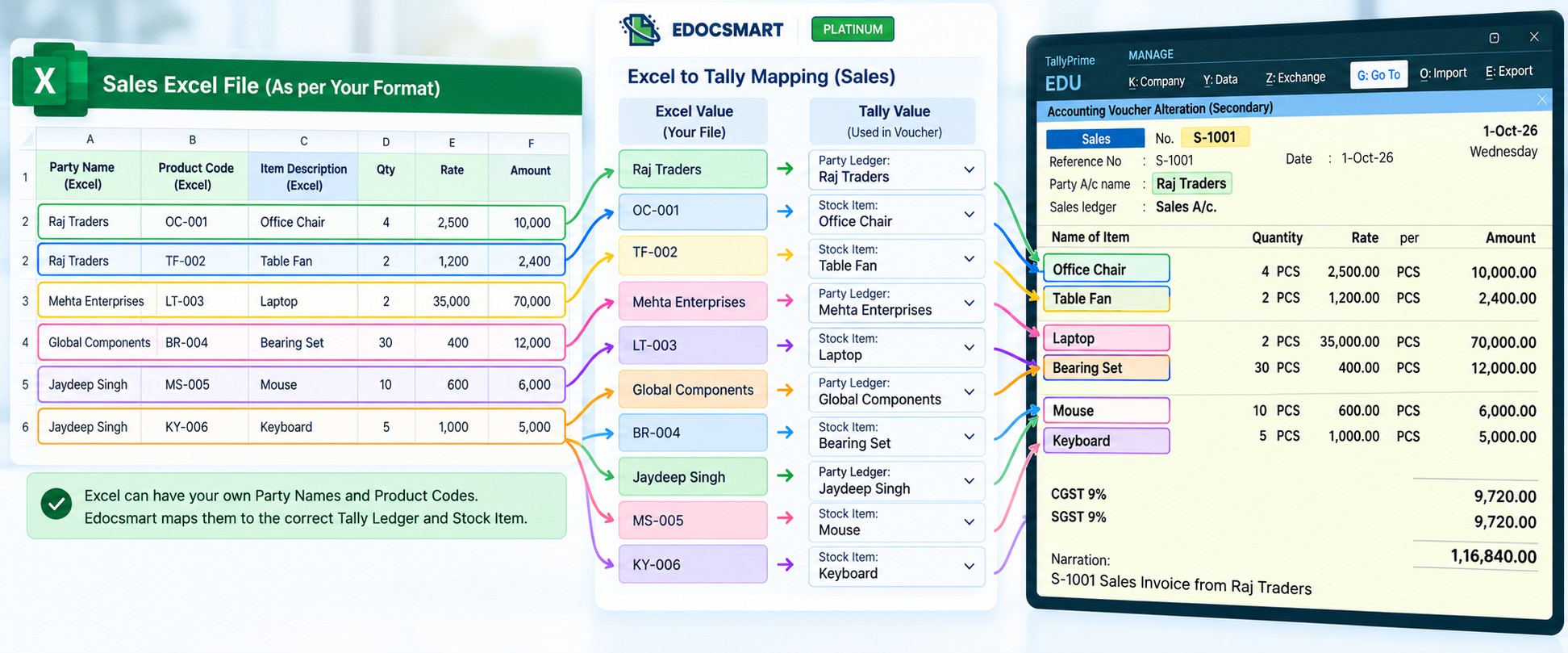
What Happens When the Party Name Is Different?
Sometimes the party name in Excel does not exactly match the ledger name in Tally.
For example:
Excel:
Shree Krishna Traders
Tally:
Shree Krishna Traders Pvt Ltd
These names may refer to the same business, but they are not identical.
The correct Excel value needs to be connected with the correct Tally ledger.
This prevents the transaction from being posted to the wrong account.
The same logic can apply to:
- Customer ledgers
- Supplier ledgers
- Sales ledgers
- Purchase ledgers
- Tax ledgers
- Expense ledgers
What Happens When the Stock Item Name Is Different?
The same problem can occur with stock items.
Excel may contain:
MOTOR-2HP-01
while Tally contains:
2 HP Industrial Motor
Both may represent the same product.
A configured stock mapping can connect the source product value with the correct stock item in Tally.
This is useful when the Excel file comes from another ERP or billing application that uses its own product codes.
How GST Becomes Part of the Voucher
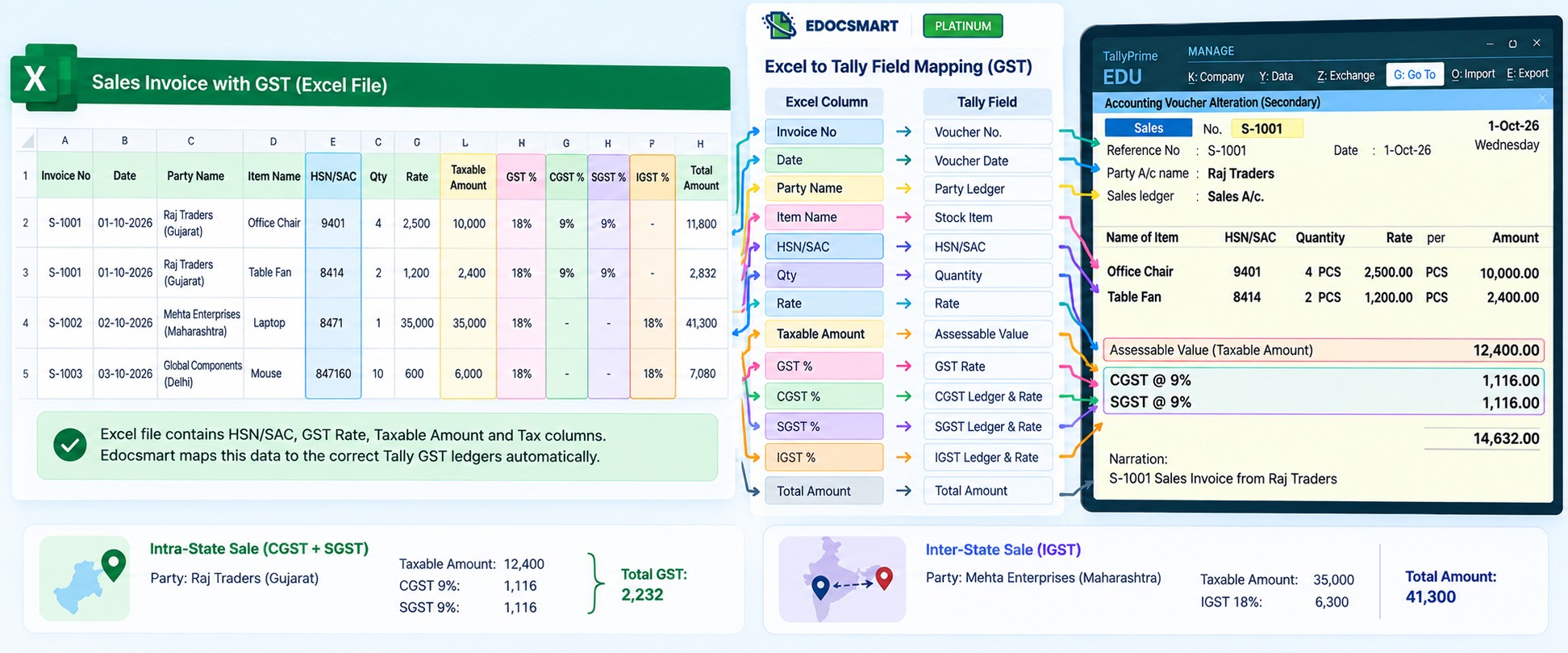
GST is not just a value copied from Excel.
It becomes part of the accounting structure of the voucher.
For example:
Taxable Amount → ₹50,000
GST Rate → 18%
Depending on the transaction setup, the voucher may use:
CGST + SGST
or
IGST
Other values may also be involved, such as:
GSTIN
Place of Supply
HSN/SAC
Taxable Value
GST Rate
Tax Amount
The exact accounting treatment depends on the transaction and Tally configuration.
How a Voucher Is Prepared from Excel Data
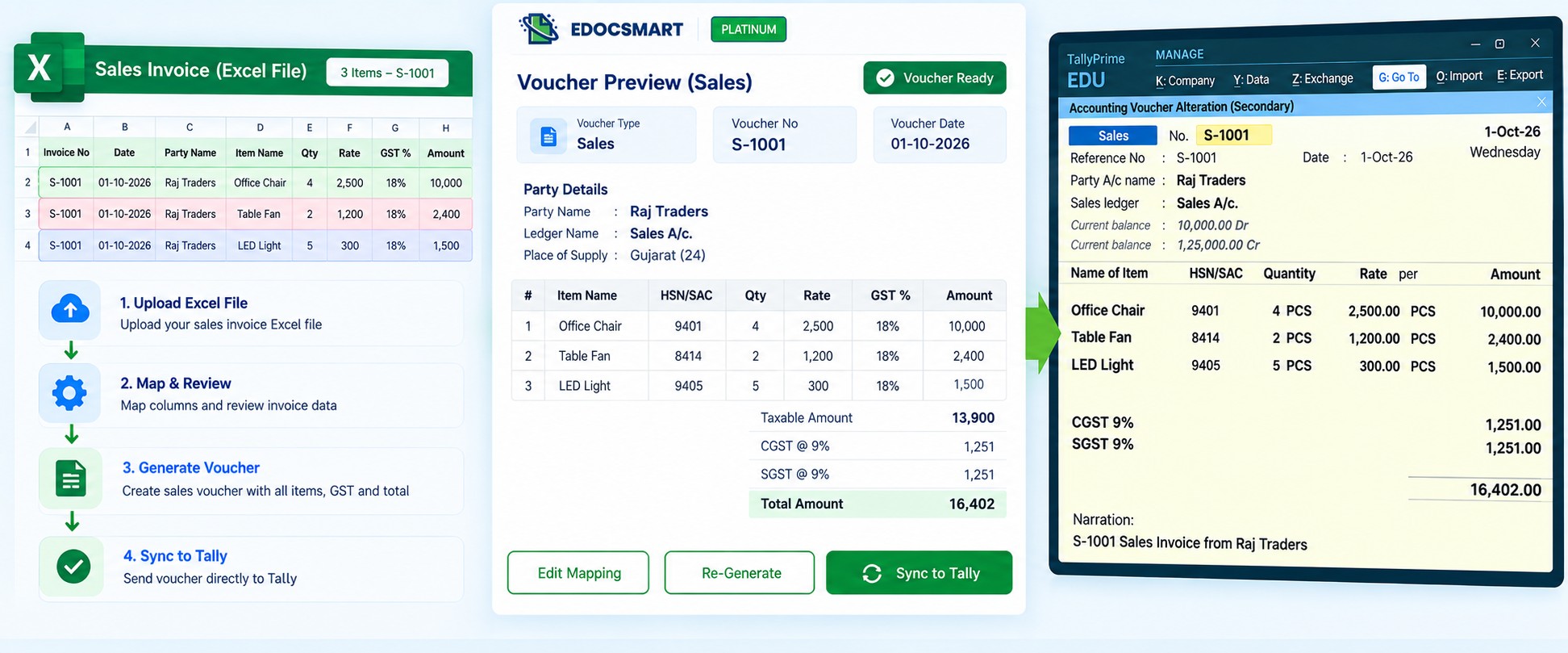
Once the voucher type and fields are understood, the transaction can be prepared in a structured format.
For example:
- Voucher Type → Sales
- Voucher No → INV-310
- Party → Sunrise Traders
- Date → 02-10-2026
- Stock Items → 4
- Taxable Amount → ₹45,000
- GST → ₹8,100
- Final Total → ₹53,100
At this stage, the important question is not whether every Excel cell has been copied.
The important question is:
Does this transaction now represent the correct Tally voucher?
Common Problems That Can Affect Voucher Creation
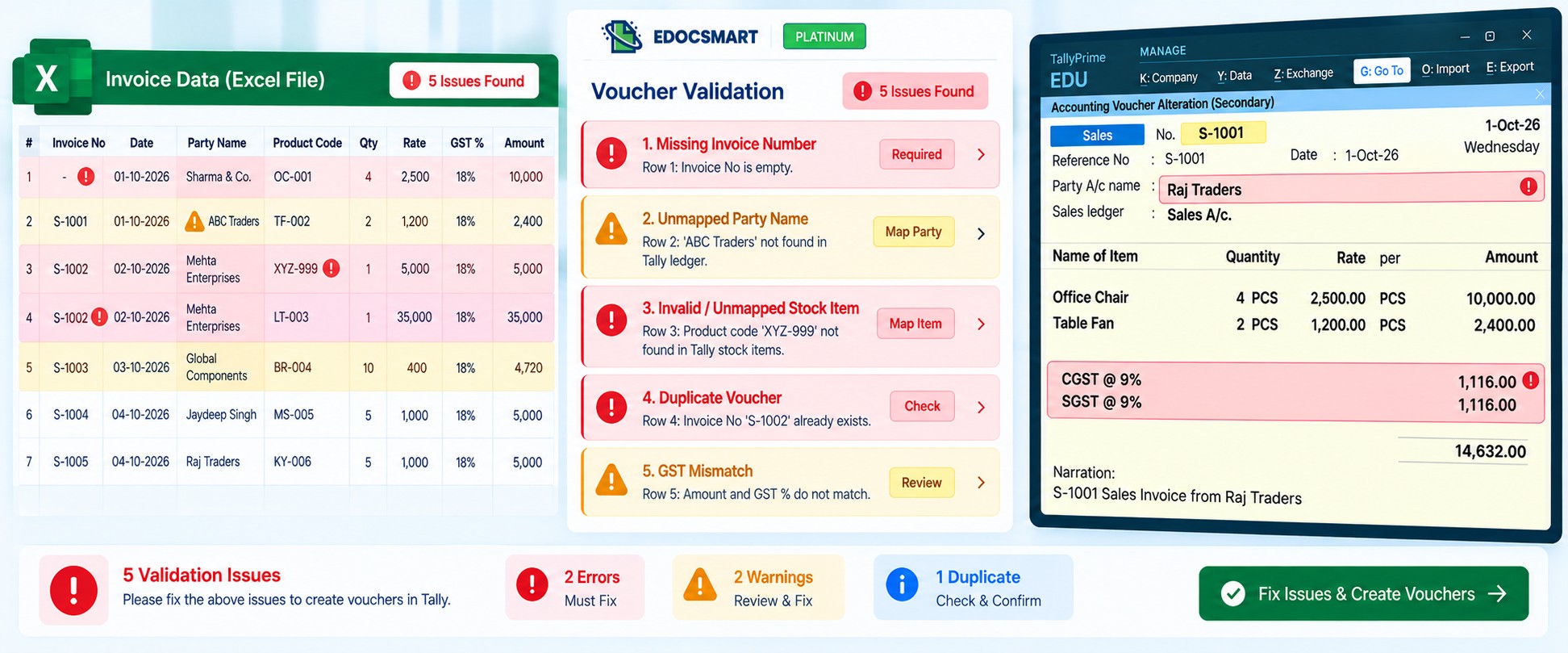
Even when data is available in Excel, some issues can prevent a correct voucher from being created.
Common examples include:
- Missing invoice number
- Incorrect voucher type7
- Party ledger not mapped
- Stock item not mapped
- Missing quantity
- Missing rate
- Wrong GST structure
- Duplicate invoice number
- Incorrect transaction date
- Invoice total mismatch
- Multiple item rows grouped incorrectly
These issues should be corrected before the transaction is transferred to Tally.
Example: Creating One Sales Voucher from Multiple Rows
Consider this Excel data:
- INV-810 | Krishna Traders | Laptop Bag | 10 | ₹800
- INV-810 | Krishna Traders | Wireless Mouse | 10 | ₹600
- INV-810 | Krishna Traders | Keyboard | 10 | ₹1,000
All three rows belong to the same invoice.
The final Sales Voucher may contain:
- Voucher Type → Sales
- Voucher Number → INV-810
- Party Ledger → Krishna Traders
- Laptop Bag → Qty 10 → Rate ₹800
- Wireless Mouse → Qty 10 → Rate ₹600
- Keyboard → Qty 10 → Rate ₹1,000
The transaction becomes one complete voucher instead of three separate entries.
Where Edocsmart Fits into Voucher Creation
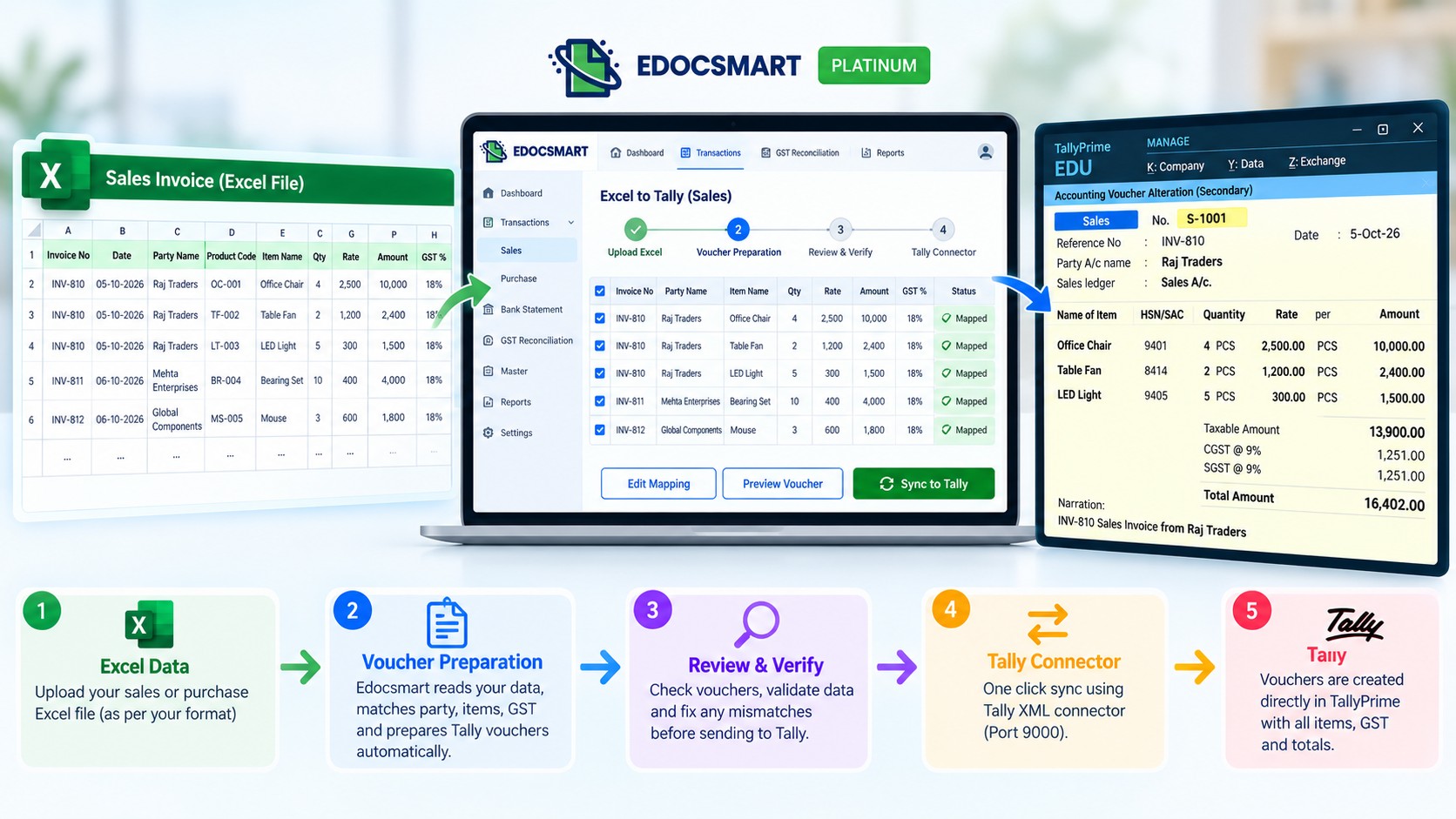
Edocsmart helps process structured Excel data before it reaches Tally.
Instead of manually recreating each voucher, Excel values can be mapped with the corresponding accounting fields.
For example:
- Customer Name → Party Ledger
- Invoice Number → Voucher Number
- Product → Stock Item
- Quantity → Quantity
- GST Rate → Tax Structure
- Invoice Total → Voucher Amount
Related item rows can be grouped into the correct transaction, reviewed, and then synchronized to Tally through the configured Tally Connector.
This means the focus moves from repetitive typing to transaction verification.
Excel Data → Mapping → Voucher Preparation → Review → Verification → Tally
 When Creating Tally Vouchers
from Excel Is Most Useful
When Creating Tally Vouchers
from Excel Is Most UsefulThis type of workflow is especially useful when structured accounting data is already available before it reaches Tally.
Common examples include:
- ERP exports
- Sales registers
- Purchase registers
- Distributor billing sheets
- Branch accounting files
- Marketplace reports
- Inventory exports
- Vendor purchase sheets
- Monthly accounting workbooks
Instead of entering the same transaction twice, the existing Excel data can be used as the source for voucher creation.
Benefits of Creating Tally Vouchers from Excel
Creating vouchers from existing Excel data can help reduce repetitive accounting work.
- It can also help with:
- Faster voucher preparation
- Reduced manual typing
- Consistent field mapping
- Better handling of bulk transactions
- Invoice-wise grouping
- Stock item mapping
- Ledger mapping
- GST handling
- Voucher-level review
- More structured Excel-to-Tally processing
The biggest advantage is that the accountant can focus more on checking the transaction instead of entering the same values again.
FAQs
Can I create Tally vouchers
from Excel?
Yes. Structured Excel data can be converted into the corresponding voucher format when the required fields and mappings are configured.
Can multiple Excel rows create
one Tally voucher?
Yes. If several rows belong to the same invoice, they can be grouped into one voucher containing multiple items.
Can one Excel file create
multiple Tally vouchers?
Yes. A single workbook can contain multiple transactions that can be separated into individual vouchers.
Do Excel column names need to
match Tally?
No. Different Excel headers can be mapped to their corresponding Tally fields.
Can Sales and Purchase
Vouchers both be created from Excel?
Yes. Sales and purchase data can be converted into their respective voucher structures when the workflow is configured accordingly.
What happens if the party name
in Excel is different from Tally?
The Excel party name can be mapped with the correct Tally ledger.
Can stock item names also be
different?
Yes. Source product names or item codes can be mapped with the corresponding stock items in Tally.
How are multiple items handled
in one invoice?
Multiple Excel rows belonging to the same invoice can be grouped under one voucher.
How is GST handled while
creating vouchers?
GST-related fields such as taxable value, GST rate, CGST, SGST, IGST and HSN/SAC can be used according to the configured tax structure.
Should vouchers be checked
before they are sent to Tally?
Yes. Voucher number, party, stock items, quantity, rate, GST and totals should be verified before synchronization.
Conclusion
Creating Tally vouchers from Excel is not simply a process of copying spreadsheet rows into Tally.
Excel contains the business information, but Tally needs that information arranged as a proper accounting transaction.
The transaction must identify the correct voucher type, party ledger, stock items, quantity, rate, GST, invoice number and final amount. Multiple Excel rows may also need to be grouped into a single voucher when they belong to the same invoice.
Once these relationships are correctly prepared and verified, the existing Excel data can be used to create structured Tally vouchers without repeatedly entering the same information manually.
Excel Record → Accounting Transaction → Voucher Structure → Verification → Tally