How to Extract Invoice Data Automatically
Automatically extract supplier, invoice, GST, item, quantity, rate, tax, and total details from PDFs, scanned invoices, and images with Edocsmart.
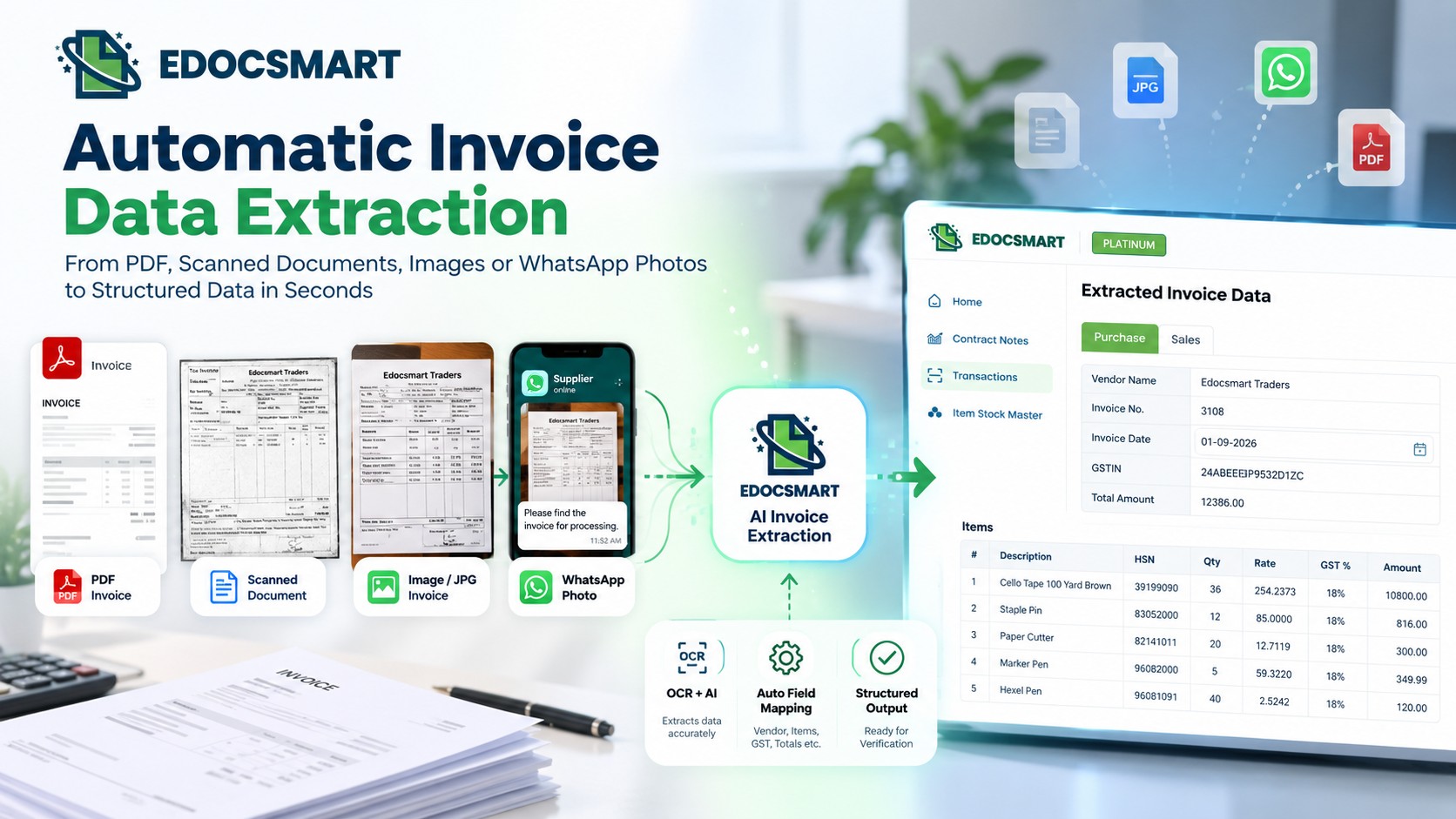
Businesses receive invoices every day in different formats. Some invoices come as PDFs through email, some as scanned documents, some as JPEG images, and sometimes suppliers even send invoice photographs through WhatsApp.
The real problem starts after receiving these documents.
An accountant still has to open each invoice, read the supplier name, invoice number, date, GSTIN, item details, quantity, rate, GST amount, and total value, and then enter the same information into an accounting or business system.
For a few invoices, this may not feel difficult. But when a business receives 50, 100, or even hundreds of invoices every month, the same manual process becomes repetitive and time-consuming.
This is where automatic invoice data extraction can help.
Instead of manually reading and typing every field, businesses can use a system such as Edocsmart to upload invoices, extract important information automatically, review the data, and then save or process it further.
The basic workflow becomes:
Invoice → Upload → Extract Data → Review → Save / Process Further
The main idea is simple: if the information already exists inside the invoice, there should be no need to type the same information again from the beginning.
What Is Automatic Invoice Data Extraction?
Automatic invoice data extraction is the process of reading information from an invoice and converting it into structured digital fields.
A normal invoice may contain a large amount of information, such as:
- ·Supplier or party name
- ·Invoice number
- ·Invoice date
- ·GSTIN
- ·Address
- ·City and state
- ·Item description
- ·HSN code
- ·Quantity
- ·Unit
- ·Rate
- ·Discount
- ·GST percentage
- ·CGST, SGST, or IGST
- ·Taxable amount
- ·Net amount
- ·Grand total
In a manual process, someone has to identify these fields and type them into another system.
With automatic extraction, the invoice is uploaded first. The system then processes the document and displays the available information in structured fields.
The user can review the extracted information and correct anything that requires attention.
So instead of spending most of the time typing invoice data, the user spends more time verifying it.
For businesses specifically looking for AI invoice data extraction, the process can combine OCR, document understanding and structured field extraction to convert invoice PDFs, scans and images into usable data.
For more information, see the Edocsmart Invoice Data Extraction Software solution.
Why Manual Invoice Data Entry Becomes Difficult
The main problem with manual invoice processing is repetition.
Imagine an accounts team receiving 80 invoices in a week.
If every invoice contains 10 to 20 line items, the team may need to manually enter hundreds of product rows along with supplier information, tax details, and totals.
The work becomes even more difficult because every supplier may use a different invoice design.
One supplier may show the GSTIN at the top of the invoice.
Another may place it below the address.
Some invoices have simple product tables, while others have detailed rows containing HSN, quantity, unit, rate, discount, and GST.
This means the user has to continuously perform the same process:
Open → Read → Find Data → Type → Check → Repeat
Manual entry can also increase the chances of common mistakes such as:
- ·Wrong invoice number
- ·Incorrect date
- ·Wrong quantity
- ·Incorrect GST rate
- ·Missing line item
- ·Wrong amount
- ·Typing mistakes
Automatic extraction helps reduce this repetitive work by converting invoice information into structured data first.
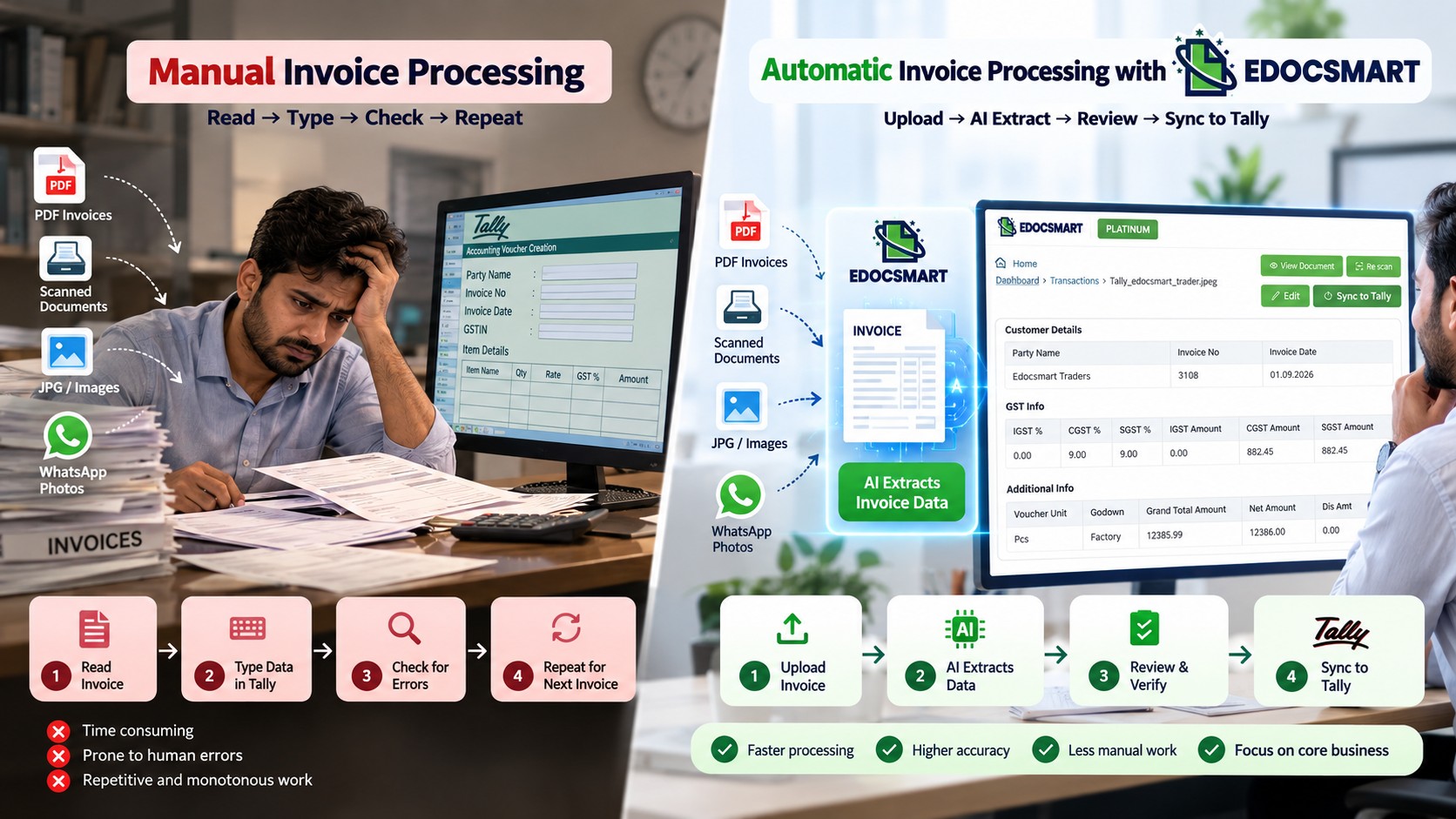
Manual: Open → Read → Type → Check → Repeat
Automated: Upload → Extract → Review → Correct → Save
How to Extract Invoice Data Automatically Using Edocsmart
The process in Edocsmart can be understood in a few simple stages.
The user uploads the invoice, Edocsmart processes the document, extracted information appears on the screen, and the user reviews and saves the data.
Let us understand the flow step by step.
Step 1: Login to Edocsmart
First, open EdocSmart and log in using your account credentials.
After successful login, the user reaches the main dashboard.
From the sidebar, go to:
Transactions → Purchase
This section is used for processing supplier or purchase invoices.
Instead of manually opening every invoice and entering the data somewhere else, the invoice document itself becomes the starting point of the workflow.
Step 2: Upload the Invoice
The next step is uploading the invoice document.
Depending on the supported workflow, invoices can be available in formats such as:
·JPEG
·Scanned invoice
·Invoice photograph
For example, if a supplier sends a PDF invoice over email, the file can be uploaded directly.
If the invoice is available only as a physical bill, it can be scanned or photographed and then uploaded for processing.
This is useful because businesses do not always receive invoices in one standard format.
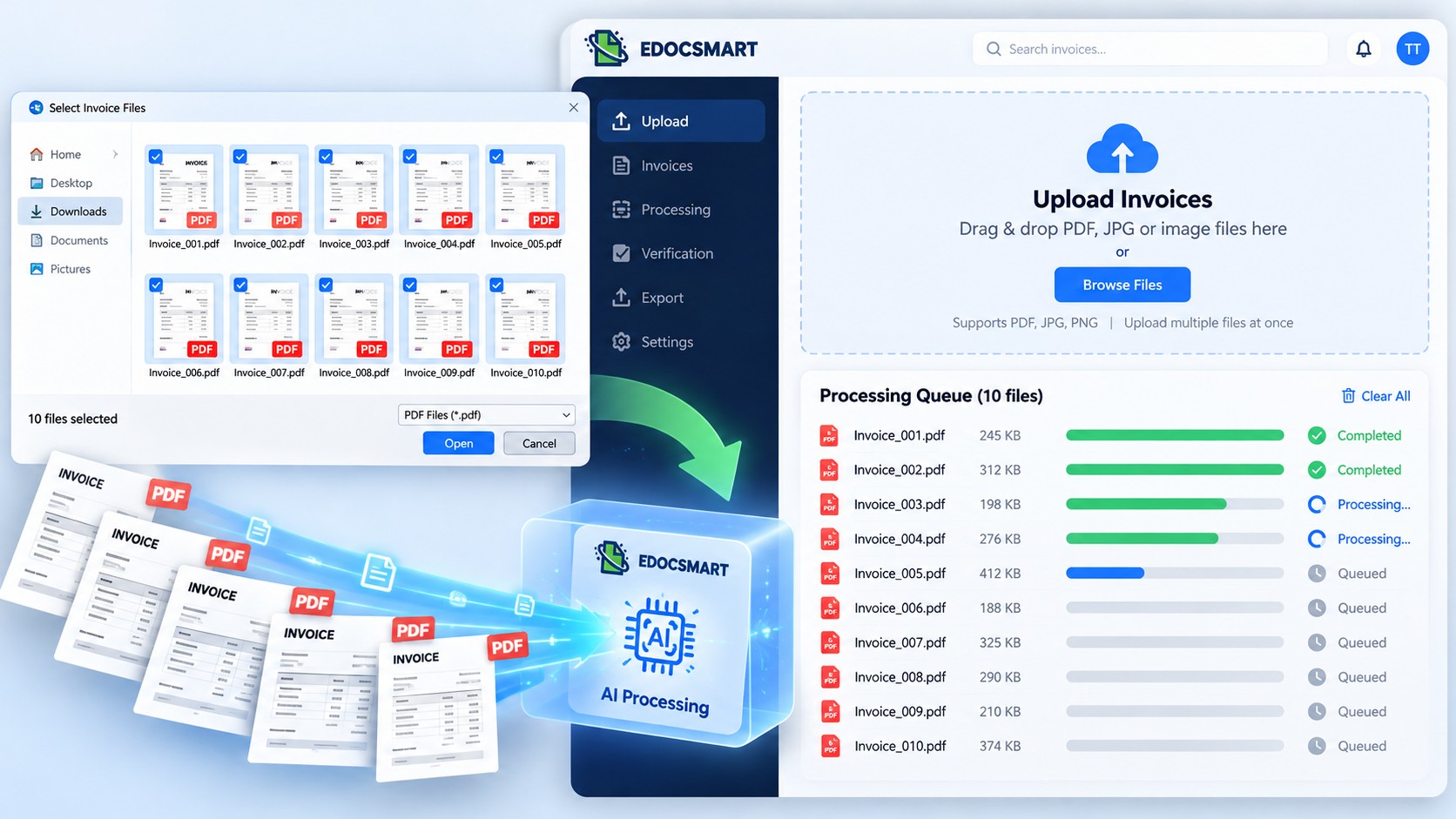
Single Invoice Upload
If only one invoice needs to be processed, the user can simply select that file and upload it.
The process is straightforward:
Select Invoice → Upload → Extract → Review
This is useful when a particular invoice needs immediate processing.
For example, if one supplier invoice arrives and the accounts team wants to process it immediately, the individual file can be uploaded without waiting for other invoices.
Bulk Invoice PDF Upload
Businesses often receive invoices in batches.
For example, an accountant may download multiple supplier PDFs into one folder.
The folder may contain:
Invoice_001.pdf
Invoice_002.pdf
Invoice_003.pdf
Invoice_004.pdf
Invoice_005.pdf
Instead of uploading every invoice separately, multiple PDF files can be selected together for bulk processing.
This makes the workflow more practical for accounting teams that handle a large number of invoices every day or every month.
Without bulk upload, the user may have to repeatedly select one file, upload it, process it, return to the folder, and select the next file.
With bulk processing, the workflow becomes:
Select Multiple PDFs → Upload → Extract → Review
The main benefit is that the user spends less time managing files and more time checking the actual invoice information.
This type of workflow is particularly useful for businesses searching for PDF to Tally import, pdf invoice to tally prime, or convert pdf to tally automatically solutions because invoice documents can first be converted into structured accounting information before the Tally workflow.
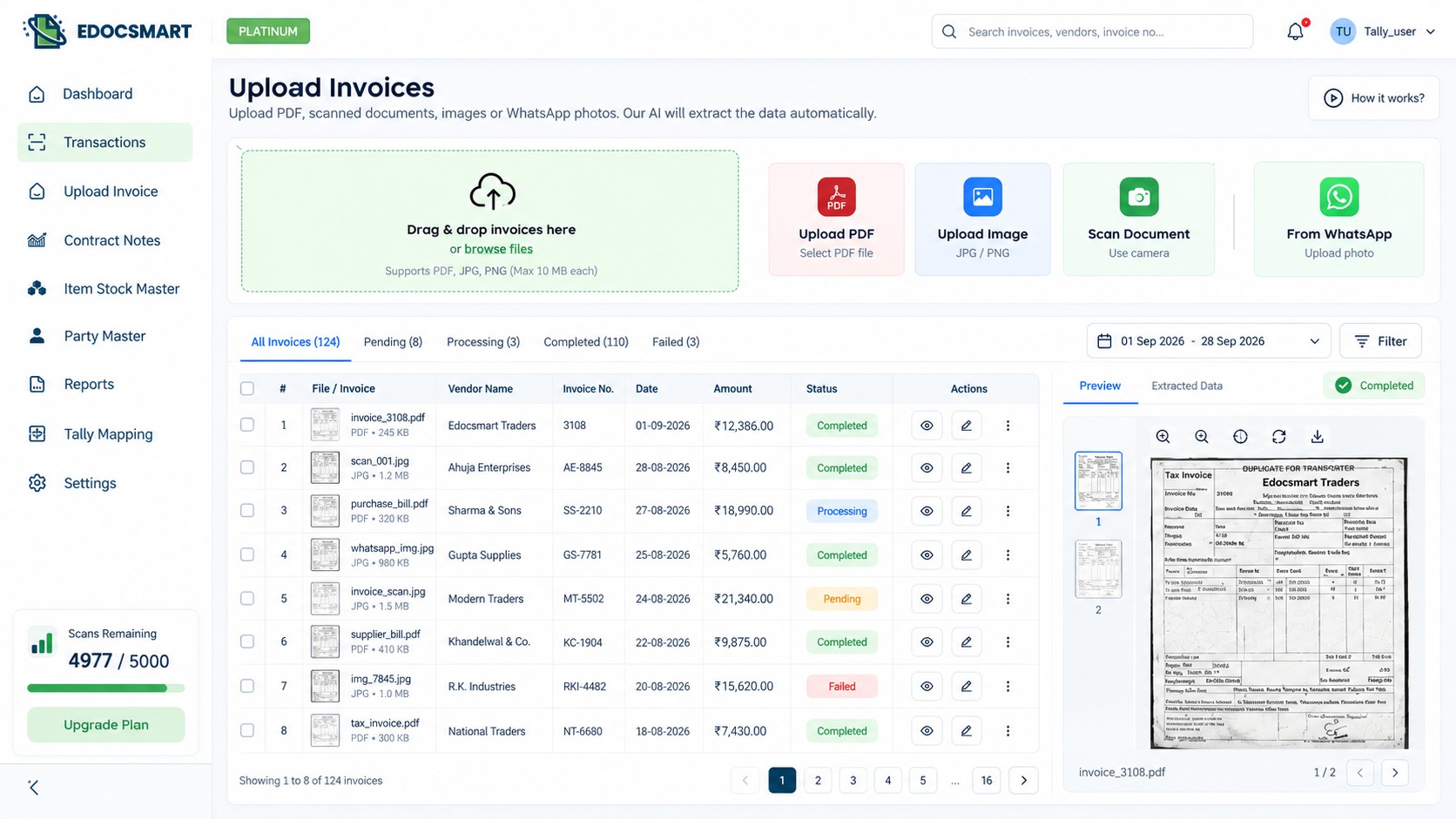
Step 3: Initial Mapping
Before invoice information can be used properly, the required fields need to be mapped.
Mapping helps define where each extracted value belongs in the workflow.
For example:
|
Invoice Data |
Mapped Field |
|
Supplier Name |
Party Name |
|
Invoice Number |
Invoice Number |
|
Invoice Date |
Invoice Date |
|
GSTIN |
GSTIN |
|
Item Description |
Product Description |
|
HSN |
HSN Code |
|
Quantity |
Quantity |
|
GST Rate |
Tax Rate |
|
Total Amount |
Grand Total |
The important point is that mapping is mainly an initial setup process.
If the same configuration continues to apply, the user does not need to repeat the complete mapping every time a new invoice is uploaded.
This becomes especially important for businesses processing large invoice volumes.
If the mapping had to be recreated for every invoice, automation would lose much of its benefit.
Step 4: Automatic Data Extraction
Once the invoice is uploaded, Edocsmart processes the document and extracts the available information.
This is the main stage of automatic invoice data extraction.
Instead of the user manually reading each field, the system converts invoice information into structured data.
Depending on the invoice and workflow configuration, the extracted information can include several types of data.
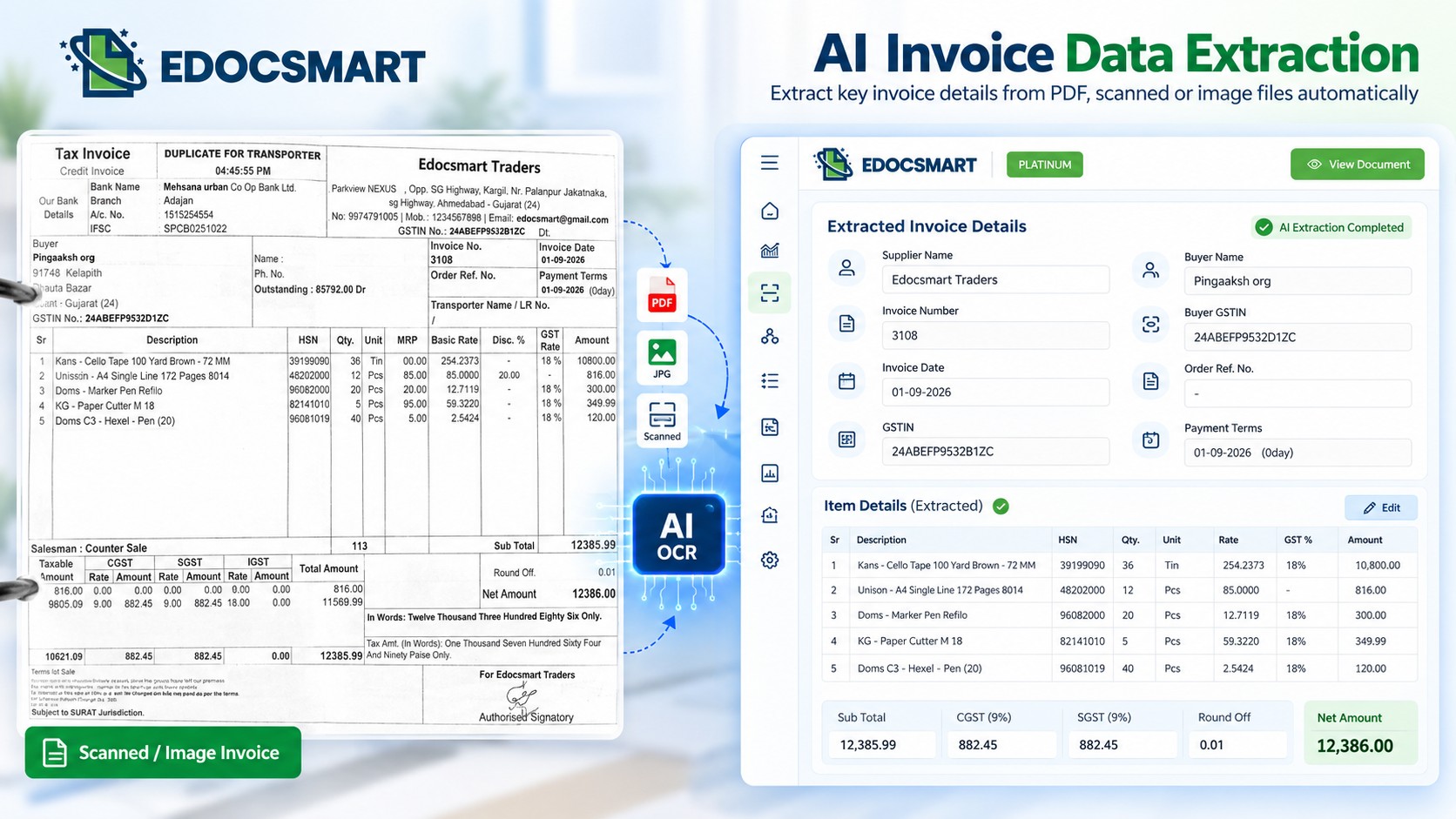
Supplier Name → Invoice Number → Date → GSTIN → HSN → Quantity → Rate → GST → Total
Use an EdocSmart-style professional interface with subtle AI/OCR visual elements.
Supplier Information
The system may capture:
·Supplier name
·GSTIN
·Address
·City
·State
·PIN code
·Country
This helps identify the company or vendor that issued the invoice.
Invoice Information
Invoice-level details may include:
·Invoice number
·Invoice date
·Reference number
·Other document identifiers
These fields are important because they help distinguish one invoice from another.
Item-Level Information
Item-level extraction is especially useful when an invoice contains multiple products.
The extracted data can include:
·Product description
·HSN code
·Quantity
·Unit
·Rate
·MRP
·Discount
·GST rate
·Item amount
Suppose an invoice contains 20 items.
Instead of manually entering all 20 rows from the beginning, the user can review the extracted rows and focus only on values that may require correction.
This can significantly reduce repetitive data entry.
GST and Tax Information
The system may also extract tax-related values such as:
·CGST
·SGST
·IGST
·GST percentage
·Taxable amount
These values should still be verified before further processing because tax information directly affects accounting records.
Invoice Amounts
The invoice may also contain financial information such as:
·Gross amount
·Discount
·Net amount
·Round-off
·Grand total
·TDS, where applicable
·Rebate
Having this information in structured fields makes the invoice easier to review and process.
Step 5: Review the Extracted Information
Automatic extraction does not mean the data should be accepted without checking.
The review stage is important.
After the invoice has been processed, the user can compare the extracted fields with the original document.
Important fields to check include:
·Supplier name
·Invoice number
·Invoice date
·GSTIN
·Item description
·Quantity
·Rate
·GST percentage
·Total amount
If any field requires correction, the user can update it before saving or continuing with the next process.
This gives businesses a balance between automation and control.
The system handles much of the repetitive extraction, while the user verifies the final information.
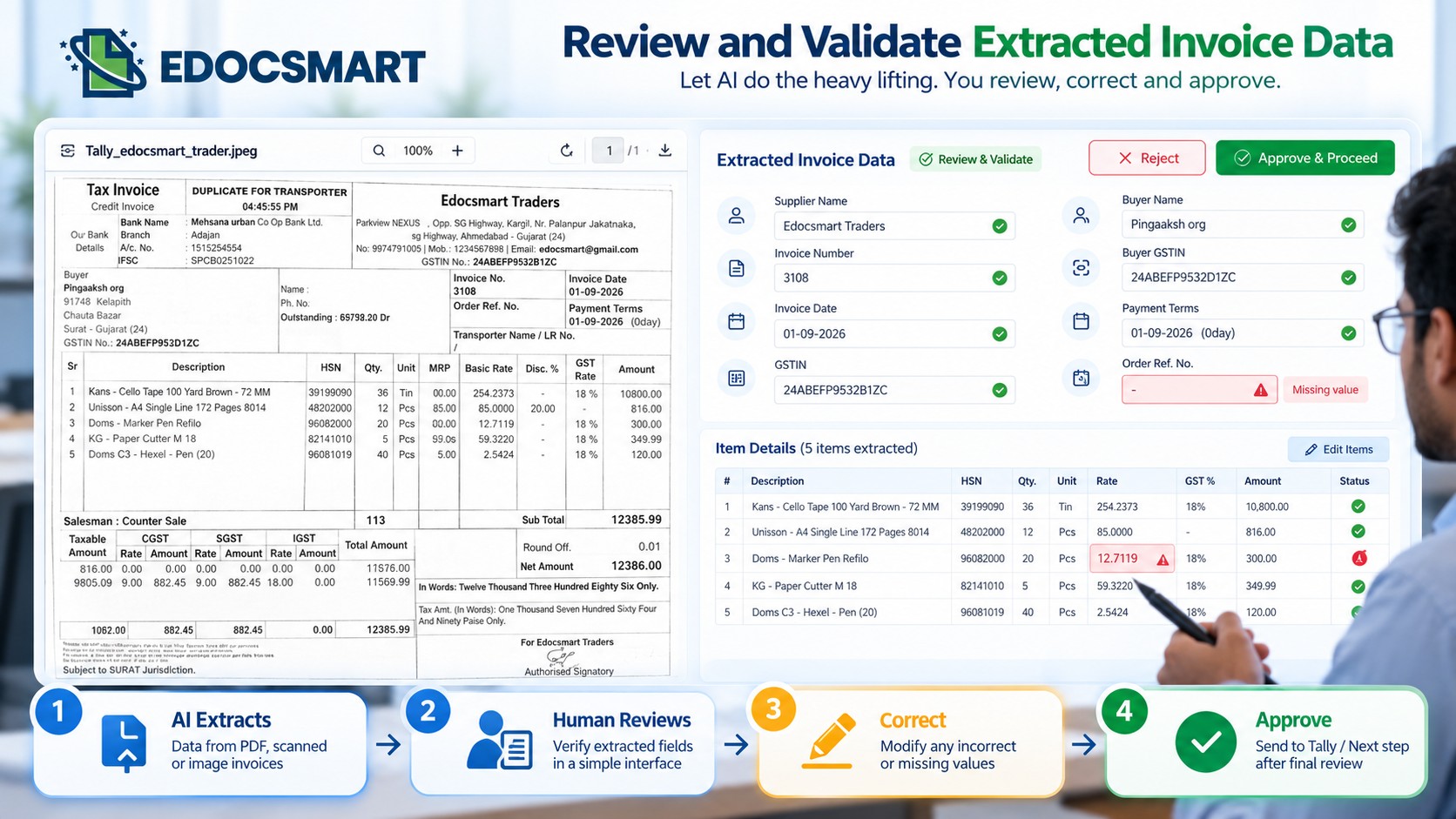
AI Extracts → Human Reviews → Correct → Approve
Step 6: Save the Extracted Data
Once the invoice information has been reviewed, it can be saved.
This is useful when the business does not want to process the invoice immediately.
For example, the invoice may need:
·Internal approval
·GST verification
·Purchase confirmation
·Price confirmation
·Additional checking
In such situations, the user can save the extracted data and return to it later.
The workflow can therefore be:
Upload → Extract → Review → Save
or, if the next process is ready:
Upload → Extract → Review → Process Further
From Invoice Data Extraction to Tally
Once invoice data has been extracted and reviewed, businesses may want to move that information into Tally.
This is where invoice to Tally automation becomes useful.
Instead of extracting invoice information and then manually typing the same data into Tally again, the validated information can be prepared for the accounting workflow.
A typical process becomes:
Invoice → AI Extraction → Review → Mapping → Tally
For businesses specifically looking to convert invoice PDF to Tally, import PDF to Tally Prime, or convert PDF invoices to Tally, the same extraction stage becomes the foundation for the Tally workflow.
You can learn more about this workflow through the EdocSmart Invoice to Tally solution.
Example of Automatic Invoice Data Extraction
Suppose a distributor receives 40 supplier invoices.
Some invoices contain 5 products, while others contain more than 20.
The accountant stores all PDF invoices inside one folder.
In a manual workflow, each PDF would need to be opened individually, and the supplier details, invoice number, GST information, items, quantities, rates, and totals would need to be entered manually.
With Edocsmart, multiple invoice PDFs can be selected and uploaded.
The system processes the invoices and displays extracted information in structured fields.
If one invoice contains 15 products and only one rate is incorrect, the user does not need to recreate all 15 rows.
They only need to correct the field that requires attention.
This is the key difference between manual data entry and automated extraction.
Manual vs Automatic Invoice Data Extraction
The manual workflow is:
Open Invoice → Read → Type Data → Check → Repeat
The automated workflow is:
Upload Invoice → Extract Data → Review → Correct → Save
The user is still involved, but the nature of the work changes.
Instead of manually creating every field, the user mainly reviews information that has already been captured.
For businesses that process many invoices, this can make a noticeable difference in everyday operations.
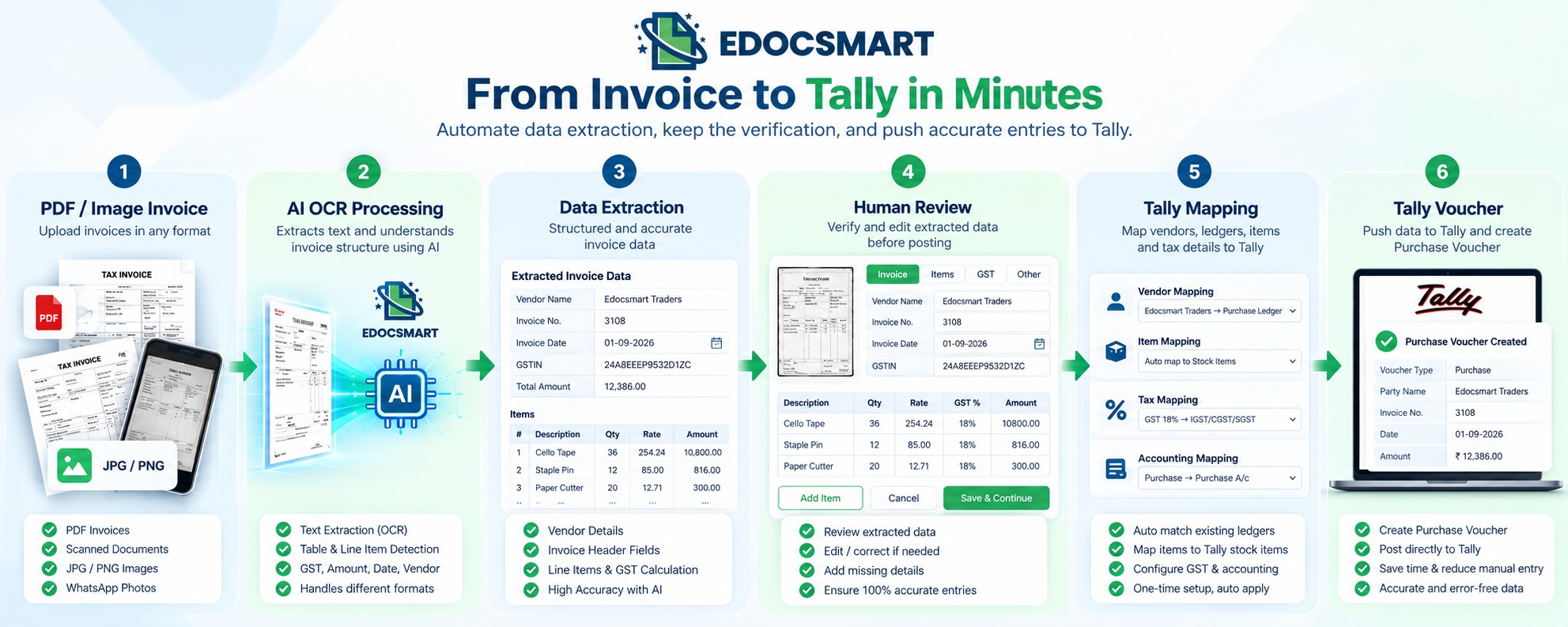
PDF / Image Invoice → AI OCR → Data Extraction → Human Review → Tally Mapping → Tally Voucher
Use EdocSmart branding and Tally-inspired accounting workflow elements without copying the Tally interface.
Why Businesses Use Automatic Invoice Data Extraction
Automatic extraction can provide several practical benefits.
Less Manual Data Entry
Information already available inside an invoice does not need to be typed field by field.
Faster Invoice Processing
Single and bulk document uploads can make it easier to handle large invoice volumes.
Better Data Accuracy
Reducing repeated manual typing can help reduce common entry mistakes.
Supports Different Document Formats
PDFs, scans, and supported invoice images can be handled through the same general workflow.
Keeps Human Verification
The user still checks the extracted information before saving or processing it.
Converts Documents into Structured Data
The biggest advantage is that information inside an invoice becomes usable digital data instead of remaining locked inside a PDF or image.
FAQS
Can invoice data be extracted automatically from PDFs?
Yes. Invoice PDFs can be uploaded into a system such as Edocsmart, where relevant invoice information can be extracted into structured fields. The user can then review supplier details, invoice numbers, GST data, item information, quantities, rates, and totals before saving or processing the information further.
Can multiple invoice PDFs be processed together?
Yes. Multiple invoice PDFs can be selected together for bulk processing. This is useful when accounting teams receive several invoices at once and want to avoid repeatedly selecting files one by one.
Can invoice images also be processed?
Supported JPEG images, scanned invoices, and invoice photographs can also be processed. The information is extracted from the document and displayed in structured fields for review.
Is mapping required for every invoice?
No. Mapping is mainly part of the initial setup. Once the required fields are configured properly, the same mapping can be reused where the same workflow applies.
Can extracted data be edited before saving?
Yes. The user can review the extracted information and correct any field that requires attention before saving or moving to the next process.
Can I convert a PDF invoice to Tally?
Yes. An invoice PDF can first be processed to extract supplier, invoice, GST, item and amount information. After review and validation, the structured data can be prepared for a Tally workflow.
Conclusion
Automatic invoice data extraction helps businesses convert invoice documents into structured information without manually typing every field.
Instead of following the traditional process of opening every invoice, reading each value, and entering the same data again, businesses can use a simpler workflow:
Upload → Extract → Review → Correct → Save
With Edocsmart, users can process individual invoices or multiple PDF files, extract supplier details, invoice information, GST values, line items, and totals, and then review the information before further use.
For businesses handling large numbers of invoices, the real advantage is not simply faster processing.
It is reducing repetitive data entry and allowing the accounts team to focus more on verifying information rather than typing it from scratch.
When the next step is accounting automation, the same structured invoice data can also support an invoice to Tally workflow, reducing the need to enter the same information twice.
Explore Invoice to Tally automation with EdocSmart to understand how extracted invoice data can move into the Tally workflow.