How to Fix Duplicate Entries During Excel-to-Tally ?
Learn how to investigate duplicate voucher numbers during Excel to Tally imports, check invoice references, review mapping, and avoid duplicate entries.
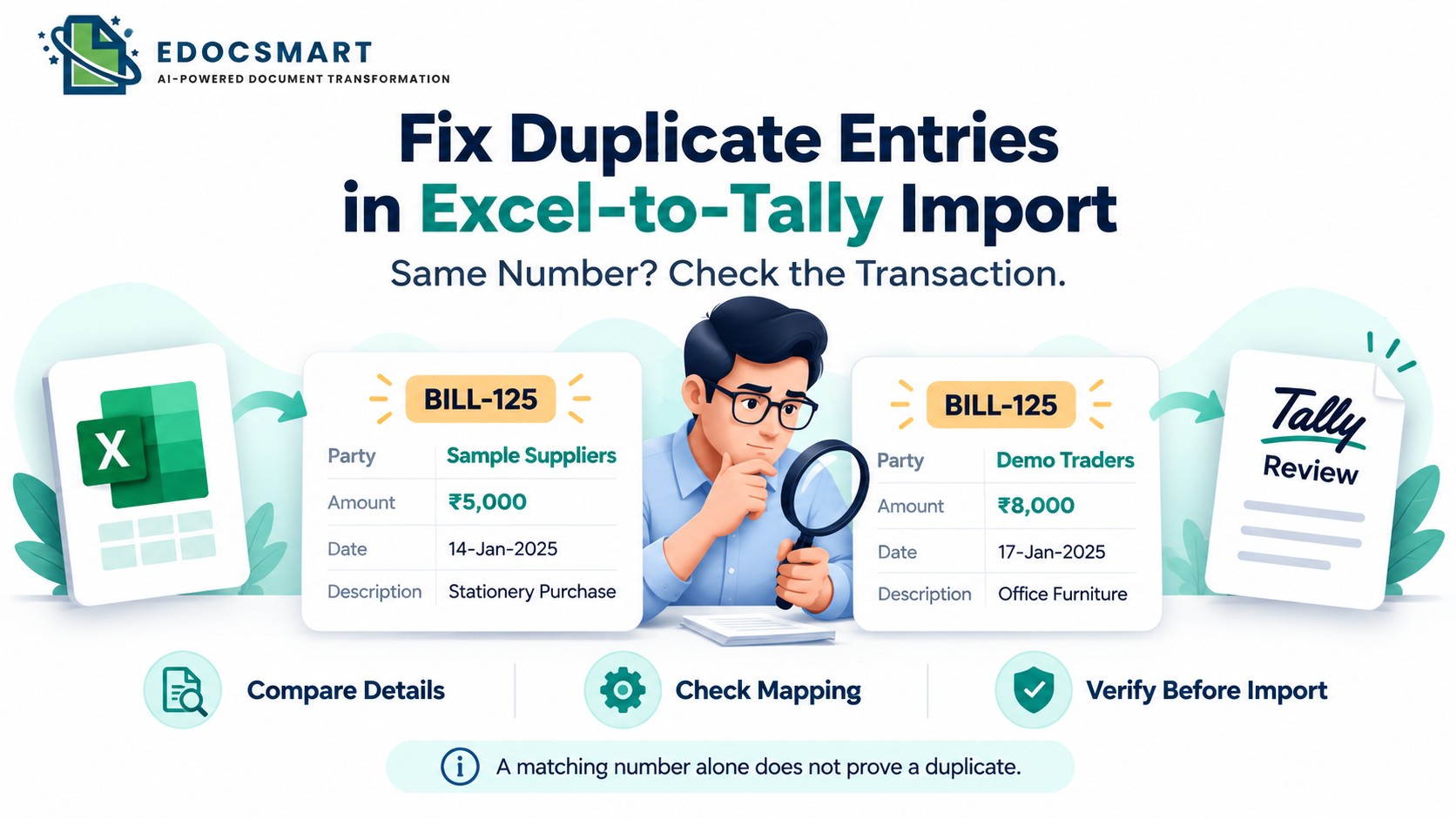
A voucher number has already been used in Tally, but the Excel entry contains different details. Should you skip the incoming record, correct the existing voucher, or preserve both as separate transactions?
Deleting repeated numbers without checking can remove valid data. Importing the entire file again can create duplicate entries.
The first question is simple: Is the same transaction appearing again, or do different transactions share a number?
A Repeated Number Needs Investigation
Consider these Excel records:
| Reference Number | Party | Amount |
|---|---|---|
| BILL-125 | Sample Suppliers | ₹5,000 |
| BILL-125 | Demo Traders | ₹8,000 |
| BILL-126 | Sample Suppliers | ₹3,000 |
The first two records share a reference number, but their parties and amounts differ. Investigate them before removing either record.
The number may represent a supplier’s invoice reference rather than your company’s internal voucher number. Different suppliers may use the same invoice number.
Other possibilities include an incorrectly entered number or a revised version of an existing transaction. The correct action depends on what the records represent.
Three Situations That Can Look Like Duplicates
Before changing the workbook, separate these situations:
| Situation | What to Check |
|---|---|
| The same transaction appears again | Whether it has already been recorded in Tally |
| Different transactions share a number | Their identities and the applicable numbering requirements |
| An existing transaction contains revised details | What changed and how the existing voucher should be corrected |
There is another possibility: multiple Excel rows may belong to one invoice. A repeated invoice reference across item rows does not automatically mean the transaction is duplicated.
Step 1: Compare the Existing Voucher with Excel
Open the voucher already recorded in Tally and compare it with the incoming record.
Check the company, voucher type, party, date, invoice reference, items, quantities, tax, and total.
If the source documents confirm that both records describe the same transaction, investigate why it appears again.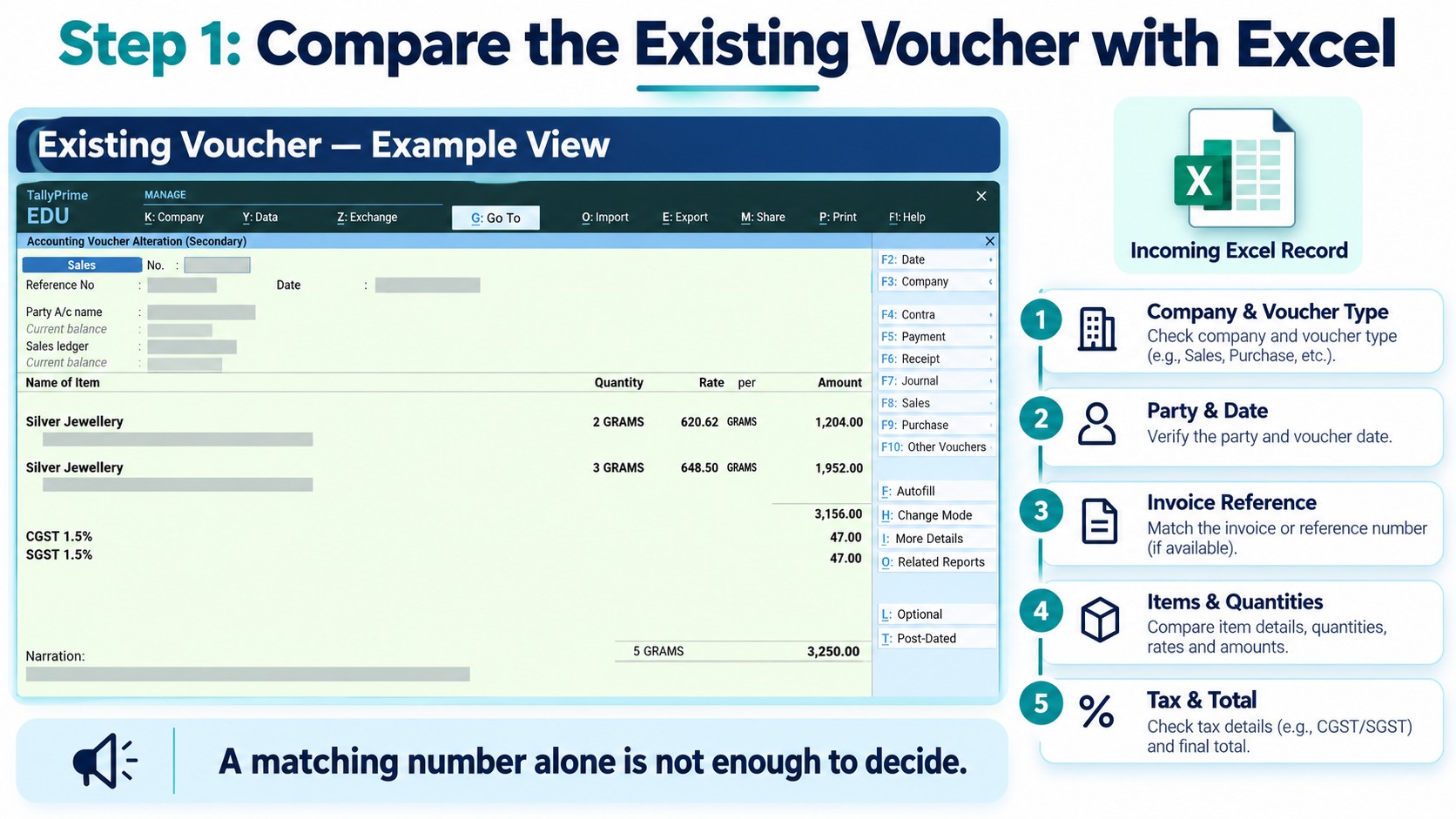
Step 2: Confirm What the Number Represents
Read the values beneath the selected Excel heading.
A column called Bill Number could contain a supplier reference, while Voucher Number could contain an internal accounting number. The heading alone may not explain its purpose.
Confirm which destination field should receive the value.
| Excel Value | Intended Purpose |
|---|---|
| Supplier invoice reference | Identify the supplier’s bill |
| Internal voucher number | Identify the accounting voucher |
| Transaction ID | Identify the record in the source system |
Keep these purposes clear during mapping.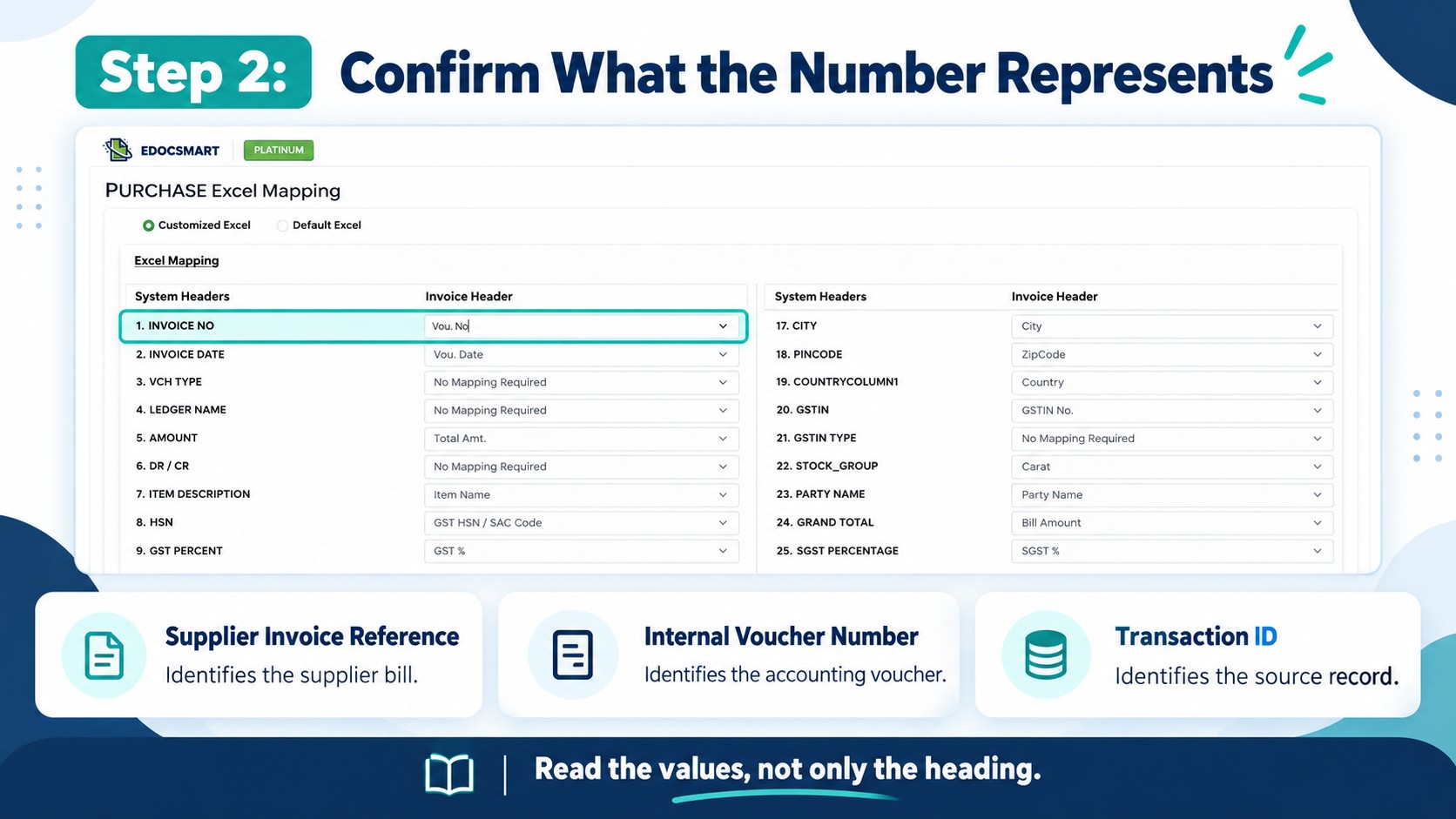
Step 3: Check Numbering and Update Behaviour
Review the voucher type’s numbering configuration and how your import workflow handles incoming numbers.
Do not assume that importing a record with an existing number will update the previous voucher.
Update behaviour depends on the import method and how it identifies existing records. A procedure used for XML imports should not automatically be applied to an Excel import or connector workflow.
Confirm the supported correction procedure before importing a revised record.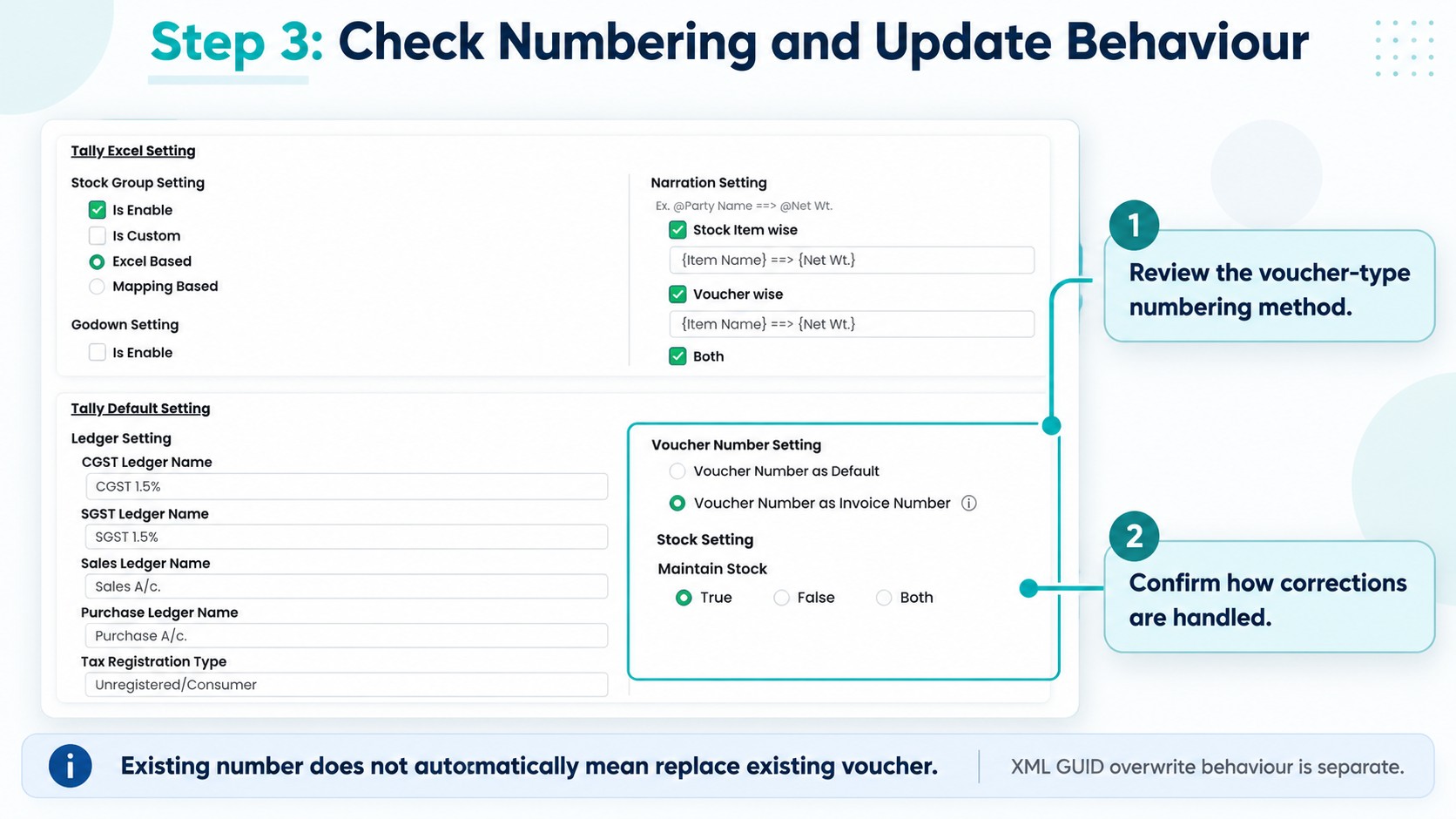
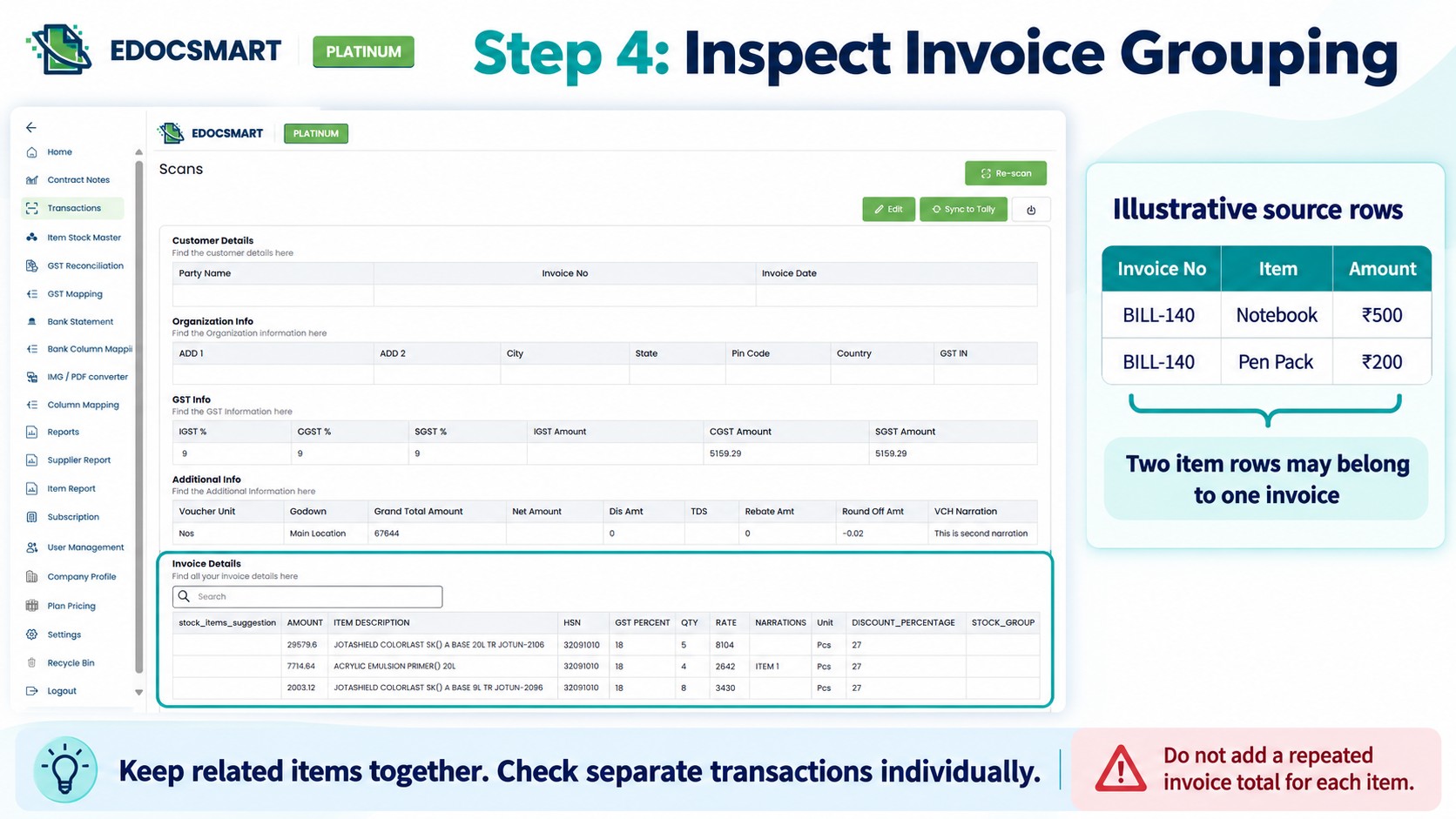
Step 4: Check Invoice Grouping
Consider an invoice containing two products:
| Invoice Reference | Item | Item Amount |
|---|---|---|
| BILL-140 | Notebook | ₹500 |
| BILL-140 | Pen Pack | ₹200 |
These rows may belong to one invoice. Deleting the second row because its reference repeats would remove a valid item.
Check that:
Related item rows are grouped into the correct invoice.
Separate transactions are not combined.
Records with the same reference but different parties remain distinguishable.
Invoice totals are not counted repeatedly across item rows.
Step 5: Prepare the Records That Need Action
Keep the original workbook and create a working copy.
Separate the records before preparing the import batch:
| Record Type | Action |
|---|---|
| New transaction | Include after confirming it has not already been recorded |
| Already recorded transaction | Exclude from the new-entry batch |
| Corrected transaction | Review the existing voucher and confirm the correction method |
| Unclear record | Set aside until the difference is resolved |
For corrected records, establish how to modify the existing voucher before attempting another import.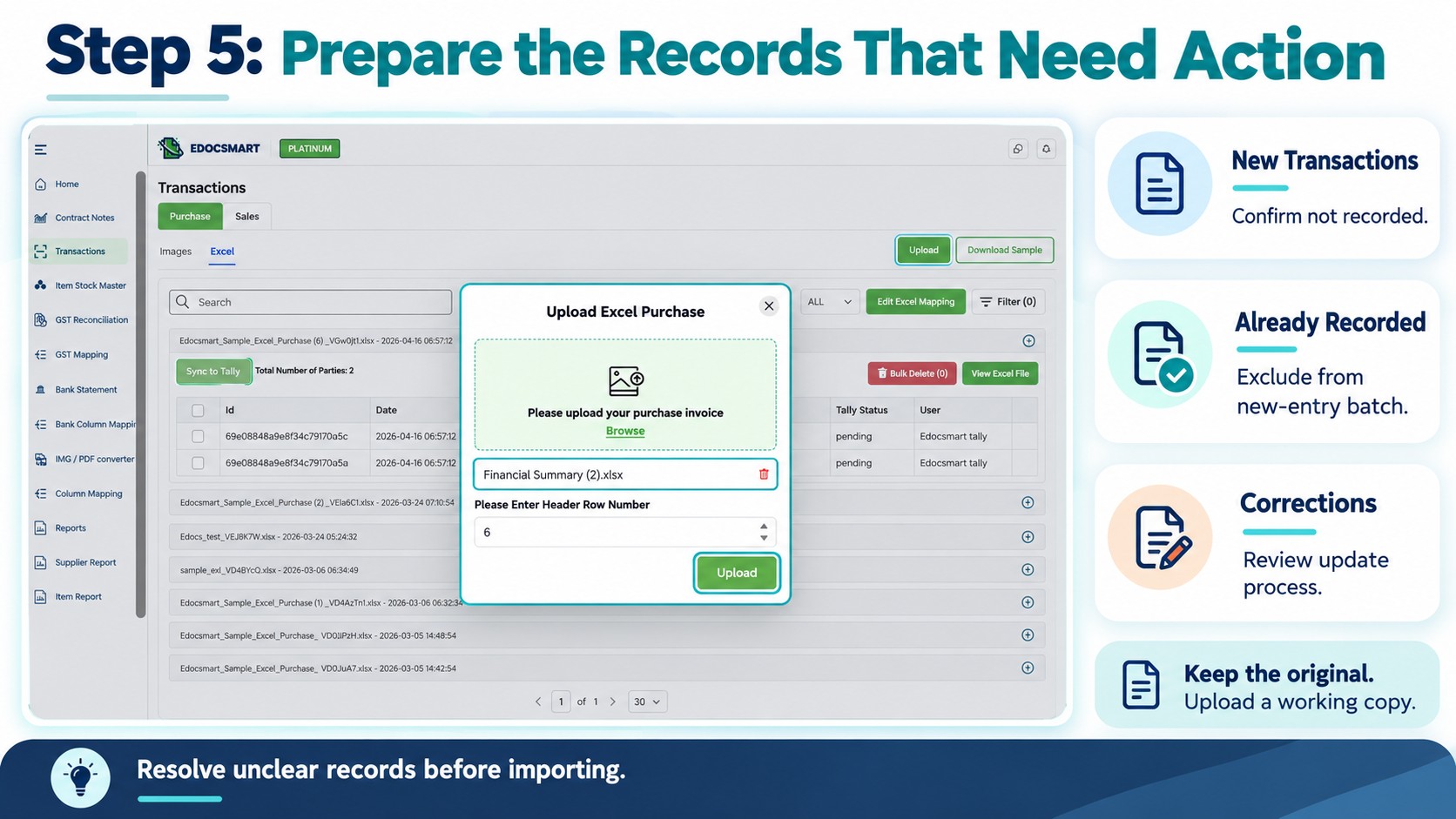
Step 6: Review the Configuration in Edocsmart
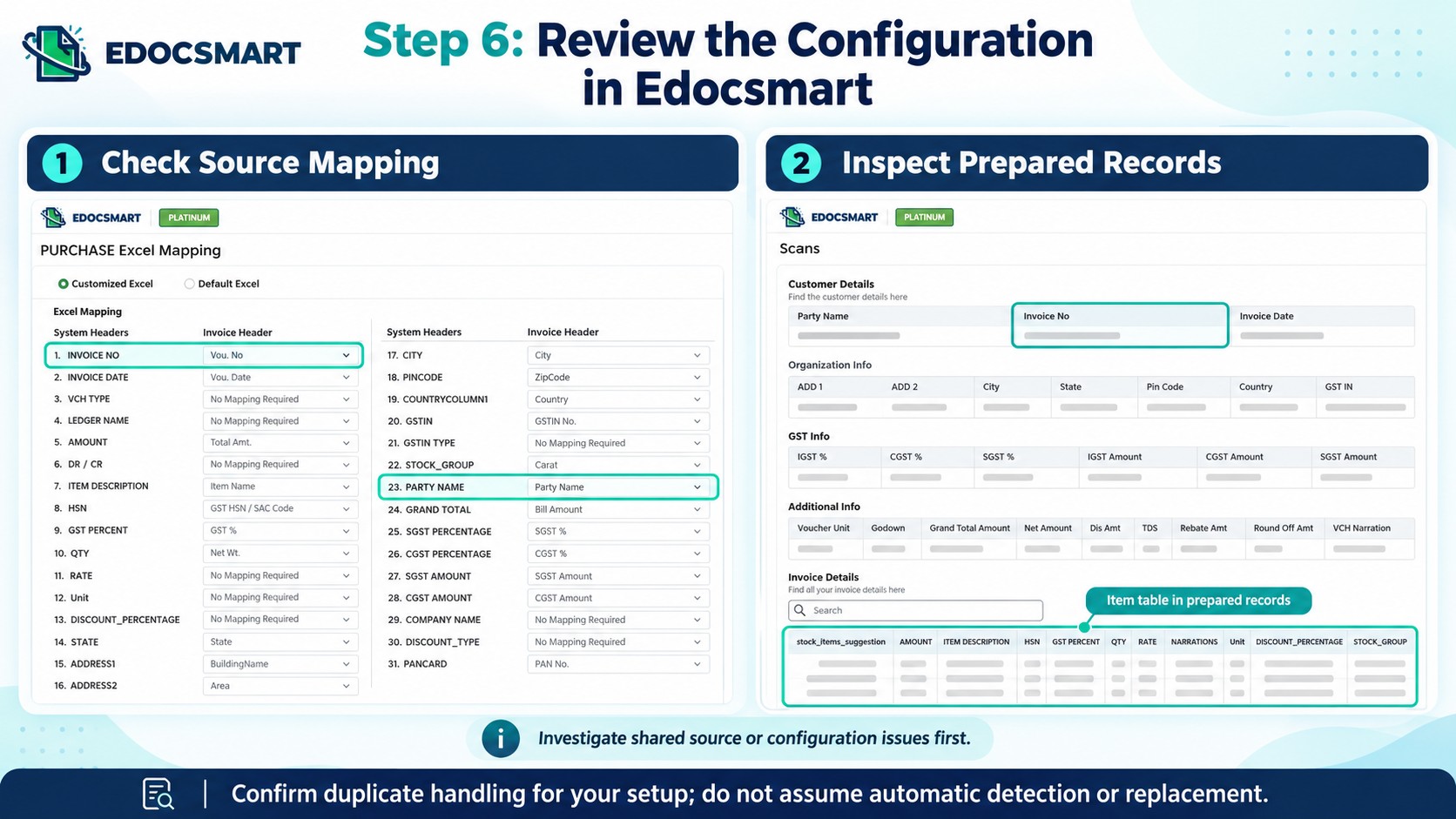
Upload the prepared records and review the mapping and processed data in Edocsmart.
Before synchronization:
Confirm that source columns map to the intended fields.
Review the processed records.
Select only the records approved for import.
Resolve unclear references and grouping issues.
If several records show the same problem, check the shared source data or configuration first.
For records with the same number but different details, explain both records and the intended result to Edocsmart support. Confirm how the workflow handles that situation before proceeding.
Do not assume automatic duplicate detection or replacement.
 Step 7: Test a Small Sample and Verify
Create an up-to-date backup of the Tally company. Open the intended company and activate the connector.
Sync a small approved sample, then compare the resulting vouchers with the source records.
Verify that:
Each intended transaction appears correctly.
Separate transactions remain separate.
Item rows are grouped correctly.
Quantities, tax and totals match.
Previously recorded transactions have not been created again.
If an import stops partway through, identify which records were successfully processed before retrying the remaining batch.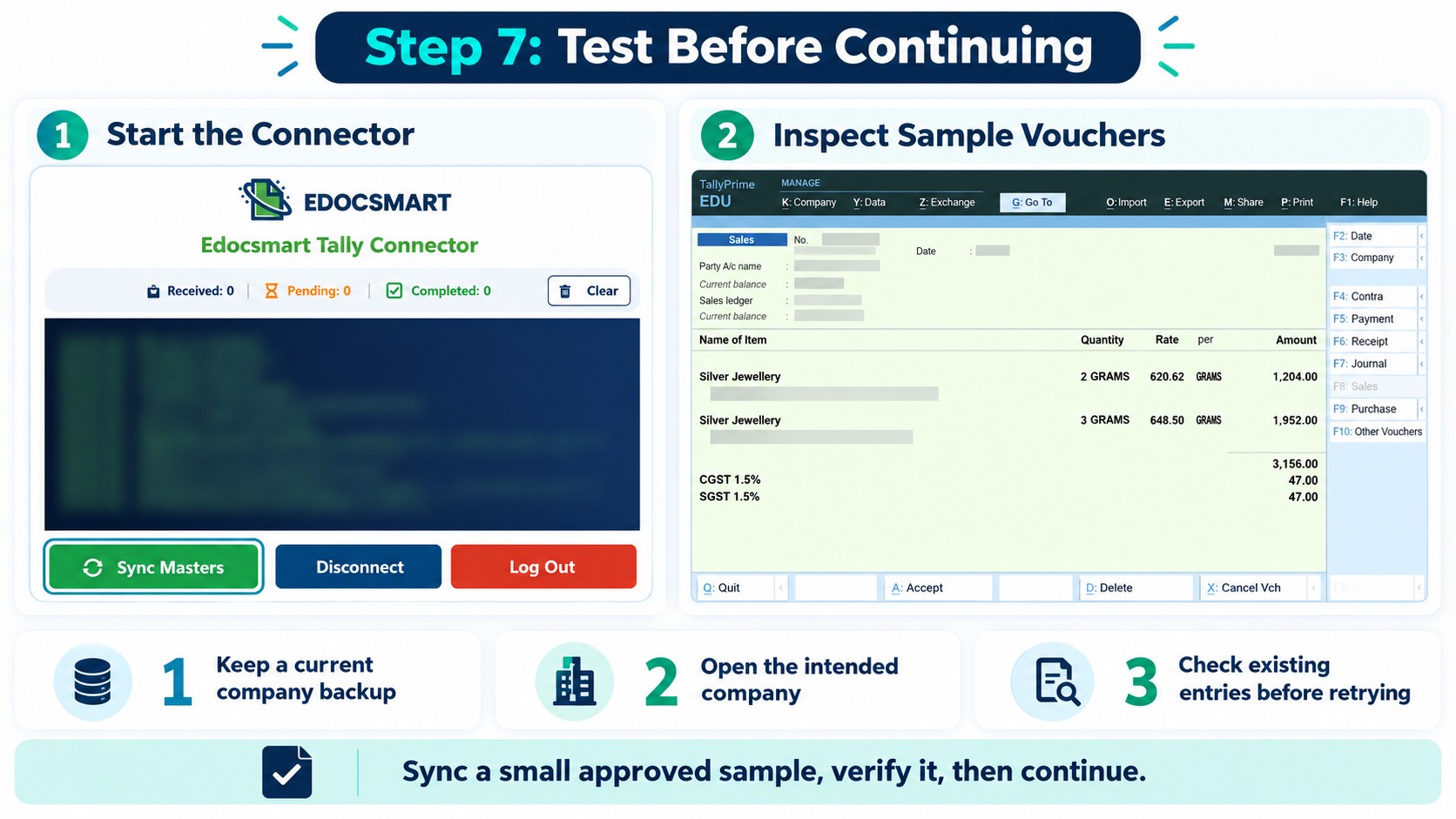
Frequently Asked Questions
1. What is a duplicate entry?
A duplicate entry occurs when the same transaction is recorded more than once.
2. Does the same number mean it is the same transaction?
No. Compare the party, date, source document, items and amounts before deciding.
3. Can one invoice occupy multiple Excel rows?
Yes. An invoice with several items may use a separate row for each item, with the invoice reference repeated across those rows.
4. Should I delete duplicate numbers from Excel?
Only after confirming what the records represent. Repeated numbers may belong to valid transactions or item rows.
5. Can I import a corrected record again?
First, confirm how your import workflow updates an existing voucher. Reimporting a corrected record may create another entry.
6. How should I check imported entries?
Open the resulting vouchers in Tally and compare them with the original records, including party, date, reference, items, quantities, tax and total.
7. Should I resend the entire batch if an import fails?
Check which records were successfully imported first. Prepare the retry batch accordingly to avoid recording those transactions again.
Conclusion
Handling duplicate entries starts with understanding the transaction, the number it uses, and how the data is mapped and grouped.
Prepare only the records that need action, review them through your Excel to Tally workflow , and verify a small sample before processing the remaining batch.