How to Fix Ledger Mismatches in excel to tally
Fix ledger mismatches during Excel-to-Tally imports by checking party names, missing ledgers, column mapping, and accounting settings before retrying entries.
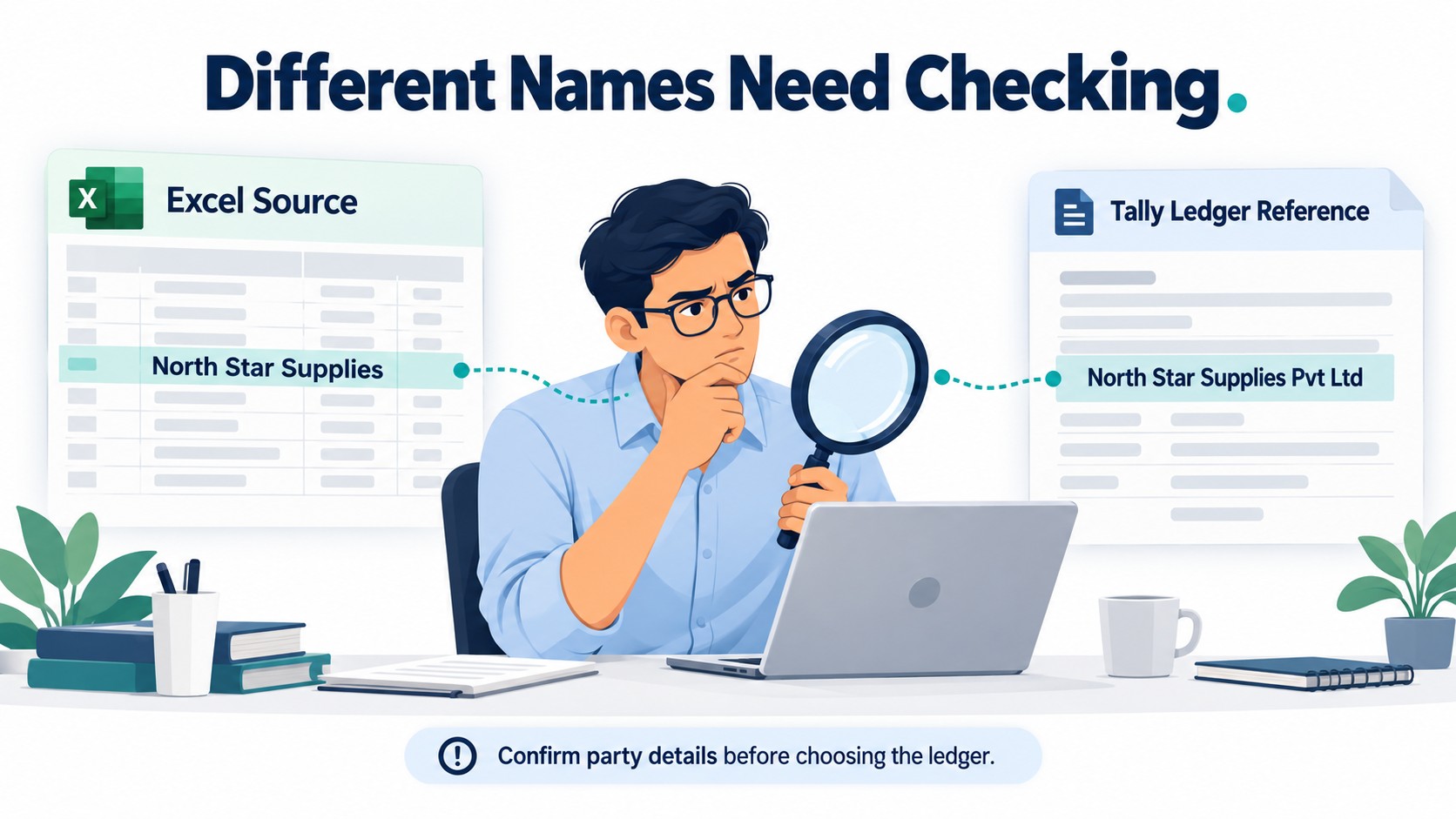
The Excel file was ready, but the accountant could not confidently transfer the entries.
Some supplier names were different from the ledger names in Tally. A few records appeared to need new ledgers, while others seemed to belong to accounts that already existed.
For example, Excel showed “North Star Supplies,” but Tally contained “North Star Supplies Pvt Ltd.” Were they the same supplier? Should the source name be changed, or should another ledger be created?
So some example they should follow mention below
The Accountant Needed More Than a Quick Fix
At first, the accountant checked names individually. He compared the Excel records with Tally and corrected the differences he could confirm.
But new reports kept arriving. He did not want to repeat the same investigation for every batch. He also wanted to avoid creating separate ledgers for parties already recorded under slightly different names.
While searching for a more organised process, he found Edocsmart and requested a demo.
He shared a sample workbook and examples of the intended Tally ledgers. The discussion focused on two questions: which column supplied the party name, and how should that party connect to the correct accounting ledger?
Find the Cause Before Changing the Name
Not every ledger mismatch has the same cause.
| Problem | What to check |
|---|---|
| Ledger is missing | Whether it exists in the intended company |
| Wrong party appears | The Excel column selected for party details |
| Similar names appear | Whether they represent the same account |
| Wrong purchase or sales ledger | The relevant accounting configuration |
| Only certain records fail | Their source values and required details |
In the example, the shorter and longer supplier names might represent the same party. However, the accountant must confirm this using available identifying details.
A general find-and-replace could change unrelated records. Creating a new ledger without checking could split transactions across accounts.
What Edocsmart Helps the Accountant Check
Edocsmart provides a workflow for mapping Excel columns, reviewing prepared records, and syncing approved entries.
Column mapping identifies where information comes from. Ledger matching or accounting configuration determines which account should be used.
For example, selecting Supplier Name → Party Name identifies the source column. It does not automatically prove which existing Tally ledger represents every supplier.
During setup, the accountant and team need to confirm the required handling of different names and missing ledgers. Automatic master creation, where supported and enabled, should be checked for the specific configuration.
Step-by-Step: Resolve the Mismatch Before the Full Transfer
Step 1: Open the Correct Workspace
Log in to Edocsmart and open Transactions.
Choose Sales or Purchase, then select the Excel tab. Confirm which Tally company should receive the records.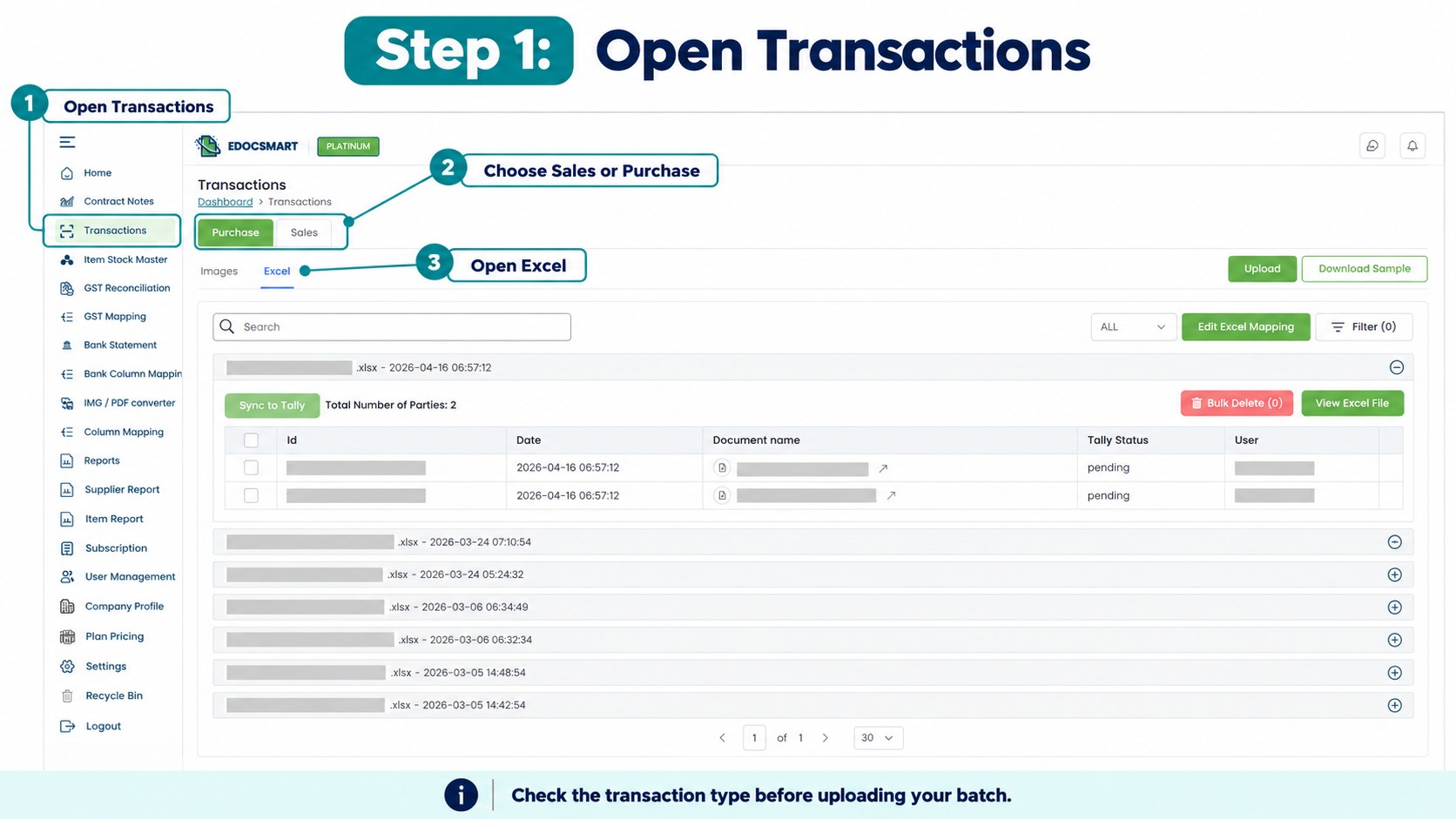
Step 2: Upload the Intended Workbook
Select the working copy and enter its actual Header Row Number.
Check that the expected headings are available. Keep the original file for comparison.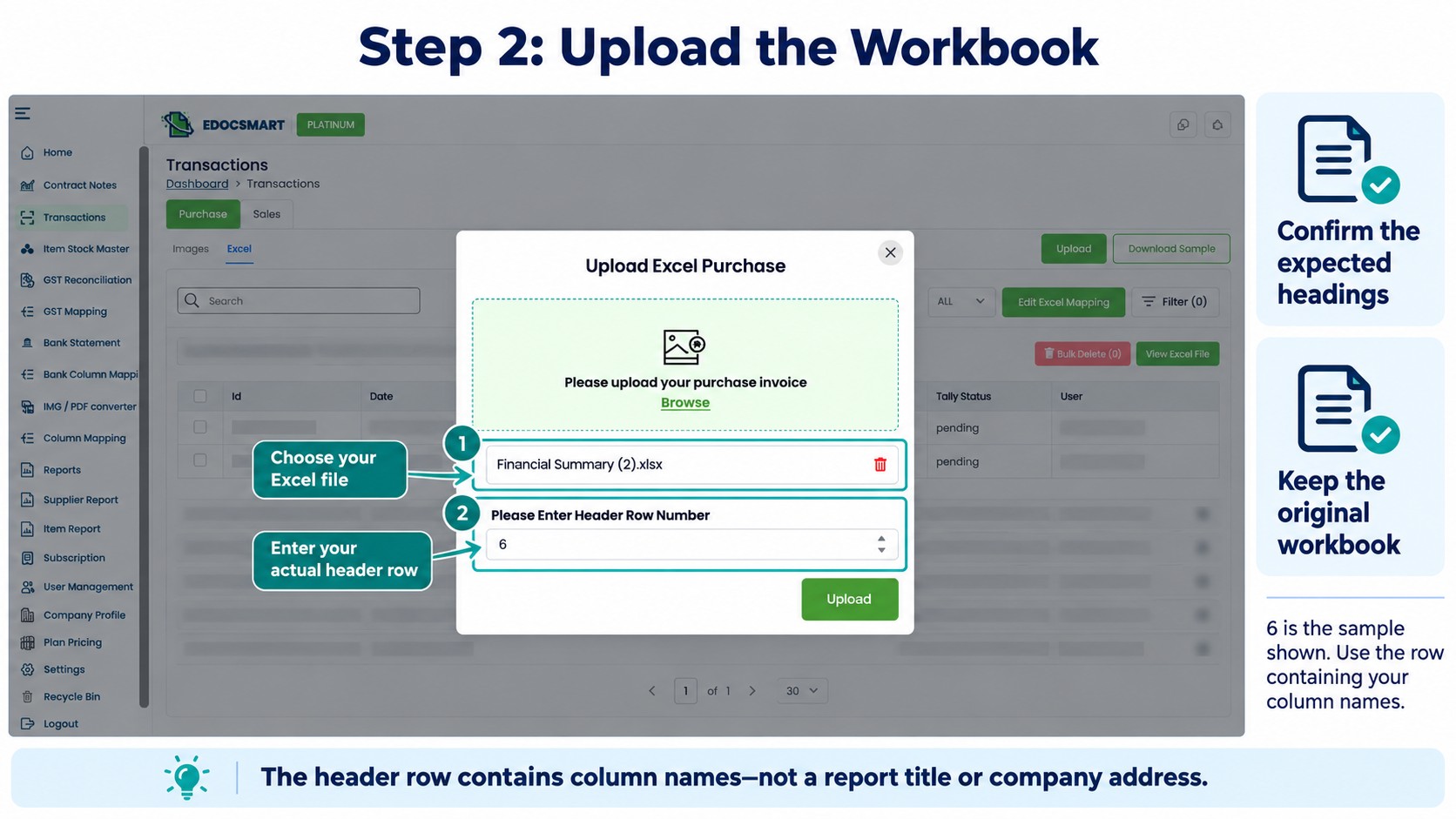
Step 3: Check the Party-Name Column
Inspect the source selected for party details.
Read several values beneath the heading. Confirm that it contains supplier or customer names—not delivery locations, contact persons, or internal references.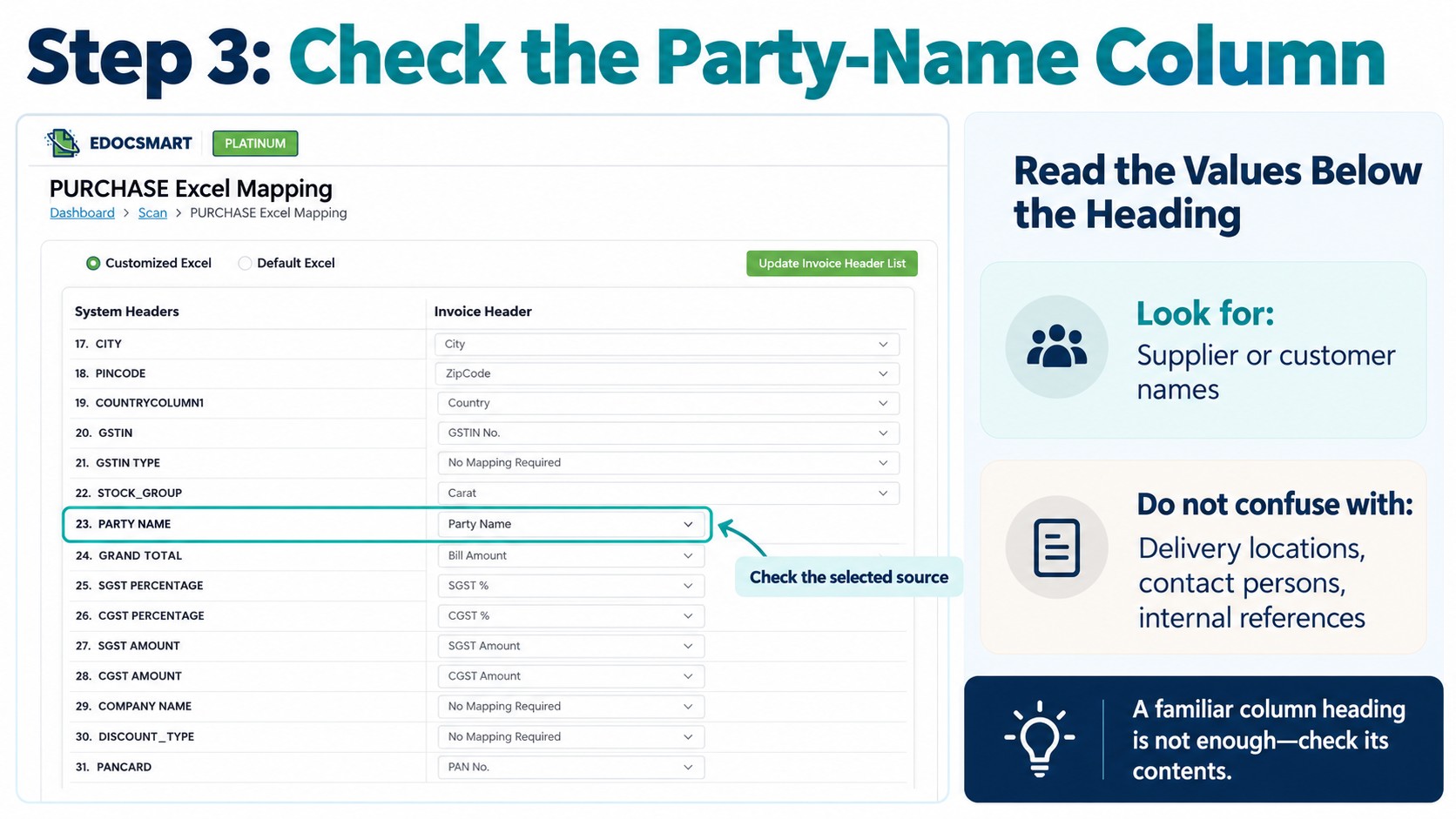
Step 4: Confirm the Intended Ledger
Compare the prepared party details with the relevant Tally account.
If names differ, confirm their relationship before proceeding. If a ledger is genuinely missing, establish how it should be created and configured.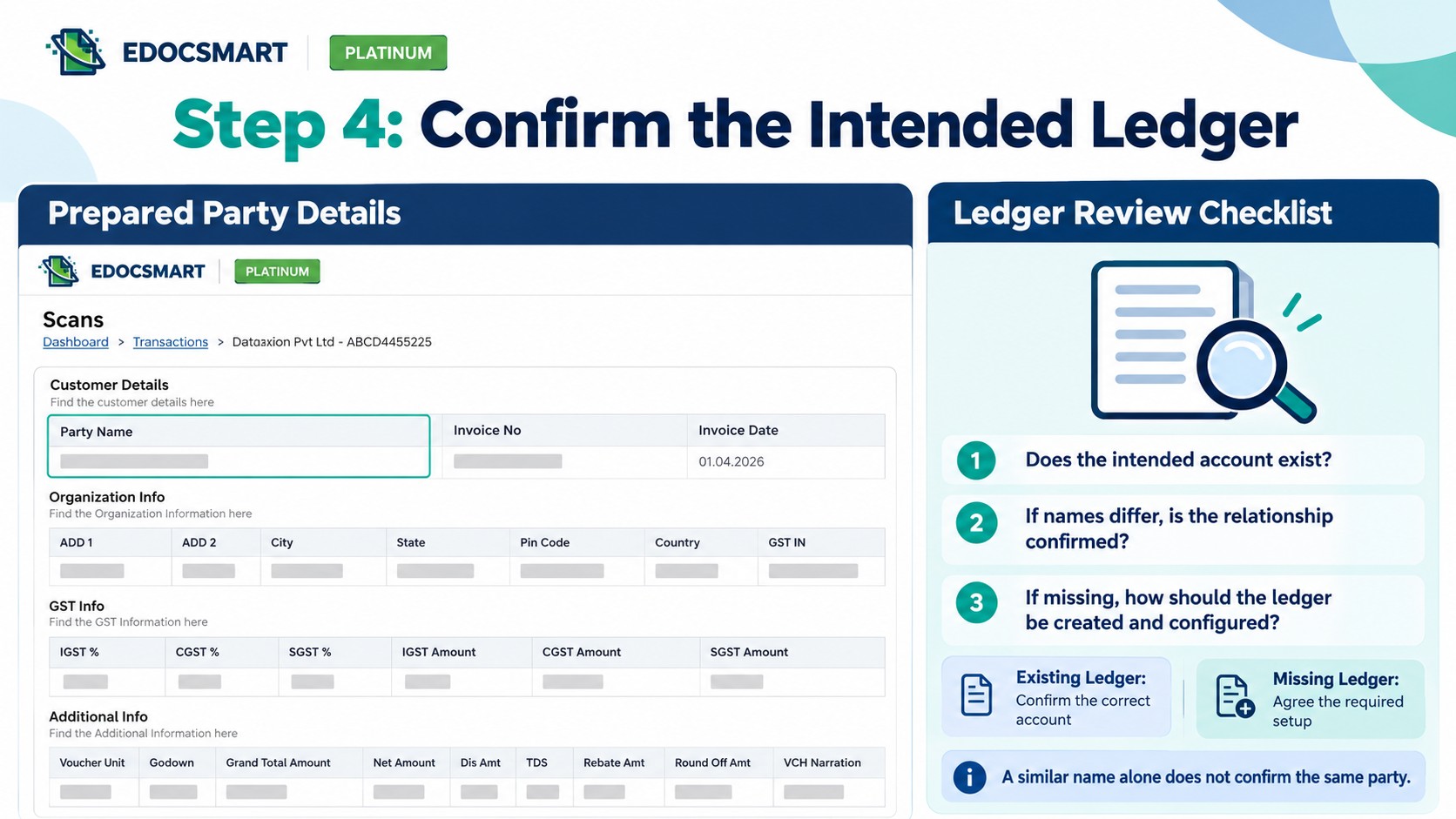
Step 5: Review Other Accounting Settings
Check the purchase or sales ledger and other relevant allocations separately.
A correct supplier does not guarantee that the transaction uses the correct purchase, sales, or tax ledger.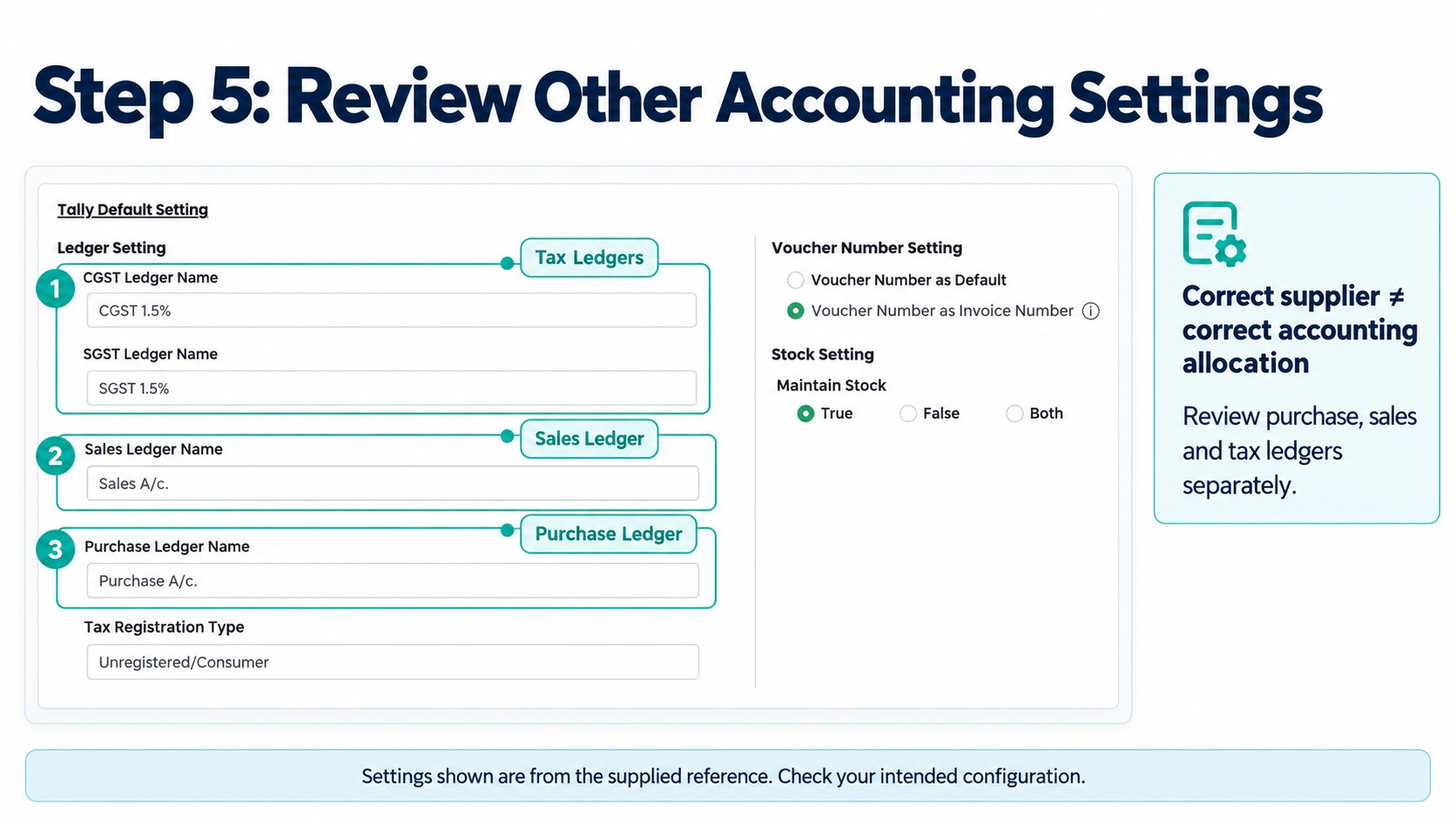
Step 6: Correct, Review, and Save
Resolve the source or configuration issue.
If several records have the same problem, investigate the shared cause first. Review the affected records again and save the approved data.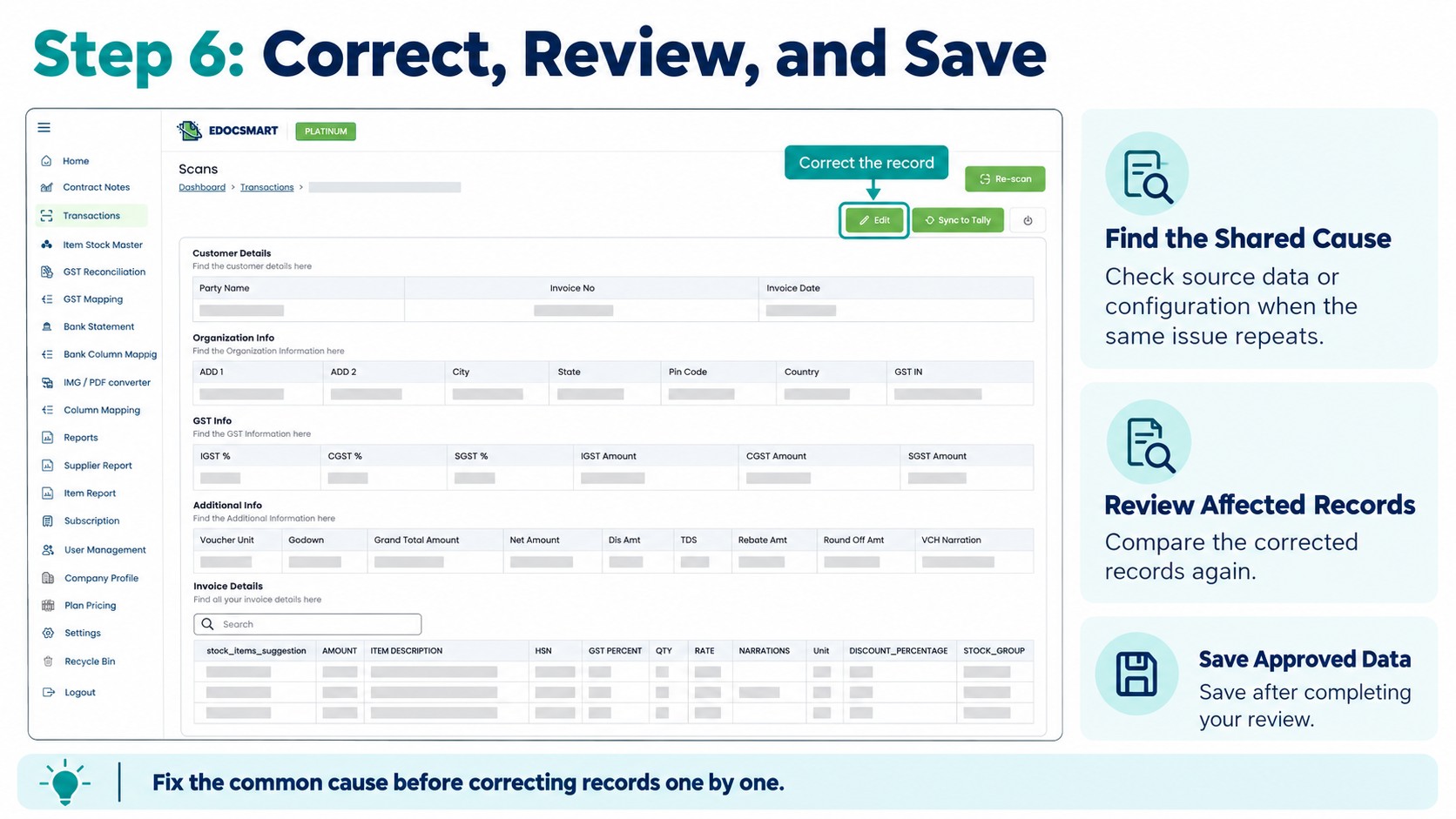
Step 7: Sync and Verify a Sample
Start the Edocsmart Tally Connector and open the intended company. Keep a current backup.
Use Sync to Tally for an approved sample. Inspect the voucher’s party, accounting allocations, reference, and total before continuing.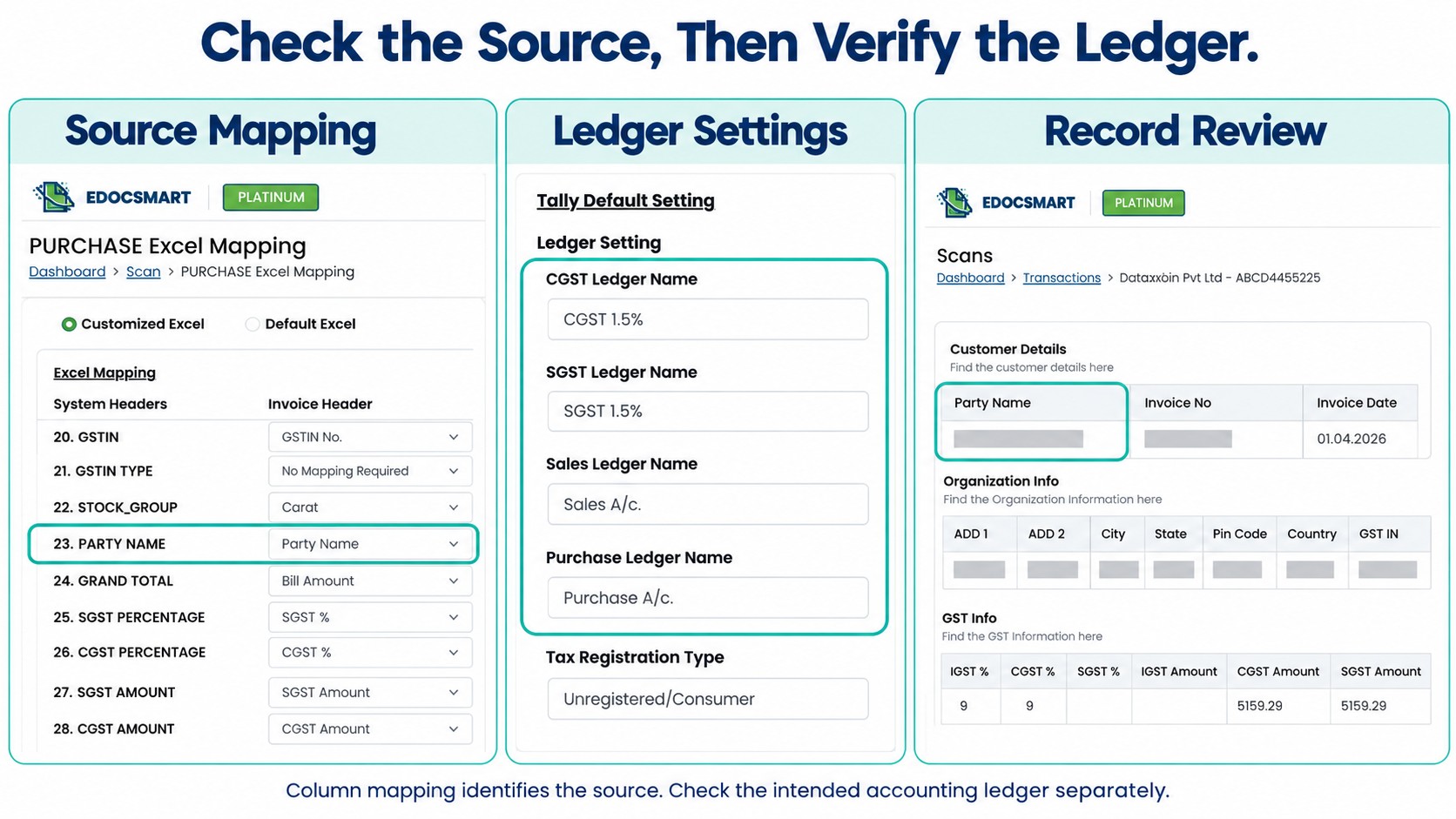
What If Some Entries Already Reached Tally?
The accountant should check existing vouchers before retrying the file.
An entry recorded under the wrong ledger is different from an entry that never arrived. Its correction needs separate attention; importing it again could create a duplicate.
Recording the identified cause also helps future batches. Saved mapping can support recurring reports, but changes in source columns, companies, or accounting requirements need review.
Frequently Asked Questions
1. What is a ledger mismatch in Tally?
A ledger mismatch happens when an imported entry uses or refers to a ledger different from the intended account.
2. Why does my ledger name not match during Excel import?
Common reasons include spelling differences, extra spaces, a missing ledger, the wrong source column, or selecting a different Tally company.
3. How do I fix a ledger mismatch?
Check the Excel name, confirm the intended Tally ledger, correct the relevant mapping or settings, and test a sample entry.
4. Should I create a new ledger if the names are different?
Not immediately. First check whether the correct ledger already exists under another name.
5. Can I check entries before importing them into Tally?
Yes, if your workflow includes a preview or review stage. Compare the prepared records with Excel before transferring them.
6. Should I upload the complete file again after an error?
First check which vouchers already exist. Retry only the records that still need importing to reduce duplicate-entry risk.
7. Can I reuse the same mapping next time?
Yes, when the Excel structure, field meanings, and accounting requirements remain unchanged.
Conclusion
Ledger mismatches need investigation before another upload. Check the source column, party identity, intended company, and accounting settings.
Explore the Excel to Tally workflow with your workbook and ledger examples. Use the demo to confirm how the proposed setup handles your actual records before processing a full batch.