How to Import Bulk Data from Excel to TallyPrime?
Learn how to import bulk data from Excel to TallyPrime with Edocsmart, check column mapping, review invoices, and verify vouchers before retrying missing entries.
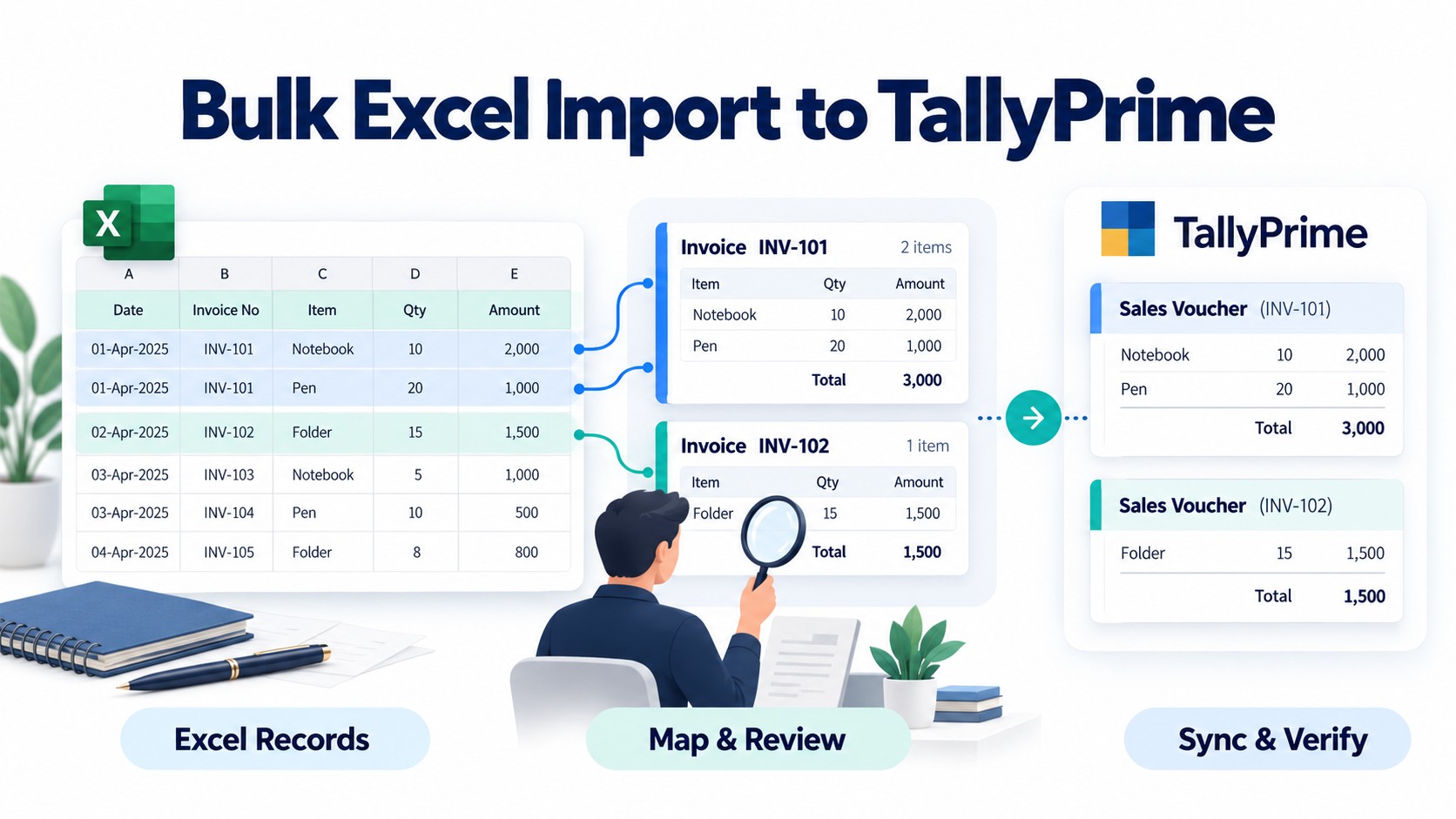
The billing software sends sales and purchase reports to an accountant each month. The information is already in Excel, but preparing it for TallyPrime is still time-consuming. Before importing the entries, the accountant needs to check columns, invoice items, and amounts.
One workbook contains 350 item rows and 100 invoices. Some invoices contain multiple items, so creating one voucher for every row would be incorrect.
This example illustrates a typical accounting situation.
The accountant needs automation to reduce repetitive work while keeping the records available for review. This is where Edocsmart comes into the picture: upload a supported workbook, configure its mapping, check the prepared invoices, and sync approved records to TallyPrime.
Why Invoice Grouping Matters in Bulk Import
Suppose you have the following rows in Excel:
| Invoice number | Item | Item amount |
|---|---|---|
| INV-101 | Notebook | 500 |
| INV-101 | Pen Pack | 200 |
| INV-102 | File Folder | 300 |
There are three item rows and two invoices. The Notebook and Pen Pack belong together under INV-101.
The invoice number helps group related rows in the configured workflow. Other information comes from the mapped Excel columns. Check party and date details too, because different suppliers may use the same invoice reference.
Proper grouping keeps invoice items together and helps prevent repeated invoice totals from being treated as individual item amounts.
How Reusable Mapping Reduces Preparation Time
The accountant’s next concern is avoiding the same setup every month.
A fixed-template workflow may require rearranging a report to fit the required layout. Edocsmart’s configurable mapping connects existing supported columns to the appropriate fields.
| Preparation task | Fixed-template workflow | Edocsmart mapping workflow |
|---|---|---|
| Different headings | Rename where required | Map existing headings |
| Different column order | Follow the template layout | Select the relevant source columns |
| Recurring files | Populate the existing template | Reuse tested mapping |
| Changed structure | Adjust the prepared file | Review affected mappings |
TallyPrime also supports user-defined Excel mapping. Edocsmart combines upload, mapping, review, and synchronization in one workflow.
Saved mapping can be reused when the file structure, field meanings, and accounting requirements remain unchanged.
How to Import Bulk Excel Data Using Edocsmart
Step 1: Open Transactions
Log in to Edocsmart and select Transactions from the sidebar.
Choose Sales or Purchase according to your records, then open the Excel tab. Verify the transaction type before uploading the batch.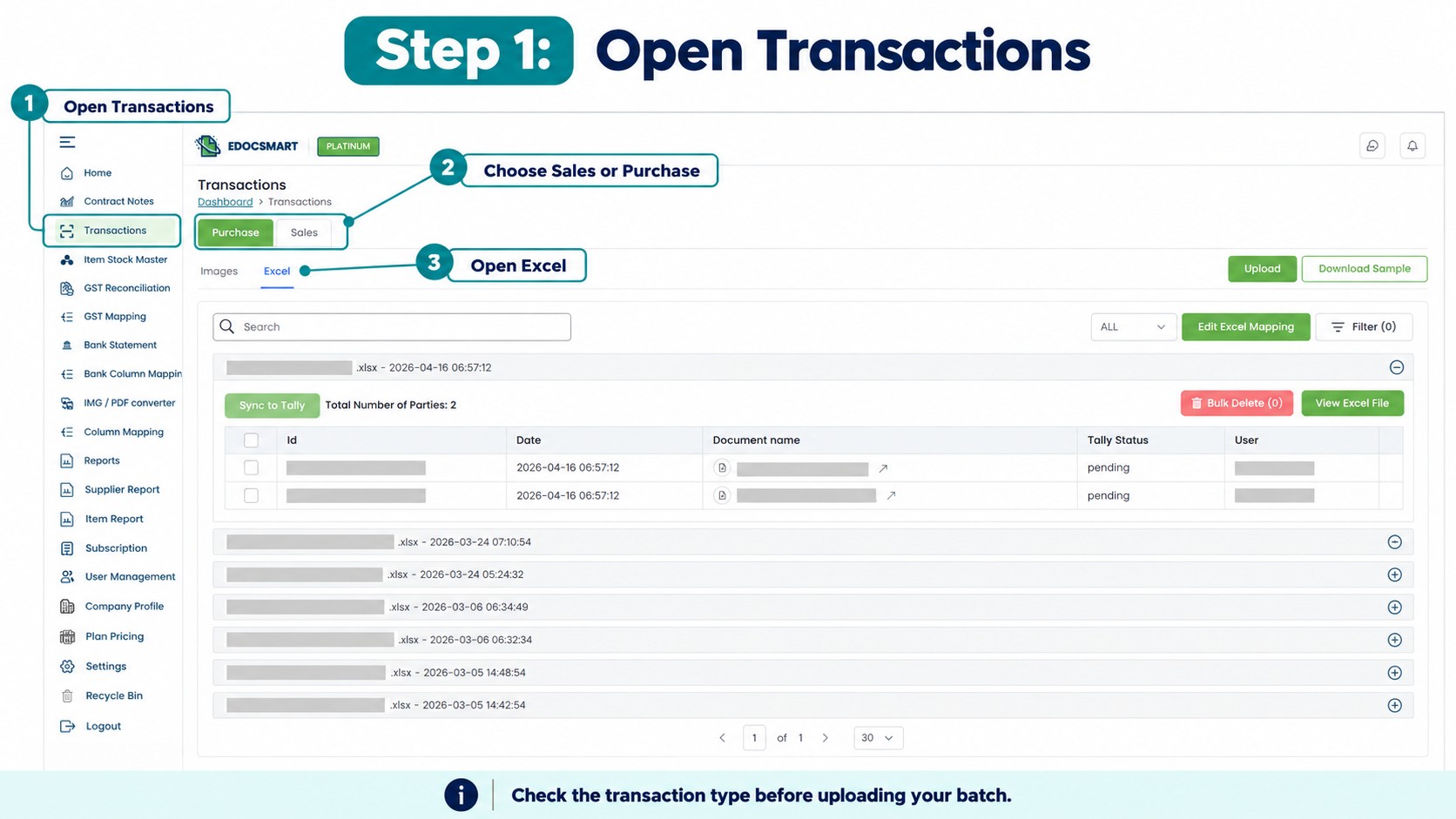
Step 2: Upload the Workbook
Choose your Excel file and enter its actual Header Row Number.
This is the row containing the column names, not a report title or company address. Confirm that the expected headings are available before proceeding.
Keep a copy of the original workbook for reference.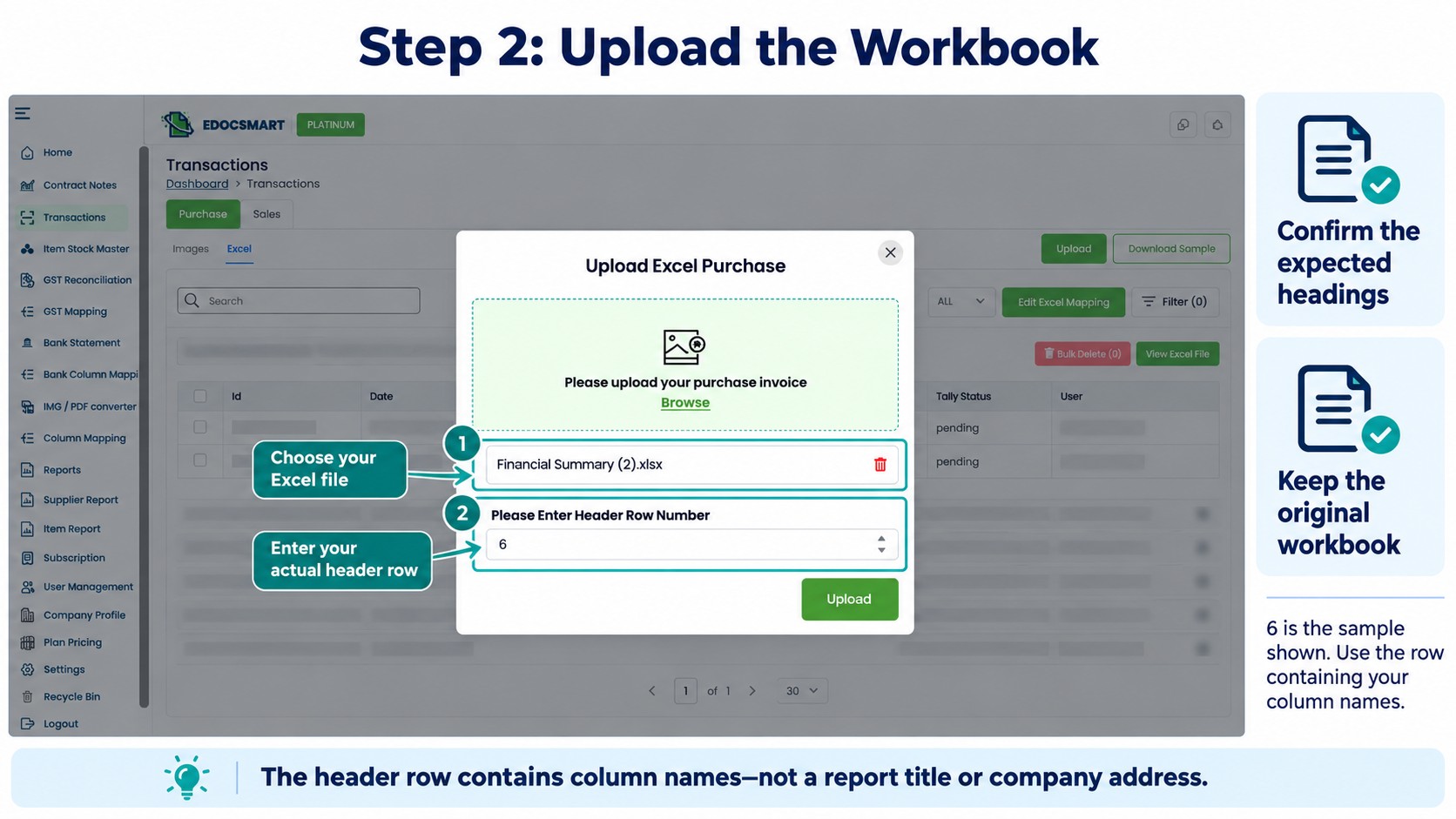
Step 3: Configure Column Mapping
Connect each source heading to the field that matches its meaning.
| Excel heading | Intended field |
|---|---|
| Bill Ref | Invoice Number |
| Vendor | Party Name |
| Product | Item Description |
| Quantity | Quantity |
| Line Value | Item Amount |
| Bill Total | Grand Total |
These are examples, not mandatory headings.
Review dates, units, tax percentages, tax amounts, and discounts where applicable. Check ledger, voucher, and stock settings separately from column mapping.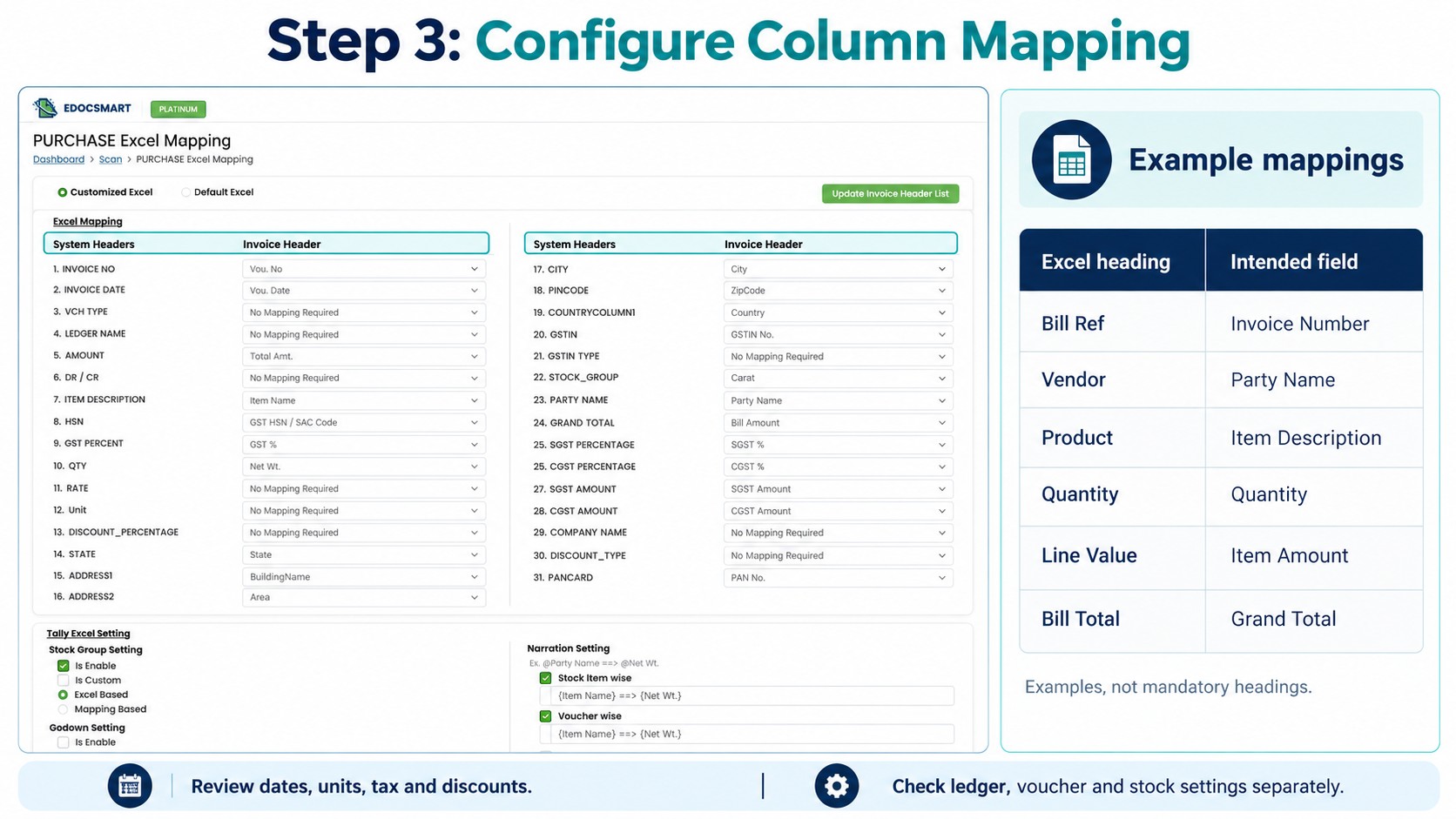
Step 4: Review the Processed Invoices
After processing, open several records and compare them with Excel.
Include a multi-item invoice in your sample. Verify that related rows appear under the correct invoice.
Check invoice references, dates, parties, quantities, item amounts, tax, and totals. Accounting data entry automation still requires review before approval.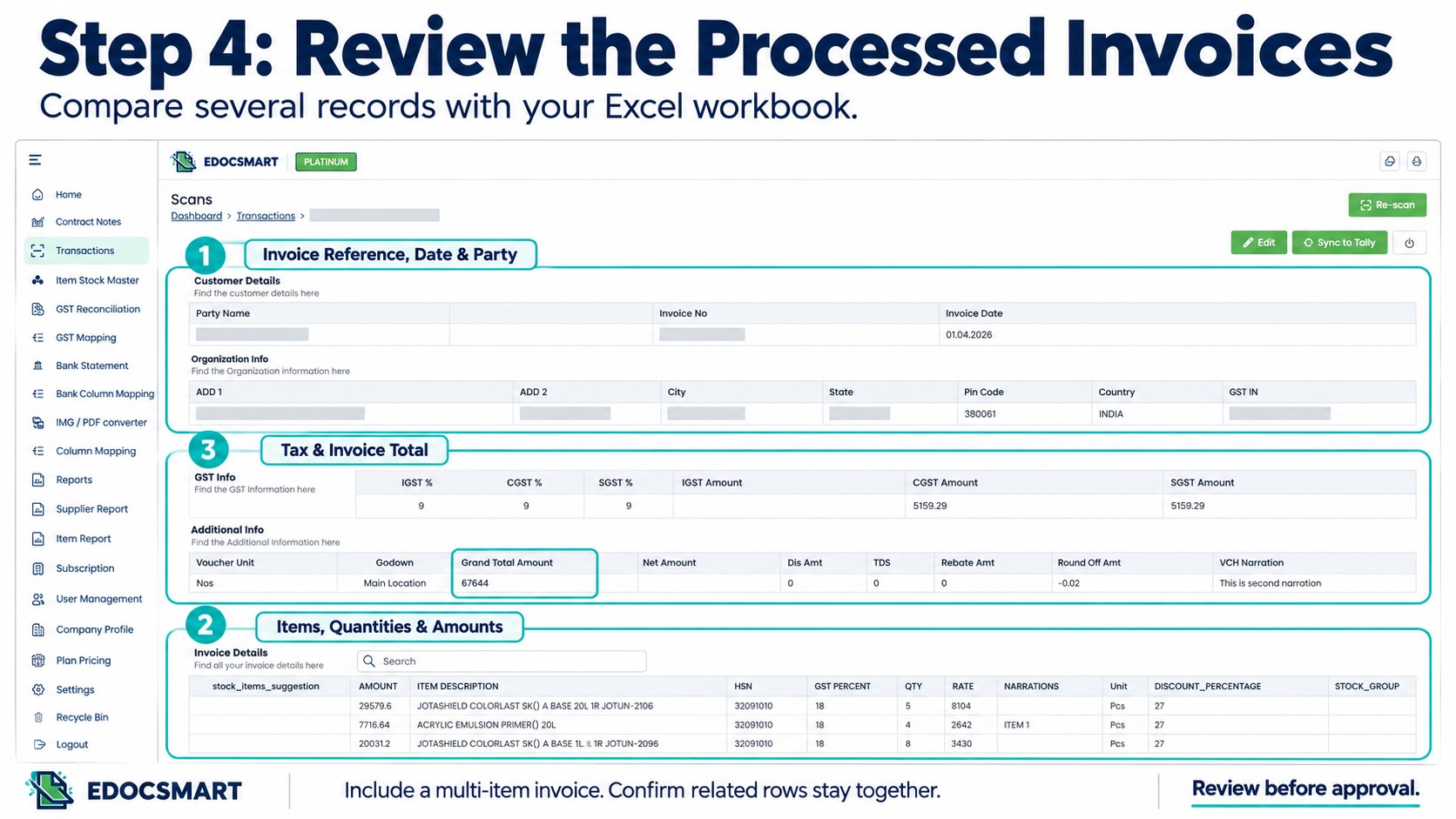
Step 5: Correct and Save
Resolve differences and save the reviewed records.
If several invoices show the same issue, check the source column or mapping first. An incorrect field selection can affect the entire batch.
For example, mapping a repeated bill total as an item amount may produce incorrect values.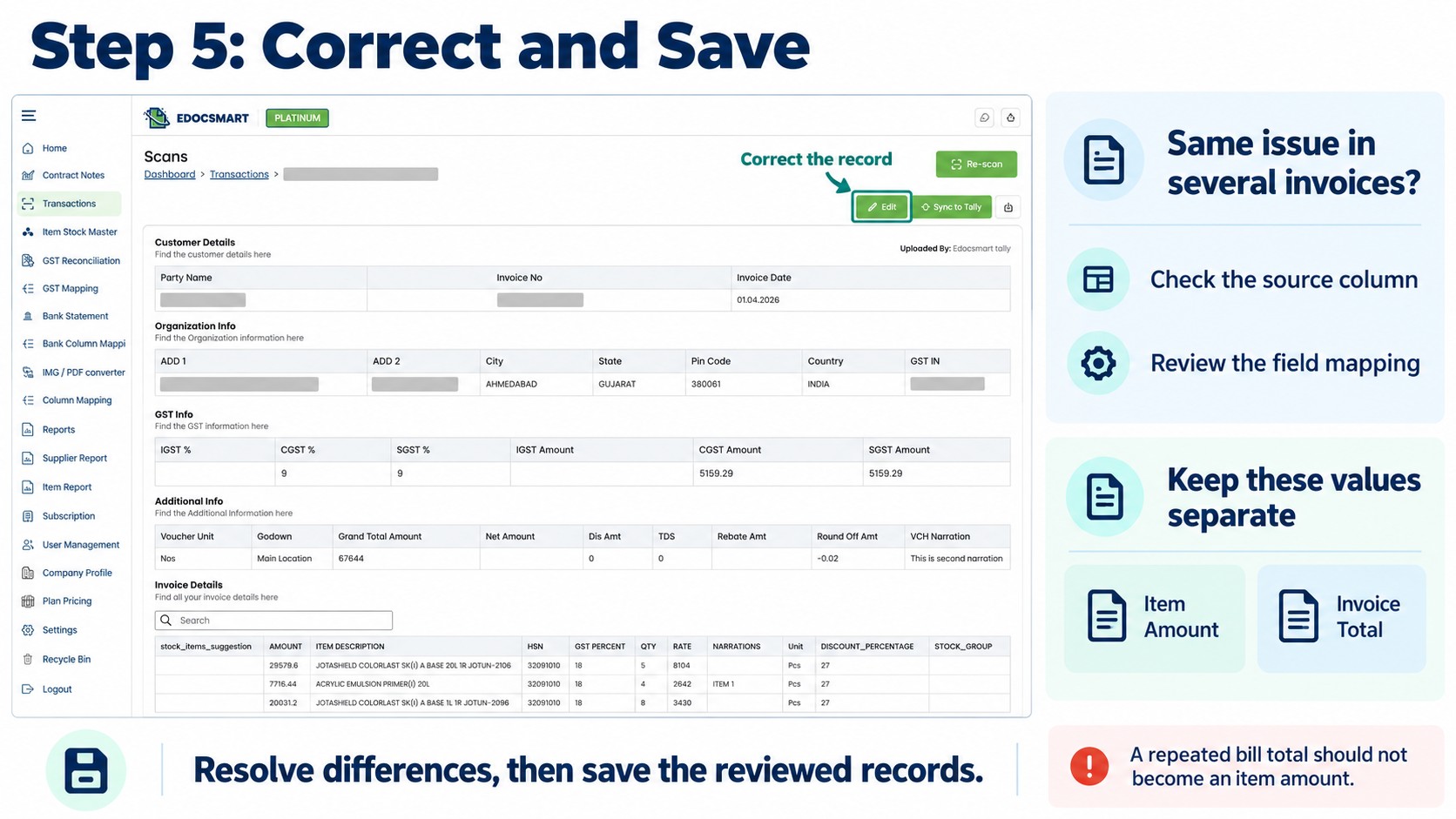
Step 6: Check the Tally Connector
Start the Edocsmart Tally Connector and open the intended company in TallyPrime.
Confirm the connection and relevant accounting settings. Keep an up-to-date company backup before importing.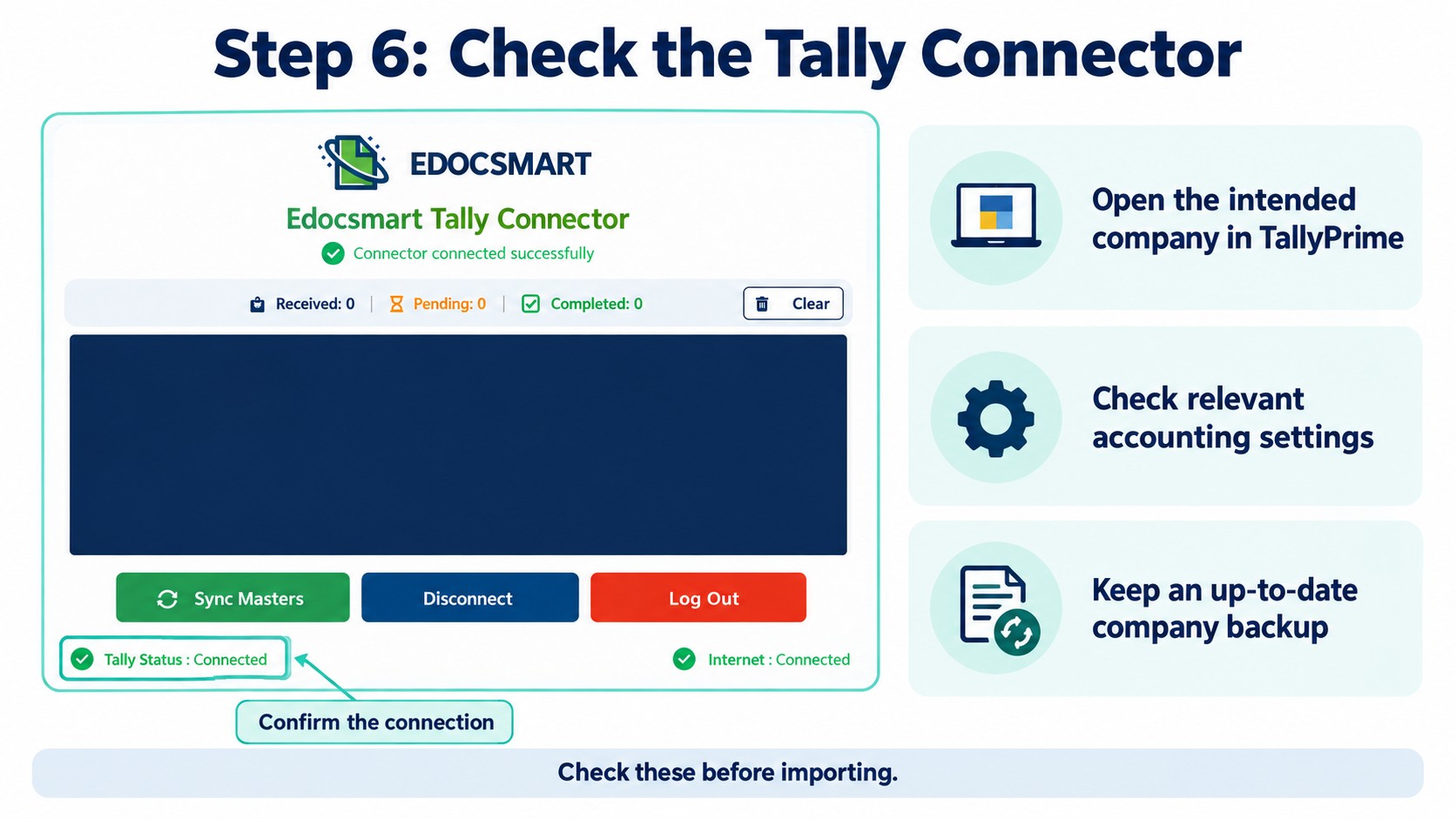
Step 7: Sync a Sample and Verify
Use Sync to Tally for a small approved sample.
Inspect the vouchers created in TallyPrime. Compare the voucher type, party, invoice reference, item details, and total with the source.
After confirming the sample, continue with the remaining approved records.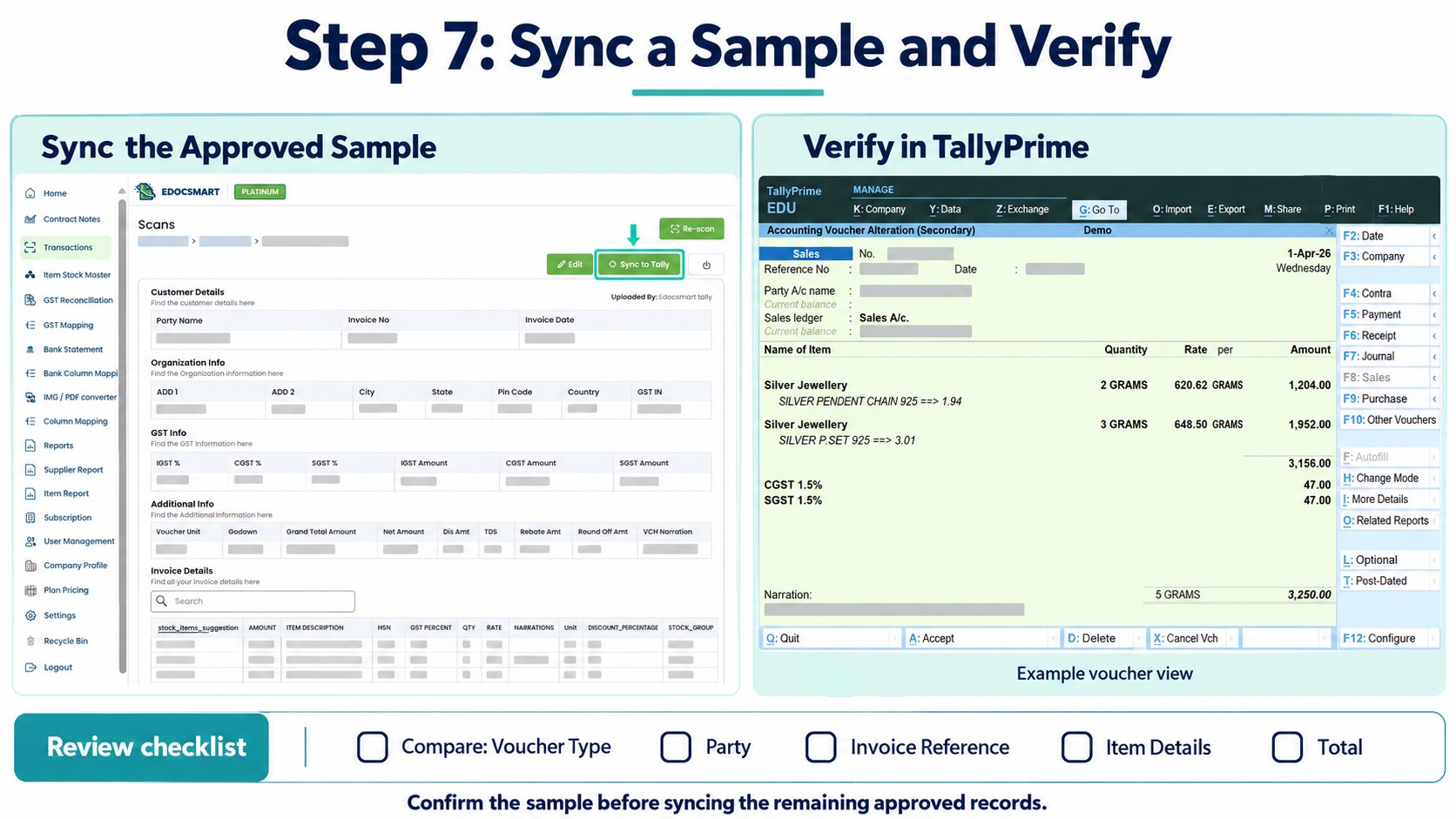
Check Whether the Complete Batch Reached TallyPrime
File upload and voucher verification are separate checkpoints.
Compare the expected invoices with the relevant TallyPrime vouchers. Do not expect 350 item rows to produce 350 vouchers.
If records are missing, check which entries already exist before retrying. Sending the entire batch again without checking may create duplicates.
Frequently Asked Questions
1. How to import bulk data from Excel to TallyPrime?
Prepare the workbook, configure mapping, review the records, and verify an imported sample before continuing.
2. How to identify the header row?
Locate the row containing the column labels and enter its number during upload.
3. How to group multiple items into one invoice?
Keep related rows identifiable and confirm their grouping after processing.
4. How to reuse saved mapping?
Confirm that the file structure, field meanings, and accounting requirements remain unchanged.
5. How to check invoice totals?
Compare item amounts, tax, adjustments, and the final total with the source.
6. How to retry missing entries?
Check existing vouchers first, then import only the records that are not already in the system.
7. How to confirm the batch is complete?
Compare expected invoices, references, parties, and totals with the relevant vouchers.
Conclusion
Bulk import becomes easier when invoice grouping, mapping, and review work together. The accountant can reduce repeated preparation while keeping the final checks.
Use reusable mapping to prepare, review, and sync approved records through the Excel to Tally workflow.