How to Import Bulk Invoices into Tally
With Edocsmart, businesses can upload multiple invoice files together, review the extracted data, and sync verified entries into Tally in bulk without creating each voucher manually.
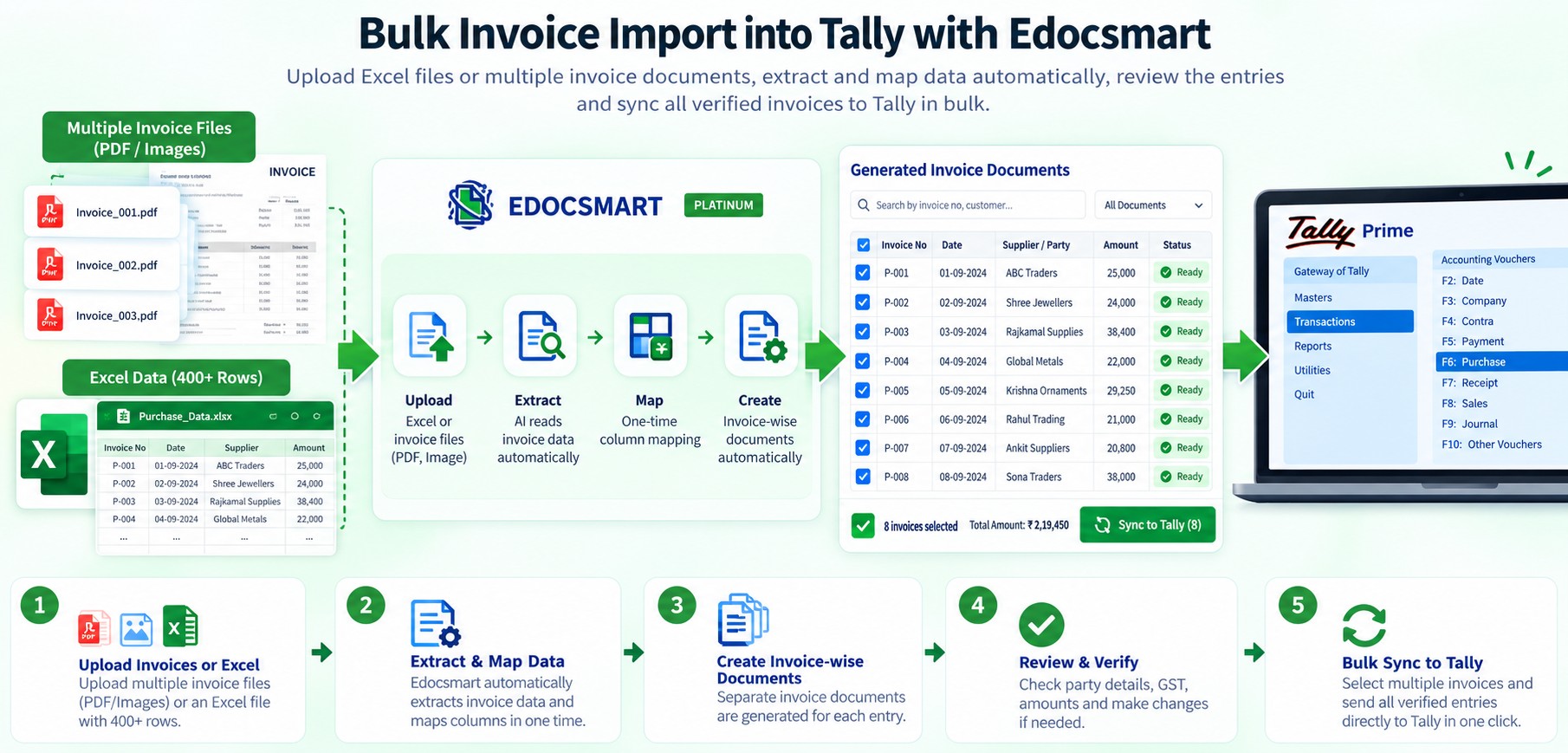
Looking for a way to import bulk invoices into Tally without creating every entry manually?
With Edocsmart, you can upload a single invoice or process multiple invoice files together. You can select multiple invoices and simply drag and drop them into the platform, and Edocsmart can process all of them in a single go.
But bulk invoice processing is not limited to individual invoice files.
If your purchase or sales data is already maintained in Excel, you can use an Excel-to-Tally workflow to process hundreds of transactions together.
Instead of manually creating each voucher in Tally, you can configure your Excel format once, upload the complete file, let Edocsmart create the required documents, verify the data, and synchronize the entries to Tally.
The overall workflow can be summarized as:
Invoice
Files / Excel → Edocsmart → Bulk Processing → Verification → Tally
When invoice
information is already maintained in spreadsheets, the Excel
to Tally workflow can process large datasets without
creating every voucher manually.
In this guide, we will focus primarily on the Excel-to-Tally workflow for bulk invoice processing, including how sales Excel data can be converted into sales vouchers and, where required, separate journal entries such as TDS deductions.
Upload Multiple Invoice Files in a Single Go
When invoices are available as individual files, you do not necessarily need to upload them one by one.
For example, if you have 50 purchase or sales invoices saved as separate PDF or image files, you can select multiple files together and drag and drop them into Edocsmart.
The platform processes the selected invoices in a single go.
The workflow becomes:
Select Multiple Invoice Files → Drag & Drop → Process → Verify → Sync to Tally
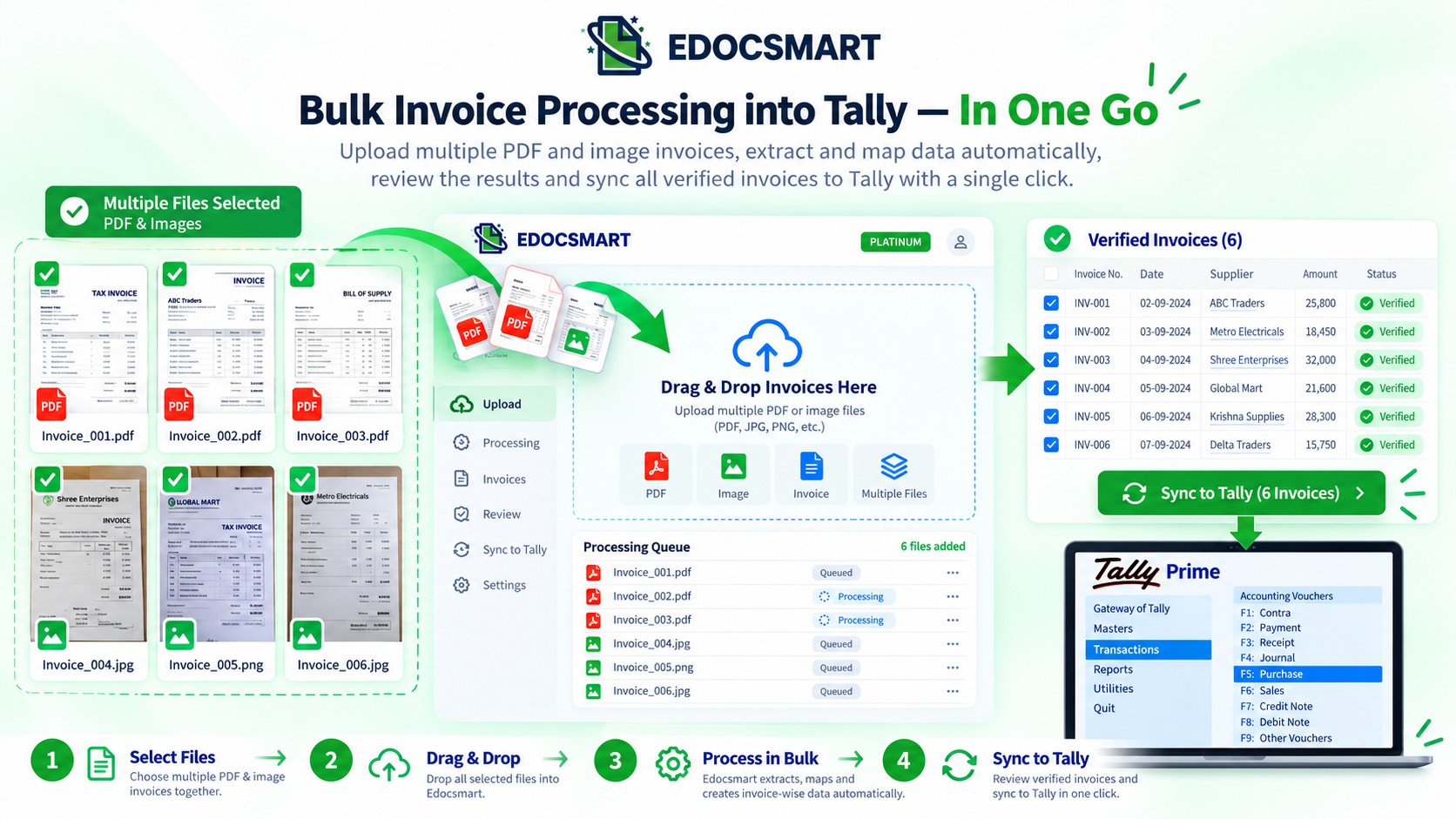
This is useful when the source documents themselves are available as individual invoices.
However, many businesses maintain their transaction data differently.
Instead of having hundreds of separate invoice files, they may already have all their transaction information in an Excel file.
In that situation, the Excel-to-Tally workflow can be used to process the transactions in bulk.
Using Excel to Import Bulk Invoices into Tally
Excel is commonly used to maintain sales and purchase data because it is flexible and easy to work with.
A single Excel file can contain hundreds of transaction records, and businesses may already be receiving or exporting this data as part of their existing workflow.
For example, a sales Excel file may contain:
- Invoice number
- Invoice date
- Party name
- Taxable value
- GST details
- Ledger information
- Other accounting fields
Instead of manually taking every row from Excel and creating a voucher in Tally, the Excel file can be configured and processed through Edocsmart.
The workflow becomes:
Excel → One-Time Mapping → Upload → Process → Documents/Vouchers → Verify → Sync to Tally
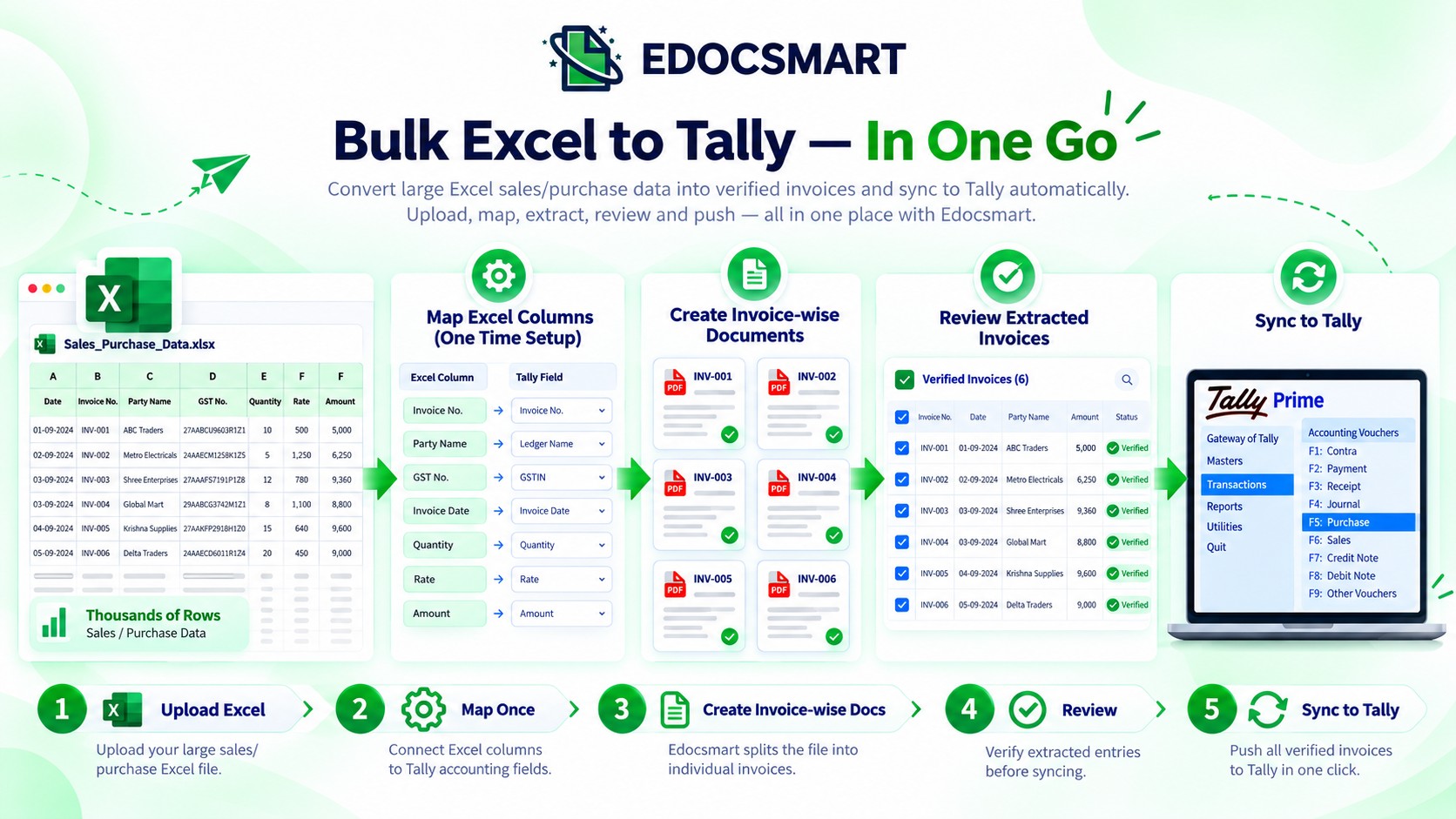
This is particularly useful when the same type of Excel file needs to be processed regularly or when a single file contains hundreds of transactions.
This approach supports bulk invoice import tally, bulk excel import to tally, bulk excel upload to tally and bulk voucher import tally workflows where many transactions must be prepared together.
Step 1: Configure the Excel Mapping
The first step is to configure the Excel structure.
Different businesses may maintain their data in different formats.
For example, one Excel file may contain:
|
Excel Column |
Required Field |
|
Invoice Number |
Invoice Number |
|
Date |
Voucher Date |
|
Customer |
Party |
|
Taxable Value |
Taxable Amount |
|
CGST |
CGST |
|
SGST |
SGST |
The exact mapping depends on the organization's Excel structure and accounting requirements.
With Edocsmart, this mapping needs to be configured for the particular Excel format.
Once the mapping is configured, the same structure can be reused for future files following the same format.
This means the accounting team does not have to recreate the mapping every time they receive a new Excel file.
Step 2: Upload the Complete Excel File
Once the mapping is ready, the user can upload the Excel file containing the transactions.
The important advantage here is that the user does not have to split the Excel file into individual invoices before uploading it.
For example, if the file contains 400–500 transactions, the complete file can be uploaded through the configured workflow.
Edocsmart processes the Excel data according to the mapping and prepares the required entries.
Step 3: Create Individual Entries from the Excel Data
Once the Excel file has been processed, the transactions can be converted into individual documents based on the invoice information.
For example:
Invoice 001 → Document 1
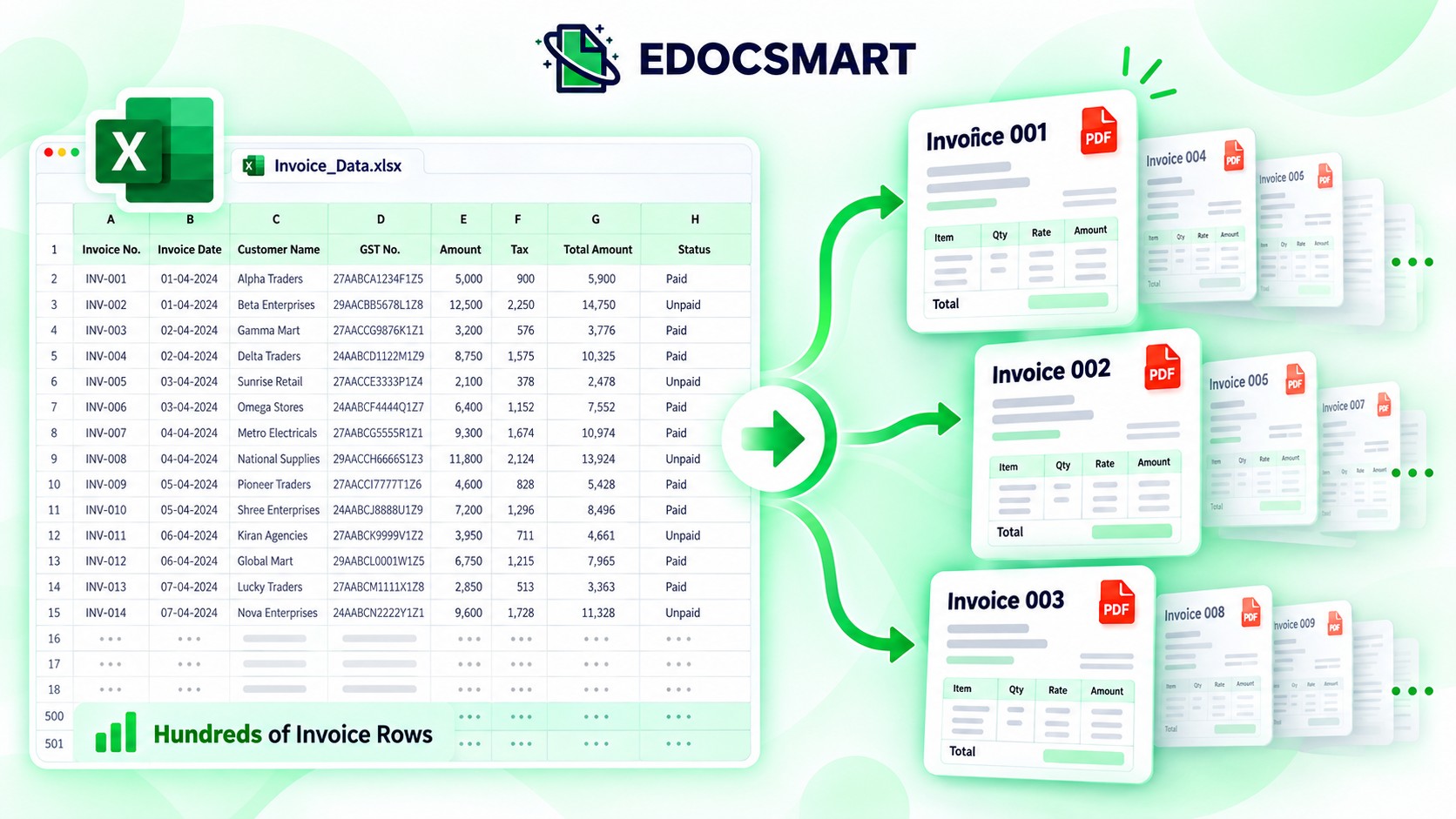
Invoice 002 → Document 2
Invoice 003 → Document 3
And the process continues for the complete Excel file.
This allows hundreds of transactions to be processed together while still keeping the individual transactions separate for verification and synchronization.
Step 4: Choose Whether to Maintain Stock
Not every sales transaction requires stock maintenance in Tally.
Depending on the business workflow, the user may or may not want to maintain stock for the sales entries.
Edocsmart provides an option to specify whether stock needs to be maintained.
If stock maintenance is not required, the user can simply leave the stock-maintenance option unchecked.
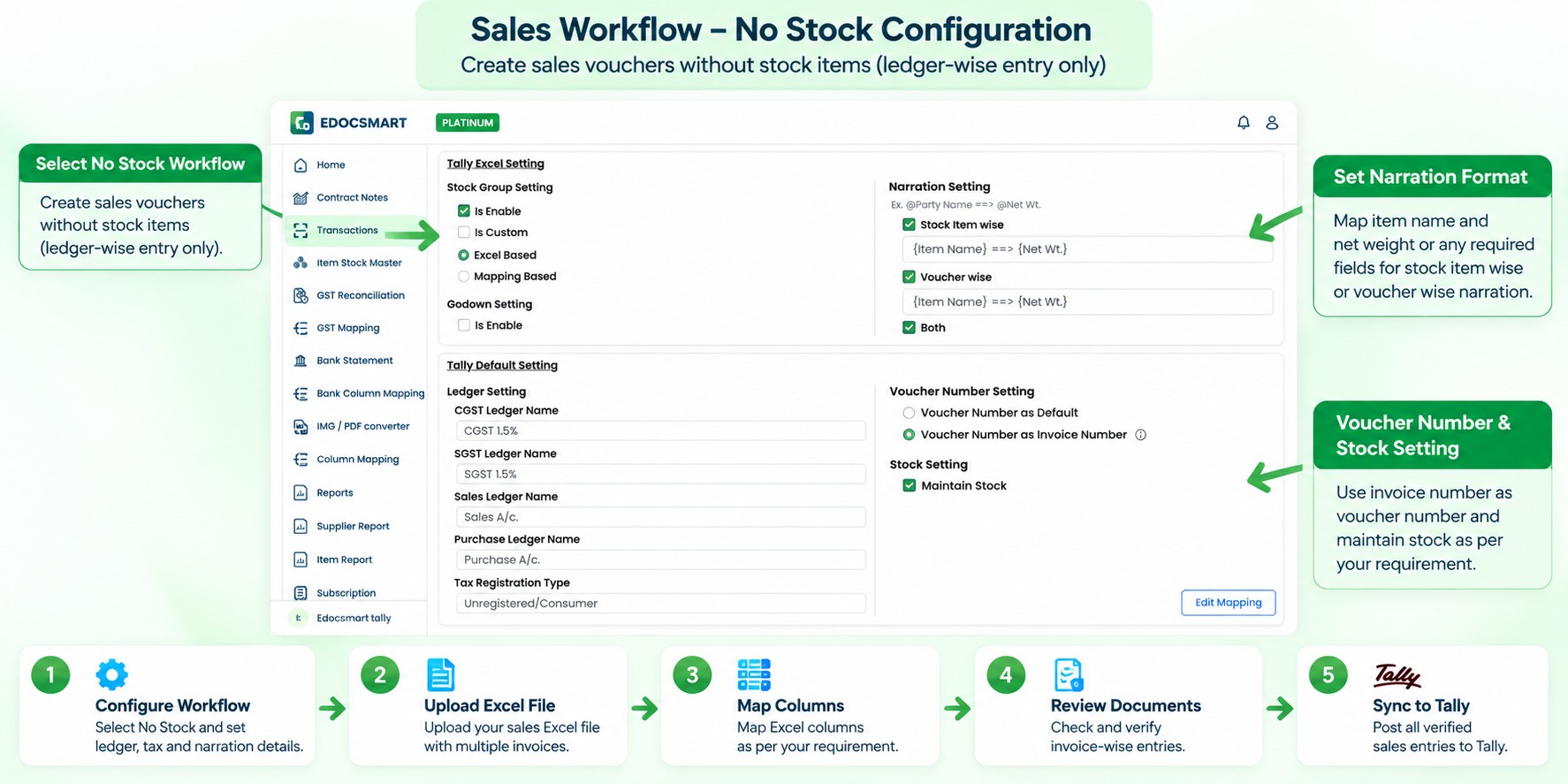
The sales entries can then be created without requiring the corresponding stock structure.
This becomes particularly useful for businesses whose sales accounting does not depend on maintaining inventory quantities or stock items in Tally.
A Real-World Bulk Sales and TDS Workflow
A good example of this type of workflow is a salary-related use case involving labour payments and TDS.
In this scenario, the client maintained their transaction information in a sales Excel file.
The requirement was slightly more complex than simply creating sales vouchers.
For each relevant transaction, two different accounting requirements had to be handled:
- The normal transaction needed to create a Sales Voucher.
- The applicable TDS amount needed to be recorded separately through a Journal Entry.
The client was not dealing with one or two transactions.
They needed to process entries covering an entire year across multiple buildings.
This resulted in approximately 400–500 entries that needed to be processed together.
Manually creating the sales vouchers and then separately creating the corresponding TDS journals for hundreds of transactions would have been extremely repetitive.
This is where the Excel-to-Tally workflow became useful.
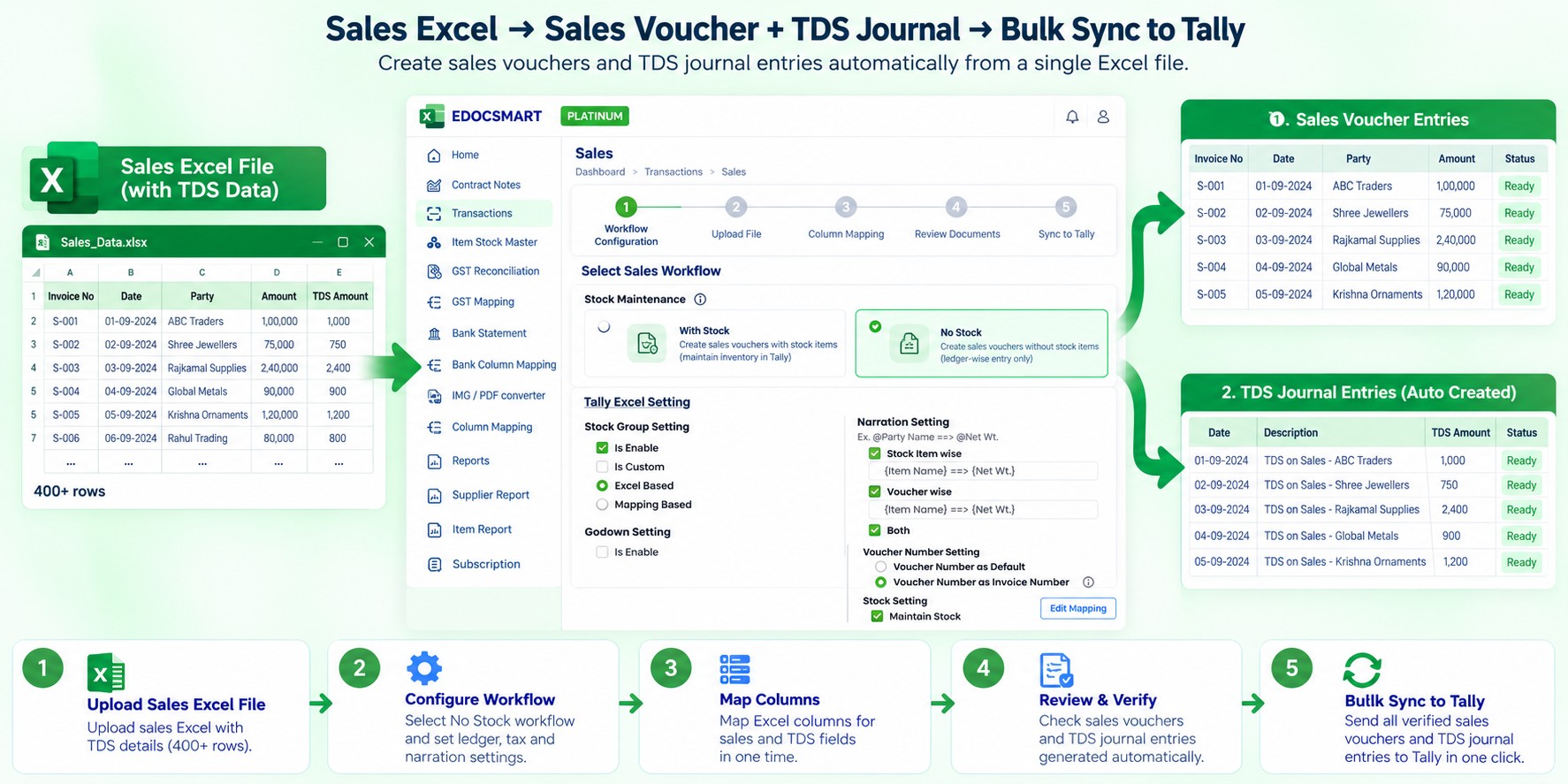
How the Sales and TDS Workflow Was Automated
The first step was to configure the client's Excel file in Edocsmart.
The normal Excel mapping was configured according to the required accounting fields.
Since the client did not need to maintain stock for these sales entries, the stock-maintenance option was left unchecked.
After that, the complete Excel file could be uploaded.
Edocsmart then processed the transactions according to the configured workflow.
For the normal transaction:
Excel Data → Sales Voucher
For the TDS component:
TDS Data → Journal Entry
So instead of manually creating two separate types of entries for hundreds of transactions, Edocsmart handled the required accounting structure from the same Excel workflow.
The complete process looked like:
Sales Excel → Edocsmart → Sales Voucher + TDS Journal → Verify → Sync to Tally
Processing 400–500 Entries Together
The biggest advantage of this workflow was the volume of transactions involved.
If there were only one or two entries, an accountant could simply create the required Sales Voucher and Journal Entry manually.
But when the same process has to be repeated for approximately 400–500 entries across multiple buildings for an entire year, manual processing becomes highly repetitive.
With the configured Edocsmart workflow, the client could upload the complete Excel file and let the platform process the entries in bulk.
The entire set of entries could be completed in approximately 10–15 minutes, depending on the processing requirements.
For high-volume teams, bulk data import tally, tally data import software and tally automation for accountants help reduce repeated entry across large datasets.
Instead of spending hours creating individual Sales Vouchers and TDS Journals, the accounting team could process the complete dataset through a single configured workflow.
Sales Voucher and TDS Journal from the Same Excel Workflow
One of the useful aspects of this workflow is that the same Excel data can be used to generate different types of accounting entries according to the business requirement.
The normal transaction can be converted into a:
The same source file can support Excel Sales Entry to Tally while configured purchase workflows can support Excel Purchase Entry to Tally according to the required voucher structure.
Sales Voucher
while the TDS component can be converted into a:
Journal Entry
This means the user does not have to manually separate the transactions and then create different voucher types in Tally.
The configured Edocsmart workflow handles the required structure.
The accounting team can then review the generated entries before synchronizing them to Tally.
Why Stock Maintenance Was Disabled in This Workflow
- In this particular workflow, the client did not need to maintain stock.
- The sales entries were required for accounting purposes, but there was no requirement to maintain inventory quantities or stock items for these transactions.
- Therefore, while configuring the Excel workflow in Edocsmart, the stock-maintenance option was left unchecked.
- This allowed the system to create the required Sales Vouchers without adding unnecessary stock-related processing.
- This option is useful because not every business uses Tally in exactly the same way.
- Some businesses require detailed inventory management, while others primarily need accounting entries.
- The workflow can therefore be configured according to the organization's requirement.
What Happens After Processing?
Once the Excel file has been processed, the accounting team can review the generated entries.
The workflow can then be summarized as:
1. Upload Excel
Upload the complete sales Excel file.
2. Process the Data
Edocsmart processes the file according to the configured mapping.
3. Generate Required Entries
The normal transactions are prepared as Sales Vouchers, while the required TDS entries are prepared as Journal Entries.
4. Verify
The accounting team reviews the generated information.
5. Select Entries
Users can select the required documents or multiple entries together.
6. Sync to Tally
The selected entries are synchronized to Tally.
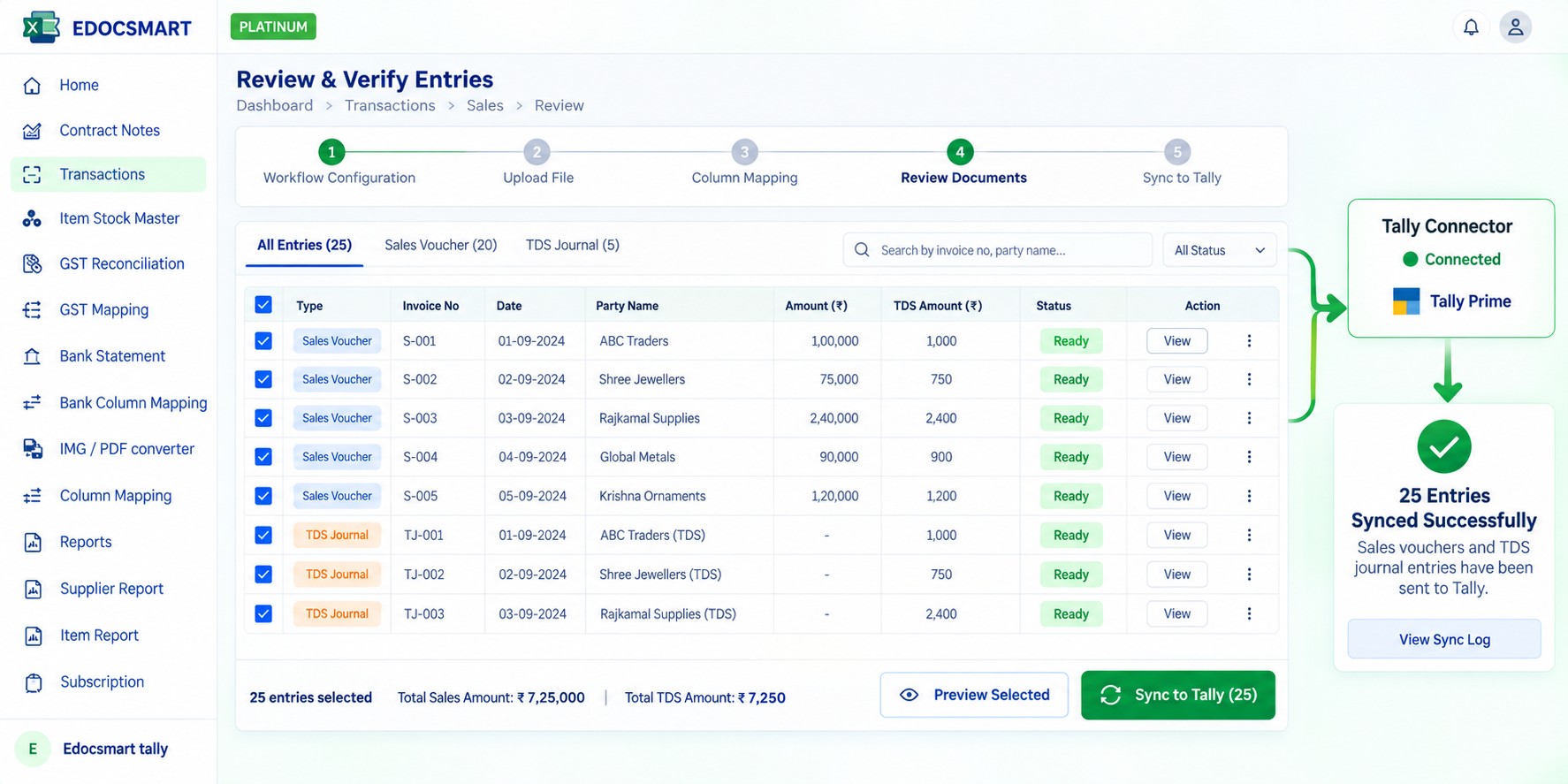
The complete workflow becomes:
Excel → Mapping → Upload → Processing → Sales Voucher + TDS Journal → Verification → Bulk Sync to Tally
Excel-to-Tally Is Not Limited to Simple Invoice Import
When people think about importing Excel data into Tally, they often think only about copying invoice values from one system to another.
But real accounting workflows can be more complex.
A single Excel file may contain information that needs to result in different types of Tally entries.
For example:
Sales Information → Sales Voucher
TDS Information → Journal
Similarly, another business may have completely different requirements.
The important part is that the Excel-to-Tally workflow can be configured according to the accounting structure that the business needs.
Bulk Processing for Large Accounting Workflows
The value of bulk processing becomes more apparent as the number of transactions increases.
For a small number of transactions, manual entry may be manageable.
But when accounting teams have:
- Hundreds of sales entries
- Multiple buildings or locations
- Full-year transaction data
- TDS-related entries
- Large Excel files
- Multiple voucher types
creating every entry manually can become a significant operational task.
A configured Excel-to-Tally workflow allows the business to process the complete dataset together instead of recreating every transaction manually.
Bulk Invoice Processing with Edocsmart
Edocsmart supports two practical approaches for processing large volumes of invoice data.
Individual Invoice Files
If invoices are available as separate PDF or image files, users can select multiple files and drag and drop them into Edocsmart.
The platform processes the selected invoices in a single go.
Excel-Based Invoice Data
If the invoice or transaction data is already maintained in Excel, users can configure the Excel format once and upload the complete file.
Edocsmart can then process the records, create the required documents, allow the user to verify them, and synchronize multiple entries to Tally.
For businesses with structured Excel workflows, the second approach can be particularly useful because the data does not need to be manually recreated as individual invoice files.
Why Use Excel to Tally for Bulk Entries?
An Excel-to-Tally workflow can help businesses:
Process Hundreds of Transactions
- Large Excel files can be processed together instead of entering every transaction manually.
Reuse Existing Excel Workflows
- Businesses can continue using their existing Excel-based processes.
Configure the Format Once
- A particular Excel structure can be mapped once and reused for subsequent files following the same format.
Generate Different Voucher Types
- Depending on the configured workflow, the same source data can result in different accounting entries, such as Sales Vouchers and Journal Entries.
- This also makes Excel Voucher Import Tally useful when one dataset needs to produce more than one accounting entry type.
Control Stock Maintenance
- Businesses can choose whether stock needs to be maintained as part of the workflow.
Review Before Tally Sync
- The generated entries can be verified before synchronization.
Sync Multiple Entries Together
- Multiple processed entries can be selected and synchronized to Tally in bulk.
Import Bulk Invoices into Tally with Edocsmart
- Importing bulk invoices into Tally does not necessarily mean processing every invoice individually.
- If you have separate invoice files, you can select multiple files and drag and drop them into Edocsmart to process them together.
- If your transaction data is already available in Excel, you can take the process further with an Excel-to-Tally workflow.
- Configure the Excel mapping once, upload the complete file, define whether stock needs to be maintained, and let Edocsmart prepare the required accounting entries.
- Depending on the workflow, this can include Sales Vouchers, Journal Entries for TDS, and other configured accounting requirements.
- After processing, the accounting team can verify the entries and synchronize multiple documents to Tally together.
FAQS
Can
I import hundreds of invoices into Tally in bulk?
Yes. When transaction data is available in a structured Excel file, the complete dataset can be uploaded and processed through a configured workflow instead of creating every Tally voucher manually.
Can
Edocsmart process multiple invoice files at the same time?
Yes. When invoices are available as separate PDF or image files, users can select multiple files together, upload them in one go, review the processed data, and then synchronize the required entries to Tally.
Can
Edocsmart create a Sales Voucher and a TDS Journal from the same Excel
workflow?
Yes, when the workflow is configured for that accounting requirement. The normal transaction data can be prepared as a Sales Voucher while the TDS component can be prepared as a separate Journal Entry before synchronization.
Do
I need to configure the Excel mapping for every bulk upload?
No. A mapping can be configured for a particular Excel format and reused for later files that follow the same structure. If the spreadsheet format changes, the mapping should be reviewed.
Can
stock maintenance be disabled for bulk sales entries?
Yes. Where inventory quantities or stock items are not required, the workflow can be configured without stock maintenance so only the necessary accounting entries are prepared.
Can
users review and select entries before bulk sync?
Yes. Processed documents can be reviewed first, and users can select individual entries or multiple entries together before using Sync to Tally.
Conclusion
Bulk invoice processing becomes especially valuable when the number of transactions moves from a few entries to hundreds of entries.
Businesses can upload multiple individual invoice files together, but when the transaction data is already available in Excel, an Excel-to-Tally workflow provides another practical way to handle large volumes of accounting data.
With Edocsmart, businesses can configure their Excel format, upload large datasets, choose whether stock needs to be maintained, generate the required voucher types, verify the processed entries, and synchronize them to Tally in bulk.
In workflows such as the sales and TDS example, hundreds of entries covering multiple buildings and an entire year can be processed as a single structured workflow instead of manually creating Sales Vouchers and TDS Journal Entries one by one.
From Excel data to Sales Vouchers and TDS Journals, Edocsmart helps businesses turn large accounting datasets into a structured Excel-to-Tally workflow.