How to Import Excel Data into Tally
Import Excel data into Tally with a structured workflow for mapping, stock management, verification, and direct synchronization through Edocsmart.
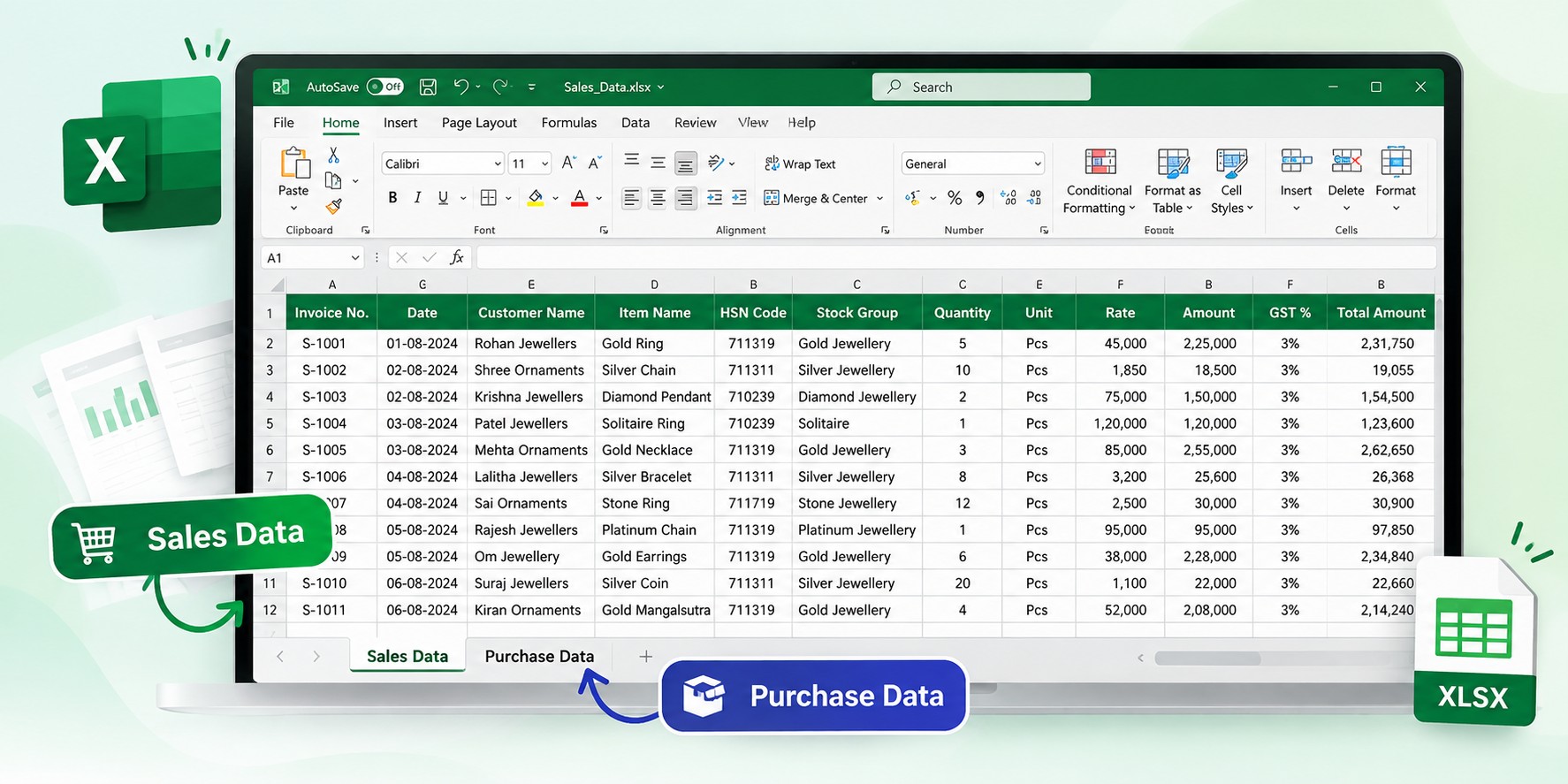
Businesses that work with hundreds of products often maintain their transaction data in Excel before entering it into an accounting system. This is especially common in industries such as jewellery, manufacturing, wholesale, and retail, where a single sales or purchase file may contain many different items, stock categories, quantities, units, and accounting details.
The problem is not always preparing the Excel file.
The real challenge starts when that same information needs to be entered into Tally.
A structured excel to tally import process helps businesses reuse spreadsheet data instead of entering the same values again.
Consider a jewellery business handling gold, silver, stones, solitaire items, branded jewellery, and other categories. The sales or purchase data may already be available in Excel, but the accounting team still needs to identify every stock item correctly and enter the required information into Tally.
When this work is done manually for every transaction, it becomes repetitive and takes additional time.
This is where understanding how to import Excel data into Tally through a structured workflow can help.
For the complete workflow, explore our Excel to Tally solution for structured spreadsheet-to-Tally processing.
Edocsmart provides a process where users can upload their sales or purchase Excel files, configure transaction mappings, manage stock groups, review the generated data, and finally sync the transaction with Tally.
For businesses dealing with multiple stock categories, the Stock Group Mapping feature becomes an important part of this workflow.
The complete process can be understood as:
Login to Edocsmart → Transactions → Select Sales or Purchase → Upload Excel → Configure Mapping → Set Stock Group Mapping → Review Transaction → Start Tally Connector → Sync to Tally → Verify Voucher
Why Is Excel to Tally Import Important?
Excel is widely used because it allows businesses to organize data in a flexible way.
A sales Excel file may contain information such as invoice number, date, customer name, item name, quantity, rate, amount, stock information, and other transaction details.
The same applies to purchase files.
However, maintaining the information in Excel is only one part of the accounting process. Eventually, those transactions also need to reach Tally.
Without an automated or structured process, an accountant may need to read each Excel row and manually prepare the corresponding transaction inside Tally.
This becomes even more complicated when the business deals with different stock groups.
For example, jewellery businesses may handle various categories where different short names, stock names, groups, or units need to be recognized correctly.
Instead of repeatedly managing these values manually, Edocsmart allows users to define the required stock mappings and use them during the Excel-to-Tally workflow.
A well-configured excel to tally software workflow can keep transaction and stock mappings together for repeated processing.
How to Import Excel Data into Tally Using Edocsmart
Let us understand the process through a practical example.
Suppose a jewellery business has prepared its sales data in Excel. The file contains multiple items belonging to different stock categories.
Instead of manually creating every stock-related transaction inside Tally, the user begins the process from Edocsmart.
Step 1: Login to Edocsmart
The first step is to log in to the Edocsmart portal.
After successful login, the user reaches the dashboard where different processing options are available.
This becomes the starting point for moving Excel data toward Tally.
For teams using Tally Prime, this same process can support import excel in tally prime workflows after mapping and verification.
Instead of directly entering every transaction into the
accounting system, the uploaded Excel file can first be processed and checked
through Edocsmart.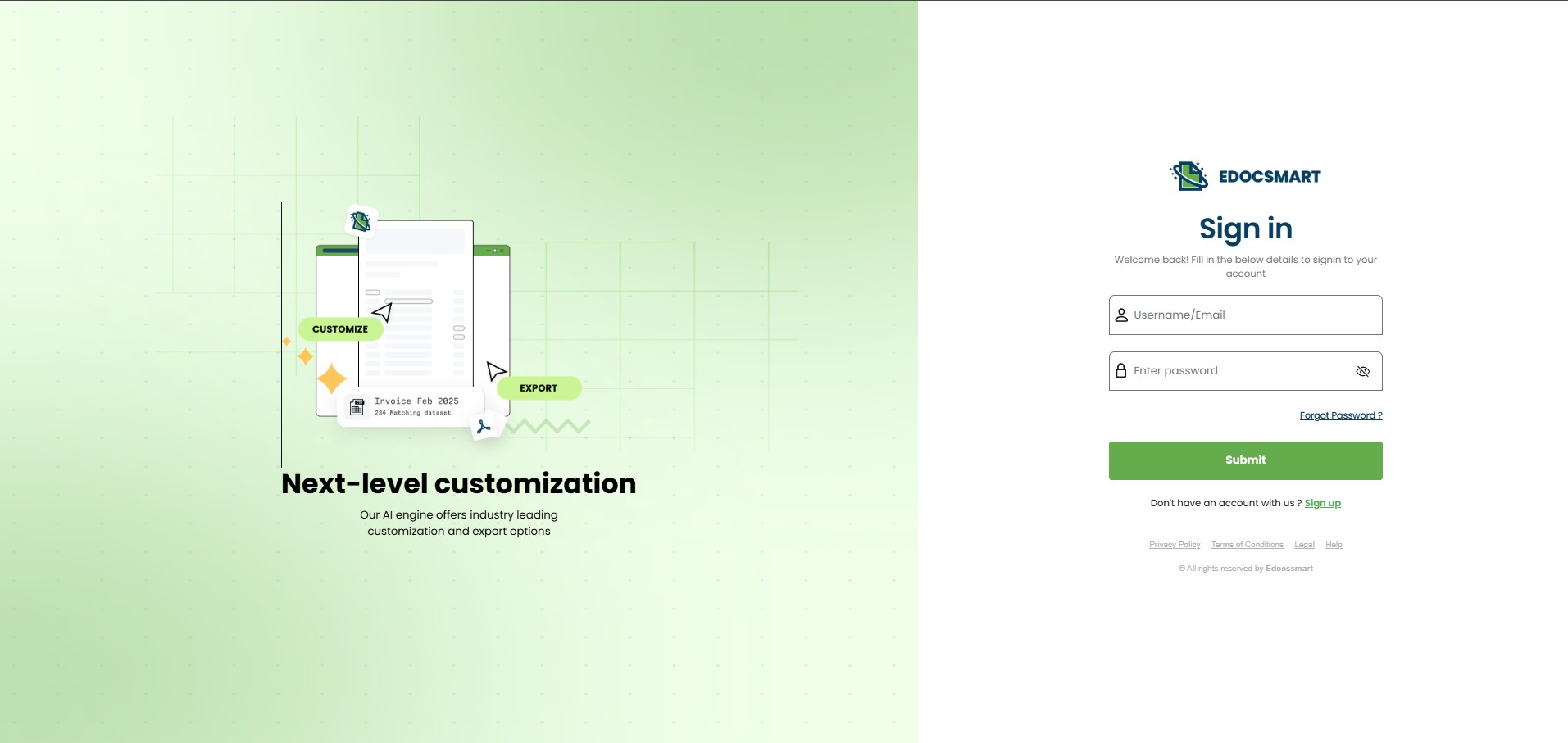
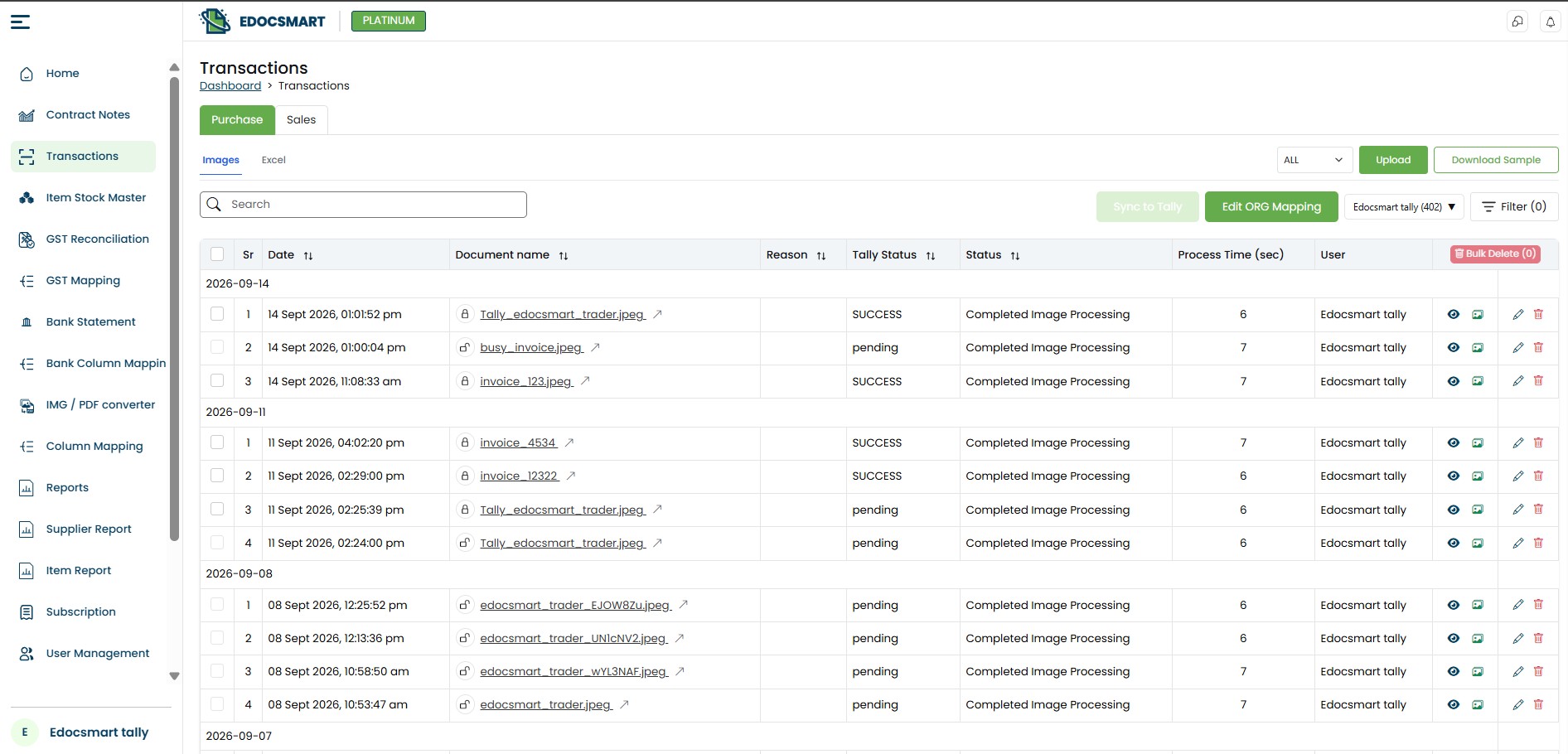
Step 2: Open the Transactions Section
After login, navigate to the Transactions section.
Here, the user can select the type of transaction that needs to be processed.
For example:
- Sales
- Purchase
If the Excel file contains sales information, the user selects Sales.
If the Excel contains purchase transactions, Purchase can be selected.
This ensures that the uploaded information is processed according to the required transaction type.
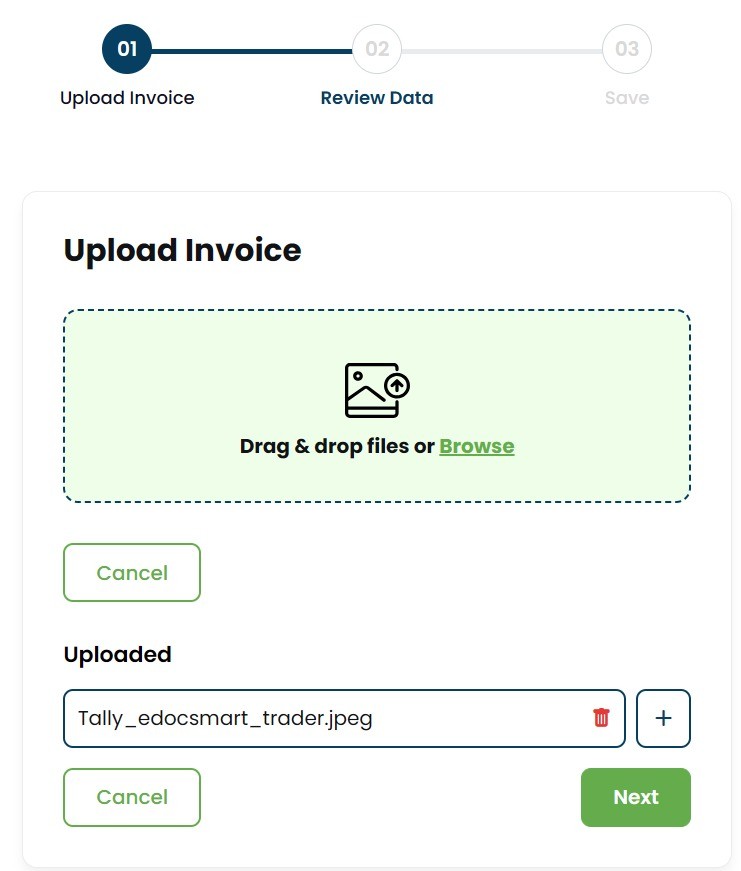
Step 3: Upload the Excel File
Once the transaction type is selected, upload the required Excel file.
The uploaded spreadsheet becomes the source of the accounting data.
Instead of retyping the values already available in Excel, Edocsmart uses that file for the next stages of processing.
This is particularly useful when the spreadsheet contains many rows of transaction data.
For a jewellery business, the file may contain different item codes, stock names, quantities, units, values, and other transaction details.
After upload, the file can move to the mapping stage.
At this point, the uploaded spreadsheet begins functioning like an excel to tally converter source where columns are translated into structured transaction fields.
Step 4: Configure the Required Column Mapping
Different businesses maintain Excel files in different formats.
One Excel sheet may use the heading Item Name, while another business may use Product, Stock, Code, or another internal naming convention.
Because of these differences, the uploaded columns need to be mapped with the relevant transaction fields.
During the initial setup, the user selects which Excel column belongs to which Edocsmart field.
Once the structure is configured properly, the system can understand how the uploaded file should be processed.
If a business continues using the same Excel format, the established mapping can also make future uploads easier to handle.
Reusable mapping is especially useful in an excel to tally import tool because the same structure does not need to be configured from zero each time.
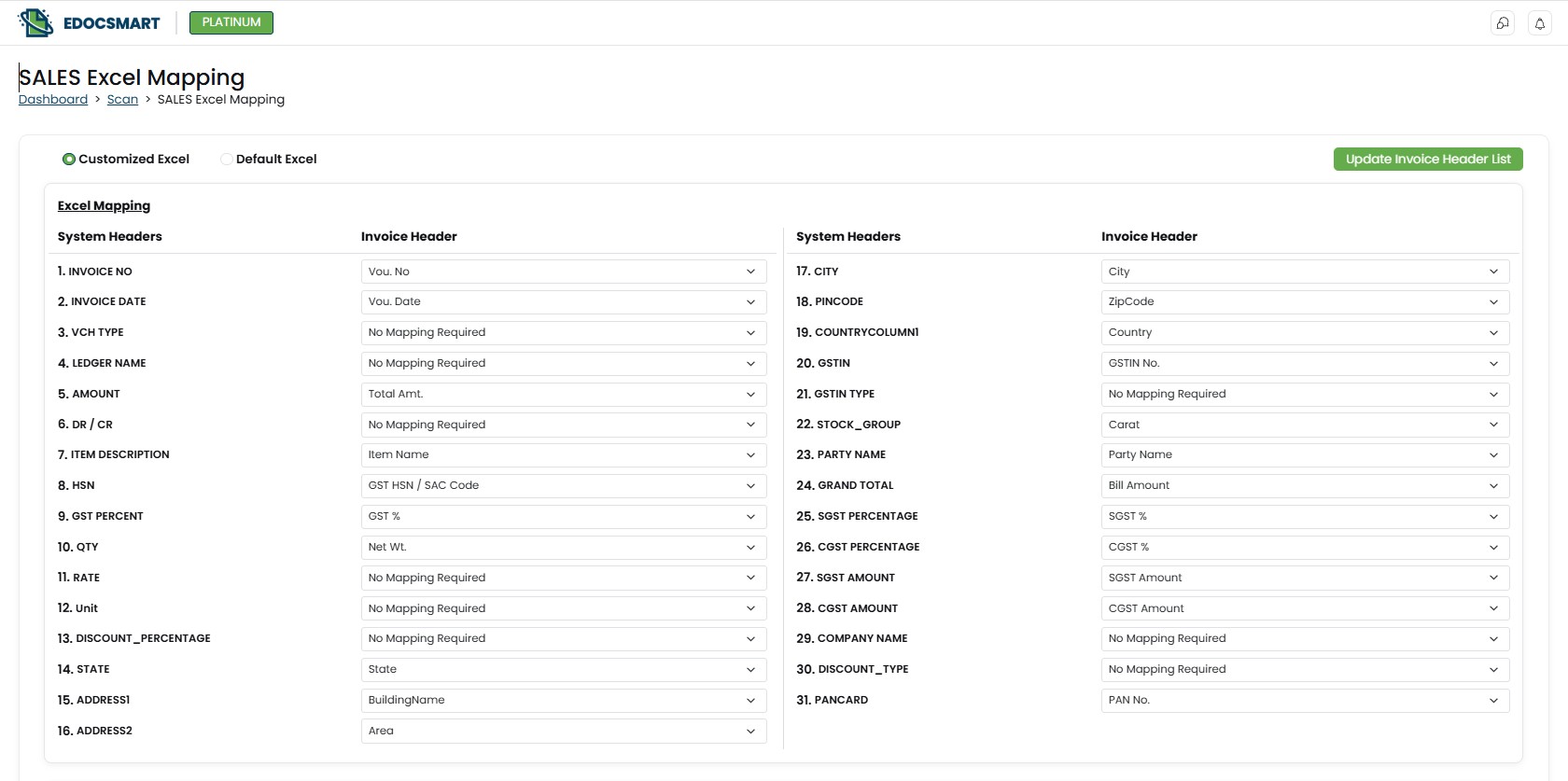
Step 5: Configure Stock Group Mapping
This is where the workflow becomes especially useful for businesses dealing with a large number of stock categories.
Edocsmart provides a dedicated Stock Group Mapping section.
Instead of manually identifying or entering stock-related information every time a transaction is processed, the user can maintain rules that connect the business's stock information with the required Tally structure.
The Stock Group Mapping screen allows different stock-related values to be organized in one place.
For example, the mapping table can include details such as:
- Code or short name
- Corresponding Tally-related stock information
- Unit or UOM
- Different stock classifications
This creates a predefined relationship between the information used by the business and the values that need to be understood during transaction processing.
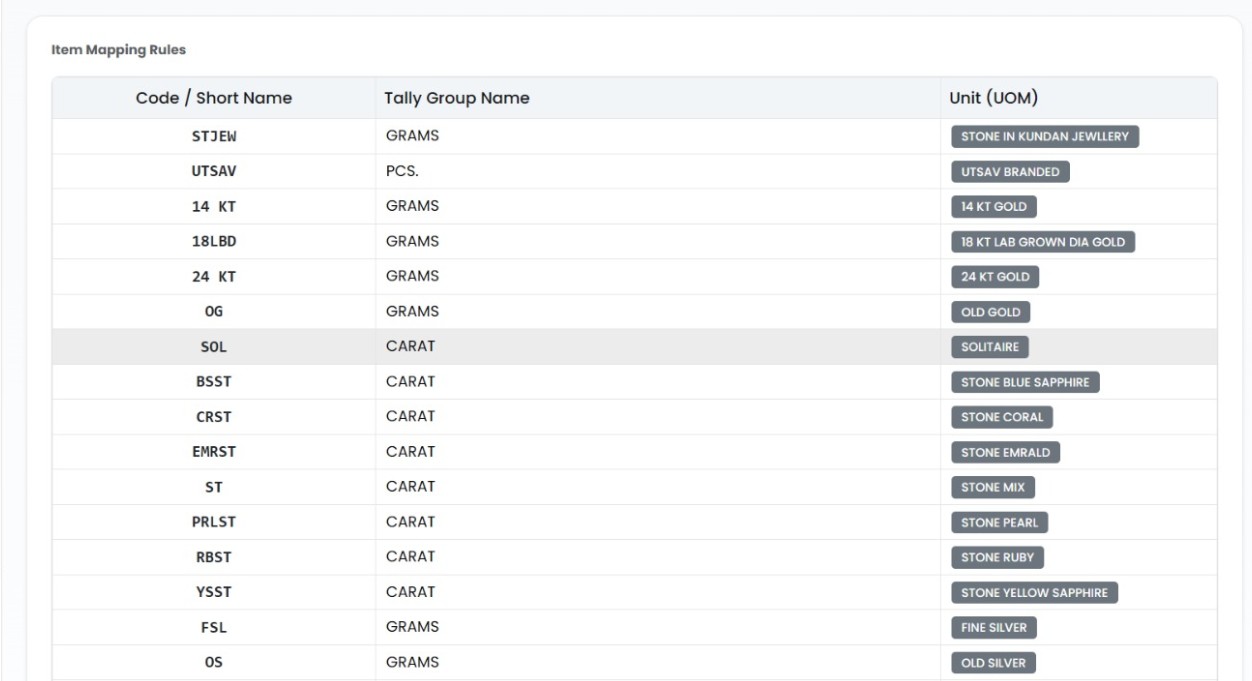
Why Stock Group Mapping Matters for Jewellery Businesses
Jewellery accounting can involve more detailed stock structures than a simple product list.
A business may work with gold items, silver items, diamonds, gemstones, branded jewellery, solitaire stones, and other categories.
These items may also use different units.
Some stock may be maintained in grams, while stones may use carat or another appropriate unit.
Now imagine managing all this information manually for every sales or purchase transaction.
The accountant needs to identify the correct item, understand its category, check the required stock name, select the appropriate unit, and prepare the transaction.
Doing this repeatedly consumes time.
With a predefined stock mapping structure, commonly used codes and stock-related information can already be configured inside Edocsmart.
For example, the Stock Group Mapping screen may contain short codes representing different jewellery categories and their associated stock information.
When the same information appears again during processing, the workflow becomes easier because the mapping rules are already available.
Moving from Manual Stock Entry to Structured Mapping
Consider a jewellery company where employees previously needed to manually interpret product codes before preparing entries.
An Excel file may contain a short code rather than a complete descriptive stock name.
For someone familiar with the company's internal system, the code may make sense. But Tally requires the transaction information to follow the accounting structure expected by the business.
This creates repeated manual work.
The user may have to check:
What does this code represent?
Which stock item or group should be used?
What unit applies to it?
What name should appear in the required transaction information or narration?
Instead of handling these decisions repeatedly during every import, Edocsmart allows the business to define the mapping once.
The required short names, stock information, and related values can then be managed through the Stock Group Mapping section.
This makes the process more consistent and easier for users handling repeated files.
For recurring monthly files, the same setup can support an excel to tally import utility workflow with less repeated configuration.
Example of Stock Mapping in Edocsmart
The Stock Group Mapping interface can contain multiple predefined values.
For example, the uploaded setup may contain jewellery-related short codes for categories such as gold, silver, stones, or branded jewellery.
Each code can be connected with the stock-related information required by the business.
The mapping also allows different units to be handled depending on the type of stock.
This is important because all jewellery stock is not necessarily measured in the same way.
Instead of manually entering or interpreting this information every time, users can manage the mapping rules from a central screen.
This becomes especially helpful when the Excel file contains many rows.
The larger the file, the more repetitive manual identification becomes. A predefined mapping reduces that repeated effort.
Using Stock Names Where the Business Needs Them
Different businesses also have different requirements for how stock information should appear in their final accounting transaction.
For example, a user may want a specific stock name to appear in a particular transaction field, stock item area, or narration based on their accounting workflow.
Edocsmart can be configured around this mapping requirement so the transaction data is prepared according to the expected structure before synchronization.
This is useful because the business does not need to manually restructure the information for every individual transaction.
Once the mapping is properly configured, the same structure can be followed for subsequent files that use the corresponding codes and formats.
Step 6: Process the Uploaded Transaction
After completing the required column and stock mappings, the uploaded Excel data can be processed.
At this stage, Edocsmart uses the information available in the spreadsheet together with the configured mappings.
The purpose of the mapping is to convert the business's Excel structure into transaction data that can be reviewed before being sent to Tally.
Instead of treating every Excel row as completely new information that must be interpreted manually, the configured rules provide a repeatable structure.
This can be especially useful for organizations processing similar Excel files regularly.
Businesses handling repeated files can also use this as an excel to tally automation software workflow with a controlled preview and review stage.
Step 7: Review the Transaction Preview
Before sending the transaction to Tally, it is important to review the output.
Edocsmart provides a preview stage where users can check the processed information.
This allows the user to verify whether the required values have been placed correctly.
For example, the accountant can check the transaction information, stock-related details, amounts, and other mapped values before final synchronization.
If something needs to be changed, it is better to identify it at this stage rather than after creating the voucher in Tally.
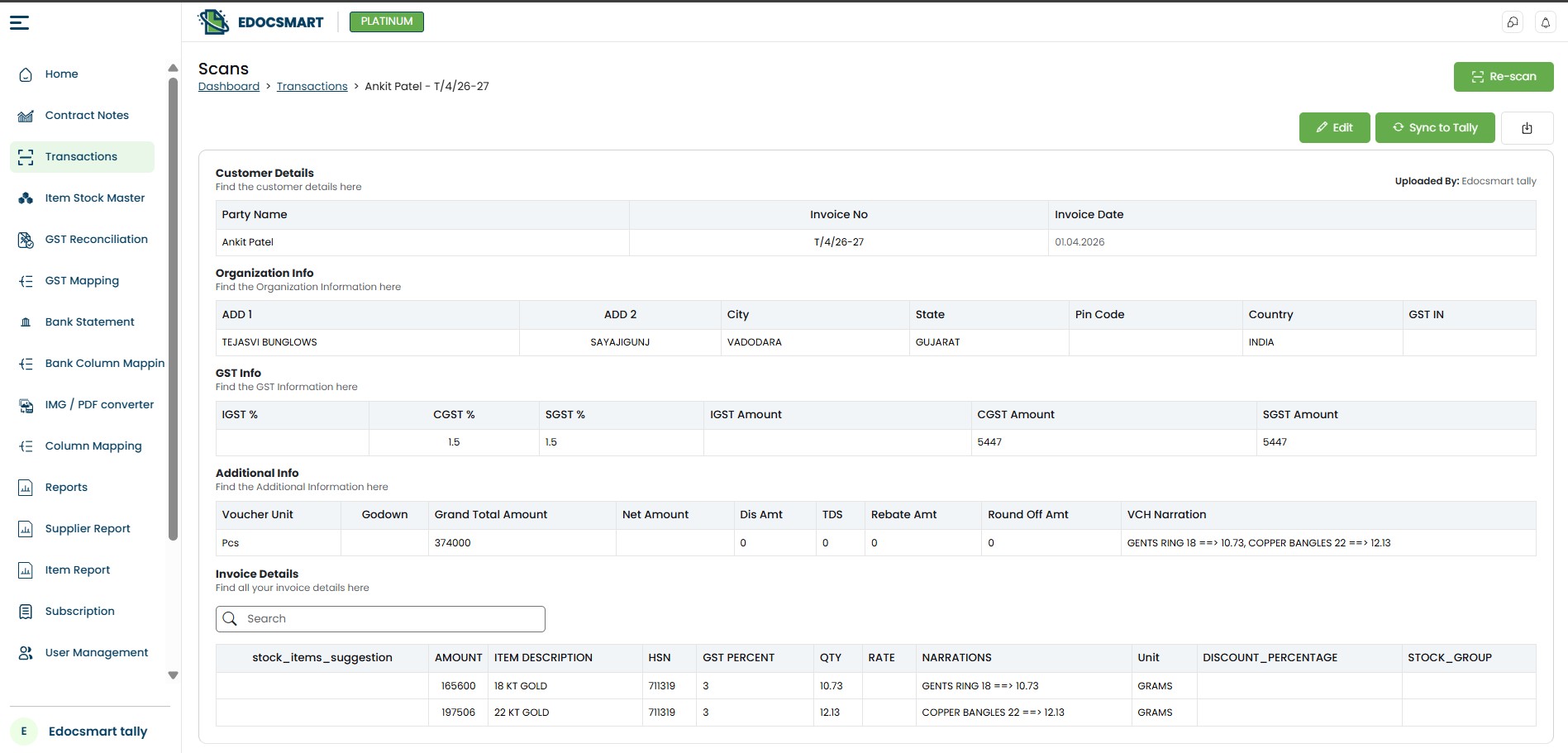
The workflow therefore becomes:
For larger batches, this same process can support bulk excel import to tally while keeping mapping and verification in the workflow.
Upload Excel → Apply Mapping → Process Stock Information → Preview → Verify → Sync
This review step keeps the user involved in the process instead of sending the uploaded Excel data directly to Tally without verification.
Step 8: Start the Edocsmart Tally Connector
After the transaction has been reviewed, the next step is to connect Edocsmart with Tally.
For this, the user starts the Edocsmart Tally Connector.
The connector acts as the connection between the processed transaction and Tally.
Once the connector is active and the information has been checked, the transaction is ready for synchronization.
Step 9: Sync Excel Data to Tally
After everything is ready, click Sync to Tally.
The processed data is then sent to Tally through the connector.
This creates a direct excel integration with tally workflow between the reviewed spreadsheet data and the locally running accounting system.
At this point, the original Excel information has passed through multiple stages:
Excel Upload → Transaction Selection → Column Mapping → Stock Group Mapping → Processing → Preview → Verification → Tally Connector → Sync
This is different from manually reading Excel rows and recreating every entry from scratch.
The user still controls the important mapping and verification stages, while repetitive data preparation can be handled through the configured workflow.
Step 10: Verify the Final Voucher in Tally
After synchronization is complete, open Tally and verify the transaction.
The final voucher should be reviewed to make sure the information has been created according to the configured transaction and mapping structure.
This completes the Excel data import into Tally process.
When Tally Prime is used, the final verification stage also completes the tally prime excel import journey.

Benefits of Stock Group Mapping in Excel to Tally Automation
- One of the biggest advantages of Stock Group Mapping is that businesses do not have to repeatedly interpret the same internal stock information.
- For a jewellery business handling many stock categories, this can simplify a process that would otherwise involve repeated manual identification.
- The predefined mapping structure can help users work with short codes, stock classifications, units, and corresponding transaction values in a more organized way.
- It also supports consistency.
- If the same stock code appears across multiple Excel files, having a defined mapping means users do not need to decide the corresponding value again for every transaction.
- The workflow can therefore help reduce repetitive entry and save time for accounting teams handling large volumes of Excel-based transactions.
- For accounting teams, this provides a practical excel to tally software for accountants workflow when transaction volume and stock complexity increase.
FAQS
1. How can I
import Excel data into Tally using Edocsmart?
Start by logging in to Edocsmart and opening the Transactions section. Select Sales or Purchase according to your Excel file and upload the spreadsheet. Configure the required column and stock mappings, process the transaction, and review the generated preview. Once the information is verified, start the Edocsmart Tally Connector and use Sync to Tally. Finally, open Tally and verify the created voucher.
2. What is
Stock Group Mapping in Edocsmart?
Stock Group Mapping allows businesses to configure relationships between their internal stock information and the values required during transaction processing. This may include short codes, stock-related names, groups, and units. It is particularly useful for businesses such as jewellery companies that work with several stock categories and do not want to repeatedly configure the same stock information during every Excel import.
3. Why is
stock mapping useful for jewellery businesses?
Jewellery businesses may manage gold, silver, stones, branded items, solitaire products, and other categories using different internal codes and units. If these values are handled manually during every transaction, the process becomes repetitive. Stock mapping allows commonly used stock information to be predefined so users can process repeated Excel files through a more structured workflow.
4. Can
different units be managed through stock mapping?
Yes. Different types of stock may require different units, depending on how the business maintains its inventory. The Stock Group Mapping setup can keep the relevant stock information and unit details together. This is useful for businesses where different item categories are measured differently and the same mapping needs to be used across multiple transactions.
5. Do I need
to set stock mapping for every Excel file?
The purpose of defining the mapping is to avoid repeatedly configuring the same information. Once the required stock rules have been configured, they can support future processing where the uploaded Excel files follow the same codes and structure. If a new stock category, code, or Excel structure is introduced, the mapping should be reviewed and updated accordingly.
6. Can I
review the data before it goes to Tally?
Yes. After processing the uploaded Excel data and applying the required mappings, users can review the transaction before synchronization. This allows them to verify the output and check whether the stock and transaction information has been prepared correctly. After verification, the Tally Connector can be started and the final data can be synced to Tally.
Conclusion
Understanding how to import Excel data into Tally is especially useful for businesses that already maintain their sales and purchase information in spreadsheets.
The process becomes even more valuable when the business handles complex stock information.
For example, a jewellery company may work with numerous item codes, stock categories, different units, and specific requirements for how stock information should appear in accounting transactions.
Managing all of this manually for every Excel row can create unnecessary repetitive work.
With Edocsmart, the user can upload the sales or purchase Excel file, configure the required column mapping, and use Stock Group Mapping to maintain the necessary stock relationships.
Instead of repeatedly identifying the same stock codes and entering related information manually, users can work with predefined mapping rules.
After processing, the transaction can be reviewed in Edocsmart before it is sent to Tally.
Once everything is correct, the Edocsmart Tally Connector can be started and the data can be synchronized.
The final workflow becomes:
Excel File → Edocsmart → Sales/Purchase Transaction → Column Mapping → Stock Group Mapping → Preview & Verification → Tally Connector → Sync to Tally → Final Voucher
For businesses regularly moving transaction data from Excel to Tally, this provides a more structured way to manage stock-related information while reducing repetitive manual work.