How to Import GST Invoice into BUSY
Learn how to import GST invoices into BUSY Accounting Software using Edocsmart. Scan PDF invoices, extract GST details, download Excel and import purchase vouchers.
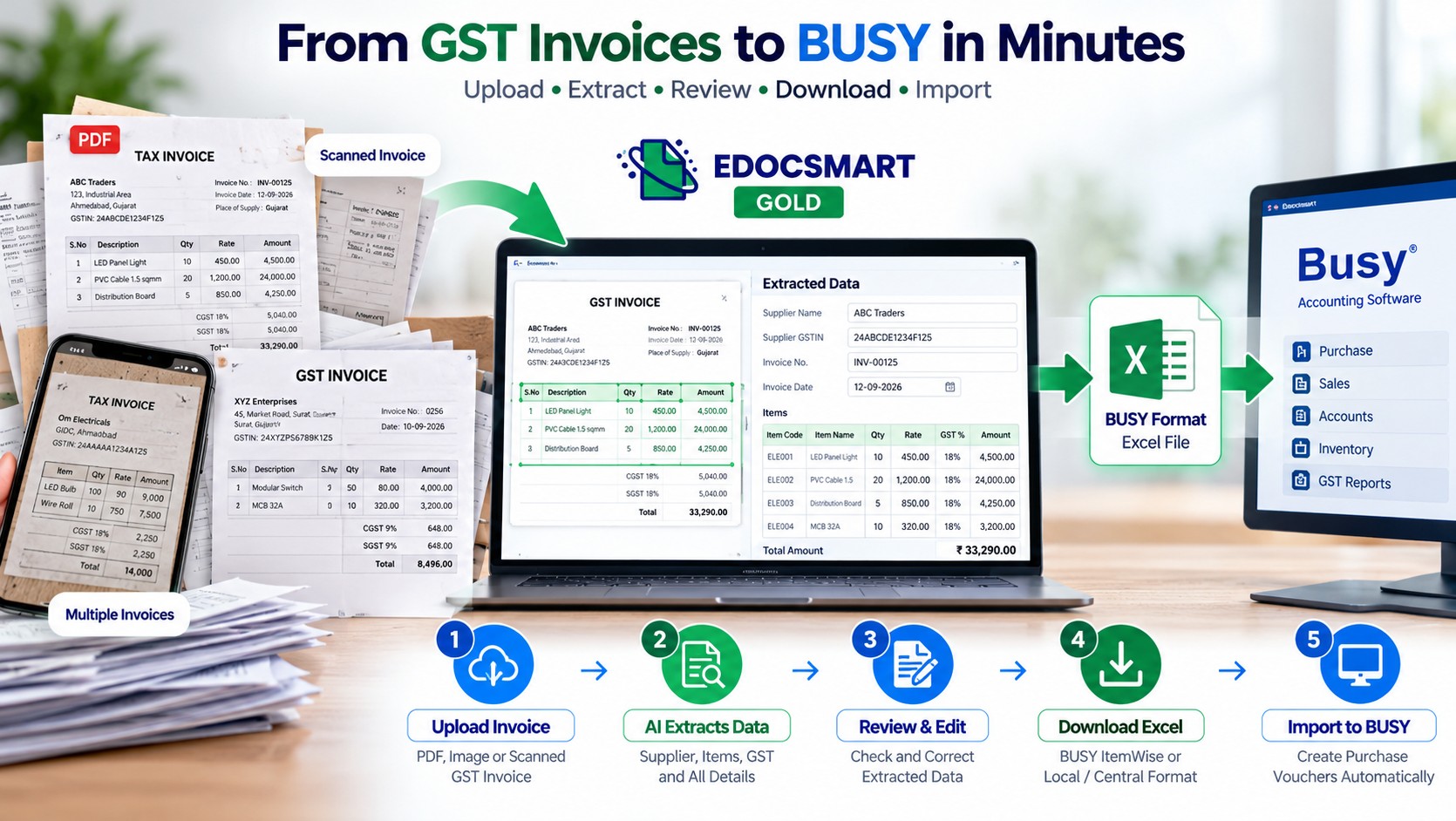
Imagine running a wholesale business where suppliers send you 30 to 50 GST invoices every day. Some invoices arrive as PDFs, some as scanned documents, and others as photographs shared through WhatsApp.
Your accountant opens each invoice, checks the supplier details, enters the item names, quantities, rates and GST amounts, and then creates purchase entries in BUSY Accounting Software.
The process works, but it takes time. Even a small typing mistake in a GSTIN, item code or tax amount can create problems during accounting and reconciliation.
What if you could extract invoice details automatically, review them and prepare an Excel file for importing into BUSY?
This guide explains how to import GST invoices into BUSY Accounting Software using Edocsmart, from uploading the original invoice to verifying the imported purchase voucher.
Quick Answer: To import a GST purchase invoice into BUSY, upload the invoice PDF or image to Edocsmart, review the extracted supplier, item and GST details, and download the BUSY-compatible Excel file. Then open BUSY, go to Administration → Data Export Import → Import Vouchers from Excel, configure the Purchase voucher mapping, select the file and import it.
Can You Import GST Invoices into BUSY Automatically?
Yes, GST purchase invoices can be prepared for import into BUSY using invoice extraction software and BUSY's Excel voucher import facility.
There are two parts to the process:
Invoice data extraction: Convert the supplier's PDF, scanned bill or photograph into structured accounting information.
BUSY voucher import: Import the prepared Excel data into BUSY using the correct voucher type and field configuration.
Edocsmart helps with the first part by extracting invoice information and providing BUSY-oriented Excel download formats. BUSY handles the actual accounting import.
This distinction matters because downloading an Excel file does not automatically create a voucher in BUSY. The file still needs to be imported and checked.
What Details Are Required to Import a GST Invoice into BUSY?
A GST invoice generally contains supplier information, invoice details, taxable item values and applicable taxes.
For purchase voucher preparation, check the following information:
| Invoice Field | Why It Matters |
|---|---|
| Supplier / Party Name | Identifies the supplier account |
| Supplier GSTIN | Helps verify the supplier's GST identity |
| Purchase Bill Number | Identifies the supplier invoice |
| Invoice Date | Records the correct transaction date |
| Item Name / Item Code | Identifies purchased products |
| HSN / SAC Code | Supports item tax classification |
| Quantity | Records the purchased quantity |
| Rate | Determines item value |
| Taxable Amount | Forms the basis of GST calculation |
| CGST and SGST / IGST | Records applicable GST components |
| Invoice Total | Helps verify the final purchase value |
The exact Excel columns required depend on your BUSY import configuration, voucher type and tax setup.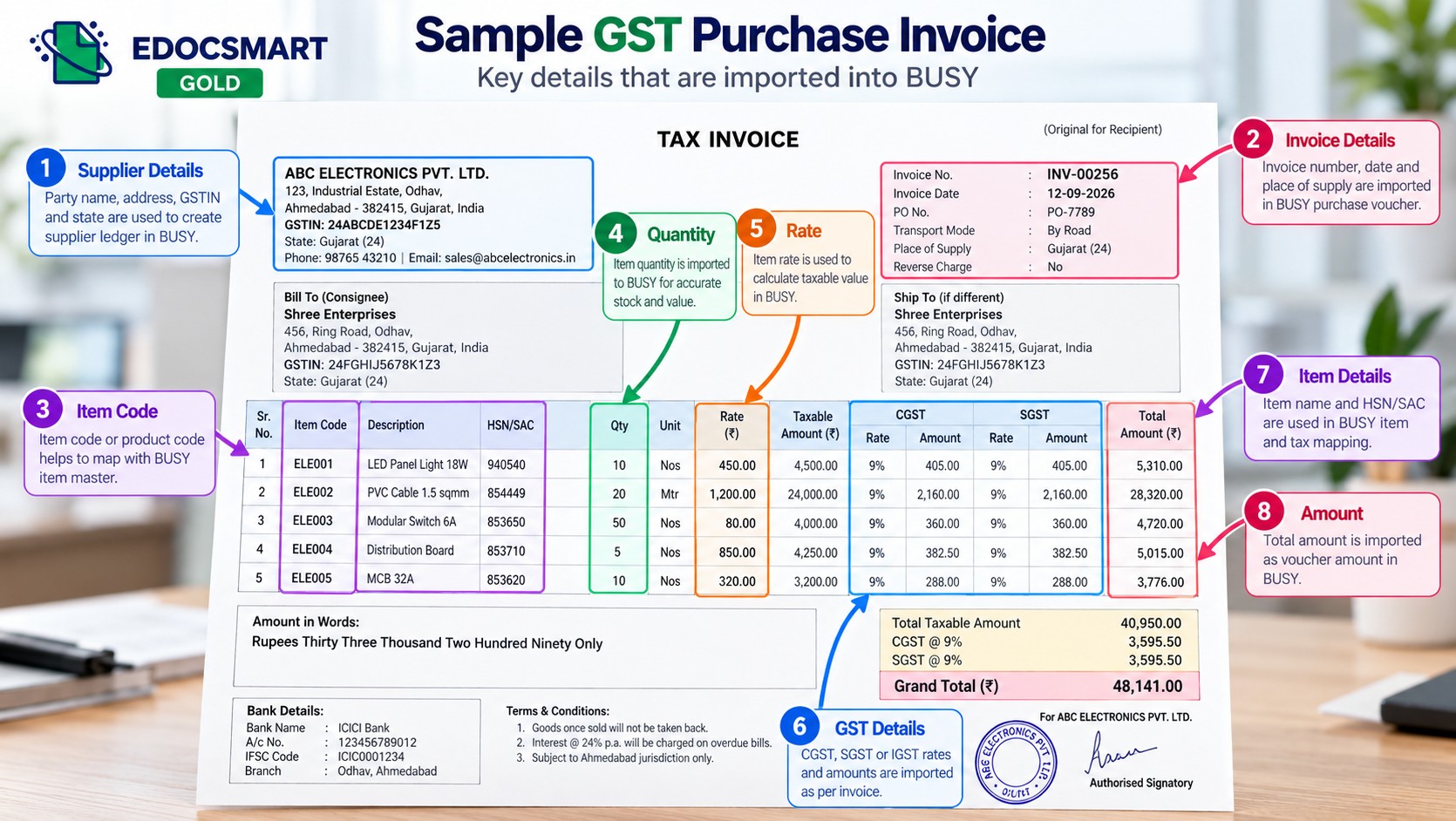
How to Import GST Invoice into BUSY Using Edocsmart
Follow these steps to prepare GST invoices for BUSY without manually typing every invoice field.
Step 1: Log In to Edocsmart GOLD
Open Edocsmart and sign in to your account.
After logging in, the dashboard displays the available navigation options. Locate Scan in the left sidebar and click it.
This opens the invoice scanning area, where you can begin preparing a supplier invoice for extraction.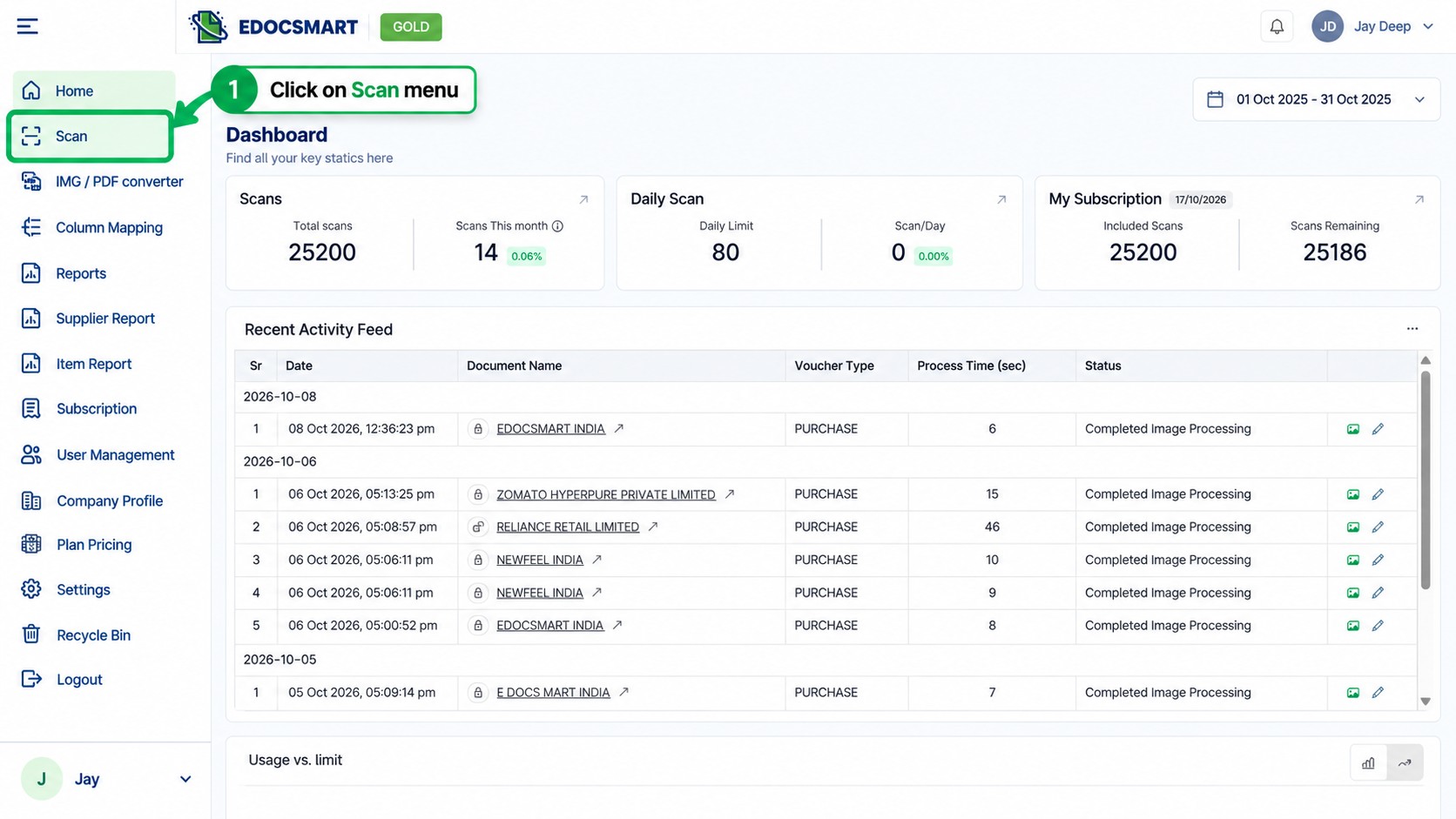 Step 2: Upload Your GST Purchase Invoice
In the Scans section, choose the Purchase workflow and click the green Scan button.
The upload screen allows you to browse for a document or drag and drop a supported file.
Select the supplier invoice stored on your computer. This might be a PDF downloaded from email, a scanned paper invoice or a photograph captured using a smartphone.
Before uploading, make sure the document is readable. Invoice numbers, item descriptions and tax amounts should be clearly visible.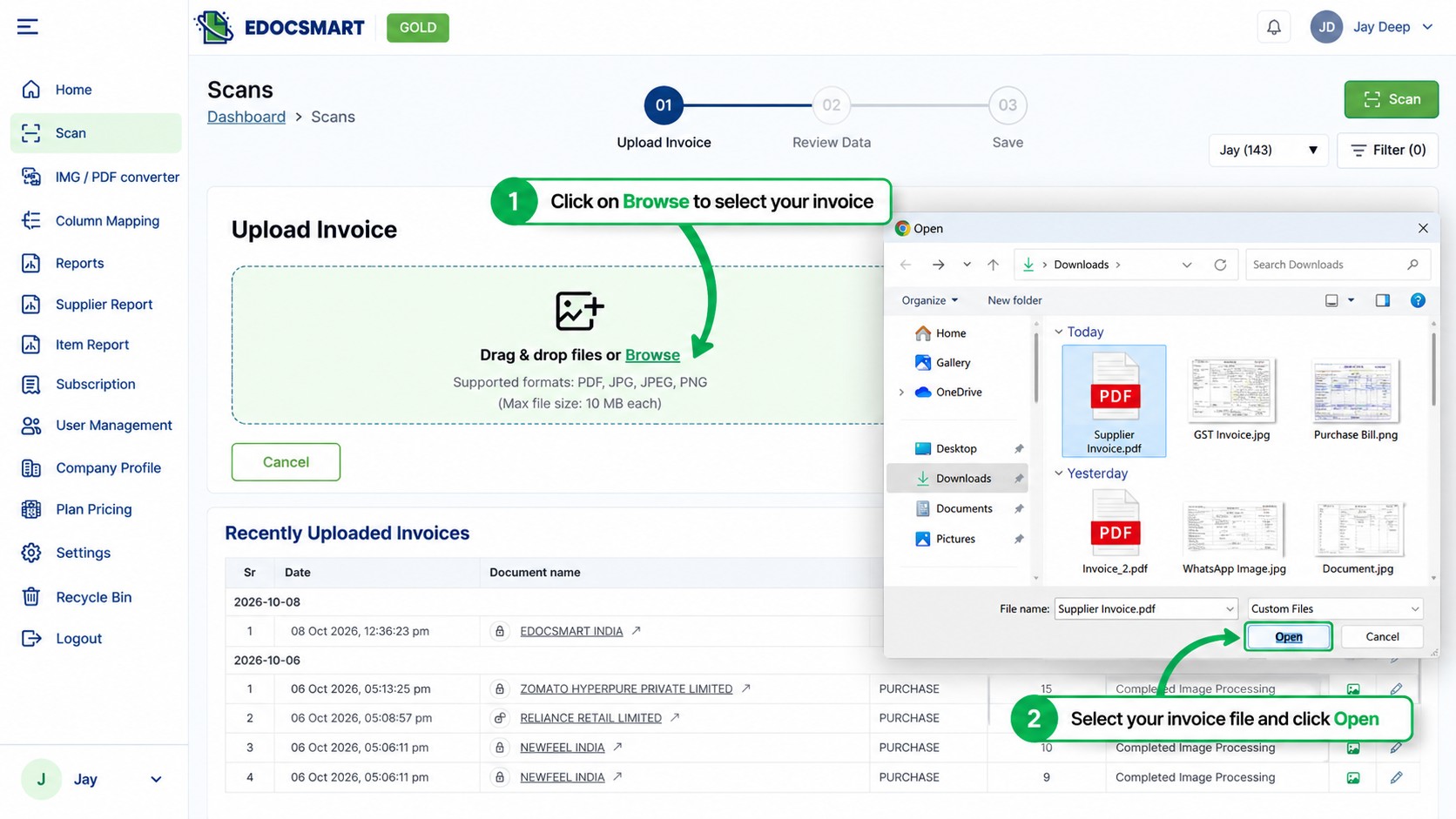 Step 3: Extract GST Invoice Details
Once the document is uploaded and processed, Edocsmart prepares the invoice information for review.
Depending on the invoice content and extraction result, the available information may include:
Supplier and invoice details
Purchase bill number and invoice date
Item descriptions and item codes
Quantities, unit prices and taxable values
GST rates and tax amounts
Net and grand total amounts
This reduces the need to copy every value from the invoice into an Excel sheet manually.
However, extracted information should always be checked against the original invoice, especially where scanned documents contain faint text, unusual tables or handwritten corrections.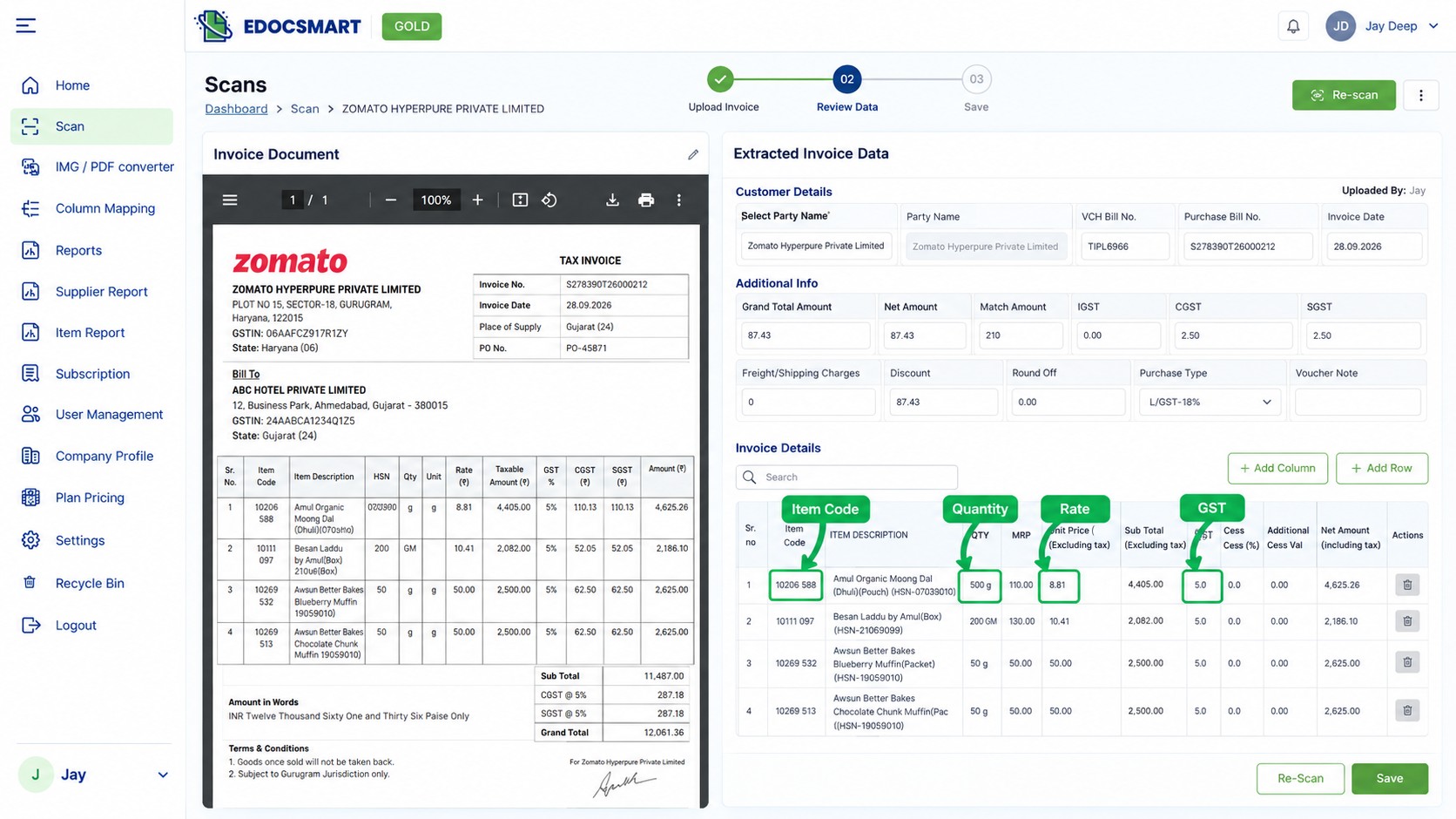 Step 4: Review and Edit the Extracted Invoice Data
After extraction, review the invoice fields in Edocsmart before saving.
Check the Purchase Bill No., invoice date, selected party, item codes, quantities, rates, GST percentages and total amount.
If a value needs correction, edit it in the review screen.
The editable interface also provides Add Column and Add Row options for adjusting the invoice data where needed.
For example, if an item quantity was extracted as 15 instead of 5, correct the quantity before continuing. Similarly, confirm whether the invoice uses CGST and SGST or IGST.
When the details match the original supplier invoice, click Save.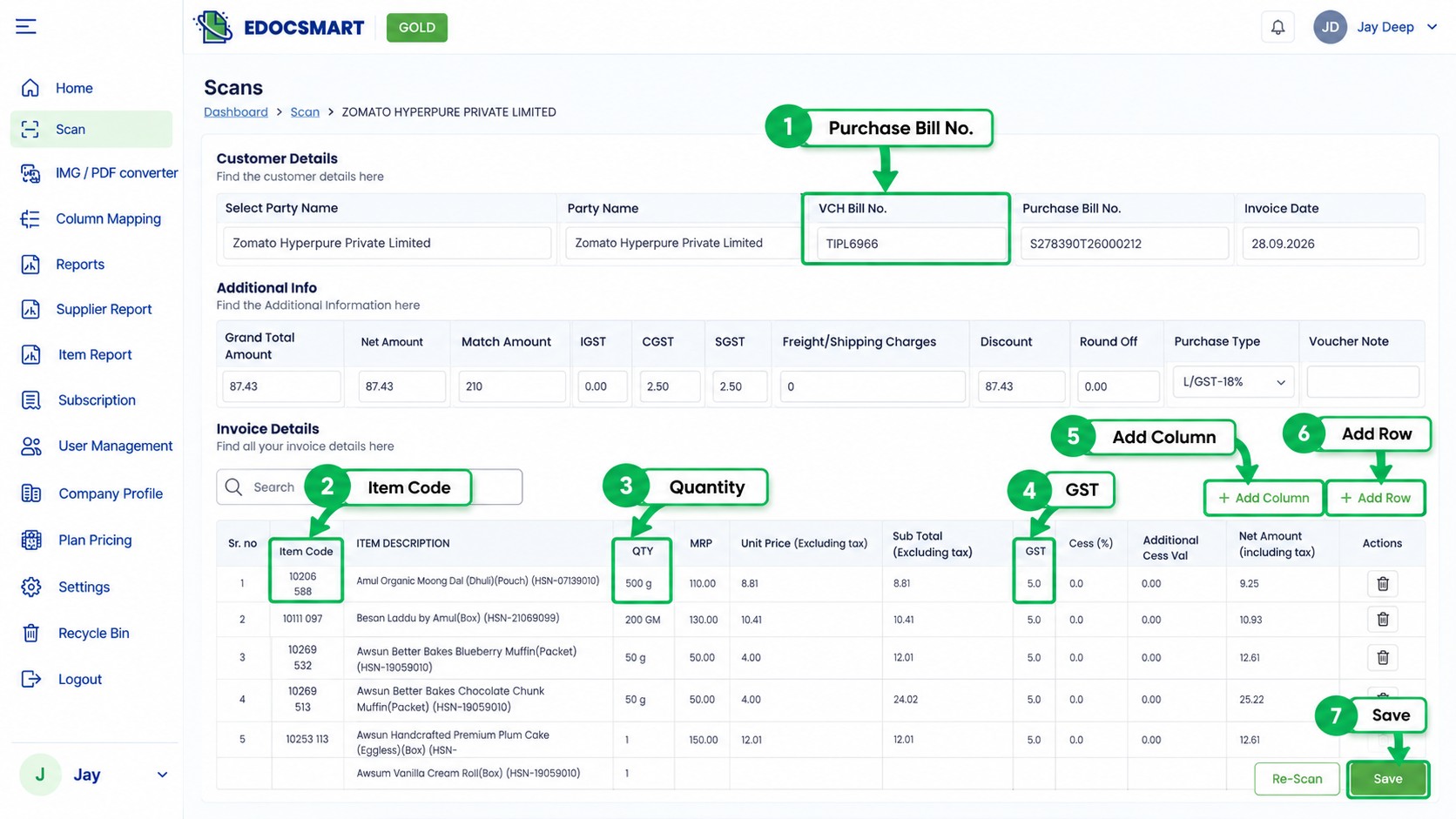 Step 5: Save the Invoice and Open the Download Option
After saving, Edocsmart displays its invoice completion screen.
The workflow includes three stages:
Upload Invoice → Review Data → Save
On the completion screen, locate the download icon associated with the saved invoice.
Click it to view the available Excel download formats.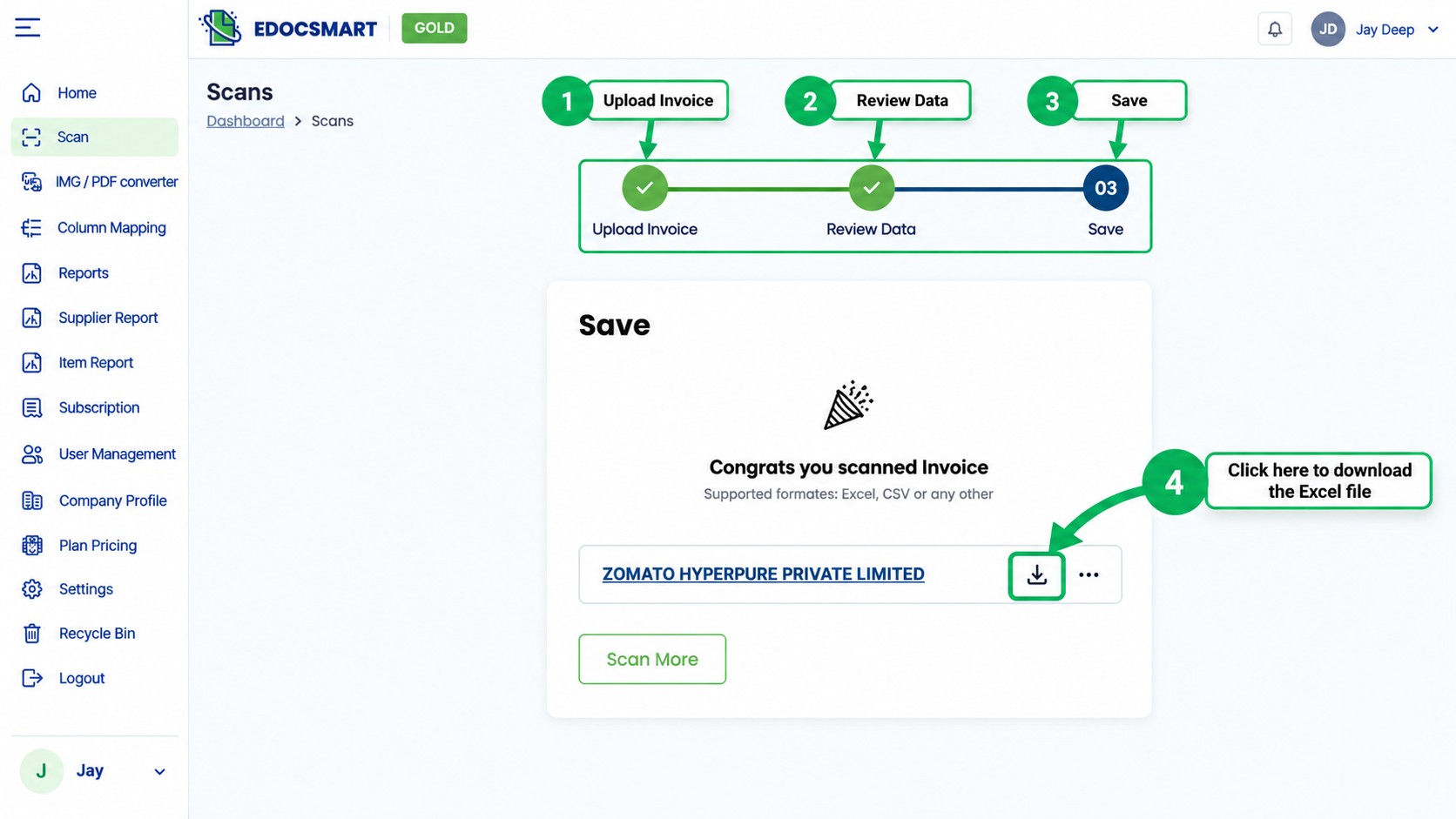 Step 6: Download the BUSY-Compatible Excel File
Edocsmart displays a popup asking:
“How would you like to download the Excel file?”
The available BUSY options shown in this workflow are:
Busy ItemWise: Use this option when you need an item-wise Excel output for the corresponding BUSY import setup.
Busy Local / Central: Use this option when the local/central Excel format is appropriate for your accounting configuration.
Choose the format that matches the voucher import structure you intend to use in BUSY.
The Excel file will be downloaded to your computer.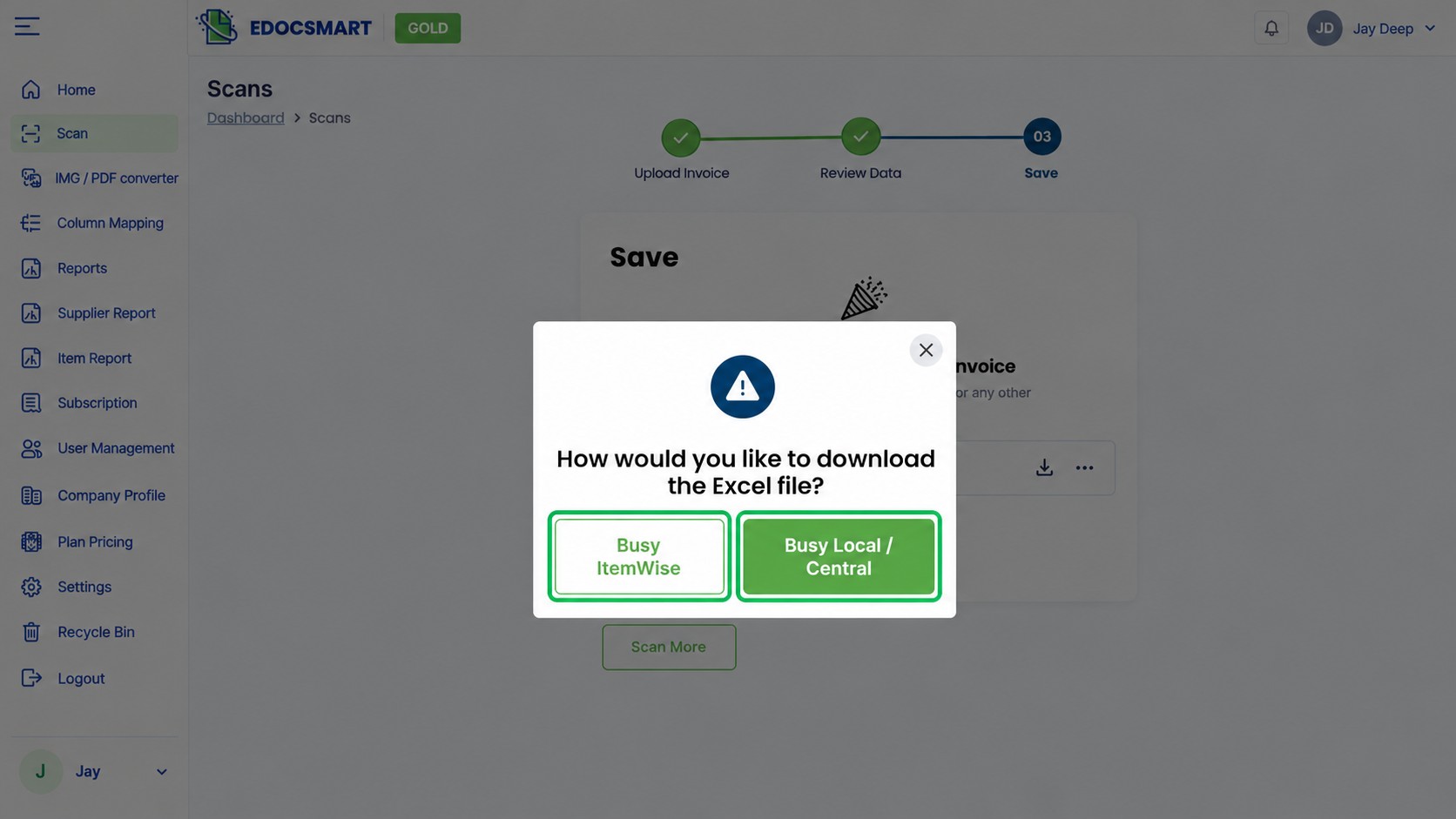 Step 7: Open BUSY and Configure the Purchase Voucher Import
Now open BUSY Accounting Software and select the company in which you want to record the GST purchase invoice.
Before importing, take a backup of the company data.
Then follow this navigation:
Administration → Data Export Import → Import Vouchers from Excel
Select Purchase as the voucher type.
If an appropriate import format has already been configured, select it. Otherwise, use the format configuration option to connect the Excel columns with the corresponding BUSY voucher fields.
For example, map the purchase bill number, date, party name, item name, quantity, rate and applicable tax fields according to your Excel structure.
Make sure the relevant supplier and item masters exist in BUSY or are handled through a supported master-creation configuration.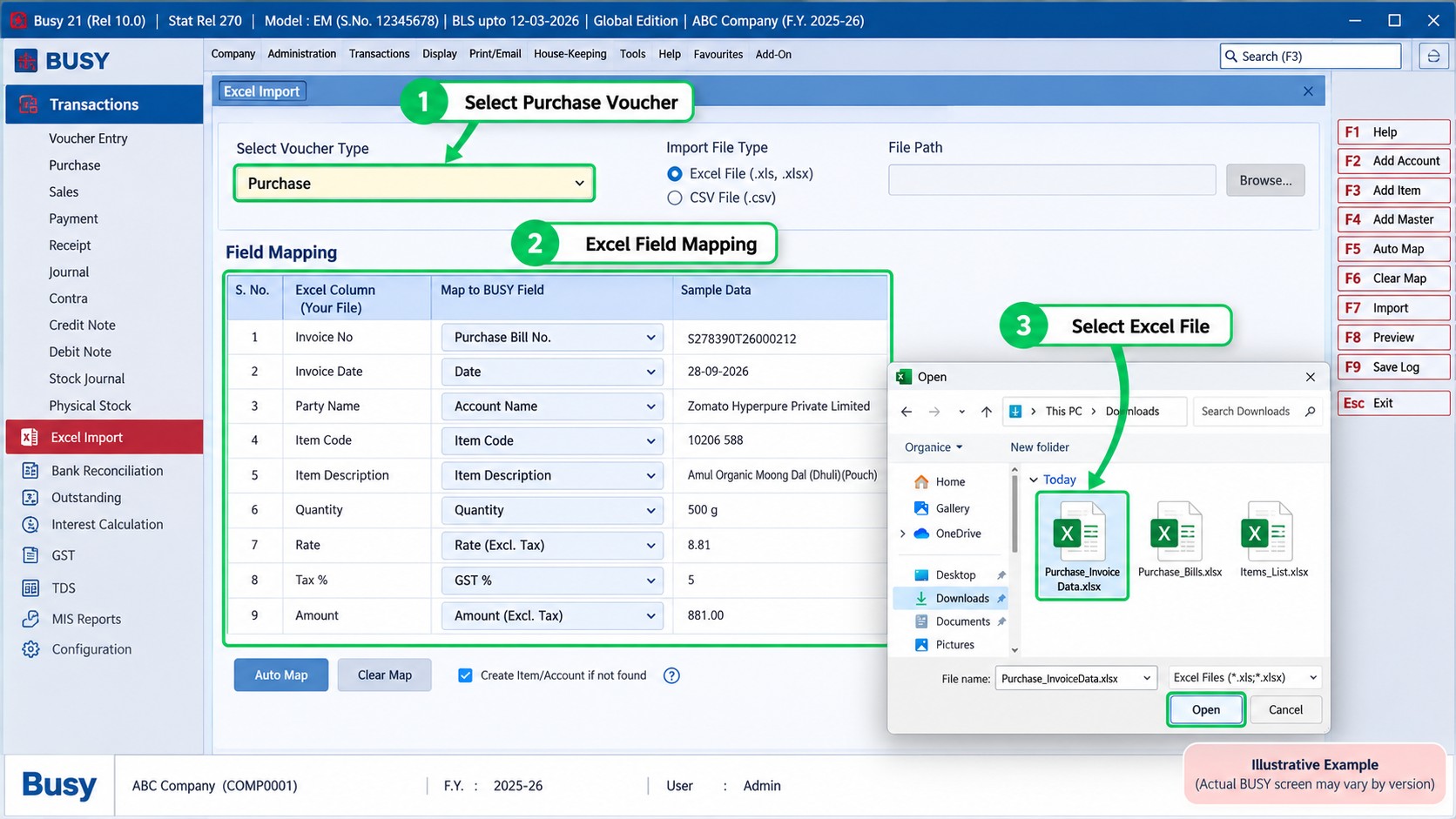
Step 8: Select the Excel File and Import It into BUSY
After configuring the import format, select the Excel file downloaded from Edocsmart.
Specify the correct worksheet, starting row and ending row. Ensure the first data row is selected correctly so column headings are not imported as transaction data.
Click Import and allow BUSY to process the file.
If the import reports an error, review the message and check the file configuration before trying again.
Do not assume that a file has imported successfully merely because it was selected.
Step 9: Verify the Imported GST Purchase Voucher
Once the import is complete, open the relevant purchase voucher or purchase register in BUSY.
Compare the imported entry with the original supplier invoice.
Verify:
Purchase bill number and invoice date
Supplier account and GSTIN
Item codes, descriptions and quantities
Rates and taxable amounts
CGST, SGST or IGST treatment
Invoice total and voucher total
This final check helps identify mapping errors, missing items, incorrect tax treatment and duplicate entries before they affect accounting reports.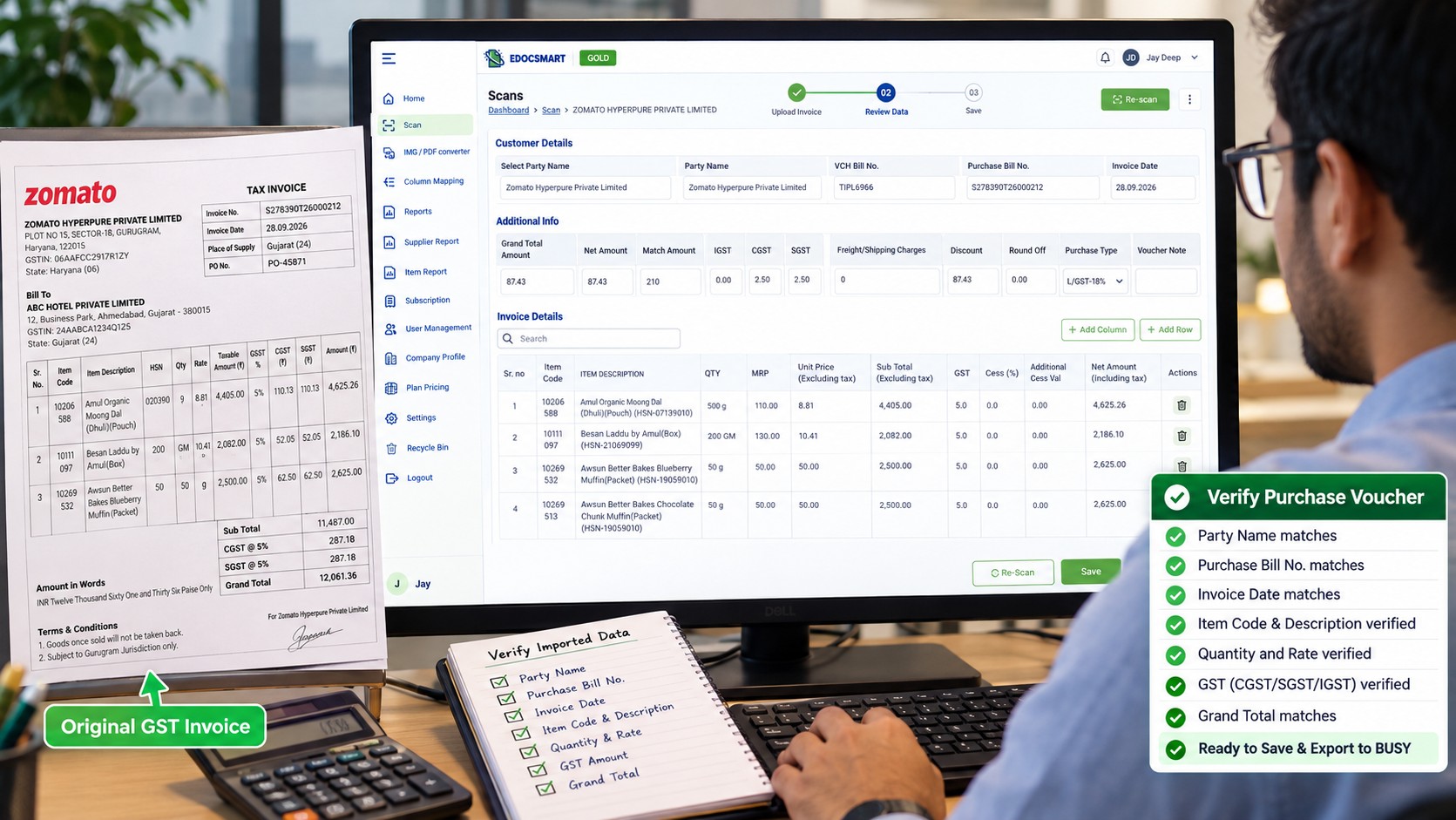
Manual GST Invoice Entry vs Invoice Import Using Edocsmart
| Process | Manual Entry | Edocsmart + BUSY Import |
|---|---|---|
| Read supplier invoices | Accountant reads each document | Invoice data is extracted for review |
| Enter item details | Typed individually | Prepared in structured data |
| Check GST amounts | Manually entered and checked | Extracted values are reviewed before import |
| Prepare Excel | May require manual preparation | BUSY-oriented Excel output is available |
| Create BUSY vouchers | Entered individually | Imported using BUSY's Excel facility |
| Verification | Required | Still required |
| Main advantage | Direct manual control | Less repetitive typing and easier batch preparation |
The time saved depends on invoice volume, document quality, existing master data and the BUSY import configuration.
Common Problems When Importing GST Invoices into BUSY
1. Supplier or Item Names Do Not Match
If the Excel file contains a supplier or item name that BUSY cannot match to its masters, the import may fail or require additional configuration.
Check the relevant account and item masters before importing.
2. Incorrect GST Mapping
A wrong GST percentage or tax component can produce incorrect accounting values.
Review the invoice's place of supply, tax treatment and applicable GST details before import.
3. Wrong Excel Column Mapping
BUSY needs to know which Excel column corresponds to each voucher field.
If the quantity column is mapped to the rate field, for example, the imported voucher will be incorrect.
Use the format configuration carefully and test it with a small sample.
4. Incorrect Worksheet or Row Selection
Selecting the wrong sheet or starting row may result in skipped entries or header rows being treated as data.
Confirm the worksheet and row range before importing.
5. Duplicate Purchase Vouchers
Importing the same file twice may create duplicate transactions or voucher-number conflicts, depending on the BUSY configuration.
Check existing vouchers and invoice numbers before repeating an import.
Best Practices for GST Invoice Import into BUSY
For reliable GST purchase accounting, use a consistent process.
First, collect clear supplier invoices and confirm that the GSTIN, invoice number and tax details are readable.
Second, review extracted data before downloading the Excel file. Pay special attention to item codes, quantities and GST values.
Third, use the BUSY import format that matches the downloaded Excel structure. Test new configurations with a small number of invoices.
Finally, keep the original invoices and verify imported vouchers against them.
Automation is most useful when it reduces repetitive work without removing important accounting checks.
Frequently Asked Questions
1. Can I import GST invoices into BUSY from PDF files?
Yes, but the PDF generally needs to be converted into structured data first. You can use Edocsmart to extract invoice details from a PDF, review them and download a BUSY-oriented Excel file. The resulting Excel data can then be imported using BUSY's voucher import feature.
2. How do I import a purchase invoice into BUSY from Excel?
Open BUSY and navigate to Administration → Data Export Import → Import Vouchers from Excel. Select Purchase, configure the required field mapping, choose the Excel file and worksheet range, and run the import. Verify the resulting purchase vouchers afterward.
3. Can BUSY import multiple GST purchase invoices from Excel?
BUSY supports importing voucher data from Excel. Multiple purchase transactions can be imported when the worksheet and voucher configuration are structured correctly. Test a small batch first to confirm voucher numbering, item mapping and GST calculations.
4. Does Edocsmart directly sync GST invoices with BUSY?
The workflow described here uses an Excel download from Edocsmart followed by import through BUSY. It should not be confused with an automatic direct sync between the two applications.
5. Can I import scanned GST invoices into BUSY?
Yes. A scanned GST invoice can be processed through an invoice extraction tool such as Edocsmart. After checking the extracted fields, prepare the Excel file and import it into BUSY. Scan quality can affect extraction accuracy.
6. Which Edocsmart Excel format should I select for BUSY?
The download popup provides Busy ItemWise and Busy Local / Central options. Select the output that matches your intended BUSY voucher format and accounting configuration. If uncertain, test the output with a sample invoice before importing a larger batch.
7. Do I need to create supplier ledgers before importing purchase invoices?
The relevant supplier account must be available or handled through a supported master-creation setup. BUSY provides master import and certain master-creation configuration options, but the exact behavior depends on the configured import process.
8. Can GST amounts be imported along with purchase invoice items?
GST-related values can be included in voucher import data when the appropriate fields and tax configuration are mapped correctly. Check CGST, SGST, IGST, taxable values and totals after import rather than assuming that every calculation is correct.
9. Why is my GST invoice Excel file not importing into BUSY?
Common causes include incorrect field mapping, unsupported data structure, missing account or item masters, wrong worksheet selection, invalid dates and voucher-number conflicts. Review the import configuration and test a small file to identify the issue.
10. Can I import sales GST invoices into BUSY using the same process?
BUSY supports Excel import for Sales and Purchase vouchers. However, sales invoices require the Sales voucher type and its corresponding field configuration. Do not reuse a Purchase import format without confirming that it matches the sales data.
11. Is GST invoice import into BUSY completely automatic?
Not necessarily. Invoice extraction and Excel preparation can reduce manual work, but BUSY import configuration, error handling and final voucher verification may still require user involvement.
12. Can I import invoices received through WhatsApp into BUSY?
If a supplier shares a readable invoice photograph or PDF through WhatsApp, save the file and upload it to Edocsmart. Review the extracted data, download the appropriate Excel output and import it into BUSY.
Conclusion
Importing GST invoices into BUSY does not have to mean manually typing every supplier bill.
By using Edocsmart to extract and review invoice information, businesses can prepare structured Excel data from PDFs, scans and invoice photographs. BUSY's Excel import feature can then be used to create purchase vouchers through a configured import format.
The key is to follow the complete process: upload, extract, review, download, import and verify.
For businesses managing regular supplier invoices, this approach can reduce repetitive data entry while keeping important GST and accounting checks in place.
Want to simplify GST purchase invoice preparation? Explore Edocsmart and its Invoice to BUSY solution.