How to Import Invoice PDF into Tally
Import single or multiple invoice PDFs into Tally by extracting supplier, item, GST, and amount details, reviewing the data, and syncing verified entries through Edocsmart.
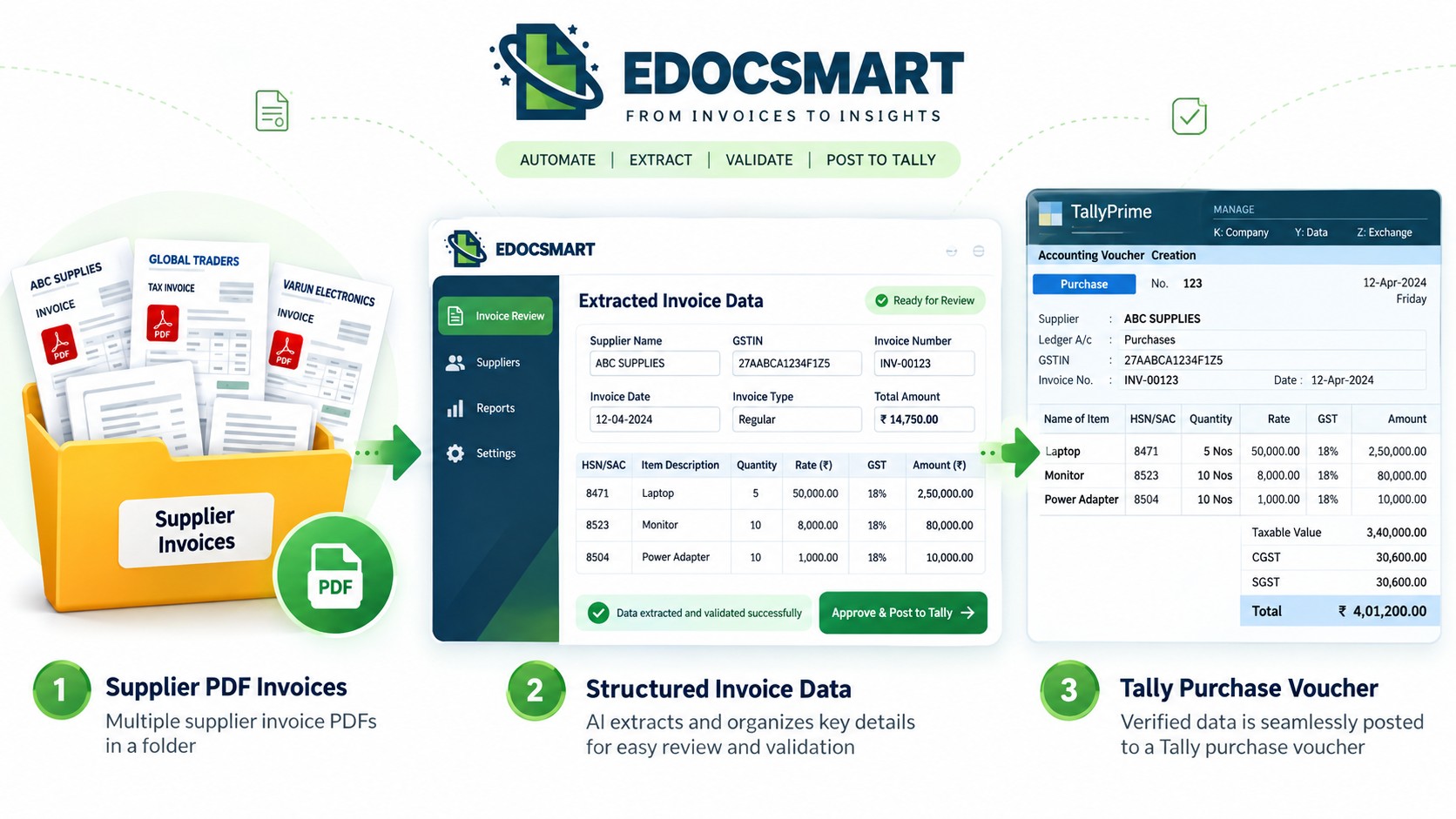
Turn supplier invoice PDFs into reviewed, Tally-ready purchase data without manually retyping every invoice field.
At 4:45 PM, the accounts team opens a folder called “Purchase Invoices.”
Inside it are 46 PDF files.
Some invoices have three items. Others have thirty. A few include discounts, freight charges, different GST rates, HSN/SAC codes and long product descriptions.
The invoices are already digital, yet the accountant still has to open every PDF, read the values and enter them again into Tally.
That raises a simple question:
If all the accounting information is already inside the PDF, why should someone type it again?
This is where PDF invoice automation becomes useful.
With Edocsmart, businesses can upload individual or multiple invoice PDFs, extract the available accounting information, review it in structured fields and then send the verified invoice data to Tally through the configured connector.
Instead of treating the PDF as something to read manually, the PDF itself becomes the starting point of the accounting workflow.
The PDF Is Digital, but the Accounting Process May Still Be Manual
A PDF invoice may already contain almost everything required to create a purchase transaction:
- Supplier name
- Invoice number
- Invoice date
- GSTIN
- Supplier address
- HSN/SAC
- Item description
- Quantity
- Unit
- Rate
- Discount
- GST percentage
- CGST
- SGST
- IGST
- Taxable amount
- Grand total
But a PDF is still a document.
Tally needs structured accounting information.
This is the gap that AI invoice data extraction is designed to reduce.
Instead of manually copying information from one screen to another, the document can first be processed so that the values inside it become reviewable fields.
That means the process is not simply:
PDF → Tally
It is:
PDF → Data Extraction → Mapping → Review → Approval → Tally
That distinction is important because the invoice should be verified before it becomes an accounting entry.
What Really Happens When You Import an Invoice PDF into Tally?
Think of the workflow as a journey with three parts.
Part 1: Understand the document
The system reads the invoice and identifies the available supplier, invoice,
item and tax information.
Part 2: Prepare the accounting data
Extracted information is matched with the required ledger, stock, tax and
voucher structure.
Part 3: Move verified information into Tally
After review, the approved data is synchronized through the configured
connector.
This is what makes invoice automation for Tally different from simply opening a PDF beside Tally and manually entering the same values.
From PDF Folder to Tally Voucher: The Complete Workflow
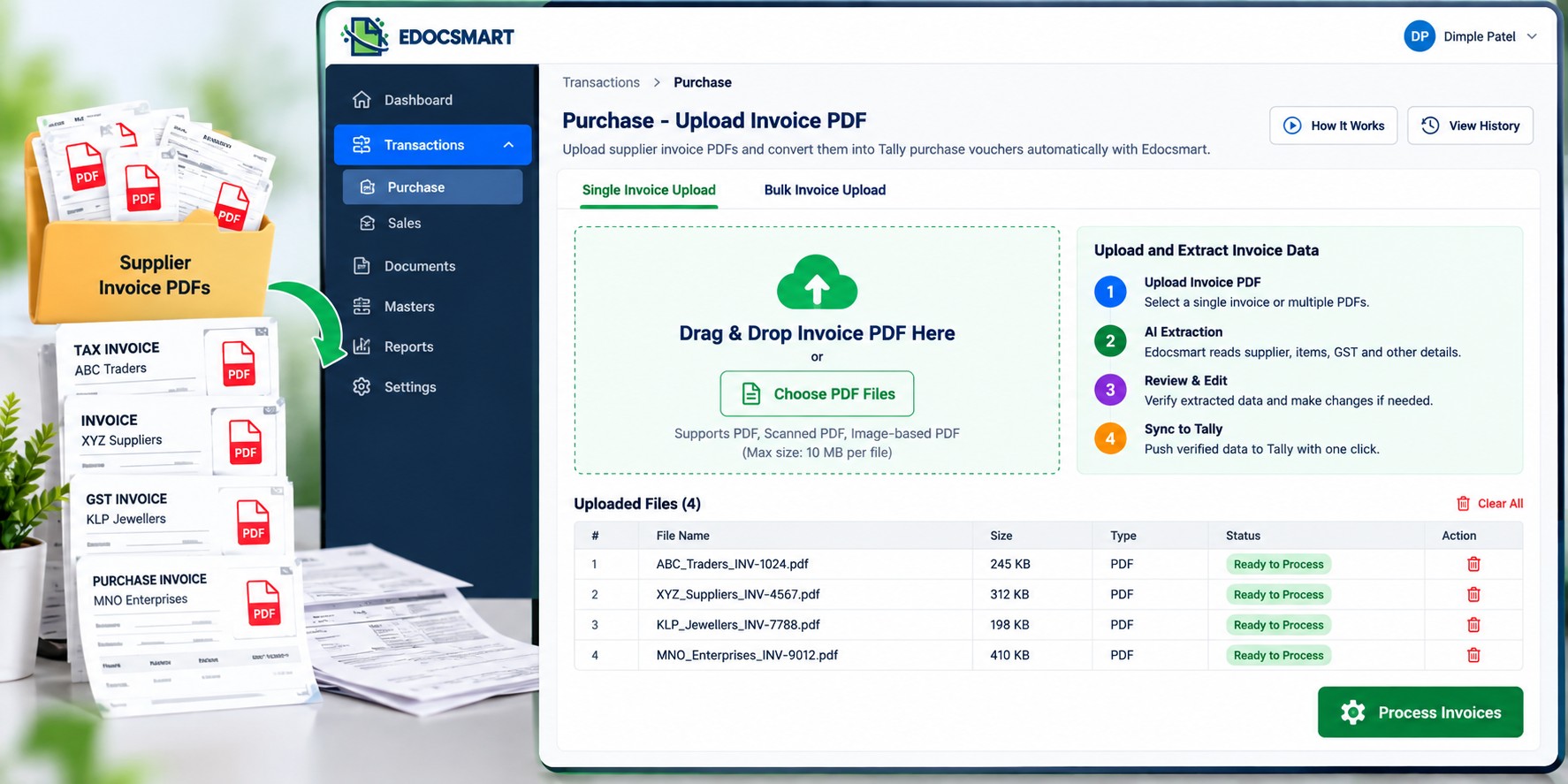
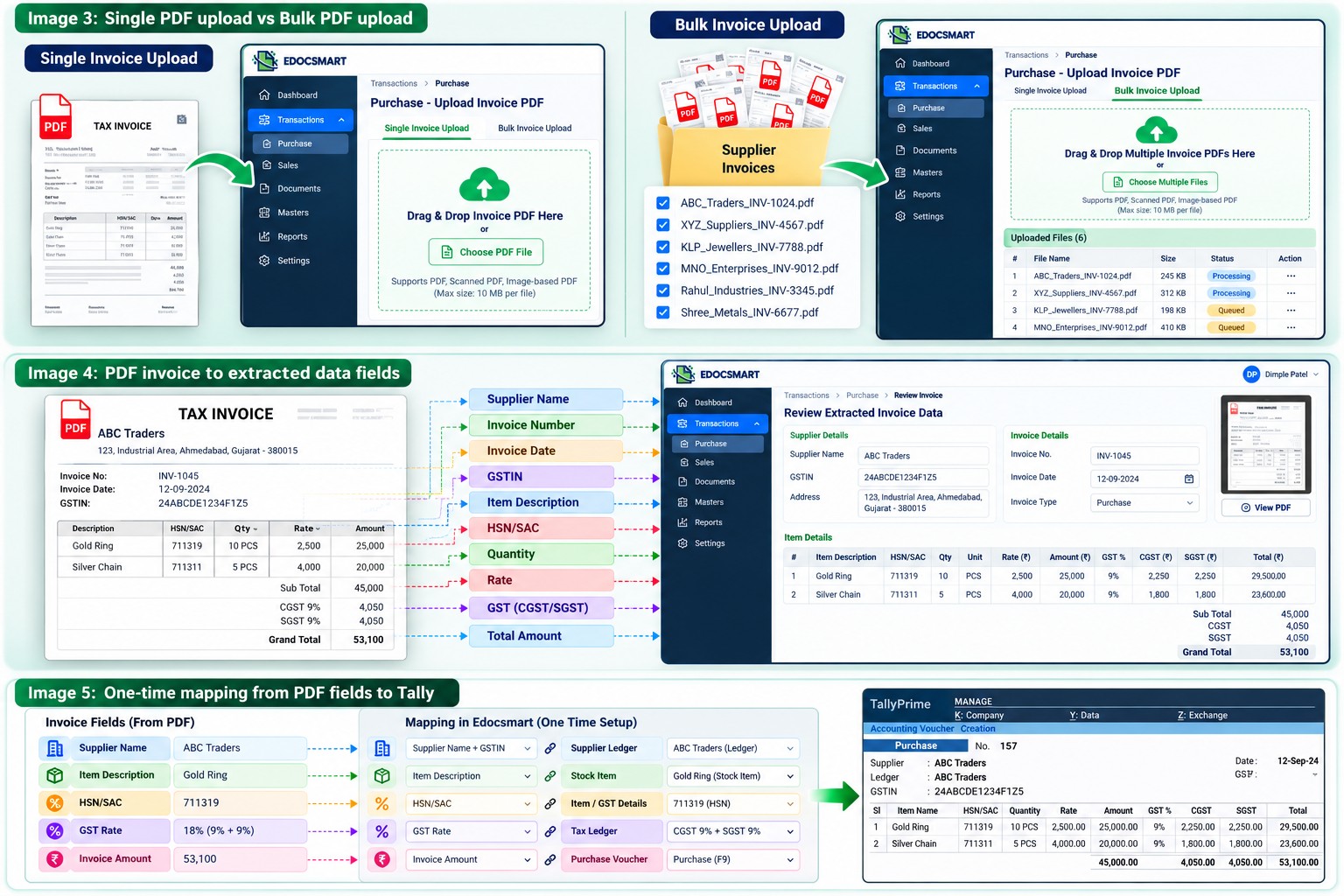
1. Start with the Invoice, Not with an Empty Voucher
- Log in to Edocsmart and navigate to:
- Transactions → Purchase
- In a traditional workflow, an accountant may open Tally first, create a blank purchase voucher and then begin reading the invoice.
- Here, the process begins with the original PDF.
- The invoice becomes the source from which the transaction is prepared.
- This is particularly useful for businesses looking for automatic purchase entry in Tally without rebuilding every supplier bill manually.
2. Upload One PDF or Process Multiple Invoice PDFs
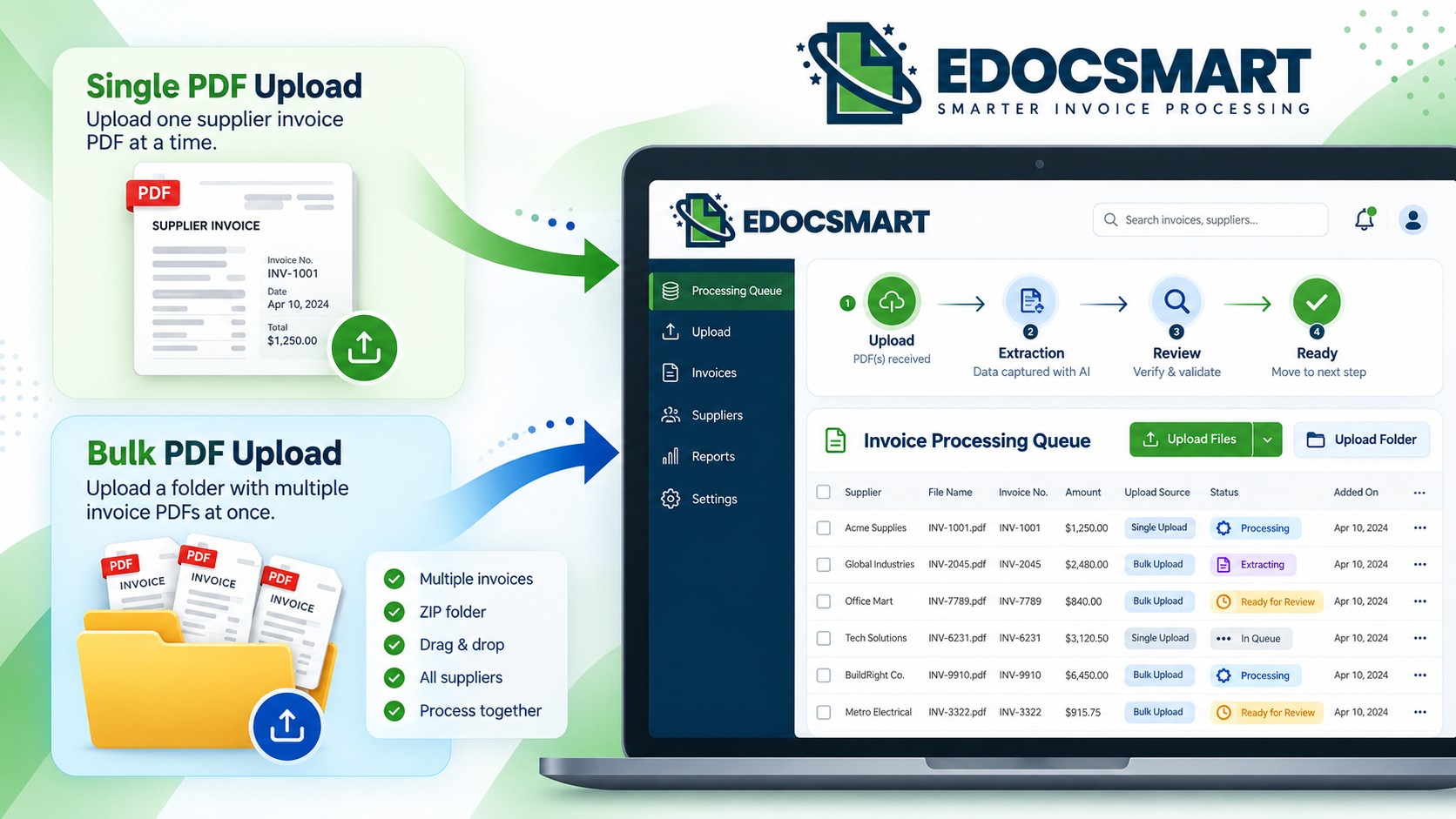
Not every business works with invoices one at a time.
An accountant may receive a complete folder from:
- Procurement
- Branch office
- Supplier email
- Shared drive
- Billing team
If only one invoice needs to be processed, the individual PDF can be selected.
If multiple invoice PDFs need processing, the applicable workflow can be used for bulk invoice upload to Tally, allowing several invoice files to enter the processing queue instead of manually opening them one by one.
This is especially valuable at:
- Month-end
- GST filing periods
- Weekly purchase closing
- High-volume supplier processing
The goal is simple: reduce the repeated work of selecting one PDF, creating one voucher, closing it and starting again.
3. The PDF Is Converted into Structured Invoice Information
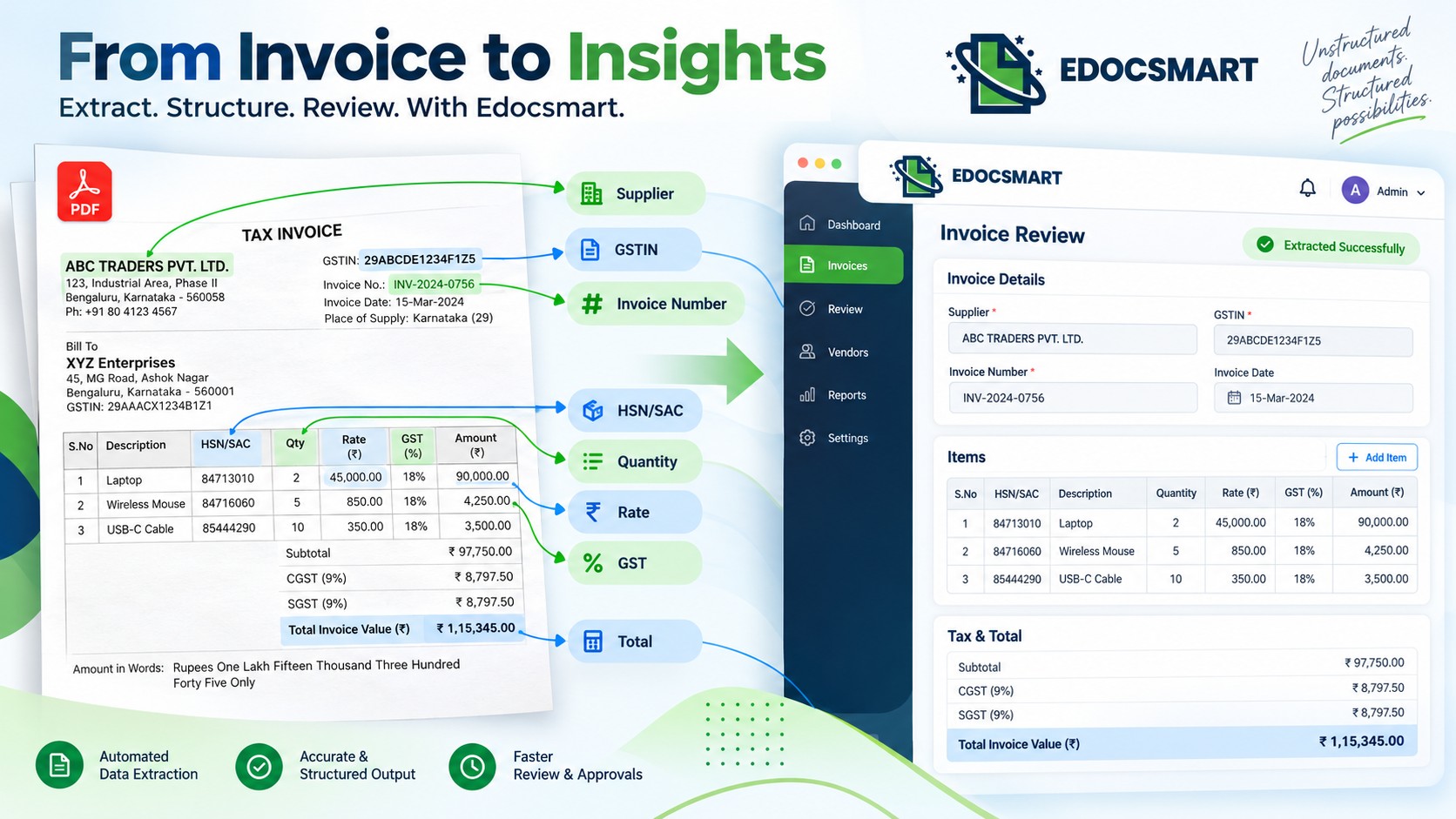
Once the document is uploaded, the system reads the available invoice information.
An AI invoice processing for Tally workflow may identify fields such as:
Supplier information
Supplier name, GSTIN, address, state and related party information.
Invoice information
Invoice number, invoice date and other document references.
Item information
Item description, HSN/SAC, quantity, unit, rate, discount and amount.
GST information
GST percentage, CGST, SGST, IGST and taxable amount.
Final values
Net amount, adjustments, round-off and grand total.
This is where an ocr to tally software workflow needs to do more than simply recognize characters.
Reading “18%” as text is one thing.
Understanding that the value represents the GST rate for a particular item is another.
Likewise:
INV-4587 should be understood as an invoice number.
50 PCS needs to be separated into quantity and unit.
847130may belong in an HSN/SAC field.
That field-level understanding is what makes the extracted information usable for accounting.
4. Mapping Connects Invoice Language with Tally Language
The PDF may call a field “Vendor Name.”
Your accounting setup may expect “Supplier Ledger.”
The invoice may contain “Product Description.”
Tally may need it associated with a stock item.
This is where mapping becomes important.
A typical configuration can connect information like:
|
PDF Invoice Data |
Tally Structure |
|
Supplier Name |
Supplier Ledger |
|
Item Description |
Stock Item |
|
HSN/SAC |
Item / GST Details |
|
GST Rate |
Tax Configuration |
|
Invoice Amount |
Purchase Voucher |
|
Invoice No. |
Voucher Reference |
The important point is that this setup is generally intended to be reusable.
If the same accounting structure continues to apply, the entire mapping should not need to be rebuilt for every invoice.
That reusable configuration is one reason automatic invoice entry in Tally becomes practical at scale.
5. The Accountant Reviews the PDF Data Instead of Retyping It
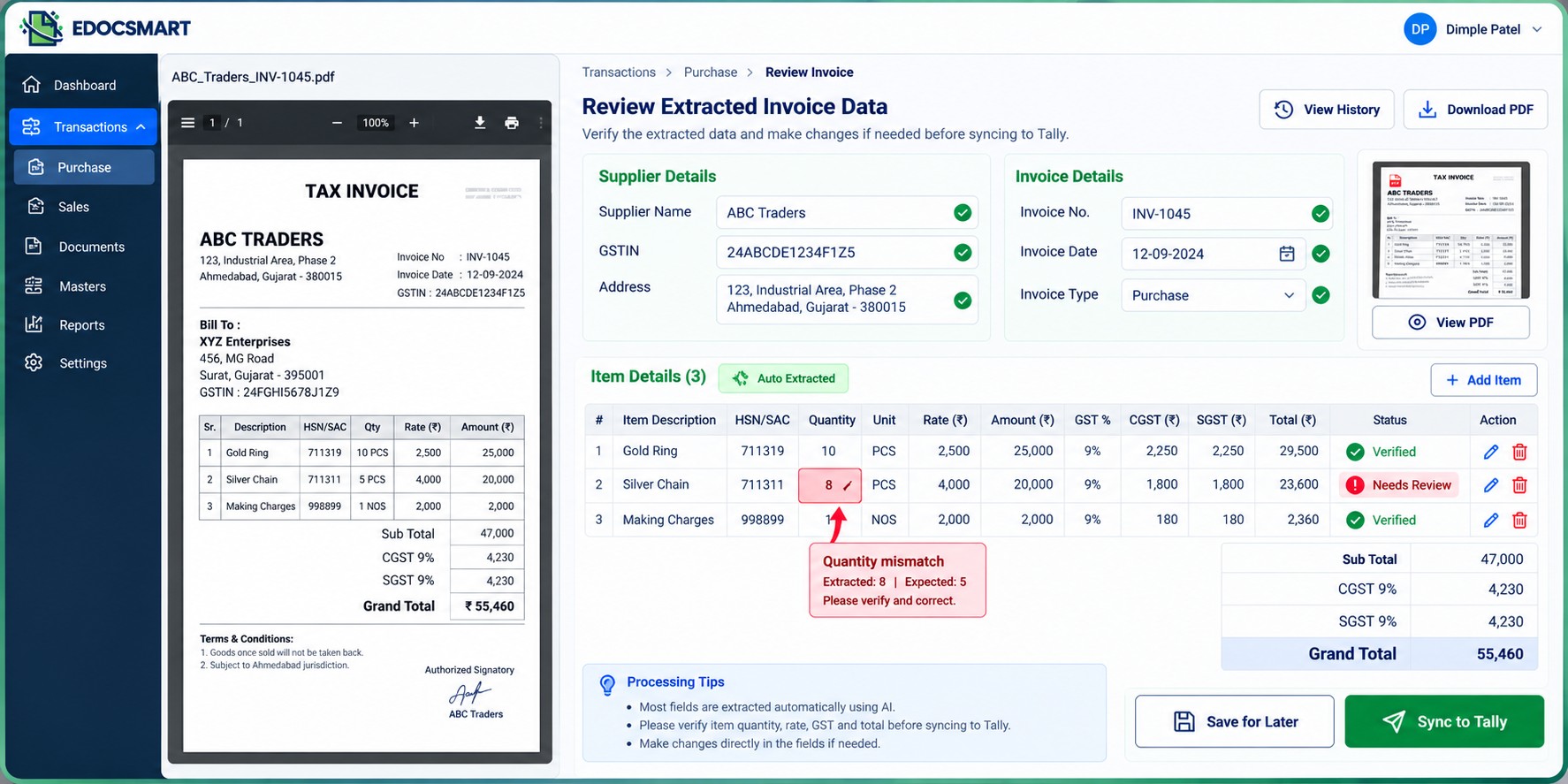
This is where the biggest workflow change happens.
Imagine that one PDF invoice contains 24 item rows.
In the manual process, someone may enter all 24 rows.
In the automated process, those rows can first be extracted and displayed for verification.
If 23 are correct and one quantity requires correction, the accountant can focus on that exception.
That changes the task from:
“Enter everything correctly.”
to:
“Check whether the extracted information is correct.”
The review screen can be used to verify:
- Supplier
- Invoice number
- Invoice date
- GSTIN
- HSN/SAC
- Item details
- Quantity
- Rate
- GST
- Total amount
This review stage is important in any invoice scanner software for Tally because accounting accuracy still matters even when extraction is automated.
6. Save the Invoice or Continue to Tally
Not every invoice is ready for posting immediately.
One invoice may need purchase approval.
Another may have a doubtful GST value.
A third may need verification from the procurement team.
In these cases, the processed invoice can be kept for later review where the workflow supports saving.
That allows two possible paths:
PDF → Extract → Review → Save
or
PDF → Extract → Review → Sync
This makes the workflow useful for real accounting teams instead of forcing every invoice directly into Tally.
7. Connect the Verified Data with Tally
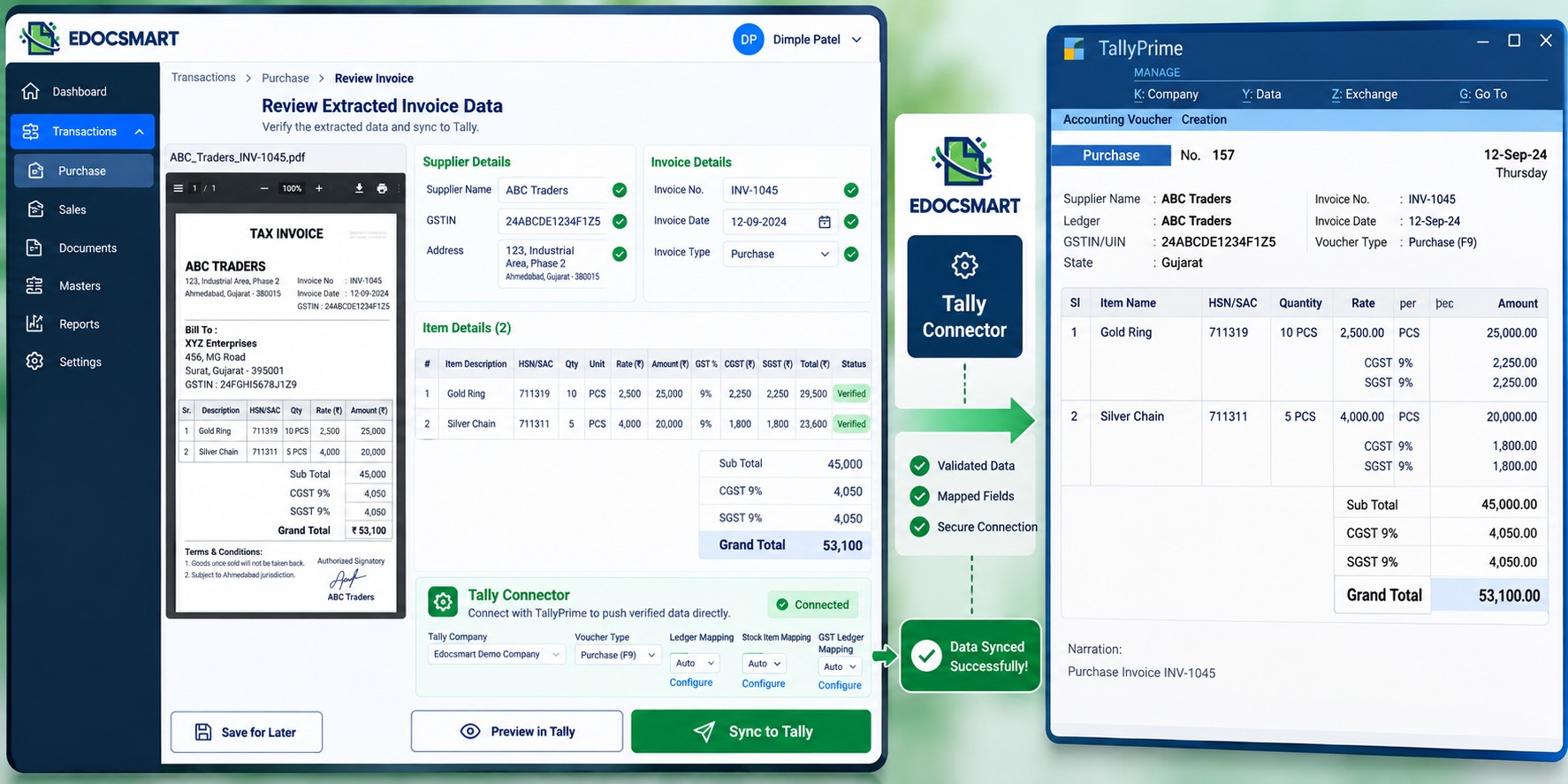
For the final transfer, the Tally connector must be configured and available.
Depending on the business setup, the Edocsmart Tally Connector or another compatible connector may be used.
The initial configuration may include templates for:
- Purchase voucher
- Supplier ledger
- Stock items
- GST information
- Other required accounting fields
Once the necessary setup is ready, TallyPrime invoice automation can move the reviewed transaction into the configured Tally structure.
8. Sync the Invoice and Verify the Final Voucher
After reviewing the extracted PDF information, select:
Sync to Tally
The verified information can then move through the configured connector.
Depending on configuration, the workflow may handle:
- Supplier ledger
- Purchase voucher
- Stock items
- HSN/SAC
- GST values
- Amounts
- Other mapped information
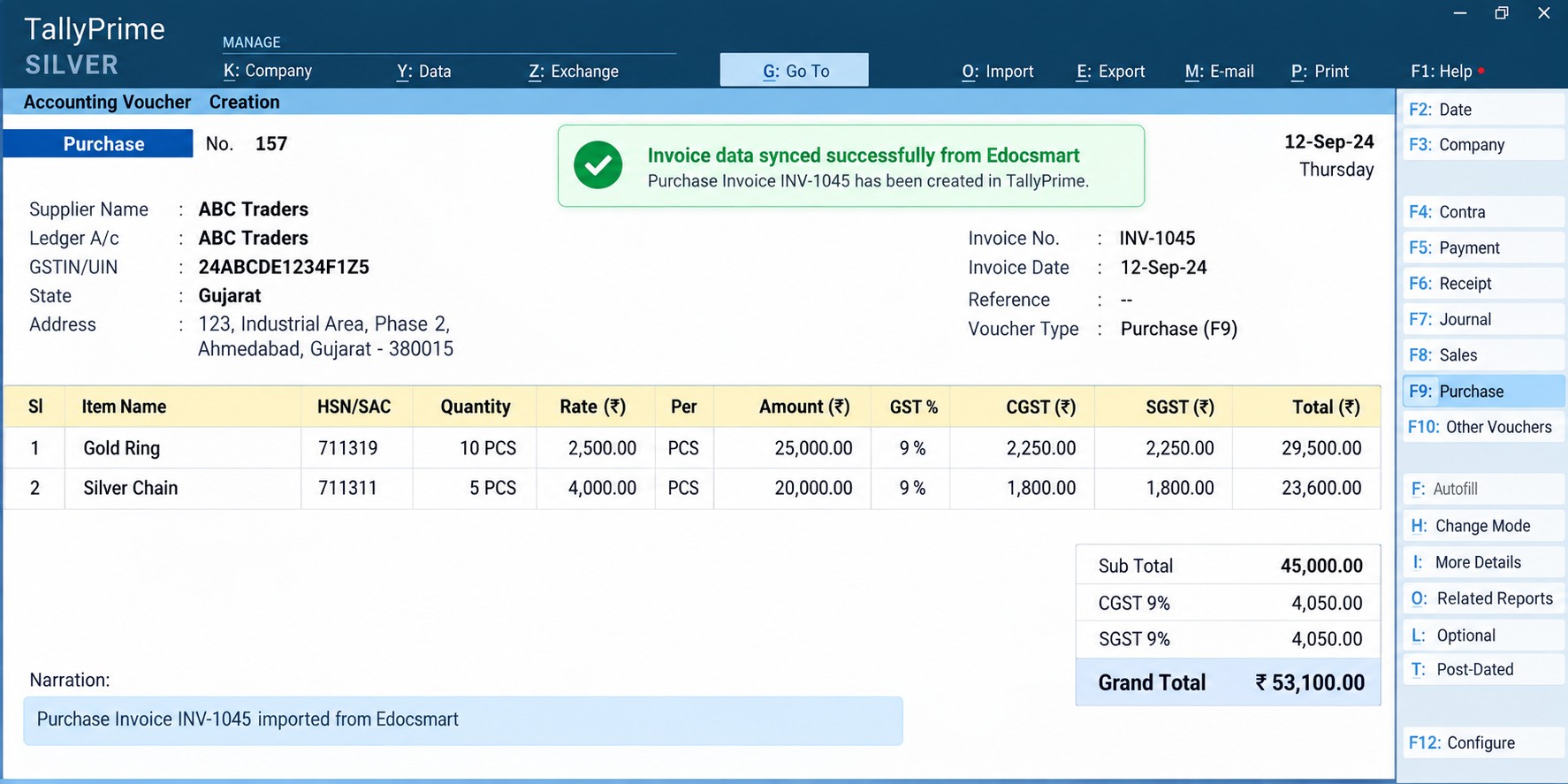
This is the final stage of tally purchase voucher automation.
Once the transaction reaches Tally, the accountant can open the voucher and perform the final verification.
Single PDF vs Bulk PDF Processing
The process becomes especially useful when invoice volume increases.
For one invoice
The user uploads one PDF, reviews the extracted data and sends the verified transaction to Tally.
For a folder of invoices
Multiple PDFs can enter the processing workflow, reducing the repeated manual cycle of opening each document and starting from scratch.
For example, imagine an accounts team receives 80 purchase invoice PDFs after a long weekend.
Manual processing means:
Open → Read → Enter → Check → Save × 80
A PDF automation workflow changes the activity into:
Upload → Process → Review Exceptions → Sync
The accountant still controls the transaction, but less time is spent reproducing information that is already present inside the PDFs.
What About GST Invoice PDFs?
GST invoices contain more than just supplier name and final total.
The accountant may also need to verify:
- Supplier GSTIN
- State
- HSN/SAC
- GST percentage
- Taxable amount
- CGST
- SGST
- IGST
- Item-level taxes
Therefore, GST invoice to Tally automation should include a review stage before the accounting entry is finalized.
For a broader document-to-accounting workflow, see Invoice to Tally.
PDF Import Is Different from Simply Converting a File
One common misunderstanding is that importing an invoice PDF means converting the PDF directly into a Tally voucher.
That is not quite how a controlled accounting workflow should work.
The original PDF is a document.
The values inside it first need to become structured accounting information.
Then that information needs to be mapped.
Then reviewed.
Only after that should the verified data move into the accounting system.
Therefore, when businesses Import Invoice into Tally Automatically, the useful part is not simply file conversion.
The real value comes from reducing repetitive invoice entry while still preserving accounting verification.
Where Edocsmart Helps Most
The biggest advantage appears when a business handles invoices regularly rather than occasionally.
With Edocsmart, invoice PDFs can become part of a repeatable process instead of remaining files that accountants must manually interpret every time.
This can make sense for:
- Accounting firms
- Manufacturers
- Distributors
- Wholesalers
- Retail businesses
- Jewellery companies
- Trading businesses
- Companies receiving regular GST purchase invoices
The objective is not to remove the accountant from the process.
It is to give the accountant structured data to verify instead of a blank voucher to fill manually.
FAQS
Can I import a PDF invoice into
Tally using Edocsmart?
Yes. Supported invoice PDFs can be uploaded to Edocsmart, processed into structured fields, reviewed and then synchronized with Tally through the configured connector and mapping setup.
Can I upload multiple invoice
PDFs together?
The workflow can support processing multiple invoice PDFs where bulk handling is configured. This is useful when accounts teams receive many supplier invoices at the same time.
What information can Edocsmart
extract from an invoice PDF?
Depending on the document and configuration, Edocsmart can extract details such as supplier name, invoice number, date, GSTIN, HSN/SAC, item description, quantity, rate, GST values, taxable amount and invoice total.
Do I need to create mapping
for every PDF invoice?
Not necessarily. Mapping is mainly part of the initial configuration. If the same setup applies to future invoices, the configured structure can be reused.
Can I correct PDF invoice data
before it enters Tally?
Yes. The extracted information can be reviewed before synchronization. If an item, quantity, rate, GST value or other field needs correction, it can be checked before the final Tally entry.
Does Edocsmart directly
convert the PDF into a Tally voucher?
Edocsmart first processes the PDF and prepares structured invoice information. After review, the verified data is sent through the configured Tally connector. The final voucher, ledger, stock and tax structure depends on the mapping and Tally configuration.
Conclusion
An invoice PDF already contains the information required for accounting.
The inefficient part is repeatedly reading that information and entering it again into Tally.
A better workflow is to make the PDF itself the starting point:
Receive PDF → Upload → Extract → Map → Review → Sync → Verify in Tally
This approach works for individual supplier PDFs as well as businesses handling larger invoice volumes.
More importantly, it changes the accountant's job from recreating every invoice manually to verifying structured accounting information before it reaches Tally.
That is the practical value of importing invoice PDFs into Tally through an automated workflow.