How to Import Multiple Invoices into BUSY
Upload PDFs or invoice images, review the extracted data, download Excel, and import purchase entries using a configured BUSY format.
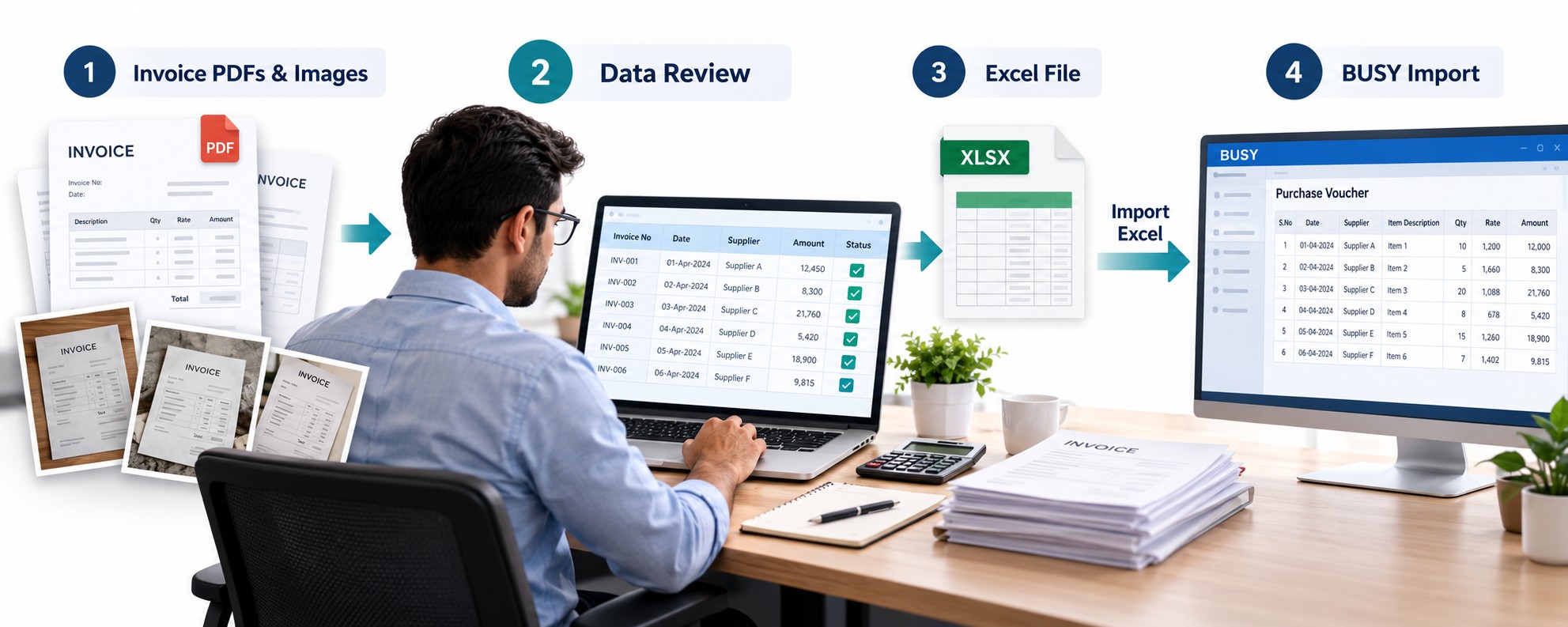
How to Import Multiple Invoices into BUSY: A Step-by-Step Guide
It is Monday morning, and your accounts team already has a folder full of supplier invoices. Some arrived as PDFs through email, while others came as scanned bills or invoice photos. Each document contains information that needs to be entered into BUSY—supplier details, invoice numbers, item quantities, rates, and taxes.
Entering a few bills manually may seem manageable. But when invoices keep arriving, the same task can take up a large part of the day.
Edocsmart helps simplify this process by extracting information from invoice documents and organising it into structured data. Your team can review the details, make corrections, and download an Excel file for import into BUSY.
In this guide, we explain how to import multiple invoices into BUSY, from uploading your documents to configuring a reusable import format.
What Does Importing Multiple Invoices into BUSY Mean?
Importing multiple invoices means bringing a batch of invoice records into BUSY through a structured file instead of manually entering every purchase voucher.
For invoice PDFs and images, the process starts by extracting the information into a usable format. After reviewing the extracted details, you download an Excel file and import it using a configured BUSY voucher format.
The workflow follows this sequence:
Upload invoices → Extract data → Review and edit → Download Excel → Import into BUSY
This approach supports accounting data entry automation by reducing repeated typing while keeping your team in control of the final records.
Which Invoice Details Should You Check?
Before importing a batch, review the information needed for your purchase entries:
- Supplier name and party ledger.
- Invoice number and date.
- Item descriptions and HSN codes.
- Quantities, units, and rates.
- Discounts and additional charges.
- Taxable values and GST amounts.
- Final invoice totals.
The exact fields depend on your invoices, accounting requirements, and BUSY import configuration.
Why Use AI Invoice Processing for BUSY?
Supplier invoices often follow different layouts. One supplier may issue a detailed PDF, while another sends a scanned bill with several item rows.
An AI invoice scanner for BUSY helps extract information from these documents and display it in structured fields. Instead of typing each value from the beginning, your team can check the extracted information and correct exceptions.
AI invoice processing for BUSY can help with:
- Reducing repetitive document reading and typing.
- Organising invoice information for review.
- Preparing multiple invoices for Excel export.
- Handling recurring purchase-entry batches more consistently.
Human review remains an essential part of the process, especially when documents contain faint text, complex tables, or unclear images.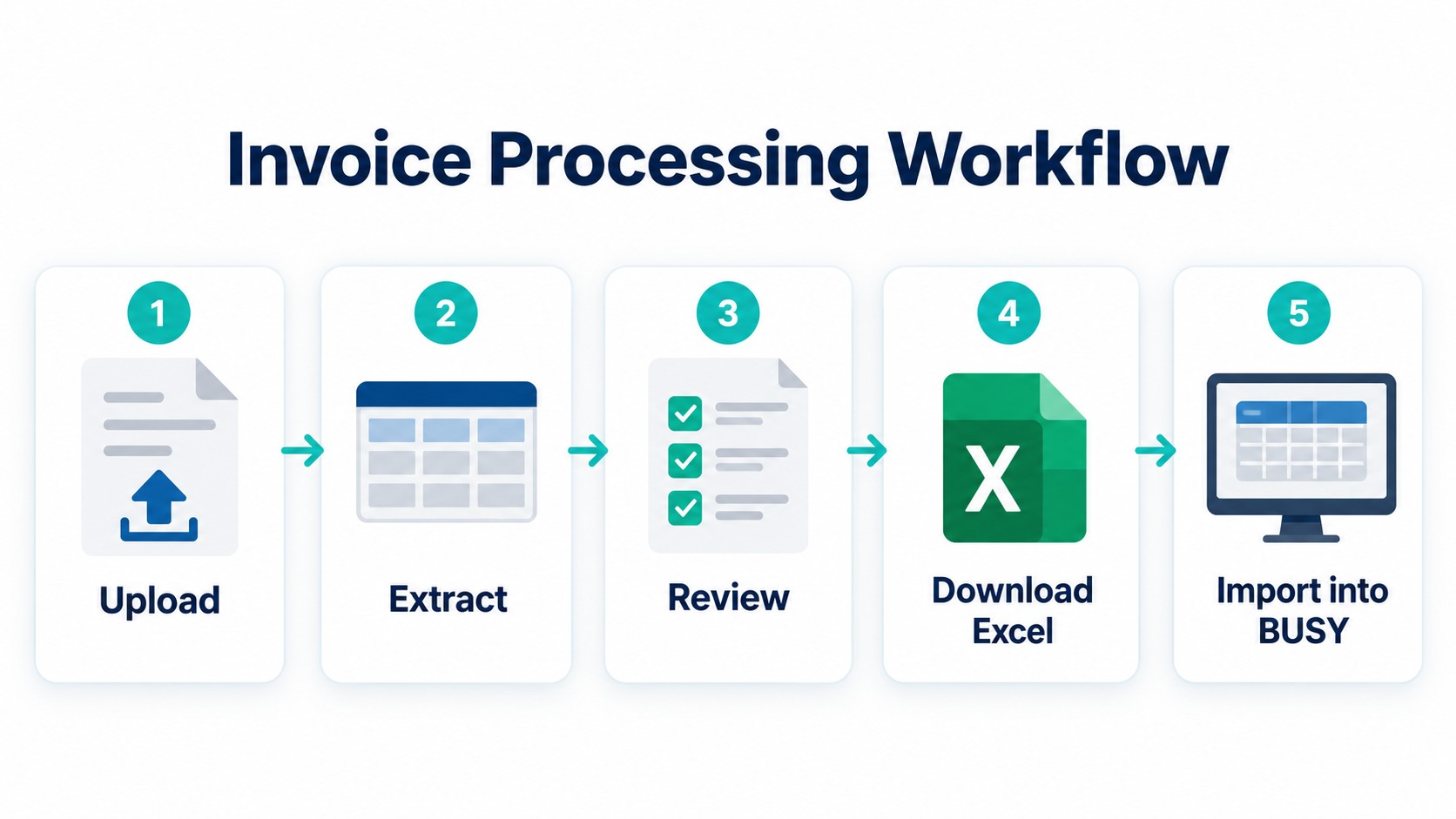
What Should You Prepare Before Starting?
Keep the invoice PDFs and images in one organised folder. Make sure the documents are readable and that invoice numbers, dates, item details, and totals are visible.
For photographs, avoid cropped edges, strong shadows, and blurred text.
You should also have access to the correct BUSY company and the supplier ledgers and item masters required for your entries. If this is your first batch, allow time to configure and test the Excel import format.
How to Import Multiple Invoices into BUSY Using Edocsmart
Step 1: Search for Edocsmart and Sign Up
Search for Edocsmart in your browser and open the official website.
Click Sign Up on the account access screen and complete your registration. If you already have an account, sign in using your existing details.
After signing in, open your dashboard to start processing invoices.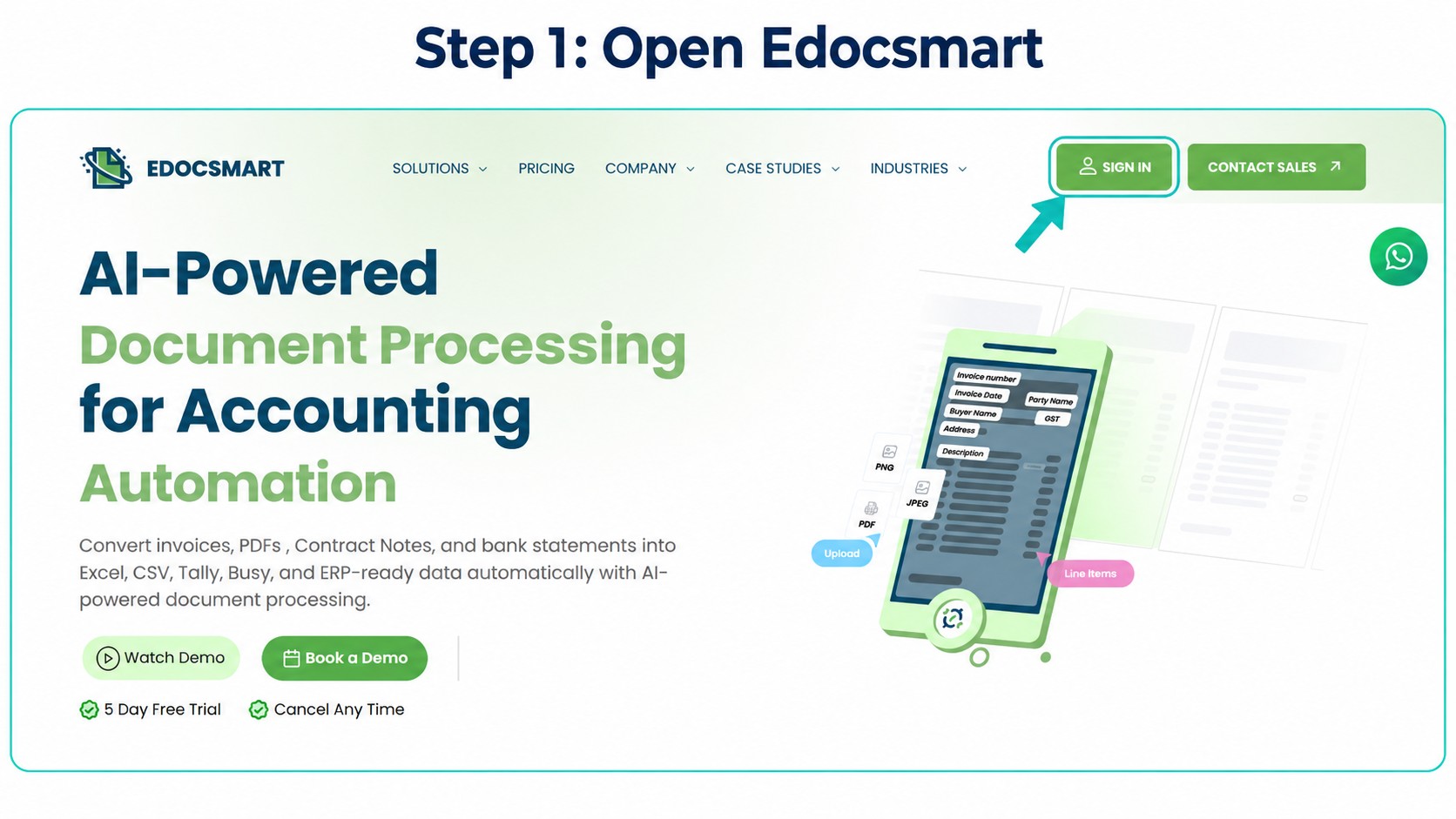
Step 2: Open Scan from the Sidebar
Once you are inside your account, locate the Scan option in the sidebar.
Click it to open the scanning area and access the BUSY invoice workspace. This is where you will manage the invoices being prepared for BUSY.
Make sure you are in the intended workspace before uploading your documents.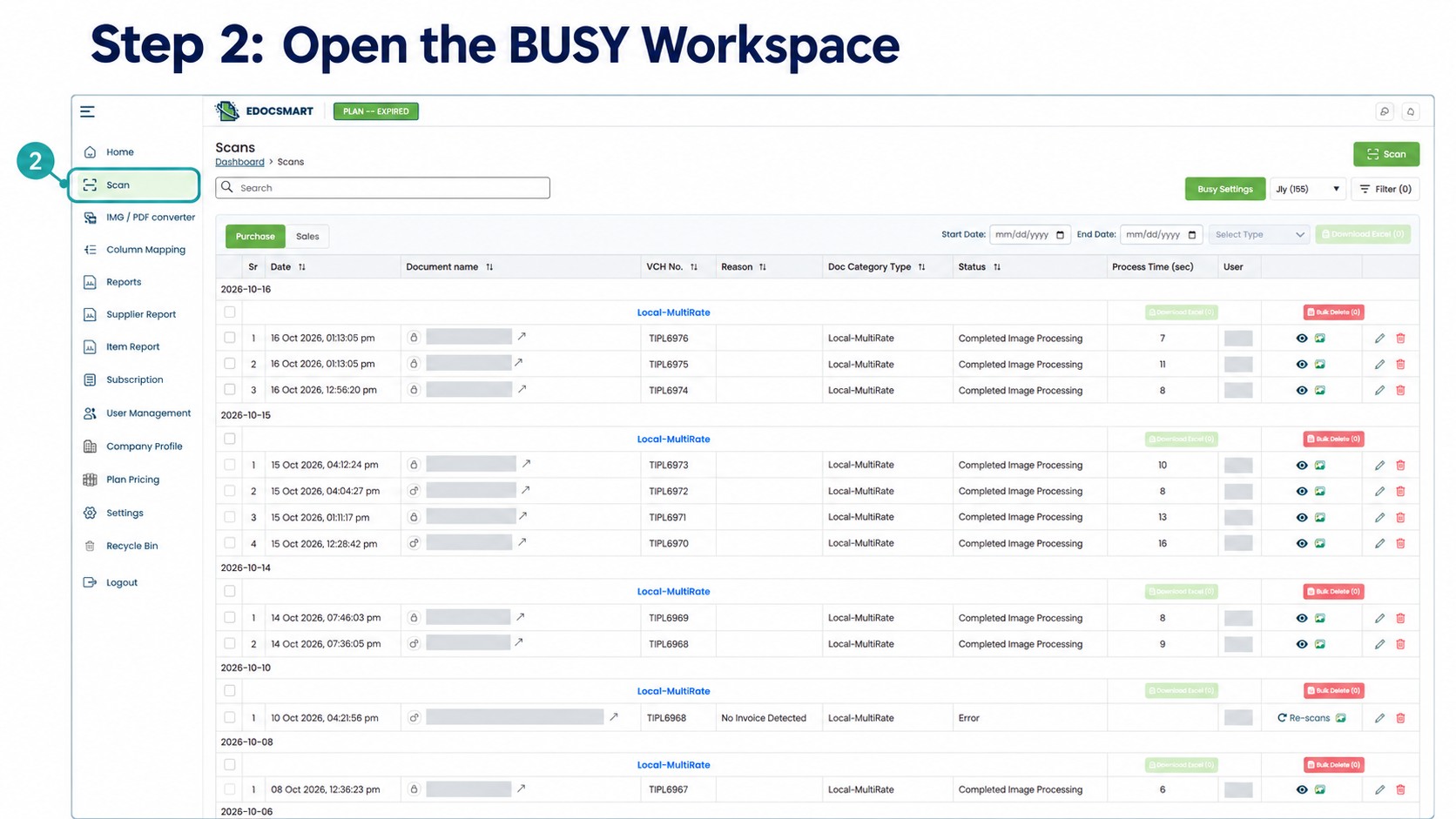
Step 3: Click Scan in the Dashboard
Inside the BUSY workspace, click the Scan button to begin a new upload.
The sidebar option takes you to the scanning workspace, while the Scan button inside the dashboard starts the document upload process.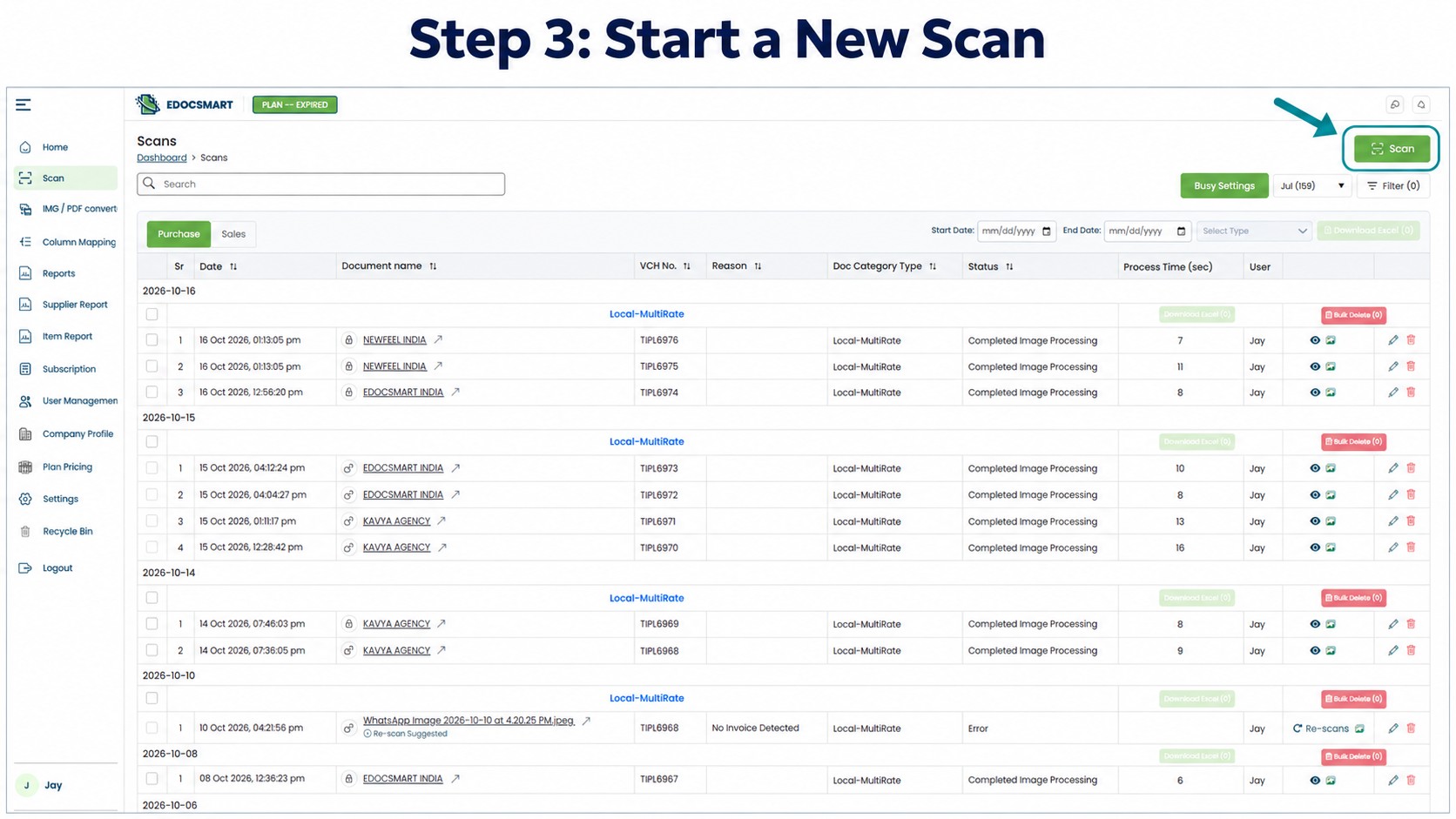
Step 4: Upload Your Invoice PDFs or Images
Upload the invoice PDFs you want to process. If your invoices are available as scanned documents or photographs, upload the supported image files as well.
Before submitting the batch:
- Check that each invoice is readable.
- Make sure all required pages are included.
- Remove duplicate files.
- Confirm that important invoice details are not cropped.
If an upload limit applies, divide your documents into smaller batches.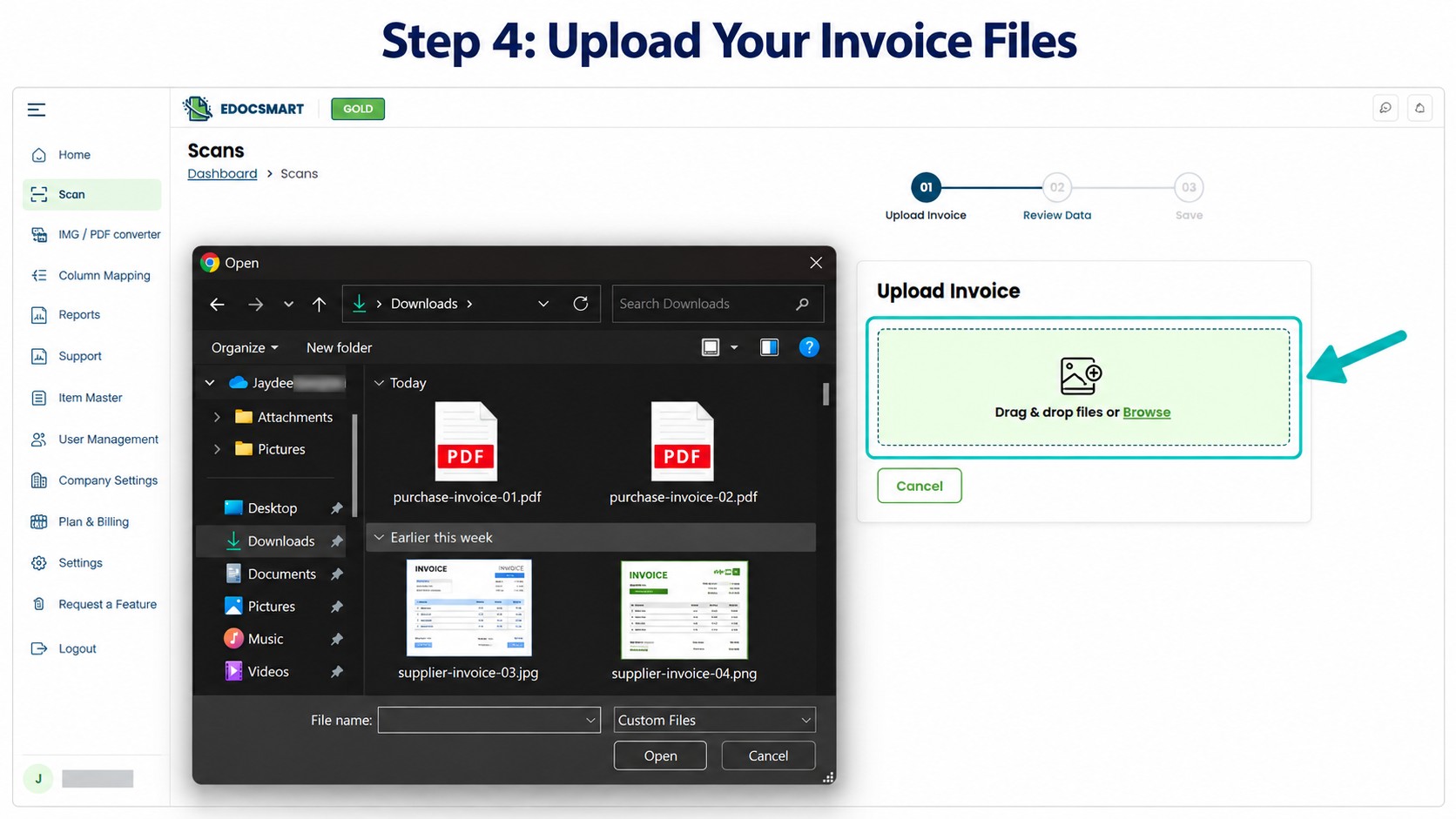
Step 5: Let Edocsmart Extract the Invoice Data
After you upload the documents, Edocsmart processes them and extracts the invoice information.
Open a processed invoice to view the details in structured fields and line-item rows. This allows you to inspect the information before preparing it for export.
The AI invoice to BUSY workflow helps turn document content into organised data that your team can review and use in the import process.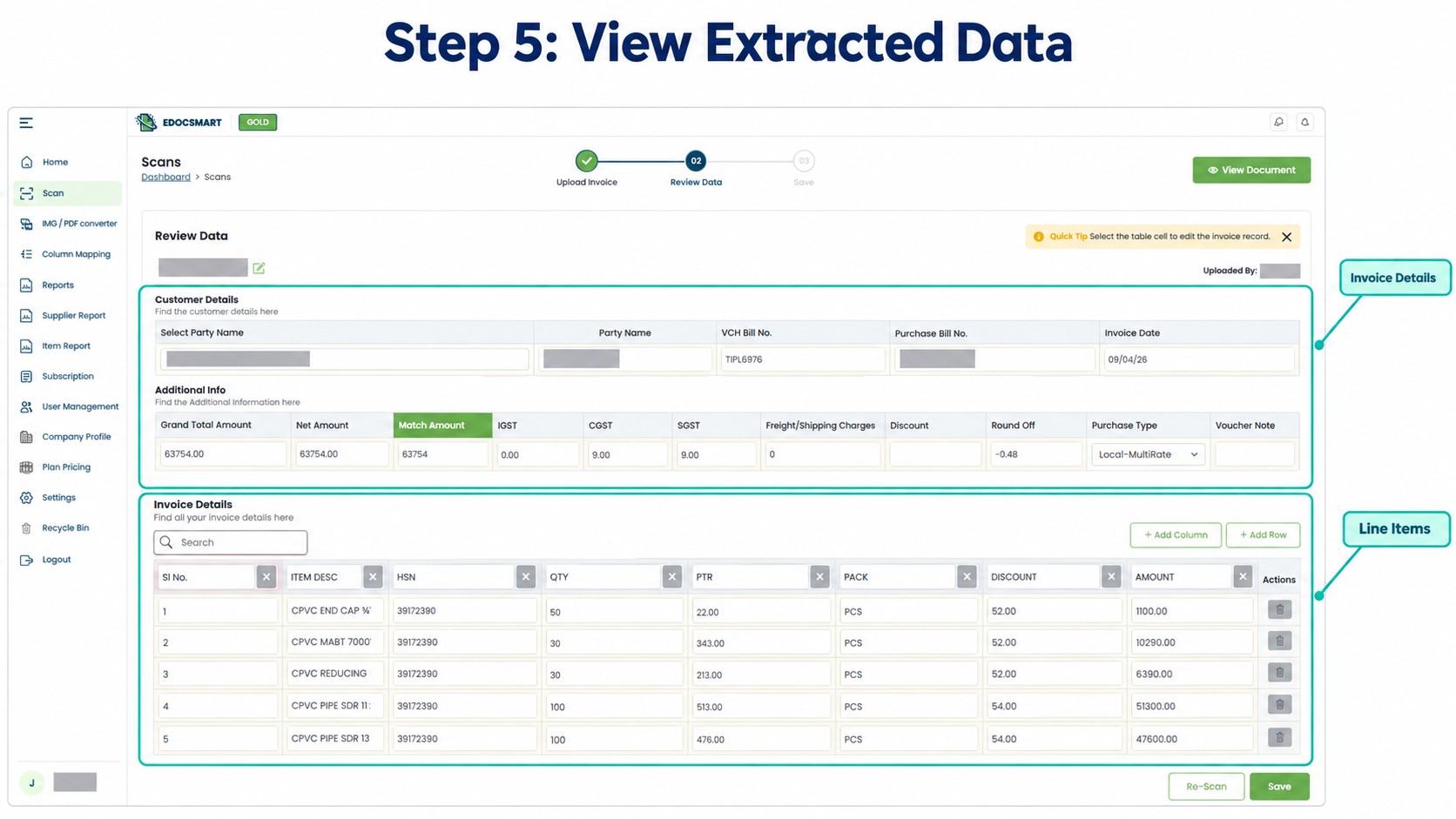
Step 6: Review the Extracted Details
Once the information appears, compare it with the original invoice.
Check whether any item description, quantity, rate, or amount has moved into the wrong row or column. Also review invoice numbers, dates, decimal points, tax amounts, and totals.
Edocsmart states an extraction accuracy figure of 95%. Results can vary with document quality and invoice layout, so reviewing the extracted information is still recommended.
For example, a faint scan may make a number difficult to read, or a complex item table may require a small correction. Reviewing the record before export helps you identify these issues early.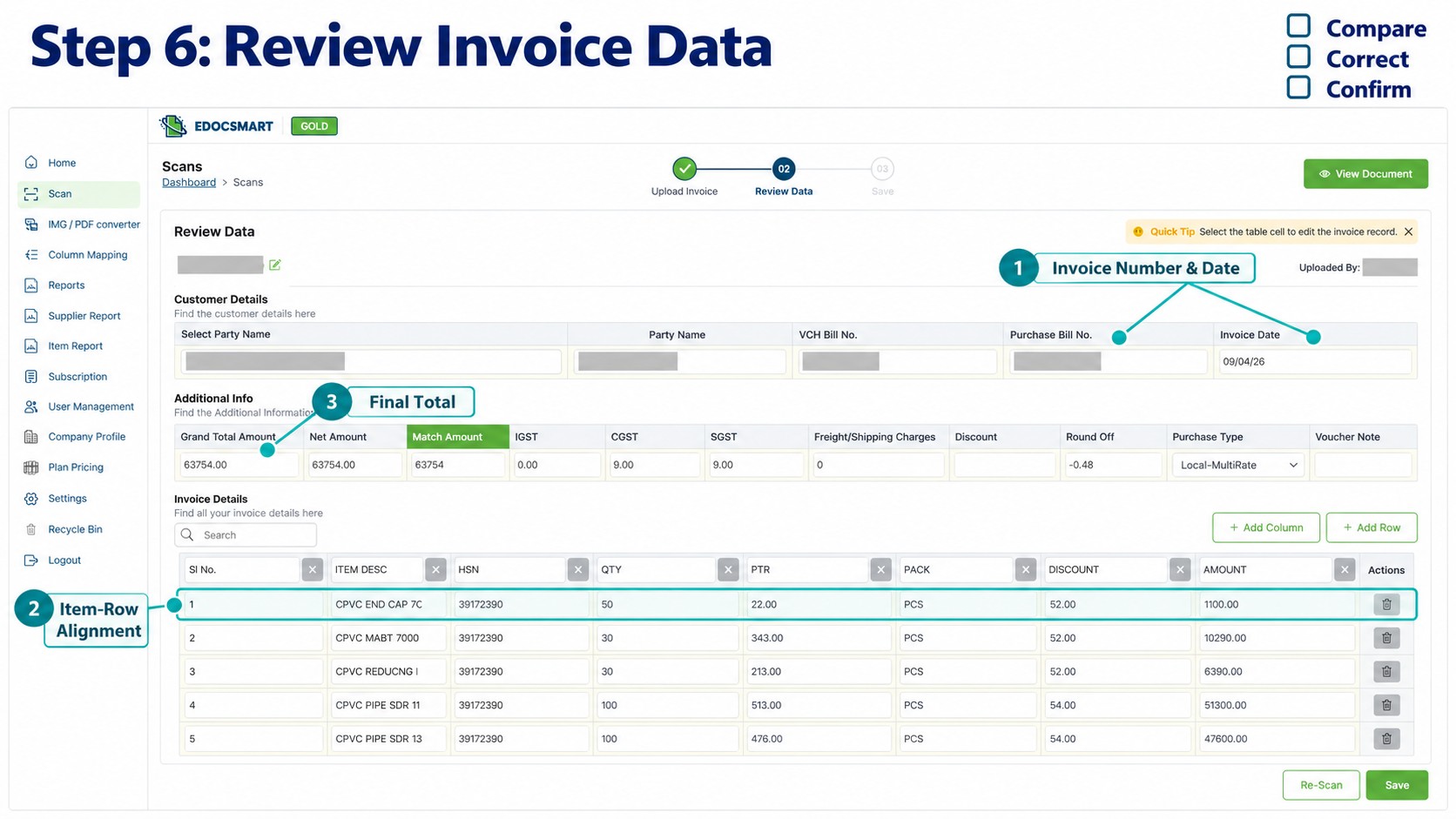
Step 7: Make Corrections, Add Missing Rows, and Save
If you find an incorrect value, edit it before continuing.
If an item line is missing, use the available add-row option to include the required information. Check the quantity, rate, tax, and amount for the added line against the original document.
After making changes:
- Confirm that each item appears in the correct row.
- Check the invoice totals again.
- Save the reviewed record.
- Repeat the process for the remaining invoices.
This review-and-save stage helps keep the export batch ready for the next step.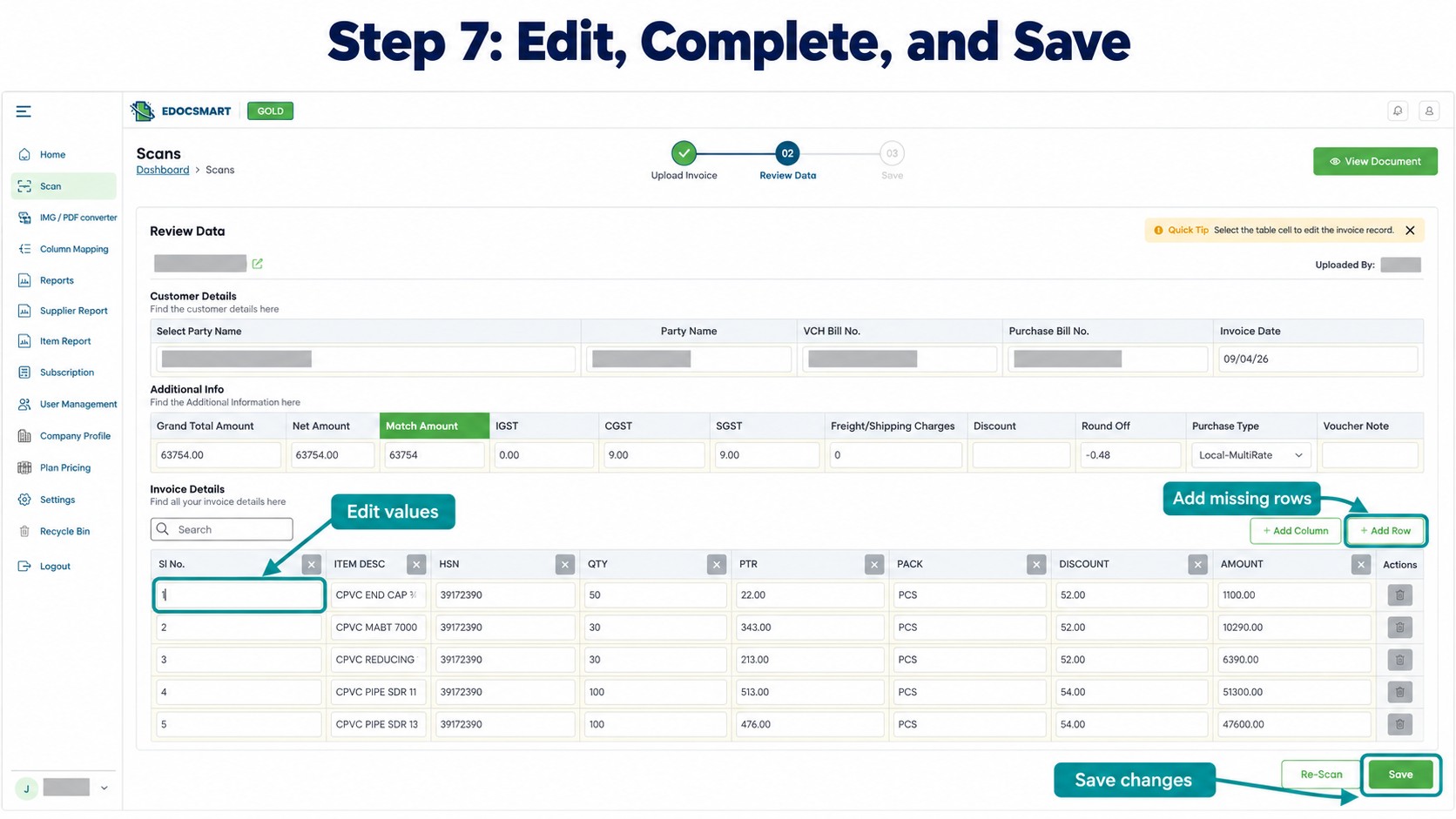
Step 8: Select the Reviewed Invoices and Download Excel
After reviewing and saving the invoices, return to the invoice list.
Select the invoices you want to export and click Download Excel. The selected records can then be downloaded in the configured layout for BUSY import.
In this workflow, Excel is the transfer file between Edocsmart and BUSY. Downloading the file does not itself create vouchers inside BUSY; that happens during the import stage.
Keep the spreadsheet structure consistent with your saved BUSY import format. If you change the columns or their arrangement, check the mapping before importing.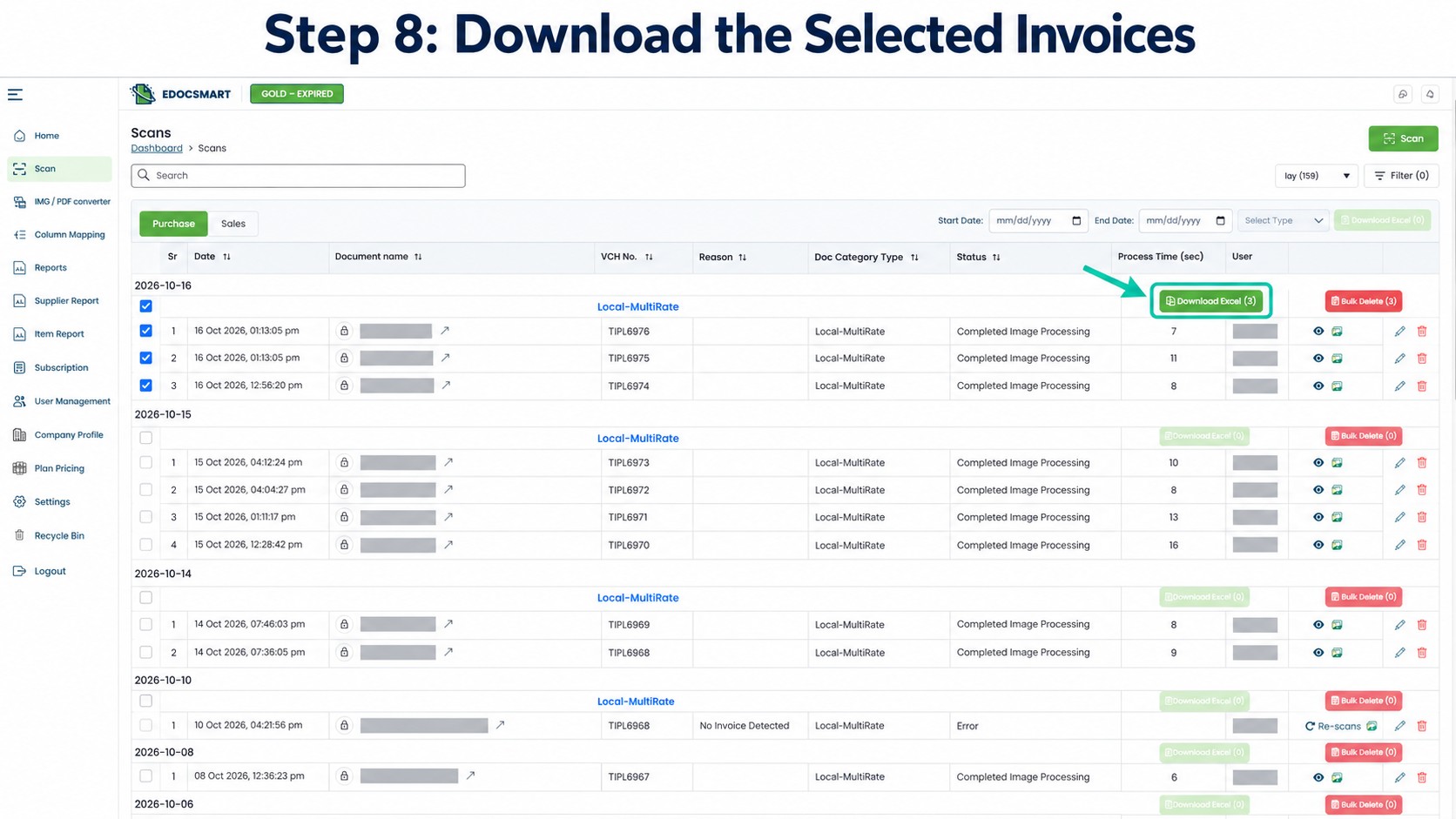
Step 9: Complete the Initial BUSY Setup and Import Excel
For the first batch in this workflow, set up the required supplier ledgers and item masters in BUSY.
Manually create one correctly entered purchase voucher as a reference for the initial setup. Use a genuine transaction and make sure it is not entered again when you import the batch.
Next, configure an Excel import format that matches the downloaded file.
In BUSY, the documented route is:
Administration → Data Export/Import → Import Vouchers from Excel
Select Purchase as the voucher type. Configure or choose the import format, then map the Excel columns to the corresponding voucher fields. Specify the file, worksheet, and starting and ending rows before running the import. Menu wording can vary by version. busy.in
Start with a small batch and check the resulting vouchers against the original invoices.
Once the setup works correctly, you can reuse the saved format for future batches that follow the same structure. You may need to update it when columns, masters, or transaction requirements change.
After importing, check:
- Supplier and ledger selection.
- Invoice references and dates.
- Item quantities and amounts.
- GST values and final totals.
- Any import errors or skipped records.
Remember that a single invoice can contain several item rows. The number of spreadsheet rows may therefore be different from the number of vouchers created.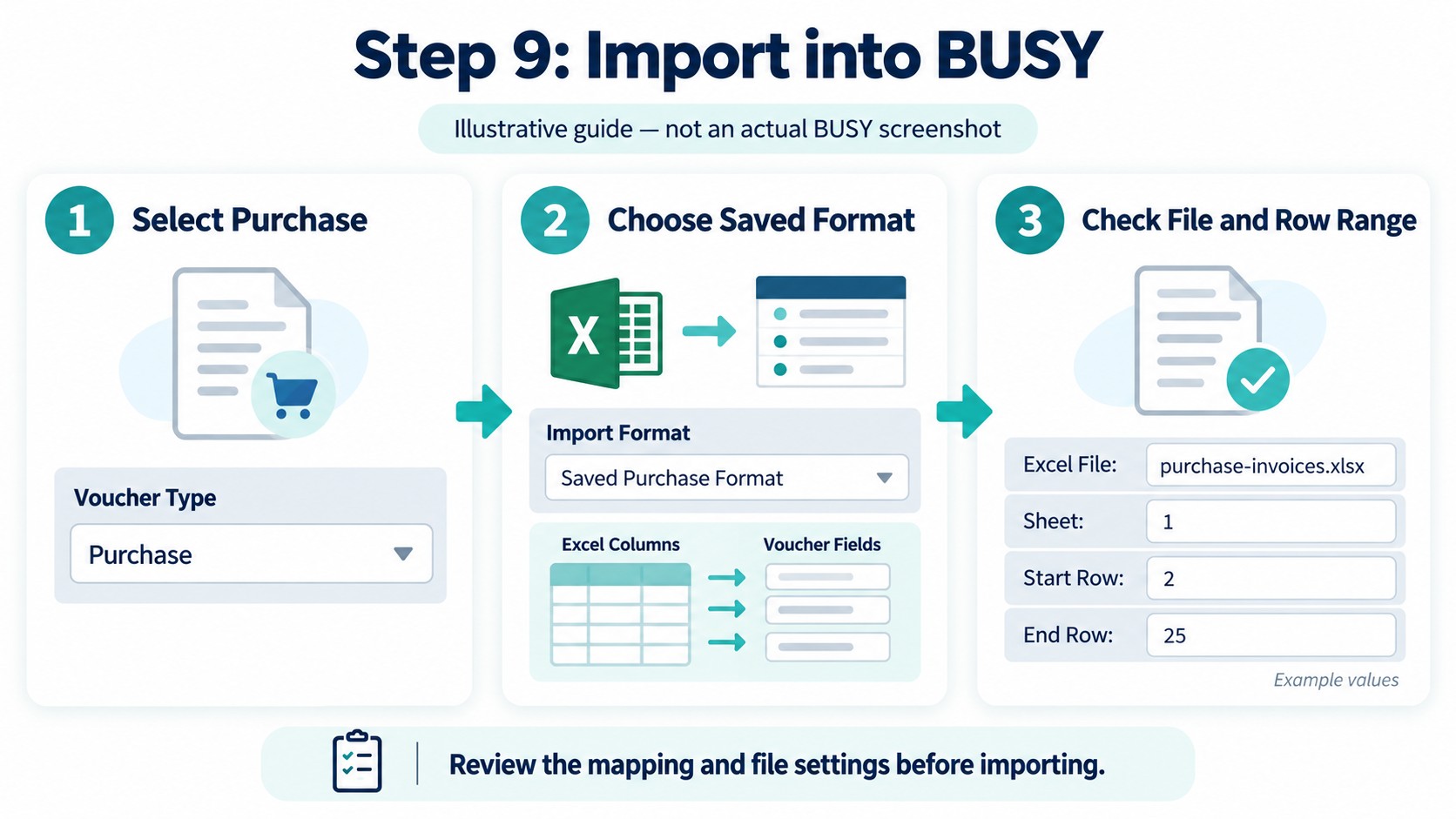
Benefits of Importing Multiple Invoices into BUSY
For teams looking to automate purchase entries in BUSY, the biggest advantage is reducing the amount of information that needs to be typed repeatedly.
| Benefit | How it helps |
|---|---|
| Less repeated typing | Extracted information provides a starting point for invoice preparation. |
| Organised review | Structured fields make invoice details easier to inspect. |
| Batch preparation | Reviewed invoices can be selected together for Excel export. |
| Reusable configuration | A saved import format supports future batches with the same structure. |
| Better use of staff time | The team can focus more on checking exceptions and accounting details. |
Automatic invoice entry in BUSY works best as a controlled process. Extraction reduces manual work, review catches mistakes, and a tested import format helps transfer the information into the correct fields.
The aim of automated invoice entry in BUSY is to make recurring purchase processing more manageable while maintaining accurate records.
Common Problems During Bulk Invoice Import
| Problem | What to check |
|---|---|
| Supplier or item does not match | Compare the exported name with the intended BUSY master and mapping. |
| Amounts appear in incorrect fields | Recheck the Excel columns against the saved import format. |
| Some invoices are missing | Check the selected worksheet, row range, and import messages. |
| Item rows are grouped incorrectly | Review how the configured format identifies separate vouchers. |
| Invoice totals do not match | Compare quantities, rates, taxes, discounts, charges, and rounding. |
| An invoice appears twice | Check previous imports and any manually entered reference voucher. |
Before retrying a batch, check which records were successfully created. Reimporting the entire file without checking can lead to duplicate entries.
Related Topic: Proforma Invoice in BUSY Software
A proforma invoice in BUSY serves a different purpose from a final purchase invoice. It communicates proposed transaction details before the final invoice is issued.
If you are working with a proforma invoice in BUSY software, keep it separate from the final purchase-invoice batch. Confirm the document type before deciding how it should be recorded. busy.in
This distinction helps prevent an advance estimate and its later final invoice from being treated as the same accounting document.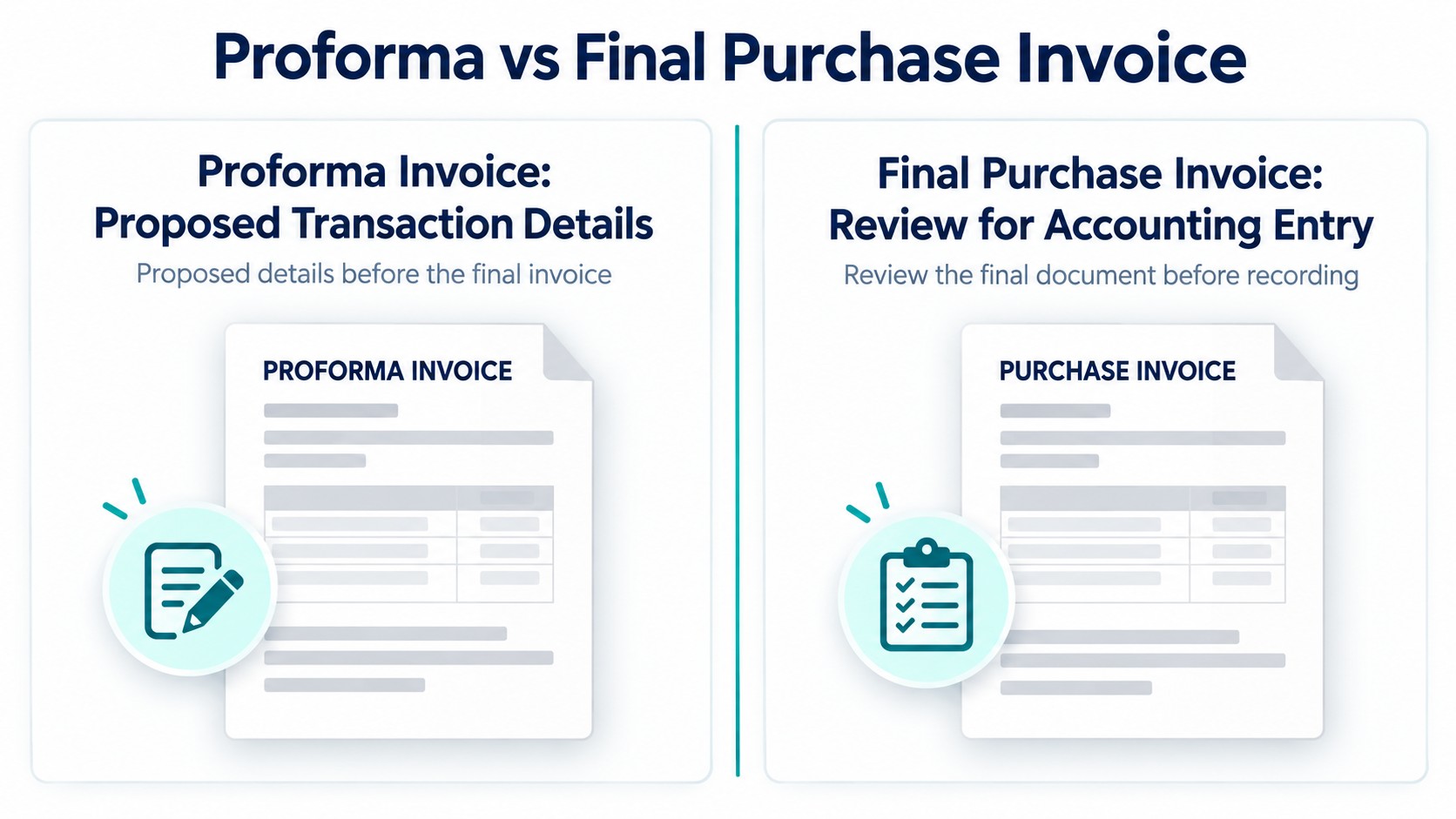
Related Reading for Businesses Using Tally
Businesses using multiple accounting systems may also be interested in automatic invoice entry in Tally Prime and automatic purchase entry in Tally.
The output format and setup should be checked for the accounting software being used. Read the invoice-to-Tally guide for that separate workflow.
If you are comparing the two platforms, explore Tally Prime vs BUSY ERP.
Frequently Asked Questions
1. How to import multiple invoices into BUSY?
Prepare reviewed invoice data in Excel and import it using BUSY’s purchase voucher import facility. Use the correct format and check the resulting vouchers against the original invoices.
2. How to prepare invoice PDFs for BUSY import?
Extract the invoice information into structured fields, review it against the original PDFs, correct any errors, and prepare an Excel file that matches the intended import format.
3. How to map Excel columns for purchase vouchers in BUSY?
Open the purchase voucher import configuration and connect the required voucher fields with their corresponding Excel columns. Save the format for future batches using the same structure.
4. How to avoid duplicate invoices during bulk import?
Compare supplier names, invoice numbers, and dates with existing entries before importing. Check which records succeeded before retrying a partially completed batch.
5. How to check invoices after importing them into BUSY?
Compare the imported vouchers with the original documents. Review supplier details, invoice references, item quantities, taxes, and totals. Check invoice counts separately from item-row counts.
6. Can the same Excel import format be used again?
Yes, when the spreadsheet structure and accounting requirements remain consistent. Review the configuration when columns, masters, or transaction requirements change.
7. Is reviewing AI-extracted invoice data necessary?
Yes. Faint text, unclear photographs, and complex tables can cause extraction mistakes. Review important fields and item-row alignment before importing.
8. Is a proforma invoice the same as a final purchase invoice?
No. A proforma communicates proposed details before the final invoice. Confirm the document’s purpose before including it in a purchase-entry batch.
Conclusion
Importing multiple invoices into BUSY becomes easier when you follow a consistent process: upload the documents, review and save the extracted information, download Excel, and import it through a tested BUSY format.
Edocsmart helps reduce repetitive invoice typing while allowing your team to check the information before it reaches the accounts. Once the initial ledgers and import format are ready, future batches can follow the same process with less repeated setup.
Explore Edocsmart’s invoice-to-BUSY solution to simplify your purchase-invoice processing.