How to Import Multiple Invoices into Tally
Import multiple invoices into Tally by using existing Excel data, creating invoice-wise documents, reviewing the entries, and bulk syncing verified transactions through Edocsmart.
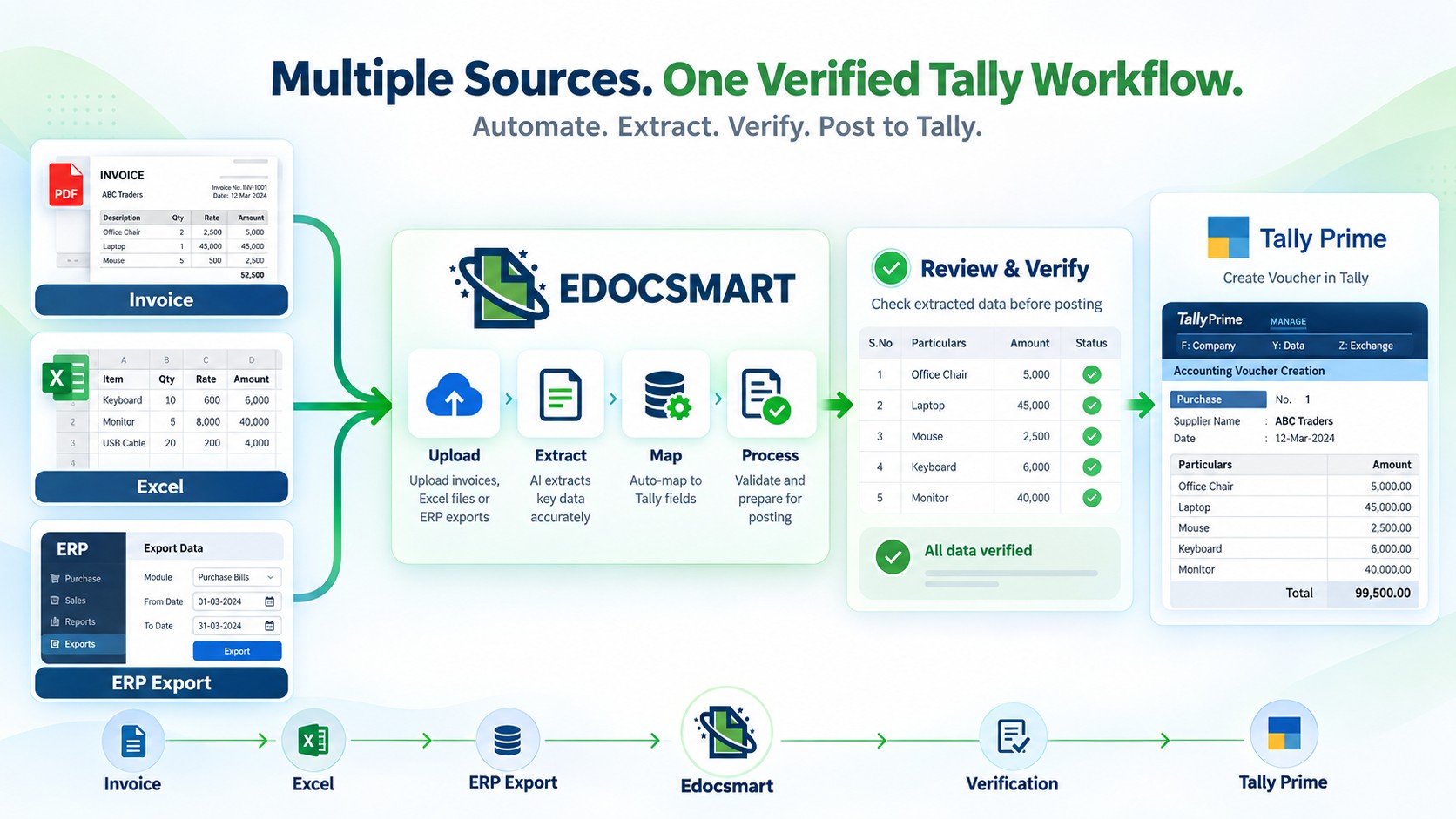
Entering invoices into Tally one at a time can become difficult when you are dealing with a large number of transactions.
For example, an accounting team may receive an Excel file containing hundreds of purchase invoices or sales transactions. The data is already available digitally, but the team still needs to create the corresponding entries in Tally.
Creating every invoice individually means opening Tally, creating a voucher, entering the invoice details, checking the GST values, and repeating the same process for every transaction.
If you have 10 invoices, this may be manageable.
But what happens when you have 200, 500, or even more invoices?
This is where a bulk Excel-to-Tally workflow can make the process much more efficient.
Instead of creating every invoice manually, businesses can use their existing Excel data, map it to the required fields, process multiple invoices together, verify the generated documents, and synchronize them to Tally.
Can You Import Multiple Invoices into Tally?
Yes, businesses can use structured data and an Excel-to-Tally workflow to process multiple invoices instead of creating every voucher manually.
The basic workflow looks like this:
Excel
File → One-Time Mapping → Upload → Invoice-wise Documents → Verification → Bulk
Sync to Tally
The exact
fields can vary depending on the organization's accounting requirements.
For example, a purchase workflow may involve:
- Invoice number
- Invoice date
- Supplier
- Taxable value
- CGST
- SGST
- IGST
- Other accounting information
Similarly, a sales workflow may contain customer details, sales values, GST information, stock information, and other required fields.
The important part is that the data already available in Excel can be converted into a structured workflow for Tally.
For businesses handling recurring invoice data in spreadsheets, the Excel to Tally workflow provides a practical path from mapped Excel records to reviewed Tally entries.
Why Import Multiple Invoices Instead of Entering Them One by One?
The main advantage of bulk invoice processing is simple: you do not have to recreate every transaction manually.
Consider an Excel file containing 300 invoices.
With manual entry, the accounting team may have to process:
Invoice 1
→ Tally
Invoice 2 → Tally
Invoice 3 → Tally
...
Invoice 300 → Tally
Every invoice requires repetitive actions.
With an Excel-to-Tally workflow, the same process can be handled through:
300
Invoice Records → One Excel Upload → Process → Verify → Bulk Sync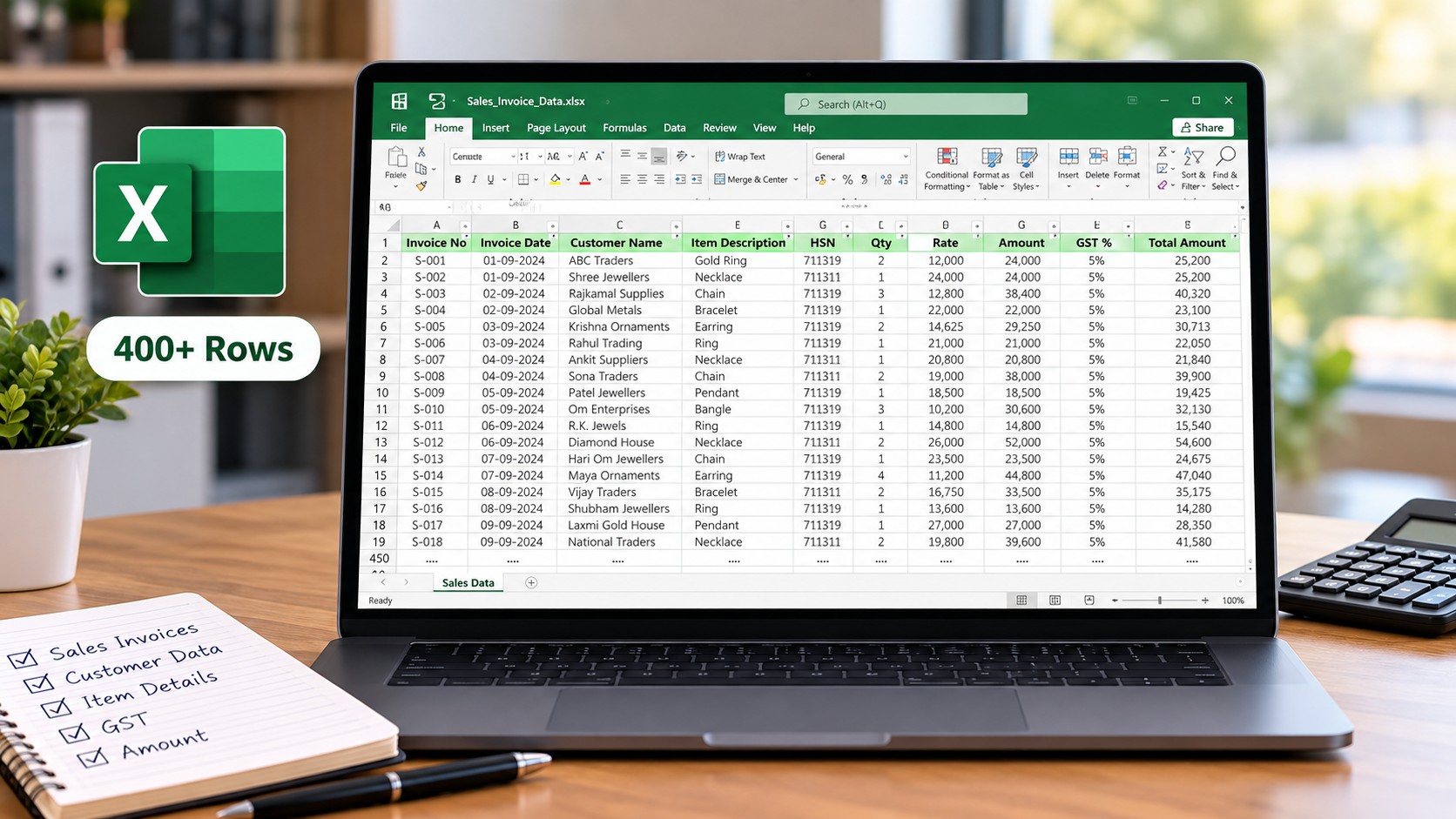 This
becomes particularly useful for accounting firms, businesses with high
transaction volumes, and organizations that already maintain their accounting
information in Excel or another ERP.
This
becomes particularly useful for accounting firms, businesses with high
transaction volumes, and organizations that already maintain their accounting
information in Excel or another ERP.
For larger datasets, bulk invoice import tally, bulk excel to tally, bulk voucher import tally and bulk excel upload to tally workflows reduce the need to create invoices one by one.
How Excel to Tally Invoice Import Workflow
The Excel-to-Tally process can be divided into a few straightforward steps.
Step 1: Prepare Your Invoice Data in Excel
The first step is to have the invoice information available in an Excel file.
Many businesses already maintain their purchase and sales information in Excel as part of their existing accounting workflow.
An Excel file may contain information such as:
- Invoice number
- Invoice date
- Party name
- Taxable amount
- CGST
- SGST
- IGST
- Ledger-related information
- Other required transaction details
Businesses using another ERP may also export their sales or purchase data into Excel and use that file for the Tally workflow.
This means there is no need to manually recreate all the transactions in another format before processing them.
Step 2: Map the Excel Format
Different businesses maintain their Excel files differently.
One organization may have a column called Invoice No., another may use Invoice Number, while another may have a completely customized Excel structure.
This is where Excel mapping becomes important.
In Edocsmart, the Excel structure can be mapped to the required fields through a one-time mapping process.
For example:
|
Excel Column |
Corresponding Field |
|
Invoice No. |
Invoice Number |
|
Invoice Date |
Voucher Date |
|
Supplier |
Party |
|
Taxable Value |
Taxable Amount |
|
CGST |
CGST |
|
SGST |
SGST |
Once the mapping has been configured for a particular Excel format, it can be reused for subsequent files following the same structure.
This means the accounting team does not have to configure the same Excel mapping every time they upload a new file.
Reusable mapping supports Excel Invoice to Tally, excel to tally import software and automated excel import tally processing for repeated file structures.
Step 3: Upload the Excel File
Once the required mapping has been configured, the Excel file can be uploaded to Edocsmart.
This can be particularly useful when a single Excel file contains a large number of invoice records.
For example, instead of uploading and processing 200 invoices individually, the accounting team can upload the Excel file containing those transactions.
Edocsmart processes the information according to the configured mapping.
The data is then prepared for invoice-wise processing.
Step 4: Create Individual Documents from Multiple Invoice Records
A major part of the workflow is separating the transactions into individual documents.
Suppose an Excel file contains:
|
Invoice Number |
Taxable Value |
CGST |
SGST |
|
INV-001 |
₹10,000 |
₹900 |
₹900 |
|
INV-002 |
₹15,000 |
₹1,350 |
₹1,350 |
|
INV-003 |
₹8,000 |
₹720 |
₹720 |
Instead of treating the entire Excel file as one transaction, Edocsmart can identify the invoice numbers and create separate documents.
The result becomes:
INV-001 →
Document 1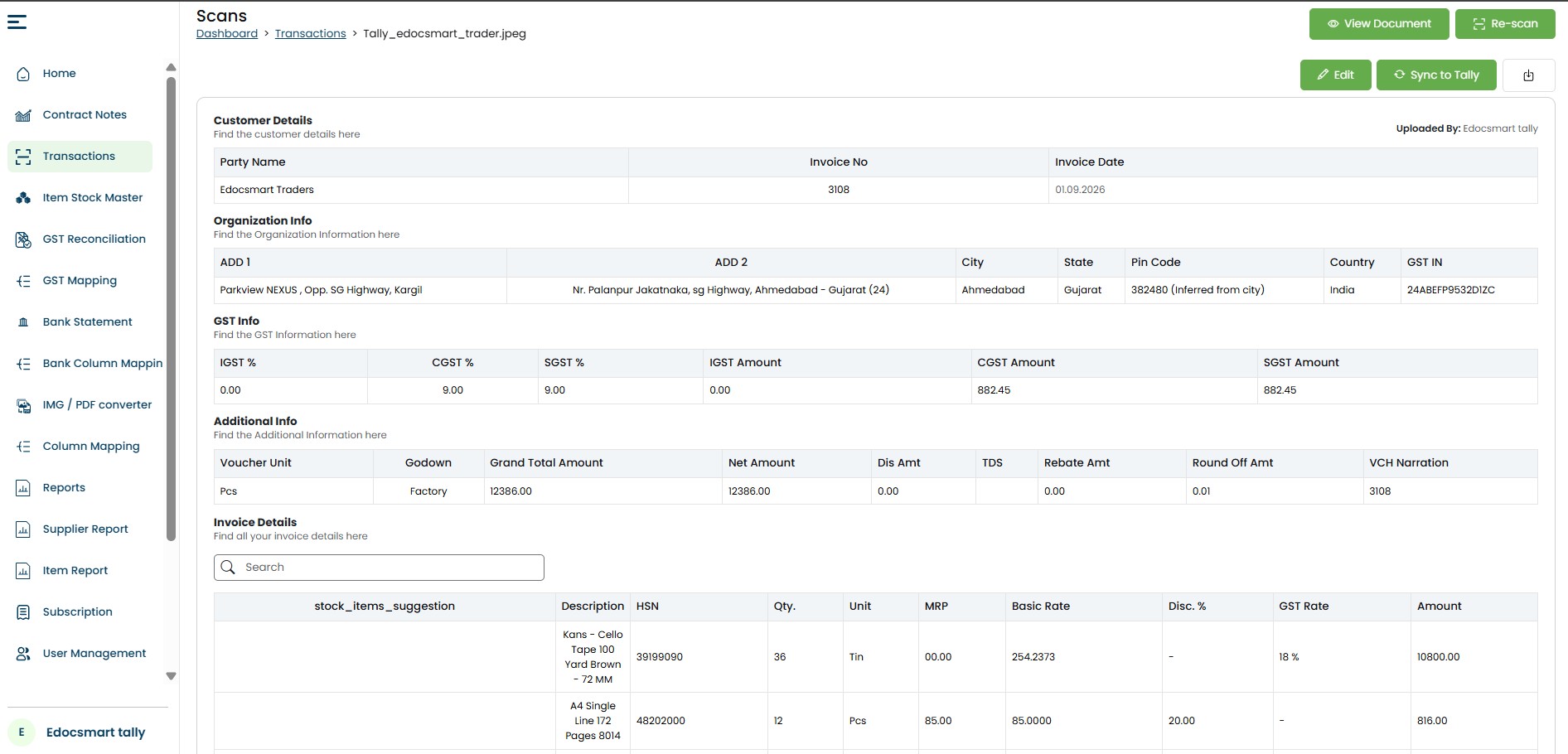 INV-002 →
Document 2
INV-002 →
Document 2
INV-003 → Document 3
And the same process can continue for hundreds of invoice records.
This makes it easier for the accounting team to review and process individual invoices even though they were uploaded together through a single Excel workflow.
Step 5: Review the Generated Invoice Data
Bulk processing does not mean that every transaction has to be sent to Tally without review.
After the documents are generated, the accounting team can review the processed information.
Depending on the workflow, they can verify important information such as:
- Invoice number
- Invoice date
- Party details
- Taxable value
- CGST
- SGST
- IGST
- Stock-related information
- Other mapped fields
This provides an opportunity to identify and correct issues before the data is synchronized to Tally.
The review stage is especially useful for Excel Purchase Entry to Tally and Excel Sales Entry to Tally because users can verify GST, party, ledger, stock and amount information before sync.
The workflow therefore remains:
Upload →
Process → Verify → Sync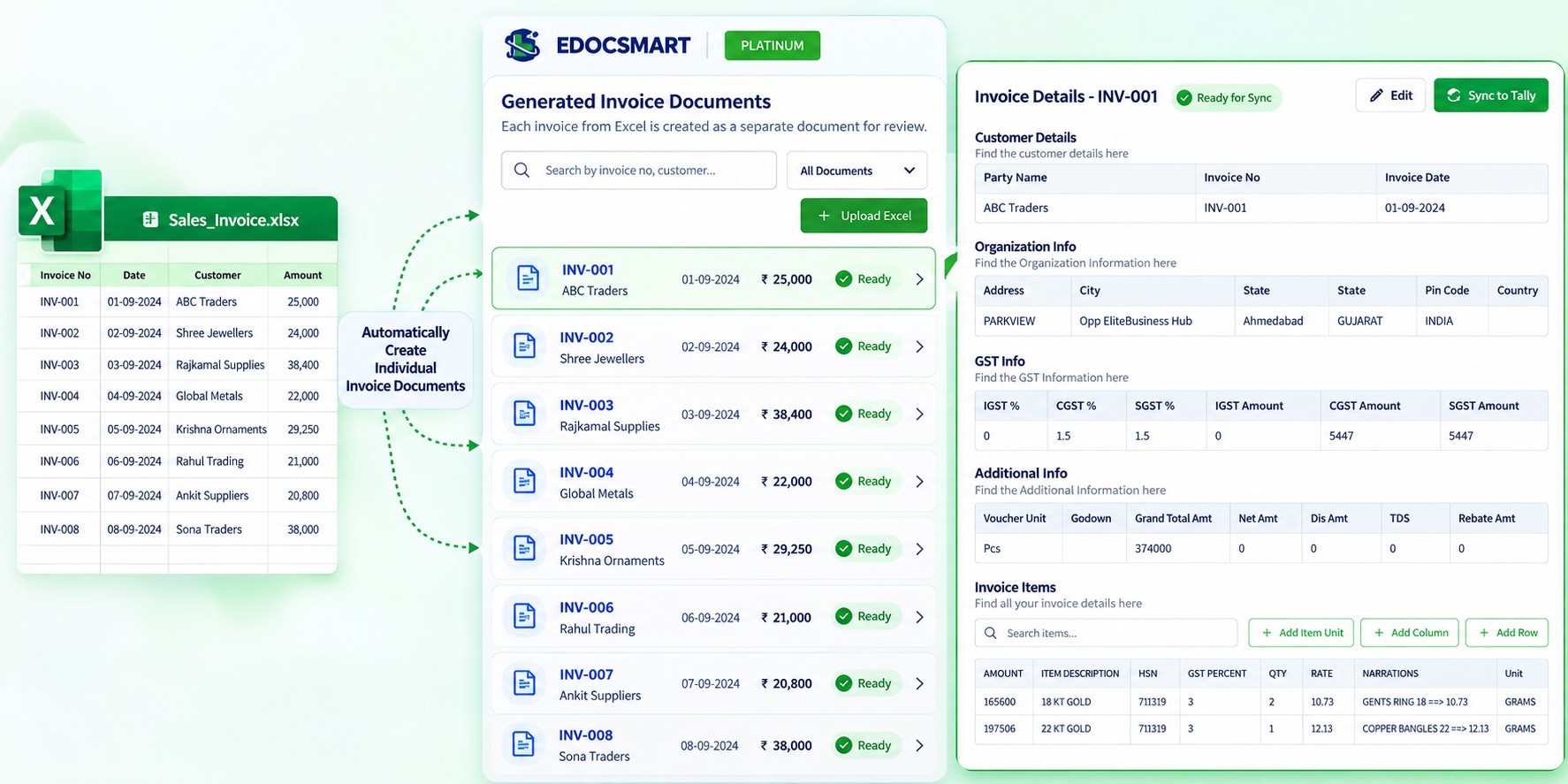 rather
than directly pushing unverified data into Tally.
rather
than directly pushing unverified data into Tally.
Step 6: Select Multiple Invoices and Sync Them to Tally
Once the invoices have been reviewed, the accounting team can select the documents that need to be synchronized.
There is no requirement to process every invoice individually.
For example, if 100 invoices have been generated, the user can select the required invoices and synchronize them together.
The workflow becomes:
Select
Documents → Sync to Tally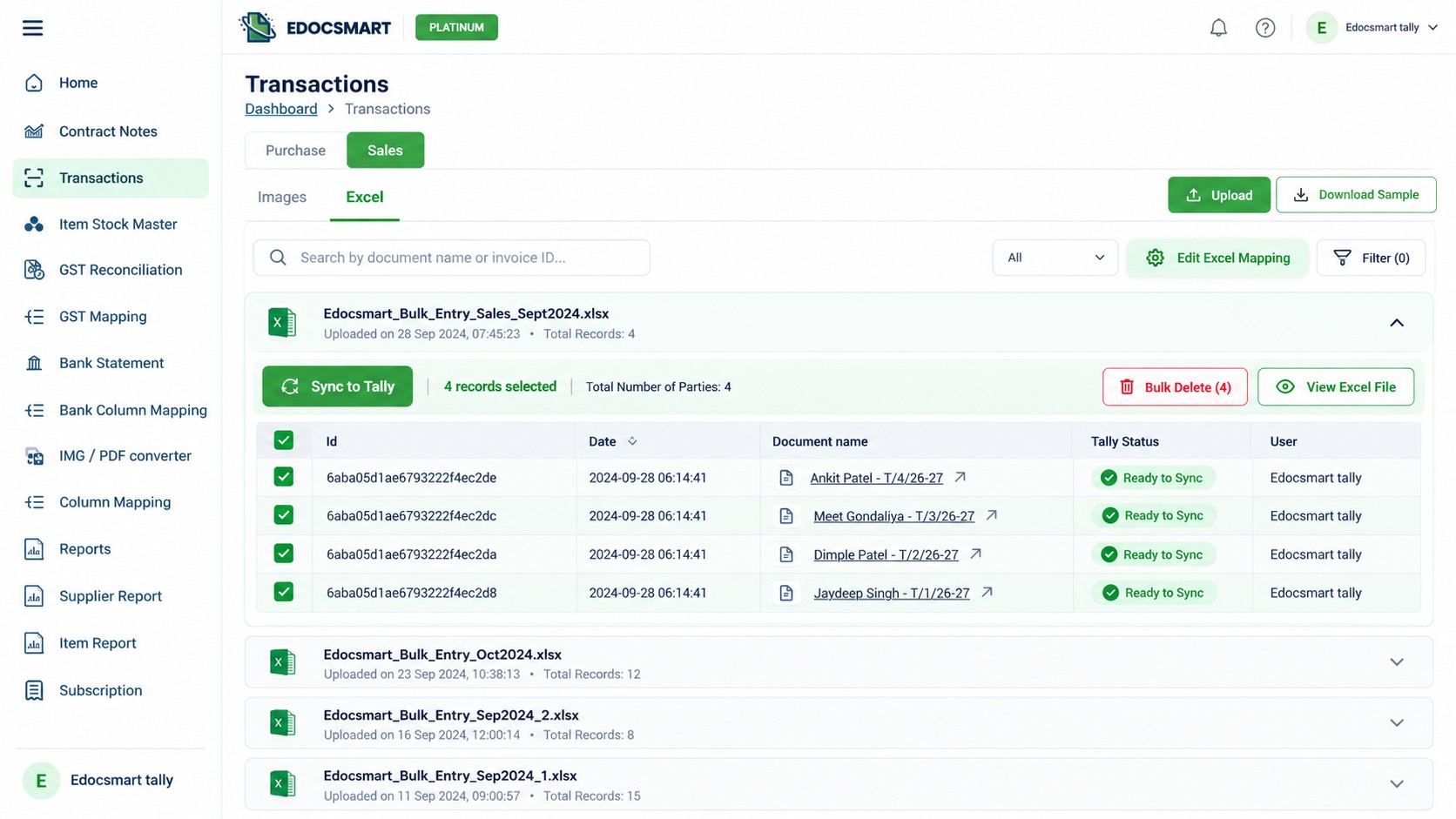 This is
particularly useful when a large number of invoices need to be processed in a
short period.
This is
particularly useful when a large number of invoices need to be processed in a
short period.
Instead of opening Tally and creating 100 individual vouchers, the accounting team can process the invoices through Edocsmart and synchronize the selected documents to Tally.
Importing Multiple Purchase Invoices from Excel
One of the common applications of this workflow is purchase invoice processing.
Consider an accounting firm that receives purchase data from its clients in Excel.
The Excel file may contain hundreds of rows and multiple sheets.
The accounting team needs only a specific set of information for the required accounting entries, such as taxable value, CGST, and SGST.
Previously, the team may have had to manually enter the information into Tally.
With an Excel-to-Tally workflow, the process can instead be:
Client
Excel → One-Time Mapping → Upload Excel → Invoice-wise Documents → Verify →
Bulk Sync to Tally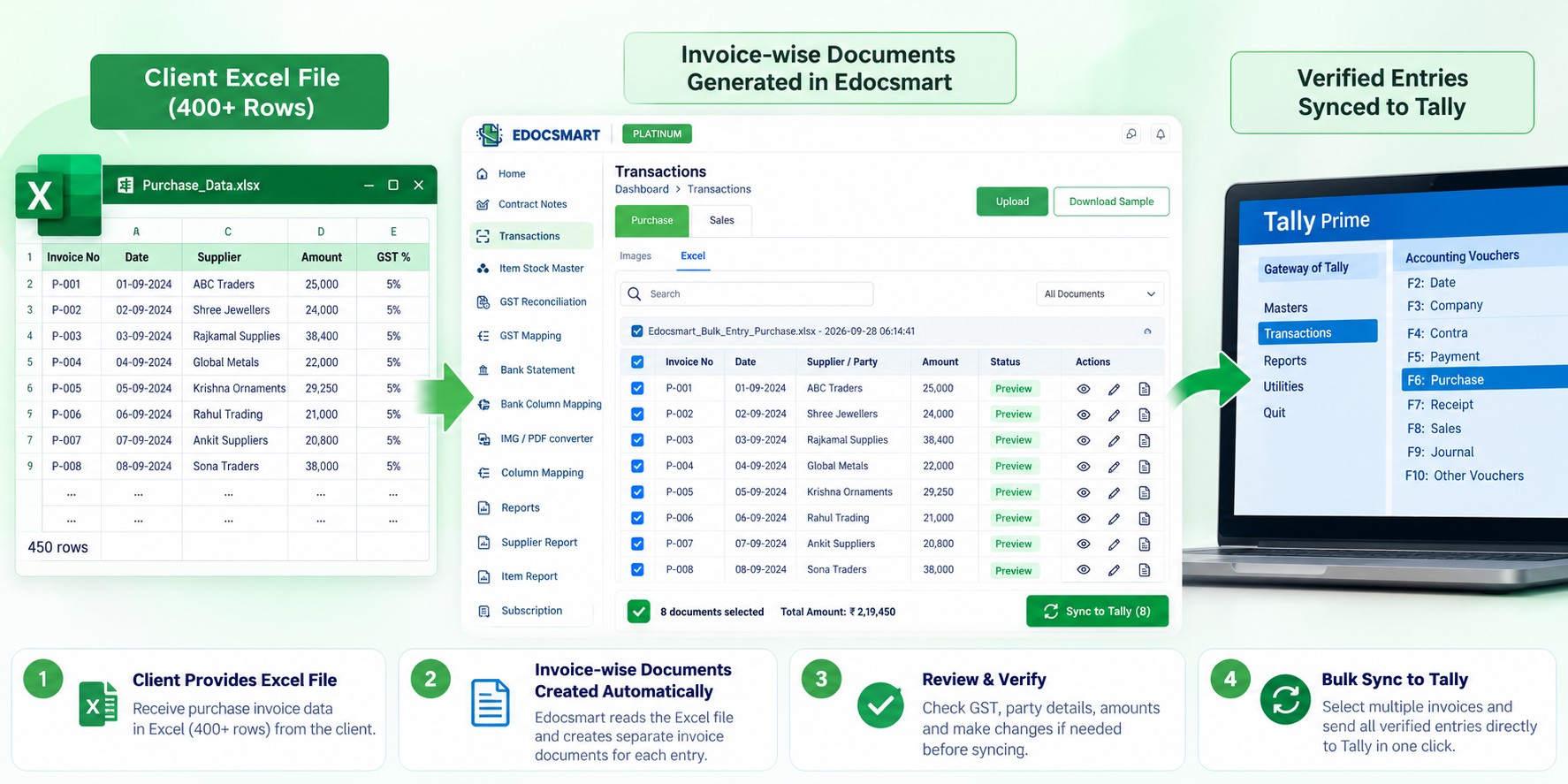 This
allows a large number of purchase transactions to be processed together.
This
allows a large number of purchase transactions to be processed together.
A Real-World Example
One of our clients is a large accounting firm based in Ahmedabad, Gujarat, which handles accounting operations for multiple companies.
Their clients were already providing accounting information in Excel.
Some files contained approximately 400–500 rows across multiple sheets.
The accounting team had to manually take that information and create the corresponding entries in Tally.
For a single large Excel file, this process could consume almost an entire working day.
After their workflow was configured in Edocsmart, the Excel format was mapped once.
The team could then upload subsequent Excel files using the configured workflow.
Edocsmart processed the data and created separate documents based on the invoice numbers.
The accounting team could then select the required documents and synchronize them to Tally individually or in bulk.
The workflow that previously took most of the day could be completed in approximately 10 minutes, depending on the file and processing requirements.
The important point is that the accounting firm did not have to completely change its existing Excel-based workflow.
Instead, the existing Excel data became the input for an automated Tally workflow.
Importing Multiple Sales Invoices from Excel
- The same approach can also be used for sales invoices.
- Many businesses maintain their sales transactions in another ERP or business application.
- They may already have all the required sales information in their system, but still need to maintain the corresponding accounting entries in Tally.
- Without automation, this can result in duplicate data entry:
Existing ERP → Manual Entry → Tally
The same sales transaction is effectively entered twice.
With an Excel-to-Tally workflow, the process can instead be:
Existing
ERP → Export Sales Excel → Upload to Edocsmart → Documents Created → Verify →
Bulk Sync to Tally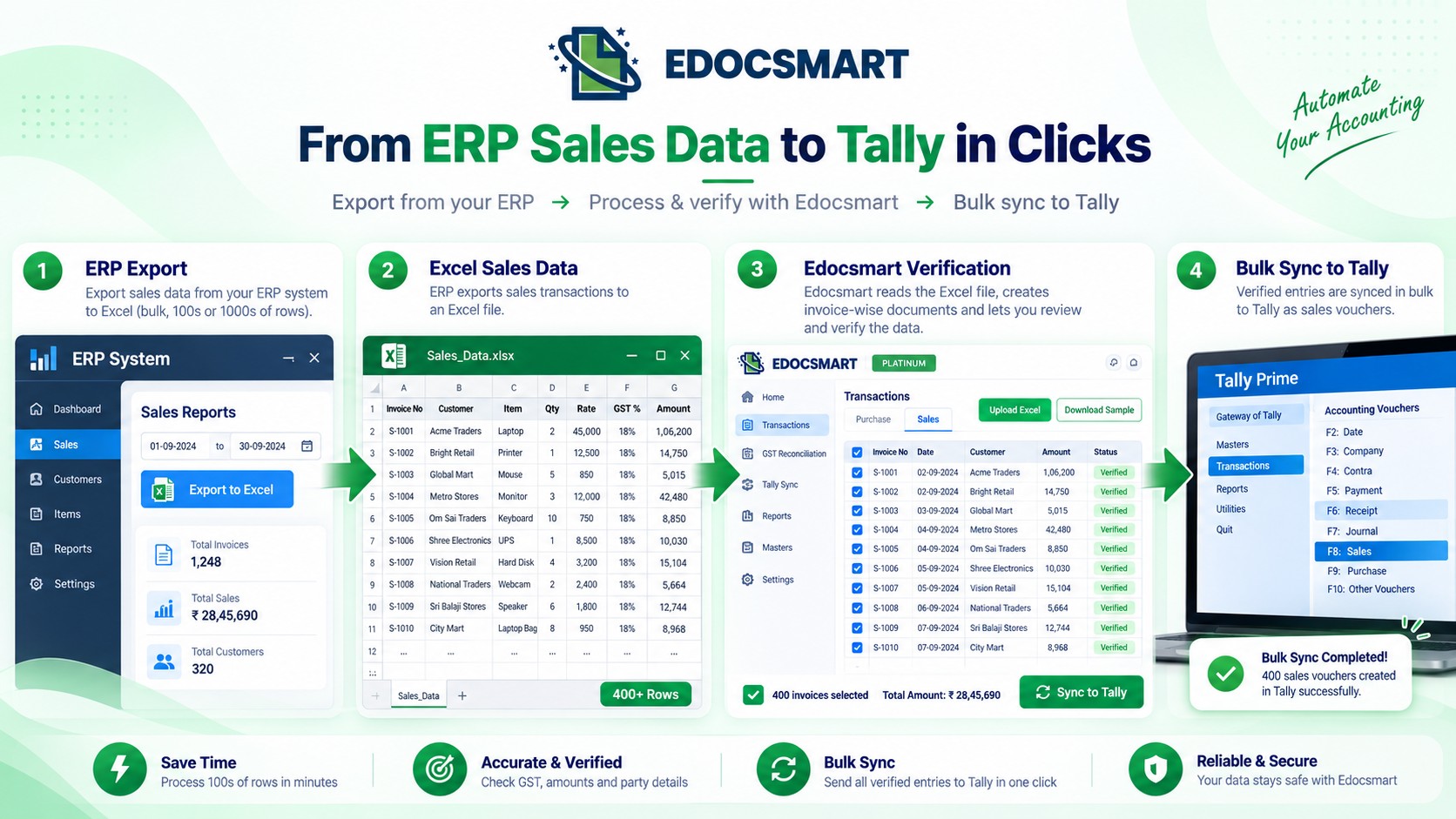 This
allows businesses to continue using their existing ERP while using the exported
Excel data to prepare Tally entries.
This
allows businesses to continue using their existing ERP while using the exported
Excel data to prepare Tally entries.
This creates a practical excel integration with tally workflow and can act as software to import excel data into tally for data already generated in another system.
A Jewellery Business Example
- A practical example comes from one of our customers in the jewellery industry, with large branches in Ahmedabad and Vadodara.
- The business uses another ERP for managing its sales transactions.
- However, the same sales information also needs to be maintained in Tally.
- Manually entering every sales transaction into Tally created a repetitive workflow.
- The solution was to use the sales Excel exported from their existing ERP.
- The business could upload the complete Excel file into Edocsmart.
- Edocsmart processed the data and created separate documents based on the invoice numbers.
- The accounting team could then select multiple documents and synchronize them to Tally together.
- This removed the need to recreate each sales transaction manually in Tally.
Handling Stock Groups While Importing Sales Data
Some industries have additional requirements when importing sales transactions.
For example, jewellery businesses may organize their inventory using stock groups based on characteristics such as carat.
Consider two products:
- 18-carat gold ring
- 18-carat gold earring
The business may want the Tally stock structure to use 18 Carat as the stock group, while the actual product names are maintained in the stock narration.
In such a workflow, simply importing the sales values is not enough.
The stock information also needs to follow the organization's accounting structure.
Stock Group Mapping
Edocsmart provides a stock-group mapping workflow for such requirements.
The business can provide the relevant stock names along with their corresponding stock groups.
For example:
Gold Ring
→ 18 Carat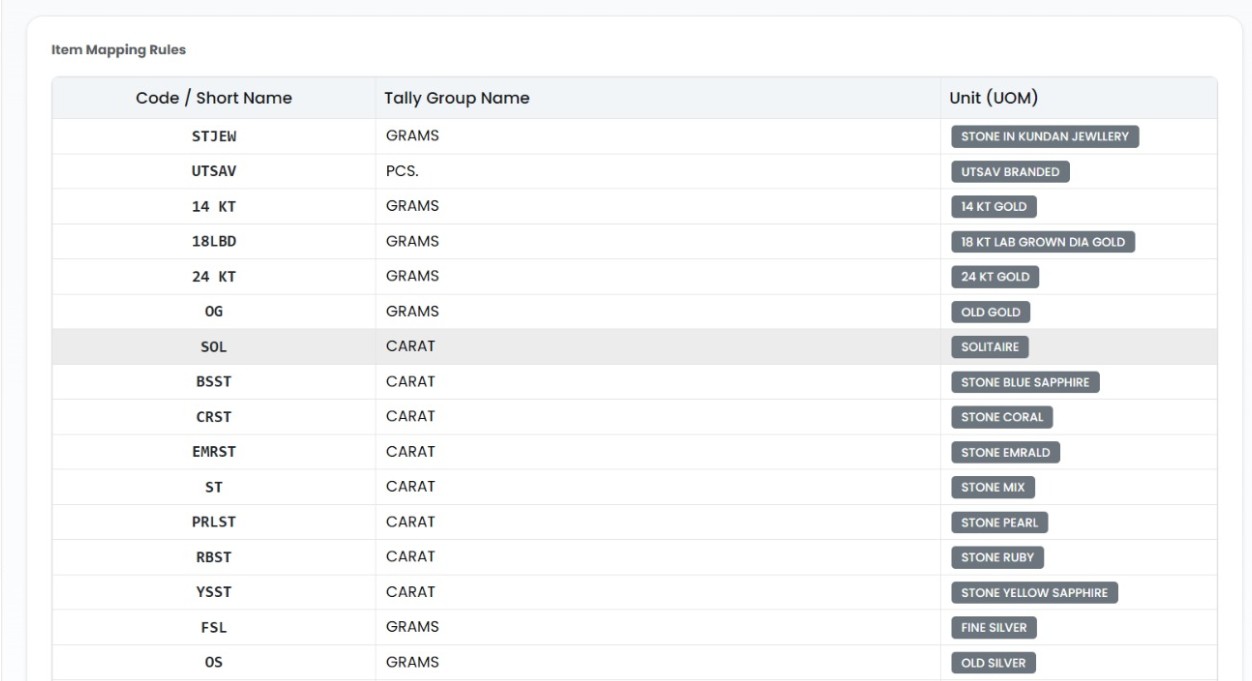 Gold
Earring → 18 Carat
Gold
Earring → 18 Carat
Once this stock mapping has been configured according to the organization's requirements, the same mapping can be used when processing future sales Excel files.
The business can then export its sales data from the existing ERP, upload the Excel file to Edocsmart, and process the transactions according to the configured stock structure.
This makes the Excel-to-Tally workflow more suitable for businesses with industry-specific inventory requirements.
Can Different Excel Formats Be Used?
Businesses do not always maintain their Excel files in exactly the same format.
The column names, arrangement, number of sheets, and information maintained in the file can vary between organizations.
This is why a mapping-based workflow is useful.
Edocsmart can be configured for different Excel workflows, including:
- Purchase Excel
- Sales Excel
- Bank statement Excel
- Customized Excel formats
The mapping connects the organization's existing Excel structure with the fields required for processing.
Once a particular format has been mapped, subsequent files following that structure can be uploaded using the same workflow.
What Happens After the Excel File Is Uploaded?
The complete process can be summarized as:
1. Upload
Upload the Excel file containing multiple invoice records.
2. Process
Edocsmart processes the Excel data according to the configured mapping.
3. Separate
Transactions are separated into individual documents based on the invoice information, such as invoice number.
4. Review
The accounting team reviews the generated documents and verifies the required information.
5. Select
Users can select individual invoices or multiple invoices together.
6. Sync
The selected documents are synchronized to Tally.
The complete workflow is therefore:
Excel → Mapping → Upload → Process → Invoice-wise Documents → Verify → Select → Sync to Tally
Manual Invoice Entry vs. Bulk Excel-to-Tally Import
The difference becomes clear when the two workflows are compared.
|
Manual Tally Entry |
Excel-to-Tally Workflow |
|
Create invoices one by one |
Upload multiple invoice records |
|
Enter invoice information manually |
Use mapped Excel data |
|
Repeat the process for every invoice |
Process multiple invoices together |
|
Manually recreate existing data |
Use existing Excel/ERP data |
|
Save each voucher individually |
Select multiple documents |
|
Sync entries one at a time |
Bulk sync selected invoices |
The objective is not simply to reduce the number of clicks.
It is to avoid recreating information that already exists digitally.
Benefits of Importing Multiple Invoices into Tally
A structured Excel-to-Tally workflow can provide several practical benefits.
Process Large Numbers of Invoices
- Hundreds of invoice records can be processed through an Excel file instead of creating every voucher manually.
Reuse Excel Mapping
- Once a particular Excel format has been mapped, the same workflow can be reused for future files following the same structure.
Reduce Duplicate Data Entry
- Businesses using another ERP can use their existing exported data instead of entering the same transaction into Tally again.
Review Before Synchronization
- The generated documents can be reviewed before they are synchronized to Tally.
Bulk Synchronization
- Multiple processed documents can be selected and synchronized together.
For recurring high-volume work, bulk data import tally, tally prime import excel data and tally data import software can make invoice processing more scalable.
Support Different Workflows
Purchase, sales, bank statement, and customized Excel formats can be configured according to the organization's requirements.
Import Multiple Invoices into Tally with Edocsmart
- Importing multiple invoices into Tally becomes much simpler when the invoice data is already available digitally.
- Instead of creating hundreds of Tally vouchers manually, businesses can use their existing Excel data as the starting point.
- With Edocsmart, the process can be configured around the organization's existing Excel workflow:
One-Time Mapping → Excel Upload → Invoice-wise Document Creation → Verification → Bulk Sync to Tally
Whether the source is a purchase Excel file, a sales Excel file exported from another ERP, or a customized accounting spreadsheet, the workflow can be adapted to the business requirement.
The accounting team remains in control of the process by reviewing the generated documents before synchronization, while the repetitive work of recreating every invoice in Tally is significantly reduced.
FAQS
Can
multiple purchase or sales invoices be imported from one Excel file?
Yes. A single structured Excel file can contain many invoice records. After the configured mapping is applied, the records can be processed into separate invoice-wise documents for review and synchronization.
How
does Edocsmart separate multiple invoices from one Excel file?
Edocsmart can use invoice information such as the invoice number to group related rows and prepare individual documents instead of treating the complete spreadsheet as one transaction.
Can
Edocsmart reuse the same mapping for future Excel files?
Yes. When later files use the same Excel structure, the existing mapping can be reused. A changed spreadsheet layout should be reviewed and remapped where necessary.
Can
I sync only selected invoices to Tally?
Yes. After processing and review, users can select individual documents or multiple invoices together and synchronize only the required entries.
Can
Excel exported from another ERP be used?
Yes. Purchase or sales data exported from another ERP can be used as the source file when it contains the fields required by the configured accounting workflow.
Can
stock-group mapping be used for industry-specific invoice data?
Yes. Where the business requires a particular stock structure, mappings such as product-to-stock-group relationships can be configured and reused for future files following the same business rules.
Conclusion
Importing multiple invoices into Tally does not have to mean creating every invoice one by one.
If your purchase or sales data is already available in Excel, that existing data can become the starting point for a more streamlined Tally workflow.
With a one-time Excel mapping, businesses can upload their files, process multiple invoice records, create individual documents based on invoice numbers, verify the information, and synchronize selected invoices to Tally in bulk.
For accounting firms processing hundreds of transactions, businesses exporting sales data from another ERP, or organizations managing large purchase and sales volumes, an Excel-to-Tally workflow can turn a repetitive invoice-entry process into a structured, reviewable, and scalable process.
Instead of entering every invoice into Tally manually, upload your Excel, verify your invoices, and sync them to Tally in bulk with Edocsmart.