How to Import PDF Bank Statement into Tally
Import PDF bank statements into Tally by extracting transactions, reviewing debit and credit details, mapping ledgers, and syncing verified entries through Edocsmart.
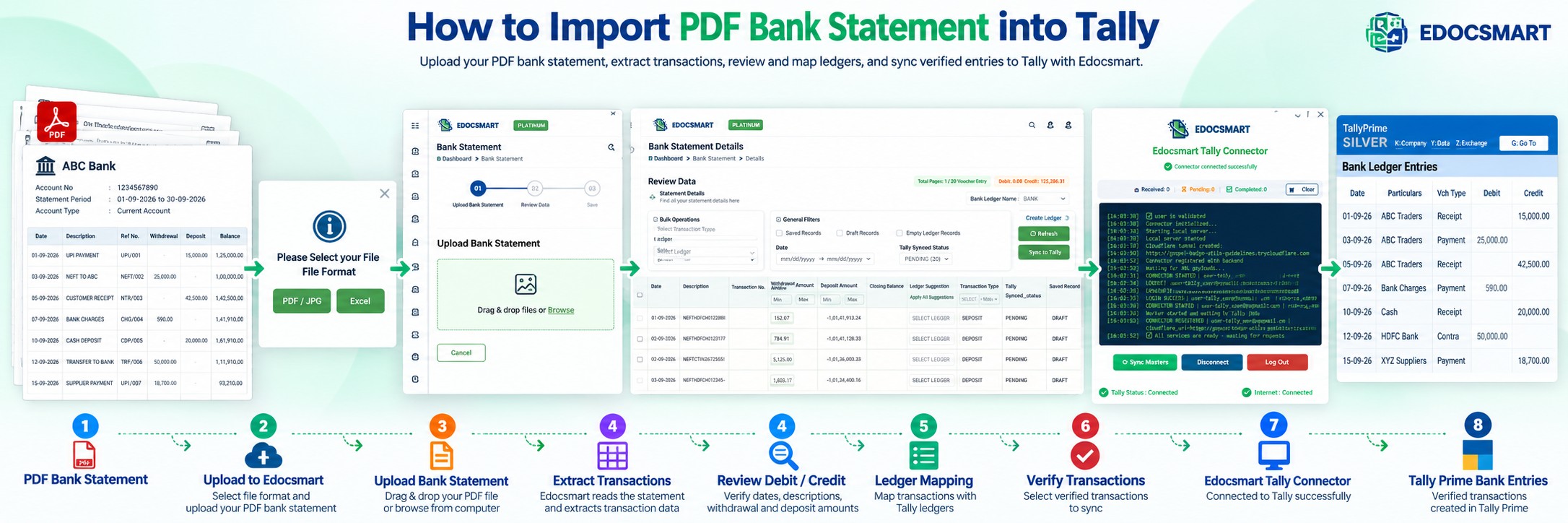
Imagine receiving a bank statement containing 300 transactions at the end of the month. The statement includes customer payments, supplier transfers, bank charges, cash deposits, and other business transactions. Every transaction is already recorded in the PDF, but your accountant still needs to enter those details into Tally.
For each entry, the accountant must check the transaction date, read the narration, identify whether the amount was debited or credited, select the correct ledger, and record the transaction. When hundreds of transactions are involved, this process becomes repetitive and time-consuming.
The real challenge is not collecting bank data. It is converting that existing information into properly classified accounting entries.
This is where PDF Bank Statement to Tally automation becomes useful.
Instead of manually entering every transaction, businesses can use Edocsmart to extract bank statement information, organize transactions into structured rows, review accounting details, assign ledgers, and synchronize verified records with Tally.
The process allows accountants to spend less time typing transactions and more time checking whether those transactions are recorded correctly.
Can You Import a PDF Bank Statement into Tally?
Yes, a PDF bank statement can be imported into Tally using a compatible bank statement processing solution.
However, importing a bank statement is different from simply uploading a PDF document.
A bank statement contains banking information, while Tally requires properly structured accounting entries. Before the data can be synchronized, transaction dates, narrations, debit amounts, credit amounts, and ledger details need to be identified and verified.
For example, a bank statement might contain these transactions:
| Transaction Description | Withdrawal | Deposit |
|---|---|---|
| Payment received from customer | — | ₹25,000 |
| Payment to supplier | ₹12,500 | — |
| Bank service charges | ₹350 | — |
| Cash deposited | — | ₹18,000 |
| Transfer to another bank account | ₹30,000 | — |
Although these transactions are available in the statement, they do not all belong to the same accounting category.
A customer receipt may require a Receipt entry, a supplier payment may require a Payment entry, and a transfer between accounts may require a Contra entry.
This is why a useful bank statement import into Tally workflow includes data extraction, transaction review, ledger mapping, and synchronization rather than treating every PDF row as a ready-made voucher.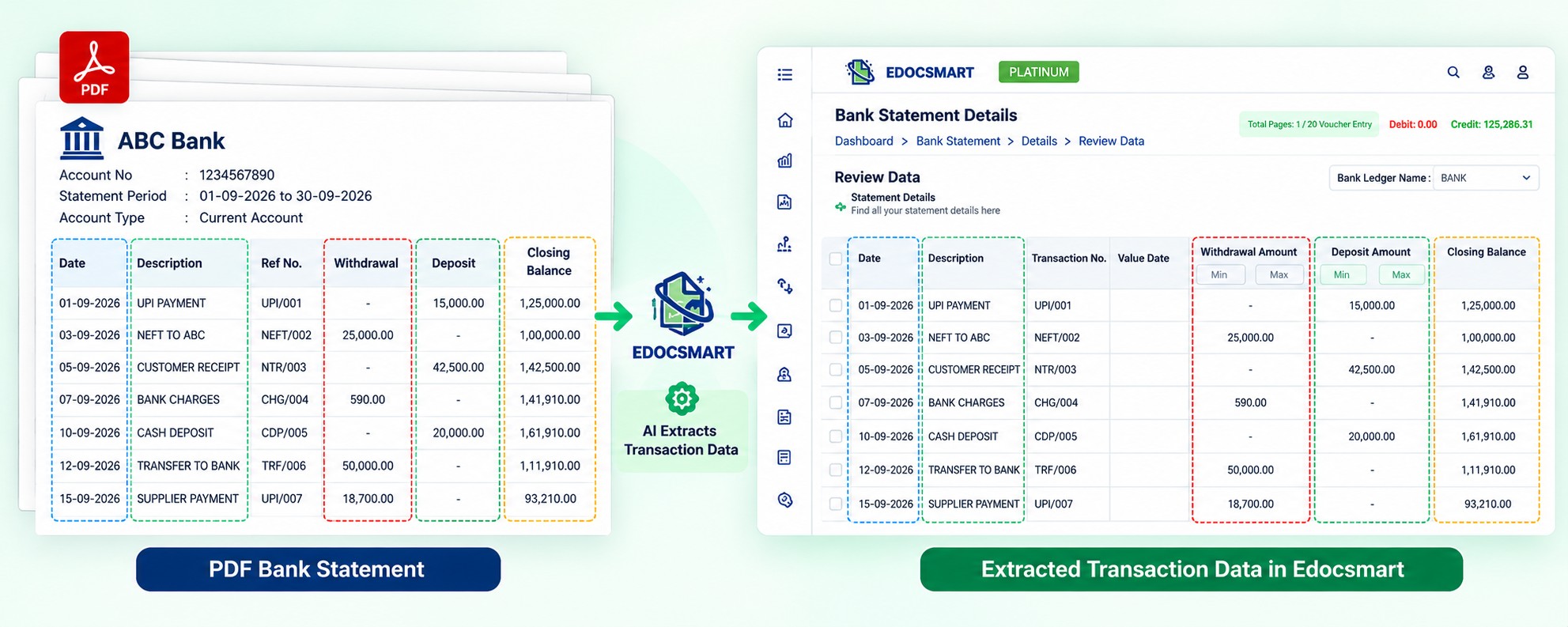
How to Import PDF Bank Statement into Tally Using Edocsmart
The process begins with uploading the bank statement and ends with verifying the imported transactions in Tally.
Here is how the workflow operates.
Step 1: Log In and Open the Bank Statement Section
First, open the Edocsmart platform and log in to your account.
After logging in, you will see the dashboard with different accounting automation options.
From the left sidebar, select Bank Statement.
This section allows you to access previously uploaded bank statements, review their processing status, and upload a new statement.
Click the Upload Bank Statement button to continue.
Keeping bank statement documents in a dedicated section makes it easier to manage the processing workflow without mixing them with purchase invoices, sales invoices, or other accounting documents.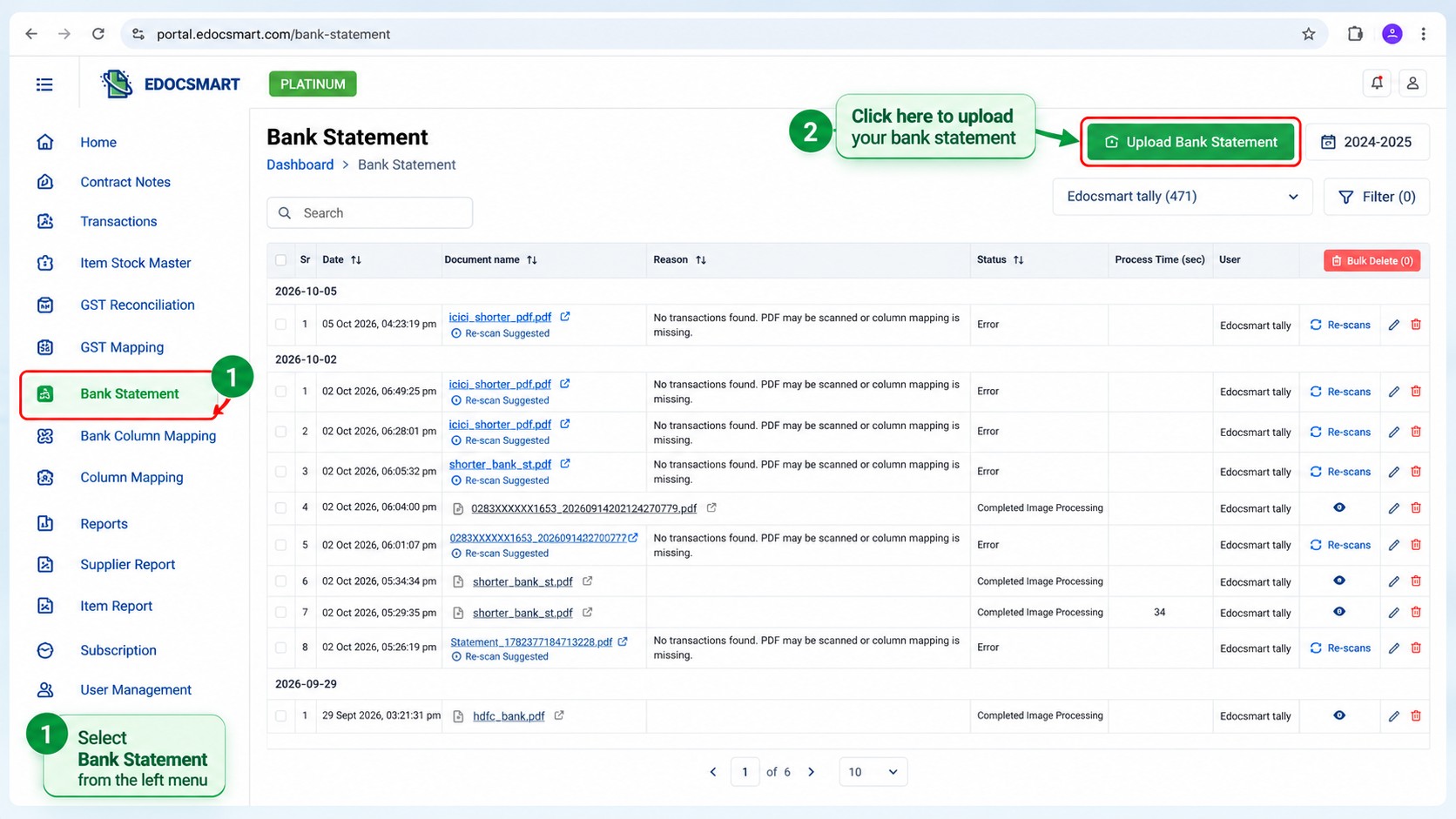
Step 2: Select the PDF Bank Statement Format
After clicking Upload Bank Statement, a window appears asking you to select the file format.
The available options include PDF/JPG and Excel.
Since we are importing a PDF bank statement, select PDF/JPG.
This takes you to the document upload process.
Many businesses download monthly bank statements directly from their bank's online portal. These files commonly contain transaction dates, descriptions, withdrawal amounts, deposits, and running balances.
Instead of copying this information into Excel or typing it into Tally manually, you can use the PDF as the source document for transaction extraction.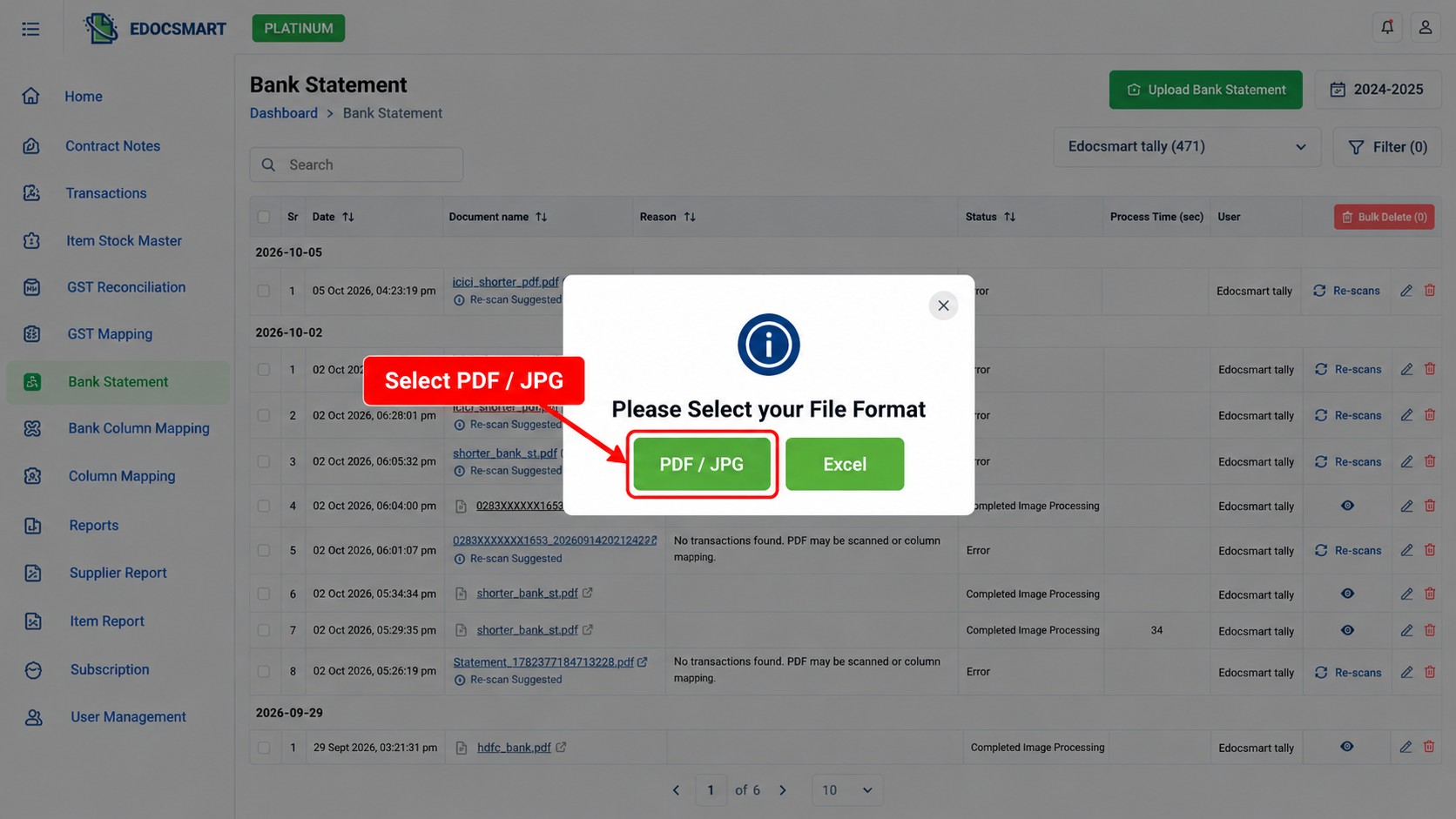
Step 3: Upload Your PDF Bank Statement
The next screen displays the Upload Bank Statement area.
You can drag and drop your PDF into the upload box or click Browse to select the file from your computer.
After selecting the document, submit it for processing.
Edocsmart processes the statement to identify the transaction information available inside the PDF.
The quality and structure of the original document matter. A clear, readable bank statement is generally easier to process than a damaged or poorly scanned document.
Some scanned PDFs or unusual statement layouts may require additional review or configuration before the transaction information can be extracted correctly.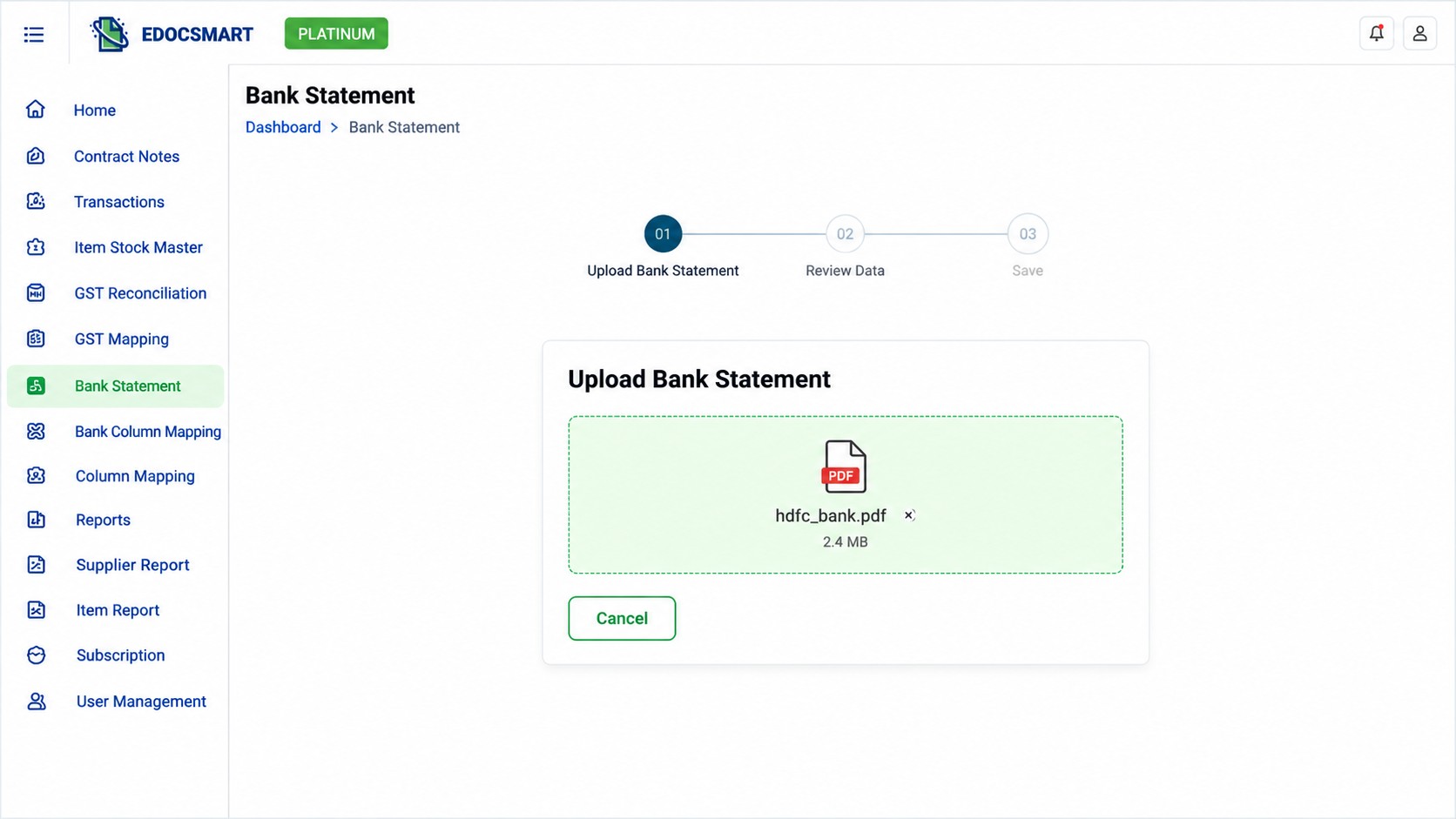
Step 4: Extract Transactions from the PDF Bank Statement
Once the statement is processed, the information is prepared in a structured format.
Instead of reading every transaction from the PDF manually, the accountant can work with individual transaction records.
The extracted information may include:
Transaction date and value date
Transaction description or narration
Transaction reference number
Withdrawal amount
Deposit amount
Closing balance
For example, suppose the PDF contains this transaction:
05-09-2026 | NEFT PAYMENT ABC TRADERS | Withdrawal ₹15,000 | Balance ₹1,85,000
The information can be organized into separate fields, making it easier to review the date, amount, and narration.
This is one of the main advantages of automated bank statement data extraction. The accountant no longer needs to repeatedly read and retype information already available in the original statement.
However, extracting a transaction is only the beginning. The accounting treatment still needs to be checked before the entry is transferred to Tally.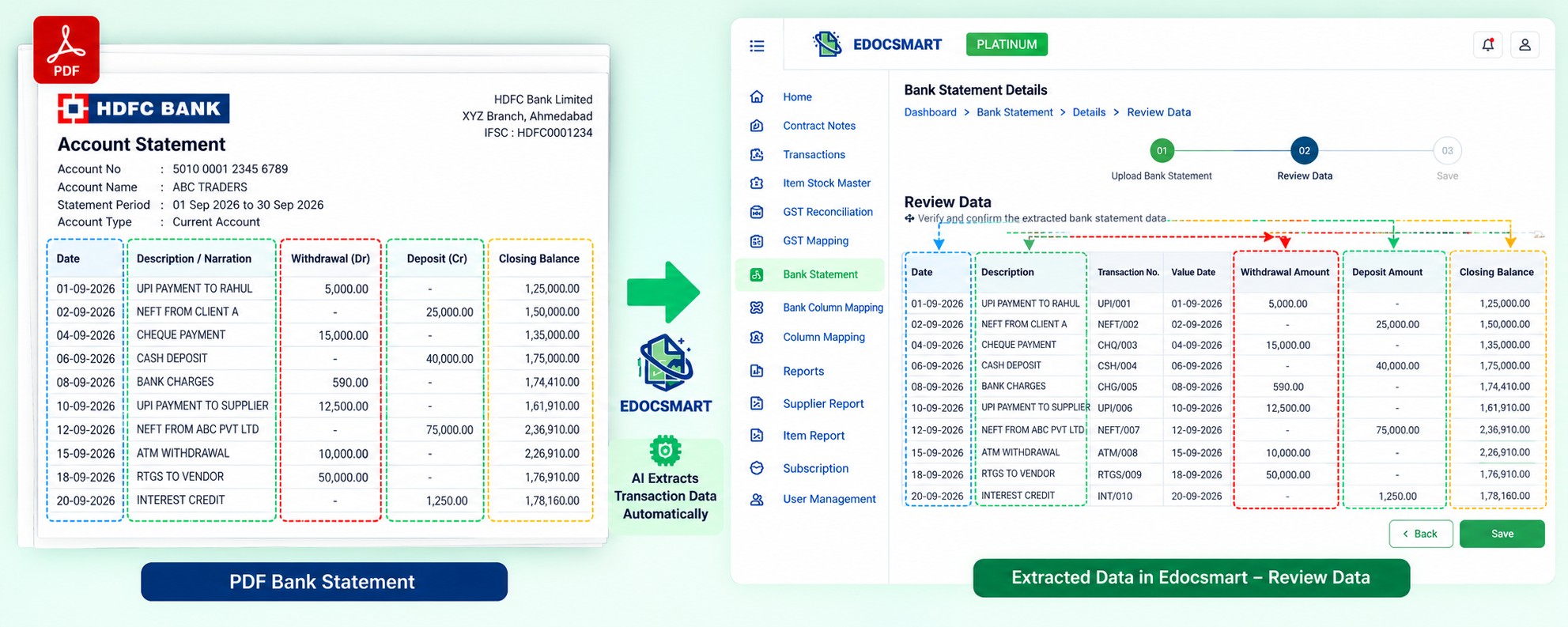
Step 5: Review the Extracted Bank Transactions
After processing, open the statement's Review Data screen.
This is an important part of the workflow because the extracted information should be checked before synchronization.
The Edocsmart bank statement review table includes fields such as Date, Description, Transaction No., Value Date, Withdrawal Amount, Deposit Amount, Closing Balance, Ledger Suggestion, Ledger Name, and Transaction Type.
You can compare the transaction records with the original bank statement to confirm that the information has been captured correctly.
For example, if a transaction shows a withdrawal of ₹25,000, verify that the amount has been placed under Withdrawal rather than Deposit.
Similarly, check whether the transaction date and narration match the original statement.
Reviewing extracted transactions before syncing helps prevent incorrect accounting entries.
The review screen also provides options for working with saved records, draft records, and transactions requiring ledger information.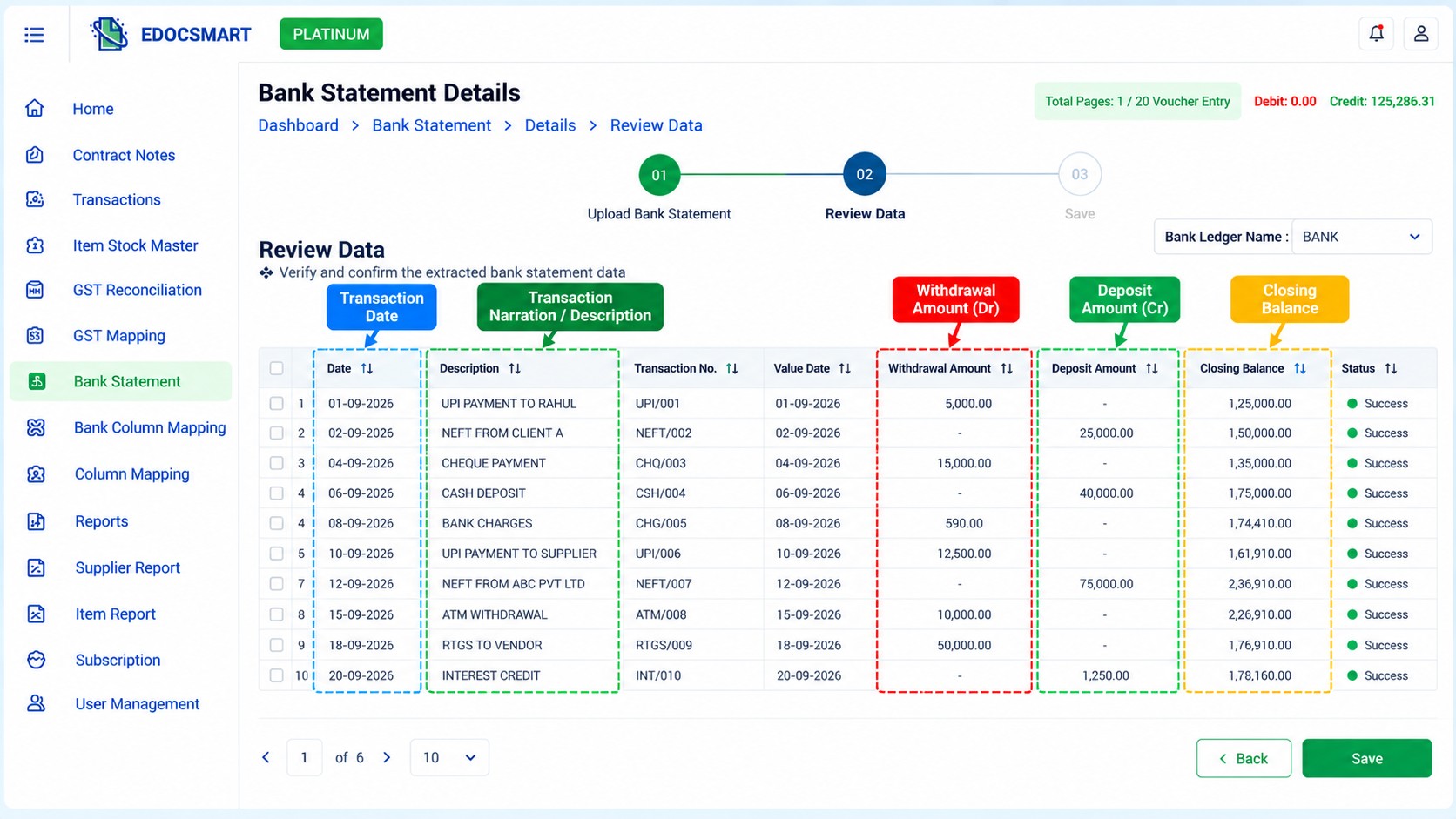
Step 6: Map Bank Transactions with Tally Ledgers
Once the transaction details have been checked, the next task is to identify the correct accounting ledger.
This is where bank statement processing becomes more than basic PDF extraction.
A bank statement tells you that money was received or paid, but it does not always identify the correct accounting ledger.
For example, a transaction narration might say:
NEFT TRANSFER TO ABC ENTERPRISES – ₹18,500
The accountant needs to determine whether ABC Enterprises is a supplier, an expense-related party, or another account.
Similarly, a bank charge should generally be associated with the appropriate Bank Charges ledger rather than a supplier ledger.
Edocsmart provides Ledger Suggestion and Ledger Name fields to support this review and mapping process.
The accountant can select the appropriate ledger for the transaction based on the organization's accounting records.
Where a transaction cannot be classified confidently, it should be reviewed rather than assigned an arbitrary ledger.
Correct ledger mapping is essential for accurate bank entries in Tally.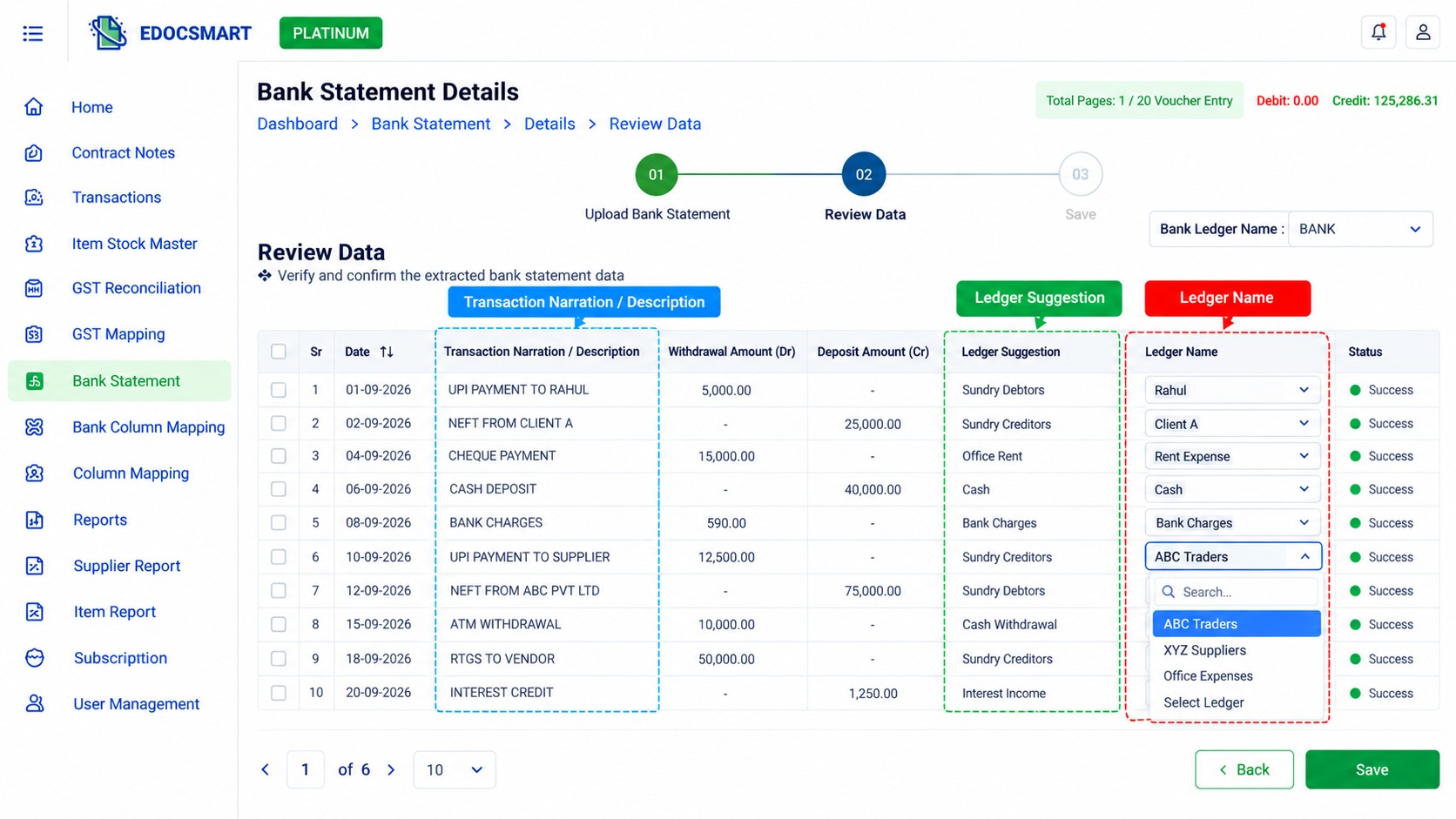
Step 7: Verify the Transaction Type
After selecting the ledger, check the transaction type.
Different bank transactions require different accounting treatment.
For example, money received from a customer may be recorded as a Receipt transaction, while a payment to a supplier may be recorded as a Payment transaction.
Transfers between cash and bank accounts, or between bank accounts, may require Contra entries depending on the nature of the transaction.
The Transaction Type field allows these classifications to be reviewed before synchronization.
This is especially useful when a single bank statement contains several different types of transactions.
Instead of treating all withdrawals and deposits alike, the accountant can classify them according to their actual purpose.
The objective is to ensure that bank statement entries in Tally reflect the correct accounting activity.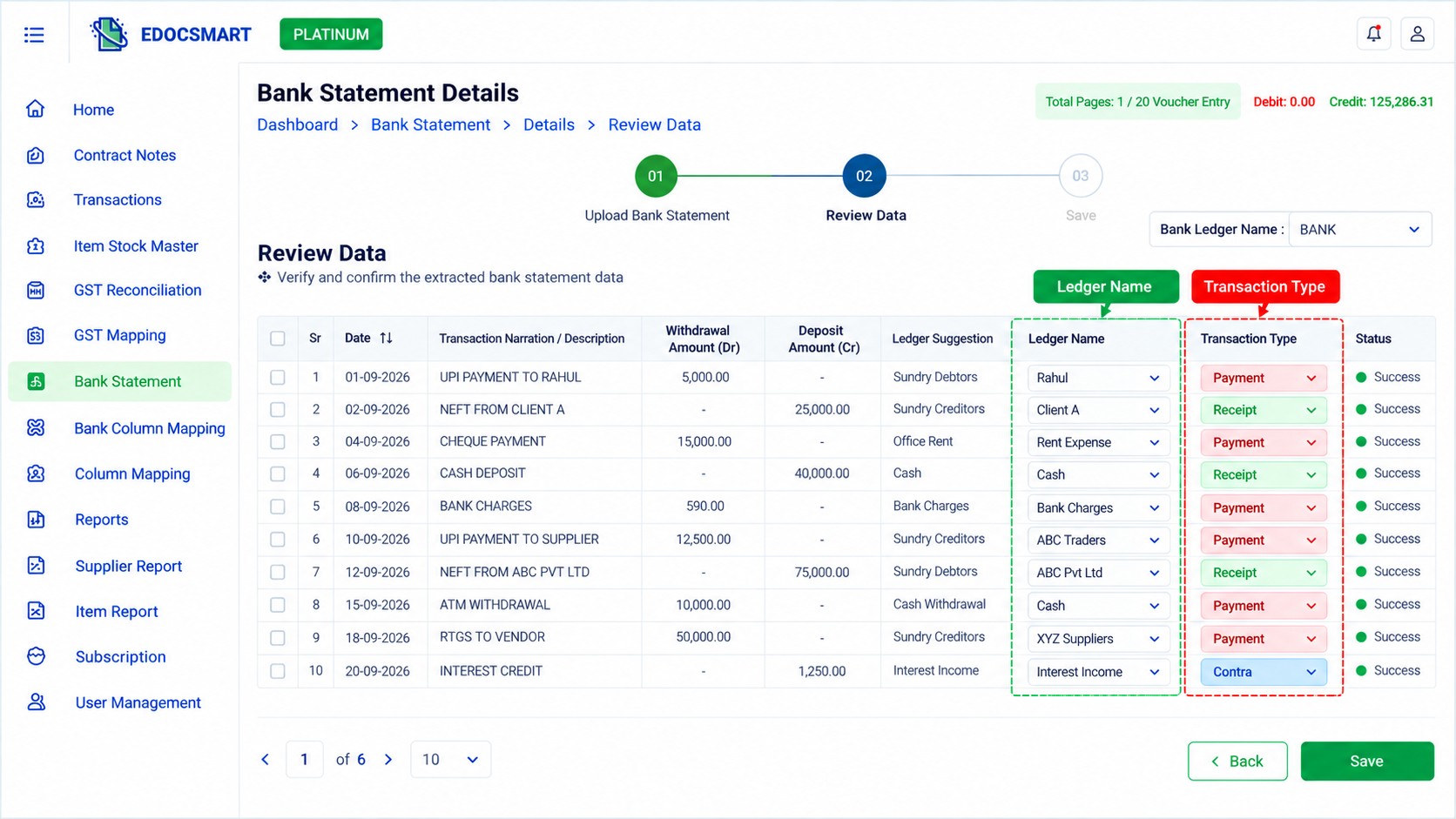
Step 8: Use Bulk Operations for Similar Transactions
A bank statement may contain many transactions that require similar accounting treatment.
For example, several entries may belong to the same expense ledger, or multiple records may need the same transaction type.
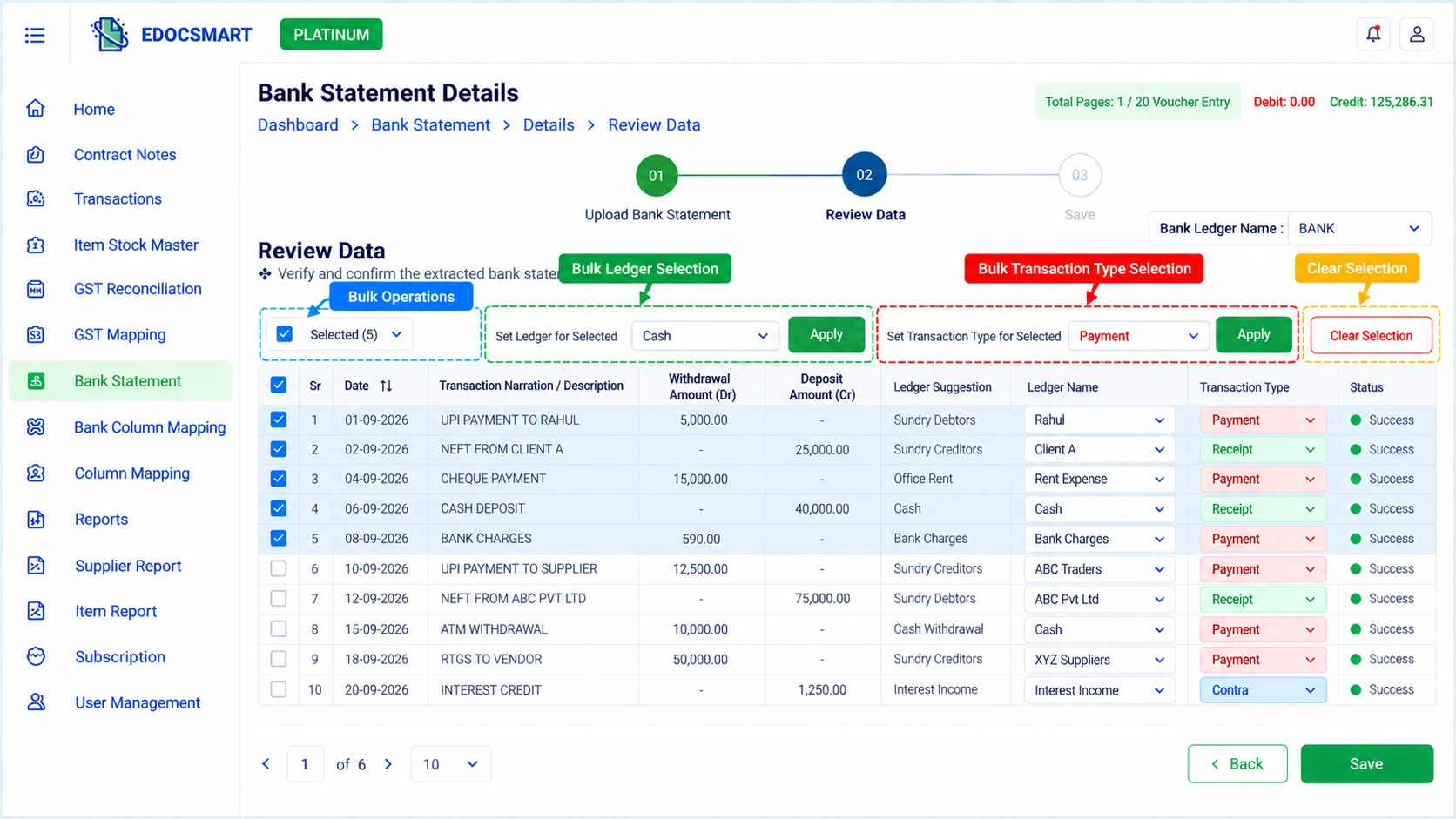
The Edocsmart Review Data screen provides Bulk Operations options for fields such as Ledger and Transaction Type.
These options can help reduce repetitive changes when working with multiple transaction records.
However, bulk operations should be used only when the selected transactions genuinely require the same accounting treatment.
If a statement contains 100 transactions and 15 belong to the same verified category, applying the appropriate information together may be more efficient than editing each record individually.
Transactions that require different ledgers or further investigation should still be reviewed separately.
This allows accountants to combine automation with proper control over the accounting data.
[IMAGE 9 – Original Edocsmart Bank Statement Review Data screen highlighting the existing Bulk Operations controls for Ledger and Transaction Type.]
Step 9: Check the Tally Connection
Before transferring the reviewed bank transactions, make sure the Tally environment is ready.
The configured Tally Connector should be running and connected to the appropriate Tally company.
The original Edocsmart Tally Connector displays connection information, including the Tally and internet connection status.
When the connector is operating correctly, the reviewed transaction information can be transferred through the configured connection.
If the connector is disconnected or Tally is not available, the connection issue should be resolved before attempting synchronization.
Step 10: Sync the Verified Bank Transactions to Tally
Once the extracted information has been reviewed, the correct ledgers have been assigned, and transaction types have been checked, the records are ready for synchronization.
Click Sync to Tally from the bank statement review screen.
Edocsmart sends the approved transaction information through the configured Tally connection.
Depending on the selected ledgers, transaction types, and accounting configuration, the information can be recorded as the appropriate bank-related entries in Tally.
After synchronization, open Tally and verify that the entries have been recorded under the expected ledgers and transaction types.
Check important information such as the transaction date, amount, ledger, and voucher classification.
This final verification is useful because the purpose of automation is not simply to transfer information quickly. It is to maintain accurate accounting records while reducing repetitive work.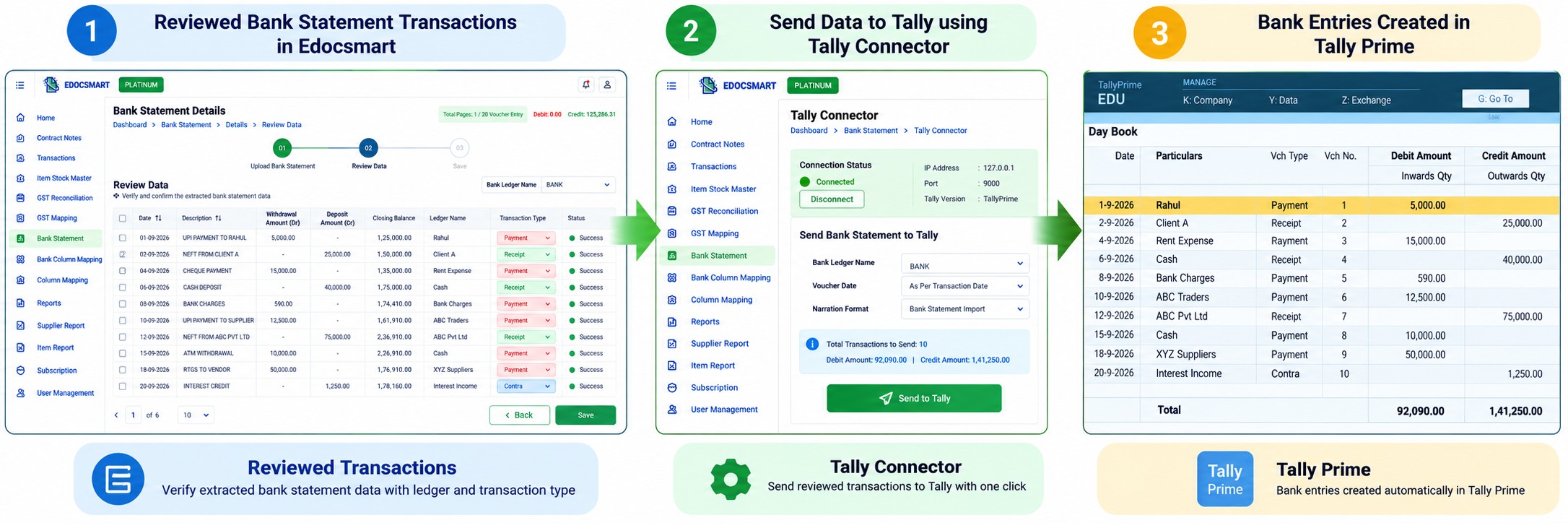
What Should You Check Before Importing Bank Transactions?
Before synchronizing bank transactions, it is useful to perform a few basic checks.
First, confirm that the statement belongs to the correct bank account and accounting period. Importing transactions into the wrong bank ledger can create unnecessary reconciliation work later.
Next, verify the transaction dates and amounts. A withdrawal should not be recorded as a deposit, and the values should match the original statement.
Review the transaction narrations and corresponding ledger selections. If a payment belongs to a particular supplier, it should be associated with the correct supplier ledger.
Also check for transactions that may already exist in Tally. Duplicate entries can affect account balances and make reconciliation more difficult.
Finally, confirm that the transaction types are correct and that the Tally connection is ready.
These checks help ensure that the information transferred into Tally is both complete and properly classified.
Manual Bank Statement Entry vs Automated PDF Import
| Manual Bank Statement Entry | Automated PDF Import with Edocsmart |
|---|---|
| Read each PDF transaction manually | Extract transaction details into structured rows |
| Enter dates and narrations individually | Review extracted dates and narrations |
| Type debit and credit amounts | Verify withdrawal and deposit fields |
| Select ledgers during manual entry | Map ledgers before synchronization |
| Create transactions individually | Sync reviewed transactions through the configured workflow |
| Repeated data-entry work | More focus on review and exceptions |
The main difference is how the accountant spends time.
In the manual process, much of the work involves reading and typing.
With PDF bank statement import automation, the accountant can focus on verifying the extracted information, selecting the correct ledgers, and resolving transactions that require attention.
How Does PDF Bank Statement Import Help with Bank Reconciliation?
Bank statement importing and bank reconciliation are closely related, but they serve different purposes.
Importing brings transaction information into the accounting system. Reconciliation checks whether the accounting records match the actual bank statement.
For example, a business may have recorded a supplier payment in Tally, but the bank may have processed it on a different date.
Similarly, bank charges or interest credits may appear in the bank statement before they are recorded in the accounting books.
These differences need to be identified during reconciliation.
A properly reviewed bank statement import can make this process easier because transaction dates, amounts, narrations, and ledger classifications are already organized.
However, importing a statement does not automatically mean the bank account has been fully reconciled.
The accountant should still compare the accounting records with the bank statement and investigate any unmatched or incorrect transactions.
Who Can Benefit from PDF Bank Statement to Tally Automation?
Businesses that regularly process large bank statements can benefit from a structured import workflow.
For example, a trading business may receive frequent customer payments and make daily supplier transfers. A manufacturing company may have payments for raw materials, transport, utilities, and other operating expenses.
Accounting firms and Chartered Accountants may also manage bank statements for several clients, each with different transaction volumes and ledger structures.
In these situations, repeatedly entering transaction dates, narrations, and amounts can consume time that could otherwise be spent reviewing accounts.
A solution such as Edocsmart can help organize this work through extraction, review, ledger mapping, and Tally synchronization.
The benefit becomes more noticeable when bank statements contain many transactions and the accounting team needs a consistent process for handling them.
Frequently Asked Questions
1. How do I import a PDF bank statement into Tally Prime?
You can use Edocsmart to upload the PDF bank statement, extract its transactions, review debit and credit amounts, map the required Tally ledgers, verify transaction types, and sync the approved records through the configured Tally Connector.
2. Can I import a bank statement PDF into Tally without manually entering every transaction?
Yes. A compatible bank statement automation solution can extract transaction information from the PDF and prepare it for review, reducing the need to type every date, narration, and amount manually.
3. Does Edocsmart support PDF bank statement processing?
Yes. Edocsmart provides a Bank Statement workflow with PDF/JPG and Excel upload options. The extracted transactions can be reviewed and prepared for Tally synchronization.
4. Can I edit bank transactions before syncing them to Tally?
Yes. The Edocsmart Review Data screen allows transaction information and accounting classifications to be reviewed before synchronization. This is useful when a ledger needs to be changed or an extracted value requires correction.
5. How are debit and credit transactions handled during bank statement import?
Withdrawal and deposit amounts are extracted into their respective fields. The accountant then reviews the information and selects the appropriate ledger and transaction type based on the actual transaction.
6. Do I need to assign a ledger to every bank transaction?
Transactions need the correct accounting classification before they are recorded in Tally. Some records may have ledger suggestions, but the appropriate ledger should still be verified before synchronization.
7. Can Edocsmart process scanned PDF bank statements?
Edocsmart provides a PDF/JPG upload workflow. However, successful extraction depends on the quality and layout of the document. Scanned statements that cannot be read correctly may require additional processing or configuration.
8. Does importing a PDF bank statement automatically reconcile the bank account?
No. Importing prepares and transfers the bank transaction information. Bank reconciliation is a separate accounting process that compares the records in Tally with the bank statement to identify differences.
Conclusion
Manually entering a PDF bank statement into Tally can take considerable time, especially when the document contains hundreds of transactions. The information is already available in the statement, but every transaction still needs the correct accounting treatment.
A structured import process helps reduce this repetitive work.
With Edocsmart, businesses can upload a PDF bank statement, extract transaction details, review debit and credit amounts, assign the correct ledgers, verify transaction types, and synchronize approved records with Tally.
The complete process follows a straightforward workflow:
PDF Bank Statement → Upload → Extract Transactions → Review Data → Ledger Mapping → Verify Transaction Type → Sync to Tally
Instead of spending hours repeatedly entering information, accountants can focus on checking transaction accuracy and maintaining reliable accounting records.
For businesses and accounting professionals handling regular bank transactions, automated PDF bank statement import into Tally offers a more organized approach to everyday accounting work.