How to Import PDF into Tally
Import PDF invoices into Tally by extracting invoice data, reviewing important accounting fields, mapping them with Tally masters, and syncing verified entries through Edocsmart.
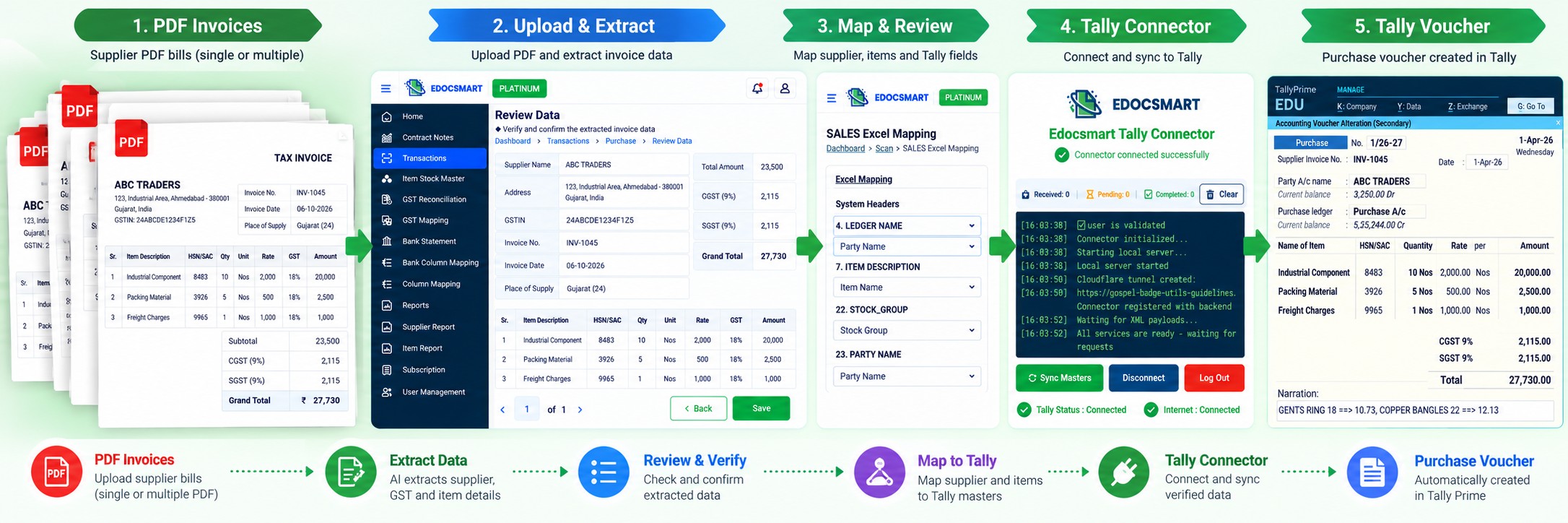
Imagine it is the end of the day and you have 30 supplier invoices waiting for accounting. Every invoice is already available as a PDF. The supplier name is there, the invoice number is there, GST details are there, and even the items, quantity, rate and final amount are already written in the document.
But when you open Tally, much of the same information has to be entered again.
You open the first PDF, check the supplier, find the correct ledger, enter the invoice number and date, add the items, enter quantity and rate, check GST and finally verify the total. Then you repeat the same process for the next PDF.
This is where a PDF to Tally import workflow can reduce repetitive work.
With Edocsmart, information from a PDF invoice can be extracted into structured fields, reviewed against the original document, mapped with the required Tally information and then synced into Tally through the configured connector.
The complete process is:
PDF Invoice → Upload → Extract Data → Review → Map → Verify → Tally Connector → Sync to Tally → Verify Voucher
Can You Import a PDF Directly into Tally?
The first thing to understand is that a PDF document and a Tally accounting voucher are not the same thing.
A PDF invoice is a document designed to display information. It may contain the supplier name, address, GSTIN, invoice number, invoice date, product description, HSN/SAC, quantity, unit, rate, GST and total amount.
Tally, however, needs that information in an accounting structure.
For example, the supplier shown on the PDF needs to correspond with the appropriate Party Ledger. An item description may need to correspond with a Stock Item. GST information needs to be handled according to the configured GST and accounting setup.
So import PDF into Tally does not simply mean dropping a .pdf file into Tally and getting a completed voucher.
The practical process is:
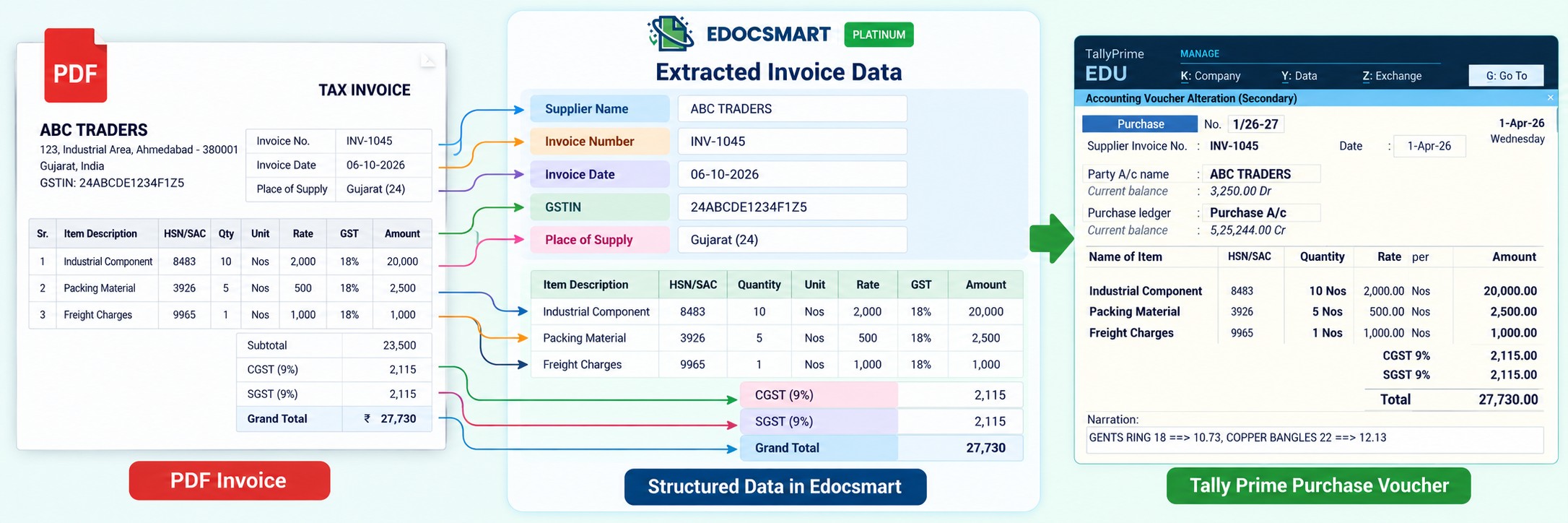 PDF Document → Structured Accounting Data → Tally Voucher
What Do You Need Before Importing a PDF into Tally?
Before starting, keep the PDF invoice ready and make sure the accounting setup required for the transaction is available.
You will need access to Edocsmart, the relevant Tally company and masters, and the Edocsmart Tally Connector for synchronization. Where mapping or initial configuration is required, that should also be completed according to the organization's setup.
The important point is that PDF extraction and Tally synchronization are two parts of the workflow. First, the information needs to be prepared and verified. Then the verified information can be sent to Tally.
Step 1: Log In to Edocsmart
Start by opening Edocsmart and signing in to your account.
After login, you can access the transaction workflow used for processing invoice documents.
Step 2: Open Transactions → Purchase → Images
For a supplier purchase invoice, go to Transactions, select Purchase, and open the Images section.
This is where invoice documents can be uploaded for processing.
Keeping the document workflow inside Transactions also makes it easier to track the invoice from upload through review and synchronization rather than manually switching between the PDF and Tally.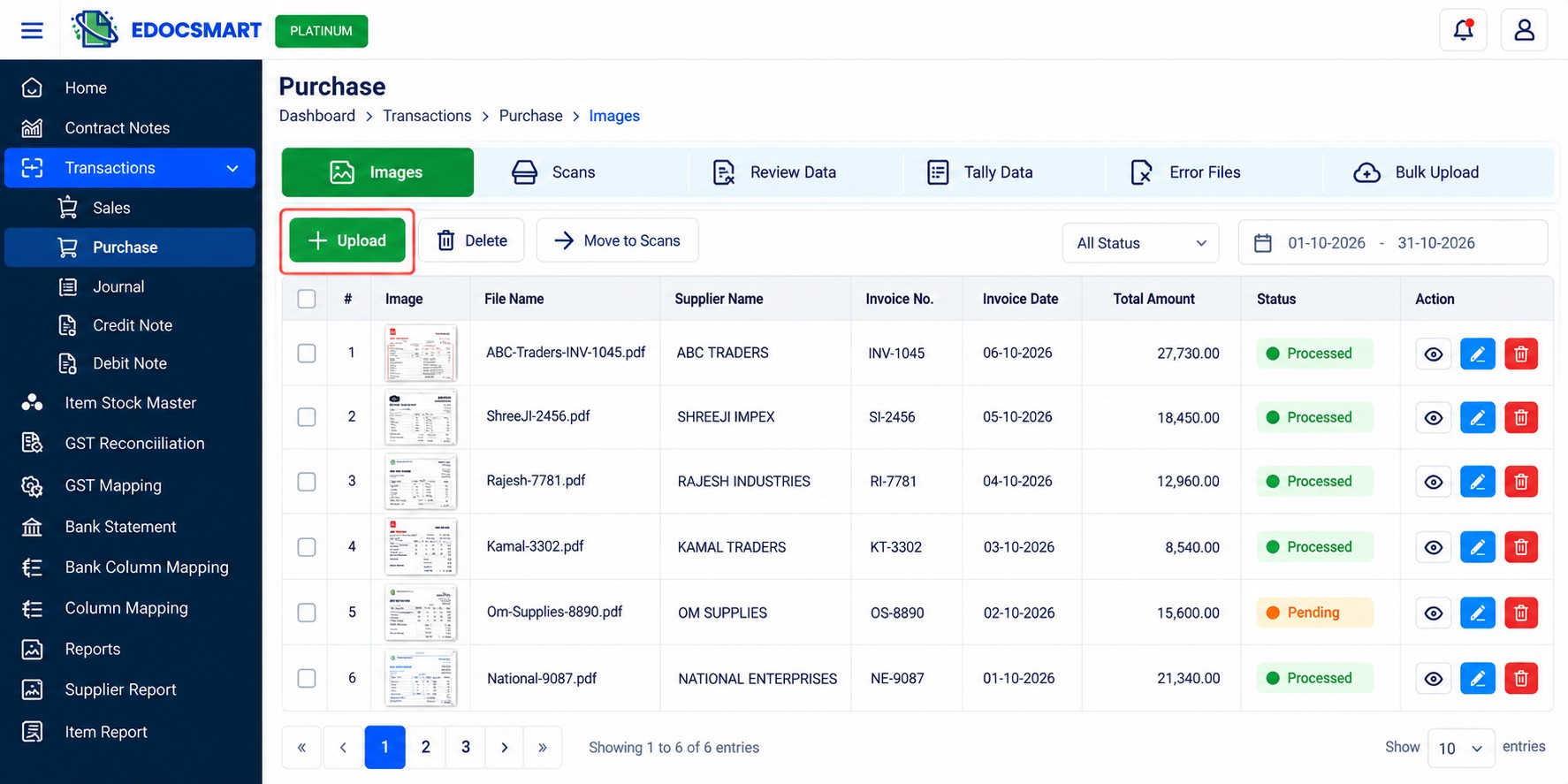
Step 3: Upload the PDF Invoice
Click Upload and select the PDF invoice you want to process.
For example:
ABC-Traders-INV-1045.pdf
The PDF becomes the source document from which the invoice information is processed.
This is useful because supplier invoice formats are rarely identical. One supplier may display the GSTIN at the top, another may place it near the address, and another may use a completely different item table.
A PDF to Tally software workflow helps turn these document values into structured information that can be reviewed before accounting.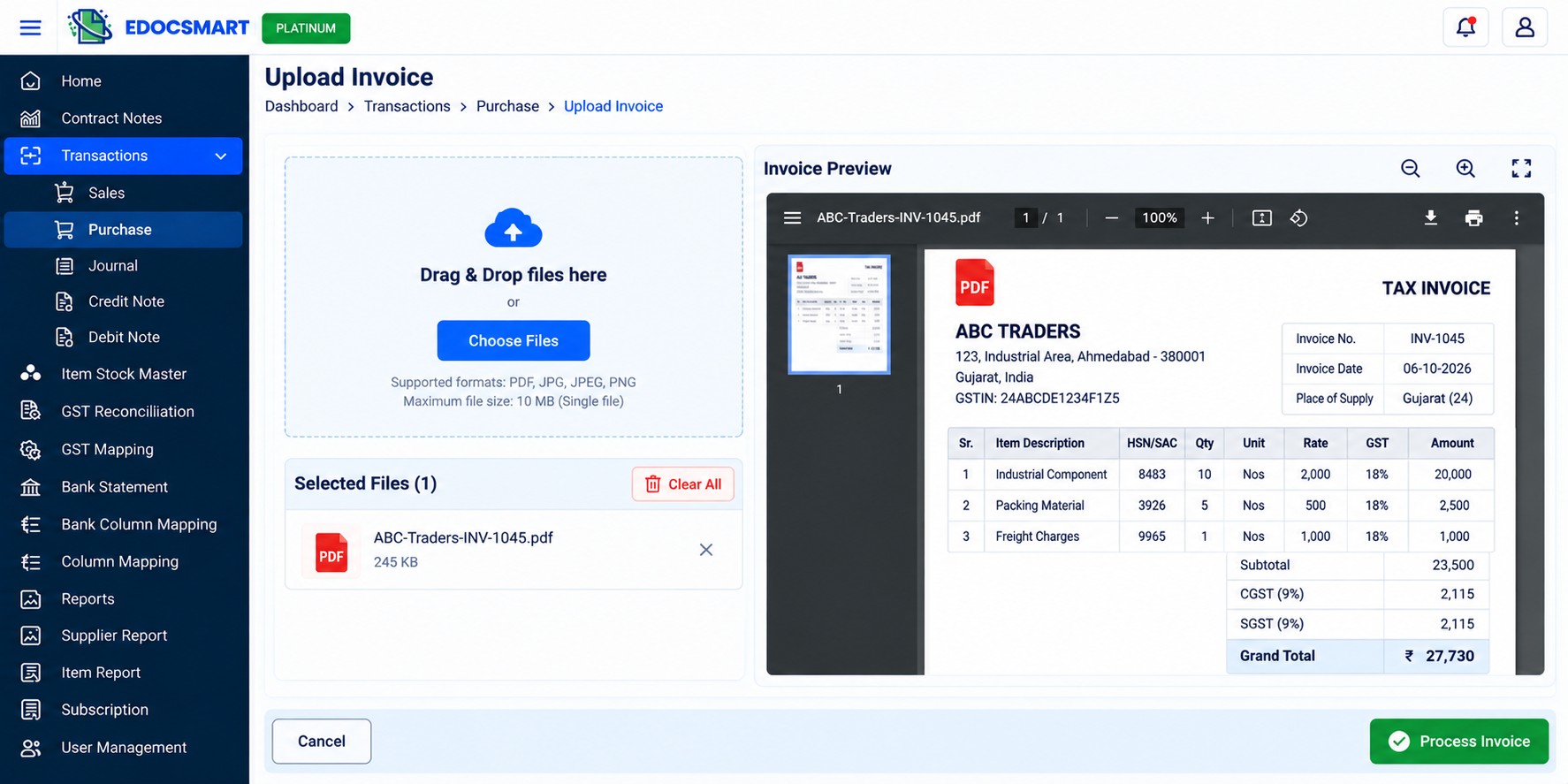
Step 4: Extract the Invoice Information
Once the PDF is processed, the information inside it can be organized into structured invoice fields.
At invoice level, this may include supplier or party name, invoice number, invoice date, address, GSTIN, CGST, SGST, IGST, taxable values and grand total.
For an item-based invoice, the workflow can also involve item description, HSN/SAC, quantity, unit, rate, GST percentage and amount.
This is where AI invoice data extraction and OCR-based processing can reduce repeated typing.
Instead of manually reading one field from the PDF and entering it into accounting software, the extracted information is brought together for review.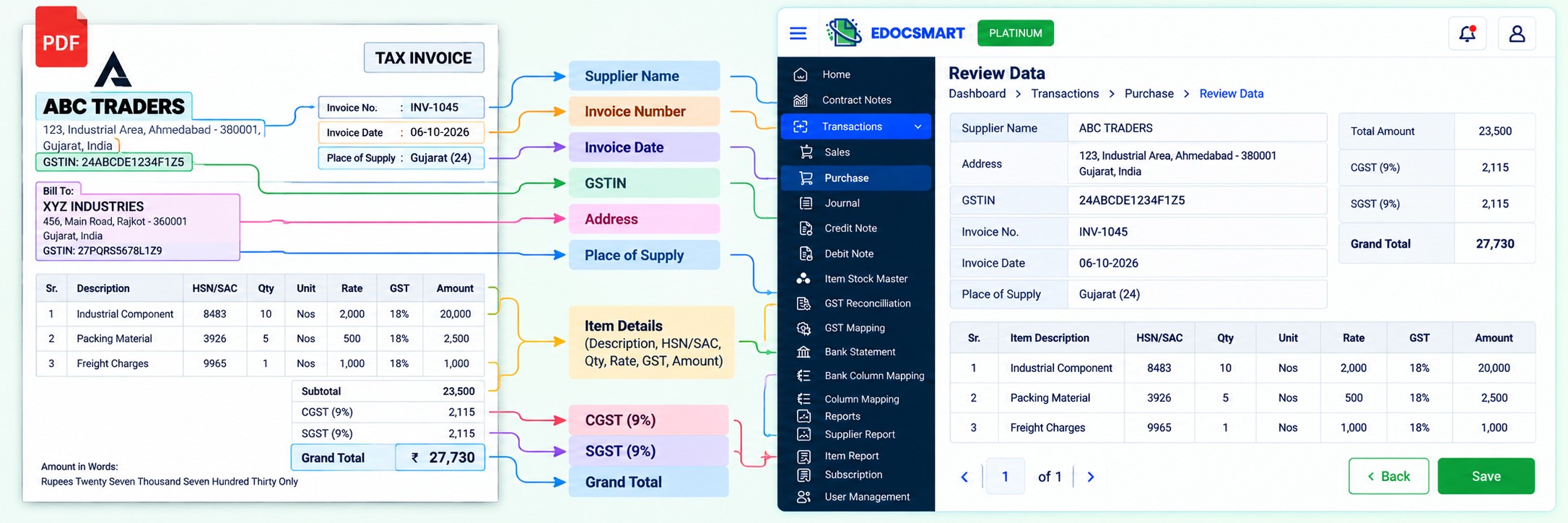
Step 5: Review the Extracted Data
Extraction does not mean that the information should be sent blindly into Tally.
Review is an important part of the process.
Compare the extracted values with the original PDF. Pay particular attention to the supplier, invoice number, date, GST information, item descriptions, HSN/SAC, quantity, rate and final amount.
Suppose the original PDF contains:
Quantity: 12.13
The extracted value should also show:
Quantity: 12.13
If it shows 12.31 instead, the value should be corrected before synchronization.
This is one of the main differences between controlled invoice automation for Tally and simple document text extraction. The objective is to reduce repetitive typing while still allowing accounting information to be verified.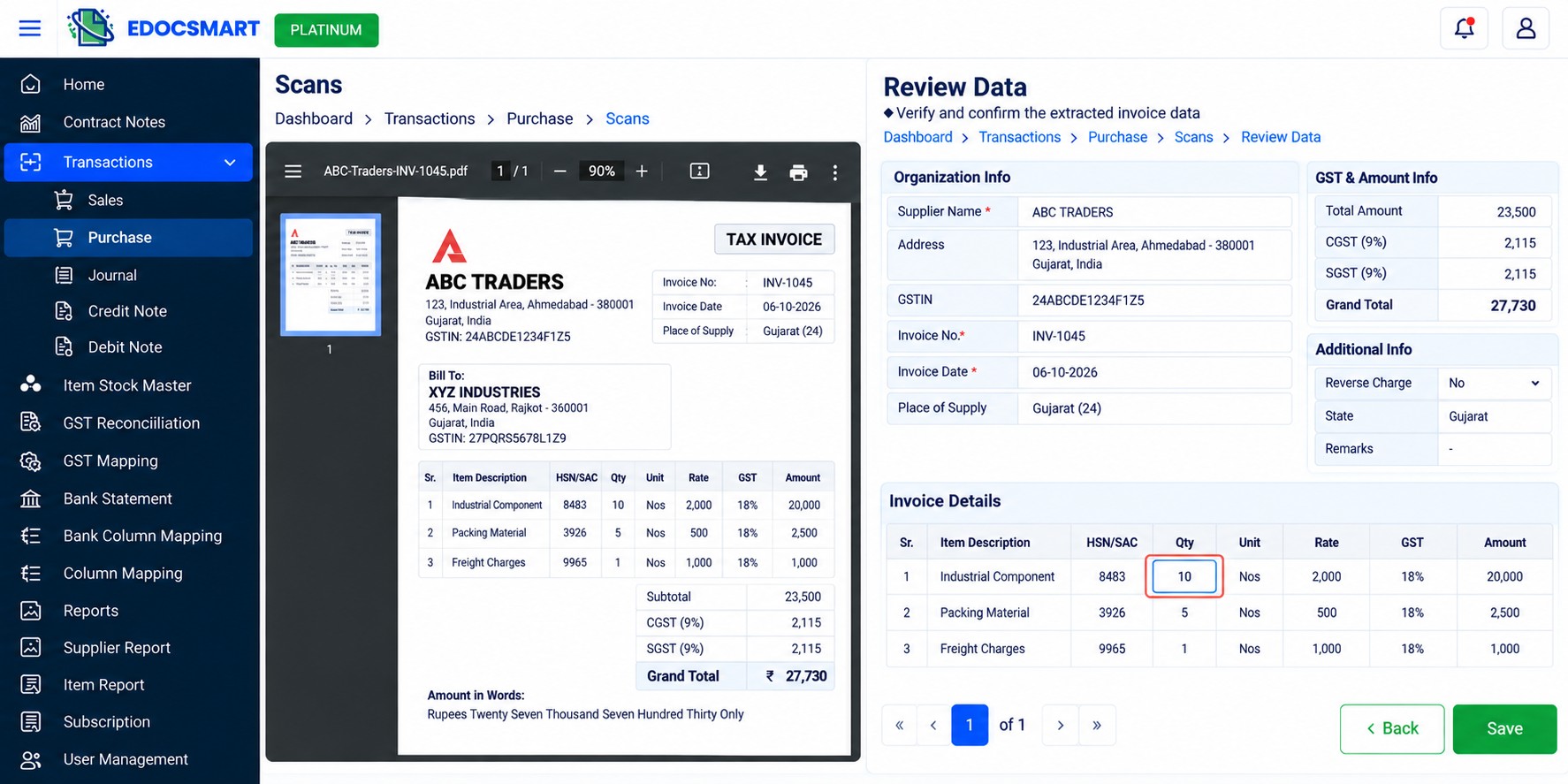
Step 6: Match PDF Information with Tally Masters
After extraction and review, the next important part is connecting document information with the appropriate accounting information.
The supplier name printed on the invoice may not always be identical to the Party Ledger maintained in Tally.
Similarly, the description used by a supplier for an item may differ from the Stock Item name maintained by your organization.
Conceptually, the relationship looks like this:
- PDF Supplier Name → Tally Party Ledger
- PDF Item Description → Tally Stock Item
- PDF GST Details → Configured GST Accounting
- PDF Invoice Information → Purchase Voucher
This is why a useful PDF invoice to Tally workflow involves more than OCR.
Extracting “ABC Traders” from a PDF is one task. Understanding where that value belongs in the configured Tally environment is the accounting part of the workflow.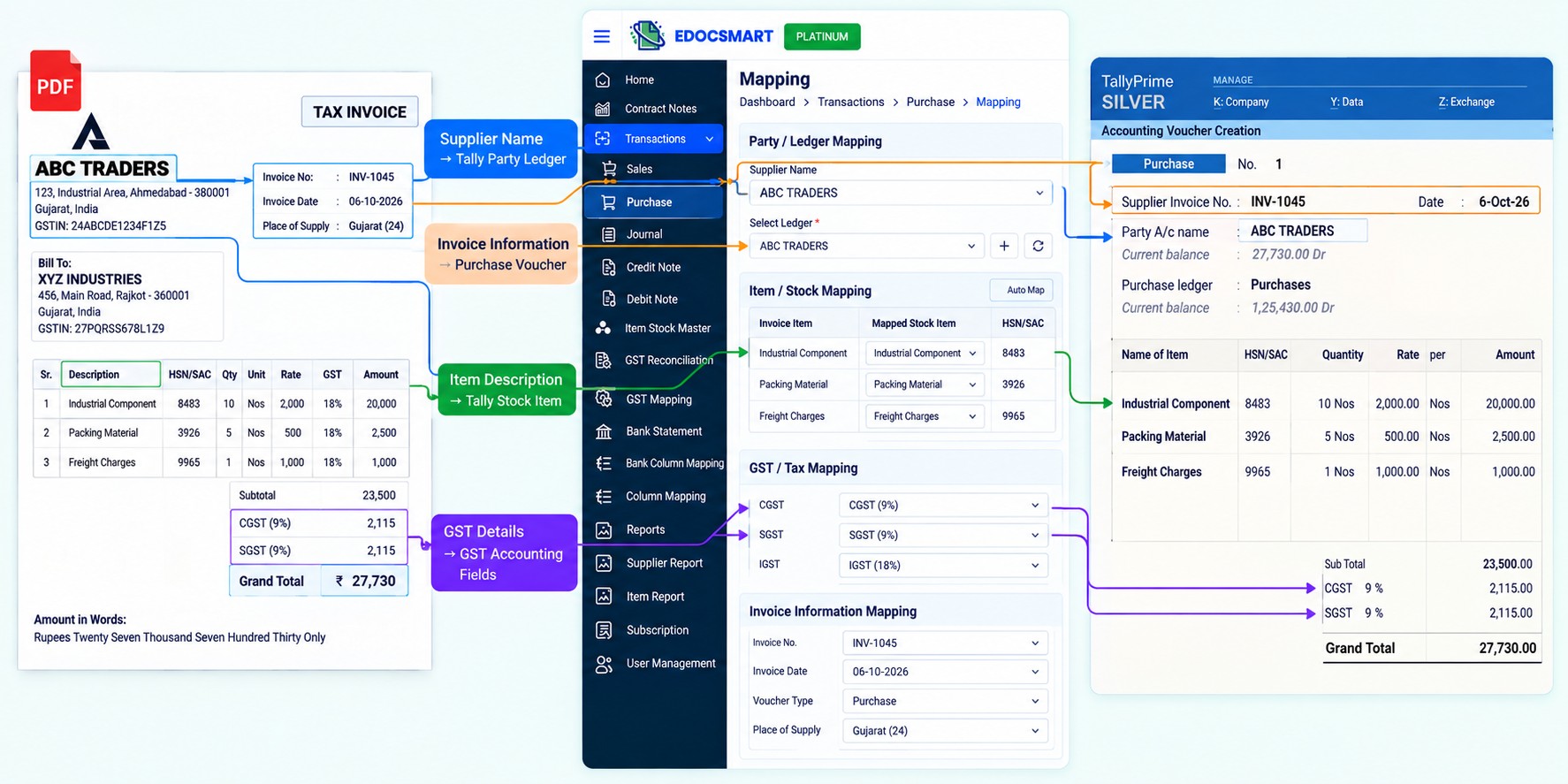
Step 7: Configure or Reuse the Required Mapping
Initial mapping or configuration may be required depending on the organization's Tally setup, voucher structure, supplier masters and stock items.
Once an applicable relationship has been configured, the same setup may be reusable for recurring documents where the configuration continues to apply.
This can be particularly useful when invoices repeatedly arrive from the same suppliers.
The exact mapping behavior depends on the organization's Edocsmart and Tally configuration, so it is important to review the configured setup rather than assuming that every invoice will follow the same mapping.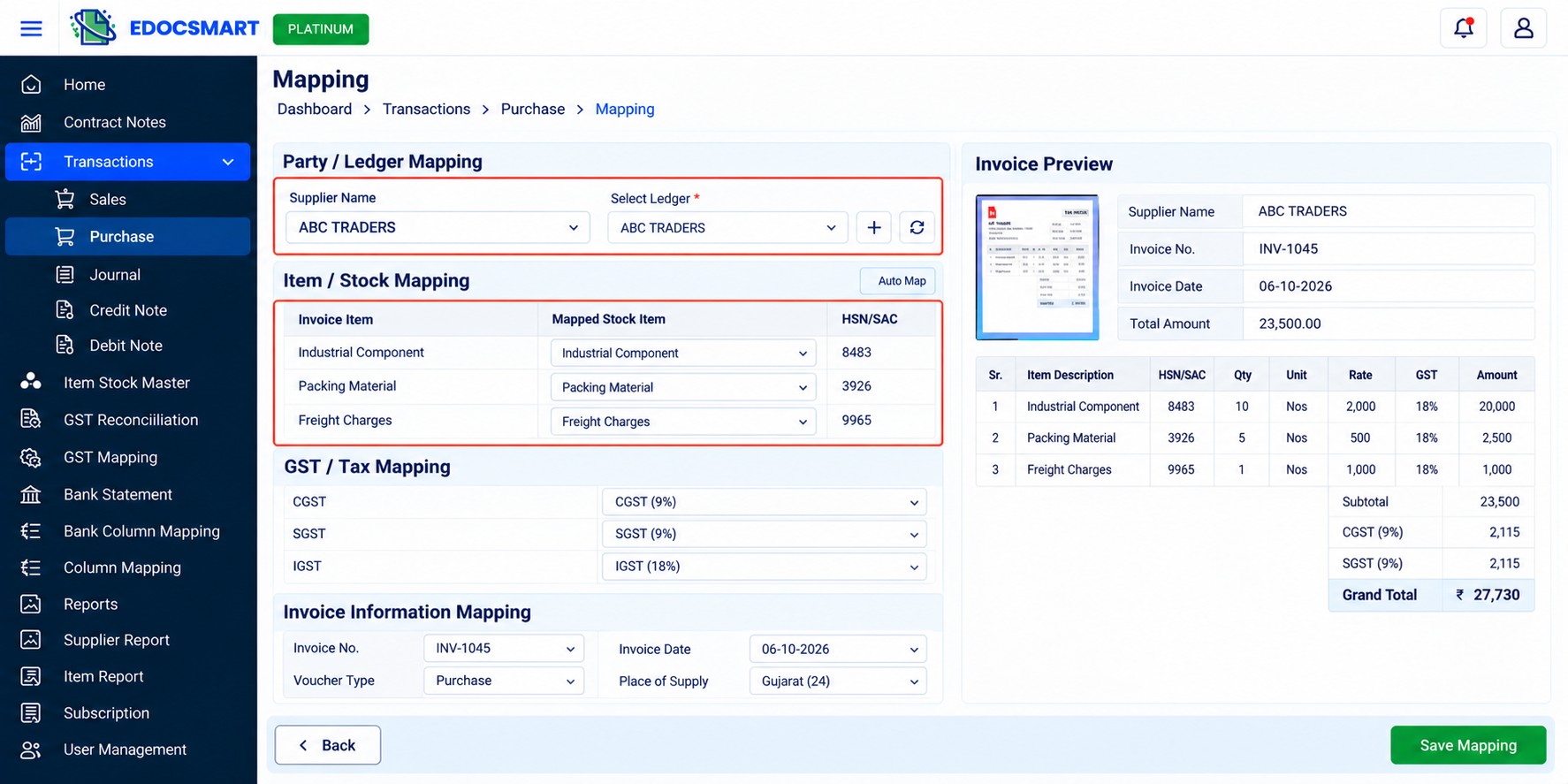
Step 8: Check the Edocsmart Tally Connector
Before synchronizing the invoice, make sure the connection to Tally is ready.
The Edocsmart Tally Connector acts as the bridge between the verified invoice information and the local Tally environment.
Before proceeding, the connector should indicate:
- Connector connected successfully
Tally Status: Connected
Internet: Connected
This step is important because having a verified invoice ready inside Edocsmart does not automatically mean that the transaction has already reached Tally.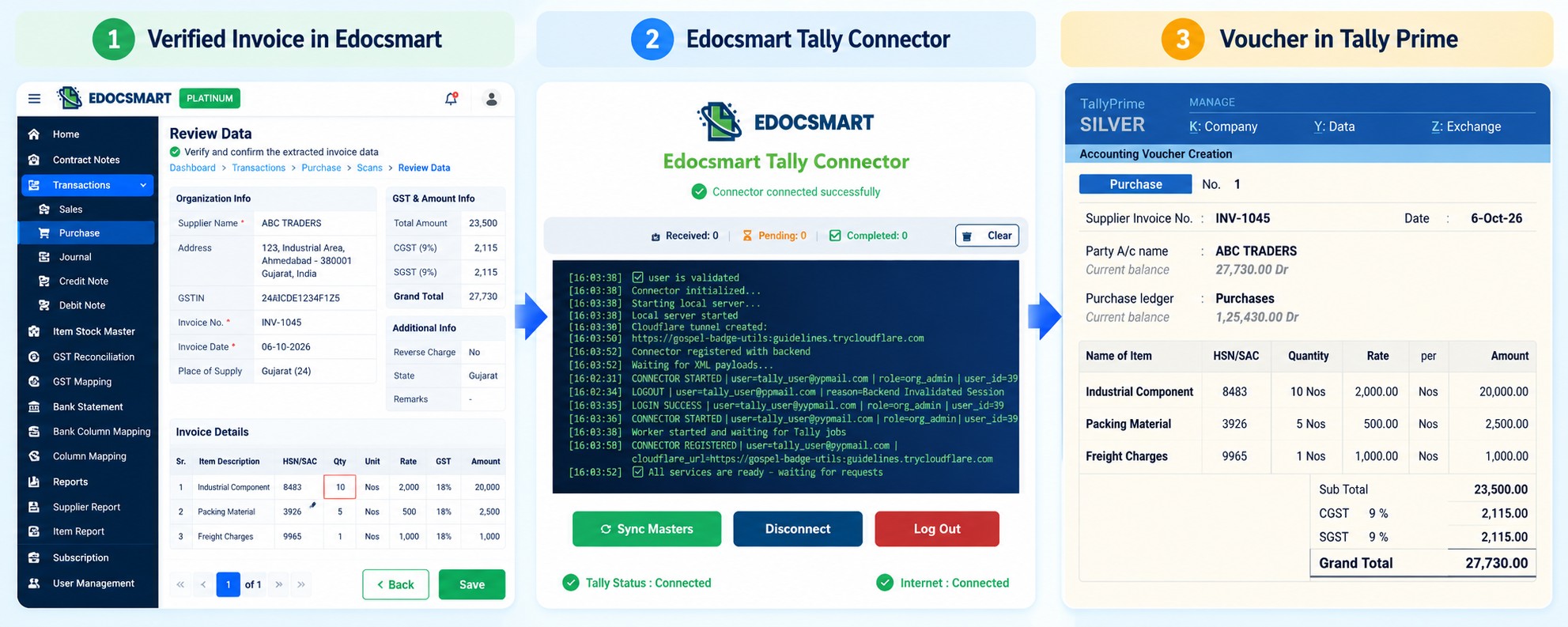 Step 9: Sync the Verified PDF Invoice to Tally
Once the invoice has been reviewed, the required mapping is available and the connector is running, the verified record can be synchronized.
Click Sync to Tally.
The accounting information then moves through the configured Tally connection.
The key distinction is that the original PDF file itself is not being transformed into a Tally voucher by simply attaching it. The verified structured data extracted from the PDF is what is being used for the accounting workflow.
Depending on the configured setup, the resulting transaction can contain the relevant party, invoice, item, quantity, rate, GST and amount information.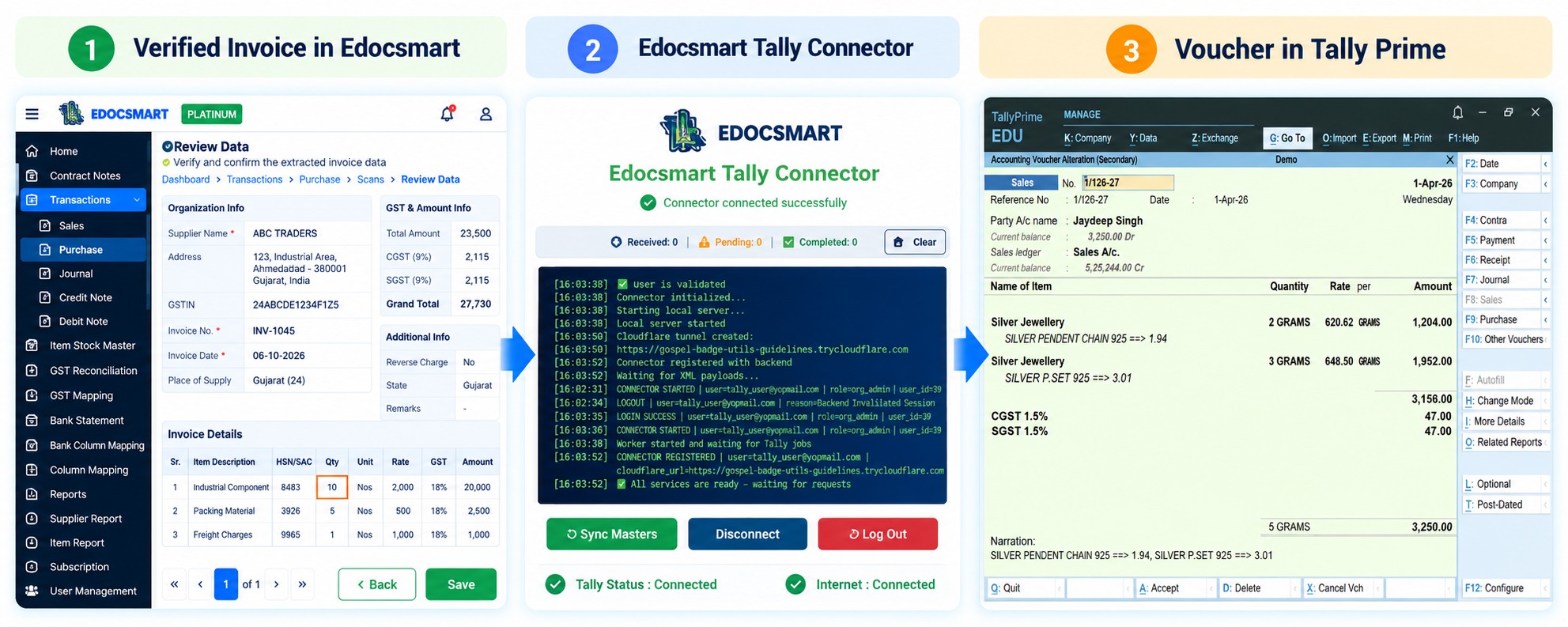 Step 10: Verify the Imported Voucher in Tally Prime
Do not consider the process complete immediately after clicking Sync to Tally.
Open Tally Prime and check the resulting voucher.
Compare the Party Ledger, supplier invoice number, invoice date, Stock Items, HSN/SAC where applicable, quantity, rate, GST information and final amount with the original PDF and reviewed information.
This final verification confirms that the data reached the intended accounting destination.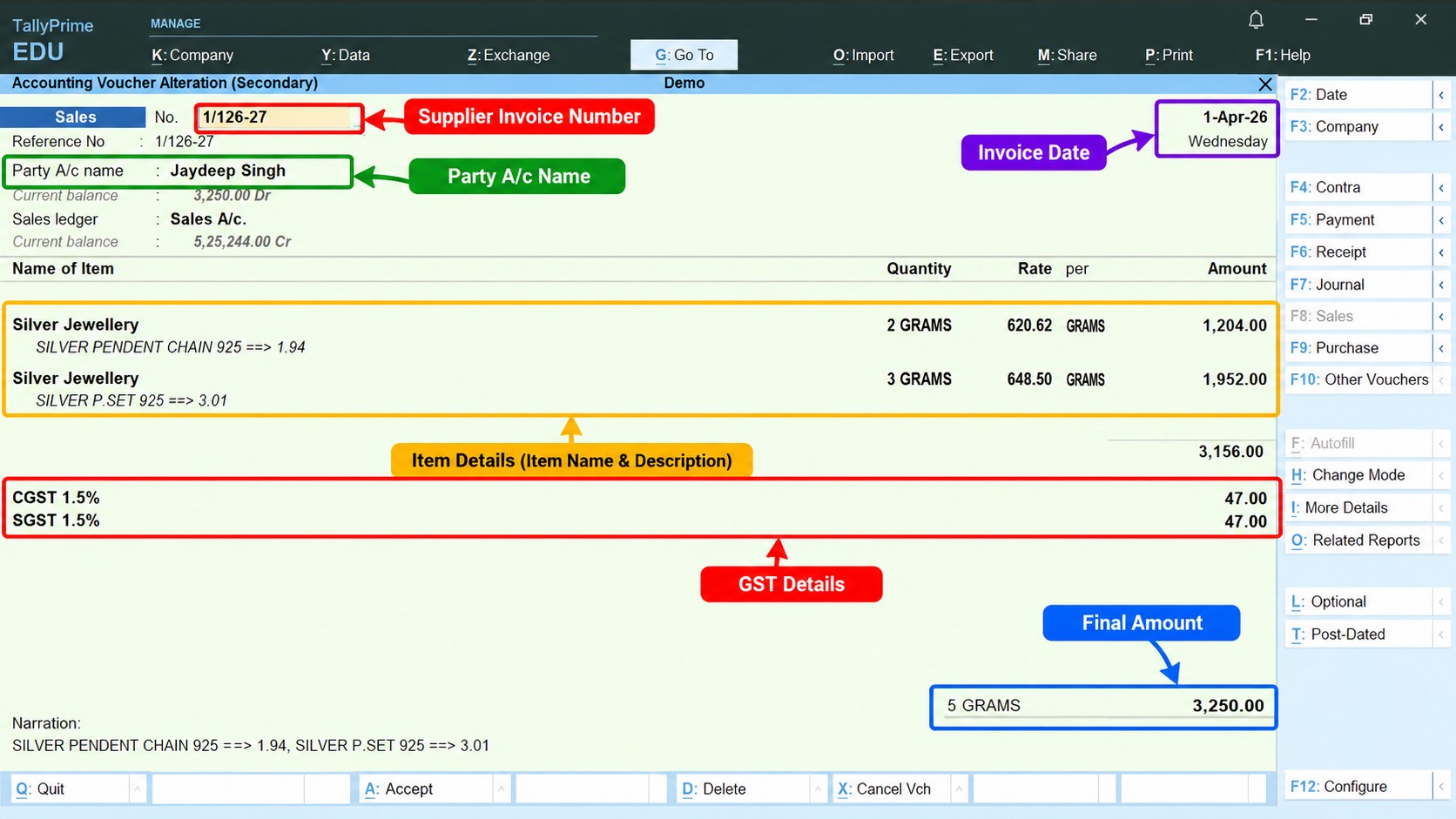 What Information Can Be Imported from a PDF Invoice?
The information handled depends on the invoice and configured accounting workflow, but a typical relationship may look like this:
| PDF Invoice Information | Accounting/Tally Context |
|---|---|
| Supplier Name | Party Ledger |
| Invoice Number | Supplier Invoice Number |
| Invoice Date | Invoice/Voucher Date |
| Item Description | Stock Item |
| HSN/SAC | Item/Tax Information |
| Quantity | Quantity |
| Unit | Unit |
| Rate | Rate |
| CGST/SGST/IGST | GST Information |
| Invoice Total | Voucher Amount |
The exact destination and behavior can vary according to Tally masters, voucher configuration and the organization's setup.
What If the PDF Invoice Is Scanned?
Not every PDF contains clean digital text.
Some supplier invoices are created by scanning a physical bill and saving it as a PDF. In such cases, the document behaves more like an image than a text-based PDF.
A scanned invoice to Tally workflow therefore requires the invoice information to be identified from the scanned document before it can be structured for accounting.
Image quality becomes important here. Blurred text, folded pages, poor lighting or unclear numbers can require additional review.
This is why an OCR to Tally software workflow should still include verification. Even when most information is extracted correctly, important fields such as quantity, GSTIN, invoice number and amount should be checked before synchronization.
Can You Import Multiple PDFs into Tally?
The same workflow becomes more valuable when invoice volume increases.
Instead of manually opening each PDF and recreating its information in Tally, multiple invoice records can be processed and managed through the transaction workflow.
Verified documents can move forward while invoices that require correction or additional review can remain pending.
For businesses dealing with larger invoice volumes, the dedicated PDF to Tally solution can help organize PDF invoice processing around extraction, review and Tally synchronization.
Common Problems When Importing PDF into Tally
A PDF import may need attention when the supplier is connected to the wrong ledger, an item does not correspond with the expected Stock Item, extracted quantity or rate differs from the source document, GST information needs correction, or the Tally connection is unavailable.
When something looks incorrect, start with the original PDF and compare it with the Review Data screen. If the extracted information is correct, check the mapping. If both are correct but synchronization is not happening, check the Tally Connector, Tally Status and Internet Status.
For scanned documents, document quality can also affect extraction. A clearer source document or additional review may be necessary.
This troubleshooting order makes it easier to identify whether the issue is coming from the source PDF, extracted information, mapping or synchronization stage.
Manual PDF Entry vs PDF Import Workflow
| Manual PDF Entry | PDF Import Workflow |
|---|---|
| Open the PDF manually | Upload the PDF |
| Read every field | Extract invoice information |
| Type supplier details | Review supplier information |
| Enter invoice number/date | Verify extracted invoice details |
| Type item rows | Review extracted item rows |
| Enter GST information | Verify GST information |
| Search accounting masters | Use configured mapping |
| Create voucher manually | Sync verified data |
| Focus on repeated typing | Focus more on verification |
The purpose of automation is not to remove accounting control.
It changes the work from repetitive re-entry toward review, correction and verification.
Pre-Sync Checklist
Before sending a PDF invoice to Tally, verify the most important information:
Party Ledger ✓ · Invoice Number ✓ · Invoice Date ✓ · GST ✓ · Stock Items ✓ · HSN/SAC ✓ · Quantity ✓ · Rate ✓ · Total ✓ · Mapping ✓ · Tally Connector ✓
[IMAGE 12 – Clean pre-sync checklist beside a PDF invoice using the original Edocsmart Tally Connector reference. Show Party Ledger, Invoice Number, Date, GST, Stock Items, HSN/SAC, Quantity, Rate, Total, Mapping and Tally Connector verified before Sync to Tally.]
Frequently Asked Questions
Can I import a PDF directly into Tally?
A PDF itself is a document rather than a completed Tally accounting voucher. Its information needs to be extracted, structured, reviewed and mapped before verified accounting data is synchronized with Tally.
How do I import a PDF invoice into Tally Prime?
Upload the PDF invoice into Edocsmart, process the invoice information, review the extracted fields, complete or verify the required mapping, make sure the Tally Connector is connected and then sync the verified record to Tally.
Can scanned PDF invoices be imported into Tally?
Scanned invoices can be processed through an OCR/extraction workflow, but document quality matters. Extracted values should be carefully checked against the original scanned document before synchronization.
Does Edocsmart extract GST and item details from PDF invoices?
The invoice workflow can process information such as GST and item-level details for review. The exact information available depends on the source document and configured workflow.
Do I need to map every PDF invoice separately?
Initial mapping or configuration may be required. Where an existing configured relationship continues to apply, it may be reused. The exact behavior depends on the organization's setup.
Can I correct PDF invoice data before syncing it to Tally?
Yes. Reviewing and correcting extracted information before synchronization is an important part of the workflow.
Can multiple PDF invoices be processed?
Multiple invoice records can be managed through the transaction workflow, allowing verified documents to proceed while exceptions remain available for additional review.
Why is my PDF invoice not syncing to Tally?
First verify that the invoice data and required mapping are ready. Then check that the Edocsmart Tally Connector is running and that both Tally Status and Internet Status show connected. If the issue continues, the configured Tally setup may also need to be checked.
Conclusion
Importing a PDF into Tally should not mean manually reading the document and typing the same information again.
The PDF already contains much of the data required for accounting. The challenge is turning that document information into structured, verified and correctly mapped accounting data.
With Edocsmart, the workflow can be organized as:
PDF Invoice → Upload → Extract → Review → Map → Verify → Tally Connector → Sync to Tally → Verify Voucher
This allows accountants to spend less time repeatedly typing supplier details, invoice numbers, item information, quantity, rate and GST, while still keeping verification as an important part of the accounting process.
For businesses that regularly receive invoices as PDFs, a structured PDF to Tally workflow can make invoice processing more efficient without treating accounting as a blind one-click process.