How to Import Purchase Invoice in BUSY
Import purchase invoices into BUSY using Edocsmart to extract invoice details from PDFs or images, verify accounting data, and download a BUSY-compatible Excel file for faster purchase entry.
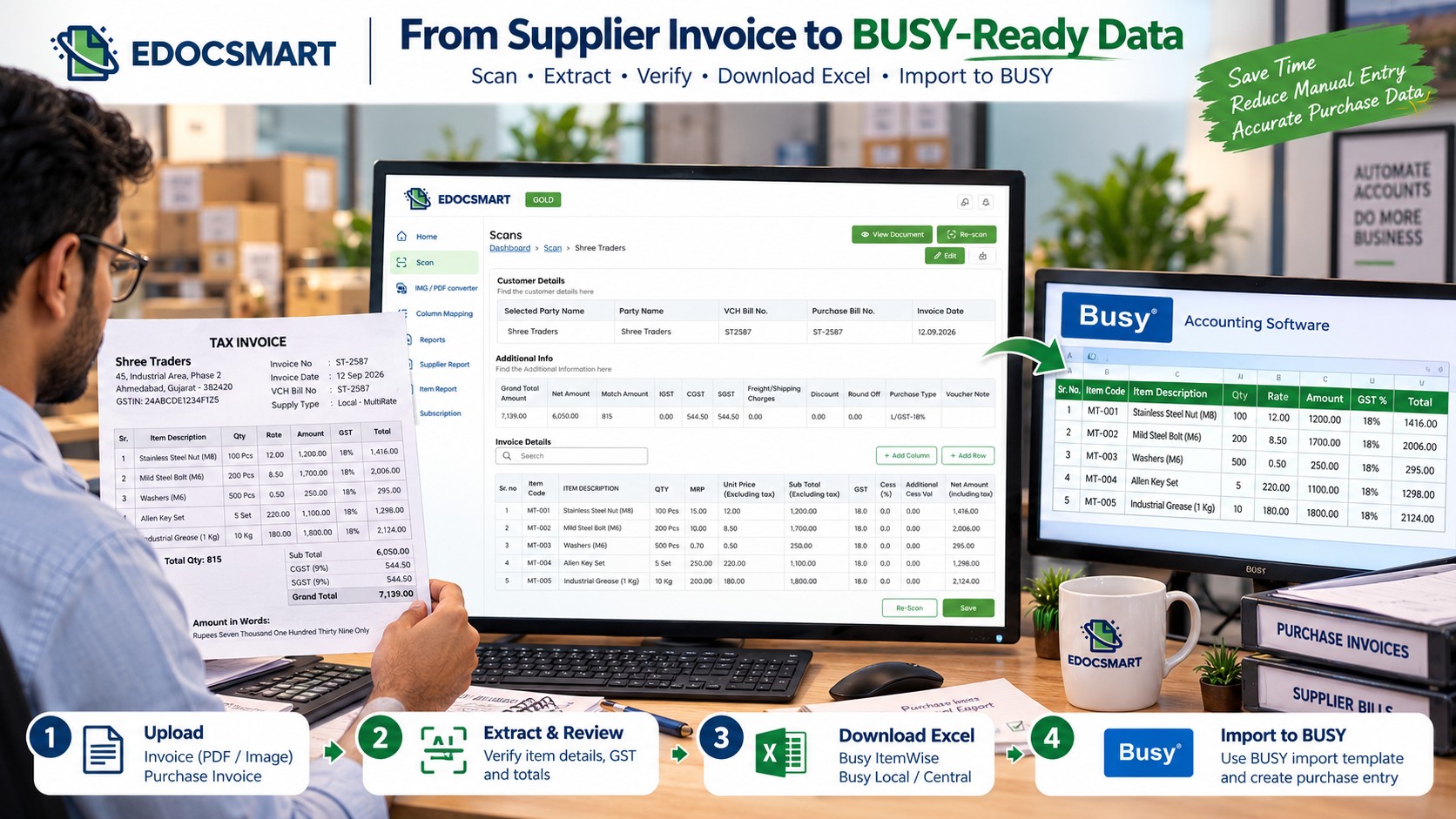
Import purchase invoices into BUSY using Edocsmart to extract invoice details from PDFs or images, verify accounting data, and download a BUSY-compatible Excel file for faster purchase entry.
Why Is Importing Purchase Invoices into BUSY Still Time-Consuming?
Imagine running a wholesale business where suppliers send purchase invoices every day. Some invoices arrive as PDFs through email, while others are photographs shared on WhatsApp or printed bills delivered with goods.
Your accountant opens each invoice, checks the supplier name, enters the invoice number and date, selects the correct items, fills in quantities and rates, calculates GST, and records the transaction in BUSY accounting software.
Now imagine doing the same work for 50 or 100 purchase invoices.
Even when the invoices are accurate, entering the same information manually takes time. A small typing mistake in the invoice number, quantity, item code or GST amount can also create problems during reconciliation.
A more practical approach is to extract the information from supplier invoices first, verify it, and then import the prepared accounting data into BUSY.
With Edocsmart, businesses can process purchase invoice images and PDFs, review the extracted fields, and download Excel files in supported BUSY-oriented formats.
This approach helps reduce repetitive data entry while keeping the accountant in control of the final information.
What Does Importing a Purchase Invoice into BUSY Mean?
Importing a purchase invoice into BUSY means transferring supplier bill information into the accounting software through a supported import format instead of typing every detail manually.
The purchase invoice may contain supplier information, invoice references, item descriptions, quantities, prices, tax details and total amounts.
However, a PDF or photograph is not automatically a BUSY purchase voucher. The document information must first be converted into structured accounting data and arranged according to the import format configured in BUSY.
For the workflow covered in this guide, Edocsmart processes the original invoice and prepares an Excel file. BUSY then imports that file through its configured template.
The overall process is:
Supplier Invoice → Edocsmart Scan → Data Extraction → Review → BUSY Excel Download → BUSY Import → Purchase Entry Verification
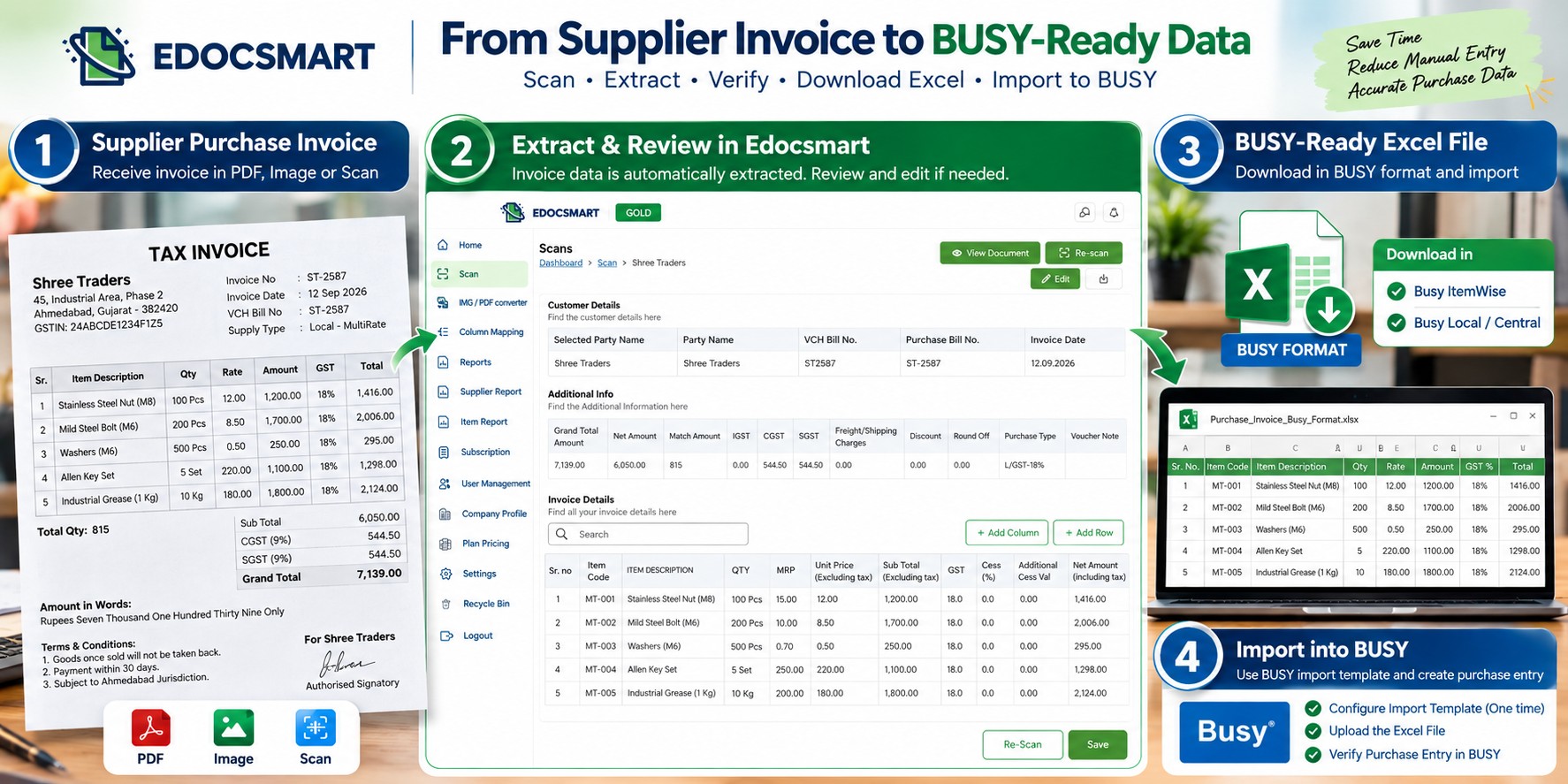 How to Import Purchase Invoice in BUSY Using Edocsmart
The following steps explain how to prepare supplier purchase invoices in Edocsmart and import the resulting Excel data into BUSY.
Step 1: Sign In to Edocsmart
Start by opening your browser and visiting Edocsmart.
Select the Sign In option and enter your registered account credentials. After signing in, you will reach the Edocsmart dashboard.
The dashboard provides access to document processing and related accounting tools. In the reference interface, the left sidebar includes Scan, IMG / PDF Converter, Column Mapping, Reports and other options.
For importing a purchase invoice into BUSY, begin with the Scan section.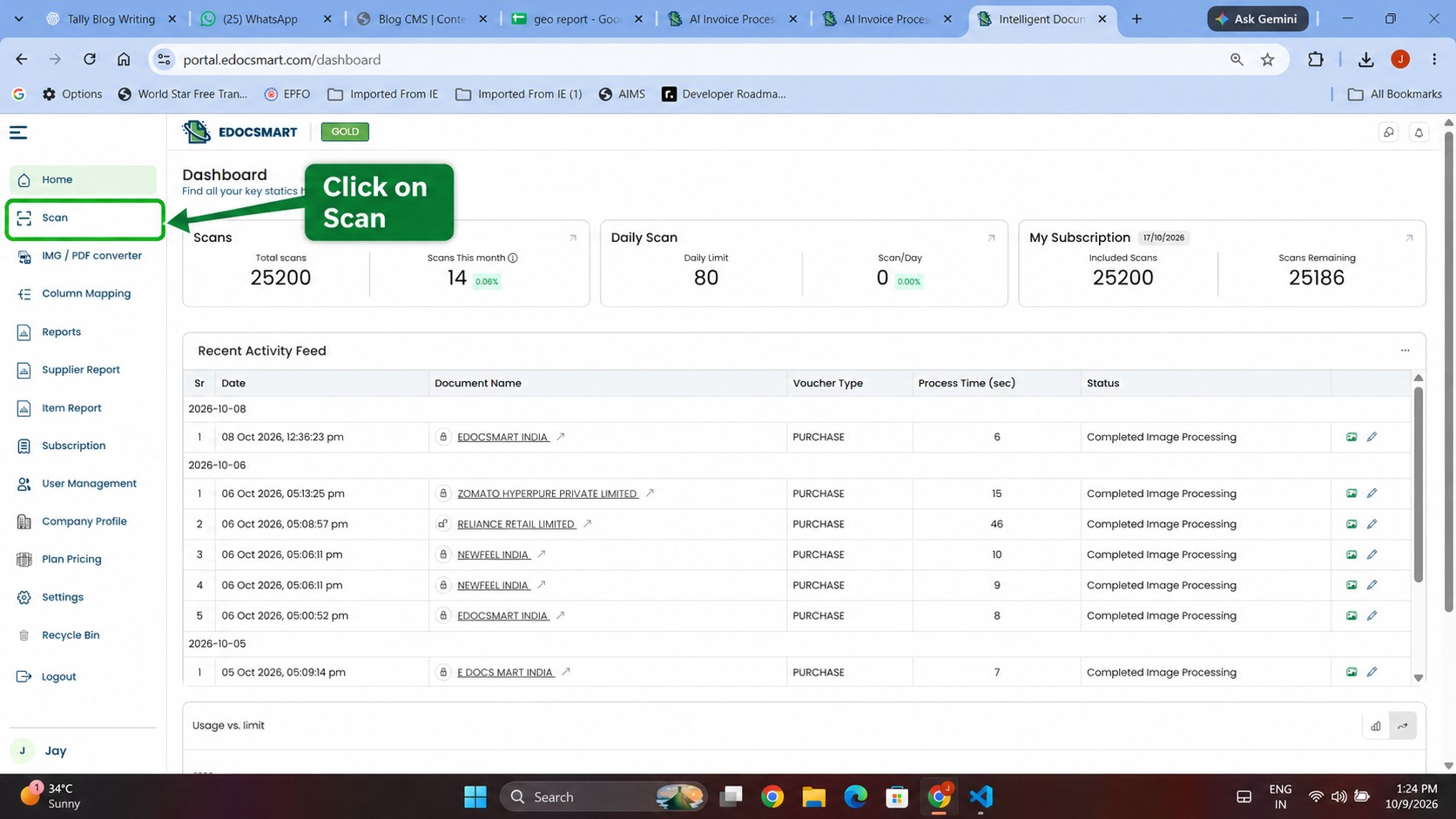
Step 2: Open Scan and Upload Your Purchase Invoice
From the dashboard, click Scan in the left sidebar.
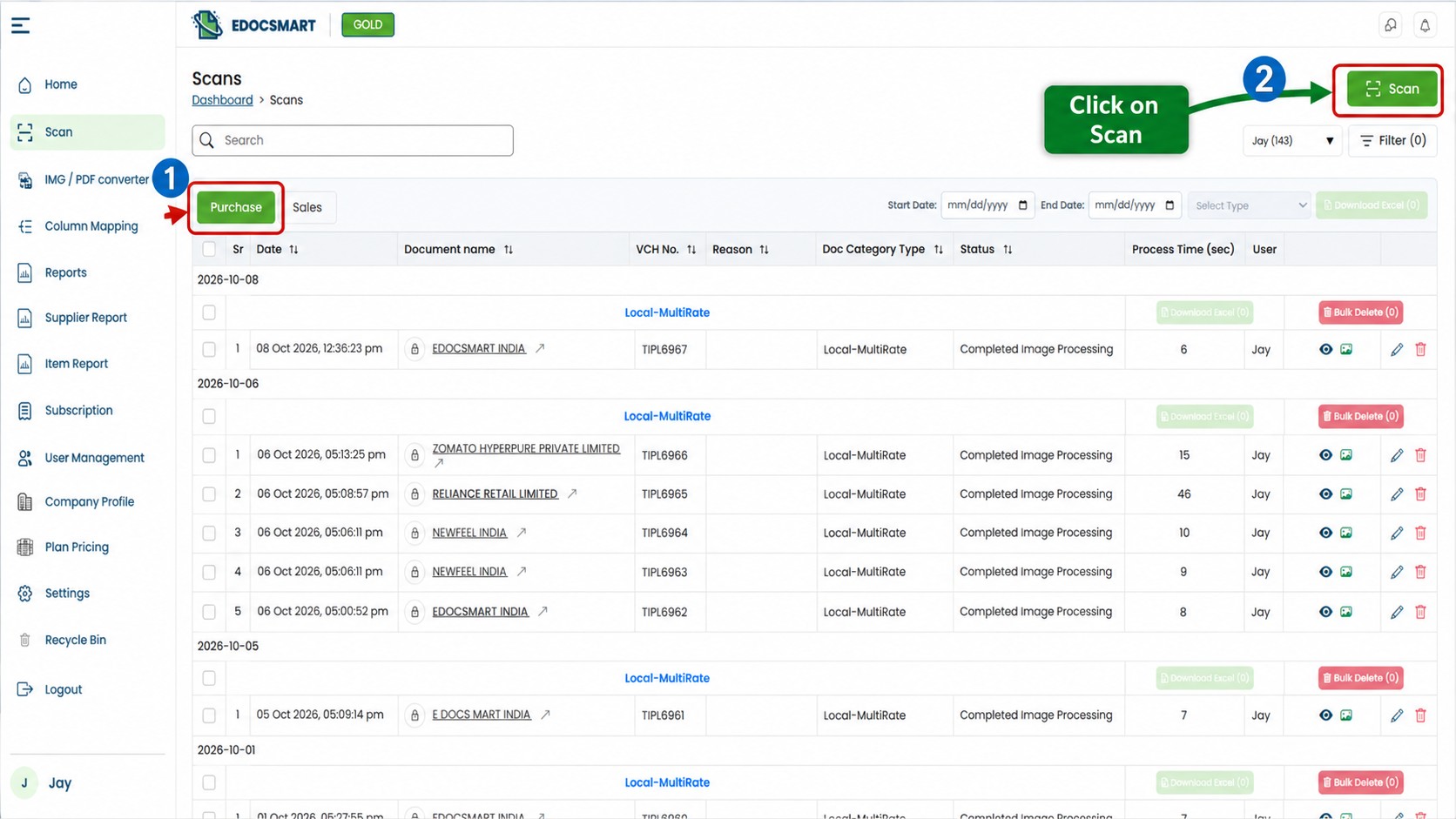
This opens the Scans page, where previously processed purchase and sales documents can be viewed. You can see information such as document name, voucher number, processing status and processing time.
On the upper-right side, click the green Scan button to begin processing a new document.
Upload the supplier purchase invoice in the supported image or PDF format.
For example, suppose you receive a purchase bill from a food distributor. The document contains the supplier name, purchase bill number, invoice date, item descriptions, quantities, rates and GST details.
Instead of manually entering each field in BUSY, upload the document to Edocsmart for extraction.
Important: In this workflow, the original invoice is uploaded as an image or PDF. The Excel file is prepared afterward for import into BUSY.
Step 3: Extract Purchase Invoice Information
After the invoice is uploaded and processed, Edocsmart displays the extracted accounting information.
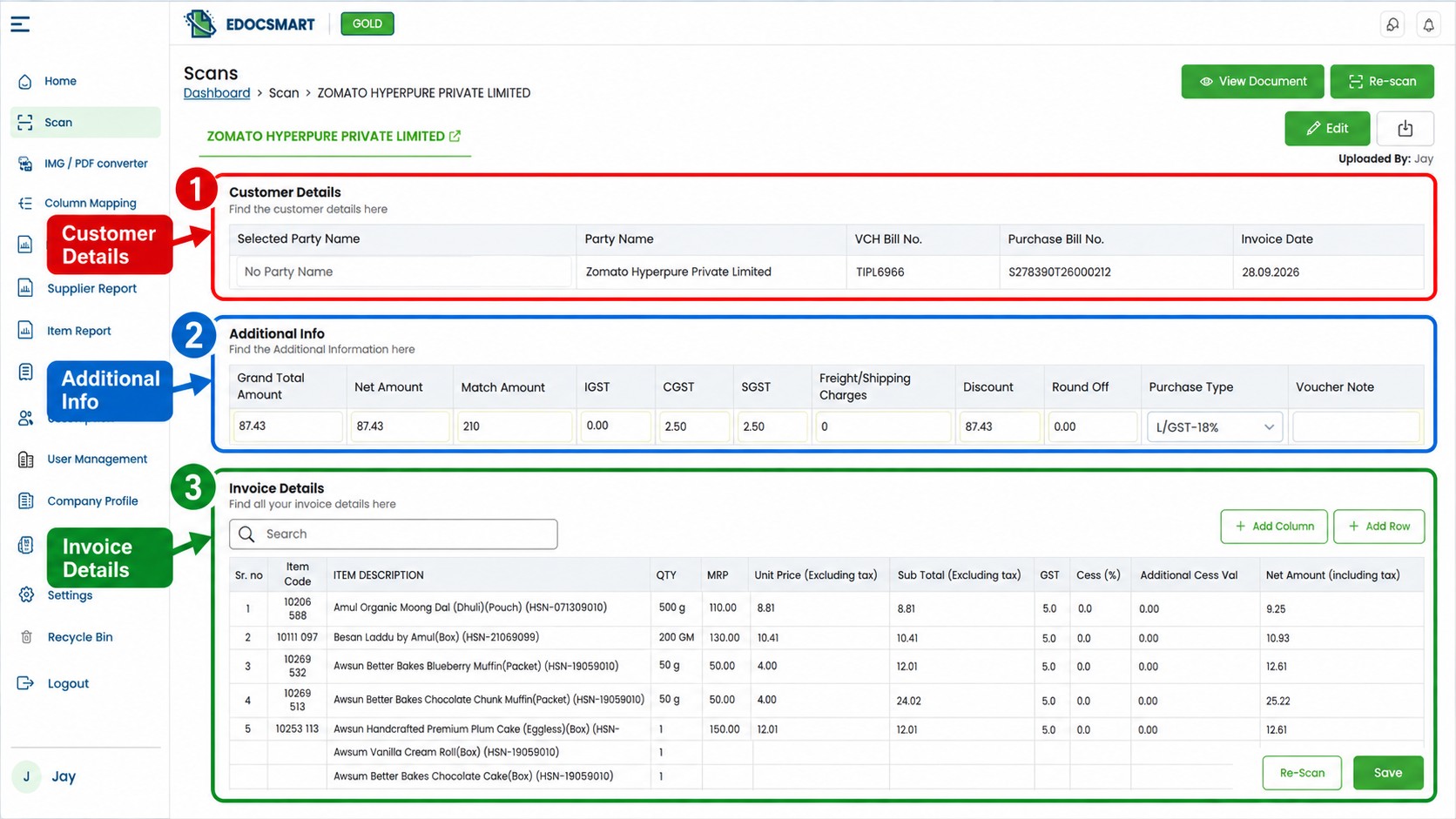
Based on the provided reference, the purchase invoice details screen includes three important sections.
Customer Details
This section contains information such as the selected party name, party name, voucher bill number, purchase bill number and invoice date.
Additional Info
This section contains accounting values including Grand Total Amount, Net Amount, Match Amount, IGST, CGST, SGST, Freight/Shipping Charges, Discount, Round Off, Purchase Type and Voucher Note.
Invoice Details
This section shows item-level information, including Item Code, Item Description, Quantity, MRP, Unit Price, Subtotal, GST and Net Amount.
These details help convert the original supplier document into a structured record that can be reviewed before export.
For example, a supplier invoice may include several grocery items with different quantities and prices. Edocsmart organizes the extracted item information into rows, making it easier to check than repeatedly reading the original bill.
Step 4: Review and Correct the Extracted Data
Extracting invoice data is only one part of the process. The next step is verifying that the information matches the original supplier bill.
Open the review screen and compare the extracted values with the uploaded document.
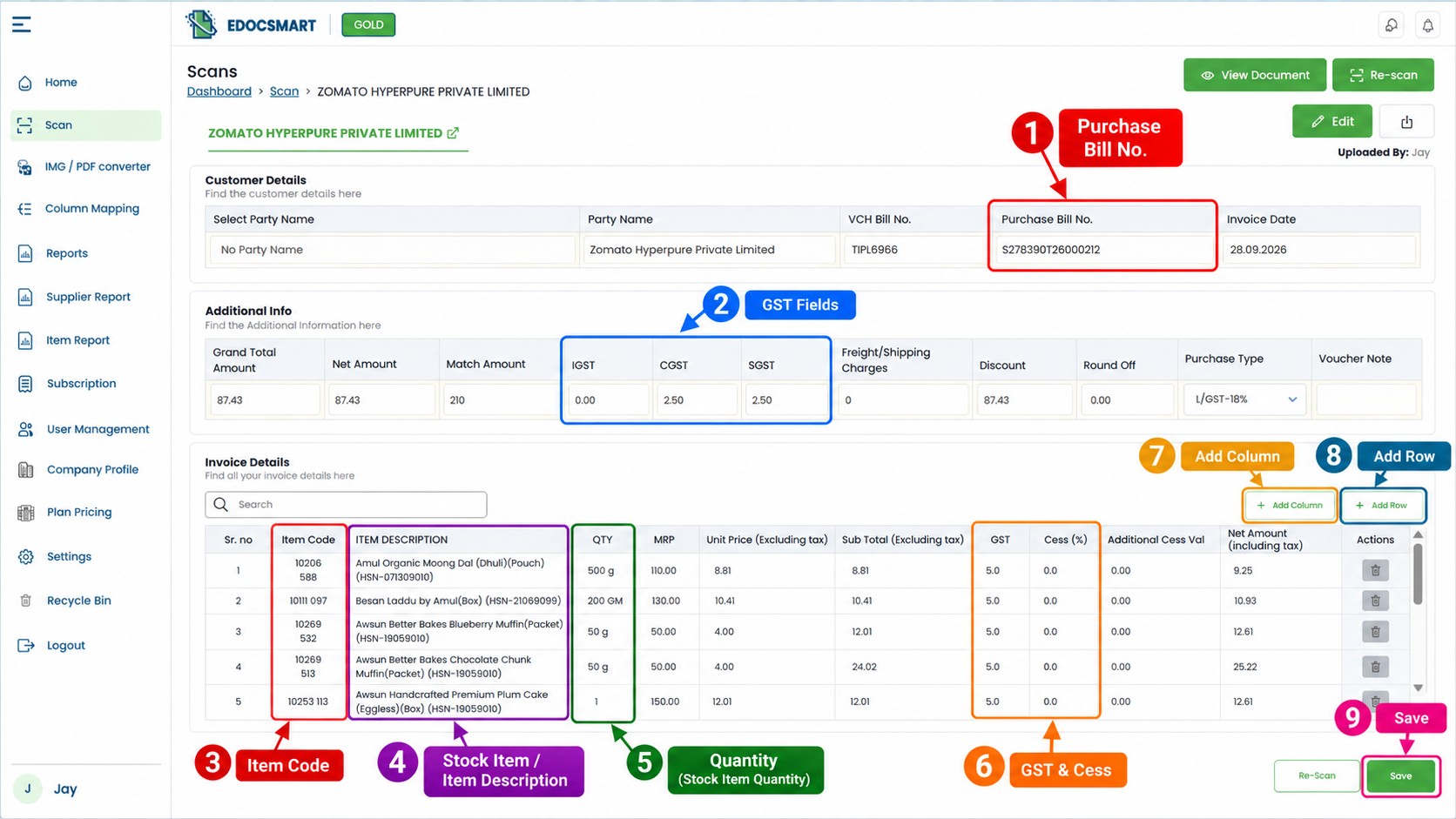
Check the supplier name, invoice date, purchase bill number, item descriptions, quantities, GST amounts and final total.
For example, if the original invoice shows a quantity of 500 g but the extracted field is incorrect, correct it before saving.
The reference review interface also provides Add Column and Add Row options.
These options are useful when additional information needs to be recorded or the invoice contains more item details than the current table displays.
You can review the data, make the required corrections and save the verified record.
This step is particularly important for invoices containing multiple products, mixed GST rates, discounts or additional charges.
Step 5: Save the Verified Purchase Invoice
Once the extracted information is correct, click Save.
Edocsmart displays a confirmation page indicating that the invoice has been processed.
The reference screen shows the progress stages:
Upload Invoice → Review Data → Save
The saved invoice is listed with its document name, and a download option is available.
At this point, the information has been reviewed and prepared for export. It has not yet been imported into BUSY.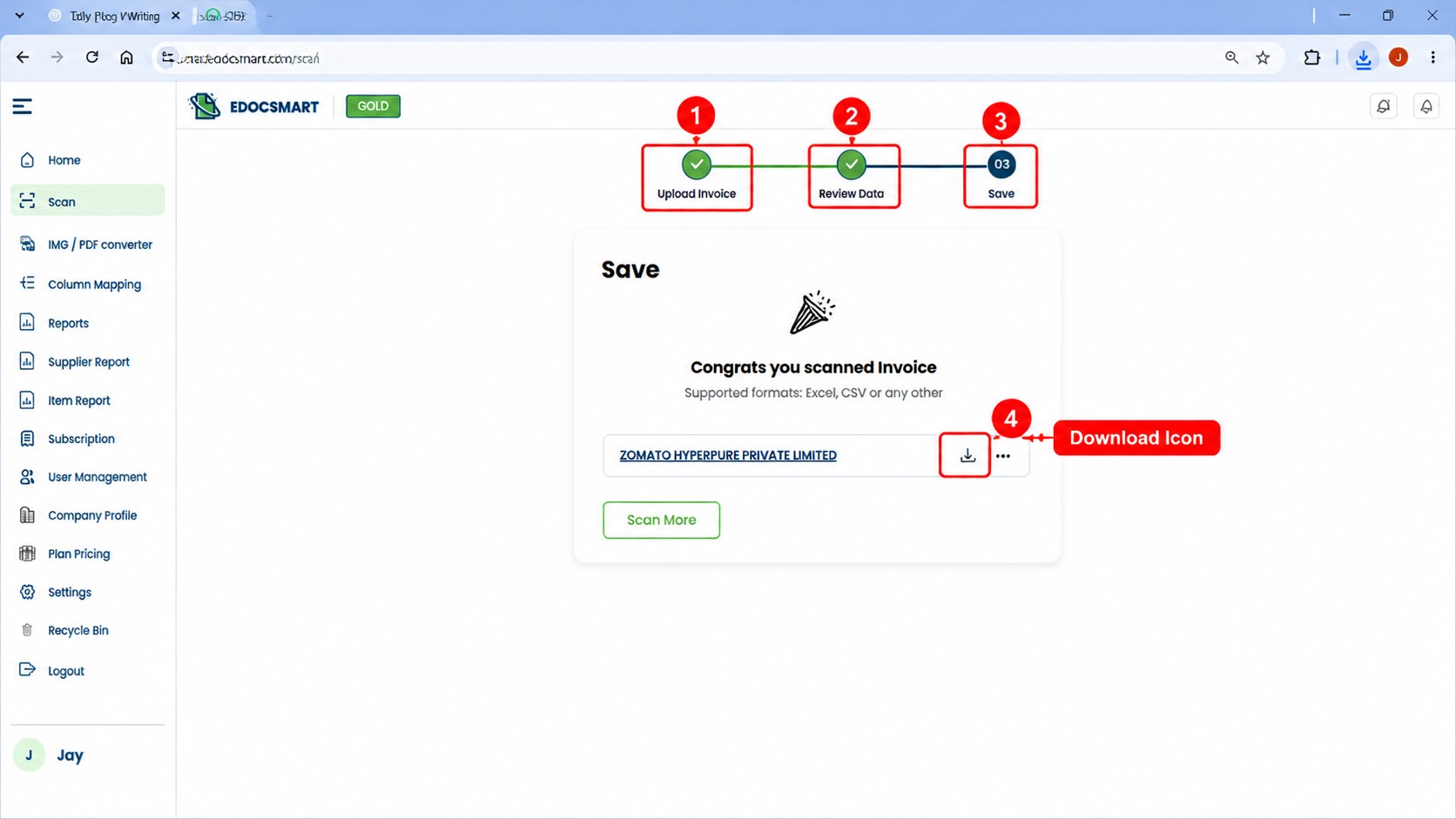
Step 6: Download the Purchase Invoice in BUSY Excel Format
After saving the invoice, click the download icon beside the processed document.
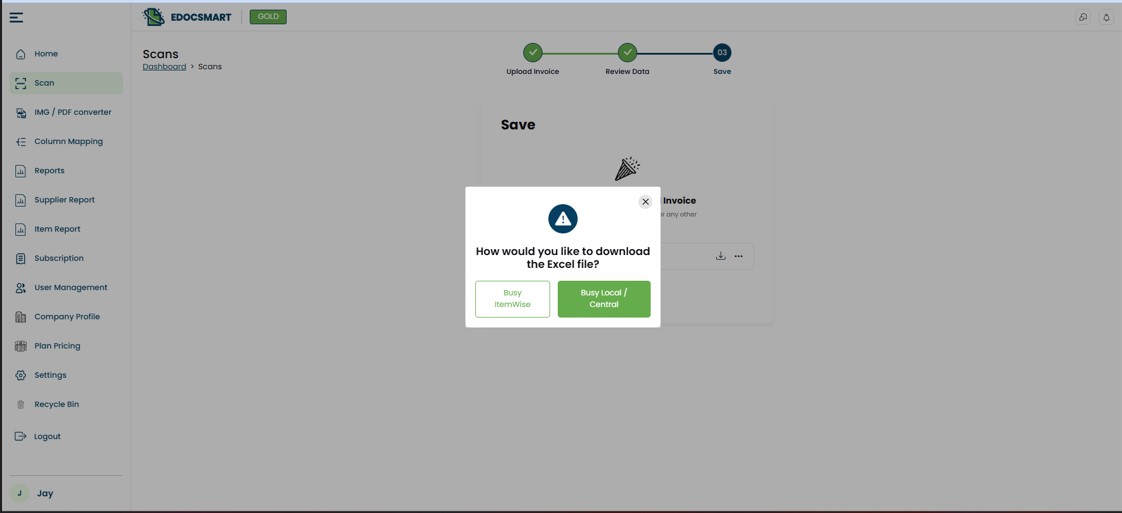
A format-selection window appears.
In the supplied Edocsmart reference, two BUSY-related export options are visible:
Busy ItemWise
Busy Local / Central
Select the format appropriate for your BUSY import configuration.
The choice depends on how your accounting setup expects purchase invoice information to be structured.
For example, an item-wise import may require product-level information, while a local/central format follows its configured tax and transaction structure.
Edocsmart then downloads the selected Excel file to your computer.
The downloaded file contains the processed invoice information arranged for the chosen export option. It should still be checked for compatibility with the BUSY template you plan to use.
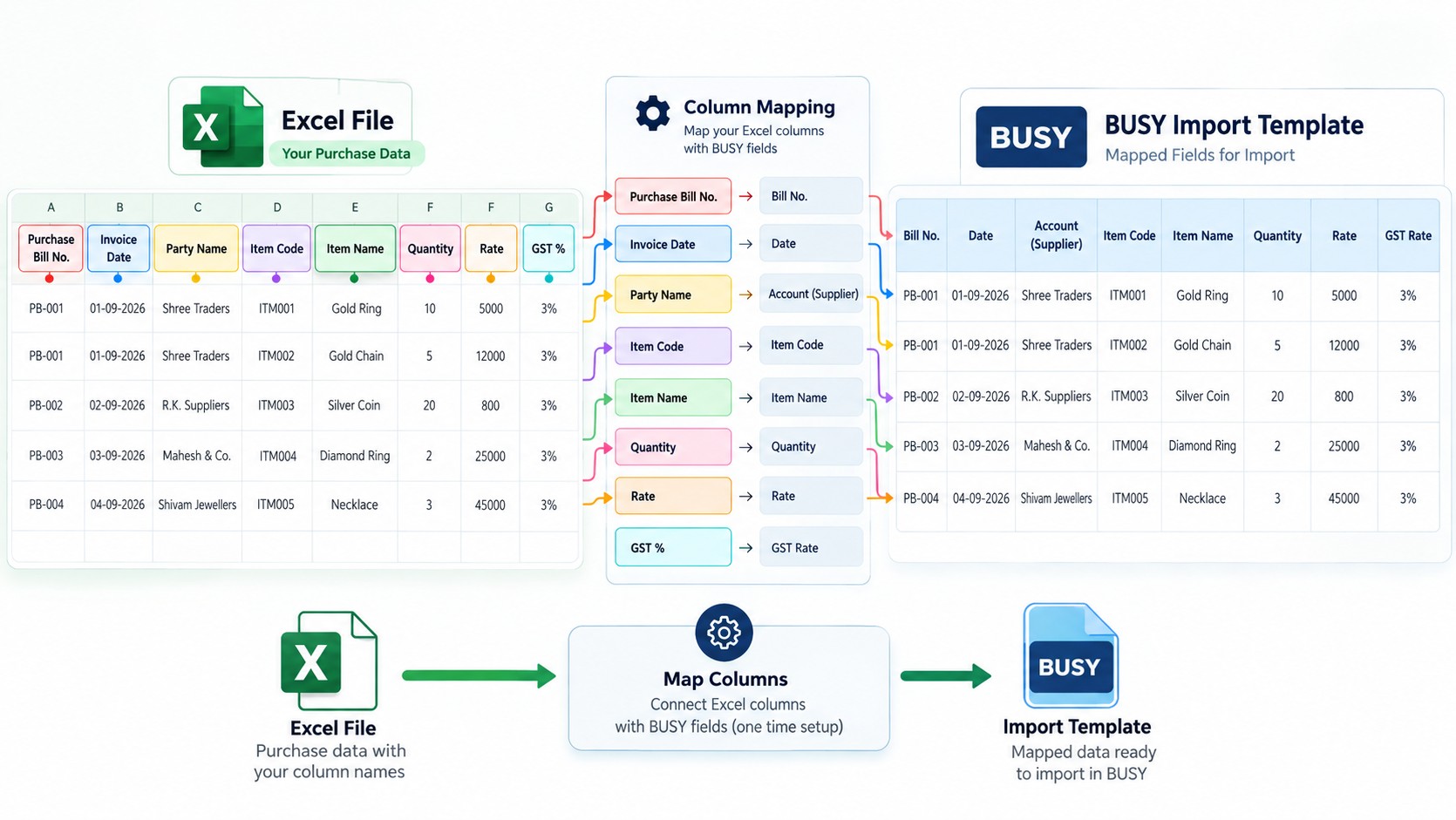
Step 7: Configure the Import Template in BUSY
Before importing the downloaded Excel file, the corresponding import template must be configured in BUSY.
This is an important setup step because BUSY needs to understand how the Excel columns relate to its accounting fields.
For example, the Excel file may contain columns for supplier name, purchase bill number, date, item code, quantity, rate and GST.
The BUSY import configuration must match the file structure and the intended purchase voucher fields.
The exact menu and template configuration steps can differ depending on the BUSY version and the available import facility.
For a repeated file format, mapping can generally be reused once the template has been configured correctly. It may need to be updated if the Excel structure, voucher configuration or accounting masters change.
One-time mapping reduces repeated setup work, but it does not eliminate the need to review new invoices.
Step 8: Import the Excel File into BUSY
After configuring the required import template, open the appropriate purchase-data import facility in BUSY.
Select the configured template and choose the Excel file downloaded from Edocsmart.
Follow the import prompts available in your BUSY version.
BUSY will process the file according to the selected import configuration. Successful creation of purchase entries depends on the file structure, required accounting masters, voucher settings and validation rules.
After importing, open the relevant purchase records and verify that the invoice details have been recorded correctly.
Check the party, purchase bill reference, invoice date, item information, quantities, tax values and final amount.
If BUSY reports an import error, review the Excel file, template mapping and master-data requirements before attempting the import again.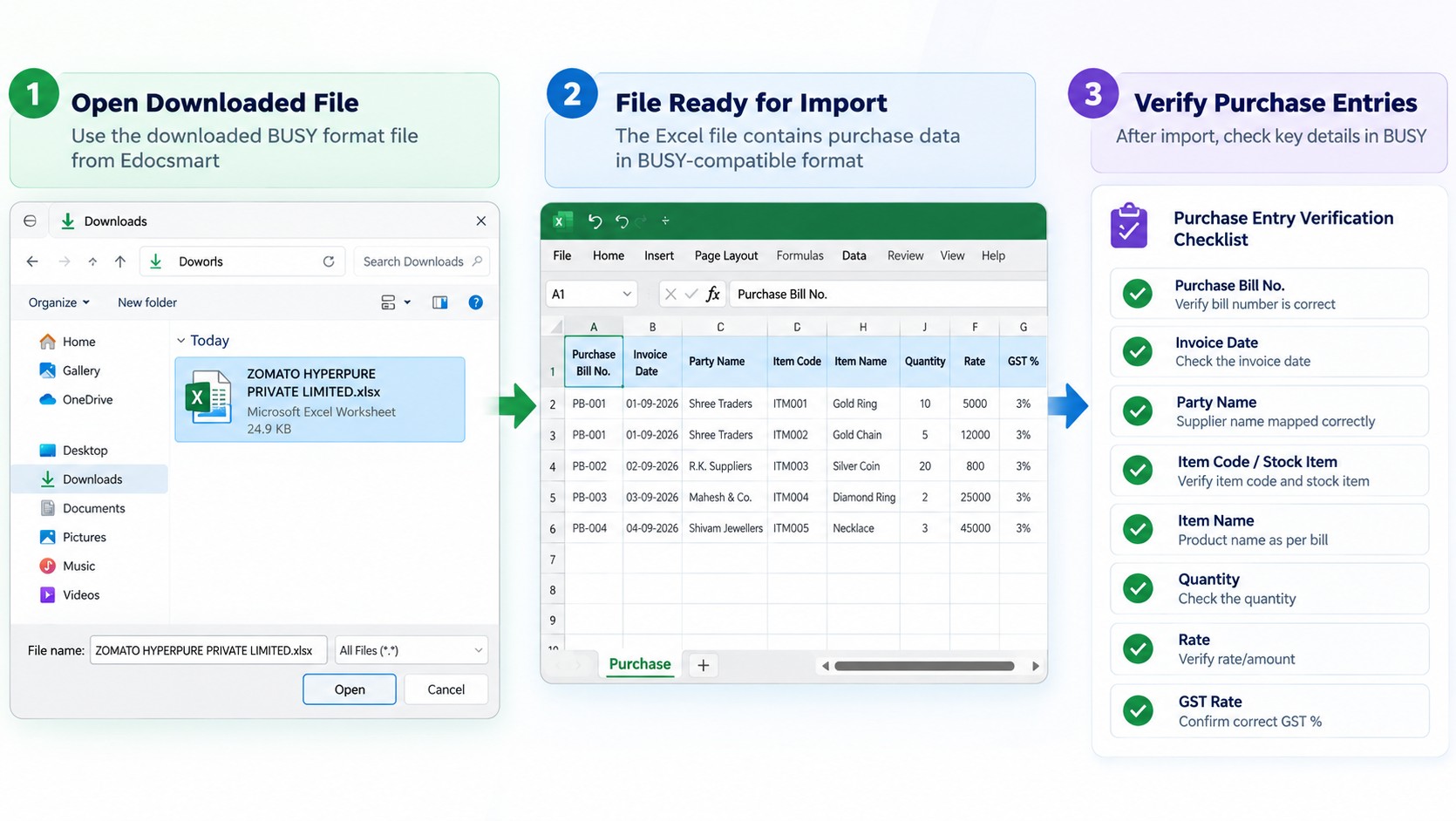
What Purchase Invoice Information Should Be Checked Before Importing into BUSY?
Not every invoice contains the same fields. A simple service bill may have fewer details than a wholesale or manufacturing purchase invoice.
The following table summarizes the information that should be checked when relevant to your transaction.
| Invoice information | Why it matters |
|---|---|
| Supplier or Party Name | Identifies the correct supplier account |
| Purchase Bill Number | Helps identify the original supplier bill |
| Invoice Date | Records the correct transaction date |
| Item Code and Description | Helps identify purchased products |
| Quantity and Unit | Records the purchased amount of each item |
| Rate and MRP | Supports price verification |
| GST Details | Helps validate tax treatment |
| Discount and Freight | Accounts for additional invoice adjustments |
| Grand Total and Net Amount | Helps reconcile the final purchase value |
For invoices with multiple tax rates, additional charges or special purchase types, review the values carefully before exporting and importing.
Busy ItemWise vs Busy Local / Central: Which Format Should You Choose?
The Edocsmart export screen provides both options, but the correct choice depends on the import template and accounting configuration in BUSY.
| Export option | What to consider |
|---|---|
| Busy ItemWise | Choose when your configured import requires item-level purchase information |
| Busy Local / Central | Choose when your configured import expects the corresponding local/central transaction structure |
Do not select a format based only on its name. First confirm which format your BUSY import template accepts.
If the selected format does not match the template, the import may fail or require corrections.
How Does Edocsmart Help with Bulk Purchase Invoice Processing?
For businesses receiving many supplier bills, processing invoices one at a time can become repetitive.
Edocsmart can support bulk-oriented document workflows and, depending on the configured account and feature availability, options such as multiple document uploads, bulk deletion and customized output requirements.
For example, a wholesale distributor may receive purchase invoices from several suppliers each day. Instead of preparing a separate spreadsheet manually for every bill, the accounting team can use document extraction and verification to prepare structured data more efficiently.
Bulk processing does not mean every invoice should be imported without review. Each record still needs appropriate validation, especially when suppliers use different layouts or tax structures.
Businesses with special invoice fields or import requirements may also need a customized Excel output format.
Manual Purchase Entry vs Excel-Based Purchase Invoice Import in BUSY
| Manual purchase entry | Edocsmart-assisted Excel import |
|---|---|
| Accountant reads every invoice field | Invoice fields are extracted from the document |
| Details are typed individually | Extracted details are reviewed and prepared |
| Repeated entry for each invoice | A compatible Excel file can be imported |
| More repetitive typing | Less manual re-entry |
| Corrections are made during or after entry | Errors can be corrected before export |
| No document extraction stage | Includes extraction and review before BUSY import |
The main advantage is not simply converting a PDF into Excel. It is preparing purchase invoice information in a structured format that the accounting team can verify and use for importing into BUSY.
Common Problems When Importing Purchase Invoices into BUSY
1. Incorrect Excel Import Template
If the downloaded file and BUSY template use different column structures, the import may not work as expected.
Solution: Confirm that the selected Edocsmart export format matches the configured BUSY template.
2. Supplier or Item Master Mismatch
A supplier name or item code in the Excel file may not match the existing master information in BUSY.
Solution: Verify the relevant party and item masters and correct the mapping where required.
3. Incorrect GST Values
Some invoices contain multiple GST rates, discounts or freight charges. Incorrect extraction can affect the final accounting values.
Solution: Compare the GST amounts and totals with the original invoice before exporting.
4. Missing Purchase Bill Information
An incorrect purchase bill number or date can make future invoice tracking and reconciliation difficult.
Solution: Check these fields in the Edocsmart review screen before saving.
5. Incorrect Quantity or Rate
Even a small error in quantity or unit price can affect inventory and purchase values.
Solution: Review item-level details and confirm the resulting values after importing into BUSY.
Who Can Benefit from Purchase Invoice Import Automation?
Wholesale and Distribution Businesses
Wholesalers often receive supplier invoices containing many products, quantities, discounts and tax details. Structured invoice extraction can help their accounting teams prepare purchase data more efficiently.
Manufacturing Businesses
Manufacturers regularly purchase raw materials, components and supplies. Preparing accurate item-level purchase information can reduce repetitive accounting work.
Retail and Grocery Businesses
Retailers may receive invoices from multiple distributors, each using a different document layout. Extracting and reviewing invoice data before BUSY import helps organize these records.
Accounting Firms
Accounting professionals handling multiple clients can use a consistent invoice review and Excel preparation workflow instead of manually entering every supplier bill.
Frequently Asked Questions
1. How do I import a purchase invoice into BUSY?
To import a purchase invoice into BUSY, first prepare the invoice data in a supported Excel format. With Edocsmart, you can upload a purchase invoice image or PDF, extract and review the details, and download a BUSY-oriented Excel file. Import the file using a correctly configured BUSY template and verify the resulting purchase entry.
2. What is the easiest way to enter purchase invoices in BUSY?
One practical approach is to use invoice extraction software to prepare accounting data before importing it into BUSY. Edocsmart helps extract supplier information, item details, quantities and GST values from invoice documents. After reviewing the data, you can download the appropriate Excel format and use BUSY's configured import facility.
3. How can I convert a PDF purchase invoice into BUSY Excel format?
Upload the PDF purchase invoice into Edocsmart using the Scan workflow. Review the extracted invoice number, supplier details, item information, tax amounts and totals. After saving the verified document, select the relevant BUSY Excel export option. The downloaded file can then be used with a compatible BUSY import template.
4. What information is required to import purchase invoices into BUSY?
The required information depends on the BUSY voucher and import template configuration. Common fields include supplier name, purchase bill number, invoice date, item code, quantity, rate, tax details and final amount. Some imports may also require matching accounting masters, units or additional transaction fields.
5. How does one-time mapping work when importing purchase invoices into BUSY?
One-time mapping means configuring the relationship between Excel columns and BUSY accounting fields for a particular file structure. Once a compatible template is configured, it can generally be reused for files following the same format. Mapping may need adjustment if the Excel columns, transaction requirements or accounting configuration change.
6. What is the difference between Busy ItemWise and Busy Local / Central Excel formats?
Busy ItemWise and Busy Local / Central are two export options shown in the Edocsmart download workflow. The correct option depends on the Excel structure expected by your BUSY import template. Confirm the configured import requirements before selecting a format, especially when item details and tax treatment must be handled differently.
7. How can I import multiple purchase invoices into BUSY without manual data entry?
You can reduce manual entry by processing supplier invoices through a document extraction workflow, reviewing the resulting data and preparing compatible Excel files. Edocsmart supports invoice extraction and BUSY-oriented export formats, with bulk and customized processing options depending on the setup. The prepared files must still be imported and validated through the appropriate BUSY facility.
Conclusion
Importing purchase invoices into BUSY becomes easier when the accounting information is prepared before it reaches the software.
Instead of repeatedly typing supplier names, bill numbers, item details, quantities and GST amounts, businesses can use Edocsmart to extract invoice information from images and PDFs, review the values, and download Excel files in supported BUSY-oriented formats.
The final step is importing the Excel file through a correctly configured BUSY template and verifying the resulting purchase records.
For businesses handling regular supplier bills, this workflow offers a practical way to reduce repetitive data entry while maintaining control over accounting accuracy.
Explore Edocsmart's invoice-to-BUSY solution to learn more about preparing invoice data for BUSY accounting software.