How to Import Scanned Invoices into BUSY
Learn how to convert scanned invoices into BUSY accounting entries using invoice data extraction, Excel preparation, field mapping, and verification with Edocsmart.
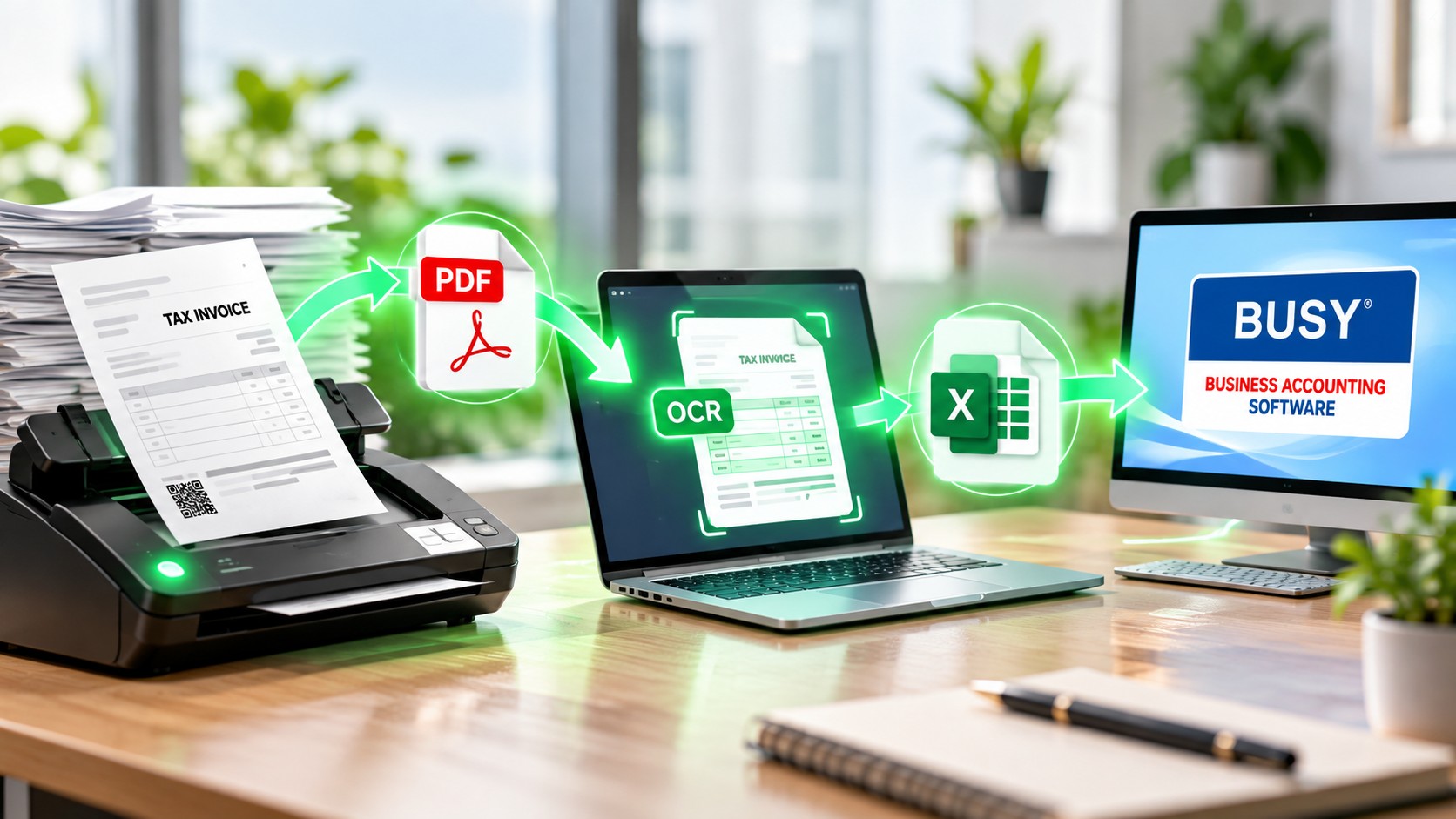
A scanned invoice may look like a regular invoice on the screen, but accounting software cannot always use the information inside it directly. A scanned document is often an image embedded in a PDF or saved as a JPG or PNG file. Supplier names, invoice numbers, taxable values, GST amounts, item descriptions, and totals must be extracted and checked before the information can become a usable accounting entry.
For example, a business receives a scanned purchase invoice showing taxable goods worth ₹10,000, GST of ₹1,800, and a total invoice value of ₹11,800. If the invoice number is read incorrectly or the tax amount is mapped to the wrong field, the resulting accounting entry may not match the original document.
This is why importing scanned invoices into BUSY requires more than uploading a file. The process involves extracting invoice data, reviewing the extracted information, preparing it in a compatible format, importing the transaction, and checking the resulting voucher.
In this guide, we explain how businesses can use Edocsmart to process scanned invoices and prepare their data for BUSY, along with the checks that help prevent common accounting errors.
What Does Importing a Scanned Invoice into BUSY Mean?
Importing a scanned invoice into BUSY means converting the information contained in a scanned document into structured accounting data that can be used to create a purchase, sales, or other supported transaction.
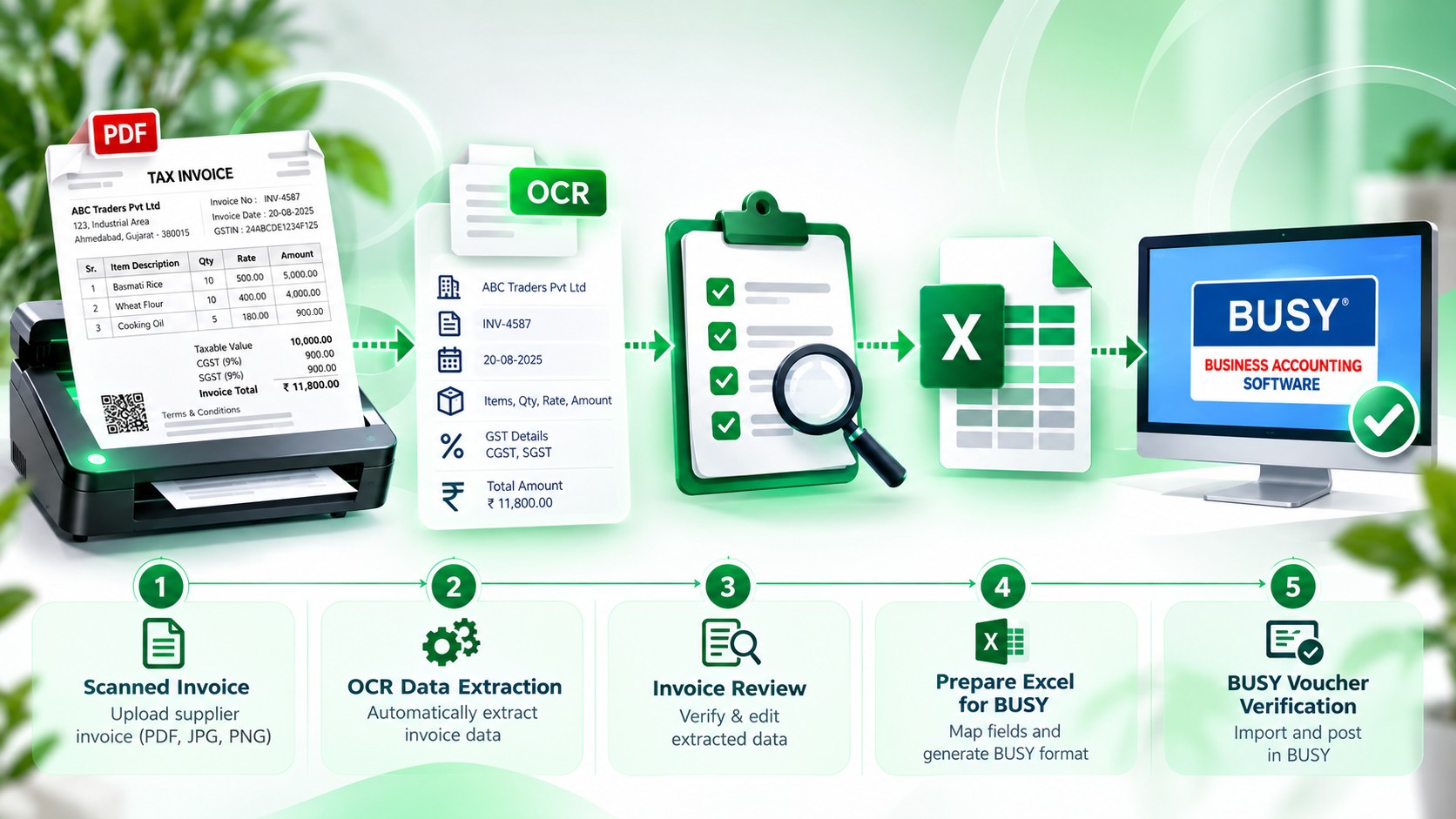
The process generally involves five stages:
Scan or upload: Provide the invoice as a scanned PDF or supported image file.
Data extraction: Use invoice-processing or OCR technology to identify readable invoice fields.
Data verification: Check supplier details, invoice dates, line items, taxable values, GST, and totals against the original document.
Format preparation: Arrange the extracted data into a BUSY-compatible Excel structure.
Import and verification: Import the data through the appropriate BUSY utility and confirm that the resulting voucher is correct.
BUSY provides Excel-based import options for supported masters and vouchers. Its official guidance explains that users need to select the appropriate import option, configure the format, map Excel columns to BUSY fields, and specify the file and worksheet details before importing.
Important: A scanned invoice should not be assumed to be directly importable as an accounting transaction. The exact process depends on the invoice-processing tool, the output it produces, the voucher type, and the BUSY version and configuration being used.
Why Scanned Invoices Need Extra Attention
Scanned documents can introduce problems that may not occur with clean, digitally generated invoices.
1. Low image quality
A blurry scan can make similar characters difficult to distinguish. For example, an invoice number containing “8” may be read as “3,” or a decimal point may be missed in an amount.
What to do: Use a clear, straight scan with readable text. If an important value is uncertain, compare it with the original invoice rather than assuming the extracted value is correct.
2. Different invoice layouts
One supplier may print its GSTIN near the header, while another places it at the bottom. Item descriptions, tax percentages, and totals can appear in different positions across documents.
What to do: Review the extracted fields individually, particularly when processing invoices from new suppliers or unfamiliar layouts.
3. Multi-page invoices
A purchase invoice may contain item details on one page and tax totals or terms on another. If only one page is processed, some information may be missing.
What to do: Check the complete document and confirm that all relevant pages and line items have been captured.
4. Similar-looking accounting fields
Invoice total, taxable value, tax amount, freight, discount, and other charges are different fields. A value extracted correctly can still create an incorrect entry if it is assigned to the wrong field.
What to do: Review both the extracted value and the accounting field to which it is assigned.
How to Import Scanned Invoices into BUSY Using Edocsmart
The following workflow explains how scanned invoice information can be processed and then imported into BUSY. Exact screens and options may vary according to your Edocsmart setup and BUSY configuration.
Step 1: Prepare the Scanned Invoice
Start with the original invoice received from your supplier or customer.
Depending on the available upload options, the document may be provided as a scanned PDF or a supported image file.
Before processing it, check that:
The invoice is readable.
The full document has been captured.
Supplier or customer details are visible.
The invoice number and date can be identified.
Item descriptions, quantities, rates, and amounts are legible.
The GST breakdown and final total are visible where applicable.
Keep the original document available for comparison throughout the process.
Step 2: Upload the Invoice for Data Extraction
Use an invoice-processing tool such as Edocsmart to process the supported document.
Invoice automation software can use OCR and document-processing technology to identify information such as invoice numbers, dates, party details, line items, tax amounts, and totals. The fields available for extraction depend on the document and the software's capabilities.
Edocsmart's invoice automation software describes a workflow for extracting invoice information and reviewing the results before exporting or integrating the data with accounting systems.
Do not treat extraction as final approval. OCR can misread unclear text, and different invoice layouts may require additional review.
Step 3: Review the Extracted Invoice Data
After extraction, compare the displayed information with the source invoice.
For example, consider this illustrative supplier invoice:
| Field | Invoice value |
|---|---|
| Supplier | Sunrise Industrial Supplies |
| Invoice number | SIS-1048 |
| Invoice date | 15 October 2026 |
| Item description | Copper Wire |
| Quantity | 10 |
| Rate per unit | ₹1,000 |
| Taxable value | ₹10,000 |
| GST, illustrative 18% | ₹1,800 |
| Total invoice value | ₹11,800 |
Check the invoice number character by character. Confirm that the quantity and rate are correct and that the taxable value matches the line items.
Next, verify the tax breakdown and final total. The figures above are illustrative; the applicable tax treatment must be determined from the actual invoice and transaction.
If a field is unclear, correct it using the original document. Do not fill in uncertain details based only on a guess.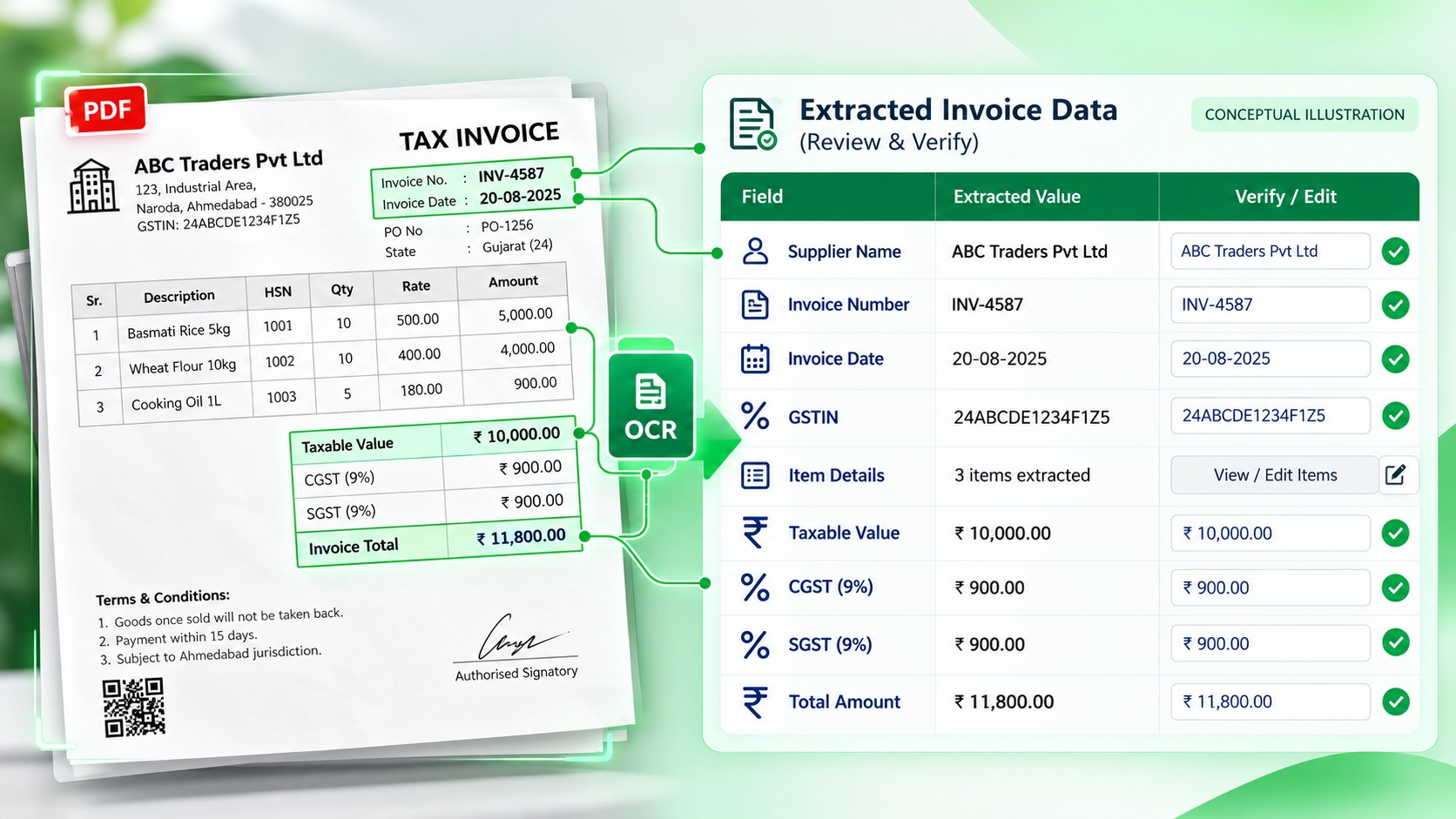
Step 4: Check the Supplier, Invoice Number, and Existing Records
Before preparing the transaction for import, check whether the supplier or customer is already available in BUSY and whether the invoice has already been entered.
Duplicate checking is particularly important when invoices are received through several channels, such as email, WhatsApp, paper copies, and shared folders.
Compare the following:
Supplier or customer name
Supplier invoice number
Invoice date
Invoice amount
Existing purchase or sales voucher records
A supplier name may be written slightly differently across documents. Confirm the correct party master rather than creating another account automatically.
If the same invoice already exists, investigate the existing record before importing it again.
Step 5: Prepare the Data in a BUSY-Compatible Format
Once the extracted data has been reviewed, prepare it in the Excel format required by your BUSY import configuration.
BUSY's Excel import utility requires the user to select the relevant master or voucher import option and map the source columns to the corresponding BUSY fields.
For a purchase voucher, the required fields may include:
Voucher date and number
Supplier account
Purchase type or relevant tax treatment
Item name and quantity, where applicable
Unit and rate
Taxable value and tax-related fields
Bill sundries or additional charges, where applicable
Narration or reference details
The exact fields depend on the voucher type, the selected import format, and the company's accounting configuration.
Do not assume that every invoice should be imported using the same column structure. A goods purchase, service expense, and sales invoice may need different treatment.
Practical tip: Use consistent column headings and formats, and avoid changing a working import template without testing the updated structure.
Step 6: Configure the Import in BUSY
Before importing transactions, take a current backup of the relevant company data.
Then, in BUSY, open the company in which the transactions should be recorded.
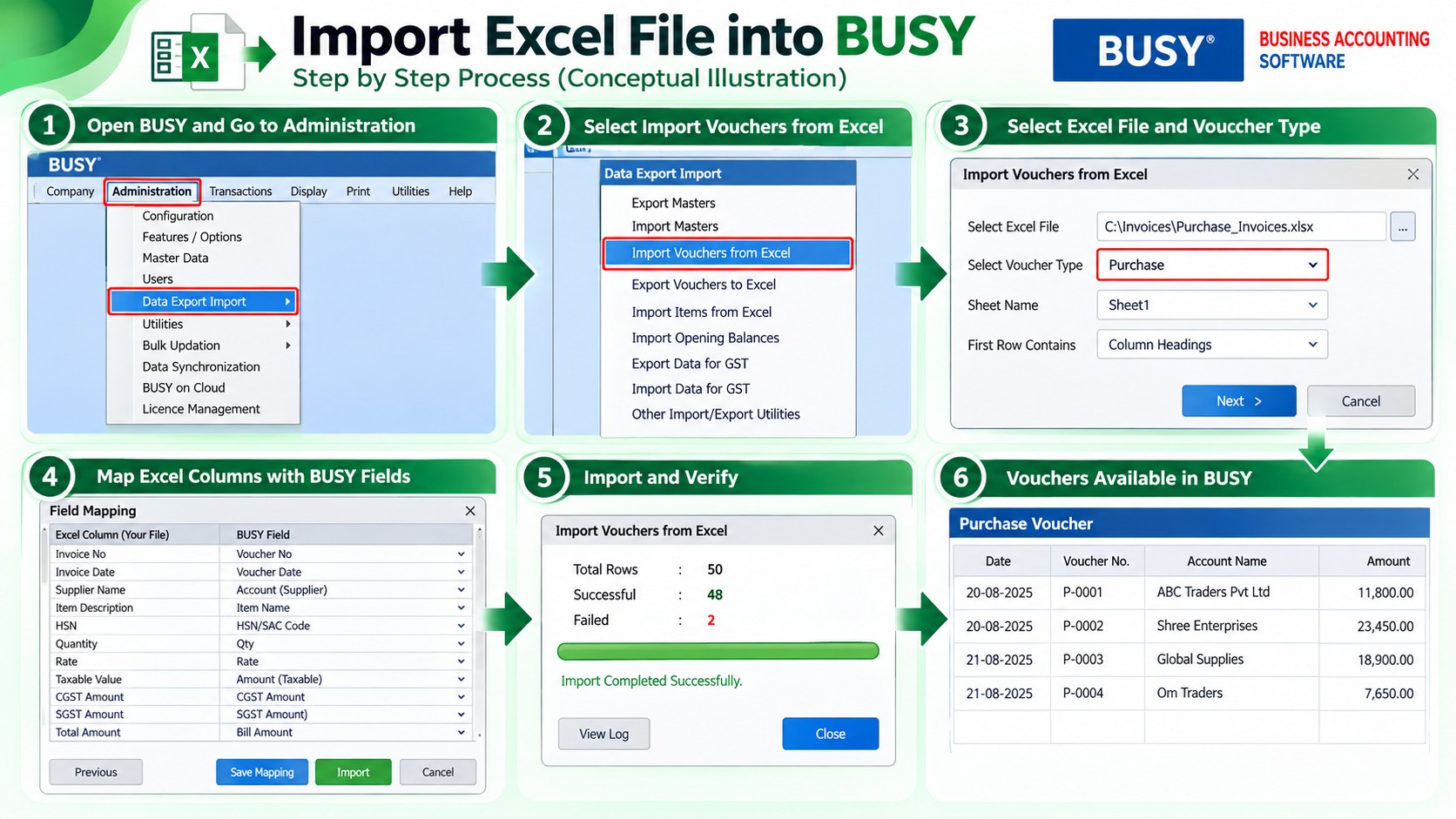
The general Excel voucher-import process is:
Go to Administration.
Open Data Export Import.
Select Import Vouchers from Excel.
Choose the appropriate voucher type, such as Purchase or Sales.
Open the format configuration option.
Create or select the relevant import format.
Map the Excel columns to the corresponding BUSY fields.
Select the Excel file and worksheet.
Specify the applicable starting and ending rows.
Review the configuration and proceed with the import.
These steps are based on BUSY's published Excel voucher-import guidance. Labels and available options can vary by version and configuration.
Before importing a large batch: Test a small set of reviewed invoices first. Confirm that the party, item, voucher date, tax treatment, and totals appear correctly before processing additional records.
Step 7: Verify the Imported Voucher
After importing, open the resulting voucher or relevant transaction report and compare it with the original scanned invoice.
Verify the following:
Correct supplier or customer
Correct voucher date and reference
Correct item descriptions and quantities
Correct rates and taxable amounts
Correct GST and other charges
Correct final invoice value
Correct voucher type and accounting treatment
For example, if the original invoice total is ₹11,800 but the imported voucher shows ₹11,600, do not assume the difference is only a rounding issue. Check the item values, discount, tax fields, and additional charges to identify the cause.
If a voucher is incorrect, follow the appropriate correction procedure in BUSY and recheck the source data and mapping before processing the remaining invoices.
Step 8: Reconcile the Batch Before Closing the Process
When importing several scanned invoices, compare the original invoice list with the imported transaction records.
A simple reconciliation sheet can contain:
| Check | What to compare |
|---|---|
| Document count | Number of invoices selected versus invoices processed |
| Invoice references | Original invoice numbers versus imported voucher references |
| Party details | Supplier or customer names |
| Taxable values | Source invoice versus imported voucher |
| GST values | Source invoice versus imported voucher |
| Final totals | Original invoice total versus imported voucher total |
| Exceptions | Missing, duplicate, or mismatched transactions |
Resolve exceptions before considering the batch complete.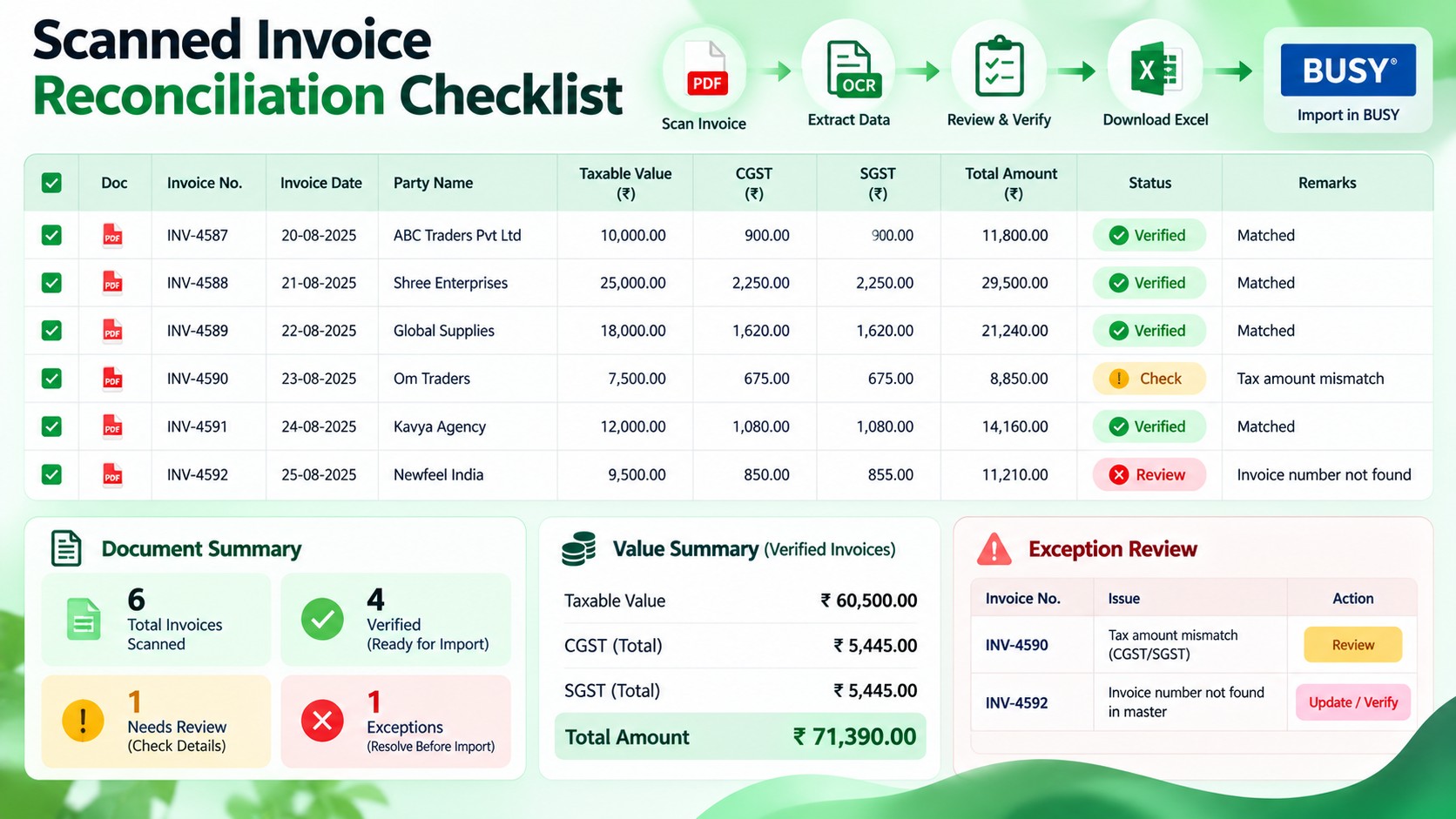
Common Problems When Importing Scanned Invoices into BUSY
Problem 1: Invoice data is missing or incorrect
Possible cause: The scan is blurry, a page is missing, or the document layout makes a field difficult to identify.
Solution: Review the original document, improve the scan if necessary, and correct the extracted information before preparing the import file.
Problem 2: BUSY does not accept the Excel file
Possible cause: The spreadsheet structure, mapped fields, file path, worksheet number, or row range does not match the import configuration.
Solution: Check the import format, column mapping, worksheet selection, and row numbers. Test with a clean copy of the file if formatting or formulas are suspected of causing a problem.
Problem 3: The supplier or item is not matched correctly
Possible cause: The extracted name differs from the existing master name, or the relevant master is missing.
Solution: Confirm the correct account or item master. Create or update a master only when appropriate and permitted by your accounting process.
Problem 4: GST or invoice totals do not match
Possible cause: A tax field has been mapped incorrectly, a discount or charge is missing, or an amount was misread during extraction.
Solution: Compare the original invoice with the extracted data and imported voucher. Check the applicable tax treatment and the fields used for tax and additional charges.
Problem 5: The same invoice appears more than once
Possible cause: The document was processed from multiple sources or imported without checking existing vouchers.
Solution: Compare invoice references, party details, dates, and amounts against existing records before reprocessing the document.
BUSY also recommends checking financial year and date formats, master names, units, voucher type, and import-field assignments when troubleshooting Excel import problems.
Reference: BUSY troubleshooting guidance for voucher imports.
Best Practices for Processing Scanned Invoices
To make scanned invoice processing more consistent, follow these practices:
Keep original documents: Retain the source invoice for review and audit purposes.
Use clear scans: Avoid cut-off edges, shadows, and unreadable text.
Review extracted data: Give special attention to invoice numbers, dates, quantities, tax values, and totals.
Check duplicates: Compare invoices with existing accounting records.
Maintain a stable Excel format: Avoid unnecessary changes to mapped columns.
Test before bulk import: Validate a small batch before importing a larger set.
Back up company data: Take a suitable backup before significant import activity.
Reconcile after import: Compare the source documents with the vouchers created in BUSY.
Track exceptions: Record invoices that need manual correction or additional approval.
The objective is not just to move data into accounting software. It is to make sure that the imported records accurately reflect the original business documents.
Frequently Asked Questions
1. Can I import a scanned invoice directly into BUSY?
A scanned invoice generally needs to be converted into structured data before it can be imported as an accounting transaction. BUSY supports specified import methods, including Excel-based voucher imports, depending on the version and configuration.
2. Can scanned PDF invoices be processed using Edocsmart?
Edocsmart's invoice automation workflow describes extracting information from supported invoice documents and reviewing the results. Check the current product workflow and supported file formats for your account before processing a batch.
3. Does OCR guarantee that every invoice field will be correct?
No. OCR and automated extraction can misread unclear characters, numbers, or unfamiliar layouts. Important fields should be checked against the original invoice before import.
4. Can I import multiple scanned purchase invoices into BUSY?
Multiple invoices can be processed as a batch if the extraction workflow and BUSY import format support the required data structure. Verify the batch and test the import configuration before processing a large set.
5. Do I need Excel between scanned invoices and BUSY?
For the Excel-based voucher-import method described in this guide, the extracted data must be arranged in a compatible Excel structure. Other integration methods may differ, so confirm the method supported by your software setup.
6. What details should I verify before importing a scanned invoice?
Check the supplier or customer, invoice number, date, item descriptions, quantities, rates, taxable value, GST, additional charges, and total. Also check whether the invoice already exists in BUSY.
7. Why does BUSY show an import error?
Common causes include incorrect column mapping, incompatible file structure, incorrect date or financial-year settings, missing masters, and mismatched item or unit names. Review the import configuration and consult BUSY support if the problem persists.
8. Can I import scanned sales invoices as well as purchase invoices?
The general process is similar, but the voucher type, fields, tax treatment, and accounting configuration may differ. Configure and test the relevant voucher format rather than reusing a purchase format without review.
9. Should I check the voucher after importing it into BUSY?
Yes. Compare the imported voucher with the original invoice, including party details, item values, tax, and total. Successful import alone does not prove that every field has been recorded correctly.
10. How does Edocsmart help with scanned invoice processing?
Edocsmart provides invoice automation capabilities designed to extract and review invoice data and support accounting workflows. The available export or integration options depend on the product configuration and the accounting system being used.
Conclusion
Importing scanned invoices into BUSY is a multi-step process. A scanned document must first be readable, its data must be extracted and verified, and the resulting information must be arranged in a format that BUSY can import. After the import, the resulting voucher should be checked against the original invoice.
By combining invoice data extraction with careful field mapping, duplicate checks, and reconciliation, businesses can establish a more consistent process for handling scanned purchase and sales documents.
Edocsmart can help streamline the invoice-processing stage by extracting invoice information and supporting review before accounting data is exported or integrated into a compatible workflow.