How to Automatically Map Excel Columns to Tally Prime Ledgers
Two Excel files. Same business. Same transaction data. But one imports successfully into Tally Prime, while the other creates mapping problems.
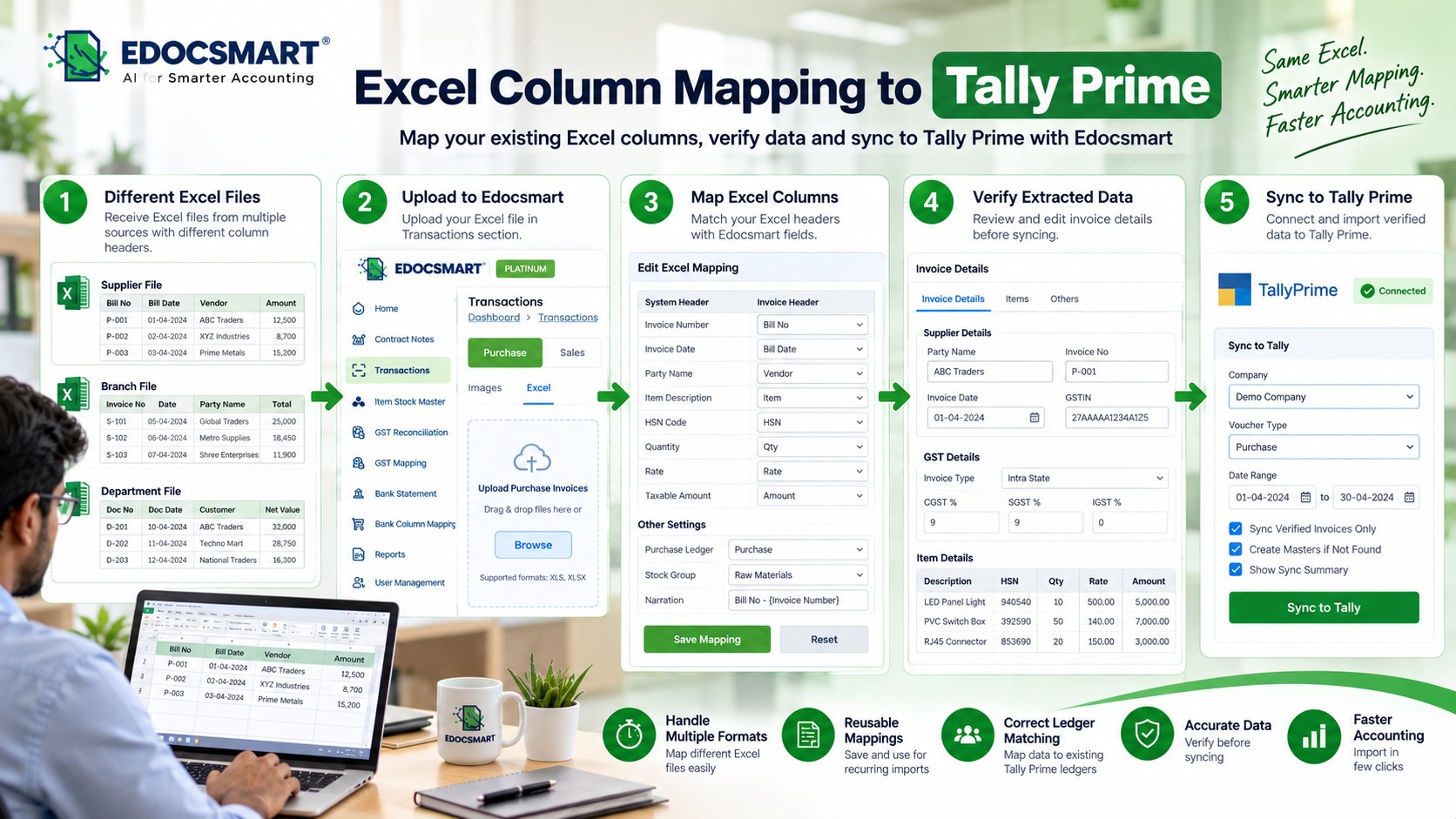
Learn how to map Excel columns to Tally Prime fields and ledgers using Edocsmart. Configure reusable mappings, match accounting data, and simplify imports.
The Excel File That Worked Yesterday but Failed Today
Why?
The first spreadsheet uses a column named "Party Name," while the second calls it "Customer." One file contains "Invoice Date," while another uses "Bill Date." Even the amount column changes from "Total Amount" to "Net Value."
To someone reading these spreadsheets, the differences seem minor. The information is still there, and the meaning has not changed.
But accounting software needs to understand exactly which Excel column corresponds to which accounting field.
Now imagine receiving spreadsheets from multiple branches, suppliers, or departments. Every file follows a slightly different format. Some include additional GST columns, others use different ledger names, and a few place stock item details in an entirely different order.
Should you manually rearrange every spreadsheet before importing it into Tally Prime?
Not necessarily.
Excel column mapping allows businesses to connect their existing spreadsheet headers with the required accounting fields without rebuilding every file.
With Edocsmart, users can configure Excel header mappings, review accounting details, and reuse saved mapping configurations for compatible spreadsheet formats.
In this guide, we will explain how to map Excel columns to Tally Prime fields and ledgers, understand the difference between header mapping and ledger matching, and prepare Excel transactions for a more organized TallyPrime import.
What Is Excel Column Mapping in Tally Prime?
Excel column mapping is the process of connecting spreadsheet column headers with the corresponding accounting fields required for importing data into Tally Prime.
For example, an Excel spreadsheet might contain the following columns:
| Excel Column | Accounting Field |
|---|---|
| Bill Number | Voucher Number |
| Bill Date | Voucher Date |
| Customer Name | Party Name |
| Product Description | Stock Item |
| Quantity | Quantity |
| Tax Percentage | GST Rate |
| Invoice Value | Invoice Total |
The purpose of mapping is to tell the import system what each Excel column represents.
For example, the column "Bill Date" may contain the date required for a Tally voucher. Once the appropriate mapping is configured, the import workflow can interpret that column as the voucher date.
This means businesses do not necessarily need to rename every Excel column to match a fixed template.
However, column mapping and ledger mapping are not the same thing.
Column mapping identifies the meaning of a spreadsheet field. Ledger mapping or matching determines which accounting ledger should be associated with the transaction.
Both are important for importing accurate accounting data.
What Is the Difference Between Excel Column Mapping and Tally Ledger Mapping?
These two concepts are closely related, but they solve different problems.
Excel Column Mapping
Excel column mapping connects the headings in a spreadsheet to the corresponding invoice or voucher fields.
For example:
Excel Header: Customer Name → Accounting Field: Party Name
This tells the system that the customer names are stored in the "Customer Name" column.
Tally Ledger Mapping
Ledger mapping involves associating transaction information with the appropriate ledger in Tally Prime.
For example, an Excel file may contain the party name "ABC Traders," while Tally Prime has a ledger named "ABC Traders Pvt Ltd."
Although the names look similar, they may represent different records unless the accounting system or user confirms the correct match.
A ledger mismatch can prevent successful voucher creation or result in incorrect accounting if the wrong ledger is selected.
Column Mapping vs Ledger Mapping
| Feature | Excel Column Mapping | Tally Ledger Mapping |
|---|---|---|
| Main purpose | Identify spreadsheet fields | Associate transactions with ledgers |
| Example | Bill Date → Voucher Date | ABC Traders → Correct party ledger |
| Main challenge | Different column names | Missing or mismatched ledger names |
| Configuration | Header-to-field selection | Ledger selection or matching |
| Reusability | Can reuse saved mappings | Depends on master data and matching rules |
| Verification | Check field values | Check correct ledger association |
A successful Excel-to-Tally workflow needs both correctly interpreted columns and valid accounting references.
Why Do Excel-to-Tally Mapping Errors Occur?
Mapping errors are not always caused by incorrect accounting data. Sometimes, the spreadsheet structure itself creates problems.
1. Different Excel Header Names
One department may use "Invoice No," while another uses "Bill Number."
Both refer to the same information, but an import workflow must know how to interpret them.
2. Incorrect Date Formats
An Excel date such as 05/06/2026 can be ambiguous if the importing system expects a different date format.
Incorrect date interpretation may place vouchers in the wrong accounting period.
3. Missing or Mismatched Ledgers
The supplier or customer name in Excel may not match the corresponding ledger in Tally Prime.
Even small differences in spelling, spacing, or abbreviations can create matching problems.
4. Incorrect GST Field Mapping
GST information may be stored in separate CGST, SGST, and IGST columns or combined into a single tax-rate column.
These fields must be interpreted correctly for the intended voucher configuration.
5. Stock Item and Unit Mismatches
An Excel file may contain "PCS," while the corresponding unit in Tally is configured differently.
Similarly, a stock item name may not match the existing inventory master.
6. Changes in Column Order
Some businesses receive Excel files in which the same columns appear in different positions.
Mapping based on recognized headers can help avoid problems caused by column order, provided the file format and configuration are supported.
Understanding these issues makes it easier to prepare a reliable mapping workflow.
How to Map Excel Columns to Tally Prime Using Edocsmart
Edocsmart provides an Excel mapping interface where users can connect spreadsheet headers with the relevant invoice fields.
The following workflow explains how to configure mappings and prepare Excel transactions for Tally Prime.
Step 1: Log In to Edocsmart and Open Transactions
Start by logging in to your Edocsmart account.
Navigate to the Transactions section.
Select Purchase or Sales, depending on the type of Excel transactions you want to import.
Choose the Excel tab to access the relevant Excel transaction workflow.
From here, you can view previously uploaded files and the available Excel-related controls.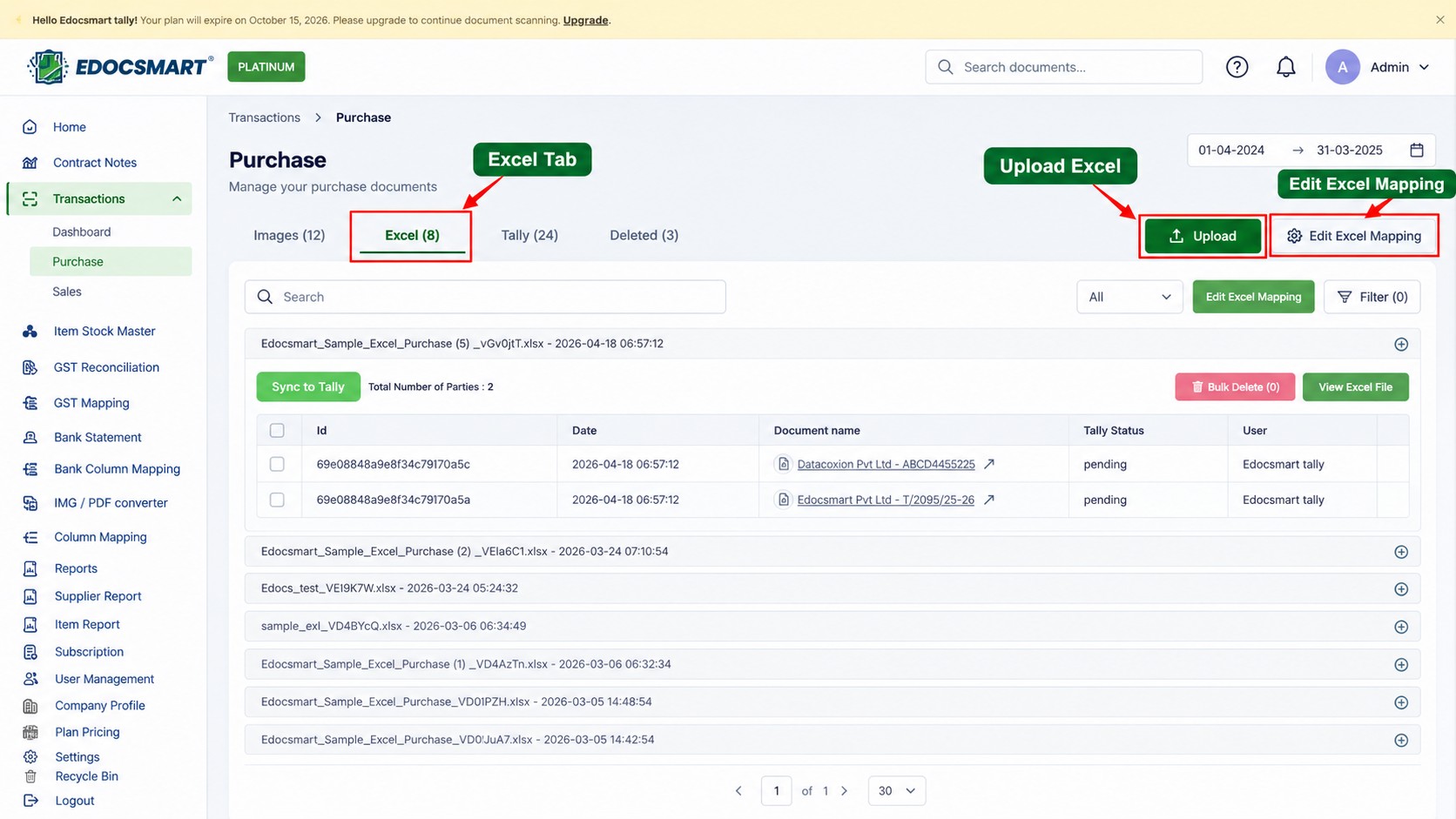
Step 2: Upload Your Existing Excel File
Click the available Upload button and select the Excel file containing your transaction information.
The spreadsheet should have clearly identifiable headers and properly organized rows.
For example, a purchase Excel file may contain:
| Bill No | Date | Supplier | Item | Qty | Rate |
|---|---|---|---|---|---|
| P-101 | 10-10-2026 | ABC Traders | Steel Rod | 20 | 450 |
| P-102 | 11-10-2026 | XYZ Industries | Copper Wire | 15 | 800 |
| P-103 | 12-10-2026 | Prime Metals | Aluminium Sheet | 10 | 1,200 |
The table uses fictional sample data.
The file does not necessarily need to use the same column names as another supplier's spreadsheet.
However, the data should be structured consistently enough for the selected mapping configuration to interpret it.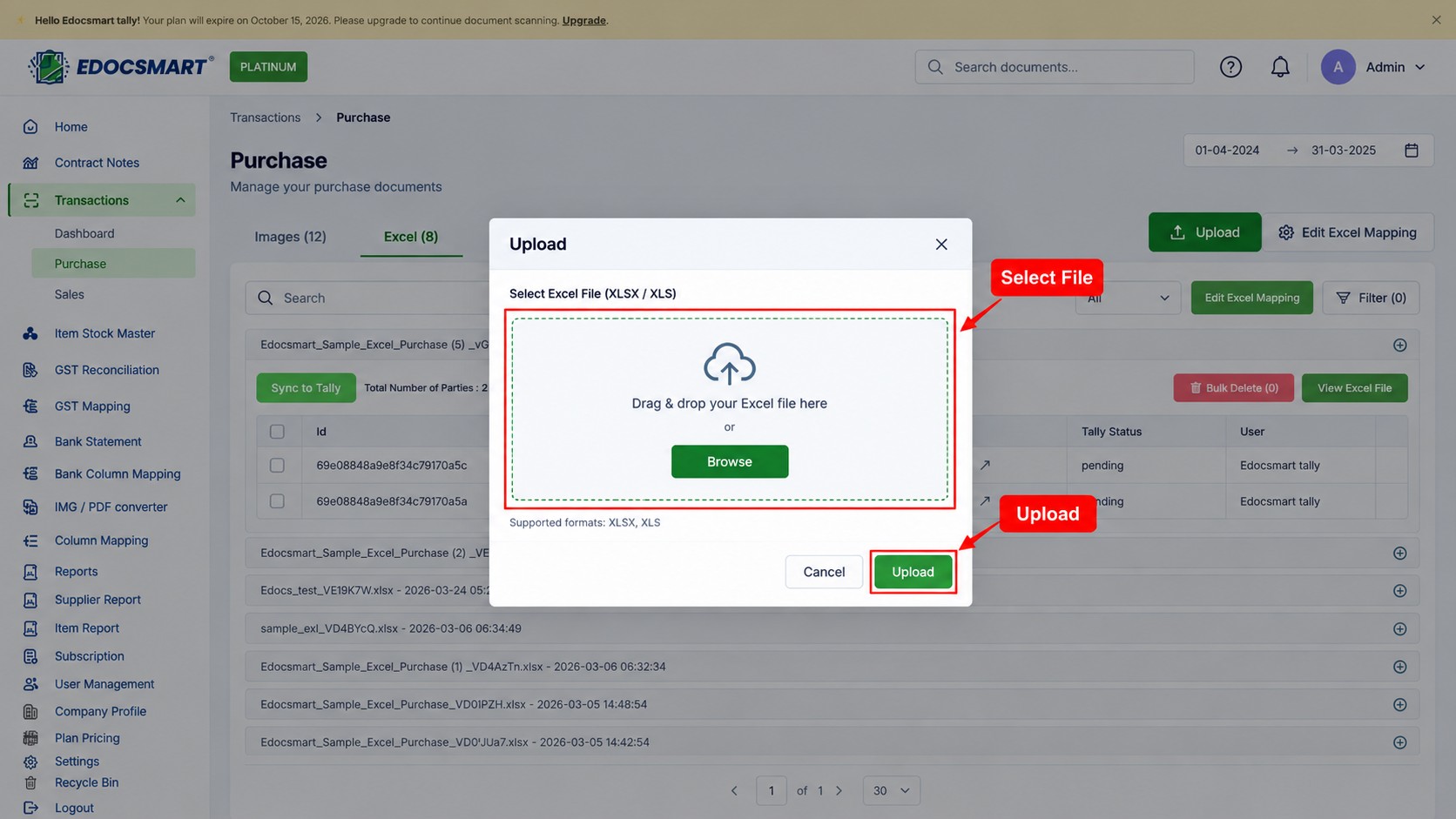
Step 3: Open the Excel Mapping Interface
After accessing the Excel transaction workflow, select Edit Excel Mapping to configure the relationship between your Excel columns and Edocsmart's invoice fields.
The mapping interface displays system fields alongside the corresponding Excel header selections.
For example, your spreadsheet may contain "Bill Number," while the system expects an invoice or voucher number field.
You can select the appropriate Excel header for that field.
Similarly, map the invoice date, party name, item description, quantity, rate, and other required information.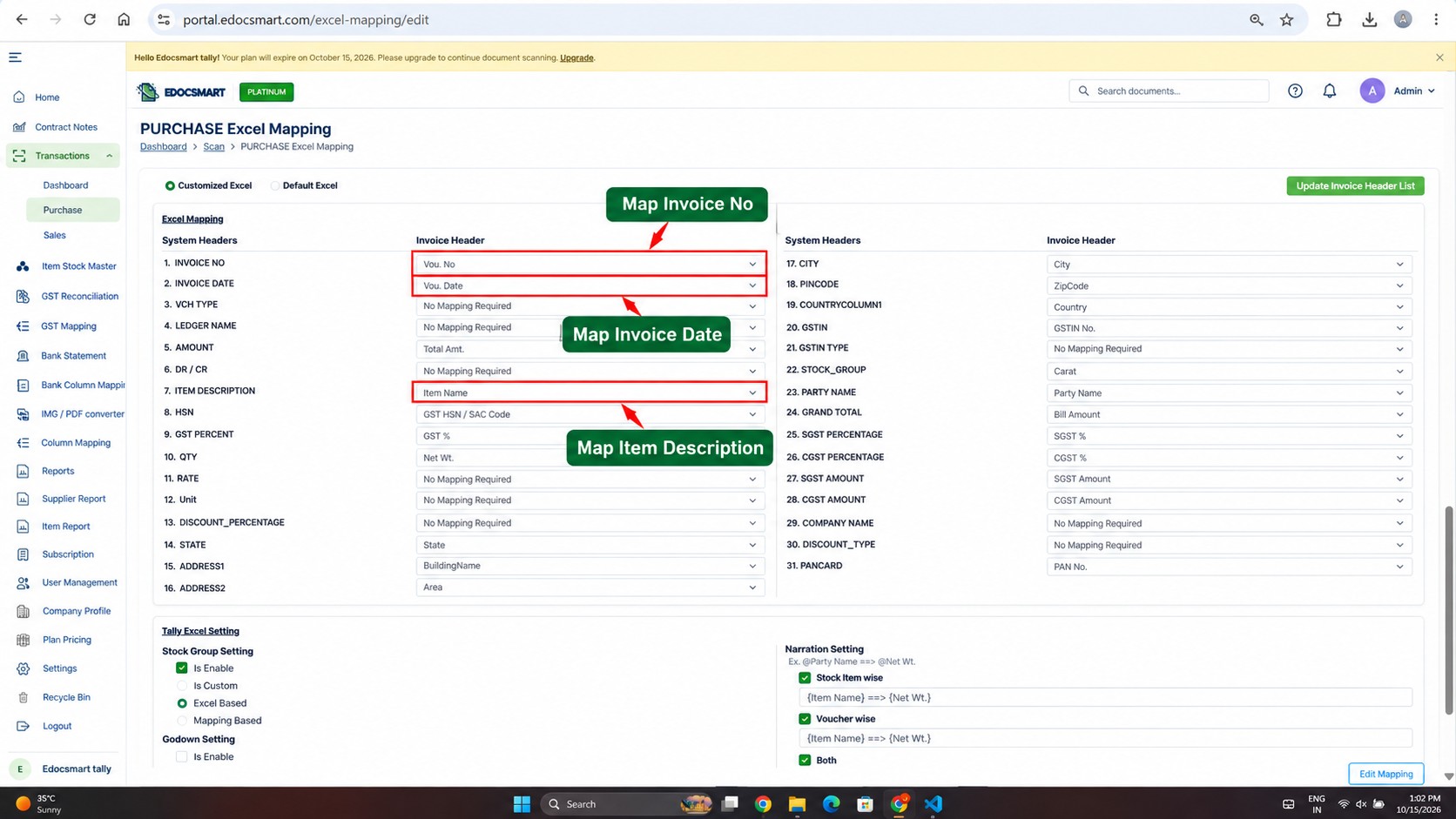
Step 4: Match Excel Headers with the Correct Accounting Fields
Now configure the mapping for each relevant column.
Consider an Excel file containing the following headings:
| Excel Header | Example Target Field |
|---|---|
| Purchase Bill No | Invoice Number |
| Purchase Date | Invoice Date |
| Vendor Name | Party Name |
| Material Description | Item Description |
| Purchased Quantity | Quantity |
| Unit Price | Rate |
| GST Percentage | GST % |
| Final Amount | Grand Total |
The target names shown above are explanatory examples. Use the actual field labels displayed in your Edocsmart mapping interface.
Select each Excel header against the appropriate system field.
Pay particular attention to transaction dates, quantities, GST percentages, and invoice totals.
A column mapped to the wrong field may produce incorrect voucher information even when the original Excel data is accurate.
Step 5: Configure Ledger and Stock Item Settings
Mapping transaction headers is only one part of the import process.
Accounting transactions also depend on the correct party ledgers, purchase or sales ledgers, and inventory masters.
Depending on the available mapping configuration, users may need to review:
Party ledger references
Purchase or sales accounting settings
Stock item names
Stock groups
Units of measurement
Narration fields
GST-related information
For example, an Excel file may identify an item as "Copper Wire 2.5mm," while Tally Prime stores the corresponding stock item under a slightly different name.
The correct stock item should be identified before creating the voucher.
Likewise, supplier names must be associated with the appropriate existing party ledgers.
Important: Saving Excel header mappings does not automatically guarantee that every supplier ledger or stock item will match an existing Tally master. Master matching and creation depend on the supported workflow and configuration.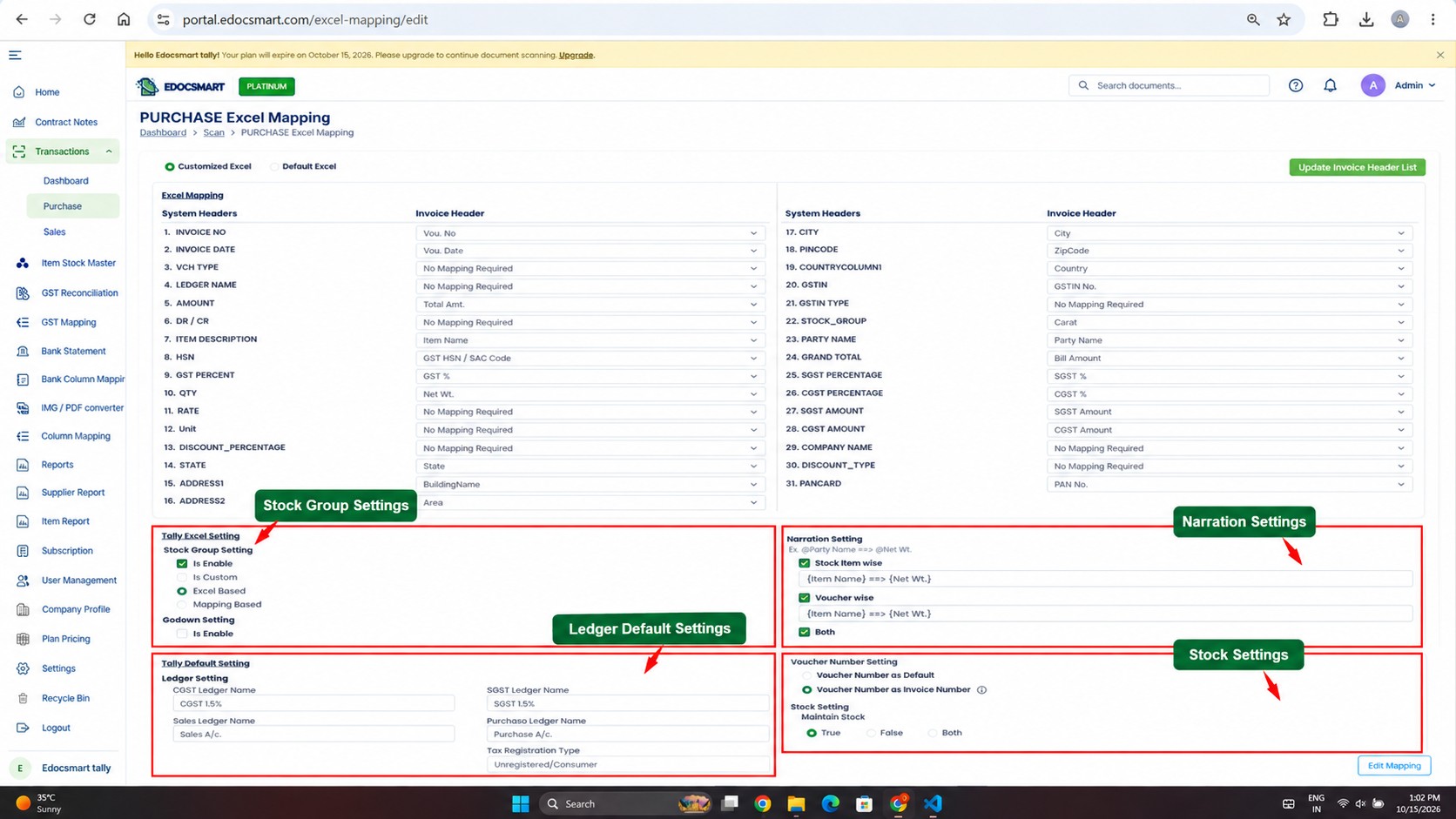
Step 6: Save and Reuse the Excel Mapping
After configuring the required fields, save the mapping using the available mapping control.
A saved mapping can simplify future imports when new spreadsheets follow a compatible structure.
For example, a company may receive the same monthly sales report format from its billing software.
Instead of configuring the same headers every month, the business can reuse the mapping associated with that format.
This is particularly useful when Excel files contain consistent headings but new transaction records.
However, if the source spreadsheet introduces new headers or changes its structure significantly, the mapping should be reviewed and updated.
Reusing a saved mapping is different from automatically recognizing every possible Excel format without configuration.
Step 7: Review the Generated Invoice or Voucher Data
Once the Excel information has been processed, review the generated transaction records in Edocsmart.
Verify the party name, voucher number, invoice date, item information, quantity, rate, and applicable GST details.
If the transaction contains multiple items, confirm that all item rows have been interpreted correctly.
Check for missing values, duplicate transactions, and mismatched master references.
Correct any errors before proceeding with synchronization.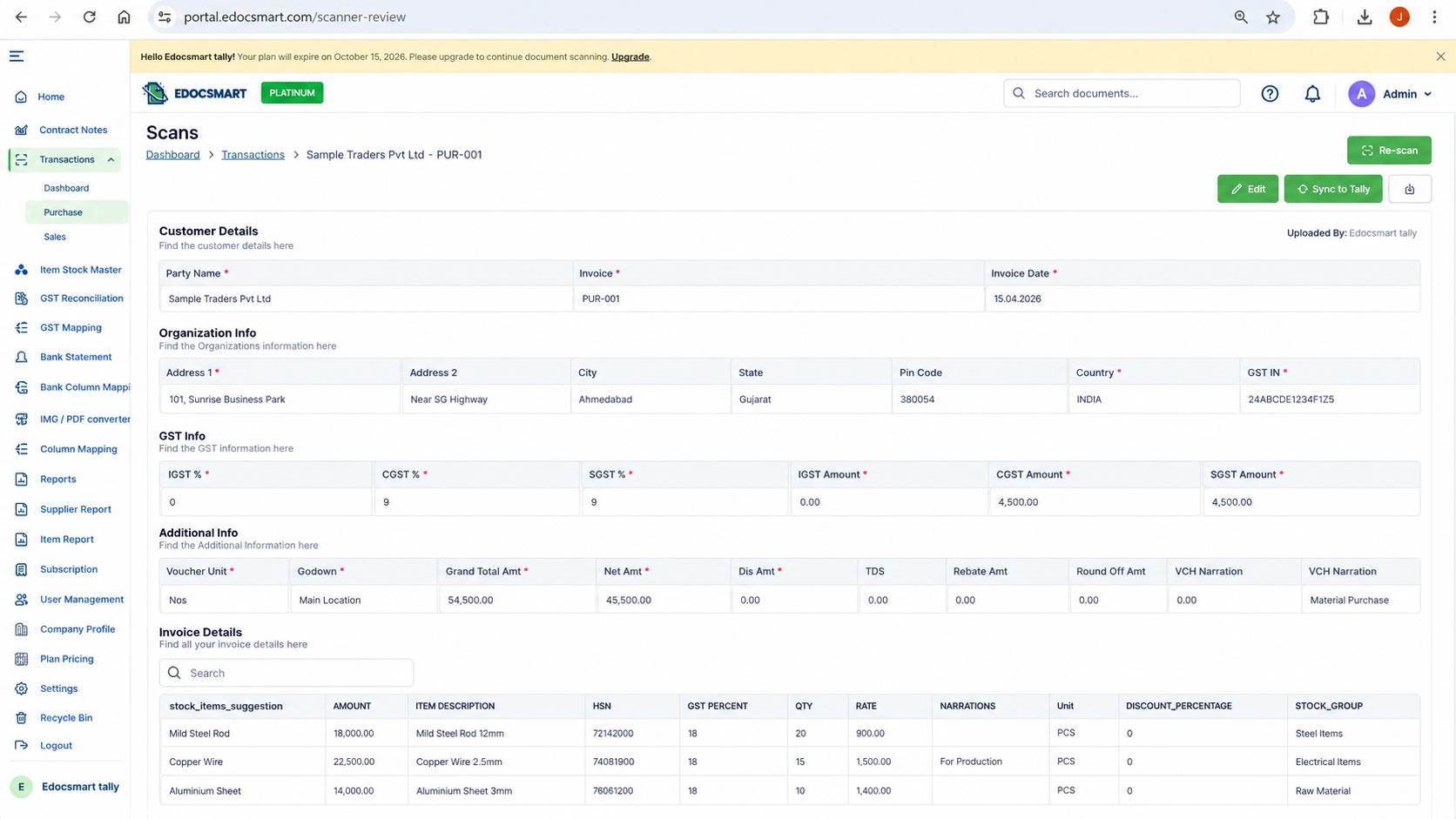
Step 8: Synchronize the Verified Data with Tally Prime
After reviewing the transaction information, ensure that Tally Prime and the required connector are correctly configured.
The Tally company should be open, the connector should be connected, and the necessary accounting masters should be available.
Use the relevant Sync to Tally action to transfer the verified transaction records.
Once synchronization is complete, open Tally Prime and verify that the vouchers have been created under the correct company and voucher type.
Check the party ledger, stock items, GST values, and total amount.
If any transaction fails, review the reported error and correct the relevant mapping or master information before retrying.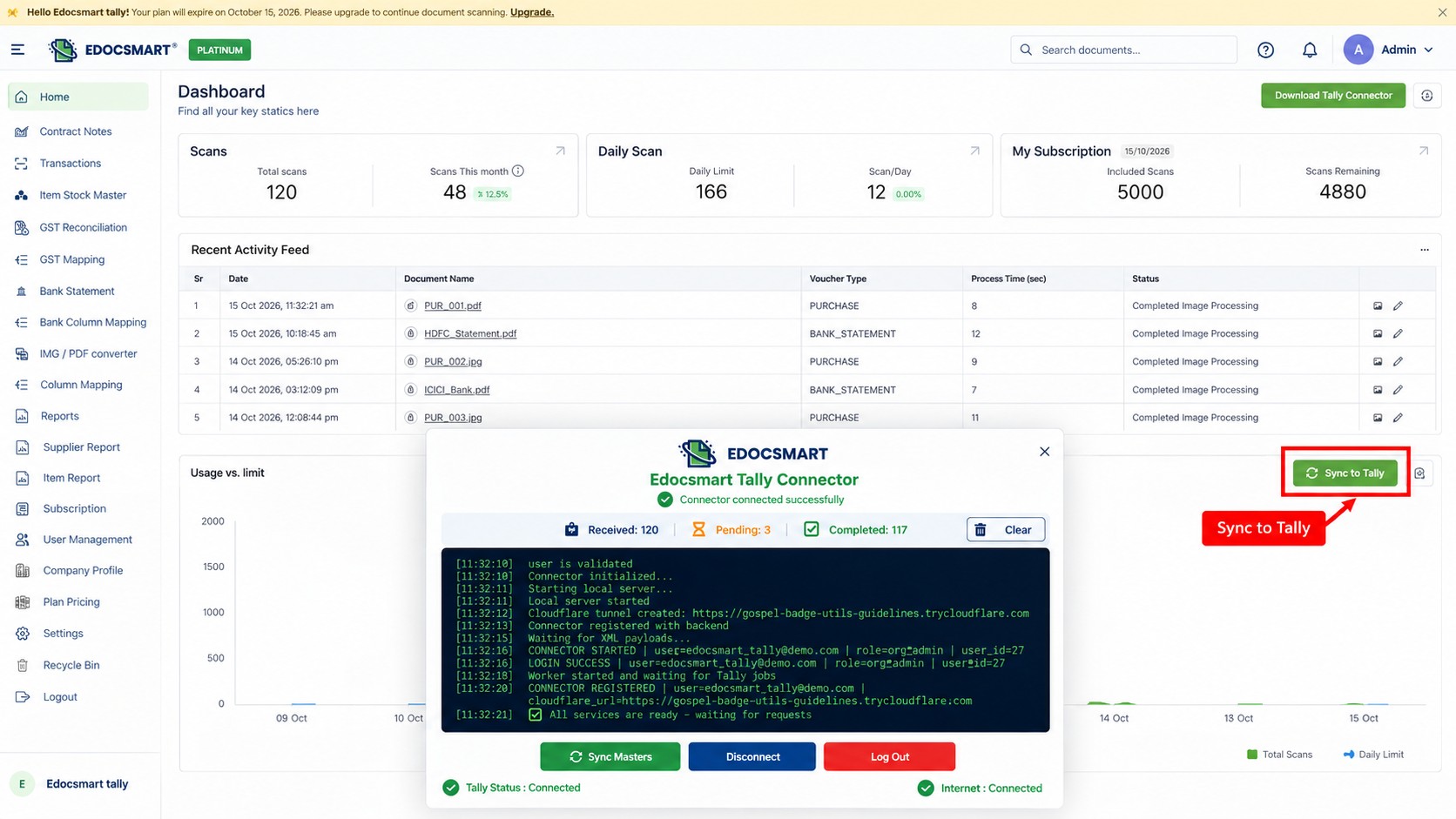
How Does Reusable Excel Mapping Work?
Reusable Excel mapping helps businesses avoid repeating the same header configuration for recurring spreadsheet formats.
Suppose a company exports its purchase report every month using these columns:
Bill No | Bill Date | Supplier | Item | Quantity | Amount
During the initial setup, the user maps these columns to the corresponding accounting fields.
In the following month, the report contains new purchase transactions but uses the same header structure.
The previously saved mapping can be reused if the configuration remains compatible.
This reduces repeated setup work.
When Should You Review an Existing Mapping?
Review the mapping whenever:
The Excel file introduces new columns.
Existing header names change.
The transaction type changes.
GST or inventory fields are added.
Ledger or stock item references are modified.
The source software changes its export format.
A reusable mapping works best when the spreadsheet structure is consistent and the underlying accounting masters remain valid.
How to Map Sales and Purchase Excel Data to Tally Prime
Sales and purchase transactions share some common fields, but their accounting requirements can differ.
Sales Excel Mapping
A sales spreadsheet may include customer names, sales invoice numbers, item descriptions, quantities, rates, GST amounts, and totals.
The mapping must associate these fields with the relevant sales voucher structure.
Purchase Excel Mapping
A purchase spreadsheet may contain supplier names, purchase bill numbers, item descriptions, purchase values, GST details, and other accounting information.
The mapping must correspond to the required purchase voucher fields.
Sales vs Purchase Mapping Example
| Excel Information | Sales Transaction | Purchase Transaction |
|---|---|---|
| Party Name | Customer | Supplier |
| Invoice Number | Sales invoice | Purchase bill |
| Transaction Date | Sales date | Purchase date |
| Accounting Ledger | Relevant sales ledger | Relevant purchase ledger |
| Item Details | Sold items | Purchased items |
| GST Information | Applicable output tax | Applicable input tax |
| Voucher Type | Sales | Purchase |
Although the column names may look similar, the correct voucher type and accounting configuration are essential.
Can You Automatically Match Excel Ledger Names with Tally Prime?
Ledger matching is possible only when the import workflow can correctly identify the intended Tally ledger.
For example, consider the following data:
| Excel Party Name | Existing Tally Ledger | Result |
|---|---|---|
| ABC Traders | ABC Traders | Exact-name match candidate |
| XYZ Industries | XYZ Industries Pvt Ltd | Requires matching verification |
| Prime Metals | No corresponding ledger | Missing master |
| Delta Suppliers | Delta Suppliers | Exact-name match candidate |
This table illustrates possible matching situations; it does not claim that every match is performed automatically by Edocsmart.
An exact name match may be straightforward when the corresponding ledger exists.
However, abbreviations, spelling differences, or missing masters may require additional review.
For reliable imports, confirm that the intended ledgers exist in Tally Prime and that the transaction references are correctly associated with them.
Never assume that two similar-looking names refer to the same accounting entity.
Manual Excel Mapping vs Reusable Mapping in Edocsmart
| Feature | Repeated Manual Preparation | Reusable Edocsmart Mapping |
|---|---|---|
| Excel header configuration | Repeated for each format | Saved for compatible formats |
| Different column names | Often requires manual changes | Configurable header mapping |
| Column order changes | May require rearrangement | Depends on mapped headers |
| GST field configuration | Manually checked | Can be included in mapping |
| Stock item settings | Requires verification | Configurable settings with verification |
| Ledger matching | Manual checking | Still depends on master matching |
| Recurring reports | Repeated setup work | Mapping can be reused |
| Final accounting review | Required | Still required |
The main benefit of reusable mapping is reducing repeated field-configuration work, not eliminating the need to verify accounting transactions.
Best Practices for Accurate Excel-to-Tally Ledger Mapping
Use Clear Excel Headers
Give each column a descriptive name so its accounting purpose is easy to identify.
Keep Dates and Amounts Consistent
Avoid mixing date formats, text values, and numerical values in the same column.
Verify Party Ledger Names
Confirm that supplier and customer names refer to the correct ledgers in Tally Prime.
Check Inventory Masters
Make sure stock items and units are correctly configured before importing inventory vouchers.
Review GST Information
Validate GST percentages, taxable values, and applicable tax treatment.
Test a Small Batch First
Import a small set of transactions and confirm the results before processing a larger file.
Recheck Mappings When Formats Change
A saved mapping should be reviewed whenever the source spreadsheet changes significantly.
These practices help prevent avoidable errors during Excel-to-Tally imports.
Common Excel Column Mapping Errors and How to Fix Them
| Mapping Problem | Possible Cause | Recommended Solution |
|---|---|---|
| Invoice date is incorrect | Wrong date column or format | Verify date mapping and values |
| Party ledger not found | Ledger name mismatch | Check the existing Tally ledger |
| Stock item not recognized | Missing or mismatched item | Verify inventory master |
| GST amount is incorrect | Wrong tax field mapping | Check GST fields and calculations |
| Voucher total does not match | Missing amount or item data | Review transaction values |
| Some rows are skipped | Blank or invalid fields | Inspect the Excel source |
| Reused mapping gives incorrect results | Source format changed | Update the saved mapping |
When troubleshooting, identify whether the problem originates from the Excel file, the mapping configuration, the Tally masters, or the synchronization process.
Frequently Asked Questions (FAQs)
1. How do I automatically map Excel columns to Tally Prime?
Use a supported Excel mapping workflow to connect spreadsheet headers with the required accounting fields. In Edocsmart, configure the header mappings, save the settings, review the transactions, and sync verified data to Tally Prime.
2. Can Edocsmart automatically recognize Excel column names?
Edocsmart provides configurable Excel header mapping and supports reusing saved mappings for compatible file formats. Whether a new column is recognized without manual selection depends on the available configuration and source format.
3. Do I need to use a fixed Excel format for Tally Prime?
Not necessarily. A configurable mapping workflow can associate your existing Excel headers with the required accounting fields. However, the spreadsheet must contain the necessary data in a supported structure.
4. Can I map customer and supplier names to Tally ledgers?
Yes, party information can be prepared for association with the appropriate Tally ledgers. Verify that the intended ledger exists and that the party name is matched correctly before synchronization.
5. Can I reuse Excel column mappings for future imports?
Yes, saved mappings can be reused when future spreadsheets follow a compatible structure. If column names, layouts, or required fields change, review and update the mapping before importing.
6. What happens if an Excel ledger name does not match Tally Prime?
A mismatched or missing ledger may prevent successful voucher creation or require correction. Check the ledger name, verify the intended accounting master, and resolve the mismatch before retrying.
7. Can I map GST columns from Excel to Tally Prime?
Yes, supported GST fields can be included in the mapping configuration. Ensure that tax rates, taxable values, and other required GST details are correct and consistent with the intended voucher.
8. Can Excel stock items be mapped to Tally inventory masters?
Stock item information can be prepared through the relevant item and stock settings. Existing inventory masters, item names, and units should be verified to avoid mismatches during synchronization.
9. Why does Excel-to-Tally mapping fail even when the columns are correct?
Correct column mappings do not guarantee a successful import. Missing ledgers, incorrect dates, stock item mismatches, invalid GST values, and voucher configuration issues can also cause failures.
10. Is Excel column mapping the same as automatic ledger mapping?
No. Column mapping connects spreadsheet headers to accounting fields, while ledger mapping identifies the correct Tally ledger for a transaction. Both must be handled correctly for reliable accounting imports.
Conclusion: Make Excel-to-Tally Mapping More Consistent with Edocsmart
An Excel file does not need to follow the same column names as every other spreadsheet to contain valid accounting information.
The real challenge is ensuring that each column is interpreted correctly and that transaction data is associated with the appropriate Tally Prime fields, ledgers, and inventory masters.
With Edocsmart, businesses can configure Excel header mappings, reuse saved configurations for compatible formats, review accounting data, and synchronize verified transactions with Tally Prime.
This approach reduces repeated mapping setup while keeping important accounting checks in place.
Whether you import purchase invoices, sales transactions, or recurring reports, a consistent mapping workflow can help make Excel-to-Tally processing more reliable.
Explore Edocsmart Excel to Tally Software to learn how configurable Excel mapping and accounting automation can support your existing Tally Prime workflow.