How to Map Stock Groups During Excel-to-Tally ?
Learn how to map stock groups from Excel to Tally with Edocsmart. Check source columns, configure group settings, and verify item classifications before bulk import.

An accountant wanted to import purchase records from Excel to Tally. Along with the transaction details, he needed the stock items placed under the correct stock groups. He wanted to handle this during the import rather than make the same changes manually afterwards.
Before processing, he needed to confirm where the group information would come from and how it would apply to each item. Existing stock items also needed checking, since importing a transaction may not change their current group.
Stock group mapping helps connect the source classification with the intended inventory structure in Tally. Reviewing a small sample before the full import helps confirm that the items are organised as required.
What Is Stock Group Mapping?
In TallyPrime, stock groups classify items with similar characteristics, such as electronics or furniture. This helps organise inventory and supports reporting.
During Excel import, the source workbook may contain a column identifying the group for each item.
For example:
| Excel item description | Source group | Intended stock group |
|---|---|---|
| A4 Notebook | Stationery | Stationery |
| Office Desk | Furniture | Furniture |
| USB Keyboard | Computer Accessories | Computer Accessories |
These are illustrative names. Use the classifications agreed by your accounting and inventory teams.
Do not confuse a stock group with a purchase ledger, sales ledger, HSN code, or godown. Each represents different information.
Does Your Excel File Contain the Group?
Before configuring anything, open the workbook and inspect the values beneath the headings.
A column named Category might contain stock groups, brands, product sizes, or another internal classification. Its name alone does not establish its meaning.
| Source situation | What to confirm |
|---|---|
| Excel contains the intended group | Which column supplies that value |
| Excel uses different group names | How they relate to the intended Tally groups |
| Group information is missing | What configured source or rule should supply it |
| The item already exists in Tally | Whether its existing classification should remain |
This check helps prevent an unrelated column from becoming the stock-group source.
How Edocsmart Fits the Process
Edocsmart provides a workflow for uploading Excel transactions, configuring mapping, reviewing prepared records, and syncing approved entries.
Your supplied settings screen includes Stock Group Setting, with options labelled Is Enable, Excel Based, and Mapping Based. The mapping screen also includes a STOCK_GROUP field.
These controls should be reviewed according to the intended setup. Their presence does not mean every workbook needs the same selection.
For recurring reports, a tested configuration can reduce repeated preparation when the file structure and classification requirements remain consistent.
Step 1: Open the Correct Excel Workspace
Log in to Edocsmart and open Transactions.
Select Sales or Purchase according to the records, then open the Excel tab.
Confirm the transaction type before uploading. Inventory classification should be reviewed alongside the appropriate accounting workflow.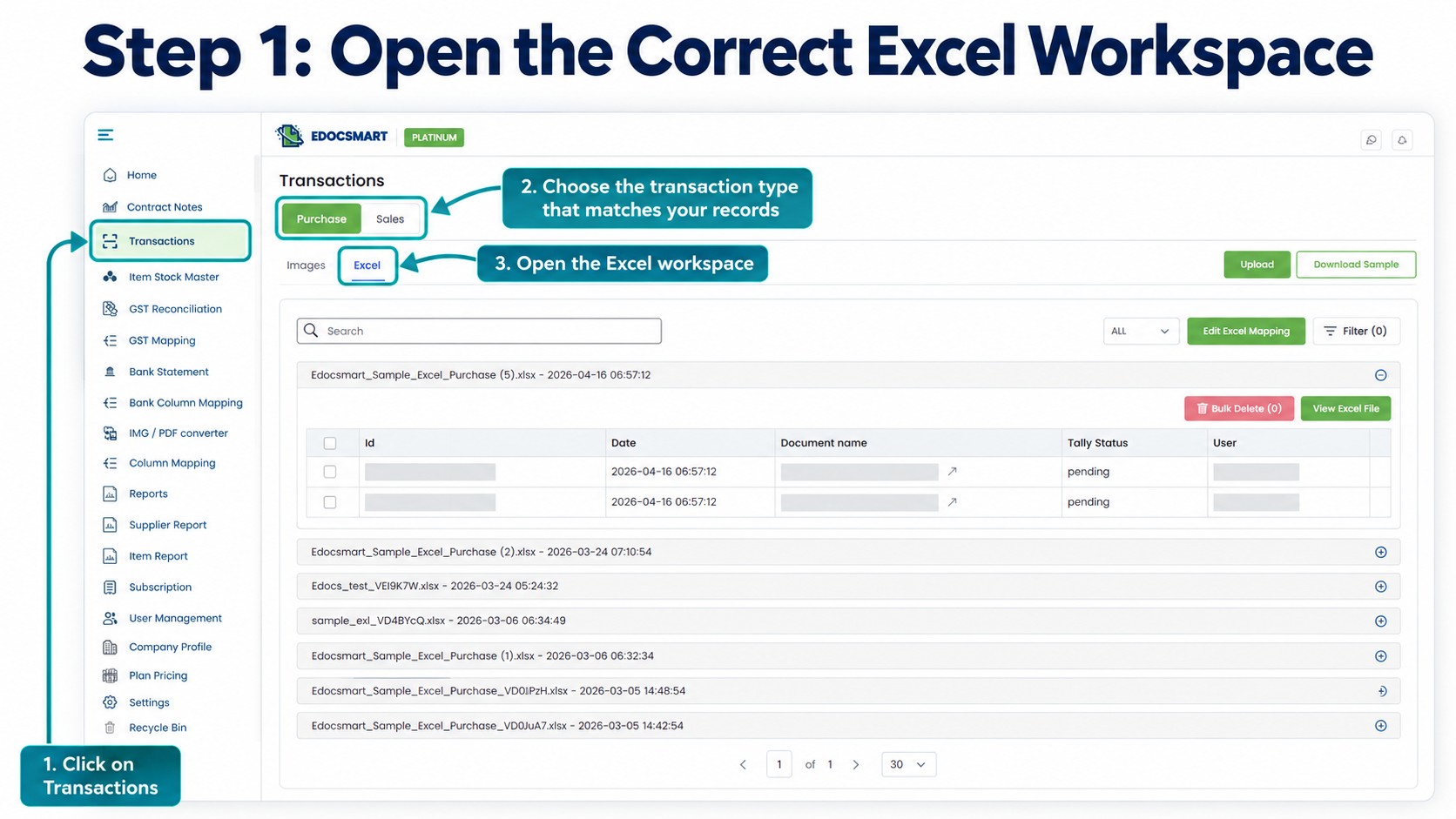
Step 2: Upload the Intended Workbook
Choose your working Excel file and enter the actual Header Row Number when requested.
This is the row containing column labels, rather than the company name or report title.
Keep the original workbook available for comparison. Confirm that the uploaded version contains the intended item descriptions and classification information.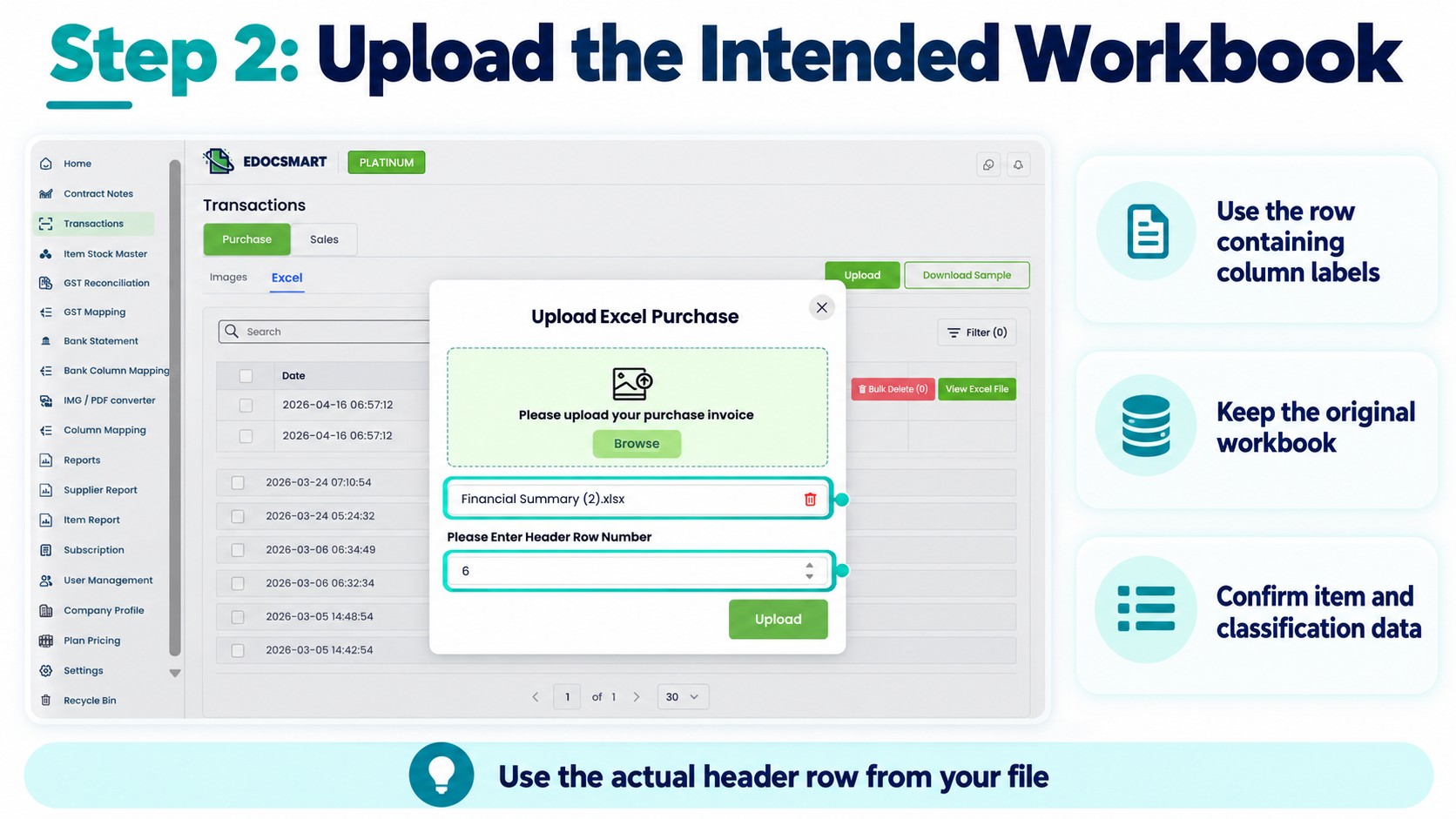
Step 3: Check the Stock-Group Source
Open Edit Excel Mapping and locate STOCK_GROUP.
If the configured workflow reads group information from Excel, inspect the selected source column and several values beneath its heading.
For example, map a column containing Stationery and Furniture only after confirming those values represent the required stock groups.
Do not copy a dropdown selection from a sample screenshot without checking your workbook.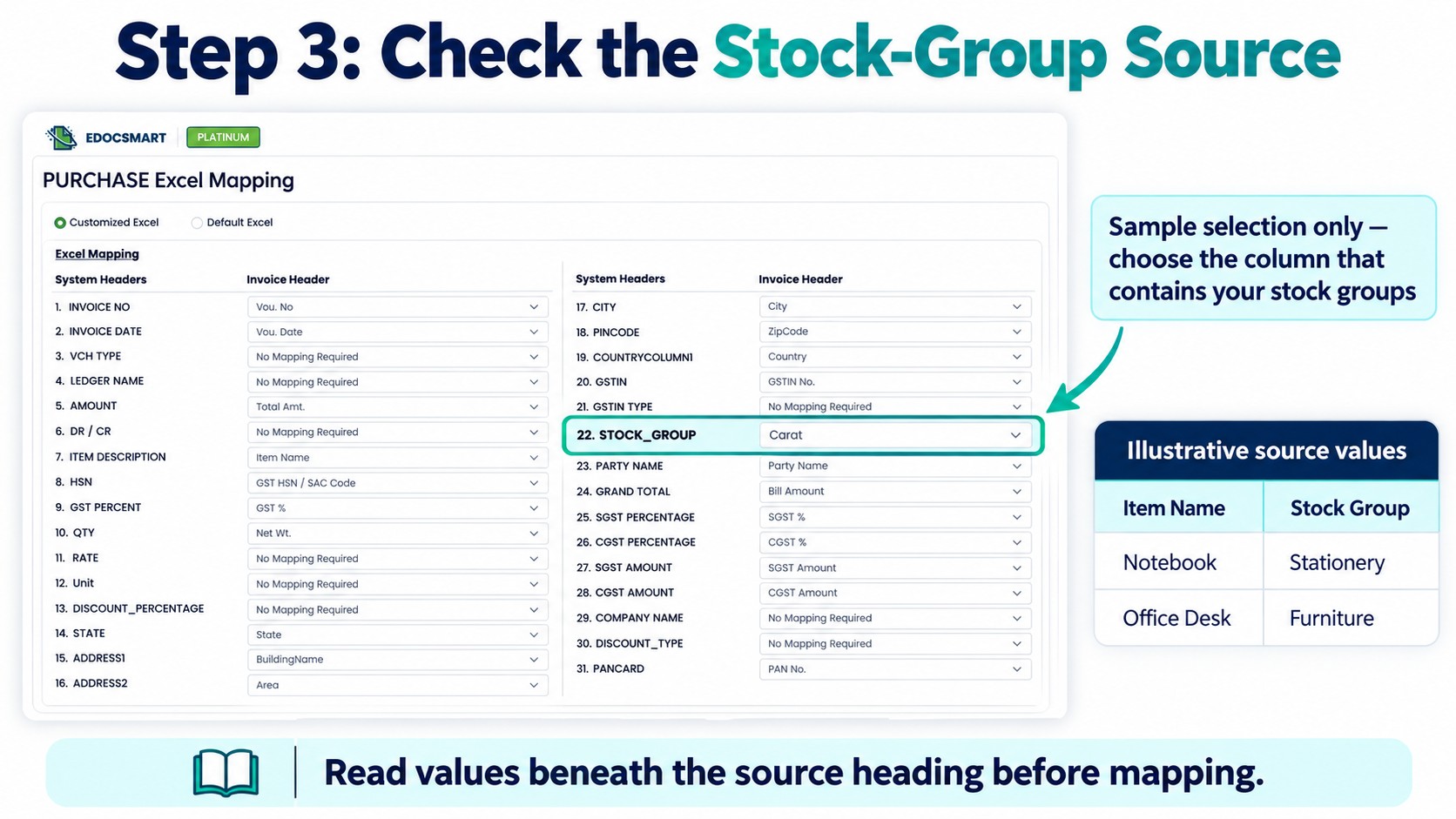
Step 4: Review Stock Group Settings
Locate Stock Group Setting in the available configuration.
Confirm whether stock-group processing should be enabled and whether Excel Based or Mapping Based applies to your setup.
Where the group comes from another mapping or a custom rule, establish the expected treatment before processing.
You can discuss your stock group mapping requirements with Edocsmart by sharing a sample workbook and the intended inventory structure.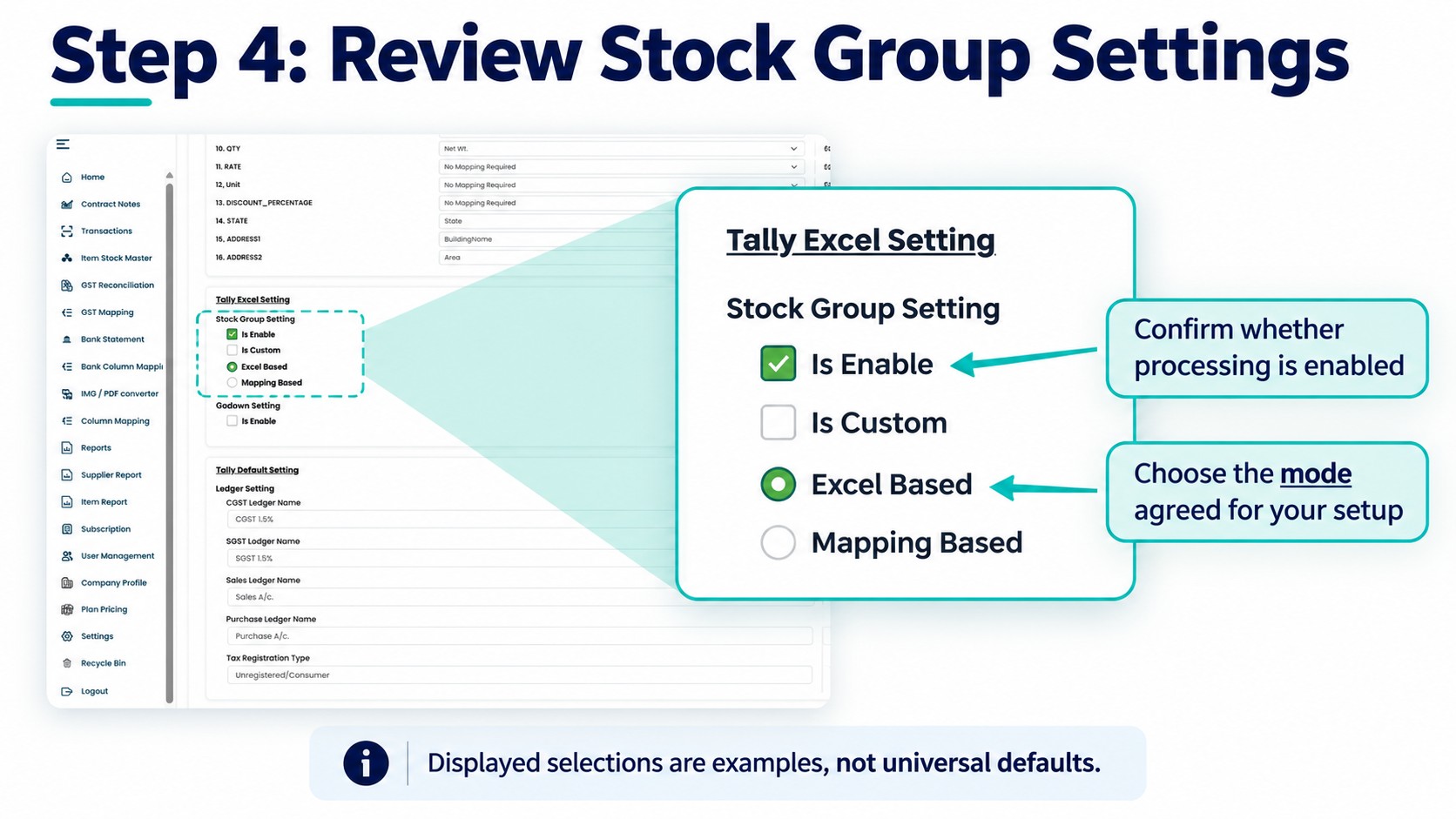
Step 5: Check Existing Items and Missing Groups
Compare representative items with the relevant Tally stock masters.
If an item already exists, inspect its current group. Confirm how your configured workflow handles existing classifications and missing groups.
Do not assume importing another transaction will change an existing stock item’s group. Tally provides stock-item alteration for changing master details, including the group. TallyHelp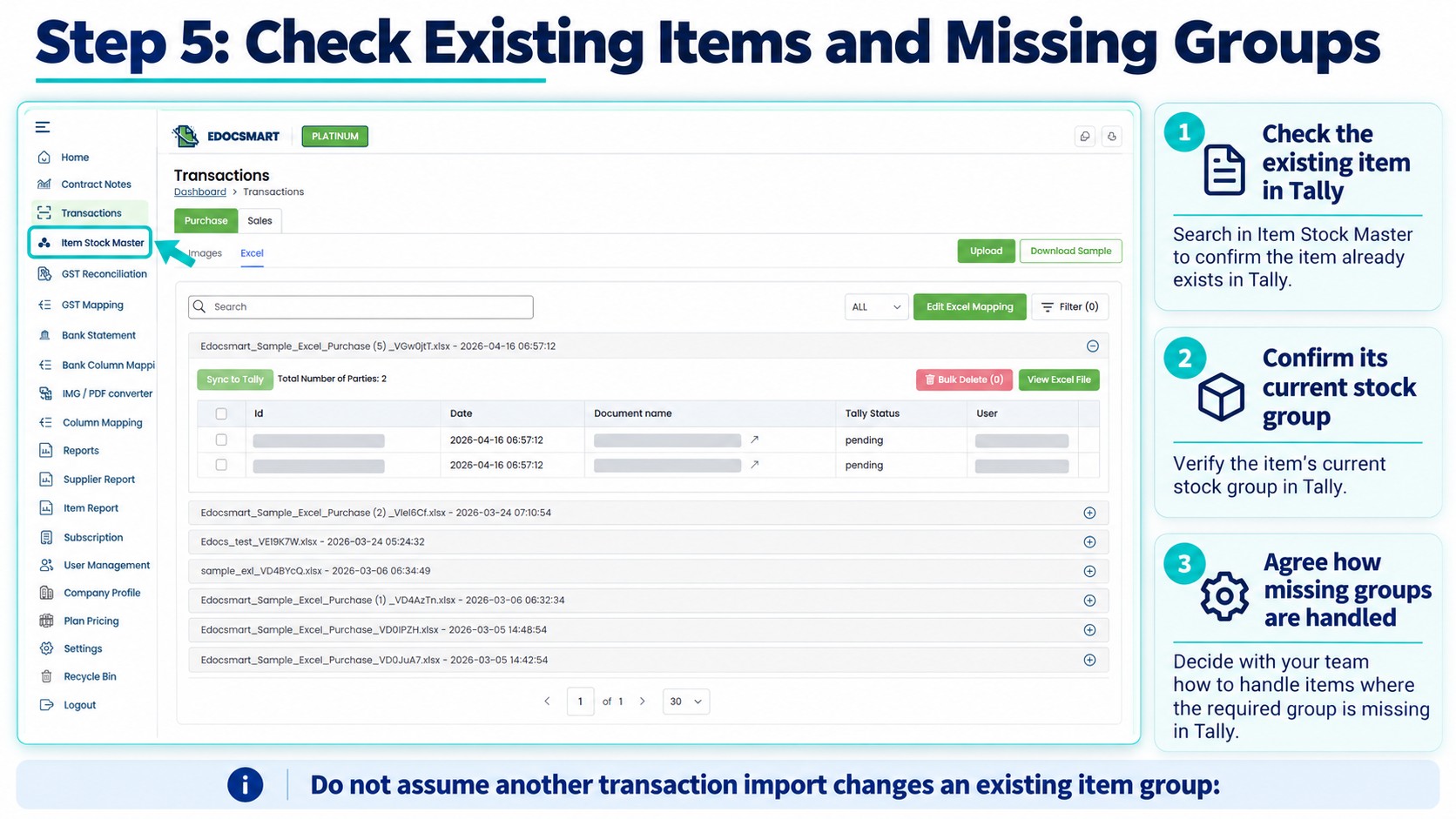
Step 6: Review Samples from Different Groups
After processing, inspect examples from each relevant classification.
Check item descriptions, group values where displayed, quantities, units, and amounts.
If several items show the same problem, investigate the shared source column or configuration first. Correct the cause, review the affected records again, and save the approved data.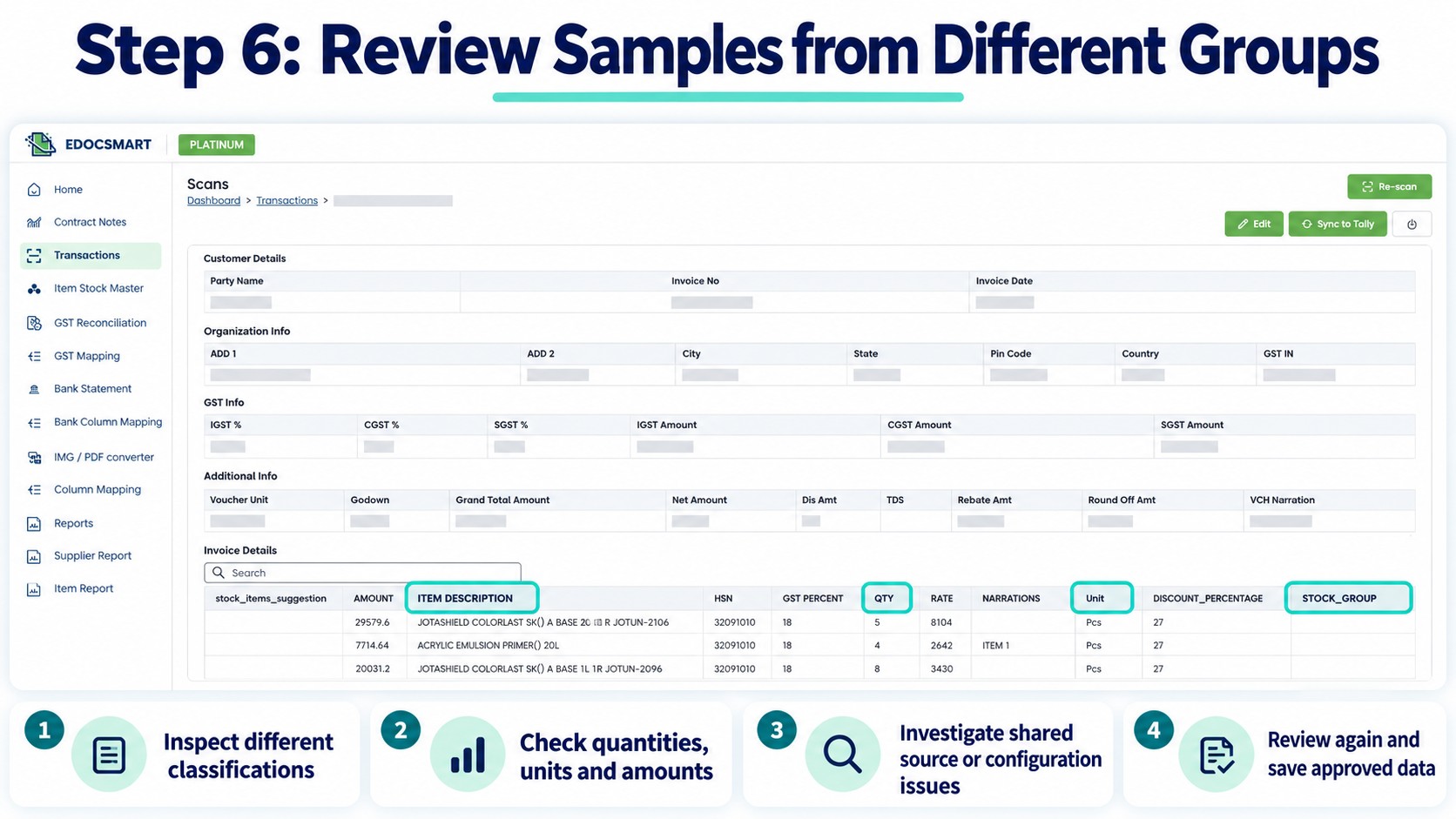
Step 7: Sync and Verify in Tally
Keep a current company backup, open the intended company, and start the Edocsmart Tally Connector.
Sync a small approved sample.
Inspect the resulting stock items and their group assignments in Tally. Check the related voucher details before continuing with the remaining records.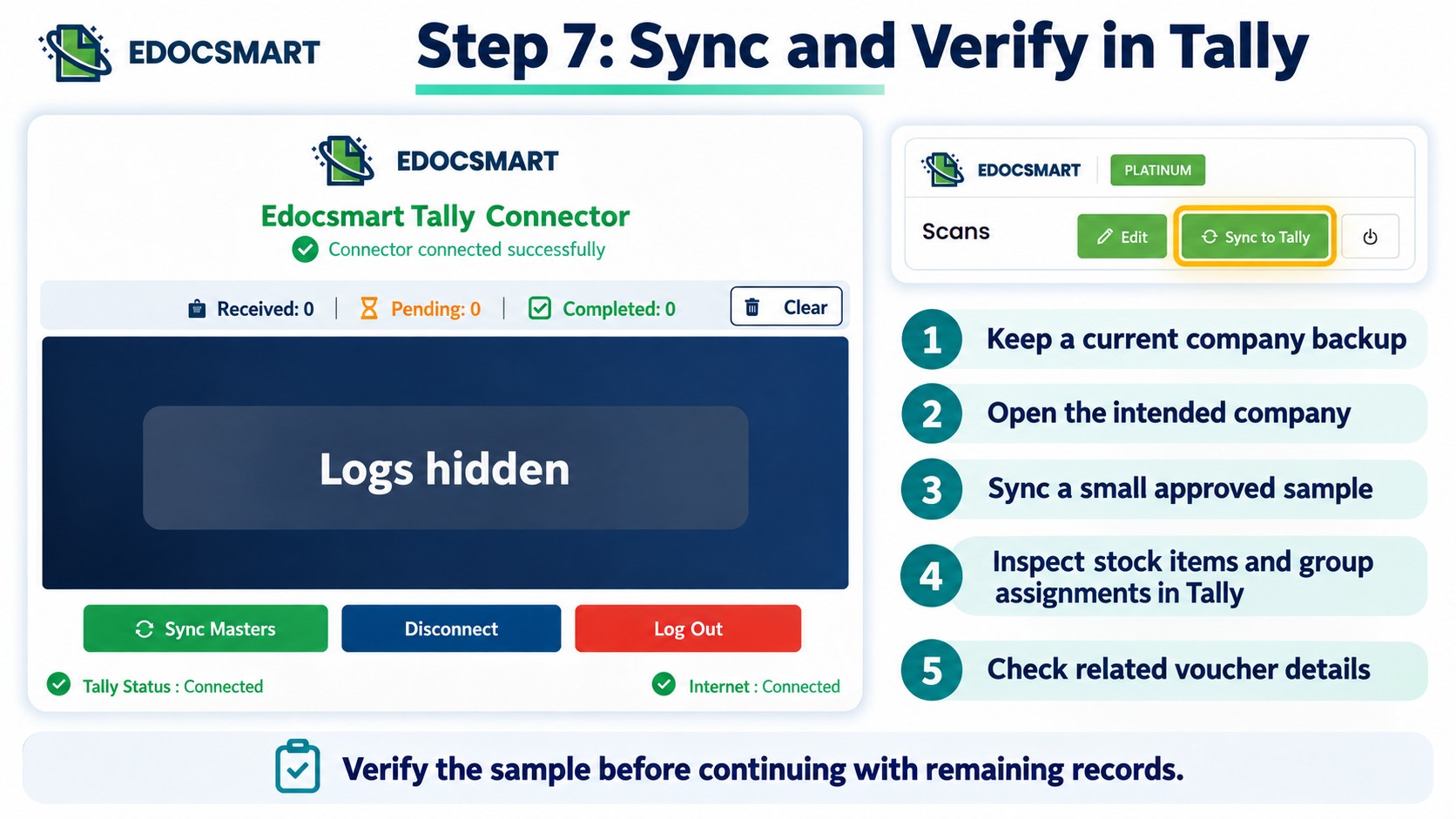
Frequently Asked Questions
1. What is a stock group?
It is a classification used to organise similar inventory items.
2. Is a stock item the same as a stock group?
No. An item is an individual product; a group classifies products.
3. Can Excel contain stock-group information?
Yes. Confirm which column contains the intended classification.
4. What if my Excel file has no group column?
Agree on the appropriate source or configuration before processing.
5. Can I reuse the mapping?
Yes, when the file structure and classification requirements remain consistent.
6. Will importing change an existing item’s group?
Do not assume it will. Confirm the configured behaviour first.
7. Should I check groups after importing?
Yes. Verify sample stock masters and related transactions in Tally.
Conclusion
Stock group mapping helps connect Excel records with the inventory structure your business needs. Check the source meaning, review the settings, and test different item groups before processing the full batch.
Explore the Excel-to-tally to understand how mapping, review, and synchronization fit together.