How to Prepare Your Excel File for Tally Import
Prepare your Excel file for Tally import with practical checks for headers, dates, ledger names, GST details, amounts, and duplicate records before uploading.
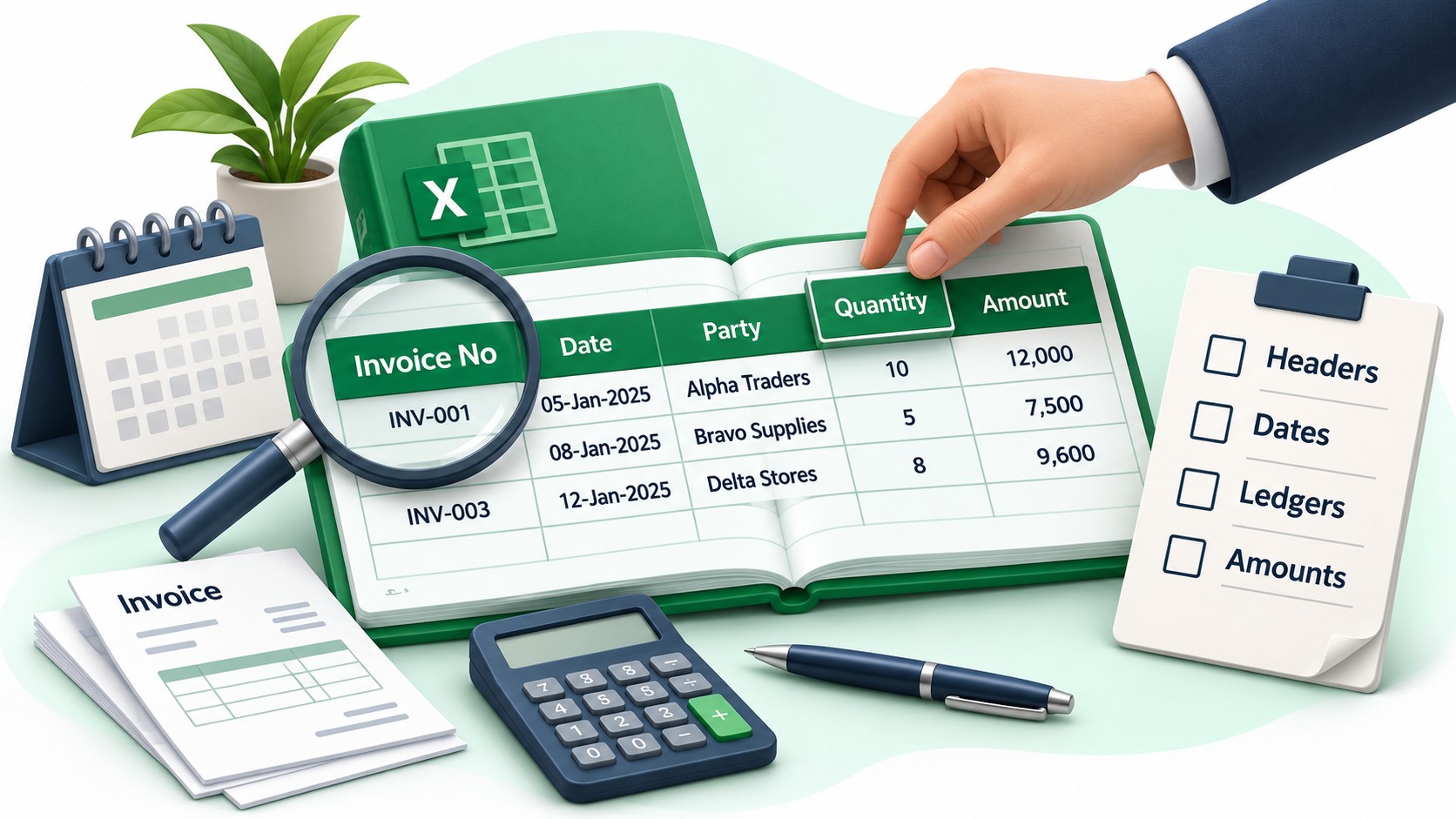
How to Prepare Your Excel File for Tally Import
An Excel file is easier to import into Tally when its structure and values are clear. Before importing, check the headings, dates, ledger names, invoice references, amounts, and inventory details.
The required layout depends on the import method. Some workflows use a fixed template, while others support custom column mapping. Follow the supported format and keep an original copy before making changes.
1. Keep Rows and Columns Organised
Use one clearly defined header row, with transaction data arranged beneath it. Avoid merged cells within the data table, unexplained blank rows, and report subtotals that could be mistaken for transactions.
Understand what each row represents. It may contain a complete invoice, an individual item, or an accounting allocation.
For a multi-item invoice, several rows may share the same invoice reference: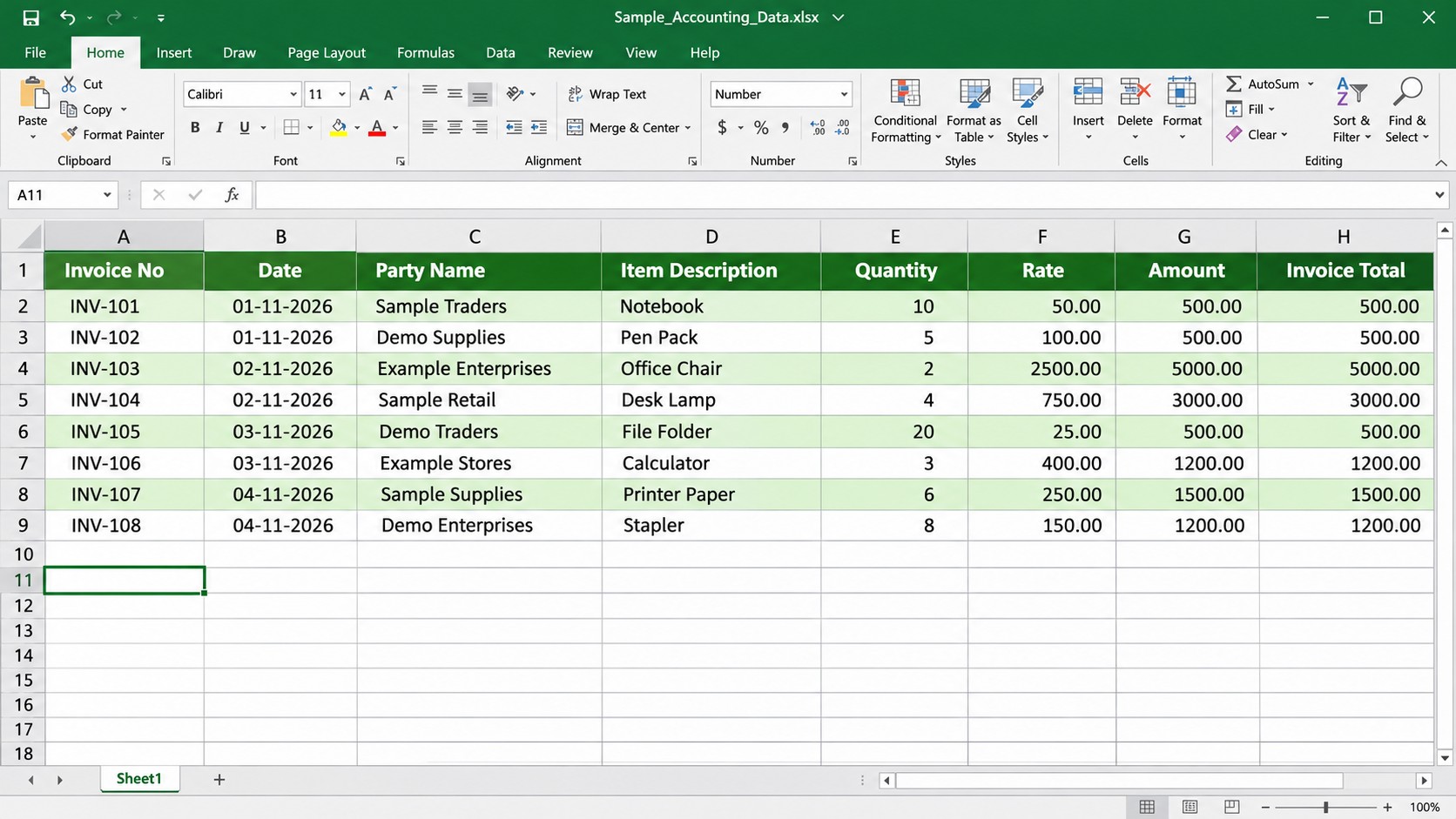
These rows describe two items within one invoice. Keep them together according to the grouping rules of the selected workflow.
Some templates use separate sheets for invoice information and stock details. Others keep them in one sheet. Follow the required structure rather than applying the same layout to every import.
2. Check That Dates Are Usable
A cell can display a date while storing its value as text. This can affect how the import reads the information.
Review the underlying values and confirm the intended date convention. For example, 03-04-2026 could mean 3 April or 4 March.
Changing the cell format alone does not necessarily convert text into a date. Excel tools such as Text to Columns, or a formula such as =DATEVALUE(A2), may help, but the result depends on the source values and regional settings.
Test the conversion on a working copy and inspect the results before applying it to the full column. Confirm that the dates belong to the intended accounting period.
3. Review Ledger and Party Names
Compare customer, supplier, and other ledger names with the intended accounts in Tally.
Look for extra spaces, spelling differences, punctuation, and inconsistent abbreviations. Excel’s TRIM() function can help remove ordinary extra spaces, but the resulting name still needs checking.
For example:
=TRIM(A2)
Do not assume that similar names belong to the same business. Check supporting details where necessary.
GSTIN can provide useful identification information where applicable, but it should be checked alongside the relevant account details. Also confirm whether the import workflow supports matching by GSTIN.
4. Check GST Information
Where GST applies, review the tax information against the source documents.
| Field | What to review |
|---|---|
| GSTIN | Missing characters, spaces, and typing errors |
| Tax rate | The value and format expected by the import |
| Taxable value | Whether it reflects the relevant discounts and adjustments |
| Tax amounts | Whether the applicable components agree with the source |
| Place of supply | Whether the required information is available |
| Invoice total | Whether it includes the relevant taxes, charges, and adjustments |
A percentage may be stored as 18, 0.18, or text such as 18%. These representations are not interchangeable in every workflow.
Tax treatment should reflect the transaction’s actual requirements. Do not determine it from a sample value or a GSTIN state code alone.
5. Review Numbers and Rounding
Check that quantities, rates, amounts, and tax values contain usable numbers.
Currency symbols typed into values, inconsistent separators, or explanatory notes inside numeric cells can make processing more difficult. Cell alignment can offer a clue, but it is not a reliable test because users can change it manually.
Review the precision required for each field. Amounts may use two decimal places, while quantities and rates may require more.
Where a source invoice includes round-off, retain that adjustment in the appropriate field. Avoid rounding every component independently without checking its effect on the final total.
For transactions containing debit and credit allocations, confirm that the entry balances.
6. Check Voucher Numbers and Repeated Records
Keep invoice references and accounting voucher numbers clearly identified.
A repeated invoice reference may belong to multiple items within one invoice. Different suppliers may also use the same bill number.
Excel’s Conditional Formatting → Duplicate Values can highlight repeated values, but it does not establish that the transactions are duplicates.
Before excluding a record, compare its:
- Party name.
- Invoice reference.
- Date.
- Amount.
- Supporting document.
Also check whether the transaction already exists in Tally. After a partial import, identify which records were entered before retrying.
Do not assume that the import will automatically skip existing records or replace a voucher with the same number. Confirm the supported behaviour first.
7. Review Stock Items and Units
For inventory transactions, check item descriptions, quantities, units, rates, and amounts.
Confirm that the source items correspond to the intended stock masters. Units such as pieces, boxes, and kilograms need consistent treatment. Any conversion between units should be established before importing.
Compare quantity and rate with the line amount, accounting for discounts, price units, and other relevant adjustments.
Check godown, batch, and stock-group information where the business and import workflow require it.
8. Take a Backup and Test a Sample
Keep a current company backup before importing and confirm that the intended Tally company is open.
Start with a small sample covering the main transaction types. Include a multi-item invoice and records involving discounts, taxes, or adjustments.
Inspect the resulting vouchers. Check invoice references, dates, parties, ledger allocations, stock details, and totals.
Resolve differences before continuing. If several records show the same problem, review the shared source field or configuration first.
Frequently Asked Questions
Does every Excel file need the same layout?
No. The layout depends on the template or mapping supported by the import method.
Can one invoice contain multiple rows?
Yes. Several rows can represent individual items within one invoice.
Should repeated invoice numbers be deleted?
Review them first. A repeated number may belong to valid item rows or separate transactions.
Will importing the same file twice create duplicates?
It can. Check existing records and confirm the workflow’s duplicate-handling behaviour before retrying.
Why should I import a sample first?
A sample helps you check the resulting entries and correct configuration differences before processing the full batch.
Conclusion
Preparing an Excel file for Tally import means checking both its structure and the meaning of its values. Clear rows, usable dates, appropriate ledger information, and reviewed totals provide a better starting point.
Keep a backup, test representative records, and verify the output before continuing with the remaining transactions.
To explore sample Excel formats and configurable column mapping, visit Edocsmart Excel to Tally Software.