How to Set Maintain Stock for Excel-to-Tally ?
Learn how to use Edocsmart’s Maintain Stock settings—True, False, and Both—to prepare Excel-to-Tally entries with or without stock items.
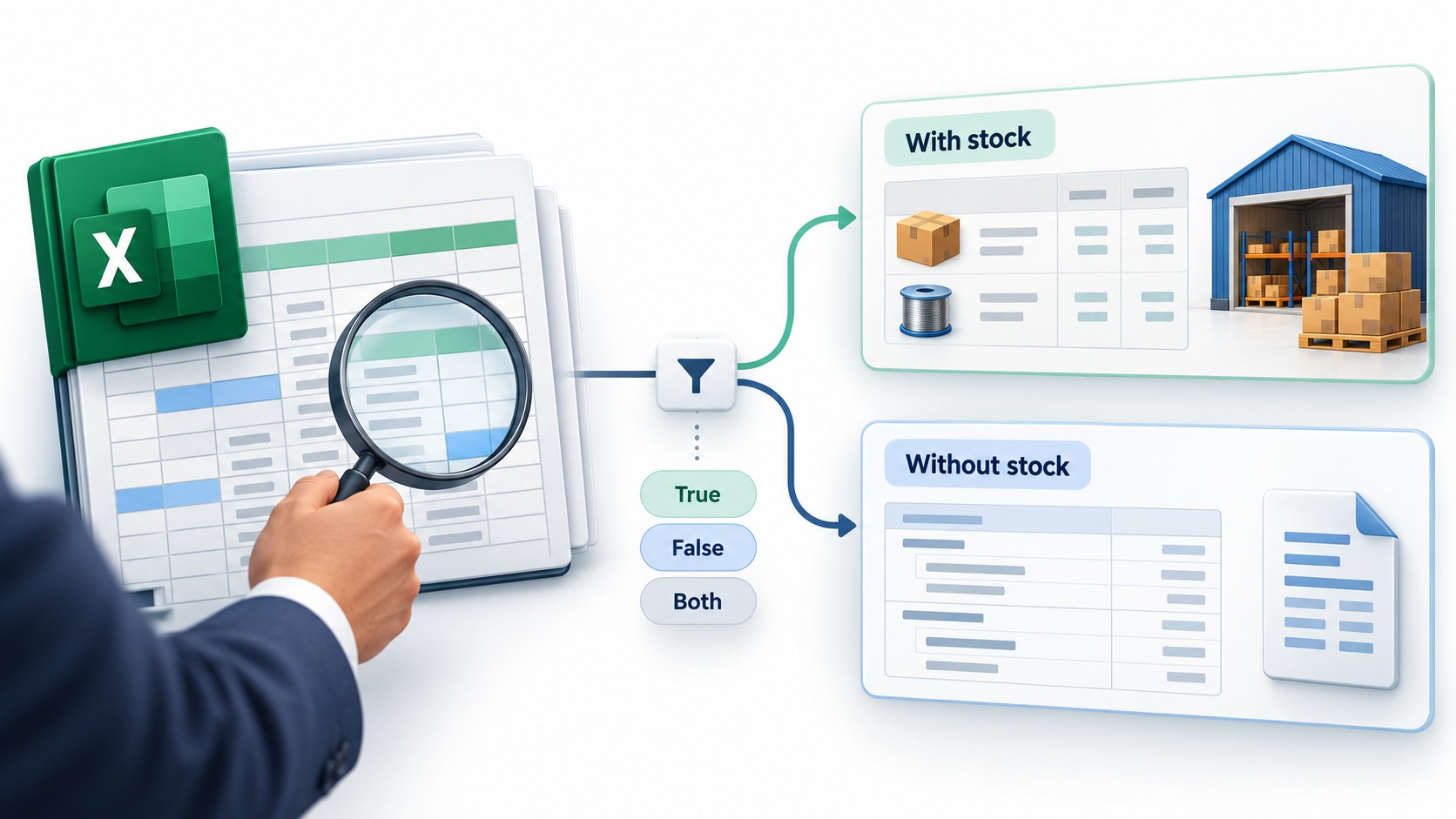
The accountant had finished checking the Excel report. The dates, party names, and amounts were ready, but he paused before importing it into Tally. Some entries required stock details, while others needed to be recorded without them.
He began separating the records into different sheets. This worked, but the same task returned whenever a new report arrived. He still had to go through the rows, decide how each entry should be handled, and make sure nothing was missed.
He wanted to keep the records in a single Excel and handle this difference during processing. That is where Edocsmart’s Maintain Stock setting became useful.
By selecting True, he could prepare entries with stock items. With False, he could prepare entries without stock items. For a mixed workbook, Both could apply the configured condition to determine the required treatment.
This reduced the need to separate the same types of records repeatedly. He could focus on reviewing the prepared entries and verifying a sample in Tally before continuing with the remaining records.
What Do True, False, and Both Mean?
The setting controls whether the prepared entry should include stock-item treatment.
| Option | Intended treatment |
|---|---|
| True | Prepare entries with stock items. |
| False | Prepare entries without stock items. |
| Both | Apply the configured condition to decide the treatment. |
For the requirement covered in this guide, Both follows this rule:
- If the designated source field is blank, maintain stock.
- If that field contains a value, prepare the entry without stock.
The designated field must be identified during configuration. Selecting Both alone does not explain which Excel column should control the decision.
Choose the Setting According to Your Records
Use True when the records being processed require stock-item details. Check that the workbook contains the necessary item information, including quantities, units, and amounts.
Use False when the intended entries should be prepared without stock items. Relevant accounting details still need correct mapping.
Use Both when the same workbook contains records requiring different treatments. Before processing, establish which source field separates those records and what its values mean.
A blank condition field does not mean that missing item details can be ignored. An entry requiring stock treatment still needs the information necessary to prepare it correctly.
How to Configure Maintain Stock in Edocsmart
Step 1: Open the Appropriate Excel Workspace
Log in to Edocsmart and open Transactions.
Select Sales or Purchase according to the records, then open the Excel tab.
Confirm the transaction type before uploading. The stock setting should support the accounting treatment required for that batch.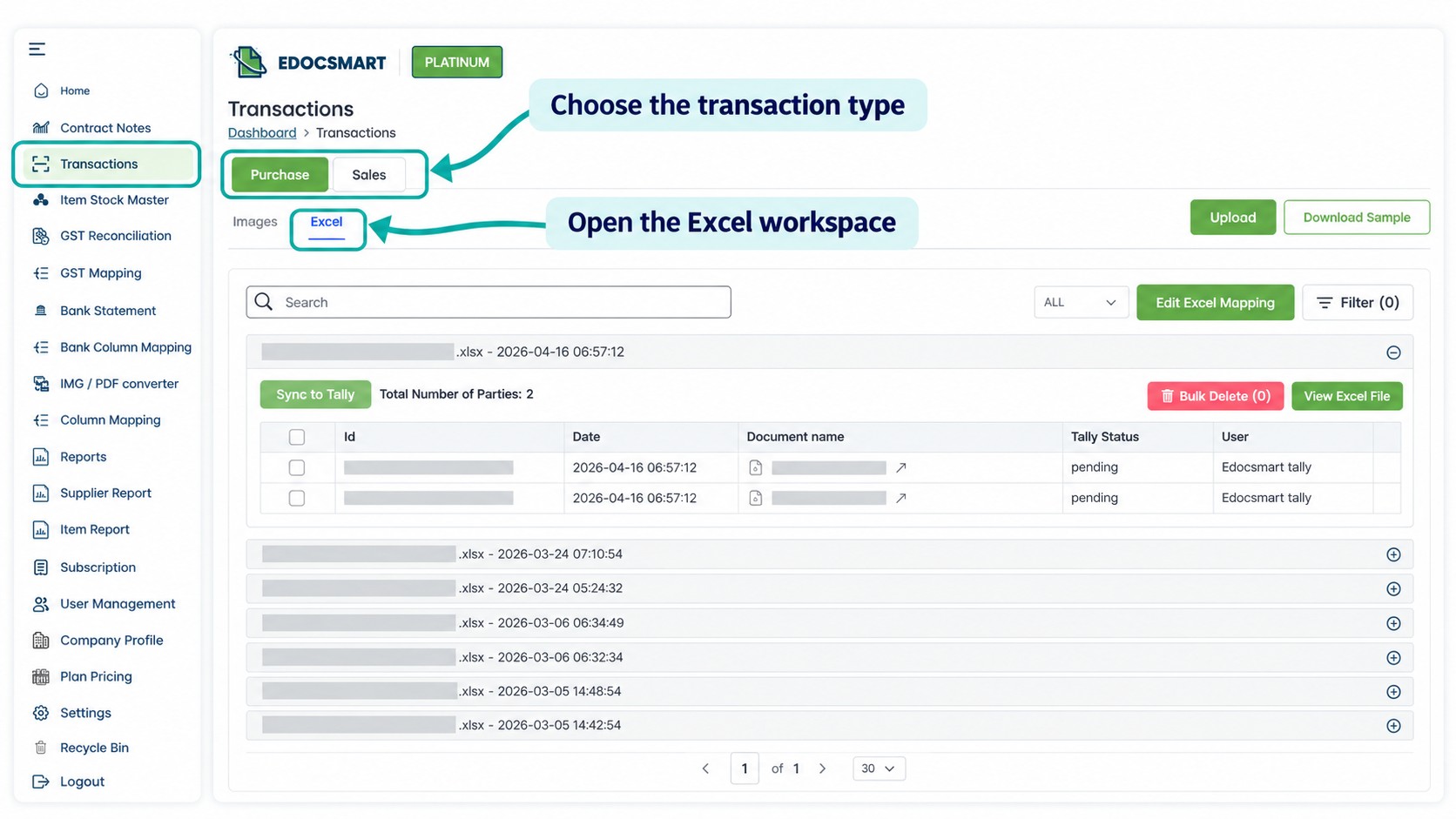
Step 2: Upload Your Workbook
Choose the intended Excel file and enter its actual Header Row Number when requested.
This is the row containing column labels, rather than a report title or company address.
Keep the original workbook for comparison. When using conditional stock treatment, check that the designated source field is available in the uploaded version.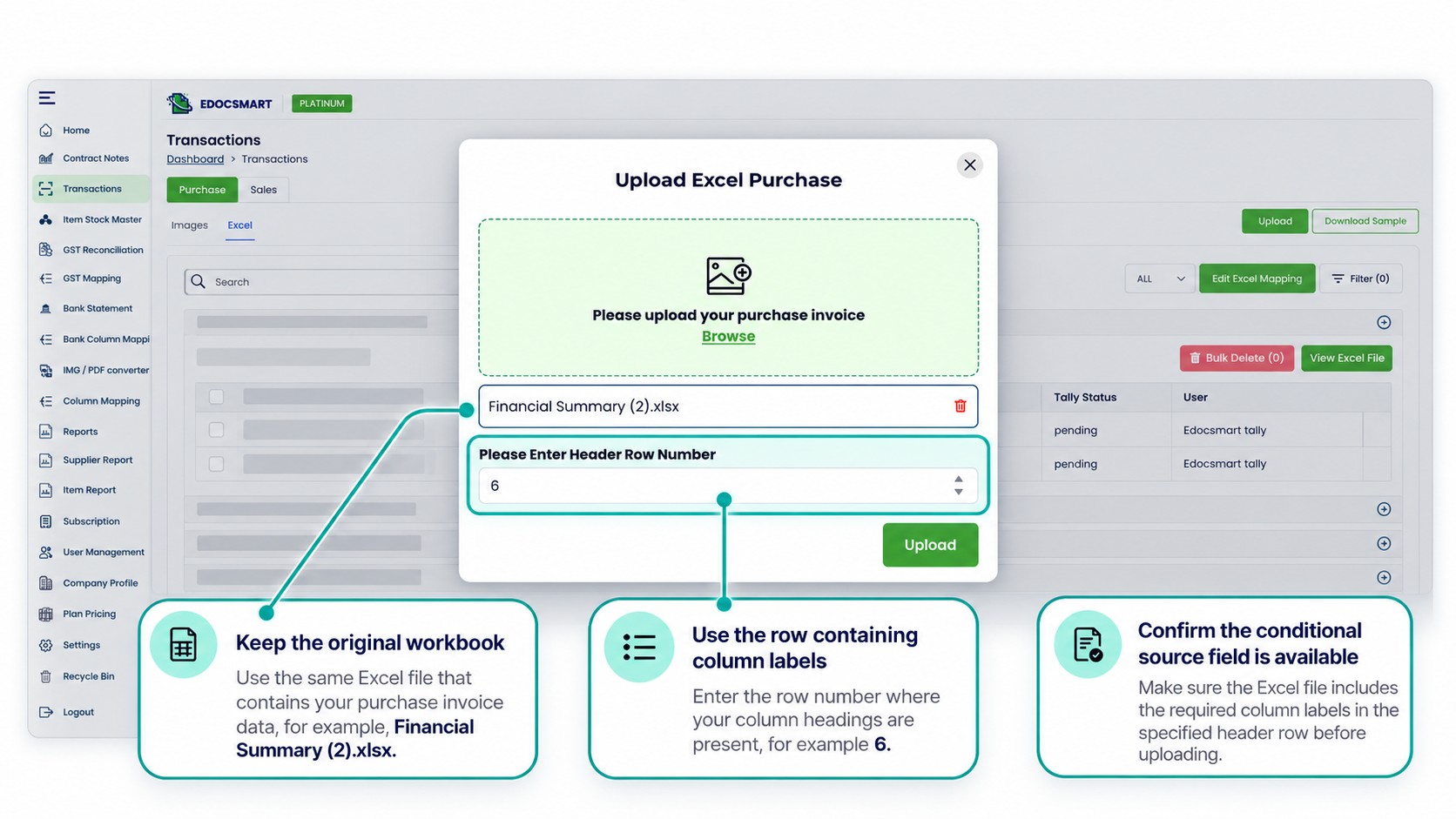
Step 3: Check the Source Mapping
Open Edit Excel Mapping and review the selected columns.
Check invoice references, party names, dates, item descriptions, quantities, units, rates, and amounts where applicable.
For Both, confirm the field used by the configured condition. Read several values beneath its heading instead of relying only on the column name.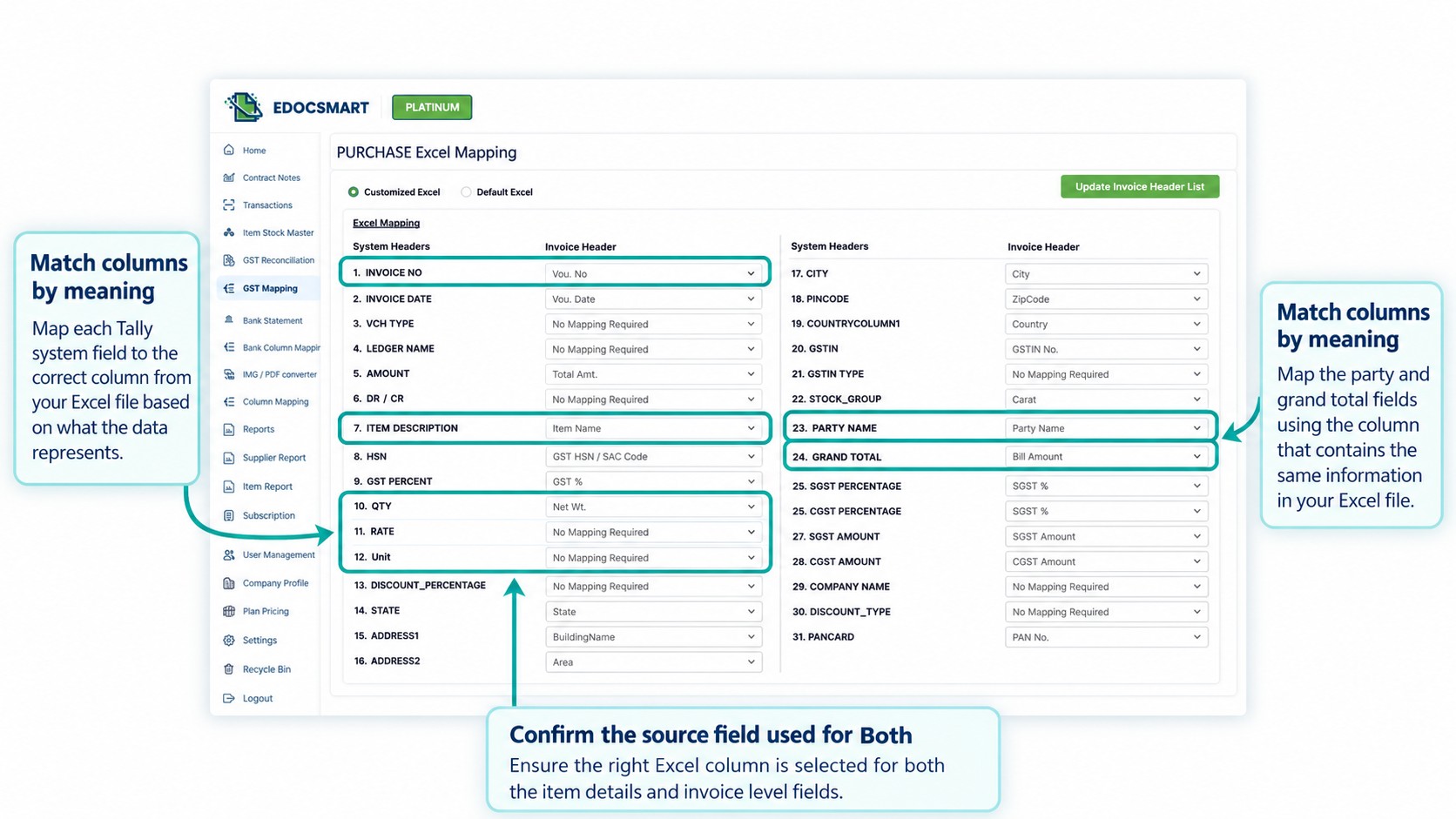
Step 4: Select the Maintain Stock Option
Locate Tally Default Setting → Stock Setting → Maintain Stock.
Choose True, False, or Both according to the requirement.
For the conditional workflow described here, check that blank values lead to stock treatment and populated values lead to entries without stock.
Also confirm how zero, spaces, and formulas returning empty text are handled. These should not be assumed to behave identically.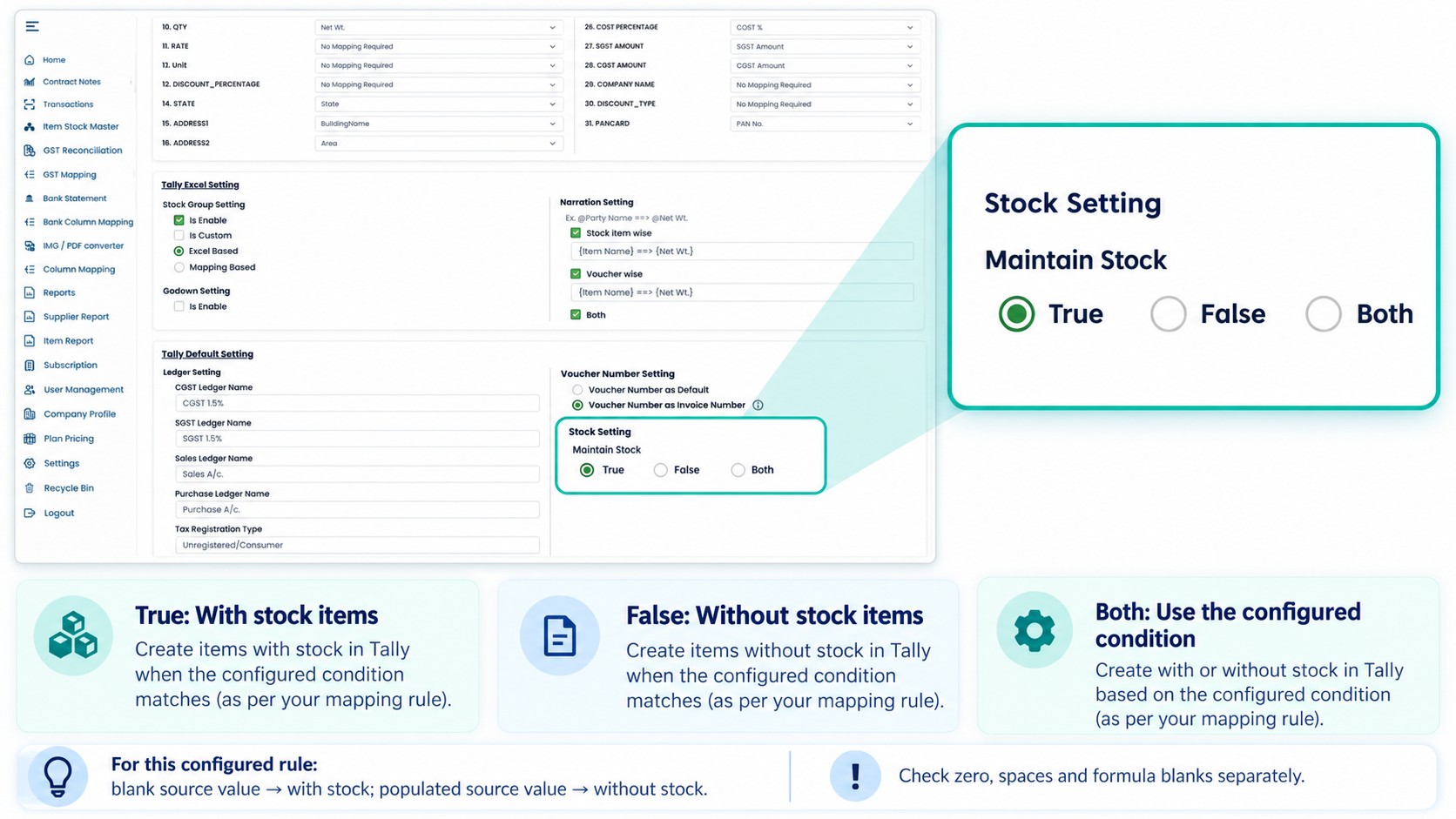
Step 5: Review the Prepared Records
After processing, compare sample records with Excel.
For True, check the prepared item details, quantities, units, and amounts.
For False, confirm that the entry follows the intended treatment without stock items.
For Both, review records from both conditions. Include one with a blank designated field and another containing a value.
Check references, parties, dates, and totals alongside stock treatment.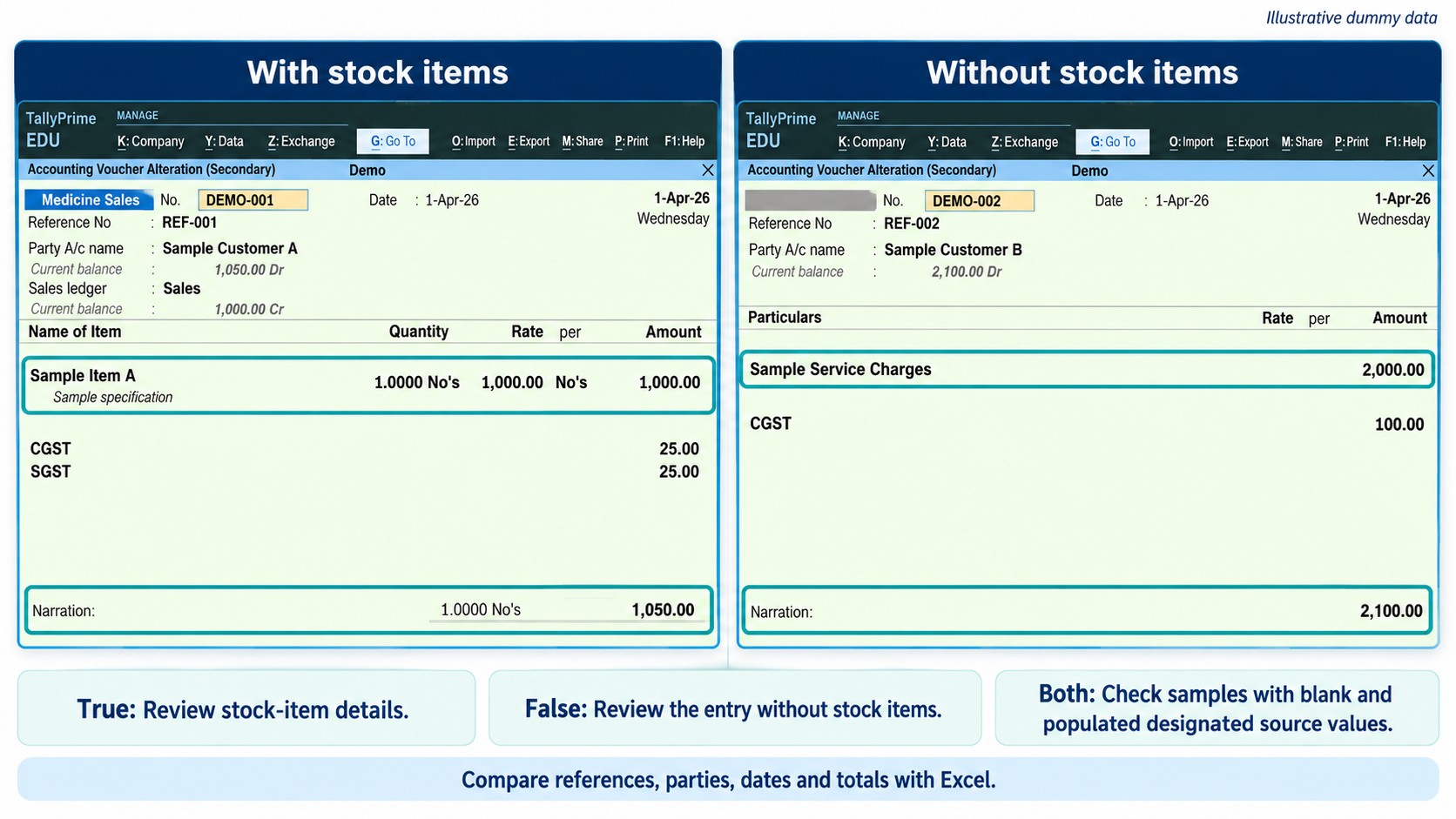
Step 6: Correct Differences and Save
If the wrong treatment appears across several records, inspect the shared source mapping or conditional configuration first.
Check whether the intended column was selected and whether apparently blank cells contain spaces or formula results.
Correct the cause, review the affected records again, and save the approved data.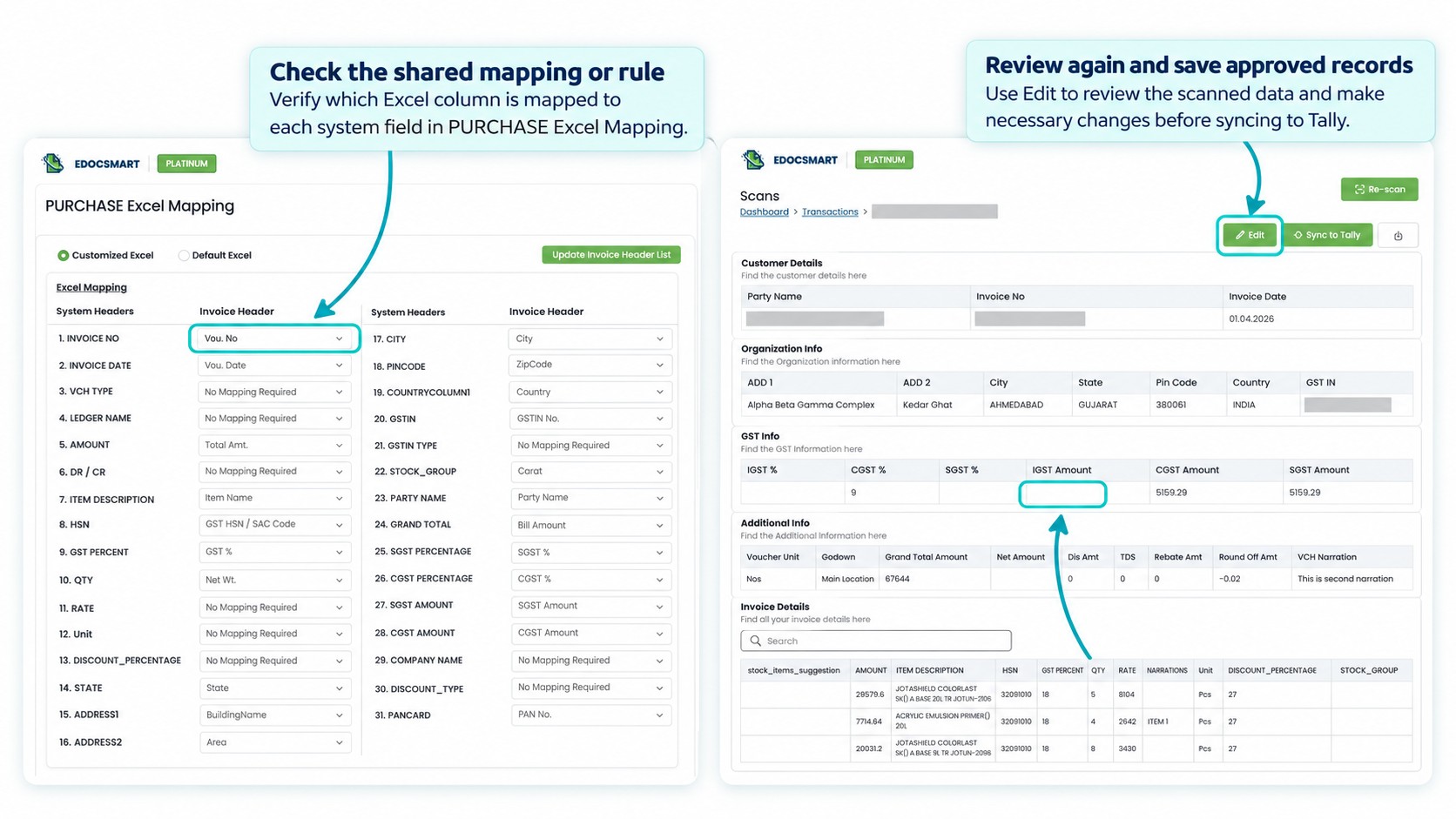
Step 7: Sync a Sample and Verify in Tally
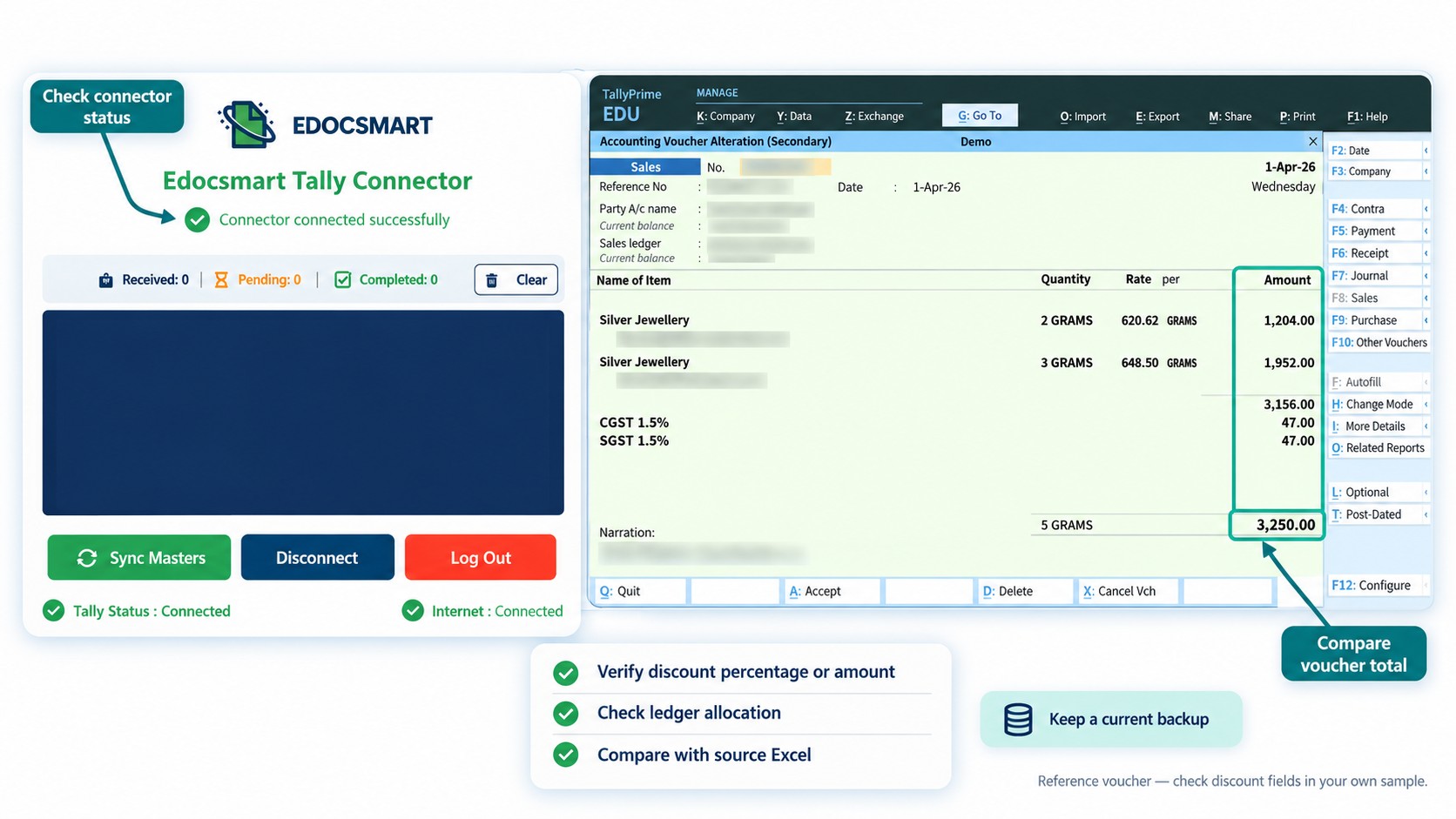
Keep a current company backup. Open the intended company and start the Edocsmart Tally Connector.
Sync a small approved sample.
Inspect the resulting vouchers in Tally. Confirm that stock-item details appear where required and that entries intended without stock follow the agreed treatment.
When using Both, verify a sample from each condition before continuing with the remaining records.
 Keep the Configuration Consistent
Saved mapping can support recurring reports when their structure and requirements remain unchanged.
Review the setup when the controlling column changes, new values appear, or the business changes its stock-treatment rules.
You can discuss your stock-setting requirements with Edocsmart by sharing a sample workbook and the expected accounting output.
Frequently Asked Questions
1. What does Maintain Stock mean?
It controls whether prepared entries include stock-item treatment.
2. When should I select True?
Select it when the records require entries with stock items.
3. When should I select False?
Select it when the records require entries without stock items.
4. What is the Both option used for?
It supports different treatments according to a configured condition.
5. Does a blank field always mean maintain stock?
Only when that behaviour is defined for the designated field in your workflow.
6. Should I review records before syncing?
Yes. Check stock treatment, accounting details, and totals before approval.
7. Can I reuse the same setting?
Yes, when the source structure and accounting requirements remain consistent.
Conclusion
The appropriate Maintain Stock setting depends on how your records should be prepared. True supports stock treatment, False supports entries without stock, and Both uses the configured condition.
Confirm the source field, review both types of records, and verify samples in Tally before completing the batch through the Excel-to-tally-Software.