How to Transfer Excel Data to Tally
Learn how to transfer Excel data to Tally using Edocsmart. Upload your Excel file, map fields, review entries, and sync vouchers to Tally quickly and accurately.
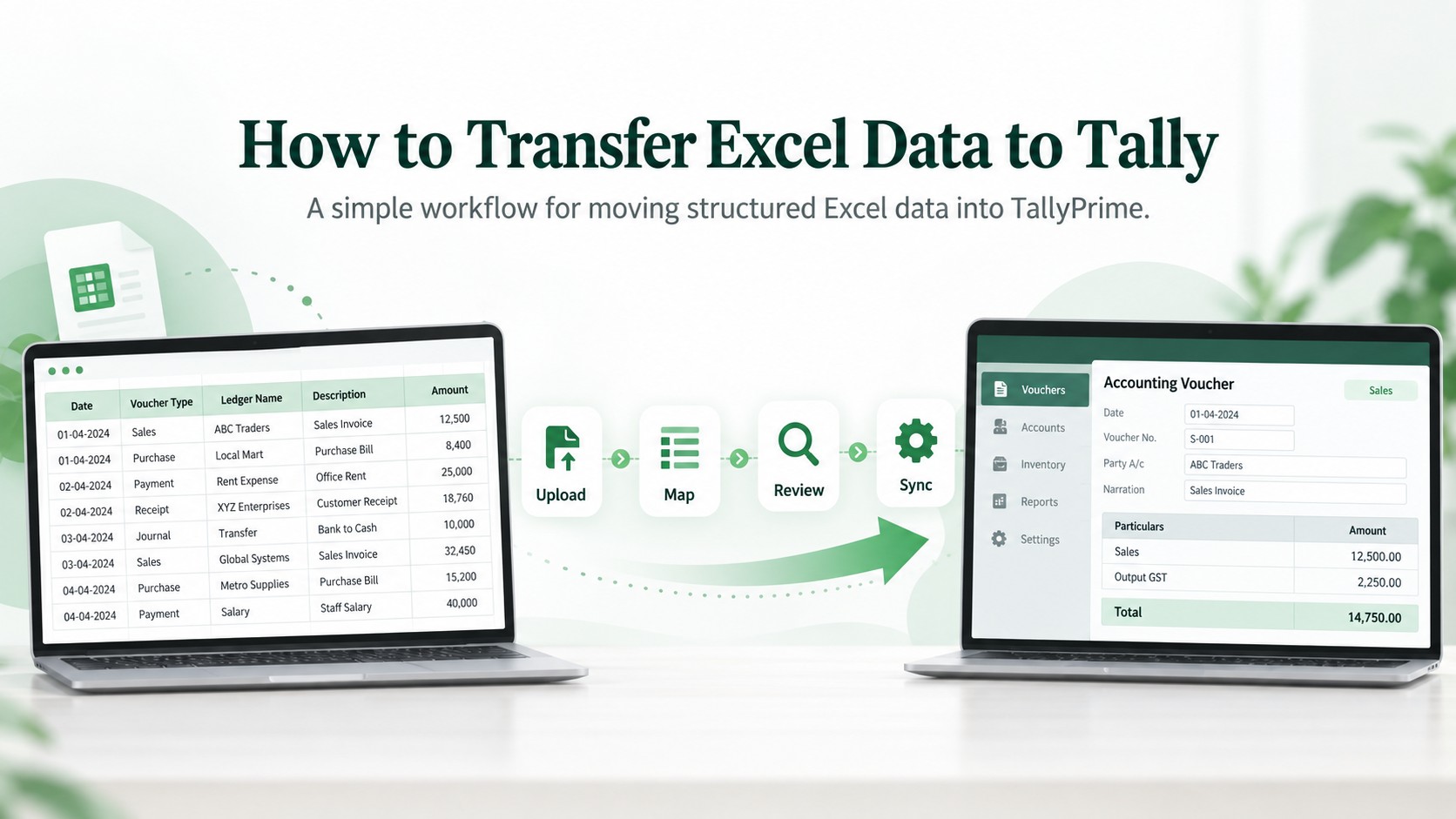
Transferring hundreds of sales, purchase, payment, or receipt entries from Excel to Tally manually can take hours and may lead to typing mistakes, duplicate entries, and incorrect ledger selection.
EdocSmart simplifies the process with its Excel to Tally import feature. You can upload an Excel file in your existing format, map your Excel columns with the corresponding Tally fields, review the generated entries, and sync up to 100 vouchers to Tally at one time.
What is excel to tally import ?
Excel to Tally import is the process of transferring accounting data stored in an Excel spreadsheet into TallyPrime.
Businesses frequently maintain the following data in Excel:
●Sales transactions
●Purchase transactions
●Payment entries
●Receipt entries
●Party and ledger information
●Item details
●Quantity and rate
●GST and HSN details
●Voucher numbers and dates
EnteringthisinformationmanuallyintoTallycanbetime-consuming,especiallywhenan Excel file contains hundreds of transactions.
With Edocsmart, businesses can convert their Excel rows into individual Tally vouchers through a simple upload, mapping, validation, and synchronization process.
How to Transfer Excel Data to Tally with EdocSmart
The complete process can be divided into six simple steps.
Step 1: Prepare Your Excel File
Start with the Excel file containing your sales, purchase, payment, receipt, or other accounting data.
Your file may include columns such as:
●Invoice number
●Invoice date
●Party name
●GSTIN
●Item name
●Quantity
●Rate
●Taxable amount
●CGST
●SGST
●IGST
●Total amount
●Narration
EdocSmartallowsyoutouseyourexistingExcelformat.Youdonothavetomanually rearrange every column into a fixed Tally template before uploading it.
However, the Excel file should have clear column headings and properly arranged transaction data for accurate mapping.
Step 2: Log In to the EdocSmart Portal
Visit the EdocSmart web portal and log in using your registered account credentials.
Afterloggingin,opentherelevanttransactionsectionandselecttherequiredvouchertype, such as:
●Sales
●Purchase
Selectingthecorrectvouchertypeisimportantbecauseitdetermineshowthedatawillbe created in Tally.
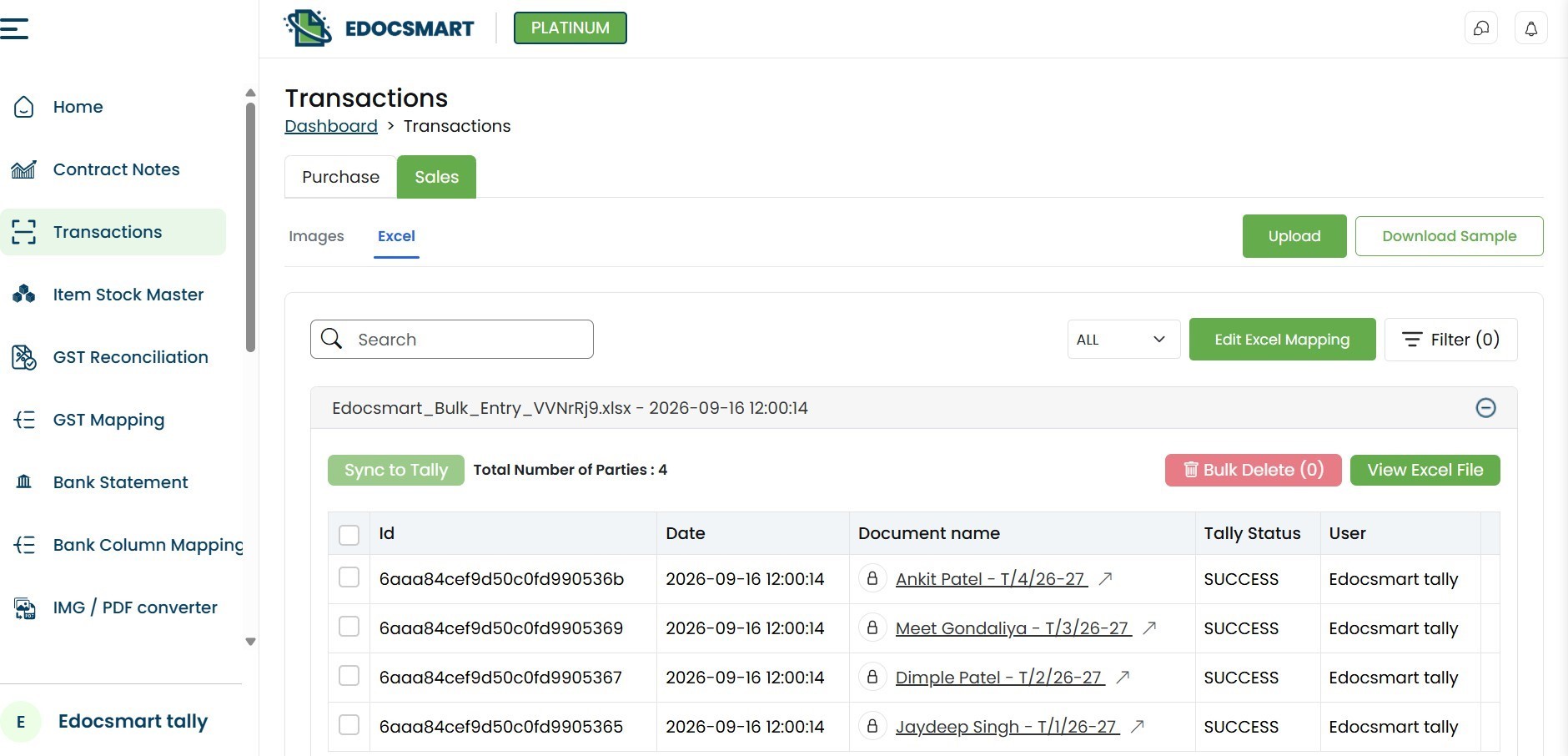 Step 3: Upload Your Excel File
Click the upload option and select the Excel file available on your computer.
EdocSmart will read
the Excel data and display its columns in the mapping window. This allows you to connect
the information from your Excel
file with the correct fields
required by Tally.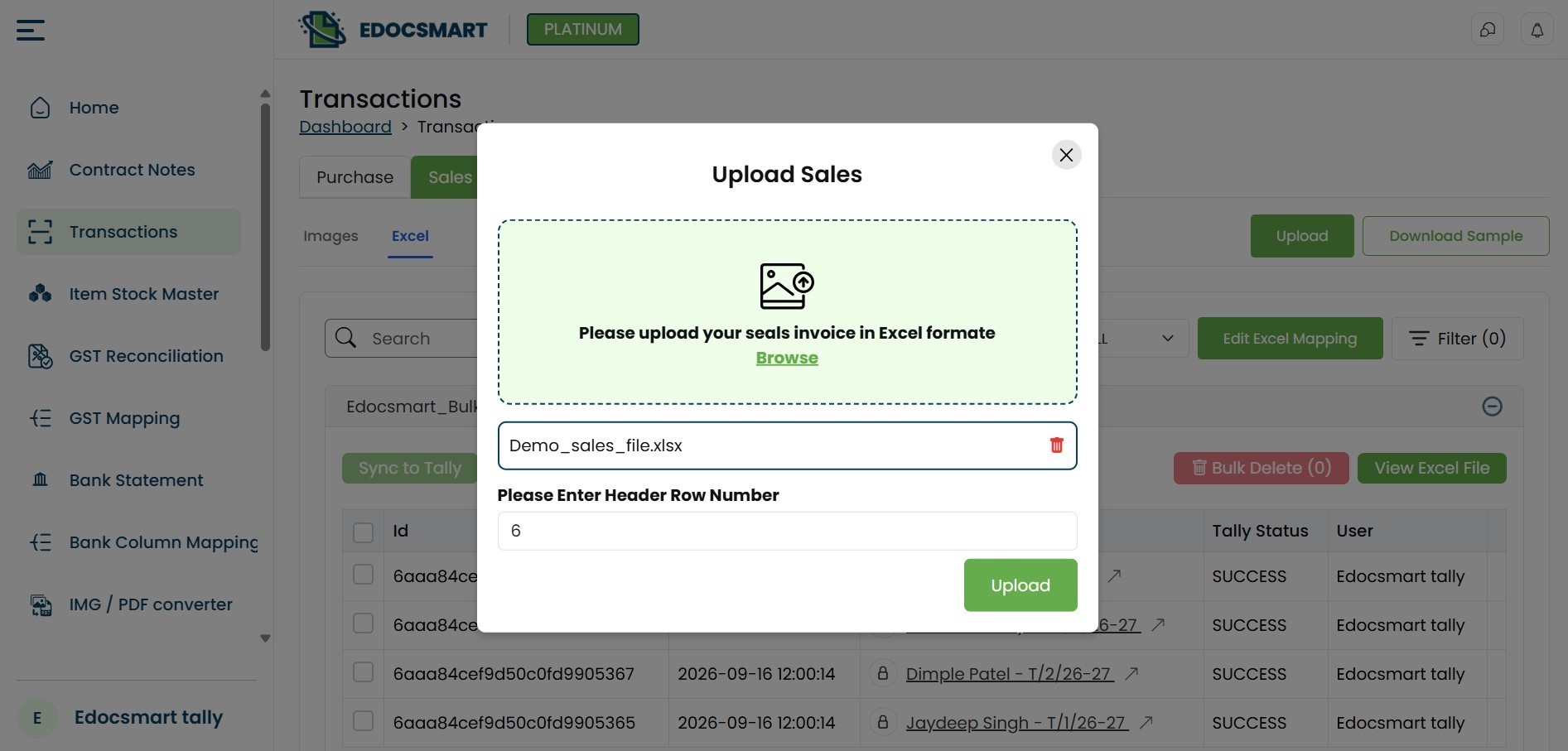
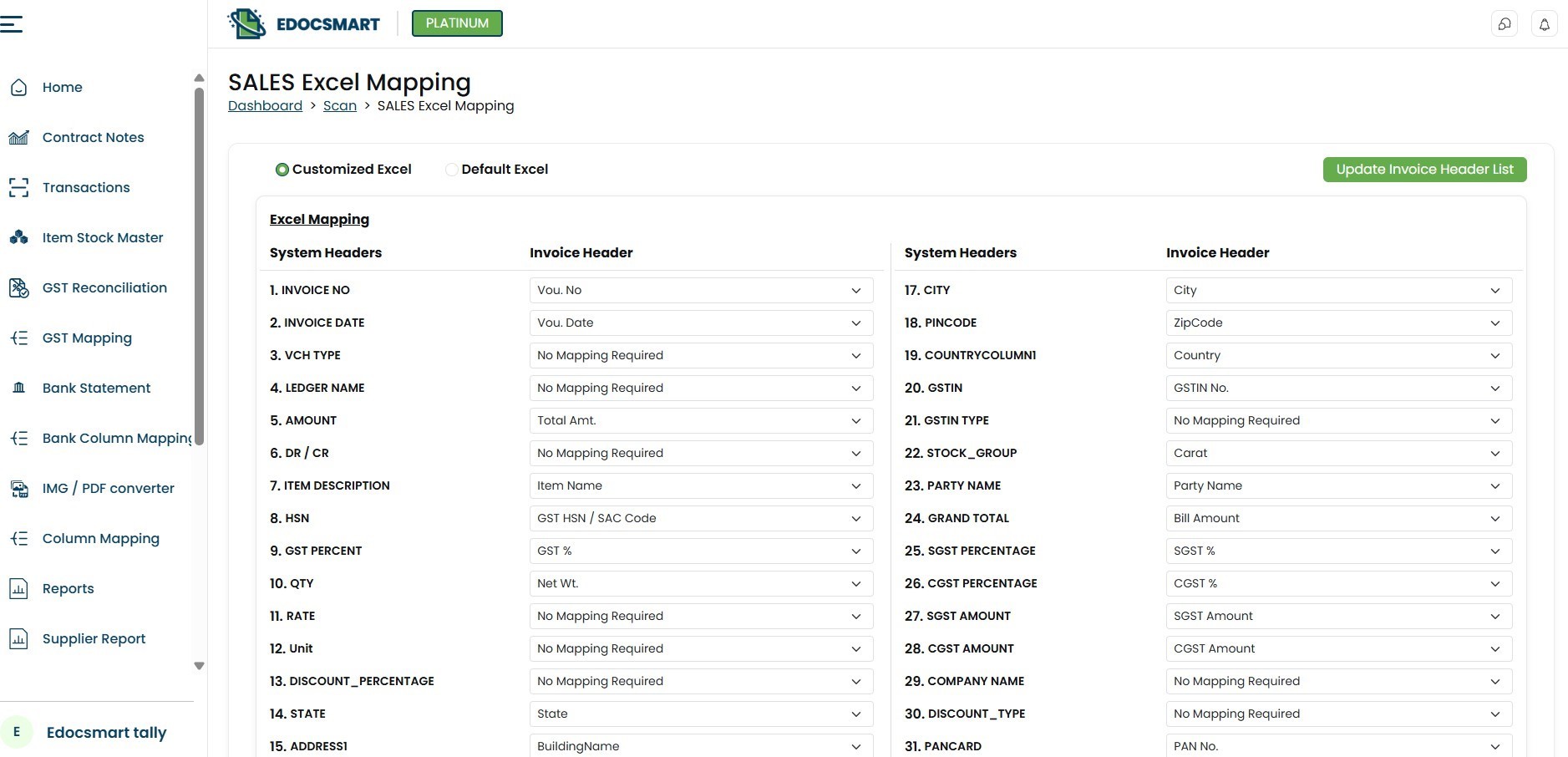
Step 4: Map Excel Columns with Tally Fields
Column mapping is the most important step in the Excel to Tally conversion process. During mapping, you connect every relevant Excel column with its corresponding Tally field.
For example:
|
Excel column |
Tallyfield |
|
Bill No. |
Voucher Number |
|
Bill Date |
Voucher Date |
|
Customer Name |
Party Ledger |
|
Product Description |
Stock Item |
|
Qty |
Quantity |
|
Price |
Rate |
|
Taxable Value |
Taxable Amount |
|
CGST Amount |
CGST |
|
SGST Amount |
SGST |
|
IGST Amount |
IGST |
|
Grand Total |
Voucher Amount |
This mapping tells EdocSmart where each value from the Excel file should be placed while creating vouchers in Tally.
The mapping generally needs to be configured once for each Excel format. If you regularly upload files with the same column structure, the saved mapping can be reused, reducing the work required for future imports.
If the column names or structure of your Excel file changes, you may need to review or update the mapping before importing the data.
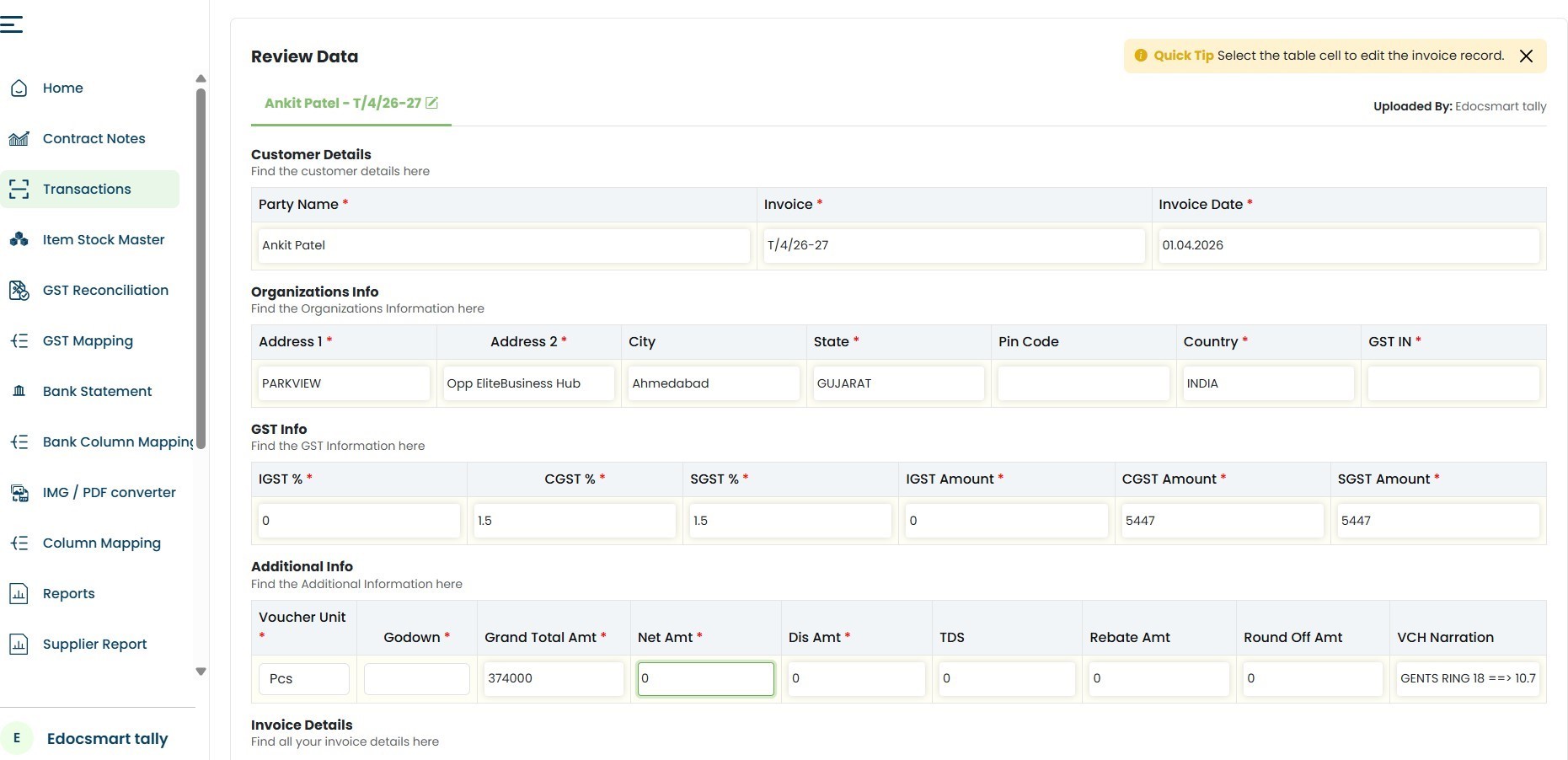
Step 5: Review Individual Voucher Entries
After the Excel file is processed, EdocSmart creates individual voucher entries on the web portal.
Each Excel transaction can be reviewed separately before it is transferred to Tally. You can verify details such as:
●Voucher number
●Voucher date
●Party ledger
●Item name
●Quantity
●Rate
●GST amounts
●Total invoice value
●Narration
This validation step helps identify missing or incorrect information before it reaches your Tally company.
If necessary, you can correct the entry in the EdocSmart portal and then proceed with synchronization.
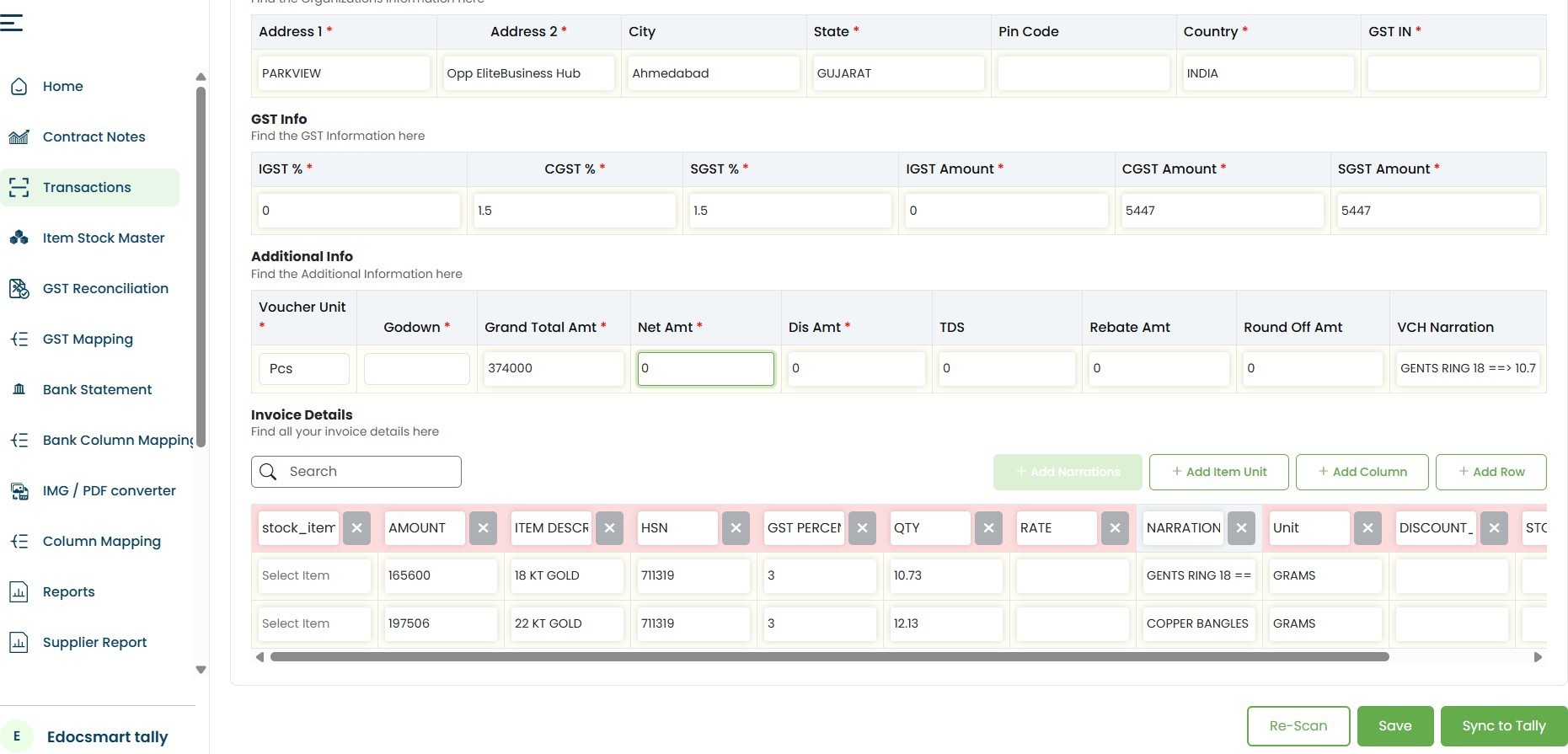
Once the entries have been reviewed, you can choose how you want to transfer them. You can:
- Select and sync one voucher at a time
- Select specific vouchers
- Select all valid vouchers together
Sync up to 100 vouchers to Tally in one batch Click Sync to Tally after selecting the required entries.
EdocSmart then sends the selected data to Tally
and creates the vouchers in the appropriate company. Depending on the
configured workflow, the required ledger and stock information can also be
created or updated in Tally.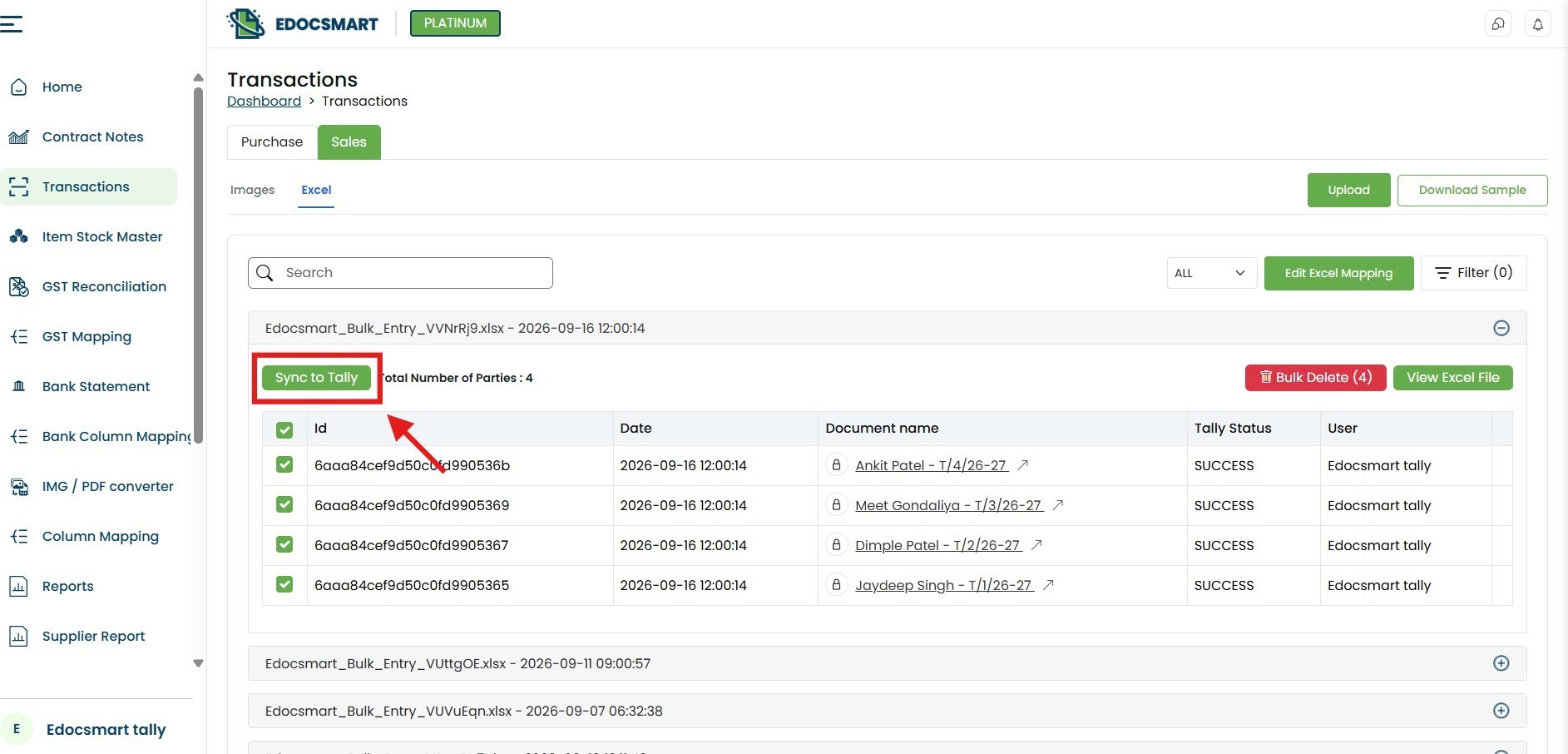 Why Is Excel-to-Tally Column Mapping Important?
Excel files are not standardized. One company may use “Customer Name,” while another uses “Party,” “Account Name,” or “Ledger Name” for the same information.
Similarly, an invoice number may appear as:
●Invoice No.
●Bill Number
●Voucher No.
●Reference Number
Tally requires this information in specific fields. The mapping window connects your company’s Excel format with the correct Tally structure.
Accurate mapping helps ensure that:
●Voucher dates are transferred correctly
●Transactions use the correct voucher type
●Party names are connected with the right ledgers
●Product descriptions are connected with stock items
●Quantities and rates appear in the correct fields
●GST values are recorded correctly
●Each Excel transaction becomes a separate Tally voucher
Because mapping controls how data is transferred, users should carefully verify it during the initial setup.
Example of Excel Data Transfer to Tally
Suppose a business has an Excel file containing 100 sales transactions. Instead of creating 100 sales vouchers manually, the user can:
1.Log in to EdocSmart.
2.Upload the sales Excel file.
3.Map the Excel columns with Tally fields.
4.Review the 100 generated voucher entries.
5.Select all valid entries.
6.Click Sync to Tally.
Edocsmart can then transfer all 100 vouchers in a single batch, helping the accounting team reduce repetitive manual work.
Benefits of Using EdocSmart for Excel to Tally Import
Import Excel in Your Existing Format
- EdocSmart provides a mapping interface that helps connect your existing Excel columns with Tally fields. This reduces the need to prepare the same fixed import format every time.
Create Multiple Vouchers Faster
- You can select and sync up to 100 vouchers at one time instead of manually entering them one by one.
Review Data Before Import
- Every transaction is displayed as an individual entry on the web portal, allowing users to validate information before syncing it with Tally.
Reduce Manual Data-Entry Errors
- Mapping and validation help reduce common mistakes involving voucher dates, amounts, party names, quantities, tax values, and item details.
Reuse Column Mapping
- If the same Excel format is used regularly, the mapping can be configured once and reused for future uploads.
Maintain Control Over Synchronization
- Users can sync a single voucher, selected vouchers, or all valid vouchers according to their requirements.
Who Can Use Excel to Tally Software?
EdocSmart’s Excel-to-Tally feature can help:
●Retailers
●Manufacturers
●Jewellery businesses
●Pharma distributors
●Wholesalers
●Logistics companies
●Chartered accountants
●Accounting firms
●Businesses using separate ERP and accounting systems
It is particularly useful when a company manages inventory or billing in another ERP system but maintains its accounting records in Tally.
The company can export its sales or purchase transactions from the ERP to Excel and use Edocsmart to transfer that Excel data into Tally.
Important Checks Before Syncing Excel Data to Tally
Before starting the synchronization, confirm that:
●TallyPrime is open.
●The correct company is selected in Tally.
●The EdocSmart Tally connector is running.
●The required voucher type is correctly selected.
●Voucher numbering is configured appropriately.
●Excel columns are mapped with the correct Tally fields.
●Party ledger and stock-item names are verified.
●Voucher dates and financial periods are valid.
●GST, HSN, quantity, rate, and amount values are correct.
●Duplicate transactions have not already been imported.
These checks can help prevent failed imports and incorrect accounting entries.
Excel to Tally Import vs Manual Data Entry
|
ManualExcel-to-Tallyentry |
EdocSmartExcel-to-Tallyimport |
|
Every voucher is entered manually |
Excel transactions are converted into voucher entries |
|
Repetitive typing is required |
Columns are connected through mapping |
|
Greater risk of typing mistakes |
Entries can be reviewed before synchronization |
|
Each voucher is created separately |
Up to 100 vouchers can be synced in one batch |
|
Difficult to manage large files |
Suitable for bulk Excel data |
|
The same work is repeated every month |
Saved mapping can be reused for the same format |
FAQs
Can I import Excel data into Tally using EdocSmart?
Yes. You can upload your Excel file to EdocSmart, map its columns with Tally fields, review the generated voucher entries, and sync them with Tally.
Do I need to use a fixed Tally invoice format in Excel?
EdocSmart is designed to work with your existing structured Excel format through column mapping. Your file should have clear headers and properly organized transaction data.
What does Excel-to-Tally mapping mean?
Mapping means connecting each column in your Excel file with the correct Tally field. For example, “Customer Name” may be mapped to “Party Ledger,” and “Bill No.” may be mapped to “Voucher Number.”
Do I need to map the columns every time?
The mapping normally needs to be set once for each Excel format. If you upload another file with the same column structure, you can reuse the saved mapping. A changed file structure may require the mapping to be updated.
How many vouchers can I sync at one time?
EdocSmart allows you to select and sync up to 100 vouchers to Tally in one batch.
Can I sync only selected Excel entries?
Yes. You can sync one voucher, selected vouchers, or all valid vouchers according to your requirements.
Can I review the transactions before importing them?
Yes. EdocSmart displays each transaction as an individual voucher entry on the web portal so you can review and validate it before synchronization.
Can EdocSmart import sales and purchase data into Tally?
Yes. EdocSmart supports the transfer of structured Excel data for sales, purchase, and other supported accounting voucher types.
Can I transfer data from another ERP to Tally?
Yes. If your ERP can export transaction data to a structured Excel file, you can upload that file to EdocSmart, map the columns, and transfer the entries to Tally.
Does EdocSmart sync data directly with Tally?
Yes. After validation, selected entries can be sent to Tally using the EdocSmart Tally connector.
Conclusion
Transfer Excel Data to Tally Without Repetitive Entry
If your sales, purchase, or accounting data is already available in Excel, you should not have to enter every transaction into Tally manually.
With EdocSmart, you can:
Upload Excel → Map Tally fields → Review entries → Select vouchers → Sync to Tally
Whether you want to transfer one transaction or import up to 100 vouchers at a time, EdocSmart provides a faster and more controlled way to move Excel data into Tally.