How to Transfer Excel Entries to Tally
Learn how to transfer Excel entries to Tally with Edocsmart. Review new invoices, check corrected records, and separate already recorded entries before importing to reduce the risk of duplicates.
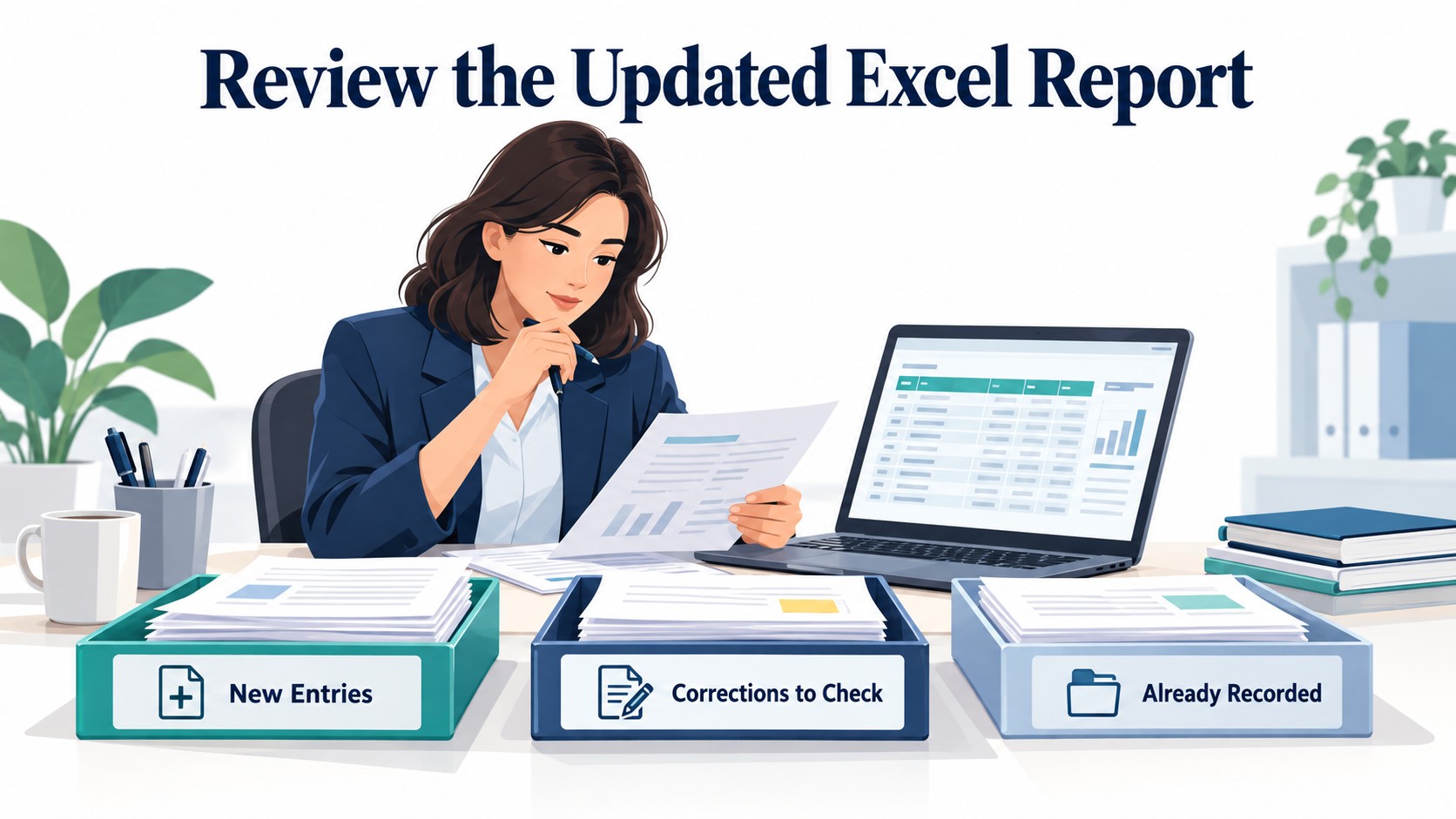
Just before closing the accounts on Friday, an accountant receives a message from the billing team: “We have sent the updated Excel file. Please use this one.
The excel contains new entries , corrected records, and entries already recorded in Tally. Transferring everything again could create duplicates. Checking and entering each new entries manually means more repeated work.
The accountant separates the records that need attention. But another question remains: will every updated report require the same copying, column arrangement, and manual entry?
This example scenario shows the importance of repeatability in moving the entries from Excel to Tally.An Updated File Is Not Always a New Batch
An updated Excel report may contain new entries , corrected records, and entries already recorded in Tally.
For example, an accountant has already entered 100 entries into Tally. The billing team sends an updated Excel file containing 10 new entries and corrections to 2 of the original entries . The file now contains 110 entries —not 112, because the corrected entries are part of the original 100.
The accountant needs to transfer the 10 new entries and check the 2 corrected entries against their existing Tally vouchers. Importing all 110 entries again could create duplicates.
| Record type | What to do |
|---|---|
| 10 new entries | Confirm they have not already been entered, then prepare them for transfer |
| 2 corrected entries | Check the existing vouchers and the required corrections |
| Remaining 98 entries | Exclude them from the new-entry batch because they are already recorded |
The accountant creates a working copy containing the records intended for transfer. Corrected entries need separate attention because importing them again may not replace the existing vouchers.
However, as more updated files arrive, checking previous entries and preparing each batch becomes difficult. After repeated attempts, the accountant struggles to confirm which records are ready to transfer.
He starts looking for a more organised process.
Finding a More Repeatable Transfer Method
The accountant now looks for a way to reduce repeated preparation.
Manual entry means typing information already available in Excel. A fixed-template workflow may involve moving records into a required layout. Configurable mapping connects existing columns to the relevant accounting fields.
TallyPrime also supports user-defined Excel mapping, so this approach is not exclusive to one importer.
While comparing workflows, the accountant finds Edocsmart. It combines supported Excel upload, mapping, processed-record review, and synchronization. Saved mapping can support repeat files when their structure and accounting requirements remain unchanged.
The accountant starts with selected records instead of sending the complete updated report.
How to Transfer Excel Entries to Tally With Edocsmart
Step 1: Select the Transaction Workspace
Log in and open Transactions from the sidebar.
Choose Sales or Purchase according to the records, then open the Excel tab. Confirm the transaction type before uploading.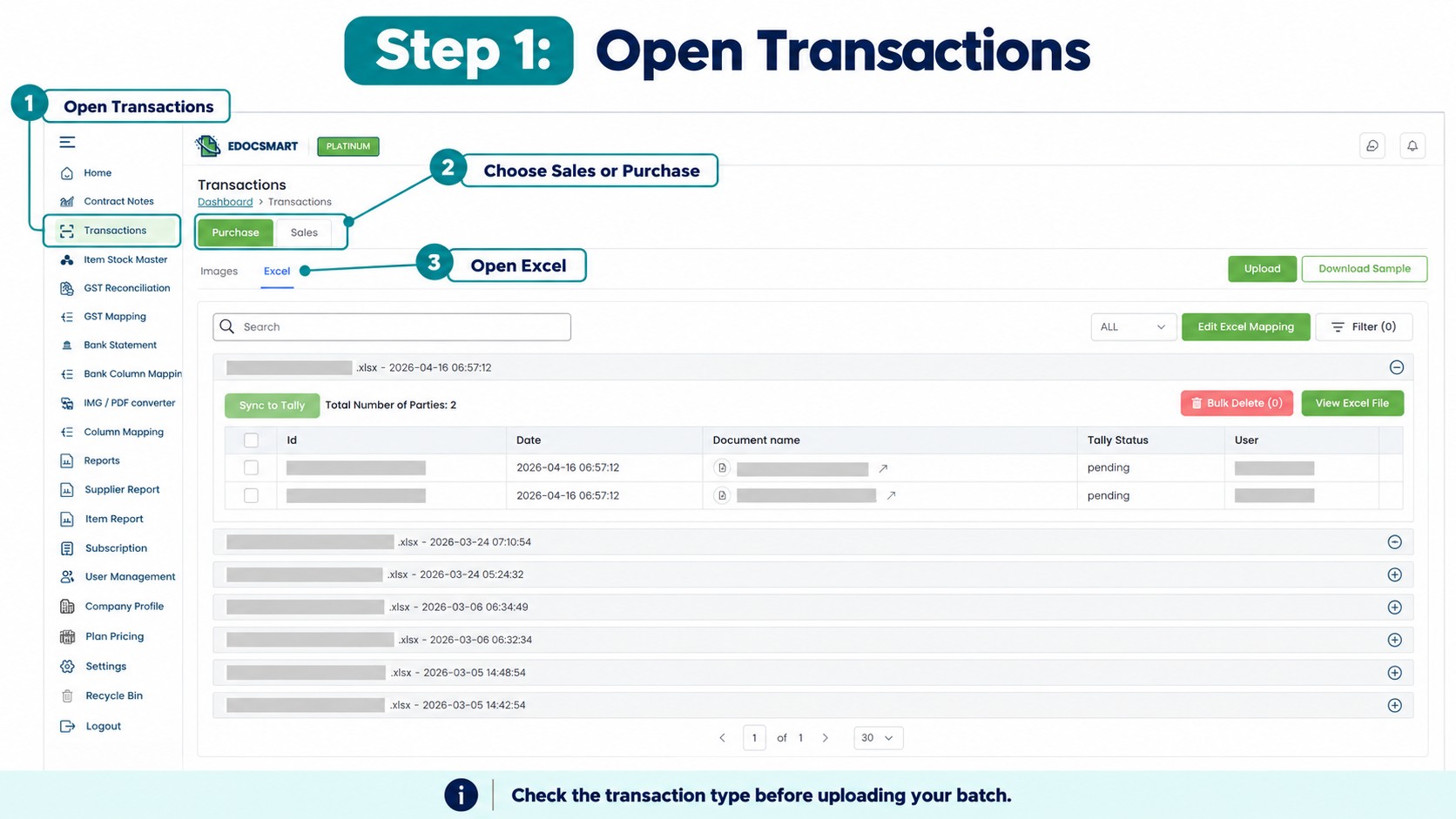
Step 2: Upload the Working Copy
Select the workbook and enter its actual Header Row Number.
This identifies the row containing column labels, not a report title or company address. Check the filename and confirm that the expected headings are available.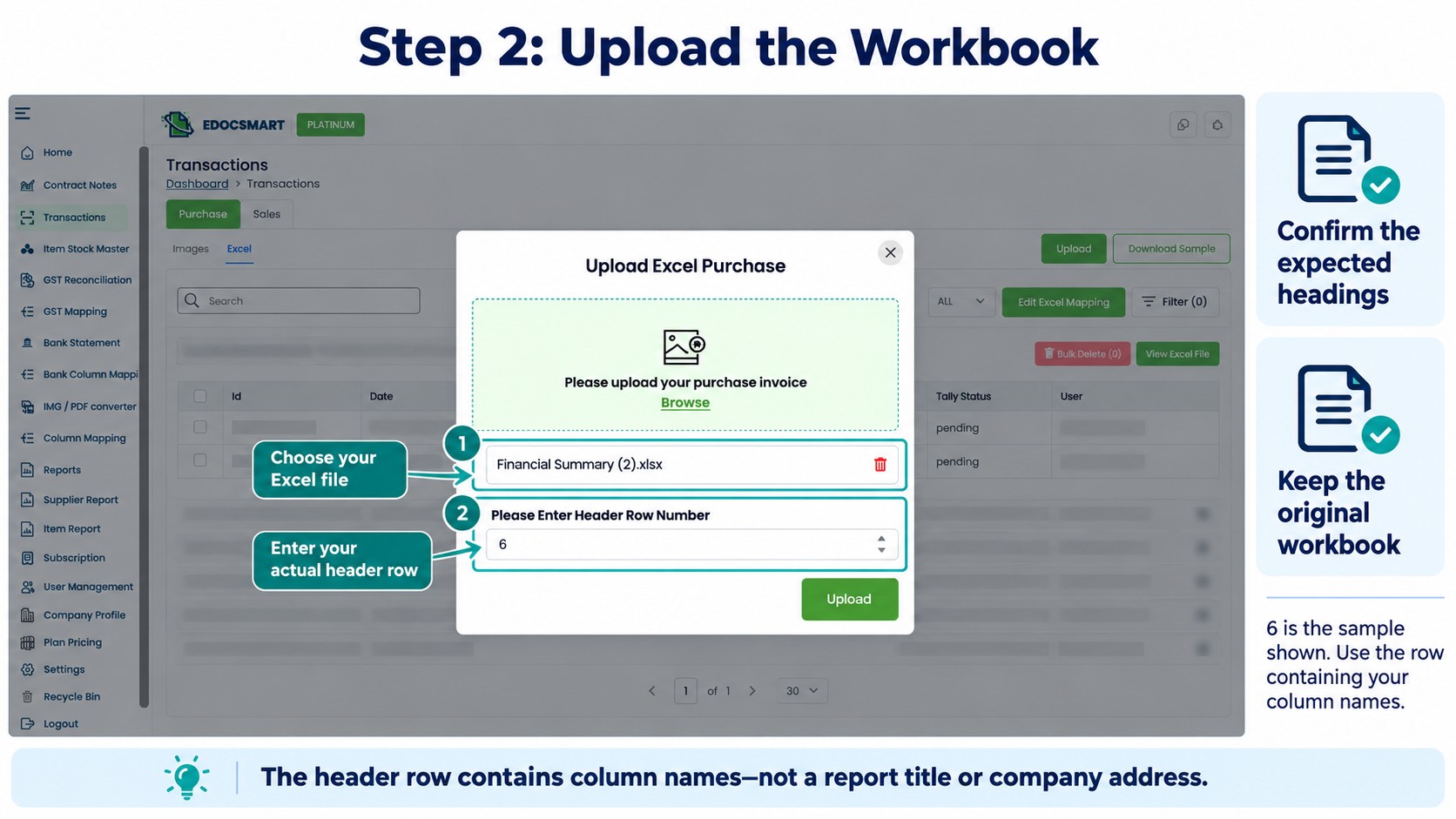
Step 3: Check the Column Mapping
Connect each source column to the field matching its meaning.
| Excel heading | Intended field |
|---|---|
| Bill Ref | Invoice Number |
| Vendor | Party Name |
| Product | Item Description |
| Line Value | Item Amount |
| Bill Total | Grand Total |
These are examples, not compulsory headings.
Review dates, quantities, units, tax, and discounts where applicable. Check ledger, voucher, and stock settings separately.
Reuse tested mapping only when the source structure and field meanings still match.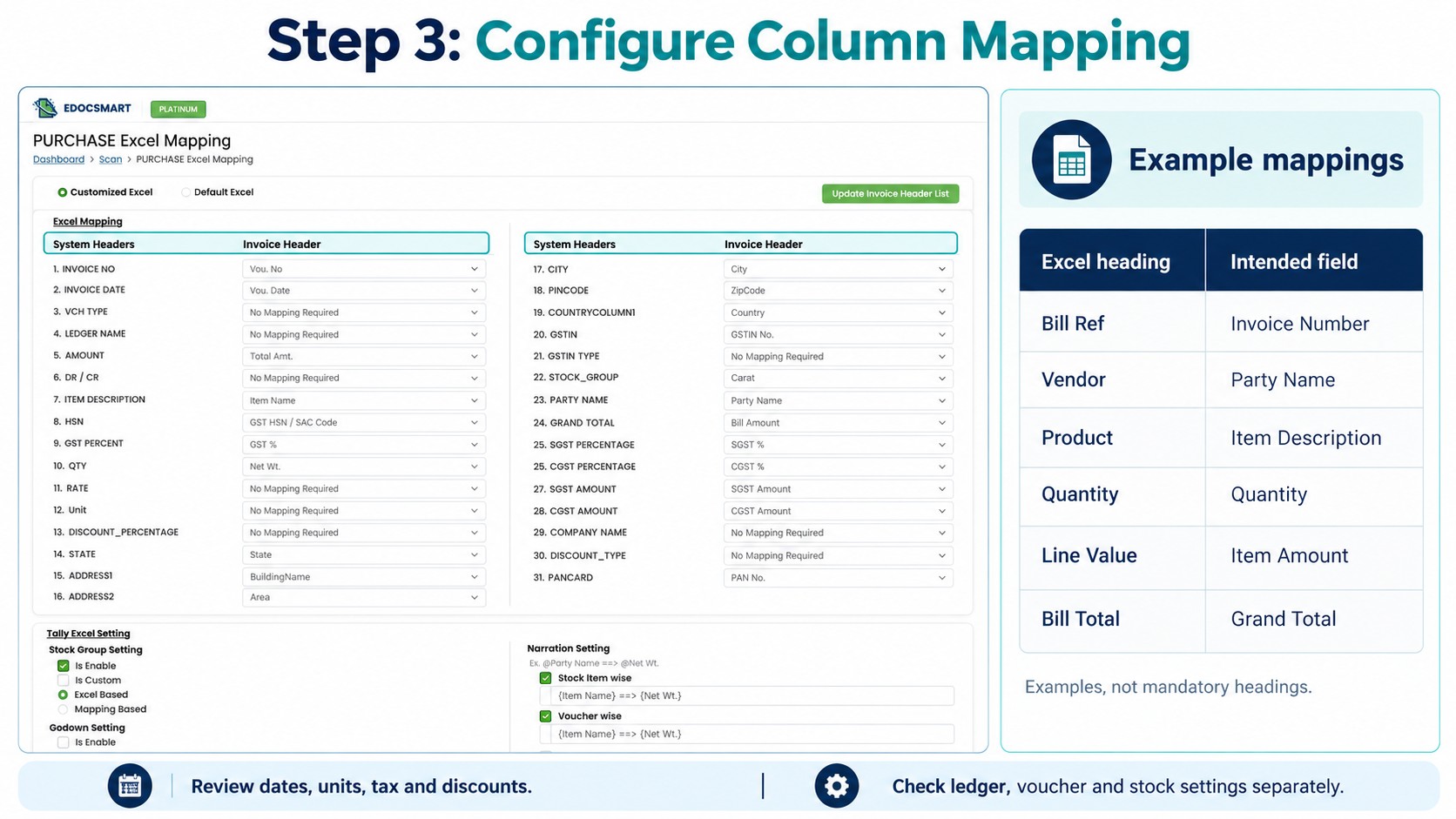
Step 4: Review the Prepared Records
After processing, open several records and compare them with Excel.
Check parties, references, dates, item rows, quantities, and totals. Include a multi-item invoice to confirm that related rows stay together.
Also confirm that previously recorded entries have not entered the intended transfer batch.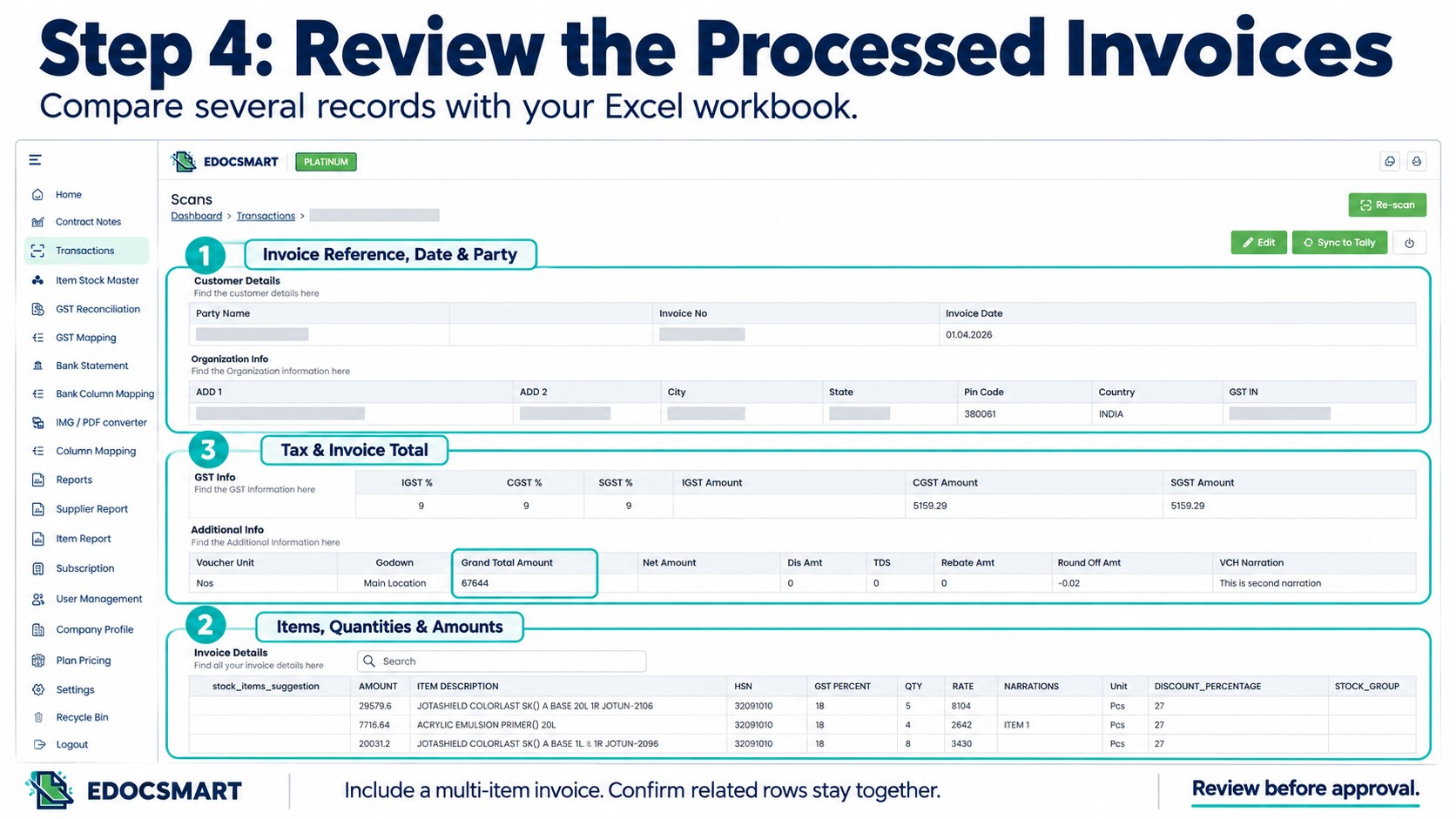
Step 5: Correct Differences and Save
Resolve differences before approving the records.
If several invoices show the same issue, examine the source column or mapping first. Correcting a shared cause avoids repeating individual fixes.
Save the reviewed data.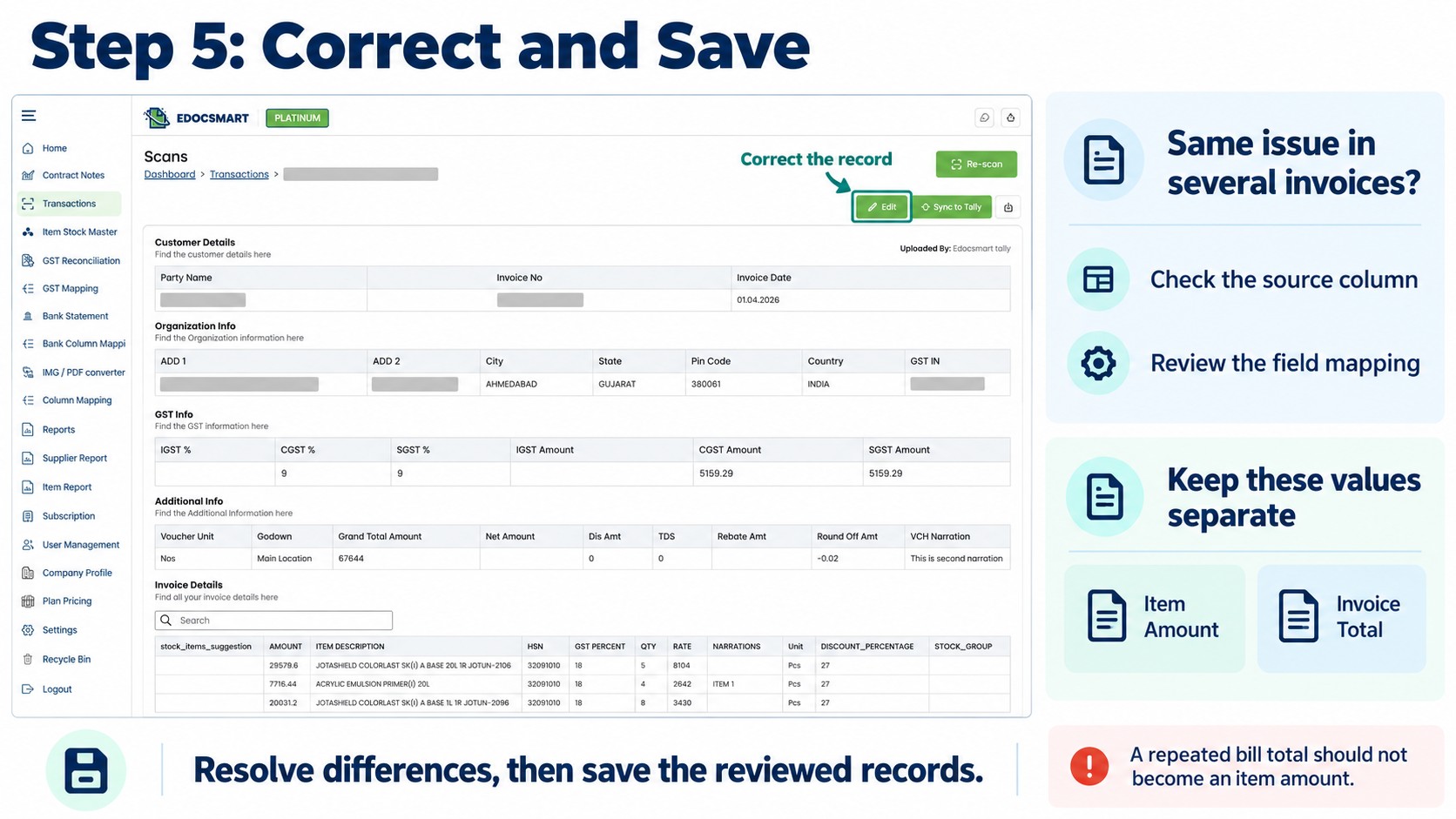
Step 6: Prepare the Tally Connection
Start the Edocsmart Tally Connector and open the intended company in Tally.
Confirm the connection and relevant accounting settings. Keep a current company backup before transferring entries.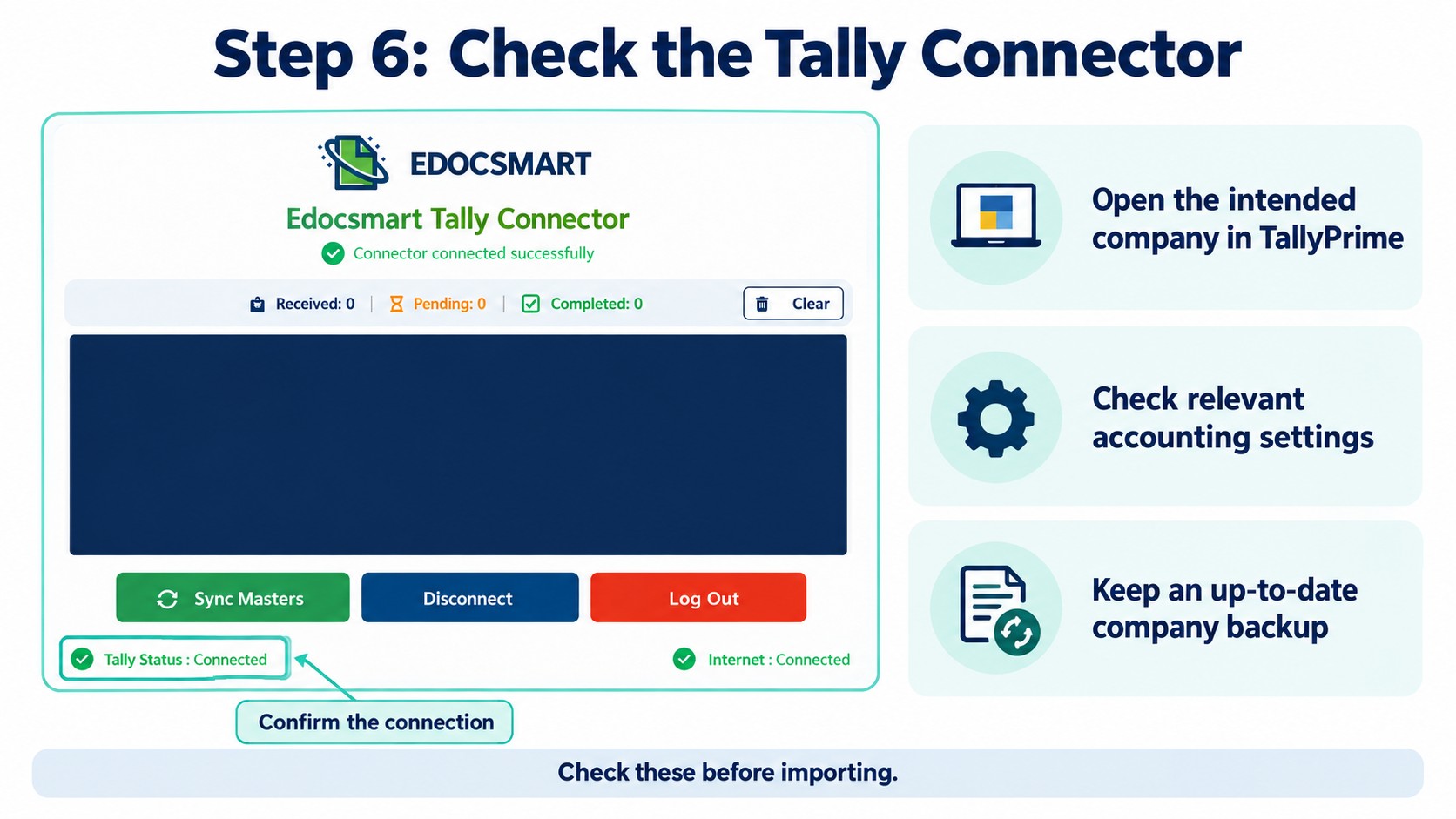
Step 7: Transfer and Verify a Sample
Use Sync to Tally for a small approved sample.
Inspect the resulting vouchers. Compare voucher type, party, invoice reference, items, and total with the source.
Continue with the remaining approved records after confirming the sample.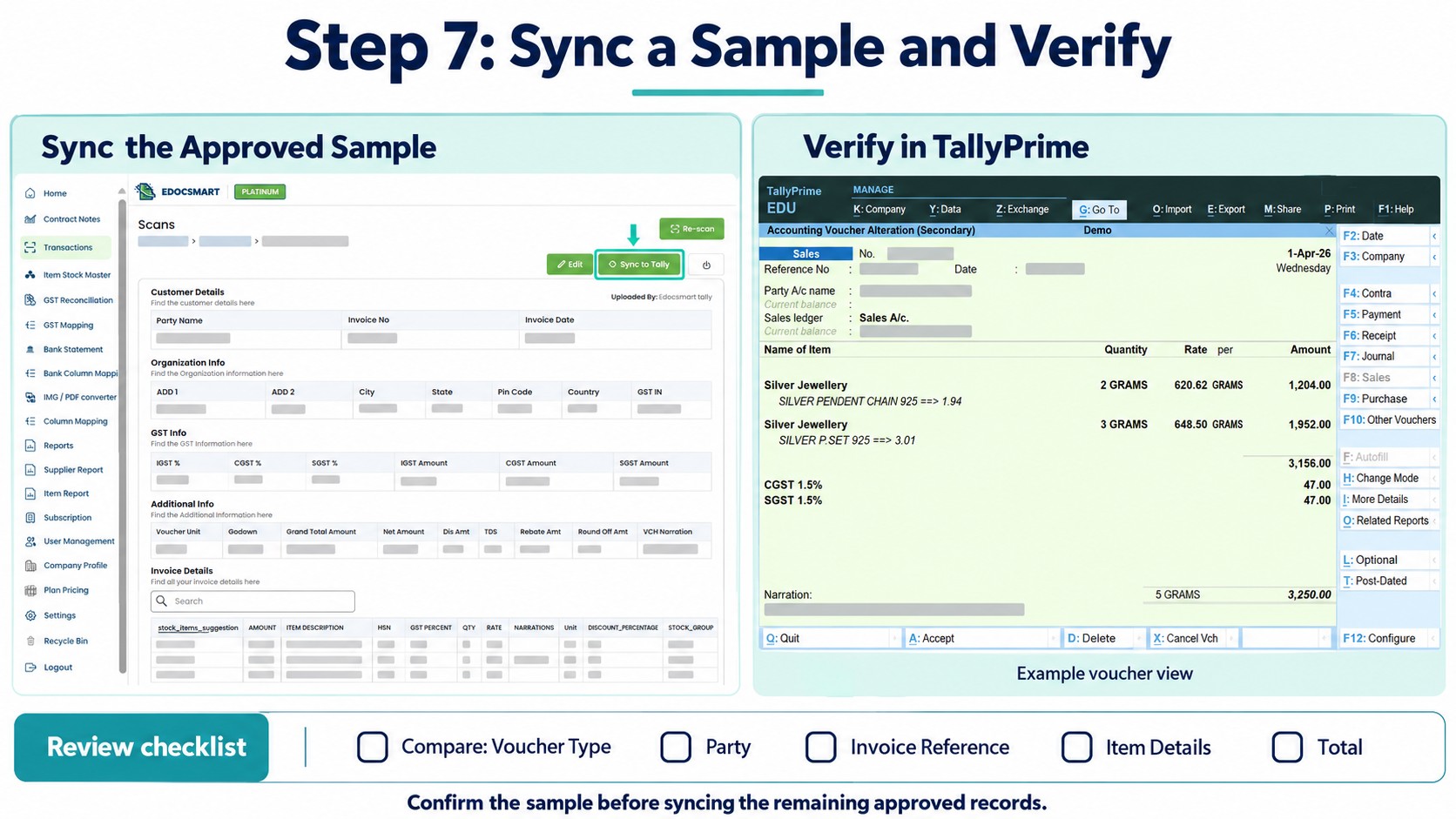
Make the Next Updated Report Easier to Handle
After the transfer, record the source filename and invoices verified. Keep unresolved records separate.
When another updated report arrives, compare it with this record before preparing a new batch. Reuse mapping where appropriate, but review changes in columns, units, or accounting requirements.
This makes accounting data entry automation useful beyond one upload.
Frequently Asked Questions
1. How to transfer Excel entries to Tally?
Select the intended records, configure mapping, review prepared data, and verify an imported sample.
2. How to identify entries already recorded?
Compare invoice references, parties, dates, and amounts with existing vouchers and previous transfer records.
3. How to handle corrected invoices?
Inspect the existing voucher and confirm the required update method before importing again.
4. How to find the header row?
Locate the row containing column labels and enter its number during upload.
5. How to reuse saved mapping?
Confirm that the file structure, field meanings, and accounting requirements remain unchanged.
6. How to retry missing entries?
Check existing vouchers first, then retry only records still needing transfer.
7. How to confirm the transfer is complete?
Compare expected invoices, references, and totals with the relevant Tally vouchers.
Conclusion
An updated workbook should not mean restarting every accounting task. Identify the records to transfer, review their mapping, and verify the resulting vouchers.
Explore the Excel to Tally workflow. to reduce repeated preparation while keeping control over each transfer.