How to Upload Bulk Excel Data to Tally with Deep Customised?
Large Excel reports need more than a standard import. Explore how defined accounting rules guide stock treatment, mapping, and review before transfer to Tally.
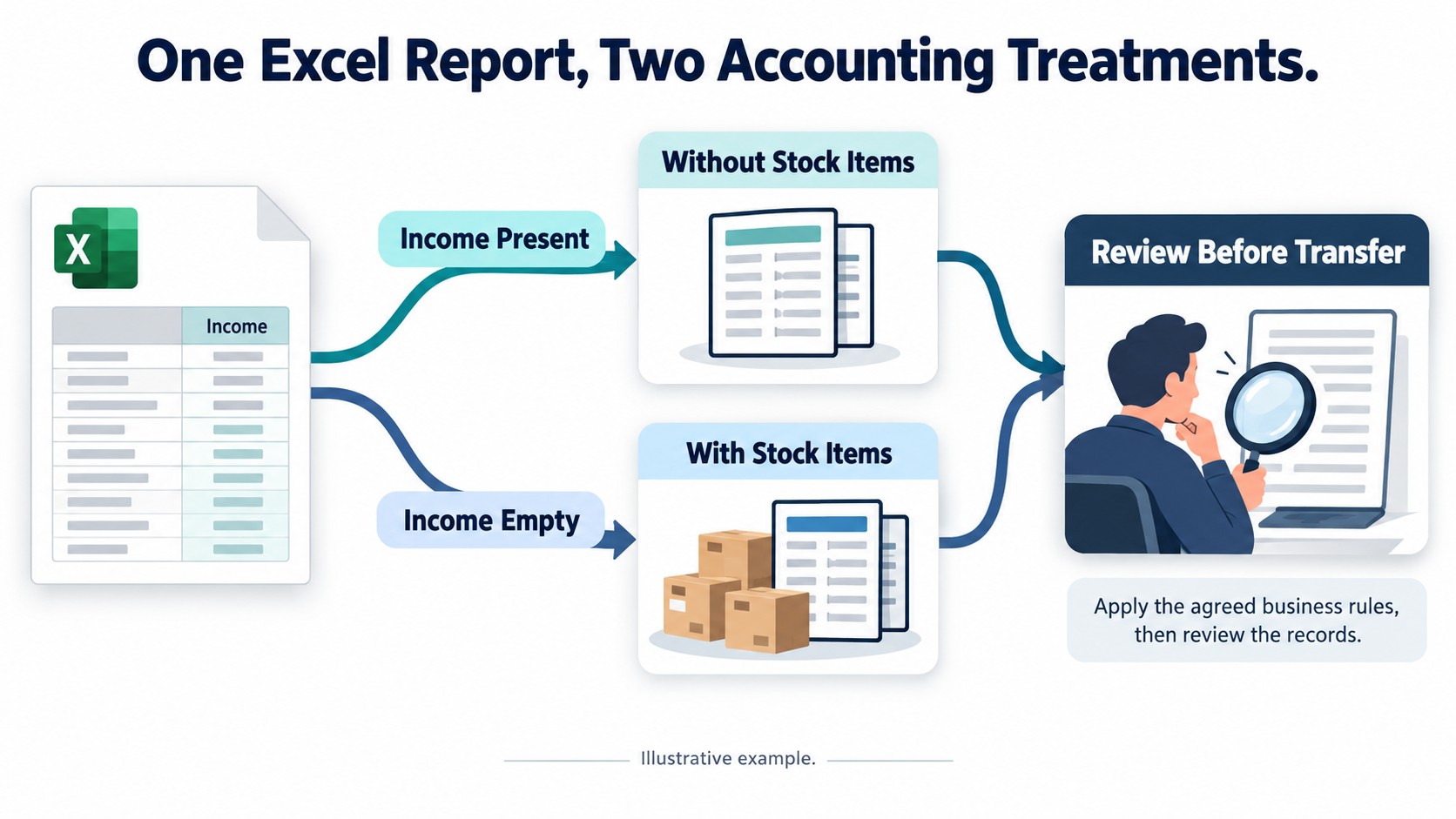
Although a large Excel report may contain all the data needed for accounting, it must be carefully processed before being sent to Tally. The challenge increases when records within the same workbook require different accounting treatments.
For example, a freelance accountant manages the finances of a hospital network. Every month, approximately 20–25 Excel files arrive, each containing around 3,000–4,000 entries.
Manual entry creates a significant workload. However, the accountant needs more than a faster import. The process must also follow the hospital’s specific requirements for creating entries with or without stock items.
This example explains how to handle large Excel-to-Tally imports that require more than column mapping.
The Requirement: One Report, Two Processing Rules
The hospital’s workbook contains an Income column. The required accounting treatment depends on whether this column contains a value.
| Condition | Required accounting treatment |
|---|---|
| Income contains a value | Prepare the entry without stock items |
| Income is blank | Prepare the entry with stock items |
This is a requirement for the example, not a general rule for hospital accounting.
Applying one treatment to the entire workbook would not meet the requirement. Manually separating the records each month would create another repetitive task.
The aim is to define both treatments clearly and process each transaction according to the agreed condition.
Column Mapping and Business Logic Have Different Roles
Column mapping identifies where information is stored. Business logic determines how that information should affect the accounting entry.
For example, mapping the Income column tells the system where to find its value. It does not, by itself, determine whether stock items should be included.
| Configuration area | Purpose |
|---|---|
| Column mapping | Identify source values |
| Conditional rules | Determine the treatment for each condition |
| Accounting settings | Define relevant ledgers, vouchers, units, and stock requirements |
| Review | Confirm that prepared records match the expected result |
A fixed-template workflow may require rearranging the source information. Configurable mapping can reduce this preparation for supported files. TallyPrime also supports user-defined Excel mapping.
The main question is whether the complete workflow can support the required treatment and provide a clear review stage.
Confirm the Requirements Before Processing
While exploring Excel-to-Tally options, the accountant comes across Edocsmart. He shares sample workbooks and explains the required processing rules.
Before processing, the team also checks voucher numbering and the Tally connection settings.
Check the Sales Voucher Numbering Method
Invoice numbering is configured under the relevant Sales voucher type, rather than the Sales ledger. TallyPrime supports Manual, Automatic, and other numbering methods. TallyHelp
For this Edocsmart setup, use Manual numbering when the invoice number from Excel must become the voucher number in Tally.
With Automatic numbering, Tally generates its own voucher number. Depending on the integration mapping, the Excel invoice number may appear in the reference field instead. Verify both fields in a sample voucher to confirm that they match the business requirement.
Configure TallyPrime on Port 9000
The Edocsmart connector setup described here requires TallyPrime to run on port 9000. A different port will prevent this connector configuration from communicating with Tally.
To configure it:
- Press F1: Help and select Settings.
- Open Connectivity.
- Select Client/Server Configuration.
- Set TallyPrime acts as to Both.
- Set Enable ODBC to Yes.
- Set Port to 9000 and save the configuration.
Tally’s integration documentation provides these connectivity settings. Although Tally supports other ports, use 9000 for this Edocsmart connector setup. TallyHelp
Open the intended company, start the connector, and confirm the connection. Test a sample entry and check its voucher number, reference, and accounting details before processing the full batch.
Step-by-Step: Process the Report With Edocsmart
Step 1: Confirm the Workflow Configuration
Provide samples covering both Income conditions and relevant exceptions.
Document the expected accounting result for each sample. Confirm that the required workflow can be configured before proceeding.
Step 2: Select the Excel Workspace
Log in, open Transactions, and select Sales or Purchase according to the records.
Open the Excel tab for the agreed workflow.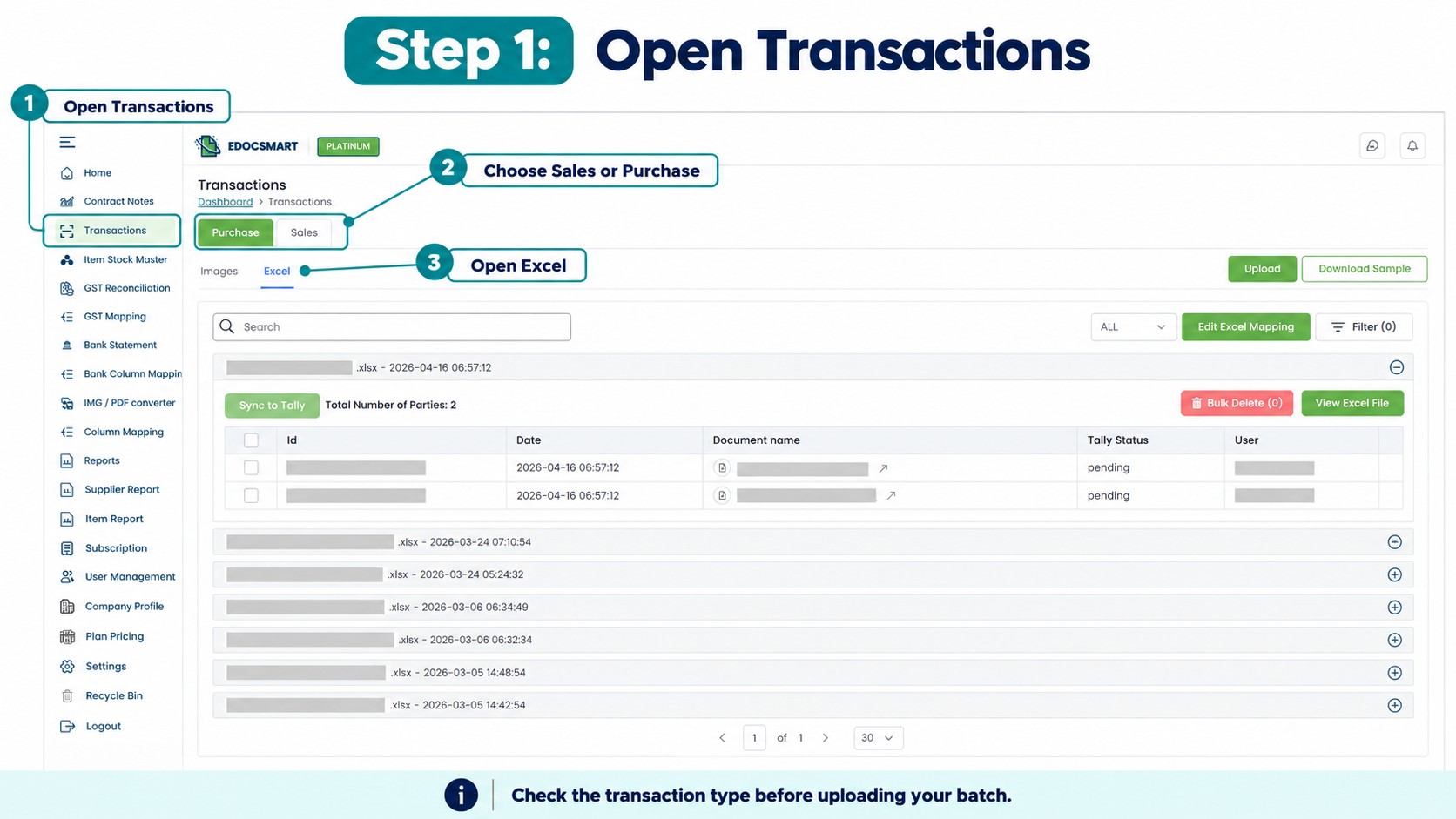
Step 3: Upload the Workbook
Select the file and enter its actual Header Row Number.
Confirm that the expected column headings are available. Keep the original workbook for comparison during review.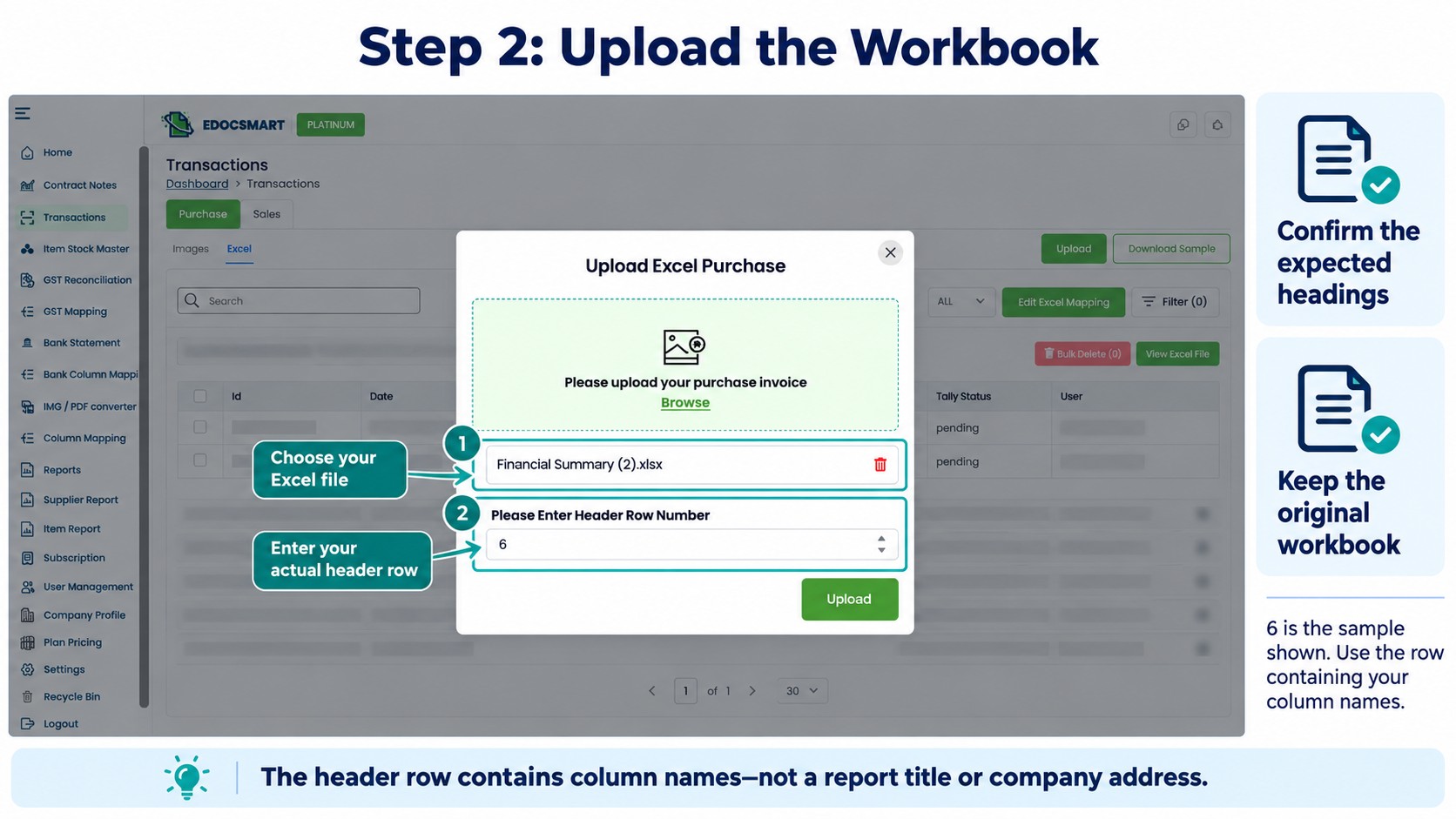
Step 4: Verify Mapping and Settings
Map transaction references, dates, parties, amounts, and relevant item fields.
Confirm the Income source column and the agreed conditional configuration. Review ledger, voucher, unit, and stock settings separately.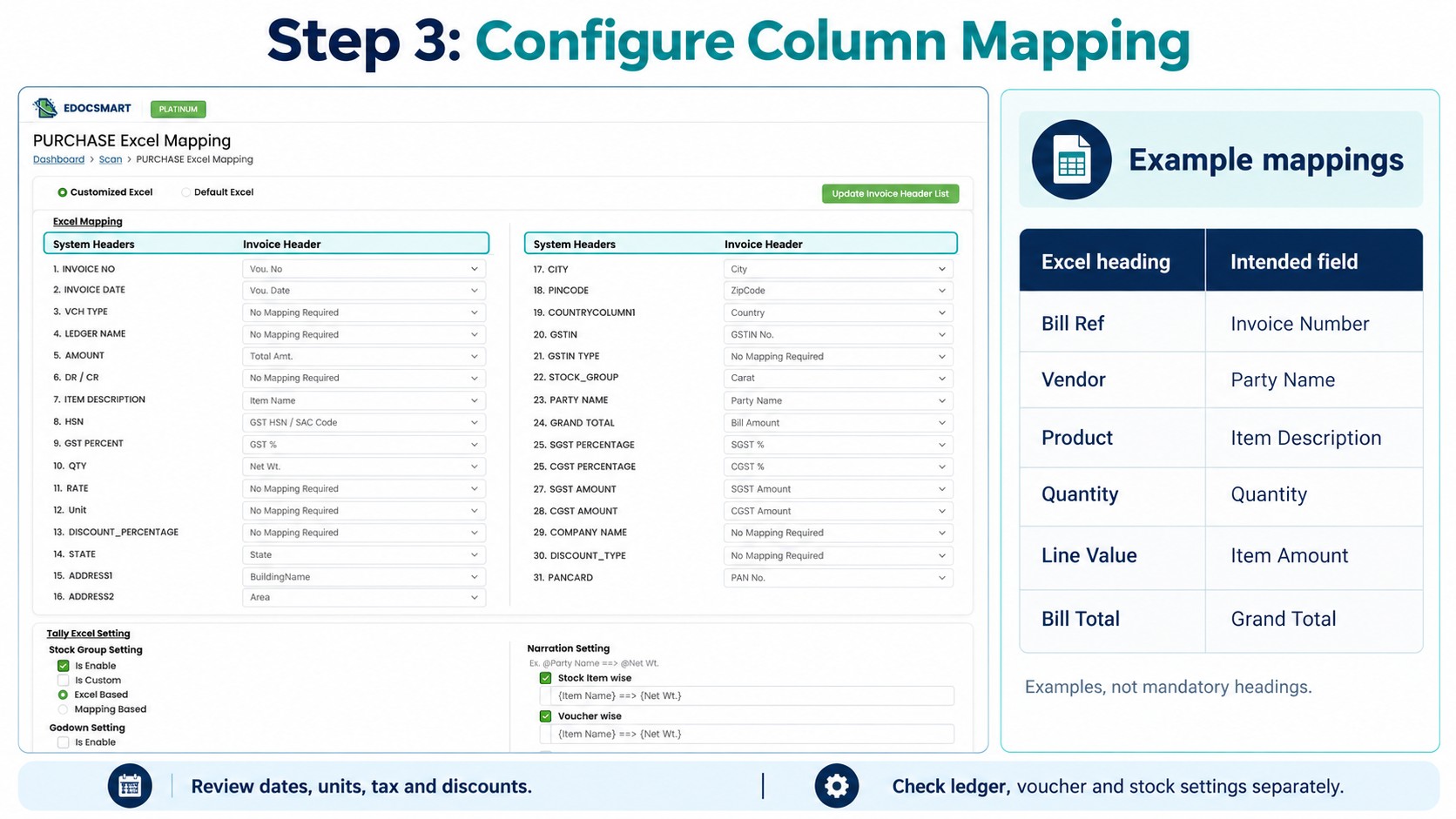
Step 5: Review Both Entry Types
Inspect prepared records from both processing paths.
Check that Income-present records follow the agreed treatment without stock items. For Income-empty records, verify the intended stock items, quantities, units, and amounts.
Compare references, dates, parties, tax, and totals with the source.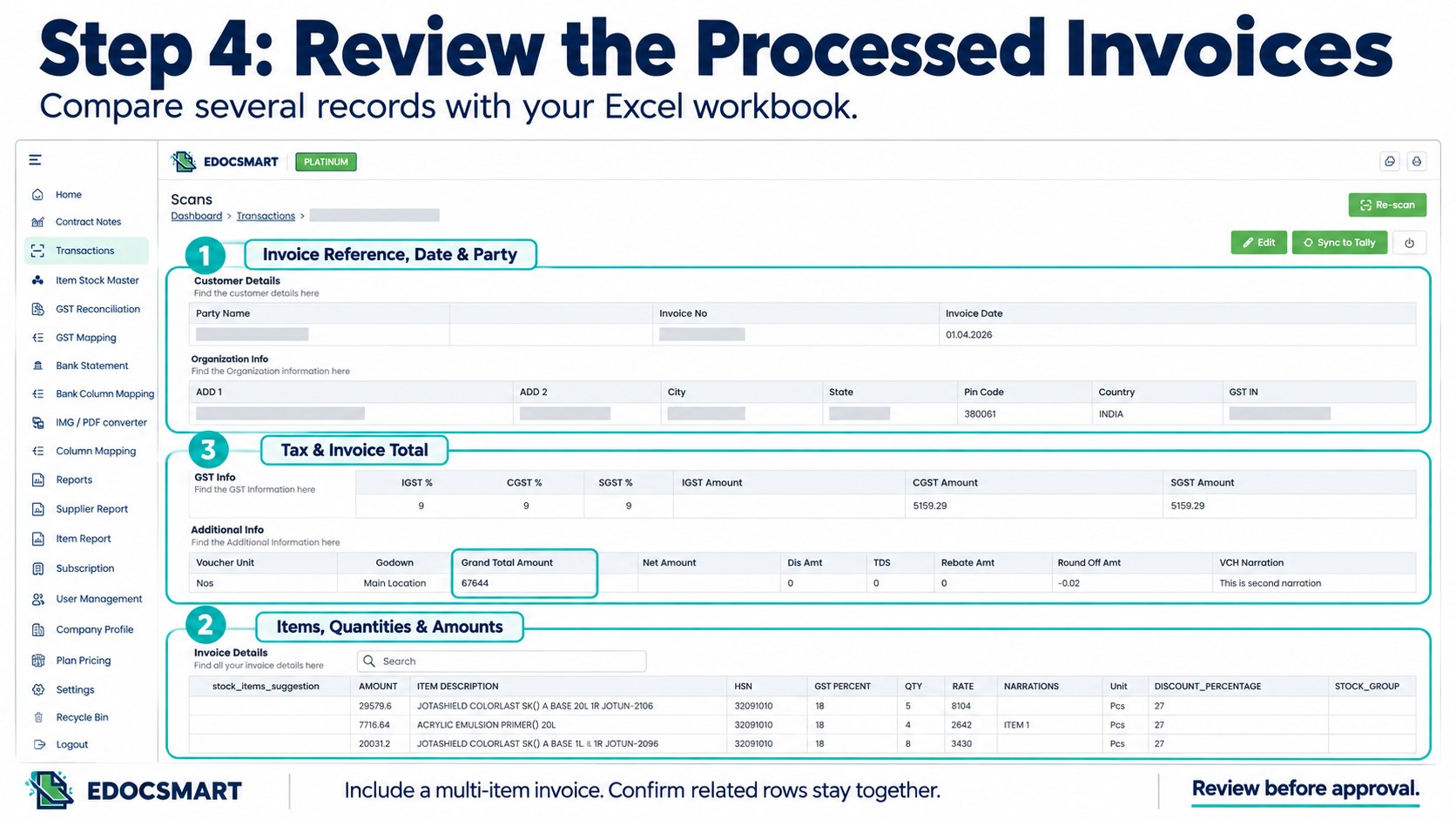
Step 6: Correct and Save
Resolve differences before approving the records.
If the same issue affects multiple transactions, check the source data, mapping, or processing rule first. Review the affected records again and save the corrected data.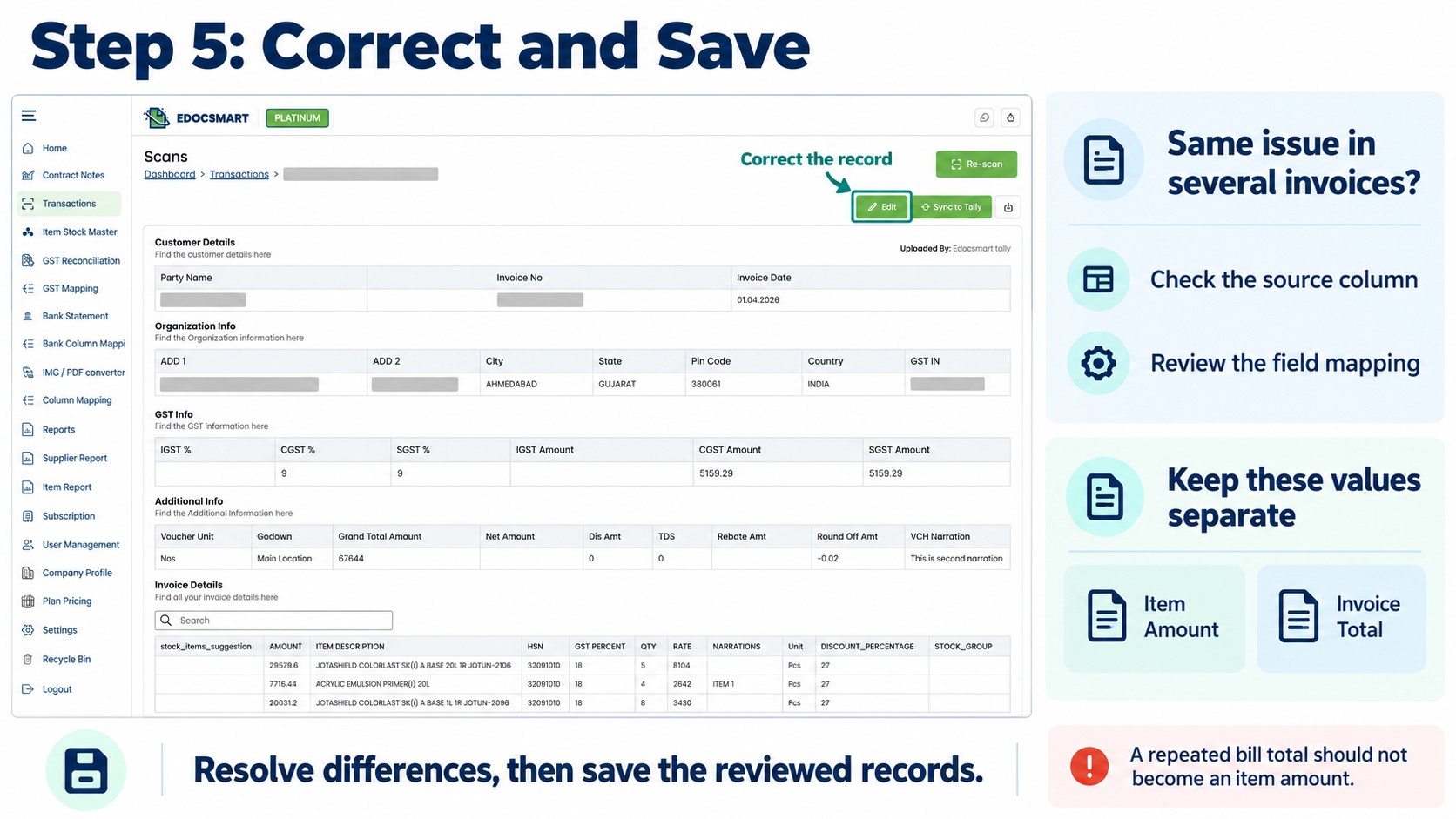
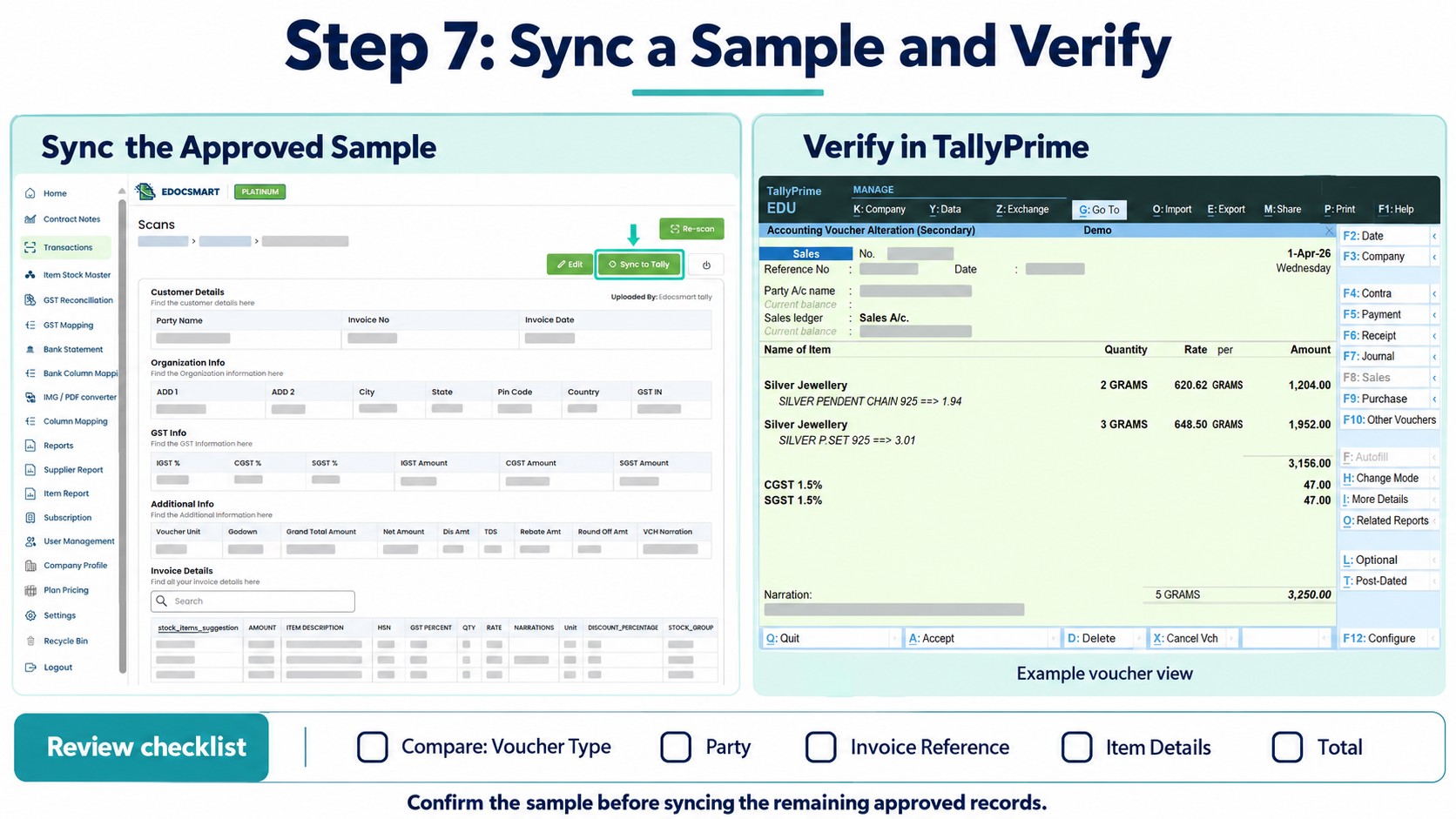
Step 7: Sync Samples and Verify in Tally
Start the Edocsmart Tally Connector and open the intended company in Tally. Keep an up-to-date company backup.
Use Sync to Tally for approved samples from both conditions. Verify the resulting vouchers and stock treatment before continuing with the remaining approved records.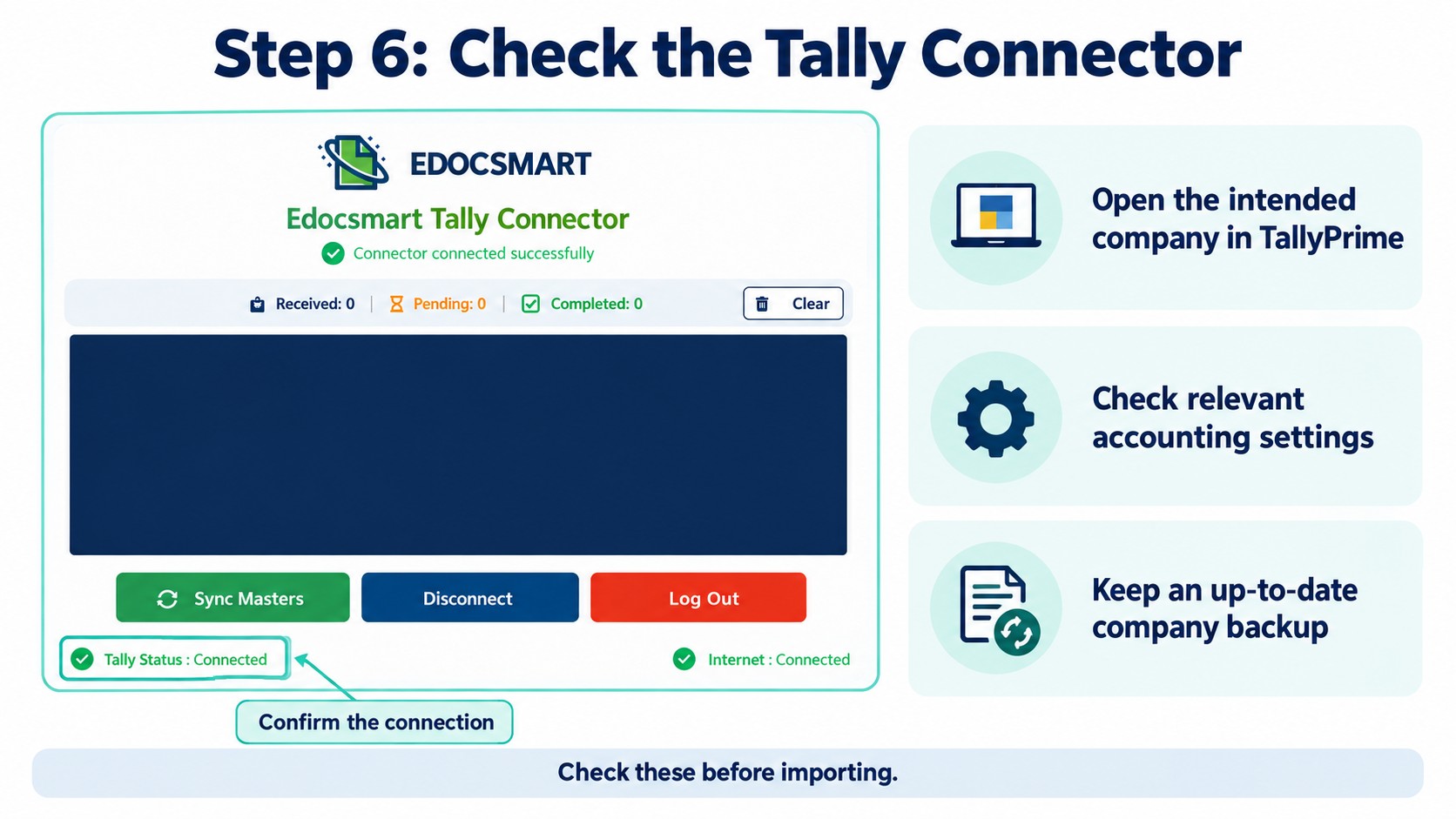
 Keep Recurring Imports Consistent
Retain the tested workbook, agreed rules, and transfer records.
Saved mapping can support future files when the structure, field meanings, and accounting requirements remain unchanged. Review the configuration when any of these change.
This makes accounting data entry automation more repeatable while keeping responsibility for accounting review clear.
Need a visual walkthrough? Watch our Instagram reel for a closer look.
Frequently Asked Questions
1. Can I import Excel data into Tally?
Yes. Excel records can be imported using a supported format and the required field mapping.
2. What is bulk Excel upload?
Bulk upload means processing multiple records from an Excel file together instead of entering each record manually.
3. What is customised processing?
Yes, edocsmart can do Customised processing means preparing entries according to your business’s specific accounting requirements.
4. Can I import sales and purchase entries?
Yes. Use the appropriate sales or purchase workflow and check its accounting settings.
5. Do I need to rename my Excel columns?
Not always. Column mapping can connect your existing headings to the required fields.
6. Can I check the entries before sending them to Tally?
Yes, when your import workflow includes a review stage. Compare the prepared records with Excel before transferring them.
7. Can I use the same setup next month?
Yes, if the file structure and accounting requirements remain the same. Review the setup whenever they change.
Conclusion
Processing large Excel reports requires clear accounting rules and correct mapping. Define the intended treatment, test representative samples, and verify the results before processing the full batch.
Discuss an Excel to Tally workflow configuration suited to your reporting and accounting requirements.