How to Upload Bulk Excel Entries into Tally Without Manual Data Entry
Learn how to upload bulk Excel entries into Tally Prime without manual data entry using Edocsmart. This step-by-step guide covers Excel file uploads, column mapping, bulk sales and purchase invoice processing, GST verification, stock-item mapping, and syncing up to 100 entries through the Edocsmart Tally Connector. Save time, reduce manual errors, and simplify your Excel-to-Tally accounting workflow.
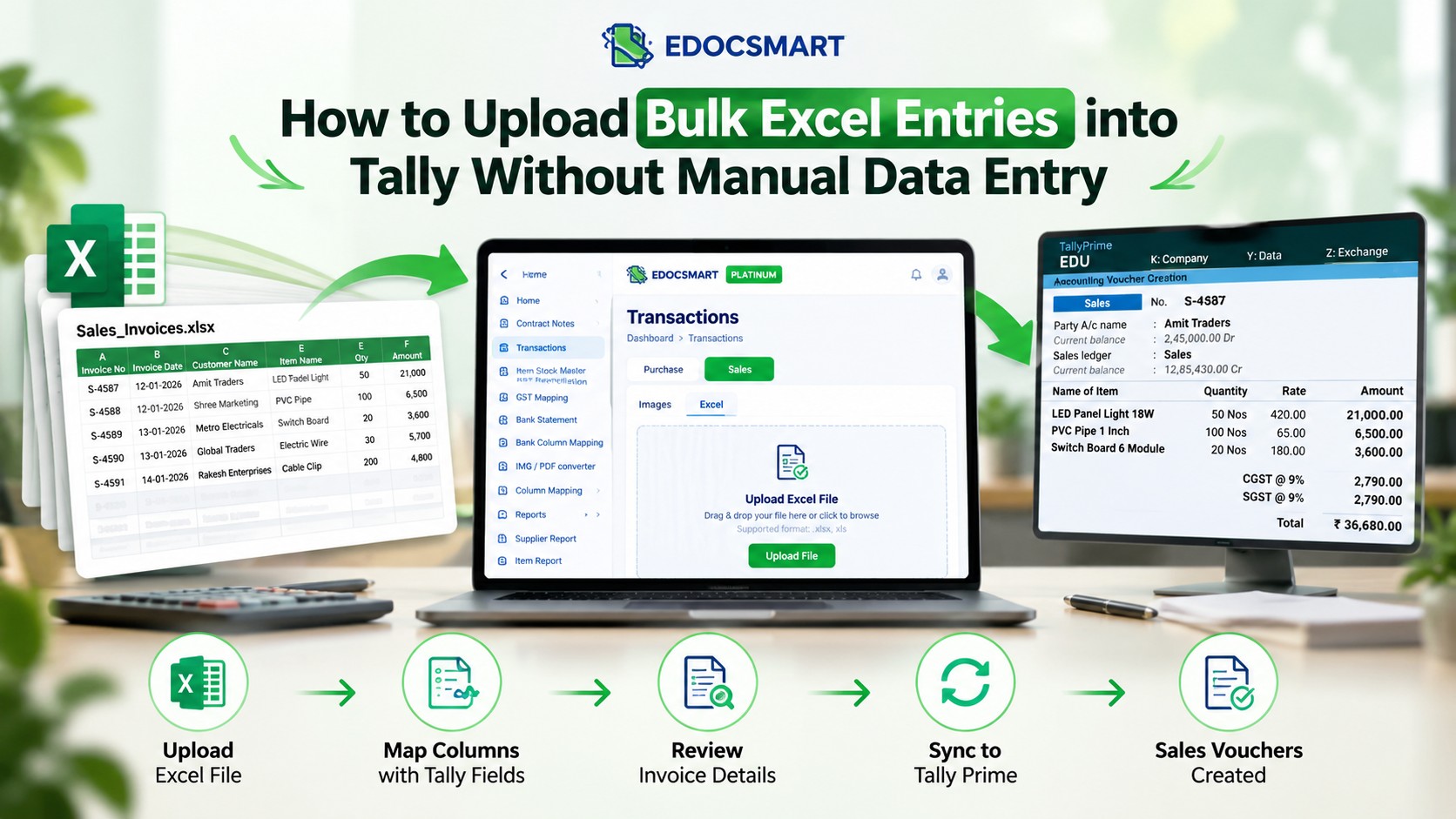
Imagine an accountant working in a busy trading company at the end of the month. The team has received hundreds of sales invoices and purchase bills, and all the transaction details are already available in Excel. However, every entry still needs to be recorded in Tally Prime.
The accountant must open Tally, select the appropriate voucher type, enter the invoice number, choose the party ledger, add item details, verify GST, check the totals, and save the voucher. Repeating this process for hundreds of transactions consumes valuable time and increases the possibility of manual errors.
For businesses handling large volumes of transactions, manual data entry can quickly become a bottleneck.
What if you could upload your Excel file, convert its rows into individual transaction documents, verify the data, and sync up to 100 entries to Tally in one go?
That is where Edocsmart's Excel-to-Tally workflow can help.
With Edocsmart, businesses can streamline bulk sales and purchase entry by uploading Excel data, mapping spreadsheet columns to accounting fields, reviewing generated documents, and syncing the verified entries to Tally through the Edocsmart Tally Connector.
In this guide, we will explain how to upload bulk Excel entries into Tally without manually entering every transaction, covering both sales and purchase workflows.
What Is Bulk Excel Import into Tally?
Bulk Excel import into Tally is the process of converting transaction data stored in an Excel spreadsheet into accounting vouchers without manually creating each voucher inside Tally. This Excel to Tally import workflow can help businesses prepare bulk sales and purchase vouchers in Tally Prime.
Businesses commonly maintain transaction records in spreadsheets containing information such as:
- Invoice number and invoice date
- Customer or supplier name
- Stock item name and quantity
- Item rate and taxable amount
- GST details, discounts, and invoice totals
- Other transaction-specific accounting information
Instead of entering these details one transaction at a time, businesses can use Excel to Tally software to process multiple entries together and reduce repetitive voucher entry.
For example, if your company has 100 purchase invoices in an Excel file, you can upload the spreadsheet to Edocsmart. The system processes the transaction data and creates separate documents based on invoice numbers. After verifying the generated documents, you can sync the entries to Tally using the Tally Connector.
The same general process applies to sales transactions.
Learn more about the workflow on the Edocsmart Excel-to-Tally page.Edocsmart Excel-to-Tally page
Why Businesses Should Automate Bulk Sales and Purchase Entries
Manual voucher creation becomes increasingly difficult as transaction volumes grow. Even when the data is already available digitally, accountants may still spend hours transferring information from Excel into Tally.
Automation can help reduce this repetitive work.
1. Reduce repetitive data entry
Instead of entering every invoice manually, upload the spreadsheet and map its columns to the appropriate accounting fields.
2. Process multiple invoices together
A single Excel file can contain data for multiple invoices. Edocsmart can create separate documents based on invoice numbers, helping organise transactions before they are synced to Tally.
3. Standardise accounting workflows
Column mapping and configuration options allow businesses to align imported data with their accounting requirements.
4. Review transactions before syncing
Generated documents can be checked against the intended configuration before they are transferred to Tally.
5. Reuse mappings for recurring transactions
Once stock-item mappings have been configured, the saved selections can help streamline subsequent imports involving the same item names.
These benefits are particularly useful for wholesalers, distributors, manufacturers, retailers, accountants, and businesses that process large volumes of sales and purchase transactions.
How to Upload Bulk Excel Entries into Tally Using Edocsmart
Let's walk through the complete process, from uploading an Excel file to creating vouchers in Tally.
Step 1: Open the Transactions Section
Start by logging in to your Edocsmart account.
Navigate to the Transactions section and select Sales if you want to import sales transactions.
At the bottom of the Sales section, click the Excel option to begin the Excel import workflow.
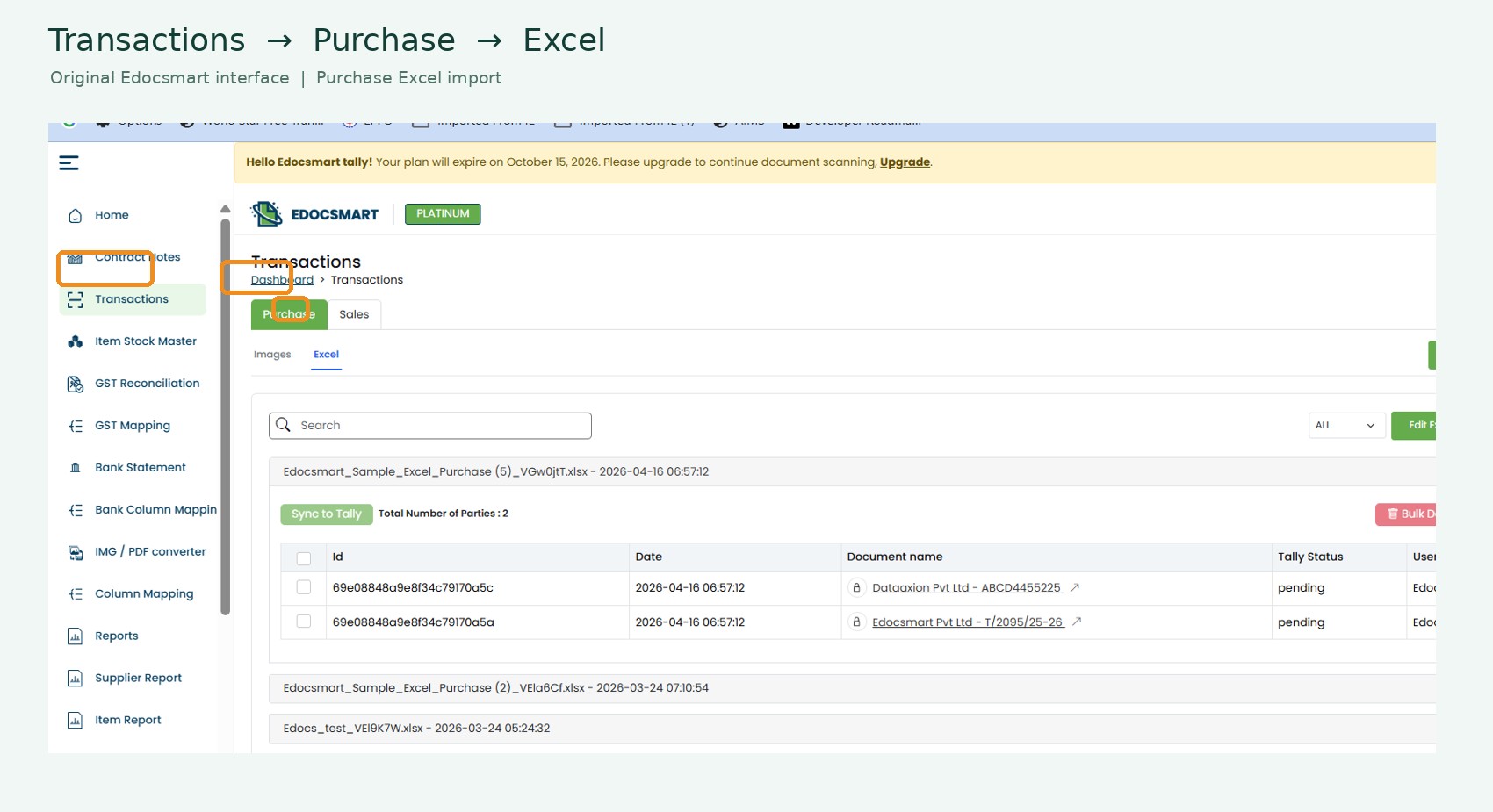
If you want to import purchase transactions instead, follow the same approach by opening Transactions, selecting Purchase, and choosing the Excel option.
This keeps the workflow organised according to the type of accounting transaction you want to process.
Step 2: Upload Your Excel File
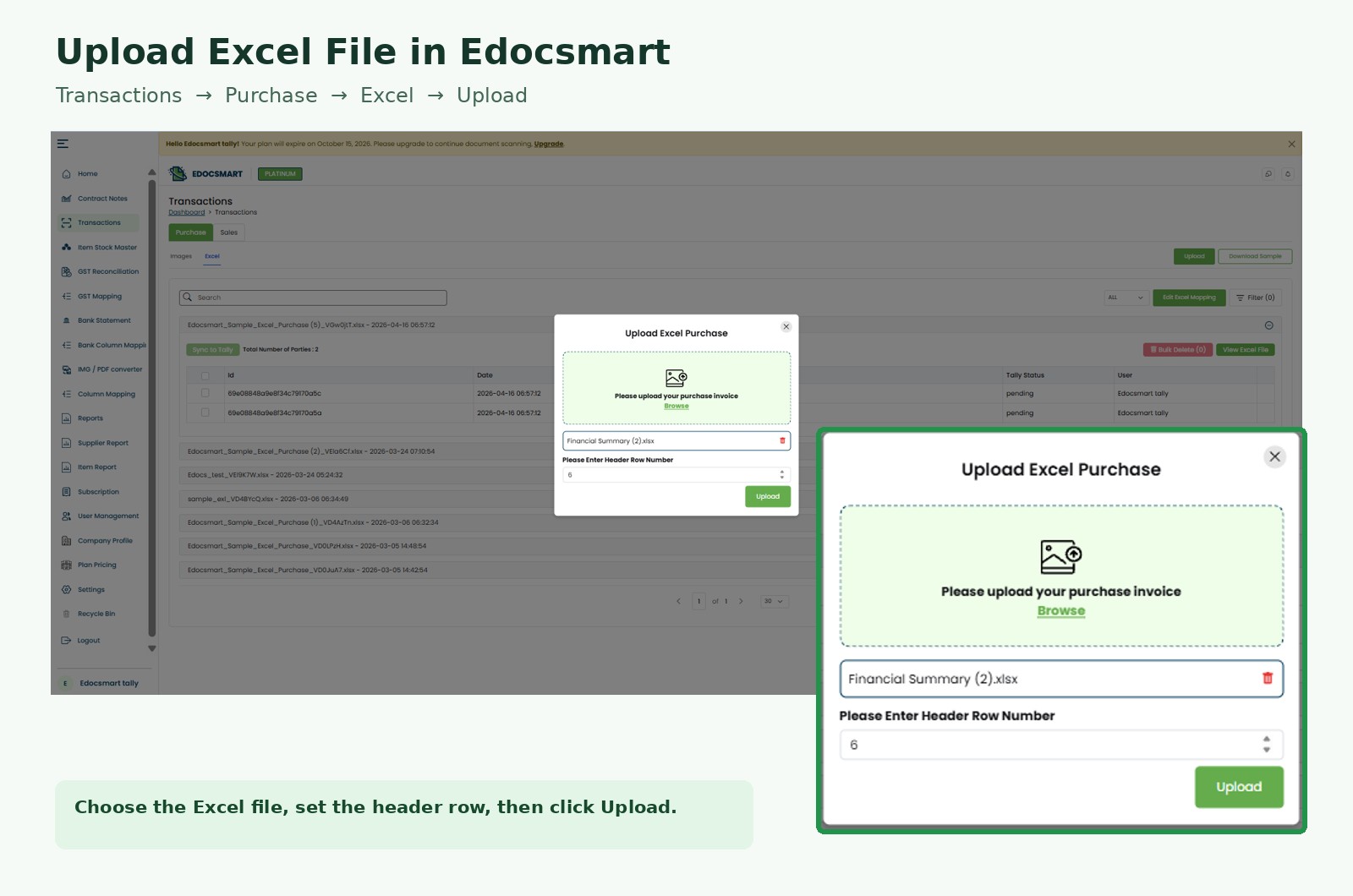
After selecting Excel, upload the spreadsheet containing your sales or purchase transactions.
If you are using Edocsmart for the first time, the next step is particularly important.
Once you upload the file and click Next, Edocsmart redirects you to the mapping window. This is where you configure how the spreadsheet's column headers correspond to the fields used by Edocsmart.
For example, your spreadsheet might contain headers such as:
- Bill No.
- Bill Date
- Party
- Product Description
- Qty
- Rate
- Taxable Value
Your spreadsheet may use different names for the same information. One business might use "Supplier Name", while another uses "Vendor" or "Party Ledger".
That is why column mapping is necessary.
Step 3: Map Excel Headers to Edocsmart Fields
The mapping window allows you to connect your Excel headers with the corresponding Edocsmart fields.
For example, you might map:
|
Excel column |
Corresponding field |
|
Bill No. |
Invoice Number |
|
Bill Date |
Invoice Date |
|
Party |
Customer or Supplier |
|
Product Description |
Stock Item |
|
Qty |
Quantity |
|
Rate |
Rate |
|
Taxable Value |
Taxable Amount |
These are illustrative examples; the exact field names available depend on the actual mapping configuration.
Review each mapping carefully. The purpose is to ensure that information from the spreadsheet reaches the correct field during document creation.
For example, mapping a supplier name to the wrong field could affect how the transaction is represented. Similarly, incorrect quantity, rate, or tax-field mapping could lead to discrepancies in the generated document.
Edocsmart also offers customisation options that help businesses configure the workflow according to their accounting requirements. Choose the appropriate options based on how your organisation maintains its books and transaction records.
If your business needs a specific accounting workflow that is not covered by the available configuration, you can contact the Edocsmart team to discuss customisation.
This can be especially useful when a purchase process requires additional fields or a business follows a specialised accounting structure.
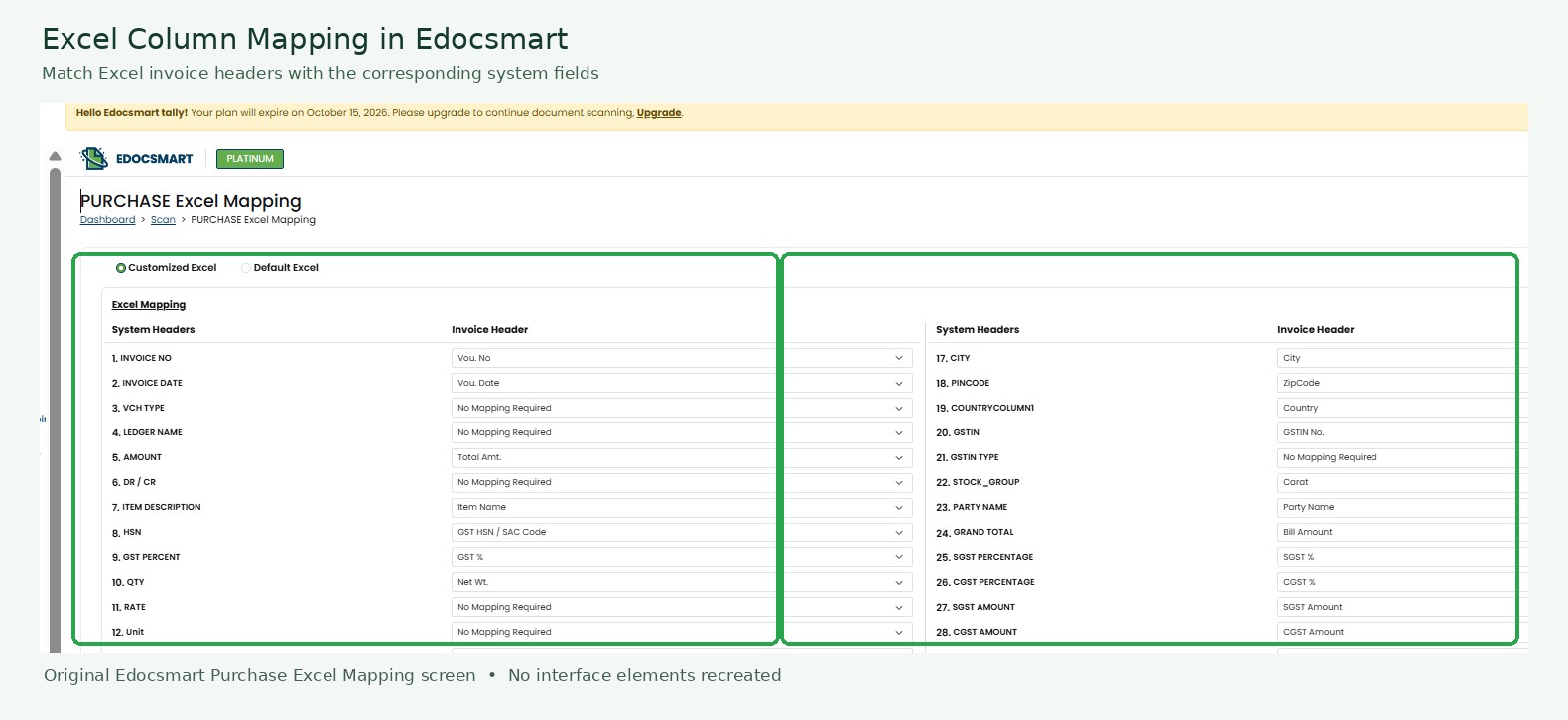
This is one of the most important product visuals in the article. It should demonstrate the real interface, not an AI-generated mock-up.
For a detailed overview of the workflow, visit Edocsmart's Excel-to-Tally solution. Edocsmart Excel-to-Tally solution
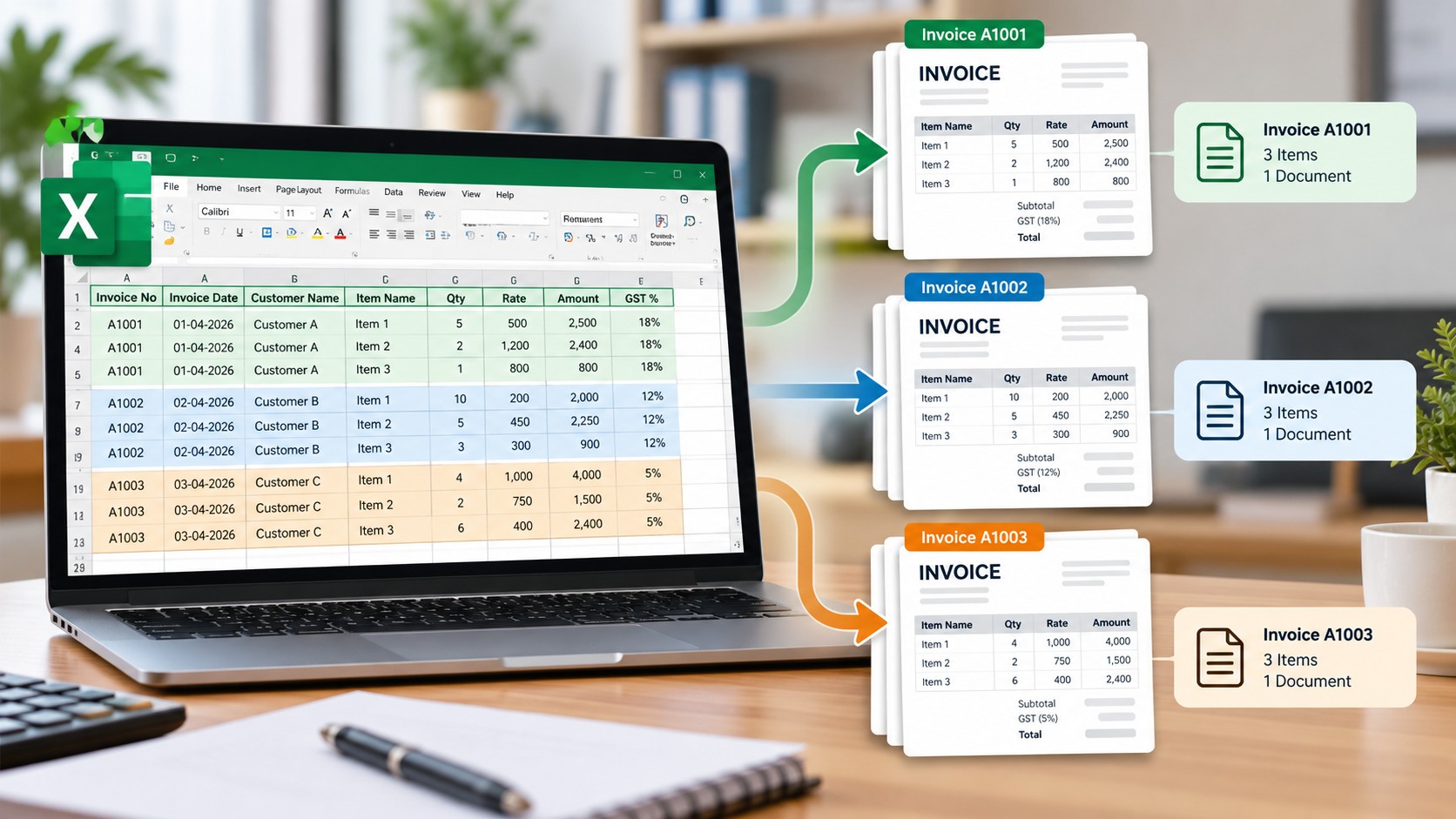
Step 4: Create Separate Documents for Individual Invoices
After the file has been uploaded and the mapping has been configured, Edocsmart processes the transaction data for bulk Excel to Tally voucher preparation.
One important part of this workflow is invoice-wise document creation.
Suppose your Excel spreadsheet contains the following records:
|
Invoice number |
Item |
Quantity |
|
INV-101 |
Product A |
10 |
|
INV-101 |
Product B |
5 |
|
INV-102 |
Product C |
8 |
|
INV-103 |
Product D |
12 |
Here, the first two rows belong to the same invoice, INV-101, while the remaining rows belong to separate invoices.
Based on invoice numbers, the data can be organised into three individual documents rather than treating every spreadsheet row as a separate invoice.
This approach is useful when one invoice contains multiple stock items. It helps preserve the relationship between invoice-level information and the individual items associated with that invoice.
The same principle applies when processing sales and purchase data.
For accountants, this means a spreadsheet containing many invoice line items can be prepared for document-wise verification before the final sync to Tally.
Step 5: Verify the Generated Documents Before Syncing
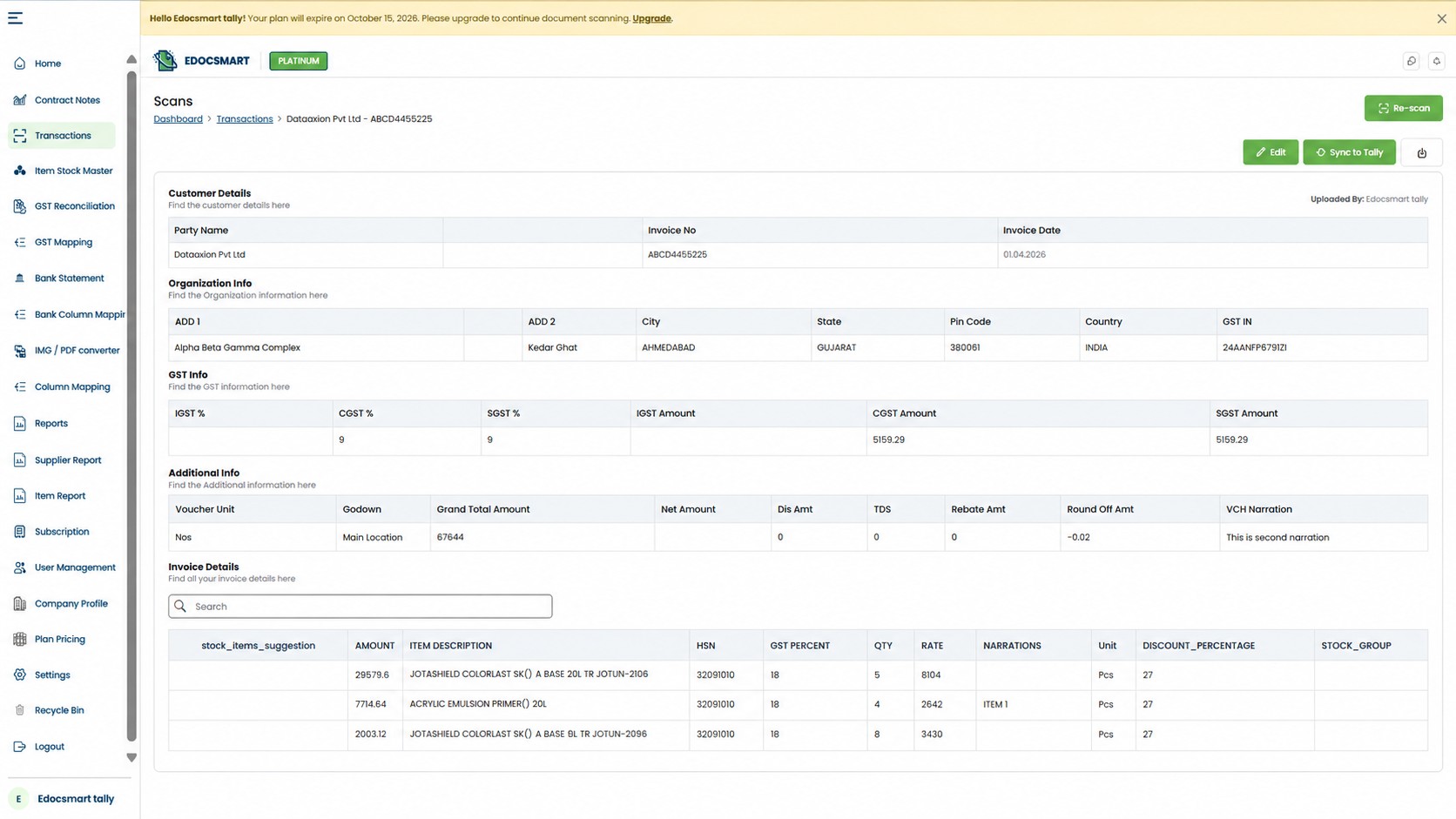
After the documents have been created, review them before sending the transactions to Tally.
This verification stage is important because successful file processing does not automatically guarantee that every accounting field has been mapped correctly.
Check whether:
- Invoice numbers and dates are correct.
- Customer or supplier details are appropriate.
- Stock-item names match the intended items.
- Quantities and rates are accurate.
- Taxable values and applicable tax details are correct.
- Discounts and totals agree with the source invoices.
- The selected configuration matches your accounting requirements.
If something does not look right, resolve the issue before proceeding with the sync.
For example, an incorrect header mapping may cause a value to appear in an unintended field. Reviewing the generated documents gives you an opportunity to identify such discrepancies before the data reaches Tally.
This is particularly important when processing a large spreadsheet. Reviewing the entire batch first can help avoid repeating the same mistake across multiple vouchers.
Step 6: Download and Set Up the Edocsmart Tally Connector
Once the generated documents have been verified, the next step is to transfer the transactions to Tally.
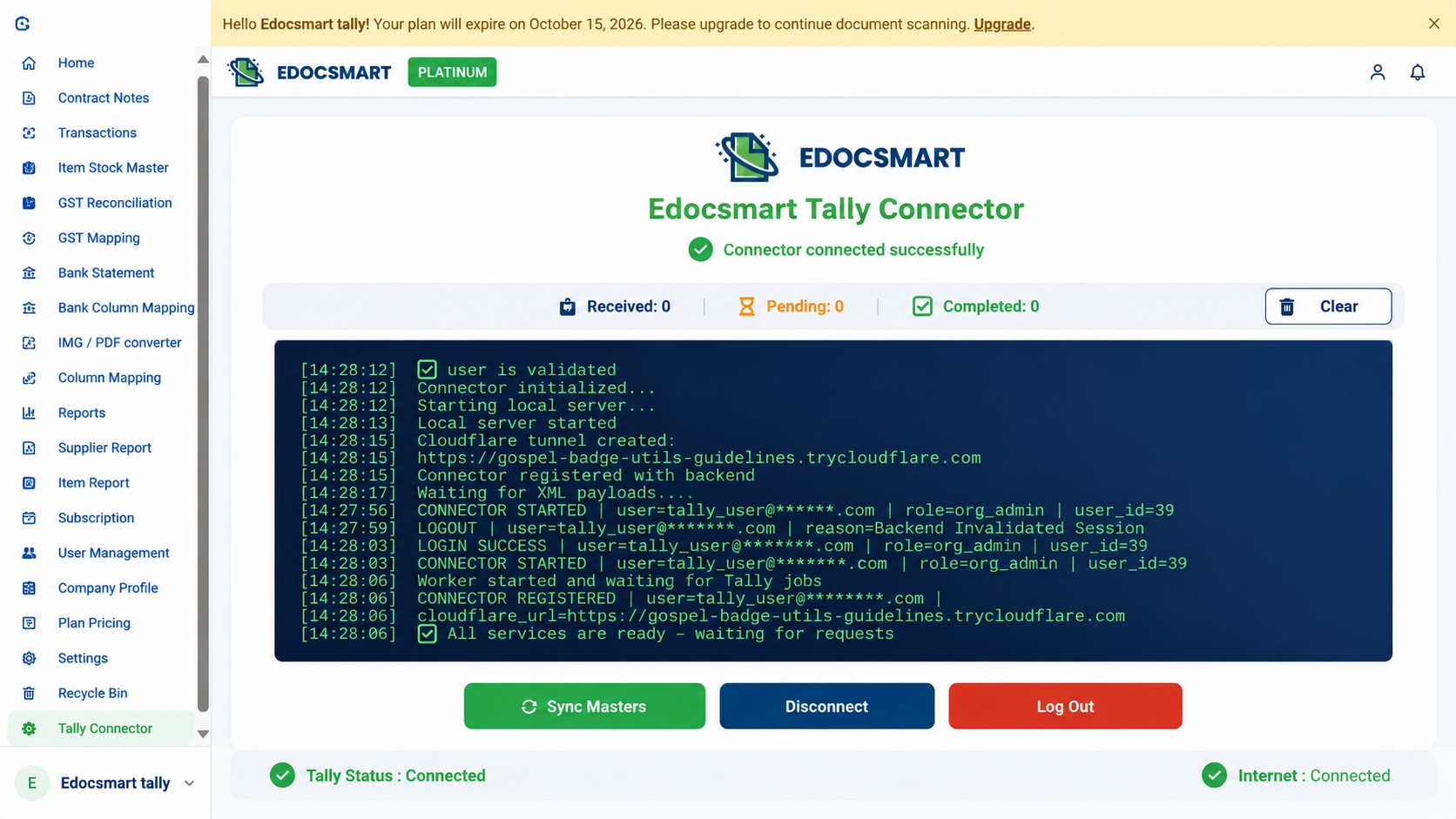
For this workflow, Edocsmart uses its Tally Connector.
First, download the Edocsmart Tally Connector and install or launch it according to the provided setup instructions.
Next, log in to the connector using the same credentials you use for Edocsmart.
The connector facilitates communication between Edocsmart and your local Tally environment, allowing the verified transactions to be transferred into Tally.
Make sure the connector is configured correctly and that the relevant Tally company is available before initiating the sync.
This step is essential because uploading an Excel file into Edocsmart and transferring the resulting transactions into Tally are two different stages of the process.
The first stage prepares the documents. The connector handles the subsequent transfer to Tally.
Step 7: Sync Up to 100 Entries to Tally in One Go
After the connector is configured and you have verified the documents, return to Edocsmart.
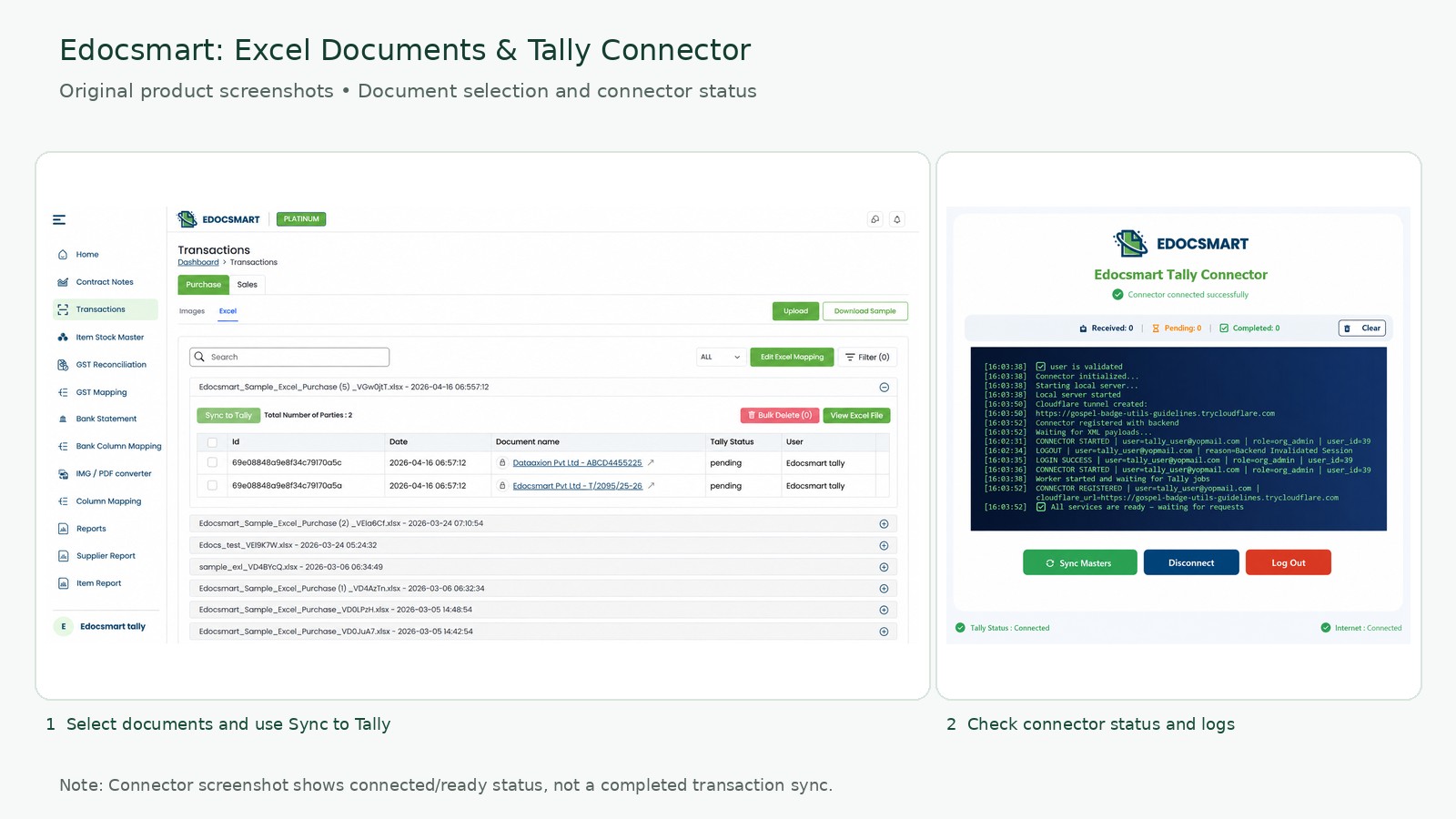
Select the relevant documents and click Sync to Tally.
The bulk-sync workflow allows you to sync up to 100 entries in one go, subject to the applicable product configuration and limits.
Once the sync begins, the Tally Connector starts processing the transactions. You can observe the connector logs to follow the transfer activity.
As the transactions are processed successfully, the corresponding sales or purchase vouchers are created in Tally.
For example, a business with 100 purchase entries can prepare the documents in Edocsmart, verify them, and initiate a bulk sync instead of opening Tally and manually creating every voucher.
The same workflow can be used for sales entries by selecting the Sales section and following the corresponding steps.
Remember that the sync is a transfer operation, not a substitute for accounting verification. Check the connector logs for processing errors and confirm that the expected vouchers are present in Tally after the operation.
To explore the product and its workflow, visit Edocsmart Excel-to-Tally.Edocsmart Excel-to-Tally
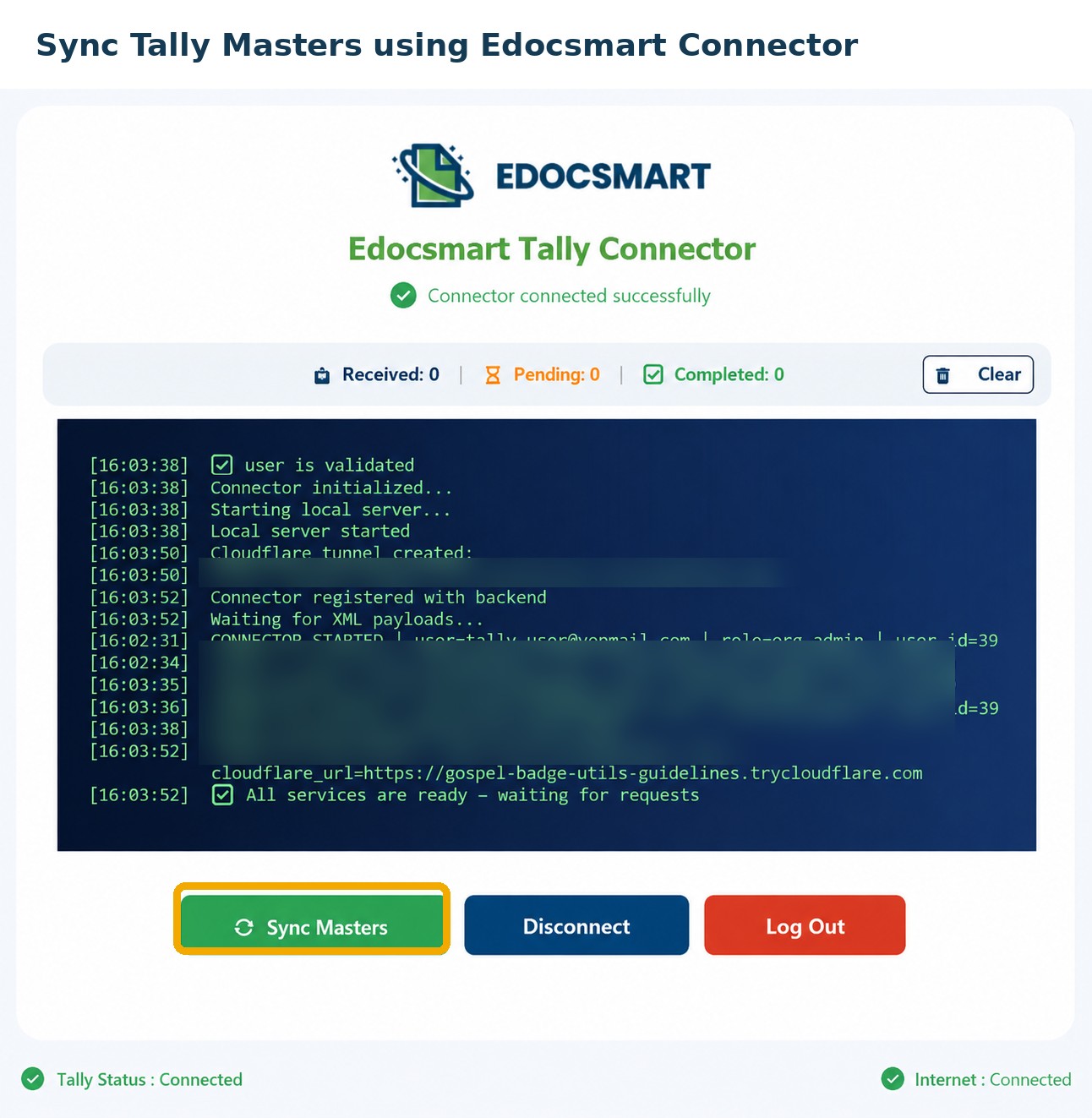
Step 8: Use Sync Masters to Synchronise Your Tally Masters
Before transferring transactions, businesses may also need to ensure that their accounting masters are available for the workflow.
The Edocsmart Tally Connector provides a Sync Masters option.
When you click this option, the relevant basic masters from Tally are synchronised with Edocsmart.
Depending on the configured workflow, these masters can help align transaction processing with the names and records already maintained in Tally.
This is especially useful when businesses have existing customer, supplier, ledger, or stock-item records that need to be referenced during transaction preparation.
For example, a company might maintain a supplier under a specific ledger name in Tally. Using the available master synchronisation and mapping functionality can help ensure that the imported purchase transaction is associated with the intended record.
Syncing masters and syncing transactions serve different purposes: master synchronisation helps align the underlying records, while transaction synchronisation transfers the prepared vouchers.
Step 9: Map Stock Items to the Correct Tally Items
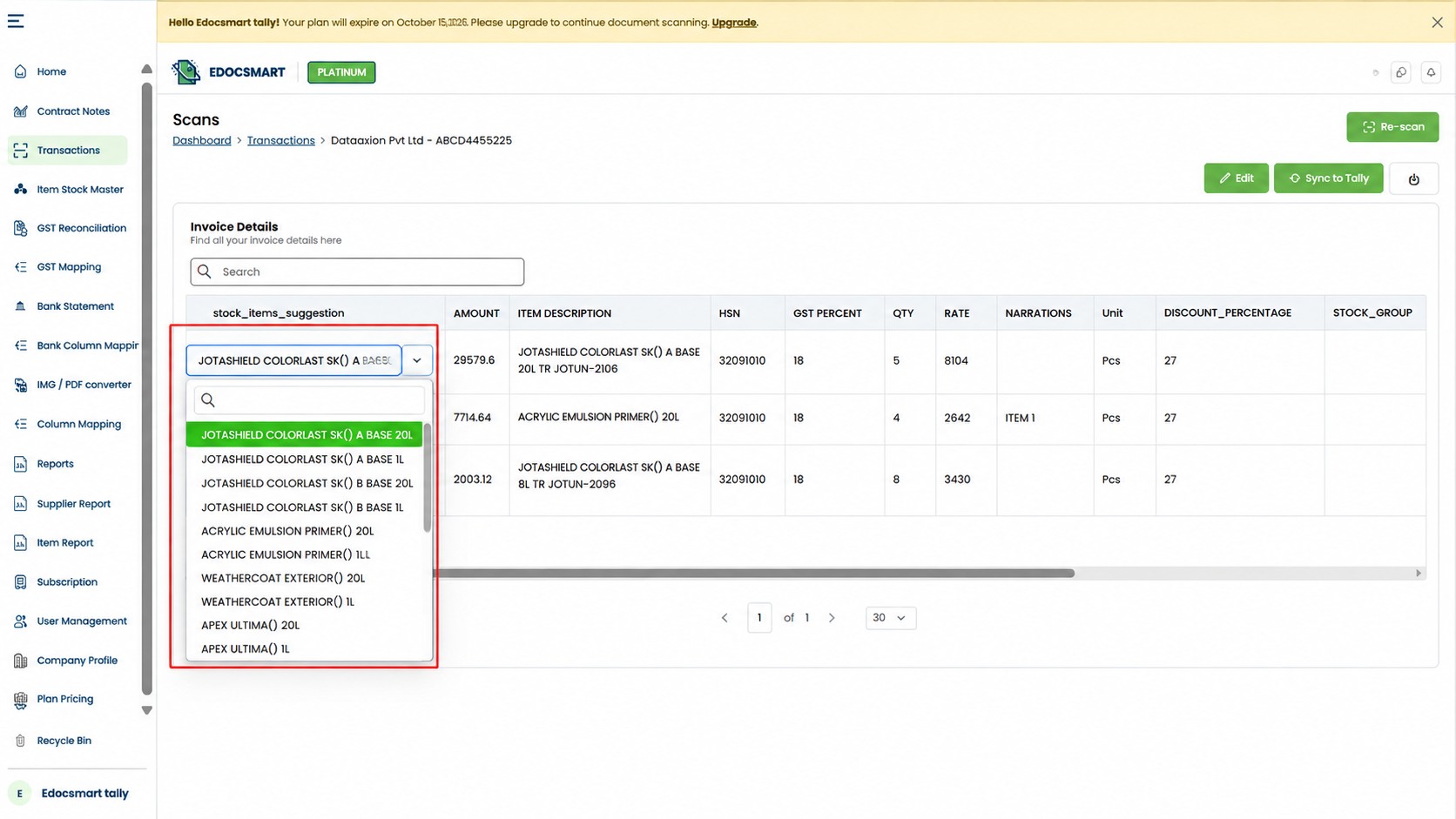
Stock-item mapping is particularly important for businesses that sell or purchase inventory.
Consider a situation where the product name in your Excel invoice differs from the stock-item name maintained in Tally.
For example:
- Excel invoice: "Premium A4 Paper"
- Tally stock item: "A4 Paper Premium 500 Sheets"
Although the names differ, both might refer to the same product in the company's inventory records.
If these names are not aligned, the transaction may require additional attention before it can be recorded correctly.
To address this scenario, Edocsmart provides a dropdown for selecting the appropriate stock item from the available list.
You can map the invoice's item name to the corresponding Tally stock item. Once that mapping is saved, the previously selected association can be reused when the same item appears in subsequent imports.
This reduces the need to select the same stock item repeatedly.
For example, if "Premium A4 Paper" is mapped to "A4 Paper Premium 500 Sheets", the saved mapping can help select the same Tally item the next time the invoice contains that Excel description.
Review these mappings carefully, particularly where products have similar names, different pack sizes, or different units of measurement.
How the Same Workflow Works for Sales and Purchase
The overall Excel import process is similar for both transaction types, but the underlying accounting purpose differs.
|
Workflow stage |
Sales transactions |
Purchase transactions |
|
Starting point |
Transactions → Sales → Excel |
Transactions → Purchase → Excel |
|
Upload |
Upload the sales Excel file |
Upload the purchase Excel file |
|
Mapping |
Map spreadsheet headers to the relevant fields |
Map spreadsheet headers to the relevant fields |
|
Document creation |
Organise sales data by invoice number |
Organise purchase data by invoice number |
|
Verification |
Check customer, items, amounts, and taxes |
Check supplier, items, amounts, and taxes |
|
Transfer |
Sync the prepared sales entries to Tally |
Sync the prepared purchase entries to Tally |
The exact mapping and accounting configuration can vary according to the company's requirements.
For instance, a sales workflow may require customer-specific information, while a purchase workflow may require supplier-specific fields or additional purchase-related accounting details.
If your business needs a customised purchase workflow, such as additional fields or a specialised accounting structure, contact the Edocsmart team to discuss the required configuration.
This flexibility is useful for businesses that want to standardise their processes without forcing every transaction type into an identical accounting setup.
Best Practices for Bulk Excel-to-Tally Import
Before processing a large batch of Excel data into Tally Prime, follow these practical recommendations:
Prepare the Excel file carefully. Keep invoice numbers, dates, item descriptions, quantities, rates, and other required values organised in the appropriate columns.
Configure mappings correctly. Review the mapping window when setting up a new spreadsheet format. Do not assume that similarly named columns always have the same meaning.
Review invoice grouping. Confirm that multiple line items belonging to the same invoice are grouped as intended.
Verify stock-item mappings. Pay particular attention to product names, units, and pack sizes.
Use Sync Masters when appropriate. Synchronise the relevant masters to help align the transaction workflow with your existing Tally records.
Check connector logs. Review the sync activity and investigate errors instead of assuming that every transaction has been transferred successfully.
Verify the final vouchers in Tally. Confirm that the expected transactions appear in the correct company and voucher type, with the intended accounting details.
Following these practices helps make bulk processing more reliable and easier to audit.
Frequently Asked Questions (FAQs)
1. How to upload bulk Excel entries into Tally Prime without manual data entry?
Upload your Excel file to Edocsmart, map the required columns, and review the generated invoices. Connect the Edocsmart Tally Connector and sync the verified entries to Tally Prime.
2. Can I import 100 Excel entries into Tally Prime at once?
Yes, Edocsmart supports syncing up to 100 entries in one batch, depending on the product configuration. You can select multiple verified sales or purchase documents and sync them to Tally Prime.
3. How to import multiple sales invoices from Excel into Tally Prime?
Go to Transactions → Sales → Excel in Edocsmart and upload your spreadsheet. Map the columns, verify the sales invoices, and sync the selected transactions using the Tally Connector.
4. How to import bulk purchase entries from Excel into Tally Prime?
Open Transactions → Purchase → Excel and upload your purchase data to Edocsmart. Review supplier details, stock items, and GST amounts before syncing the purchase vouchers to Tally Prime.
5. What Excel format is required for bulk import into Tally?
Your Excel file should have clear headers for invoice numbers, dates, party names, quantities, rates, and GST details. Edocsmart supports column mapping to match different Excel formats with the required fields.
6. How does Excel column mapping work in Edocsmart?
Excel column mapping connects spreadsheet headers with Edocsmart fields, such as Bill No. with Invoice Number and Qty with Quantity. This helps prepare accurate sales and purchase documents for Tally.
7. Can Edocsmart create separate invoices from multiple Excel rows?
Yes, Edocsmart can group Excel rows by invoice number and generate separate invoice-wise documents. Multiple items belonging to the same invoice can be organized into one document for review.
8. How to map Excel stock items with existing Tally stock items?
Edocsmart allows you to select matching Tally stock items from a dropdown for imported Excel item descriptions. Saved mappings can be reused for future imports involving the same items.
9. What should I check if bulk Excel entries are not syncing to Tally Prime?
Check the Edocsmart Tally Connector connection, Excel column mapping, ledger names, and stock-item details. Review connector logs and confirm that the correct Tally company is open.
Conclusion: Simplify Bulk Sales and Purchase Entry with Edocsmart
Manually entering hundreds of sales and purchase transactions into Tally can consume valuable accounting time, particularly when the data already exists in Excel.
With Edocsmart, businesses can streamline the process by uploading spreadsheets, mapping Excel headers, creating invoice-wise documents, reviewing the results, synchronising masters, mapping stock items, and transferring up to 100 entries to Tally in one go through the Tally Connector.
The same general workflow supports both sales and purchase transactions, while available configuration options and customisation support can help businesses accommodate their accounting requirements.
The result is a more structured way to prepare, review, and transfer bulk accounting entries without repeatedly entering every transaction manually.
Ready to simplify your Excel-to-Tally workflow?
Explore Edocsmart Excel-to-Tally to learn more about importing bulk Excel transactions and streamlining your accounting process.eDocs Smart Excel-to-Tally
If your business has a specialised sales or purchase workflow, contact the Edocsmart team to discuss the configuration that best fits your requirements.