How to Import Bulk Purchase and Sales Vouchers from Excel into Tally Prime
Learn how to import bulk purchase and sales vouchers from Excel into Tally Prime using Edocsmart. Map columns, verify GST details, and sync multiple vouchers.
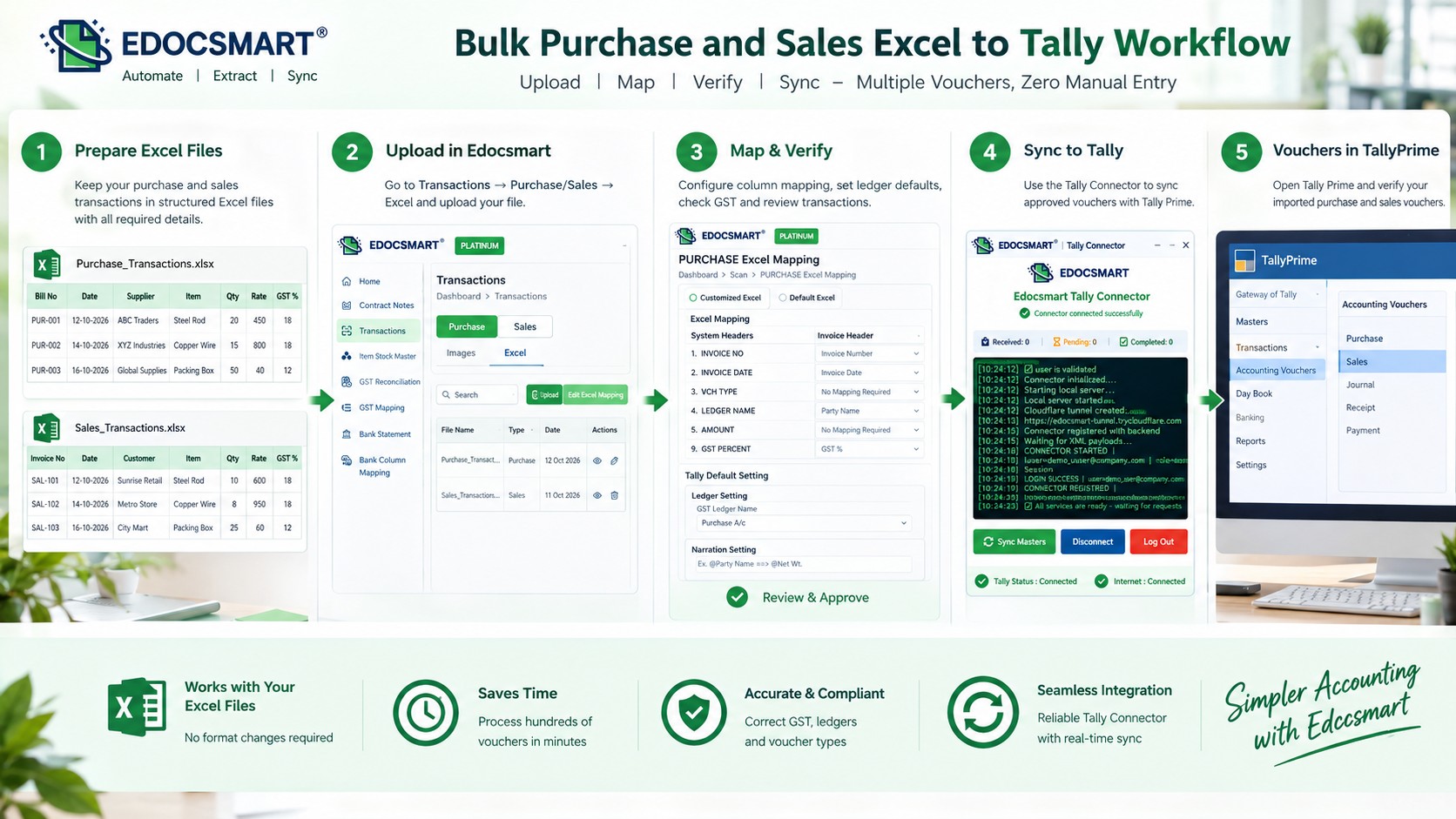
One Excel File, Hundreds of Vouchers, Multiple Accounting Checks
A spreadsheet containing 500 transactions may look like a single file. But inside Tally Prime, those transactions may need to become 500 separate accounting vouchers.
Some belong to different customers. Others contain multiple stock items, different GST rates, or separate purchase and sales ledgers.
The challenge is not simply moving rows from Excel into Tally.
It is ensuring that every transaction becomes the correct voucher, with the right accounting details.
Consider a wholesale business exporting its monthly sales and purchase reports from its billing system. The sales file contains customer invoices, while the purchase file includes supplier bills.
Both spreadsheets already contain the information required for accounting.
Yet someone still needs to identify voucher numbers, match party ledgers, check tax values, group item rows, and ensure that the final entries are created correctly in Tally Prime.
Copying the spreadsheet into Tally manually does not solve these problems. It simply transfers the work from one screen to another.
A structured bulk Excel to Tally import workflow provides a more practical alternative.
With Edocsmart, businesses can upload Excel transaction data, configure mappings, review individual invoices, and synchronize approved purchase and sales vouchers with Tally.
This guide explains how bulk voucher imports work, how to prepare Excel files, and how to avoid common mistakes when transferring multiple purchase and sales transactions into Tally Prime.
What Is Bulk Purchase and Sales Voucher Import in Tally Prime?
Bulk voucher import means transferring multiple accounting transactions from a source file into Tally Prime without manually entering every voucher.
A purchase voucher records a business purchase, while a sales voucher records a sale of goods or services.
For example, a company may maintain its monthly transactions in two Excel workbooks:
| Excel File | Transaction Type | Number of Vouchers |
|---|---|---|
| October_Purchases.xlsx | Purchase | 180 |
| October_Sales.xlsx | Sales | 320 |
| Total | Both | 500 |
These are fictional sample figures.
Instead of creating 500 vouchers individually, a bulk import workflow processes the source data and prepares the corresponding accounting records.
However, 500 Excel rows do not always mean 500 vouchers.
One invoice may contain multiple item rows. A reliable import workflow must group those rows correctly so that a single invoice does not become several unrelated vouchers.How Should Bulk Purchase and Sales Data Be Organized in Excel?
The structure of the Excel file plays an important role in successful voucher creation.
Purchase Voucher Excel Format
A purchase workbook may contain the following information:
| Bill No | Date | Supplier | Item | Qty | Rate | GST % |
|---|---|---|---|---|---|---|
| PUR-101 | 10-10-2026 | ABC Metals | Steel Rod | 20 | 450 | 18 |
| PUR-102 | 11-10-2026 | Prime Traders | Copper Wire | 15 | 800 | 18 |
| PUR-103 | 12-10-2026 | Delta Supply | Packing Box | 50 | 40 | 12 |
Sales Voucher Excel Format
A sales workbook may contain:
| Invoice No | Date | Customer | Item | Qty | Rate | GST % |
|---|---|---|---|---|---|---|
| SAL-201 | 10-10-2026 | Sunrise Retail | Steel Rod | 10 | 600 | 18 |
| SAL-202 | 11-10-2026 | Metro Hardware | Copper Wire | 8 | 950 | 18 |
| SAL-203 | 12-10-2026 | City Stores | Packing Box | 25 | 60 | 12 |
All company names, items, and values are fictional examples.
The two files have similar structures, but their accounting purposes are different.
Purchase transactions must use the appropriate supplier and purchase accounting configuration. Sales transactions must use the correct customer and sales configuration.
Before importing, check that the files contain the required transaction information, including voucher dates, party names, amounts, and any applicable tax or inventory details.
How to Import Bulk Purchase and Sales Vouchers from Excel into Tally Prime Using Edocsmart
Edocsmart provides a mapped, review-based workflow for processing Excel transactions and synchronizing them with Tally.
The steps below explain the process for purchase and sales files.
Step 1: Open the Excel Transactions Section
Log in to your Edocsmart account.
Navigate to Transactions and select either Purchase or Sales.
Next, open the Excel tab.
You can view previously uploaded files and access controls such as Upload, Edit Excel Mapping, and the available transaction records.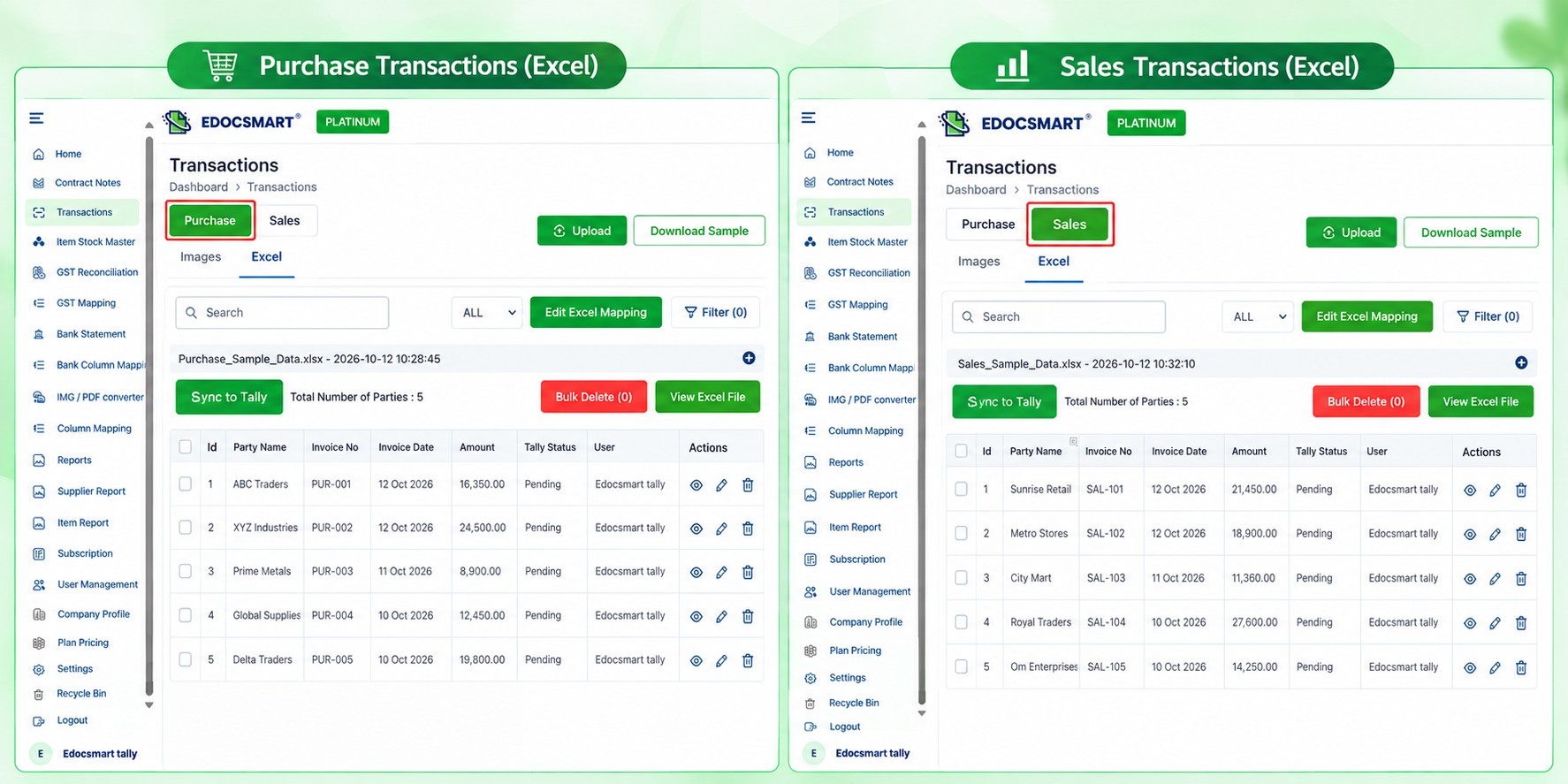
Keep purchase and sales workflows separate so that each file is processed using the correct voucher configuration.
Step 2: Upload the Bulk Purchase Excel File
Select Purchase → Excel and click Upload.
Choose the Excel workbook containing your supplier purchase transactions.
If the upload form requests the header row number, enter the row containing the spreadsheet column names.
Complete the upload using the actual Upload control.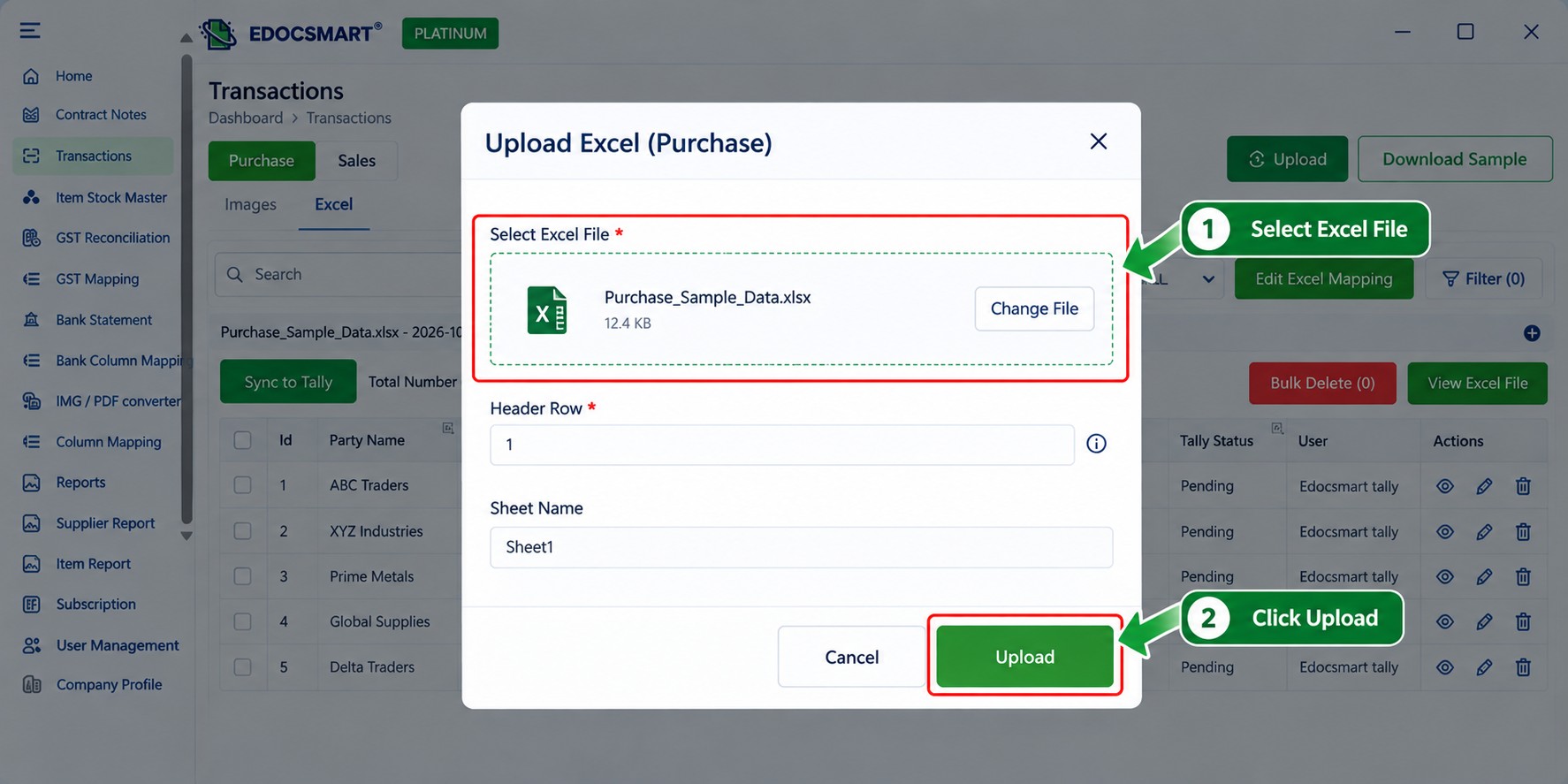
Once processed, the uploaded file and its transaction records can be accessed from the Excel transaction list.
Step 3: Configure Purchase Voucher Column Mapping
Open Edit Excel Mapping to associate the purchase spreadsheet headers with the relevant system fields.
For example:
| Purchase Excel Header | Accounting Field |
|---|---|
| Purchase Bill No | Invoice Number |
| Purchase Date | Invoice Date |
| Supplier Name | Party Name |
| Material Name | Item Description |
| Purchased Quantity | Quantity |
| Unit Price | Rate |
| GST Rate | GST % |
| Total Bill Value | Grand Total |
These are explanatory mappings; select the actual field labels available in Edocsmart.
The mapping interface also includes settings for ledger defaults, stock groups, narration, and voucher numbering.
Verify that the appropriate purchase ledger and tax ledger settings are configured.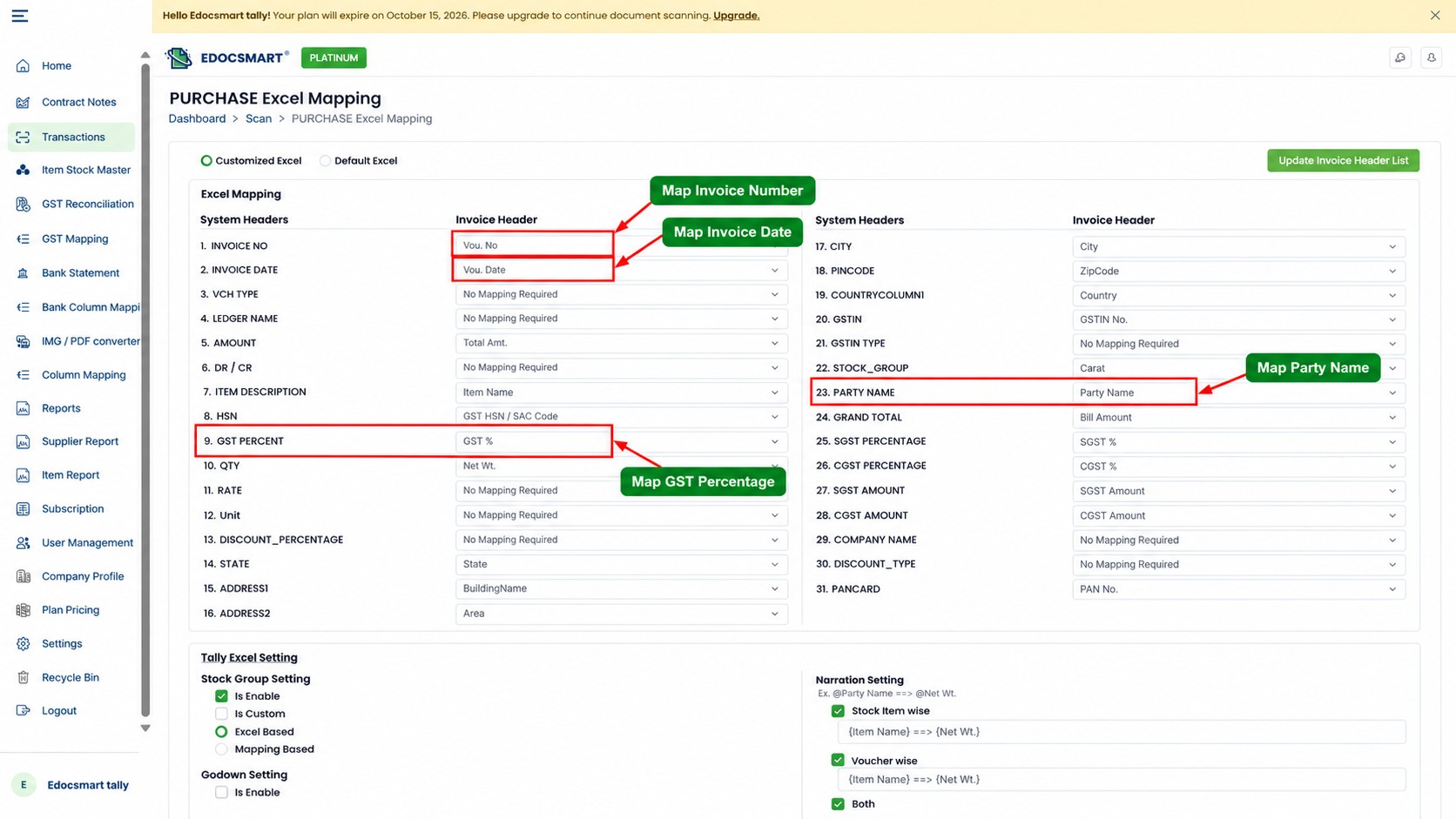
For recurring Excel files with compatible headers, saved mappings can reduce repeated setup.
Step 4: Upload and Map the Bulk Sales Excel File
Return to Transactions and select Sales → Excel.
Upload the workbook containing your sales transactions.
Configure the sales mapping according to the available Sales Excel Mapping interface.
Sales files may contain customer names, invoice numbers, stock items, quantities, rates, and GST details.
Ensure that the selected fields and accounting settings correspond to sales vouchers rather than purchase vouchers.
For businesses exporting recurring monthly sales reports from an ERP or billing application, a saved compatible mapping can help maintain consistency across imports.
Step 5: Process Multiple Invoice Rows Correctly
This is one of the most important parts of bulk voucher import.
Consider the following Excel data:
| Invoice No | Item | Quantity |
|---|---|---|
| SAL-301 | Steel Rod | 10 |
| SAL-301 | Copper Wire | 5 |
| SAL-301 | Packing Box | 20 |
| SAL-302 | Steel Rod | 15 |
The first three rows belong to invoice SAL-301.
They should normally be represented as three item lines within one sales voucher, not three separate vouchers.
The fourth row belongs to another invoice, SAL-302.
In Edocsmart's configured bulk-sales workflow, rows belonging to the same invoice can be grouped into individual invoice-level records for review.
The grouping logic must use the appropriate transaction identifiers. A voucher number alone may not be sufficient if the source data contains duplicate numbers across periods, companies, or voucher types.
Before continuing, confirm that the generated document count and invoice grouping match the source workbook.
Step 6: Review Purchase and Sales Voucher Details
After the Excel data has been processed, open the generated transaction records.
Review the following information:
Party or supplier name
Invoice number and date
Voucher type
Stock item description
Quantity and rate
Taxable value
CGST, SGST, or IGST information
Grand total amount
For example, if an invoice contains three items, verify that all three appear under the same generated transaction.
Also confirm that the correct customer or supplier ledger will be used.
Edocsmart's review interface allows users to inspect transaction information before synchronization.
Correct any identified problems before approving the vouchers.
Step 7: Verify Tally Ledgers and Stock Masters
Before synchronizing a large batch, check the required accounting masters in Tally Prime.
These may include customer and supplier ledgers, purchase and sales ledgers, GST ledgers, stock items, and units of measurement.
For example, an Excel file may contain a supplier named "ABC Metal Suppliers," while Tally stores the ledger under a different name.
The correct ledger must be identified before the transaction is posted.
Where the relevant Edocsmart feature is enabled and configured, supported missing ledgers or stock items may be created during the import workflow.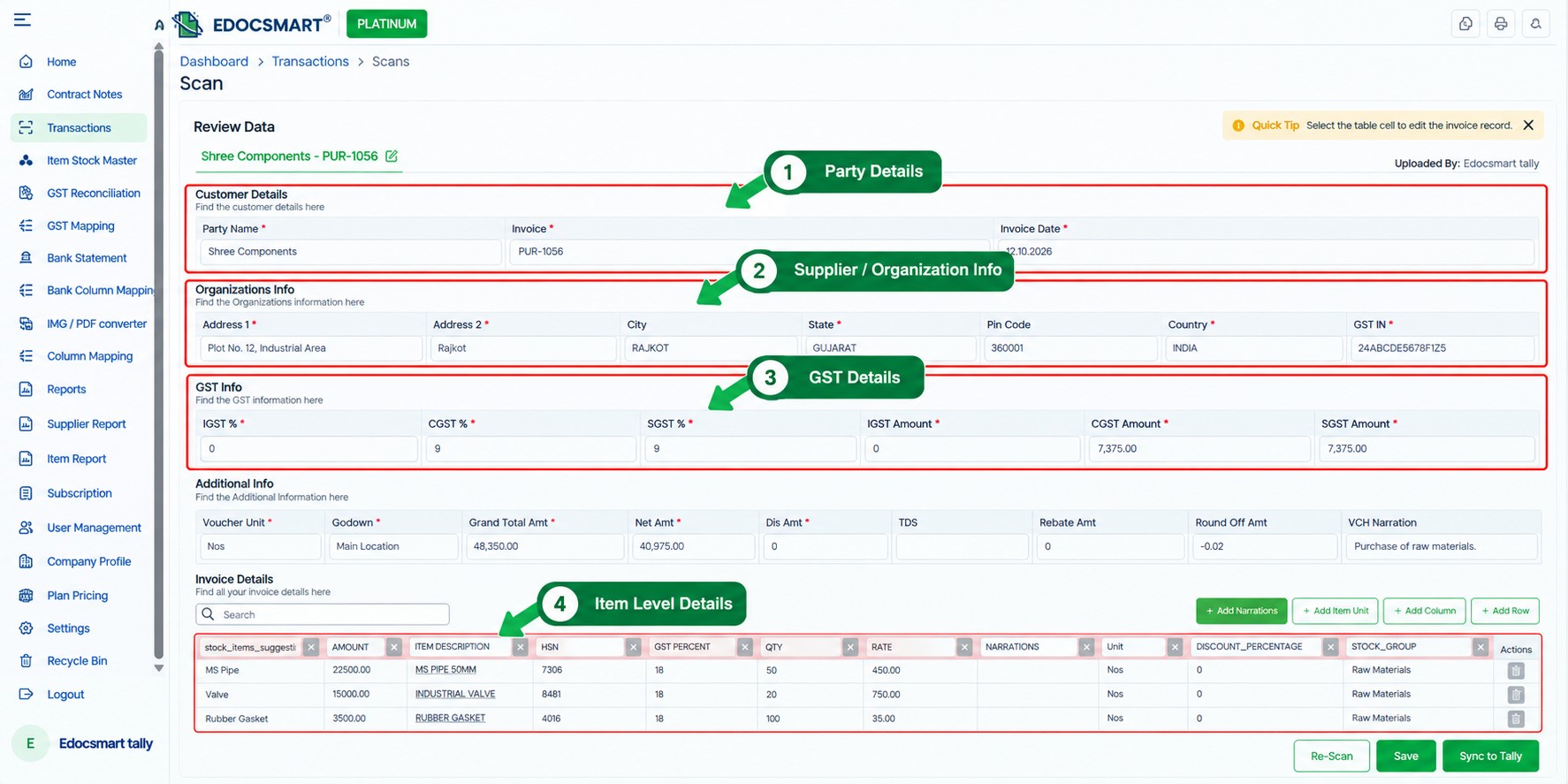
However, automatic master creation should be used carefully to avoid duplicate or incorrectly classified records.
Step 8: Connect Edocsmart with Tally Prime
Open Tally Prime and load the company into which you want to import the vouchers.
Start the Edocsmart Tally Connector.
Confirm that the connector displays a successful connection status.
Depending on the configuration, use Sync Masters when the workflow requires accounting master information to be synchronized.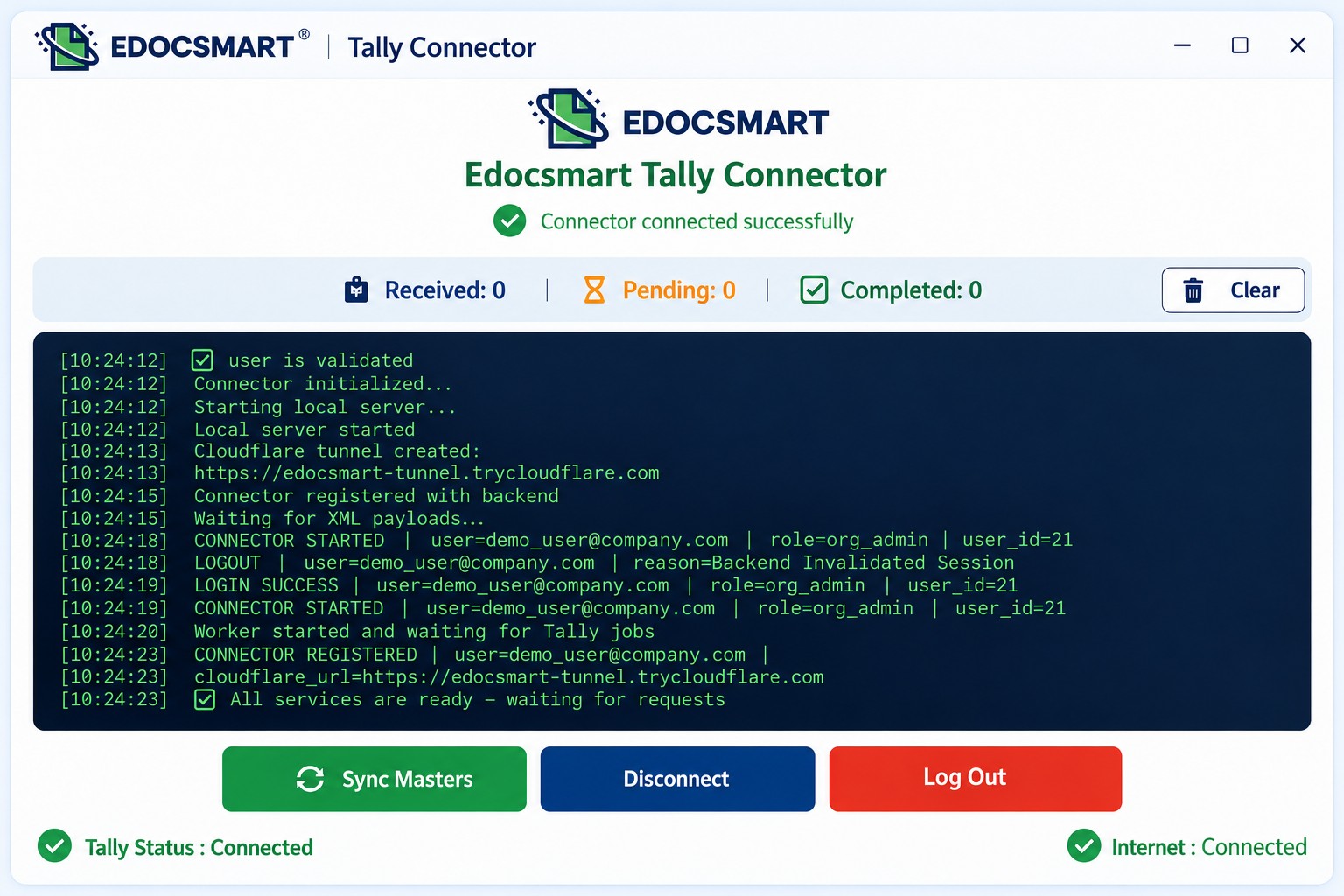
Make sure the intended Tally company is selected and available before transferring transactions.
Step 9: Select and Sync the Approved Vouchers
Return to the Excel transaction list in Edocsmart.
Select the approved purchase or sales records using the available selection controls.
Click Sync to Tally to transfer the selected transactions through the configured connector.
Depending on the account configuration, processing limits and synchronization behavior may vary.
Do not assume that every uploaded transaction has been imported simply because the Excel file was uploaded successfully.
Check the synchronization results and resolve any failed transactions before proceeding.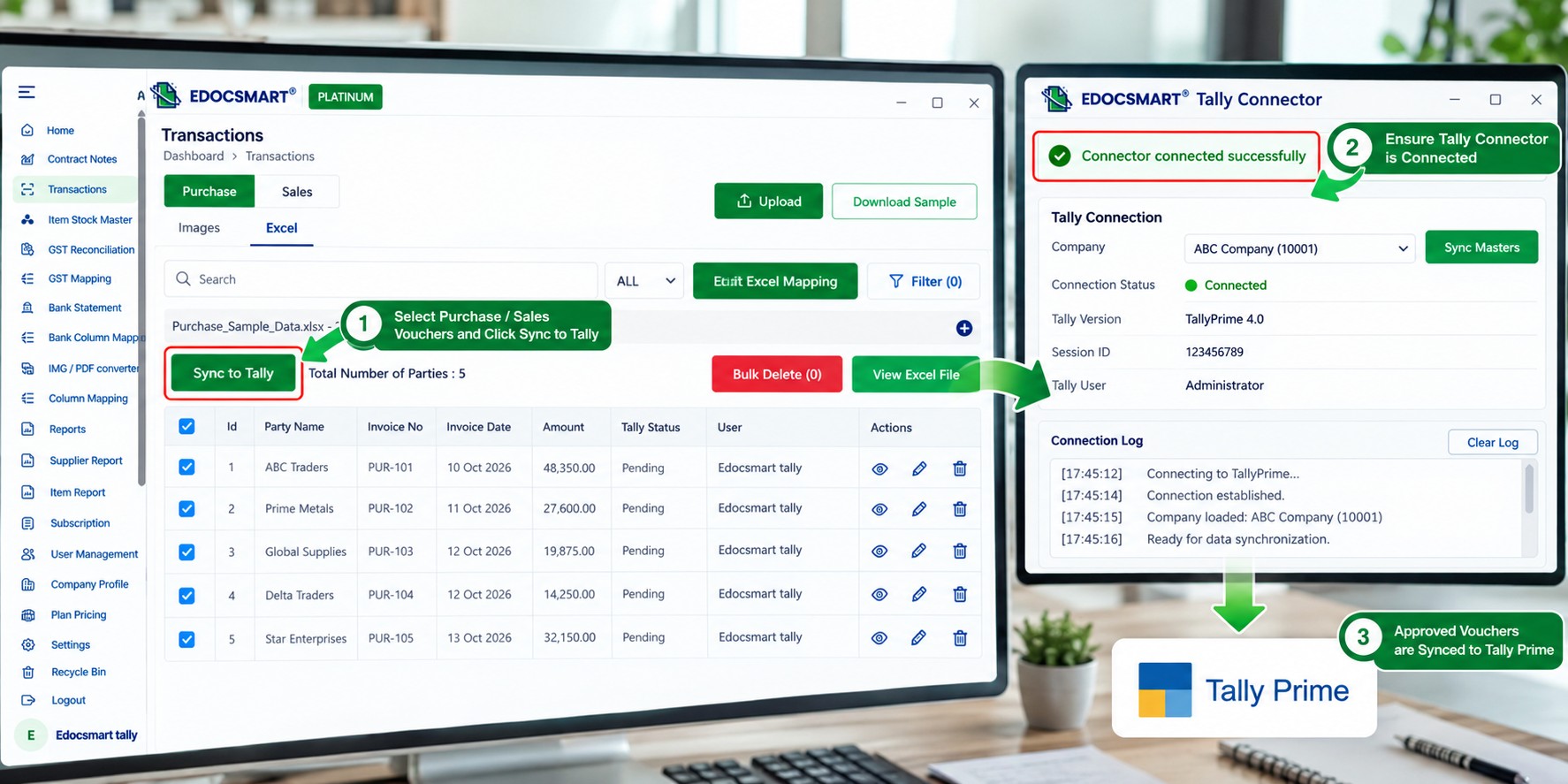
Step 10: Verify the Imported Vouchers in Tally Prime
After synchronization, open Tally Prime and review the imported transactions.
Use the relevant voucher reports or Day Book to locate the entries.
Check the number of created vouchers, voucher dates, party ledgers, item quantities, GST amounts, and totals.
Compare the imported records with the source Excel files.
For example, if the source workbook contains 180 unique purchase invoices, verify that the expected number of purchase vouchers has been created, accounting for any failed, excluded, or duplicate transactions.
This final reconciliation is essential for reliable bulk accounting imports.
Can You Import Multiple Purchase and Sales Vouchers Directly into Tally Prime?
Yes. Supported TallyPrime releases include native Excel import functionality.
Users can create mapping templates for Excel transaction data and import vouchers directly into TallyPrime.
For a user-defined Excel file, the general process is:
Open Alt+O (Import) → Manage → Mapping Templates → Transactions → Create.
Select the Excel file and configure the relevant worksheet and column mappings.
Save the mapping template.
Open Alt+O (Import) → Transactions.
Select the Excel file and appropriate mapping template.
Preview the import summary and proceed with the import.
Review the imported vouchers and any exceptions.
The exact fields and options depend on the TallyPrime release and transaction structure.
TallyPrime supports mapping transaction data stored across multiple rows or columns, provided the mapping is configured correctly.
For official instructions, see TallyHelp's Excel import guide.
Bulk Purchase Import vs Bulk Sales Import in Tally Prime
| Feature | Bulk Purchase Import | Bulk Sales Import |
|---|---|---|
| Source data | Supplier purchase bills | Customer sales invoices |
| Voucher type | Purchase | Sales |
| Party ledger | Supplier | Customer |
| Main accounting ledger | Purchase ledger | Sales ledger |
| Inventory details | Purchased items | Sold items |
| GST treatment | Applicable input tax | Applicable output tax |
| Main verification | Supplier, purchases, tax | Customer, sales, tax |
| Final output | Purchase vouchers | Sales vouchers |
Although both workflows begin with Excel, they should not use the wrong accounting configuration.
How to Handle GST During Bulk Voucher Import
GST information should be reviewed carefully when importing purchase and sales vouchers.
For intra-state transactions, CGST and SGST may apply. For inter-state transactions, IGST may apply, depending on the transaction and applicable tax rules.
The spreadsheet should contain the information required to determine the correct treatment.
This may include GSTIN, place of supply, taxable amount, applicable tax rate, and tax amounts.
The relevant Tally ledgers and GST configuration must also be correct.
For example, a transaction with an 18% GST rate does not automatically mean that every voucher should use the same tax ledger combination.
Verify the transaction type and applicable GST treatment before importing the batch.
Common Errors When Importing Bulk Excel Vouchers into Tally Prime
| Problem | Possible Cause | Recommended Solution |
|---|---|---|
| Some vouchers are missing | Invalid or skipped records | Compare source and processed counts |
| Duplicate vouchers appear | Same invoice imported twice | Check existing voucher numbers and dates |
| Wrong voucher type | Purchase/sales configuration mismatch | Verify transaction type |
| Ledger not found | Missing or mismatched master | Check Tally ledger names |
| Item rows split incorrectly | Incorrect invoice grouping | Review grouping fields |
| GST amount mismatch | Wrong mapping or tax configuration | Verify GST fields and ledgers |
| Voucher total mismatch | Missing item or amount data | Reconcile source values |
| Sync fails | Connector or Tally issue | Check connection and error details |
Bulk imports should be tested with a small batch before processing an entire accounting period.
Manual Voucher Entry vs Bulk Excel Import
| Comparison | Manual Voucher Entry | Bulk Excel Import |
|---|---|---|
| Transaction entry | Voucher by voucher | Multiple records processed |
| Excel preparation | Manual reference | Structured file upload |
| Column mapping | Not applicable | Configurable mapping |
| Repeated monthly files | Repeated entry | Reusable mapping |
| Item-level handling | Manual input | Based on source structure and processing |
| Error review | During individual entry | Before and after import |
| Ledger verification | Required | Still required |
| Best suited for | Occasional transactions | Recurring transaction batches |
Bulk import reduces repetitive data entry, but it does not eliminate accounting verification.
Who Benefits from Bulk Purchase and Sales Voucher Automation?
Wholesale and Distribution Businesses
Wholesalers managing recurring supplier bills and customer invoices can prepare monthly transaction reports for bulk import.
Manufacturing Companies
Manufacturers can process supported purchase and sales data involving inventory items, quantities, and tax details.
Retail and E-commerce Businesses
Businesses exporting transaction data from billing systems, marketplaces, or ERPs can use a mapped import workflow to prepare accounting vouchers.
Accounting and Bookkeeping Firms
Accounting teams managing recurring client Excel files can reduce repetitive entry work while maintaining a review process.
Businesses Migrating Accounting Data
Organizations moving historical transactions from another system into Tally Prime can use structured imports, subject to data compatibility and verification.
Best Practices for Importing Hundreds of Excel Vouchers
Before processing a large workbook, remove unnecessary blank rows and confirm that all required columns are present.
Check for duplicate invoice numbers, incorrect dates, missing ledger references, and invalid tax values.
Ensure that multiple rows belonging to the same invoice are grouped correctly.
Test a small set of purchase and sales vouchers first.
After synchronization, reconcile the number of imported vouchers and their accounting totals against the original workbook.
Keep a backup of your Tally company data before performing major bulk imports.
Frequently Asked Questions (FAQs)
1. How do I import bulk purchase and sales vouchers from Excel into Tally Prime?
Upload the purchase or sales Excel file into a supported import workflow, map the required fields, verify transaction details, and import the records. Edocsmart supports a mapped, review-based process followed by connector synchronization.
2. Can I import hundreds of vouchers into Tally Prime at once?
Yes, bulk import workflows are designed for multiple transactions. The number processed per batch depends on the software, configuration, file structure, and applicable limits. Always verify the final imported voucher count.
3. Can I import purchase vouchers from Excel without manual entry?
Yes. You can use TallyPrime's supported Excel import functionality or a compatible third-party workflow such as Edocsmart to prepare purchase transactions and reduce repetitive manual voucher creation.
4. How can I import bulk sales invoices from Excel into Tally Prime?
Upload the sales workbook, configure the sales voucher mappings, verify invoice-level records, and import or synchronize the approved transactions. Ensure customer ledgers, item details, and tax information are correct.
5. Can multiple Excel rows create one Tally voucher?
Yes, when the import configuration supports grouping related rows. For example, multiple item lines with the same invoice identifier can form one voucher rather than separate accounting transactions.
6. Do I need a fixed Excel format for bulk Tally import?
Not always. TallyPrime and compatible tools support mapping user-defined Excel formats. The spreadsheet must still contain the necessary information and follow a structure supported by the selected import workflow.
7. Can I import GST purchase and sales vouchers from Excel?
Yes, provided the import configuration supports the relevant GST fields and voucher types. Verify tax rates, taxable amounts, place of supply, and the appropriate tax ledger configuration before importing.
8. What happens if a customer or supplier ledger is missing in Tally?
The import may fail or require the missing master to be created. Some configured workflows support automatic master creation, but ledger names and classifications should be verified to avoid incorrect or duplicate records.
9. How do I prevent duplicate vouchers during bulk Excel import?
Check invoice numbers, voucher dates, party names, and existing transactions before importing. Use the available duplicate-checking or unique-identifier configuration and reconcile the imported results afterward.
10. Can I review vouchers before syncing them to Tally Prime?
Yes. Edocsmart provides a transaction review workflow where users can inspect generated invoice details before selecting approved records for synchronization.
Conclusion: Import Purchase and Sales Vouchers in Bulk Without Re-entering Every Transaction
A large Excel workbook may contain hundreds of accounting transactions, but those transactions still need to become correctly structured vouchers in Tally Prime.
The key is not merely importing the spreadsheet. It is ensuring that each purchase and sales record has the right voucher type, ledger references, inventory information, GST values, and transaction totals.
With Edocsmart, businesses can upload structured Excel data, configure mappings, review generated documents, and synchronize approved transactions through the Tally Connector.
This helps reduce repetitive voucher entry while retaining important accounting checks.
Whether your business processes recurring supplier purchases, monthly sales reports, or bulk ERP exports, a mapped Excel-to-Tally workflow can make voucher processing more consistent.
Explore Edocsmart Excel to Tally Software to learn how to import bulk purchase and sales vouchers into Tally Prime.