How to Import Payment Vouchers from Excel into Tally
Import payment records from Excel into Tally with Edocsmart. Organize supplier payments, expense entries, cash and bank details, and transfer approved Payment Vouchers through the Edocsmart Tally Connector.
A business may already maintain supplier payments, office expenses, bank payments and other outgoing transactions in Excel.
The information is available, but the same payment details still need to be recorded in Tally. Entering every payment manually can become repetitive when the number of transactions increases.
The real task is not simply copying Excel rows into Tally. It is converting the payment information into the correct Payment Voucher.
That is where an Excel-to-Tally workflow becomes useful.
Start with the Payment Voucher Type
Before preparing payment data, understand which transactions should be recorded through a Payment Voucher.
In Tally, a Payment Voucher is generally used when money goes out of the business through cash or bank.
For example:
Supplier payment → Payment Voucher
Office rent payment → Payment Voucher
Electricity bill payment → Payment Voucher
Salary payment → Payment Voucher
Cash or bank expenses → Payment Voucher
Customer payments received by the business are generally recorded through Receipt Vouchers, not Payment Vouchers.
Selecting the correct voucher type is important because it determines how the transaction will be recorded in Tally.
What Information Is Needed to Create a Payment Voucher?
The required information depends on the nature of the payment, but an Excel file may contain:
Voucher Number
Payment Date
Party or Expense Ledger
Cash or Bank Ledger
Payment Amount
Payment Mode
Bill Reference
Cheque or Transaction Number
Narration
Each field has a specific purpose in the final voucher.
For example:
Payment to → Party Ledger
Paid From → Cash / Bank Ledger
Payment Date → Voucher Date
Amount → Payment Amount
Bill Number → Bill-wise Reference
Narration → Payment Description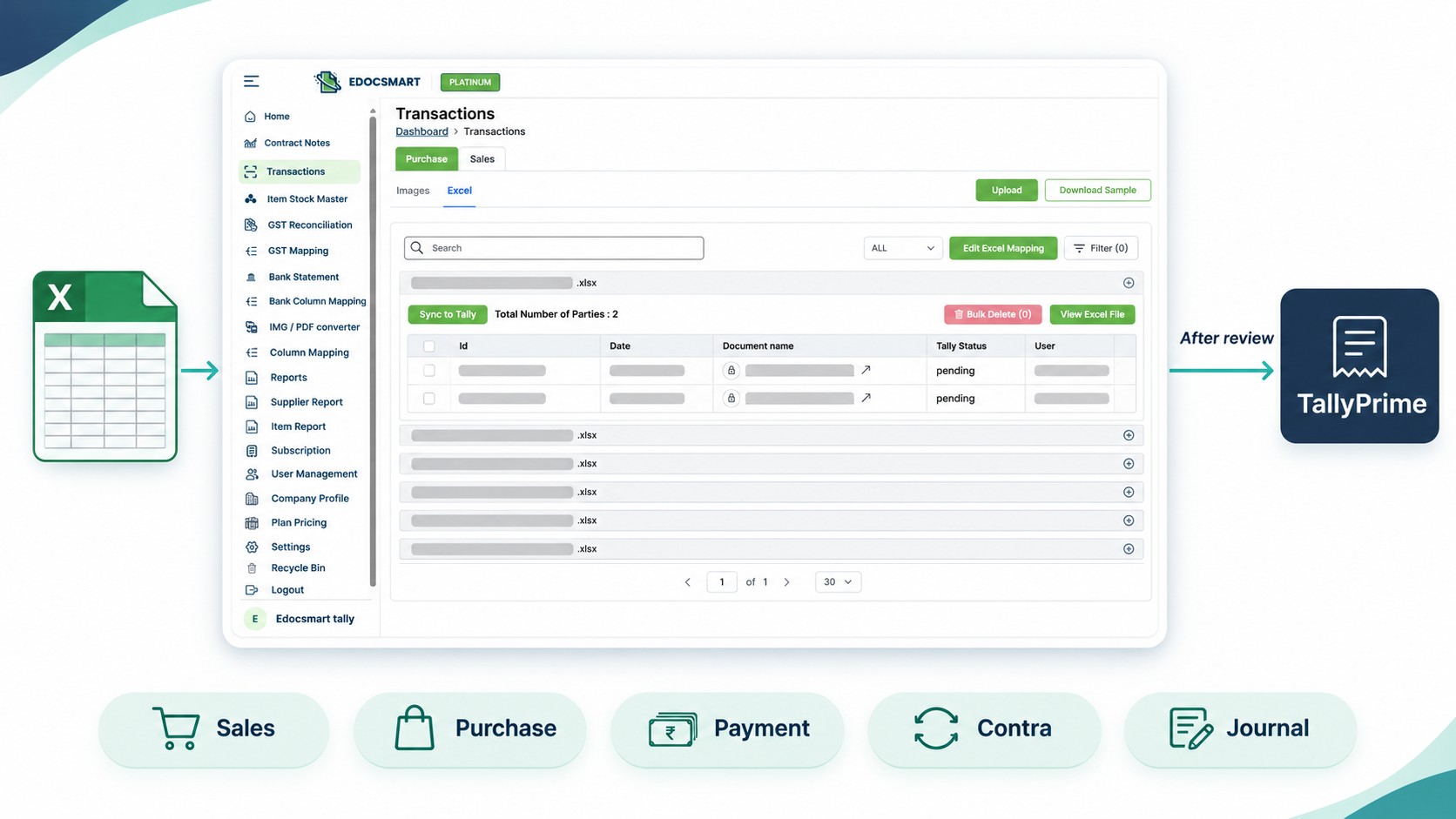
Creating a Supplier Payment Voucher from Excel
Suppose a business pays ₹28,500 to ABC Traders through HDFC Bank against an outstanding purchase bill.
The Excel file may contain:
Voucher No: PV-201
Date: 05-04-2026
Supplier: ABC Traders
Bank: HDFC Bank
Amount: ₹28,500
Bill Reference: PB-104
The corresponding accounting entry is:
Debit → ABC Traders: ₹28,500
Credit → HDFC Bank: ₹28,500
When recording this payment in Tally, the supplier ledger and relevant outstanding bill reference should be selected wherever bill-wise tracking is enabled.
This helps maintain a clear record of which supplier bill has been settled.
Creating an Expense Payment Voucher from Excel
Payment vouchers are also used for regular business expenses.
Consider a company paying ₹15,000 as office rent through its bank account.
The Excel record may contain:
Voucher No: PV-202
Date: 06-04-2026
Expense Ledger: Office Rent
Bank Ledger: HDFC Bank
Amount: ₹15,000
The accounting entry becomes:
Debit → Office Rent: ₹15,000
Credit → HDFC Bank: ₹15,000
The transaction is recorded as a Payment Voucher, but the debit ledger is an expense account rather than a supplier ledger.
This is why the correct ledger mapping matters.
One Payment Voucher Can Include Multiple Details
A payment does not always relate to just one expense or one bill.
For example, a supplier payment may settle more than one outstanding bill. Similarly, a business may record multiple expense or party ledger entries in a voucher, depending on the payment and accounting setup.
An Excel file should preserve the correct voucher reference and relevant bill allocation details.
The goal is to make sure the resulting Payment Voucher reflects the actual payment made by the business.
What Happens When Ledger Names Are Different?
Sometimes the ledger names in Excel do not exactly match the names maintained in Tally.
For example:
Excel: ABC Traders
Tally: ABC Traders Pvt. Ltd.
Both may represent the same supplier, but the names are different.
The source value needs to be connected with the correct Tally ledger before the transaction is synchronized.
The same applies to:
Supplier Ledgers
Expense Ledgers
Cash Accounts
Bank Accounts
Correct ledger mapping helps prevent payments from being recorded under the wrong account.
How Bank Details Become Part of the Payment Voucher
When a payment is made through a bank account, the accounting entry may also require bank allocation details.
Depending on the payment mode, these details can include:
Bank Name
Cheque Number
Instrument Date
Transaction Reference
Bank Date
Amount
For example, a cheque payment requires the relevant cheque number and date in the bank allocation details.
Similarly, an electronic transfer may require its transaction reference.
The exact details depend on the payment mode and the configured Tally voucher structure.
How a Payment Voucher Is Prepared from Excel Data
Once the payment type and required fields are understood, the Excel record can be prepared for Tally.
Consider this example:
| Field | Payment Details |
|---|---|
| Voucher Type | Payment |
| Voucher No. | PV-301 |
| Date | 08-04-2026 |
| Party Ledger | XYZ Suppliers |
| Bank Ledger | ICICI Bank |
| Amount | ₹42,000 |
| Payment Mode | NEFT |
| Narration | Supplier payment |
The important question is not whether every Excel cell has been copied.
The important question is whether the final record represents the correct payment transaction in Tally.
Common Problems That Can Affect Payment Voucher Creation
Even when payment data is available in Excel, certain issues can affect the final voucher.
Common examples include:
Missing voucher number
Incorrect payment date
Party ledger not mapped
Wrong cash or bank account selected
Debit and credit amounts incorrectly assigned
Missing bill reference
Incorrect cheque or transaction details
Duplicate payment records
Incorrect narration
These details should be checked before transferring the records to Tally.
Where Edocsmart Fits into Payment Voucher Creation
Edocsmart helps businesses process structured Excel payment data before it reaches Tally.
Instead of manually recreating every payment voucher, the existing Excel information can be mapped with the corresponding payment fields.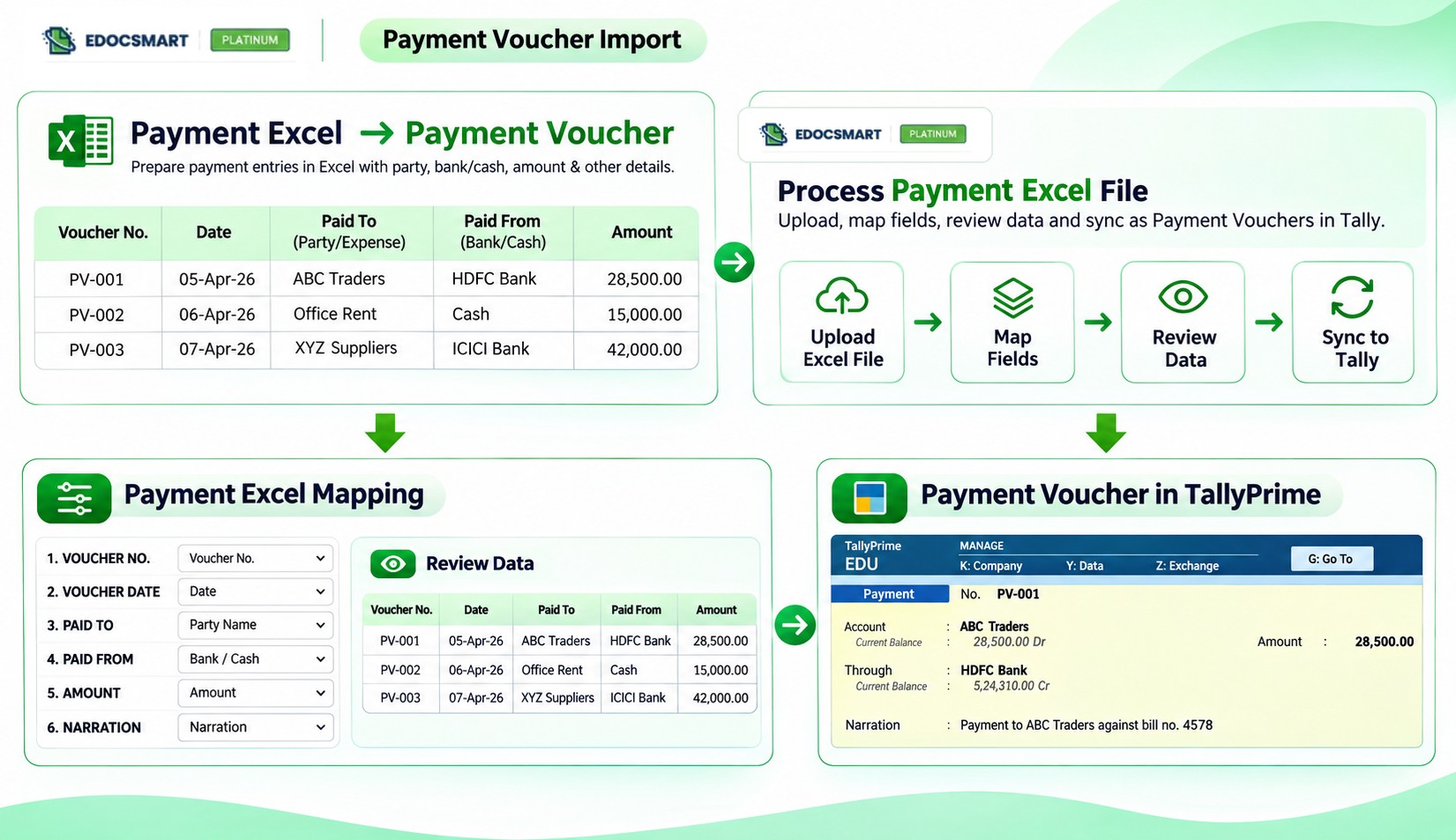
After the required mapping, the prepared payment records can be reviewed and approved.
The selected vouchers can then be synchronized with Tally through the configured Edocsmart Tally Connector.
Excel Data → Field Mapping → Payment Voucher Preparation → Review → Tally Sync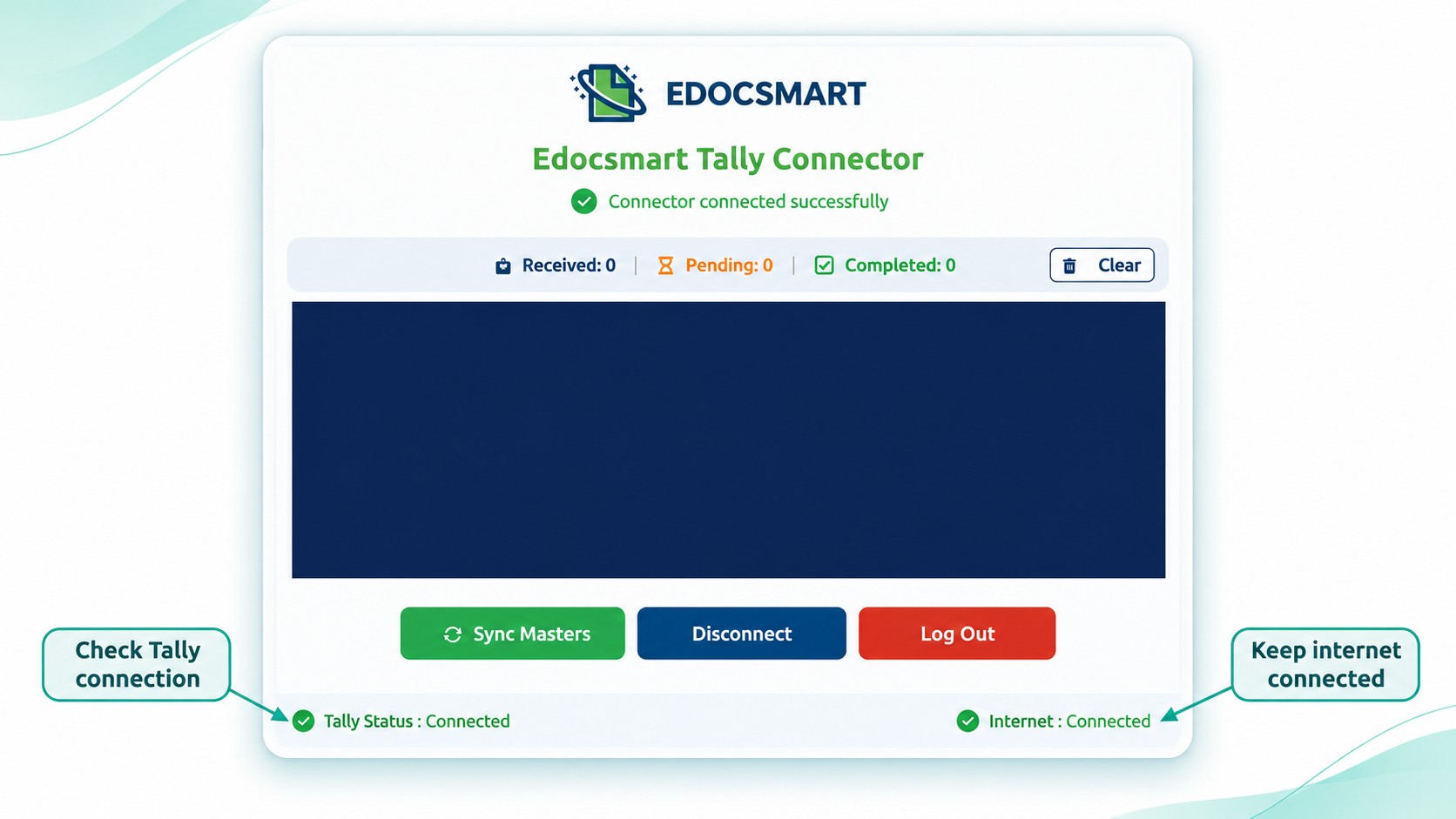
When Is Excel-to-Tally Payment Import Useful?
This workflow is particularly useful when payment information is already maintained in:
Supplier Payment Registers
Expense Reports
ERP Exports
Monthly Payment Statements
Branch-wise Payment Files
Accounting Workbooks
Instead of entering the same payment information again, businesses can use their existing Excel data as the source for Payment Voucher creation.
Benefits of Importing Payment Vouchers from Excel
Processing payment data through a structured workflow can help with:
Faster payment voucher preparation
Reduced repetitive data entry
Consistent ledger mapping
Better handling of multiple payment records
Easier review before synchronization
More organized payment records
The biggest advantage is that accountants can spend more time verifying payments rather than repeatedly typing the same information.
FAQs
Can I create Payment Vouchers from Excel in Tally?
Yes. Structured Excel payment records can be mapped to the required Payment Voucher fields and processed through a configured Excel-to-Tally workflow.
Can multiple payment records be imported from one Excel file?
Yes. One Excel workbook can contain multiple payment transactions, which can be prepared as individual vouchers when the records are structured and mapped correctly.
Do I need to include bank details in Excel?
Bank details are required where the payment mode and Tally configuration need them. For example, cheque payments may require cheque number, instrument date and bank name.
Can I record supplier payments against outstanding bills?
Yes. TallyPrime supports bill-wise allocation for payments. The relevant outstanding bill reference can be selected while recording the payment.
Can I review payment records before syncing them to Tally?
Yes. Edocsmart provides a review stage where prepared payment records can be checked before synchronization.
Conclusion
Creating Payment Vouchers from Excel is not simply about transferring payment amounts into Tally.
Each transaction must identify the correct party or expense ledger, cash or bank account, payment date and relevant bank or bill details.
Once these relationships are correctly prepared and verified, existing Excel payment data can be used to create structured Payment Vouchers without repeatedly entering the same information manually.
With Edocsmart, businesses can organize their payment records through mapping, review and synchronization using the Tally Connector.
Excel Payment Data → Payment Voucher → Review → Tally
Explore the Edocsmart Excel to Tally solution to learn more.