Invoice Date vs Entry Date: Which Date Should You Use in Tally?
Understand invoice date vs entry date in Tally, how they differ, and what to check when mapping Excel date columns before importing your records.
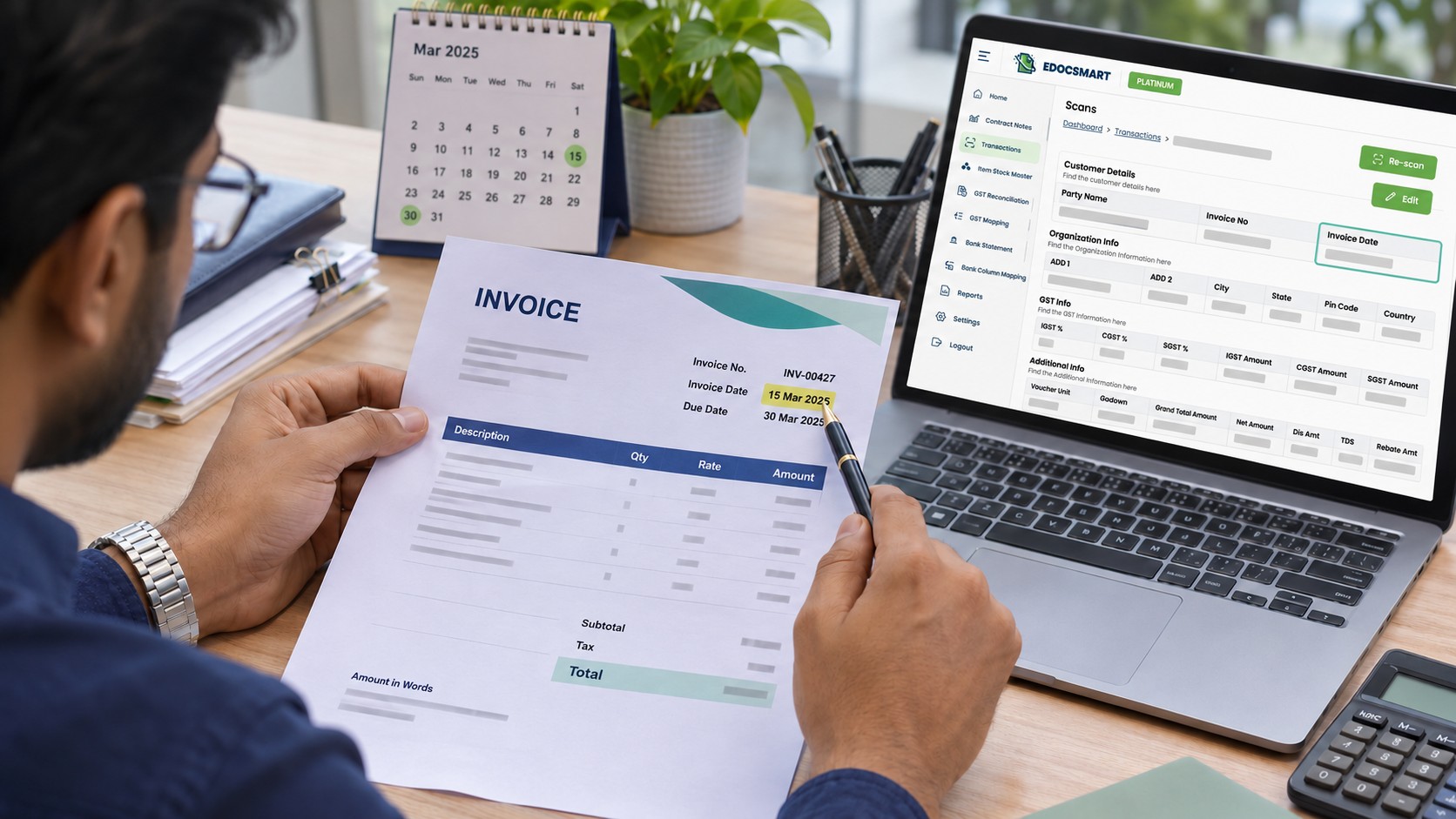
An Excel report may contain an invoice date, a posting date, and the date someone entered the record. These dates can be different, especially when invoices arrive late or records are imported in batches.
Before selecting a date column for Tally, check what it represents. The date printed on an invoice and the day you upload its details serve different purposes.
Understand the Different Dates
| Date | What it means |
|---|---|
| Invoice date | The date shown on the original invoice. |
| Voucher date | The accounting date assigned to the voucher in Tally. |
| Entry or creation date | The day the record was entered or created in a system. |
| Upload date | The day the Excel file was uploaded for processing. |
The heading “Entry Date” can be unclear. In one report, it may mean the accounting date. In another, it may be a system-generated timestamp. Read the values and confirm their meaning before using the column.
TallyPrime purchase entry includes supplier invoice number and date fields for recording the details from the supplier’s invoice. TallyHelp
A Simple Example
Suppose a supplier issues an invoice on 30 October. Your teams receives it on 2 November and enters the details on 3 November.
| Detail | Date |
|---|---|
| Supplier’s invoice date | 30 October 2026 |
| Date received | 2 November 2026 |
| Date entered | 3 November 2026 |
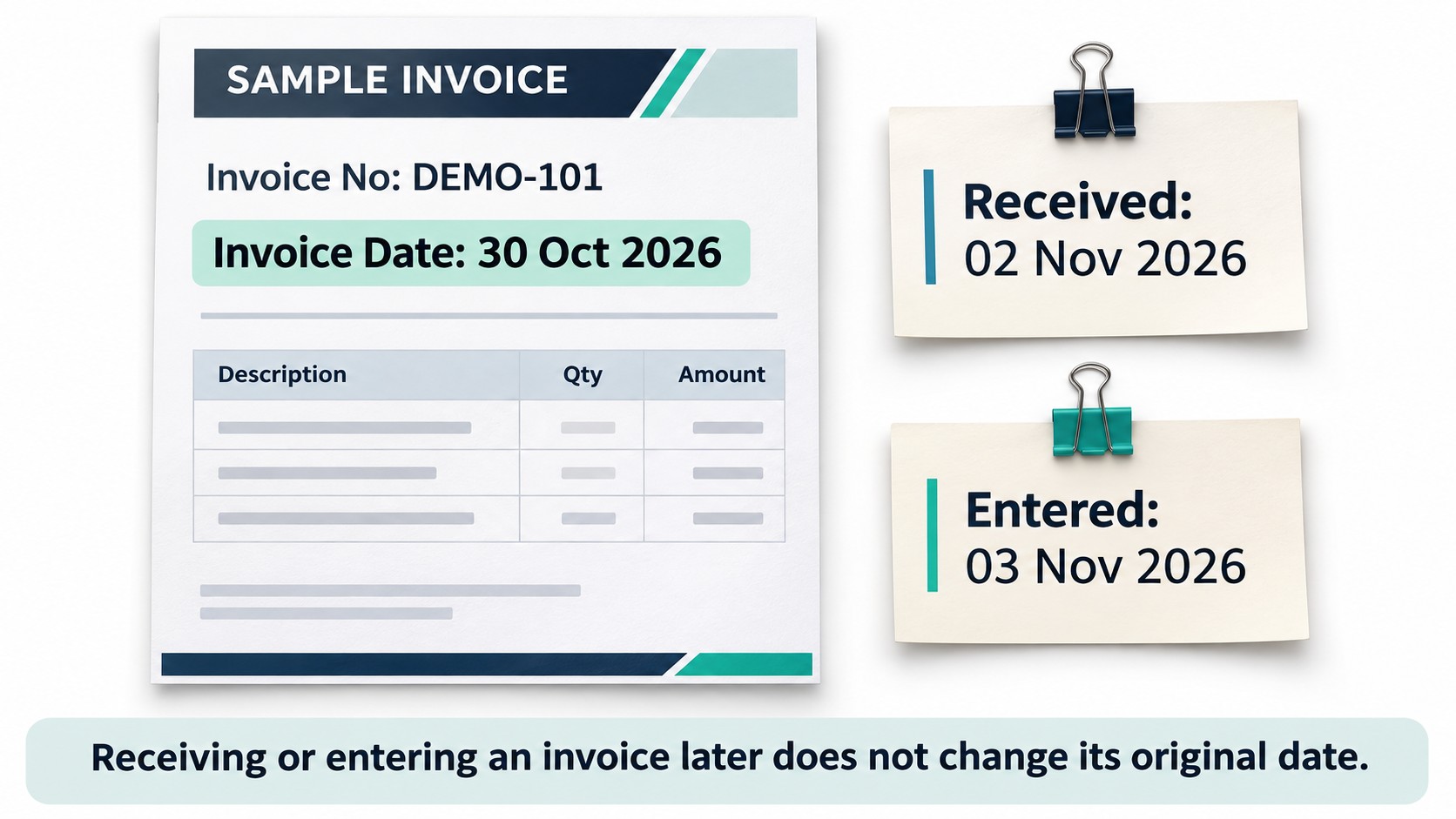
The supplier’s invoice date remains 30 October. Receiving or entering the invoice later does not change the date printed on the document.
The voucher date needs a separate decision based on the transaction, your accounting policy, and the relevant period controls. Do not automatically use 3 November simply because that is when someone entered the data.
What to Check Before Importing
1. Compare the Date with the Original Invoice
Start with the source document. Confirm that the invoice date in Excel matches the date printed on the bill.
If the report contains several date columns, identify each one. “Bill Date,” “Document Date,” “Posting Date,” and “Created On” should not be treated as interchangeable without checking.
2. Confirm the Intended Voucher Date
Decide which date the accounting entry should carry before processing the file.
Do not assume that the upload date should become the voucher date. Also, do not overwrite the original invoice date just to place an entry in a preferred month.
For a late invoice relating to a closed period, have the responsible accountant confirm the treatment before importing it.
3. Check the Excel Date Format
A date such as 04/05/2026 could mean 4 May or 5 April, depending on the source format.
Confirm the intended convention before converting the column. Changing a cell’s display format alone may not convert a text value into a valid date.
Use a consistent, supported format and inspect a few records whose dates could be interpreted differently.
4. Review the Date Mapping
During Excel to Tally import, check which source column supplies each required date field.
For example, mapping “Created On” to an invoice-date field could replace the original document date with a system-entry date.
If the workflow provides only one date mapping, confirm how that value is used in the resulting voucher. Do not assume that separate invoice and voucher dates are handled automatically.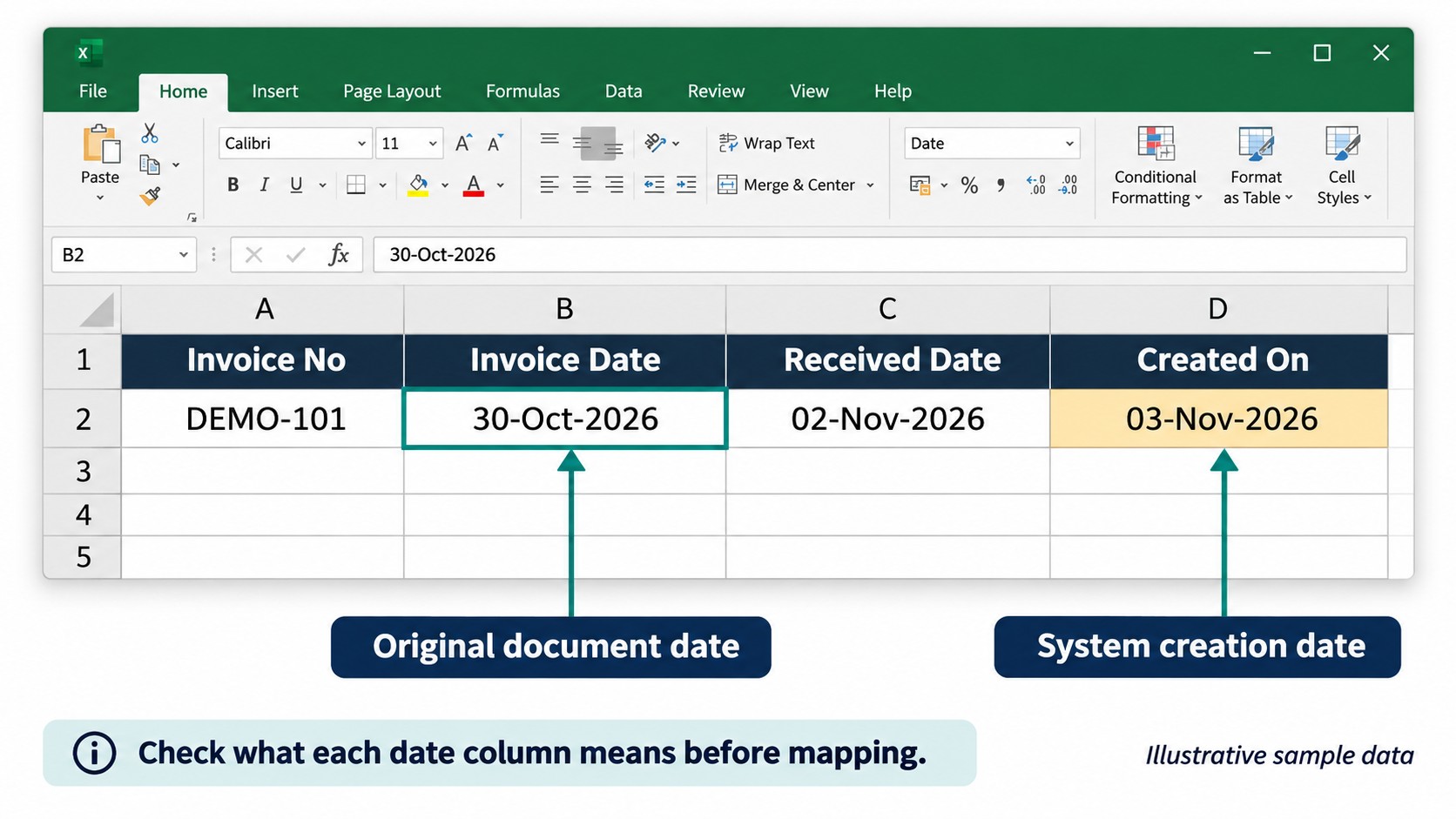
5. Test Records from Different Months
Include a normal invoice and a late-received invoice in your sample. If relevant, include records near a month-end or financial-year boundary.
After processing, compare the dates with Excel and the original documents before continuing with the remaining records.
Verify the Result in Tally
Open the resulting vouchers and check the voucher date and supplier invoice date where applicable. Review the relevant register using the intended reporting period.
If a record appears in an unexpected month, inspect the mapped date and its interpretation first. Check the existing voucher before importing the same record again.
FAQS
Should every invoice use today's date when imported?
No. The date of import does not automatically determine the appropriate accounting date.
Can the invoice date and voucher date be different?
They can represent different information. Preserve the original invoice details and confirm the appropriate voucher date for the transaction.
What if the excel reported has only one date column?
Confirm what that date means and how the import workflow user it before processing.
Conclusion
Choose dates according to their meaning. Preserve the original invoice date, confirm the intended voucher date, and check the result with a small sample.
Excel to Tally Software helps users prepare supported Excel records and review them before syncing selected entries. Check the available date mapping and resulting vouchers as part of that review.